
All apps · 0 apps

Stackyard
Docker app from SandObserver's Repository
Overview
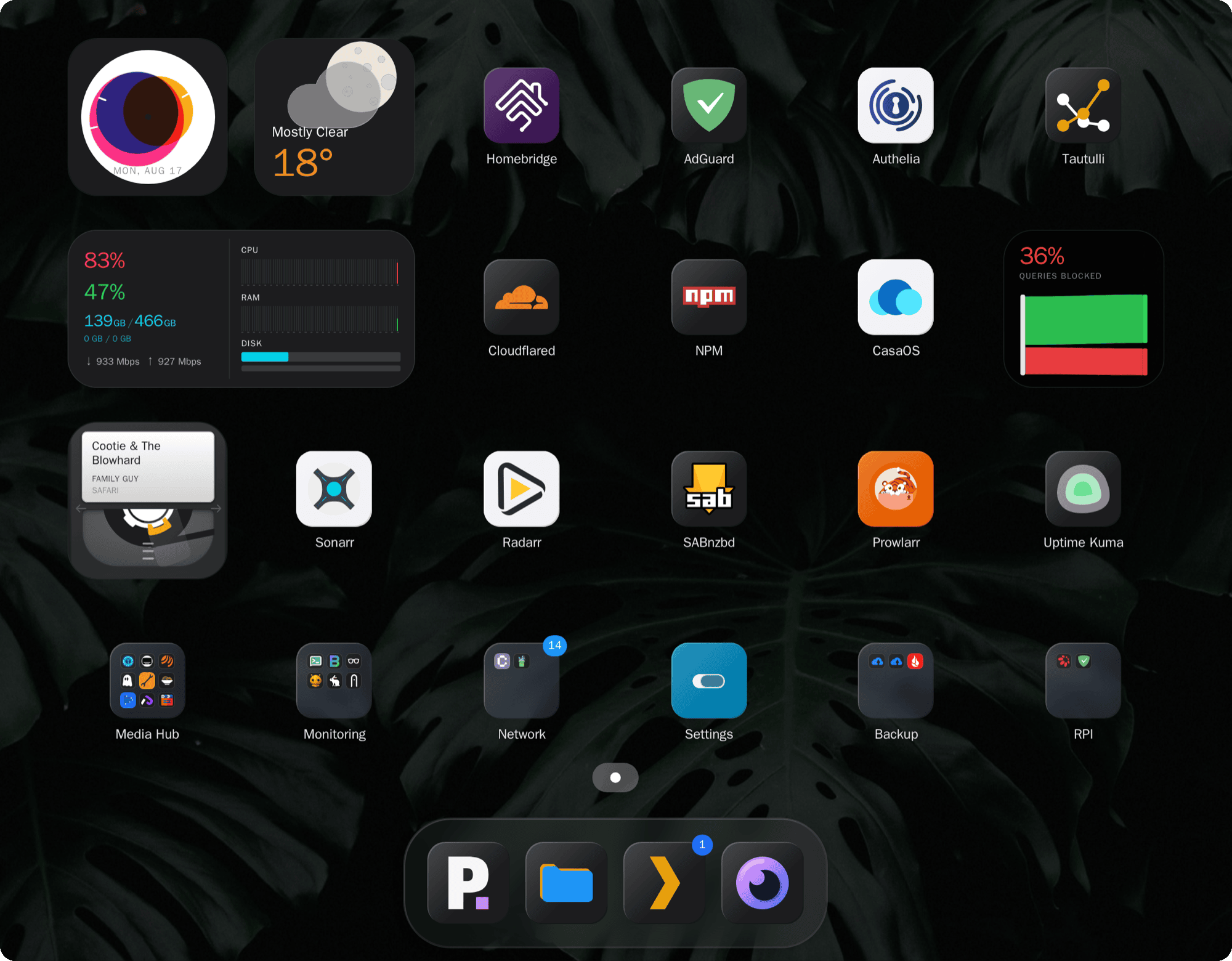
Most dashboards are a wall of numbers and charts. Stackyard is the opposite: a calm, launcher-style grid of app tiles, folders, and a small number of genuinely useful widgets. Built to be glanced at a hundred times a day without feeling cluttered.
Everything is set up from the browser. Add app tiles, group them into folders, arrange pages, and drop in widgets for the services you already run. Widgets cover Docker, system health, downloads, media, backups, network and more.
Runs as one container with no external database and no runtime dependencies. Configuration and uploaded icons persist in the two paths below.
Note: most homelab services live on private addresses. The Allow Private IPs setting below is on by default so links and widgets pointing at your other containers work. Turn it off to keep the SSRF guard enabled.
Readme
View on GitHubStackyard
A self-hosted homelab dashboard you actually want to look at.




Try it: demo.sandobserver.com
Note: The first demo visit may take up to a minute due to Render's free-tier cold start.
Most dashboards are a wall of numbers and charts. Stackyard is the opposite: a calm, launcher-style grid of app tiles, folders, and a small number of genuinely useful widgets, running in a single container. Built to be glanced at a hundred times a day without feeling cluttered.
Documentation: stackyard.sandobserver.com/docs
Why Stackyard
- Attention goes where it's needed, not everywhere at once. A calm grid, no charts or counters. Health badges only appear when something's wrong.
- A glance should tell you more than a number would. Widgets are small visuals, not readouts.
- Anything can be a badge. Point Stackyard at any API and show what it reports as a live activity badge. One poll can carry several labelled values, each with its own colour and threshold. No custom widget, no code.
- Configured by clicking, not by editing files. Everything is set up in the web UI, with config import and export.
- No dependencies. Review it once and stop worrying about the supply chain.
- Six languages, right-to-left included. Contrast and screen-reader labels are covered by tests.
- Installs like an app. A mobile layout that opens in its own window from a home screen. No offline mode: every tile is live.
Widgets
Widgets and the services they read:
- Clock
- Now Playing: Plex, Jellyfin, Emby, Navidrome
- Weather: Open-Meteo (no API key required) or OpenWeather (free API key)
- DNS: AdGuard, Pi-hole, Technitium, NextDNS
- GitHub: contribution graph and pull requests
- Books: Audiobookshelf, Komga, Kavita
- System summary: CPU, memory, disk, throughput, uptime, and network speed from SpeedTest Tracker or MySpeed. Reports on this machine, or on a host running Glances, Beszel or the Unraid API
- Disk health: TrueNAS, Scrutiny
- Backup: Duplicati, Kopia
- Connections: Gluetun, Psiphon Conduit, Netbird, Plausible, Umami
Each widget is documented at Widgets. Adding one is a folder plus one registry entry, with no changes to the rest of the app; see Build your first widget.
Getting started
You need Docker.
services:
  stackyard:
    image: ghcr.io/sandobserver/stackyard:latest
    container_name: stackyard
    restart: unless-stopped
    ports:
      - "8700:80"
    volumes:
      - ./data:/data
      - ./icons:/icons
docker compose up -d
Then open http://localhost:8700 and set everything up at /admin. Config and uploaded icons persist in ./data and ./icons.
On Unraid, install it from Community Apps.
The same image is on Docker Hub as sandobserver/stackyard. Prefer ghcr.io: it is the registry the release signature covers.
The repo's docker-compose.yml is the recommended version: it adds resource limits, dropped capabilities, and commented options for a reverse proxy, host access, and Docker health checks.
Full instructions, including building from source, are at Installation.
Documentation
- First setup
- Settings reference
- Badges
- Wallpaper and themes
- Widgets
- Build a widget
- Contributing
- Troubleshooting and Support
Security
Stackyard never returns stored secrets to the browser, guards the URLs you test in the admin UI against SSRF and pins the resolved IP, and bounds every upstream call so one slow service cannot hang the dashboard. Some features trade safety for convenience and are opt-in with warnings. Read Security before exposing Stackyard beyond your LAN.
Accessibility
Stackyard targets WCAG 2.2 level AA and is partially conformant. Every control is named and reachable by keyboard, colours meet the contrast minimum in both themes, and the interface honours the reduced-motion and increased-contrast settings. Known limitations and how this was assessed are in ACCESSIBILITY.md.
Contributing
Contributions are welcome, within the constraints that keep Stackyard small and auditable (one container, no backend dependencies, vanilla frontend). See Contributing. Participation is covered by the Code of Conduct. Who maintains Stackyard and how decisions are made is in GOVERNANCE.md.
Changelog
Notable changes are listed in CHANGELOG.md; per-release notes are on the GitHub Releases page.
License
Licensed under the Apache License 2.0. You are free to use, modify, fork, and build on Stackyard, including commercially. In return you must keep the existing copyright and attribution notices, and the license does not grant rights to the Stackyard name or logo: forks are welcome but must use their own name and not present themselves as the original project. See NOTICE.
Media gallery
1 / 5Install Stackyard on Unraid in a few clicks.
Find Stackyard in Community Apps on your Unraid server, review the template, and click Install. Unraid handles the Docker app or plugin setup from the published template.
Categories
Download Statistics
Related apps
Explore more like this
Explore allDetails
ghcr.io/sandobserver/stackyard:latestRuntime arguments
- Web UI
http://[IP]:[PORT:80]- Network
bridge- Privileged
- false
Template configuration
Port the dashboard is reached on.
- Target
- 80
- Default
- 8700
- Value
- 8700
Dashboard configuration. Keep this, or every setting is lost on update.
- Target
- /data
- Default
- /mnt/user/appdata/stackyard/data
- Value
- /mnt/user/appdata/stackyard/data
Icons you upload for your app tiles.
- Target
- /icons
- Default
- /mnt/user/appdata/stackyard/icons
- Value
- /mnt/user/appdata/stackyard/icons
Let widgets and badges reach private addresses, which most homelab services use. Set to false to keep the SSRF guard on.
- Target
- ALLOW_PRIVATE_IPS
- Default
- true
- Value
- true
Optional. Address of a Docker socket proxy, for the Docker widgets. Example: http://socket-proxy:2375
- Target
- SOCKET_PROXY_URL
Optional. Set to true when running behind a reverse proxy, so client addresses are read from the forwarded headers.
- Target
- TRUST_PROXY