

Plex-Poster-Helper-2
Docker app from Molexxx' Repository
Browse your Plex library and apply MediUX / ThePosterDB poster sets - follow creators, schedule weekly syncs, and reset posters.
Overview
Readme
View on GitHub

Plex Poster Set Helper 2
Find community poster art on MediUX and ThePosterDB and apply it to your Plex library in one click.
A desktop app for Windows and Linux, or a web app in Docker for always-on servers.


What it does
Pick a movie, show, or collection from your Plex library, browse every poster set the MediUX and ThePosterDB communities have made for it, and apply one with a click. Posters, season posters, episode title cards, backdrops, and collection art each land on the right item, and a schedule can keep them current as new episodes and uploads arrive.
Install
You need a Plex Media Server and a Plex account that can manage it.
| You want to | Use |
|---|---|
| Use it on your Windows or Linux PC | Desktop app |
| Keep schedules running 24/7 on a server or NAS, from any browser | Docker |
| Run it on Unraid | Unraid |
| Use it on a Mac | Docker, since there is no macOS desktop build |
Desktop app
- Download the installer for your system from the latest release. Both are 64-bit (x64) builds.
- Windows: the
.exeinstaller - Linux: the
.AppImageor the.deb
- Windows: the
- Install and launch it, then follow First run.
The app checks GitHub for new versions and updates itself with one click.
Docker
The Docker build runs the full app as a web page, and its schedules keep firing for as long as the container is up.
git clone https://github.com/molexxxx/plex-poster-set-helper-2.git
cd plex-poster-set-helper-2
./docker/run.sh
On Windows, run ./docker/run.ps1 in PowerShell for the last step. Then open http://localhost:3939 and sign in with Plex.
The script builds the image from your checkout and keeps your settings in a Docker volume. A prebuilt image, tonywied17/plex-poster-helper-2, is also published with every release. The Docker guide walks through each step and covers Compose and everyday commands.
Unraid
Install it from Community Applications: search for Plex Poster Helper in the Apps tab (listing). It pulls the prebuilt image and adds a WebUI button, so no commands are needed.
First run
- Browser check. The app ships with the Chromium headless shell it uses to read the poster sites, so the first launch only checks that it starts. Nothing is downloaded. If the check fails, see Troubleshooting.
- Sign in to Plex. Open Settings → Plex → Account → Sign in with Plex and approve the request in your browser; the Docker web page asks you to sign in as soon as it opens, and from then on only that Plex account can sign in. Your server is detected automatically and every library is included. To leave one out, switch it off under Settings → Plex → Libraries.
- Add a TMDB API key (optional, recommended). A free TMDB API key fixes most matching problems for titles Plex stores without a TMDB ID. The first launch offers a step to paste one, or add it later under Settings → Artwork → Title matching. See How matching works.
That's it: open the Library Browser and start applying posters.
Library Browser
Pick a title and its MediUX and ThePosterDB sets appear in one list, each tagged with its site, with chips to show just one. Sets are listed most downloaded first: MediUX by its download counts, which each card shows, and ThePosterDB in the site's own downloads order, with the two sites alternating rank by rank when both are shown.
- Follow or hide creators with the star and eye on any set card. Followed creators come first and hidden ones drop out of every list. The Creators view lists who you follow and shows a MediUX creator's whole catalog as a poster wall checked against your library, with each title's sets side by side.
- Find what still needs attention. The art filter narrows the grid to titles with or without applied art, art that no job keeps updated, or art from a particular creator. On TV tabs, a status filter separates Continuing series from Ended ones, using TMDB when a key is set and otherwise whether an episode aired in the last year.
- Collections have their own tab, with collection art from both sites.
- Link a set. When neither site finds a title, or finds the wrong thing, the link button in the sets panel takes a MediUX or ThePosterDB link and attaches its sets to the title: a set, a poster (its set is used), or the title's own page on either site to take every set listed there. Linked sets list first and are remembered until unlinked.
- One poster per slot. A set that carries several posters for the same place in Plex, such as collection art for a franchise and its spin-off, applies one of them: from a collection, the one named after it; otherwise the first. The expanded preview marks the one that will be applied, and a click on another poster's check mark picks it instead.
- Collection sets from a single movie. Open a movie that belongs to a collection set and Apply puts that movie's own poster on it, even when you don't have the rest of the collection; when you do, the card can apply to every movie you own. The collection poster goes to the Plex collection it names, and when Plex has no matching collection the card says so and leaves that poster out.
- Choose the artwork types. Settings → Artwork → Artwork types picks which of posters, backdrops, and title cards get applied. Every place that applies art starts from that choice and can change it while you work: the chips in the sets panel, Types to apply in an open set in the Creators view, and the Scrape URLs and Bulk Files tabs of Manual Import.
- Open a set or poster on its site. The button at the end of each set card opens the set's page, and hovering a poster in the expanded preview shows a button that opens it: its own page on ThePosterDB, or its set on MediUX, which has no page per poster.
- Fits small screens. When the window is under 800 pixels tall or 1100 wide, measured after display scaling (a 1366x768 laptop, or a 1080p screen at 150%), the page buttons move into the status bar so they never cover content. Larger windows keep the floating dock, which moves aside for the sets panel. Settings → App → Navigation dock switches between Automatic (the default), Floating everywhere, and Status bar everywhere.
- Ctrl+F opens the command palette to jump to any page, setting, schedule, or creator, or to paste a link.
Keeping posters up to date
The Scheduler re-applies sets and creators on a repeating schedule, so new episode title cards and new uploads get art without a trip back to the app.
- Quick sync: click Schedule on any set, or Set up sync… on a MediUX creator, which asks whether to start from today's uploads or apply the whole catalog now. Repeat clicks never stack duplicate jobs, a creator's sets share one job, and Settings → Artwork → Schedule and Sync timing picks the schedule these buttons start with.
- Whole MediUX catalogs: a creator job reads every set the creator has published. The first run crawls the catalog once, which takes a few minutes for a prolific creator; later runs only read pages with new or updated sets, and a first crawl cut short resumes where it stopped. A creator job that starts from today applies only sets added or updated since, and where a title has several sets they apply oldest to newest, so the newest ends up on top.
- Artwork types per job: a job applies the types picked in Settings until you pick others under How it applies, for example posters and backdrops but no title cards for a show whose cards you don't want. A job with its own types keeps them when Settings changes, and Use Settings puts it back. The creator sync dialog has the same choice, and Schedule on a set carries over the sets panel's types when they differ from Settings.
- Only apply new artwork (on by default) skips posters already applied to an item, so Plex doesn't pile up duplicates. Only fill gaps makes a job a backup creator that adds only what other art doesn't cover.
- One at a time, in order: jobs never overlap. Jobs due together run in the order shown on the Scheduler page, which you set with Run earlier and Run later in each job's menu, and Run now goes ahead of anything waiting. Stop ends a running job and keeps what it already applied. When two creators cover the same show, put your preferred one first and give the other Only fill gaps.
- Any schedule: hourly, daily, weekly on chosen days, monthly, or a custom cron expression, with a preview of the next runs. Each job keeps its 10 most recent runs; open one to see which titles got art, which failed, and which aren't in your library.
- Where it runs: the desktop app runs schedules while it's open or minimized to the tray, and Launch at login in Settings → App starts it with your computer. For schedules that run around the clock without a PC left on, use Docker.
Updating
Your Plex sign-in, schedules, and applied-poster history survive every update. The desktop app keeps them in your user profile, and Docker keeps them in its config volume.
Desktop app: accept the in-app update, or download the latest installer from Releases.
Docker: pull the new code and rebuild. On Windows, run
./docker/run.ps1 -Buildfor the last step.git pull ./docker/run.sh --buildCompose steps are in the Docker guide.
Unraid: in the Docker tab, open the container and choose Force update.
Troubleshooting and support
- The first-launch browser check fails. The setup screen explains why and offers fixes. On Linux it shows the exact command for any missing system libraries, and on any platform you can pick an installed Google Chrome, Edge, Brave, or Chromium instead. Settings → Advanced → Browser engine also has a managed download that retries automatically, detects system proxies, and can be canceled.
- The app can't reach your Plex server. Sign-in tries every address Plex lists for your server and keeps one that answers from this computer, and the app looks again whenever the saved address stops answering. If none answers, Settings → Plex → Server says why: enter the address you reach the server at on your network, for example
http://192.168.1.20:32400. The log names each address tried and why it failed. - A title gets no match or the wrong art. Use the link button in the sets panel to attach the right set, or the title's page on either site, to that title. For matching in general, add a TMDB API key (see How matching works), and use Title Mappings to point a site's title at the right Plex title. For a newly added anime under HAMA, Update now on the anime ID list in Settings → Artwork → Title matching fetches the newest mappings. It is a legacy tool: turn on Settings → App → Legacy tools to show it.
- Anything else. The log drawer shows what the app is doing, live and from earlier launches, with a divider where each launch begins. Filter it to warnings and errors, search it, or open the full Logs page to read a past day or pop the logs out into their own window. Logs are saved one file per day and kept for 14 days by default (up to 100 MB in all); Settings → Advanced → Logs and cached data changes how long. If you're stuck, choose Copy diagnostics in the log menu and open an issue with it and the relevant log lines.
Supported links
Scheduled jobs and Manual Import accept links from both sites. Manual Import is a legacy tool; Settings → App → Legacy tools shows it.
| Site | Links |
|---|---|
| MediUX | Sets (/sets/123), boxsets (/boxsets/123, a whole collection at once), show pages (/shows/123), and creator pages (/user/name). Full-quality posters, season posters, title cards, and backdrops. |
| ThePosterDB | Sets (/set/123), single posters (/poster/123), and user uploads (/user/name). |
The link button in the Library Browser's sets panel accepts the same set and poster links, plus a title's own page on either site (mediux.pro/movies/123, mediux.pro/shows/123, theposterdb.com/posters/123), to attach every set listed there to a title.
How matching works
Posters are matched to your library by TMDB ID, read from each Plex item, so the right art lands on the right title. For titles Plex stores without a TMDB ID, or under a TVDB or IMDb agent, a free TMDB API key restores ID-based matching; without one the app falls back to title and year, which can miss renamed or subtitled entries. Anime under the HAMA agent, which tags titles with an AniDB ID, is converted to TMDB automatically using the open-source Fribb/anime-lists dataset, so it matches without a key. The list downloads the first time a HAMA title needs it and updates once a week, the same pace it is published; Settings → Artwork → Title matching shows when it was downloaded, updates it on demand, and can turn the weekly update off. ThePosterDB has no public ID search, so its sets are always found by title and year, and every entry the site holds under that title is read, since it often has duplicates.
Everything you apply is recorded locally, so the Reset Posters page knows what's current, what was applied before, and where it came from, and can restore Plex's original artwork.
Screenshots
Show screenshots
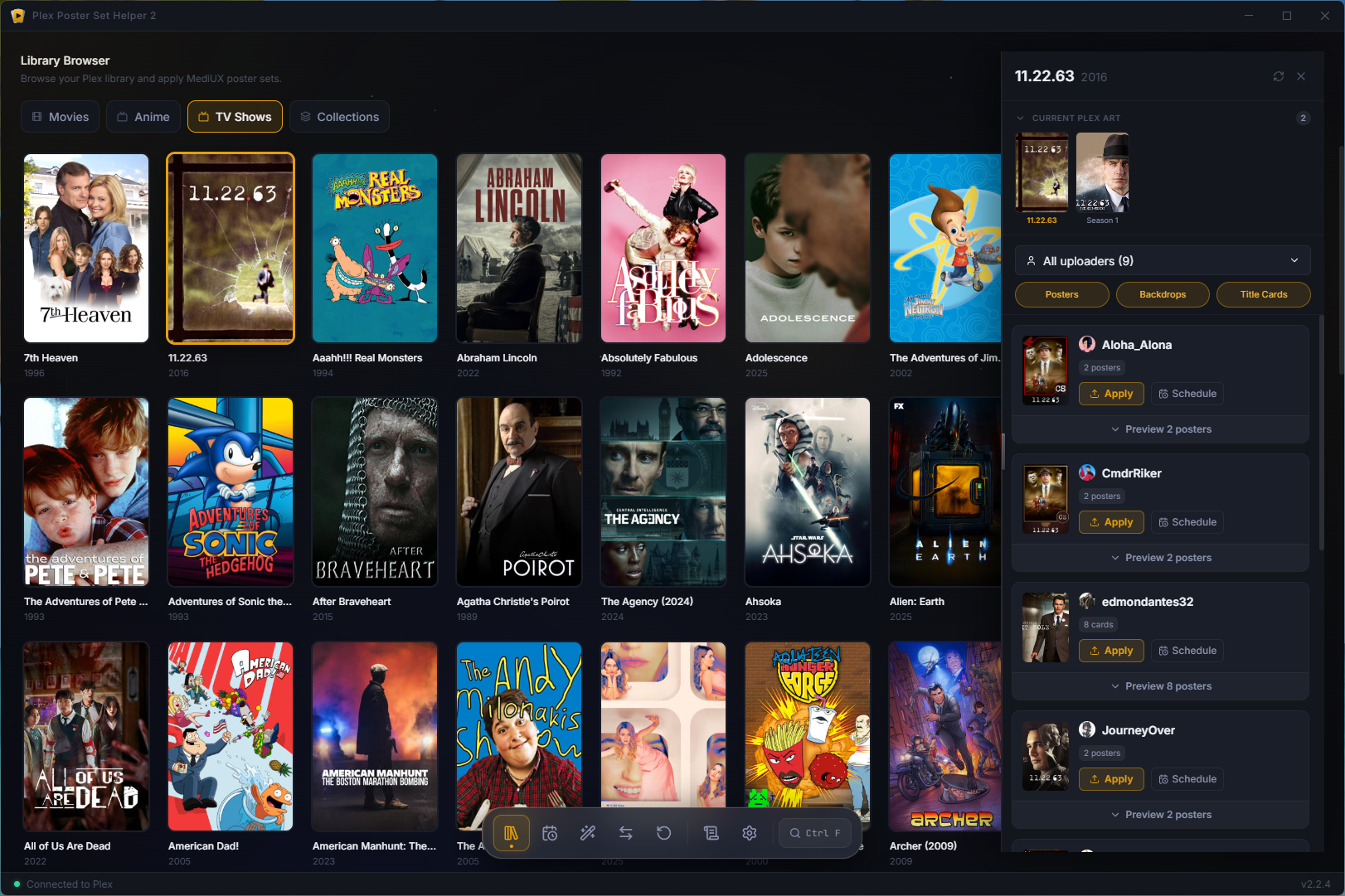 Library Browser |
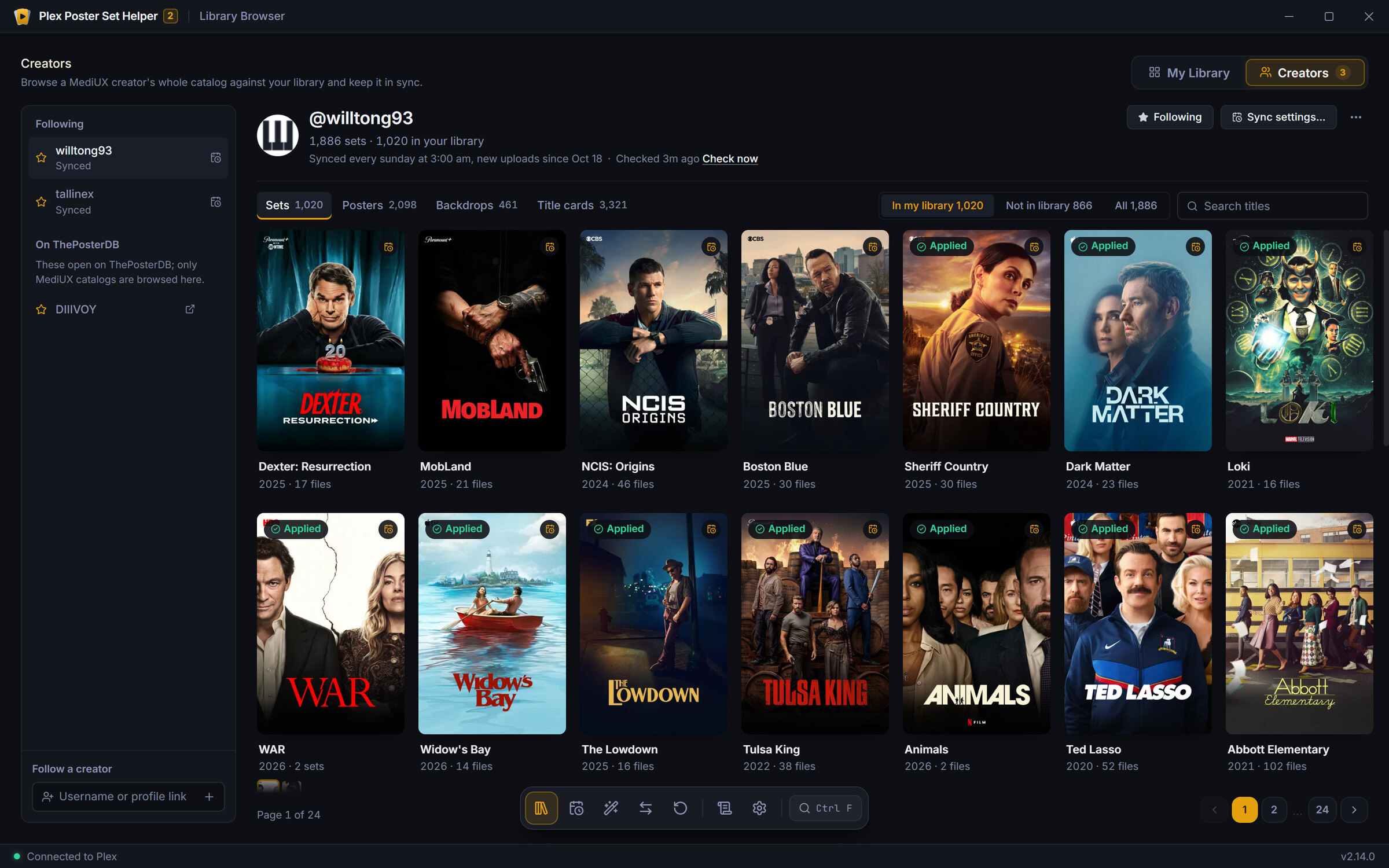 Creators |
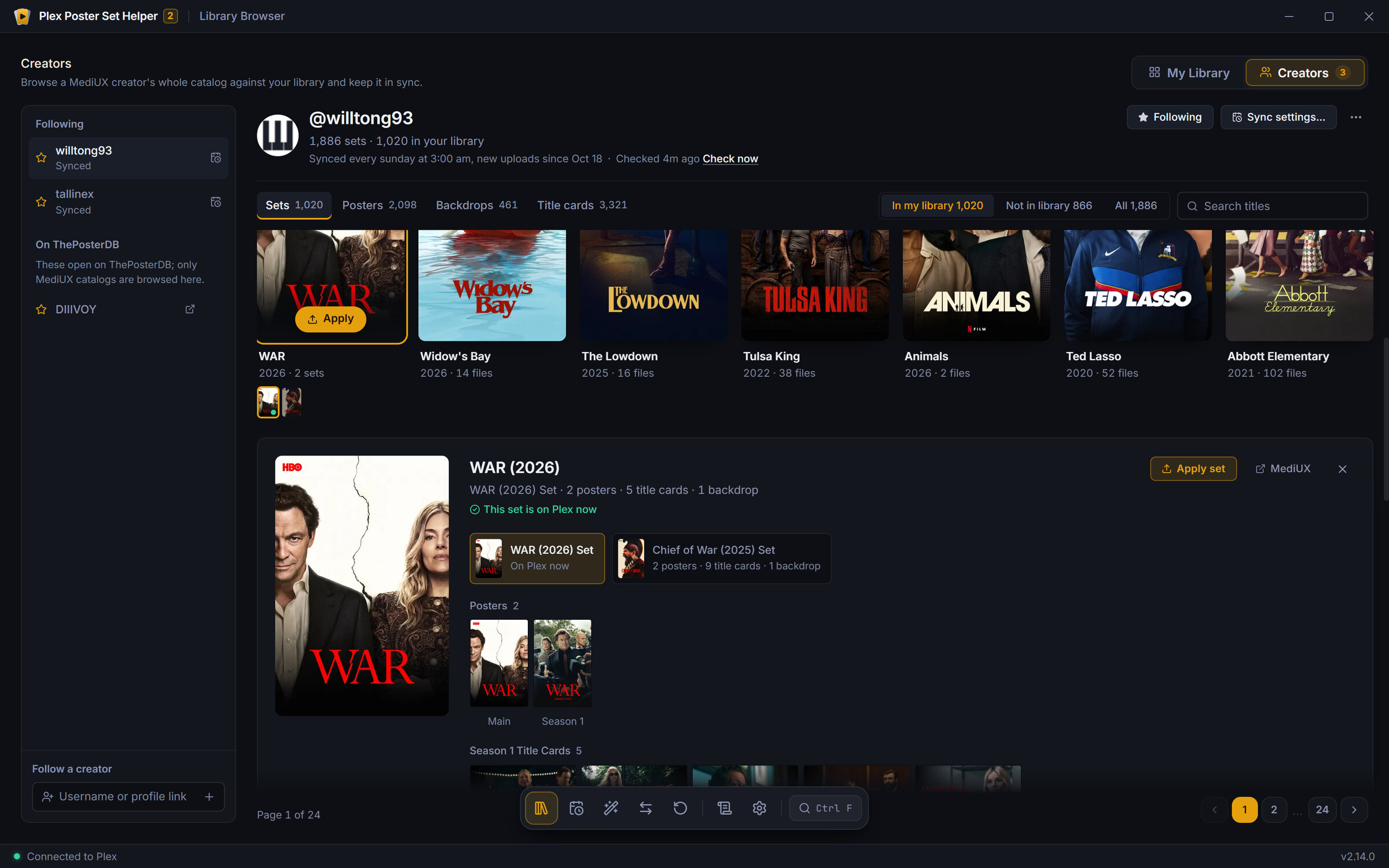 A title's sets and files |
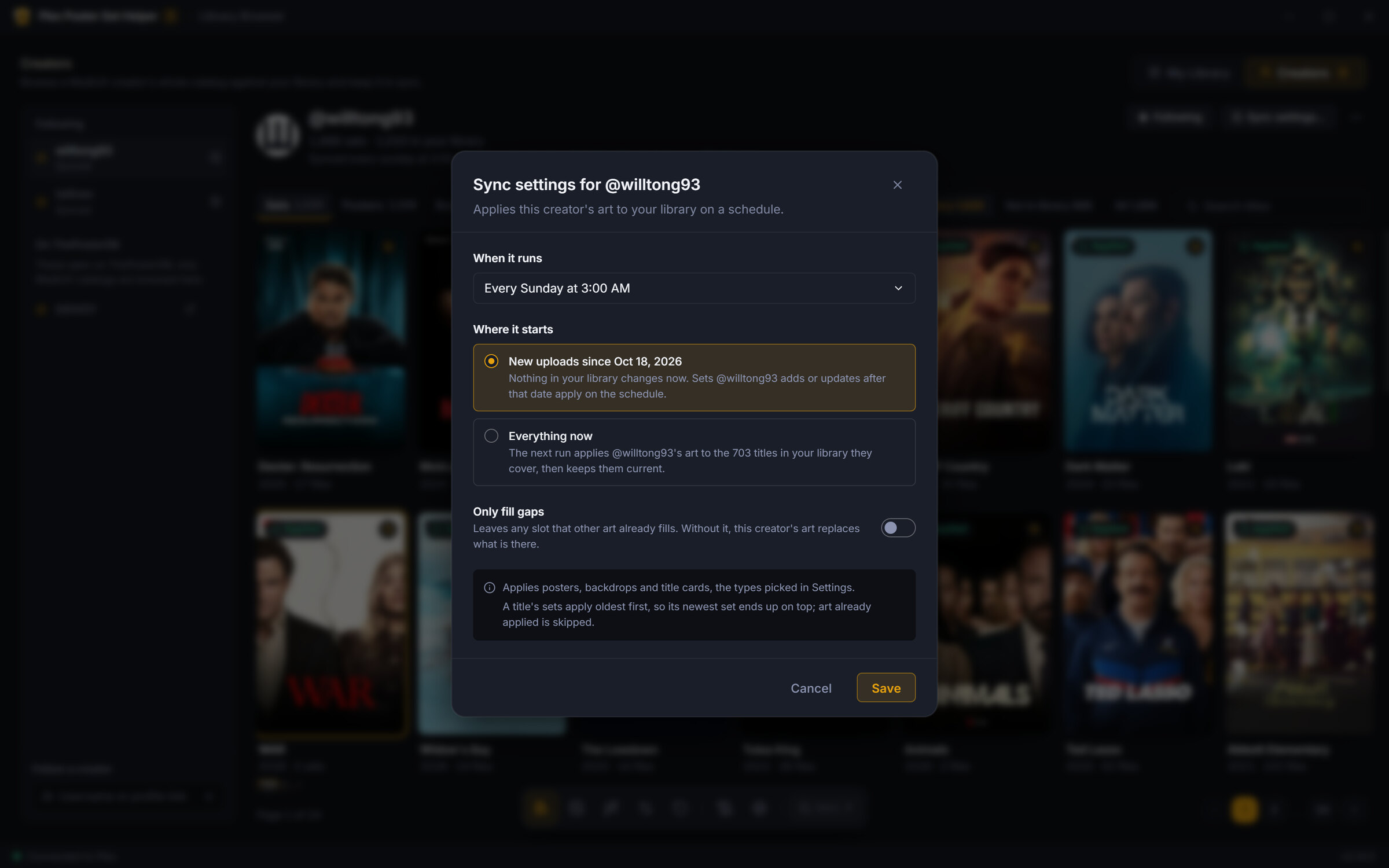 Creator sync |
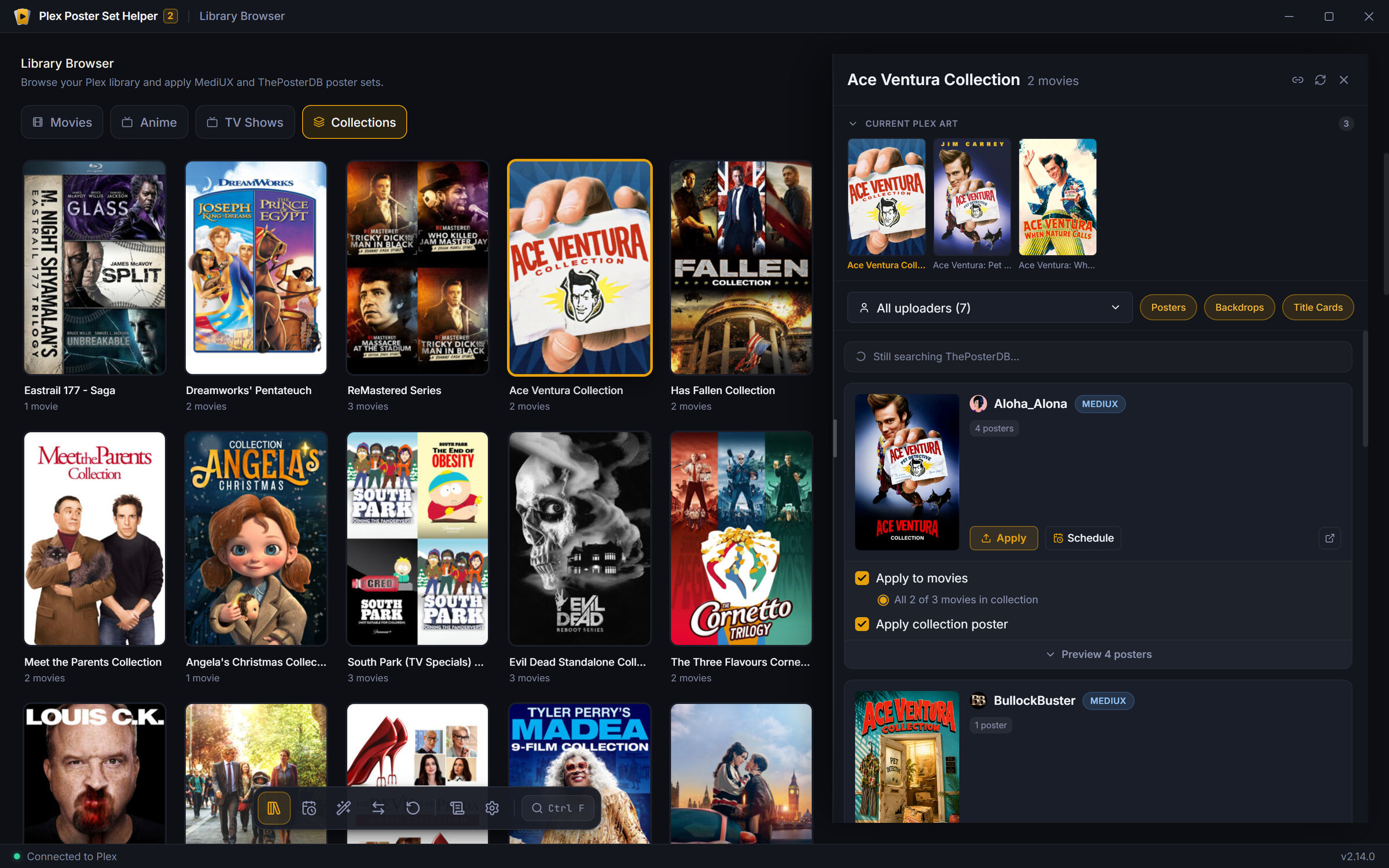 Collections tab |
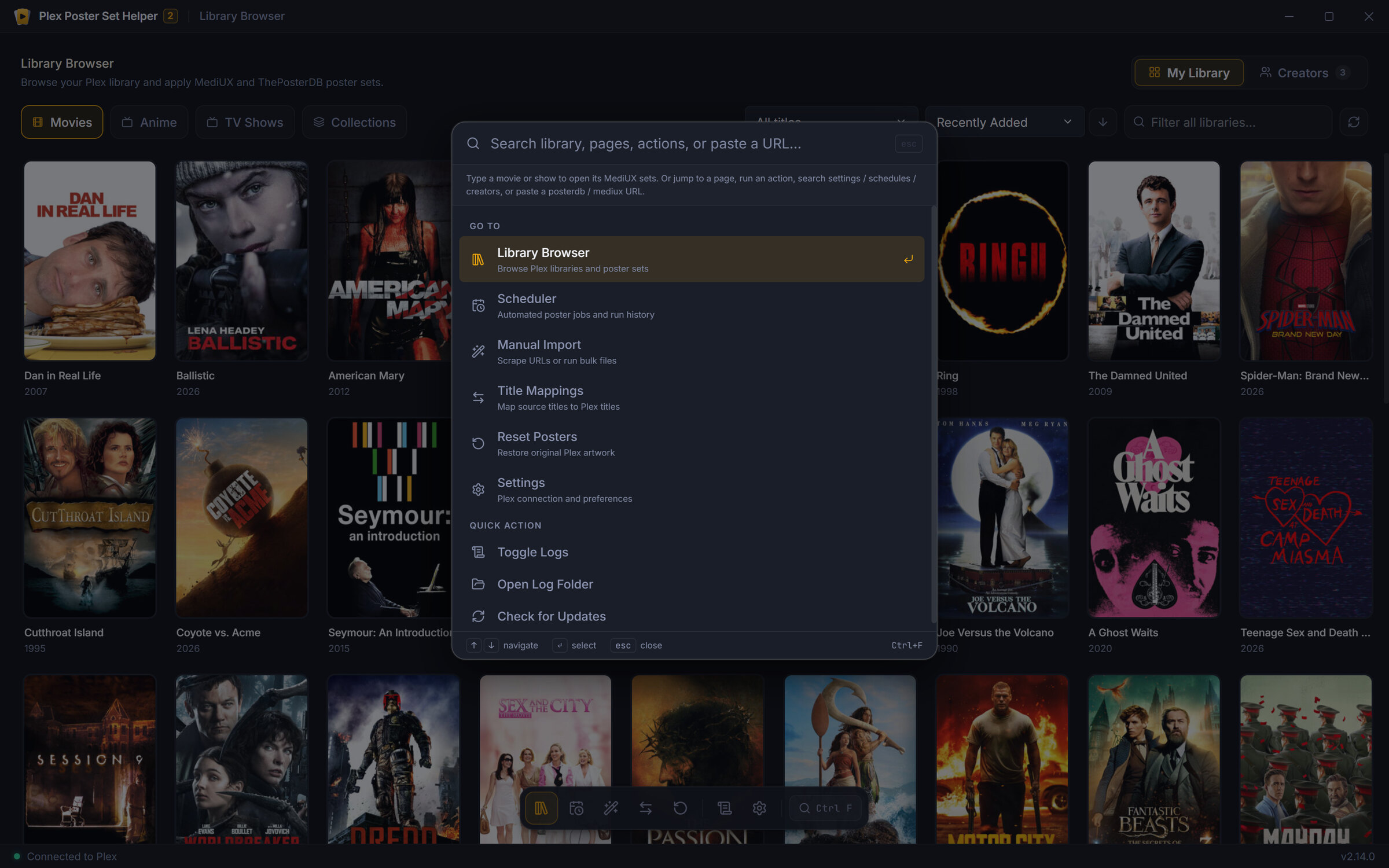 Command palette |
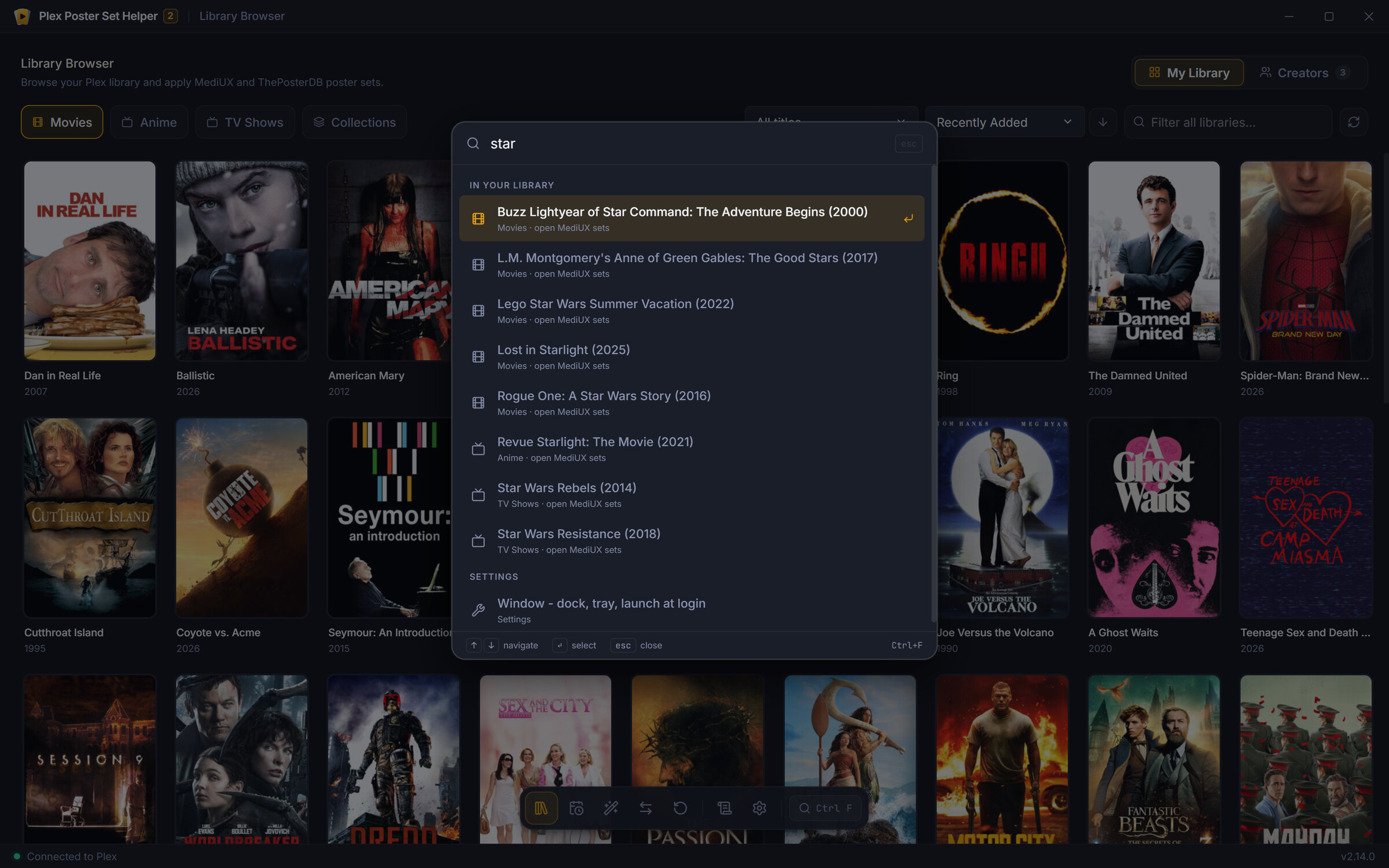 Library search |
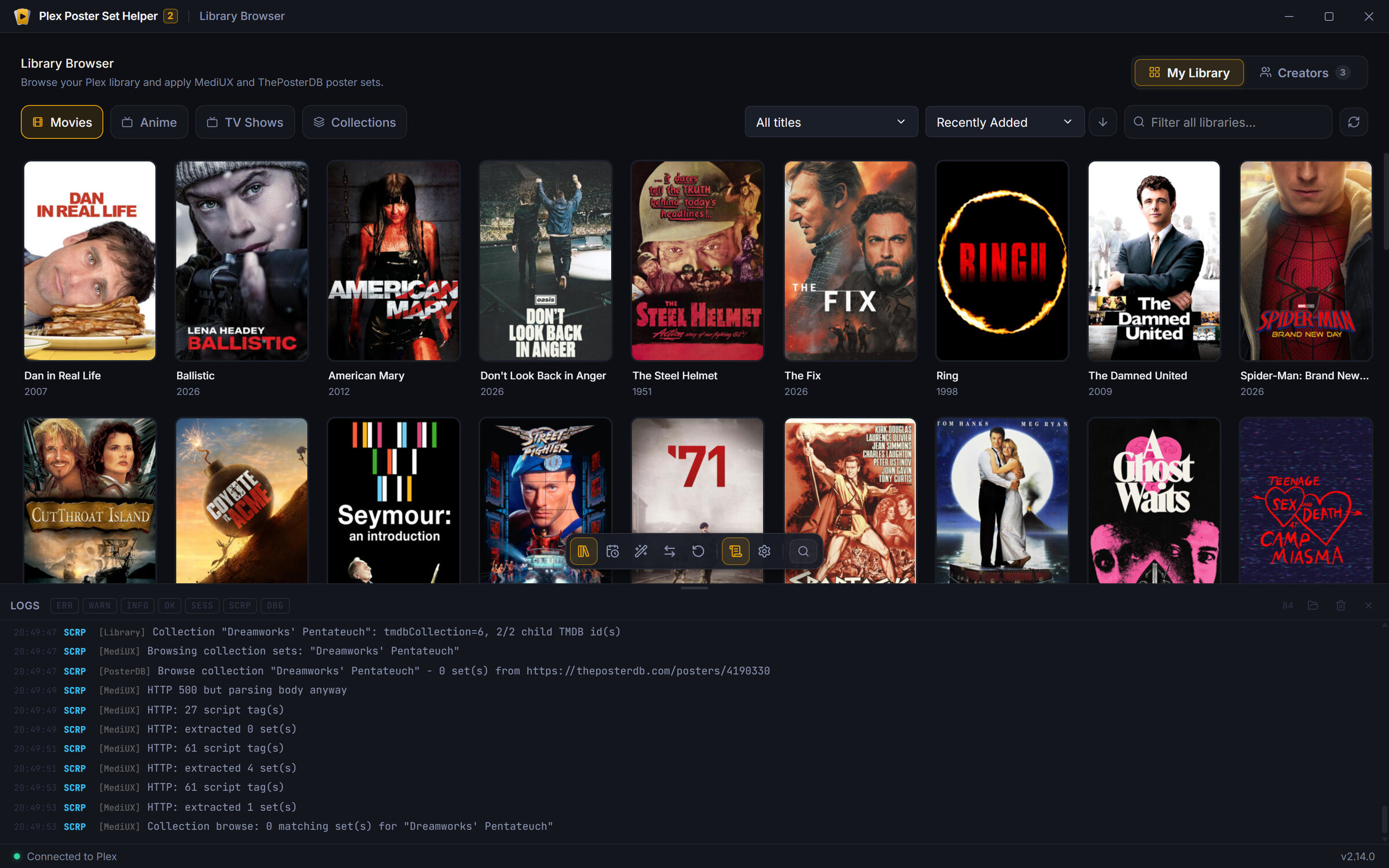 Log drawer |
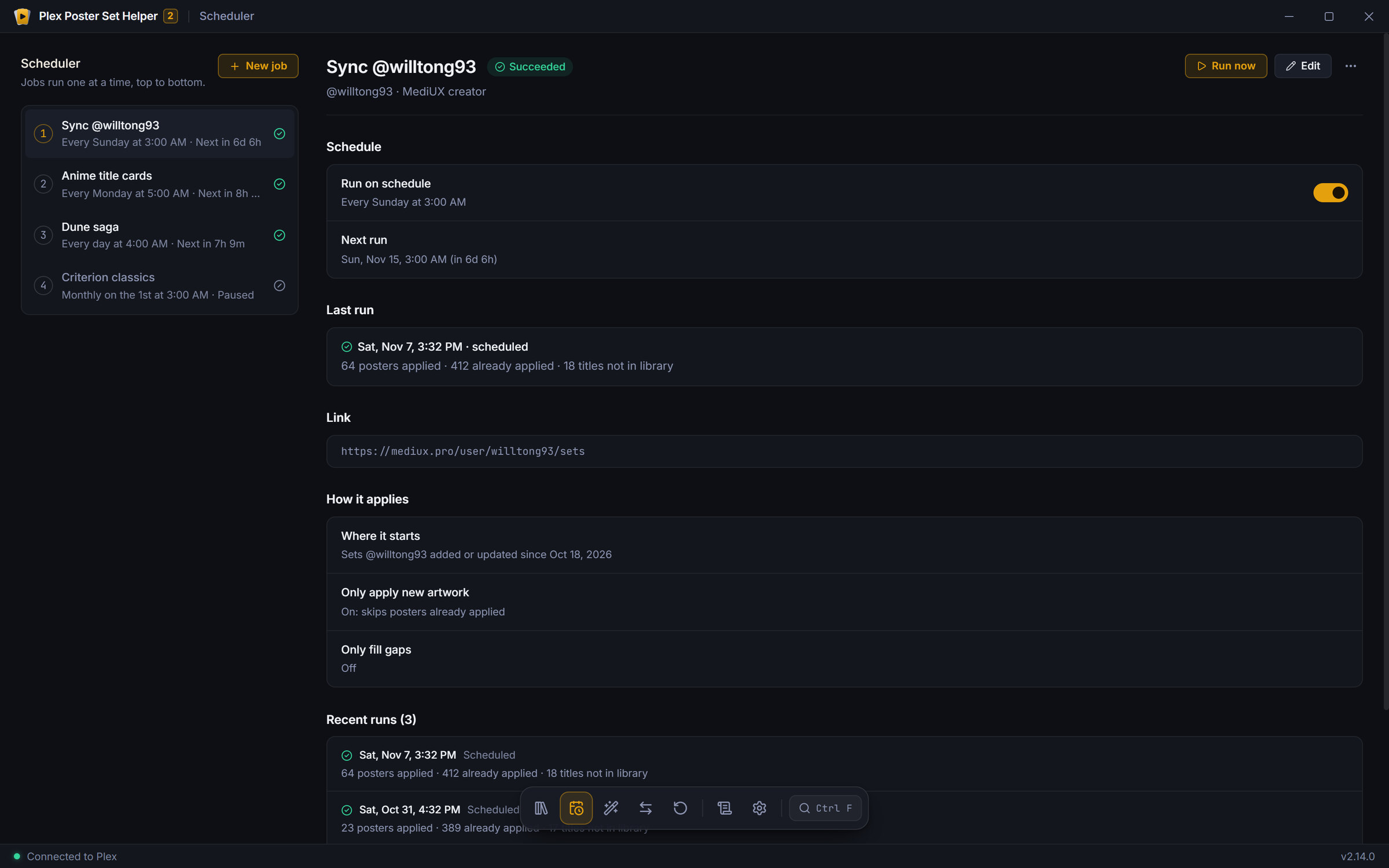 Scheduler |
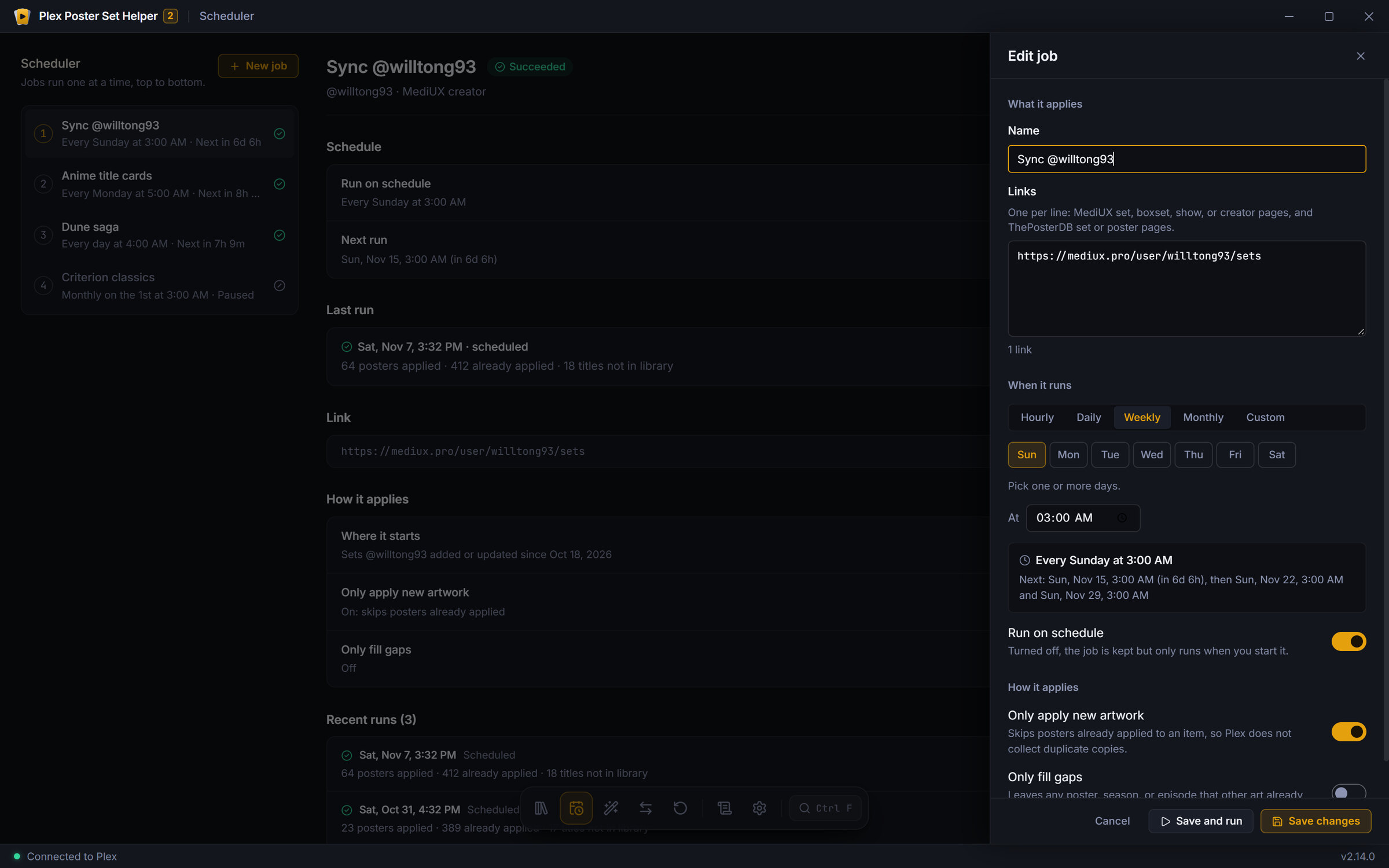 Job editor |
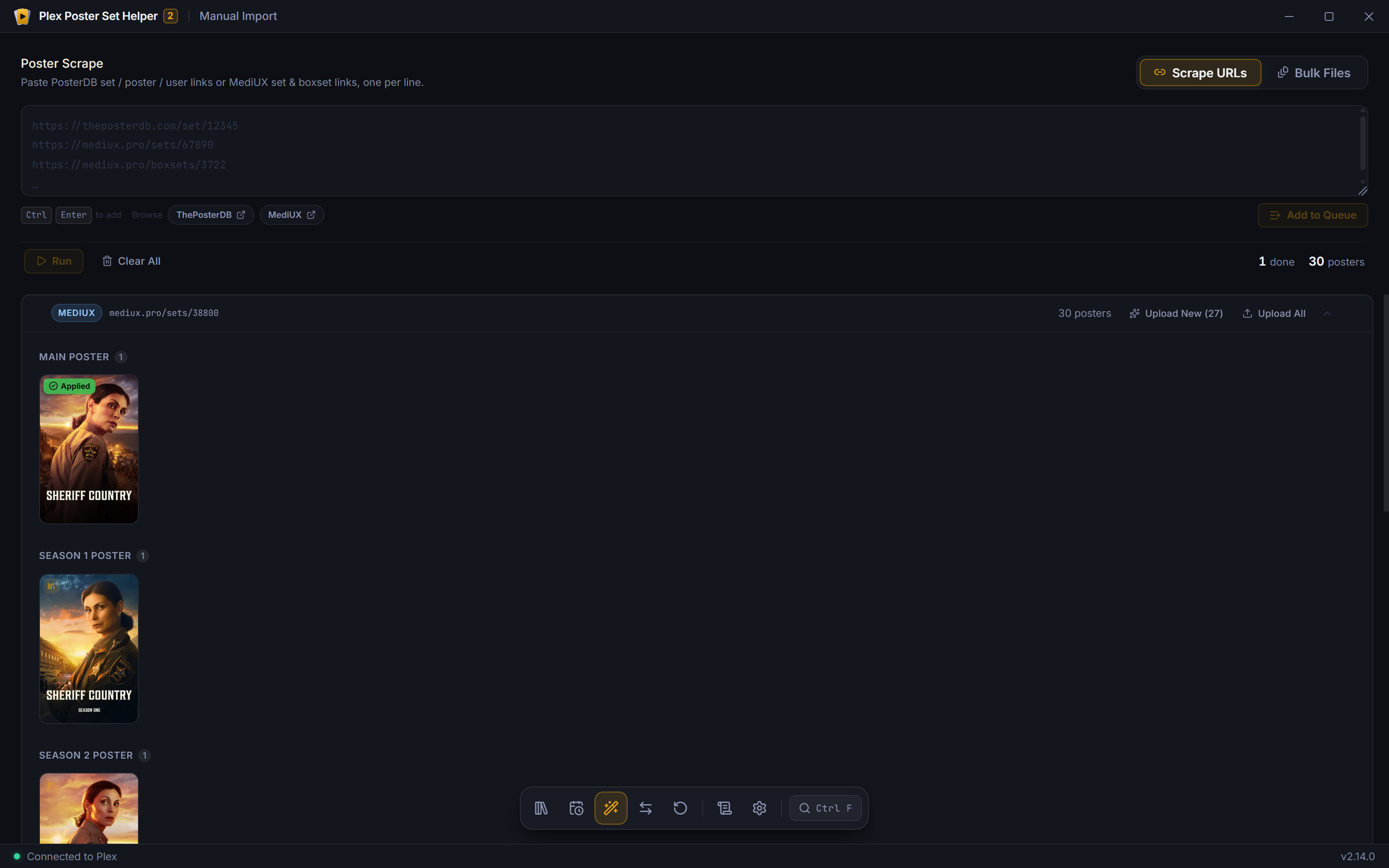 Manual Import (legacy tool) |
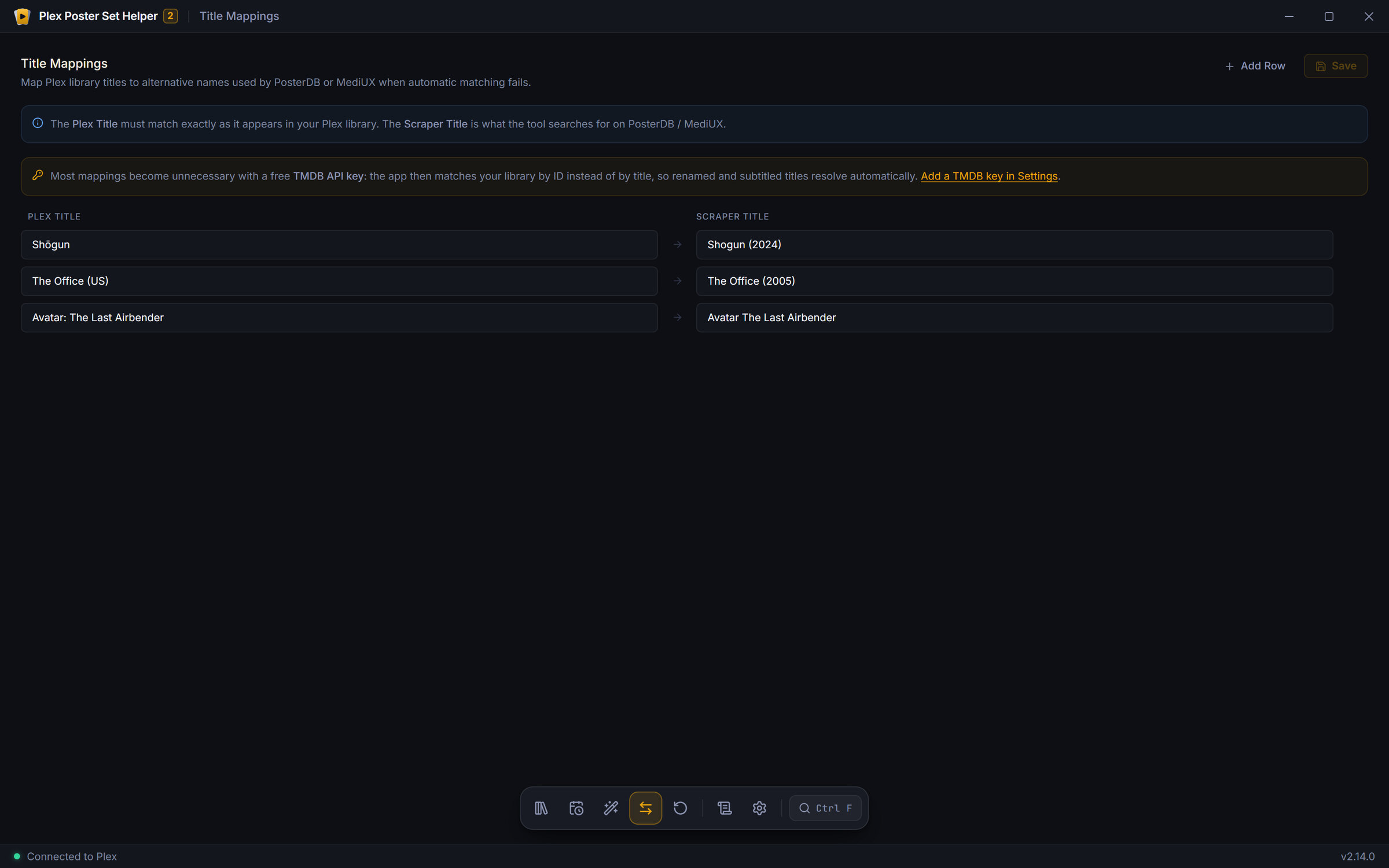 Title Mappings (legacy tool) |
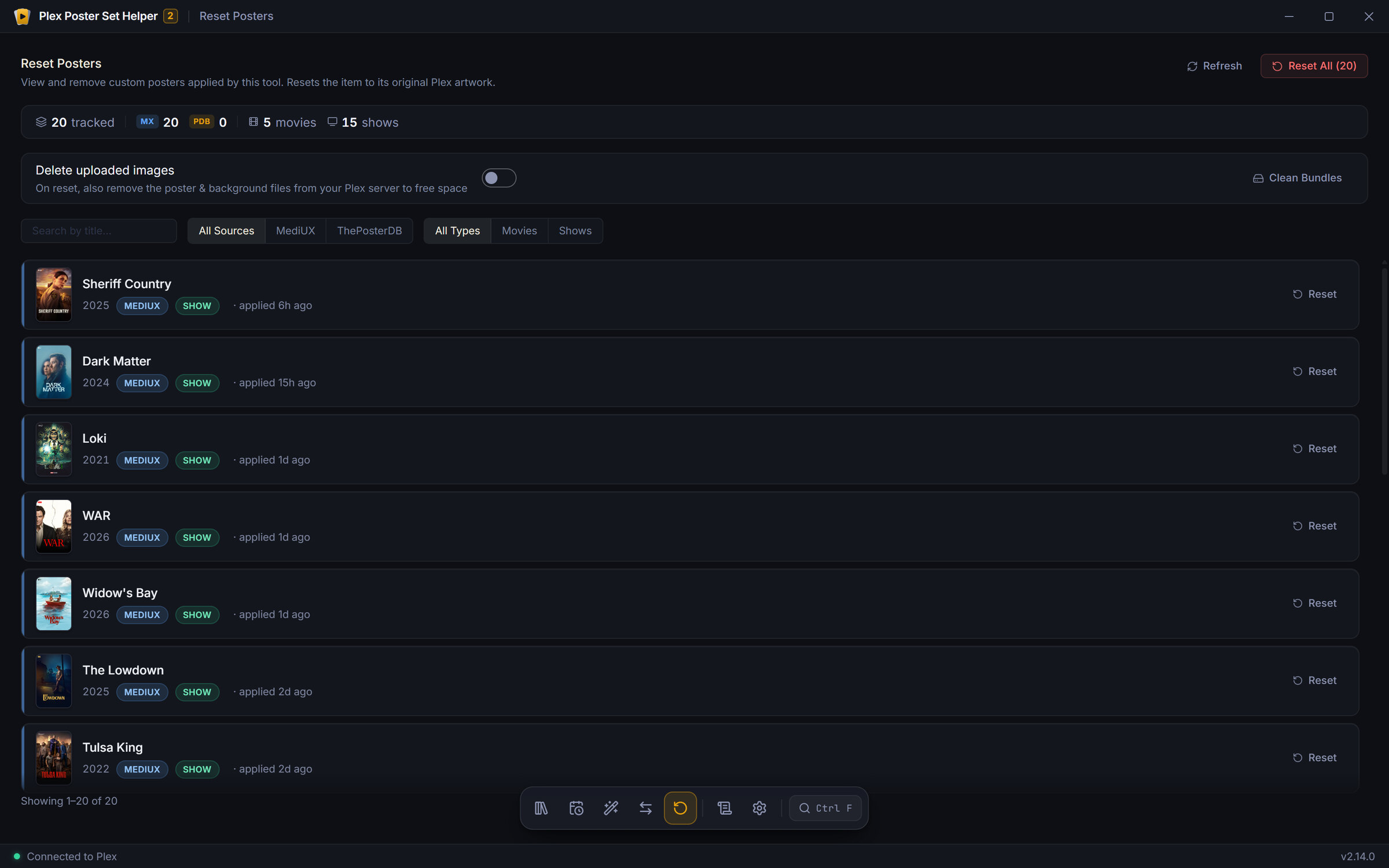 Reset Posters |
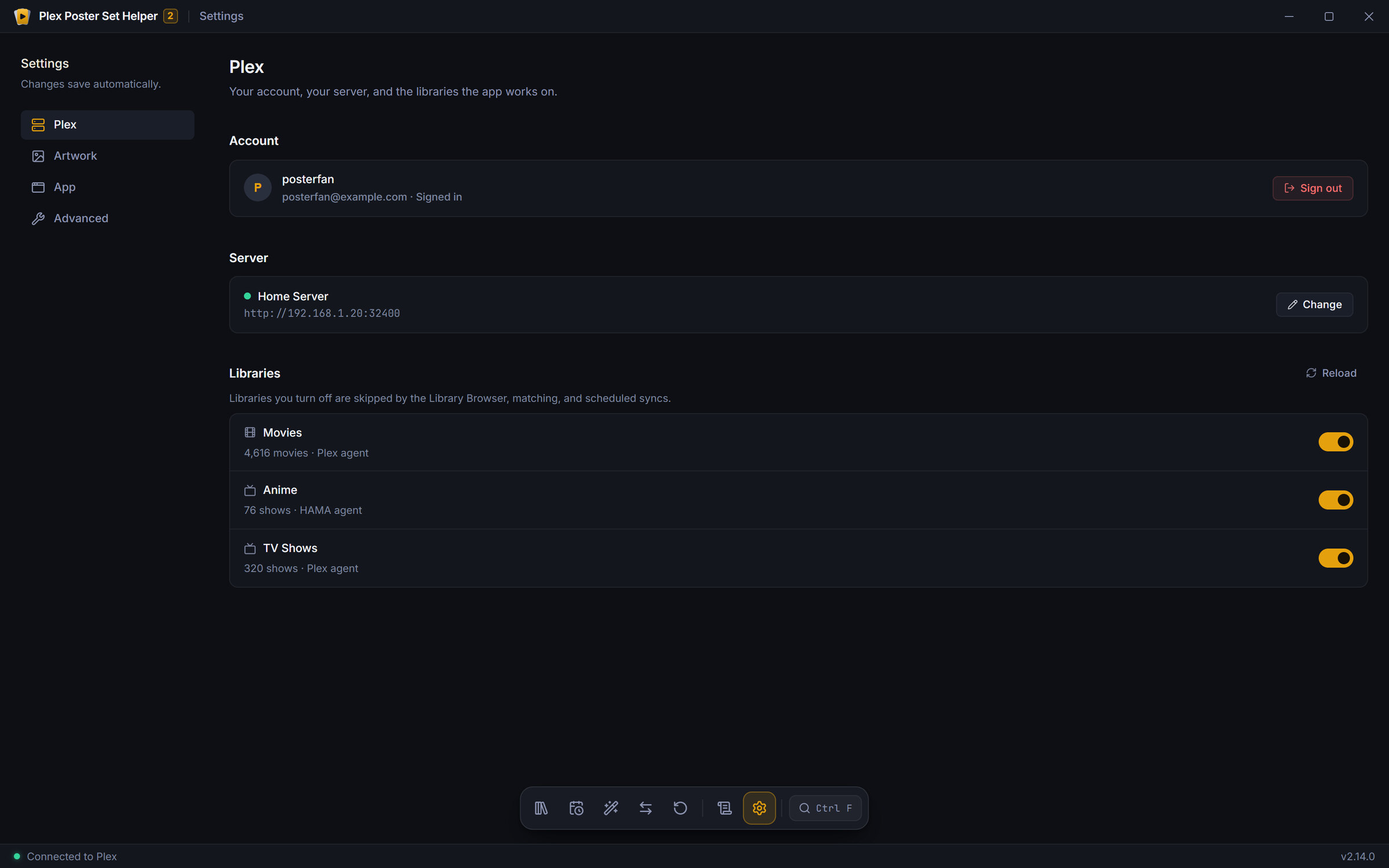 Settings |
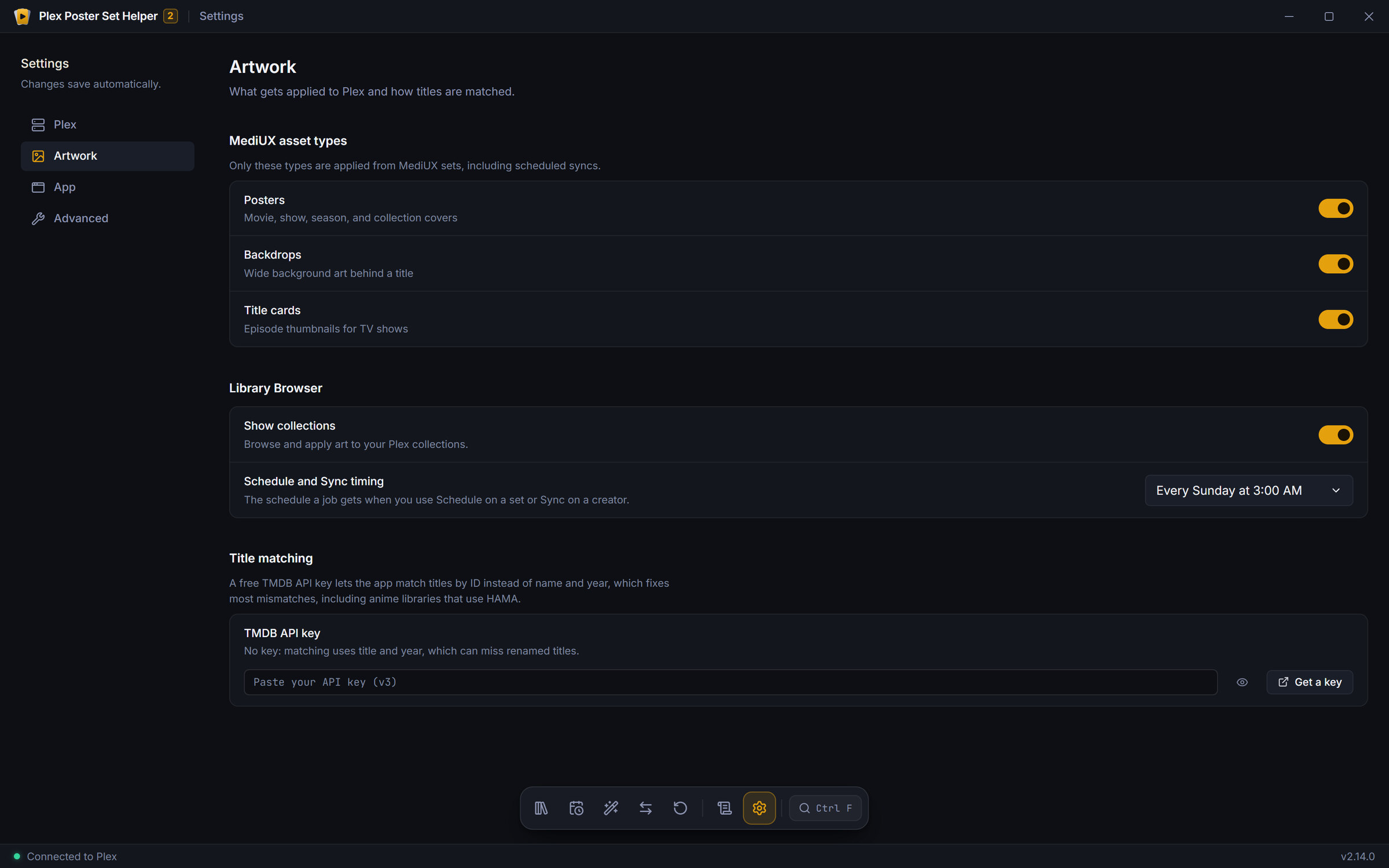 Settings, Artwork |
Development
Running from source needs an LTS release of Node.js, 22.13 or newer.
git clone https://github.com/molexxxx/plex-poster-set-helper-2.git
cd plex-poster-set-helper-2
npm install
npm run dev
| Command | What it does |
|---|---|
npm run dev |
Runs the app with hot reload |
npm test |
Runs the unit tests (Vitest) |
npm run lint |
Lints with ESLint |
npm run typecheck |
Type-checks the renderer, main process, and web server |
npm run build |
Builds the renderer and main process |
npm run dist:win |
Packages the Windows installer |
npm run dist:linux |
Packages the Linux AppImage and deb |
To update a source checkout, run git pull and npm install, then npm run dev.
Stack: Electron, React 19, TypeScript, Vite, Tailwind, Playwright for scraping, and Fastify for the web and Docker server.
Contributing
Issues and pull requests are welcome. Before opening a PR, run npm run lint, npm run typecheck, and npm test; CI runs all three and builds the app.
License and credits
MIT © molexxxx
- MediUX and ThePosterDB, the communities behind the artwork.
- Inspired by bbrown430/plex-poster-set-helper, the original Python tool, and rebuilt from the ground up as a cross-platform app.
Categories
Download Statistics
Related apps
Explore more like this
Explore allLinks
Details
tonywied17/plex-poster-helper-2:latestRuntime arguments
- Web UI
http://[IP]:[PORT:3939]- Network
bridge- Shell
bash- Privileged
- false
Template configuration
Web UI port. Open http://[IP]:3939 in your browser. Sign in with Plex to access the app.
- Target
- 3939
- Default
- 3939
- Value
- 3939
Config, schedules, applied-poster history, and installed Chromium.
- Target
- /config
- Default
- /mnt/user/appdata/plex-poster-helper-2
- Value
- /mnt/user/appdata/plex-poster-helper-2
Timezone (matches scheduler cron times)
- Default
- America/New_York
- Value
- America/New_York