
All apps · 0 apps

Plex-Poster-Helper-2
Docker app from Molexxx' Repository
Overview
Readme
View on GitHub

Plex Poster Set Helper 2
Browse, download, and apply custom poster sets from MediUX and ThePosterDB to your Plex library - in a clean desktop app.


What it does
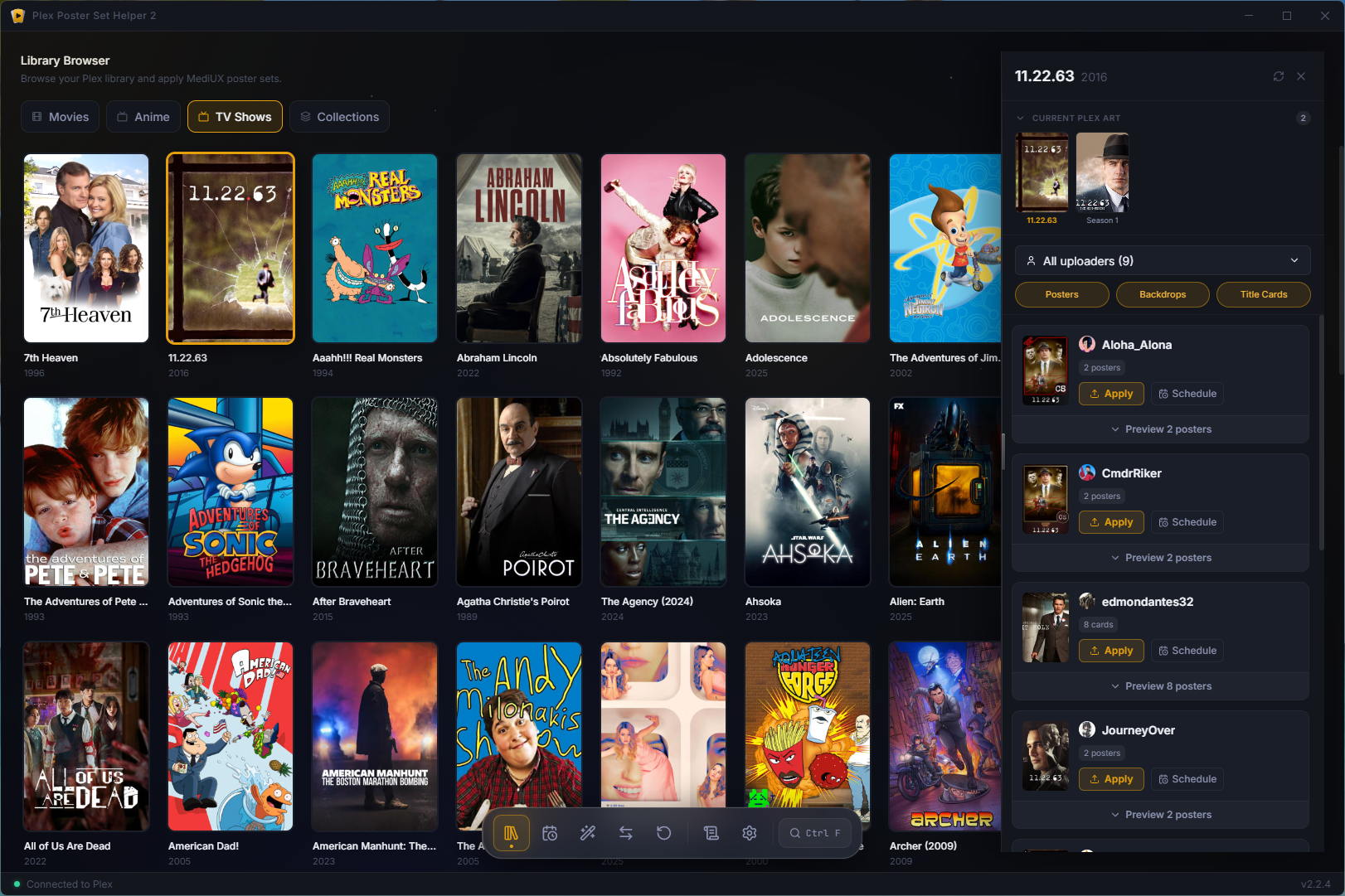
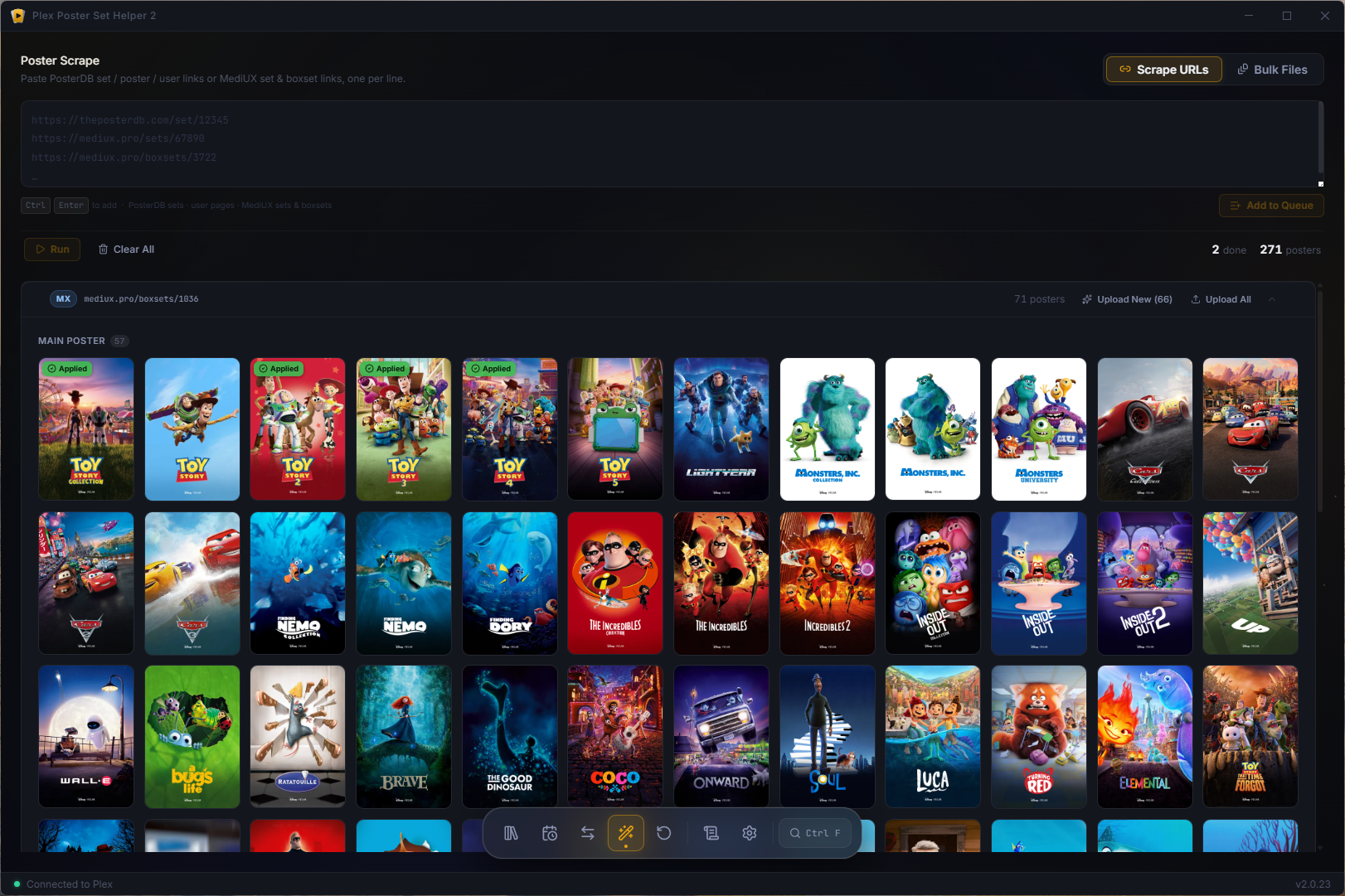
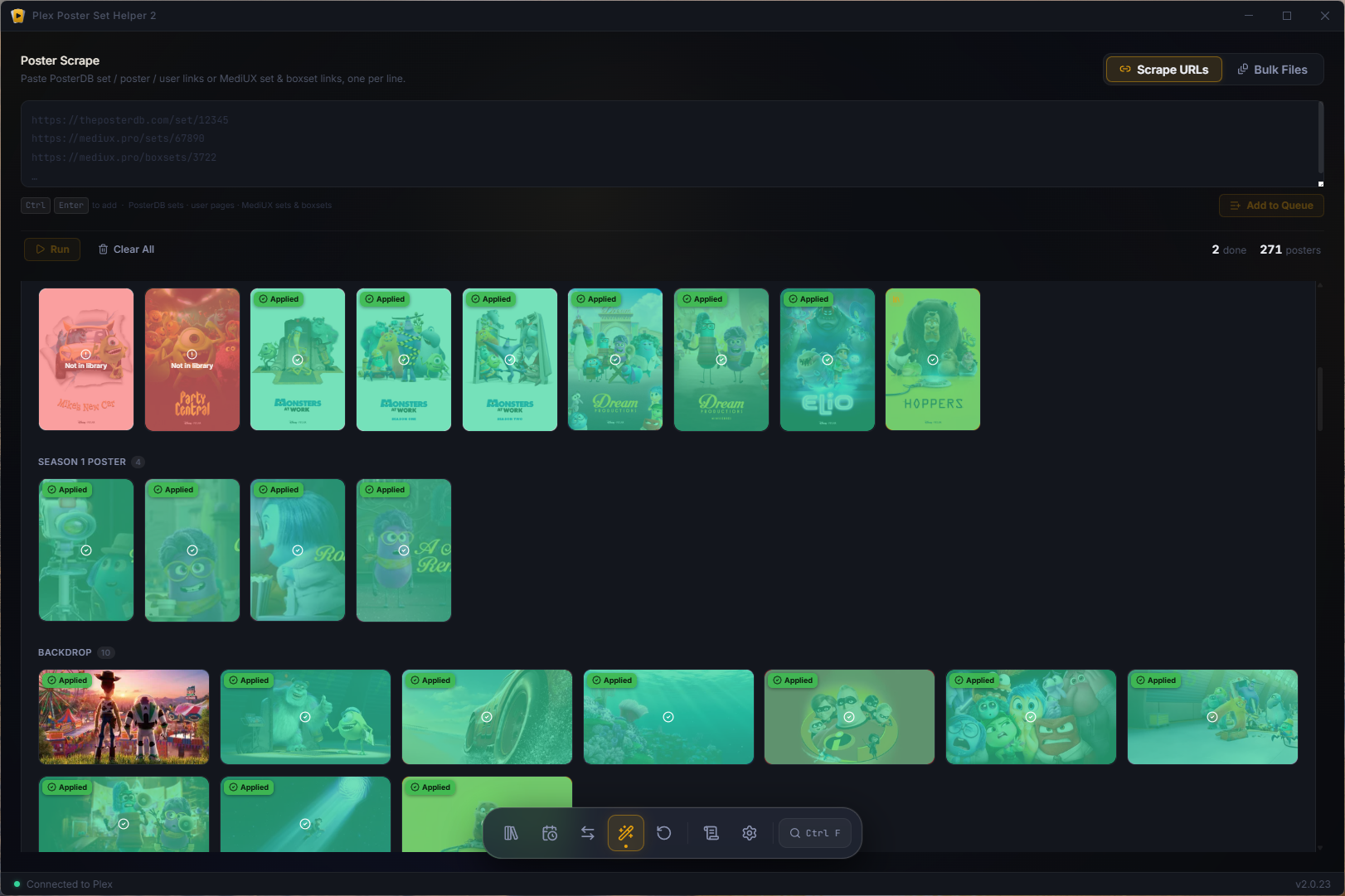
Plex Poster Set Helper 2 finds high‑quality poster artwork for the movies and shows already in your Plex library and applies it with a click - posters, season posters, episode title cards, and backdrops, all routed to the right place automatically.
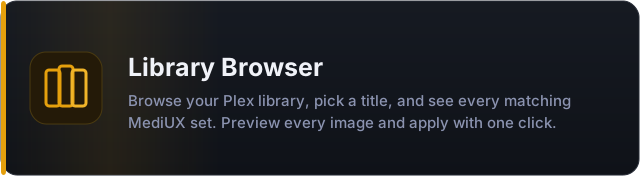
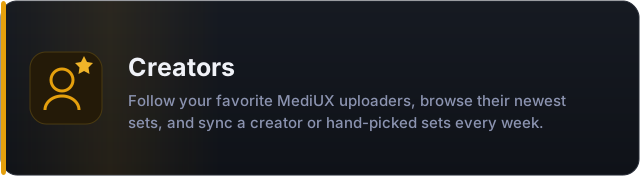
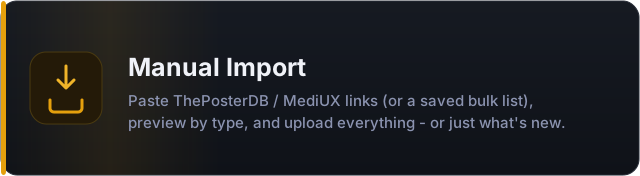
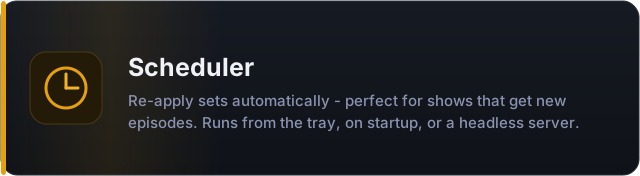
Runs as a desktop app on Windows and Linux, or in Docker (including unraid) for always‑on servers.
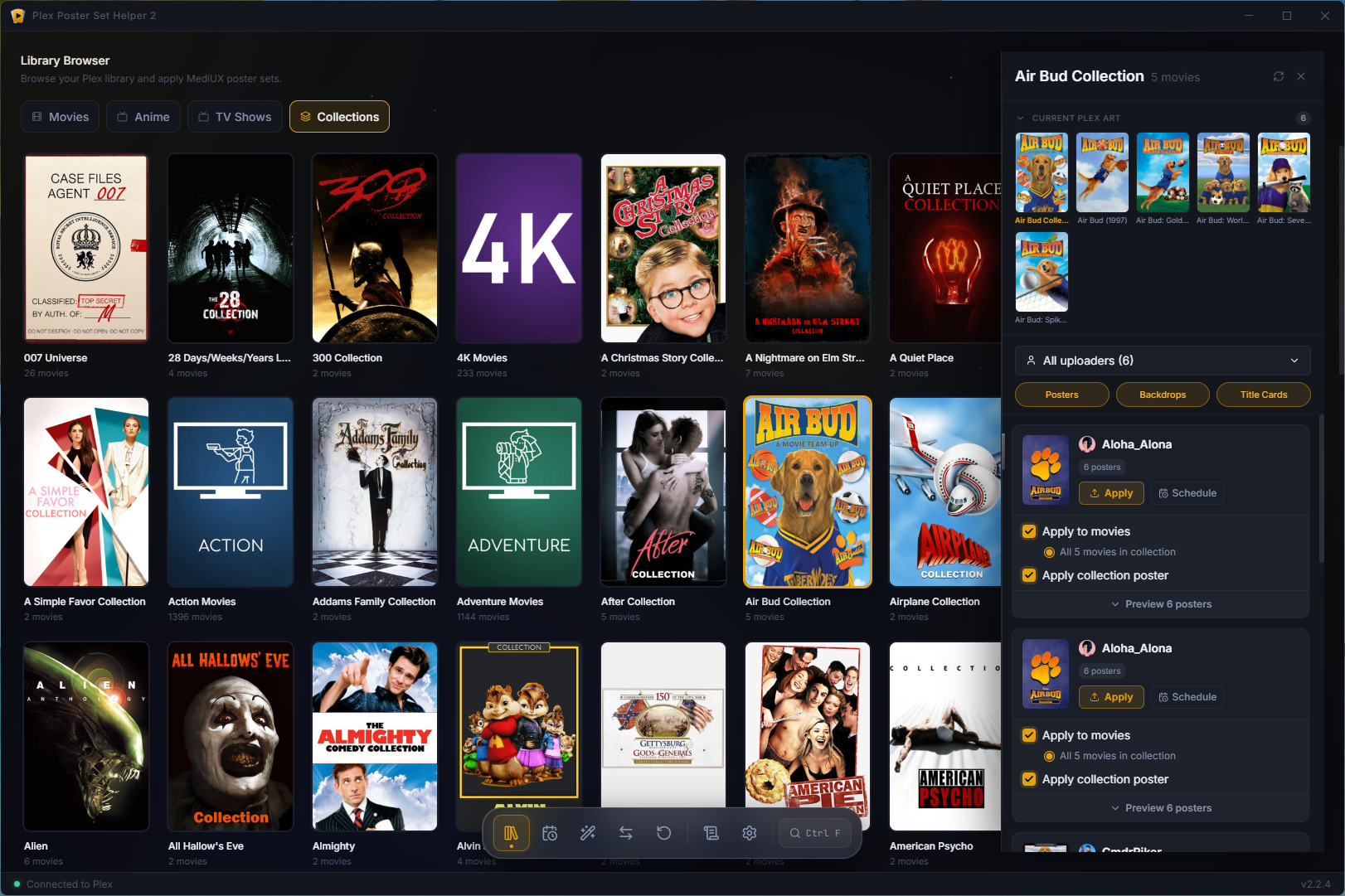
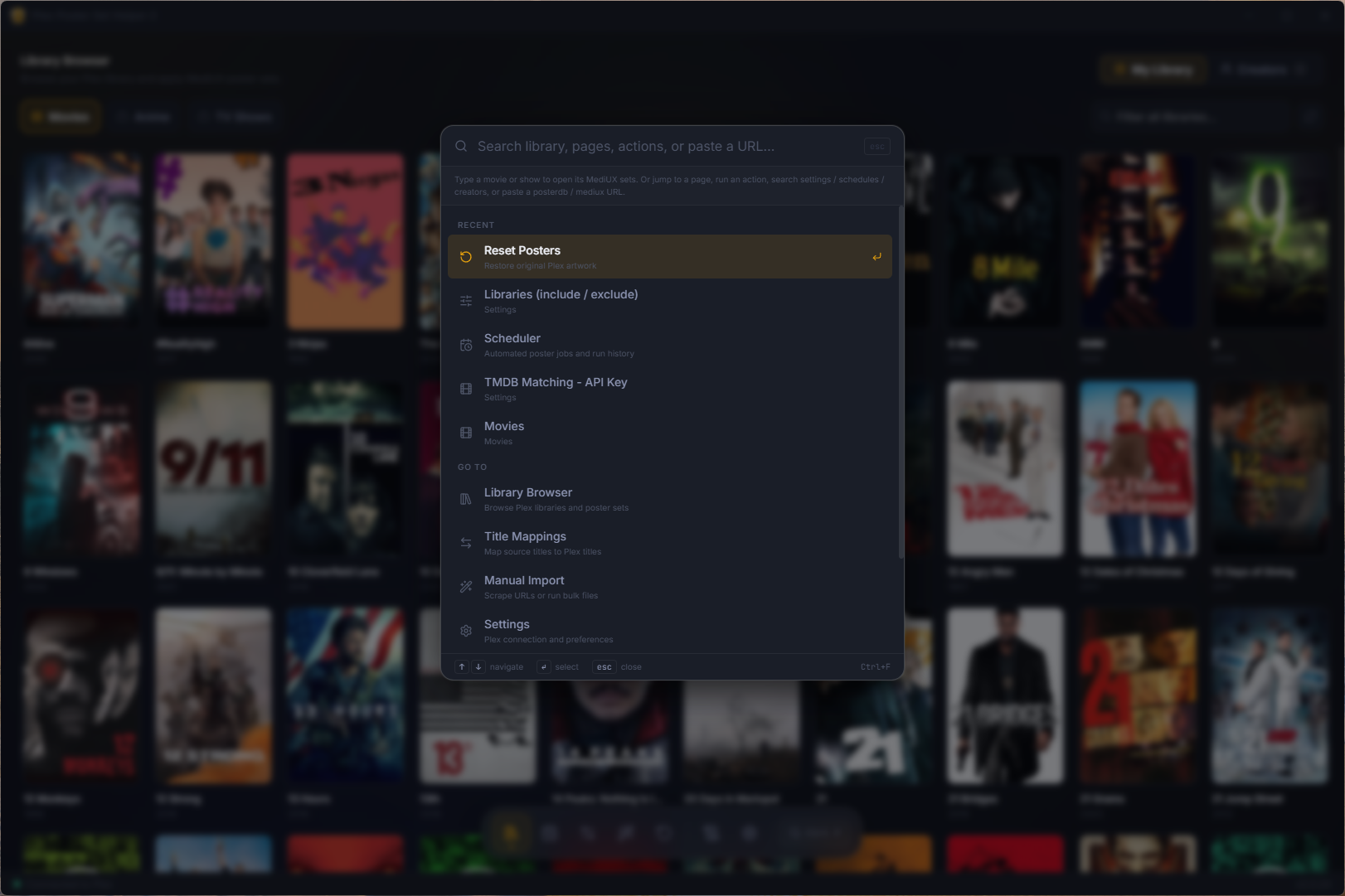
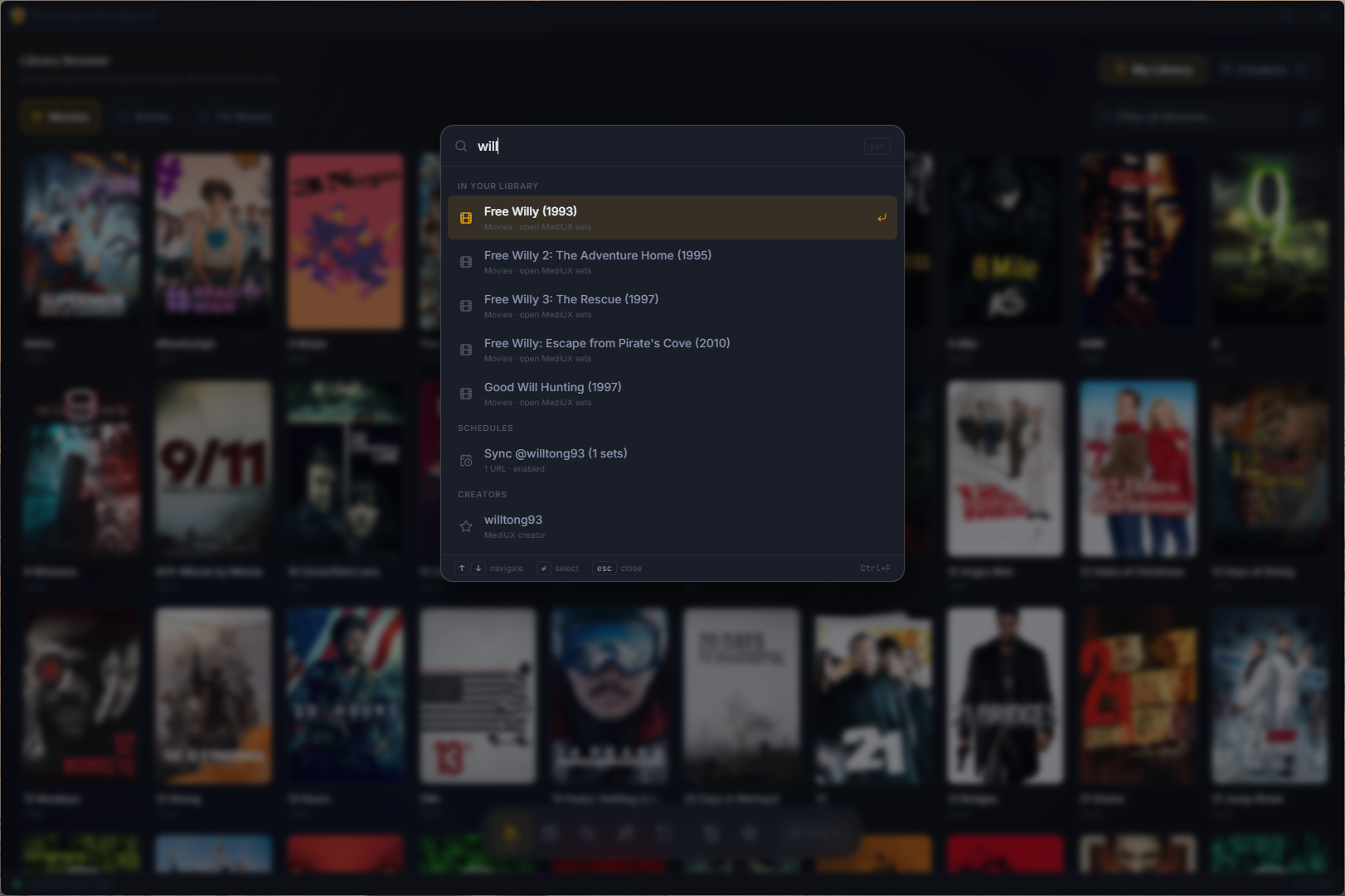
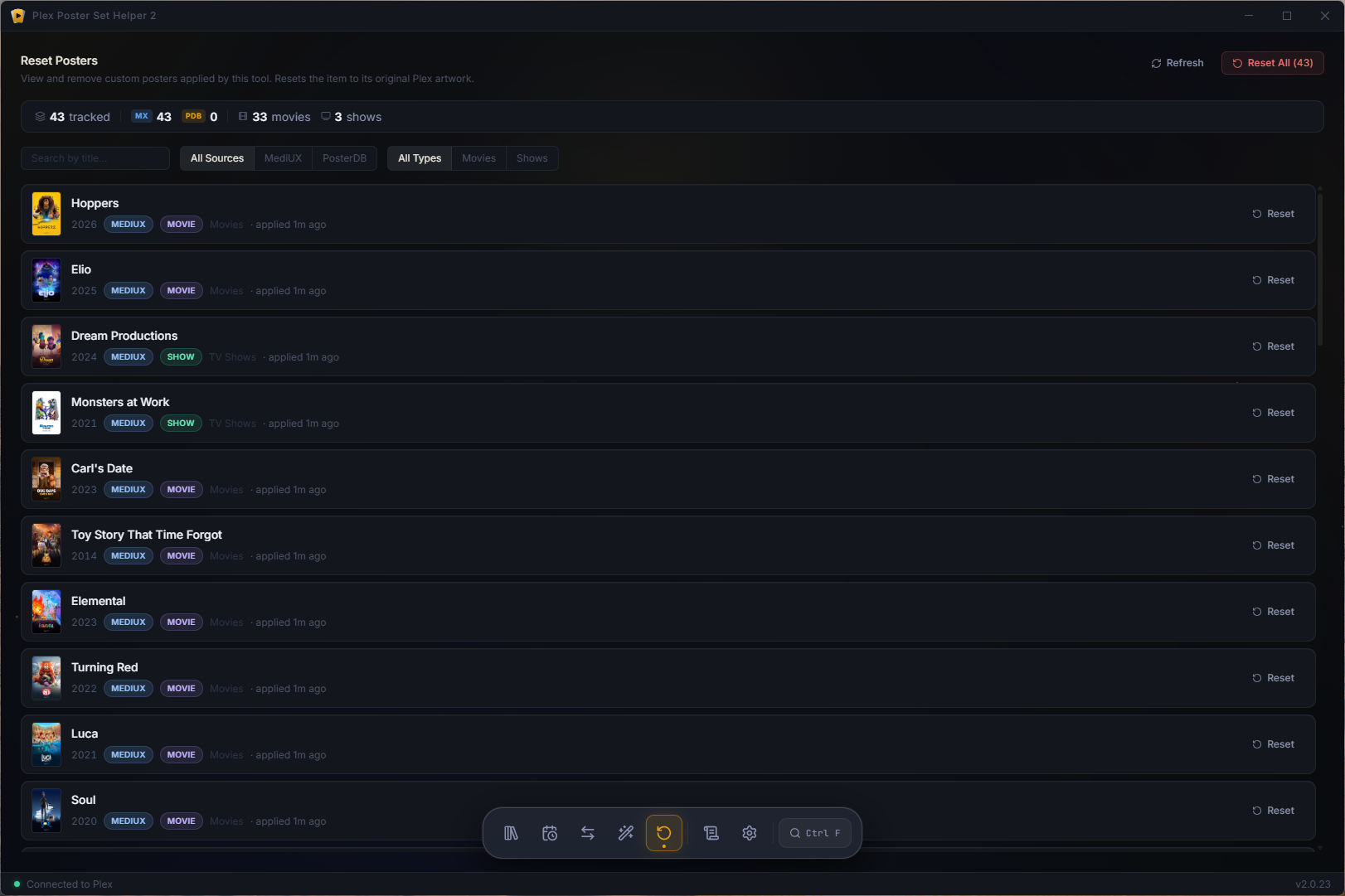
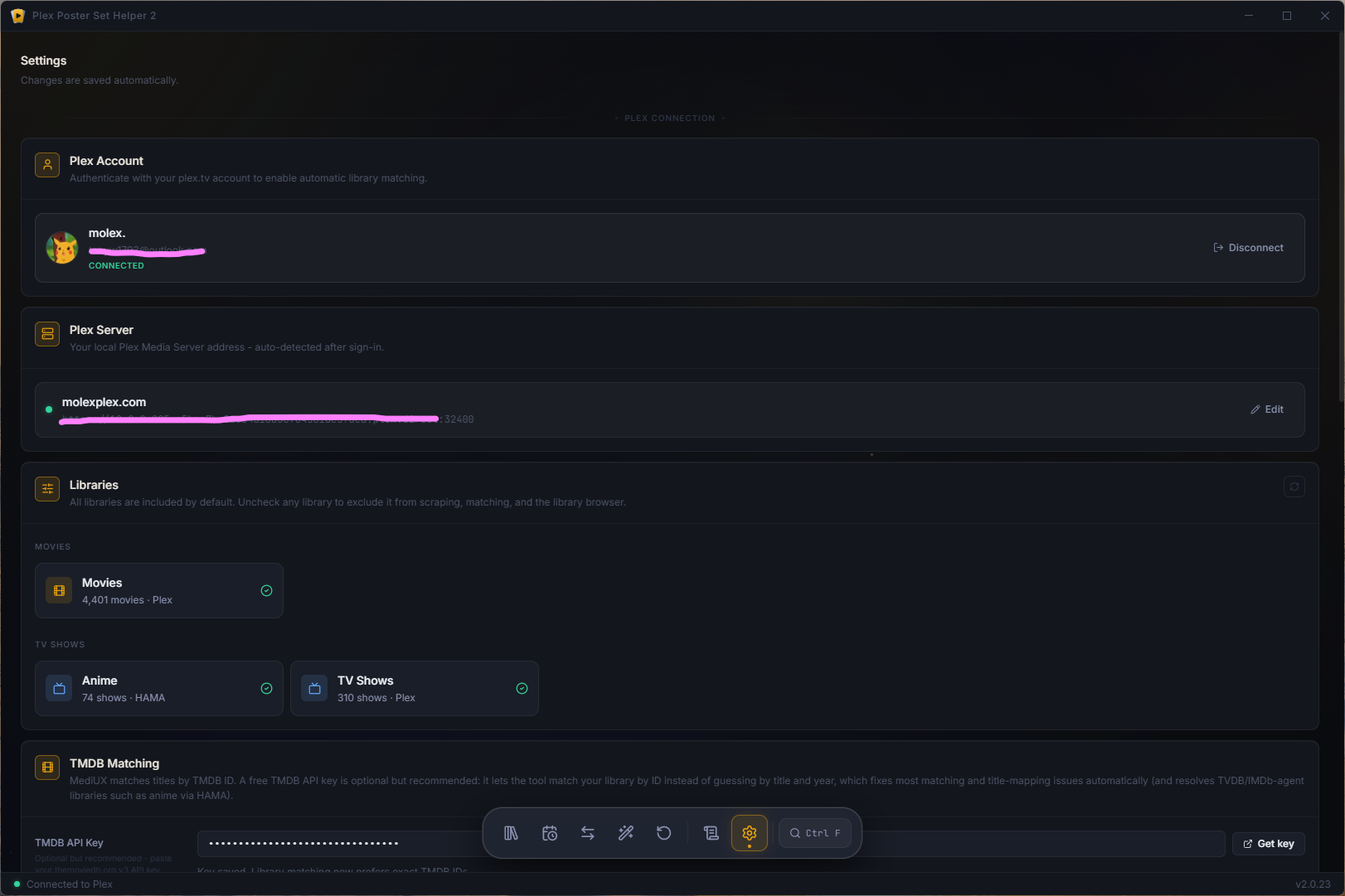
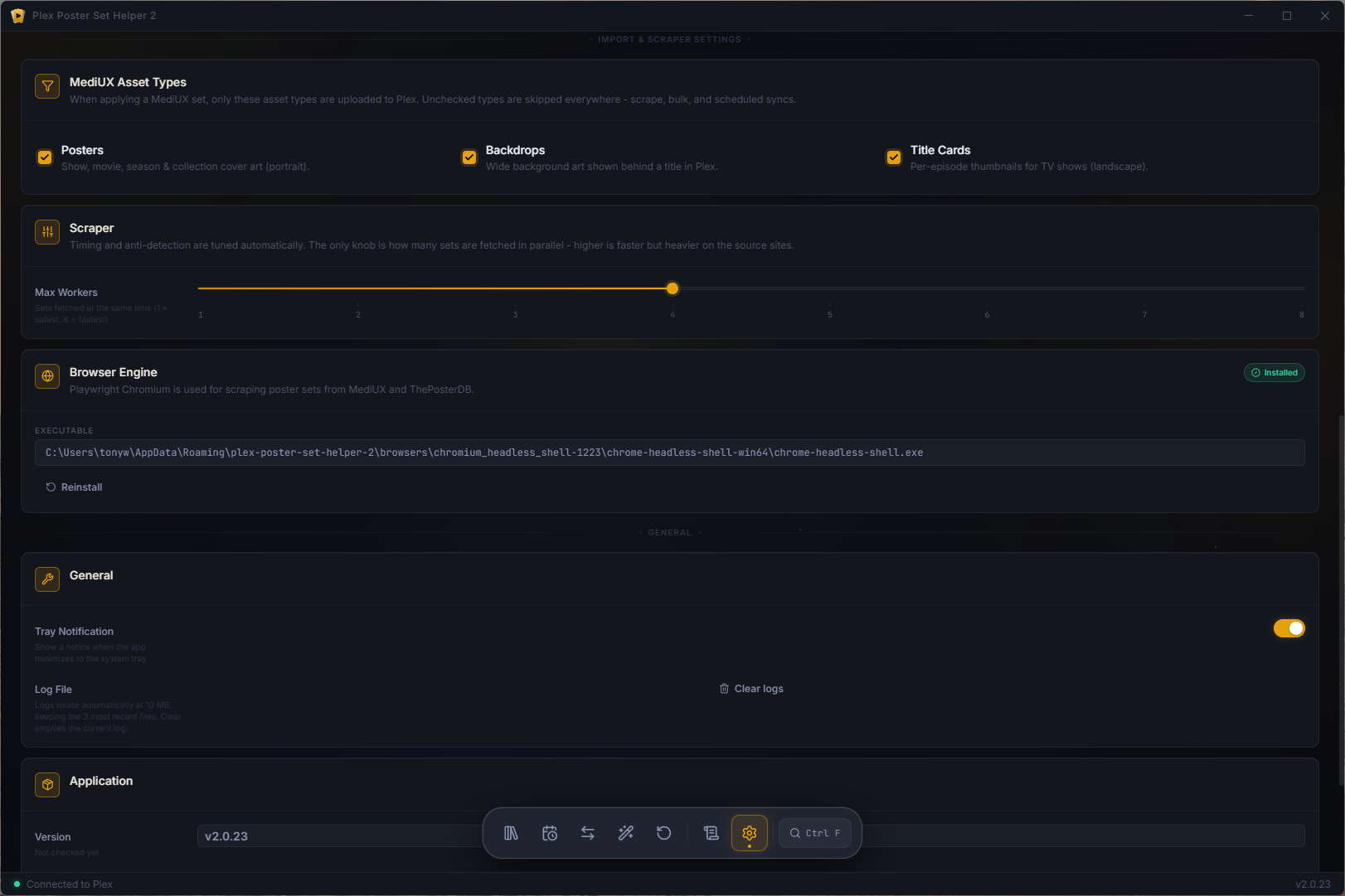
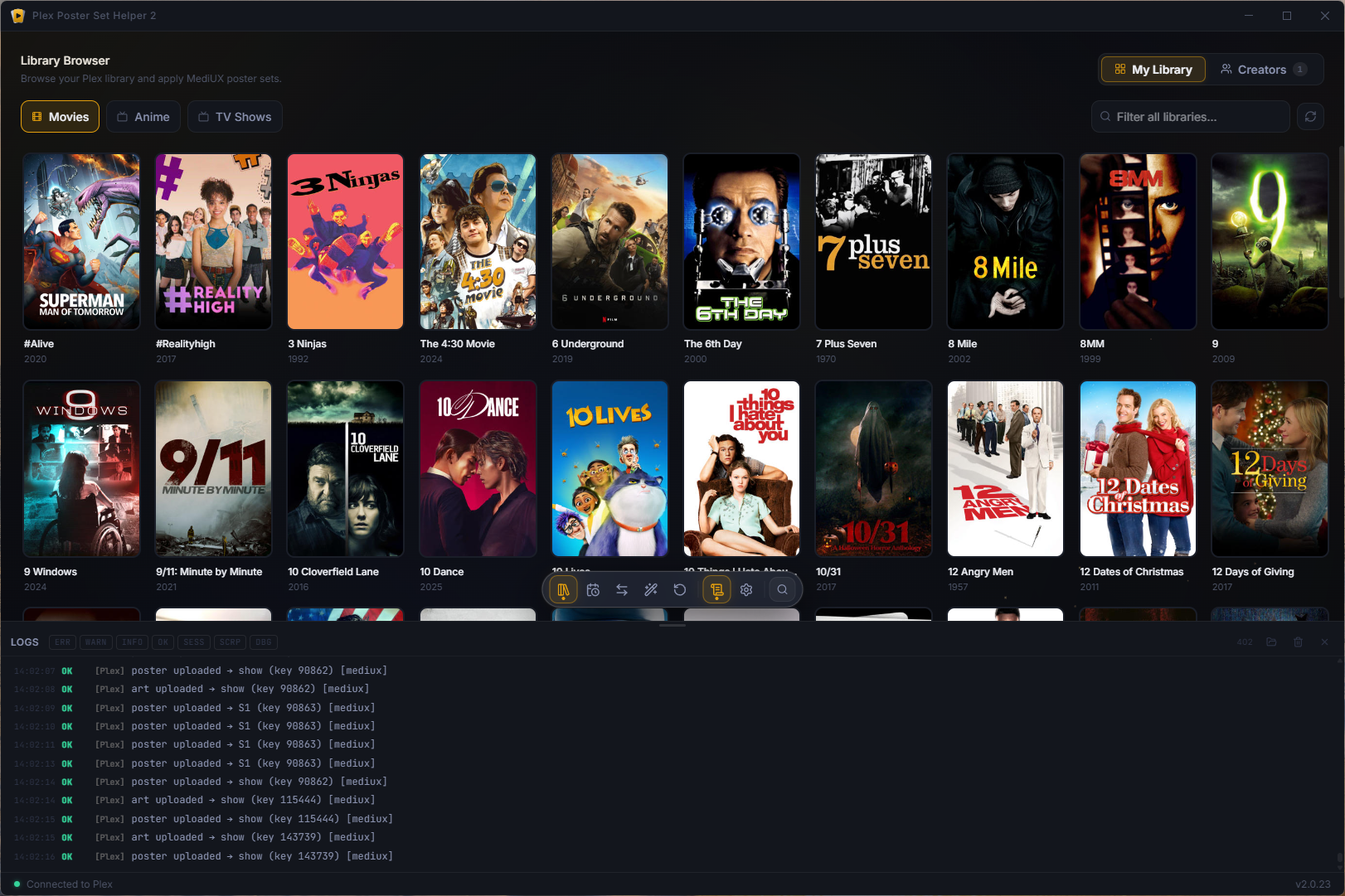
Which version do I want?
Not sure where to run it? Here's the plain‑English version:
| You want to… | Use this |
|---|---|
| Use it on your own PC | Desktop app (Windows / Linux) - start here |
| Run it on a home server / unraid, accessible from any browser | Docker (the full app, in a web page) |
Getting started
Option 1 - Download the app (easiest)
- Go to the Releases page.
- Download the installer for your system:
- Windows → the
.exeinstaller - Linux → the
.AppImageor.deb
- Windows → the
- Install and launch it.
- On first run, open Settings → Sign in with Plex, click the link, approve in your browser - done. Your server connects automatically and all libraries are included by default.
The app checks GitHub for new versions and can update itself with one click.
Option 2 - Run from source
You'll need Node.js 22+ installed.
git clone https://github.com/molexxxx/plex-poster-set-helper-2.git
cd plex-poster-set-helper-2
npm install
npm run dev
Option 3 - Docker (servers / unraid / always‑on)
Run the full app in your browser - schedules keep firing 24/7 as long as the container is up. One script gets you going:
./docker/run.sh # start the web UI in your browser (Windows: ./docker/run.ps1)
Then open http://localhost:3939 and sign in with Plex.
On unraid? Install it straight from Community Applications - search Plex Poster Helper in the Apps tab (Community Apps page). It pulls the prebuilt Docker Hub image and gives you a WebUI button - no commands needed.
First‑run setup
The app ships with the Chromium headless shell it uses for scraping, so first launch only runs a quick check that the browser starts and then opens the app. Nothing is downloaded.
If that check fails, the setup screen explains why and offers fixes: on Linux it shows the exact package command for any missing system libraries, and on every platform you can pick Google Chrome, Edge, Brave, or Chromium if one is already installed. A managed download remains available from Settings → Browser Engine; it retries automatically, detects system proxies, and can be cancelled.
- Sign in to Plex - Settings → Sign in with Plex → click the link → approve. (No token copy‑paste needed.)
- Connect your server - auto‑detected after sign‑in. All libraries are included by default. To exclude a specific library from matching and the browser, uncheck it in Settings → Libraries.
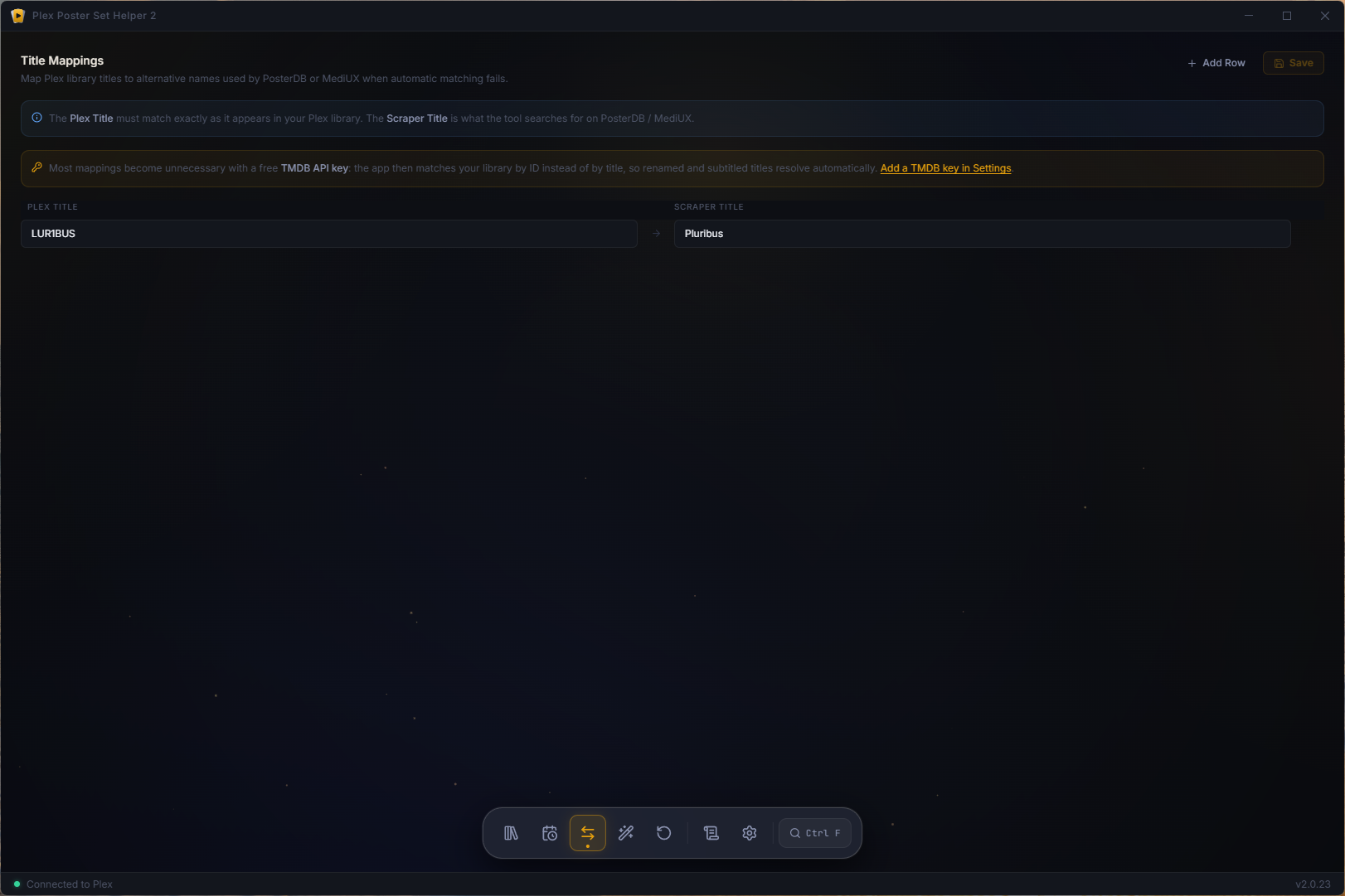
- (Optional, recommended) Add a TMDB API key - a free TMDB API key lets the app match your library by ID instead of guessing by title and year, which fixes most matching and title-mapping issues automatically (and resolves TVDB/IMDb-agent libraries). Anime under the HAMA agent is mapped to TMDB automatically via the open-source Fribb/anime-lists AniDB→TMDB dataset (cached locally), so it matches even without a key. First‑run setup offers a paste/skip step, or add it anytime in Settings → Library Browser.
That's it - head to the Library Browser and start applying posters.
Scheduling - keep posters up to date automatically
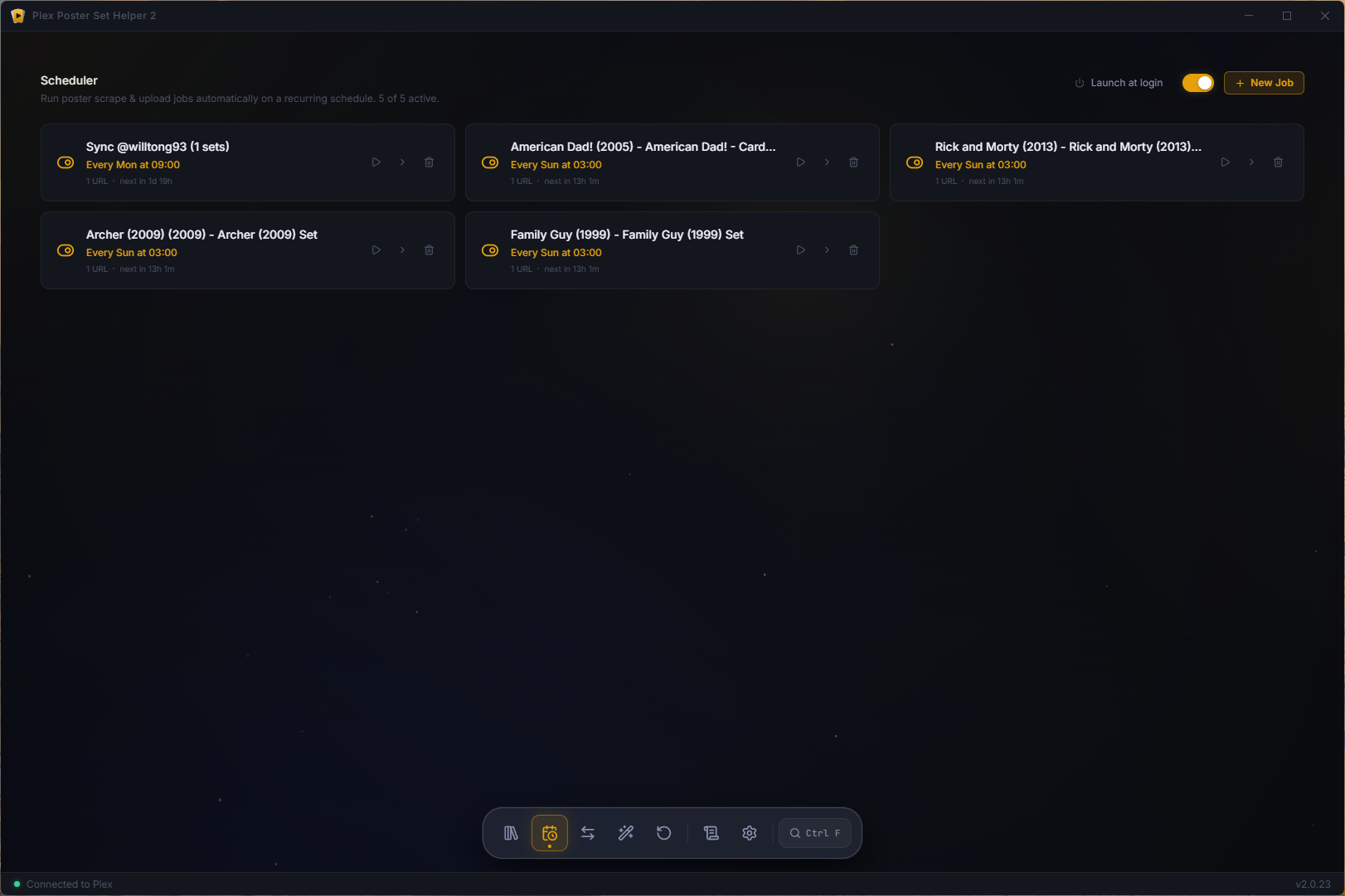
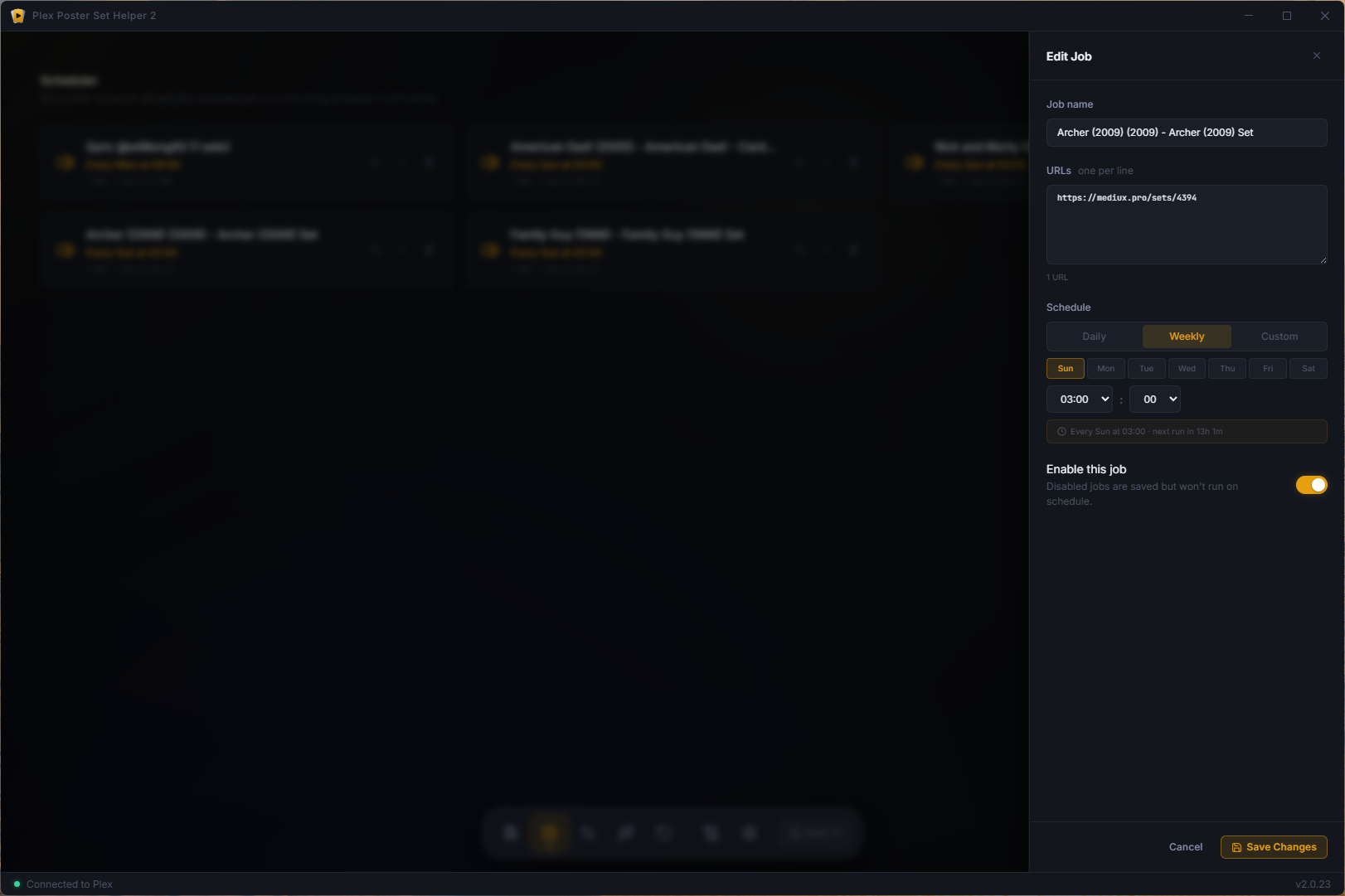
The Scheduler lets you re‑apply a set on a repeating schedule, which is great for shows that keep getting new episodes (so new title cards get art too).
- In the desktop app (Windows / Linux): schedules run whenever the app is open and while it's minimized to the system tray - close the window and it keeps running quietly in the background. You can also enable launch on startup so it's always there after a reboot. No server required.
- For 24/7 on a server: run it in Docker. The container keeps your schedules firing around the clock - just set them up in the app and leave it running. See the Docker guide.
Updating
Your data (Plex sign‑in, schedules, applied‑poster history) survives every update - the desktop app keeps it in your user profile, Docker keeps it in the config volume.
Desktop app (Windows / Linux): the app checks GitHub and updates itself with one click - or grab the latest installer from Releases.
From source:
git pull
npm install
npm run dev
Docker - Windows (PowerShell):
git pull
./docker/run.ps1 -Build
Docker - Mac / Linux / unraid:
git pull
./docker/run.sh --build
Docker Compose:
git pull
docker compose -f docker/docker-compose.yml up -d --build
More detail (unraid, ports, volumes) in the Docker guide.
How it works
| Source | What you can use |
|---|---|
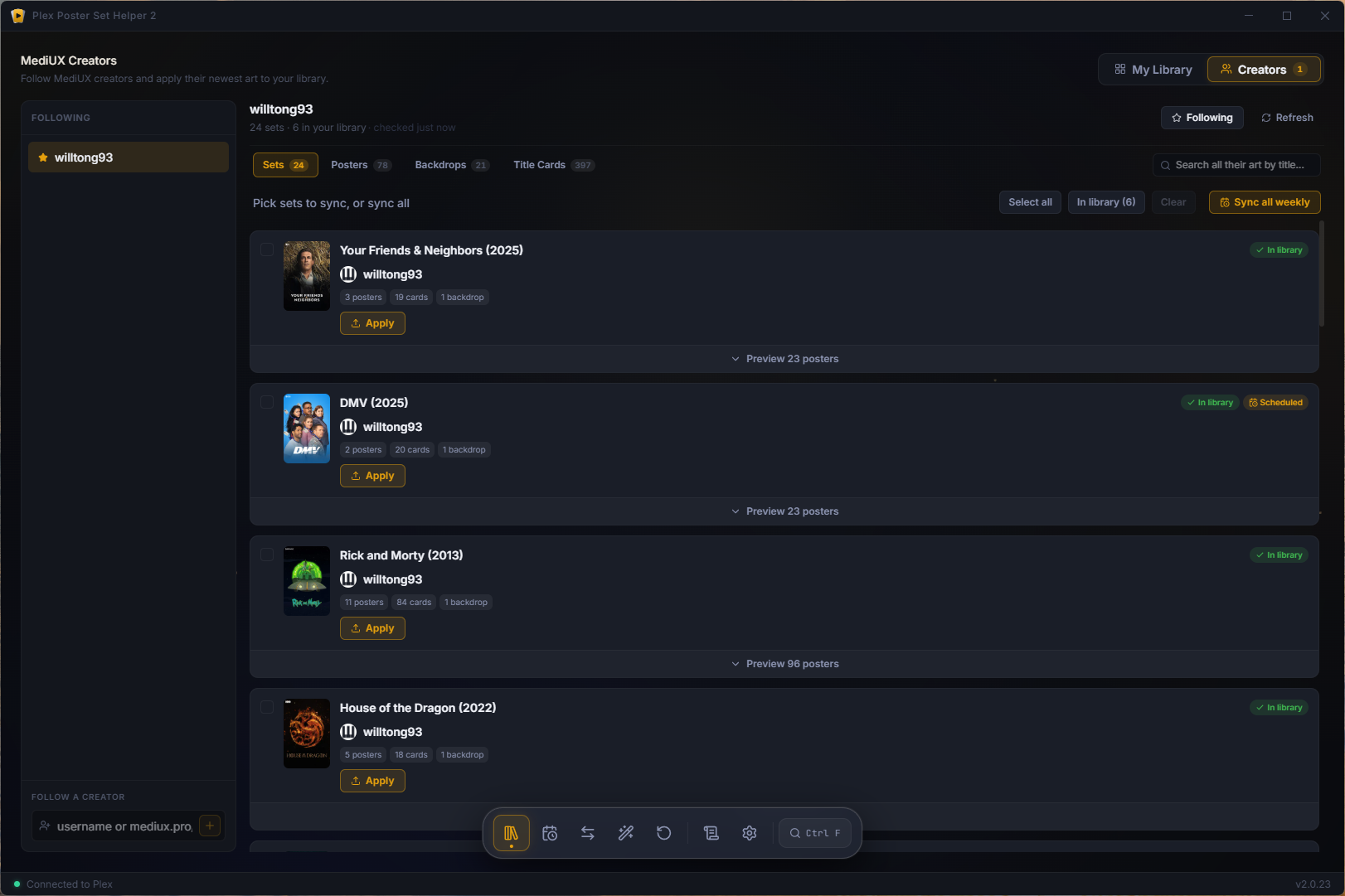
| MediUX | Set links (/sets/123), boxsets (/boxsets/123 - a whole collection at once), and creator pages (/user/name). Full‑quality artwork, including season posters, title cards, and backdrops. |
| ThePosterDB | Set links (/set/123), single posters (/poster/123), and user uploads (/user/name). |
Posters are matched to your library by TMDB ID (read from each Plex item), so the right art lands on the right title. For titles Plex stores without a TMDB ID (or under a TVDB/IMDb agent), a free TMDB API key in Settings restores ID‑based matching - otherwise the tool falls back to title and year, which can miss renamed or subtitled entries. Anime under the HAMA agent (which tags titles with an AniDB ID) is converted to TMDB automatically using the open-source Fribb/anime-lists dataset (cached locally), no key required. Everything you apply is tracked locally, so the Reset page always knows what's current, what was applied before, and where it came from.
Building & development
npm run dev          # run the app in development (hot reload)
npm run build        # build renderer + main process
npm run dist         # package installers for the current OS (electron-builder)
npm run dist:win     # Windows installer
npm run dist:linux   # Linux AppImage + deb
npm run typecheck    # type-check renderer + main process
npm run lint         # eslint
Stack: Electron · React 19 · TypeScript · Vite · Tailwind · Playwright (scraping) · Fastify (web / Docker mode).
Contributing
Issues and pull requests are welcome. Please run npm run lint and npm run typecheck before opening a PR - CI runs both.
License
MIT © molexxxx
Credits
- MediUX and ThePosterDB - the communities behind the artwork.
- Originally inspired by bbrown430/plex-poster-set-helper (the Python original); rebuilt from the ground up as a cross‑platform desktop app.
Categories
Download Statistics
Related apps
Explore more like this
Explore allDetails
tonywied17/plex-poster-helper-2:latestRuntime arguments
- Web UI
http://[IP]:[PORT:3939]- Network
bridge- Shell
bash- Privileged
- false
Template configuration
Web UI port. Open http://[IP]:3939 in your browser. Sign in with Plex to access the app.
- Target
- 3939
- Default
- 3939
- Value
- 3939
Config, schedules, applied-poster history, and installed Chromium.
- Target
- /config
- Default
- /mnt/user/appdata/plex-poster-helper-2
- Value
- /mnt/user/appdata/plex-poster-helper-2
Timezone (matches scheduler cron times)
- Default
- America/New_York
- Value
- America/New_York