
All apps · 0 apps

youtube-dl-server
Docker app from runraid's Repository
Overview
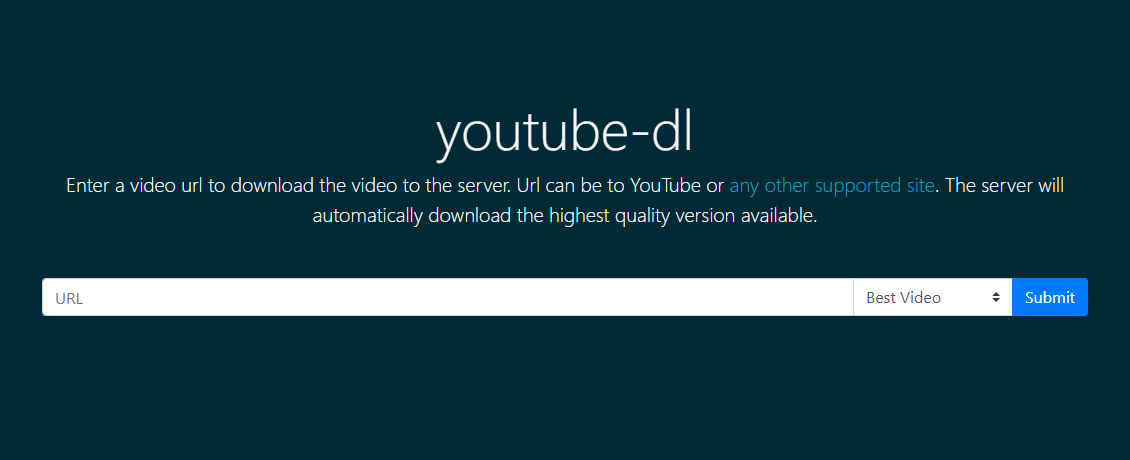
Enter a video url to download the video to the server. Url can be to YouTube or any other supported site. The server will automatically download the highest quality version available. Just navigate to http://{{address}}:{{port}}/youtube-dl and enter the requested {{url}}. curl -X POST --data-urlencode "url={{url}}" http://{{address}}:{{port}}/youtube-dl/q
/youtube-dl : Downloads go there
Readme
View on GitHub



youtube-dl-server
Very spartan Web and REST interface for downloading youtube videos onto a server. starlette + yt-dlp.
Running
Docker CLI
This example uses the docker run command to create the container to run the app. Here we also use host networking for simplicity. Also note the -v argument. This directory will be used to output the resulting videos
docker run -d --net="host" --name youtube-dl -v /home/core/youtube-dl:/youtube-dl kmb32123/youtube-dl-server
To provide custom yt-dlp configuration (e.g., authentication, custom options), mount a config directory:
docker run -d --net="host" --name youtube-dl \
  -v /home/core/youtube-dl:/youtube-dl \
  -v /home/core/yt-dlp-config:/root/.config/yt-dlp \
  kmb32123/youtube-dl-server
Place your config file in /home/core/yt-dlp-config/ with yt-dlp options (one per line). See yt-dlp configuration documentation for details.
Docker Compose
This is an example service definition that could be put in docker-compose.yml. This service uses a VPN client container for its networking.
  youtube-dl:
    image: "kmb32123/youtube-dl-server"
    network_mode: "service:vpn"
    volumes:
      - /home/core/youtube-dl:/youtube-dl
      - /home/core/yt-dlp-config:/root/.config/yt-dlp  # optional: custom yt-dlp config
    restart: always
Python
If you have python ^3.6.0 installed in your PATH you can simply run like this, providing optional environment variable overrides inline.
YDL_UPDATE_TIME=False python3 -m uvicorn youtube-dl-server:app --port 8123
In this example, YDL_UPDATE_TIME=False is the same as the command line option --no-mtime.
Usage
Start a download remotely
Downloads can be triggered by supplying the {{url}} of the requested video through the Web UI or through the REST interface via curl, etc.
HTML
Just navigate to http://{{host}}:8080/youtube-dl and enter the requested {{url}}.
Curl
curl -X POST --data-urlencode "url={{url}}" http://{{host}}:8080/youtube-dl/q
Fetch
fetch(`http://${host}:8080/youtube-dl/q`, {
  method: "POST",
  body: new URLSearchParams({
    url: url,
    format: "bestvideo"
  }),
});
Bookmarklet
Add the following bookmarklet to your bookmark bar so you can conviently send the current page url to your youtube-dl-server instance.
javascript:!function(){fetch("http://${host}:8080/youtube-dl/q",{body:new URLSearchParams({url:window.location.href,format:"bestvideo"}),method:"POST"})}();
Implementation
The server uses starlette for the web framework and yt-dlp to handle the downloading. The integration with yt-dlp makes use of their python api.
This docker image is based on python:alpine and consequently alpine:3.8.
Categories
Download Statistics
Total Downloads Over Time
Related apps
Explore more like this
Explore allDetails
kmb32123/youtube-dl-serverRuntime arguments
- Web UI
http://[IP]:[PORT:8080]/youtube-dl- Network
bridge- Privileged
- false
Template configuration
Container Port: 8080
- Target
- 8080
- Value
- 8080
Container Path: /youtube-dl
- Target
- /youtube-dl
Optional existing HTTP proxy for yt-dlp outbound requests and downloads. Example: http://UNRAID-IP:8118 (replace UNRAID-IP with your server IP). Binhex VPN containers can provide Privoxy on port 8118 when enabled; publish that port and allow this container to access the proxy. This setting does not create or manage a VPN. Leave blank to preserve existing behavior. Keep the normal bridge network and WebUI port mapping; sharing the VPN container network namespace is unnecessary. Requires an image version supporting YDL_PROXY.
- Target
- YDL_PROXY