

XKNX-Editor
Docker app from bjoern3003's Repository
Overview
Readme
View on GitHubXKNX Editor
XKNX Editor is a multi-platform desktop app (Windows, Linux, macOS) with native AI support for KNX building-automation projects based on KNX Standard Vol. 3, built on the open-source xknx
library. Import and export .knxproj projects natively by XKNXProject and OpenKNXProducer, browse product catalogs, program KNX
devices over a real bus based on XKNX Project XKNXToolkit, and drive it all through an integrated MCP server for AI-assisted
workflows which can auto-download PDF manuals from the manufacturers.
[!WARNING] Not affiliated with the KNX Association. See Disclaimer and Purpose
XKNX Editor comes with no guarantees. It is tested with real devices but still a download can leave a device unavailable until it is reprogrammed. Do not use it on a installation you cannot access directly and keep a ETS backup of any project before opening it here.
Verified device coverage for downloading is good but not complete. Please report if you have issues with a device.
Download
Prebuilt apps for Windows, Linux, and macOS are attached to every release — grab the latest from the Releases page and start it directly. For a server, the browser UI also comes as a container image, a Home Assistant add-on and an Unraid template.
On Windows, run XKNX-Editor-windows-installer-x64.exe (or -arm64.exe on Windows on ARM). It
installs for the current user without administrator rights, adds a Start menu entry (and one for
the browser UI), a desktop shortcut and the .xknx file association (optionally also .knxproj, opened as an import), and
can be removed in Apps & Features. In a virtual
machine without a graphics driver, select "Software rendering" in the installer. The
XKNX-Editor-windows-portable-*.zip archives run without installation.
On macOS the app is not signed by Apple yet, so the first launch is blocked:
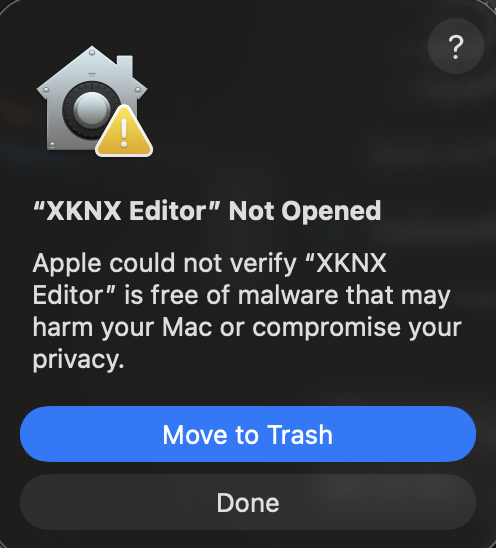
To allow it, open it once, then go to System Settings → Privacy & Security, scroll down, and click Open Anyway (confirm on the next launch). Alternatively, remove the quarantine flag in a terminal:
xattr -dr com.apple.quarantine "/Applications/XKNX Editor.app"
On Linux, make the AppImage executable first (a double-click without this may open it in a disk-image tool instead of launching):
chmod +x XKNX-Editor-x86_64.AppImage && ./XKNX-Editor-x86_64.AppImage
Started while XKNX Editor already runs (as a window or as the browser UI), it asks whether to
switch to the running one, which then opens a project given at the start, or to start another, e.g.
for a second project or another bus connection. --new-instance starts another without asking.
Opening a project another XKNX Editor has open asks first as well.
Reporting problems
Report a problem via Feedback in the menu bar, which opens the
issues page, and attach the log of the run in which
it happened. Help → Open Log Folder opens the folder: every run writes its own
xknx-editor_<date>_<time>_<process>.log, and the last 10 runs are kept. The folder is
%LOCALAPPDATA%\xknx-editor\xknx-editor\Logs on Windows, ~/Library/Logs/xknx-editor on macOS
and ~/.local/state/xknx-editor/log on Linux.
Features
Project editor — a tree for the installation (topology, group addresses, buildings and rooms), a detail table, and a properties panel. Communication objects are linked to group addresses with live compatibility checks, and every change has full undo/redo.
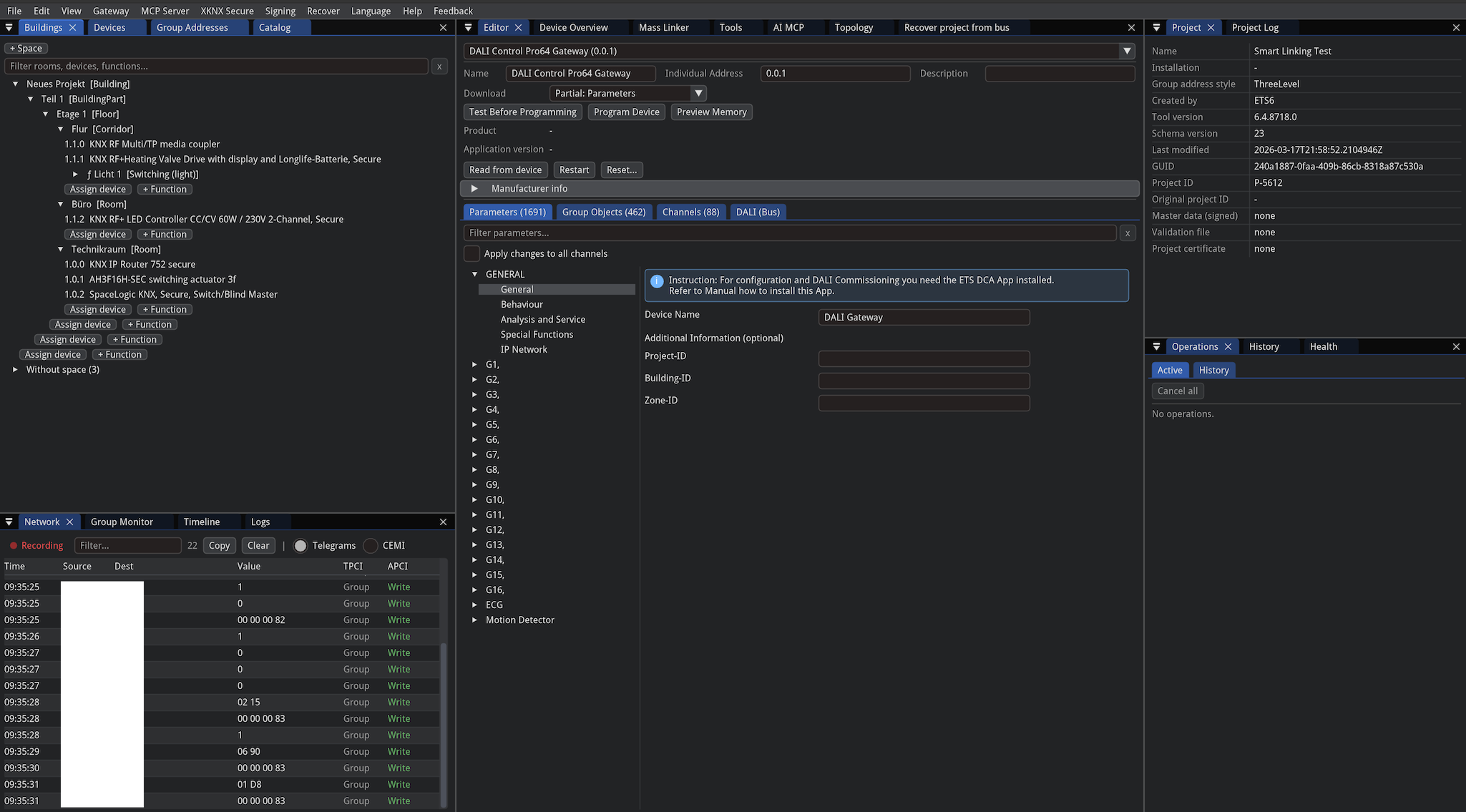
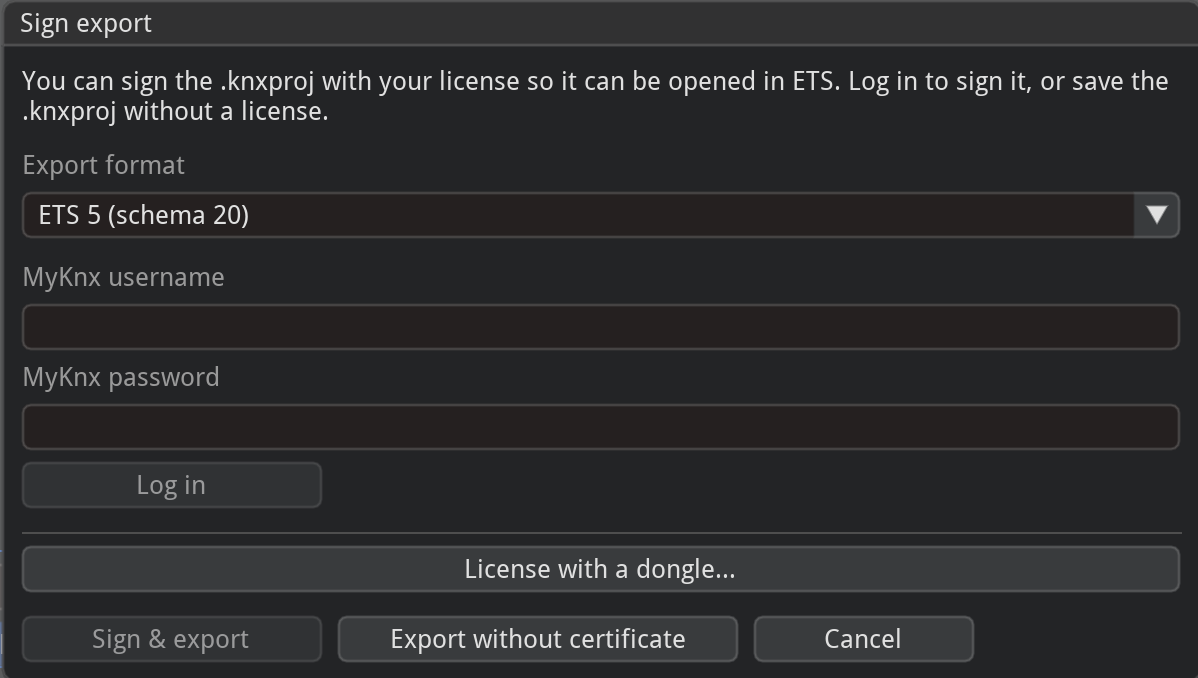
Import and export both work. Open an existing project file and edit it, or export one that opens in ETS. Exports bundle the required product data so the project is self-contained, are signed so ETS accepts them. Based on XKNXProject and OpenKNXproducer
The Open Project dialog accepts three formats and routes each automatically: an XKNX project
(.xknx), an ETS project archive (.knxproj, imported into a new project), and an ETS group-address
export (.xml, ga-export/01). A group-address export carries only the group-address tree (main and
middle group folders with their addresses and datapoint types, no devices); it is imported into a new
project whose group-address tree mirrors the export.
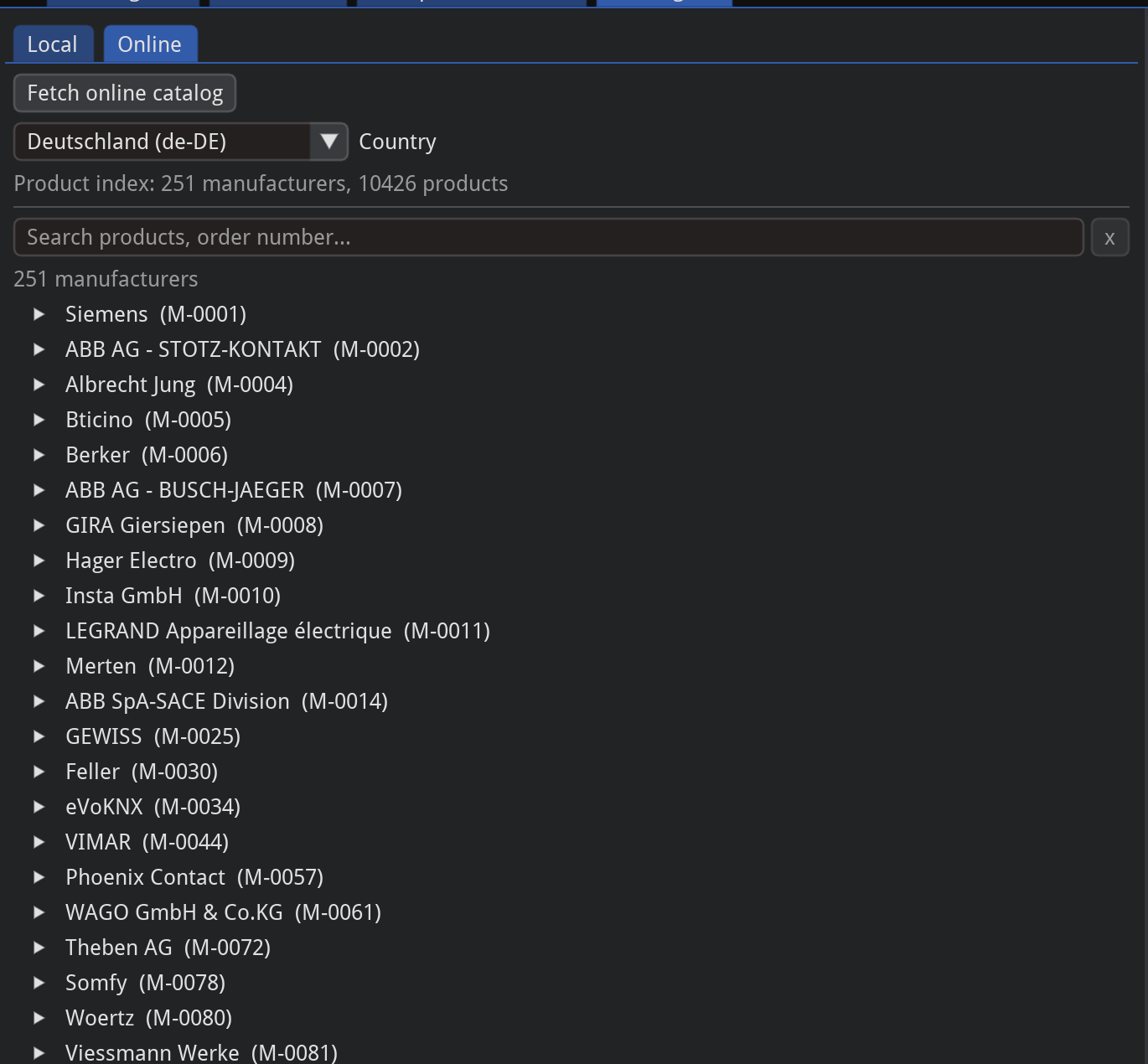
Product catalog — import product files into a searchable catalog of manufacturers, hardware, and applications, independent of any project, and drag entries in as new devices. You can also browse the online catalog, cached locally for offline use.
Programming real devices — commission a device end-to-end over a live connection (tunneling or routing, with gateway discovery), including setting a new device's address. A read-only preflight and Test Programming read the device back and show the exact changes before anything is written. Vendor-independent by design.

Cockpit and health checks — a site-wide device table with live status, plus a panel that flags issues (missing or duplicate addresses, applications missing from the catalog, unlinked objects, group addresses without a type or sender); click a finding to jump to the device.
Bus monitors and logs — record and inspect bus traffic in the Group Monitor, Bus Monitor and Bus Activity alongside a filterable application log; with a project open, values are shown with the group address' name and decoded type.
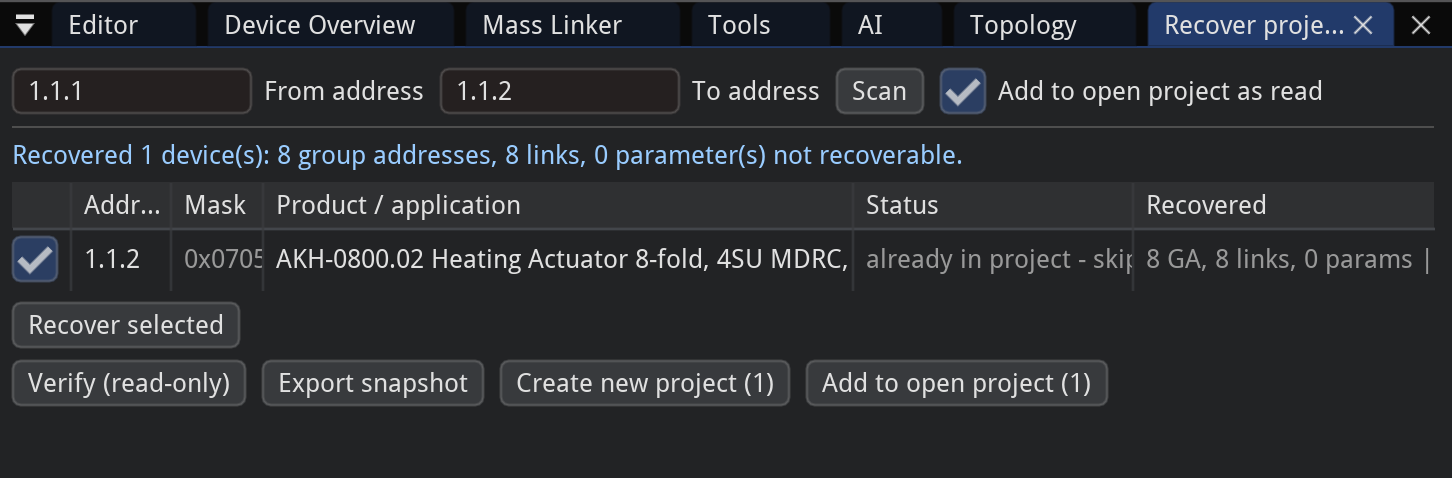
Recover from the bus — reconstruct an installation without a project file by scanning an address range and reading each device back read-only, then adding it to the project. Uncertain values are marked rather than guessed, and a read-only verify diffs the result against the device. Still maturing — review a recovered project before relying on it.
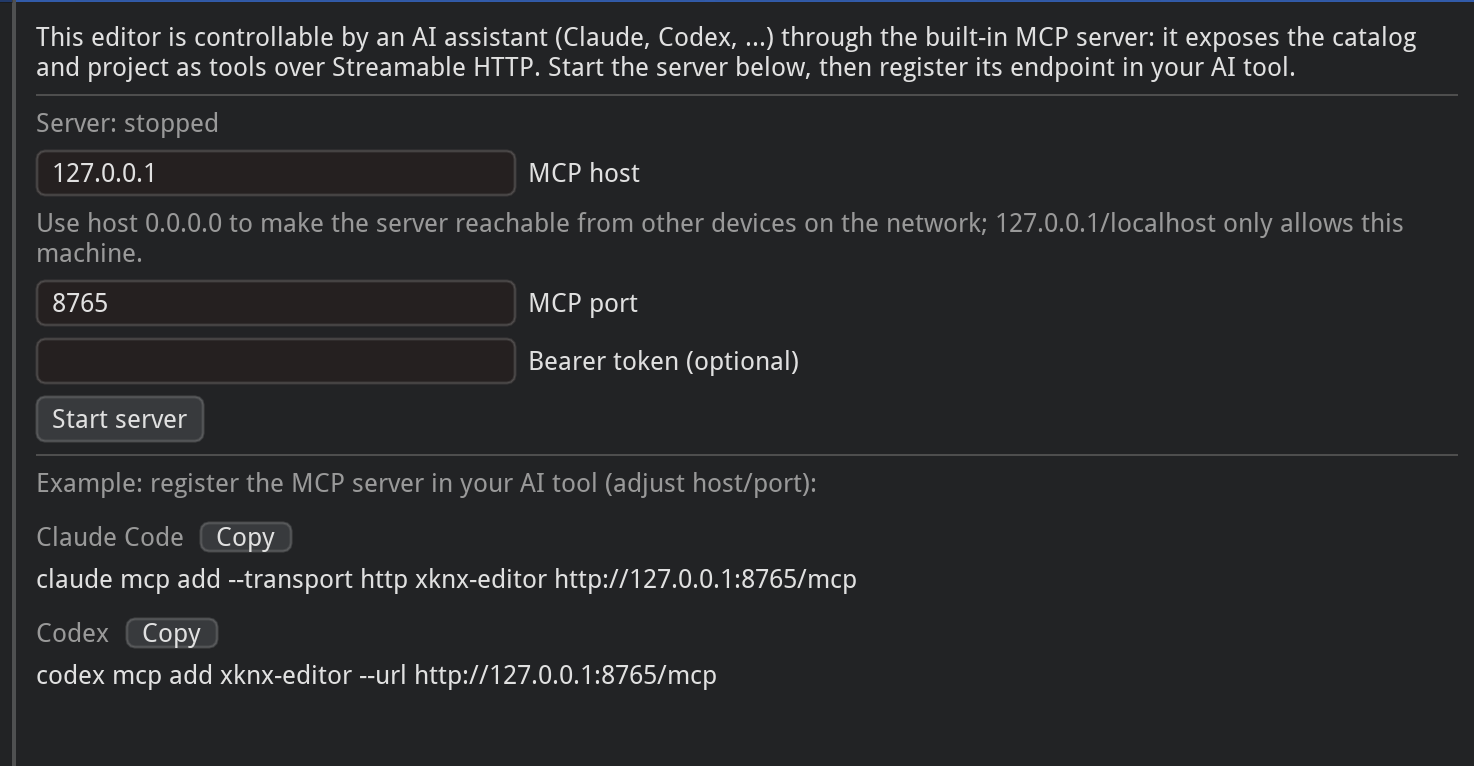
MCP server (LLM control) — an embedded Model Context Protocol server lets an LLM drive the editor in the same live session as the GUI (shared project, catalog, and connection). Start it from Settings → MCP. It can edit the project and program hardware, so only expose it to clients you trust.
Browser UI
The editor can also run without a window and be used in a web browser: on the same computer, or on a server next to the installation (a mini PC, a NAS, a container) that you reach from the house network. It is the same editor with the same dialogs; the browser draws it itself (no video stream), so it stays sharp at any display scaling. Works in current Chrome, Edge, Opera, Firefox and Safari (WebGL 2).
Start the app with --web and open the address it prints:
| Command | |
|---|---|
| Windows | XKNX-Editor.exe --web, or the Start menu entry XKNX Editor (Browser) |
| macOS | /Applications/XKNX-Editor.app/Contents/MacOS/XKNX-Editor --web |
| Linux | ./XKNX-Editor-x86_64.AppImage --web |
| From source | uv run python -m editor_gui.main --web |
By default it serves http://localhost:8080/ on this computer only (the next free port when 8080
is in use) and opens the default browser there. No sign-in is needed then. File → Exit in the browser, or Ctrl+C in the terminal it was
started from, ends it. A project file can be given as usual, e.g. XKNX-Editor.exe --web Haus.xknx.
On a desktop, a tray icon shows that the editor runs in the background: in the Windows notification area, the macOS menu bar, or the tray of a Linux desktop (KDE Plasma, GNOME with the AppIndicator extension, Xfce, …). Its menu has Open in Browser and Stop XKNX Editor; on Windows, and on Linux desktops that support it, a left click opens the browser directly.
Reachable from other devices, every browser signs in once with a password you choose:
XKNX_WEB_PASSWORD='choose a password' ./XKNX-Editor-x86_64.AppImage --web=0.0.0.0:8080
A network address given without a password works too, e.g. in a network protected otherwise; the app
then warns in its terminal, as anyone reaching it could program the installation and read its KNX
Secure keys. Behind a proxy that signs users in itself (e.g. Home Assistant Ingress) and reaches the
app on this computer, add --web-trust-proxy. For HTTPS, pass a certificate or let a reverse proxy
in front handle it.
| Option | Meaning |
|---|---|
--web[=[host:]port] |
Serve the browser UI (default 127.0.0.1:8080; a port given must be free) |
--web-password-file=FILE |
Sign-in password from the first line of FILE (or XKNX_WEB_PASSWORD) |
--web-trust-proxy |
A proxy in front signs users in; no password |
--web-files=DIR |
Folder for uploaded, saved and exported files (default: files in the app's data folder) |
--web-idle=MINUTES |
Control passes to another browser after this much inactivity (default 10) |
--web-cert=FILE, --web-key=FILE |
Serve HTTPS with this certificate and key |
--web-no-browser |
Do not open the browser at start (an autostart, a service) |
--web-no-tray |
No tray icon |
On a tablet or phone the layout follows the screen: from about 1000 pixels width the usual one, below it the navigation above (or beside) the other panels, which share one section as tabs; it changes when the device is turned. On a narrow screen the menus are in one ☰ menu, the parameter editor shows its pages above the parameters with each label above its field, rows of buttons go on in the next line and wide tables scroll sideways. Each browser keeps its own zoom: two fingers, Ctrl+Plus/Minus/0, Ctrl+wheel (a touchpad's pinch), or View → Zoom In/Zoom Out/Reset Zoom; on the Topology diagram they zoom the diagram. With a finger, a tap clicks, a swipe scrolls, holding and lifting is a right-click (context menus) and holding and moving drags. The on-screen keyboard appears for text fields only.
One browser controls the editor at a time; it keeps control across a reload. Another browser watches and can take over with Take Control, and gets control right away once the controlling one was inactive for the idle time.
Files go through the browser: Open uploads a file from your computer (or drop it on the page) or picks one already on the server; Save and Export write into the server's file folder and download the result to your computer when Download to This Computer is ticked.
Container, Home Assistant and Unraid
On a server, the browser UI runs without installing anything else:
| Docker, Compose, … | the image ghcr.io/xknx/xknx-editor-web, built for every release (amd64, arm64); see docker/README.md |
| Home Assistant | the add-on in homeassistant/xknx-editor, in the sidebar without an extra password |
| Unraid | the template in unraid, for Community Applications |
This button adds the add-on repository to your Home Assistant:

Running from source
Only running from source is supported for now (developer-focused software).
uv sync
uv run python -m editor_gui.main
The app (distribution xknxeditor-gui, import package editor_gui) is a workspace member the root
project depends on, so a plain uv sync installs it and its imgui-bundle dependency.
Packages
Standalone, typed Python libraries (the xknxeditor namespace), usable independently of the GUI:
| Package | Import | Description |
|---|---|---|
xknxeditor-namespaces |
xknxeditor.namespaces |
XML schema bindings and version detection (foundation) |
xknxeditor-prod |
xknxeditor.prod |
Reads and validates .knxprod product archives |
xknxeditor-catalog |
xknxeditor.catalog |
Product catalog built from imported .knxprod archives |
xknxeditor-proj |
xknxeditor.proj |
Project state management (incl. .knxproj import/export and offline signing) |
xknxeditor-datasecure |
xknxeditor.datasecure |
Parses and serializes keyring XML (IP Secure keys) |
xknxeditor-download |
xknxeditor.download |
Programs applications and individual addresses into real devices |
xknxeditor-recover |
xknxeditor.recover |
Reconstructs a project by reading devices back from the bus |
Development
uv sync                        # Install dependencies
uv run pytest                  # Run all tests (or: uv run pytest packages/namespaces)
uv run ruff check              # Lint
uv run pyright                 # Type check
See AGENTS.md and apps/editor-gui/AGENTS.md for architecture notes and conventions.
To test unreleased xknx changes, clone it as a sibling and add a [tool.uv.sources] override in
apps/editor-gui/pyproject.toml (xknx = ), then
uv lock; revert both files before committing.
Requirements
- Python >= 3.13
- uv
Purpose and interoperability
XKNX Editor is an independent, open-source tool that aims to improve interoperability within the KNX
ecosystem: reading, editing and exchanging KNX project data (.knxproj) and programming KNX devices
over the bus, without being tied to a single vendor's toolchain.
The project is guided by the principle — reflected in EU law — that interoperability between independently created software should be possible (Directive 2009/24/EC on the legal protection of computer programs, Article 6), and that a strong market position should not be used to foreclose competition (Article 102 TFEU). XKNX Editor seeks to broaden choice and interoperability in KNX tooling in that spirit.
This is a statement of the project's aims and not a legal determination about any third party.
Disclaimer
An independent, open-source project built on the xknx library. Not affiliated with, endorsed by, or connected to the KNX Association or its ETS software. "KNX" and "ETS" are trademarks of the KNX Association, used here only to state this non-affiliation and to describe interoperability with the published standard and file formats.
License
XKNX Editor is licensed under the GNU General Public License v2.0 only (GPL-2.0-only) — see
LICENSE. Copyright (C) 2026 xknx
Based on xknxtoolkit by kewde.
The copyleft is inherited from xknxproject (GPL-2.0-only),
used for .knxproj import: as a combined, distributed work XKNX Editor is therefore GPL-2.0-only.
Other bundled libraries are permissive (e.g. xknx, MIT).
Categories
Related apps
Explore more like this
Explore allDetails
ghcr.io/xknx/xknx-editor-web:latestRuntime arguments
- Web UI
http://[IP]:[PORT:8080]/- Network
bridge- Shell
sh- Privileged
- false
Template configuration
- Target
- 8080
- Default
- 8080
- Value
- 8080
- Target
- /data
- Default
- /mnt/user/appdata/xknx-editor/data
- Value
- /mnt/user/appdata/xknx-editor/data
- Target
- /projects
- Default
- /mnt/user/appdata/xknx-editor/projects
- Value
- /mnt/user/appdata/xknx-editor/projects
- Target
- XKNX_WEB_PASSWORD