
All apps · 0 apps

Uptime Kuma Dashboard Widget
Plugin from drohack
Overview
Readme
View on GitHubUptime Kuma Dashboard Widget for Unraid
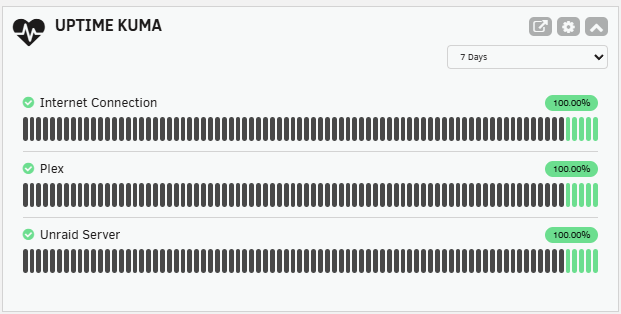
An Unraid plugin that displays your Uptime Kuma monitor statuses directly on the Unraid dashboard with heartbeat bars, uptime percentages, and configurable time periods.
Note: This plugin requires Uptime Kuma to be running as a Docker container on the same Unraid server. It reads the database in read-only mode — SQLite directly from the filesystem, MariaDB (v2's recommended embedded MariaDB or an external one) through the container's own database client. Remote Uptime Kuma instances are not supported. PostgreSQL is not supported by Uptime Kuma itself.
Features
- Heartbeat bars matching Uptime Kuma's style (green/red/orange/blue) with hover tooltips showing date/time and status
- Uptime percentage badges with color coding
- Configurable time periods (1 hour, 12 hours, 24 hours, 7 days, 30 days, 90 days, 180 days)
- Quick link to Uptime Kuma WebUI (auto-detected from Docker template or set manually)
- Choose which monitors to display via checkbox list in settings
- Native Unraid dashboard tile — drag to reorder like any other tile — with settings cog, collapse, and external link controls
- Reads directly from Uptime Kuma's database — no API keys or background services needed
- Supports SQLite and MariaDB (embedded or external, auto-detected from your data folder)
- Built-in folder/file picker for the database path setting
- Supports both Uptime Kuma v1.x and v2.x (auto-detected)
- Down monitors sorted to top
Compatibility
| Uptime Kuma Version | Support |
|---|---|
| v1.x (1.23.x) | Full support — all periods read from heartbeat table (SQLite) |
| v2.x (2.2.x+) | Full support — short periods use heartbeat, longer periods use stat_hourly/stat_daily aggregate tables. SQLite, embedded MariaDB, and external MariaDB backends |
Version and database type are auto-detected. No configuration needed beyond the data folder path. PostgreSQL is not an Uptime Kuma option — if you were looking for the "recommended" database from the v2 setup wizard, that's the embedded MariaDB, which is supported.
MariaDB note: the plugin queries MariaDB through the Uptime Kuma container's own mariadb client, so monitor data is only readable while the container is running (with SQLite, the widget can still show the last recorded state after the container stops).
Prerequisites
- Unraid 6.12.0 or later (required for native dashboard tile support)
- Uptime Kuma running as a Docker container on the same Unraid server (remote instances are not supported)
- The Uptime Kuma Docker container must have its data directory volume-mapped to the Unraid filesystem (this is the default when installed via Community Applications)
Installation
Via Unraid Plugin Manager (Recommended)
- In the Unraid WebGUI, go to the Plugins tab
- Click the Install Plugin sub-tab
- Paste the following URL:
https://raw.githubusercontent.com/drohack/UptimeKumaPlugin/main/uptime-kuma.plg - Click Install
Manual Installation
- Download
uptime-kuma.plgfrom this repository - Copy it to
/boot/config/plugins/on your Unraid server - Run:
installplg /boot/config/plugins/uptime-kuma.plg
Configuration
Step 1: Select Your Data Folder
The plugin needs Uptime Kuma's data folder on the Unraid filesystem — the host folder mapped to /app/data inside the container.
Common paths:
/mnt/user/appdata/uptimekuma/(default from Community Applications)/mnt/cache/appdata/uptimekuma/(if using cache drive)
Click the Database Path field to open the built-in folder browser and pick the folder. The database type (SQLite or MariaDB) is detected automatically from the folder contents. Pointing directly at a kuma.db file still works too.
If unsure of the path: go to the Docker tab, click your Uptime Kuma container, and look at the volume mappings for the one that maps to /app/data.
Step 2: Configure the Plugin
- Go to the Plugins tab and click the Uptime Kuma icon to open settings
- Set the Database Path to your Uptime Kuma data folder (see Step 1)
- Click Test Connection to verify — it will show the number of monitors found, the detected Uptime Kuma version (v1 or v2), and the database type
- Optionally set the WebUI URL or click Auto-Detect to find it from your Docker container
- Set Enable Dashboard Widget to Enabled
- Select which Monitors to Display using the checkboxes (leave all checked to show everything)
- Adjust Refresh Interval and Default Time Period as desired
- Click Apply
Step 3: View the Dashboard
Navigate to the Unraid Dashboard. You should see an "Uptime Kuma" tile showing your monitors with heartbeat bars.
- Use the time period dropdown below the controls to switch between periods (1h to 180d)
- Click the external link icon to open Uptime Kuma's WebUI in a new tab
- Click the cog icon to go to settings
- Click the chevron to collapse/expand the widget
Settings Reference
| Setting | Default | Description |
|---|---|---|
| Enable Dashboard Widget | Disabled | Show/hide the widget on the dashboard |
| Database Path | /mnt/user/appdata/uptimekuma/kuma.db |
Kuma's data folder (auto-detects SQLite/MariaDB) or a kuma.db file |
| Container Name | (auto-detect) | Advanced — Uptime Kuma container name, only needed for MariaDB when auto-detection fails |
| WebUI URL | (auto-detected) | URL to open Uptime Kuma's web interface |
| Refresh Interval | 1 minute | How often the widget refreshes (10s to 10 min) |
| Default Time Period | 24 Hours | Default period for heartbeat bars and uptime % |
| Monitors to Display | All | Checkbox list to select specific monitors |
Troubleshooting
"Database file not found"
- Double-check the database path in the plugin settings
- Ensure the Uptime Kuma Docker container is running
- Verify the volume mapping in your Docker container settings
"Not a valid Uptime Kuma database"
- Make sure the path points to your Uptime Kuma data folder (or its
kuma.dbfile), not some other app's folder - The file may be corrupted — check if Uptime Kuma itself is working
"Could not find a running Uptime Kuma container" (MariaDB)
- MariaDB data is read through the Uptime Kuma container, which must be running
- If auto-detection fails (e.g. unusual container name and volume mapping), set Container Name in the plugin settings to your Uptime Kuma Docker container's name
"Uptime Kuma container is not running" (MariaDB)
- Unlike SQLite, MariaDB data can only be read while the Uptime Kuma container runs — start the container
"Database file not readable"
- The Unraid webserver needs read access to the file
- Check permissions:
ls -la /mnt/user/appdata/uptimekuma/kuma.db - If needed:
chmod 644 /mnt/user/appdata/uptimekuma/kuma.db
Widget shows "Loading..." indefinitely
- Open browser dev tools (F12) and check the Console/Network tabs for errors
- Verify the plugin backend is accessible: visit
http://<your-unraid-ip>/plugins/uptime-kuma/UptimeKumaData.php?action=testin your browser
Heartbeat bars are empty for longer periods
- On Uptime Kuma v1.x, data is only available as far back as Kuma has been running
- On v2.x, longer periods (7d+) use aggregate tables — make sure the v1→v2 migration completed successfully
WebUI link doesn't appear
- Set the URL manually in settings if auto-detect doesn't work
- Check that your Uptime Kuma Docker container has a WebUI configured in its template
Updating
When a new version is available:
- Go to Plugins > Installed Plugins
- Check for updates, or remove and reinstall using the same URL
See CHANGELOG.md or the GitHub Releases page for what changed in each version.
Uninstalling
- Go to Plugins > Installed Plugins in the Unraid WebGUI
- Click the delete icon next to "Uptime Kuma"
Your Uptime Kuma data is never modified — the plugin only reads the database in read-only mode.
How It Works
This plugin reads Uptime Kuma's database from the Unraid filesystem. Given the data folder, it detects the backend from Kuma's own db-config.json:
- SQLite (v1 default, v2 option):
kuma.dbis opened directly in read-only mode - Embedded MariaDB (v2's recommended option) and external MariaDB: read-only
SELECTs run through the Uptime Kuma container's ownmariadbclient viadocker exec— Unraid's PHP has no MySQL driver, and the embedded MariaDB only listens on a unix socket inside the container
It auto-detects the Uptime Kuma version and queries the appropriate tables:
- v1.x: All data comes from the
heartbeattable - v2.x: Recent data (1h–24h) from
heartbeat, weekly/monthly fromstat_hourly, and longer periods fromstat_daily
The plugin never writes to or modifies Uptime Kuma's data.
License
MIT License — see LICENSE.
Credits
- Uptime Kuma by Louis Lam
- Built for the Unraid community
Categories
Download Statistics
Downloads by Month
Related apps
Explore more like this
Explore allLinks
Details
https://raw.githubusercontent.com/drohack/UptimeKumaPlugin/main/uptime-kuma.plg