

UltraExplorer
Docker app from Ultra Explorer's Repository
Overview
Readme
View on GitHub
Ultra Explorer
A file manager for all your clouds.
Browse, transfer, synchronize and analyze your files across Google Drive, OneDrive, S3, Dropbox, your NAS and 40+ other storages, side by side in one fast dual-pane app. Powered by rclone, with no server of ours in the middle.
Download · Website · Documentation · Pricing





▶ Watch the trailer (1:52)
https://github.com/user-attachments/assets/7ac566d6-2f84-4c23-afdf-7bea404a6d4b
Contents
- Why Ultra Explorer
- Features
- Download and install
- Free, Pro and Lifetime
- Privacy and security
- Supported storages
- About this repository
Why Ultra Explorer
Your files live everywhere: a laptop, a NAS, two or three clouds, an S3 bucket for archives. Ultra Explorer puts all of them in one window.
- Two panes, any two storages. Drag files from OneDrive to your NAS, or between two S3 buckets.
- Nothing changes by surprise. Conflicts always ask, and every synchronization can be previewed before it runs.
- See where your space goes. Four interactive maps of any folder, on any storage.
- Native and light. A Rust core with a native desktop app, or a self-hosted Docker server.
- Private by design. No telemetry. Your keys stay in
rclone.confon your machine and your files never pass through our servers.
Features
Dual-pane explorer
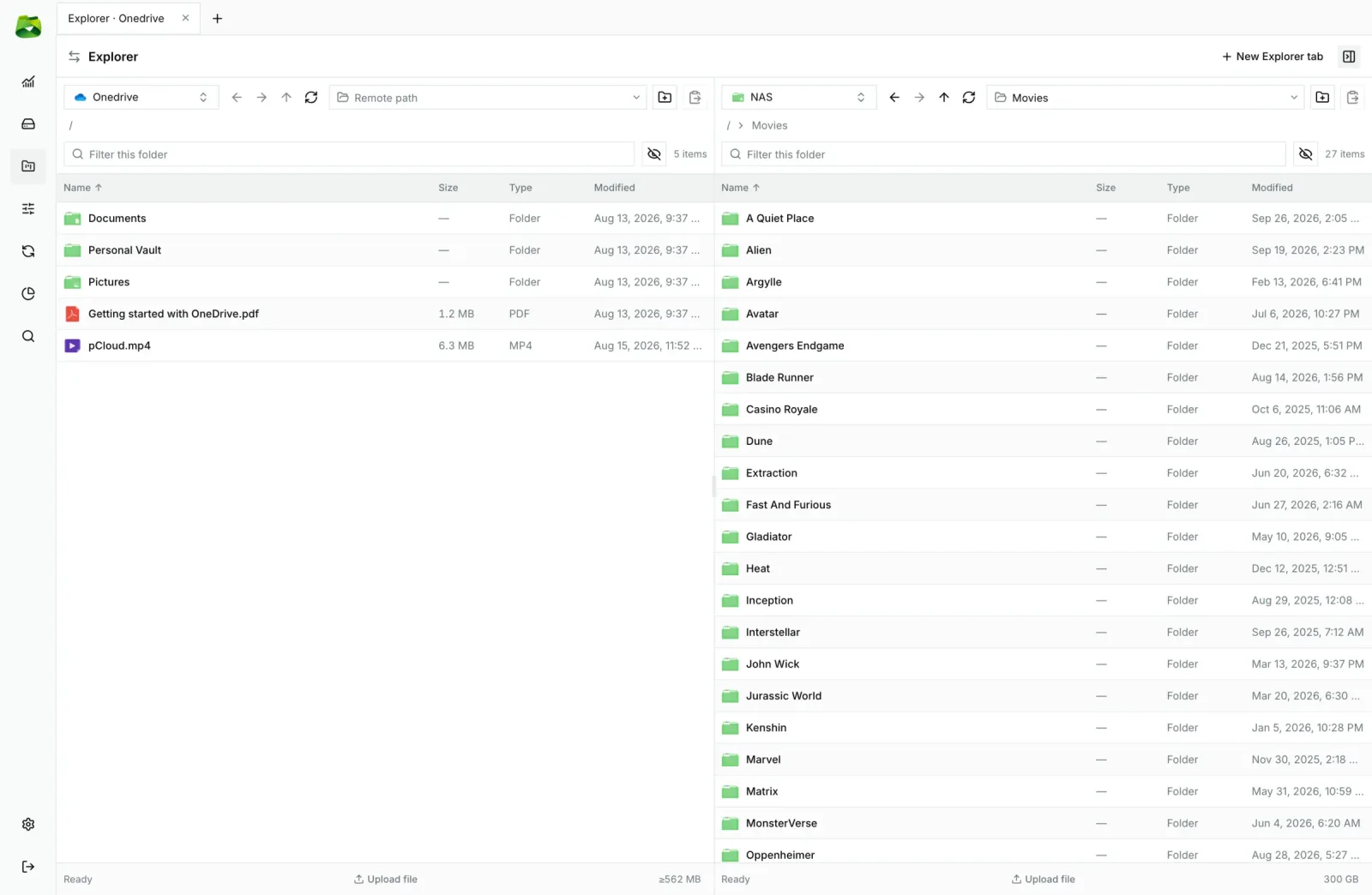
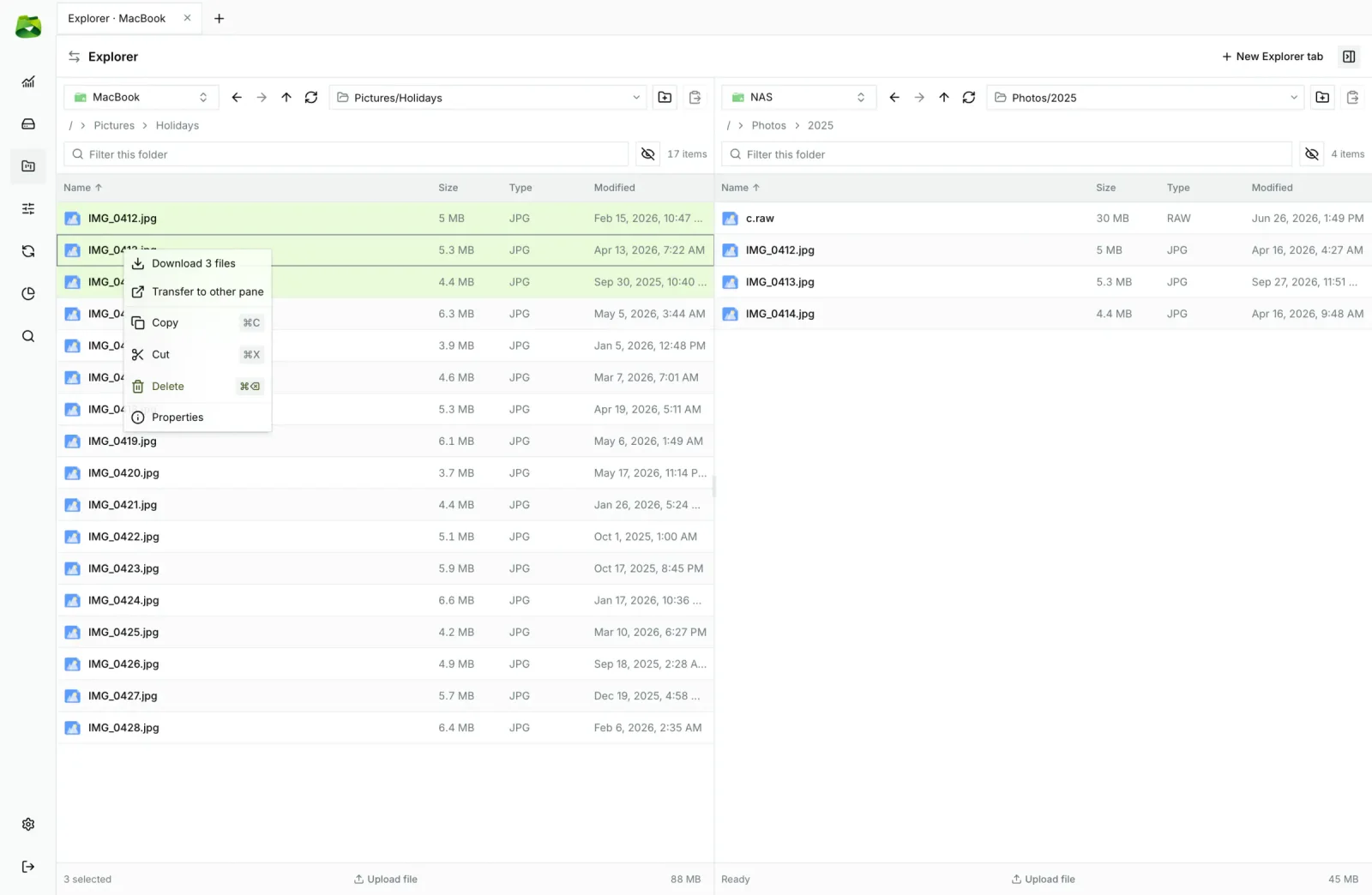
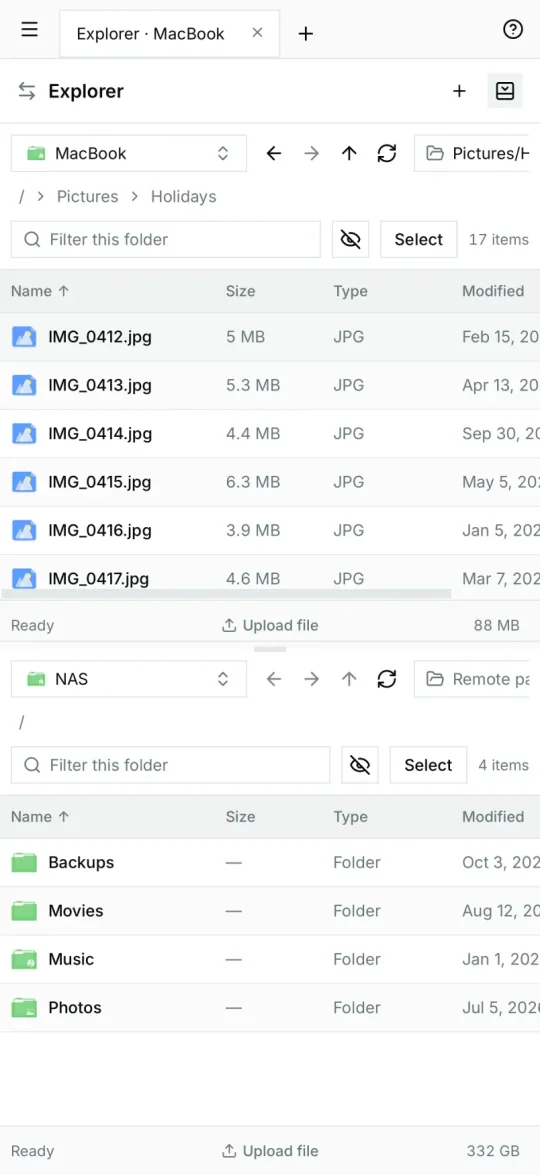
Two independent panels, each with its own storage, tabs and navigation history. Filter a folder as you type, open the context menu for copy, move, rename or delete, and drag files across panes to transfer them, from local to cloud or between two remote storages.
- Drag and drop transfers between any two storages
- No silent overwrites: every conflict asks you to overwrite, skip or keep both
- Tabs with saved paths and filters
- Recursive folder size on demand
|
|
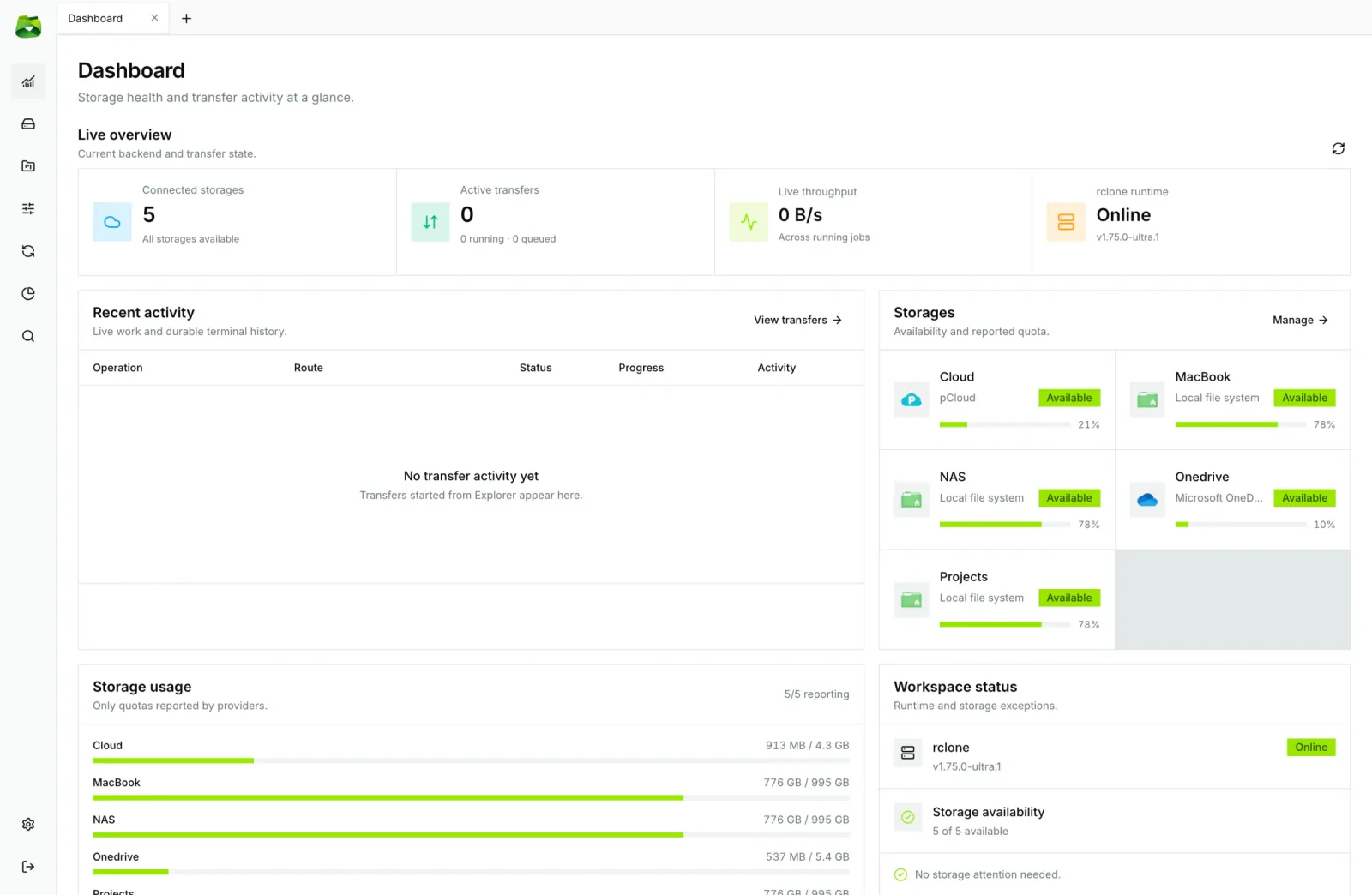
| Copy, move and organize with the context menu | Storage health and transfer activity at a glance |
40+ storages
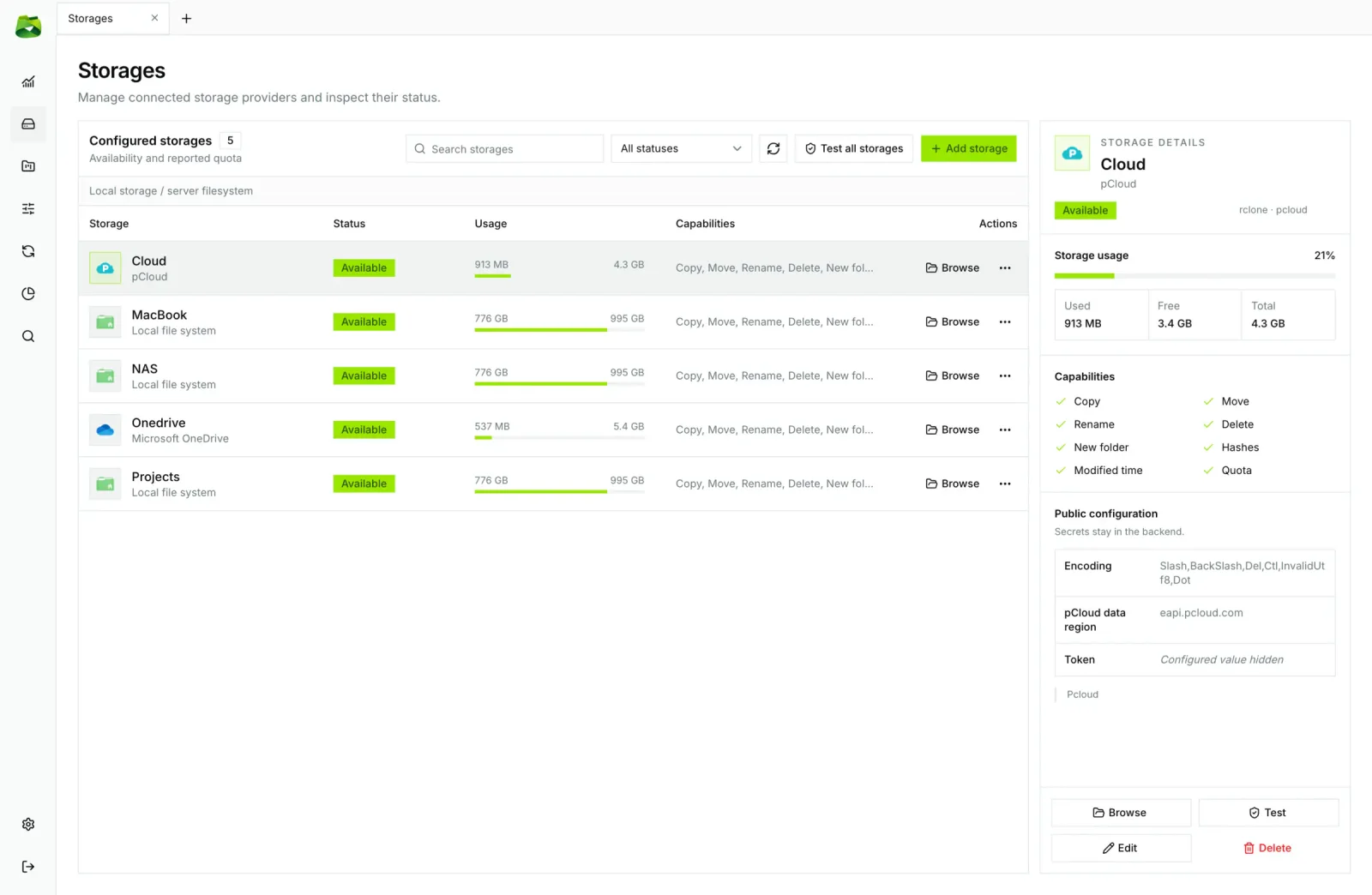
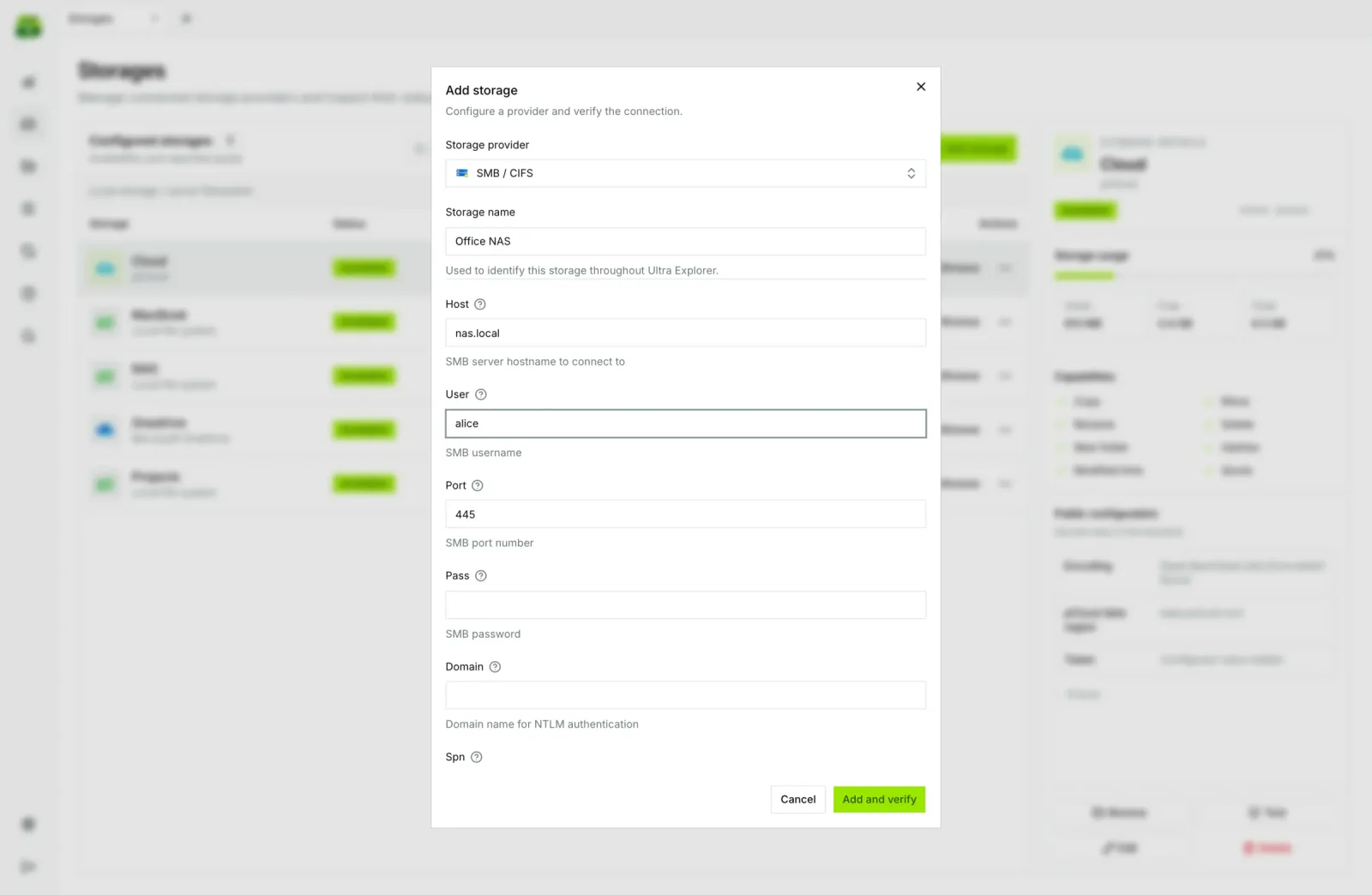
Ultra Explorer uses rclone to connect natively to more than 40 clouds, object stores, NAS and
network protocols. Add a storage with a guided form, or import the rclone.conf you already have
and keep using it from the command line.
|
|
| All your storages, with availability and quota | Add a NAS, a cloud or a server in a few fields |
See the full list in Supported storages.
Transfer queue
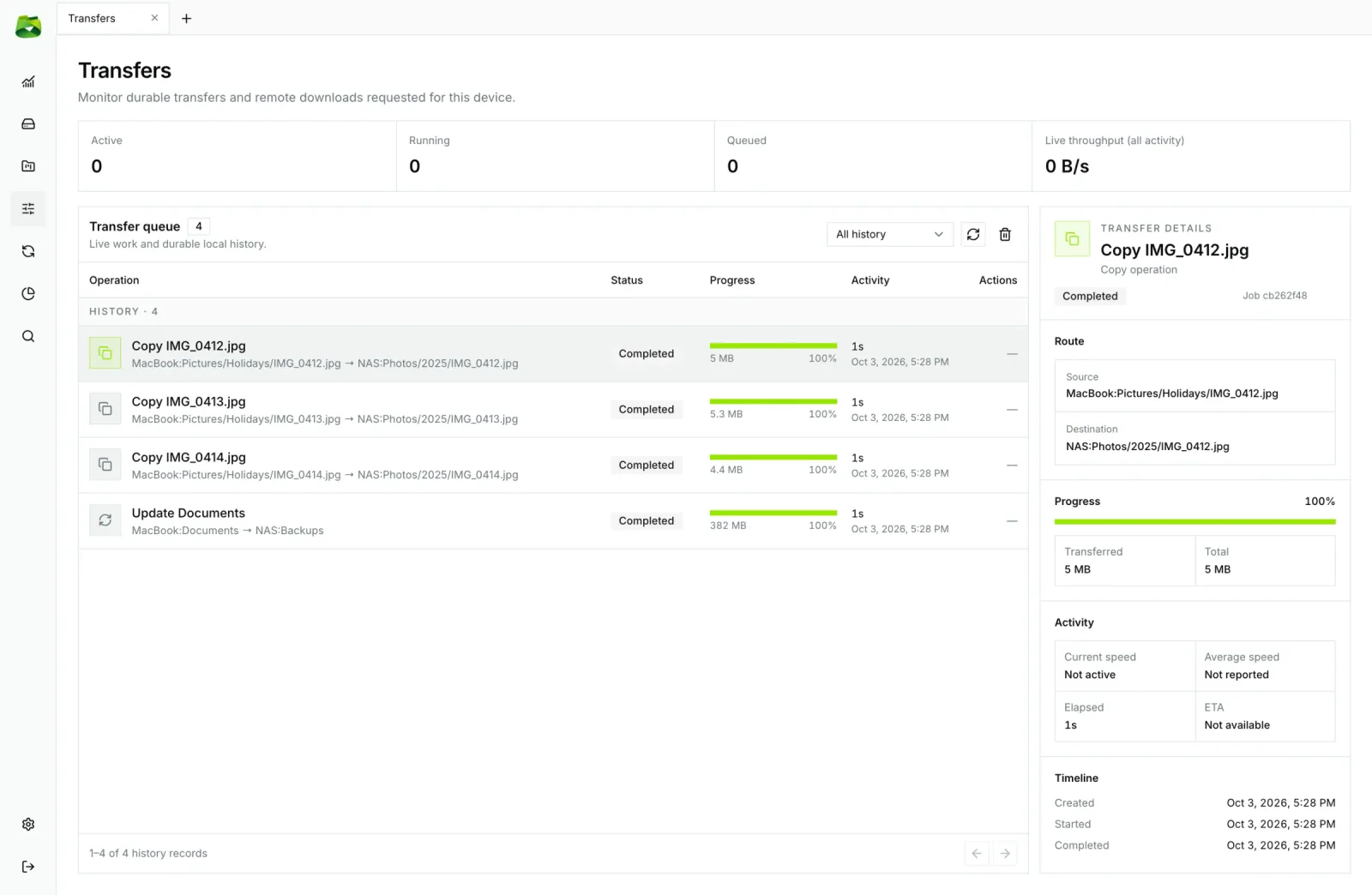
Every copy and move goes into a persistent FIFO queue that never blocks the interface. Follow live throughput, inspect each job (route, progress, speed, timeline), and pick up where you left off after a restart: the queue is stored in SQLite.
Synchronizations
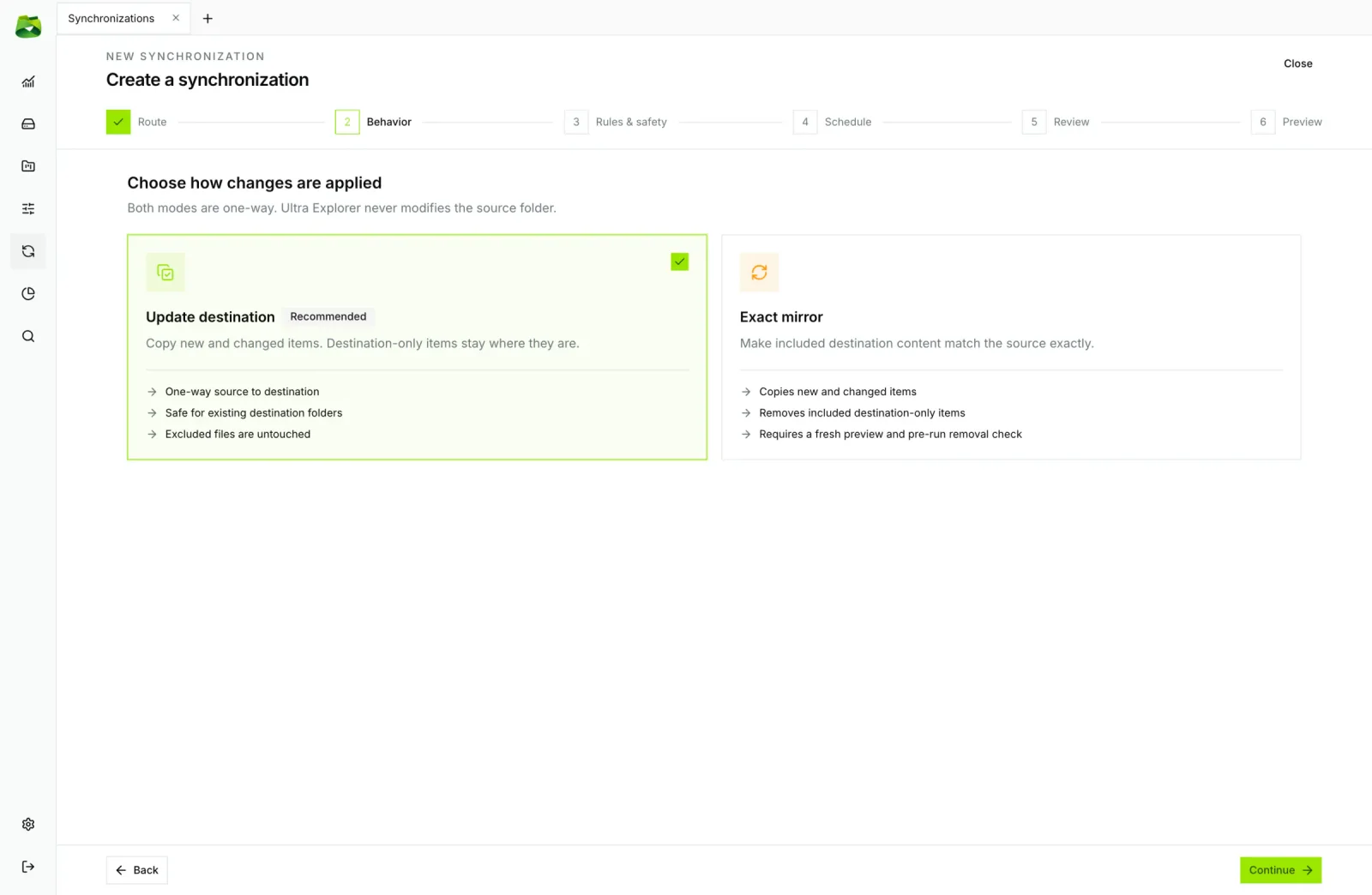
Create a synchronization in six guided steps: route, behavior, rules and safety, schedule, review and preview.
- Safe Update copies new and changed files and never removes anything at the destination. Exact Mirror makes the destination match the source.
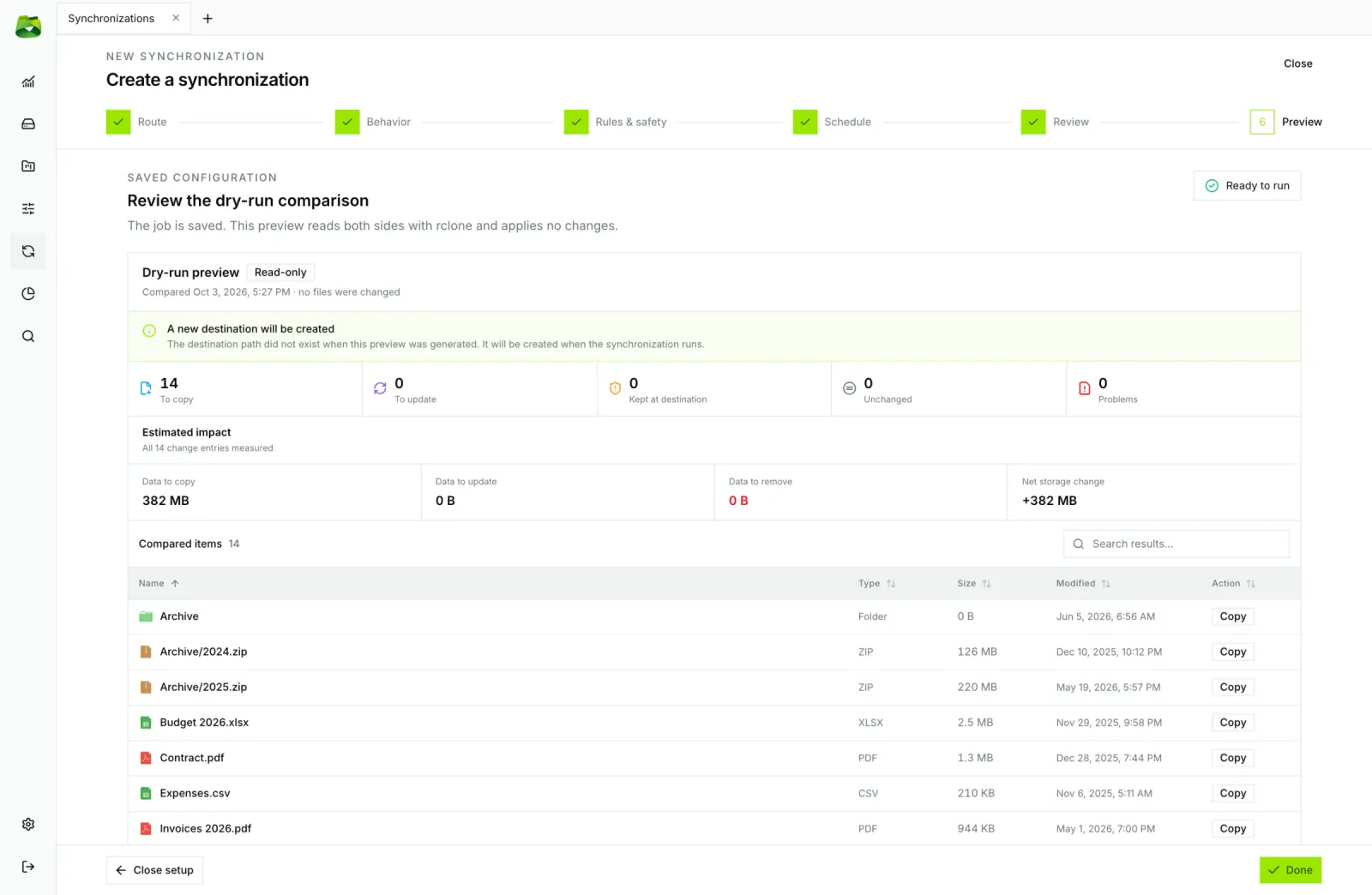
- Dry-run preview: see which files will be copied, updated or removed before anything changes.
- Guardrails: exclusion rules and a maximum-deletion threshold.
- Schedules: manual, interval, daily or weekly, with run history and logs.
|
|
| Safe Update or Exact Mirror | Preview every change before it runs |
Space analysis
Scan any folder, on any storage, and explore it as a sunburst, treemap, circle pack or tree. Zoom into a folder in one click and jump straight to it in the explorer.
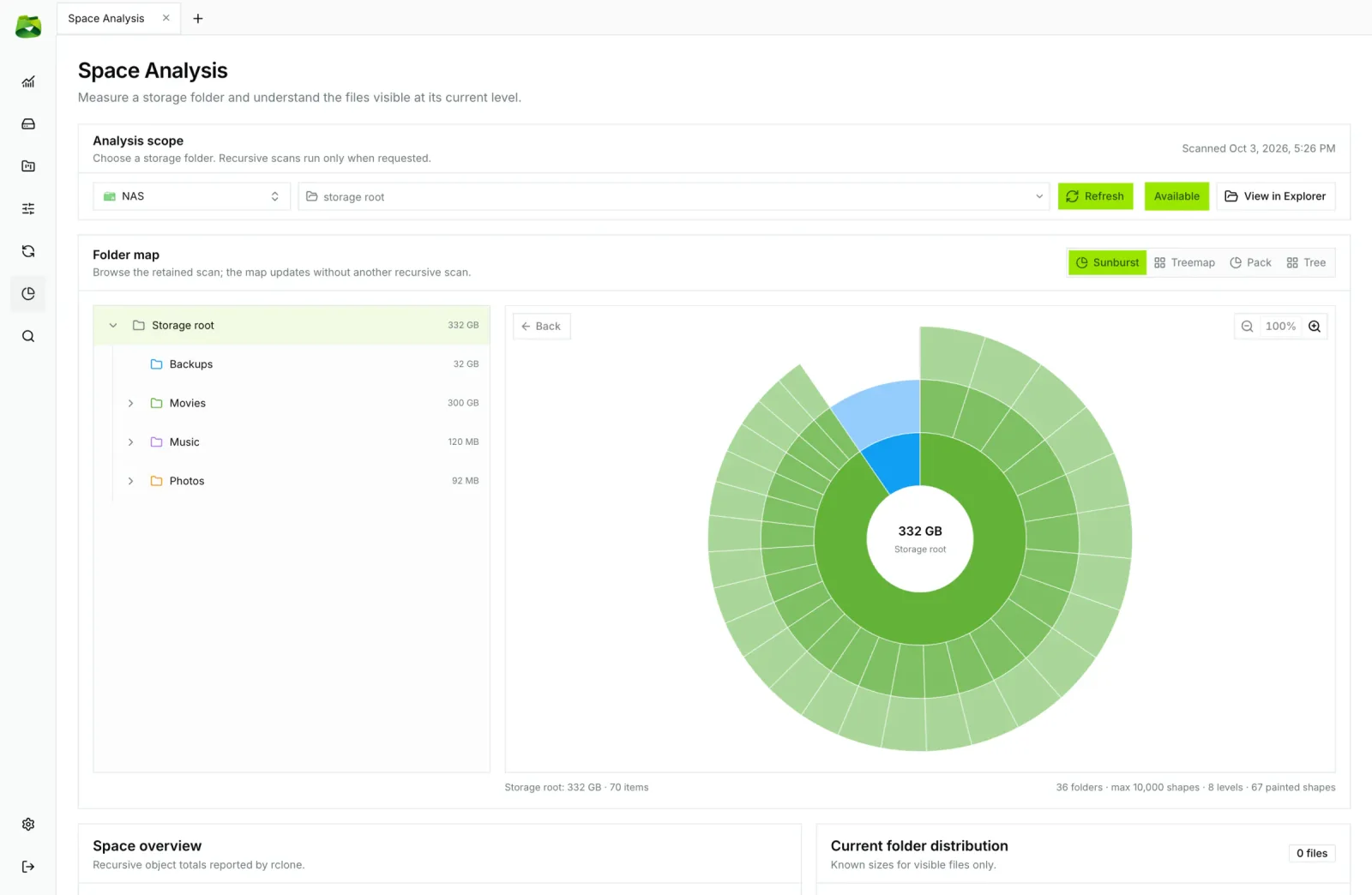
|
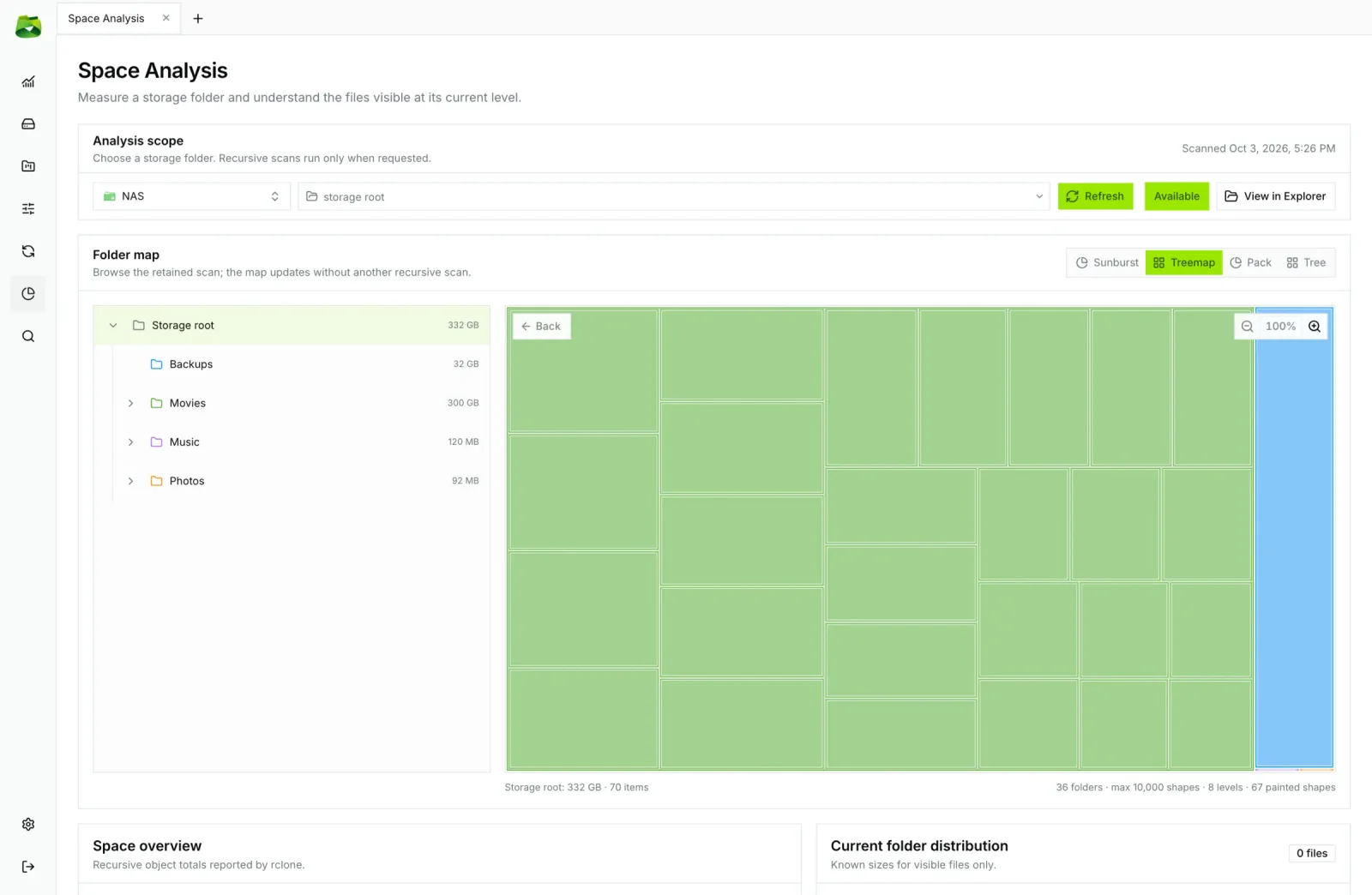
|
| Sunburst | Treemap |
Multi-cloud search
Search up to eight storages at once, in parallel. Start from a preset (documents, images, archives…), refine with typed filters, and browse up to 50,000 results in a virtualized table with the exact location of every file.
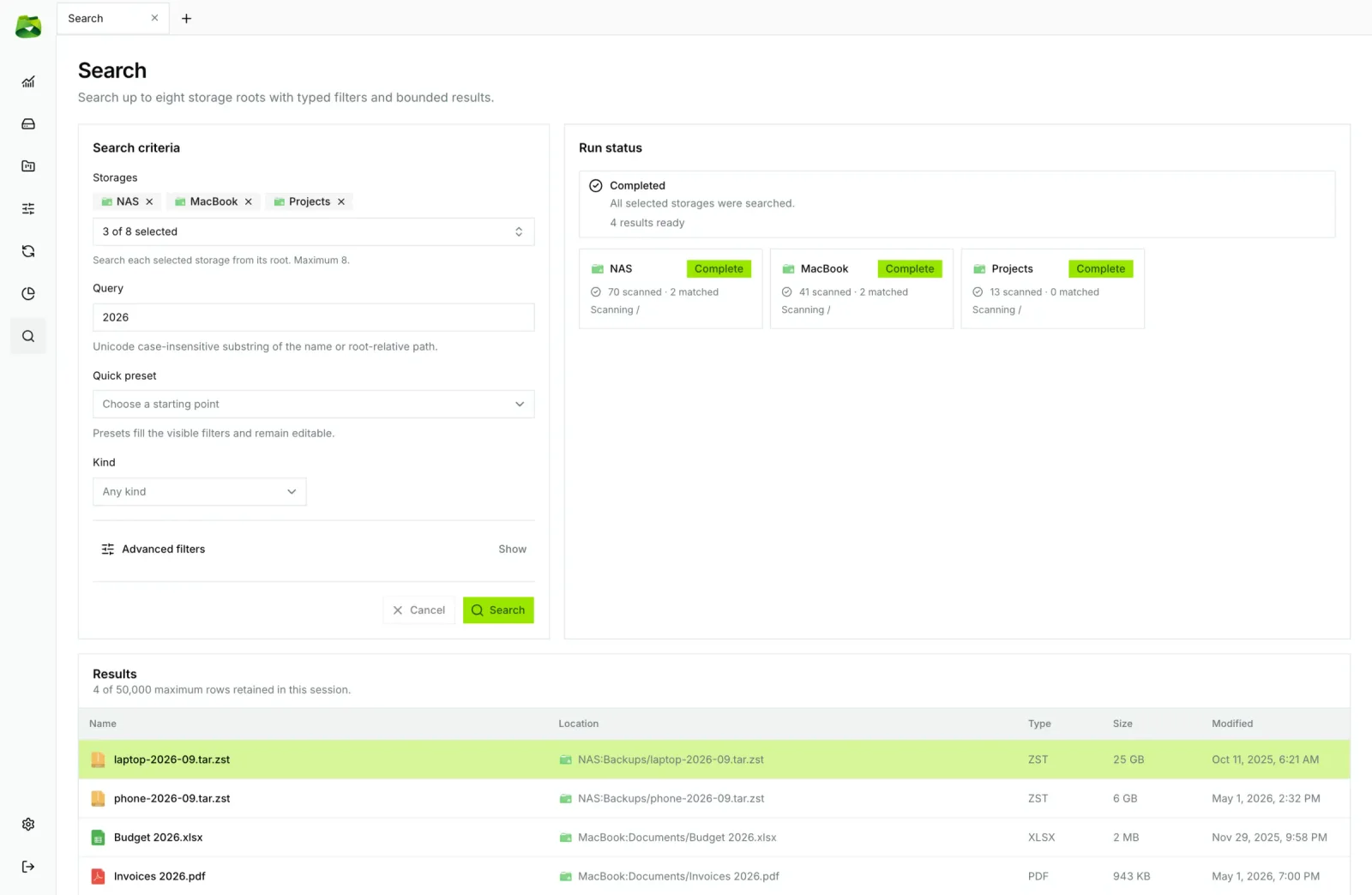
Dashboard, settings and shortcuts
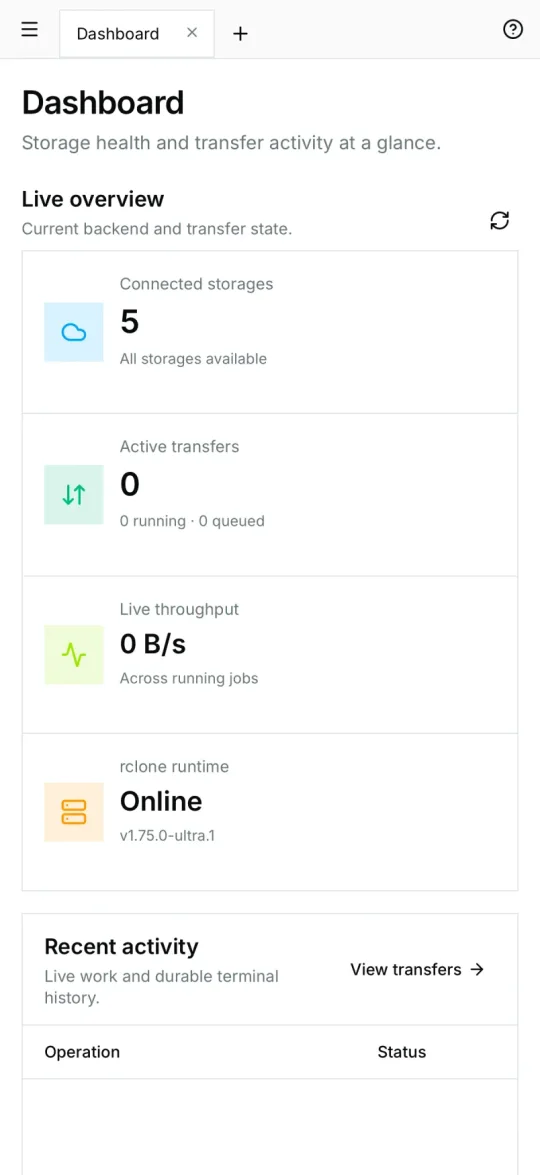
- Dashboard: connected storages, quotas, live throughput and recent activity.
- Light, dark or system theme.
- 10 languages, switched without reloading: English, French, German, Spanish, Italian, Portuguese, Chinese, Japanese, Korean and Russian.
- Keyboard shortcuts for the explorer, listed in Settings and shown next to menu actions (⌘ on macOS, Ctrl on Windows).
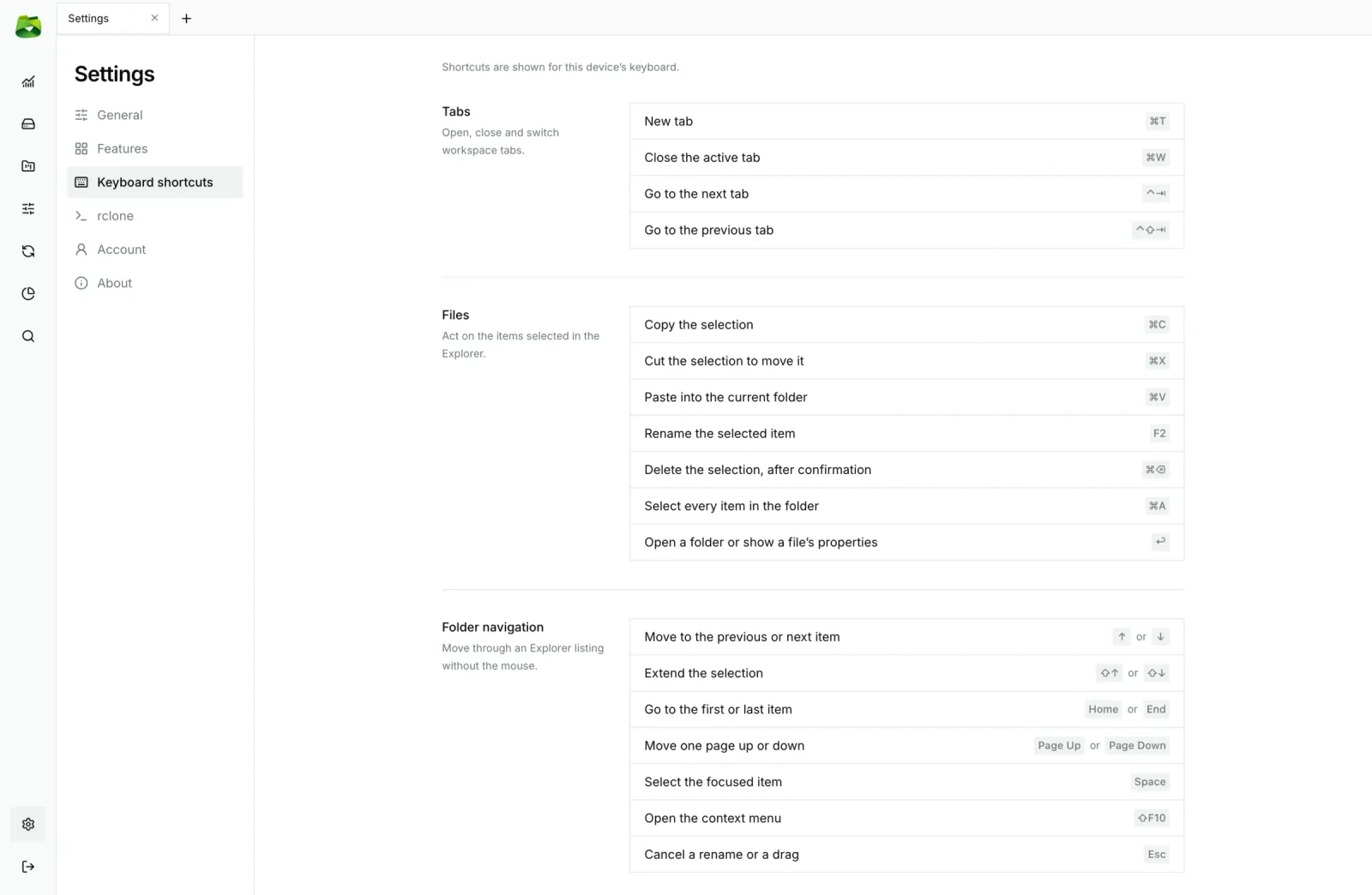
Docker, NAS and phone
The Docker edition serves the same interface to any browser. Run it on your NAS or home server and install it on your phone's home screen as an app (PWA), with a layout built for touch: stacked panes, a Select mode with an actions bar, and settings as a list.
Download and install
| Platform | Download | Requirements |
|---|---|---|
| macOS | .dmg from the latest release or Homebrew |
Apple Silicon |
| Windows | .exe installer from the latest release |
Windows 10 or 11, x64 |
| Linux | Snap Store | Any distribution with snapd, x64 or ARM64 |
| Docker | ghcr.io/sudo-rahman/ultra-explorer |
Any Docker host or NAS |
macOS with Homebrew
brew install --cask sudo-rahman/tap/ultra-explorer
Linux with Snap
sudo snap install ultra-explorer
Works on Ubuntu, Debian, Fedora, Arch Linux and any distribution with snapd. Updates install automatically.
Docker
Create a
.envfile next to yourcompose.ymlwith an admin password:ULTRA_ADMIN_PASSWORD=change-meSave this as
compose.yml:services: ultra-explorer: image: ghcr.io/sudo-rahman/ultra-explorer:latest restart: unless-stopped ports: - "7373:7373" environment: ULTRA_ADMIN_PASSWORD: "${ULTRA_ADMIN_PASSWORD:?Set ULTRA_ADMIN_PASSWORD in .env}" ULTRA_LOCAL_ROOTS: /mnt/local volumes: - ultra-data:/data - ./files:/mnt/local read_only: true tmpfs: - /tmp:size=64m,mode=1777 security_opt: - no-new-privileges:true cap_drop: - ALL volumes: ultra-data:Start it and open
http://<your-server>:7373:docker compose up -d
The container runs unprivileged with a read-only root filesystem, and keeps its data in a single volume. Step-by-step guides, including installing the app on a phone, are in the documentation.
Unraid and TrueNAS
Unraid. The Community Applications template lives in
Sudo-Rahman/unraid-templates. It runs the container as nobody:users (99:100) and maps your shares to /mnt/local. Before the
first start, create its data folder with that owner:
mkdir -p /mnt/user/appdata/ultra-explorer && chown 99:100 /mnt/user/appdata/ultra-explorer
TrueNAS (24.10 and later). Until the app is listed in the catalog, use Apps › Discover Apps › Custom App:
- image
ghcr.io/sudo-rahman/ultra-explorerwith the release tag, user and group568; - environment variable
ULTRA_ADMIN_PASSWORD, and port7373; - an ixVolume at
/data, and a Host Path to the dataset to browse at/mnt/local.
Any non-root user works. The user you choose reads and writes the files in /mnt/local, so pick
one with access to them.
Free, Pro and Lifetime
Ultra Explorer is free to download and use. Pro (subscription) and Lifetime (one-time purchase) unlock multi-cloud search, space analysis and scheduled synchronizations. See ultra-explorer.app/pricing.
Privacy and security
- No telemetry.
- Your credentials stay with you: API keys, OAuth tokens and passwords are stored in
rclone.confon your machine. - Direct connections: files move between your device and your storages; they never pass through our servers.
- Verified releases: every release ships
SHA256SUMSand build provenance attestations, macOS builds are signed and notarized, and in-app updates are signed.
Supported storages
| Clouds | Object storage | Protocols and NAS | Virtual |
|---|---|---|---|
|
Google Drive Microsoft OneDrive Dropbox Proton Drive MEGA pCloud Box Filen Internxt Jottacloud Koofr HiDrive Yandex Disk Drime PikPak OpenDrive FileLu Files.com Gofile Pixeldrain Put.io Mail.ru Cloud Shade |
Amazon S3 and S3-compatible Google Cloud Storage Azure Blob Storage Backblaze B2 Oracle Object Storage Storj OpenStack Swift ImageKit |
SMB / CIFS (NAS) SFTP / SSH WebDAV FTP / FTPS Azure Files Apache HDFS Akamai NetStorage Local filesystem |
Crypt (encryption) Combine (aggregation) Alias (shortcut) |
Provider names and logos belong to their owners and only identify compatible services.
About this repository
This repository publishes the official Ultra Explorer installers, checksums and container images. The application is developed in a private repository; only the release workflows, product visuals, verified installers and runtime images are public here.
- Releases and release notes: Releases
- Container images:
ghcr.io/sudo-rahman/ultra-explorer - How releases are built and signed: RELEASING.md
Media gallery
1 / 4Requirements
Categories
Related apps
Explore more like this
Explore allDetails
ghcr.io/sudo-rahman/ultra-explorer:latestRuntime arguments
- Web UI
http://[IP]:[PORT:7373]/- Network
bridge- Shell
sh- Privileged
- false
- Extra Params
--user 99:100 --read-only --tmpfs /tmp:rw,nosuid,nodev,noexec,size=64m,mode=1777 --cap-drop ALL --security-opt no-new-privileges:true
Template configuration
Port of the web interface.
- Target
- 7373
- Default
- 7373
- Value
- 7373
Password to sign in, at least 12 characters.
- Target
- ULTRA_ADMIN_PASSWORD
Folder of this server shown as local files. Use a narrower share, or read-only access, to limit what the app can change.
- Target
- /mnt/local
- Default
- /mnt/user
- Value
- /mnt/user
Database, rclone configuration and credentials. Must be writable by nobody:users (99:100).
- Target
- /data
- Default
- /mnt/user/appdata/ultra-explorer
- Value
- /mnt/user/appdata/ultra-explorer
Set to true only when the app is reached through an HTTPS reverse proxy.
- Target
- ULTRA_SECURE_COOKIES
- Default
- false|true
- Value
- false