
All apps · 0 apps

tpdb-jellyfin-poster-manager
OfficialDocker app from Soitora's Repository
Overview
Readme
View on GitHubJellyfin Poster Manager
A modern web application for automatically finding and uploading high-quality posters to your Jellyfin media server from ThePosterDB.




📷 Screenshots
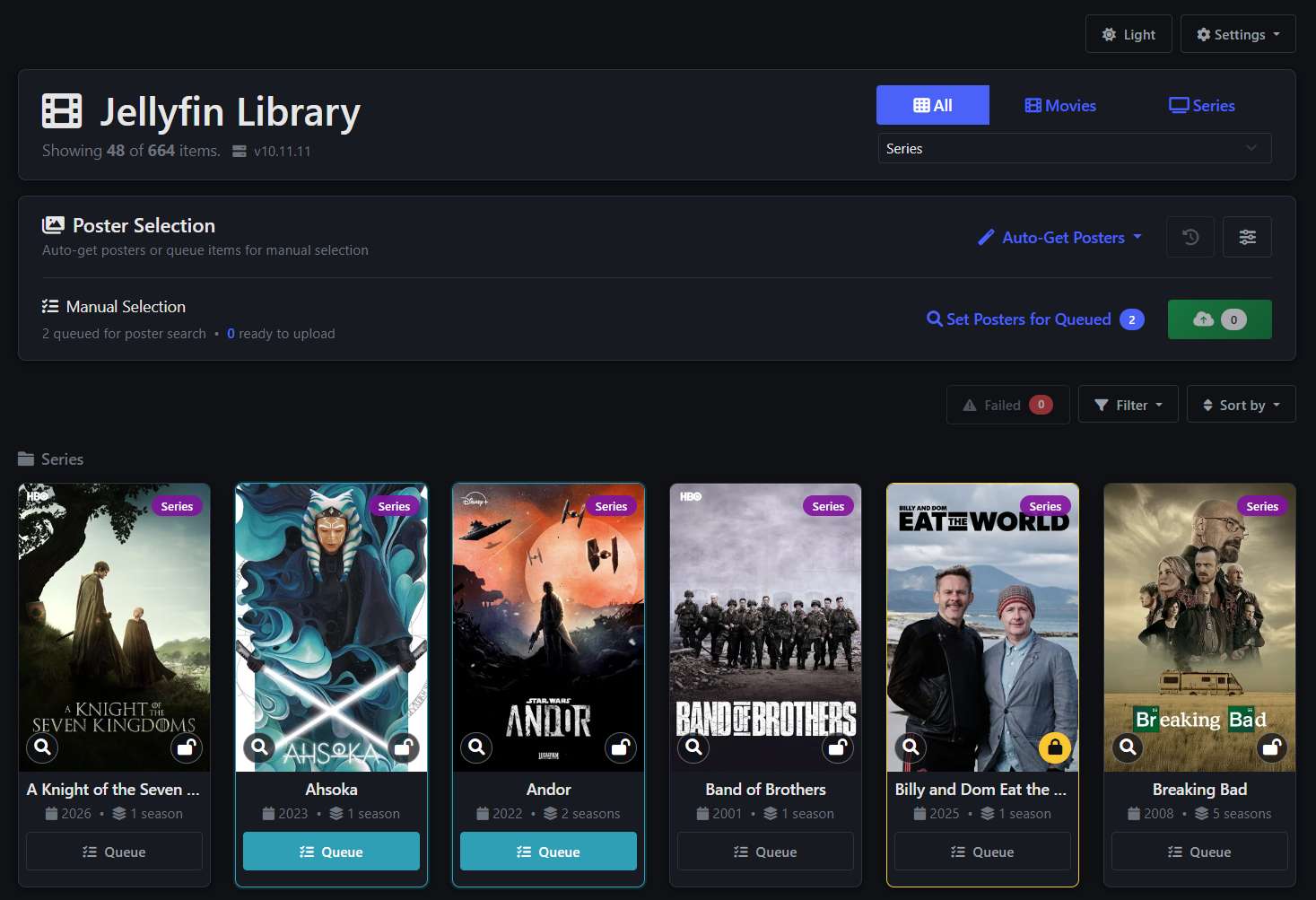
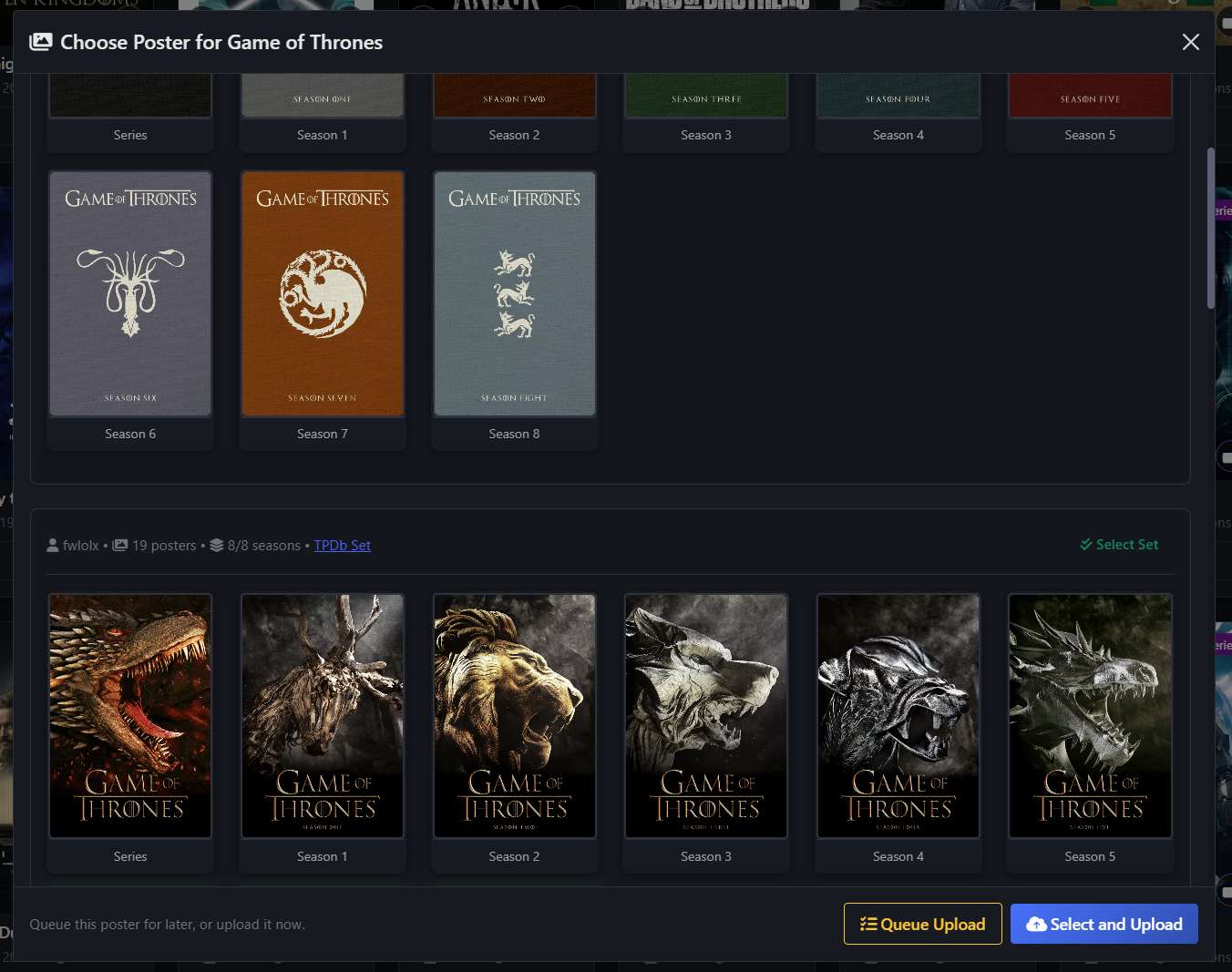
🎬 Features
🔍 Smart Poster Discovery
- Automatically searches ThePosterDB for high-quality movie and TV series posters
- Uses Jellyfin and TMDB metadata to improve title, year, movie, and series matching
- Groups TPDb poster sets and shows compact set metadata such as uploader and source links
- Supports movie, series, and season poster discovery
- Remembers corrected TPDb entry pages and can reuse cached picker/set results for faster repeat searches
🚀 Batch Operations
- Auto-Get Posters: Automatically find and upload posters for multiple items
- Run batches for all items, queued items, items without posters, movies only, or series only
- Filter batches by Jellyfin library and skip items already processed in previous runs
- Optionally include season posters and choose whether to replace existing season posters
- One durable worker queue for automatic, manual, and retry uploads
- Live progress, cancellation between individual uploads, saved results, and explicit resume after interruption
- Separate primary/season outcomes; retries reuse only failed targets and their original posters
- Uncertain automatic matches remain for manual review instead of replacing artwork
🎨 Manual Selection
- Browse multiple poster options for each item
- High-quality preview images
- Queue items for guided manual poster selection
- Select posters for immediate upload or queue selections for bulk upload
- Browse series seasons, current season artwork, and matching TPDb poster sets when available
- Override the TPDb entry page when a search result needs a manual correction
🛡️ Protected Items
- Mark individual Jellyfin items as protected so Auto-Get will skip them
- Filter the grid by processed, failed, queued, or protected status
- Clear processed history globally or for the currently visible items
📱 Modern Interface
- Responsive Bootstrap 5 design
- Works on desktop, tablet, and mobile devices
- Library, type, status, and sort controls
- Sort by library, name, year, or recently added
- Inline toasts, confirmation dialogs, status badges, and poster previews
🔧 Advanced Features
- Automatic image format conversion (WebP/AVIF → JPEG)
- Smart error handling and retry logic
- SQLite-backed selections, search queue, jobs, target outcomes, protected items, and TPDb corrections
- Lightweight picker-response cache with lazy-loaded previews and configurable cleanup
- Restricted image proxies: destination and redirect checks, scoped cookies, image-type and size limits
- Application logging and TPDb challenge debugging
📋 Requirements
- Python 3.10+ on macOS or Linux (the single-worker lock uses POSIX file locking)
- Jellyfin Server (including Jellyfin 12.x)
- ThePosterDB Credentials (free registration required)
- Chrome / Chromium for Selenium-based TPDb browsing
- Network access to both Jellyfin server and ThePosterDB
🚀 Quick Start
1. Clone the Repository
git clone https://github.com/TheCommishDeuce/TPDB_JellyfinPosterManager
2. Install Dependencies
pip install -r requirements.txt
3. Configuration
Rename config_example.py to config.py in the project root and update it with your settings, see example configuration below:
# Jellyfin Configuration
JELLYFIN_URL = "https://jellyfin.your.tld"
JELLYFIN_API_KEY = "abc123def456ghi789"

# TPDb Configuration
TPDB_EMAIL = "user@your.tld"
TPDB_PASSWORD = "supersecretpassword123"

# TMDB Configuration
TMDB_API_KEY = "abc123def456ghi789"
The example file also includes additional settings, however the defaults are usually fine unless you want to tune where local state is stored.
JELLYFIN_URL may be entered with or without a trailing slash; the app normalizes it on startup. API keys are sent using Jellyfin's Authorization: MediaBrowser Token="…" format, as required by Jellyfin 12.
Set WEB_PORT in config.py if you want to run the web app on a port other than 5001.
The default WEB_HOST is 127.0.0.1. This is a single-user local application, not an authenticated multi-user service. Do not expose it publicly. Changing the bind address requires an authenticated reverse proxy and a trusted network.
Run one web process. A database-specific worker lock prevents a second upload worker from using the same state. Selenium starts on demand; the debug reloader is disabled.
4. Run the Application
python app.py
Visit http://localhost:5001 in your web browser, or use your configured WEB_PORT.
Upgrading an existing installation
- Stop the old process. Back up
data/andlogs/before starting the new version. - On first startup, configured protected-item, TPDb-mapping, processed-log, and failed-log files are imported into
data/poster_manager.sqlite3(underAPP_STATE_DIR). - The import is transactional and runs once. Original files are neither changed nor deleted. Old preview caches are disposable and are not imported.
- Review imported failures: older item-level resolution markers cannot reliably establish which season uploads succeeded. Uncertain failures are retained, and entries without a saved poster require manual review.
Selections and the manual search queue are shared by this single owner across tabs and survive restarts. Jobs that were queued or running at shutdown become interrupted; use Resume unfinished explicitly. Recorded successes are not repeated. If the process died after Jellyfin accepted an upload but before its outcome was saved, that one upload may be attempted again on resume. Artwork changes are not rolled back by cancellation.
For a database backup, stop the app and copy APP_STATE_DIR including any SQLite sidecar files. The old JSON/log files are migration inputs, not current backups.
⚙️ Configuration Guide
Getting Your Jellyfin API Key
- Log into your Jellyfin web interface
- Go to Dashboard → API Keys
- Click "+" to create a new API key
- Give it a name (e.g., "Poster Manager")
- Copy the generated API key
🎯 Usage Guide
Auto-Get Posters (Recommended)
- Click "Auto-Get Posters" button
- Choose your filter option:
- All items: Process every matching item, limited by the selected library when one is active
- Queued items: Process only items checked with Queue
- Items without posters: Only process items missing artwork
- Movies only: Process movie items
- Series only: Process series items
- Use the settings button beside Auto-Get to optionally:
- Skip already processed items
- Include season posters
- Replace existing season posters
- Follow the shared Poster jobs panel, or use Cancel to stop before the next individual upload
- Review the saved results, or explicitly resume unfinished work after an interruption
Automatic matching requires one exact title/year candidate unless a saved TPDb correction is available. Season posters come from the selected primary poster's set; missing coverage goes to review instead of silently mixing sets. Existing season posters are preserved by default.
Manual Poster Selection
- Click the search button on an item, or tick Queue on several items
- For queued items, click Set Posters for Queued
- Browse available posters and poster sets
- Choose Select and Upload for an immediate upload, or Queue Upload to stage the poster
- Click Upload All Selected to upload staged selections in one batch
Use the TPDb Page action in the picker to open the matched TPDb entry. If the wrong entry was matched, use the adjacent override control to enter the correct TPDb poster page URL or ID. The app stores that mapping locally and can reuse it for later searches.
Cached picker results can be enabled or disabled from the global settings menu. Responses store metadata rather than embedded images; thumbnails load lazily. Disabling or clearing the cache does not disable saved TPDb corrections.
Manual uploads use the same worker and results panel as automatic batches. The grid updates artwork in place without reloading the page. Successful targets are removed from saved selections; failed or cancelled targets remain available. Changing a protected item manually requires explicit confirmation.
Failed, Processed, and Protected Items
- Failed poster operations appear in the Failed panel. Retry failed targets reuses the original URLs without running a new poster search; Review opens the picker for uncertain matches or old failures without saved URLs.
- Automatic operations and retries skip protected items, including protection added while a job is running.
- Primary and season outcomes are tracked independently. An item with an unresolved target failure is not marked fully processed or skipped as already processed.
- Use the settings menu to clear all processed history or only processed history for visible items.
- Use the lock button on an item card to protect or unprotect it from Auto-Get batches.
Filtering and Sorting
- Use the All/Movies/Series buttons to filter content
- Use the library dropdown to limit the grid and Auto-Get runs to one Jellyfin library
- Use the Filter dropdown to show processed, failed, queued, or protected items
- Use the Sort by dropdown to organize items by:
- Library
- Name (A-Z)
- Year
- Recently Added
Logging Configuration
Logs, cache files, and local app state are written to the configured directories:
logs/app.log: diagnostic application logdata/poster_manager.sqlite3: durable application state, jobs, and per-target historycache/picker-v2/: disposable picker-response metadata, with configurable expirationcache/temp_posters/: unique temporary JPEG uploads, removed after use- Previous JSON/JSONL files: retained migration originals, no longer written
You can adjust logging levels in code if needed:
import logging
logging.getLogger().setLevel(logging.DEBUG)  # For verbose logging
Debug Mode
Enable debug mode for detailed logging and TPDb debug routes:
DEBUG = True
TPDB_DEBUG_SNAPSHOTS = True
TPDb Challenge Debugging
If TPDb returns challenge/rate-limit pages during search, use this local debug flow:
- Ensure
DEBUG = TrueandTPDB_DEBUG_SNAPSHOTS = Trueinconfig.py. - Run the app and open:
GET /debug/tpdb-search?title=Inception&type=Movie&year=2010
- If TPDb blocks the request, the API returns
429with details and writes an HTML snapshot tologs/:logs/tpdb_*_challenge_*.html
This makes it easy to inspect the exact returned page (Cloudflare/challenge/session-expired) and compare local vs deployed behavior.
Development and verification
python -m unittest discover -v
node --test tests/frontend.test.cjs
Tests use disposable state and fake media services, not local credentials. CI runs the backend on Python 3.10/3.12 and frontend checks on Node 22.
An optional real-browser smoke test covers restoring selections, sorting, partial uploads, exact-target retries, lazy previews, and mobile layout:
python -m tests.browser_smoke --browser /path/to/Chromium --driver /path/to/chromedriver
It mocks Jellyfin/TPDb; CDN-hosted UI assets still require network access.
Code boundaries
app.py: Flask routes, validation, compatibility adapters; factory:app:create_appstate_store.py: SQLite transactions and legacy importjobs.py: single-worker queue, checkpoints, cancellation, recoveryposter_service.py: shared matching, selections, and uploadsposter_scraper.py: TPDb/Selenium and Jellyfin integrationsafe_http.py,picker_cache.py: restricted image downloads and disposable cachestatic/js/jobs.js: shared queue UI, durable selection restore, in-place artwork updates
Legacy /batch-auto-poster, /upload-poster, /upload/<id>, /upload-all, and retry endpoints remain synchronous adapters to the same worker. The UI uses POST /jobs and polling instead. Protection confirmation and URL restrictions apply to legacy clients too.
See the debt register for remaining work and verification limits.
🙏 Acknowledgments
- Jellyfin - The amazing open-source media server
- ThePosterDB - High-quality movie and TV posters
- Bootstrap - Beautiful responsive UI framework
Made with ❤️ for the Jellyfin community
Star this repository if you find it useful! ⭐
Install tpdb-jellyfin-poster-manager on Unraid in a few clicks.
Find tpdb-jellyfin-poster-manager in Community Apps on your Unraid server, review the template, and click Install. Unraid handles the Docker app or plugin setup from the published template.
Related apps
Explore more like this
Explore allLinks
Details
tpdb-jellyfin-poster-manager:dockerRuntime arguments
- Web UI
http://[IP]:[PORT:5001]/- Network
bridge- Shell
sh- Privileged
- false
Template configuration
The browser-accessible port for the application.
- Target
- 5001
- Default
- 5001
- Value
- 5001
A URL reachable from this container, such as http://192.168.1.10:8096. Do not use localhost for Jellyfin running on the Unraid host.
- Target
- JELLYFIN_URL
Create an API key in Jellyfin Dashboard > API Keys.
- Target
- JELLYFIN_API_KEY
The email address for the ThePosterDB account used to search for posters.
- Target
- TPDB_EMAIL
The password for the ThePosterDB account.
- Target
- TPDB_PASSWORD
Optional, but improves title and year matching.
- Target
- TMDB_API_KEY
A long, randomly generated value used for Flask sessions. Set this before use and retain it across updates.
- Target
- SECRET_KEY
Durable SQLite state, jobs, selections, and settings. Must be writable by UID 10001.
- Target
- /app/data
- Default
- /mnt/user/appdata/tpdb-jellyfin-poster-manager/data
- Value
- /mnt/user/appdata/tpdb-jellyfin-poster-manager/data
Disposable poster-picker cache and temporary images. Must be writable by UID 10001.
- Target
- /app/cache
- Default
- /mnt/user/appdata/tpdb-jellyfin-poster-manager/cache
- Value
- /mnt/user/appdata/tpdb-jellyfin-poster-manager/cache
Application logs and optional ThePosterDB debug snapshots. Must be writable by UID 10001.
- Target
- /app/logs
- Default
- /mnt/user/appdata/tpdb-jellyfin-poster-manager/logs
- Value
- /mnt/user/appdata/tpdb-jellyfin-poster-manager/logs
Leave at 0.0.0.0 so Unraid's port mapping can reach the application.
- Target
- WEB_HOST
- Default
- 0.0.0.0
- Value
- 0.0.0.0
Must match the container port in the Web UI port setting.
- Target
- WEB_PORT
- Default
- 5001
- Value
- 5001
Enables detailed application logging and debug routes. Keep disabled during normal use.
- Target
- DEBUG
- Default
- false
- Value
- false
Maximum individual poster choices returned for one media item.
- Target
- MAX_POSTERS_PER_ITEM
- Default
- 18
- Value
- 18
Maximum poster sets returned for one media item.
- Target
- MAX_TPDB_SETS_PER_ITEM
- Default
- 30
- Value
- 30
Delay between ThePosterDB batch requests.
- Target
- TPDB_BATCH_DELAY_SEC
- Default
- 1.5
- Value
- 1.5
How long disposable picker metadata remains cached.
- Target
- TPDB_PICKER_CACHE_MAX_AGE_DAYS
- Default
- 7
- Value
- 7
Save ThePosterDB challenge pages to the logs directory. Enable only while troubleshooting.
- Target
- TPDB_DEBUG_SNAPSHOTS
- Default
- false
- Value
- false