
All apps · 0 apps

switch-library-manager-web
Docker app from DeLFuS77's Repository
Overview
Readme
View on GitHubSwitch Library Manager Web




Manage the backups of your Nintendo Switch games from the browser: see which updates, DLC and games you are missing, find broken or duplicate files, keep your folders tidy and save space with NSZ compression. It runs on Windows, macOS, Linux, Docker, NAS and Raspberry Pi.
[!IMPORTANT] This project contains no keys, no games and no copyrighted content, and it never downloads them. Use it only with backups of games you own. The few features that read the content of your files use your own
prod.keys, which you dump from your own console (for example with Lockpick_RCM) and keep on your computer: keys are never included, uploaded or shared. Never post your keys anywhere, also not in issues, logs or screenshots.
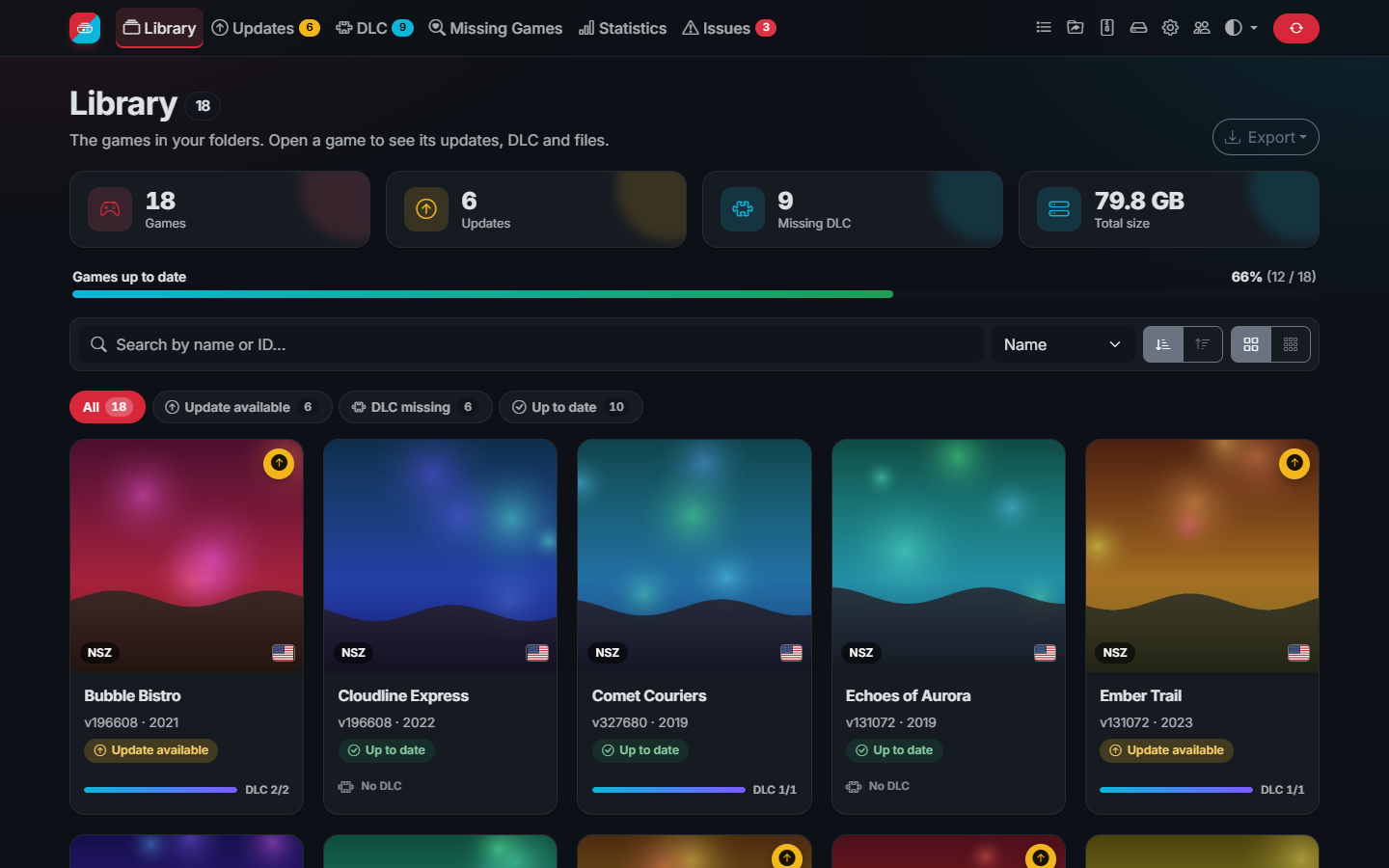
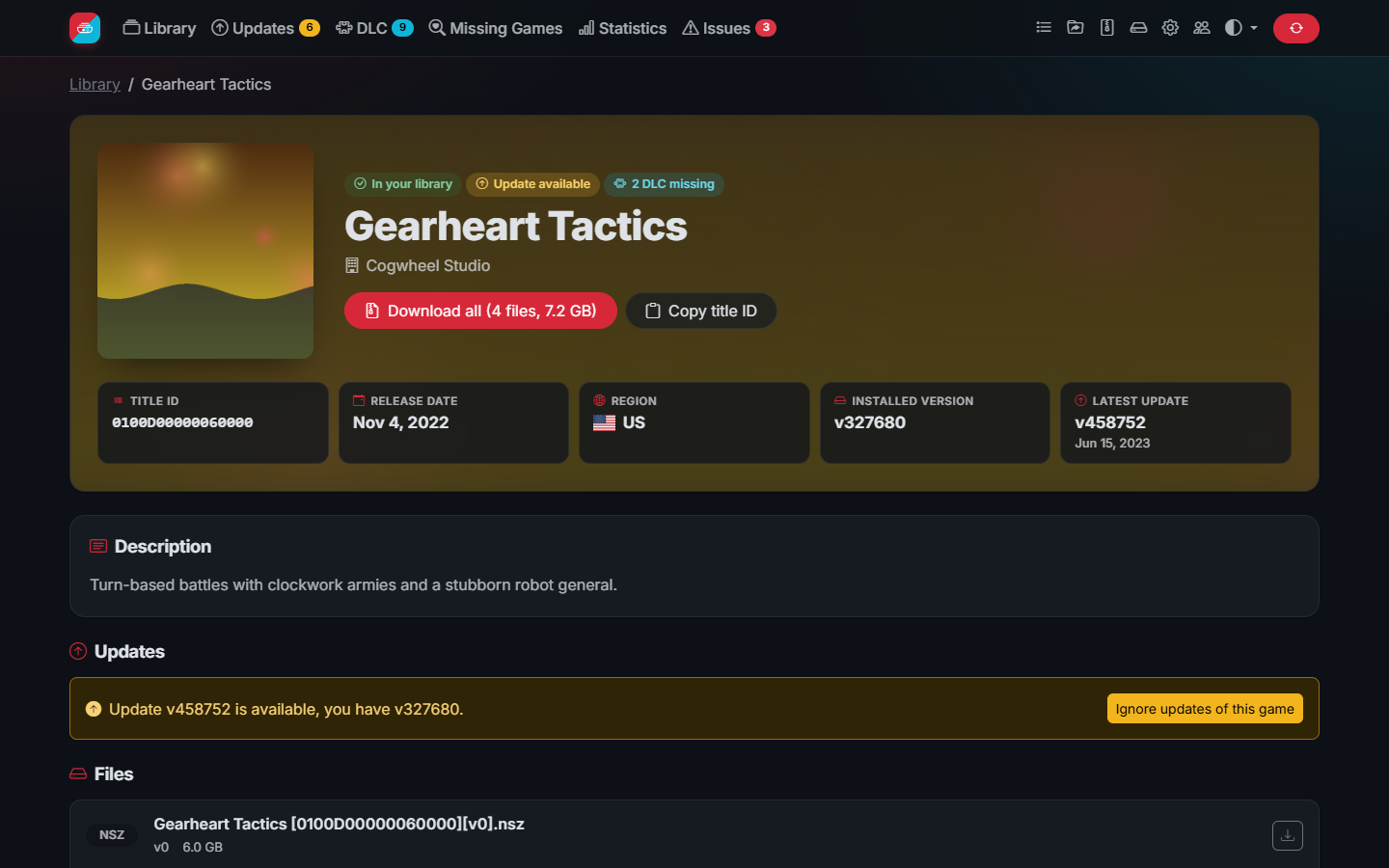
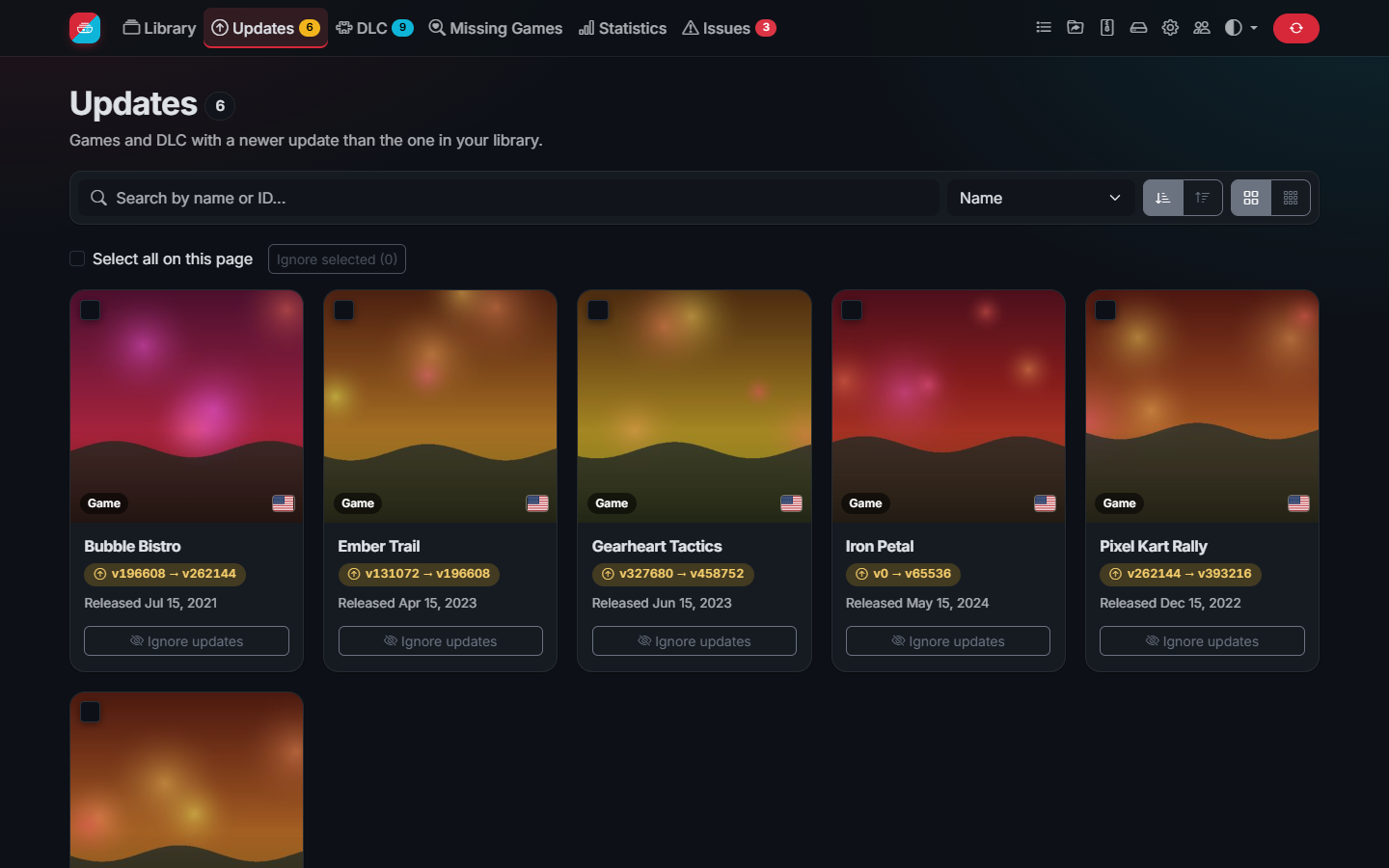
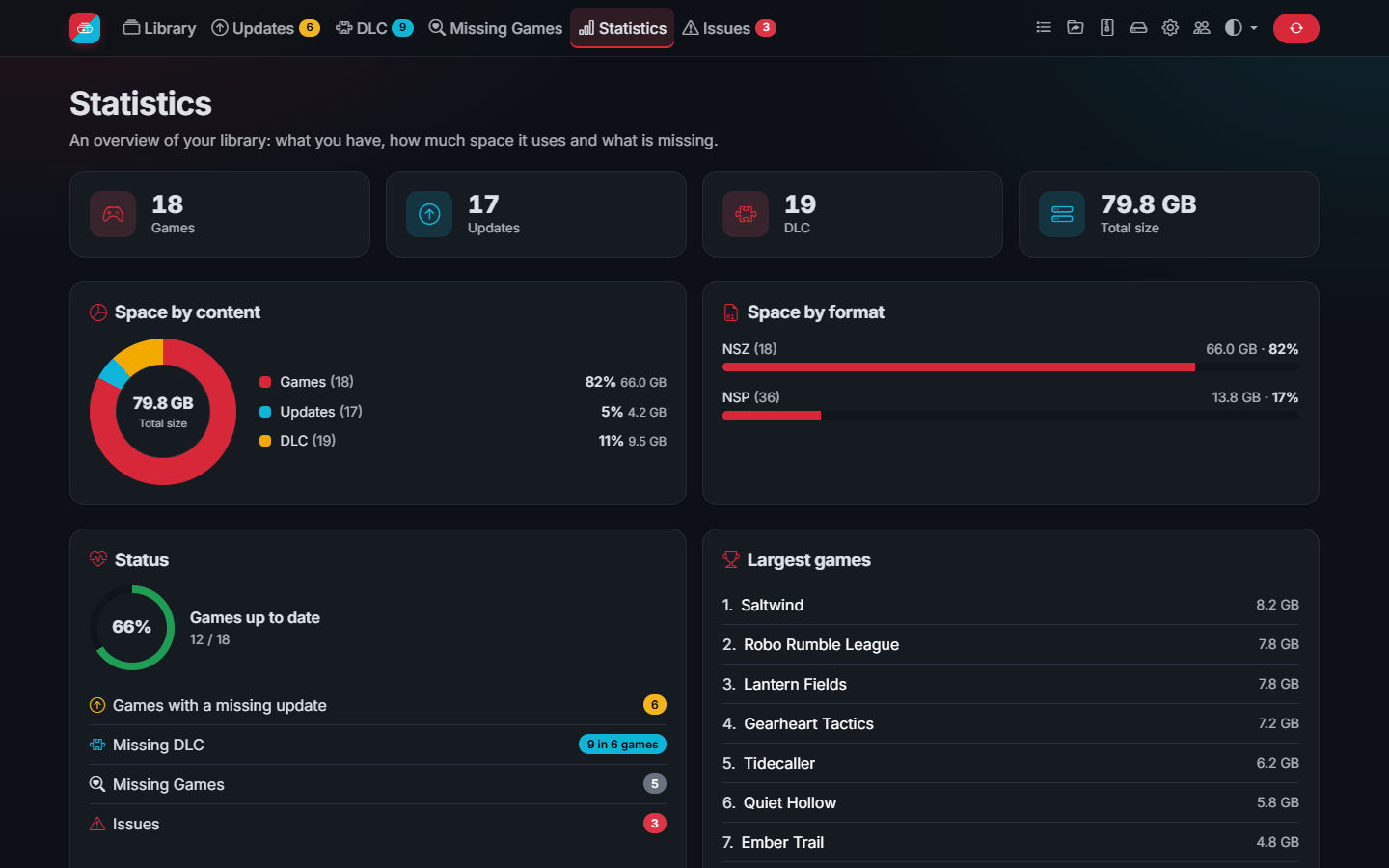
The screenshots show the demo mode: the games, publishers and covers are made up.
Contents
- Features
- Quick start: Docker, Unraid, Windows, macOS and Linux
- Your keys
- First start
- Guides: Organize, Compress, Users, Notifications, API, Settings
- Demo mode
- Troubleshooting
- Building
- License
Features
Your library at a glance
- Scans your folders (NSP, NSZ, XCI, XCZ and split files) and rescans by itself when files change
- An overview of your games, missing updates and DLC, and the space they use
- Missing updates (for games and DLC), missing DLC and missing games, with filters and search
- Game pages with description, screenshots, versions, DLC and downloads (a whole game as one ZIP)
- Statistics with charts, and an export of the library as CSV or JSON
Keep it tidy
- Issues: unsupported, duplicate, old, damaged or unidentified files
- Organize files in folders and rename them from templates, always with a preview first
- Delete old updates, duplicates and empty folders
- Ignore lists for DLC, updates and file types; hide demos
Save space
- Compress NSP to NSZ and XCI to XCZ (10 to 60% smaller), installed directly by Tinfoil, DBI and other installers
- Every file is verified before the original is deleted; NSZ files can be decompressed back to NSP
Built to run on a server
- Docker image for amd64 and arm64, Unraid template, low memory use and fast with thousands of games
- User accounts with administrator and read-only roles
- Live tasks page, scheduled synchronization and notifications (Discord, Telegram, webhook)
- JSON API with OpenAPI description, e.g. for Home Assistant
- Interface in English, Spanish, French, German, Italian and Portuguese (including game names), light and dark theme
Quick start
Docker
The image is on Docker Hub as
delfus77/switch-library-manager-web (also ghcr.io/delfus77/switch-library-manager-web), for amd64 and arm64.
With Docker Compose, download docker-compose.yml, set the folder of your games and run
docker compose up -d. Or with docker run:
docker run -d \
  --name switch-library-manager-web \
  --restart unless-stopped \
  -p 3000:3000 \
  -e PUID=1000 -e PGID=1000 -e TZ=Europe/Madrid \
  -v /path/to/appdata:/usr/local/share/switch-library-manager-web \
  -v /path/to/your/switch/games:/mnt/roms \
  delfus77/switch-library-manager-web
Then open http://localhost:3000 (or the address of your server).
| Setting | Meaning |
|---|---|
-p 3000:3000 |
The port of the web interface |
/usr/local/share/switch-library-manager-web |
Data folder: settings, caches, covers and your keys |
/mnt/roms |
Your games; writable, to organize and compress files |
PUID, PGID |
The user and group that own your games (id on the host). The app never runs as root |
TZ |
Your time zone, for dates and scheduled synchronizations |
To update, pull the new image and recreate the container: docker compose pull && docker compose up -d.
Unraid
Search for Switch Library Manager in the Apps tab and install it. The port, folders and user (99:100) are
filled in, and can be changed when installing or later with Edit. Set Switch library to the share with your
games, for example /mnt/user/switch, and copy your keys to /mnt/user/appdata/switch-library-manager-web/.
The template can also be installed by hand: in a terminal on the server run
wget -O /boot/config/plugins/dockerMan/templates-user/my-switch-library-manager-web.xml https://raw.githubusercontent.com/DeLFuS77/switch-library-manager-web/master/templates/switch-library-manager-web.xml
then choose Docker > Add Container and pick switch-library-manager-web in Template. Do not install the
image from the Docker Hub search: the port and folders would be empty.
Windows, macOS and Linux
Build the program for your system (see Building) and run it. It keeps its data next to the program, or in
the folder set in the SLM_DATA_DIR environment variable. Open http://localhost:3000 and set your folders in
Settings.
Your keys
Keys are optional. Without them the app still works: games are recognized by their file name, for example
Super Mario Odyssey [0100000000010000][v0].nsp. With your keys it reads the files themselves, so games are found even
when the names are wrong, and you can compress and decompress them.
| File | Needed for |
|---|---|
prod.keys |
Reading your files and compressing them. Dump it from your own console |
title.keys |
Only to compress games whose NSP has no ticket. Dumped together with prod.keys |
Put them in the data folder (with Docker, the folder mounted on /usr/local/share/switch-library-manager-web), or set
another folder in Settings. You can also mount prod.keys read-only:
-v /path/to/prod.keys:/usr/local/share/switch-library-manager-web/prod.keys:ro.
The app looks for prod.keys in this order: the path in Settings, the data folder, then ~/.switch/prod.keys.
title.keys is read from the same folder as prod.keys.
Games made for a newer firmware need keys dumped from a console with that firmware: the Issues page tells you when a key is missing.
First start
- On the first start the titles database is downloaded (names, covers, updates and DLC of every game).
- The Library page shows a checklist: the titles database, your keys, your folders and the first scan. Every step links to where it is done.
- Your games appear once the folders are scanned. New, removed or replaced files are picked up by themselves.
Guides
Organize
The Organize page moves and renames files according to its options. Every action shows the exact list of changes first, and nothing happens until you apply them. Existing files are never overwritten, files that changed since the last scan are not deleted, and split files are left untouched.
Templates for folder and file names can use:
| Placeholder | Value |
|---|---|
{TITLE_NAME} |
Game name |
{TITLE_ID} |
Title ID |
{VERSION} |
Version number of the file, like 65536 |
{VERSION_TXT} |
Version as shown on the console, like 1.0.1 |
{REGION} |
Region |
{TYPE} |
BASE, UPD or DLC |
{DLC_NAME} |
DLC name |
Templates must contain {TITLE_NAME} or {TITLE_ID}.
Compress
The Compress page turns NSP files into NSZ files and XCI files into XCZ files. They take 10 to 60% less space and are
installed directly by Tinfoil, DBI and other installers. It uses your prod.keys (and title.keys for games without a
ticket).
Every file is handled safely:
- The files inside the NSP are checked against their content IDs, so damaged or modified files are not compressed.
- The NSZ is written next to the NSP under a hidden temporary name.
- The NSZ is decompressed again and every part must give back the original SHA-256.
- Only then is the NSZ renamed and, if you choose so, the NSP deleted.
Compression runs in the background as a task, can be cancelled and uses at most half of the processors. Update patches are compressed too. Like nsz, an XCZ keeps only the secure partition, the one installers use.
NSZ files can be decompressed back to NSP on the same page, for tools that do not read NSZ. The NSP is the original byte for byte. The format is the one of nsz, written in Go for this project: nothing else needs to be installed.
Users and password protection
Without users, anyone who can open the app has full access. Open Users and create an administrator to require a login; you are logged in as that administrator right away. Then add more users with one of two roles:
| Role | Can |
|---|---|
| Administrator | Everything: synchronize, organize, compress, ignore items, change settings and manage users |
| Read only | Browse the library and download files; the controls that change something are hidden |
- Passwords are stored as bcrypt hashes in
users.jsonin the data folder. Every user can change their own password in My account; a new password ends the other sessions of that user. - Logins last 30 days. After 10 failed logins an address is blocked for 15 minutes.
- An administrator can also be set with the environment variables
SLM_AUTH_USERNAMEandSLM_AUTH_PASSWORD, which is useful when a password was forgotten.
Use HTTPS (for example behind a reverse proxy) when the app can be reached from outside your network.
Notifications
After every synchronization the app can tell you about new updates and DLC of your games, through a Discord webhook, a Telegram bot or any webhook that accepts JSON (ntfy, Home Assistant, n8n...). Set them in Settings > Notifications; only new items are reported.
API
The JSON API lists the library and its statistics and downloads files. It is described in
OpenAPI format, also served by the app at /api/openapi.json.
| Endpoint | Description |
|---|---|
GET /api/titles |
Games in the library with their updates and DLC |
GET /api/statistics |
The numbers of the Statistics page |
GET /api/titles/{titleId}/archive.zip |
All files of a game as one ZIP |
GET /export/library.csv, /export/library.json |
Library export |
GET /sync, POST /sync |
Synchronization status, start a synchronization |
GET /api/tasks, GET /api/tasks/events |
Running and recent tasks, and their live updates |
GET /healthz |
Health check, without login |
When a login is required, API clients use HTTP basic authentication (a read-only user is enough to read). Example Home Assistant sensor:
rest:
  - resource: http://192.168.1.10:3000/api/statistics
    # username: viewer
    # password: !secret switch_library_password
    scan_interval: 3600
    sensor:
      - name: Switch games
        value_template: "{{ value_json.games }}"
      - name: Switch games with a missing update
        value_template: "{{ value_json.gamesWithUpdate }}"
      - name: Switch missing DLC
        value_template: "{{ value_json.missingDlc }}"
Settings
Most settings are in the web interface. settings.json in the data folder also has:
| Setting | Description |
|---|---|
port |
Port of the web interface, 3000 by default |
debug |
Detailed log, useful when reporting a problem |
scan_workers |
Files read at the same time when scanning. 0 (default) uses up to 4; more for fast network storage, 1 for one slow disk |
titles_json_url |
Titles database. Default: the data release of this repository |
versions_json_url |
Versions database. Default: blawar/titledb |
localized_titles_json_url |
Translated game names and descriptions; %s is the language |
The titles database is built every 6 hours from blawar/titledb by the
Update title data workflow and published in the data release. If it
cannot be downloaded, a mirror is used.
Demo mode
To look around without any games, start the app with the environment variable SLM_DEMO=true. It shows a made-up
library (invented titles and generated covers), does not read your folders or download anything, and refuses every
change:
docker run --rm -p 3000:3000 -e SLM_DEMO=true delfus77/switch-library-manager-web
Troubleshooting
The web interface does not open. Check that the port is published (-p 3000:3000, or the WebUI port on Unraid) and
open http://<address of the server>:3000. docker logs switch-library-manager-web shows why the app stopped, if it
did.
"The data folder is not writable". Set PUID and PGID to the owner of the folders on the host (on Unraid
99 and 100).
Keys not found. Put prod.keys in the data folder, or set its folder in Settings, and save the settings. The
first step of the checklist and the Settings page tell you whether the keys were found.
A game is missing or shown as an issue. Open Issues: it explains every file that could not be added, for
example a key missing from an old prod.keys or a damaged file.
No covers. Covers are downloaded from the Nintendo servers during the scan. If your network blocks them, the placeholder is shown and the next scan tries again.
Reporting a problem. Use the issue tracker. Set
debug to true in settings.json and attach the log, but never your keys.
Building
Requirements: Go 1.25+ and Node.js (for the web interface).
git clone https://github.com/DeLFuS77/switch-library-manager-web.git
cd switch-library-manager-web
npm ci
npm run build       # web interface (sass + esbuild)
make build          # Linux
make build-windows  # Windows
make build-mac      # macOS (Apple Silicon)
make test
The programs are written to build. The web interface is embedded in the program, so npm ci and
npm run build must run first. Without make (e.g. on Windows): go build -o build/switch-library-manager-web.exe .
License
The changes made in this repository are published under the MIT license. The projects this fork is based on did not publish a license, so their code remains under the copyright of their authors; see NOTICE.
Thanks
- Based on giwty's switch-library-manager and dtrunk90's switch-library-manager-web
- Parsing, organizing and title data fixes from trembon's switch-library-manager
- Title data from blawar's titledb
- NSZ format of nsz and the Inter font
Media gallery
1 / 5Requirements
Categories
Download Statistics
Related apps
Explore more like this
Explore allDetails
delfus77/switch-library-manager-web:latestRuntime arguments
- Web UI
http://[IP]:[PORT:3000]/- Network
bridge- Shell
sh- Privileged
- false
Template configuration
Port of the web interface.
- Target
- 3000
- Default
- 3000
- Value
- 3000
Settings, caches and covers. Put your prod.keys (and optionally title.keys) here.
- Target
- /usr/local/share/switch-library-manager-web
- Default
- /mnt/user/appdata/switch-library-manager-web
- Value
- /mnt/user/appdata/switch-library-manager-web
Share with your NSP, NSZ, XCI and XCZ files, e.g. /mnt/user/switch. Read and write, to organize and compress files.
- Target
- /mnt/roms
User that runs the app; 99 is nobody, the owner of Unraid shares.
- Default
- 99
- Value
- 99
Group that runs the app; 100 is users.
- Default
- 100
- Value
- 100
Time zone for dates and scheduled synchronizations.
- Target
- TZ
- Default
- Europe/Madrid
- Value
- Europe/Madrid
Optional: an administrator, with the password below. Users can also be created in the app.
- Target
- SLM_AUTH_USERNAME
Optional: password of the administrator above.
- Target
- SLM_AUTH_PASSWORD