
All apps · 0 apps
StockWorks
Docker app from techpunk's repo
Overview
Readme
View on GitHubStockWorks - Everyday User Manual
StockWorks is a simple tool for keeping track of materials in a 3D printing shop. It helps you see what you have, what is running low, and what jobs are coming in from MakerWorks.
If you can use a web page, you can use StockWorks.
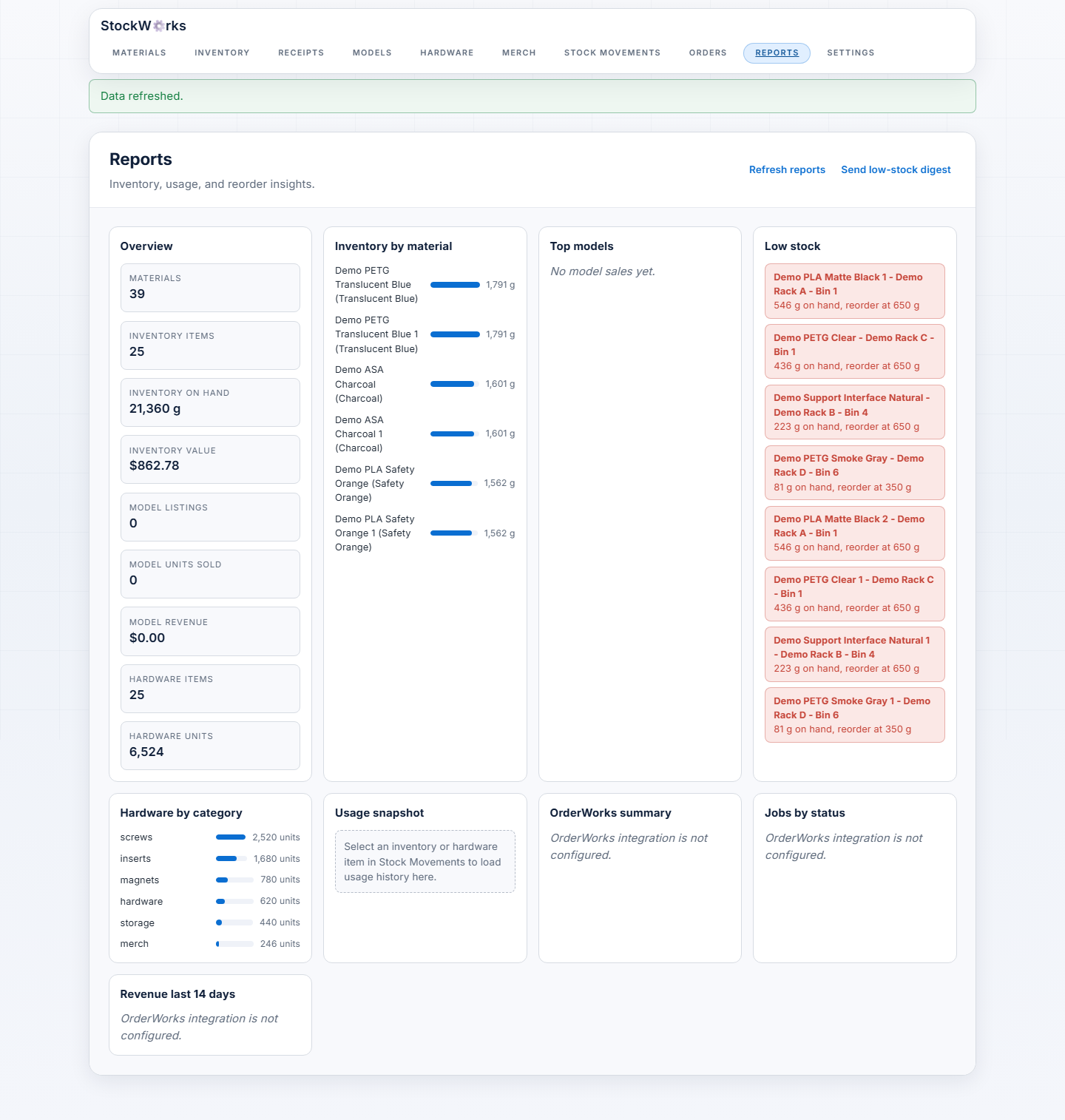
Suite demo walkthrough
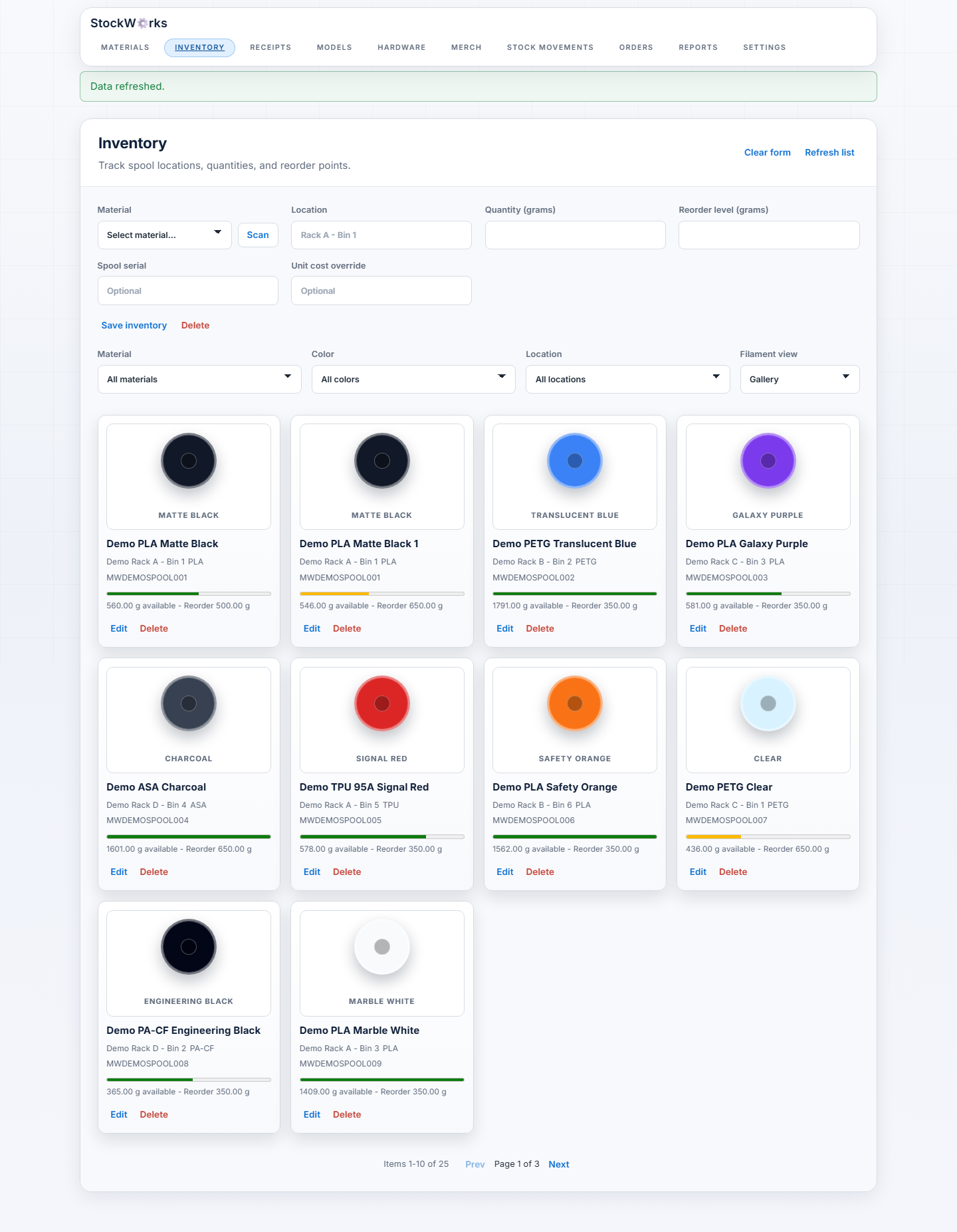
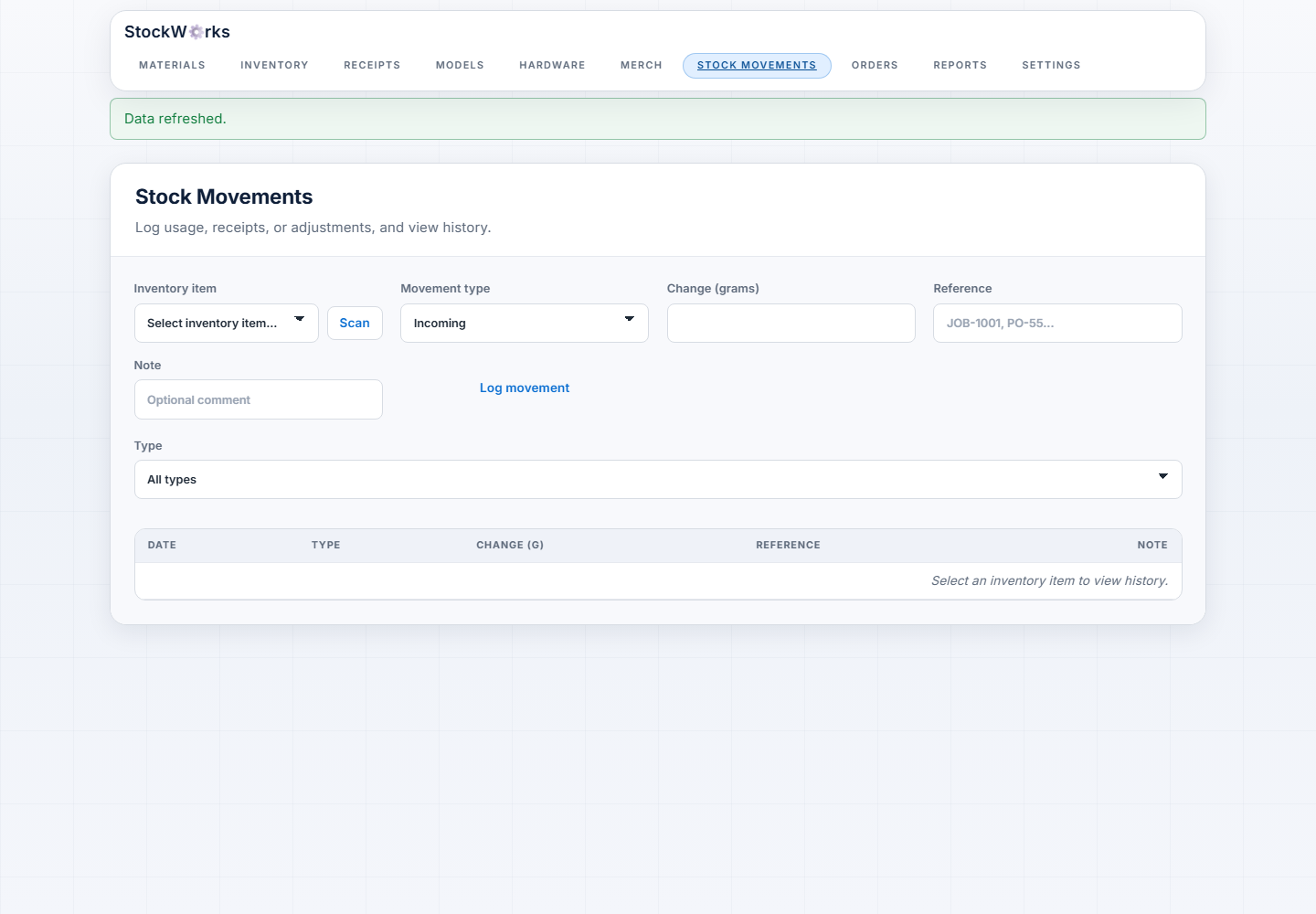
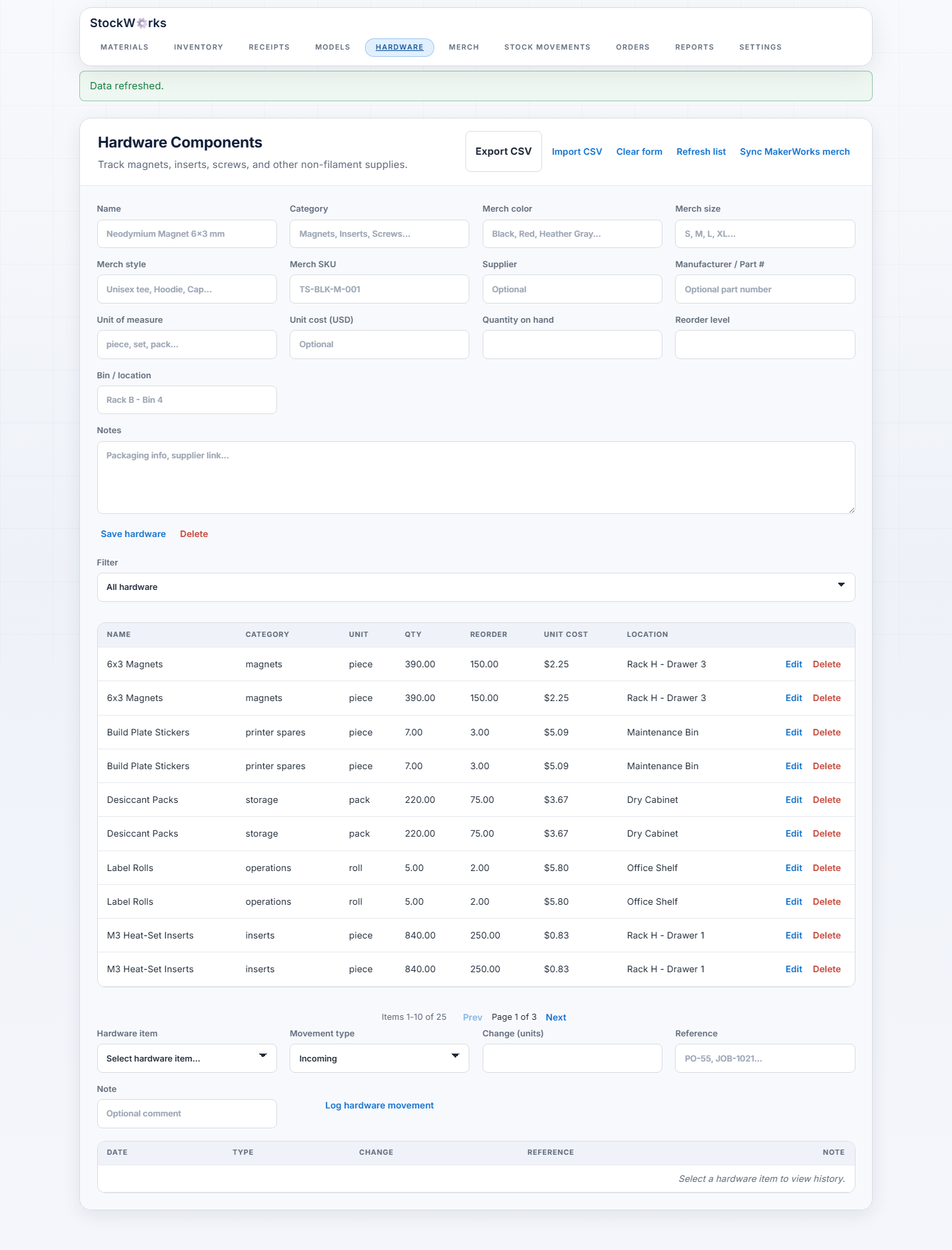
StockWorks participates in the MakerWorks suite demo as the inventory and material-intelligence app. The walkthrough uses synthetic sample data to show inventory levels, material reservations, hardware/merch stock, reporting, and incoming MakerWorks demand.
The screenshots below are safe public demo captures. They do not contain real customer records, private inventory counts, production URLs, or secrets.
Inventory planning
Material transactions
Hardware and reports
Quick start
- Open a web browser.
- Go to
http://localhost:8000/ - The main screen opens right away.
What StockWorks can do
- Track filament spools: color, material, remaining weight.
- Track hardware: screws, inserts, magnets, and other parts.
- Sync merch from MakerWorks: import merch templates, then keep quantity/catalog updates synced with MakerWorks.
- Show stock changes: every add and remove is recorded.
- Create quotes: build a material list and price estimate.
- Show incoming jobs: live orders from MakerWorks.
The main screens (what they mean)
- Dashboard: a quick summary of items that need attention.
- Filament: all spools and their remaining amounts.
- Hardware: all non-filament items and quantities.
- Movements: a history of changes so you can see who did what and when.
- Quotes: tools for pricing and estimating materials.
- Orders: the live job queue from MakerWorks.
Barcode scanning on mobile
StockWorks can scan barcodes using your phone or tablet camera.
How it works:
- Open StockWorks on your mobile browser.
- In the Materials, Inventory, or Stock Movements forms, tap the barcode scan button.
- Grant camera access when prompted.
- Point the camera at the barcode; the value fills in automatically.
Notes:
- Camera scanning requires HTTPS (or localhost).
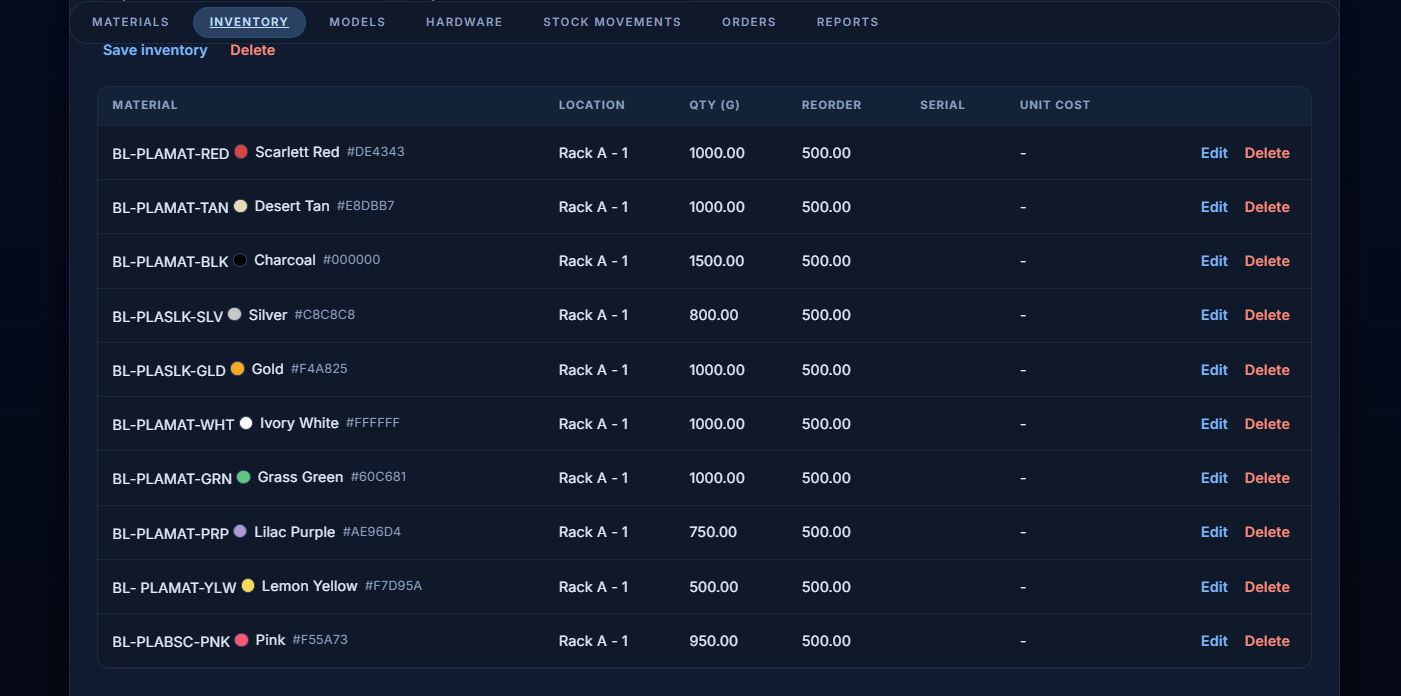
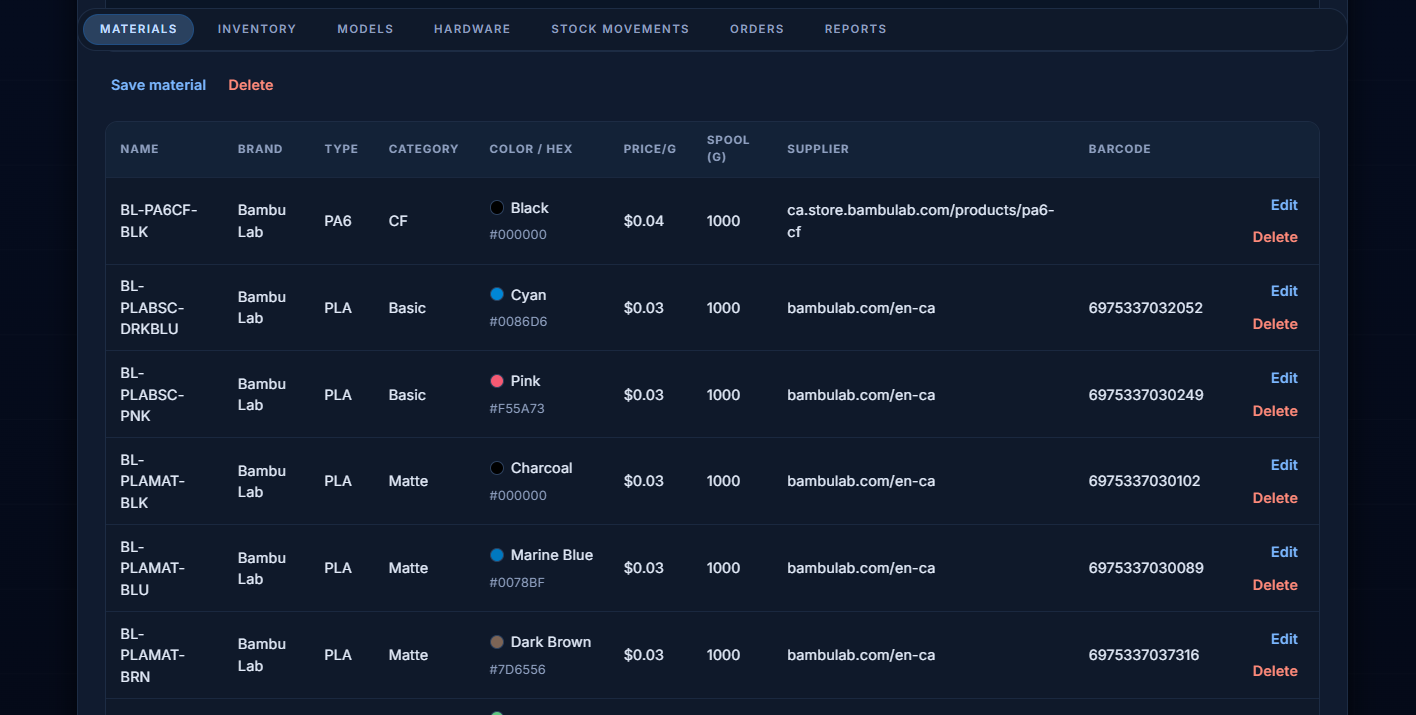
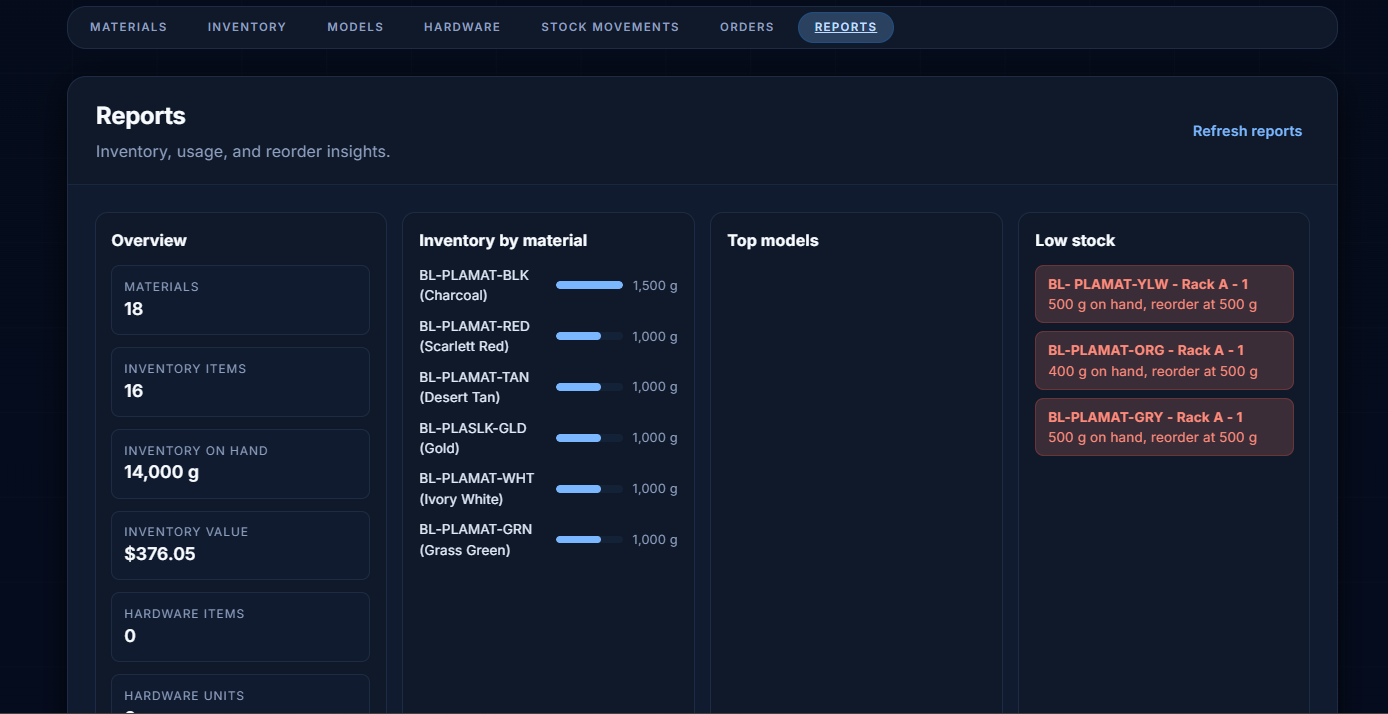
Screenshots
These pictures show what the main screens look like.
Inventory
Materials
Reports
Using the Orders screen
The Orders screen shows the job list so production and inventory stay in sync.
How StockWorks gets the orders
StockWorks reads the job list directly from the MakerWorks Postgres database.
This is automatic once DATABASE_URL points at the MakerWorks database.
What you will see in Orders
- A list of current jobs.
- If something is missing, you will see a message explaining what is needed.
Unraid MakerWorks database setup
When StockWorks runs on Unraid with MakerWorks, put the StockWorks container on the
same Docker network as the MakerWorks Postgres container. Use the Postgres
container name in the URL, not localhost.
For the common MakerWorks database container named postgres, set:
DATABASE_URL=postgresql://postgres:postgres@postgres:5432/makerworks?schema=public
STOCKWORKS_DB_SCHEMA=
DATABASE_URL points StockWorks at the MakerWorks Postgres database. The
?schema=public value means StockWorks uses the existing public schema for its
own inventory tables and can also read MakerWorks public tables.
If your StockWorks inventory tables were previously created in another schema,
set STOCKWORKS_DB_SCHEMA to that schema. For example, if an older install used
a legacy schema name:
DATABASE_URL=postgresql://postgres:postgres@postgres:5432/makerworks?schema=legacy_schema_name
STOCKWORKS_DB_SCHEMA=legacy_schema_name
For current MakerWorks/StockWorks installs, prefer public unless you confirm
your existing StockWorks rows are in another schema. STOCKWORKS_DB_SCHEMA
controls where StockWorks-owned tables such as material, inventoryitem, and
hardwareitem live.
To check where existing StockWorks tables are before reinstalling, run this in the MakerWorks Postgres database:
SELECT table_schema, table_name
FROM information_schema.tables
WHERE table_name IN (
  'material',
  'inventoryitem',
  'stockmovement',
  'hardwareitem',
  'hardwaremovement',
  'printmodel',
  'printmodelsale',
  'printmodelmovement',
  'jobs'
)
ORDER BY table_schema, table_name;
Use the schema that contains the current StockWorks data. If multiple schemas have StockWorks tables, compare row counts:
SELECT schemaname, relname, n_live_tup
FROM pg_stat_user_tables
WHERE relname IN (
  'material',
  'inventoryitem',
  'stockmovement',
  'hardwareitem',
  'hardwaremovement',
  'printmodel',
  'printmodelsale',
  'printmodelmovement'
)
ORDER BY schemaname, relname;
Also set a real session secret. StockWorks will not start if SECRET_KEY is
shorter than 32 characters:
SECRET_KEY=replace-with-a-random-32-plus-character-secret
Minimal boot environment
Keep startup, auth, database, storage, and safety limits in .env: SECRET_KEY, admin/shop login values, STOCKWORKS_DATA_DIR, optional DATABASE_URL, upload limits, session settings, and CORS/CSRF settings.
PrintLab, OrderWorks HTTP fallback, and low-stock SMTP digest settings can be configured after login from Settings. Environment variables still work as legacy overrides and are used when no in-app value is saved.
PrintLab filament sync (loaded trays)
StockWorks can also read loaded AMS trays from PrintLab so you can quickly see what filament is currently mounted.
Configure this in Settings -> PrintLab integration when possible. Legacy env overrides are:
PRINTLAB_BASE_URL(required for PrintLab sync)PRINTLAB_API_KEY(optional, if PrintLab API auth is enabled)PRINTLAB_BEARER_TOKEN(optional bearer auth token)PRINTLAB_API_AUTH_HEADER(defaults toX-API-Key)
The loaded tray list appears in Settings > PrintLab.
MakerWorks merch sync
If MakerWorks merch has been enabled, open Hardware and click Sync MakerWorks merch.
What this does:
- Pulls merch templates from MakerWorks
ProductTemplate. - Creates or updates matching Hardware records in StockWorks.
- Sets category to
merchand maps quantity/reorder fields when those columns exist in MakerWorks. - Writes merch quantity changes (and merch item edits) back to MakerWorks
ProductTemplatefor linked merch items. - For merch variants (same item/style/color with different sizes), StockWorks writes all sibling variant quantities so MakerWorks size availability stays accurate (e.g., only
Lin stock means other sizes are sold out). - New merch created in StockWorks is also created in MakerWorks
ProductTemplateautomatically (catalog image remains unset until added in MakerWorks).
You can manage merch directly in the Merch tab (add, edit, delete) and use the dedicated inventory search bar. Merch records support variant details such as category, color, size, style, and SKU.
Simple tips
- Use Dashboard first if you only have a minute.
- Use Movements to answer "what changed today?"
- Use Quotes to quickly estimate material needs.
For your admin (short, plain notes)
If you set up StockWorks:
- Open the app at
http://localhost:8000/ - Data is stored in
stockworks/data/ - Orders integration needs a MakerWorks database link
Requirements
Categories
Related apps
Explore more like this
Explore allDetails
ghcr.io/schartrand77/stockworks:latestRuntime arguments
- Web UI
http://[IP]:[PORT:8000]/- Network
makerworks-net- Shell
bash- Privileged
- false
- Extra Params
--restart unless-stopped
Template configuration
Host port for the StockWorks web UI.
- Target
- 8000
- Default
- 8256
- Value
- 8256
Persistent SQLite database and attachments.
- Target
- /data
- Default
- /mnt/user/appdata/stockworks
- Value
- /mnt/user/appdata/stockworks
User ID that owns files written by StockWorks.
- Default
- 99
- Value
- 99
Group ID that owns files written by StockWorks.
- Default
- 100
- Value
- 100
File creation mask.
- Default
- 002
- Value
- 002
Container timezone.
- Target
- TZ
- Default
- Etc/UTC
- Value
- Etc/UTC
Optional PostgreSQL DSN. Leave blank for SQLite.
- Target
- DATABASE_URL
Optional PostgreSQL schema for StockWorks-owned tables.
- Target
- STOCKWORKS_DB_SCHEMA
Internal StockWorks data directory.
- Target
- STOCKWORKS_DATA_DIR
- Default
- /data
- Value
- /data
SQLite filename under STOCKWORKS_DATA_DIR.
- Target
- STOCKWORKS_DB_FILENAME
- Default
- app.db
- Value
- app.db
Admin login username.
- Target
- ADMIN_USERNAME
- Default
- admin
- Value
- admin
Optional admin email.
- Target
- ADMIN_EMAIL
Admin login password. Use a strong password.
- Target
- ADMIN_PASSWORD
Long random secret used to sign session cookies.
- Target
- SECRET_KEY
Set 1 when StockWorks is accessed only via HTTPS.
- Target
- SESSION_HTTPS_ONLY
- Default
- 0
- Value
- 0
Optional PrintLab URL used to read loaded AMS trays.
- Target
- PRINTLAB_BASE_URL
- Default
- http://PrintLab:8080
- Value
- http://PrintLab:8080
Optional PrintLab API key.
- Target
- PRINTLAB_API_KEY
Optional PrintLab bearer token.
- Target
- PRINTLAB_BEARER_TOKEN
Optional PrintLab username for Basic auth.
- Target
- PRINTLAB_USERNAME
Optional PrintLab password for Basic auth.
- Target
- PRINTLAB_PASSWORD
Header name PrintLab expects for PRINTLAB_API_KEY.
- Target
- PRINTLAB_API_AUTH_HEADER
- Default
- X-API-Key
- Value
- X-API-Key
Set 1 to enable PrintLab integration trace logs.
- Target
- PRINTLAB_TRACE
- Default
- 0
- Value
- 0