
All apps · 0 apps

stockportfolio
Docker app from UnraidUser-3287583290's Repository
Overview
Portfolio data and settings are stored only in the browser, not on Unraid. No appdata volume is needed. Export backups under Settings - Backup; server backups do not include browser data. Keep the web address and host port stable when updating.
Set STOCKINFO_API_URL to an address reachable from your browser. StockInfo must allow the web app origin through CORS. HTTPS pages require an HTTPS API.
The container serves the web app on port 8080 without root privileges. Older images used port 80: update existing port mappings when upgrading.
Readme
View on GitHubStockPortfolio
Portfolio management with market data, valuation, charts and tolerance-band rebalancing — built with Vue 3, Vite and TypeScript. Prices come from StockInfo, a separate service you run yourself.
Docker: Container setup and configuration · Docker Hub repository

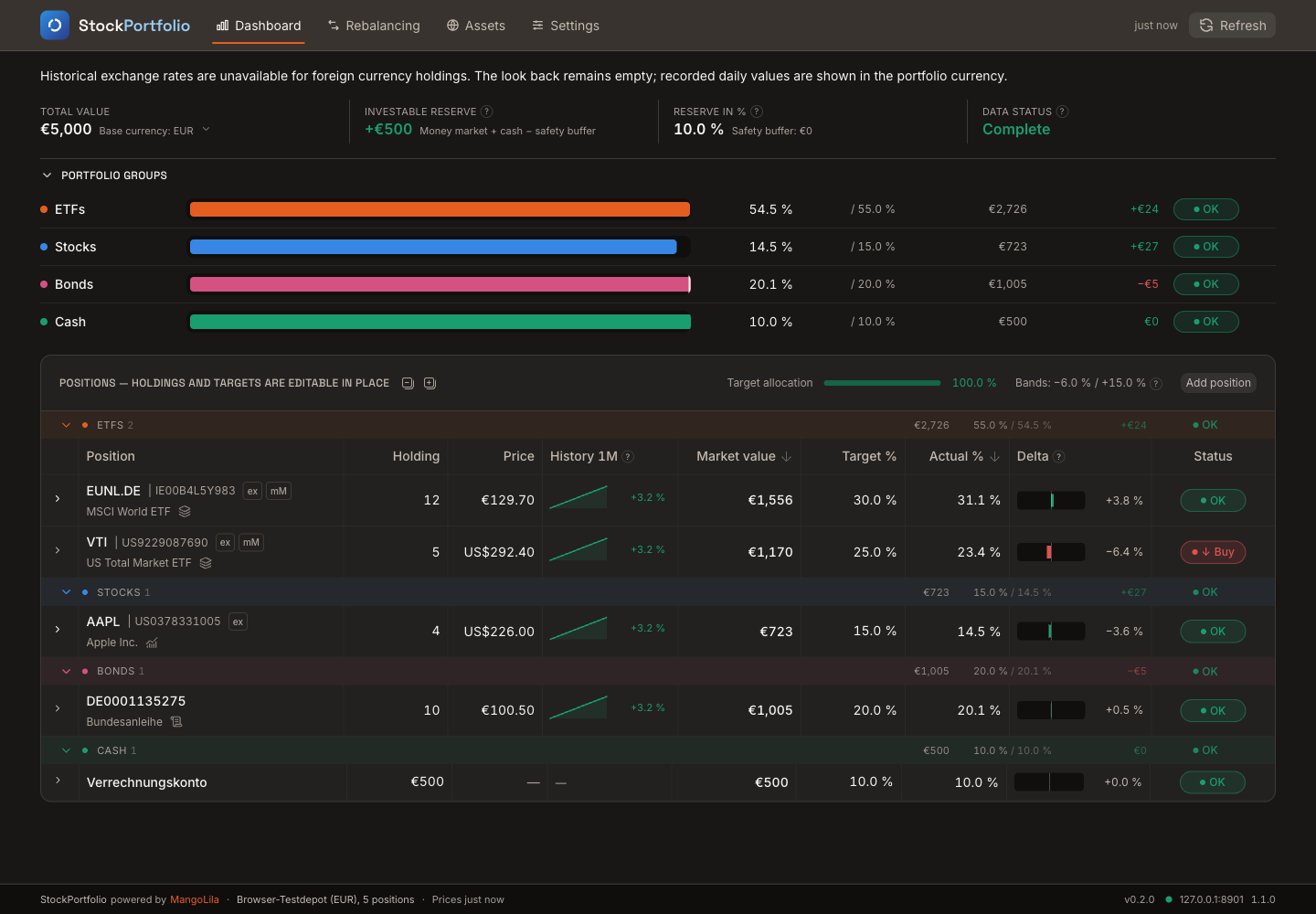
The dashboard: portfolio groups at the top, positions below. Holdings and targets are editable in place and through the position dialog. The screenshot shows the reusable browser test portfolio with sample quotes, in English.
What it does
Set a target allocation and choose when to rebalance under Settings → Calculation:
| Trigger | Meaning |
|---|---|
| Tolerance bands | Act when a position leaves its band. |
| Fixed schedule | Act on the due date, on every deviation from target. |
| Bands and schedule | Check bands continuously and smaller deviations on the due date. |
Bands are relative to the target: a 10% target with a 6% lower band triggers at 9.4%. Lower and upper bands are separate. Scheduled rebalancing uses an interval in months and the portfolio's last rebalance date, which you set after placing orders yourself.
Each position shows its delta in units. An optional minimum trade size suppresses small trade suggestions without hiding the deviation. The limit can be a fixed amount in the portfolio currency or a percentage; its default is zero (off). Changing units converts the current value. Buffer and minimum trade settings are saved with the active portfolio.
Portfolio base currency
Choose a currency for each portfolio in Settings → Data → Portfolios. New portfolios default to EUR; USD, CAD and other ISO currencies are available. The dashboard states the base currency beside the total value. The status bar also shows its code beside the active portfolio name on every page. Cash, security buffers and minimum trade amounts belong to that portfolio and use its currency. You can change the currency at any time. A confirmation shows the rate used to convert cash and absolute limits; holdings and percentage limits stay unchanged. Without a valid conversion rate, stored amounts and currency stay unchanged. The chart shows the selected currency series, and earlier series remain available when switching back.
StockInfo FX rates convert foreign quotes into the portfolio currency before
calculating totals, allocations, bands and trades. A rate of 0.8 EUR per USD
turns a $100 holding into €80. Pence quotes (GBp) are first divided by 100
into GBP. Original quotes and plugin amounts retain their own currencies.
A stale FX rate remains usable with a persistent warning naming the pair and rate date. If no valid rate exists, the affected position stays visible and is excluded from totals and trades. Incomplete valuations do not overwrite daily values. Snapshots carry their currency; unlabelled old snapshots are omitted. Backups retain all currency series, while the chart shows only the selected currency. Historical backtests requiring FX are hidden with an explanation because StockInfo does not supply historical FX.
Quotation currency does not describe currency exposure: a euro-quoted MSCI World still holds assets in other currencies. The app does not calculate that exposure.
Valid prices before adding a position
Adding a security first fetches and validates its quote. If the symbol is ambiguous or the response lacks a valid price or quote currency, the dialog shows the reason and keeps the security out of the portfolio. A price shown in the instrument catalog alone is insufficient.
When a later refresh fails, an existing position remains visible. Its last
valid price is marked stale and may still be used; without a valid price the
position is excluded from calculations and trade suggestions. Original quotes retain their currency, including GBp for pence; portfolio
market values use the converted price.
The client validates StockInfo Core 4.3.0 quote and catalog responses at one boundary. It preserves listed, pair and ISIN-only identities. IndexedDB schema 5 rebuilds older quote caches; portfolio positions remain stored.
Position information
The main row has a small type icon beside the name, on desktop and mobile. Stocks use a chart, ETFs layers, ETCs a gem, funds a pie chart, crypto coins and bonds a scroll. Other dynamic types use a neutral tag icon. Hover or focus it to see the current StockInfo asset type; tap it on mobile. The tooltip preserves new type identifiers without a fixed list. The type is not repeated in the details. Open a position on the dashboard. Information combines fields supplied by StockInfo plugins, TER and volatility. Symbol, ISIN and the original price stay in the main row without being repeated in the details. A converted unit price remains available here when needed. On mobile the area also provides the quote age and external links, which the card does not show. On mobile, tap the position card or its caret to reach the same sections. Fields already displayed in a configured main column are omitted from additional information. The dashboard's Position column shows both ticker and ISIN when StockInfo provides both, separated by a vertical bar. The mobile card and rebalancing view follow the same rule. For an ISIN-only asset, the main row shows its ISIN without inventing a ticker. Identifiers come from StockInfo and cannot be edited here. On desktop, the refresh icon beside the quote age reloads that position's quote and rotates while the request runs.
Labels, applicability and units come from StockInfo's field catalog. The app shows the effective value, its provider or manual origin, date and any overridden manual value. Technical field keys are hidden unless two populated fields need distinguishing and no source name is available. Equal labels share one empty placeholder; a populated field takes precedence over it. Zero and false remain values; other missing values appear as a dash. Amounts keep the currency attached to that value and never change the portfolio calculations automatically.
If the field catalog is unavailable, quotes and the existing core information remain usable. Older cached quotes without details are marked as not yet loaded; reload the quote to fetch them. The field catalog is loaded for the current session and API address, while detail values are stored with the quote.
Value history
Click the total-value tile's 90-day sparkline to open the chart. The solid line contains recorded daily portfolio values, including changes in holdings. The dashed look back values today's holdings at past prices; it is not historical portfolio performance. Recording starts when you use the app. Daily values are included in backups; the look back can be recomputed.
Price history
Clicking the small sparkline opens the row with Price history selected; clicking it again closes the row. The sparkline answers a question no number does: is the price coming from above or from below? The period is shown in the column header and is chosen under Settings → Data — one month, one week or one day. "One day" shows no line but the change from the last trading day to today.
Opening a security selects Price history, the first tab, and loads the larger chart. It shows prices on the left axis, the same line as a percentage change on the right, and time along the bottom, selectable from one month up to "max". Hovering shows date, price and change for that day. The larger chart and its history request start when the position is opened; the small row sparkline loads on its own.
Daily closing prices change once a day, so they are cached in IndexedDB and fetched at most once per day per security.
The Valuation area shows the position's market value, target and bands. Its unit delta is displayed as a whole number; calculations retain their precision. The pencil icon opens the edit dialog. Save applies the changes; Cancel and the close icon discard them. Delete stays separate on the left and asks for confirmation. The two symbols beside the desktop position heading collapse all groups or expand all groups. Each has a text label for assistive technology. The choice is kept for the next visit.
Detail notes and information
The detail navigation uses text tabs with a thin underline for the active area, with a subtle background behind the navigation. On mobile a compact menu selects the area in one line; no horizontal scrolling is needed. Saved position notes appear below the detail toolbar on desktop and mobile. Empty notes leave no gap. Cash opens with Valuation. Information tabs without content are hidden; loading states, missing cached details and errors remain accessible. Additional values of zero or false count as content.
Asset type icons use Lucide. The icons for expanding and collapsing all groups use Microsoft Codicons; see third-party notices.
Six portfolio groups
ETFs, Stocks, Bonds, Precious metals, Money market, Cash.
The group is suggested from the security type and name, and can be changed
when adding or editing a position. A bond ETF can therefore remain under
Bonds. Existing ETFs in the former Stocks / ETFs group move once to ETFs;
later manual group choices are kept. This also applies when importing an older
backup.
Money market is deliberately separate from the other bonds. Bonds with a maturity fluctuate; money-market instruments barely do — which makes them, together with cash, the thing a purchase can be paid from.
The dashboard group overview hides groups whose actual and target shares are both zero. A group with a target allocation remains visible even without holdings.
Under Settings → Links, asset types come from StockInfo's
GET /instrument-types catalog, independently of your holdings. The catalog
reloads when you open this tab; Reload types refreshes it while editing.
Identifiers such as etf and fund stay separate. New plugin types appear
without a StockPortfolio update.
A link can be limited to these types and independently to portfolio groups,
including Cash. An empty selection in either filter means all types or groups.
When both filters are set, a position must match both. Cash has no asset type,
so leave the type filter empty for a Cash link. Links needing an ISIN remain
unavailable for positions without one.
A partial, empty or unavailable type catalog is indicated beside the editor. Existing filters are preserved and marked when their type is absent or cannot be confirmed. There is no built-in fallback catalog. A source outage does not necessarily make the catalog incomplete: StockInfo can still know which types that source declares.
The current quote's type takes precedence over the stored position type. Refreshes save updated types for offline use without changing portfolio groups. Positions and link filters retain new type identifiers in backups.
If you delete the cash account, use Add position → Cash account to create it again. Enter the balance in the portfolio currency and its target percentage. Cash does not need a StockInfo quote and can be added without an available security catalog. This option appears only when the portfolio has no cash account.
Safety buffer and investment reserve
investment reserve = (money market + cash) − safety buffer
The buffer can be a fixed amount or percentage; its default is zero. The reserve is informational and does not initiate investments.
Rebalancing is a simulation
Enter unit counts and trial target shares in Rebalancing to see costs, resulting allocations and bands. Cover from offers liquid positions when a plan is underfunded. Nothing is booked. Place orders at your bank, then update holdings on the dashboard.
Explanations inside the app
Question-mark tooltips explain the method and link to the relevant setting or The Method reference page.
Where the data lives
Only in the browser (IndexedDB), on the device you work on. No server stores portfolio data — the StockInfo API only delivers prices and master data and learns nothing about holdings.
That has consequences worth knowing:
- A different browser or device shows an empty portfolio.
- "Clear site data" in the browser deletes the portfolio too.
- A container update costs nothing — the data was never in the container.
Settings → Backup offers backup and restore: a JSON file with the portfolio, the settings and the list of hidden assets. Prices are not included — the app fetches those anyway. On restore the file is checked and its contents are shown first; nothing is overwritten without confirmation.
Several portfolios
Under Settings → Data you can create, rename, switch and delete portfolios — one for the kids, say, or a variant to play through. Only the active one is ever calculated; its name sits in the status bar so no number is ambiguous.
What belongs to a portfolio: holdings, targets, the asset selection and the date of the last rebalance. Which securities are eligible for a children's account is a different set from your own. Base currency, safety buffer and minimum trade size also belong to the portfolio. General calculation preferences and appearance apply across portfolios.
A backup always contains just the active portfolio, including its asset selection.
Setup
make setup                 # .libs/ symlinks + npm install
cp .env.example .env       # adjust VITE_STOCKINFO_API_URL if needed
make dev                   # http://localhost:5175
make setup links existing BashLib, MakeLib and ProjectTools repositories.
For the first setup, set BASH_LIBS, DEV_MAKE and PROJECT_TOOLS to their
locations; later commands can use the links under .libs/. For frontend-only
development, npm install works without these shared tools.
Commands
make help lists everything. The important ones:
| Command | Purpose |
|---|---|
make dev |
Vite dev server (port 5175) |
make build-frontend |
Typecheck + production build into dist/ |
make preview |
Preview of the production build (port 4175) |
make test |
Vitest, single run |
make lint / make typecheck |
ESLint / vue-tsc --noEmit |
make build |
Build and load the Docker image for testing |
make push |
Publish the tested image, then Docker Hub README |
make tag-and-push-minor |
Bump, commit, tag and push the version |
Frontend commands are also available as npm run ….
Layout
src/api/ owns HTTP access, src/db/ IndexedDB, src/stores/ application state,
src/domain/ calculations, and src/components/ and src/views/ presentation.
The router uses hash URLs (/#/rebalancing); settings tabs are addressable as
/#/settings?tab=calc. The server needs no application-route rewrites.
Language
German and English, switchable under Settings → Language. The choice covers labels, numbers and dates together — treating them separately is the usual mistake: an English label above a number in German format.
Without an explicit choice the browser's language decides; anything other than German gets English. The choice is stored in the browser.
Visible text lives in the message catalogue (src/i18n/), without
exception. An ESLint rule turns a hard-coded string in a template into an error,
and the typecheck reports every key missing in one of the languages.
Typography and themes
Inter and Space Grotesk are bundled locally; no runtime font request goes to Google. Eleven themes are available under Settings → Theme, including dark and light choices. Without an explicit choice, the system preference selects MangoLila or Paper. Asset-group colours remain consistent across themes.
Mobile
The dashboard works as a reading view: basic figures, delta and status. Each card shows target percentage before actual percentage. Its compact delta bar sits beside the deviation value instead of spanning the card. Positions appear as separate cards beneath their asset-class heading. Tap a position card or its caret for Price history, Valuation and Information, when additional information is available. A compact menu selects the section on a narrow screen. The card does not offer editing. Rebalancing stays on the desktop — entering unit counts in a wide table is not a good idea on a phone.
Docker
The Docker Hub image name is
mangolila/stockportfolio.
It contains the finished bundle and a static Node server (serve) — no nginx,
no application API, database or volumes.
Run it
docker run -d --name stockportfolio \
    -p 8080:8080 \
    -e STOCKINFO_API_URL=https://stockinfo.example.com \
    --restart unless-stopped \
    mangolila/stockportfolio:latest
Then open http://localhost:8080. STOCKINFO_API_URL is the address of your
own StockInfo instance — the app
has no public backend to fall back on. See API address below.
The browser calls StockInfo directly. Use an API address reachable from
that browser, such as the server's LAN hostname. localhost refers to the
browser's computer; Docker's internal service names are usually unsuitable.
StockInfo must allow the web app's origin through CORS. An HTTPS page needs
an HTTPS API to avoid mixed-content blocking.
The web interface has no built-in login. Control access through your network or reverse proxy; the container guide also shows how to bind the published port to localhost only.
The container listens on 8080 and the static server runs without root. Older images used port 80: update an existing port mapping when switching to this version. Keep the host address/port stable so the browser retains the same storage origin.
With Docker Compose
services:
  stockportfolio:
    image: mangolila/stockportfolio:latest
    container_name: stockportfolio
    ports:
      - '8080:8080'
    environment:
      STOCKINFO_API_URL: https://stockinfo.example.com
    restart: unless-stopped
docker compose up -d
Updating
docker pull mangolila/stockportfolio:latest
docker rm -f stockportfolio
# then run the command above again — or: docker compose up -d
Nothing is lost in the process. Portfolios live in the browser, not in the container, so an update is a plain pull & restart.
Checking it works
docker ps                          # STATUS should say "healthy" after a few seconds
docker logs stockportfolio         # check startup and static server output
The app itself shows the address in use under Settings → Status and in the status bar at the bottom. If prices stay empty, that page is the place to look: it distinguishes "not reachable" from "reachable but refused" (CORS).
Building and publishing
make build                    # build and load linux/amd64; no push
make docker-samples           # show container commands for testing
make push                     # publish that same image, then README
make build PLATFORM=arm       # optional local ARM build
As in StockInfo, building and publishing are separate steps: test the built
container before running make push. make build defaults to linux/amd64,
independently of the host architecture. make build-frontend
runs only the frontend production build.
Bash 4+, BashLib, Docker/buildx, a Git tag and a clean working tree are required.
STRICT=2 allows commits after a tag; STRICT=1 requires the tagged commit.
Version changes use make tag-and-push-major/minor/patch, which commit, tag and
push to GitHub. A normal image build does not bump the version.
The build uses node:22-bookworm-slim for build and runtime, with locked serve dependencies.
TARGET=dockerhub is the default; GHCR and ECR remain optional. make push
uses the immutable image ID saved by the local build, including for latest.
Failed or incomplete builds cannot reuse an old build marker. make docker-update BASE_IMAGE=node:22-bookworm-slim pulls an explicit base reference.
After a successful Docker Hub image push, the common ProjectTools helper
updates the repository overview from docker/README.md and
reads it back. That file is the dedicated container guide; this README remains
the full project documentation. Other registries skip this step. Python 3.11+ and Pandoc are required; the helper
manages its own Python environment in the user cache. make setup provides
the .libs/ProjectTools link. No helper copy or separate README Make target is used.
Preview without uploading:
./.libs/ProjectTools/src/bash/dockerhub-readme.sh \
  --readme docker/README.md --preview --ref master
Edit only docker/README.md. The helper generates docker/preview/README.md
with the converted Docker Hub content and overwrites it on each preview.
This output is ignored by Git and excluded from the Docker build.
Relative image/document links become absolute GitHub URLs. Set
DOCKER_README_REF to a published branch or commit containing those files
(default master). The converted Docker Hub guide must fit in 25,000 UTF-8 bytes;
the preview checks the limit and never truncates content. Recheck after changes
to docker/README.md. Raw HTML must use absolute links.
The helper reads the Docker Hub token from DOCKER_PW_FILE, otherwise
${DOCKER_CONFIG:-$HOME/.docker}/dockerhub.sec. Keep it outside the repository;
pass the file path, never the token itself. Updating the description requires a
Personal Access Token with Read, Write, Delete permissions; image push
permissions alone are insufficient.
A failed README upload returns failure even though the image is already online.
Retry the metadata upload without rebuilding or repushing the image:
./.libs/ProjectTools/src/bash/dockerhub-readme.sh \
  --readme docker/README.md --publish --ref master --repository mangolila/stockportfolio
API address
It is not baked into the image. On start the entrypoint writes
STOCKINFO_API_URL into config.js, from where the app reads it. The same image
can therefore point at a different backend without being rebuilt. Without the
variable, the value baked in at build time from VITE_STOCKINFO_API_URL applies.
The address is mandatory. If neither source provides one, the app does not start but shows a message saying so — there is no built-in fallback, because a fallback address resolves for nobody but its owner and the mistake would only surface as an empty price table.
Unraid
See the Unraid guide for installation, configuration, backups, updates and local template testing.
Not there yet
| Topic | State |
|---|---|
| Historical FX backtest | unavailable — current FX rates cannot replace historical rates |
| Threshold notifications | deliberately outside the MVP |
| CORS against the production API | unverified — the container's origin has to be allowed |
| Pruning the price-history cache | open — it only ever grows |
Details and verify matrices: ticket board. The design this was built against: design spec.
Licence
Private project — no licence granted.
Media gallery
Install Stockportfolio on Unraid in a few clicks.
Find Stockportfolio in Community Apps on your Unraid server, review the template, and click Install. Unraid handles the Docker app or plugin setup from the published template.
Requirements
Categories
Download Statistics
Related apps
Explore more like this
Explore allDetails
mangolila/stockportfolio:latestRuntime arguments
- Web UI
http://[IP]:[PORT:8080]/- Network
bridge- Shell
sh- Privileged
- false
Template configuration
Host port for the web app. The container listens on 8080. Keep the host address and port stable to retain the browser storage origin.
- Target
- 8080
- Default
- 8088
- Value
- 8088
URL of your StockInfo API, reachable from the browser (for example https://stockinfo.example.com). Required; no built-in public API. Restart the container after changing it.
- Target
- STOCKINFO_API_URL
Timezone for container logs, for example Europe/Vienna. The web interface follows the browser timezone.
- Target
- TZ
- Default
- UTC
- Value
- UTC