
All apps · 0 apps

StandardNotes-WebUI
Docker app from junkerderprovinz's Repository
Overview
Readme
View on GitHubStandard Notes WebUI for Unraid







A clean, opinionated Unraid Community Template for the official
standardnotes/web
browser client. Runs the static web app on Unraid in a single container,
ready to be reverse-proxied to app.standardnotes.mydomain.tld
and pointed at your self-hosted Standard Notes backend.
Unofficial community wrapper. Not affiliated with or supported by Standard Notes.

Table of Contents
- What is this?
- What it does NOT do
- Quick Start on Unraid
- Reverse Proxy
- Configuring the Sync Server
- Updating
- Troubleshooting
- Screenshots
- Publishing to Community Applications
- Contributing / License
- Support this project
1. What is this?
This repository ships a single Unraid Community Application template
for the official
standardnotes/web Docker
image — the browser client for Standard Notes.
It is the companion of the backend template repo
junkerderprovinz/standardnotes-server
(container name StandardNotes-Server). Together they let you run a fully
self-hosted Standard Notes stack on Unraid:
Browser ──HTTPS──►  app.standardnotes.mydomain.tld  ──►  StandardNotes-WebUI  (this template, web client)
                                                              │
                                                              ▼  (Custom Sync Server set in the web UI)
            HTTPS──►  standardnotesserver.mydomain.tld     ──►  StandardNotes-Server  (companion repo, backend)
What you get:
- One container, one template. Container name
StandardNotes-WebUI, imagestandardnotes/web:latest, host port3001→ container port80. - Default port
3001chosen so the WebUI does not collide with the backend's:3000API gateway on the same Unraid host. - Reverse-proxy ready. Pair with Nginx Proxy Manager / SWAG / Traefik
to terminate TLS at e.g.
app.standardnotes.mydomain.tld. - Minimal env surface. The official upstream Docker docs only document
docker run -d -p 3000:80 standardnotes/web— no sync-server env var is exposed, so this template intentionally does not invent one. Sync server is configured at runtime in the browser, see § 5.
2. What it does NOT do
- Does not host a sync server. This is only the browser UI. You
still need a running Standard Notes backend — the companion repo
standardnotes-serverships an Unraid template forstandardnotes/server. - Does not unlock paid / subscription Standard Notes features.
Subscription-only client features (extended editors, advanced themes,
Files quota, Listed, etc.) are gated by Standard Notes' own licensing
/ subscription checks, which live in the upstream client itself. This
template deploys the upstream
standardnotes/webimage as-is and does not patch, bypass, or otherwise modify those checks. Self-hosting gives you data ownership and a free Sync server; it does not turn a free account into a paid one. - Does not auto-configure the sync server. The upstream image does not document an env var for the default sync URL, so this template does not set one. Users enter their backend URL via the web app's Advanced options → Custom Sync Server on first launch — see § 5.
3. Quick Start on Unraid
Step 0 — Pre-flight
You will need:
- An Unraid server with Community Applications installed.
- A running Standard Notes backend reachable over HTTPS at e.g.
https://standardnotesserver.mydomain.tld(use thestandardnotes-servertemplate). - A reverse proxy (NPM, SWAG, Traefik, Caddy) for the web app's own
hostname, e.g.
app.standardnotes.mydomain.tld.
Step 1 — Install the template
Pull the template into Unraid's user-template folder:
mkdir -p /boot/config/plugins/dockerMan/templates-user

curl -fsSL -o /boot/config/plugins/dockerMan/templates-user/my-StandardNotes-WebUI.xml \
  https://raw.githubusercontent.com/junkerderprovinz/unraid-apps/main/standardnotes-webui/standardnotes-webui.xml
📌 Templates dropped into
/boot/config/plugins/dockerMan/templates-user/appear under Docker → Add Container → Template → User templates without restarting Docker.
Step 2 — Start the container
In the Unraid Web UI: Docker → Add Container → in the Template dropdown, pick StandardNotes-WebUI under User templates.
The only field is the WebUI Port (host port — default 3001).
Hit Apply. The container starts in seconds; visit
http://<unraid-ip>:3001/ to confirm the web app loads.
Step 3 — Reverse-proxy and connect to your backend
Set up a reverse-proxy host for the web app (see § 4), then open the web app at your public URL and configure the sync server (§ 5).
4. Reverse Proxy
Terminate TLS at your reverse proxy. The container itself serves plain
HTTP on port 80 inside, exposed as host port 3001 by default.
⚠️ HTTPS is not optional for the web app. Standard Notes uses the browser's WebCrypto API (
window.crypto.subtle) during sign-up and sign-in. Browsers only exposecrypto.subtleon secure contexts (HTTPS, or thelocalhostexception). Opening the web app overhttp://<unraid-ip>:3001/will fail at account creation withcrypto.subtle is undefined. Always reach the web app through the HTTPS reverse-proxy hostname (e.g.https://app.standardnotes.mydomain.tld/).
Nginx Proxy Manager (recommended on Unraid)
In the NPM UI, Hosts → Proxy Hosts → Add Proxy Host:
| Value | |
|---|---|
| Domain Names | app.standardnotes.mydomain.tld |
| Scheme | http |
| Forward Hostname / IP | 192.168.x.x (StandardNotes-WebUI container IP, or the Unraid host IP) |
| Forward Port | 80 if forwarding to the container IP (custom IP on br0 / macvlan); 3001 (or your chosen host port) if forwarding to the Unraid host IP (bridge / host-port mode) |
| Block Common Exploits | on |
| Websockets Support | on |
| SSL | request a Let's Encrypt cert, Force SSL on, HTTP/2 Support on, HSTS on once the cert renews automatically. |
Generic SWAG / nginx snippet
server {
    listen 443 ssl http2;
    server_name app.standardnotes.mydomain.tld;

    include /config/nginx/ssl.conf;

    location / {
        include /config/nginx/proxy.conf;
        resolver 127.0.0.11 valid=30s;
        set $upstream_app 192.168.x.x;
        set $upstream_port 3001;
        set $upstream_proto http;
        proxy_pass $upstream_proto://$upstream_app:$upstream_port;
        proxy_set_header Host $host;
        proxy_set_header X-Forwarded-For $proxy_add_x_forwarded_for;
        proxy_set_header X-Forwarded-Proto $scheme;
    }
}
💡 The web app's hostname (
app.standardnotes.mydomain.tld) and the backend's hostname (standardnotesserver.mydomain.tld) are different proxy hosts. Don't try to share one — the web app makes cross-origin API calls to the backend, so they need their own TLS certs and their own NPM / SWAG entries.
5. Configuring the Sync Server
The official standardnotes/web image does not expose an env var
for the default sync server. The upstream Docker docs only show:
docker run -d -p 3000:80 standardnotes/web
Sync server is configured per-user, at runtime in the browser:
- Open the web app at
https://app.standardnotes.mydomain.tld/. - On the sign-in / sign-up screen, click Advanced options.
- Set Sync Server to your backend's public URL, e.g.
https://standardnotesserver.mydomain.tld. - Sign in or create an account against your self-hosted backend.
The browser remembers the custom sync URL per origin — every user of your web app instance enters it once.
⚠️ Do not invent env vars. If you find a third-party guide that mentions e.g.
SYNC_SERVER_URLorDEFAULT_SYNC_SERVERforstandardnotes/web, treat it skeptically — the official Docker docs do not list any such variable, and adding unsupported env vars to this template can silently produce a web client that points at the public Standard Notes sync server instead of your backend. Update this template only ifhttps://hub.docker.com/r/standardnotes/webdocuments the variable.
6. Updating
docker pull standardnotes/web:latest
docker stop StandardNotes-WebUI && docker rm StandardNotes-WebUI
# re-create with the same template / docker run args
On Unraid: Docker tab → click the container → Force Update. The web app has no on-disk state, so updates are usually instant.
Pin a known-good tag in the template's Repository field if latest
ever regresses, e.g. standardnotes/web:3.x.y.
7. Troubleshooting
Account creation fails with can't access property "digest", crypto.subtle is undefined
- The web app is being opened over a non-secure origin, typically
http://<unraid-ip>:3001/or another plain-HTTP URL. Browsers only exposewindow.crypto.subtle(WebCrypto) on secure contexts — HTTPS, or thelocalhost/127.0.0.1exceptions. Standard Notes usescrypto.subtle.digestduring sign-up / sign-in to derive the account key, so without it, account creation throws this error. - Fix: access the web app through your HTTPS reverse proxy, e.g.
https://app.standardnotes.mydomain.tld/, nothttp://<ip>:3001/. See § 4 for the NPM / SWAG setup. - NPM forwarding target:
- With a custom container IP (the StandardNotes-WebUI container has its
own LAN IP, e.g. on
br0): forward to that container IP, port80(the container's internal port). The host port doesn't apply. - With bridge / host-port mode: forward to your Unraid host IP
and the host port you set on the template (default
3001).
- With a custom container IP (the StandardNotes-WebUI container has its
own LAN IP, e.g. on
- The backend sync server stays on its own hostname, e.g.
https://standardnotesserver.mydomain.tld, and is entered separately under Advanced options → Custom Sync Server (see § 5). - Quick smoke test: open the browser devtools console at the HTTPS
URL and run
window.isSecureContext— it must returntrue.
Web app loads but "Unable to reach server"
- The web app is talking to the sync server, not to itself. Verify
the URL you entered under Advanced options → Sync Server is your
HTTPS backend URL (e.g.
https://standardnotesserver.mydomain.tld), reachable from your browser. - Run
curl -fsI https://standardnotesserver.mydomain.tld/healthcheckfrom any host. A non-200 here is a backend / reverse-proxy issue, not a web-client issue.
Mixed-content blocks in browser console
- The web app must be served over HTTPS, and the backend must be
served over HTTPS. A plain
http://Sync Server URL will be blocked by the browser when the web app is served over HTTPS.
"Failed to fetch" / CORS errors
- The web app makes cross-origin API calls to the backend. Ensure the
backend's reverse-proxy host is up and the backend is configured with
COOKIE_DOMAINmatching its own public hostname (see thestandardnotes-serverREADME §0 / §6).
Port 3001 already in use
- Pick another host port in the template — anything except 3000 (used by the backend's API gateway) and 3125 (used by the backend's files server) is fine. 8080, 8081, 4321 are common alternatives.
I want paid features by self-hosting
- Self-hosting does not unlock paid Standard Notes features. See § 2.
8. Screenshots
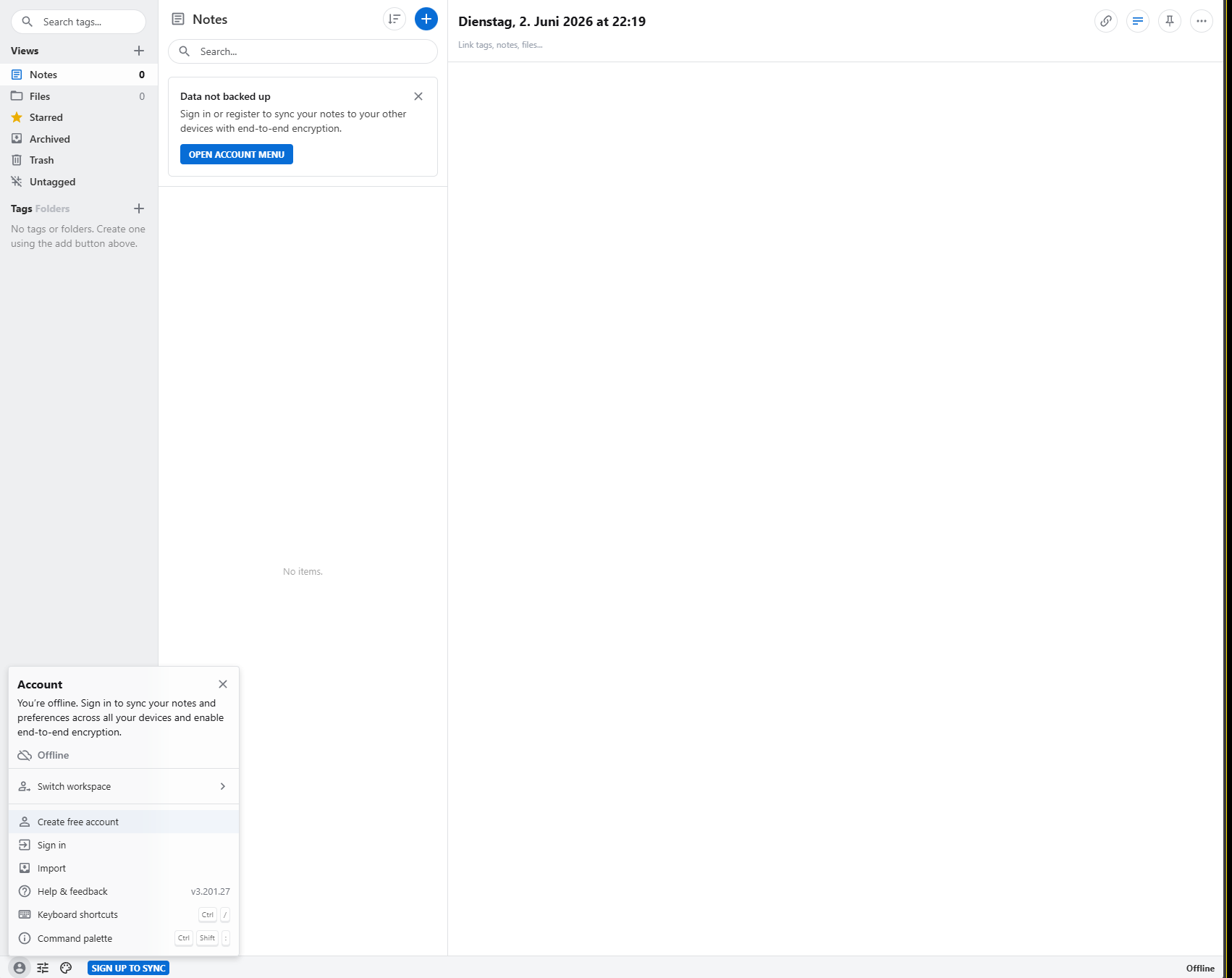
Notes view served by the self-hosted web client (default light theme) — the Account menu shows the offline state with “Create free account” / “Sign in”.
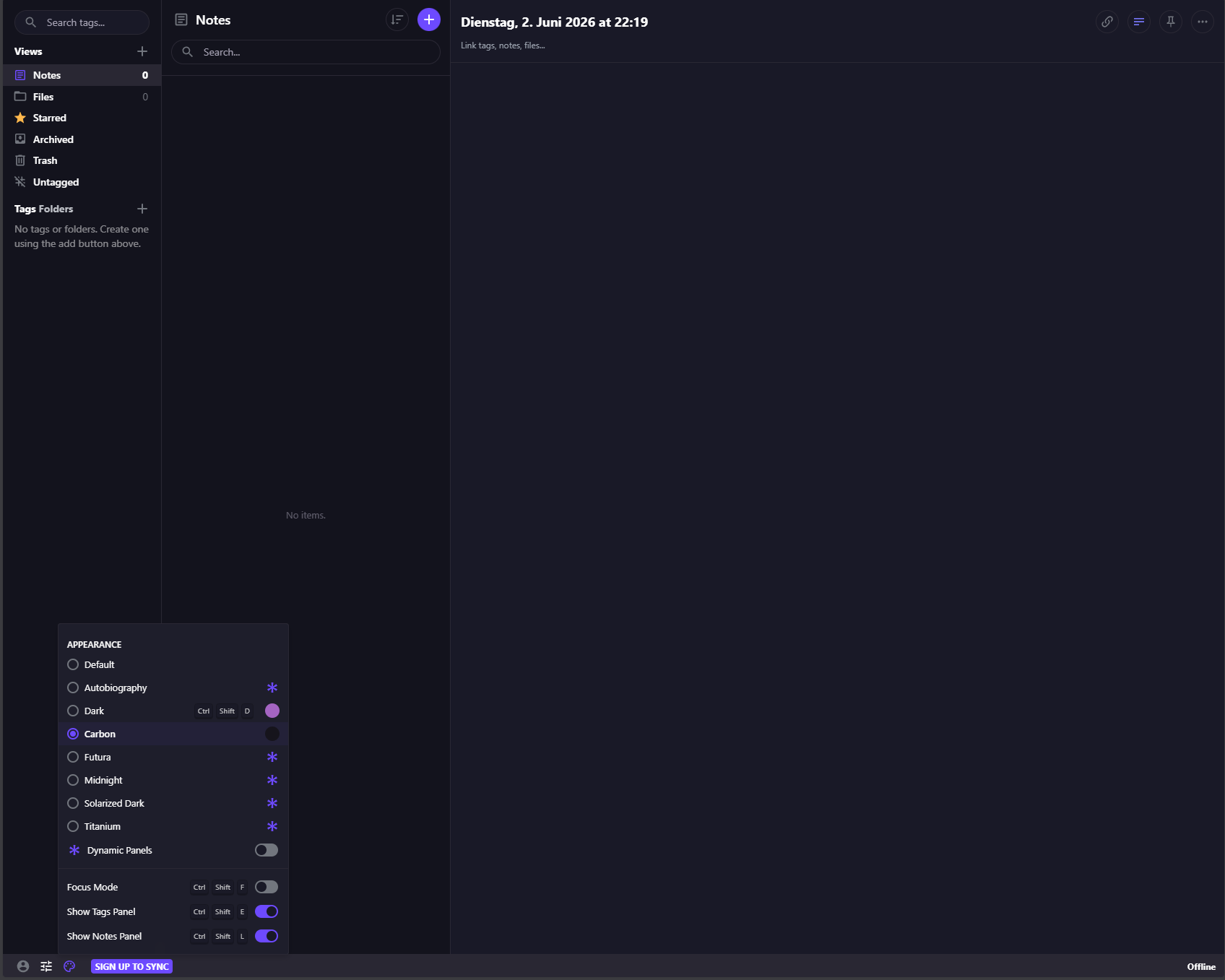
Appearance menu with the bundled themes (Carbon dark selected) — Default, Autobiography, Dark, Carbon, Futura, Midnight, Solarized Dark, Titanium.
9. Publishing to Community Applications
This repo publishes one Unraid CA template:
| Template | Container | Image |
|---|---|---|
StandardNotes-WebUI |
StandardNotes-WebUI |
standardnotes/web:latest |
The companion backend repo
standardnotes-server
publishes the two server-side templates (StandardNotes-Server
plus the Standard-Notes-specific StandardNotes-LocalStack
companion). One CA submission per repo — not per template.
Before submitting this repo at https://ca.unraid.net/submit:
- Repo is public and the Build / Lint workflows are green
on
main. LICENSE(MIT, OSI-approved) is at the repo root.ca_profile.xmlis at the repo root with a non-empty<Profile>, and<Icon>/<WebPage>/<Repo>URLs that resolve.templates/standardnotes-webui.xmlparses (xmllint --noout), pulls a real image, and every raw GitHub URL in it (<TemplateURL>,<Icon>) returns 200.- A shared Unraid forum support thread for these templates is set in
the template's
<Support>tag: https://forums.unraid.net/topic/198811-support-junkerderprovinz-unraid-apps/.
xmllint --noout templates/standardnotes-webui.xml ca_profile.xml

for url in \
  https://raw.githubusercontent.com/junkerderprovinz/unraid-apps/main/standardnotes-webui/standardnotes-webui.xml \
  https://raw.githubusercontent.com/junkerderprovinz/unraid-apps/main/ca_profile.xml \
  assets/icon.png
do
  echo "$url"; curl -fsI "$url" | head -n 1
done
A 404 here is the most common reason a CA submission is rejected —
fix before submitting.
10. Contributing / License
Pull requests welcome. Issues: https://github.com/junkerderprovinz/unraid-apps/issues.
License: MIT.
This wrapper repository (Unraid template, README, banner / icon artwork)
is MIT-licensed. The upstream standardnotes/web image retains its own
license (AGPL-3.0) — comply with it when running or redistributing the
web client.
# Validate locally
python3 -c "import xml.etree.ElementTree as ET; \
  [ET.parse(f) for f in ['templates/standardnotes-webui.xml', \
                          'assets/banner.svg', \
                          'assets/icon.svg']]"
Credits
- Standard Notes — the actual project &
upstream
standardnotes/webDocker image standardnotes-server— companion Unraid template for the backend- Unraid Community Applications — the distribution channel
11. Support this project
If this template saves you a setup hassle or a debug night, consider buying me a coffee:
Install StandardNotes-WebUI on Unraid in a few clicks.
Find StandardNotes-WebUI in Community Apps on your Unraid server, review the template, and click Install. Unraid handles the Docker app or plugin setup from the published template.
Requirements
Categories
Download Statistics
Related apps
Explore more like this
Explore allLinks
Details
standardnotes/web:latestRuntime arguments
- Web UI
http://[IP]:[PORT:80]/- Network
bridge- Shell
sh- Privileged
- false
- Extra Params
--restart=unless-stopped
Template configuration
Host port for the Standard Notes web client (container listens on 80). Default 3001 — the backend uses 3000 on the same Unraid host, so the WebUI takes a different port. If you give this container its own custom IP on br0/macvlan, the host port is unused and you can leave it at the default; your reverse proxy forwards directly to the container IP on port 80. Always put the web app behind an HTTPS reverse proxy — opening it over plain http://[ip]:[port]/ breaks account creation (crypto.subtle is undefined).
- Target
- 80
- Default
- 3001
- Value
- 3001