Sportarr

Sportarr

Official

Docker app from TQ's Repository

Overview

Sportarr is an automated media management application for all sports. It works similar to Sonarr and Radarr but specifically designed for combat sports, basketball, football, hockey, motorsports, and hundreds of other sports worldwide.

License Discord

Sportarr

Sports PVR for Usenet and Torrents

Like Sonarr & Radarr, but for sports events. Monitors sports leagues, searches your indexers
for releases, and handles file renaming, organization, and media server integration.


Website Docker Architecture Latest release Stars

Downloads

Most people should run Sportarr with Docker (above). To run it natively instead, grab your platform from the latest release:

Platform Options
Windows Installer (Sportarr-Setup.exe) installs it for you, or Portable (win-x64.zip) runs from a folder with no install.
macOS Apple Silicon (osx-arm64) for M1/M2/M3/M4 Macs, or Intel (osx-x64) for older Macs.
Linux x64 (linux-x64) for most servers, or ARM64 (linux-arm64) for Raspberry Pi and ARM boxes.

Support the Project

Sponsor Ko-fi Bitcoin


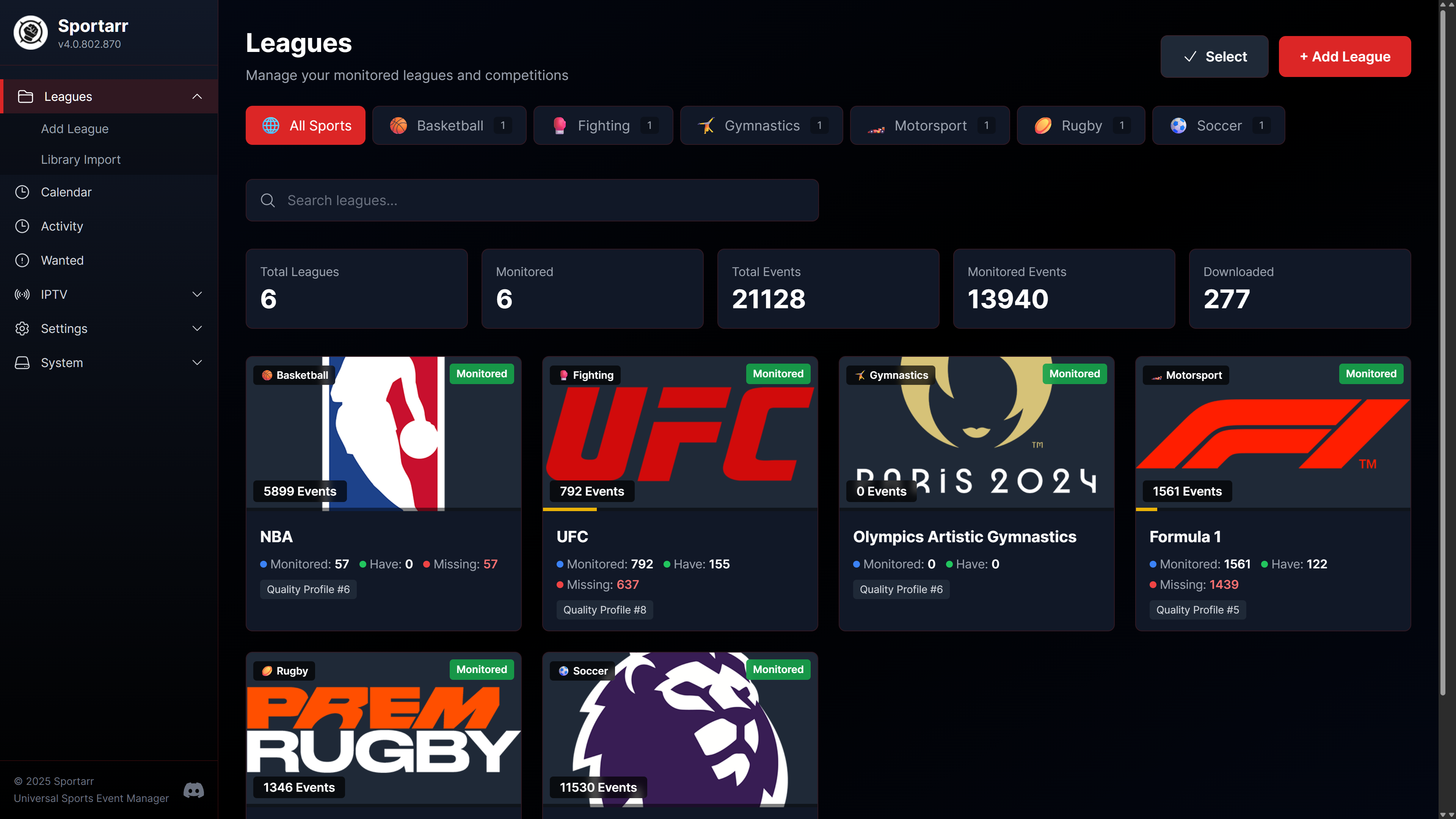
Sportarr Dashboard

What It Does

  • Tracks events across all major sports (fighting sports, football, soccer, basketball, racing, etc.)
  • Searches Usenet and torrent indexers automatically
  • Manages quality upgrades when better releases become available
  • Organizes files with customizable naming schemes
  • Supports multi-part events (prelims, main cards) for fighting sports
  • Integrates with Plex, Jellyfin, Emby for library updates
  • Fetches subtitles through Bazarr
  • Notifies you on grabs, imports, and health issues via Discord, ntfy, Apprise, webhooks, or custom scripts

Installation

Docker (Recommended)

version: "3.8"
services:
  sportarr:
    image: sportarr/sportarr:latest
    container_name: sportarr
    environment:
      - PUID=99
      - PGID=100
      - UMASK=022
      - TZ=America/New_York  # Optional: Set your timezone
    volumes:
      - /path/to/sportarr/config:/config
      - /path/to/sports:/data
    ports:
      - 1867:1867
    restart: unless-stopped

The /config volume stores your database and settings. The /data volume is your media library root folder.

After starting the container, access the web UI at http://your-server-ip:1867.

Docker Run

docker run -d \
  --name=sportarr \
  -e PUID=99 \
  -e PGID=100 \
  -e UMASK=022 \
  -e TZ=America/New_York \
  -p 1867:1867 \
  -v /path/to/sportarr/config:/config \
  -v /path/to/sports:/data \
  --restart unless-stopped \
  sportarr/sportarr:latest

Unraid

Sportarr will be available in the Unraid Community Applications after official launch. Search for "sportarr" and install from there. The app is currently in alpha testing and remaining more hidden for limited visibility during this phase.

Windows / Linux / macOS

Download the latest release from the releases page. Extract the archive for your platform and run the executable.

By default, configuration is stored in a data subdirectory where you run Sportarr from. You can specify a custom location using the -data argument:

# Windows
Sportarr.exe -data C:\ProgramData\Sportarr

# Linux/macOS
./Sportarr -data /var/lib/sportarr

Or set the Sportarr__DataPath environment variable:

# Linux/macOS
export Sportarr__DataPath=/var/lib/sportarr
./Sportarr

# Windows PowerShell
$env:Sportarr__DataPath = "C:\ProgramData\Sportarr"
.\Sportarr.exe

Priority order: Command-line -data argument > Environment variable > Default ./data

Database

Sportarr uses SQLite by default - no configuration needed. If you already run a PostgreSQL cluster elsewhere in your setup, Sportarr can use it instead.

PostgreSQL support is for fresh installs only. There is no SQLite → PostgreSQL migration path. Pick your provider before your first run.

docker-compose.yml has the PostgreSQL environment variables included as commented-out lines you can uncomment to switch, and docker-compose.example.yml has a full working example using Docker secrets for the password instead of plaintext.

To use Postgres, set:

Variable Purpose
Sportarr__Database__Provider postgres (omit or sqlite for the default)
Sportarr__Database__Host Postgres server hostname
Sportarr__Database__Port Postgres port (default 5432)
Sportarr__Database__Name Database name
Sportarr__Database__Username Database user
Sportarr__Database__Password Database password
Sportarr__Database__ConnectionString Full connection string, overrides the individual fields above if set
environment:
  - Sportarr__Database__Provider=postgres
  - Sportarr__Database__Host=postgres
  - Sportarr__Database__Port=5432
  - Sportarr__Database__Name=sportarr
  - Sportarr__Database__Username=sportarr
  - Sportarr__Database__Password=change-me

Any Sportarr__* environment variable can instead be supplied from a file (Docker secrets) by prefixing it with FILE__ and pointing the value at the file's path:

environment:
  - FILE__Sportarr__Database__Password=/run/secrets/sportarr_db_password
secrets:
  sportarr_db_password:
    file: ./secrets/sportarr_db_password.txt

Backup and restore work the same way on both providers (pg_dump/pg_restore for Postgres), but a backup can only be restored onto an install running the same provider it was created on.

Initial Setup

  1. Root Folder - Go to Settings > Media Management and add a root folder. This is where Sportarr will store your sports library.

    Add Root Folder

  2. Download Client - Settings > Download Clients. Add your download client (qBittorrent, Transmission, Deluge, rTorrent, uTorrent, SABnzbd, NZBGet, NZBdav, Decypharr, or a torrent/usenet blackhole folder). If using Docker, make sure both containers can access the same download path.

    Add Download Client

  3. Indexers - Settings > Indexers. Add your Usenet indexers or torrent trackers. Sportarr supports Newznab and Torznab APIs, so Prowlarr integration works out of the box.

    Add Indexer

  4. Add Content - Use the search to find leagues or events. Add them to your library and Sportarr will start monitoring.

    Search for Leagues

    Team Selection

    League Detail View

Supported Download Clients

Usenet: SABnzbd, NZBGet, NZBdav

Torrents: qBittorrent, Transmission, Deluge, rTorrent, uTorrent

Blackhole: Torrent Blackhole, Usenet Blackhole - Sportarr drops the grabbed .torrent/.nzb into a folder for any external downloader and imports the finished download from a watch folder, so you can keep your downloader independent of Sportarr.

Debrid/Proxy: Decypharr (torrents and usenet)

Prowlarr Integration

If you use Prowlarr, you can sync your indexers automatically:

  1. In Prowlarr, go to Settings > Apps
  2. Add Sonarr as an application (Sportarr isn't in Prowlarr yet, but the Sonarr option works)
  3. Use http://localhost:1867 as the URL (or your actual IP/hostname)
  4. Get your API key from Sportarr's Settings > General
  5. Select TV (5000) categories for sync - this includes TV/HD (5040), TV/UHD (5045), and TV/Sport (5060)

Indexers will sync automatically and stay updated.

Bazarr (Subtitles)

Bazarr can manage subtitles for your sports library. Add Sportarr in Bazarr exactly like you'd add Sonarr:

  1. In Bazarr, go to Settings > Sonarr and enable it
  2. Set the Address and Port to your Sportarr host (e.g. your server IP and 1867)
  3. Paste your Sportarr API key (Settings > General), then test and save

Bazarr reads your leagues and events and searches for subtitles automatically.

Notifications

Sportarr can notify you on grabs, imports, upgrades, and health issues. Configure providers in the Notifications settings:

  • Discord and generic webhooks (with optional username/password auth and custom headers)
  • ntfy (self-hosted or ntfy.sh)
  • Apprise (one endpoint, 90+ services)
  • Custom scripts (run any executable on events)

File Naming

Sportarr uses a TV show-style naming convention that works well with Plex:

/data/Sports League/Season 2024/Sports League - s2024e12 - Event Title - 1080p.mkv

For fighting sports with multi-part episodes enabled:

Sports League - s2024e12 - pt1 - Event Title.mkv  (Early Prelims)
Sports League - s2024e12 - pt2 - Event Title.mkv  (Prelims)
Sports League - s2024e12 - pt3 - Event Title.mkv  (Main Card)

You can customize the naming format in Settings > Media Management.

Naming Settings

Media Server Agents

Sportarr provides metadata agents for Plex, Jellyfin, and Emby that fetch posters, banners, descriptions, and episode organization from sportarr.net.

Media Server Agents

Plex

Sportarr supports two methods for Plex integration:

Custom Metadata Provider (Recommended)

For Plex 1.43.0+, use the new Custom Metadata Provider system. No plugin installation required!

  1. Open Plex Web and go to Settings → Metadata Agents
  2. Click + Add Provider
  3. Enter the URL: https://sportarr.net/plex
  4. Click + Add Agent and give it a name (e.g., "Sportarr")
  5. Restart Plex Media Server
  6. Create a TV Shows library, select your sports folder, and choose the Sportarr agent

Legacy Bundle Agent

For older Plex versions, download the legacy bundle from Sportarr UI (Settings > General > Media Server Agents) and copy to your Plex Plug-ins directory. Note: Plex has announced legacy agents will be deprecated in 2026.

See agents/plex/README.md for detailed instructions and troubleshooting.

Jellyfin

  1. Build the plugin (requires .NET 9 SDK) or download from releases:

    cd agents/jellyfin/Sportarr
    dotnet build -c Release
    
  2. Copy the DLL and meta.json to your Jellyfin plugins directory. The folder name must include the version (e.g. Sportarr_1.0.0):

    • Docker: /config/data/plugins/Sportarr_<version>/
    • Windows: %APPDATA%\Jellyfin\Server\plugins\Sportarr_<version>\
    • Linux: ~/.local/share/jellyfin/plugins/Sportarr_<version>/
  3. Restart Jellyfin

  4. Create a library: select Shows, add your sports folder, enable Sportarr under Metadata Downloaders

See agents/jellyfin/README.md for detailed instructions.

Emby

Emby works with the same metadata API as Jellyfin and Plex. Configure it using Open Media data sources:

  1. In Emby, go to Settings → Server → Metadata

  2. Under Open Media, add a new provider:

    • Name: Sportarr
    • URL: https://sportarr.net
  3. Create a library for your sports content:

    • Select TV Shows as the content type
    • Add your sports media folder
    • Under Metadata Downloaders, enable Open Media and move Sportarr to the top
  4. Refresh your library metadata to pull in sports event information

IPTV DVR Recording (Alpha)

⚠️ ALPHA FEATURE WARNING: The IPTV DVR functionality is in very early alpha stage. Expect bugs, missing features, and poor functionality while this feature is being developed. Use at your own risk and please report any issues you encounter.

Sportarr includes experimental support for recording live sports events directly from IPTV streams using FFmpeg.

Features (Work in Progress)

  • IPTV Source Management - Add M3U playlists or Xtream Codes providers
  • Channel-to-League Mapping - Map IPTV channels to leagues for automatic recording
  • Automatic DVR Scheduling - When you monitor an event, Sportarr can automatically schedule a DVR recording if the league has a mapped channel
  • FFmpeg Recording - Records IPTV streams in transport stream format
  • Auto-Import - Completed recordings are automatically imported into your event library
  • TV Guide - EPG-style grid showing channels and their programming with DVR recordings highlighted
  • Filtered M3U/EPG Export - Serve filtered playlists and EPG data to external IPTV apps

Requirements

  • FFmpeg must be installed and accessible in your system PATH
  • A working IPTV source (M3U playlist or Xtream Codes credentials)

Known Limitations

  • Recording quality depends entirely on your IPTV source
  • Stream reconnection may not work reliably with all providers
  • Limited error handling for stream failures
  • No hardware acceleration support yet
  • File size estimation is approximate

Setup

  1. Go to Settings > IPTV Sources and add your M3U playlist URL or Xtream Codes provider

    IPTV Sources

  2. Go to Settings > IPTV Channels to view imported channels and map them to leagues

    IPTV Channels

  3. Go to Settings > DVR Recordings to configure recording settings and view scheduled/completed recordings

    DVR Recordings

  4. When you monitor an event, if its league has a mapped channel, a DVR recording will be automatically scheduled

TV Guide

The TV Guide provides an EPG-style grid view of your IPTV channels and their programming:

  • EPG Sources - Add XMLTV EPG sources to populate channel programming
  • Time-based Navigation - Browse programming in 6-hour increments
  • Filters - Show only scheduled recordings, sports channels, or enabled channels
  • DVR Integration - Scheduled recordings are highlighted in the guide
  • Quick Scheduling - Click any program to view details and schedule a DVR recording

Access the TV Guide from IPTV > TV Guide in the navigation menu.

Filtered M3U/EPG Export for External Apps

Sportarr can serve filtered M3U playlists and EPG data for use with external IPTV applications like TiviMate, IPTV Smarters, or other players:

  • Filtered M3U - http://your-server:1867/api/iptv/filtered.m3u
  • Filtered EPG - http://your-server:1867/api/iptv/filtered.xml

Optional query parameters:

  • sportsOnly=true - Only include sports channels
  • favoritesOnly=true - Only include favorite channels
  • sourceId=X - Only include channels from a specific source

The filtered exports respect your channel settings - hidden channels are excluded, and only enabled channels are included. Find the subscription URLs in Settings > IPTV Sources under "External App Subscription URLs".

This feature is under active development. Feedback and bug reports are welcome!

Troubleshooting

Can't connect to download client in Docker? Use the container name (e.g., qbittorrent) instead of localhost. Make sure both containers are on the same Docker network.

Files not importing? Check that the download path is accessible from within the Sportarr container. The path your download client reports needs to be the same path Sportarr sees.

Indexer errors? Check your API keys and make sure you haven't hit rate limits. Logs are available in System > Logs.

Support

Building from Source

Requires .NET 8 SDK and Node.js 20+.

git clone https://github.com/Sportarr/Sportarr.git
cd Sportarr

# Build (automatically builds frontend if Node.js is available)
dotnet build src/Sportarr.csproj

# Run
dotnet run --project src/Sportarr.csproj

The build process automatically:

  1. Builds the React frontend (if npm is available)
  2. Copies the frontend to wwwroot
  3. Compiles the .NET backend

To skip the automatic frontend build (e.g., if you built it separately):

dotnet build src/Sportarr.csproj -p:SkipFrontendBuild=true

Project Activity

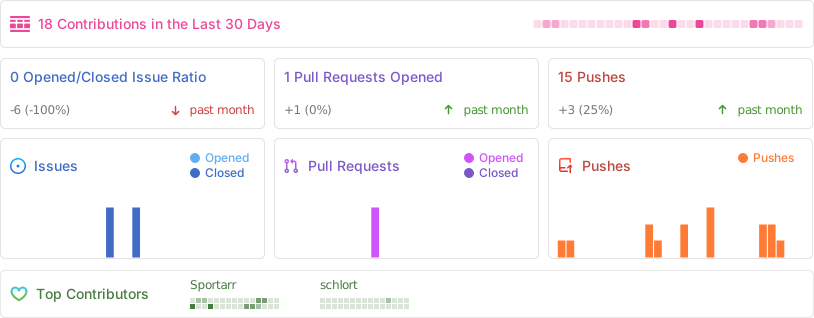
Repobeats analytics

Star History

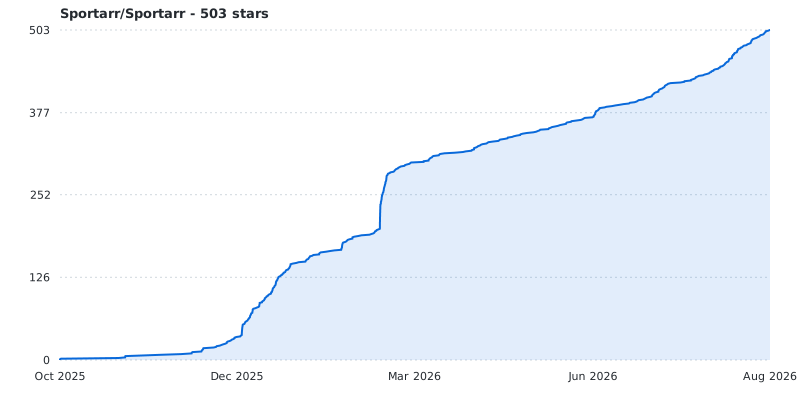
Star History Chart

Contributors

Sportarr is made better by everyone who has contributed code. Thank you.

ohathar BenjaminDecreusefond mmmmmtasty gwyden FacePlant101 gerrewsb abcattell91 scottrobertson slflowfoon skjaere schlort Pukabyte Percentnineteen nathanjcollins lyrova-andy lustered kristofferR jpaull-nz hobbithau5 gilesw Donai82 afrancke

See the full contributor graph, plus everyone helping with testing and bug reports on Discord.

Sponsors

Sportarr is free and self-funded. If it saves you time, a one-time or monthly contribution keeps it moving, and every supporter shows up here.

Backers

Sponsors

License

GNU GPL v3 - see LICENSE.md


Sportarr is based on Sonarr. Thanks to the Sonarr team for the foundation.

Install Sportarr on Unraid in a few clicks.

Find Sportarr in Community Apps on your Unraid server, review the template, and click Install. Unraid handles the Docker app or plugin setup from the published template.

Open the Apps tab on your Unraid server Search Community Apps for Sportarr Review the template variables and paths Click Install

Categories

Download Statistics

258,669
Total Downloads
57,626
This Month
51,413
Avg / Month

Total Downloads Over Time

Loading chart...

Related apps

Explore more like this

Explore all

Details

Repository
sportarr/sportarr:latest
Last Updated2026-06-30
First Seen2026-01-15

Runtime arguments

Web UI
http://[IP]:[PORT:1867]
Network
bridge
Shell
sh
Privileged
false

Template configuration

Web UIPorttcp
Target
1867
Default
1867
Value
1867
Path to SportsPathrw
Target
/sports
ConfigPathrw
Target
/config
TZVariable
Default
UTC
Value
UTC
UIDVariable
Target
PUID
Default
nobody
Value
99
GIDVariable
Target
PGID
Default
users
Value
100