
All apps · 0 apps

sonorium
Docker app from JPDVM2014's Repository
Overview
Readme
View on GitHubSonorium

Announcements · About · Features · Installation · What's new · API Reference · Acknowledgements · License · Contributing
Announcements
⭐ 1.7.0: Sign-in, announcements and plugins
Sonorium gets users and sign-in, plays announcements sent by other systems, and runs plugins that play sounds over channels.
- Sign-in: users with two roles, Admin and User, keys for devices and programs, and Link App for the Sonorium app. In the Home Assistant app, Home Assistant's users are Sonorium's users.
- Announcements: Home Assistant, MQTT, Node-RED or a script sends a chime or words to speak, and Sonorium plays them on the channels named. A playing channel gets quieter while the announcement plays.
- Zones: a channel can belong to a user, with Kid mode and its hours, a home channel for each speaker, and linked channels that play one thing. Off until an admin turns it on in Settings › Advanced.
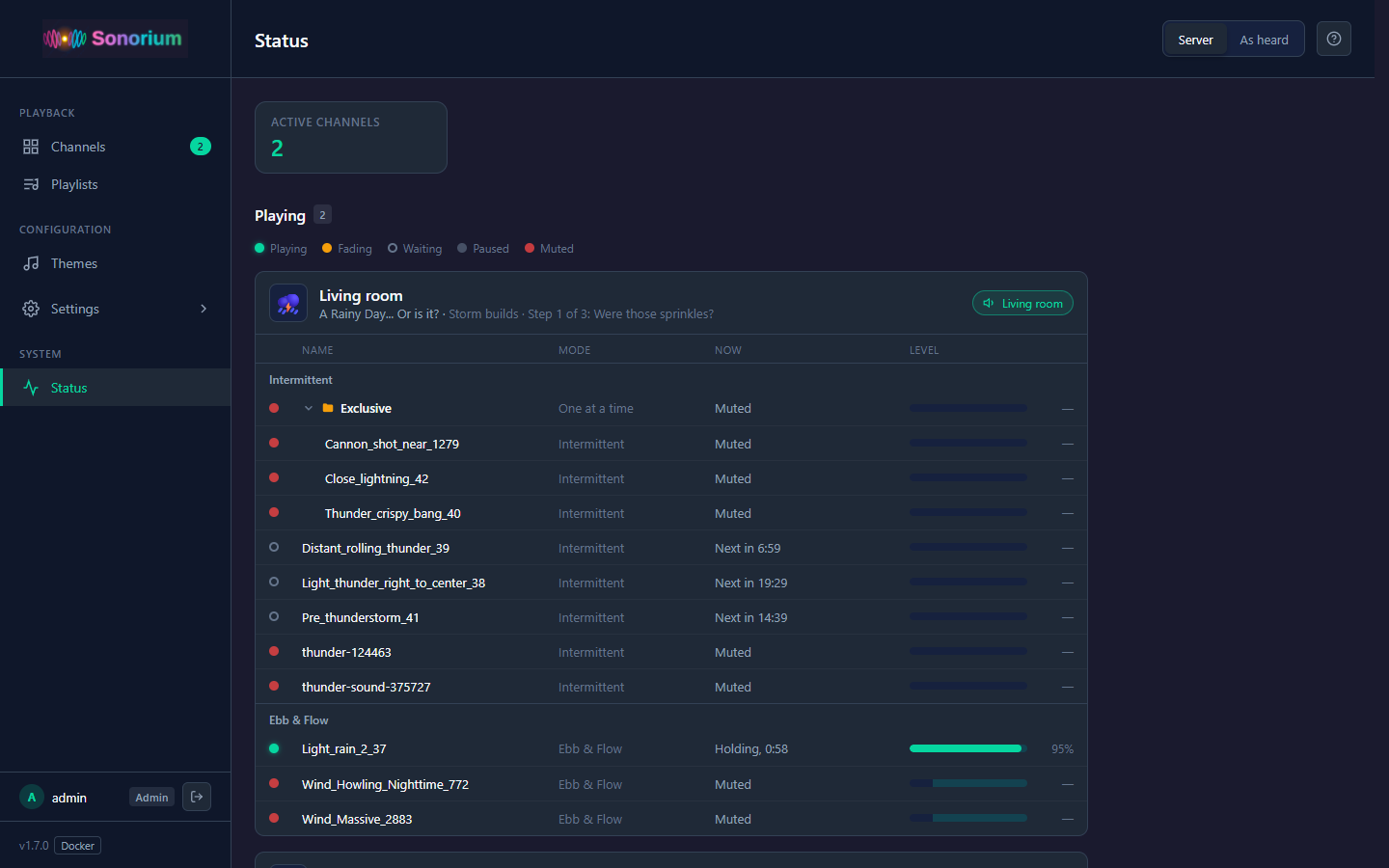
- Now playing: the Status page shows what each track of a playing channel is doing.
- Home Assistant dashboard cards, added to Home Assistant when Home Assistant and MQTT are linked.
- Settings › Advanced shows the playback values every theme is built on, and each can be changed.
- Phones, tablets and short screens each get a layout that fits.
- License: Sonorium is now under the PolyForm Noncommercial License 1.0.0.
Sign-in is optional. An update changes nothing until you turn on Require login in Settings › Users & devices. A new Docker install asks for an admin account on the first visit. In the Home Assistant app, every Home Assistant user now sees Sonorium in the sidebar, with the role of their Home Assistant account (owners and administrators are Admins), and the sidebar needs no second sign-in.
Port 8808 is new: the web UI and the API over HTTPS, for the Sonorium app. Its certificate is self-signed, so a browser warns about it. Port 8008 is unchanged, and speakers keep using it. Docker without
network_mode: hostneeds port 8808 published too.
⭐ Sonorium has its own repository
Sonorium began as a fork of Amniotic. It has since been fully rewritten: all legacy code from the original repository it was forked from is gone. Sonorium now has its own repository at the same address, synssins/sonorium. The old fork is archived as synssins/sonorium-legacy. Home Assistant and Docker installs keep working as before.
⭐ 1.6.1: Refinements
Refinements across Sonorium, with the Theme Editor and Channels page restructured.
- Sequences play a theme's presets one after another, gliding from one to the next: a mild summer storm that becomes a heavy one.
- Playlists play several themes one after another on a channel.
- Ebb & Flow: tracks can be configured with a minimum and maximum volume, and will automatically move to any value between those two limits randomly for a period of time.
- Listen in your browser: the headphones button on a channel plays it on the device you're using.
Your themes are converted the first time this version starts: Auto tracks and Intrusion groups are retired. Each theme keeps backups of its old settings files (
*.pre-auto.bak,*.pre-links.bak,*.pre-duration.bak).
⭐ 1.6.0: Merry-go-round and Intrusions
Groups now have three modes. Merry-go-round turns a few recordings of the same scene into one continuous bed that crossfades from file to file and never repeats the same way. Intrusion lets a preset bring in sounds from another theme, like rain over a campsite, without copying any files. Tracks now fade in and out over 3 seconds when a preset turns them on or off.
⭐ Major Release: 1.5.0, Themes 2.0
This is a major update. Themes can now hold groups, channels playing the same theme can each use their own preset, the Theme Editor, the Themes page and every Settings page are rebuilt, and the playback modes have new names.
Before, two channels playing the same theme shared one preset: change it on one, and it changed on both. Now each channel is isolated.
Your themes are converted automatically the first time this version starts. Each theme's old settings file is kept next to it as
metadata.json.pre-presets.bak.
10/6/2026 - This is still alive. Just getting back into things.
About
Multi-Zone Ambient Soundscape Mixer
Sonorium lets you create immersive ambient audio environments. Stream richly layered soundscapes—from distant thunder and rainfall to forest ambiance and ocean waves—to speakers throughout your home or directly through your computer.
Why Ambient Sound?
Ambient soundscapes aren't just background noise—they're a powerful tool for mental wellness and productivity:
- ADHD & Focus: Background noise can improve concentration by providing consistent auditory input
- Misophonia: Ambient masking helps cover trigger sounds
- Anxiety & Stress: Nature sounds activate the parasympathetic nervous system
- Sleep: Consistent ambient sound masks disruptive noises
- Work & Study: Moderate ambient noise can boost creative thinking
Screenshots
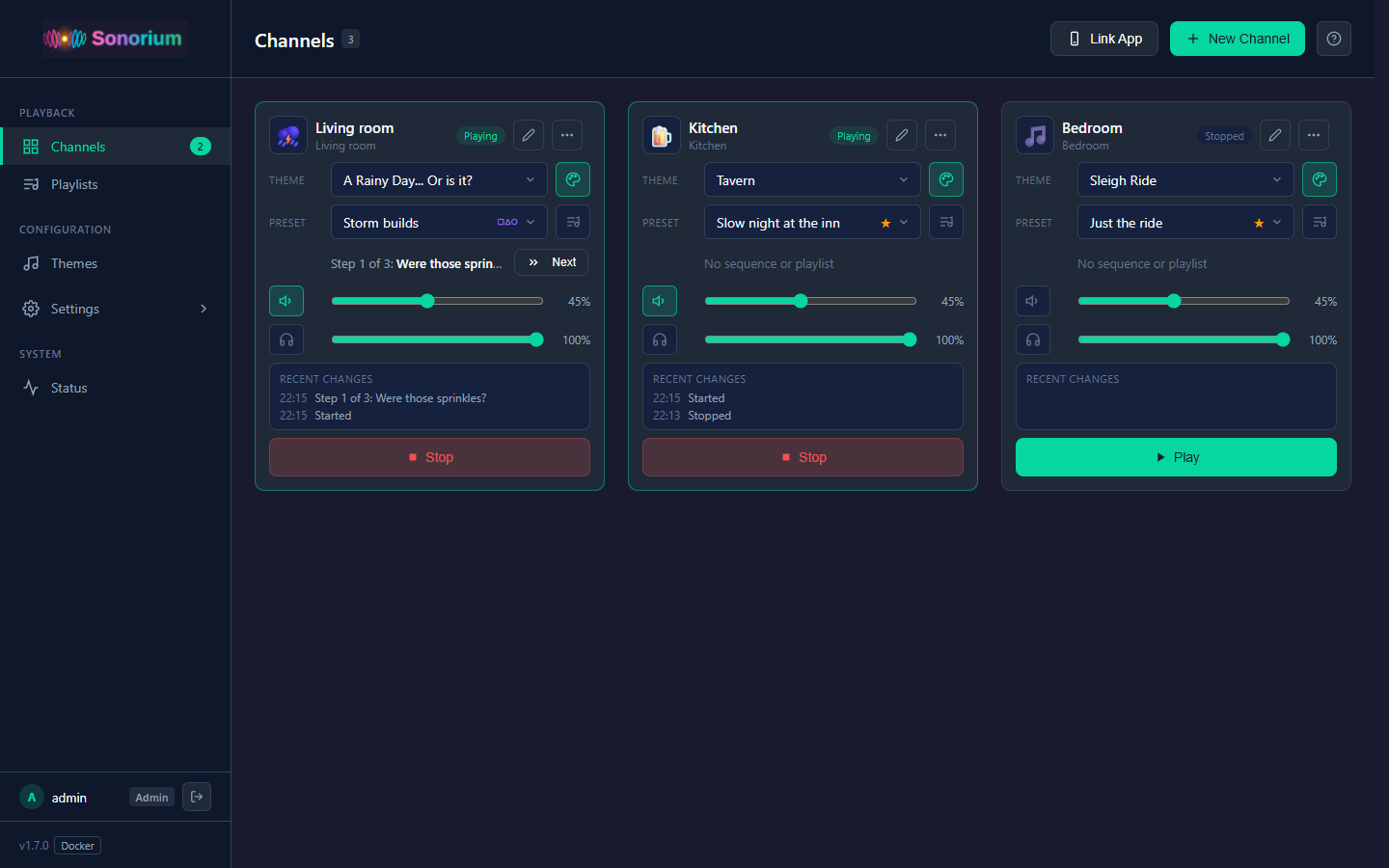
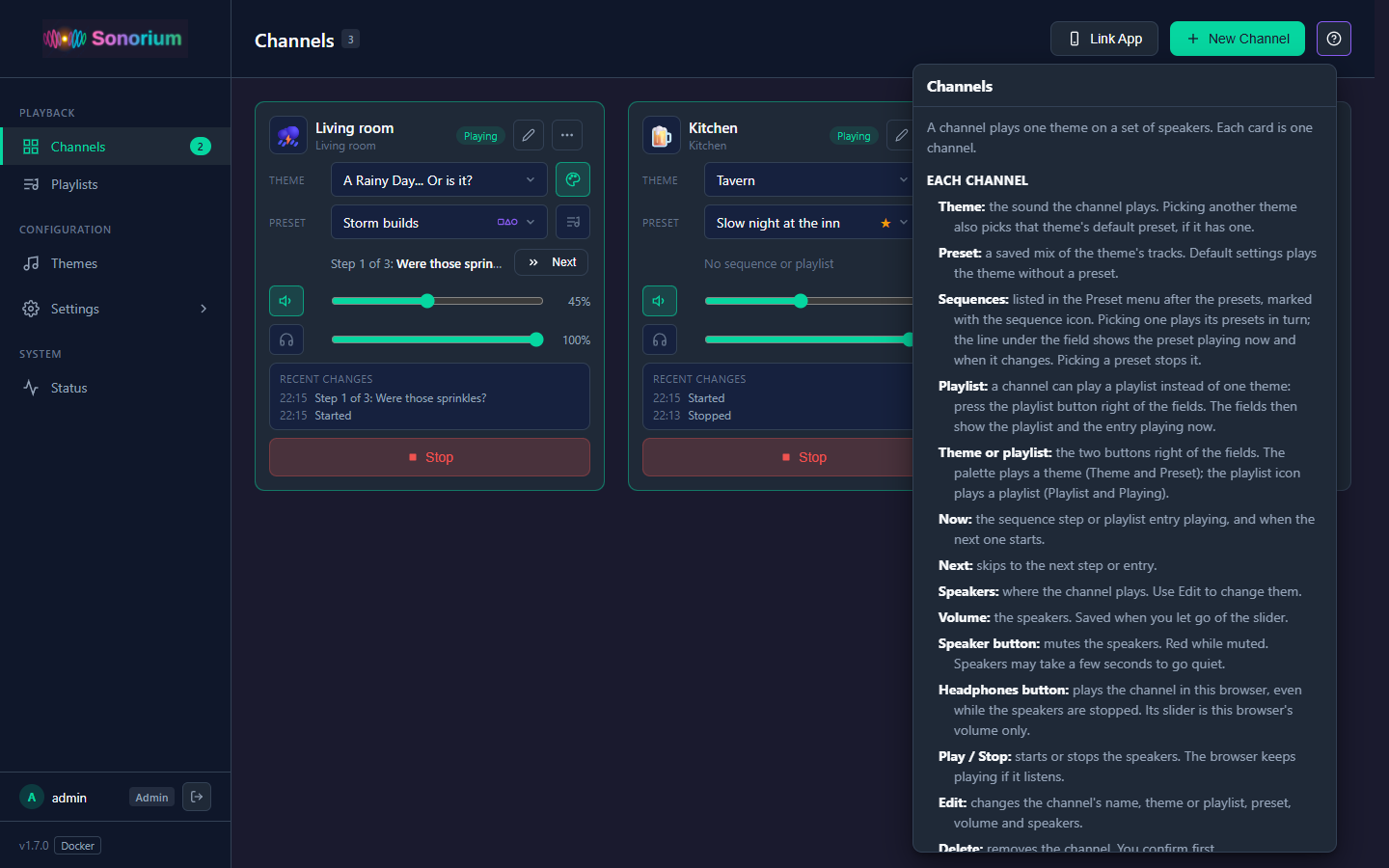
Channels
Each channel plays a theme or a playlist on its own speakers, and can be heard in your browser too.
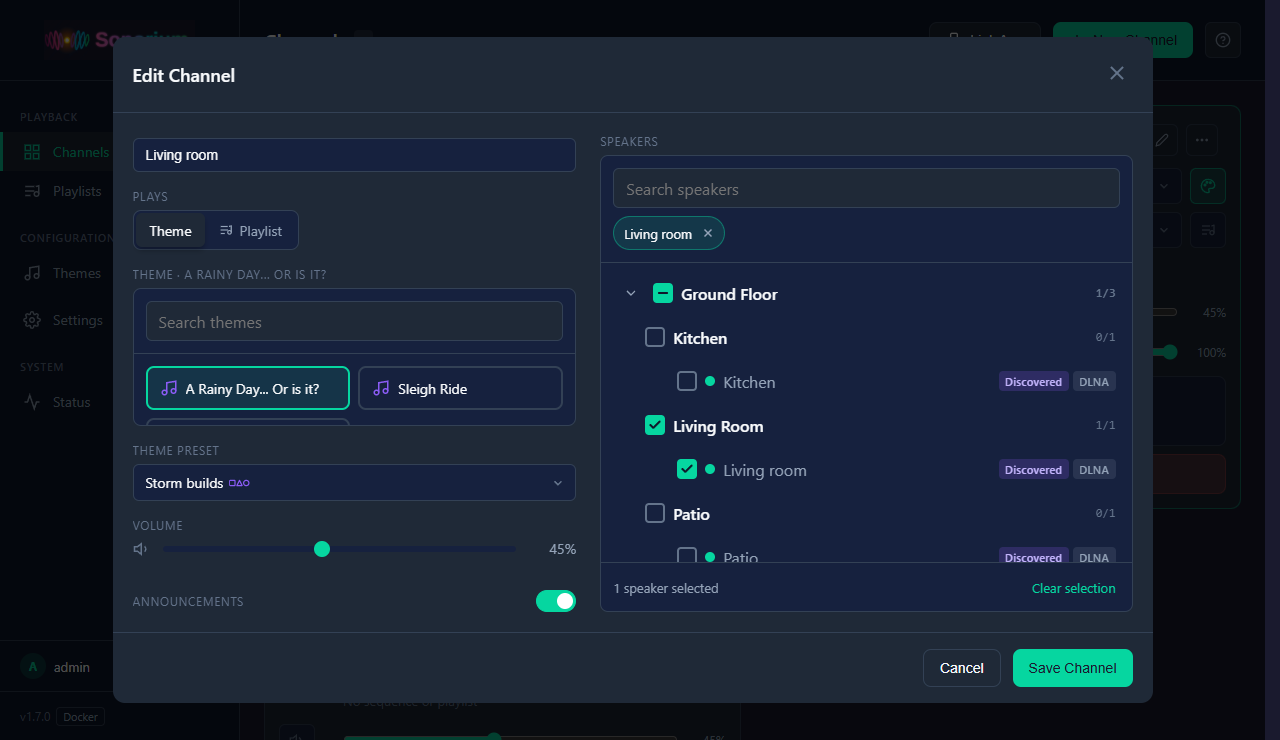
Edit Channel
Search themes, pick speakers by floor, area or one at a time, and switch the channel's announcements on or off.
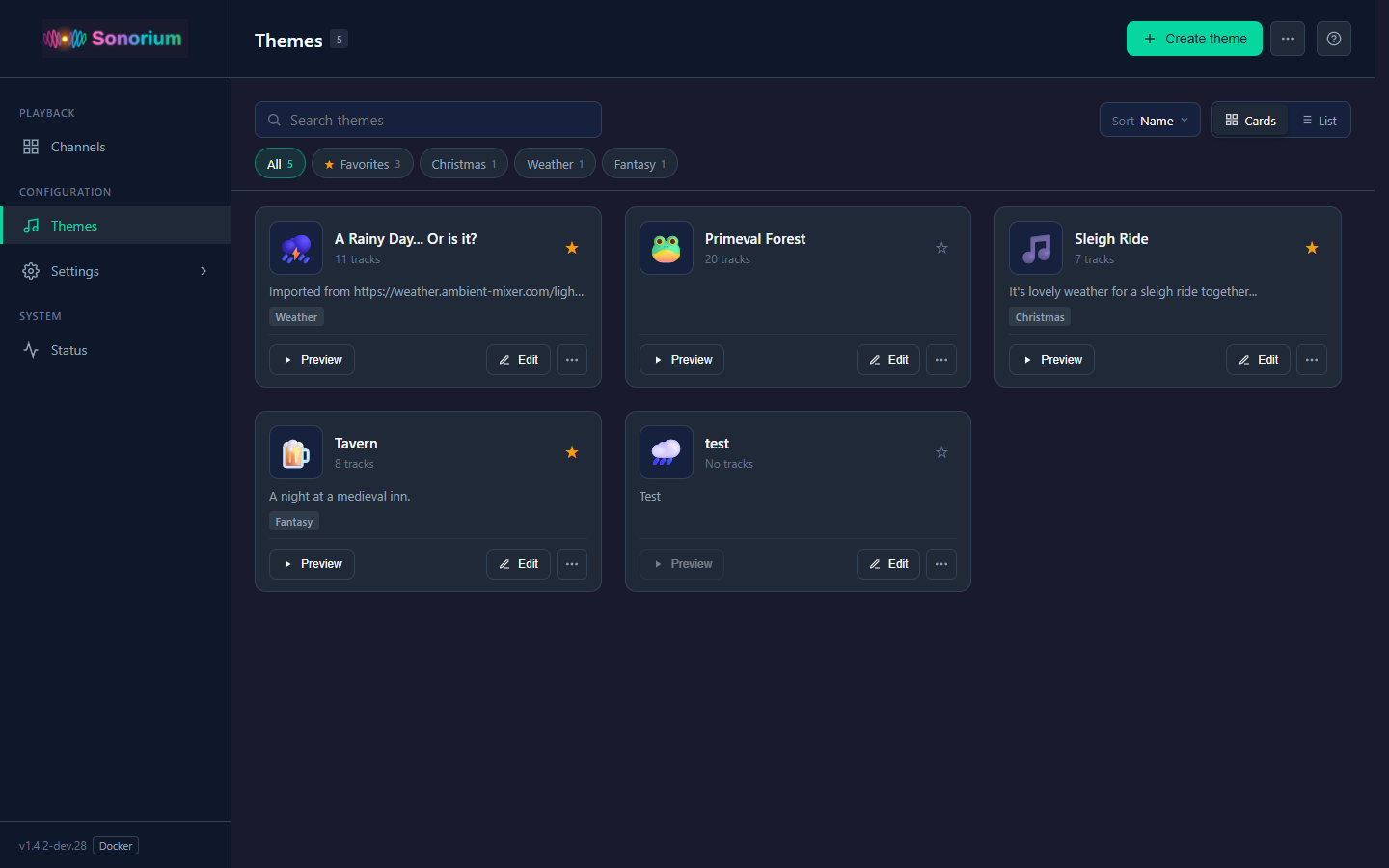
Themes
Search, filter by category, and switch between cards and a list.
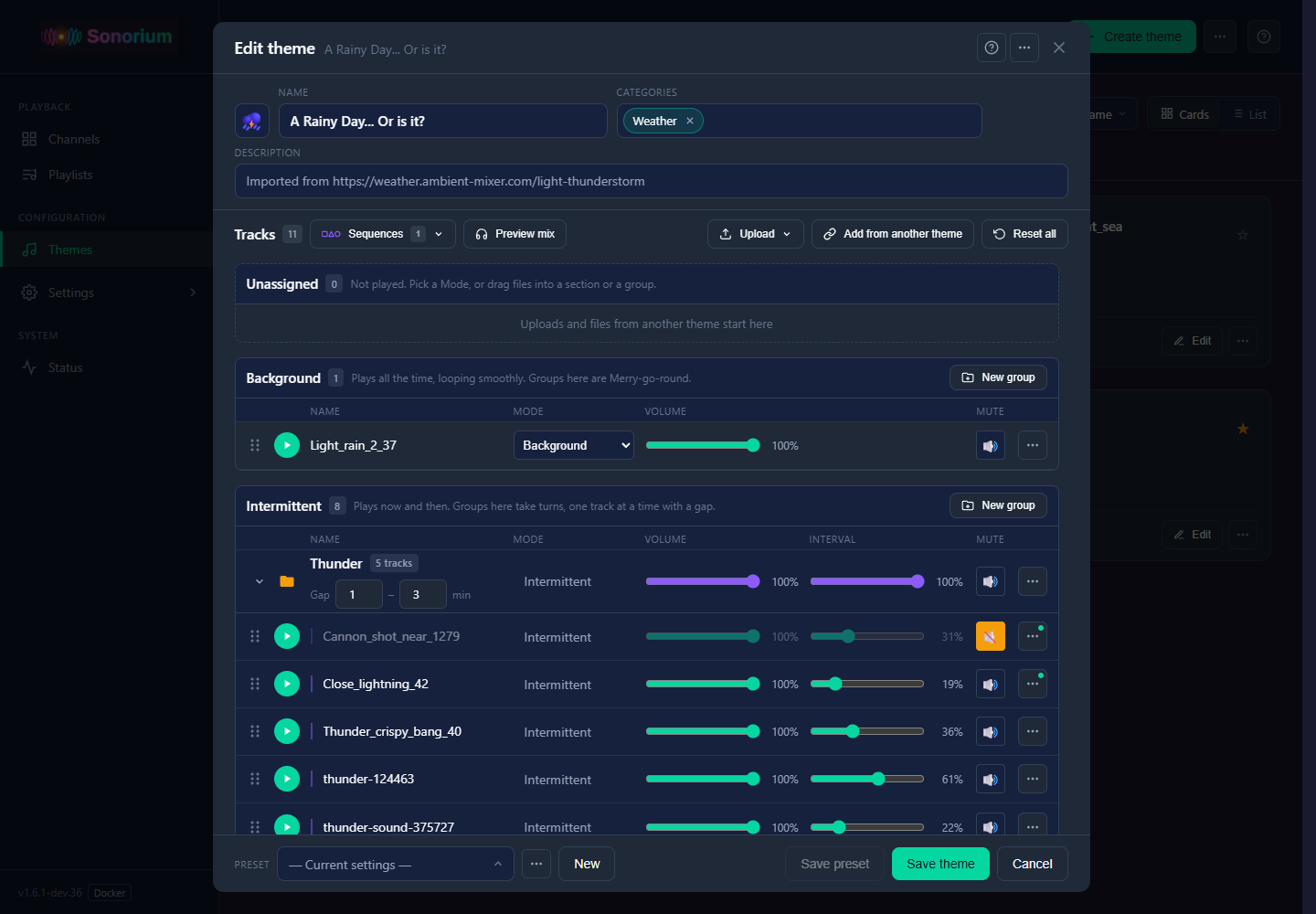
Edit Theme
Tracks in sections by how they play: Unassigned, Background, Intermittent and Ebb & Flow, each with its own groups.
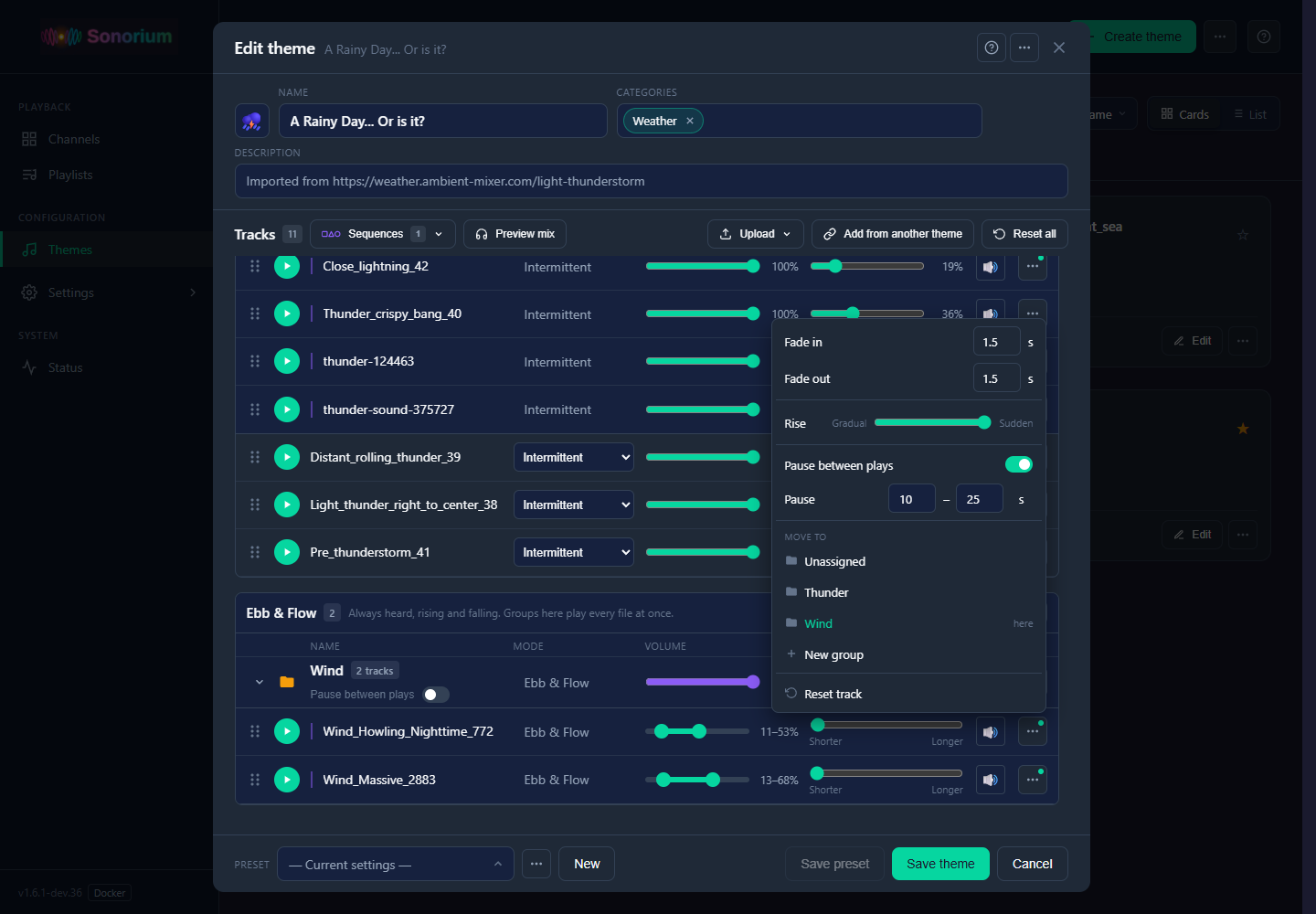
Ebb & Flow
An Ebb & Flow group, and a track's ⋯ menu with Fade in and Fade out, Rise, and Pause between plays.
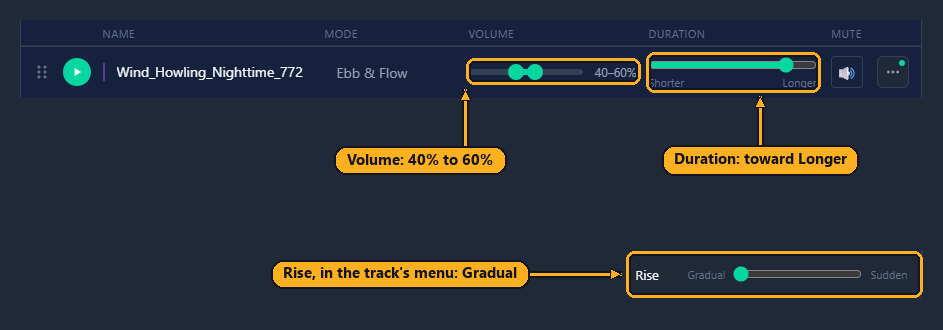
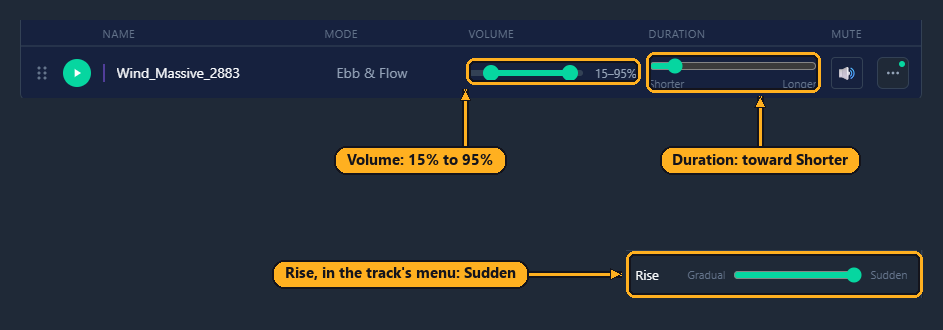
A steady breeze and gusts of wind, from the same wind recording: a narrow volume range with a longer Duration and a Gradual Rise, and a wide range with a shorter Duration and a Sudden Rise.
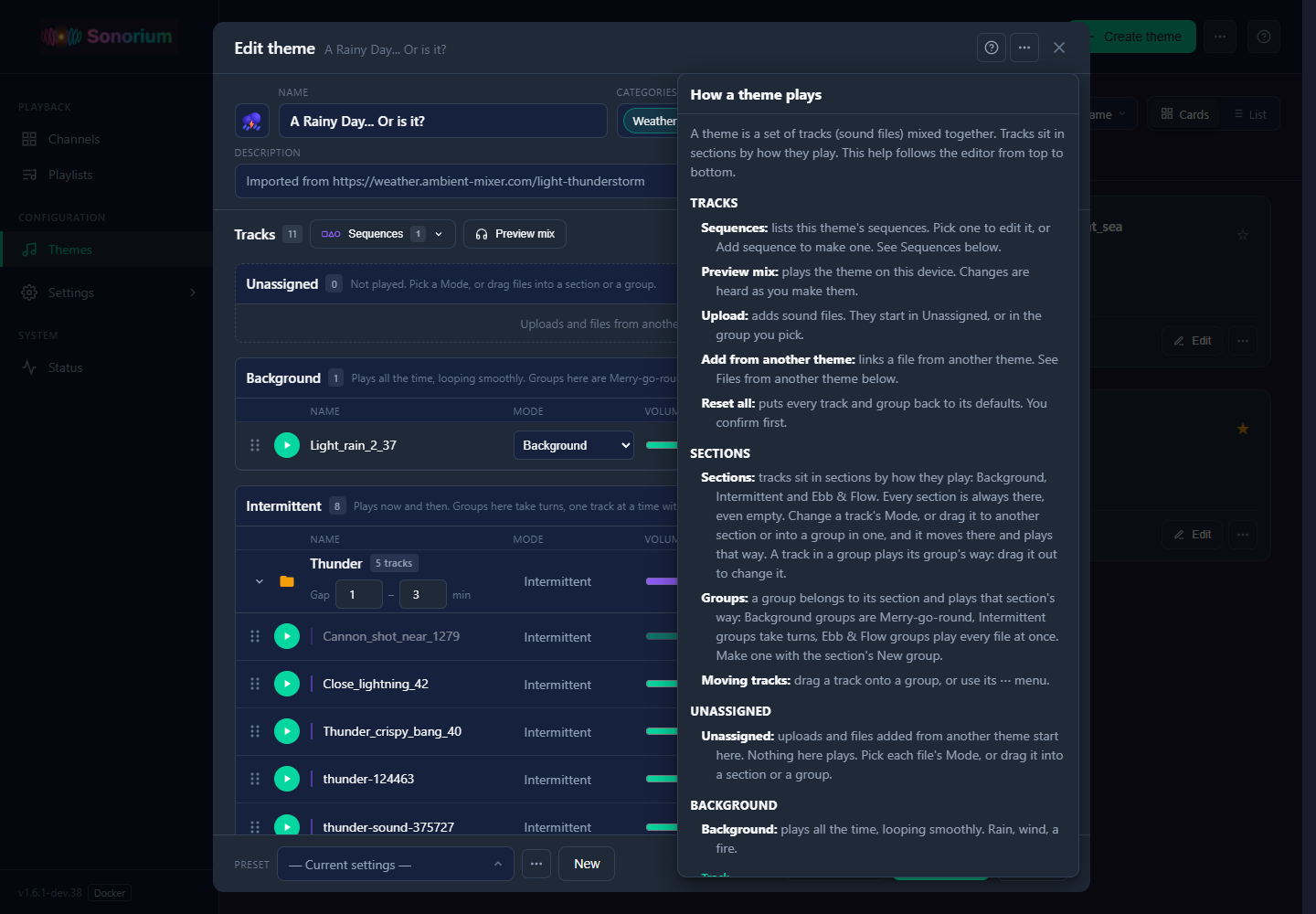
Theme Editor help
The ? button explains sections, modes, groups, sequences and saving.
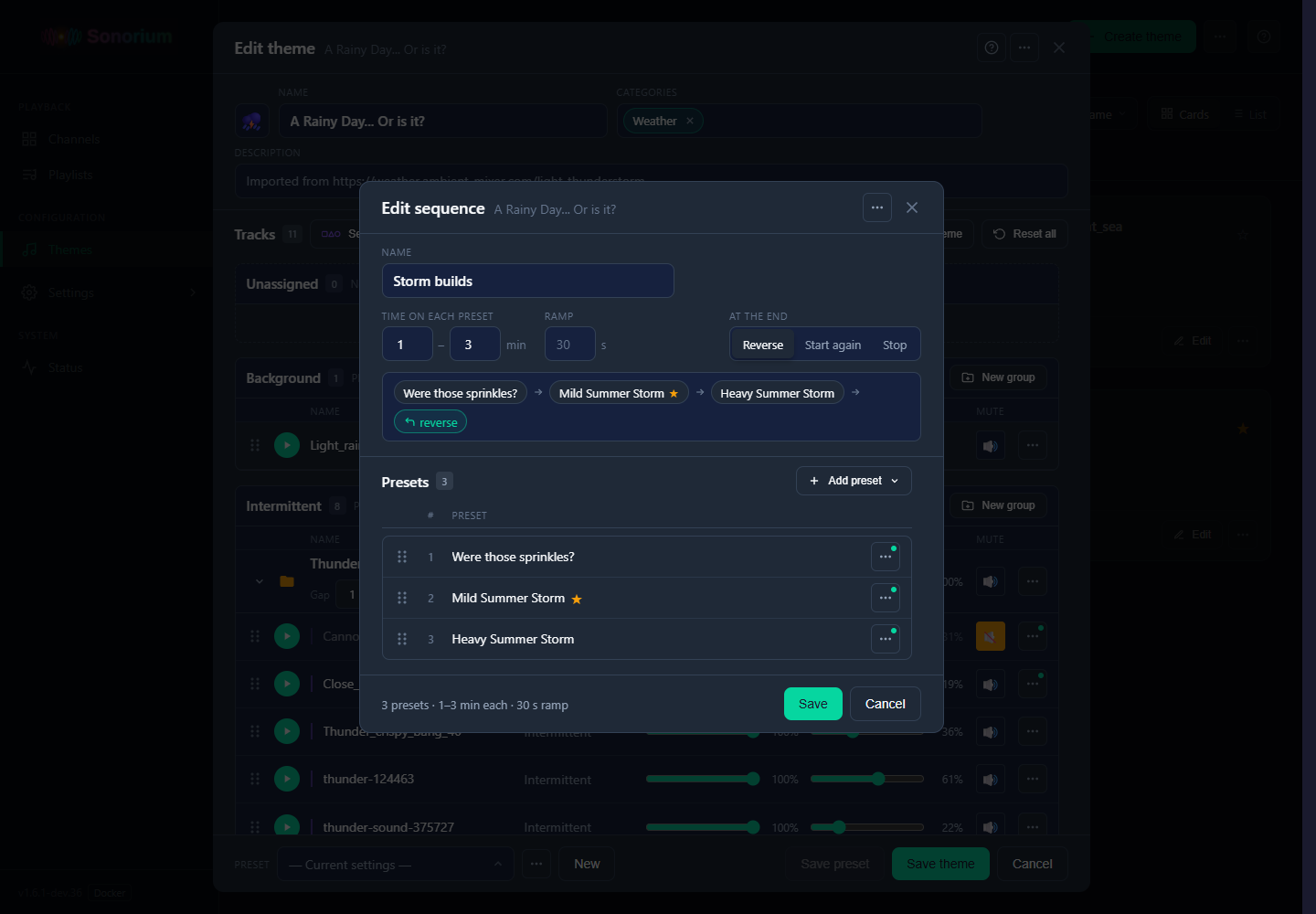
Edit sequence
A theme's presets in the order you choose, with the time on each and the ramp between them.
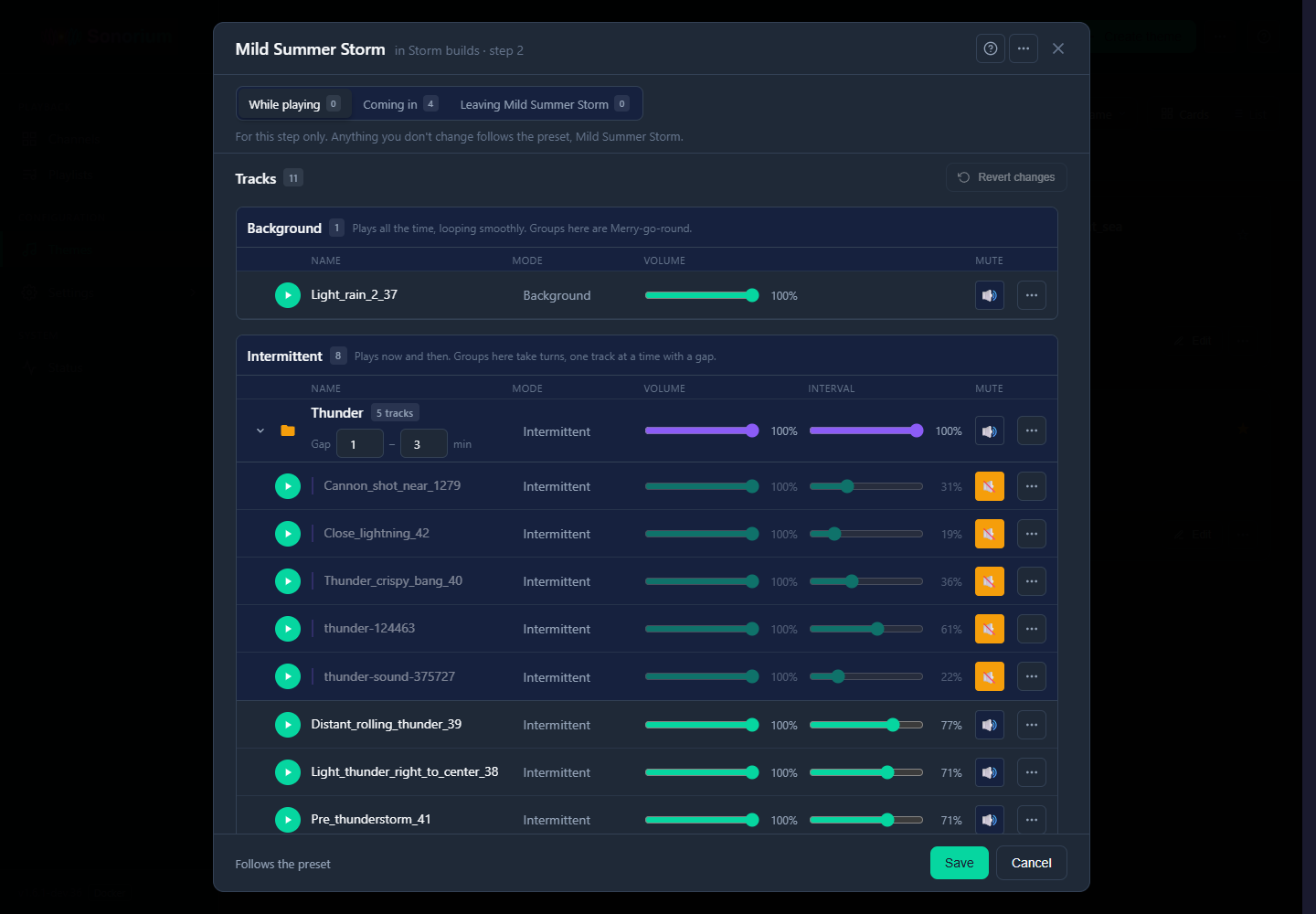
A sequence step: While playing
Changes for one step of a sequence. Anything you don't change follows the preset.
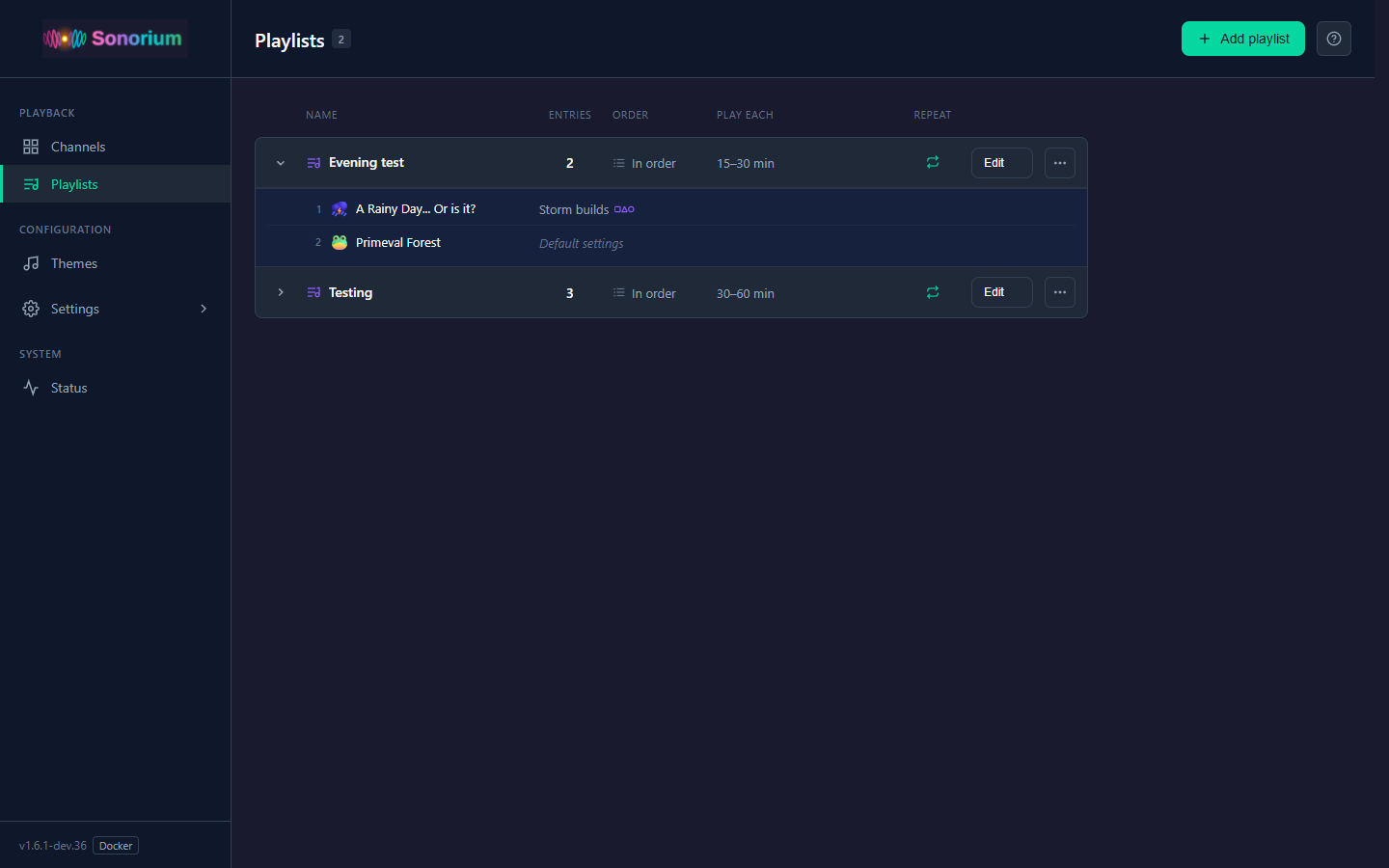
Playlists
Themes that play one after another on a channel.
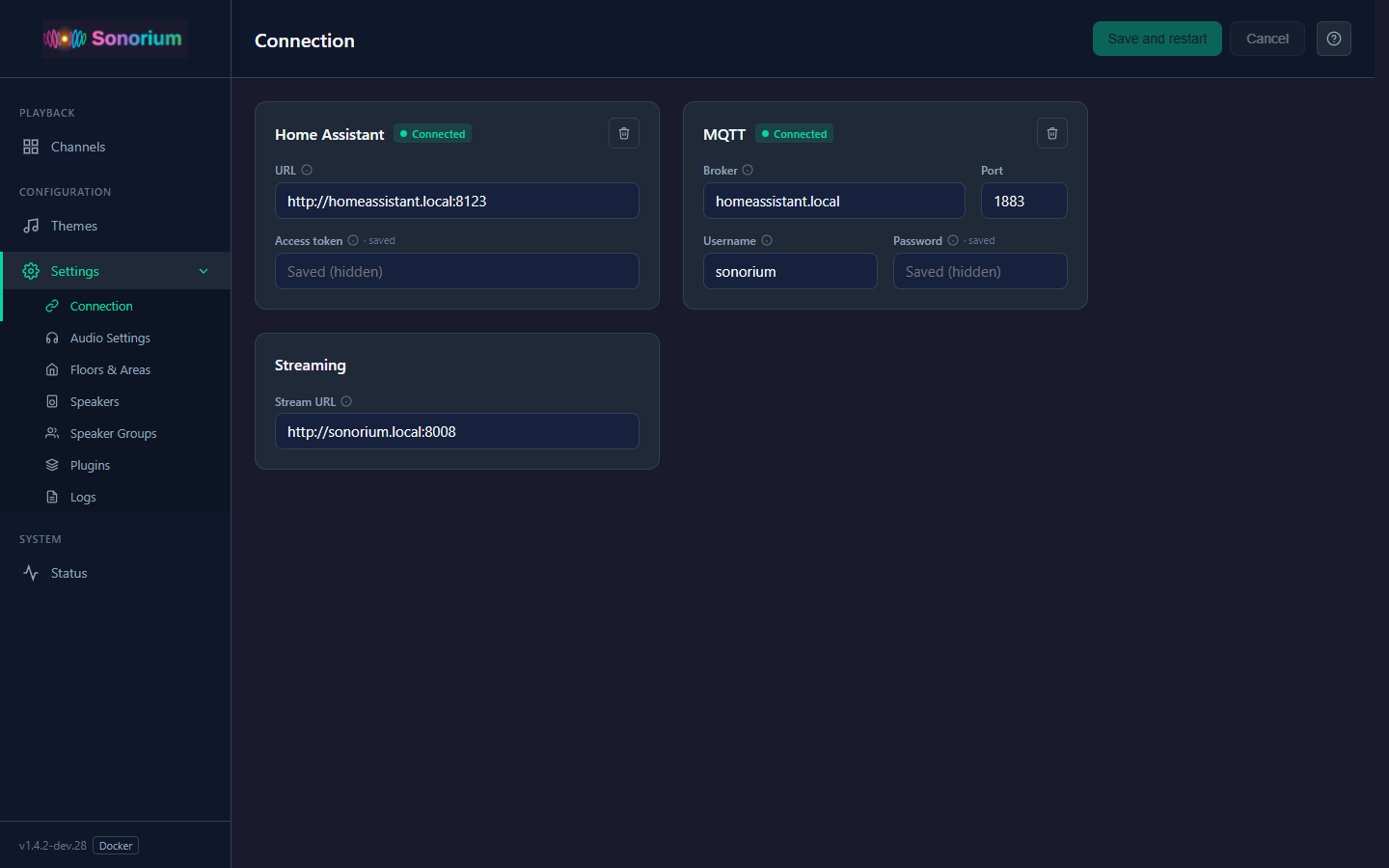
Settings → Connection
Home Assistant, MQTT and Streaming, each with its status (Docker).
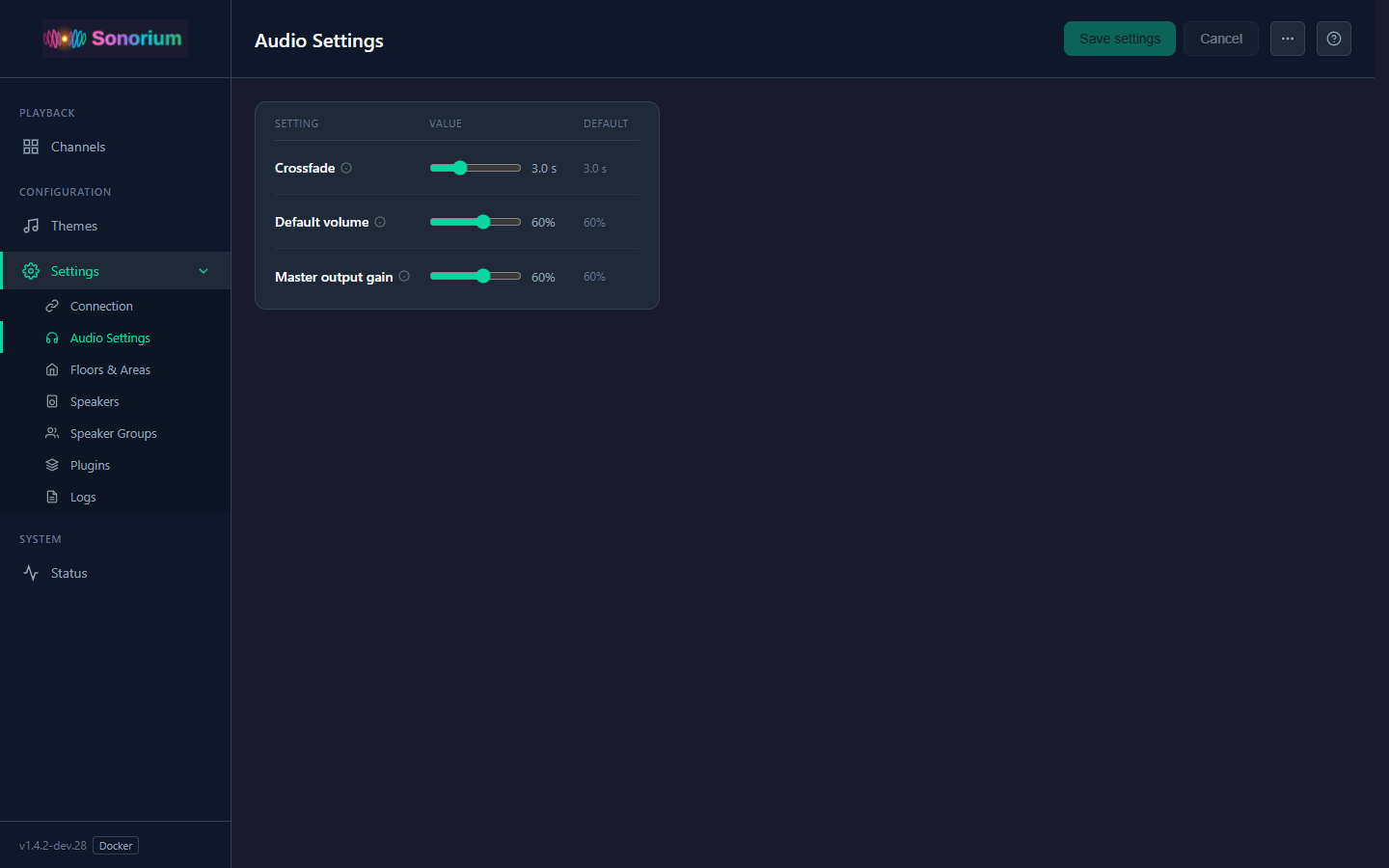
Settings → Audio Settings
Sound settings in one card, with Save and Cancel in the top bar.
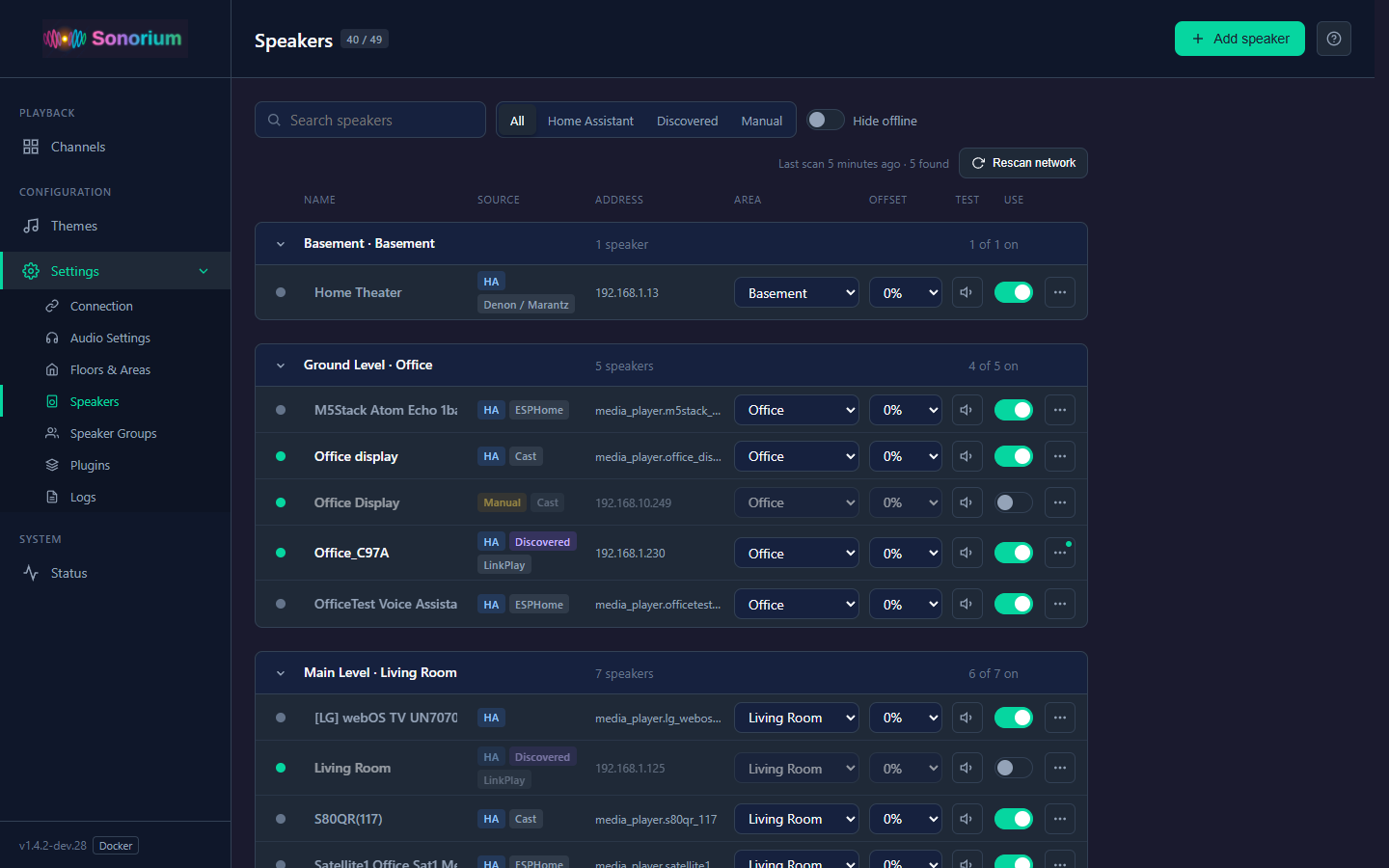
Settings → Speakers
Speakers grouped by floor and area: rename, area, offset, test sound, on or off.
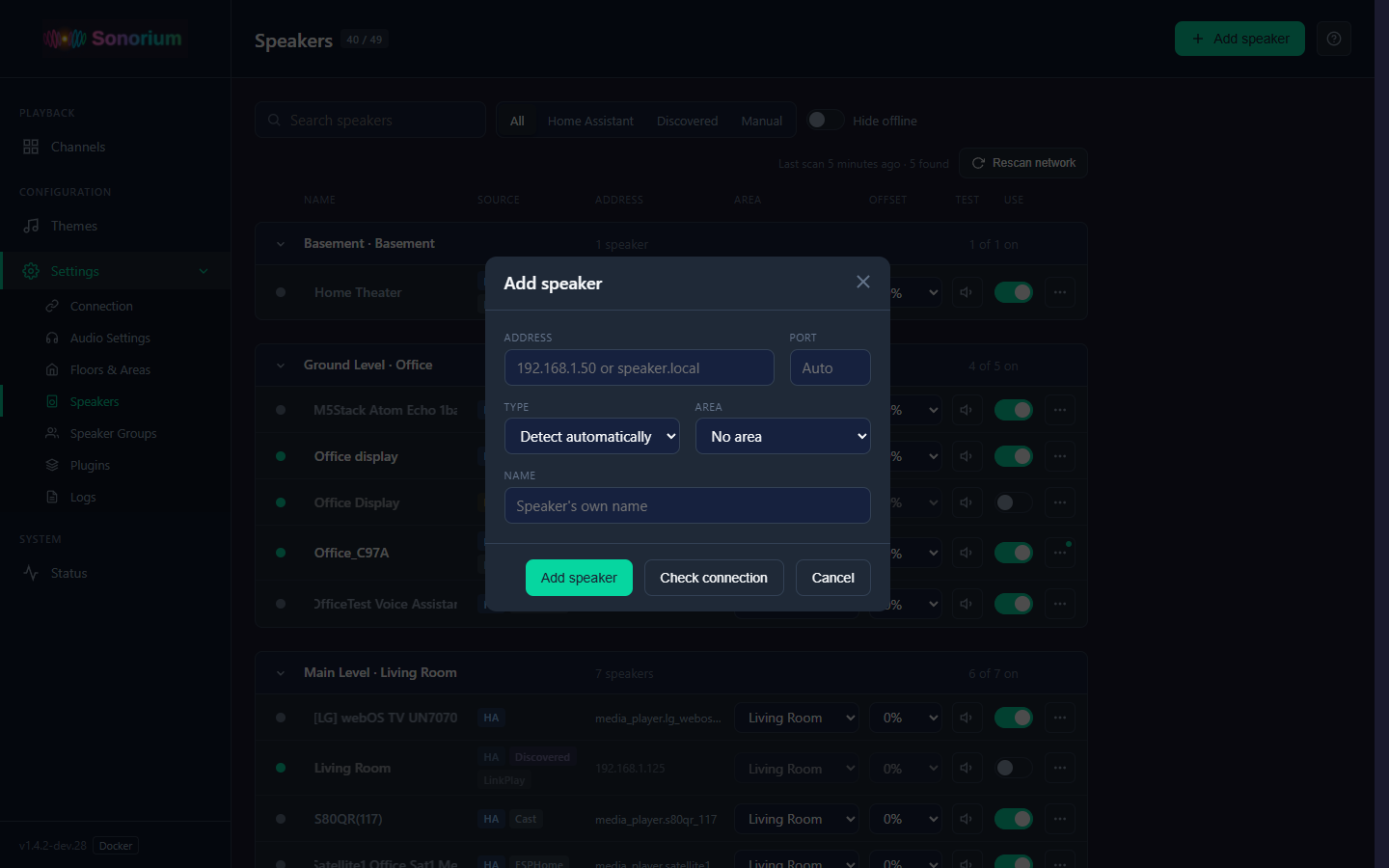
Add Speaker
Add a speaker the network scan didn't find, by its address (Docker).
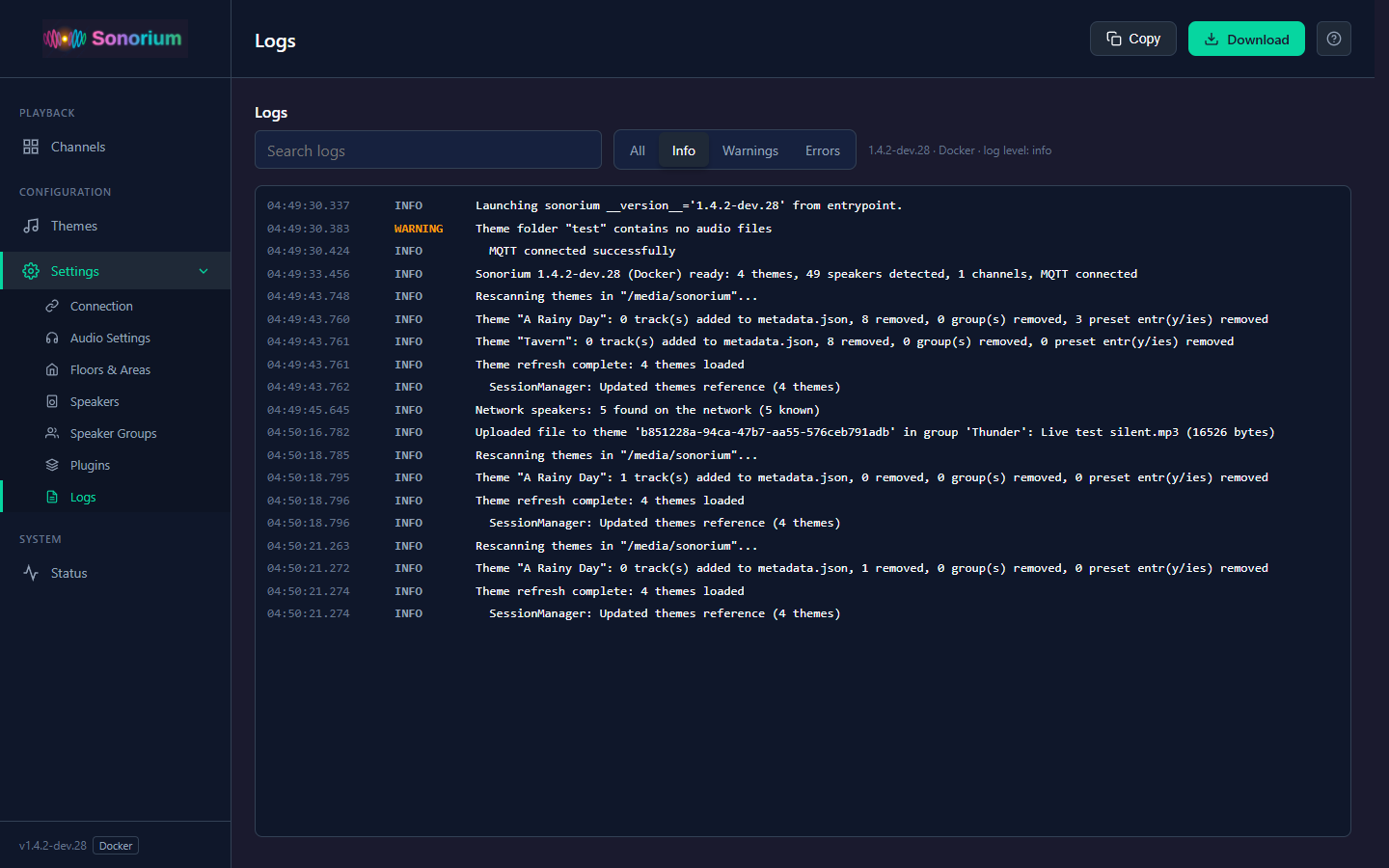
Settings → Logs
Recent messages with filters, search, copy and download.
Status: Now playing
Each playing channel with its tracks by section: what each one is doing now, and its level.
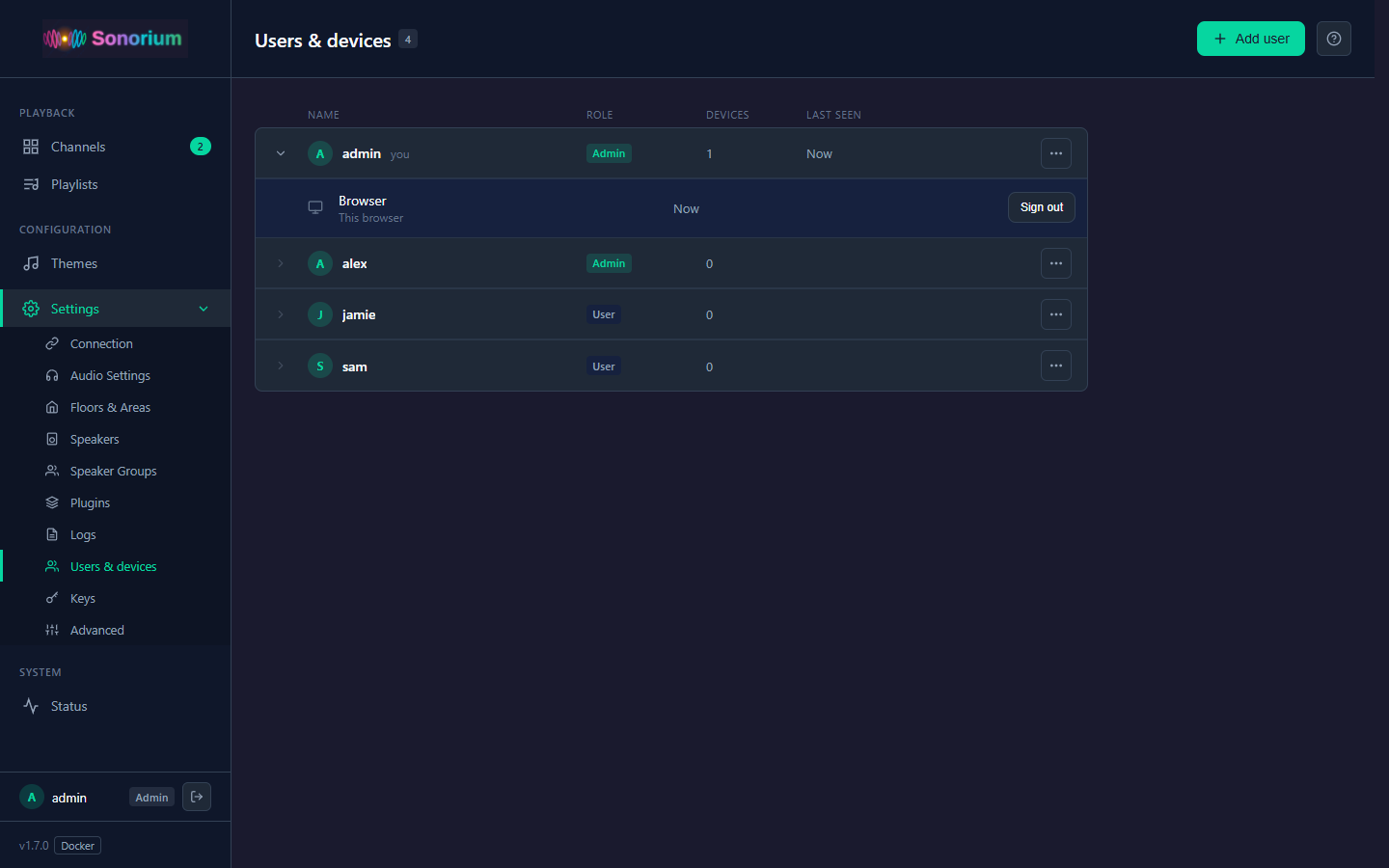
Settings → Users & devices
Each person with their role, and the browsers and phones they use.
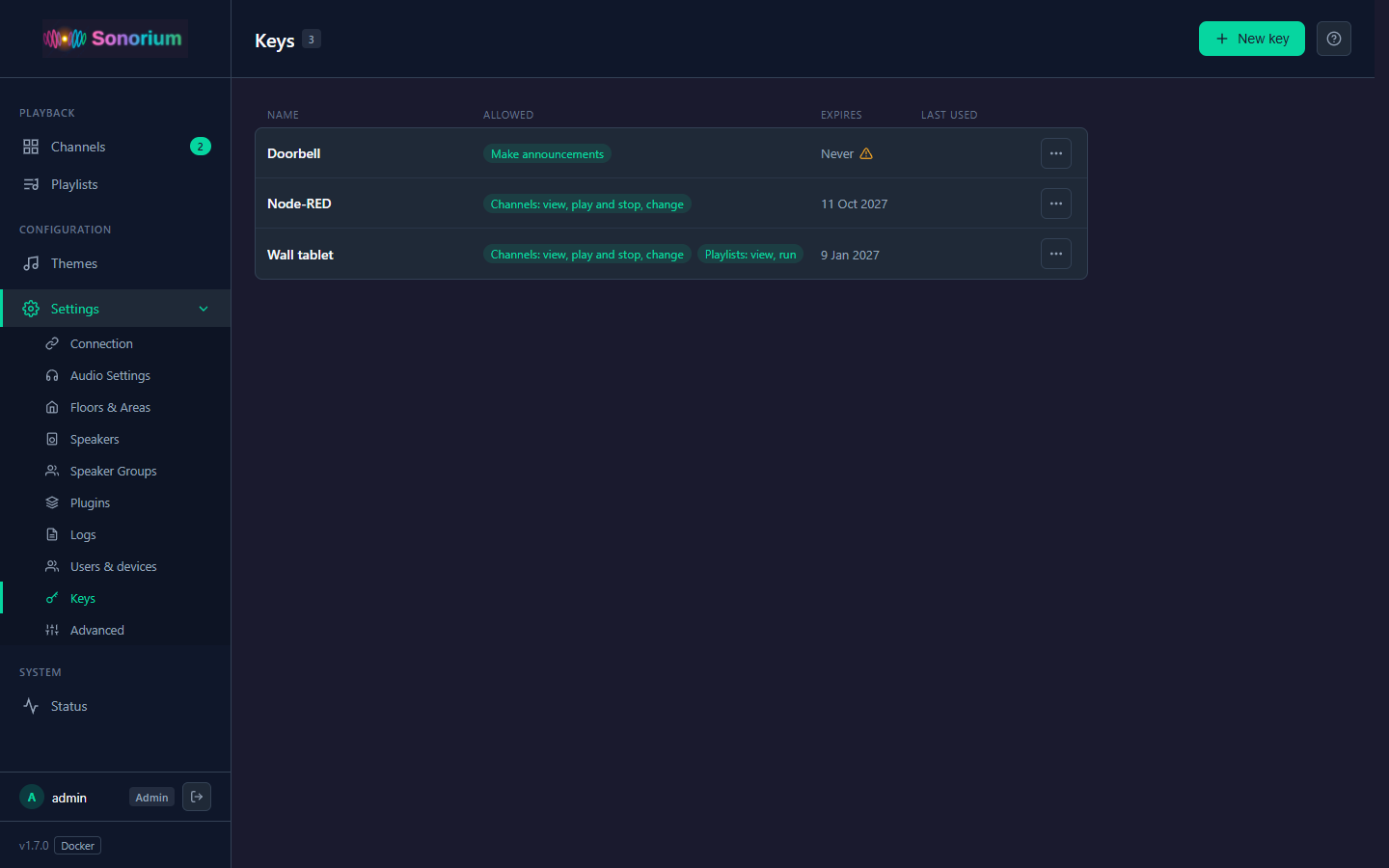
Settings → Keys
Keys for devices and programs, each allowed only the items checked on it.
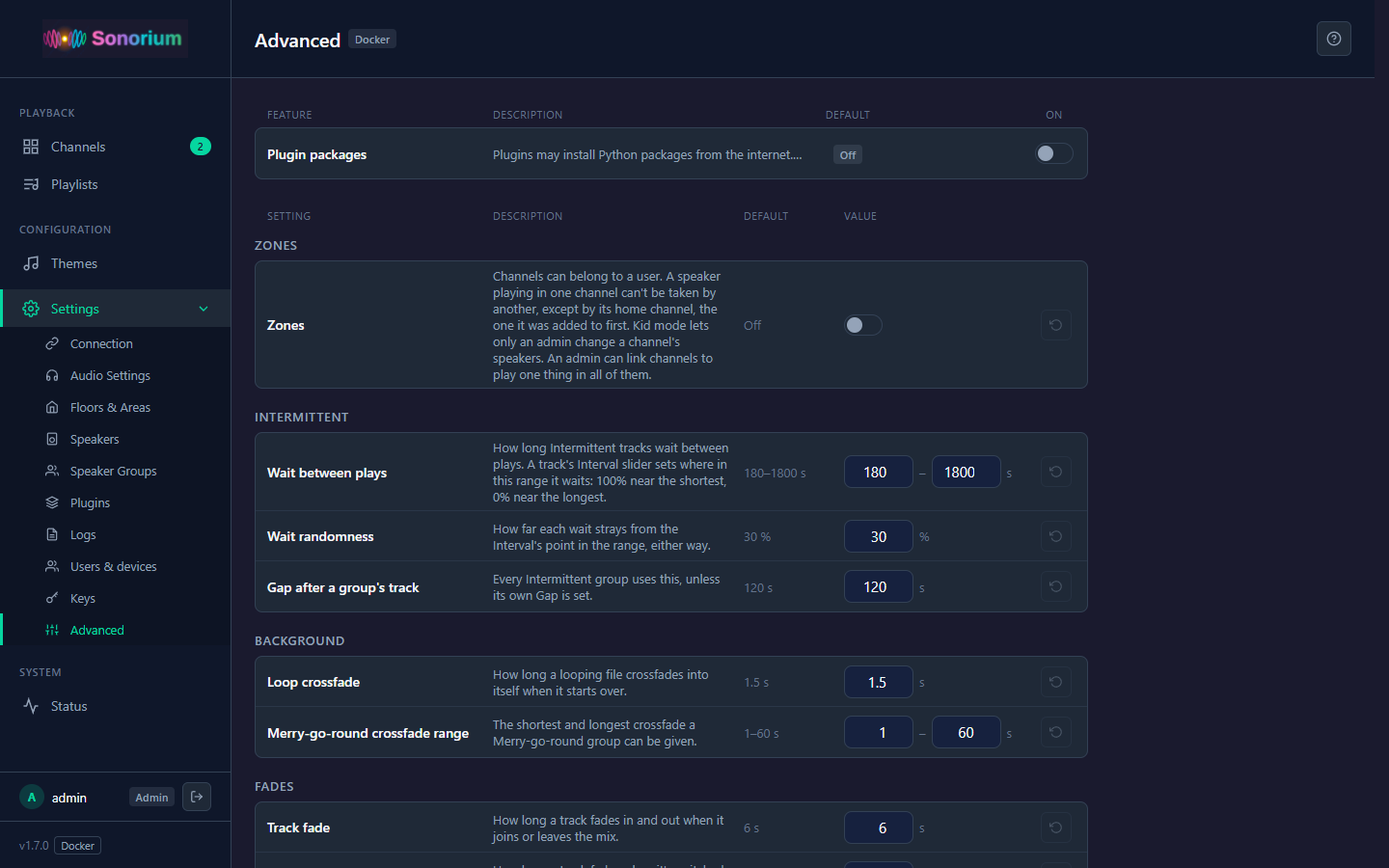
Settings → Advanced
Optional features, and the playback values every theme is built on.
Help on every page
The ? in the top bar explains the page you're on.
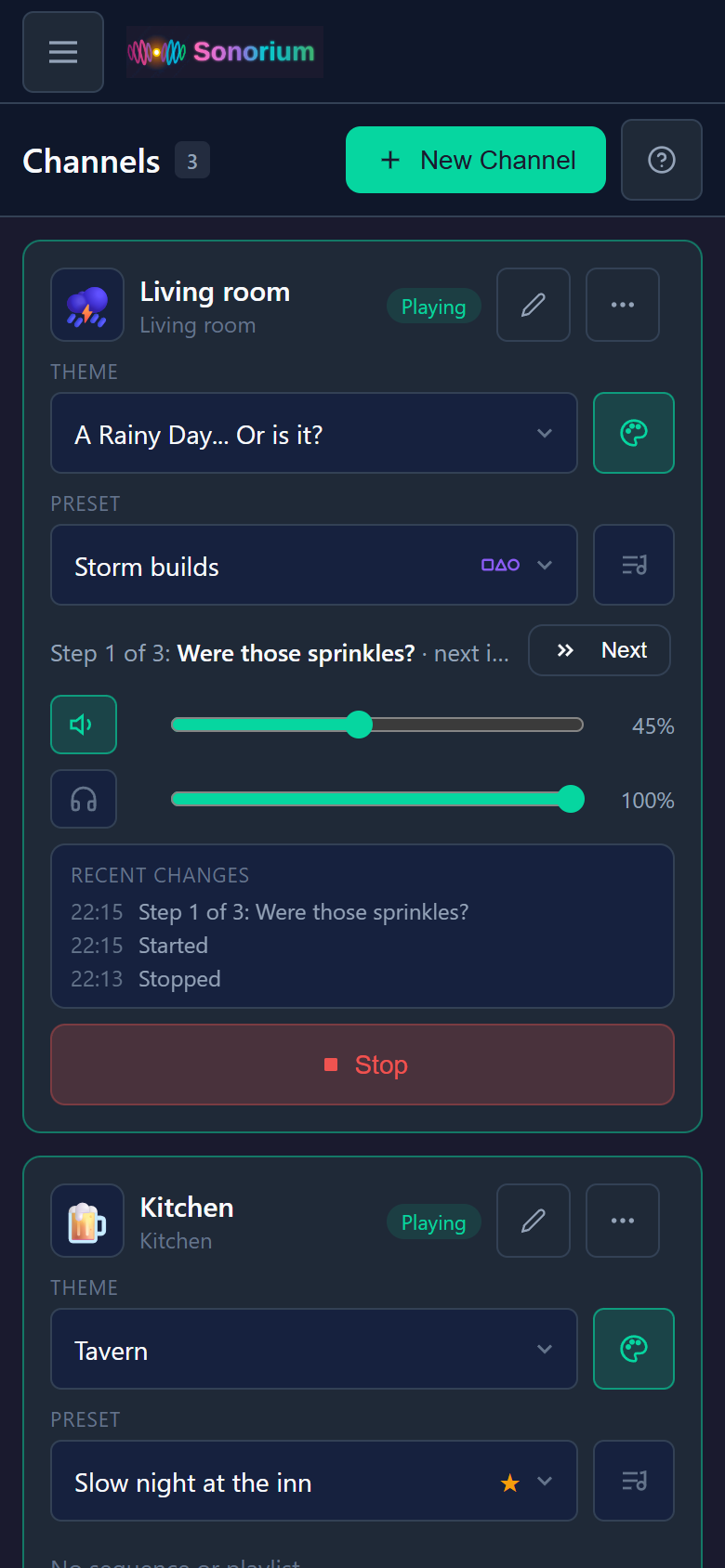
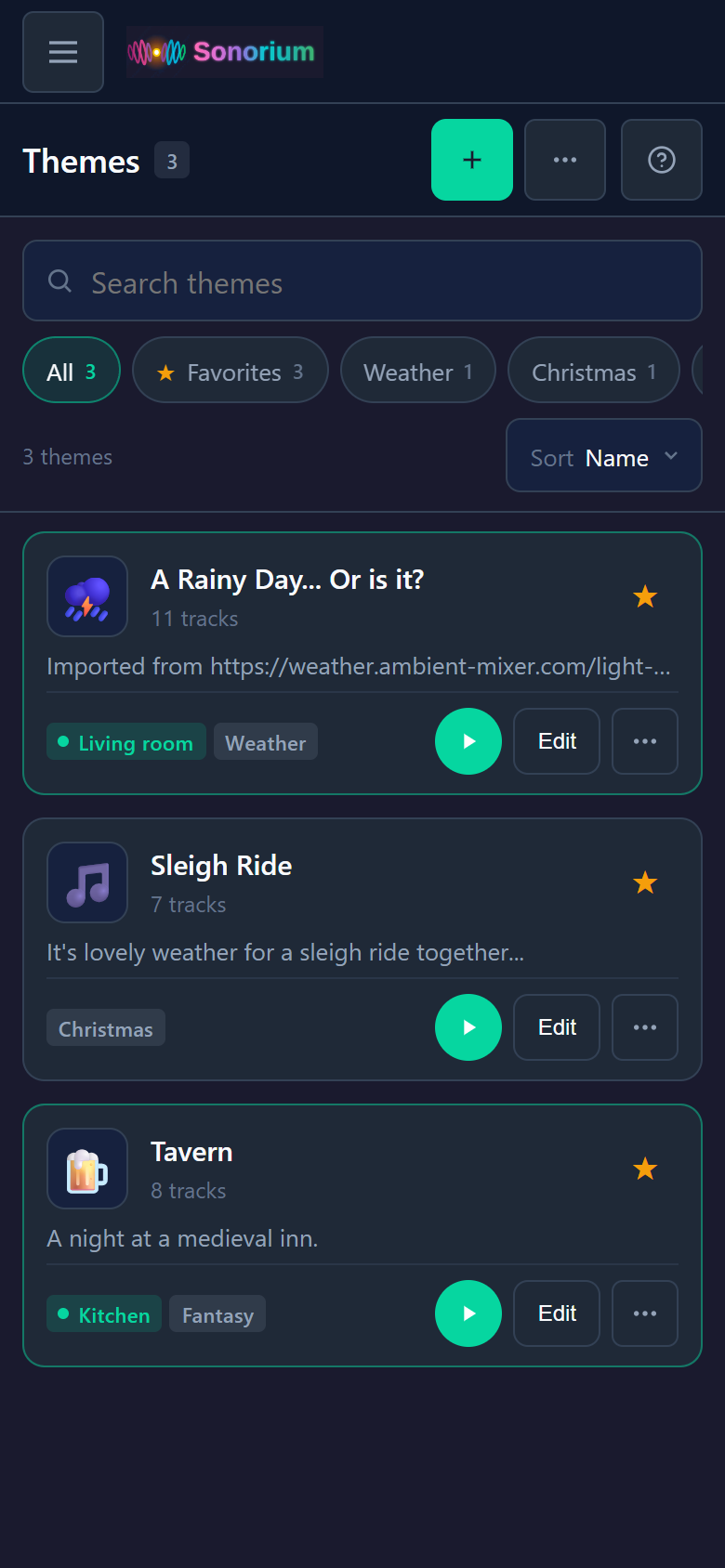
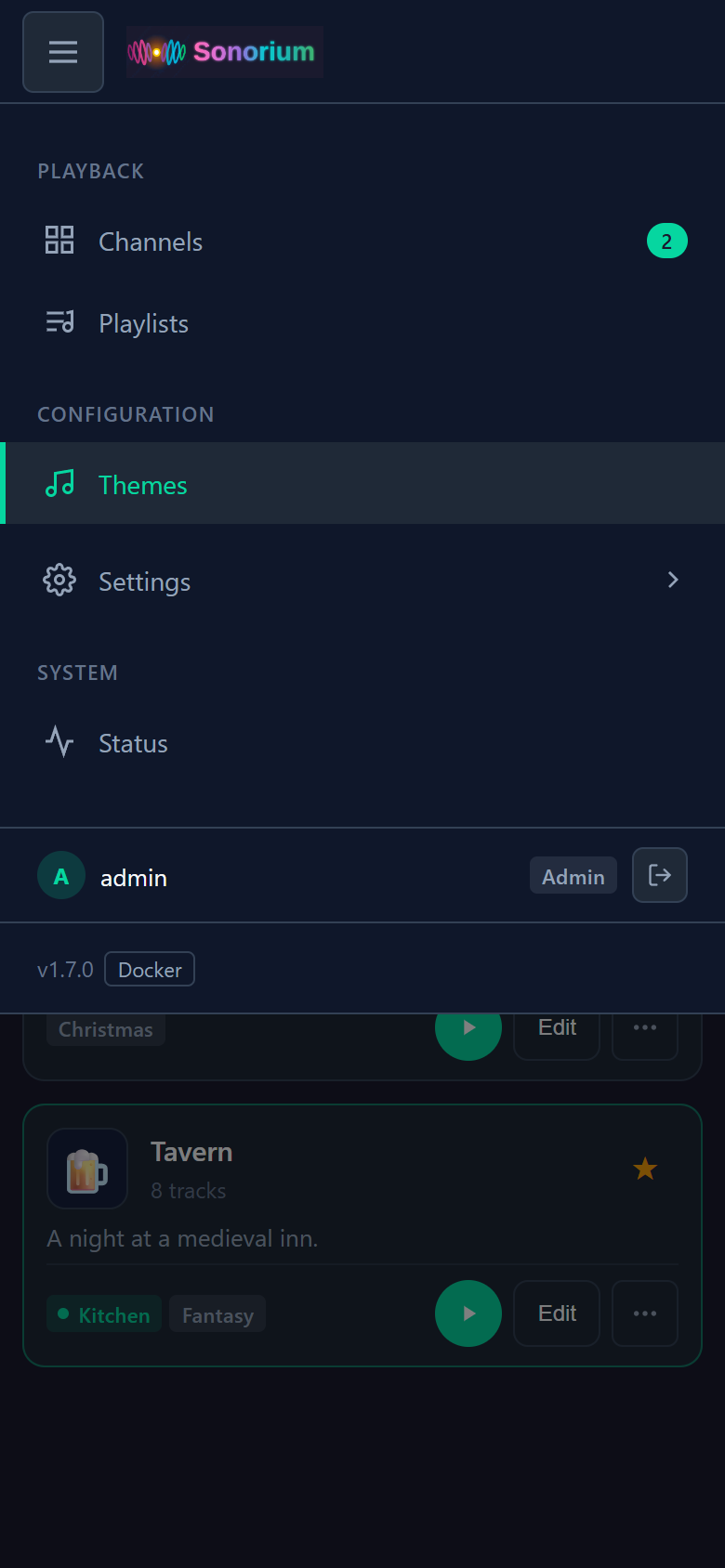
On a phone
The menu opens from the top bar.
Features
Multi-Zone Audio
- Multiple Channels: Run up to 10 independent audio channels simultaneously (configurable)
- Per-Channel Themes: Each channel plays its own theme
- Flexible Speaker Selection: Target individual speakers, entire rooms, floors, or custom speaker groups
- Live Speaker Management: Add or remove speakers from active channels without interrupting playback
Speakers
- Speaker Settings: Rename speakers, set their room, and add a volume offset for speakers that play louder or quieter than the rest
- Test Sound: Play a short, quiet chime to check a speaker
- Choose What Sonorium Uses: Speakers switched off in Settings never appear in channels
- Network Speakers (Docker): Finds Google Cast, Sonos, DLNA, AirPlay, LinkPlay and HEOS speakers on your network, or add one by address
- One Speaker, Two Paths (Docker): A speaker found both in Home Assistant and on the network is shown once, and you choose which way it plays
Theme System
- Theme-Based Organization: Audio files organized into theme folders (Thunder, Forest, Ocean, etc.)
- Automatic Mixing: All recordings in a theme blend together seamlessly
- Theme Favorites: Star your most-used themes for quick access
- Custom Categories: Organize themes into categories like "Weather", "Nature", "Urban"
- Theme Icons: Visual icons for easy theme identification
- Bundled Themes: Includes Sleigh Ride, Tavern, and "A Rainy Day... Or is it?" out of the box
Track Mixer
Fine-tune how each audio file plays within a theme:
- Sections - Tracks sit in sections by how they play (Unassigned, Background, Intermittent, Ebb & Flow); change a track's Mode or drag it, and it moves there
- Interval - Set how often each track is heard in the mix (0-100%)
- Per-Track Volume - Adjust amplitude independent of interval
- Playback Modes:
- Background - Plays all the time, looping with a smooth crossfade (rain, wind, a crackling fire)
- Intermittent - Plays once, then goes quiet for a while before playing again; "interval" sets the wait (bird calls, thunder claps, a door creaking)
- Ebb & Flow - Tracks can be configured with a minimum and maximum volume, and will automatically move to any value between those two limits randomly for a period of time. Duration increases or decreases the amount of time the track is at a value, while the Rise increases or decreases the speed at which the track reaches that value. With Pause between plays it plays the file once, then pauses for a while (wind, surf, rain on a tin roof)
- Unassigned - Not played: where uploads land until you pick a mode
- Groups - A group is a folder inside the theme whose tracks take turns: only one plays at a time, never overlapping, with a random gap (in minutes) between them. Every track in an Intermittent group (the default) plays Intermittent: its whole file once, start to finish, with no fade. The group picks the next track by weight: each time a track plays it gets heavier and less likely to be picked, the weight wears off as other tracks play, and a track's interval sets how fast. The same track never plays twice in a row. Background and Ebb & Flow are for the ambience outside Intermittent groups. Deleting a group keeps its files.
- Ebb & Flow groups - A group in the Ebb & Flow section plays every file at once, each between its own minimum and maximum volume. With the group's Pause between plays on, the files pause at staggered times and at least one is always playing.
- Merry-go-round groups - A Background group is Merry-go-round, a continuous bed: one file plays, then crossfades into another picked at random, never the same one twice in a row. Each group sets its own crossfade (seconds). A single file crossfades into itself.
- Files from another theme - Link a file from another theme without copying it; it can sit in any section or group, and a preset turns it on.
Presets
- Save/Load Presets - Store track settings as named presets
- Quick Switching - Select presets directly on channel cards
- Import/Export - Share presets with the community
- Follows the Theme - Changing a channel's theme switches to that theme's default preset
Home Assistant Dashboard Integration (Addon)
- MQTT Entities - Full dashboard control via MQTT (session select, theme/preset dropdowns, play/stop, volume)
- Dashboard Cards - Sonorium's own cards (Tile, Channel, Player, All channels), added to Home Assistant when Home Assistant and MQTT are linked
- Human-Readable Names - Theme and preset dropdowns show names instead of UUIDs
- Status Sensors - See playback status and assigned speakers from your dashboard
- Automation Support - Use HA automations to trigger soundscapes (morning alarms, schedules, etc.)
- Announcements - Each channel has a notify entity (
notify.sonorium_<channel>_announce) that speaks a message on that channel, and an Announcements switch (switch.sonorium_<channel>_announcements). See Announcements: let other systems use Sonorium
Sign-in and Zones
- Users and Roles: An Admin changes everything; a User plays and changes channels, playlists and sequences
- Keys: For devices and programs, each allowed only the items checked on it, with an expiry
- Link App: A QR code on the Channels page links the Sonorium app to your account
- Zones (optional): Channels that belong to a user, Kid mode with its hours, a home channel for each speaker, and linked channels
Plugins
- Built-in Plugins: Users, Integration (keys), Announcements, Theme Merge and Ambient Mixer Importer; each can be uninstalled
- Plugin API: Plugins play sounds and announcements over channels, ramp volume, add audio outputs, and answer remotes, MQTT topics and webhooks
Modern Web Interface
- Responsive Design: Phones, tablets and short screens each get a layout that fits; on a phone the menu opens from a top bar that's always there
- Help on Every Page: The ? in the top bar explains the page you're on
- Dark Theme: Easy on the eyes
- Real-Time Status: The Status page shows what each track of a playing channel is doing
- Drag & Drop: Upload audio files directly through the UI
- Logs Page: Recent messages with filters, search and download, even when startup fails
- Speaker Screens: Google Cast displays show the Sonorium logo while playing
Supported Formats
Audio files: .mp3, .wav, .flac, .ogg
Single-file themes loop seamlessly using crossfade blending—no jarring restarts!
Supported Speakers
Standalone App
- Local audio output (default speakers)
- DLNA/UPnP network speakers
- Sonos speakers (via SoCo library)
- Arylic/Linkplay speakers (via HTTP API)
- HEOS speakers (Denon/Marantz) - Beta, via CLI protocol
- Coming soon: AirPlay (other devices), Chromecast
Docker
- Google Cast (Chromecast, Nest Hub, Google Home)
- Sonos
- DLNA/UPnP speakers
- AirPlay
- Arylic/LinkPlay
- HEOS (Denon/Marantz)
- Plus every Home Assistant speaker, if you connect Home Assistant
Home Assistant Addon
- Any media_player entity in Home Assistant
- Google Cast (Chromecast, Nest Hub, Google Home), played through Home Assistant's Cast integration
- Sonos - Native streaming via SoCo library
- Organized by floors, areas, and custom groups
Installation
Ways to Use Sonorium
Standalone Windows App
Download and run without any dependencies. Perfect for desktop ambient sound.
Download Latest Release | Installation Guide
- Single portable executable—no installation required
- Local audio playback through your default speakers
- Stream to DLNA network speakers
- Automatic updates built-in
Home Assistant Addon
Integrate with your smart home for whole-house audio.

- One-click install from addon store
- Use any Home Assistant media_player
- Organize speakers by room, floor, or area
- Control from the HA dashboard
Docker
Runs on any Docker host, with or without Home Assistant.
- Finds Google Cast, Sonos, DLNA, AirPlay, LinkPlay and HEOS speakers on your network
- Home Assistant and MQTT are optional, set up from the web UI
- Image:
ghcr.io/synssins/sonorium:latest
Quick Start
Standalone App
- Download
Sonorium.exefrom the Releases page - Run the executable (click "More info" → "Run anyway" if Windows SmartScreen appears)
- Create a session, select a theme and speakers
- Play and enjoy your ambient soundscape
Home Assistant Addon
Sonorium needs the Mosquitto broker add-on (Settings → Add-ons → Add-on Store), started with Start on boot on.
- Install the addon using the button above
- Open Sonorium from your Home Assistant sidebar
- Add Themes: Create themes and upload audio via the web interface
- Create a Channel: Select a theme and speakers
- Play: Hit the play button
Docker
services:
  sonorium:
    image: ghcr.io/synssins/sonorium:latest
    container_name: sonorium
    network_mode: host        # needed to find speakers on your network
    environment:
      - PUID=1000             # optional: owner of the files Sonorium writes
      - PGID=1000
      - TZ=Etc/UTC            # your time zone, for log times
      - BYPASS_LOGIN=false   # Only for forgotten logins: set to true to get in and reset the admin account, then set it back to false
      - SONORIUM_HTTPS_PORT=8808   # HTTPS port for the web UI and API; port 8008 serves HTTP and the streams
    volumes:
      - ./sonorium/config:/config          # settings and channels
      - ./sonorium/media:/media/sonorium   # themes and audio
    restart: unless-stopped
- Start it with
docker compose up -d - Open
http://<docker-host>:8008and create the admin account - Optional: connect Home Assistant and MQTT under Settings → Connection
- Create a Channel and press play
Ports. 8008 serves the web UI, the API and the streams over HTTP. 8808 serves the web
UI and API over HTTPS, for the Sonorium app (SONORIUM_HTTPS_PORT changes it). Its
certificate is self-signed, so a browser warns about it; the app checks it instead.
With network_mode: host both ports are open on the host. Details:
docs/AUTH.md.
Sign-in
A new install asks for an admin account on the first visit, and then a sign-in on every browser. Speakers, the Home Assistant entities and MQTT don't need one. Updating from an older version changes nothing until you create an account and turn on Require login (the banner at the top offers it).
- Roles: an Admin can change everything; a User can play and change channels, playlists and sequences, and see themes and speakers. People are added under Settings → Users & devices.
- Keys: Settings → Keys makes keys for devices and programs, each allowed only the items checked on it.
- Home Assistant app: the sidebar opens Sonorium without a second sign-in.
- Forgotten password: set
BYPASS_LOGIN=true(Docker) orbypass_login(Home Assistant app), restart, reset the account under Settings → Users & devices, then set it back tofalse.
Details: the Sign-in and Users wiki page and docs/AUTH.md.
Announcements: let other systems use Sonorium
Home Assistant, Node-RED, a script or a doorbell can send Sonorium an announcement: a chime, words to speak, or both. Sonorium plays it on the channels named. A playing channel gets quieter while it plays and comes back after it, the way a radio presenter talks over the music. A stopped channel has its speakers started for it and stopped again after it.
The other system decides when to announce and what to say; Sonorium only plays it, so there is nothing to set up in Sonorium. Announcements play even on a channel with an owner or in its quiet hours.
Announcements on a channel. Each channel has an Announcements switch in its editor,
on by default. Off, nothing announces on that channel, whichever way it is sent. Home
Assistant has it too, as switch.sonorium_<channel>_announcements, so an automation can
turn it off for a nap and on again after.
What to send. Only channels and text (or url) are needed:
| Field | Example | |
|---|---|---|
channels |
A channel's name or id, a list of them, or "all". Names are not case-sensitive |
"Kitchen", ["Kitchen", "Office"] |
text |
Words to speak, with Home Assistant's text to speech | "Dinner is ready" |
url |
A sound to play first (an http or https link to MP3, WAV, OGG, ...) | "http://192.168.1.10/ding.mp3" |
volume |
0 to 200; 100 is the sound's own level | 80 |
duck |
How much quieter the channel gets, in dB; false to not duck. Left out: Settings → Advanced |
18 |
Text to speech comes from Home Assistant: its first tts.* engine, or the one set in the
Announcements plugin's settings. Without Home Assistant (Docker on its own), send a
url: the sound plays and the answer says the text wasn't spoken.
From Home Assistant
Each channel has a notify entity, notify.sonorium_<channel>_announce:
alias: Doorbell
triggers:
  - trigger: state
    entity_id: binary_sensor.doorbell
    to: "on"
actions:
  - action: notify.send_message
    target:
      entity_id: notify.sonorium_kitchen_announce
    data:
      message: Someone is at the door
For a chime first, send the message as JSON:
    data:
      message: '{"text": "Someone is at the door", "url": "http://192.168.1.10/ding.mp3"}'
Several channels at once, through MQTT:
action: mqtt.publish
data:
  topic: sonorium/announce/set
  payload: '{"channels": ["Kitchen", "Office"], "text": "Dinner is ready"}'
With a key (scripts, curl, other programs)
- Settings → Keys → New key.
- Name it and check Make announcements.
- Make key, then copy the key. It is shown once.
A key limited to some channels announces only on those.
curl -X POST http://sonorium.local:8008/api/announce \
  -H "Authorization: Bearer sk_your_key" \
  -H "Content-Type: application/json" \
  -d '{"channels": "Kitchen", "text": "Dinner is ready"}'
Use Sonorium's address in place of sonorium.local when that name doesn't work on your
network. The answer lists the channels it plays on (played), the channels with
Announcements off (skipped), and a notice when only the chime played. An unknown channel
answers 404; text with no text to speech and no url answers 503.
From MQTT
On the broker Sonorium uses (Settings → Connection), publish to sonorium/announce/set:
mosquitto_pub -h 192.168.1.5 -u mqtt_user -P mqtt_password -t sonorium/announce/set \
  -m '{"channels": "all", "url": "http://192.168.1.10/ding.mp3", "text": "The washer is done"}'
A message without channels is ignored, so a mistake doesn't wake every room.
From Node-RED
A function node, then an http request node:
msg.headers = {
    "Authorization": "Bearer sk_your_key",
    "Content-Type": "application/json"
};
msg.payload = { channels: "Kitchen", text: "Dinner is ready" };
return msg;
In the http request node: Method POST, URL
http://sonorium.local:8008/api/announce, Return a parsed JSON object.
Node-RED with an MQTT broker can publish to sonorium/announce/set with an mqtt out
node instead, without a key.
Documentation
Which version am I on? The version and the install type (Home Assistant app or Docker) are at the bottom left of the menu. On a phone, open the menu from the top bar to see them. Include both when you report a problem.
Full documentation is available in the Wiki:
- Getting Started - Home Assistant installation
- Standalone App - Windows app guide with architecture details
- Themes - Creating and organizing themes
- Track Settings - Playback modes explained
- Presets - Saving track configurations
- Speakers - Speaker setup and management
- Plugins - Installing, updating and removing plugins
- Advanced Settings - The playback values every theme uses
- Sign-in and Users - Accounts, roles, keys and Link App
- Dashboard Cards - Sonorium's Home Assistant cards
- API Reference - REST API for automation
- Troubleshooting - Common issues
What's new
1.7.0
Sign-in
- Accounts and roles. The built-in Users plugin adds accounts with two roles. An Admin can change everything; a User can play and change channels, run and edit playlists and sequences, and see themes and speakers. Sonorium always keeps one Admin.
- New installs ask for an admin account on the first visit and need a sign-in from then on. Updates change nothing until you create the account and turn on Require login; the banner at the top offers both.
- Users & devices. Settings → Users & devices lists each person with the browsers and phones they use. Add users, change roles, reset passwords, and sign out one browser or every device.
- Keys. The built-in Integration plugin adds Settings → Keys: keys for devices and programs, each allowed only the items checked on it, for some channels or all, with an expiry. A key is shown once.
- Link App. The button on the Channels page shows a QR code that links a phone to your account. Each code works once, for 5 minutes.
- HTTPS. Port 8808 serves the web UI and the API over HTTPS, with a certificate Sonorium makes itself. Port 8008 is unchanged; speakers keep using it.
- sonorium.local. The Docker version announces itself on your network:
http://sonorium.local:8008. - Forgotten password.
BYPASS_LOGIN=true(Docker) orbypass_login(Home Assistant app) opens the web UI without a sign-in, to reset the account.
Announcements
- Other systems announce through Sonorium. Home Assistant (each channel's notify entity), MQTT (
sonorium/announce/set), anything that can make a web request (POST /api/announcewith a key) and plugins send a chime and/or words to speak; Sonorium plays them on the channels named. See Announcements: let other systems use Sonorium. - Announcements switch on each channel, and in Home Assistant: off, nothing announces on that channel.
Plugins
- Built-in plugins can be uninstalled like any other. An uninstalled built-in plugin stays uninstalled after restarts and updates.
- Plugin settings show under each plugin's form on Settings → Plugins, and are saved as you change them.
- Theme Merge 2.0 merges two themes into a new theme or into either one, with their tracks, groups, linked files and presets.
- Ambient Mixer Importer 3.1 imports mixes with the current playback modes and gapless loops. Its random sounds follow Wait between plays on Settings → Advanced.
- For plugin authors: plugin API 1.1: events, an actions API for channels, a scheduler, webhook triggers, sounds and announcements over channels (the channel gets quieter while they play), volume ramps, audio outputs, commands from remotes, MQTT topics and webhooks, menu pages and Connections sections. A plugin can bring Python packages once Plugin packages is on in Settings › Advanced (off by default). See docs/PLUGIN_DEVELOPMENT.md.
Settings → Advanced
- Playback values. The values every theme's playback is built on, until now fixed: Wait between plays, Wait randomness, Gap after a group's track, Loop crossfade, Merry-go-round crossfade range, Track fade, Switch fade, Long pause chance, Turn chance and Short file threshold. Each is saved as you change it, playing channels follow it, and the arrow on its row puts the default back. Advanced is now always in the menu.
Home Assistant dashboard cards
- Sonorium's cards are added to Home Assistant automatically when Home Assistant and MQTT are linked. Search for Sonorium in the card picker.
- Four layouts: Tile, Channel, Player and All channels, changed in the card's editor along with what each one shows.
- Channel popup. Clicking a channel's name opens the channel as it looks on Sonorium's Channels page, with its recent changes.
- When the cards can't be added automatically, Settings → Connection says why and offers the file to download (Docker).
Zones
- Zones are off until an admin turns them on in Settings › Advanced. A channel can then belong to a user: only its owner and admins change it. A channel with no owner stays open to everyone who may play channels.
- Kid mode. Only an admin changes the channel's speakers. Its hours set when the owner can play the channel; at the end of the hours, what the owner started fades out and stops.
- Speaker homes. A speaker plays for one channel at a time. Its home channel, the one it was added to first, can take it back.
- Linked channels. An admin links channels to play one theme or playlist in all of them; each keeps its own volume.
Status
- Now playing. The Status page shows each playing channel with its tracks by section: playing, fading, waiting, paused or muted, a countdown to the next change, and the level. As heard shows the mix delayed by the speakers' buffer, as it sounds in the room.
Layout
- Phones, tablets and short screens. Short screens, such as a phone held sideways, get a one-row header. Tablets get the desktop layout, slightly larger. Settings tables use their phone layout when the window is too narrow for them.
- In the Sonorium app, a button in the top bar shows the server's name and opens the server list; Servers is the last item in Settings.
Under the hood
- Fully rewritten. None of Amniotic's code remains, and Sonorium no longer depends on fmtr.tools.
- Audio-only FFmpeg. The Docker image and the Home Assistant app use their own audio-only FFmpeg build (LGPL) with PyAV. See THIRD_PARTY_NOTICES.md.
- License. Sonorium is under the PolyForm Noncommercial License 1.0.0.
Fixes
- Hidden folders in the themes folder are no longer shown as themes, and leftovers of a crash are removed.
- An edit saved while Ambient Mixer Importer was still downloading was lost.
- Short file threshold left the Theme Editor's ⋯ menu (it only applied to Auto, which is retired); it is on Settings › Advanced.
- A sequence step's dot also lights for While playing changes.
- Sonorium opens on Channels when the page it remembered can't be opened.
1.6.1
Channels
- Theme or playlist. The two buttons to the right of a channel's fields choose whether it plays one theme or a playlist.
- Speaker mute. The speaker button next to a channel's volume silences its speakers. It works on every kind of speaker. Speakers can take a few seconds to go quiet.
- Listen in your browser. The headphones button plays the channel on the device you're using, with its own volume, even while the speakers are stopped. Start listening on headphones, add speakers, then press Play: the speakers join the same stream without a break. Stop stops the speakers only.
Theme Editor
- Sections. Tracks are listed by how they play: Unassigned, Background, Intermittent and Ebb & Flow. Changing a track's Mode, or dragging it to another section, moves it there.
- Unassigned. Uploads and files added from another theme start here, and don't play until you give them a Mode.
- Groups belong to a section. A Background group is a Merry-go-round, an Intermittent group takes turns, an Ebb & Flow group plays every file at once.
- Files from another theme can go in any section or group. Intrusion groups are retired.
- Auto is retired. Each Auto track keeps playing the way it did.
Sequences and playlists
- Sequences. A sequence plays some of a theme's presets in the order you choose, each for a random time in a range, gliding from one to the next. At the end it plays the list backwards, starts again or stops. For example, a mild summer storm that becomes a heavy one. Make them from Sequences in the Theme Editor; pick them from a channel's Preset menu. In Home Assistant they are options of the channel's Preset select, as "name (sequence)".
- While playing. In a sequence, a preset's ⋯ › Advanced… has a While playing tab: the Theme Editor's controls, for that step only. Anything you don't change follows the preset.
- Advanced transitions. The same window sets how each track comes in and leaves at a step: Gusts, Swell, Build, Distance or Start fresh (and Gusts dying down, Smooth fade, Thin out, Recede or Finish then stop), in any combination, starting up to 90 seconds before the step.
- Playlists. The new Playlists page holds themes that play one after another on a channel, each with a preset or sequence if you want one, in order or shuffled, for a random time in the playlist's range, once or on repeat. Home Assistant gets a Playlist select, a Next button and a Step sensor for each channel.
- Theme cycling became playlists. A channel's theme cycling is turned into a playlist the first time this version starts.
Playback
- Ebb & Flow. Tracks can be configured with a minimum and maximum volume, and will automatically move to any value between those two limits randomly for a period of time. This interval is controlled by the Duration and Rise sliders. Duration increases or decreases the amount of time the track is at a value, while the Rise increases or decreases the speed at which the track reaches that value.
- Pause between plays. An Ebb & Flow track can play its file once, fade out at the end and stay quiet for a random time before it comes back. In an Ebb & Flow group, this keeps at least one file playing at all times.
- File fades. Fade in and Fade out in a track's ⋯ menu soften a file that starts or ends abruptly, every time it starts or ends. Leave them empty for sounds that should hit hard, like a thunder crack.
- Gaps in presets. An Intermittent group's Gap is saved in presets, so one preset can bring the thunder more often than another.
- Channels fade in and out when they start and stop, instead of cutting (#34).
- Preset glides. Picking a preset glides the mix to it over 3 seconds; a sequence glides over its ramp time.
- Smooth volume changes. Volume sliders ease to the new level instead of jumping.
- An exported theme keeps all of its settings, presets and sequences.
Fixes
- Saving a preset now changes channels that are playing it.
- Crossfade and Master output gain on Settings → Audio Settings now change the sound in the Home Assistant app. Crossfade also sets how long a channel fades in and out.
- After a confirmation on a settings page, an empty box could stay on the screen.
1.6.0
Themes and playback
- Group modes. A group's Mode is now Intermittent (one track at a time with a gap, as before), Merry-go-round or Intrusion. Pick it in the group's row in the Theme Editor.
- Merry-go-round. One file plays, then crossfades into another picked at random, never the same one twice in a row. The group's Crossfade sets the overlap. A single file crossfades into itself, which also fixes recordings that fade in and out on their own.
- Intrusions. An Intrusion group's tracks keep their own mode and settings. It can hold files linked from other themes: ⋯ › Add from another theme opens a picker where you preview a theme's files and tick the ones you want. Linked files play from their own theme's folder, start muted, and are turned on by presets. A linked file whose source is gone shows Missing.
- Presets show what they do. ★ marks the default preset; ⚭ marks a preset that turns intrusion tracks on. Both show in the Theme Editor and on the channel cards, and in the channel's Edit dialog.
- Smooth preset changes. A track that a preset (or the mute button) turns on or off fades in or out over 3 seconds instead of cutting.
- Moving linked files. Dragging a linked file to a normal group or out to the theme asks first, then copies the file into this theme. Exports copy linked files in, so a shared theme is complete.
Theme Editor
- Instant moves. Moving a track, and renaming or deleting a group, show at once. The list no longer greys out for a few seconds.
- Track preview plays at the track's own volume, follows its Volume slider as you drag, and works for muted and linked tracks.
- Messages show as small notices at the top right instead of in the footer.
- Group header. Gap or Crossfade sits under the group's name.
Themes
- New themes can be edited, saved and given presets straight away, and keep the name you typed.
Fixes
- A new theme said "Theme not found" in the editor until Sonorium restarted.
- Preview mix showed "Could not play the preview" when it restarted after a change, while still playing.
- Dragging a track selected text across the list.
Known issue
- In the Home Assistant app, Crossfade and Master output gain on Settings → Audio Settings are saved but don't change the sound yet.
1.5.2
- Clearer help for Intermittent in groups and for track weight.
- Version and install type are shown at the bottom left of the menu; the README says where to find them.
- Releases no longer skip their version number after a merge.
1.5.0
Themes and playback
- Groups. A folder inside a theme is a group: its tracks take turns, one at a time, never overlapping, with a random gap between them. This replaces the need to check "Exclusive" on every track that needed to play independently of other exclusive tracks in a theme.
- The group picks the next track by weight. Each time a track plays it gets heavier and less likely to be picked; the weight wears off as other tracks play. A track's Interval sets how fast. The same track never plays twice in a row.
- Grouped tracks just play. On its turn a track plays its whole file once, start to finish, with no fade in or out. A thunder crack keeps its crack, a song its first notes.
- A preset per channel. Two channels can play the same theme with different presets. Before, they shared one: changing the preset on one changed it on both.
- New files join right away. A file added to a theme that is playing joins the mix at once, with its saved settings. A removed file leaves the mix. Nothing restarts.
- Theme files stay tidy.
metadata.jsonand the presets follow the theme's files: a new file gets an entry with the default settings, and entries for removed files and group folders are deleted. The first time 1.5.0 starts it also clears out old leftover entries. - New mode names. Continuous is now Background, Sparse is Intermittent, Presence is Ebb & Flow. The "How often" slider is now Interval. Your saved settings keep working.
- Steadier sound. The mix keeps an even level as tracks come and go, without clipping. Themes with many occasional sounds no longer play quietly.
Theme Editor
- Redesigned. Name, categories and description at the top; every track in one aligned table with its mode, volume, interval and mute; groups as sections you can collapse; upload, drag tracks between groups, and presets at the bottom.
- Live changes. What you change is heard on speakers playing the theme while you edit. Cancel reverts unsaved changes; Save Theme keeps them and closes.
- Preview mix plays the whole theme on the device you're editing from, without touching the speakers.
- Help. The ? button explains modes, groups and saving.
Themes page
- Search, category chips, sort, and cards or a list. Each theme appears once, with its categories, a preview button and a badge for the channel playing it.
- Create theme asks for a name and opens the new theme in the editor.
Every page
- New look. Every page has the same top bar, lined up with the logo. Page buttons, including Save and Cancel, sit on the right of the top bar instead of at the bottom.
- Help on every page. The ? at the far right of the top bar explains that page in plain words.
- Settings pages are compact and left-aligned:
- Connection shows Home Assistant, MQTT and Streaming as cards, each with a status.
- Audio Settings is a single card.
- Speakers groups speakers by floor and area.
- Speaker Groups, Plugins, Advanced and Status use the same layout.
- "Add" everywhere. Buttons that make something new read "Add": Add speaker, Add group, Add floor, Add area. Empty pages no longer repeat the top-bar button.
- Confirmations use a small prompt on the page instead of a browser pop-up.
- Phones. A top bar with the menu button is always there. The menu opens downward, closes when you pick a page or tap the button again, and Settings expands in place. Cards fill the screen width and nothing scrolls sideways.
Docker and standalone
- Remove a connection without a restart. The trash button on Settings → Connection removes Home Assistant, and its floors, areas and speakers disappear from every list at once. Removing MQTT also removes Sonorium's entities from Home Assistant.
- Floors & Areas can be added and edited outside the Home Assistant app.
- Settings show what applies to your install. One install check decides which settings each install shows.
Fixes
- A memory leak while playing.
- Tracks in a group could overlap after a stall.
- Presets changed settings they hadn't saved.
- The Settings menu cut off its last items.
- Adding floors and areas failed with an error.
- Deleting a speaker group in use said "session(s)" instead of "channel(s)".
- The Theme Editor opened with a preset already selected, which made it easy to overwrite.
Known issue
- In the Home Assistant app, Crossfade and Master output gain on Settings → Audio Settings are saved but don't change the sound yet.
v1.4.0
- Docker. A new image,
ghcr.io/synssins/sonorium, runs Sonorium on any Docker host, with or without Home Assistant. It finds network speakers on its own, and Home Assistant and MQTT are set up from the web UI (#32). - New channel editor. Search themes, and pick speakers by floor, room or one at a time; ticking a floor or room selects everything in it.
- Settings → Speakers. Rename speakers, set their room and a volume offset, and play a short test sound. Only speakers switched on here appear in channels, and Hide offline tidies the list.
- Settings → Logs. See, search, copy and download recent log messages from the web UI. If Sonorium fails to start, the web UI shows the logs instead.
- Speaker screens. Nest Hub and other Google Cast displays show the Sonorium logo while playing.
- Presets follow the theme. Changing a channel's theme switches to that theme's default preset.
- Smaller fixes. Denon/Marantz receivers are recognised, settings pages stay readable on wide screens, and the browser tab shows Sonorium's icon.
Full history: sonorium_addon/CHANGELOG.md.
How a theme plays
These are the same words as the ? help in the Theme Editor.
A theme is a set of tracks (sound files) mixed together. This help follows the editor from top to bottom.
Tracks
- Sequences: Lists this theme's sequences. Pick one to edit it, or Add sequence.
- Preview mix: Plays the mix in this browser.
- Upload: Uploads to Unassigned, or to the group you pick.
- Add from another theme: Links files from another theme.
- Reset all: Resets every track and group to defaults.
Sections
- Sections: tracks sit in sections by how they play: Background, Intermittent and Ebb & Flow. Every section is always there, even empty. Change a track's Mode, or drag it to another section or into a group in one, and it moves there and plays that way. A track in a group plays its group's way: drag it out to change it.
- Groups: a group belongs to its section and plays that section's way: Background groups are Merry-go-round, Intermittent groups take turns, Ebb & Flow groups play every file at once. Make one with the section's New group.
- Moving tracks: drag a track onto a group, or use its ⋯ menu.
Unassigned
- Unassigned: uploads and files added from another theme start here. Nothing here plays. Pick each file's Mode, or drag it into a section or a group.
Background
- Background: plays all the time, looping smoothly. Rain, wind, a fire.
- Track
- Gapless: in the track's ⋯ menu, outside groups. Loops without a crossfade.
- Merry-go-round group
- Merry-go-round: one file plays, then crossfades into another picked at random, never the same one twice in a row. One file crossfades into itself. Use 3 or more files of the same scene for a bed that never repeats the same way.
- Crossfade: under the group's name. Overlap between files (seconds).
- Volume, Mute: apply to every track in the group.
Intermittent
- Intermittent: plays once, then goes quiet before playing again. In a group, the group decides when it plays. Bird calls, a thunder crack, a door.
- Track
- Interval: the wait between plays. In a group, how fast its weight wears off. Higher comes back sooner; lower plays less often.
- Intermittent group
- Take turns: only one track plays at a time, never overlapping. On its turn, a track plays its whole file once, start to finish, then hands over. Use it for sounds that shouldn't pile up, like thunder cracks or songs from one musician.
- Gap: under the group's name: after a track finishes, the group waits a random time in this range (minutes) before the next one starts. Different groups don't wait for each other. Presets keep their own Gap.
- Weight: each time a track plays, it gets heavier and is less likely to be picked next. The weight wears off as other tracks play. The same track never plays twice in a row.
- Volume, Interval, Mute: apply to every track in the group.
Ebb & Flow
- Ebb & Flow: Tracks can be configured with a minimum and maximum volume, and will automatically move to any value between those two limits randomly for a period of time. Wind, surf, rain that gusts.
- Track
- Volume: minimum and maximum volume.
- Duration: increases or decreases the amount of time the track is at a value.
- Its ⋯ menu
- Rise: increases or decreases the speed at which the track reaches that value.
- Pause between plays: off, the file loops and is always heard. On, it plays once from start to finish, fades out at its end, then pauses before it comes back. Rain on a tin roof that comes and goes.
- Pause: how long it stays quiet, in seconds, picked at random between the two numbers each time (600 is 10 minutes). It also staggers when tracks first start, so they don't all begin together.
- Ebb & Flow group
- Ebb & Flow group: every file plays at once, each between its own minimum and maximum volume. Each file keeps its own settings; the group's Volume and Duration scale them down.
- Pause between plays: under the group's name. On, every file pauses between plays, at staggered times, so at least one is always playing. Off, each file follows its own Pause between plays.
- Volume, Duration, Mute: apply to every track in the group.
- Its ⋯ menu
- Same Rise for every file: one Rise for the whole group instead of each file's own.
A track's ⋯ menu
- Fade in / Fade out: for a file that starts or ends abruptly. Set how many seconds it fades in each time it starts, and fades out each time it ends, including each loop. Empty is off. Sequences and advanced transitions use them too.
- Move to: Unassigned, or a group.
- New group: Creates a group in this section with the track in it.
- Reset track: Resets the track to defaults.
A group's ⋯ menu
- Rename: also by double-clicking the group name.
- Delete group: keeps its files; they move back into its section.
Files from another theme
- Linked file: plays here but stays in its own theme. Add one with Add from another theme above the list; it starts in Unassigned, and can go anywhere your own files can. If the file is gone, it shows Missing.
- Presets: turn linked files on and other tracks off, like rain that mutes the crickets. A preset that turns a linked file on shows ⚭.
- Remove link: in a linked file's ⋯ menu. The file stays in its own theme.
Sequences
- Sequence: plays presets of this theme in the order you choose, gliding from one to the next. Marked with the sequence icon (square, triangle, circle).
- Picking one: preset lists show the sequences after the presets. Picking a preset by hand stops a running sequence.
- Edit: pick a sequence in the preset field below, then Edit.
- Edit sequence
- Time on each preset: each preset plays for a random time in this range (minutes), drawn fresh each time.
- Ramp: how long the glide to the next preset takes (seconds).
- At the end: Reverse plays the list backwards, Start again goes back to the first preset, Stop stays on the last one.
- Order: drag a preset, or use its ⋯ menu.
- Theme defaults: empty fields use the theme's time and ramp, set at the bottom of the Sequences menu.
- Save: saves the sequence at once. Every channel playing this theme can pick it.
- A step: ⋯ › Advanced
- While playing: changes how tracks play while this step plays, for this sequence only. The same controls as the Theme Editor. A value you change shows in green; anything you don't change follows the preset.
- Revert changes: puts back the settings as they were when Save was last pressed.
- Coming in / Leaving: tracks this step turns on or makes louder, and tracks the next step turns off or makes quieter.
- Coming in and Leaving
- Smooth: no button on. The track follows the sequence's ramp.
- Buttons: click to turn a style on, click again to turn it off. Each style that's on shows its own setting under Setting.
- Pre-fade: starts the change this many seconds before the step.
- Gusts / Gusts dying down: rises or falls in uneven surges. Intensity sets how rough. Max volume caps the peaks at the preset volume.
- Swell / Smooth fade: one curved fade. Speed sets how much of the fade time (pre-fade plus ramp) it uses.
- Build / Thin out: Intermittent tracks play more often and louder over the fade, or less often and quieter. Amount sets how much.
- Distance / Recede: starts faint and muffled, like far-off thunder, and ends clear at the preset volume; or drifts away. How far sets the distance.
- Start fresh / Finish then stop: plays from the start of the file with a short fade, for music, voices and rhythm; or lets the current play finish, then stops.
- Preview: ▶ plays that track's change on this device and follows your edits.
- File fades: a file's own Fade in and Fade out apply on top of every style.
- Combining styles: several styles can be on together. They all work over the same fade time (pre-fade plus ramp). For example:
- Gusts + Distance: wind starts far off and muffled, and surges unevenly as it comes closer.
- Gusts + Swell: the surges ride on one curved rise instead of a steady one.
- Gusts + Start fresh: the file plays from its start and rises in uneven surges.
- Build + Distance: thunder comes more often and louder as it moves from far off to close.
- Thin out + Recede: thunder comes less often and quieter as it drifts away.
- Smooth fade + Finish then stop: fades out over the fade time; if the current play ends first, it stops there with a short fade.
Presets and saving
- Live: changes are heard at once with Preview mix, and on channels playing this theme with no preset. A channel playing a preset hears them after Save Preset.
- Preset: the loaded preset. Current settings is the theme without one.
- New: makes a new preset from the current mix.
- Save Preset: Saves loaded preset
- Save Theme: Saves theme with all changes (presets, name, etc) Required after saving a preset.
- Cancel: Reverts unsaved changes.
API Reference
Sonorium provides a REST API for integration:
Streams
GET /stream/{theme_id}- Direct audio stream for a themeGET /stream/channel{n}- Audio stream for channel N
Sessions/Channels
GET /api/sessions- List all sessionsPOST /api/sessions- Create a new sessionPOST /api/sessions/{id}/play- Start playbackPOST /api/sessions/{id}/stop- Stop playbackPOST /api/sessions/{id}/volume- Set volumePOST /api/sessions/{id}/next- Skip to the sequence's next step or the playlist's next entryPUT /api/sessions/{id}/speakers-muted- Mute or unmute the speakers ({"muted": true})PUT /api/sessions/{id}/announcements- Turn the channel's Announcements on or off ({"on": false})POST /api/announce- Play a chime and/or speak text on channels ({"channels": "Kitchen", "text": "Dinner is ready"}; see Announcements)POST /api/sessions/{id}/listen/DELETE- Start or stop listening in a browser (the stream isstream_pathwith?local=1)
Themes
GET /api/themes- List all themesPOST /api/themes/create- Create a new themePOST /api/themes/{id}/upload- Upload audio fileGET /api/themes/{id}/sequences- A theme's sequences
Playlists
GET /api/playlists- List playlistsPOST /api/playlists- Create a playlist
Status
GET /api/status- Current system statusGET /api/now-playing- What each playing channel's tracks are doing (the Status page)GET /api/info- Server name, version and ports (no sign-in needed)
The full reference, with sign-in and keys: docs/APP_API.md.
Acknowledgements
Sonorium was originally based on Amniotic by fmtr. Sonorium has since been fully rewritten, and none of Amniotic's code remains.
License
Sonorium is licensed under the PolyForm Noncommercial License 1.0.0: free to use, change and share for noncommercial purposes. Commercial use needs a separate license. Copyright 2026 Chris Kliewer. Third-party components keep their own licenses: see THIRD_PARTY_NOTICES.md.
The components Sonorium is built on, and their licences, are listed in THIRD_PARTY_NOTICES.md.
Contributing
Contributions are welcome! Please open an issue to discuss changes before submitting a PR.
Automated Tests
The Tests workflow runs on pull requests and pushes to main, and can also be
started manually from GitHub Actions. It runs all automatically collected tests
on Python 3.11 and uploads a JUnit test report, including when tests fail.
Run the same suite locally:
python -m pip install 'pytest>=8,<9' 'numpy<2.4' av
python -m pytest tests -v
The AirConnect, AirPlay streaming, Arylic HTTP, and RTSP diagnostic scripts need
LAN speakers and are excluded from automated collection. The live Linkplay
streaming test is reported as skipped; its offline detection test runs in CI.
Run hardware diagnostics directly on a machine with access to the speakers,
for example python tests/test_linkplay_integration.py --ip <speaker-ip>.
Add-on version numbers are set automatically from commit messages; see docs/VERSIONING.md.
Requirements
Categories
Related apps
Explore more like this
Explore allDetails
ghcr.io/synssins/sonorium:latestRuntime arguments
- Web UI
http://[IP]:[PORT:8008]/- Network
host- Shell
sh- Privileged
- false
Template configuration
settings and channels
- Target
- /config
- Default
- /mnt/user/appdata/sonorium/config
- Value
- /mnt/user/appdata/sonorium/config
themes and audio
- Target
- /media/sonorium
- Default
- /mnt/user/appdata/sonorium/media
- Value
- /mnt/user/appdata/sonorium/media
- Target
- TZ
- Default
- Etc/UTC
- Value
- Etc/UTC
- Default
- 99
- Value
- 99
- Default
- 100
- Value
- 100