
SFTPad
Docker app from yogui26's Repository
Touch-friendly, installable (PWA) web SFTP client inspired by FileZilla.
Overview
Readme
View on GitHubSFTPad
🇬🇧 English · 🇫🇷 Français
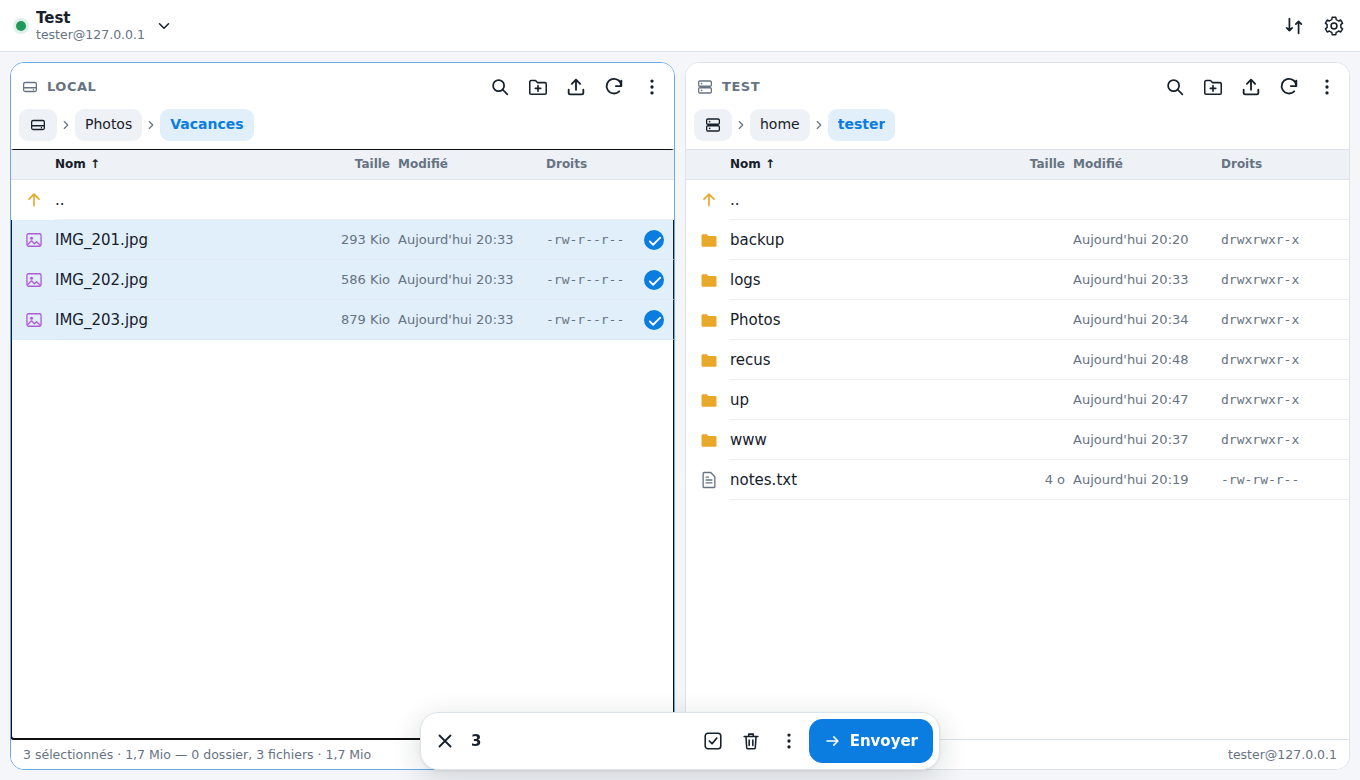
A touch-friendly, installable (PWA) web SFTP client inspired by FileZilla, for personal use. It runs on a server (Docker on Unraid, a Proxmox LXC, or any Docker host): the "local" side is the storage mounted into the container (NAS, disk, shares), and the "remote" side is your SFTP server. Transfers are carried out by the server: they keep going even if you close the tab or lock your phone.
Features
- Dual pane local / remote on large screens, tabs on mobile.
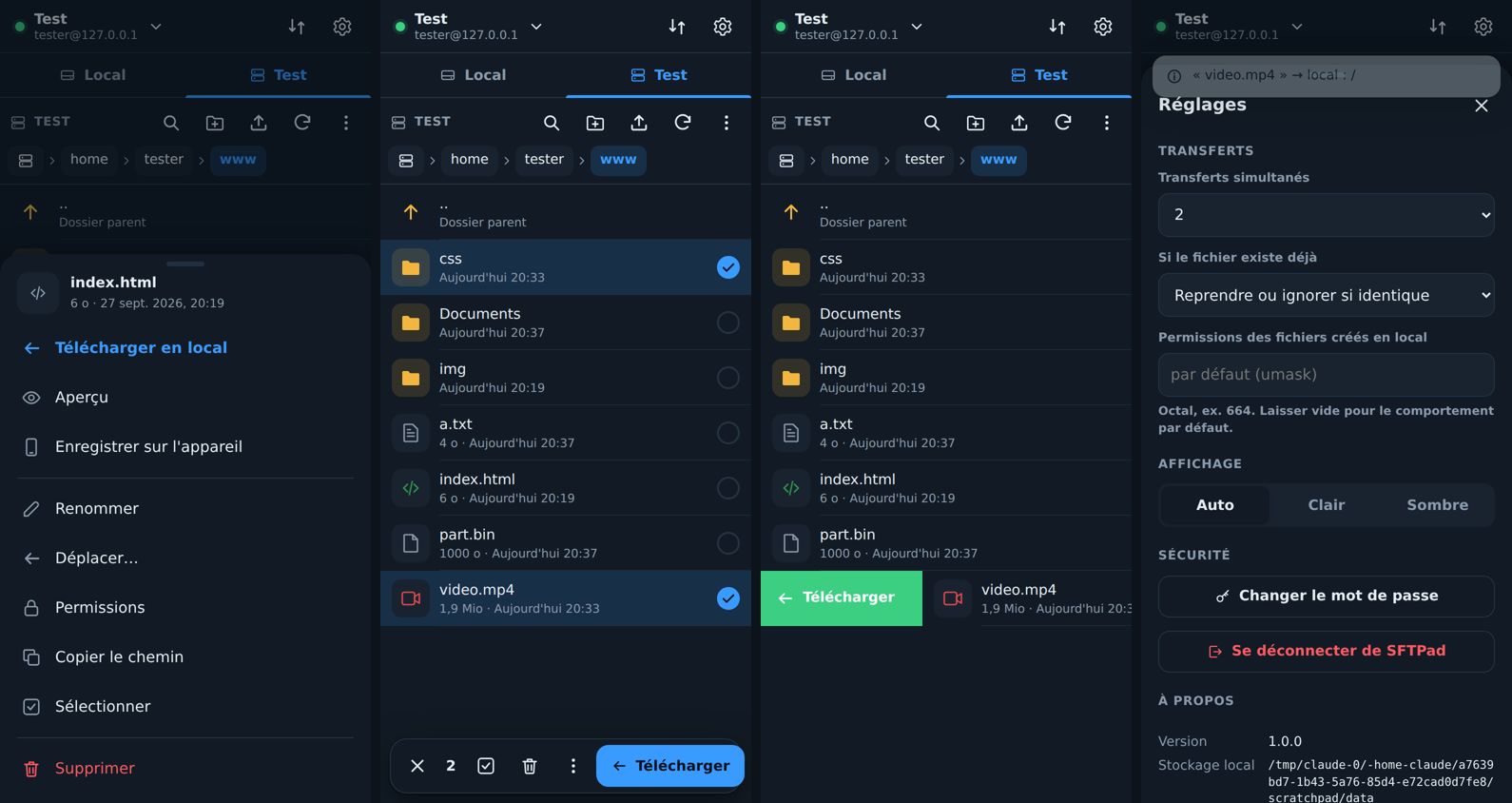
- Touch gestures: tap to open, long press to select, swipe right to transfer, swipe left for the actions menu, drag the sheet down to close it, Android "back" button.
- Mouse and keyboard: click, Ctrl/Shift+click, double-click (open / transfer), right-click, drag and drop
between panes, into a folder, or from the computer's desktop, shortcuts
Del,F2,F5,Enter,Backspace,Ctrl+A, arrow keys,Tabto switch panes. - Persistent transfer queue (
/config/queue.json): recursive folders, adjustable concurrent transfers, pause, cancel, retry, resuming of partial files, automatic retry on network interruption, modification dates preserved, duplicate prevention. - If the file exists: resume or skip if identical (default), overwrite, overwrite if newer, skip, rename.
- Site manager: password or SSH key (import, paste, or ed25519 generation with the public key ready to copy), default folders, color. Secrets are AES-256-GCM encrypted at rest.
- Host key verification like FileZilla: SHA256 fingerprint to approve on first connection, warning if it changes.
- From / to the device: upload files or folders from your phone or computer (to the local side or straight to the server), download to the device, preview of images, videos (with seeking), audio, PDFs and text files.
- Rename, move, delete (recursive), create folder, permissions (chmod), filter, sort, hidden files, light / dark / auto theme.
- Interface in French and English: follows the browser language by default, can be changed under Settings → Language.
- Built-in authentication (scrypt-hashed password, 30-day sessions, brute-force protection), or delegated
to your reverse proxy (
AUTH=none).
Installation
Unraid (Docker)
The image is published automatically to GitHub Container Registry: ghcr.io/yogui26/sftpad:latest (amd64 and arm64),
rebuilt on every change to the main branch (workflow .github/workflows/docker.yml).
- In the Unraid terminal, fetch the template:
wget -O /boot/config/plugins/dockerMan/templates-user/my-SFTPad.xml \ https://raw.githubusercontent.com/Yogui26/sftpad/main/deploy/unraid/sftpad.xml - Go to Docker → Add Container, pick the SFTPad template, check the paths, then Apply.
| Setting | Container | Default | Purpose |
|---|---|---|---|
| Web UI | 8080 |
8080 |
Web port |
| Configuration | /config |
/mnt/user/appdata/sftpad |
Sites, encrypted secrets, queue |
| Local storage | /data |
/mnt/user |
What SFTPad sees as "local" |
| PUID / PGID | 99 / 100 |
Owner of written files (nobody:users) | |
| UMASK | 000 |
Permissions of created files |
Updates then show up in Unraid's Docker tab, as with any other container.
You can still build the image yourself: run docker build -t sftpad:latest . in this folder, then replace
the template's repository with sftpad:latest.
Any Docker host (docker compose)
docker compose up -d --build
Adjust docker-compose.yml: the /data volume and PUID/PGID (the owner you want for downloaded files).
Proxmox — LXC without Docker
On the Proxmox host, from this folder:
DATA_HOST_PATH=/tank/share bash deploy/proxmox/create-lxc.sh
The script downloads the Debian 12 template, creates an unprivileged container (512 MB RAM, 4 GB disk, start on boot),
mounts DATA_HOST_PATH on /data, installs Node.js 22 and SFTPad as a systemd service, and prints the address.
Useful variables: CTID, CT_HOSTNAME, STORAGE, BRIDGE, IP (dhcp or 192.168.1.50/24,gw=192.168.1.1),
DISK, MEM, CORES, SFTPAD_UID/SFTPAD_GID.
Permissions in an unprivileged container: the container's
sftpaduser (uid 1000) maps to uid 101000 on the host. To let it write to the mounted folder:chown -R 101000:101000 /tank/share, or an ACLsetfacl -R -m u:101000:rwX,d:u:101000:rwX /tank/share.
Updating: CTID=105 bash deploy/proxmox/update-lxc.sh from the new version of the sources.
In an existing Debian/Ubuntu LXC or VM, simply run bash deploy/lxc/install.sh as root from this folder
(the script is idempotent: run it again to update). Configuration: /etc/sftpad.env, data: /var/lib/sftpad.
Prefer Docker inside an LXC? Create an LXC with nesting=1, install Docker, then follow the docker compose section.
Configuration (environment variables)
| Variable | Default | Description |
|---|---|---|
PORT |
8080 |
HTTP port |
CONFIG_DIR |
/config |
Application state (back this up) |
DATA_DIR |
/data |
Root of the "local" side |
ADMIN_PASSWORD |
Enforced password (otherwise chosen on first launch) | |
AUTH |
none to disable built-in authentication (an authenticating reverse proxy is then mandatory) |
|
TRUST_PROXY |
private networks | Express trust proxy setting, for IP addresses behind a reverse proxy |
PUID / PGID / UMASK |
99 / 100 / 002 |
Docker only: user and mask for created files |
Settings that can be changed in the interface: concurrent transfers (1 to 10), behavior when the file exists, permissions of files created locally, theme, language (per device).
Remote access and HTTPS
To install the PWA on a phone, the browser requires HTTPS (except on localhost). Put SFTPad behind your reverse proxy
(Nginx Proxy Manager, SWAG, Traefik, Caddy…) with WebSocket enabled (path /ws, used for live progress). Caddy example:
sftp.mydomain.com {
    reverse_proxy 192.168.1.20:8080
}
For large uploads from the device, raise the proxy's maximum request body size (client_max_body_size 0; on Nginx).
Avoid exposing SFTPad directly to the Internet: it gives access to your files and your servers. A VPN (WireGuard, Tailscale)
or proxy-level authentication is recommended.
Troubleshooting
"Write denied" / EACCES when downloading to local: SFTPad writes as the PUID:PGID user
(99:100 = nobody:users on Unraid). The root of /mnt/user is owned by root: you need to enter a
share before transferring. If a share also refuses writes (created by root), run
Tools → New Permissions on that share in Unraid, or fix PUID/PGID. The effective user
is shown under Settings → About.
Versions and rollback
Every published image gets several tags:
| Tag | Example | Does it move? |
|---|---|---|
latest |
ghcr.io/yogui26/sftpad:latest |
yes, always the newest |
| version | :1.1.0 |
no (published version) |
| minor version | :1.1 |
follows 1.1.x patch releases |
| commit | :sha-af94d5c |
no |
| date | :2026-10-25 |
last image built that day |
Rolling back to a previous version on Unraid: Docker → SFTPad → Edit → Repository field, replace
latest with the tag you want (e.g. ghcr.io/yogui26/sftpad:1.1.0), then Apply. To go back to automatic
updates, put latest back. The list of available versions is at
https://github.com/Yogui26/sftpad/pkgs/container/sftpad (an untagged image can also be used by its
digest: ghcr.io/yogui26/sftpad@sha256:…).
Updates do not change the format of the files in /config without saying so in the release notes.
To be safe, back up /mnt/user/appdata/sftpad before a major update (Appdata Backup plugin).
Publishing a new version: change version in package.json and push to main; the image automatically
gets the matching tag (e.g. 1.2.0), and GitHub Actions creates the git tag v1.2.0 along with a
release listing the changes. The weekly rebuild reapplies system
patches under the same version tag (same code, up-to-date base); to pin an exact image, use
the sha-… tag or the @sha256:… digest.
Backup
All state lives in /config: sites.json (encrypted secrets), secret.key (encryption key — without it, saved passwords
are lost), config.json, queue.json, sessions.json.
Differences from FileZilla
- SFTP only (no FTP/FTPS).
- "Local" is the storage of the server SFTPad runs on, not the computer running the browser; the device remains reachable through direct upload and download.
- One site shown at a time (quick switching via the site manager), no multiple connection tabs.
- Folders cannot be downloaded directly to the device (transfer them to local, or download file by file).
- No in-place editing of remote files, no folder comparison or synchronization.
- Symbolic links in local storage are followed (handy for mount points, but they can point outside
/data).
Development
npm install
CONFIG_DIR=./config DATA_DIR=./data npm start   # http://localhost:8080
No build step: Node.js backend (Express 5, ssh2, ws), vanilla JavaScript interface (ES modules).
Translations: the French strings are the keys (t('Annuler')); their English equivalents live in
public/js/i18n.js (interface) and server/i18n.js (server error messages).
server/   index.js (API, auth, WebSocket) · sftp.js (connections, host keys) · transfers.js (queue) ·
          fastio.js (pipelined SFTP I/O with resume) · localfs.js (local storage) · crypto.js · store.js ·
          i18n.js (fr/en error messages)
public/   index.html · style.css · app.js · js/ (pane, queue, sites, ui, api, util, i18n) · sw.js · manifest
deploy/   docker/ · unraid/ · lxc/ · proxmox/
License: GPL-3.0-or-later.
Categories
Related apps
Explore more like this
Explore allLinks
Details
ghcr.io/yogui26/sftpad:latestRuntime arguments
- Web UI
http://[IP]:[PORT:8080]/- Network
bridge- Shell
sh- Privileged
- false
- Extra Params
--restart=unless-stopped
Template configuration
Web interface port
- Target
- 8080
- Default
- 8080
- Value
- 8080
Sites, encrypted credentials, transfer queue
- Target
- /config
- Default
- /mnt/user/appdata/sftpad
- Value
- /mnt/user/appdata/sftpad
What SFTPad sees as "local" (e.g. /mnt/user for all shares, or a single share)
- Target
- /data
- Default
- /mnt/user
- Value
- /mnt/user
User that owns downloaded files (99 = nobody)
- Default
- 99
- Value
- 99
Group of downloaded files (100 = users)
- Default
- 100
- Value
- 100
Permission mask for created files
- Default
- 000
- Value
- 000
Container time zone, e.g. Europe/Paris or America/New_York
- Target
- TZ
- Default
- Europe/Paris
- Value
- Europe/Paris
Optional. Empty = password chosen in the interface on first launch
- Target
- ADMIN_PASSWORD
Set to "none" ONLY if access is protected by an authenticating reverse proxy (Authelia, Authentik…)
- Target
- AUTH