
All apps · 0 apps

ServiceControl-Monitoring
Docker app from Syknight's Repository
Overview
Readme
View on GitHubServiceControl 
ServiceControl is the monitoring brain in the Particular Service Platform, which includes NServiceBus and tools to build, monitor, and debug distributed systems. ServiceControl collects data on every single message flowing through the system (Audit Queue), errors (Error Queue), as well as additional information regarding sagas, endpoints heartbeats, and custom checks (Control Queue). The information is then exposed to ServicePulse and ServiceInsight via an HTTP API.
See the ServiceControl documentation for more information.
How to run/debug locally
ServiceControl, ServiceControl.Audit, and ServiceControl.Monitoring can be run/debugged locally by following these steps:
- Edit the
app.configfile of the instance type that needs to be run/debugged to select which transport and persistence to use.- The configuration file contains commented settings for each supported transport and persistence. It also provides some guidance on additional required settings for specific persisters.
- ServiceControl works with a RavenDB persistence
- ServiceControl.Audit works with a RavenDB persistence
- Run or debug the project as usual
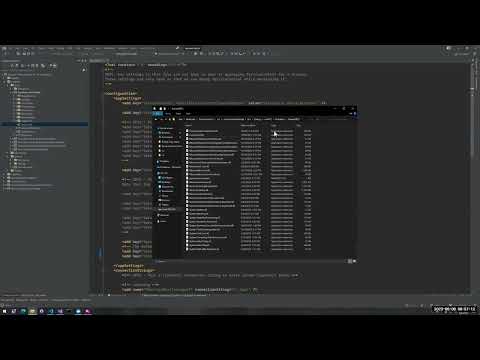
A video demo showing how to set it up is available on the Particular YouTube channel:
Containers
All containers are created on each build and pushed to the GitHub container registry where the various instance type can be accessed by their names and run locally.
[!NOTE] ghcr images are only tagged with the exact version, e.g.
docker pull ghcr.io/particular/servicecontrol:6.3.1. If you are unsure what tags are available in ghcr, go to https://github.com/Particular/ServiceControl/pkgs/container/{name}, e.g. https://github.com/Particular/ServiceControl/pkgs/container/servicecontrol to view available tags.
It's also possible to locally test containers built from PRs in GitHub Container Registry
Infrastructure setup
If the instance is executed for the first time, it must set up the required infrastructure. To do so, once the instance is configured to use the selected transport and persister, run it in setup mode. This can be done by using the Setup {instance name} launch profile that is defined in
the launchSettings.json file of each instance. When started in setup mode, the instance will start as usual, execute the setup process, and exit. At this point the instance can be run normally by using the non-setup launch profile.
Secrets
Testing using the CI workflow depends on the following secrets. The Particular values for these secrets are stored in the secure note named ServiceControl Repo Secrets.
LICENSETEXT: Particular Software license textAWS_ACCESS_KEY_ID: For testing SQSAWS_SECRET_ACCESS_KEY: For testing SQSAWS_REGION: For testing SQS
Running the Tests
Running all tests all the times takes a lot of resources. Tests are filtered based on the ServiceControl_TESTS_FILTER environment variable. To run only a subset, e.g., SQS transport tests, define the variable as ServiceControl_TESTS_FILTER=SQS. The following list contains all the possible ServiceControl_TESTS_FILTER values:
Non-transport-specific:
DefaultCoreDefaultMonitoring
Transports:
AzureServiceBusAzureStorageQueuesIBMMQMSMQRabbitMQ(all four classic/quorum and conventional/direct routing combinations)SQS
Transports and persisters sharing a database server:
PostgreSql(transport, persistence and acceptance tests)SqlServer(transport, persistence and acceptance tests)
Persisters:
Raven(persistence, acceptance and audit tests)
[!NOTE] If no variable is defined all tests will be executed.
Each category is declared once, by the <TestCategory> property in the test project. CI reads that property to build and run only the projects belonging to the category under test, and the build generates the assembly-level IncludeInTestCategory attribute from it, which is what ServiceControl_TESTS_FILTER matches against at run time.
A category can span several projects. Where those projects need the same infrastructure, sharing a category means CI provisions it once, compiles the union of their build closures once, and runs their assemblies concurrently on a single runner. That is why, for example, all four RabbitMQ routing topologies are one category rather than four.
Adding a test project
[!IMPORTANT] Every test project must set
<TestCategory>in its.csproj, alongsideTargetFramework:<PropertyGroup> <TargetFramework>net10.0</TargetFramework> <TestCategory>DefaultCore</TestCategory> </PropertyGroup>CI selects projects by that property alone, so a test project without it is never built and never run. The tests would simply not exist as far as CI is concerned, and nothing would go red.
tools/select-test-projects.ps1fails the build if a project referencesMicrosoft.NET.Test.Sdkwithout declaring a category, so this cannot be forgotten silently.
Use an existing category from the list above where the tests fit.
[!WARNING] Introducing a new category also means adding it to the
test-categorymatrix in ci.yml, otherwise no job ever selects it and the tests never run.
Run ./tools/select-test-projects.ps1 -List to see every category and the projects it selects.
Security Configuration
Documentation for configuring security features:
- TLS Configuration - Configure HTTPS/TLS for secure connections
- Forwarded Headers - Configure X-Forwarded-* header handling for reverse proxy scenarios
- Authentication - Configure authentication for the HTTP API
- Hosting Guide - Scenario based hosting options for ServiceControl
Local testing guides:
- HTTPS Testing
- Reverse Proxy Testing
- Forward Headers Testing
- Authentication Testing
- Persistence Tests
- Load Testing
How to developer test the PowerShell Module
Steps:
Build the solution
Open PowerShell 7
Import the module by specifying the path to the ServiceControl git repo folder
deploy\PowerShellModules\Particular.ServiceControl.ManagementImport-Module -Name S:\ServiceControl\deploy\PowerShellModules\Particular.ServiceControl.Management -Verbose- If there are any issues running the import script, try setting the execution policy to "unrestricted' by running the following script in PowerShell 7 admin mode. Then run the command to import the module.
Set-ExecutionPolicy Unrestricted
- If there are any issues running the import script, try setting the execution policy to "unrestricted' by running the following script in PowerShell 7 admin mode. Then run the command to import the module.
Now that the module has been successfully imported, enter any of the ServiceControl PowerShell scripts to test them out. Eg: the following creates a new ServiceControl Instance
$serviceControlInstance = New-ServiceControlInstance `
   -Name 'Test.DEV.ServiceControl' `
   -InstallPath C:\ServiceControl\Bin `
   -DBPath C:\ServiceControl\DB `
   -LogPath C:\ServiceControl\Logs `
   -Port 44334 `
   -DatabaseMaintenancePort 44335 `
   -Transport 'RabbitMQ - Direct routing topology (quorum queues)' `
   -ConnectionString 'host=localhost;username=guest;password=guest' `
   -ErrorQueue errormq `
   -ErrorRetentionPeriod 10:00:00:00 `
   -Acknowledgements RabbitMQBrokerVersion310
Integrated ServicePulse
Since version 6.13, ServiceControl ships with a copy of ServicePulse and can host it from an Error instance.
ServiceControl Error instances have a reference to the Particular.ServicePulse.Core package; this contains the ServicePulse assets, along with the code required to serve them out of an ASP.NET web host.
Requirements
Categories
Download Statistics
Total Downloads Over Time
Related apps
Explore more like this
Explore allLinks
Details
particular/servicecontrol-monitoring:latestRuntime arguments
- Network
bridge- Shell
sh- Privileged
- false
Template configuration
Determines the message transport used to communicate with message endpoints. See
Provides the connection information to connect to the chosen transport. The form of this connection string is different for every message transport. See
The Particular Software license, which is most easily provided to a container as an environment variable (https://docs.particular.net/nservicebus/licensing/#license-management-environment-variable). The environment variable should contain the full multi-line contents of the license file. A license file can also be volume-mounted to the container. e.g. (/usr/share/ParticularSoftware/license.xml). If no license file is provided, a trial license will be automatically enabled.
An optionally shared folder used by all Particular Service Platform containers. The license file can be saved here and shared among all containers.
- Target
- /usr/share/ParticularSoftware/
- Default
- /mnt/cache/appdata/ParticularPlatform/
33633 is the canonical port exposed by the monitoring instance API within the container, though this port can be mapped to any desired external port.
- Target
- 33633
- Default
- 33633
- Value
- 33633