
All apps · 0 apps

Satisfactory-Map-Renderer
Docker app from Tunefish's Repository
Overview
Readme
View on GitHub
Satisfactory Map Renderer
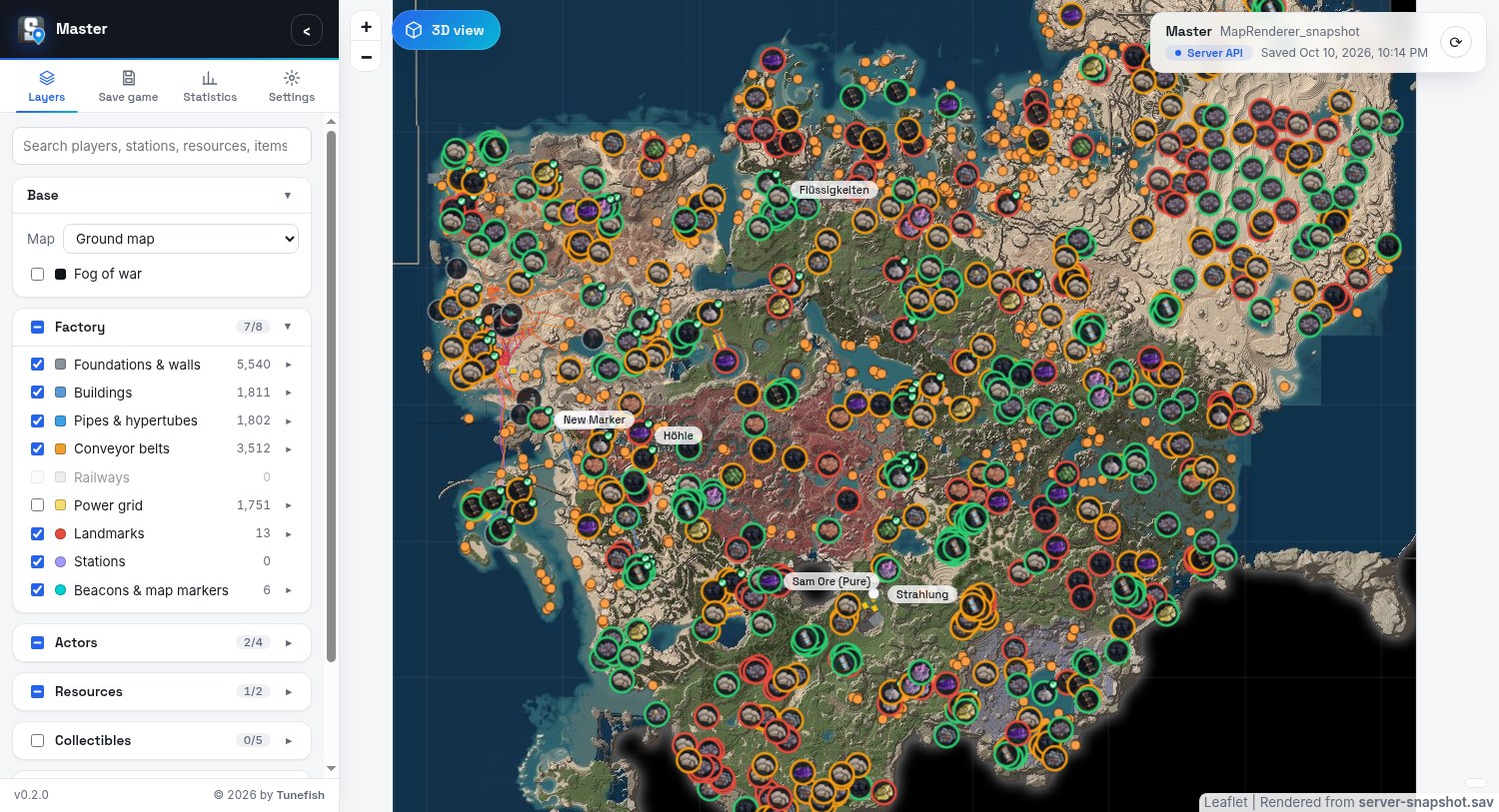
An interactive map of your Satisfactory save game, in your browser.
A self-hosted web app: one Docker container reads a save game, renders the whole factory into a zoomable map and serves it. Load the save by drag and drop, fetch it from a running dedicated server, or copy it over SSH, and refresh it with one click. Everyone else just opens the page and sees the map.
Questions and help: Discussions · Bugs: Issues · Changelog
What you get
- Three base maps: a ground map (the world from above without any factory, made from the game's ground textures, water and heights), the in-game map, and a relief map with shaded terrain.
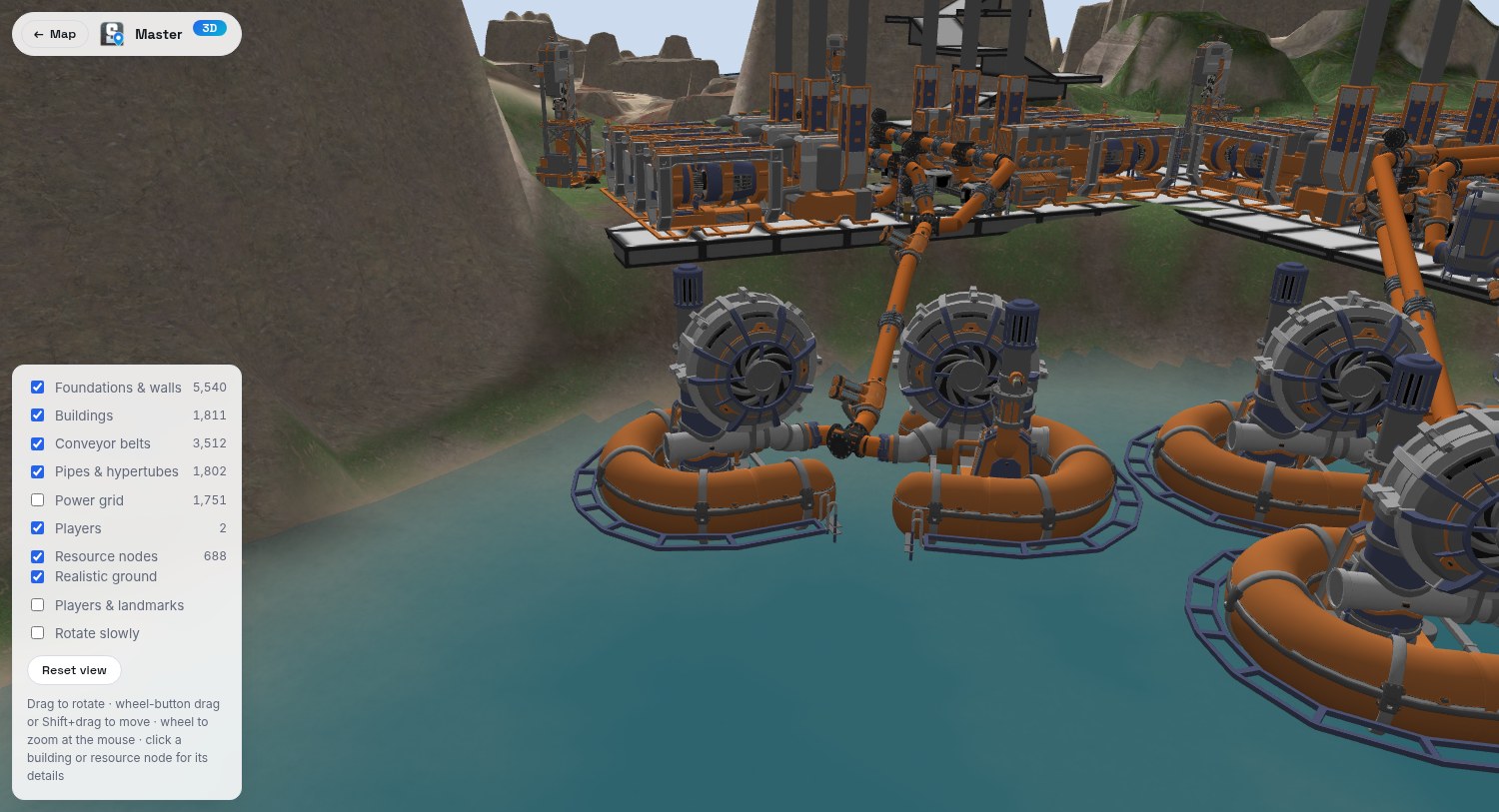
- 3D view: the whole world as a 3D landscape you can rotate and zoom, with your factory standing on it in the game's own models and textures: machines, foundations, walls, belts, lifts, pipes and tracks. The ground shows the game's own ground textures and water, resource nodes and players stand where they are, and a click on a building or resource node shows its details.
- The whole factory: foundations and walls, buildings (with their game icons when zoomed in), conveyor belts by tier, pipes and hypertubes, railways and the power grid.
- Everything else on the map: players with their names, vehicles and trains, creatures and their spawners, landmarks (HUB, Space Elevator, M.A.M., AWESOME Sink), named stations, beacons and map markers, resource nodes with purity and whether they are in use, wells and geysers, power slugs, somersloops and mercer spheres, crash sites, plants, dropped items and hazards.
- Tools: search, click any building or marker for details (recipe, clock speed, storage contents), layer groups with legends and filters, statistics, shareable links, light and dark theme.
- Save game sources, chosen by an admin in the page:
- browse or drag and drop a
.savfile, - a dedicated server through its HTTPS API (game version 1.0 or newer, with an API token),
- SSH to the machine that holds the saves.
- browse or drag and drop a
- Visitors only see the map. Choosing and refreshing the save needs the admin password.
Reads saves from Update 5 up to 1.2.4.
| Zoomed in: buildings with their icons, belts, click for details | Dark theme, statistics |
|---|---|
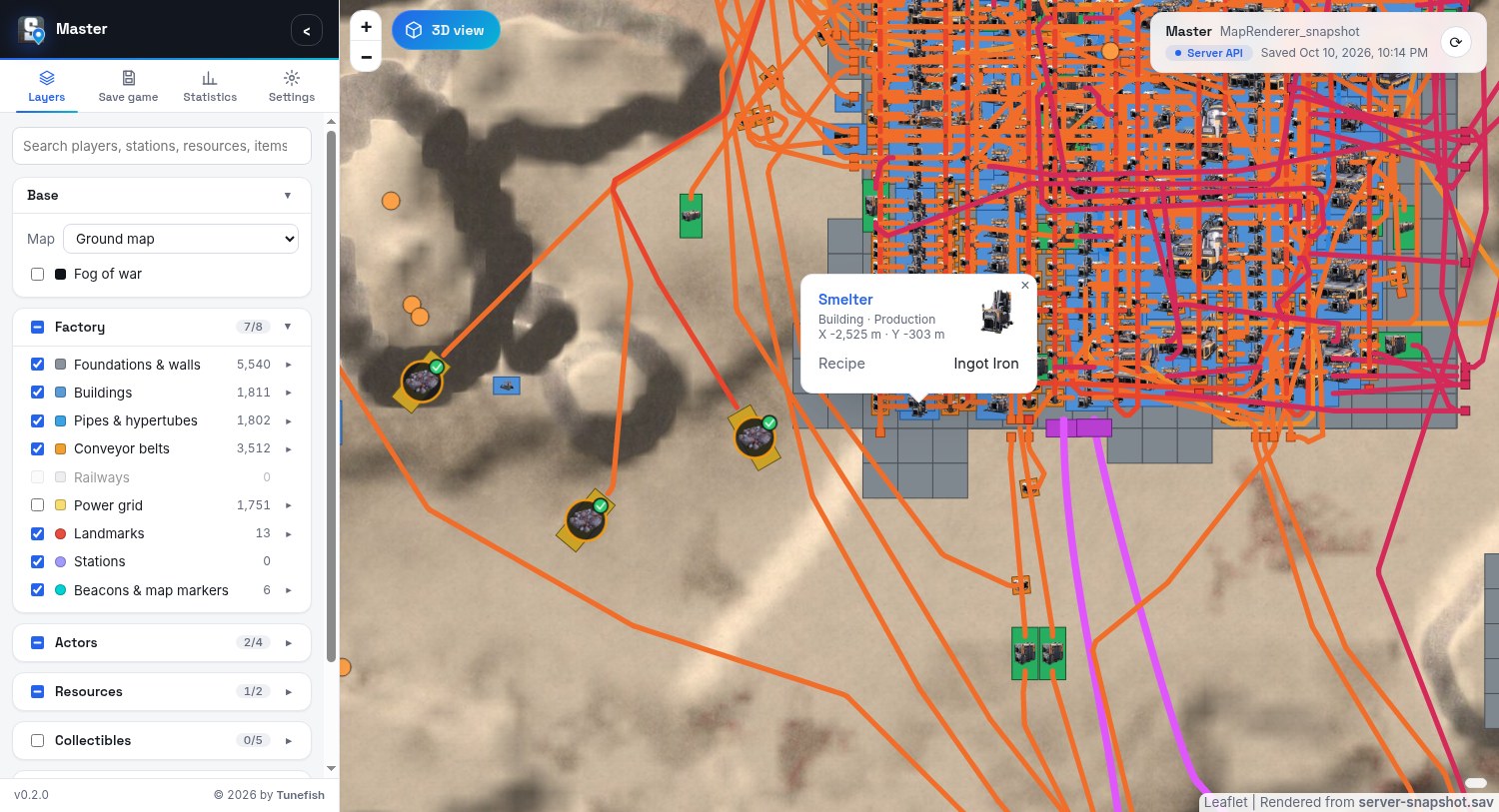 |
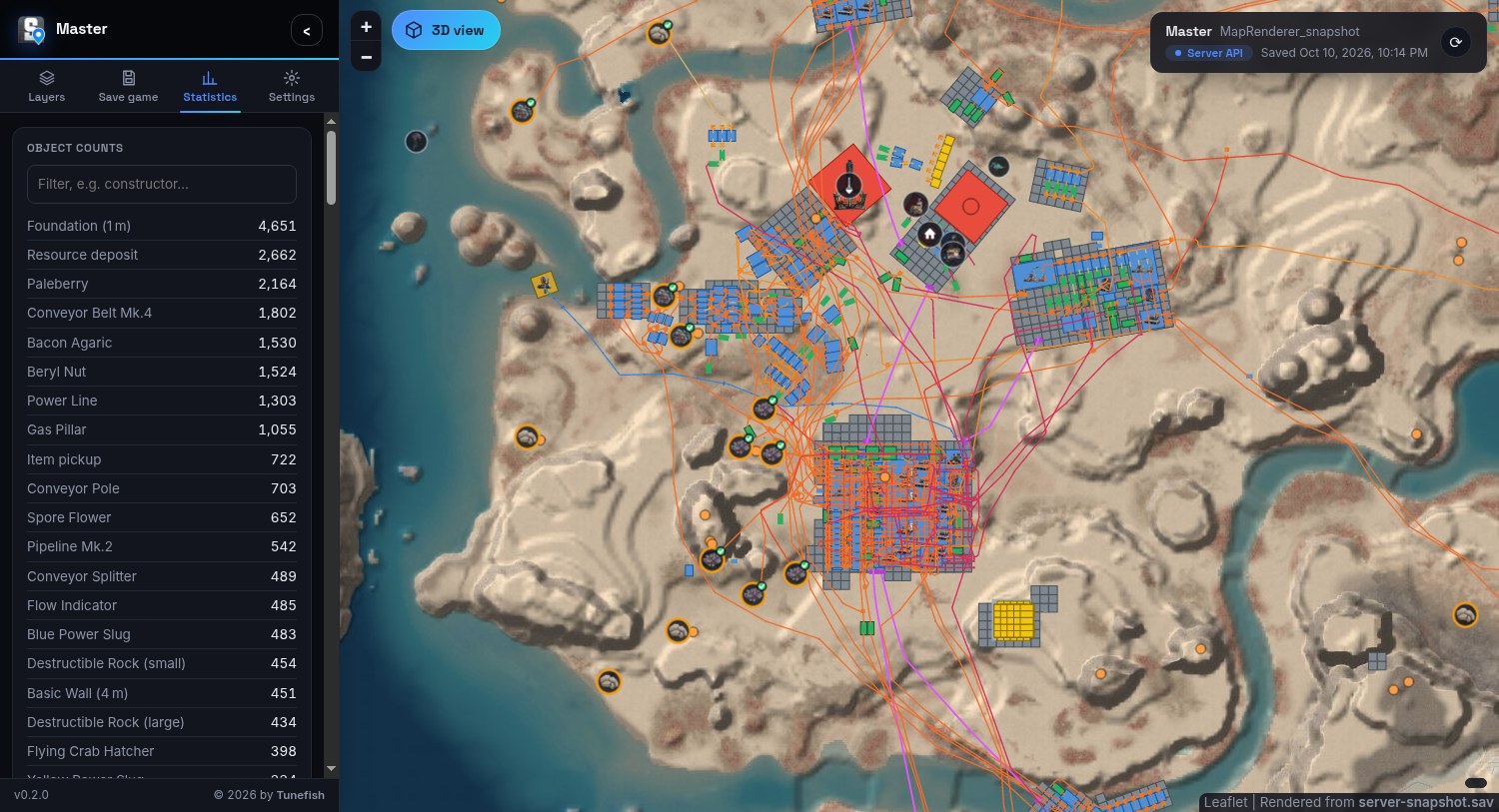 |
| 3D view: the world with the game's ground and water | 3D view: the factory in the game's own models |
|---|---|
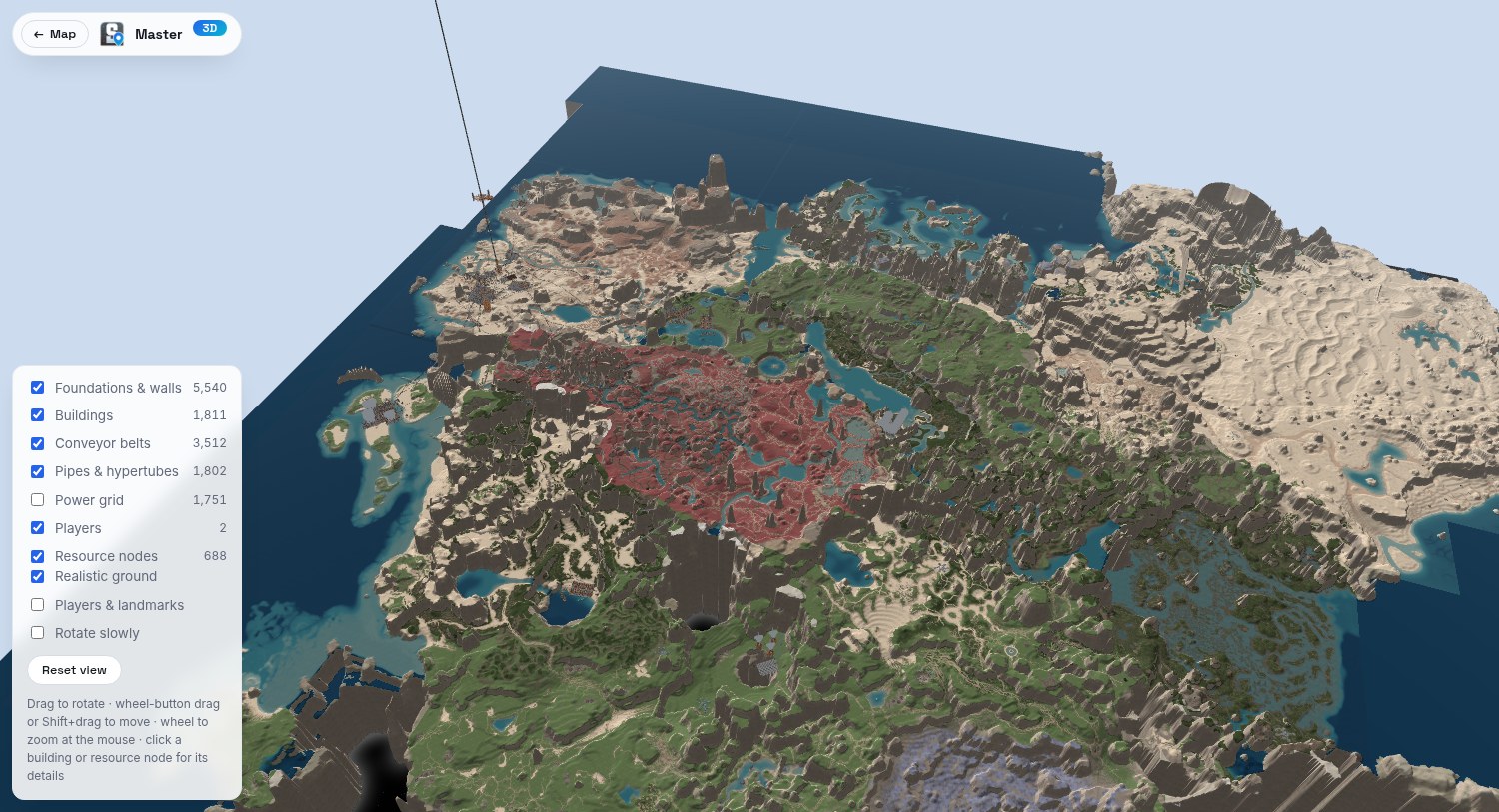 |
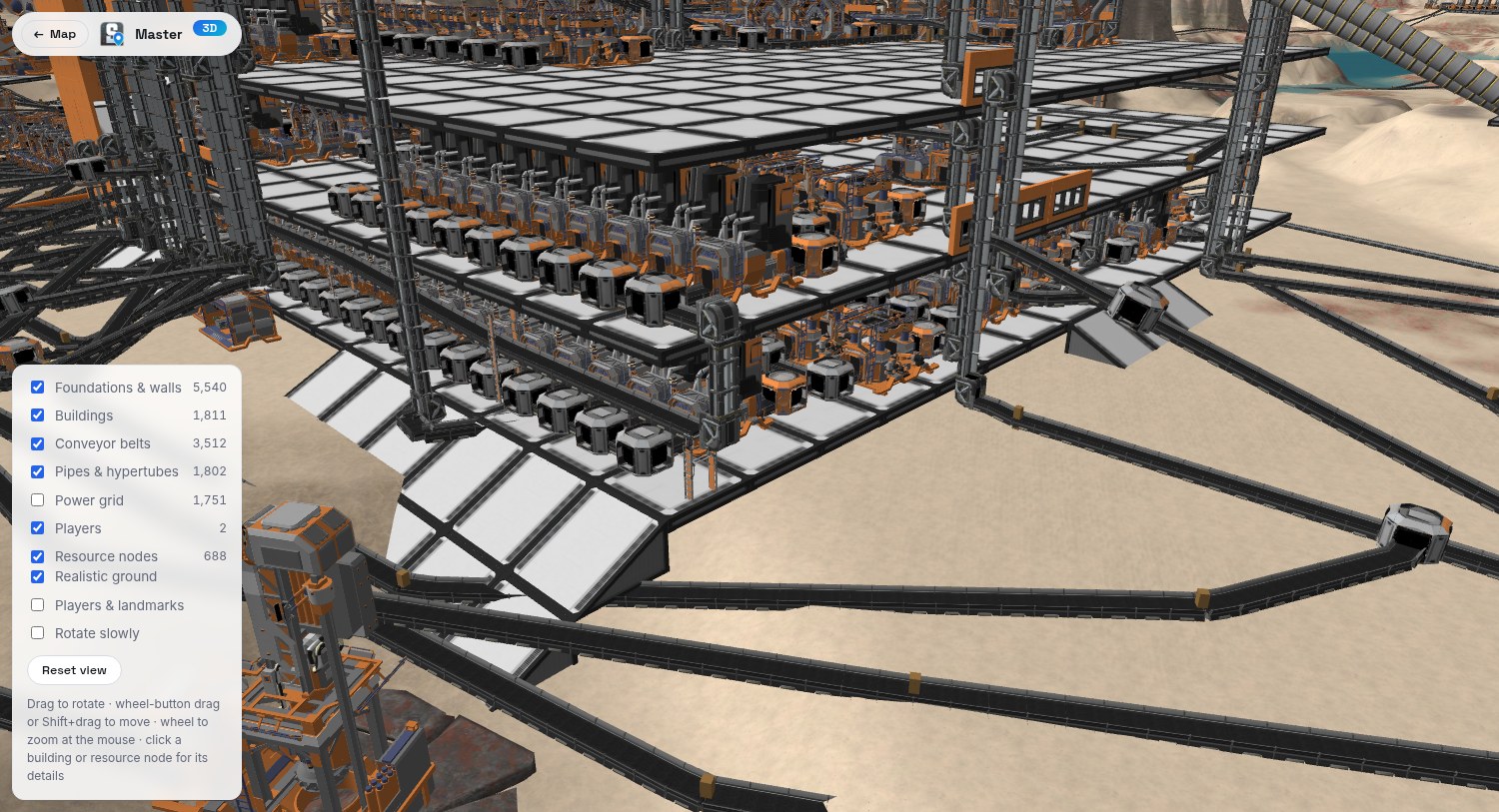 |
Installation
Docker Compose
Save this as docker-compose.yml, set a password, and run docker compose up -d:
services:
  map:
    image: ghcr.io/tunefish92/satisfactorymaprenderer:latest
    restart: unless-stopped
    environment:
      # Required, at least 8 characters. A "$" in the password must be written as "$$" here.
      SMR_ADMIN_PASSWORD: change-me-please
    ports:
      - "8080:8080"
    volumes:
      - ./map-data:/data
      # Optional, read-only: your Satisfactory installation. Only needed when your game is newer
      # than the game data in the image (new items or buildings show without icons).
      # - /path/to/Satisfactory:/game:ro
Open http://localhost:8080/, click Admin login in the Save game tab of the side panel, and choose your save
game. The image is also on Docker Hub as tunefish92/satisfactorymaprenderer.
The admin password
The password may contain any characters and needs at least 8 of them. It is compared exactly: upper and lower case matter, and so do spaces at the beginning or end.
Mind the $ in Docker Compose. Compose reads $ in docker-compose.yml and in .env as the start of a
variable and changes the password without telling you. The login then fails with the password you believe you set:
Written in docker-compose.yml or .env |
Password the app gets |
|---|---|
pa$word123 |
pa |
pa${word}123 |
pa123 |
pa$$word123 |
pa$word123 |
There are two ways around it:
Write
$$for every$of the password, as in the last row.Keep the password in its own file, which Compose passes on unchanged (needs Docker Compose 2.30 or newer). Create
admin.envnext todocker-compose.yml:SMR_ADMIN_PASSWORD=your password, exactly as it isand replace the
environment:entry for the password with:env_file: - path: admin.env format: rawEverything after the
=is the password: no quotes are needed, and$,#, quotes and spaces are ordinary characters there.
With docker run -e and on Unraid, Compose is not involved; quote the password for your shell as usual.
Unraid
From the Apps tab. Search for Satisfactory Map Renderer in Community Applications and click Install. The
template lives in Tunefish92/unraid-templates; a copy is in
unraid/.
If it is not listed (yet). Put the template on the flash drive yourself, from the Unraid terminal:
wget -O /boot/config/plugins/dockerMan/templates-user/my-Satisfactory-Map-Renderer.xml \
  https://raw.githubusercontent.com/Tunefish92/unraid-templates/main/templates/satisfactory-map-renderer.xml
Then open the Docker tab, click Add Container and choose Satisfactory-Map-Renderer from the Template list.
Settings in the template
| Setting | Default | Meaning |
|---|---|---|
| WebUI Port | 8080 |
Port the map is served on. Change it if another container already uses 8080. |
| Data Path | /mnt/user/appdata/satisfactory-map-renderer |
The rendered map, settings and fetched saves. |
| Admin Password | – | Required, at least 8 characters, any characters. Unraid passes it on unchanged, so $ needs no escaping here. |
| Game Folder | empty | Normally not needed, see Game icons and the in-game map. |
| Max Zoom | 9 |
Under Show more settings. Lower it to render faster and save disk space. |
| PUID / PGID | 99 / 100 |
Under Show more settings. Unraid's nobody:users, so the files in appdata have the usual owner. |
Click Apply, then open the map from the container's WebUI menu entry and log in under Save game → Admin login.
With a dedicated server on the same Unraid box, for example the ich777/steamcmd:satisfactory container:
- HTTPS API (recommended): in the map's Save game tab enter your Unraid server's IP address as host and the
server's game port (7777 by default; it must be mapped for TCP as well as UDP). Create the API token in the
game: Server Manager → Console →
server.GenerateAPIToken. Leave "Verify certificate" off. - SSH: possible, but needs a key in
appdata/satisfactory-map-renderer/home/.ssh/and SSH access to Unraid. With that container the saves are in/mnt/user/appdata/satisfactory/.config/Epic/FactoryGame/Saved/SaveGames/server/(the path depends on where you mapped the server files).
From this repository
cp admin.env.example admin.env      # put the admin password into it
docker compose up -d --build
The repository's compose file already uses the admin.env approach from above. Optional settings (port, data
folder, zoom) go into .env; see .env.example.
Choosing the save game
- File: Browse… or drop a
.savanywhere on the page. - Dedicated server (HTTPS API): host, port (7777 by default) and an API token. Create the token in the server
console with
server.GenerateAPIToken. Servers use a self-signed certificate by default, so "Verify certificate" is off unless you switch it on. With "Save the running game first" the server writes a save namedMapRenderer_snapshot(overwritten each time), so the map shows the current state; otherwise the newest existing save is taken. Check version shows the server's name, build and game version and whether it is supported. The API exists from game version 1.0 on; older servers need SSH or a file. - SSH:
user@host, port and the path of a save file or of the folder with the saves (the newest.savbelow it is taken). It uses the container'ssshwith keys frommap-data/home/.ssh/; passwords are not supported. A host is trusted the first time it is seen. - Refresh snapshot (also the ⟳ button at the top right of the map) fetches and renders the save again.
While a save is loaded, a progress window shows what is happening. Connection settings, including the API token,
are stored in the data folder (cache/source.json), readable by the app's user only.
Game icons and the in-game map
The image works out of the box: it brings the game's icons, item and building names, resource data and the in-game map, exported from Satisfactory 1.2.4. No game installation is needed.
The 3D view button beside the zoom buttons opens the 3D view: the game's height data as a landscape, and the factory in the game's own 3D models, placed with the positions and rotations from the save.
- Ground: the game's own ground textures where the game's landscape has them painted, with the sea, lakes and rivers as water. Steep faces get the game's cliff texture, because the game's rocks are separate objects that the ground data does not cover. Untick Realistic ground to see the in-game map on the terrain instead.
- Factory: the models carry the game's textures and the standard paint colours (custom paint from the save is not shown). Conveyor belts, pipes, hypertubes and railway tracks are the game's own pieces laid along their paths, conveyor lifts are built from their end and middle pieces. Wires are simple strips at their real heights, and the few building types without a model are boxes.
- World: the rocks, crystals and vents of the resource nodes stand where the game has them, and the players where they were when the game was saved.
- Details: click a building or a resource node to see what the 2D map shows about it (recipe, power, contents; resource, purity, whether it is in use).
- Moving around: drag to rotate, drag with the wheel button or Shift+drag to move, wheel to zoom towards the mouse; each layer can be switched off. Heights are the real ones, not exaggerated.
It needs a browser with WebGL 2 and, for a large factory, a dedicated graphics card.
The Map dropdown on the Layers tab switches between the game map and a relief map: the same map with the terrain shaded from the game's own height data, so mountains, cliffs, canyons and craters stand out.
When the game gets an update that the image does not know yet, new items and buildings appear without icons
until the image is updated. To use your own game's data in the meantime, mount your Satisfactory installation
read-only at /game (the folder that contains FactoryGame and CommunityResources) and delete
map-data/gamedata/ if it exists: on the next start the data is exported into map-data/gamedata/, which from
then on is used instead of the bundled data. The mount can be removed again afterwards.
Optional images in map-data/maps/ replace or add base maps, each covering the whole in-game map area:
game-map.jpg (used instead of the bundled in-game map), ground-map.jpg (used instead of the bundled ground
map) and relief-map.jpg (used instead of the bundled relief map). The bundled ground and relief maps are
32768 px wide (about 23 cm per pixel) and come cut into tiles with the image, so nothing has to be computed
for them; an image of your own is cut into tiles when the map is rendered.
Settings
| Variable | Default | Meaning |
|---|---|---|
SMR_ADMIN_PASSWORD |
– | Required, at least 8 characters, any characters (see The admin password). Only admins can choose or refresh the save game. Five wrong passwords block the login for a minute. |
SMR_MAX_ZOOM |
9 |
Highest rendered zoom level (3–9). 9 is about 6 cm per pixel; each level less renders about four times faster and needs a quarter of the disk space. |
PUID / PGID |
1000 |
Owner of the data folder; the app runs as this user. |
| Path | Meaning |
|---|---|
/data |
Everything the app keeps: map/ (the rendered map), gamedata/, maps/, cache/ (settings, fetched saves), home/ (with .ssh). |
/game |
Optional, read-only: a Satisfactory installation, to export newer game data than the image has. |
On the internet. The container speaks plain HTTP on port 8080. Put it behind a reverse proxy that adds HTTPS
and forwards Host and X-Forwarded-Proto; otherwise the admin password travels unencrypted.
Updates. For admins the page checks this project's GitHub releases, at most every six hours, and shows a
banner when a newer version is out. The Settings tab has the switches "Check for updates on GitHub" and "Include
pre-releases". The check is a request from the admin's browser to api.github.com; visitors never make it.
Limitations
- Building footprints come from a built-in table and are approximate; unknown buildables fall back to size heuristics.
- A dedicated server offers no live feed. "Live" means fetching and rendering a new snapshot, about half a minute for a large factory at the default zoom.
Development
The app is one .NET 10 project: a save parser, a SkiaSharp tile renderer and a small HTTP server that serves the viewer (plain HTML/CSS/JS with Leaflet, bundled).
dotnet run --project src/SatisfactoryMapRenderer -c Release -- --serve 8000 -o output/map
serves it at http://localhost:8000/. On localhost no admin password is needed; --bind '*' listens on all
interfaces and requires one. --help lists every option, among them --game <dir> and --export-game-data for
the game's assets and --dump-json to write the completely decoded save as JSON.
dotnet test --solution SatisfactoryMapRenderer.slnx          # parser, extraction, rendering (xUnit v3)
node tests/viewer/viewer-smoke.mjs <output>/index.html       # clicks through the viewer in a headless browser
- The tests build complete synthetic
.savfiles in memory for 10 save versions (Update 5 → 1.2.4, both property tag formats); each is parsed, turned into map features and exported to tiles. Corrupt and truncated files must produce a cleanSaveFormatException. RealSaveTestschecks real saves for full decoding: setSMR_TEST_SAVES=a.sav;b.sav.- The browser smoke test needs a Chromium-based browser (
BROWSER=/path/to/browser).
src/SatisfactoryMapRenderer/
  Save/          binary reader, header, chunk decompression, levels/objects, property decoder, JSON dump
  World/         class catalog (names, categories, footprints) and save → map feature extraction
  Game/          reading icons, names and level data from a game installation
  Rendering/     tile renderer, viewer export
  Serve/         HTTP server, admin login, dedicated server API client, SSH
  Assets/        the viewer and bundled Leaflet
docs/SAVE_FORMAT.md   save file format reference, including all version differences
Releases: a tag v1.2.3 builds the image for amd64 and arm64 and publishes it to GHCR and, when the repository
variable DOCKERHUB_USERNAME and the secret DOCKERHUB_TOKEN are set, to Docker Hub. A tag with a hyphen
(v1.3.0-beta.1) is a pre-release and does not move latest.
Licence and credits
The code is under the MIT licence.
The game data in gamedata/ (icons, names, level data, logo, in-game map) and the map and icons
visible in the screenshots are the property of Coffee Stain Studios and are not covered by that licence. They
are included so that this fan-made tool can display save games of their game. This project is not affiliated with
or endorsed by Coffee Stain Studios.
Media gallery
1 / 3Categories
Download Statistics
Related apps
Explore more like this
Explore allDetails
tunefish92/satisfactorymaprenderer:latestRuntime arguments
- Web UI
http://[IP]:[PORT:8080]/- Network
bridge- Shell
sh- Privileged
- false
Template configuration
Port the map is served on.
- Target
- 8080
- Default
- 8080
- Value
- 8080
The rendered map, exported game data, map images and the save game source settings (including the server's API token).
- Target
- /data
- Default
- /mnt/user/appdata/satisfactory-map-renderer
- Value
- /mnt/user/appdata/satisfactory-map-renderer
Required, at least 8 characters. Only admins who log in with it (Save game tab of the side panel) can choose or refresh the save game.
- Target
- SMR_ADMIN_PASSWORD
Optional, normally not needed. A Satisfactory installation (the folder that contains FactoryGame and CommunityResources): if your game is newer than the game data in the image, the icons, names and in-game map are exported from it once.
- Target
- /game
Highest rendered zoom level, 3 to 9. 9 is the sharpest; each level less renders about four times faster and needs a quarter of the disk space.
- Target
- SMR_MAX_ZOOM
- Default
- 9
- Value
- 9
User ID that owns the data path; the app runs as this user. Unraid default: 99 (nobody).
- Default
- 99
- Value
- 99
Group ID that owns the data path. Unraid default: 100 (users).
- Default
- 100
- Value
- 100