
All apps · 0 apps

RsyncWebUI
Docker app from knex666's Repository
Overview
Readme
View on GitHubRsyncWebUI
A web interface for rsync, built for Unraid. Pick your sources and destination from a file browser, tick the rsync options you want, save it as a task, and let it repeat on a cron schedule. Every run streams a live log with a progress bar and is kept in a history.
No external CDN, no web fonts, no JavaScript framework — the container serves everything it needs.
Disclosure: Most of this project's code, documentation and commit history was written with AI assistance. Changes are reviewed and tested before being merged, but keep that in mind when reading or relying on it.
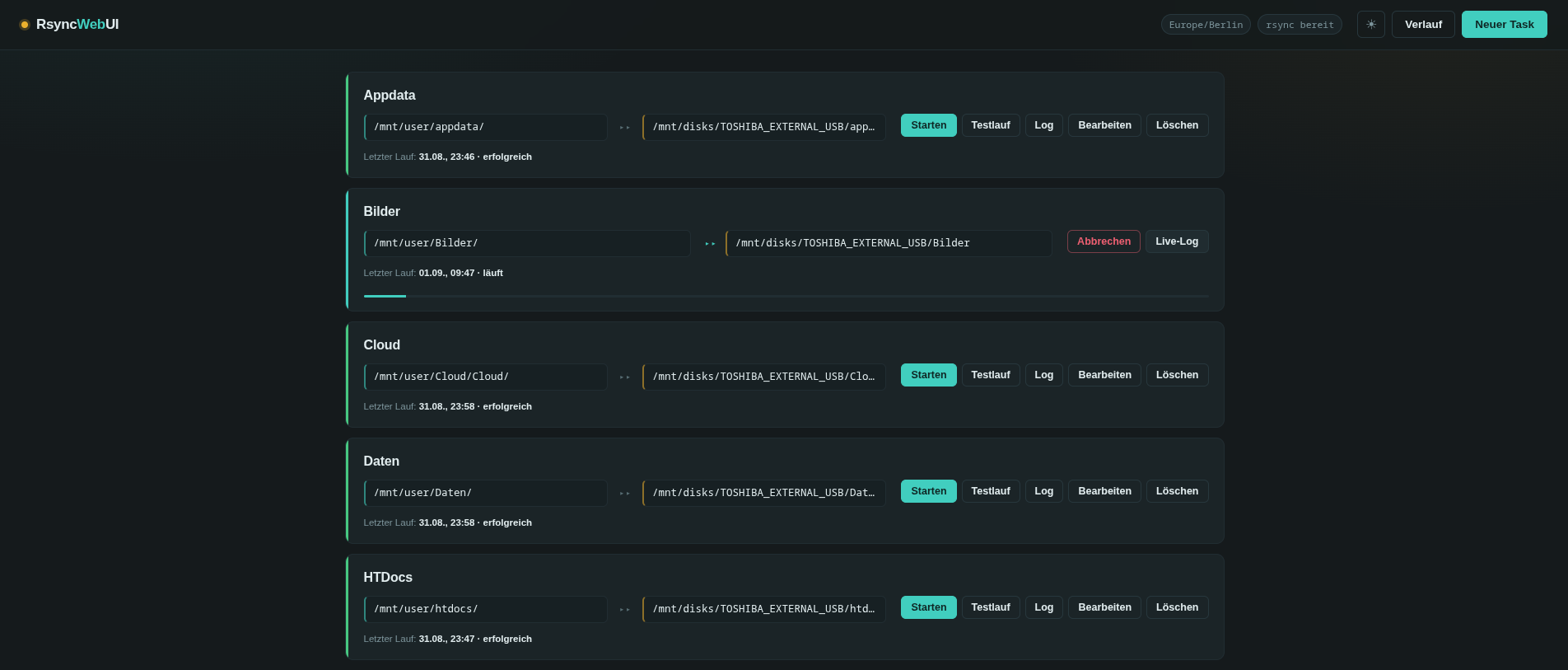
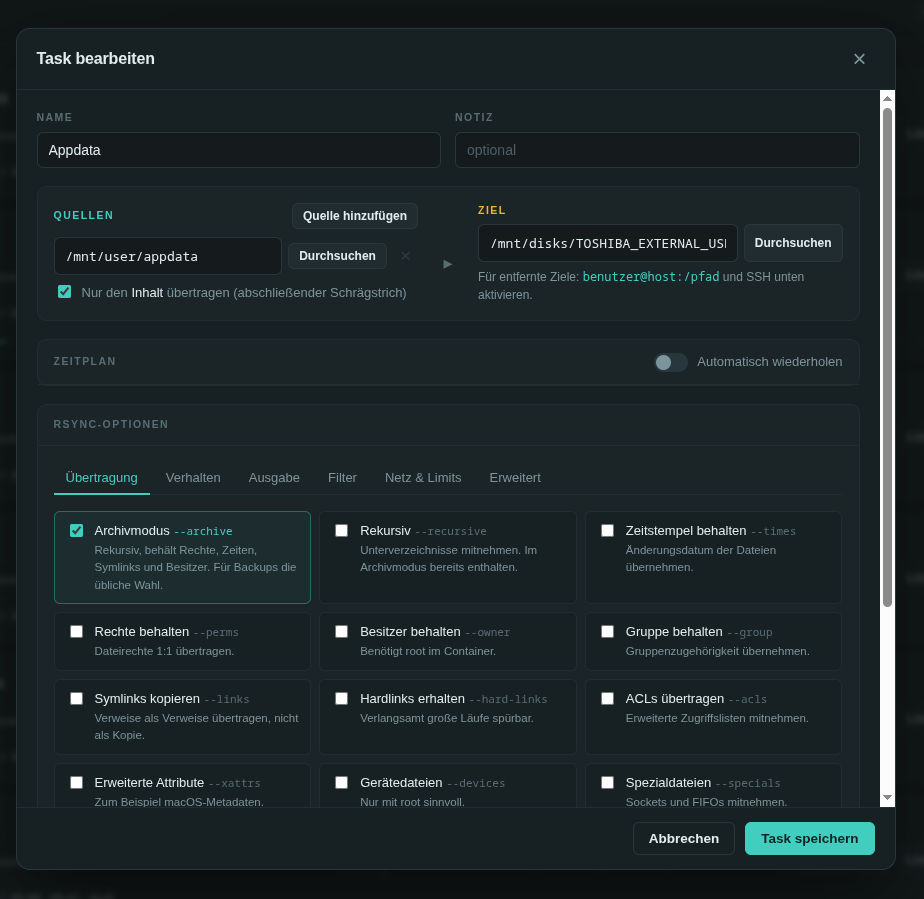
Features
- Tasks with a name, note, one or more sources, a destination and the full option set
- Multiple sources per task, transferred in a single rsync invocation
- File browser for sources and destination, restricted to configured roots
- Cron schedule per task, with presets and plain-language validation
- Live log over Server-Sent Events, with a progress bar
- Dry run on demand, without touching the saved task
- Cancel a running transfer; per-task run history
- Command preview: the editor always shows the exact rsync command being built
- Archive overrides (
--no-owner,--no-group,--no-perms, …) for destinations that cannot store ownership or permissions - SSH destinations (
user@host:/path) with a custom port and key - Light and dark mode, following the system setting on first visit
- Optional username and password protection
- MCP server — every action above is also available to an AI assistant as a tool (create/run/duplicate tasks, read logs, pause the scheduler, …)
Quick start
Docker Compose
git clone https://github.com/maschhoff/RsyncWebUi
cd RsyncWebUI
docker compose up -d --build
Open http://localhost:8080.
Unraid
**1. Community Apps RsyncWebUi can be installed with Community Apps
2. Install the template:
cp unraid/rsyncwebui.xml /boot/config/plugins/dockerMan/templates-user/my-rsyncwebui.xml
3. In the Unraid web interface go to Docker → Add Container, pick RsyncWebUI from the
Template dropdown at the top, check the paths, and hit Apply.
The interface is then available at http://<unraid-ip>:8080.
Configuration
| Variable | Default | Meaning |
|---|---|---|
PORT |
8080 |
Port inside the container |
TZ |
Europe/Berlin |
Timezone used for schedules |
DATA_DIR |
/config |
Where the database lives |
BROWSE_ROOTS |
/mnt,/data,/config |
Comma-separated paths the file browser may show |
AUTH_USER |
empty | Username for access protection; empty means no login |
AUTH_PASS |
empty | Matching password |
THREADS |
16 |
Worker threads of the web server |
Volumes
| Container path | Purpose | Mode |
|---|---|---|
/config |
SQLite database (rsyncwebui.db), optionally /config/ssh for keys |
rw |
/mnt/user |
Unraid shares | rw |
/mnt/disks |
Unassigned Devices, for external backup drives | rw,slave |
/mnt/remotes |
Mounted SMB/NFS shares | rw,slave |
/mnt/cache |
Mounted Cache | rw |
rw,slave matters: without it a drive plugged in later stays invisible inside the container
even though Unraid has already mounted it.
Using it
Creating a task. Hit New task, give it a name, then pick sources and a destination with Browse.
Multiple sources. Add source puts as many directories as you like into one task. They are
all transferred in a single rsync invocation, which is faster than several tasks and lets
--delete reason about the combined file list.
Directory or contents. The Transfer the contents only switch is rsync's trailing slash.
Enabled, the contents of /mnt/user/photos land directly in the destination; disabled, a
photos subdirectory is created there. With several sources this is the switch that matters
most: with the slash all sources are merged into one directory, without it each gets its own
subdirectory. The interface warns you as soon as that combination appears.
Before the first real run. Especially with --delete, use the Dry run button. It runs the
same task with --dry-run, so nothing is written, but the log shows exactly what would happen.
Schedules. Enable Repeat automatically in the editor and pick a preset or write your own cron expression. It is validated immediately and the next occurrence appears on the task card.
Theme. The sun/moon button in the top right switches between light and dark. Your choice is remembered in the browser; without one, the system setting applies.
Archive overrides
--archive is the right default for most backups, but it fails on filesystems that cannot store
POSIX metadata. Copying to an exFAT or NTFS drive, or to an SMB share, produces a stream of
failed to set permissions errors and a non-zero exit code.
The Override archive mode block in the Transfer tab cancels individual parts of --archive:
| Option | Effect |
|---|---|
--no-owner |
Everything is written as the user running the transfer |
--no-group |
Avoids "failed to set group" on foreign filesystems |
--no-perms |
The destination applies its own default permissions |
--no-times |
No timestamps — careful, subsequent runs then compare by size only |
--no-links |
Symlinks are skipped instead of recreated |
--no-devices, --no-specials |
Device files, sockets and FIFOs are left alone |
Order is not cosmetic here. rsync lets a later option override an earlier one, so --no-perms
only works after --archive. RsyncWebUI always emits the negations after the positive flags,
which you can verify in the command preview.
One caveat worth knowing about --no-perms: for new files rsync still applies the source
permissions masked by the umask, so a fresh copy may look unchanged. The flag shows its effect on
existing files, whose permissions are then left alone.
SSH destinations
Create a key pair on the server and place it in
/mnt/user/appdata/rsyncwebui/ssh:ssh-keygen -t ed25519 -f /mnt/user/appdata/rsyncwebui/ssh/id_ed25519 -N "" ssh-copy-id -i /mnt/user/appdata/rsyncwebui/ssh/id_ed25519.pub user@remotehostSet the destination to
user@remotehost:/path/to/backup.In the Network & limits tab, enable Transfer over SSH and set the key to
/config/ssh/id_ed25519.
The container fixes the permissions on the key files at startup. Password authentication is
deliberately unsupported: rsync runs without a terminal, so BatchMode=yes is set.
Security notes
- The container runs as
rootso that ownership and permissions survive the copy. That is normal for a backup tool, but it makes access to the interface sensitive. BROWSE_ROOTSlimits the file browser only. Any path the container can see may still be typed into the input fields. Mount fewer volumes if that bothers you.- This does not belong on the open internet. If it must be, put it behind a reverse proxy with
TLS and set
AUTH_USER/AUTH_PASS. /healthstays reachable without a login, otherwise the container health check fails. It returns only the version and whether rsync is present — no task data.--deletedeletes at the destination. Task cards mark it in red.
Project layout
RsyncWebUI/
├── app/
│   ├── main.py           Flask routes and REST API
│   ├── db.py             SQLite access for tasks and runs
│   ├── rsync_runner.py   Command building, process handling, live log
│   ├── scheduler.py      Cron schedules via APScheduler
│   ├── mcp_server.py     MCP server exposing every action as an AI tool
│   ├── templates/        HTML
│   └── static/           CSS and JavaScript, no external dependencies
├── unraid/rsyncwebui.xml Unraid template
├── Dockerfile
├── docker-compose.yml
├── entrypoint.sh
└── wsgi.py
The database lives at /config/rsyncwebui.db. The most recent 40 runs per task are kept; older
ones are pruned automatically.
API
The interface uses nothing but these endpoints, so scripts can too.
| Method | Path | Purpose |
|---|---|---|
GET |
/api/tasks |
all tasks with their last and next run |
POST |
/api/tasks |
create a task |
PUT |
/api/tasks/<id> |
update a task |
DELETE |
/api/tasks/<id> |
delete a task |
POST |
/api/tasks/<id>/run |
start a run, ?dry=1 for a dry run |
POST |
/api/tasks/<id>/duplicate |
copy a task |
POST |
/api/preview |
build the rsync command without saving |
POST |
/api/cron/validate |
validate a cron expression |
GET |
/api/runs |
run history |
GET |
/api/runs/<id> |
one run including its log |
POST |
/api/runs/<id>/cancel |
cancel a running transfer |
GET |
/api/runs/<id>/stream |
live log as Server-Sent Events |
GET |
/api/browse?path= |
directory listing |
GET |
/health |
health check |
Example:
curl -X POST localhost:8080/api/tasks \
  -H 'Content-Type: application/json' \
  -d '{
        "name": "Photos",
        "source": ["/mnt/user/photos", "/mnt/user/videos"],
        "destination": "/mnt/disks/usb/backup",
        "schedule": "0 3 * * *",
        "schedule_on": true,
        "options": {"archive": true, "verbose": true, "delete": true,
                    "no_owner": true, "no_group": true,
                    "source_contents": false, "excludes": "*.tmp"}
      }'
MCP server (AI integration)
app/mcp_server.py exposes the same actions as the REST API above as MCP
tools, so an AI assistant (Claude Desktop, Claude Code, …) can create tasks, start or cancel
runs, read logs, browse directories, and pause or resume the scheduler on your behalf.
It is a thin client: it talks to the already-running RsyncWebUI over HTTP, the same way your browser does, and needs no direct database or filesystem access of its own.
| Tool | Purpose |
|---|---|
list_tasks, get_task |
inspect tasks |
create_task, update_task, delete_task, duplicate_task |
manage tasks |
run_task, cancel_run |
start (optionally dry) or stop a transfer |
get_run, list_runs |
run history and logs |
browse |
list a directory under BROWSE_ROOTS |
preview_command, validate_cron |
check options/schedule before saving |
pause_scheduler, resume_scheduler |
hold or release all cron runs |
get_status |
version, timezone, allowed roots, running tasks |
Claude Desktop / Claude Code
Add a server entry that runs the tool inside the existing container over stdio:
{
  "mcpServers": {
    "rsyncwebui": {
      "command": "docker",
      "args": ["exec", "-i", "rsyncwebui", "python", "-m", "app.mcp_server"]
    }
  }
}
RSYNCWEBUI_URL defaults to http://127.0.0.1:8080, which is correct from inside the container.
If the web UI has AUTH_USER/AUTH_PASS set, the MCP server picks up the same two variables.
Standalone
pip install -r requirements.txt
RSYNCWEBUI_URL=http://localhost:8080 python -m app.mcp_server
Exposing it over the network
Set MCP_TRANSPORT=streamable-http (or sse) and MCP_HOST/MCP_PORT to run it as an HTTP
service instead of stdio — useful for remote MCP clients. It has no authentication of its own
beyond the RsyncWebUI credentials it uses upstream, so put it behind a reverse proxy or on a
trusted network only, the same as the web UI itself.
Known limits
Large runs produce a lot of output. Three limits keep both the database and the browser out of trouble: the stored log stops at 4 MB, the API serves at most the last 400 KB, and the view keeps at most 3000 lines in memory. For a run across hundreds of thousands of files it is worth turning off Verbose output — rsync then reports summaries instead of naming every file.
Progress redraws are never stored. rsync writes them with a carriage return so they overwrite each other on a terminal; treating them as ordinary lines is what made earlier versions lock up the browser.
Upgrading from 1.0
The database file was renamed from rsyncweb.db to rsyncwebui.db. If the old file is present
in /config, the application renames it on first start and your tasks and history survive.
If you also change the config path in the Unraid template from /mnt/user/appdata/rsync-web to
/mnt/user/appdata/rsyncwebui, move the directory yourself first:
mv /mnt/user/appdata/rsync-web /mnt/user/appdata/rsyncwebui
Otherwise the container starts with an empty database.
Development
python -m venv .venv && source .venv/bin/activate
pip install -r requirements.txt
DATA_DIR=./config BROWSE_ROOTS=/tmp,/home python wsgi.py
The app is then on http://localhost:8080. rsync must be installed locally.
In production the container uses gunicorn with one worker and several threads. That is not incidental: the scheduler and the registry of running transfers live in process memory, so a second worker would schedule jobs twice and lose track of running processes.
Contributing
Bug reports and pull requests are welcome. For anything larger, please open an issue first so we can talk it through.
When reporting a problem, the run log helps a lot — the Copy log button in the log drawer puts it on your clipboard.
License
MIT, see LICENSE.
Categories
Download Statistics
Related apps
Explore more like this
Explore allLinks
Details
knex666/rsyncwebuiRuntime arguments
- Web UI
http://[IP]:[PORT:8080]/- Network
bridge- Shell
sh- Privileged
- false
Template configuration
Port of the web interface.
- Target
- 8080
- Default
- 8080
- Value
- 8080
Database of tasks and run history. An ssh directory with SSH keys can live here too.
- Target
- /config
- Default
- /mnt/user/appdata/rsyncwebui
- Value
- /mnt/user/appdata/rsyncwebui
Access to the Unraid shares. Sources and destinations are picked from here.
- Target
- /mnt/user
- Default
- /mnt/user
- Value
- /mnt/user
Direct access to the cache pool. Do not mix /mnt/cache and /mnt/user paths of the same share in one task (source and destination could point to the same files).
- Target
- /mnt/cache
- Default
- /mnt/cache
- Value
- /mnt/cache
External drives from Unassigned Devices as a backup destination. The rw,slave mode makes drives plugged in later visible inside the container.
- Target
- /mnt/disks
- Default
- /mnt/disks
- Value
- /mnt/disks
Mounted SMB or NFS shares from Unassigned Devices.
- Target
- /mnt/remotes
- Default
- /mnt/remotes
Timezone used for schedules. Should match the server timezone.
- Target
- TZ
- Default
- Europe/Berlin
- Value
- Europe/Berlin
Comma-separated paths the file browser may show. Anything outside is rejected.
- Target
- BROWSE_ROOTS
- Default
- /mnt
- Value
- /mnt
Enables simple access protection. Leave empty for no login.
- Target
- AUTH_USER
Password matching the username above.
- Target
- AUTH_PASS
Port the web server listens on inside the container.
- Target
- PORT
- Default
- 8080
- Value
- 8080