

print-handy
Docker app from CatDuck's Repository
Overview
Readme
View on GitHub
Print Handy

Prepare and manage 3D prints from Discord, Telegram or Matrix. Just Drop a link or a file, answer a few questions and you are done!
Current release: 2.2.2
Get started · See it in action · Documentation · Contribute · Releases
How it works
- Share a model. Drop a MakerWorld, Printables, Thingiverse, MyMiniFactory, Creality Cloud, Thangs or Nexprint link in the chat, a direct link to an STL or 3MF file (a Dropbox share link works too), or upload an STL or 3MF file. MakerOnline links are checked for their file inventory only; downloads are not supported. Cults3D links are recognized the same way, but Cults' API exposes listing details only, never the files, so intake names that gap instead.
- Make a few choices. A model that comes as several files (a box, its lid, a latch) prints as one job; you only pick between versions of a part, such as a lid with or without a logo. Print Handy walks you through colors and filament, how many copies, and — if the model needs it — how it should fit on the bed. Then it slices the model for your printer.
- Check and confirm. You see the result before anything happens. Only when you approve it does Print Handy send the job to a configured printer.
- Follow along. Progress, alerts and timelapses come back to the same chat.
That's the whole idea: the convenience of printing from chat, with a human — you — making the final call every time.
See it in action
Drop a link, pick your colors.
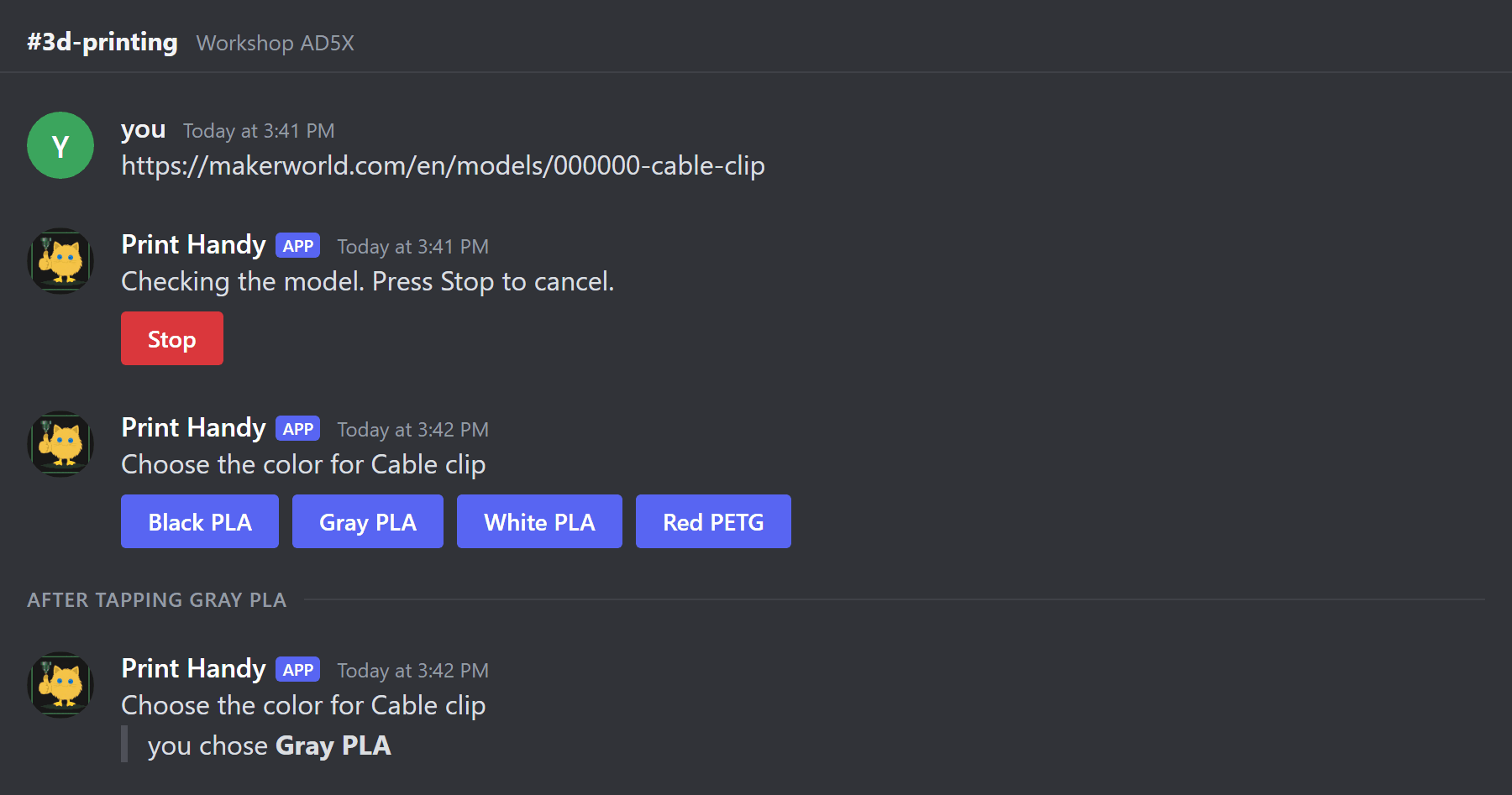
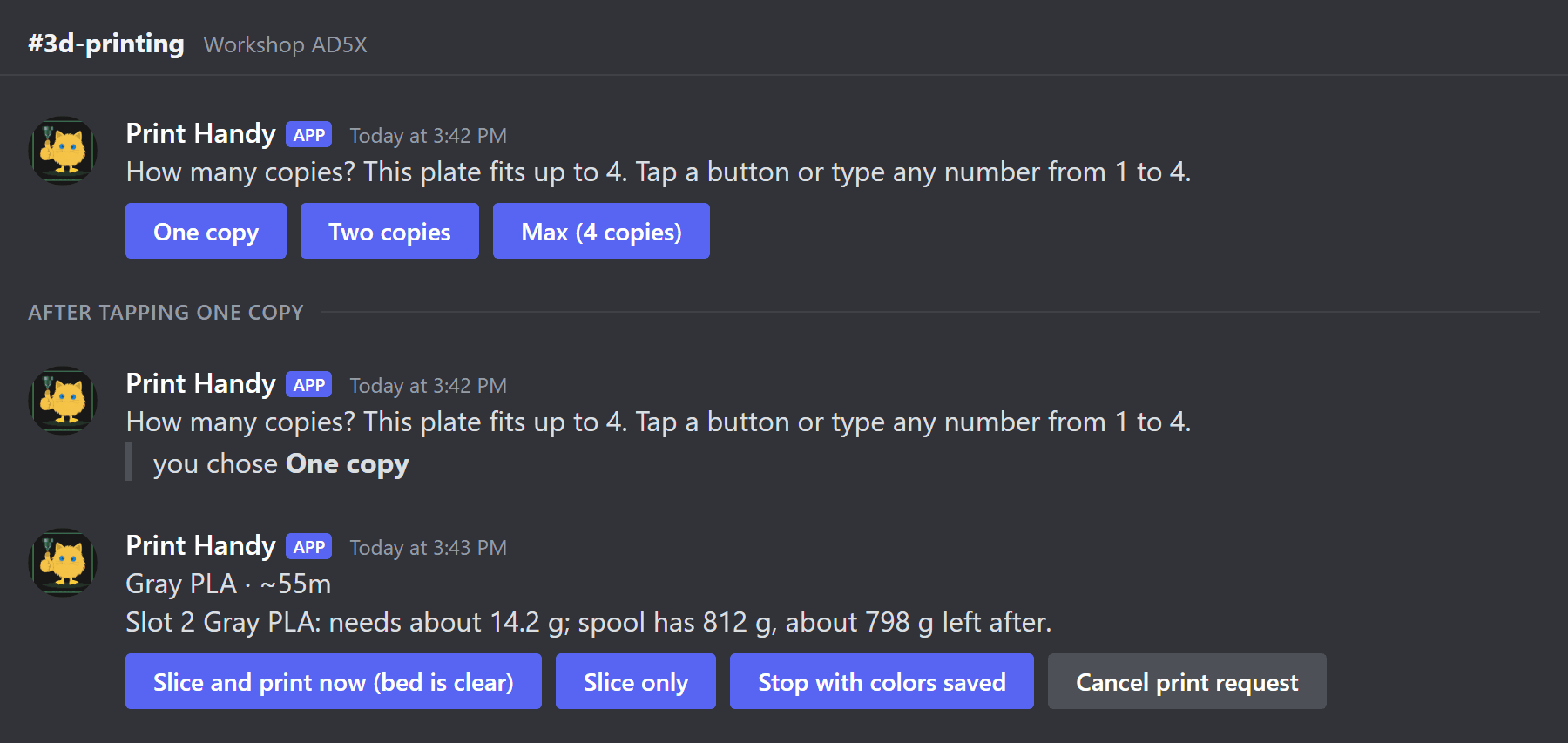
Choose how many copies, then confirm — nothing prints until you do.
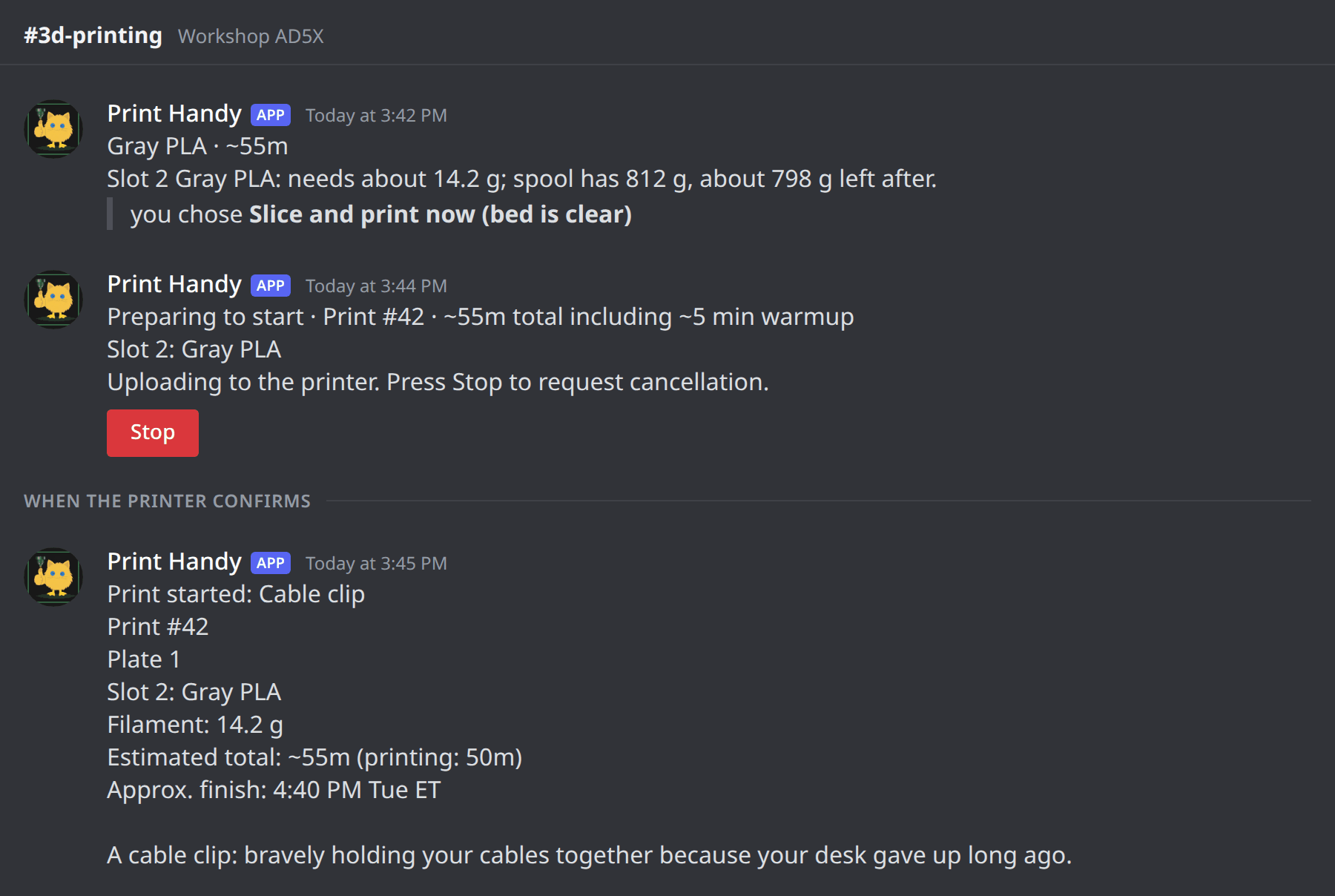
The print starts — and yes, it roasts you a little. When a model endpoint is configured, the print-started post can end with a one-line roast of your model.
More of the conversation: fit, spools, the watchdog and the finish
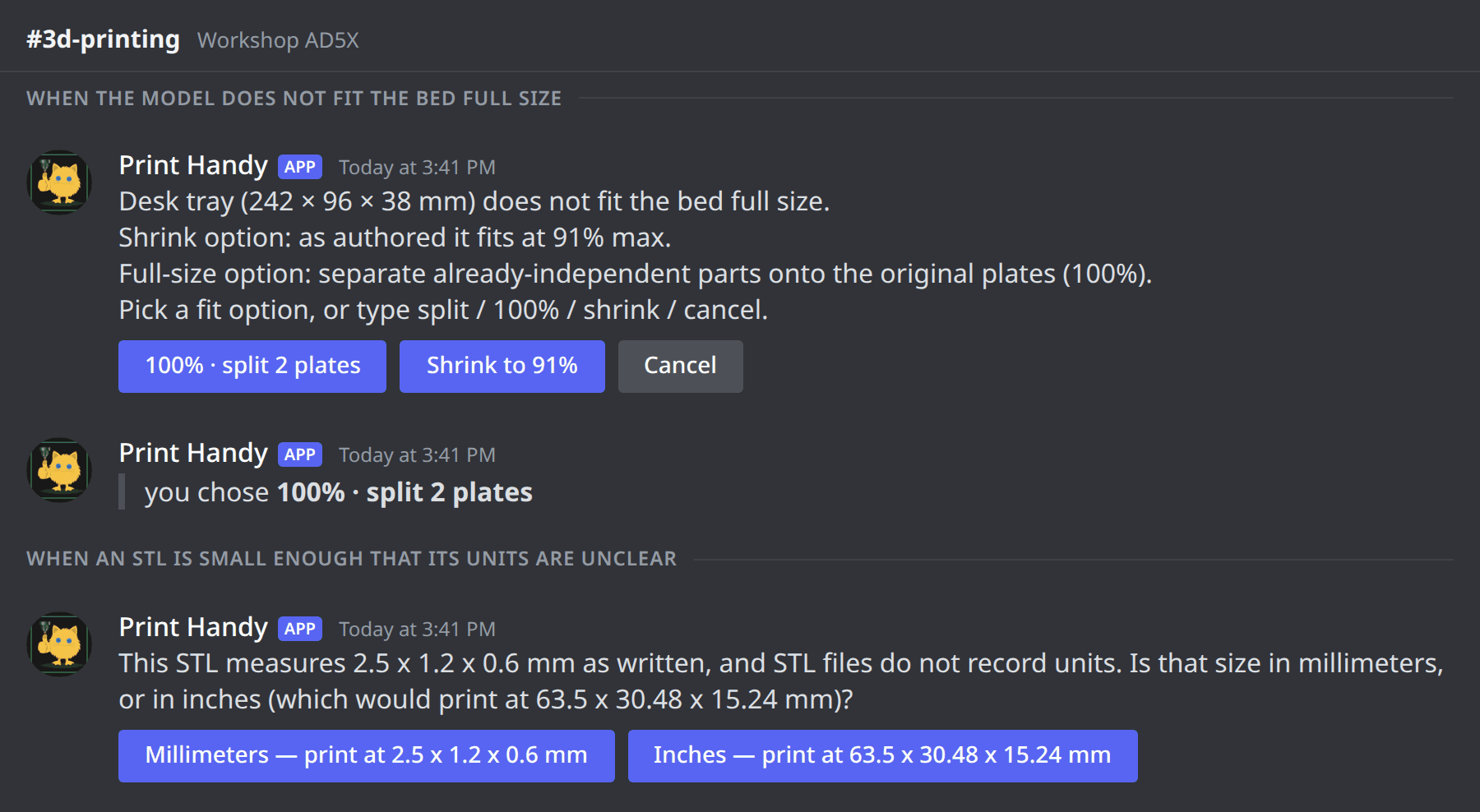
- If it doesn't fit, choose how it fits. The model is measured, never silently shrunk: split it across plates at full size, turn it, shrink it — or cancel. A small STL whose units are unclear gets a millimeters-or-inches question first.
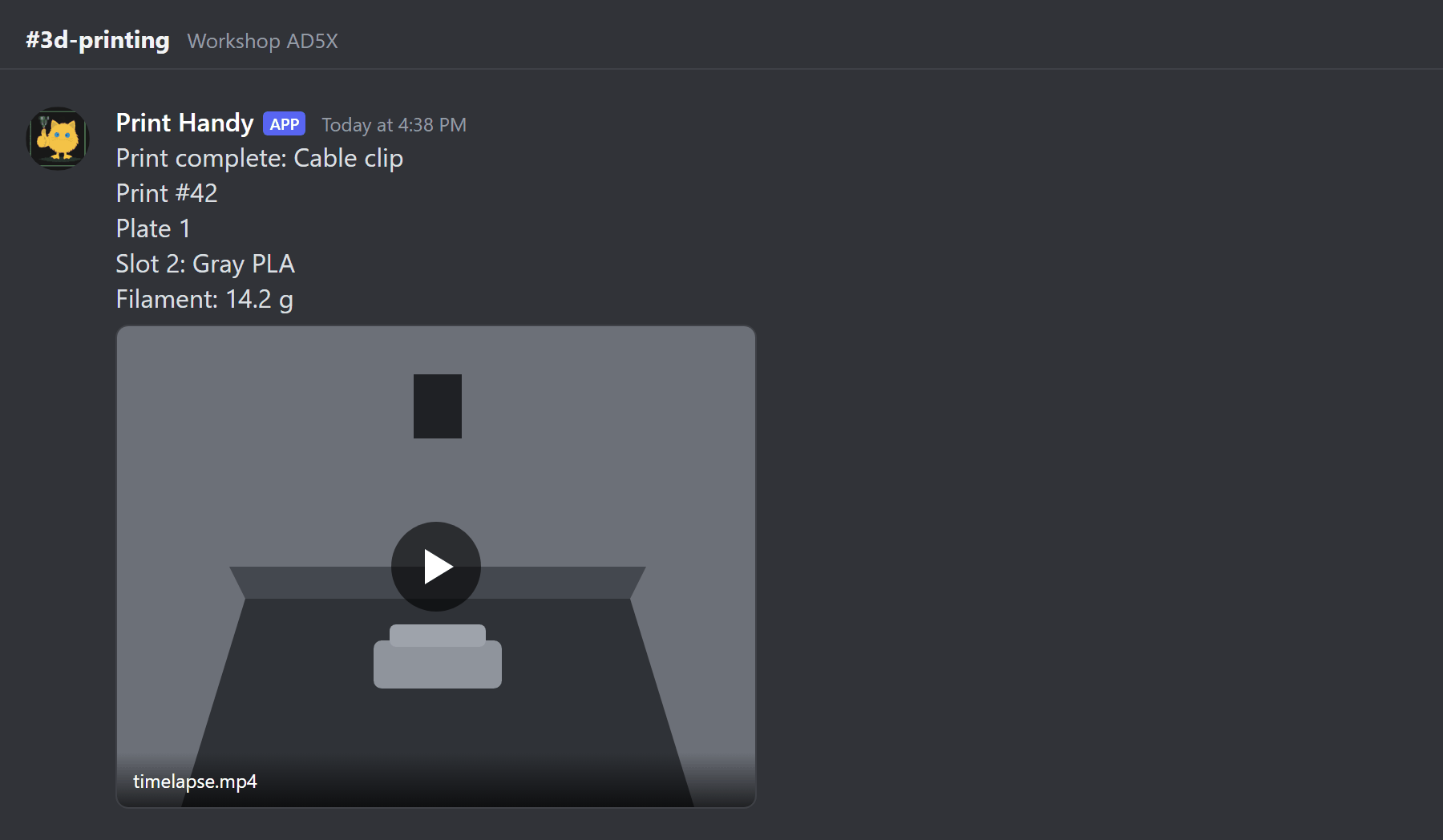
- It finishes, with a timelapse.
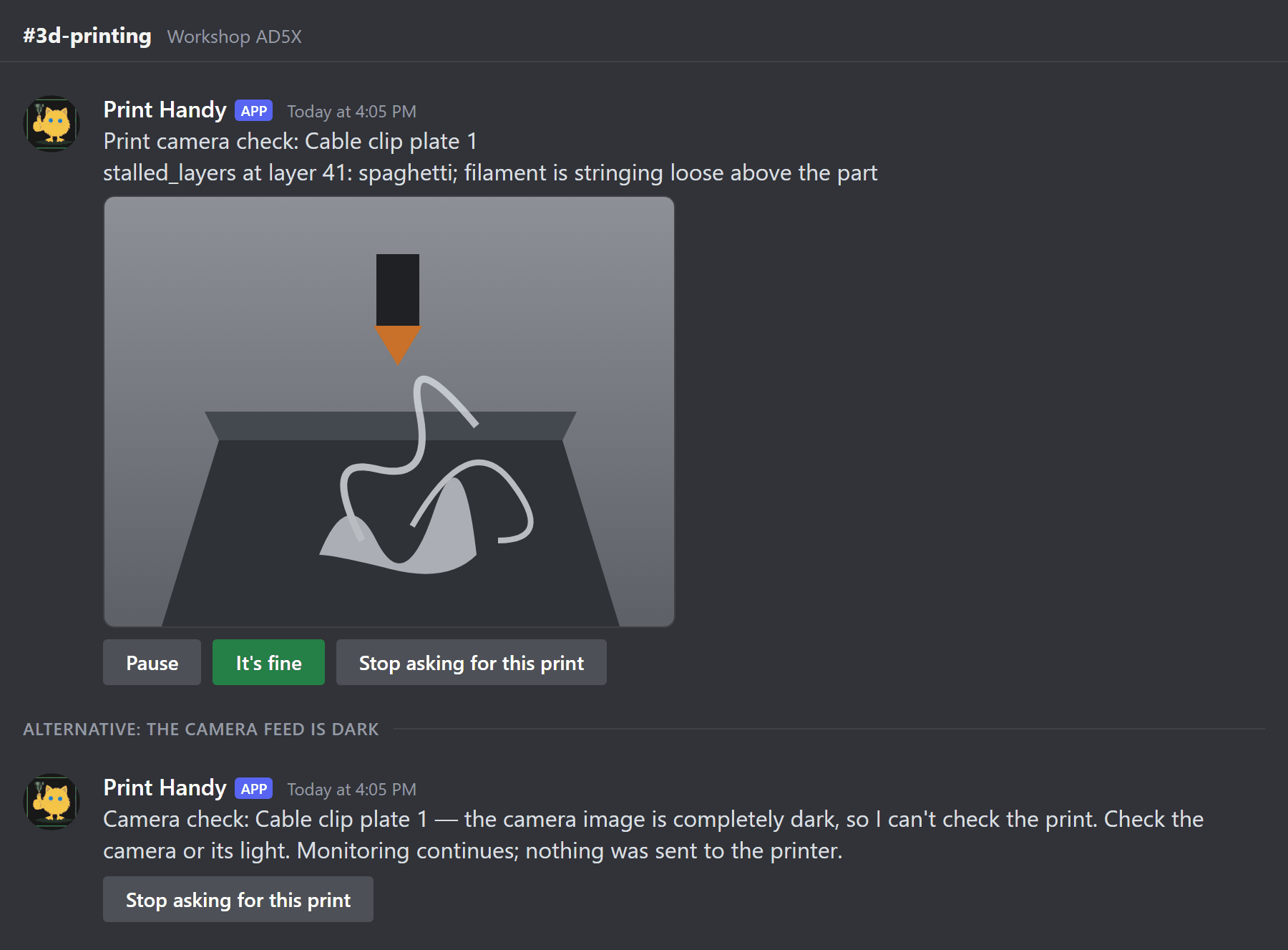
- The camera watchdog spots trouble.
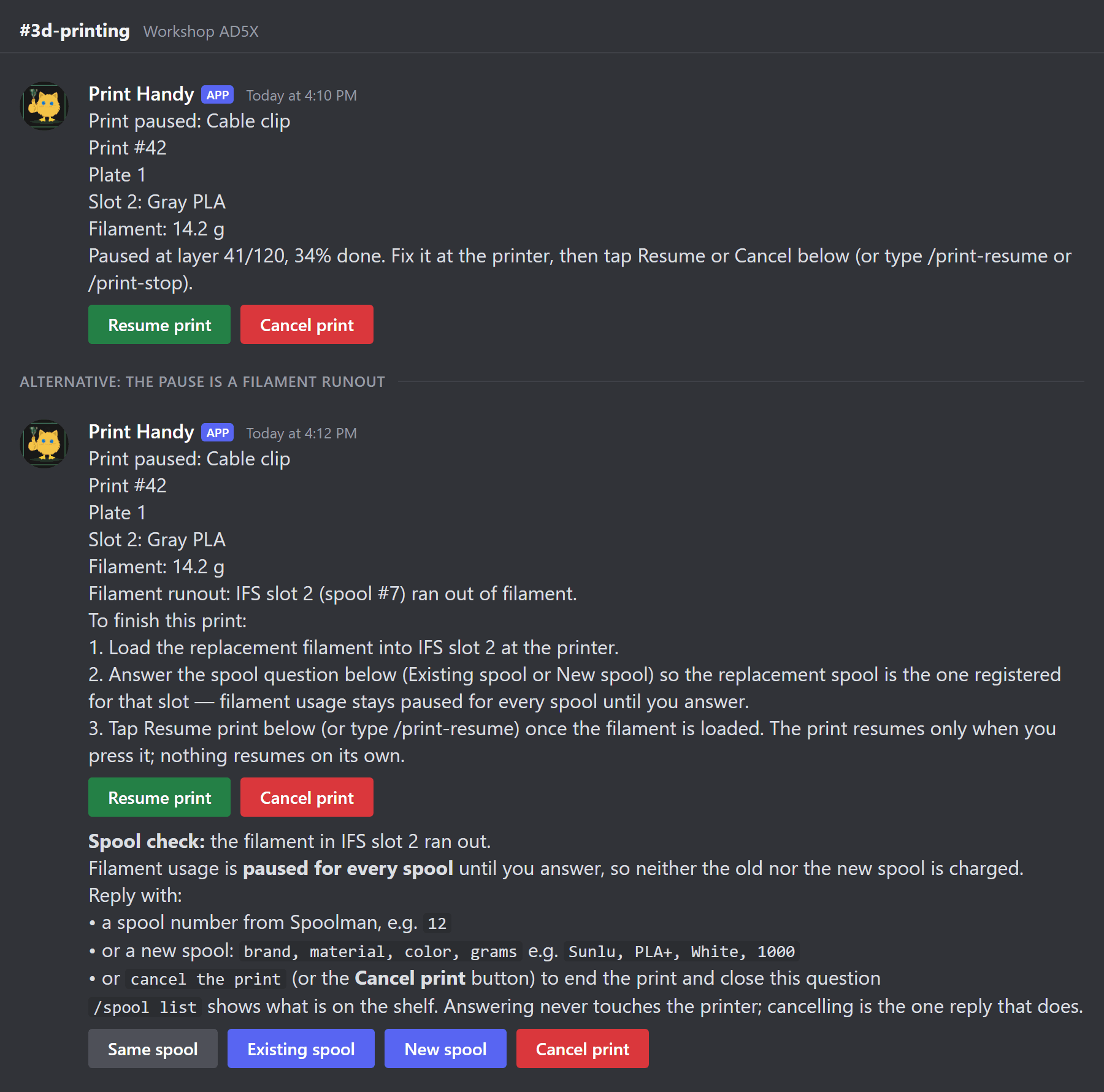
- Pause, runout and the spool question.
- Change a spool, guided. Pick the slot, pick the new spool, decide what happens to the old one, confirm.
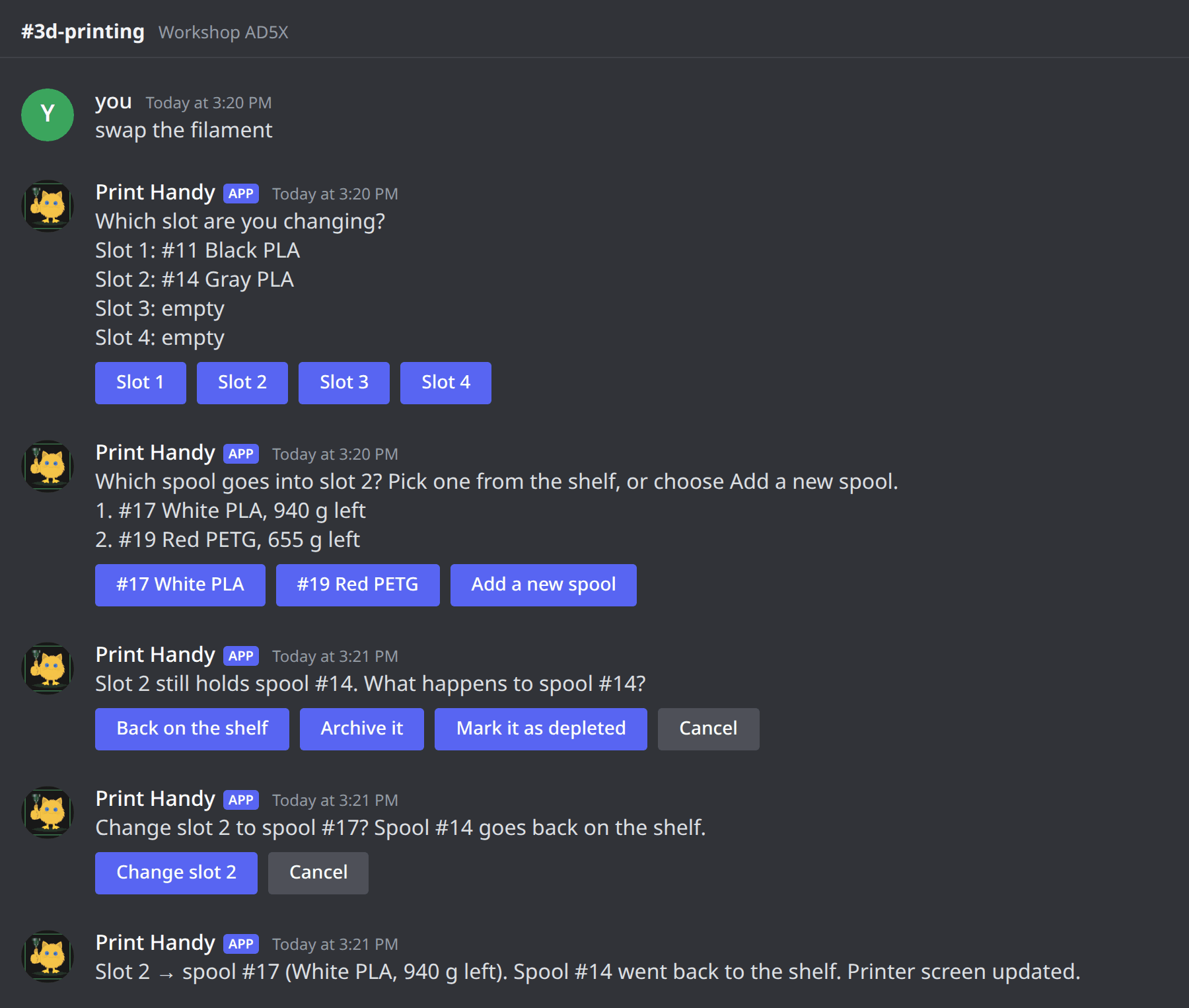
- A spool added in Spoolman gets offered for a slot.
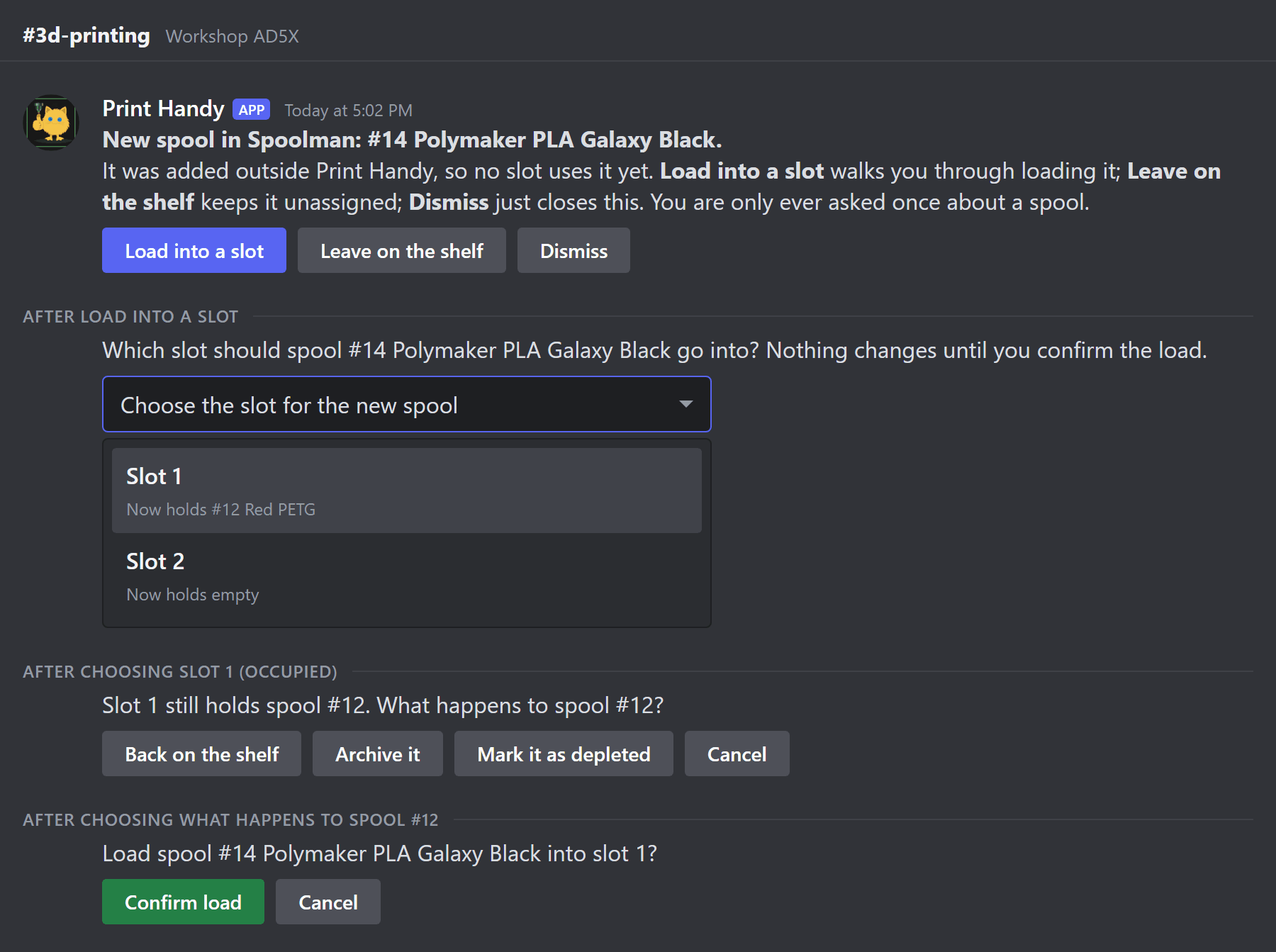
These are mockups built from the bot's real message text and buttons, with placeholder names; the roast line is an example of the style, since real roasts are generated per print. Sources for every line are in assets/screenshots.
Get started with Docker
Docker is the easiest way to run Print Handy: one container does everything, and you start it with one command.
What's in the box
Everything below is bundled in the one published image — there is nothing else to install:
| Part | What it does |
|---|---|
| Chat bot | Your interface: links, uploads, guided slicing, spool commands and print confirmation |
| Printer listener | One per printer, matched to how that printer connects. It follows the print and reports progress, alerts and timelapses to the chat |
| Spoolman | The filament and spool record keeper, bundled as an API only — Print Handy is its interface, so there is no separate Spoolman web UI to run. Already have your own Spoolman? Point Print Handy at it instead (see below) |
| OrcaSlicer | The slicer, in stable and preview channels |
| OpenSCAD | CAD splitting, and the engine behind designing parts in chat |
| ffmpeg and go2rtc | Timelapse capture and assembly, and the camera fan-out the watchdog and live view share |
If a required part stops, the container stops so Docker can restart it, and the health check covers the bot, the listeners and Spoolman.
You need a 64-bit Debian or Ubuntu machine, or a Raspberry Pi 4 or 5 with 64-bit Raspberry Pi OS. The image (ghcr.io/catduckgnaf/print-handy) is published for linux/amd64 and linux/arm64.
Run it
- Download this repository (or just its
docker-compose.ymland.env.example), and copy.env.exampleto.env. - In
.env, fill in the three things Print Handy cannot guess: your chat platform's bot token and channel (Discord is the default; setPRINT_HANDY__BOT__PLATFORMfor Telegram or Matrix), and your printer — its model key from the printer groups below (the printer support guide lists the exact keys) and, for a Moonraker printer, its address, for examplePRINT_HANDY__SERVICES__MOONRAKER_URL=http://192.168.1.60:7125. You can leave the allowed-users list empty — then everyone in the print channel can use the bot. - Use the
docker-compose.ymlfrom this repository — one service that runs the whole box, with every optional feature commented in. This is what it looks like (trimmed; the file itself has the full comments):
services:
  combined:
    image: ${PRINT_HANDY_IMAGE:?Set PRINT_HANDY_IMAGE to a tested image digest or local tag}
    restart: unless-stopped
    env_file: [.env]
    environment:
      PRINT_HANDY__BOT__MODE: standalone
      PRINT_HANDY__SERVICES__SPOOLMAN_URL: ${PRINT_HANDY__SERVICES__SPOOLMAN_URL:-http://127.0.0.1:8000}  # the bundled Spoolman
      # …optional features (camera watch, Web UI, live view) are set here or in .env…
    volumes:
      - ${PRINT_HANDY_DATA:-./data}/hermes:/data/hermes
      - ${PRINT_HANDY_DATA:-./data}/archive:/data/archive
      - ${PRINT_HANDY_SPOOLMAN_DATA:-./data/spoolman}:/data/spoolman
    user: "1000:1000"
    healthcheck:
      test: [CMD, python3, /usr/local/bin/print-handy-healthcheck]
In .env, tell it which image to run and where its data lives:
PRINT_HANDY_IMAGE=ghcr.io/catduckgnaf/print-handy:2.2.2
PRINT_HANDY_DATA=./data
Pinning by digest instead of a tag is recommended for production; the digest for each release is in its release notes, and the Docker guide shows the exact format. The data folder must be writable by UID 1000; Spoolman data lives in its spoolman subfolder unless you set PRINT_HANDY_SPOOLMAN_DATA.
- Start it:
docker compose up -d
- Say hello in your chat channel and run
/print-handy setup. Guided setup walks a fresh install through a saved, resumable checklist — printer, channel, users, services — and writes nothing without an explicitapply, so you don't have to get every setting right in.envfirst try.
That's it. The Docker guide covers health checks, upgrades, rollback and the full platform matrix.
- Already run your own Spoolman? Point
PRINT_HANDY__SERVICES__SPOOLMAN_URLat it and setPRINT_HANDY_BUNDLED_SPOOLMAN=false. Nothing is migrated either way. - On Unraid? Start from
docker/unraid/print-handy.xml.
Prefer not to use Docker?
There are two manual routes, both needing Python 3.11 or newer:
- The standalone bot runs on Discord — or on Telegram or Matrix instead — without Hermes.
- The Hermes installation is for existing Hermes users on Discord.
One thing to know either way: slicing needs a compatible OrcaSlicer and the right printer, process and filament profiles. The Docker image bundles its slicers; a Python install alone does not provide one. The configuration guide covers the settings file when you need it — guided setup (above) is the friendlier place to start.
Is my printer supported?
Print Handy groups printers by how they connect, because that is what decides what it can do with yours. There are 83 registered printer models today; this is the short version, and the full model-by-model list lives in the printer guides.
| Your printer connects by… | What you get | Which printers |
|---|---|---|
| Moonraker (Klipper) | The full flow: guided slicing, gated print start, progress, alerts and timelapses | Flashforge AD5X, AD5M and Creator 5 family running ZMod; Elegoo Neptune 4 family; Qidi Q1 Pro, X-Plus and X-Max lines; Creality K1 and Ender-3 V3 Klipper line; Anycubic Kobra 2 line on Moonraker-exposed firmware (see the Anycubic doc's stock-firmware caveat); Sovol SV01 through SV08, including the ACE, Plus, Zero, and M1D, on Klipper; Snapmaker U1 tool changer (published-spec support, not verified on hardware). Any other Klipper printer can use the generic Klipper profile. See ZMod · Elegoo · Qidi · Creality · Anycubic · Sovol · Snapmaker |
| Bambu Lab LAN | Slicing, G-code checks and Bambu packaging, with opt-in LAN status, upload and gated print start | A1, A1 mini, P1P, P1S, P2S, X1, X1 Carbon, X1E, H2S, A2L and the dual-nozzle H2D, H2D Pro, H2C and X2D. See Bambu Lab printers |
| PrusaLink | Slicing plus opt-in LAN status, upload and gated print start | MK4S, CORE One, XL and MINI+. See Prusa printers |
| Flashforge stock LAN | Built-in profile over the printer's own LAN API — no Moonraker, no ZMod | AD5X on stock firmware. See Stock Flashforge printers |
| Elegoo SDCP | SDCP LAN, opt-in | Centauri Carbon. See Elegoo printers |
| OctoPrint (Marlin) | A generic OctoPrint/Marlin profile, plus built-in presets with real dimensions | Ender-3, Ender-3 Pro, Ender-3 V2 and Ender-3 V3 SE presets, plus Anycubic i3 Mega S, Vyper, Chiron, 4Max Pro 2 and first-generation Kobra presets; Sovol SV01, SV01 Pro, SV02, SV03, SV04, SV05, SV06, and SV06 Plus on stock Marlin. Any other Marlin printer behind OctoPrint uses the generic profile. See OctoPrint + Marlin · Sovol |
Not listed? A Klipper printer with Moonraker can use klipper.generic; a Marlin printer behind OctoPrint can use octoprint.marlin. Set your real bed size, height, nozzle and start/end macros first, because the placeholder numbers will not match your machine. Then open a printer request.
How tested is this? Honestly: apart from one Bambu Lab A1 run, every profile above is covered by offline tests only — a generic profile is not a tuned or physically verified profile for your printer. If you ran the hardware checklist in the printer support guide on your printer, file a verification report through the same form and attach a redacted /print-handy bundle. Do the physical checks with the bed clear and a hand near the stop button.
Which chat platform?
The same bot, with the same prompts and safety gates, runs on Discord, Telegram or Matrix — only the transport changes. Setup: Discord · Telegram · Matrix.
- On Discord you can alternatively run Print Handy as a Hermes plugin instead of the standalone bot. Use only one mode with a given bot token.
- The Telegram and Matrix bots are pure bots with no LLM chat: send a message that isn't a command and you get the command list back. (Their roasts, camera checks and design still work — those use the vision and design endpoints, not chat.)
What you can do
With no LLM at all
Everything in this list is plain, deterministic code. No model endpoint is configured, and none is needed:
- Prepare models. MakerWorld, Printables, Thingiverse, MyMiniFactory, Creality Cloud, Thangs and Nexprint links, direct links to STL/3MF files on any public host, and STL/3MF uploads go through guided choices for colors and filament. MakerOnline links are inventory-only (the bot lists the files and names the download gap). Cults3D links stop with the named gap too — Cults' API never exposes a listing's files.
- Slicing that respects geometry. Every model is measured at full size first. Print Handy never silently shrinks a part: if the author's layout doesn't fit but every part fits one plate at 100% once moved or turned, it is rearranged and you are told so in one line; otherwise you choose — split it across plates at 100%, turn it on the bed or onto another face, or shrink it on purpose. A small STL gets the millimeters-or-inches question shown above, because STL files record no units. Copies are offered only where the G-code will actually contain them, multi-plate plans are tracked as one job, and each slice records its full recipe so a reprint is exact.
- Manage filament.
/spoollists, changes, creates and syncs spools without moving the printer — the guided change is in the walkthrough above, and typing "add new filament" or "swap the filament" starts the same flow. A spool created in Spoolman gets offered for a slot. If a print pauses on filament runout, the spool question the bot posts has a Cancel print button, so you can always stop the print without answering the question first. And if Spoolman is down, slicing and printing carry on without it — spool tracking is skipped for that job, never a blocker. - Run approved jobs. Confirm bed clearance, work through multi-plate plans with
/print-next, and reprint archived jobs with/print-again— all behind the same guarded controls. - Start a screenless ZMod print. On an AD5X with the screen off, including a HelixScreen setup, Print Handy starts the print from chat. That path is offline-tested; the first live print is still owed. See AD5X best practices.
- Care for the printer.
/print-firmwarereports each component's current and available firmware version and applies one update at a time behind a confirmation, with guided manual updates for ZMod and stock firmware./print-calibrationruns bed mesh, PID, input shaper, screw and belt checks with the same careful pattern: current values first, a confirmation with the heat and motion warnings, the new values and the differences, and nothing saved until you accept. See firmware updates and printer calibration. - Follow a print. Start, pause, error and completion posts come back to your chat, with a timelapse per print (and an optional vertical 9:16 short). Every job is recorded.
- Watch the camera live (Discord). An optional live view inside a Discord voice channel, for checking on a print without leaving the chat. Nothing is recorded.
- Get help in chat.
/print-handy setupwalks a fresh install through setup;/print-handy add-printeradds another printer to a running install through the same guided pattern, with a live connection probe before anything is written;/print-handy debuggingruns read-only, redacted checks;/print-handy bundleassembles a diagnostics bundle (secret values are never included) as a local file that only leaves the machine if you choose to attach it. See guided setup and debugging and diagnostics. - Forgiving about typos.
/print-lookupfinds "nozzel clog", a mistyped command gets a "Did you mean/spool list?" button, and/print-againwith a half-remembered name offers a pick-list. No model needed, and a suggestion never runs anything on its own. An optional semantic lookup adds meaning-level matches ("bed won't stick"), runnable on Cloudflare's free tier. - Use the optional Web UI. An off-by-default local page for the same install: status and doctor checks, the settings picker, the read-only designs catalog, and a read-only sliced-layer view (colored by extrusion role, one layer at a time). It does not start, pause, or cancel a job. See the Web UI guide.
With a model endpoint (the LLM features)
Point Print Handy at any OpenAI-compatible chat endpoint — a local model server, a hosted API, or Cloudflare Workers AI's free tier all fit the same settings (Cloudflare guide) — and these switch on. Each is optional, and each fails soft: if the endpoint doesn't answer, the print flow carries on without it.
- Chat in plain language (Discord). Ask for things the way you'd say them, and Print Handy turns the reply into one of its own checked commands — the model can only ever pick from the same command list, never invent an action. Turn it off with
discord.chat_llm_enabledand Discord becomes a pure bot too, while the endpoint stays available for design. - Camera watchdog. While a print runs, Print Handy keeps an eye on the printer camera — at layer 2, layer 5 and then periodically — and a vision model classifies each frame. If it sees spaghetti, a detached part, an empty bed, a stalled print, or a frame it can't classify, it posts the photo with Pause and It's fine buttons. Tap Pause, and the paused post offers Resume and Cancel. The watchdog itself never touches the printer — it only alerts; every printer action is your tap. Tune how readily it alerts with
visual_watch.sensitivityfrom 1 (quietest) to 5 (most alerts, default 3) — envPRINT_HANDY__VISUAL_WATCH__SENSITIVITY— or turn it off withvisual_watch.enabled. It needs a camera snapshot and a vision endpoint (services.vision_chat_url) — or, with no endpoint at all, the built-in local failure detector (vision.local_detector_enabled), which judges frames on this machine and needs no LLM and no cloud service. With neither configured, camera checks stay off rather than guessing. See the Docker guide. - Design a part in chat.
/print-design(or/design) turns a plain-language description into an OpenSCAD part, shows you a preview with the real dimensions, and lets you ask for changes (up to 10 turns) before it joins the normal prepare-and-confirm flow. Works on Discord, Telegram and Matrix whenever a model endpoint is configured. See AI design. - The roast. When printing begins, the print-started post can end with a one-line roast of your model (exactly one per print; completion posts never carry one). Roasts are on by default whenever an LLM/vision endpoint is available, on every platform, and
vision.roast_enabled(envPRINT_HANDY__VISION__ROAST_ENABLED) turns them off without affecting camera checks.
Printer-specific capabilities and the full command list are in the project reference.
Please read: safety
Print Handy is careful, but it isn't a guarantee:
- A model that fits in a bounding box is not proof of a printable orientation. Check support needs, bed and brim clearance, profile compatibility and the generated G-code before physical use.
- Offline tests are not a live hardware test. Keep the confirmation and artifact guards enabled.
- A camera alert or classification is not a guarantee of safe unattended printing.
- Only use models you are allowed to download and process — and never attach private models, credentials or personal printer logs to a public issue without reviewing them first.
Find the right guide
| I want to… | Go here |
|---|---|
| Install and configure Print Handy | Documentation site · Documentation home (source) |
| Run the Docker container | Docker guide |
| Check whether my printer is supported, or add one | Printer support · Printer profiles |
| Run Print Handy for two or more printers | More than one printer |
| Set up the bot on Telegram or Matrix | Telegram bot setup · Matrix bot setup |
| Look up commands, settings and integrations | Detailed project reference |
| Report a problem or contribute | Contribution guide · Issues |
| See what shipped in each release | GitHub releases |
| Write or review release notes | Release-note guide · Internal history |
Draft pull requests describe pending work, not installed or released capabilities.
Requirements
Categories
Related apps
Explore more like this
Explore allDetails
ghcr.io/catduckgnaf/print-handyRuntime arguments
- Web UI
http://[IP]:[PORT:8088]/- Network
bridge- Shell
bash- Privileged
- false
- Extra Params
--user 1000:1000 --cap-drop ALL --security-opt no-new-privileges:true --pids-limit 256 --memory 2g --cpus 2 --shm-size 256m --log-driver json-file --log-opt max-size=10m --log-opt max-file=3 --restart unless-stopped --health-cmd "python3 /usr/local/bin/print-handy-healthcheck" --health-interval 30s --health-timeout 10s --health-start-period 90s --health-retries 3
Template configuration
Runtime state, prompts, hardware and job records. Back this up.
- Target
- /data/hermes
- Default
- /mnt/user/appdata/print-handy/hermes
- Value
- /mnt/user/appdata/print-handy/hermes
Sliced jobs and G-code. Back this up.
- Target
- /data/archive
- Default
- /mnt/user/appdata/print-handy/archive
- Value
- /mnt/user/appdata/print-handy/archive
Print records. Back this up.
- Target
- /data/records
- Default
- /mnt/user/appdata/print-handy/records
- Value
- /mnt/user/appdata/print-handy/records
Regenerable cache.
- Target
- /data/cache
- Default
- /mnt/user/appdata/print-handy/cache
- Value
- /mnt/user/appdata/print-handy/cache
Bundled Spoolman database, config, logs and backups. Back this up.
- Target
- /data/spoolman
- Default
- /mnt/user/appdata/print-handy/spoolman
- Value
- /mnt/user/appdata/print-handy/spoolman
Site tokens (MakerWorld, Thingiverse, MyMiniFactory, Cults3D, Creality Cloud) so they survive container updates. Must be owned by 1000:1000.
- Target
- /data/.config
- Default
- /mnt/user/appdata/print-handy/dot-config
- Value
- /mnt/user/appdata/print-handy/dot-config
Container port of the Web UI. The mapping exists so the WebUI link works once the Web UI is enabled below (PRINT_HANDY__WEBUI__PORT must match this port); while the Web UI is disabled or blocked for a missing access token, nothing answers on it.
- Target
- 8088
- Default
- 8088
- Value
- 8088
OPTIONAL, LAN only (#443): publishes the bundled Spoolman API (container port 8000) so Moonraker on printer hardware (for example a ZMod AD5X) and Home Assistant can reach it at http://[unraid-ip]:7912. Leave this mapping deleted to keep Spoolman loopback-only inside the container. Publishing it also requires SPOOLMAN_HOST=0.0.0.0 below, or Spoolman still refuses the connection. The API is unauthenticated: never forward this port from a router.
- Target
- 8000
- Default
- 7912
- Value
- 7912
Leave as is, or point at a mounted YAML file for list settings.
- Target
- PRINT_HANDY_CONFIG
- Default
- /app/config/docker.yaml
- Value
- /app/config/docker.yaml
Must be standalone in Docker.
- Target
- PRINT_HANDY__BOT__MODE
- Default
- standalone
- Value
- standalone
Secret. Leave empty to stage the listener and Spoolman without the Discord bot.
- Target
- DISCORD_BOT_TOKEN
Channel Print Handy uses.
- Target
- PRINT_HANDY__DISCORD__CHAT_ID
Optional whitelist of Discord user IDs allowed to use the bot, comma or space separated. Leave empty (the default) and everyone who can post in the print channel can use the bot — the channel is the access boundary.
- Target
- PRINT_HANDY__DISCORD__ALLOWED_USER_IDS
Optional deny list of Discord user IDs, comma or space separated. A denied user is refused even when whitelisted or the approval user; a refusal is logged and answered once per user per hour.
- Target
- PRINT_HANDY__DISCORD__DENIED_USER_IDS
Discord user ID allowed to approve prints; always allowed to use the bot as well. Empty leaves approvals to the allowed users (or, with no whitelist, the channel).
- Target
- PRINT_HANDY__DISCORD__APPROVAL_USER_ID
IANA timezone for display times and the daily session reset, for example America/New_York. Separate from the container timezone below.
- Target
- PRINT_HANDY__DISCORD__TIMEZONE
- Default
- America/New_York
- Value
- America/New_York
flashforge.ad5x, flashforge.ad5m, flashforge.ad5m_pro, flashforge.creator5, flashforge.creator5_pro, sovol.sv06, klipper.generic, octoprint.marlin, bambulab.a1 or bambulab.p1s (Bambu Lab models are offline only).
- Target
- PRINT_HANDY__PRINTER__MODEL
- Default
- flashforge.ad5x|flashforge.ad5m|flashforge.ad5m_pro|flashforge.creator5|flashforge.creator5_pro|sovol.sv06|klipper.generic|octoprint.marlin|bambulab.a1|bambulab.p1s
- Value
- klipper.generic
Klipper printers, for example http://printer.example:7125. Fluidd is not needed here.
- Target
- PRINT_HANDY__SERVICES__MOONRAKER_URL
Secret, only when Moonraker requires an API key.
- Target
- MOONRAKER_API_KEY
Stock Flashforge printer LAN address for IFS presence and screen-error alerts. Empty leaves the printer offline; set it together with the serial and check code below.
- Target
- PRINT_HANDY__FLASHFORGE_STOCK__HOST
Secret. The stock printer serial number; never a setting in a config file.
- Target
- AD5X_SERIAL
Secret. The stock printer check code; never a setting in a config file.
- Target
- AD5X_CHECK_CODE
Bambu Lab printers: LAN address for read-only status, plain host with no scheme or port. Set it together with the Bambu serial below; empty disables LAN status.
- Target
- PRINT_HANDY__BAMBU__LAN_HOST
Bambu Lab printers: the printer serial number for read-only LAN status. Set it together with the Bambu LAN host.
- Target
- PRINT_HANDY__BAMBU__LAN_SERIAL
Secret. The Bambu Lab printer LAN access code for read-only status; never a setting in a config file.
- Target
- BAMBU_LAN_PASSWORD
octoprint.marlin printers only.
- Target
- PRINT_HANDY__SERVICES__OCTOPRINT_URL
Secret, octoprint.marlin printers only.
- Target
- OCTOPRINT_API_KEY
Bundled Spoolman API by default. To use an existing external Spoolman, set its URL here and set Bundled Spoolman to false; nothing is migrated.
- Target
- PRINT_HANDY__SERVICES__SPOOLMAN_URL
- Default
- http://127.0.0.1:8000
- Value
- http://127.0.0.1:8000
true runs the bundled Spoolman API; false uses the external Spoolman URL.
- Target
- PRINT_HANDY_BUNDLED_SPOOLMAN
- Default
- true
- Value
- true
Host the bundled Spoolman API binds to inside the container (#443). Default 127.0.0.1 keeps it loopback-only and unexposed, even with the Spoolman port mapping above present. Set 0.0.0.0 ONLY when you publish the Spoolman port for LAN Moonraker (printer hardware) or Home Assistant access; the API is unauthenticated, so keep it on the LAN and never forward it from a router.
- Target
- SPOOLMAN_HOST
- Default
- 127.0.0.1
- Value
- 127.0.0.1
Bundled OrcaSlicer channel selected at startup: stable (default) or preview. alpha, the old name for preview, is still accepted for now. Any other value stops the container at startup.
- Target
- PRINT_HANDY_ORCA_CHANNEL
- Default
- stable
- Value
- stable
Camera watchdog: posts a Discord photo alert for spaghetti, a detached part, an empty bed or a stalled print. Alert only; it never controls the printer. Needs a camera snapshot and a vision endpoint (see docs/DOCKER.md).
- Target
- PRINT_HANDY__VISUAL_WATCH__ENABLED
- Default
- true
- Value
- true
How readily the camera watchdog alerts, 1 (quietest) to 5 (most alerts). 3 is the original behavior; periodic checks run every 30, 20, 15, 10 or 7.5 minutes for levels 1 to 5.
- Target
- PRINT_HANDY__VISUAL_WATCH__SENSITIVITY
- Default
- 3
- Value
- 3
OpenAI-compatible endpoint for camera checks and roasts. Empty disables both; set it together with the vision API key below.
- Target
- PRINT_HANDY__SERVICES__VISION_CHAT_URL
Camera snapshot URL for the camera watchdog. Empty derives it from the Moonraker host.
- Target
- PRINT_HANDY__SERVICES__CAMERA_SNAPSHOT_URL
In-container timelapse capture (#246): starts the bundled go2rtc to normalise the camera source on loopback. Off by default and opt-in; off keeps the printer-rendered timelapse behaviour. This variable is an environment override: when set it wins over timelapse.capture_enabled in a mounted config file. Capture needs a camera source for your printer family (a Moonraker webcam, Bambu stills or X1 RTSPS stream, a PrusaLink-registered camera, or an AD5X accessory camera; Elegoo SDCP has no verified camera source yet — see docs/DOCKER.md). Separate from the optional SSH timelapse archive (timelapse.archive_host / archive_dir in the config file): that only archives printer-rendered videos and is never required for capture or for a video to be attached. go2rtc's API/RTSP stay on loopback and are never published.
- Target
- PRINT_HANDY__TIMELAPSE__CAPTURE_ENABLED
- Default
- false
- Value
- false
Optional explicit capture camera source (MJPEG/RTSP URL or a go2rtc ffmpeg: source). Empty derives it from the camera snapshot URL / Moonraker webcam. A URL here may carry camera credentials; it is written only to the generated go2rtc config (0600) inside the container.
- Target
- PRINT_HANDY__TIMELAPSE__CAPTURE_SOURCE_URL
Stage 2 frame capture trigger (#246): interval (a frame every capture interval), layer (a frame on each layer change), or both.
- Target
- PRINT_HANDY__TIMELAPSE__CAPTURE_TRIGGER
- Default
- interval
- Value
- interval
Seconds between captured frames for the interval trigger (#246 stage 2).
- Target
- PRINT_HANDY__TIMELAPSE__CAPTURE_INTERVAL_S
- Default
- 5.0
- Value
- 5.0
Per-job cap on captured frames (#246 stage 2); 0 disables the cap.
- Target
- PRINT_HANDY__TIMELAPSE__CAPTURE_MAX_FRAMES
- Default
- 3600
- Value
- 3600
Per-job cap on captured frame bytes (#246 stage 2); 0 disables the cap.
- Target
- PRINT_HANDY__TIMELAPSE__CAPTURE_MAX_BYTES
- Default
- 536870912
- Value
- 536870912
Encoder preference for the Stage 3 timelapse encode (#246): auto, vaapi, nvenc, qsv or cpu. Capture itself never encodes.
- Target
- PRINT_HANDY__TIMELAPSE__CAPTURE_ENCODER
- Default
- auto
- Value
- auto
Model the vision endpoint uses for camera checks.
- Target
- PRINT_HANDY__VISION__MODEL
- Default
- gemini-latest
- Value
- gemini-latest
The one-line roast added to print-started and print-complete posts. On by default: it runs whenever an LLM/vision endpoint is available (the vision chat URL and API key above), on every platform, Telegram included. Set false to turn roasts off; camera checks keep working either way.
- Target
- PRINT_HANDY__VISION__ROAST_ENABLED
- Default
- true
- Value
- true
Built-in ONNX failure detector for the camera watchdog (#455): judges camera frames on this machine when no vision endpoint is configured, so a no-LLM, no-cloud install still gets bad-print detection. Off by default. The pinned model (Obico failure detector, about 202 MB) downloads once into the Hermes home and is SHA-256 verified. It detects failures only; the empty-plate check, roasts and label reads still need a vision endpoint.
- Target
- PRINT_HANDY__VISION__LOCAL_DETECTOR_ENABLED
- Default
- false
- Value
- false
Path to the local failure detector's ONNX model file. Empty uses the default location (a models folder under the Hermes home) and the pinned model; set it to a model file you placed yourself to run fully offline.
- Target
- PRINT_HANDY__VISION__LOCAL_MODEL_PATH
Auto light-off (#516): the printer light turns on when a print starts and off again after the plate has been seen empty for this many minutes. 0 = off (the default). Needs a vision endpoint, like the camera watchdog. 30 is the suggested value.
- Target
- PRINT_HANDY__VISION__AUTO_LIGHT_OFF_MINUTES
- Default
- 0
- Value
- 0
The Moonraker light object the auto light-off switches, for example 'led chamber_led', 'neopixel sb_leds' or 'output_pin caselight'. Leave empty to auto-discover: the printer's light object is used only when there is exactly one.
- Target
- PRINT_HANDY__VISION__LIGHT_OBJECT
Ask for the brand/vendor during the conversational new-spool walkthrough (#512). Off by default: the walkthrough skips brand and the spool is created without one. Set true if you track brands.
- Target
- PRINT_HANDY__SPOOL__PROMPT_BRAND
- Default
- false
- Value
- false
Secret. Key for the vision chat URL above.
- Target
- CLIPROXY_API_KEY
Free-text chat replies from the LLM below on Discord. On by default. Set false to run Discord as a pure bot: unmatched text gets the short not-understood reply, while the LLM stays configured for /print-design (which inherits it). Roasts and camera checks keep their own vision settings either way.
- Target
- PRINT_HANDY__DISCORD__CHAT_LLM_ENABLED
- Default
- true
- Value
- true
Optional OpenAI-compatible chat URL for standalone free-text replies. Empty means unmatched text gets the command list; set it together with the LLM model and key below.
- Target
- PRINT_HANDY__LLM__CHAT_URL
LLM model name, required when the LLM chat URL is set.
- Target
- PRINT_HANDY__LLM__MODEL
Secret, optional. MakerWorld account token (the token cookie). A file in /data/.config/bambu/token wins over this.
- Target
- MAKERWORLD_TOKEN
Secret, optional. Thingiverse App Token from your app at thingiverse.com/developers. A file in /data/.config/thingiverse/token wins over this.
- Target
- THINGIVERSE_TOKEN
Secret, optional. Cults3D nickname:key (listing only; Cults never shares files). A file in /data/.config/cults3d/token wins over this.
- Target
- CULTS3D_TOKEN
Secret, optional. Creality Cloud login for downloads, written model_user_id:model_token (both cookie values). A token file in /data/.config/crealitycloud/token wins over this; the bot's Connect account button explains both.
- Target
- CREALITYCLOUD_TOKEN
Secret, optional. Thangs login token (the accessToken value) for downloads. Lasts about 7 days. A token file in /data/.config/thangs/token wins over this.
- Target
- THANGS_TOKEN
Secret, optional. Nexprint login token (the auth_token cookie) for downloads. A token file in /data/.config/nexprint/token wins over this.
- Target
- NEXPRINT_TOKEN
Secret, optional. MyMiniFactory OAuth access token for downloads (see the bot's Connect account steps; lasts about a week). A file in /data/.config/myminifactory/oauth_token wins over this.
- Target
- MYMINIFACTORY_OAUTH_TOKEN
Secret. Key for the LLM chat URL above.
- Target
- LLM_API_KEY
Web UI (#286, #440): a simple status page plus picker configuration that syncs to the YAML settings file. This template enables it so the WebUI link works, but it starts ONLY once the Web UI access token below is set (the bind host below is not loopback): with no token it stays off, the container keeps running, and the log explains the fix. Set false to turn it off entirely; then nothing listens and the Web UI port above answers nothing.
- Target
- PRINT_HANDY__WEBUI__ENABLED
- Default
- true
- Value
- true
Host the Web UI binds to inside the container. The template default 0.0.0.0 makes it reachable through the Web UI port mapping, and then the Web UI access token below is required: without it the Web UI does not start (the container keeps running and logs the fix). Use 127.0.0.1 to keep it inside the container.
- Target
- PRINT_HANDY__WEBUI__HOST
- Default
- 0.0.0.0
- Value
- 0.0.0.0
Port the Web UI listens on inside the container; must match the Web UI port mapping above. 0 disables the listener even when the Web UI is enabled.
- Target
- PRINT_HANDY__WEBUI__PORT
- Default
- 8088
- Value
- 8088
Secret. REQUIRED for the Web UI to start on Unraid: use a long random value. The WebUI link opens the login page, where you paste this token once to get a browser session; API clients send it as the X-WebUI-Token header. Required because the bind host above is not loopback — without it the Web UI does not start (the rest of the container runs and the log explains this). Never a setting in a config file.
- Target
- WEBUI_ACCESS_TOKEN
Live camera viewing in Discord (#311): an Activity page in the configured voice channel, served by this container through a named Cloudflare Tunnel. Off by default; when true, the fields below, the Discord application ID and both live secrets are all required before the Activity server starts. Setup: docs/DISCORD-BOT-SETUP.md.
- Target
- PRINT_HANDY__LIVE_STREAM__ENABLED
- Default
- false
- Value
- false
The one private Discord voice channel the live Activity is launched in. Keep it limited to your household; the bot never names another channel.
- Target
- PRINT_HANDY__LIVE_STREAM__VOICE_CHANNEL_ID
Start the live view automatically when a print starts and post the Activity pointer. Off by default; /print-live start is the manual trigger.
- Target
- PRINT_HANDY__LIVE_STREAM__AUTO_START_ON_PRINT
- Default
- false
- Value
- false
Live feed height cap in pixels (144-2160); width follows the camera's aspect.
- Target
- PRINT_HANDY__LIVE_STREAM__MAX_HEIGHT
- Default
- 720
- Value
- 720
Live feed frame-rate cap (1-60).
- Target
- PRINT_HANDY__LIVE_STREAM__FPS
- Default
- 15
- Value
- 15
Live feed bitrate cap in kbit/s (100-20000).
- Target
- PRINT_HANDY__LIVE_STREAM__MAX_BITRATE_KBPS
- Default
- 2500
- Value
- 2500
Encoder preference for the live feed: auto, vaapi, qsv, nvenc or cpu.
- Target
- PRINT_HANDY__LIVE_STREAM__ENCODER
- Default
- auto
- Value
- auto
Seconds the live view may stay empty of viewers before the session ends itself.
- Target
- PRINT_HANDY__LIVE_STREAM__EMPTY_TIMEOUT_S
- Default
- 300
- Value
- 300
Public https origin the Activity page is served from: the named Cloudflare Tunnel's hostname, mapped in the Discord Developer Portal.
- Target
- PRINT_HANDY__LIVE_STREAM__ACTIVITY_ORIGIN
Loopback port the Activity server binds inside the container; the tunnel ingress points here. The settings default is 0 (no port chosen), the template pre-fills 8091 so the tunnel target is fixed; nothing publishes this port.
- Target
- PRINT_HANDY__LIVE_STREAM__PORT
- Default
- 8091
- Value
- 8091
The Discord application's ID (a plain identifier from the Developer Portal, not a secret). Required for the live view's OAuth exchange when it is enabled.
- Target
- DISCORD_CLIENT_ID
Secret. The Discord application's client secret, used server-side for the live view's OAuth exchange. Never a setting in a config file.
- Target
- DISCORD_CLIENT_SECRET
Secret. Signs the live view's Activity session markers; use a long random value. Never a setting in a config file.
- Target
- LIVE_STREAM_SESSION_SECRET
Secret. Token of the named Cloudflare Tunnel for the live view. It belongs to the cloudflared connector you run alongside Print Handy (on Unraid, a separate cloudflared container); Print Handy itself never reads it — the field keeps it beside the other live-view fields.
- Target
- TUNNEL_TOKEN
IANA timezone for the container's local time — log timestamps, scheduled and timed features and the bundled services' timestamps — for example Europe/London. The image default is America/New_York; an unknown name is logged at startup and the default is used. Separate from the Discord display timezone above.
- Target
- TZ
- Default
- America/New_York
- Value
- America/New_York