
All apps · 0 apps

pricecious
Docker app from pureelectricity's Repository
Overview
Pricecious is a vibe-coded, self-hosted, AI-powered price tracking application. It uses GenAI Vision Models (OpenAI, Anthropic, Ollama, etc.) to visually analyze product pages, detect prices, and monitor stock status.
Features:
- AI-Powered Analysis: "Sees" price and stock status, bypassing complex HTML.
- Visual History: Keeps a screenshot history of every check.
- Smart Scrolling: Handles lazy-loaded content.
- Notifications: Supports Discord, Telegram, Email, etc. via Apprise.
Prerequisites:
- A PostgreSQL Database.
- A Browserless (headless chrome) container (accessible via WebSocket).
- An API key for an AI Provider (OpenAI/Anthropic) OR a local Ollama instance.
Readme
View on GitHub

(My) Pricecious
Price tracking using A-Eyes 🤦
[!WARNING] This is 100% vibe-coded.
Pricecious is a self-hosted price tracker. It opens product pages in a headless browser, takes a screenshot, and asks a vision model (Ollama, OpenAI, Anthropic, Gemini or OpenRouter) for the price and stock status. It keeps the history, charts it, forecasts it with Prophet, and notifies you through Apprise when prices drop, hit your target, or items come back in stock.
Quick start
You need Docker, and either an API key for a hosted model or a local Ollama with a vision model (e.g. gemma3:4b).
Thinking models such as Qwen 3 work too. Thinking is off by default, since reading a price rarely needs it; turn it
on under Settings → AI model → Advanced.
Save this as
docker-compose.yml:services: app: image: ghcr.io/ds-sebastian/pricecious:latest container_name: pricecious-app ports: - "127.0.0.1:8000:8000" environment: - DATABASE_URL=postgresql://user:password@db:5432/pricewatch - BROWSERLESS_URL=ws://browserless:3000 depends_on: - db - browserless extra_hosts: - "host.docker.internal:host-gateway" volumes: - screenshots_data:/app/screenshots db: image: postgres:15-alpine environment: POSTGRES_USER: user POSTGRES_PASSWORD: password POSTGRES_DB: pricewatch volumes: - postgres_data:/var/lib/postgresql/data browserless: image: browserless/chrome:latest expose: - "3000" environment: - MAX_CONCURRENT_SESSIONS=10 volumes: postgres_data: screenshots_data:Run
docker compose up -dand open http://localhost:8000.In Settings, pick your AI provider and model, then add items from the Items page.
Keep it private
Pricecious has no user authentication. Anyone who can reach it can change settings and trigger AI-backed checks, so keep it on a trusted LAN/VPN and never publish port 8000 directly to the unrestricted Internet.
When a reverse proxy shares the Docker network, replace the app's ports entry with expose so only the proxy can reach
it:
services:
  app:
    expose:
      - "8000"
    networks:
      - default
      - proxy

networks:
  proxy:
    external: true
Restrict the proxy to your actual LAN or VPN subnet. For example, an Nginx deployment could use:
location / {
    allow 192.168.1.0/24; # Replace with your LAN subnet
    allow 100.64.0.0/10;  # Tailscale address range; remove if unused
    deny all;
    proxy_pass http://pricecious-app:8000;
    proxy_set_header Host $host;
    proxy_set_header X-Forwarded-Proto $scheme;
}
For direct LAN access, change the app mapping to 8000:8000 and restrict it at the host firewall, for example:
sudo ufw allow from 192.168.1.0/24 to any port 8000 proto tcp
These ranges are examples only; narrow them to the networks you control. Browser cross-origin checks are additional drive-by protection, not a substitute for the firewall or proxy allowlist.
Using it
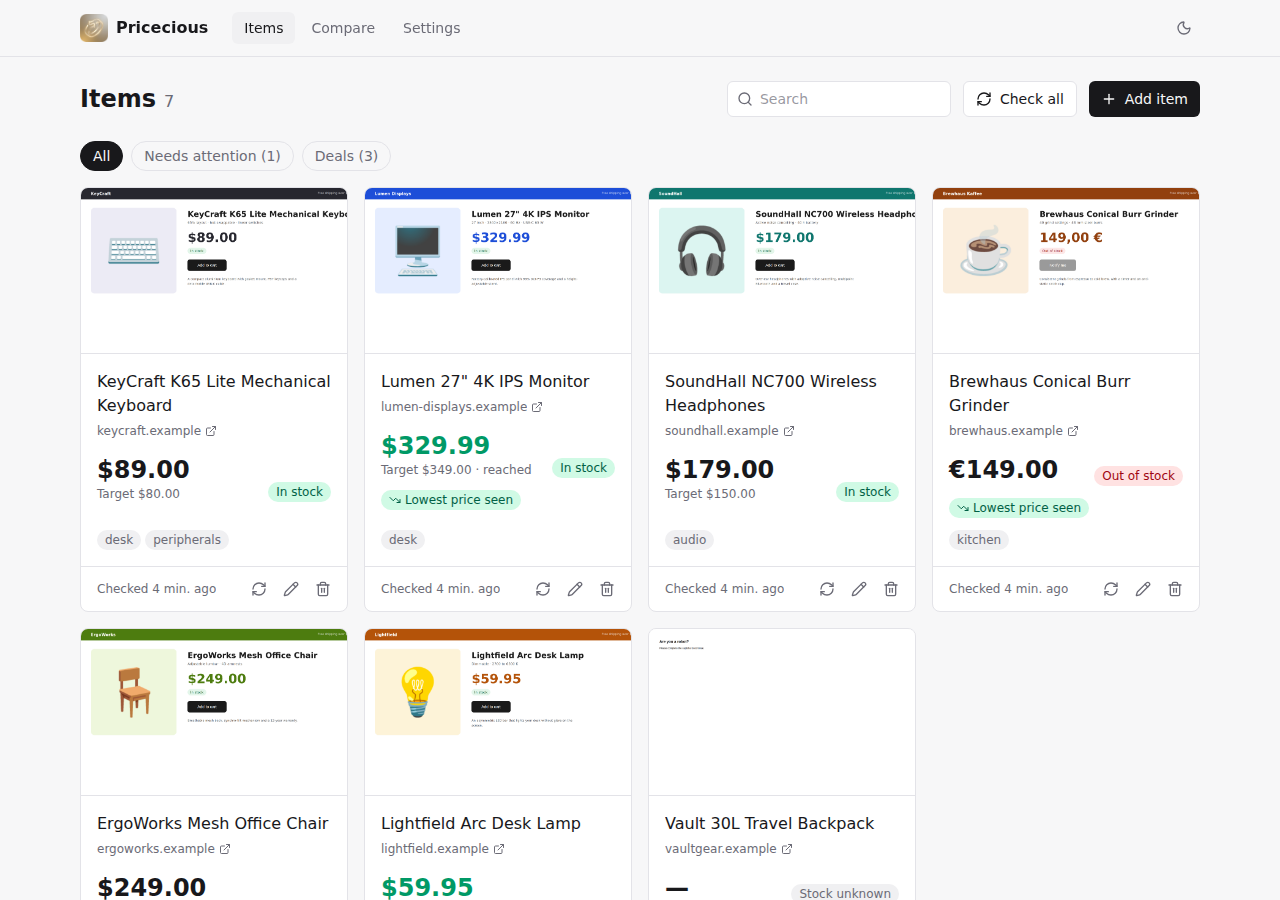
- Items: add a product page; the name, if you leave it out, and the currency come from the page on the first check, which starts right away. Each card shows the latest price, stock status, a badge when the price is the lowest seen (or the lowest in 90 days), and what went wrong if a check failed. When a page lists a range across options, the price is the cheapest option and the top of the range is shown under it. A sale badge shows the store's own promotion label and the discount from the crossed-out price. That's the store's claim; the green "lowest" badges come from your own history, so seeing both is a good sign the sale is real. The Needs attention and Deals filters gather those up. Click a screenshot to see what the browser saw.
- Bookmarklet: the Add item dialog has a + Pricecious link. Drag it to your bookmarks bar, then click it on any product page to add that page.
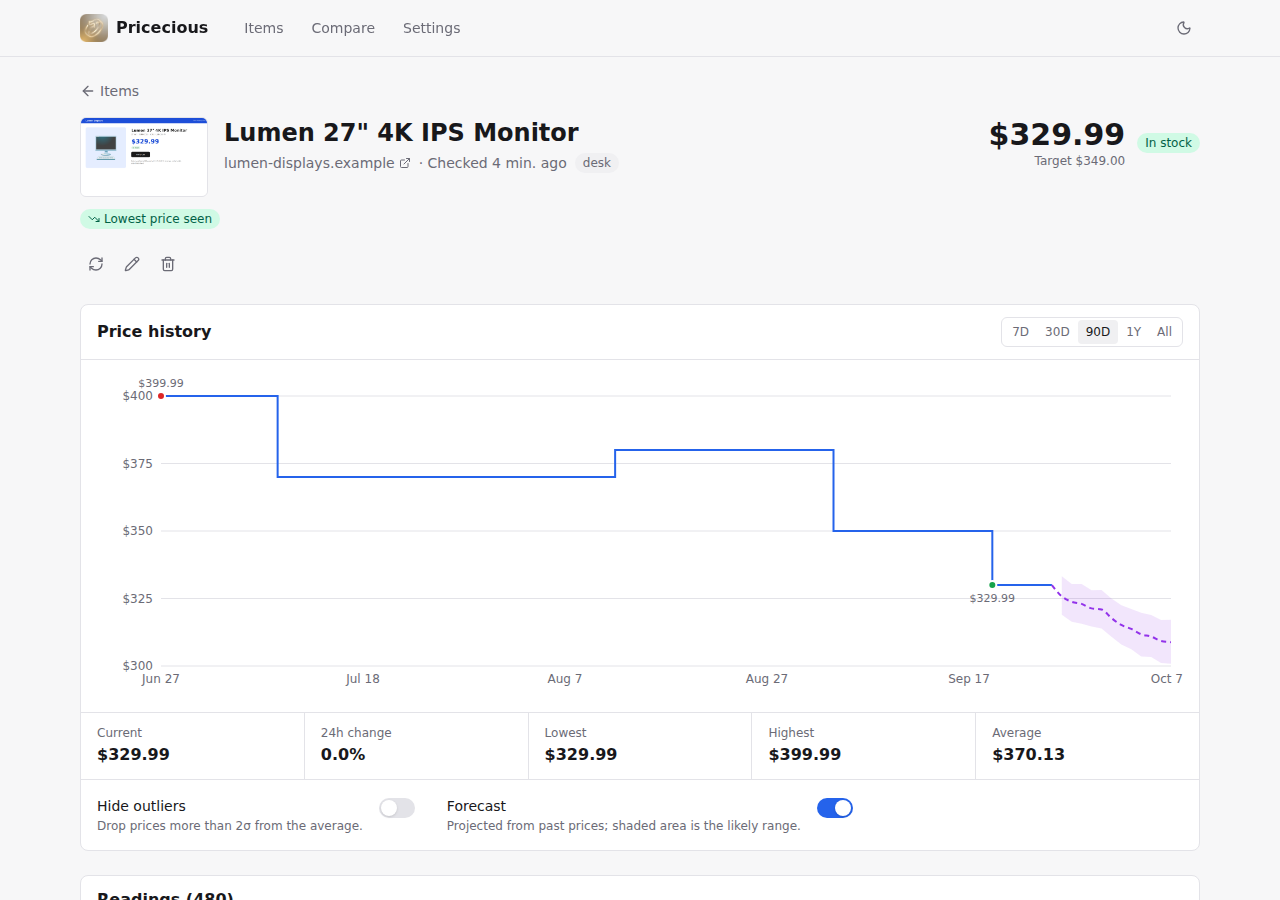
- Item page: price history with lowest/highest markers, out-of-stock periods shaded, an optional forecast, and every reading. Filter readings by price, stock or confidence to find bad ones, tick them (or every match, across pages) and delete them or set the right price in one go; the current price follows the newest reading. Corrected readings count as confirmed, so "lowest price" deals and alerts use them.
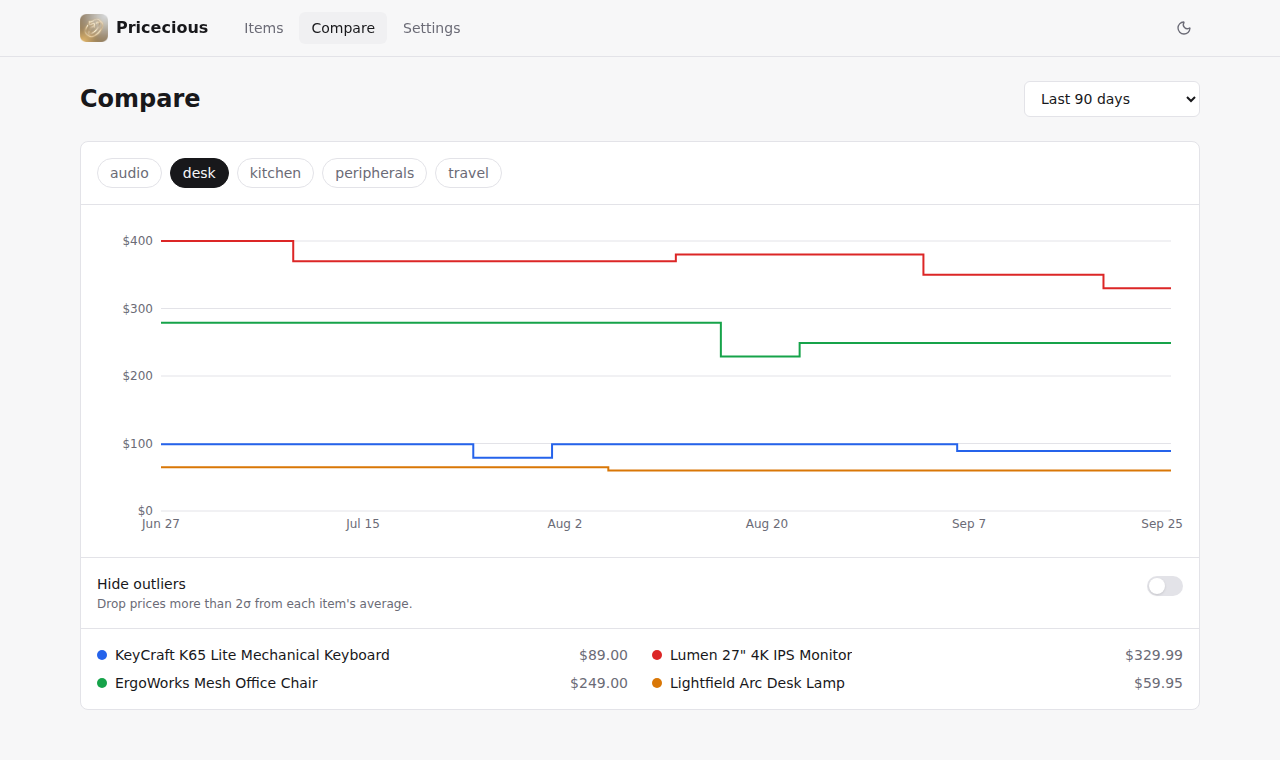
- Compare: items that share a tag (e.g.
gpu) on one chart. - Check all checks every item that wasn't checked in the last 5 minutes, so repeated clicks don't run up your AI bill. The check button on a single item always runs.
- Settings: AI model, confidence thresholds, price sanity limits, browser behaviour, schedules and notification profiles.
When the AI gets it wrong
Use Test in Settings → AI model to run your settings, saved or not, on one of your items and see the model's answer and raw reply. It's the quickest way to check a new model, key or base URL.
Signup and cookie popups are closed (or hidden) before the screenshot, and the AI is told to read the product behind anything left over, so they rarely need attention.
- Add Instructions for the AI to the item (Edit → Advanced), e.g. "Use the price of the 2 TB model." This is also how to track one option of a product whose page shows a price range.
- Set a Price element CSS selector so the right part of the page is on screen.
- Turn on Send page text to the AI in Settings for pages where the price is small or hard to read.
- Raise Minimum price confidence. Readings below it are recorded but don't change the price.
- Turn on Reject sudden price jumps to ignore misreads such as a price picked up from another product.
Keeping AI costs down
Every check visits the page, but the AI is only asked when the page's prices or stock wording ("add to cart", "sold out", ...) differ from the last AI check, and at least once a day. Price changes on unrelated parts of the page just mean the AI is asked, so nothing is missed; with a CSS selector set, only that element's price counts. "Check now" always asks the AI. Settings shows how many checks didn't need it. The biggest lever is still the check interval: calls per day are roughly items × 24 ÷ hours between checks.
Checks run on the item's own interval, else its notification profile's, else the global default. An item that fails repeatedly (20 times by default) is paused until you turn its scheduled checks back on.
Configuration
AI, scraper and schedule settings live in the Settings page. The container reads these environment variables:
| Variable | Description | Default |
|---|---|---|
DATABASE_URL |
PostgreSQL connection string (required). | |
BROWSERLESS_URL |
WebSocket URL of Browserless, or of any Chrome with remote debugging. | ws://browserless:3000 |
BROWSERLESS_TOKEN |
Browserless token. | |
BROWSERLESS_BLOCK_ADS |
Ask Browserless to block ads. | false |
BROWSERLESS_STEALTH |
Browserless stealth mode. | false |
BROWSERLESS_HEADLESS |
Headless mode passed to Browserless, e.g. new. |
|
BROWSERLESS_VIEWPORT_WIDTH / _HEIGHT |
Browser viewport in pixels. | |
SCREENSHOT_DIR |
Where screenshots are kept. | screenshots |
CORS_ORIGINS |
Extra trusted browser origins, comma separated. Same-origin requests need no entry. | |
LOG_LEVEL |
Log level. | INFO |
The Browserless options are sent as query parameters, so you don't have to escape JSON in a URL yourself. LiteLLM's
own environment variables (such as OPENAI_API_KEY) also work when no API key is set in Settings.
The scraper only visits addresses that resolve to public IPs, including redirects, subresources and WebSockets. Still run Browserless behind an egress firewall that blocks private, loopback, link-local and metadata addresses.
Notifications
Create a notification profile in Settings with an Apprise URL, for example
discord://webhook_id/webhook_token or ntfys://ntfy.sh/your-topic, then choose it on each item. A profile can alert
on price drops, reaching the target price, a new lowest price (after two weeks of history) and stock changes.
Development
uv sync                                   # Python 3.12 and dev tools
uv run pytest                             # backend tests (SQLite)
uv run ruff check . && uv run ruff format .
cd frontend && npm install && npm run dev # UI on :5173, proxies /api to :8000
npm run check                             # Biome lint + format check
Run the backend with DATABASE_URL=... uv run alembic upgrade head && uv run granian --interface asgi app.main:app.
Set TEST_POSTGRES_URL to a disposable database to also test the migrations.
License
GNU General Public License v3.0; see LICENSE.
Requirements
Browserless (Chrome) instance
Categories
Related apps
Explore more like this
Explore allDetails
ghcr.io/ds-sebastian/pricecious:latestRuntime arguments
- Web UI
http://[IP]:[PORT:8000]- Network
bridge- Privileged
- false
Template configuration
Container Port: 8000
- Target
- 8000
- Default
- 8000
- Value
- 8000
Format: postgresql://user:password@host:5432/pricewatch
- Target
- DATABASE_URL
WebSocket URL for the Browserless instance (e.g., ws://192.168.1.10:3000)
- Target
- BROWSERLESS_URL
Persistent storage for captured screenshots.
- Target
- /app/screenshots
- Default
- /mnt/user/appdata/pricecious/screenshots
Application logging level (DEBUG, INFO, WARN, ERROR).
- Target
- LOG_LEVEL
- Default
- INFO
- Value
- INFO
Log all SQL queries to console (true/false).
- Target
- SQL_ECHO
- Default
- false
- Value
- false