

PosterView
Docker app from bamcel's Repository
Overview
Readme
View on GitHubPosterView
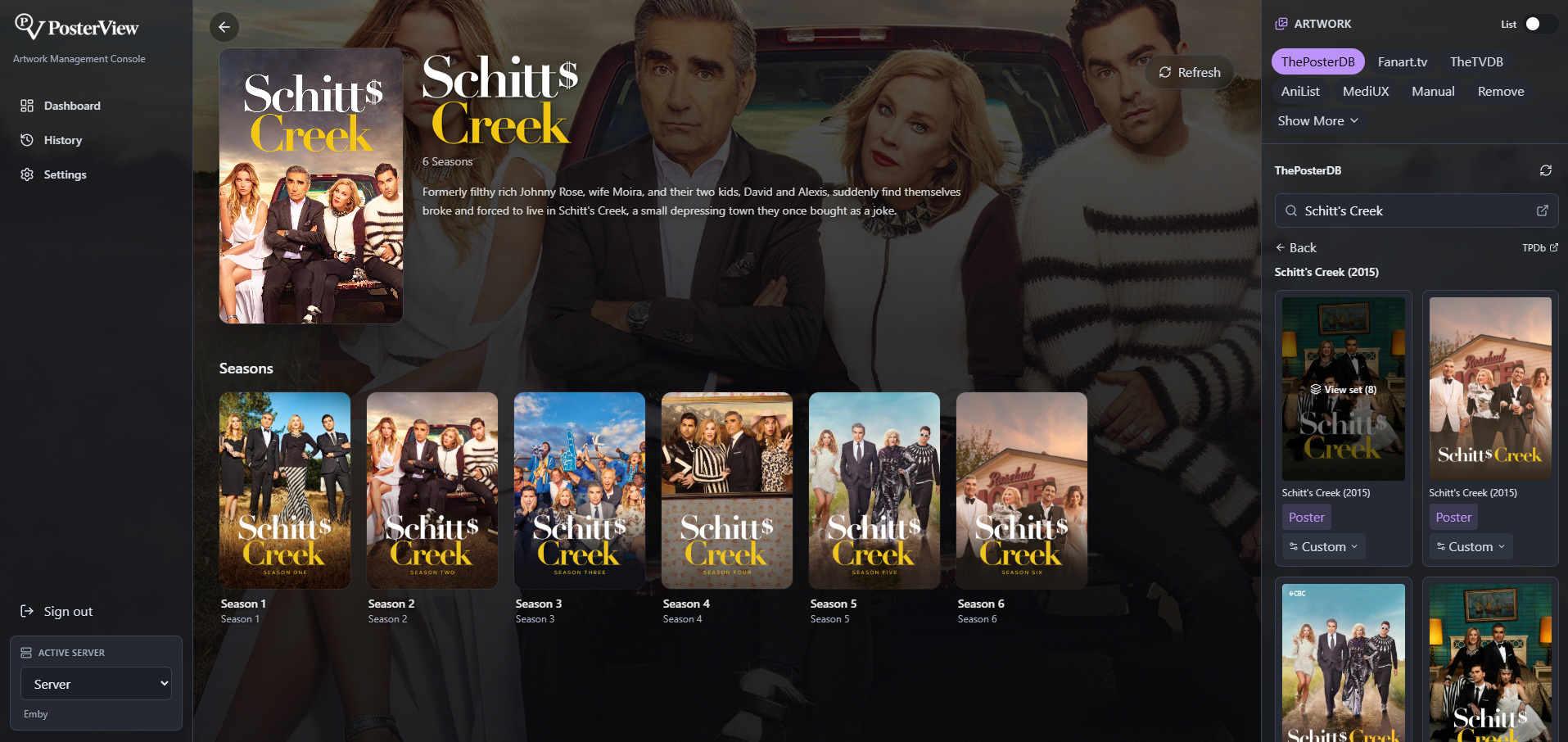
PosterView is a self-hosted, open-source artwork and metadata manager for Plex / Jellyfin / Emby libraries. Browse movies, shows, collections, and book libraries such as manga, then swap in posters, backgrounds, and logos from ThePosterDB, Fanart.tv, TheTVDB, AniList, and MediUX, plus manga covers and metadata from AniList Manga, MangaDex, VIZ, and ComicVine — per image, per season (including Season 0 / Specials), per title inside a collection, or a whole ThePosterDB set onto a series and all its seasons at once. Every apply is remembered, so a bad pick is one click to undo.
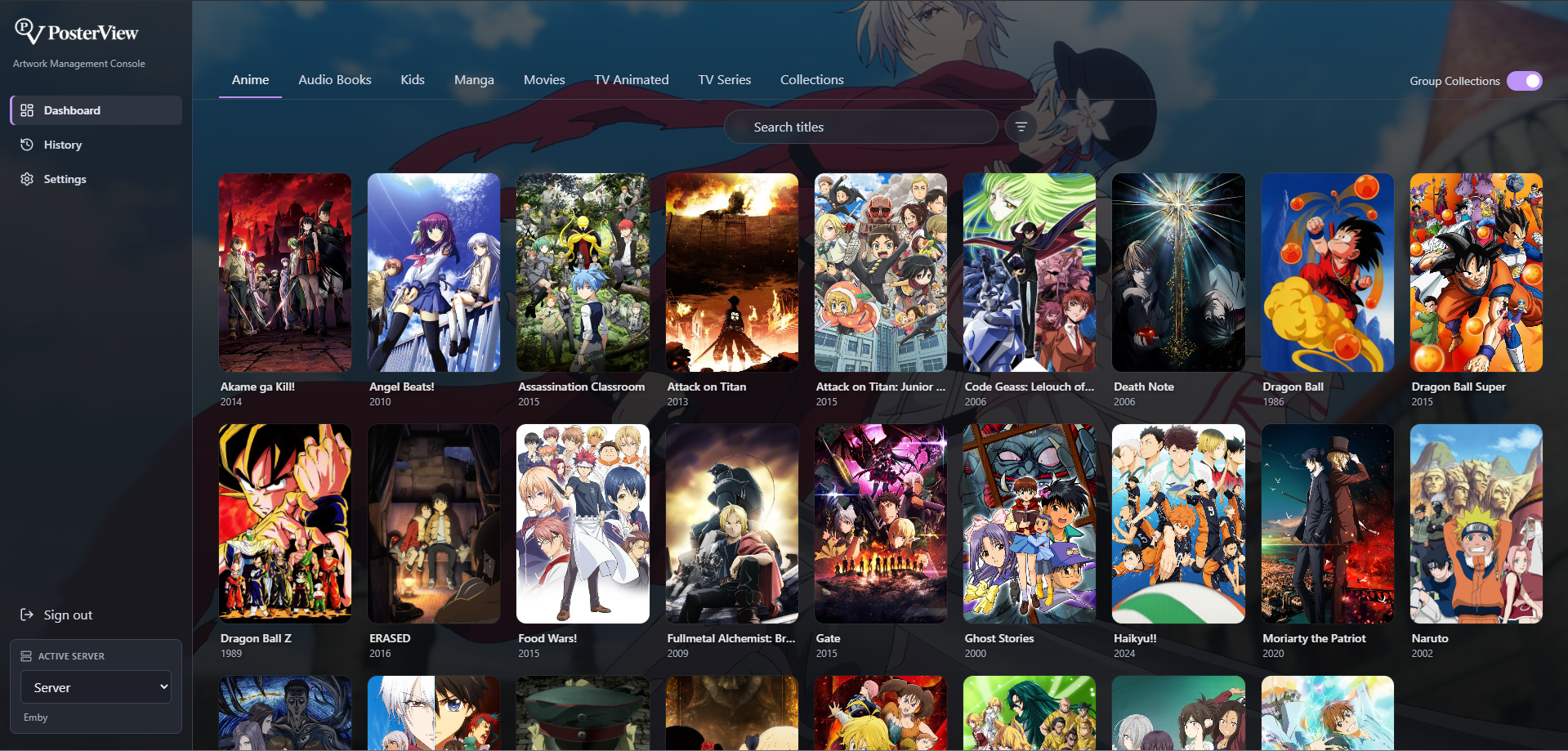
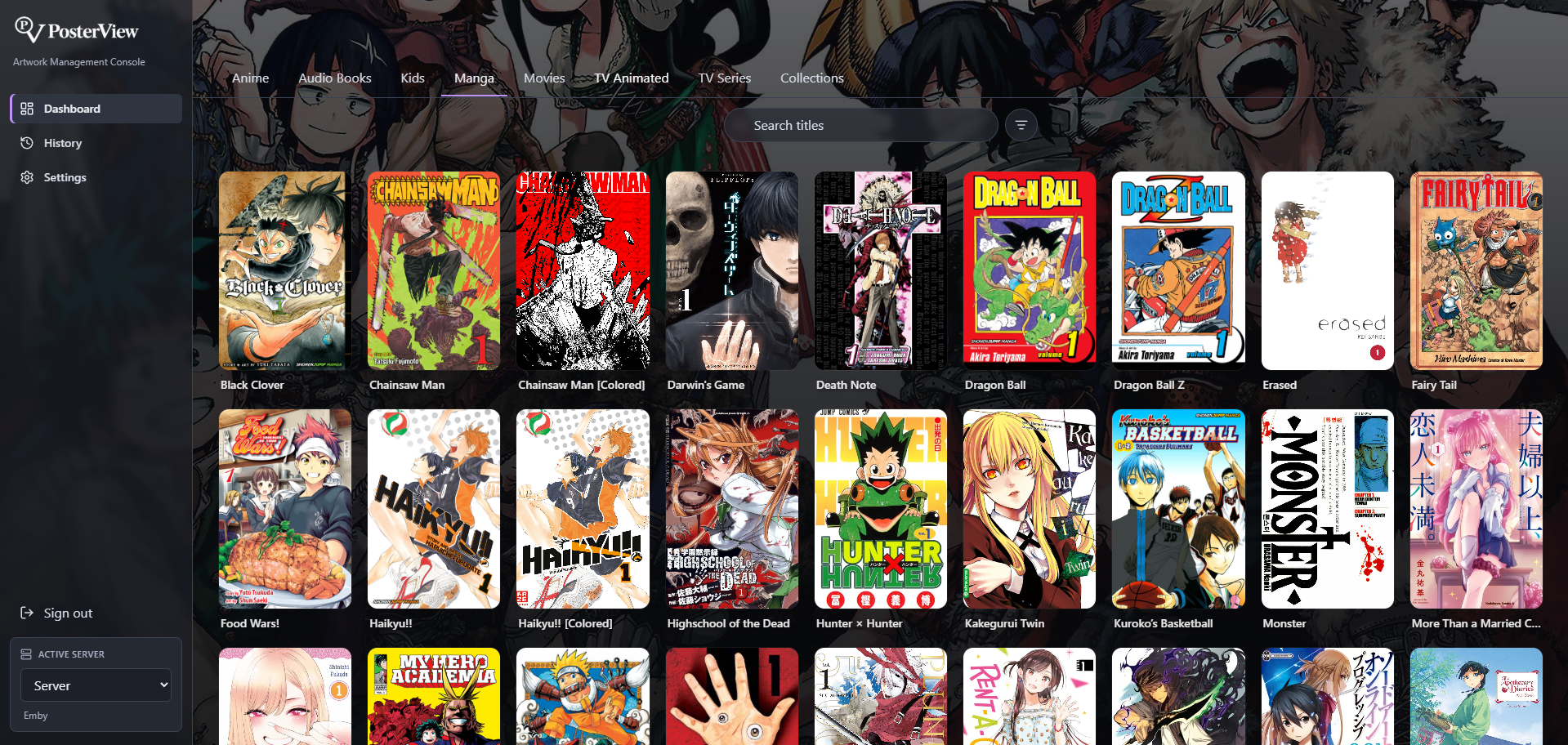
Open a title and swap its artwork from multiple sources, or manage a manga series and its book covers from the same Dashboard.
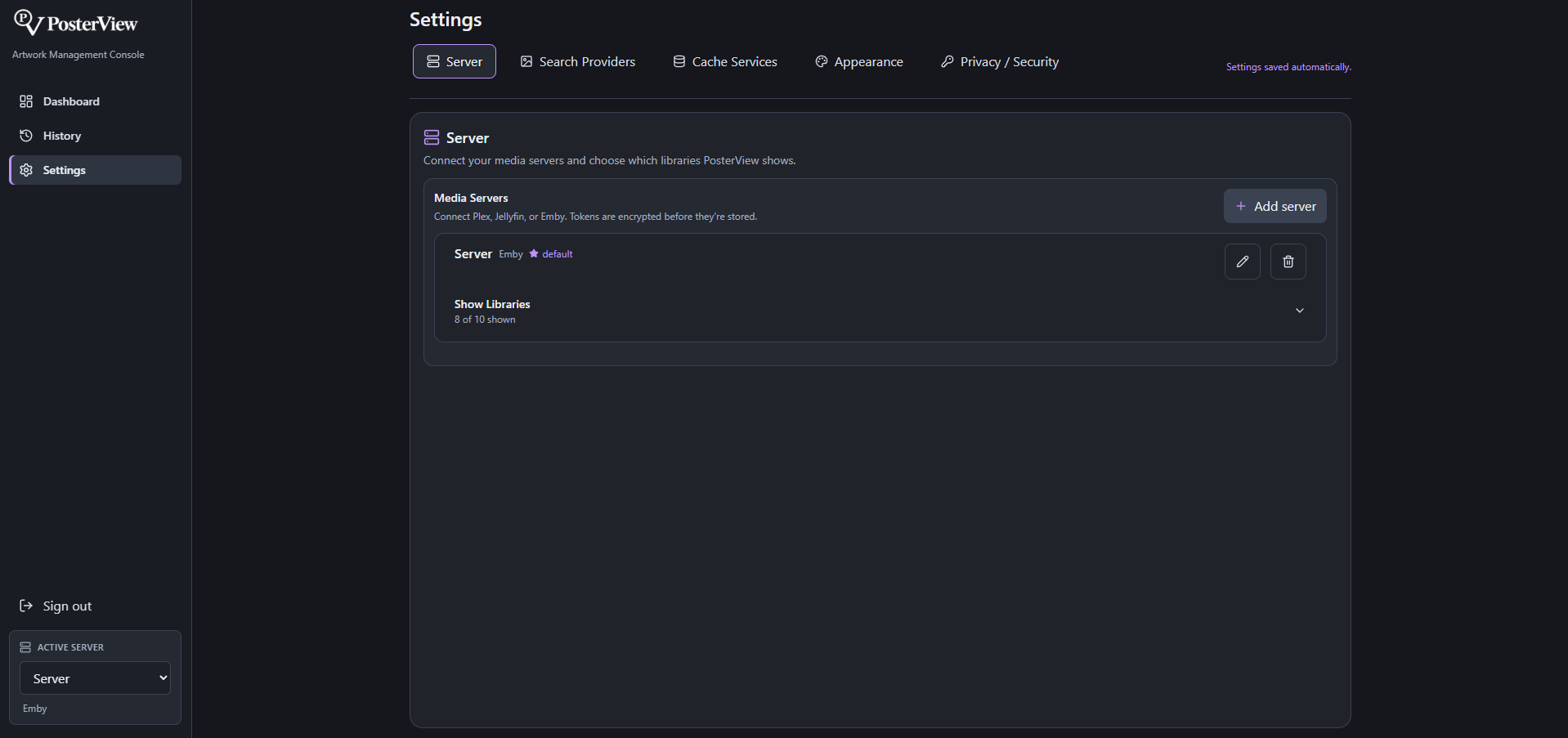
Configure your media servers and customize PosterView's shared appearance in Settings — credentials are encrypted at rest and never sent back to the browser.
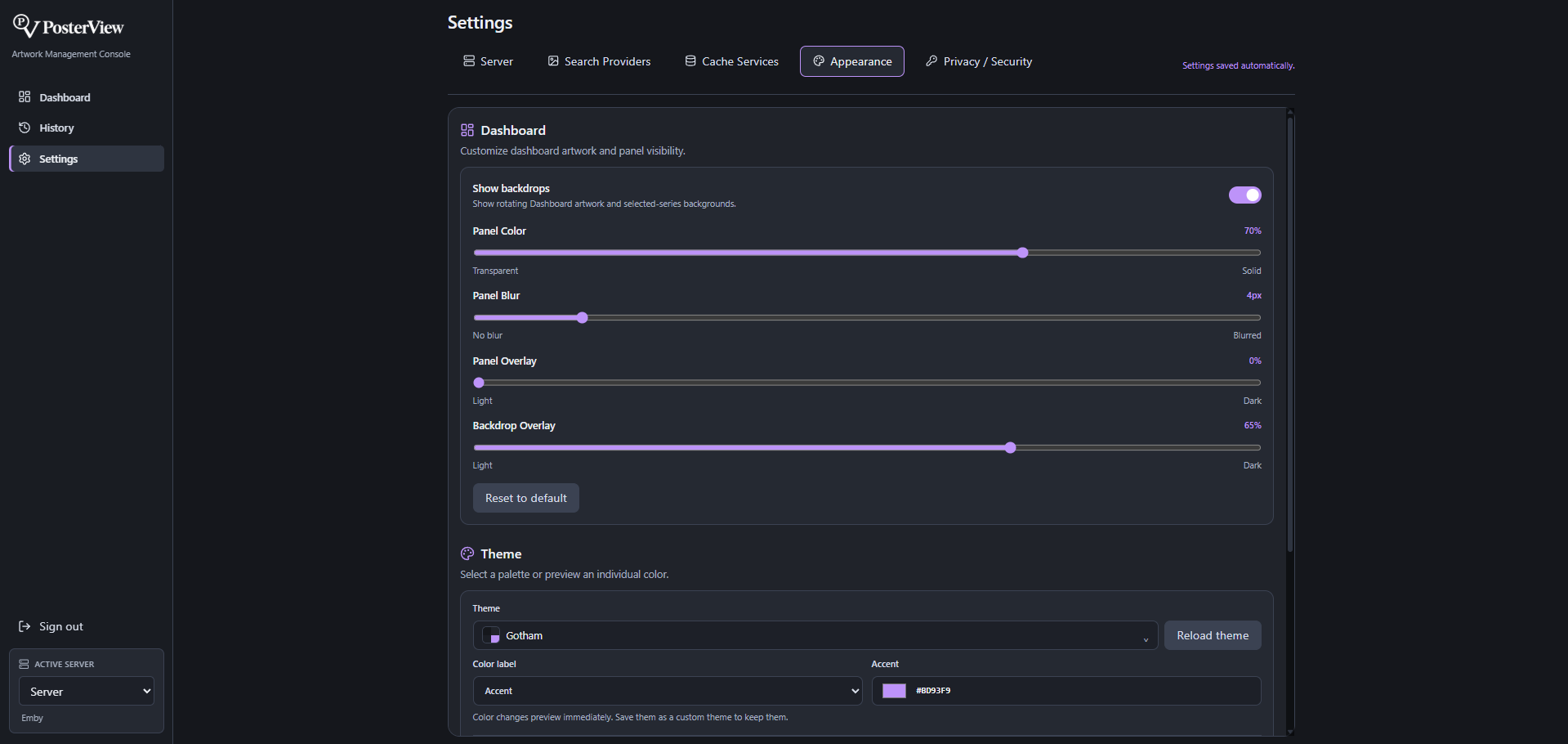
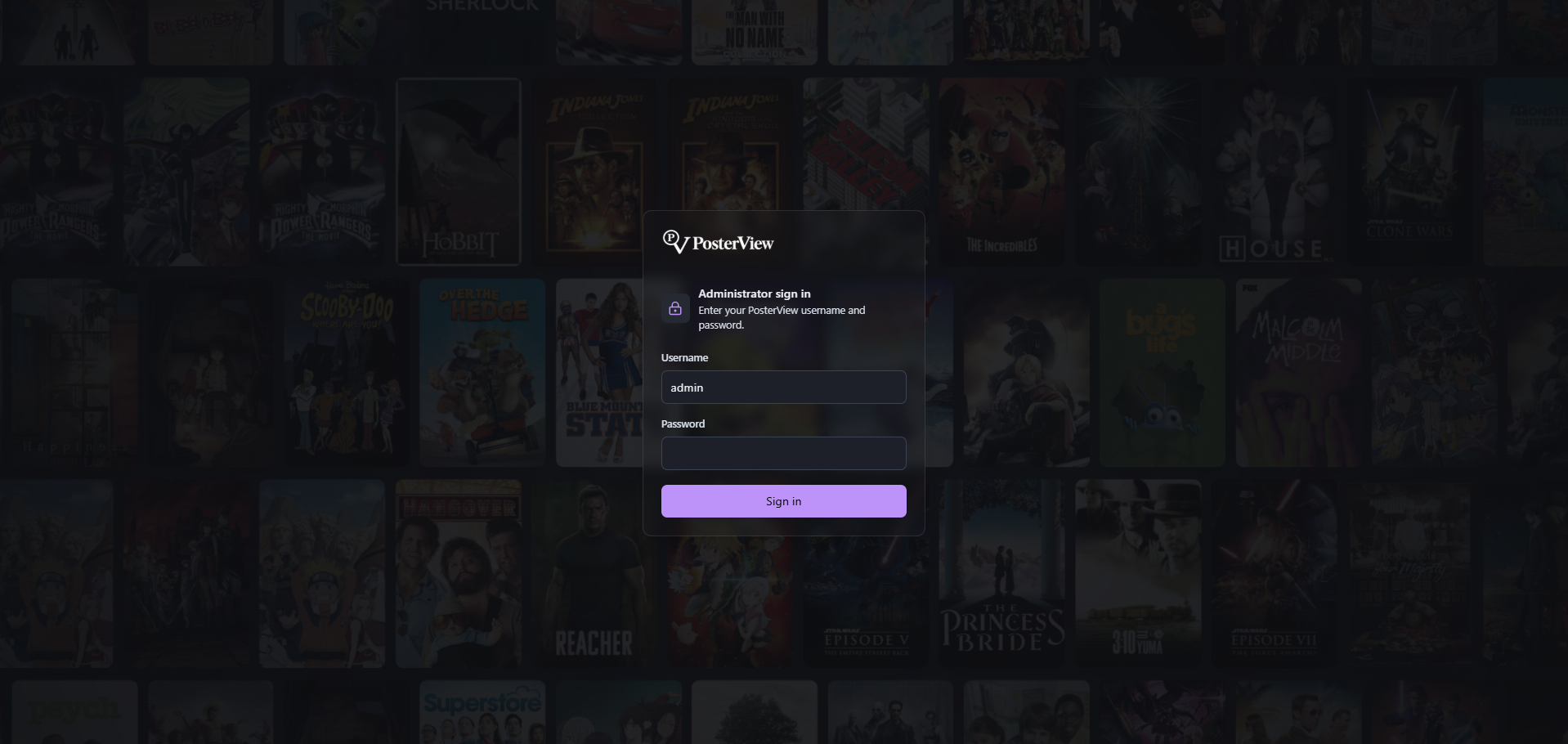
Login screen
⚠️ ThePosterDB has no public API. PosterView scrapes it while signed in with your own account, the same way the established community tools do. Use it for your own libraries and be considerate of their service. The scraping/session implementation lives in
crates/posterview-infra-artwork/src/posterdb.rsso site changes stay isolated.
Experimental channel
main publishes ghcr.io/bamcel/poster-view:latest. Experiments on experimental
publish ghcr.io/bamcel/poster-view:experimental; testing pushes never update latest.
The testing branch starts from the current main version. Changes reach main only
when deliberately merged. experimental is updated on pushes, not on a nightly schedule.
In Unraid Community Apps, installing PosterView opens a release-channel picker. Choose
Stable (latest), Experimental, or Development. If an older cached template does
not show the picker, refresh Community Apps or edit the container's Repository to
ghcr.io/bamcel/poster-view:experimental.
For isolated testing, create a second container named PosterView-Experimental, choose
a different host port (for example 7980 mapped to container port 7979), and use
/mnt/user/appdata/posterview-experimental for /config. Do not share the live appdata
folder between containers. Leave /media unmounted or use sample media to avoid
changing live NFO files or artwork. Testing with a connected media server can also
change its artwork, so use a test library/server when exercising apply actions.
Switching back to :latest changes the software, not the stored data. Keep a backup
before testing with existing appdata: a future experimental database change may
not be compatible with older versions. Local development for this channel uses
git switch experimental; reviewed work can be merged into main through a PR.
Documentation
- Getting started and key features
- Book libraries: manga, comics, and books
- Local book and manga metadata
- MangaDex covers
- Documentation index and developer references
Features
- Book and manga libraries: browse Emby/Jellyfin book-style libraries alongside movies and shows, open series folders and their volumes/chapters, use poster artwork as mobile rotating backdrops, add a manual series backdrop, and search AniList Manga, MangaDex, VIZ, or ComicVine. Screen-artwork databases remain available under Show More when you want to reuse their art.
- Custom local NFO metadata: mount book or manga folders at
/mediaand edit a<series folder name>.nfosidecar directly from the selected series. PosterView's UTF-8 XML format uses a<series>root and supportstitle,originaltitle,translatedtitle,year,plot,publisher,edition,volumes,status,anilistid,malid,comicvineid,genres,tags,creators,country, andsourcematerial. Each AniList or ComicVine link is stored in its own<source>element, so metadata assembled from multiple databases keeps every source URL. Existingseries,book, andtvshowroots and unrelated XML fields, attributes, and comments are preserved when possible; PosterView does not leave.nfo.bakfiles in the media folder. See setup, format, and compatibility. - Multiple artwork sources behind one panel: ThePosterDB (search → title → set drill-down, with per-set poster counts and empty results auto-hidden), Fanart.tv, TheTVDB, AniList, MediUX, AniList Manga, MangaDex, VIZ, and ComicVine. Sources use known TMDB/TVDB/IMDb/AniList IDs when available; otherwise search by title and choose the right match. PosterView's scheduled Sync can also resolve a missing TVDB/TMDB identifier by title before preloading compatible screen-artwork providers.
- Collections: a virtual Collections library lists every collection on the server — edit a collection's own poster/backdrop, browse the titles inside it, and jump straight to any member's own full detail page. A Group Collections toggle on the library view replaces a collection's member movies/shows with a single tile, like Emby's own library view — no more scrolling past every "John Wick" sequel individually. Live-verified on Emby/Jellyfin; the Plex-side code follows the same shape but hasn't been run against a real Plex server.
- Apply history + revert: every image you apply — from any provider or a manual upload — is remembered (up to 50 entries by default, globally — configurable). A global History page (sidebar) shows one tile per title+target, newest first; click a tile to see every version and Revert to any of them — so a bad pick costs nothing and you don't have to remember which title you last touched. Retention is configurable right there: how many entries to keep, an optional auto-purge for anything older than N days, or a manual Purge now.
- Apply anywhere: set any image as the poster, background, or clear logo — or use Custom to point it at any target, e.g. a movie poster onto a show's Specials season, or a poster from a collection's page directly onto one of its member movies without leaving the page.
- Auto-apply set: map an entire ThePosterDB set onto a show and its matching seasons in one click.
- New-item detection: a library remembers when you last visited it and flags titles added to the media server since then that still have no poster — a small banner plus a NEW badge on the poster card, so growing libraries don't quietly accumulate gaps.
- Manual tab: upload your own image file (or paste an image URL) and apply it to any target.
- ID override: each provider tab has a search box pre-filled from the item's known ids; type a different id (or, for AniList, a title) to fix a bad match on the spot.
- Connection checks: Settings can verify saved or newly entered Fanart.tv and TheTVDB credentials before you depend on them for artwork searches.
- Persistent artwork cache: provider results and proxied thumbnails are reused from the Docker
data volume under
/config/artwork-cache/servers/{server_id}. Each server has an independent 250 MB default cap and 30-day expiry, including MangaDex/MediUX/PosterDB thumbnails and PosterDB data. Settings shows each server's usage and lets you change its limits or clear its cache. Existing cache entries and Watchdog inventories migrate automatically on startup, preserving cache ages. Legacy previews without a server identifier are copied into each server's quota; the shared files are removed only after every server migrates successfully. - Persistent media-image cache: posters, backgrounds, logos, and other media-server images are
stored under
/config/media-image-cacheafter their first request, so repeat page loads do not download them from Plex, Jellyfin, or Emby again. This separate cache is capped at 10 GB with a 365-day retention period. Applying or reverting artwork immediately replaces the affected title's cached image; editing or deleting a server clears that server's entries. - Per-title refresh + Artwork Watchdog: right-click any movie, series, or collection in a library to refresh its cached provider data. The optional Watchdog in Settings → Database walks current libraries on a schedule and records a persistent inventory. After its initial build, it caches only new titles and removes item-linked data for titles no longer present. Interrupted scans resume from their checkpoint, and cleanup is skipped whenever any library or provider fails. Cancel interrupts in-flight requests. HTTP requests have 10-second connection and 30-second total timeouts; each Watchdog lookup has a 45-second deadline. Temporary failures retry up to twice after 1 and 2 seconds, then pause the run for five minutes. Invalid credentials and other permanent failures stop scheduling until you resolve the error and start Watchdog again. Settings → Database shows Idle, Scanning, Preloading, Stopping, or Failed for each server, plus its last successful run and next scheduled run. Connection-test results stay visible inside their provider cards. Disabled databases are excluded from caching. ThePosterDB prewarming keeps only the top three Movies, Shows, and Collections matches per title. Those cached matches appear immediately during an interactive search, then PosterView replaces them with every result that has artwork when the complete live search finishes.
- Artwork source preferences: choose the database that opens first for every title and enable only the sources you use. Existing installations keep all sources enabled by default. Ordinary preferences save automatically; artwork-source credentials share one explicit Save Settings action so partially entered secrets are never submitted.
- Clear-logo detail pages: the item view shows the server's stored logo art over a full-bleed, darkened backdrop behind the title details, seasons, and artwork panel.
Architecture
A Rust/Axum backend serves a React single-page app and brokers all calls to your media servers and artwork sources. The domain/runtime crates are host-independent so a Tauri host can be added later without coupling PosterView to MKV Orchestrator:
frontend/                         React + Vite + TypeScript + Tailwind v4
apps/server/                      Axum HTTP host and SPA server
crates/posterview-runtime/        application orchestration and history
crates/posterview-contracts/      stable frontend/API contracts
crates/posterview-infra-sqlite/   SQLite + Fernet-compatible encrypted settings
crates/posterview-infra-media-servers/  Plex / Jellyfin / Emby adapters
crates/posterview-infra-artwork/  Fanart / TVDB / AniList / MediUX / ThePosterDB
- Credentials are encrypted at rest (Fernet) and never echoed back to the browser.
- Images are proxied through the backend, so origin tokens and the ThePosterDB session stay server-side and there's no CORS to fight.
- All three media servers are normalized to the same shapes, so the UI never branches on server type.
Requirements
- Docker (easiest), or
- Rust 1.88+ and Node 20.19+ or 22.12+ for a local development setup.
Run with Docker (recommended)
A single multi-stage image builds the frontend and serves it together with the API. Nothing to install but Docker.
docker compose up -d --build # build + run, http://localhost:7979
Or without Compose:
docker build -t posterview .
docker run -d --name posterview -p 7979:7979 -v posterview-data:/config posterview
Open http://localhost:7979. The SQLite database and encryption key live in the
posterview-data volume (/config in the container), so your servers and settings survive
restarts and image upgrades.
Existing Docker/Unraid installations: the image still detects and uses a legacy
/data application-state mount when /config has no database or encryption key.
You can update the image without changing your existing template. To adopt the
new Config path, change only the container destination from /data to /config;
keep the same host folder (for example /mnt/user/appdata/posterview) or named
volume. Do not delete or recreate the volume. Compose keeps the posterview-data
volume name and mounts it at /config. An explicit POSTERVIEW_DATA_DIR overrides
auto-detection; update that value too if you previously set it yourself. When both
locations contain state, /config takes precedence. Nothing is moved or merged.
The optional Media mount uses /media, separate from application state. Update any previous media mapping to /media. Explicit POSTERVIEW_MEDIA_DIR overrides take precedence.
PosterView's administrator username defaults to admin. Change it with POSTERVIEW_USERNAME
in your .env file or the Administrator Username field in the Unraid XML template, then
recreate the container. Usernames are case-sensitive.
The Unraid XML template includes Require Login, a false/true option defaulting to false.
It sets POSTERVIEW_AUTH_ENABLED: false disables login for all connections, including
reverse proxies and remote visitors; true enables login (subject to the optional LAN bypass).
With login disabled, inactivity sign-out cannot lock access. Use disabled login only on a
trusted network. Username/password settings are retained for when login is enabled again.
Outside the Unraid template, omitting this variable keeps authentication enabled. Recreate the
container after changing the variable.
PosterView requires an administrator password. Set POSTERVIEW_PASSWORD in a local .env
file before starting Compose, or let PosterView generate a strong password on first launch and
retrieve it with:
docker compose exec posterview cat /config/admin-password.txt
When an HTTPS reverse proxy terminates TLS, also set POSTERVIEW_SECURE_COOKIES=true so the
session cookie is sent only over HTTPS.
Reaching your media server from the container:
- Media server elsewhere on your LAN → just use its normal address (e.g.
http://192.168.1.20:8096). - Media server over Tailscale → use its direct Tailnet address (for example,
http://100.x.x.x:8096) or a MagicDNS name that resolves from the Docker host. - Media server behind a domain/reverse proxy → use the complete URL, including
http://orhttps://and a port when it is not the protocol default (for example,https://media.example.com). - Media server running on the same host as Docker → use
http://host.docker.internal:32400(Plex) or:8096(Jellyfin/Emby). The provideddocker-compose.ymlalready mapshost.docker.internal; with plaindocker runadd--add-host=host.docker.internal:host-gateway.
Use Test connection before saving a remote server. The machine running Docker must be able to reach the address itself; a URL that works only inside another device's browser is not enough.
Network security
PosterView is an administrative tool: it stores media-server credentials and can replace or
revert library artwork. By default, all API routes except the health check and sign-in flow require an
HttpOnly, same-site administrator session. Keep port 7979 on a trusted LAN or behind an HTTPS
reverse proxy; the login is an application boundary, not a substitute for firewalling and TLS.
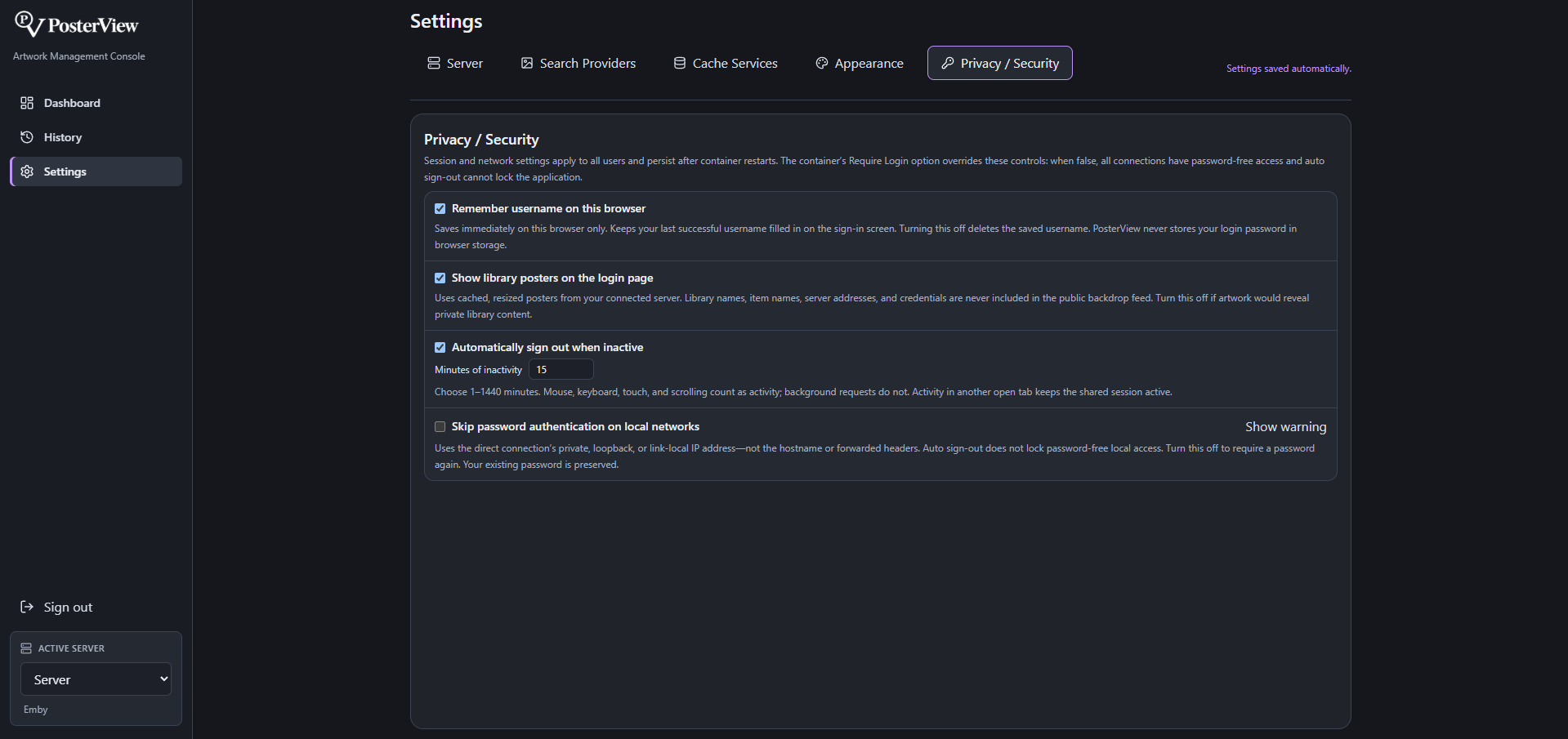
In Settings → Privacy / Security, you can configure:
- Login poster backdrop: enabled by default. While login is required, the sign-in screen shows randomized poster rows from the default (or first) connected server. Each row represents one library, rows alternate left/right motion, and a dark transparent treatment keeps the form readable. Poster order reshuffles when the cache and page refresh. The public feed contains only locally cached 280×420 JPEGs with opaque names—never library/title names, item IDs, server URLs, or credentials. Disable it if showing library artwork before sign-in is inappropriate.
- Remember username on this browser: enabled by default. The last successful username stays
filled in after sign-out and on future visits. Turning it off immediately removes the saved
username. This preference is local to each browser/origin and saves immediately; PosterView
never saves your login password in browser storage.
With remembering enabled, the sign-in form also reads the configured username from the server,
so changing
POSTERVIEW_USERNAMEreplaces an outdated autofill value. It does not overwrite a username you are actively editing. The username is provided by the public sign-in status endpoint; the password is never returned. - Automatic sign-out: optionally expire password-authenticated sessions after 1–1440 minutes of inactivity. Disabled by default. Mouse, keyboard, touch, and scrolling count as activity; background requests do not. Activity in another tab on the same origin keeps the shared session active. The server also enforces expiry when the browser is closed or suspended.
- Skip password authentication on local networks: disabled by default. When enabled, direct connections from private, loopback, or link-local IP addresses receive full access without a password. The direct connection's address is used, not the hostname or forwarded headers. A reverse proxy or Docker networking can make remote visitors appear local, including visitors using your public domain. Enable only if you accept that they may also bypass authentication. Auto sign-out and the Sign out button do not lock password-free local access. Disable this setting to require the existing password again.
Preferences are saved in /config/security-settings.json and survive container restarts. To restore
the defaults outside the UI, stop the container, remove only that settings file, then restart it.
The password and media-server data are preserved. Sessions themselves are not persisted.
The poster cache is stored separately under /config/login-backdrop, refreshes at startup, after a
successful login, when a server is added, or when the setting is enabled, and keeps the prior cache
if the media server is temporarily unavailable. The login page has a clean themed fallback until
the first cache is ready. Reduced-motion browser preferences pause the row animation.
Media-server base URLs may intentionally target LAN, loopback, or Tailnet hosts, but must be valid HTTP(S) URLs without embedded credentials. User-selectable artwork downloads are restricted to the selected provider's HTTPS domain, including every redirect.
To update after pulling new code: docker compose up -d --build.
Run on Unraid
A ready-made Docker template is at templates/posterview.xml — it points at
the pre-built image on GHCR (ghcr.io/bamcel/poster-view:latest, published automatically by
a GitHub Action on every push to main), maps the web
UI to port 7979, persists /config to /mnt/user/appdata/posterview, and adds the same
host.docker.internal mapping as the Compose file above.
- Tools → Terminal (or SSH in) and run:
curl -L -o /boot/config/plugins/dockerMan/templates-user/my-posterview.xml \ https://raw.githubusercontent.com/bamcel/poster-view/main/templates/posterview.xml - Docker tab → Add Container → pick PosterView from the Template dropdown at the
top. Set the Data path if you don't want the default
/mnt/user/appdata/posterview, then Apply. - Open the WebUI from the Docker tab once it's healthy.
Unraid's own Template repositories field (Add Container → scroll to the bottom → paste the
same raw URL → Save) is the "official" way to register a template and should also work. The
local-file method above is recommended instead because it's what's actually been confirmed
working — the file has to land in templates-user/, not templates/ (the latter is treated
as Community-Applications/system-managed and silently produces a blank/default Add Container
form, even with a valid template selected from the dropdown).
Quick start (development)
Two processes: the API on :7979 and the Vite dev server on :5173 (which proxies /api).
1. Backend
cargo run --package posterview-server # http://localhost:7979
2. Frontend (second terminal)
cd frontend
npm install
npm run dev                        # http://localhost:5173
Open http://localhost:5173.
Production (single process)
Build the frontend; Axum then serves it from the same origin as the API:
cd frontend && npm run build       # outputs frontend/dist
cd .. && cargo run --release --package posterview-server
Override the bind address, data directory, built UI directory, administrator password, and secure
cookie behavior with POSTERVIEW_BIND, POSTERVIEW_DATA_DIR, POSTERVIEW_UI_DIR,
POSTERVIEW_PASSWORD, and POSTERVIEW_SECURE_COOKIES.
First-run setup
- Open Settings.
- Add a media server — name, type, URL, and token:
- Plex token: open Plex Web → any item → ⋯ → Get Info → View XML, copy the
X-Plex-Tokenfrom the URL. - Jellyfin / Emby API key: Dashboard → API Keys → add one.
- Use Test connection to confirm before saving.
- Plex token: open Plex Web → any item → ⋯ → Get Info → View XML, copy the
- Add your ThePosterDB account (email + password) and hit Test login.
- (Optional) Under Settings → Search Providers, add a free Fanart.tv personal API key and/or a TheTVDB v4 API key to enable those tabs. Use each provider's Test API button to verify the key. AniList and MediUX need no key or account — they're ready to use immediately.
Using it
- Pick a server (sidebar) and a library (tabs), then click a title to open it — the artwork panel searches for it automatically. A Collections library tab lists every collection on the server; use the Group Collections toggle (top-right of the library view) to switch a regular library between showing each collection's movies/shows individually or collapsed into one tile.
- ThePosterDB tab: pick a title from the categorized results (Movies / Shows / Collections, with counts), hover a cover and View set (N) to see the full set, then apply single images or Auto-apply set.
- Fanart.tv / TheTVDB / AniList / MediUX tabs: artwork loads by the item's ids, grouped into Posters / Backgrounds / Banners / Logos. Wrong match? Type the right id in the search box.
- Manual tab: upload a file or paste an image URL, choose the target, apply.
- On any image, Custom lets you choose exactly where it lands — poster, background, logo, a specific season, or — on a collection's page — any of its member movies/shows, without leaving the page.
- History (sidebar): one tile per title+target across the active server, newest first — click a tile to see every version applied to it, jump to the title, or Revert to an earlier image. Set how many entries to keep (50 by default) and an optional auto-purge age in days — entries older than that are removed, everything newer is left alone regardless of count — or hit Purge now to trim it immediately.
API
The frontend uses the following stable HTTP API endpoints:
| Method | Path | Purpose |
|---|---|---|
GET/POST/PATCH/DELETE |
/api/servers… |
manage media servers |
POST |
/api/servers/{id}/test |
test a saved connection |
GET |
/api/servers/{id}/libraries |
list libraries (includes a virtual collections one, Emby/Jellyfin) |
GET |
/api/servers/{id}/libraries/{lib}/items[?group_collections=] |
list titles; toggle collection grouping (default on, Emby/Jellyfin) |
GET |
/api/servers/{id}/items/{item} |
item detail: seasons, members (if a collection), logo, external ids |
GET |
/api/servers/{id}/image?ref=… |
auth'd media-server image proxy |
PUT |
/api/posterdb/credentials |
save ThePosterDB login |
GET |
/api/posterdb/search?server_id=&term= |
categorized ThePosterDB search |
POST |
/api/posterdb/verify?server_id= |
poster counts per title (hides empty results) |
GET |
/api/posterdb/set?server_id=&url= |
scrape a set / poster / title page |
GET |
/api/posterdb/image?server_id=&url= |
cached ThePosterDB thumbnail proxy |
POST |
/api/posterdb/apply |
download an image + apply to a server |
GET |
/api/artwork?provider=&server_id=&item_id=[&id_override=] |
Fanart/TVDB/AniList/MediUX artwork |
GET |
/api/artwork/search?provider=&server_id=&item_id=&query= |
title search + picker for Fanart/TVDB/MediUX when no id is known |
GET/PUT |
/api/artwork/settings |
API keys, default source, and enabled databases |
GET/PUT/DELETE |
/api/artwork/cache/{server_id} |
cache usage, limits, expiry, and clear |
POST |
/api/artwork/cache/refresh |
refresh and prewarm one movie/show/collection |
POST |
/api/artwork/cache/{server_id}/watchdog/run |
start a full-library prewarm in the background |
POST |
/api/artwork/cache/{server_id}/watchdog/cancel |
cancel an active scan, including in-flight requests |
GET |
/api/artwork/mangadex/image?server_id=&url= |
cached MangaDex thumbnail proxy |
GET |
/api/posterdb/search/preview?server_id=&term= |
cached top-three matches per category |
POST |
/api/artwork/test |
verify saved or supplied Fanart/TVDB credentials |
GET |
/api/artwork/mediux/image?server_id=&url= |
cached MediUX thumbnail proxy |
POST |
/api/artwork/upload |
apply a user-uploaded image file |
GET |
/api/history?server_id=[&item_id=&target=&limit=] |
apply history — global feed when item_id is omitted |
GET |
/api/history/{id}/image |
a history entry's stored image |
POST |
/api/history/{id}/revert |
re-apply a history entry as current |
GET/PUT |
/api/history/settings |
max_entries (global cap) and purge_days (0 = disabled) |
POST |
/api/history/purge?days= |
purge now; omit days to use the saved setting, 0 purges everything |
License
MIT — see LICENSE.
Media gallery
1 / 3Categories
Related apps
Explore more like this
Explore allDetails
ghcr.io/bamcel/poster-view:latestRuntime arguments
- Web UI
http://[IP]:[PORT:7979]/- Network
bridge- Shell
sh- Privileged
- false
- Extra Params
--add-host=host.docker.internal:host-gateway
Template configuration
Port for the PosterView web UI
- Target
- 7979
- Default
- 7979
- Value
- 7979
SQLite database, encryption key, settings, apply history, and persistent artwork caches
- Target
- /data
- Default
- /mnt/user/appdata/posterview
- Value
- /mnt/user/appdata/posterview
Optional: Enables PosterView to read and manage metadata such as nfo files.
- Target
- /media
- Default
- /mnt/user
- Value
- /mnt/user
false disables login for ALL connections, including reverse proxies and remote access. true requires administrator login unless local-network bypass is enabled in Settings. Defaults to false. Use only on a trusted network when disabled.
- Target
- POSTERVIEW_AUTH_ENABLED
- Default
- false|true
- Value
- false
Username when Require Login is true. Defaults to admin.
- Target
- POSTERVIEW_USERNAME
- Default
- admin
- Value
- admin
Password for the PosterView sign-in screen. Leave blank to generate one in /data/admin-password.txt.
- Target
- POSTERVIEW_PASSWORD