
All apps · 0 apps

plembfin
Docker app from Plembfin's Repository
Overview
Readme
View on GitHub





Changelog · Which version should I run? · Full documentation · Website · Discord · Reddit
v2.0.0. Plekt writes watched state and playback progress to connected media servers, so back up first (Settings → Backup → Local). Report issues on the issue tracker.
Plekt is the brain in the middle. Your media servers, Trakt, and Seerr don't talk to each other - Plekt remembers what you've watched and keeps everyone in sync.
Formerly Plembfin
This alpha cycle is the Plekt rebrand. The new image and repository names and the
plekt.net documentation links are checked before each stable release.
Plekt is the same app with a new name. Existing Docker installs only need to change
ghcr.io/lasikiewicz/plembfin to ghcr.io/lasikiewicz/plekt, or
plembfin/plembfin to plembfin/plekt. Keep the same tag, volume, data folder,
container settings and secrets. Do not replace an existing named volume with the
fresh-install example below. Both old image names receive updates for at least six
months after the rebrand release.
Existing plembfin.db databases are kept and used; fresh installs use plekt.db.
All PLEMBFIN_* environment variables remain accepted; a nonblank PLEKT_* value
wins when both are supplied. The old X-Plembfin-Webhook-Secret header still works;
new integrations can use X-Plekt-Webhook-Secret. Existing sign-in cookies,
browser preferences, provider device ids, backup folders and API routes retain
legacy identifiers so upgrades keep their state. Existing provider connections
may still appear as Plembfin in the provider's device list; new connections on a
fresh install identify as Plekt.
Old backups still restore, list and prune. New backups use Plekt names and cannot
be restored by older Plembfin builds. The Windows installer is designed to upgrade
in place and move %ProgramData%\Plembfin to %ProgramData%\Plekt; its real upgrade
check is still pending. Existing Unraid installs keep their current appdata path.
The hub
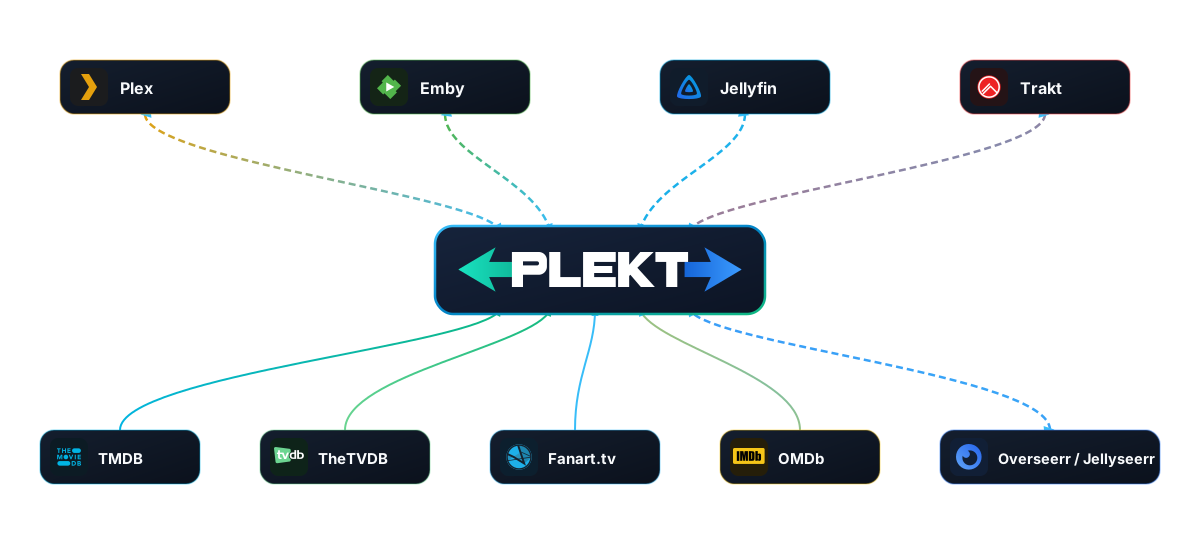
None of these talk to each other - they all talk to Plekt.
- Remembers every watch, once, locally in SQLite
- Syncs watched/unwatched state across Plex, Emby, Jellyfin, and Trakt
- Enriches with posters, cast, episodes, and ratings from TMDB, TheTVDB, Fanart.tv, and OMDb
- Connects to Overseerr/Jellyseerr for requests and availability
Key Features
- Canonical sync - Seamless two-way sync keeps watched state aligned across every connected app with intelligent auto-reconciliation
- Force Sync - Flexible on-demand sync per-title (with season scoping) or library-wide with comprehensive live progress logging; title pushes finish local media servers before draining a paced, retrying Trakt queue, and cancellation finishes the current history item before skipping queued items
- Instant state restoration - Automatically synchronizes watch history to newly added media and rebuilt server libraries
- Cross-platform resume - Pause playback on one server and pick up right where you left off on another
- Rewatch tracking - Full multi-watch history logging with smart deduplication that preserves authentic repeat viewings
- Now Playing dashboard - Real-time playback monitoring with a panel that features part watched and Up Next items around live sessions (configurable from its cog), optional Plekt-authoritative Up Next sync that queues a coalesced provider push whenever the queue changes (to Plex/Emby Continue Watching and Jellyfin Next Up), show-level Up Next dismissals, media-type-aware Watch History, weekly watch activity trends, and recent history
- Sync Activity hub - Live grouped activity by movie/show, with all resume checkpoints and destination results preserved behind each row, clear reasons for skipped destinations, unresolved cross-platform matches with per-item Fix match actions, targeted retry for actual failed destinations (only the newest unresolved result per movie/episode is retried, individually or all at once as a background job that survives closing the tab; expected missing-library skips are excluded), show-wide Fix Match and retry-all controls for Trakt mismatches, dismiss controls for shows Trakt does not contain, blocked-restore repair grouped by show with Fix Match and skip controls, and downloadable group logs
- Rich analytics & stats - In-depth all-time and period reports, top shows, and platform playback distribution
- Personal media organization - Save movies, shows, and episodes to a watch list or playlists (optionally synced two ways to Plex, Emby, and Jellyfin, or filled automatically from genre, original language, year, and watched rules, with TV playlists holding the next episode of each show, and watched items removed if you choose), and rate them from their media pages; episode ratings use one canonical show/season/episode identity everywhere
- Cache-first media detail pages - Reuse the latest local history snapshot on reload so known artwork, summaries, watched rows, and watch dates stay visible while provider metadata refreshes
- Paged media libraries - Movies and TV Shows load more cards as you scroll without rebuilding the cards already on screen; saved TV pages revalidate after 30 minutes when reopened
- Personal Rating Sync - One-toggle, two-way rating sync with every connected Plex, Emby, Jellyfin, and Trakt account through an isolated durable queue, with Plekt as the conflict authority
- Plex Watchlist Sync - One-toggle, two-way sync between Plekt and the Plex account watchlist, with safe first-run union, durable retries, a Sync now action, and a plain-language explanation of anything Plex refuses
- Upcoming episodes calendar - Air date schedule for upcoming and past releases, pre-cached for instant loading
- Discover hub - Personalized recommendations from your watch history plus cached trending, now-playing, airing-today, and genre feeds paint immediately from saved data, exclude titles you have already watched, and refresh live through the update stream with direct TMDB detail navigation
- Live Trakt sync - Two-way Trakt integration with seamless device authorization, per-play history import, and resilient sync protection
- Seerr integration - Discover and request movies and TV shows directly from detail pages via Overseerr or Jellyseerr
- Movie collections - Explore related franchise entries, sequels, prequels, and spin-offs from movie detail pages and collection search results
- Direct server deep links - Quick one-click links to jump directly to any title in Plex, Emby, or Jellyfin
- Automated backups - Built-in daily local backups with optional scheduled offsite backups to Backblaze B2
- Guided first-run setup - A one-time account claim replaces the old generated-password dead end, followed by a resumable
/setupwizard that connects media servers, adds metadata, configures webhooks, optionally connects Trakt, and tunes watch and Up Next sync - Self-hosted & private - Runs entirely on your own hardware with dedicated SQLite storage and full data ownership
- Enterprise-grade security - Hardened with strict Content Security Policy (CSP), scrypt password hashing, rate limiting, and HMAC session signing
- High-performance artwork cache - Fast local caching for high-resolution posters, backdrops, and logos from TMDB, TheTVDB, and Fanart.tv; metadata is warmed in the background as media is discovered or a TV show is rematched so the dashboard stays cache-first
- Comprehensive metadata - Precision episode titles, season numbering, and air dates from TheTVDB; episode cards use their cached season poster when available; rich cast, trailers, and reviews from TMDB
- Unified multi-source search - Blazingly fast search across your local libraries, TMDB movies/shows/collections, and TheTVDB with local media prioritized
- Progressive Web App (PWA) - Installable directly on iOS, Android, macOS, and Windows with a native app experience
See docs/architecture.md for how each feature is actually built.
Appearance
Use the two switches at the bottom of the sidebar to choose Classic or Modern and Light or Dark. The choices are independent: each style works in either mode. Classic is the default; Modern changes the surfaces and accents while keeping the same pages and controls. Both choices are saved in your browser and restored when you reopen Plekt. On a phone, open the navigation drawer to reach the switches.
The Appearance menu on movie and TV detail pages controls which optional sections, such as cast, trailers, and reviews, are shown. It is separate from the style and mode switches.
Screenshots
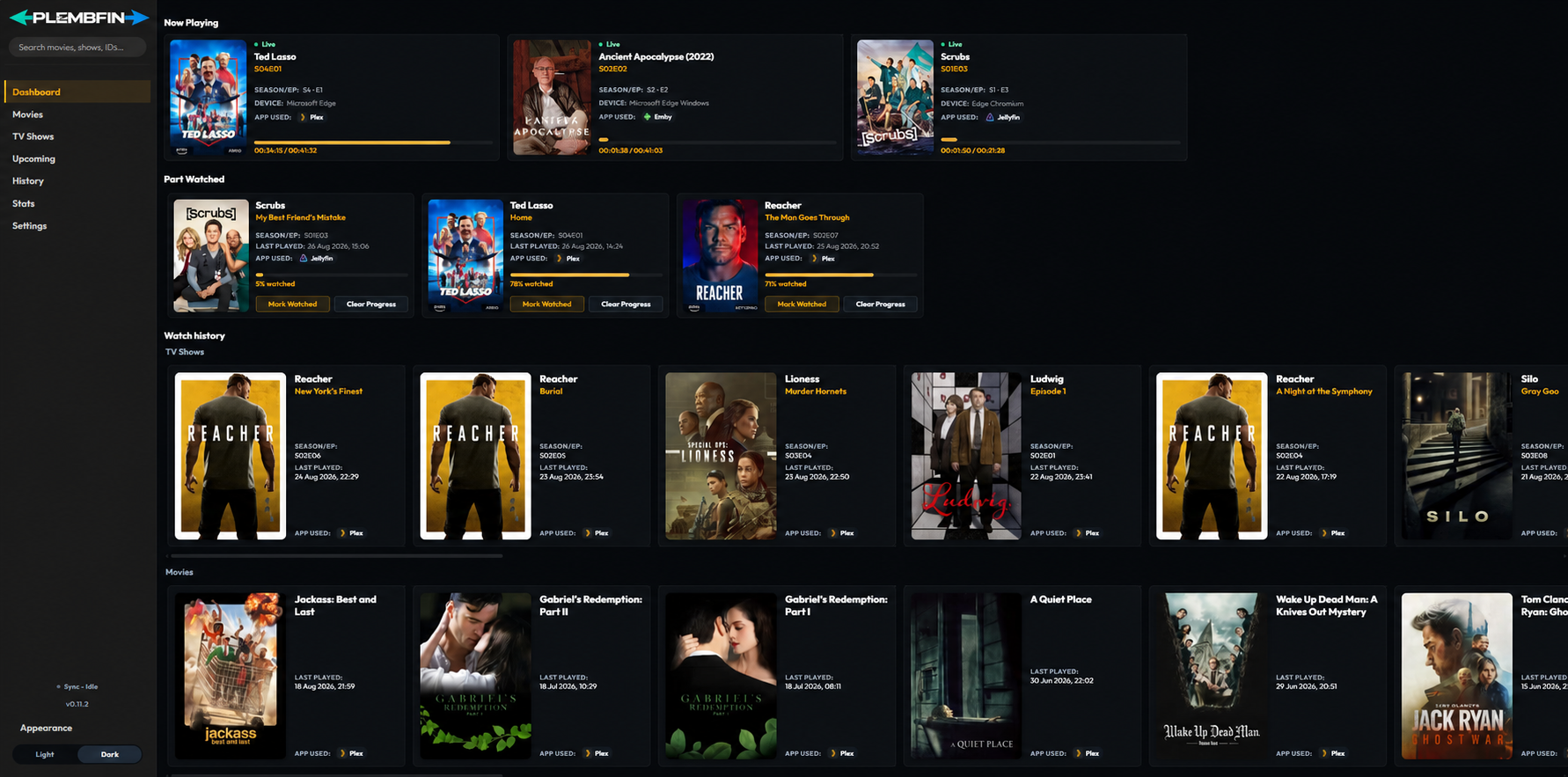 Dashboard showing live playback status and recent watch history
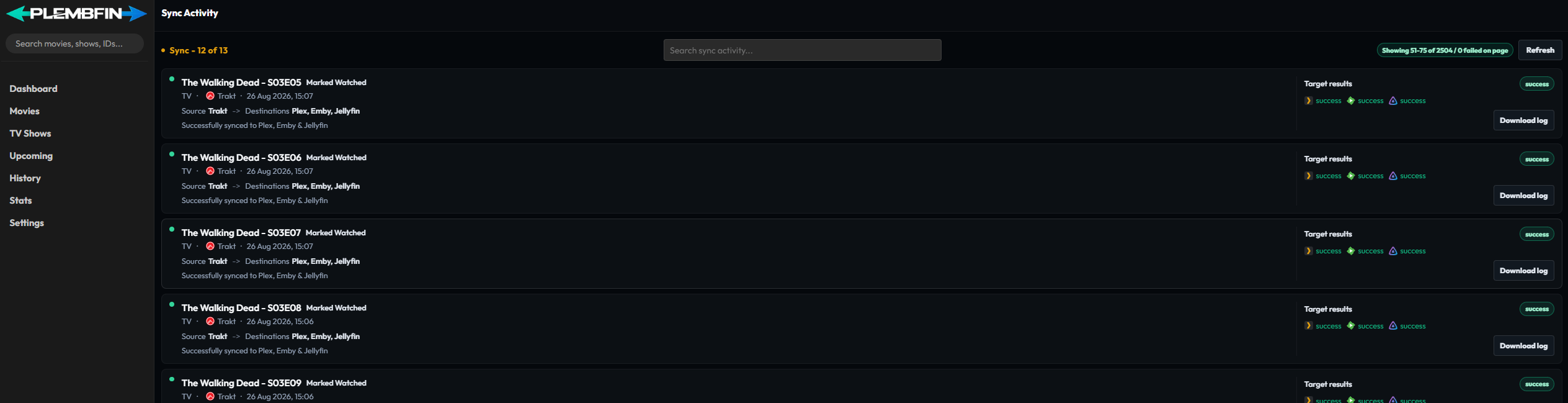 Live sync status and activity stream detailing sync origins, destinations, and delivery results
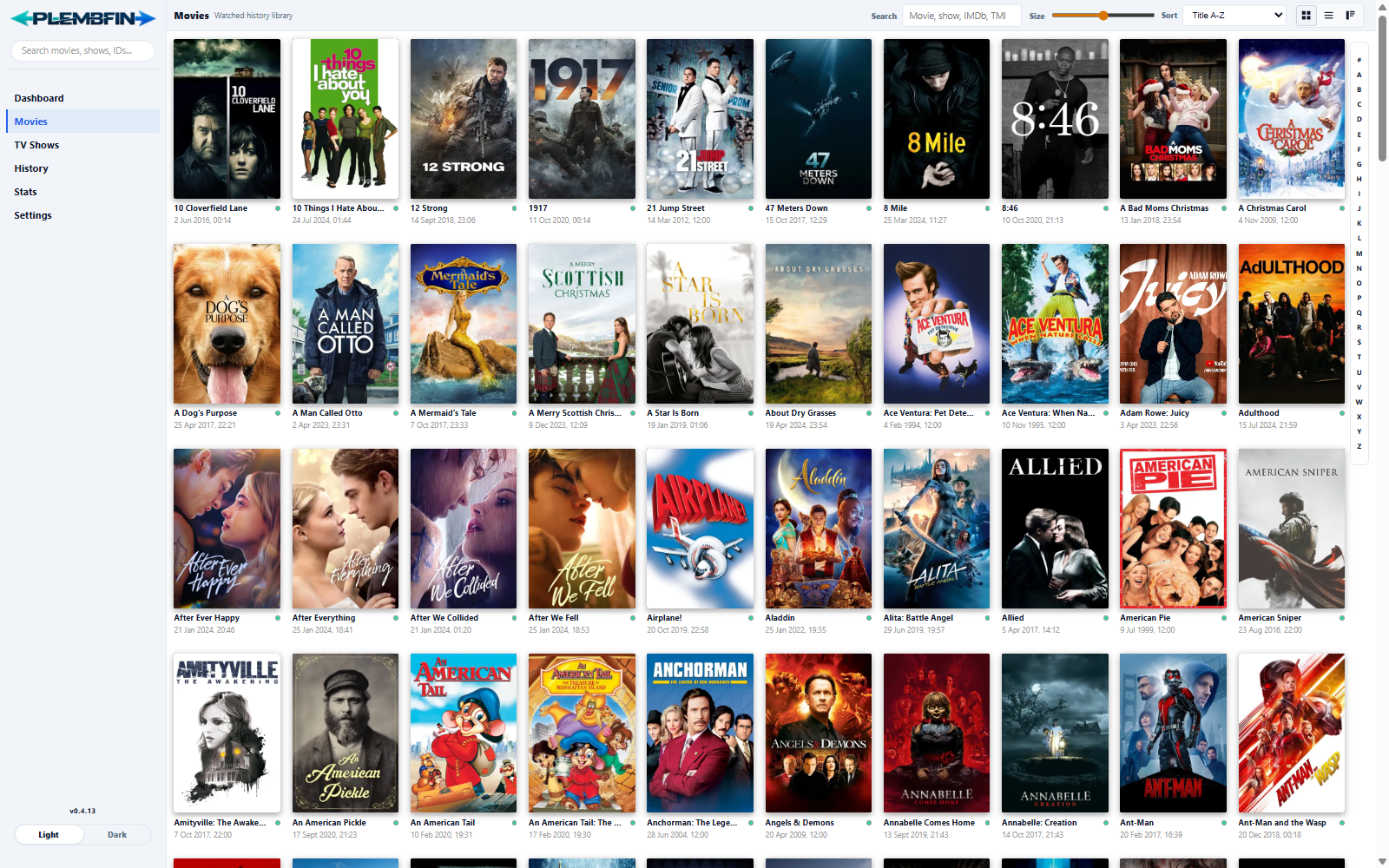 Full poster grid with search, filters, and sort options
 Mixed Up Next queue with resume progress alongside completed watch history
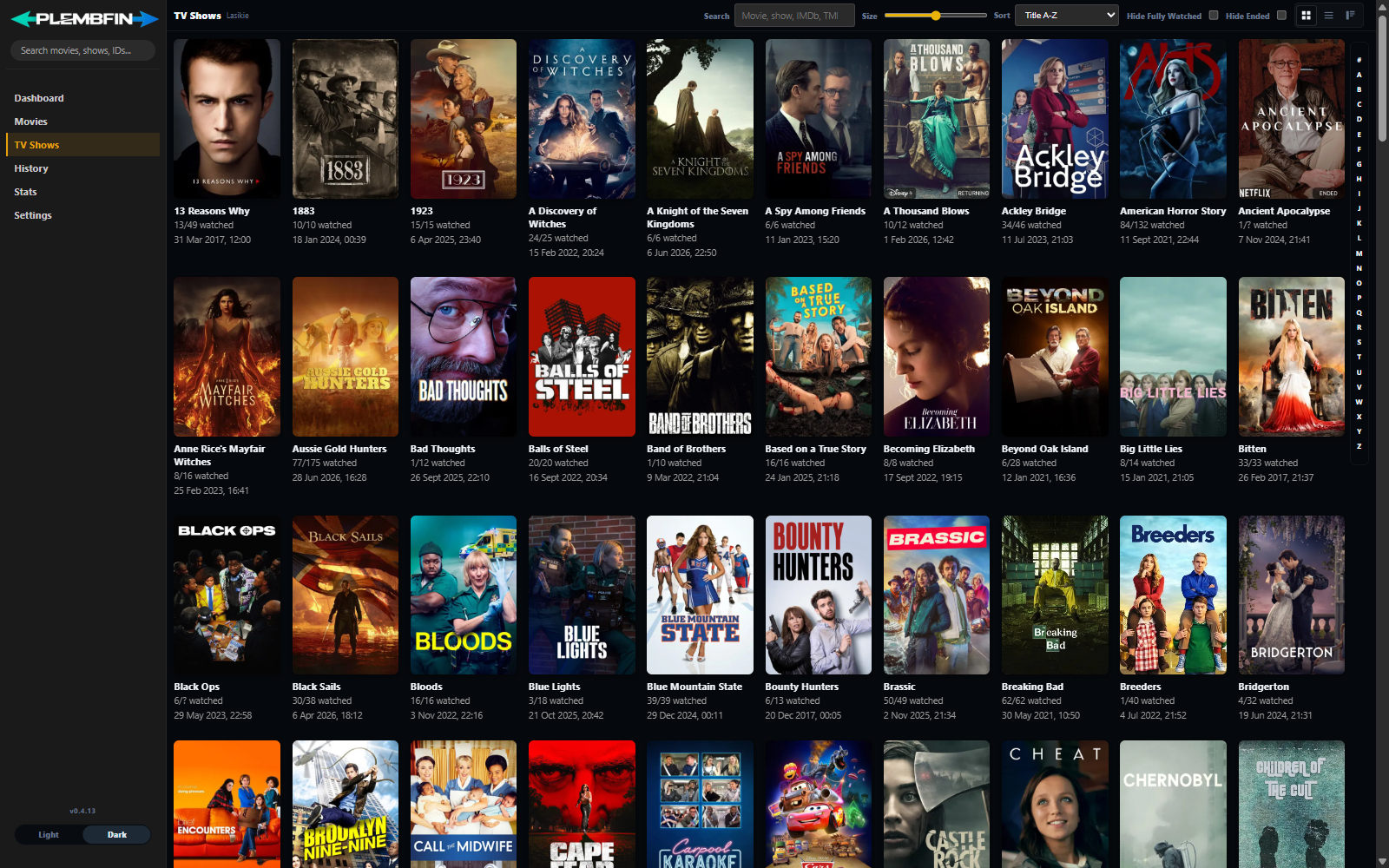 TV Shows library with rich show details
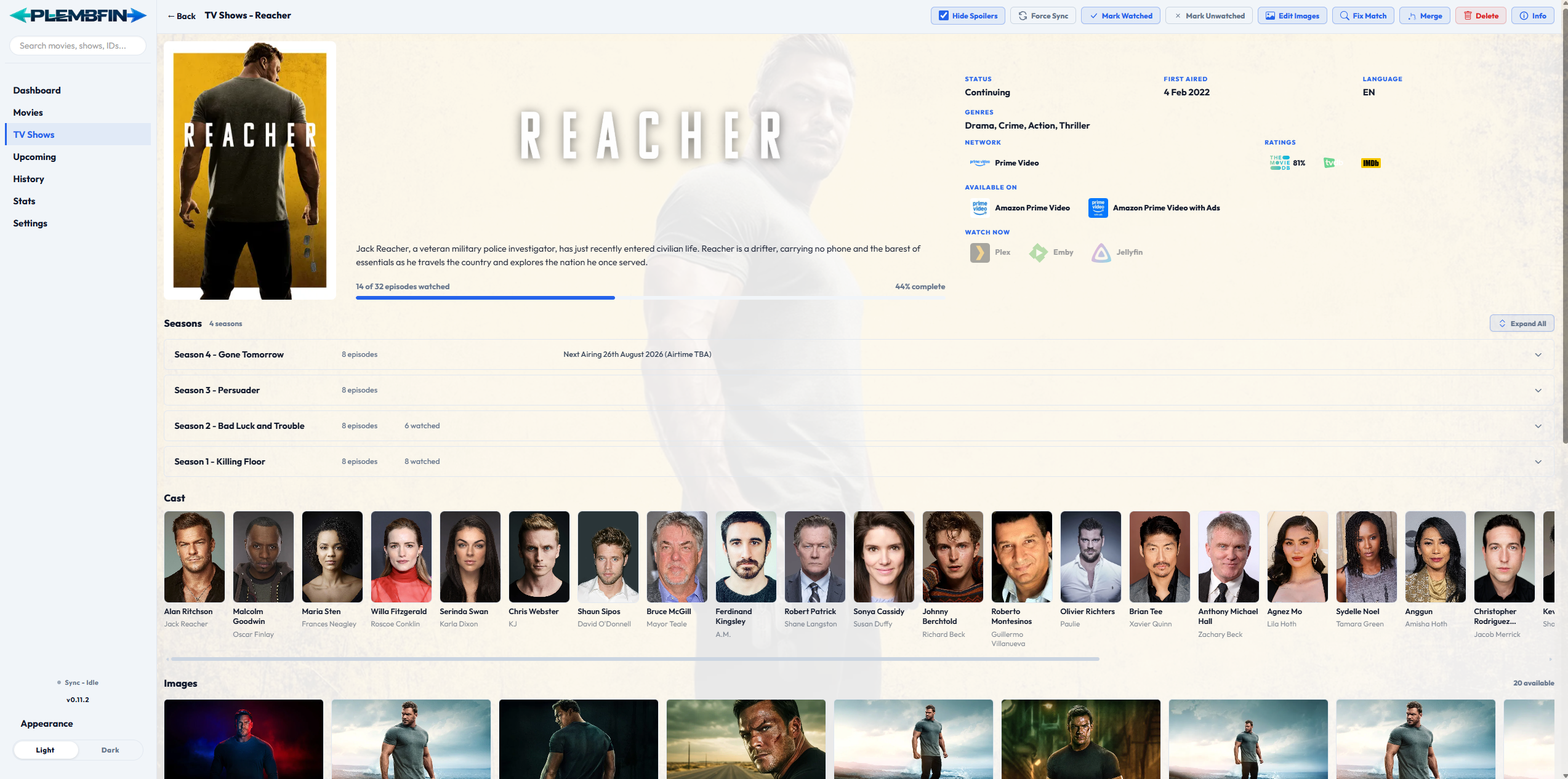 Movie and show detail pages with cast, trailers, reviews, images, and recommendations
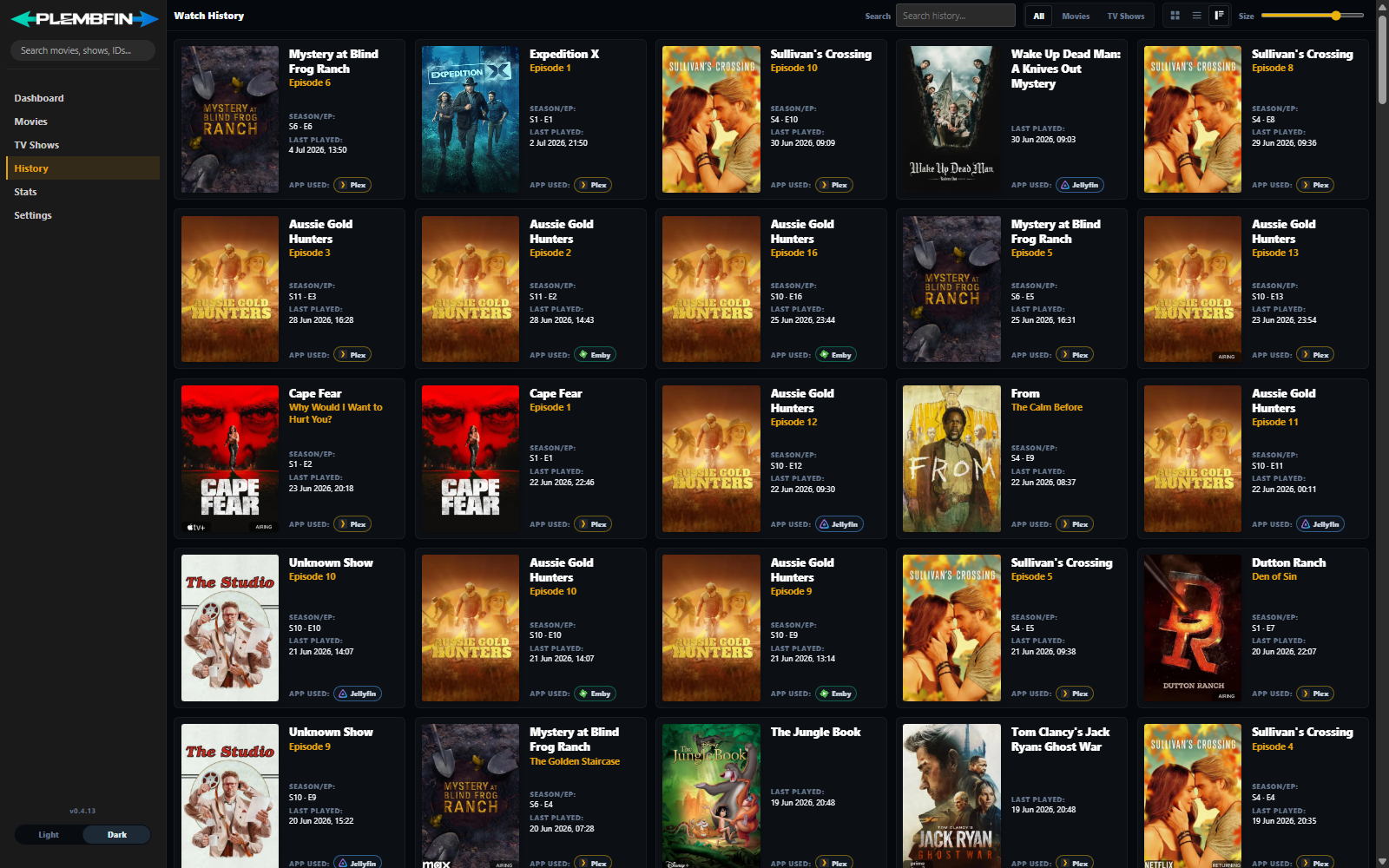 Complete watch log across all connected platforms
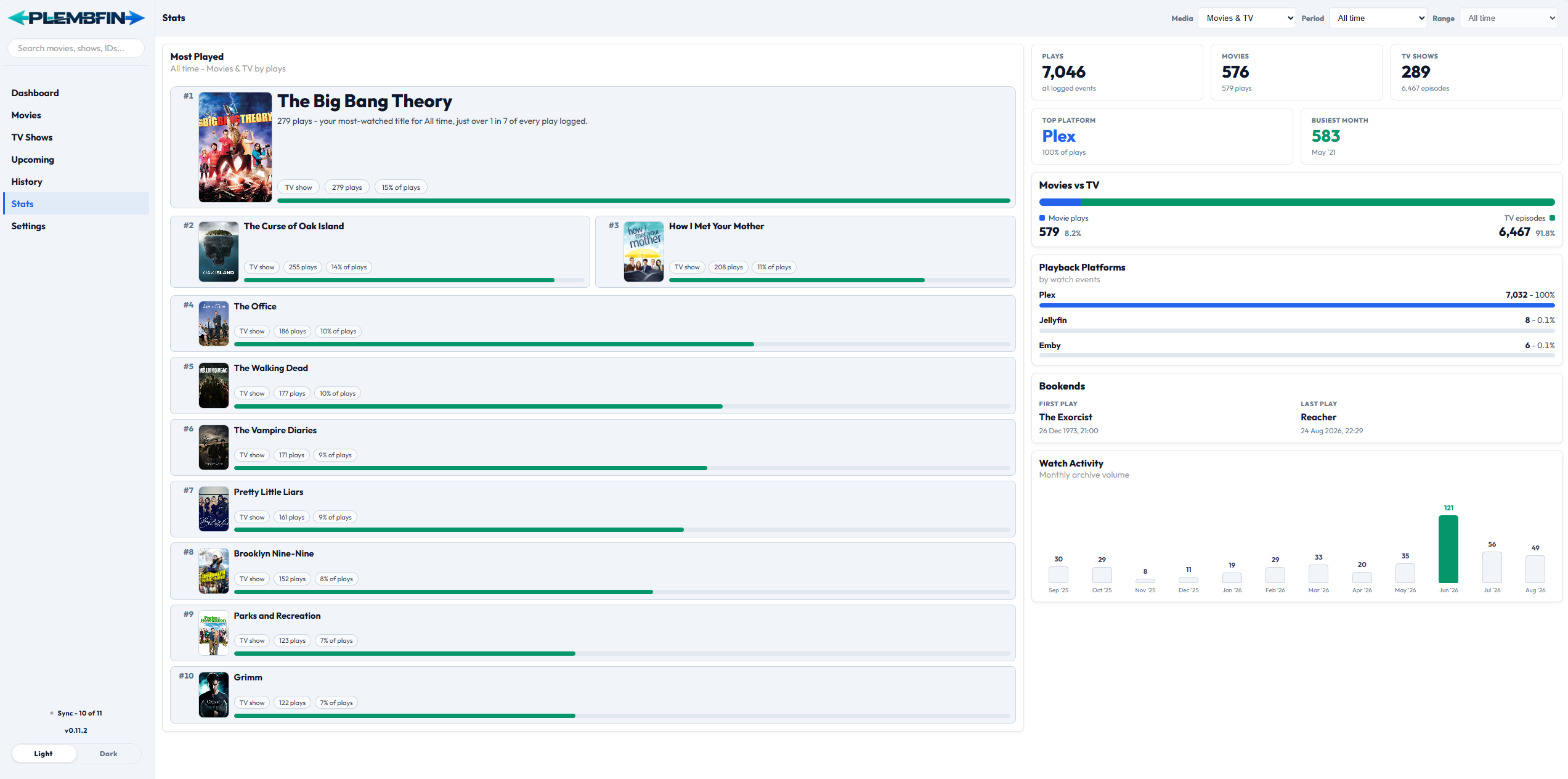 All-time play counts, top shows, platform breakdowns, and monthly watch activity
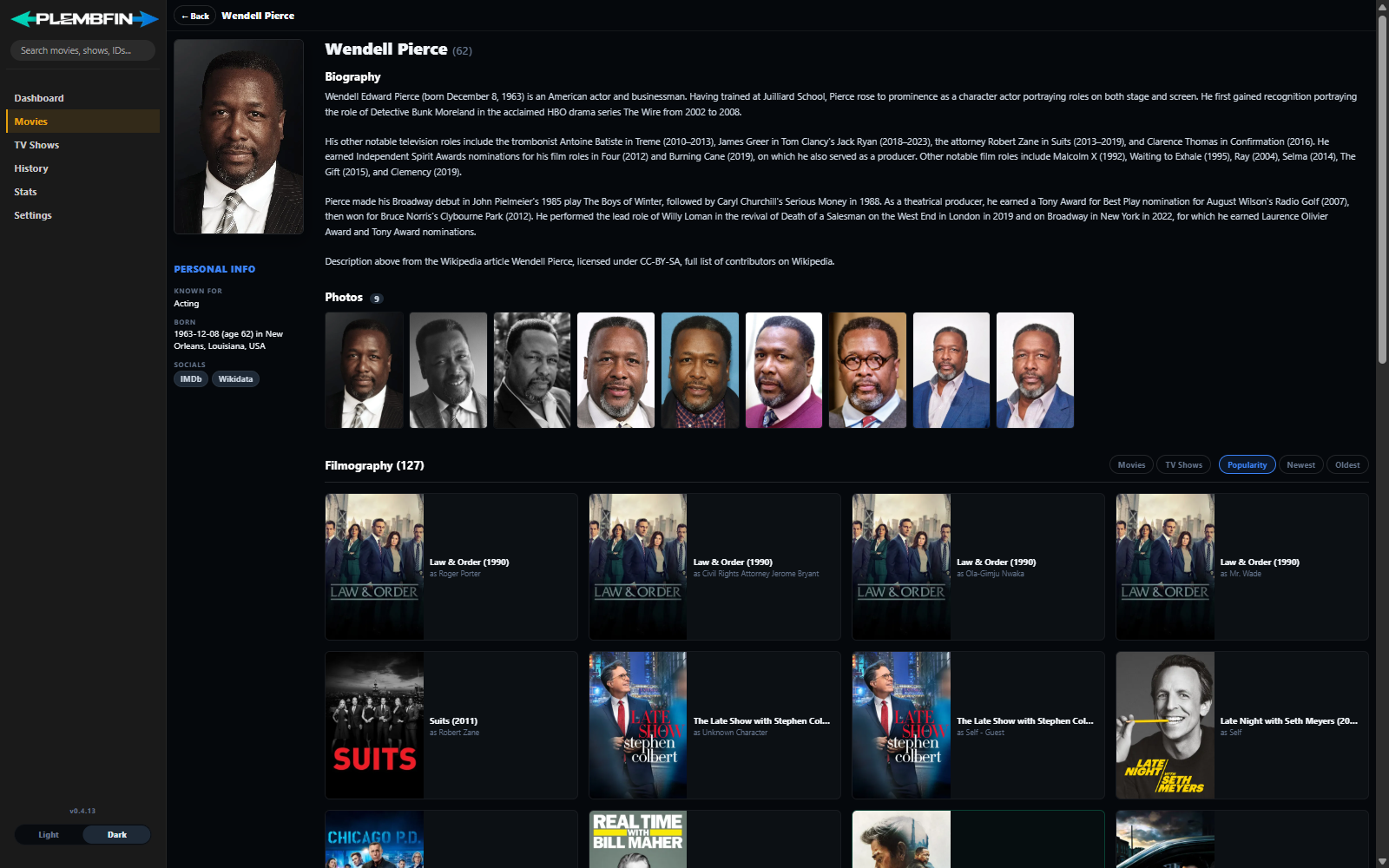 Biography, photos, and full filmography pulled from TMDB
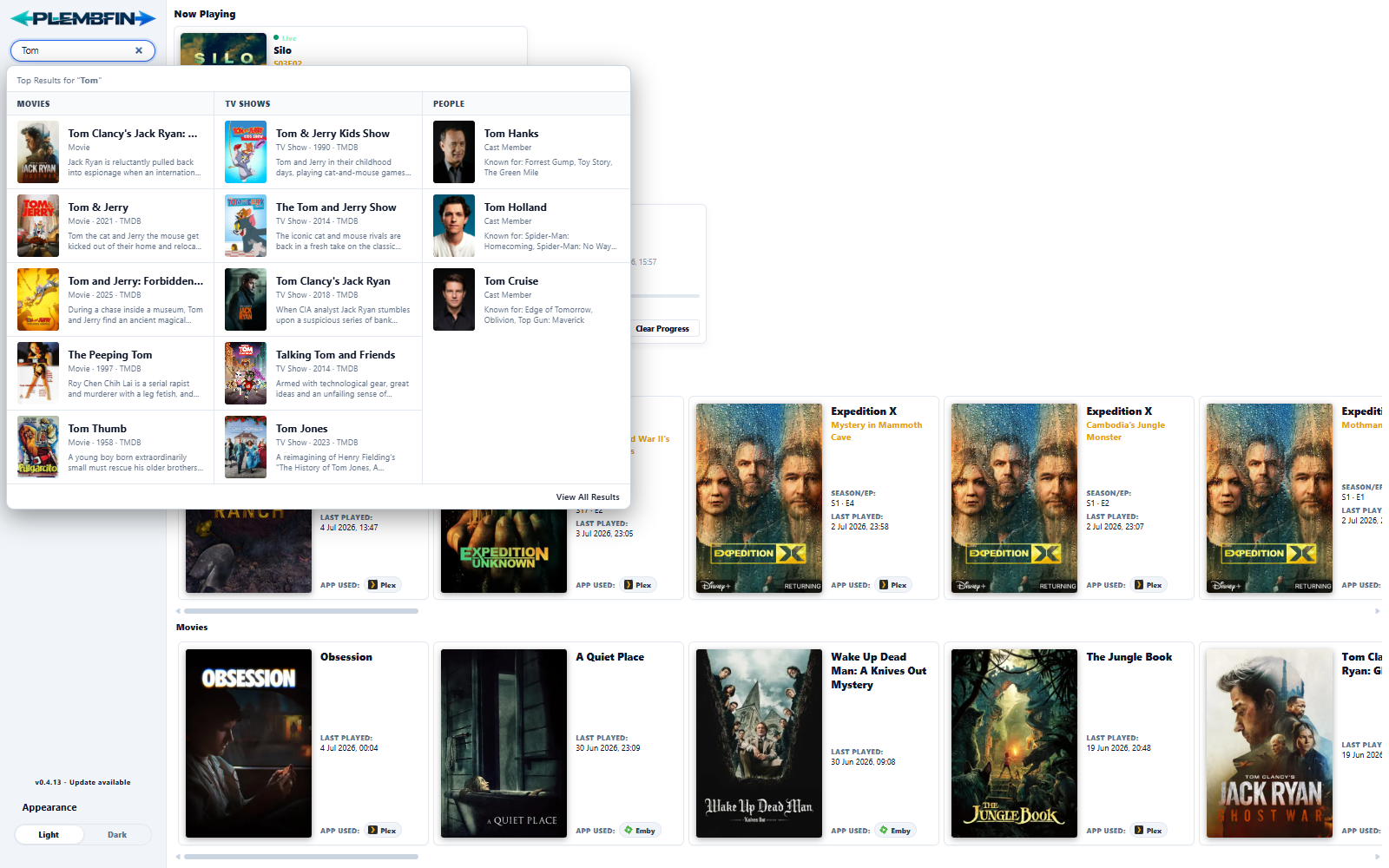 Instant search results across movies, TV shows, and people
Getting Started
Which version should I run?
Plekt publishes three Docker tags, one per release channel. Most people should
just use :latest - the guidance below is for anyone who wants to help test fixes
before they're officially released.
| Tag | Branch | Stability | Who it's for |
|---|---|---|---|
ghcr.io/lasikiewicz/plekt:latest (recommended) |
main |
Tested, tagged releases only | Everyone. Used by the Docker Compose example below. |
ghcr.io/lasikiewicz/plekt:alpha |
alpha |
Pre-release; queued fixes not yet a numbered version | Testers who want fixes early and don't mind rough edges |
ghcr.io/lasikiewicz/plekt:develop |
develop |
Bleeding edge; every commit, least tested | Contributors and the most adventurous testers |
Each channel shows its own version in the sidebar and About. Develop builds
include the current release version and cycle number (for example, 2.0.0 Build 1). See
CHANGELOG.md for numbered releases, and
docs/development.md for how the three channels relate.
Tagged releases are also on Docker Hub as plembfin/plekt:latest (and
plembfin/plekt:<version>), the same image as the GHCR :latest. The earlier
plembfin/plembfin Docker Hub name is still published alongside it. The alpha and
develop channels are published to GHCR only.
To run a different channel, swap the image: tag in the Docker Compose example below -
everything else about setup is identical.
Public demo
Try the public Plekt demo with demo / demo.
It runs in an isolated demo mode on a dedicated Oracle Cloud Compute instance;
actions are simulated in the browser, media-provider integrations are disabled,
and the fixed bundled artwork and metadata catalogue is served without contacting
live media or metadata services.
Each Force to main publishes the multi-architecture release image and deploys the
exact released version to this OCI demo. Portainer is used only for local testing.
If the demo needs a catch-up refresh without another promotion, run the Deploy Public
Demo workflow manually from the main ref, type DEPLOY, and optionally provide an
already-published release version. That deploy-only workflow does not change branches or
rebuild an image.
Method A: Docker Compose (recommended)
- Create a
.envfile beside the Compose file and fill in a unique admin password. Never commit this file:
The value must be filled in before starting the container.ADMIN_PASSWORD= - Create a
docker-compose.yml. This pulls the published:latestimage directly - no local clone needed:services: plekt: image: ghcr.io/lasikiewicz/plekt:latest container_name: plekt ports: - "5056:5055" volumes: - ./data:/data environment: ADMIN_USERNAME: admin ADMIN_PASSWORD: "${ADMIN_PASSWORD:?Set ADMIN_PASSWORD in .env before starting}" restart: unless-stopped - Start it:
docker compose up -d - Open
http://localhost:5056and log in.
[!IMPORTANT] On Docker Desktop for macOS or Windows, keep
/dataon a named volume, not a folder bind mount such as./data:/data. The file sharing layer that bind mounts use there can corrupt the SQLite database under heavy writes (for example a first Trakt sync), which shows up asdatabase disk image is malformed. Use- plekt-data:/dataundervolumes:and add a top-levelvolumes: { plekt-data: {} }. Never openplekt.db(or an existingplembfin.db) from the host while the container is running. Linux hosts are not affected.
This base example is intended for a local or trusted network. For a remotely reachable
tester instance, use the secure overlay below behind an HTTPS reverse proxy or VPN, and
give each tester an isolated data/ volume.
[!TIP] Building from a local clone instead (for contributing changes)? Swap the
image:line forbuild: ., then rundocker compose up -d --build.
[!TIP] Want a hardened production setup (read-only filesystem, required secrets,
COOKIE_SECURE)? Clone the repo and use the bundled secure overlay:git clone https://github.com/Lasikiewicz/plekt.git && cd plekt docker compose -f docker-compose.yml -f docker-compose.secure.yml up -dSee
docs/hardening.mdfor the full guide.
Method B: Windows installer
On 64-bit Windows, download the latest Plekt installer from GitHub Releases and run it as an administrator. The installer bundles the Node.js runtime and native Windows dependencies, registers Plekt as a background Windows service, and creates a Start Menu shortcut for the dashboard.
Plekt stores its database, artwork cache, logs, and backups in
%ProgramData%\Plekt. The installer can also create an optional notification-area
companion that shows service status and opens the dashboard, plus an optional private
network firewall rule for access from other devices. The Start Menu also includes a
shortcut for launching the companion later. New installs default to port 5056; the wizard
lets you choose a different TCP port, and upgrades prefill the current port while applying
any new choice to the existing service, firewall rule, and tray links. On first launch,
use the one-time Claim this Plekt instance screen if no administrator password was
configured.
Testers running the alpha channel can download its matching Windows installer from the
GitHub Releases page. Alpha installers
are marked as prereleases with tags such as v1.3.1-alpha.1; the latest release remains
the stable main installer.
Each alpha and stable build also publishes a formatted GitHub Release with its categorized changes, safe-start guidance, known limitations, Docker tags, installer status, and project links. Release notes are generated from the changelog committed with that build.
Uninstalling preserves %ProgramData%\Plekt by default. The uninstaller offers a
separate confirmation if you also want to remove the database, cache, logs, and backups.
Method C: Bare metal (Node.js)
Requires Node.js 22.19.0+, and native build tools if prebuilt binaries for
better-sqlite3/sharp fail to install (VS Build Tools on Windows, gcc/g++/make
on Linux/macOS).
npm install
npm start        # local develop build; use npm run dev for auto-reload
The local commands default to the develop channel. Set BUILD_CHANNEL=release or
BUILD_CHANNEL=alpha explicitly when testing another channel.
For connected-service testing on Windows, npm start must be launched with normal
host network access. An ordinary PowerShell terminal already has that access; when
Codex starts the process, use its approved elevated network-enabled execution path
instead of the restricted sandbox, or outbound Plex/Emby/Jellyfin requests can fail
with EACCES even though http://localhost:5056 is working.
Open http://localhost:5056. If you didn't set ADMIN_PASSWORD, the app shows a
one-time Claim this Plekt instance screen - create the administrator username and
password there instead of looking for a generated password anywhere.
[!TIP] Port
5056taken? Choose another port withPORT=5057 npm start(bash) or$env:PORT=5057; npm start(PowerShell).
Method D: Unraid
The repository includes the Unraid Community Applications metadata in
ca_profile.xml and templates/plekt.xml.
Plekt appears in the Unraid Apps search after the repository has completed the
Community Applications review process.
Until then, add it from Docker → Add Container:
- Set Repository to
ghcr.io/lasikiewicz/plekt:latest. - Map
/mnt/user/appdata/plektto the container path/data. - Map host port
5056to container port5055. - Leave
ADMIN_PASSWORDblank to use the one-time claim screen on a fresh install, or set a strong password in the container environment. - Start the container and open
http://<unraid-ip>:5056.
Full Setup Guide
Sign in with the administrator credentials from your installation, or claim a fresh
instance by creating its administrator username and password. Claiming can only be done
once. Plekt then opens the guided /setup wizard. You can return to it later with
Reopen Onboarding on the Settings → Tools page, and your progress is saved as you go.
The wizard has nine stages:
1. Overview. Review what the wizard configures. Only a tested Plex, Emby, or Jellyfin connection is recommended, but no server is required to finish; Trakt, extra metadata providers, webhooks, and backups can be skipped and configured later.
2. Trakt (optional). Select Connect Trakt, open the displayed activation page, and enter the device code. Plekt uses its built-in Trakt app credentials, so no personal API key or Trakt VIP subscription is required. Leave Import watch history from Trakt selected if you want existing plays imported. Connecting Trakt before the media servers lets Plekt prefer its earlier watched dates when server dates were reset by a library rebuild or rescan.
3. Metadata. Add a free TMDB key from themoviedb.org. TMDB supplies posters, backdrops, cast, episode details, and search. TheTVDB and Fanart.tv work immediately with built-in shared access; personal keys can be added for higher limits. OMDb and YouTube remain optional and disabled until you add their keys.
4. Media servers. Set up and test at least one supported server. You can connect more than one:
- Plex - connect your Plex account and select a server, or enter its URL, token, and username manually. This step also flags disabling Plex's "Refresh library metadata periodically" scheduled task (Plex → Settings → Scheduled Tasks) - it can occasionally re-match library items during its own maintenance window and reset their watched state.
- Emby - sign in with the server URL, username, and password to obtain a token, or enter an API key and user ID manually. The password is not stored.
- Jellyfin - use Quick Connect, sign in with a username and password, or enter an API key and user ID manually.
For each tested server, leave Import watched status selected to bring its existing history into Plekt. Those imports wait for the Trakt import when necessary so the best available watched dates are retained. Only one connection mode is active for each server at a time.
5. Webhooks. Plex watch-state updates are received automatically and need no manual webhook - this step also flags disabling Plex's "Refresh library metadata periodically" scheduled task, which can otherwise reset watched state during its own maintenance window. For Emby or Jellyfin, expand its setup card, follow the provider-specific instructions, then confirm that the webhook is configured; cards for servers you haven't connected yet are shown too, so you can read what's involved before deciding. Scheduled polling continues as a backstop. See the Webhook Setup section for the full provider instructions.
6. Backup (optional). To schedule encrypted local backups, choose a backup time and retention count, enter an encryption passphrase of at least 12 characters, and select Remember the passphrase for scheduled backups. Scheduled jobs cannot run unless the passphrase is remembered because nobody is present to enter it.
To add an off-server Backblaze B2 mirror, create a private bucket and a restricted
application key with read/write access to that bucket. The wizard places the matching
fields beside each part of the guide: paste the bucket name and endpoint into Bucket
name and Region or S3 endpoint, then paste keyID and applicationKey into Key
ID and Application key. Save and test the destination before enabling scheduled
uploads. Backblaze displays applicationKey only once, so copy it when the key is
created.
7. Import & sync. Review the Trakt and media-server imports you selected. Imports continue in the background, so you do not need to wait on this page. Trakt runs first; selected server imports may show Waiting until it finishes.
8. Options. Choose how app-marked watched flags are dated or sent to Manual Watch review, and whether to enable Sync Up Next to media apps. Up Next sync is enabled by default; when enabled, Plekt keeps its Up Next queue in sync with Plex and Emby's Continue Watching and Jellyfin's Next Up. Queue additions, removals, reorderings, and progress changes coalesce into a background provider push, including when the dashboard is closed. Turn it off to leave those app lists unchanged; Plekt's own Up Next view remains available. These choices can be changed later under Settings → Sync → Sync Tuning.
9. Review. Confirm the connection, metadata, webhook, backup, import, and option statuses, then select Open dashboard. A media server is optional; without one, watches can be marked manually from search. Any skipped item can be completed later from Settings or the dashboard setup checklist.
After onboarding, tune thresholds and timeouts under Settings → Sync → Sync Tuning. Items Plekt could not identify appear in Sync Activity's Issues only view. New media that arrives already watched in Plekt can be marked watched on the server automatically; see webhooks.md for the library-add flow.
Webhook Setup
Playback events reach Plekt via webhooks. Each platform's setup guide under Settings → Webhooks → Setup Guides includes a ready-to-copy URL with your secret already in it - it looks like:
http://<YOUR_HOST>:5056/api/webhook?token=<your-secret>
[!IMPORTANT] Use the full URL with
?token=for servers that can't set custom headers. Rotating the secret means updating it everywhere it's used.
Plex - no setup required. Plekt connects to your Plex Media Server's WebSocket notification channel automatically to capture watched and unwatched changes in real time, and polls playback progress as a backstop - every 10 seconds while something's playing, backing off to every 45 seconds while idle.
Emby - Preferences → Notifications → Webhooks → add one, paste the URL, enable
Playback: Start/Pause/Unpause/Stop and Users: Mark Played/Mark Unplayed. Leave everything else unticked, and enable Send All Properties.
Jellyfin - Install the Webhooks plugin → add a Generic Webhook named
plembfin → paste the URL → enable Playback Start/Progress/Stop and User Data Saved under Notification Type, Movies/Episodes under Item Type → check Send All
Properties.
Backup & Restore
Plekt runs automated daily backups; each type has its own schedule, retention, and manual Back Up Now button.
- Watch history backups - snapshots of history, playstates, and resume markers (
data/backups/watch-history) - Full Plekt backups - AES-256-GCM encrypted, includes settings/keys/credentials/history (
data/backups/plembfin); restore checks SQLite integrity before import and explains recovery options if the database is corrupt - Personal watchlist recovery - full backups include the local canonical watchlist and sync ledger; restore pauses provider delivery until an explicit publish, while watch-history-only backups exclude it
- Remote backups - optional Backblaze B2 copies of either type, with per-type schedules and retention settings (Settings → Backup → Remote)
Importing Watch History
From Trakt (one-time): export your Trakt watch history as JSON, then upload it under Settings → Connections → Trakt. Imported watches propagate automatically; use Settings → Sync → Sync Tools → Full Sync Watchstates afterward to replay everything to a newly connected server.
From Tautulli (one-time): open Settings → Connections → Tautulli Watch-History Importer, configure the Tautulli URL/API key, select one user, preview completed history, and choose the media-server targets. Plekt creates a local watch-history backup before importing, keeps Tautulli unchanged, and merges same-day plays already represented by Trakt or another source while preserving rewatches on different days.
Live Trakt sync (ongoing): Settings → Connections → Trakt → Connect Trakt, authorize
with the displayed device code - no Trakt VIP or personal API credentials needed. Once connected,
watched/unwatched state flows both ways every minute, including individual rewatches.
Disable any Emby/Jellyfin Trakt plugins so Plekt is the only Trakt writer. See
docs/webhooks.md for how this interacts with other sync sources.
Diagnostics & Logs
Settings → Logs has a real-time log viewer: filter by category, download a full
.log file, and see web/worker output merged together. Set LOG_VERBOSE=true for full
per-request tracing when chasing a specific issue.
Sync Activity → Issues only reports current sync failures and unresolved cross-platform matches with a plain-language explanation and the relevant fix action. Duplicate watches and episode metadata repairs remain under Settings → Tools.
Configuration Reference
Set these in your system environment or docker-compose.yml. A full commented template
is in .env.example.
| Environment Variable | Default | Purpose |
|---|---|---|
PORT |
5056 |
Port the web interface and API listen on. |
DATA_DIR |
./data |
Directory for the database, configs, and cached posters. |
ROLE |
all |
Process role: all, web, or worker. |
BUILD_CHANNEL |
release in Docker; develop via local npm commands |
Channel marker. Published images bake their channel at build time; local npm start and npm run dev default to develop. |
ADMIN_USERNAME |
admin |
Default administrator username. |
ADMIN_PASSWORD |
unset | Optional bootstrap password. Leave unset on a fresh install to use the one-time claim screen. Settings credentials take precedence after the account is claimed. |
API_KEY |
generated | Token authorizing incoming webhooks and API calls. |
WEBHOOK_SECRET |
generated | Secret for webhook auth; rotatable independently of API_KEY. |
SESSION_SECRET |
generated | Signing secret for the session cookie. |
PLEKT_CREDENTIAL_KEY |
generated file | Optional external credential-vault key (64 hex chars or base64url). Keep with disaster-recovery material. |
PLEKT_PUBLIC_URL |
none | Fixed public origin for provider return links (http(s)://host, no path). |
PLEKT_MEDIA_AUTH_ENABLED |
true |
Set false to expose manual server setup only. |
COOKIE_SECURE |
false |
Set true behind HTTPS to enable the Secure cookie flag and HSTS. |
TRAKT_CLIENT_ID / TRAKT_CLIENT_SECRET |
built-in | Optional replacement for the bundled Trakt app. Both required together. |
LOG_VERBOSE |
false |
Set true for full per-request tracing in Settings → Logs. |
FANART_API_KEY |
none | Personal Fanart.tv key for higher rate limits. |
TVDB_API_KEY |
none | Personal TheTVDB key for a higher personal quota. |
TVDB_PROJECT_KEY / FANART_PROJECT_KEY |
built-in | Advanced: replaces the built-in shared project key if revoked. |
TMDB_API_KEY |
none | Default TMDB key (Settings takes precedence). |
YOUTUBE_API_KEY |
none | Optional key for trailer metadata (Settings takes precedence). |
OMDB_API_KEY |
none | Optional key for IMDb rating badges. Free tier: 1,000 req/day. |
PUBLIC_TRAKS_SITE_KEY |
none | Optional public website build setting for Traks; the browser uses first-party /t and /api/event routes. Use the current key from the Traks Installation panel. |
TRAKS_COLLECTOR_ORIGIN |
none | Cloudflare Pages runtime origin for the Traks collector; it is kept out of browser configuration. PUBLIC_TRAKS_SCRIPT_URL remains a legacy fallback. |
PLEKT_TRAKS_COLLECTOR_ORIGIN / PLEKT_TRAKS_SITE_KEY |
none | Optional public-demo Traks settings; the demo proxies /t and /api/event first-party. PLEKT_TRAKS_SCRIPT_URL remains a legacy origin fallback. |
PLEX_SERVER_URL / PLEX_TOKEN / PLEX_USERNAME / PLEX_ENABLED |
none | Default Plex values (Settings takes precedence). |
EMBY_SERVER_URL / EMBY_API_KEY / EMBY_USER_ID / EMBY_ENABLED |
none | Default Emby values (Settings takes precedence). |
JELLYFIN_SERVER_URL / JELLYFIN_API_KEY / JELLYFIN_USER_ID / JELLYFIN_ENABLED |
none | Default Jellyfin values (Settings takes precedence). |
WATCHED_PLAYED_SYNC_ENABLED |
true |
Set false to disable watched/played propagation (recording still happens). |
CATCHUP_SYNC_INTERVAL_MS |
900000 (15m) |
Frequency of catch-up library scans. |
PLEX_UNWATCHED_POLL_INTERVAL_MS |
60000 (1m) |
Cadence of the Plex unwatched-reconciliation backstop poll. |
EMBY_JELLYFIN_UNWATCHED_POLL_ENABLED |
true |
Enables Emby's unwatched backstop poll and permits Jellyfin's fallback poll; Jellyfin also requires JELLYFIN_UNWATCHED_POLL_ENABLED=true. |
JELLYFIN_UNWATCHED_POLL_ENABLED |
false |
Jellyfin's ambiguous Played=false fallback is off by default; explicit Jellyfin unplayed webhooks remain authoritative. If enabled, the false state must repeat within the confirmation window. |
EMBY_UNWATCHED_POLL_INTERVAL_MS / JELLYFIN_UNWATCHED_POLL_INTERVAL_MS |
300000 (5m) each |
Cadence of each fallback poll when enabled. |
JELLYFIN_UNWATCHED_CONFIRMATION_WINDOW_MS |
1200000 (20m) |
Window in which Jellyfin must report the same false state twice before the fallback propagates it. |
WATCHED_THRESHOLD_PERCENT |
90 |
Playback % counted as watched (50-100). Settings takes precedence. |
WATCH_IMPORT_MODE |
review |
Default policy for app-marked watched flags: review, now, release_day, or episode_timing. Settings takes precedence. |
PLEX_HISTORICAL_WATCHED_SYNC |
true |
Whether imports, restores, backdated marks, and library-wide pushes project historical watched state onto Plex. Plex-only; Emby, Jellyfin, and Trakt always receive the original date. Settings takes precedence. |
MIN_RESUME_POSITION_SEC |
60 |
Minimum position saved as resume progress (0-3600s). Settings takes precedence. |
ACTIVE_SESSION_TTL_MIN |
5 |
Time before an active session goes stale (1-120 min). Settings takes precedence. |
OUTBOUND_TIMEOUT_SEC |
10 |
Default outbound request timeout (2-120s). |
OUTBOUND_PACING_PROFILE |
standard |
Outbound request pacing: gentle, standard, or fast. Settings → Sync → Sync Tuning's Fast Local-Network Sync checkbox toggles between standard and fast and takes precedence; only enable fast when Plex, Emby, and Jellyfin are all self-hosted on the same trusted local network as Plekt. |
PLEKT_DEBUG_OUTBOUND |
off | Set 1 to log per-host outbound request counts once a minute. |
PLEKT_DEBUG_CACHE_REBUILDS |
off | Set 1 to log one line per derived-cache rebuild: which cache, how long it took, and which change caused it. |
PLEKT_DEBUG_SCHEDULER |
off | Set 1 to log per-step scheduler timing, plus a per-tick summary carrying the real interval between ticks. |
PLEKT_PAUSE_SCHEDULED_WORKER |
off | Diagnostic mode: keep real-time provider listeners available while pausing scheduled sync ticks and background-job polling. |
Architecture
Plekt runs as a self-hosted Node app (Express + better-sqlite3 in WAL mode). The
default ROLE=all process runs everything; larger installs can split web and worker
roles against the same SQLite volume. A per-minute scheduler (leased in SQLite, no
crontab needed) handles sync reconciliation, cache maintenance, and nightly backups, with
exponential backoff for offline targets. Large watched-state bursts defer competing
scheduled media/tracker polling while backups and metadata maintenance continue; Plex
notification bursts are coalesced and bounded, including bulk episode fan-out, while
pending items dispatch concurrently across distinct media identities. Every push runs npm run build - a syntax check, the
test suite, documentation and JSON validation, an outbound-fetch guard, an asset-version
check, and a clean-directory boot test - before it ships. Personal watchlist delivery uses
its own leased queue, provider ownership ledger, complete-snapshot gate, and failure budget,
so a provider watchlist outage cannot pause watched-state or rating synchronization.
For the full picture - file map, subsystem map, and per-feature references - start at
docs/architecture.md and the docs index.
Development Workflow
npm install
npm run dev      # auto-reload on http://localhost:5056
Work lands on develop; alpha and main only move on an explicit promotion, with
each promotion to main becoming one numbered release. See
Which version should I run? for what that means as a
user, and docs/development.md for the full workflow.
Use "Push all to git" when every relevant local change and pending local commit should be included in the develop changelog and published. Use "Push to git" when only the work created in the current chat should be staged and published; pre-existing local edits or pending commits remain out of scope, and mixed or ambiguous changes must be clarified before committing.
Changelog content for every branch is generated locally, before each push, from real git
history - never by CI reading GitHub's push event - which also keeps release-process
bookkeeping out of what publishes to alpha and main.
Each completed local commit also refreshes the ignored plan/updates.md
ledger. It lists the unique changelog-ready changes, the committed paths, and the website
guides affected by those paths; later commits update existing targets instead of creating
duplicate entries. The push workflow and Force to main use it as their review inventory.
Both promotions preview their changelog entry and wait for explicit user approval before
anything is staged, and both then start the build locally so the release can be checked
before it is published rather than after. Before a "Force to main" the release workflow also creates one
concise releaseMessage and previews the complete categorized changelog; the promotion
command requires --confirm after that approval, and without it no main release files are
written. A "Force to main" additionally refuses to publish a release whose changelog
has lost any earlier release.
The develop pre-push guard verifies that the changelog committed with the push covers the current user-facing commits; a push with a missing or stale local changelog is rejected before it reaches the remote.
Every push to develop/alpha builds and publishes a rolling image
(:develop/:alpha, plus a build-numbered tag); PRs to main build and verify without
publishing - a breaking change is caught before release, not after.
The Force to main release workflow publishes AMD64 and ARM64 images, then updates the Oracle-hosted public demo and verifies its release version. It does not update the local Portainer environment.
The local pre-push gate is never bypassed during promotion. If its test run hits the known transient failure, the workflow reruns the tests once and retries the push only after they pass; the retried push must still pass the complete build gate.
Community
- Support Plekt - help keep the complete self-hosted application free, private, and maintained. Sponsorship does not unlock features or change roadmap priority.
- Discord - chat with other users, get help, and follow along with development.
- r/plembfin - discussions, feature requests, and release announcements on Reddit.
License
Plekt is licensed under the GNU Affero General Public License v3.0. See
LICENSE.md. Version history is in CHANGELOG.md (also
shown in About).
Thank You
Plekt relies on these third-party services for artwork and metadata:
- TMDB - movie metadata, posters, backdrops, cast, and TV cast/trailers/recommendations. This product uses the TMDB API but is not endorsed or certified by TMDB.
- TheTVDB - TV show names, seasons, episode numbering/titles/air dates, and artwork. Please consider adding missing information or subscribing.
- Fanart.tv - community-curated poster, backdrop, and logo art used as a fallback. Thank you to everyone who uploads and curates there.
Categories
Related apps
Explore more like this
Explore allDetails
ghcr.io/lasikiewicz/plembfin:latestRuntime arguments
- Web UI
http://[IP]:[PORT:5056]- Network
bridge- Shell
bash- Privileged
- false
Template configuration
Port used by Plembfin's web interface.
- Target
- 5056
- Default
- 5056
Persistent database, configuration, backups, and cached artwork.
- Target
- /data
- Default
- /mnt/user/appdata/plembfin
Internal server port matching this legacy template's container port mapping. Keep 5056 unless you also change the container port.
- Default
- 5056
Administrator username. Settings values take precedence after the account is claimed.
- Default
- admin
Optional initial administrator password. Leave blank to claim the account in the WebUI on first start.