

photogallery
Docker app from Darroll's Repository
Overview
Readme
View on GitHubPhotoGallery
Self-hosted photo galleries for Unraid, written in ASP.NET Core 9 (SQLite + libvips). No viewer accounts; one admin.
New here? Read Getting started (about ten minutes, nothing but the container). Sharing outside your home (SWAG, Nginx Proxy Manager, Cloudflare Tunnel)? See Proxy and tunnel setups. Something not working? See Troubleshooting. What changed between versions is in CHANGELOG.md, and what is planned next, and the principles behind it, is in ROADMAP.md.
Found a bug or a vulnerability? Open a GitHub issue for bugs and ideas; report security problems privately as described in SECURITY.md.
Private by default. A fresh install shows nothing: no gallery exists until you create one, and a new gallery starts as Protected (password or share link), never public. Nobody can open /admin without the password you choose on first visit. The app's port (8080) is meant for your home network only: to share outside it, put a reverse proxy with HTTPS or a Cloudflare Tunnel in front, and never forward the port from your router. The Overview page warns if it ever sees a connection coming straight from the internet.
Requirements: Unraid (or any Docker host), a folder of photos, and free space on the app data share for the thumbnail cache (it grows with the size of your library). It runs on linux/amd64. No account anywhere, no cloud service, and the app sends nothing home: link previews, captions and email only reach the addresses you configure, and the optional New versions notice (Settings -> Site and appearance, off by default) only asks GitHub once a day for the newest version number.
Supported files: JPG, PNG, TIFF, WebP, HEIC and AVIF pictures; CR2, CR3, NEF, ARW, DNG, RAF, ORF, RW2, PEF and SRW RAW files. Video files are not supported; add YouTube links to a gallery instead.
Screenshots
The galleries below are sample pictures (coloured circles), not real photos.
| Home page | A gallery |
|---|---|
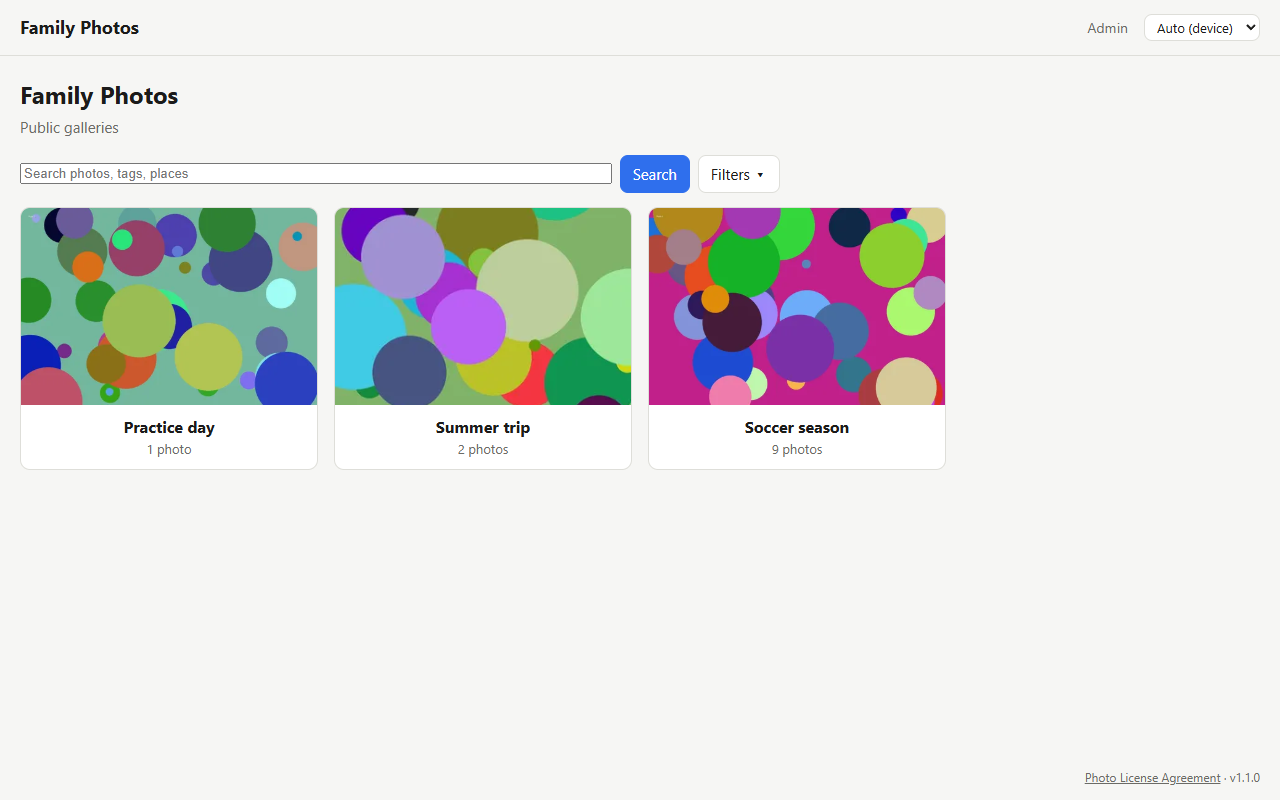 |
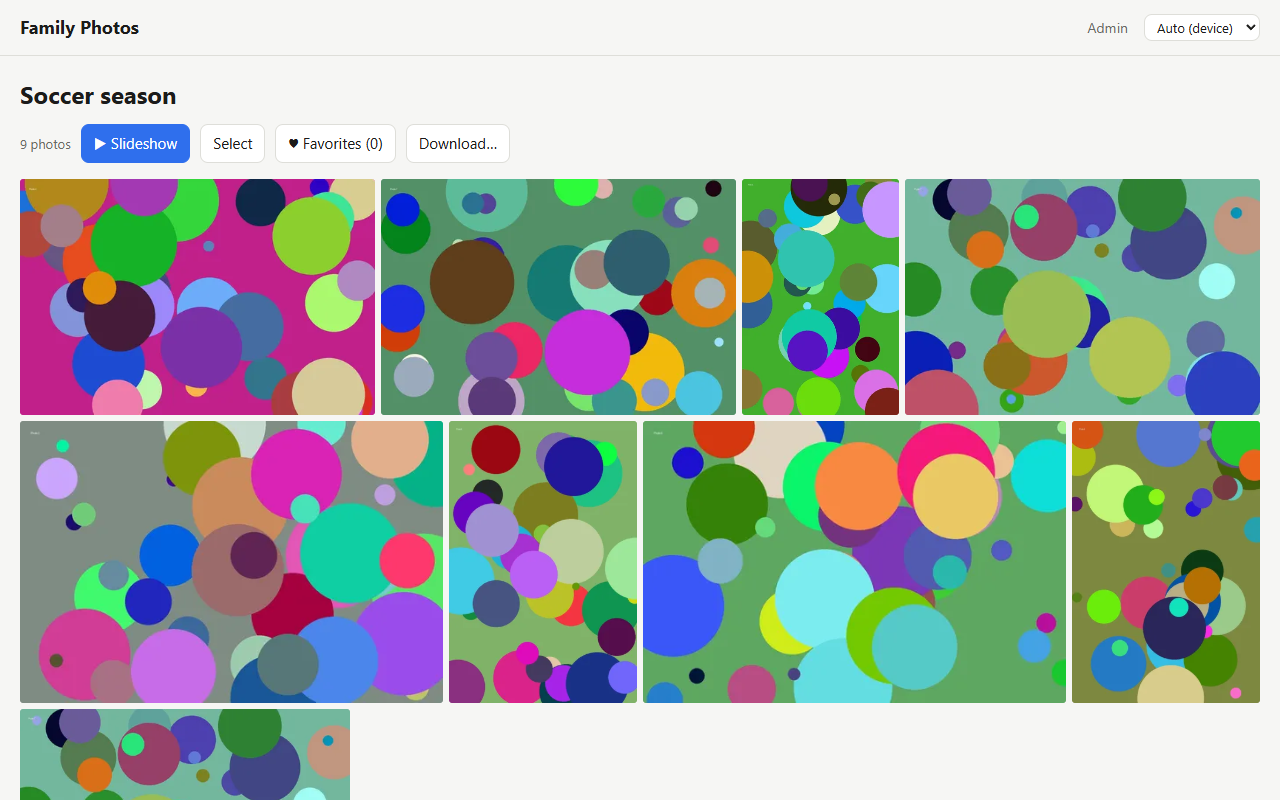 |
| Viewer | On a phone |
|---|---|
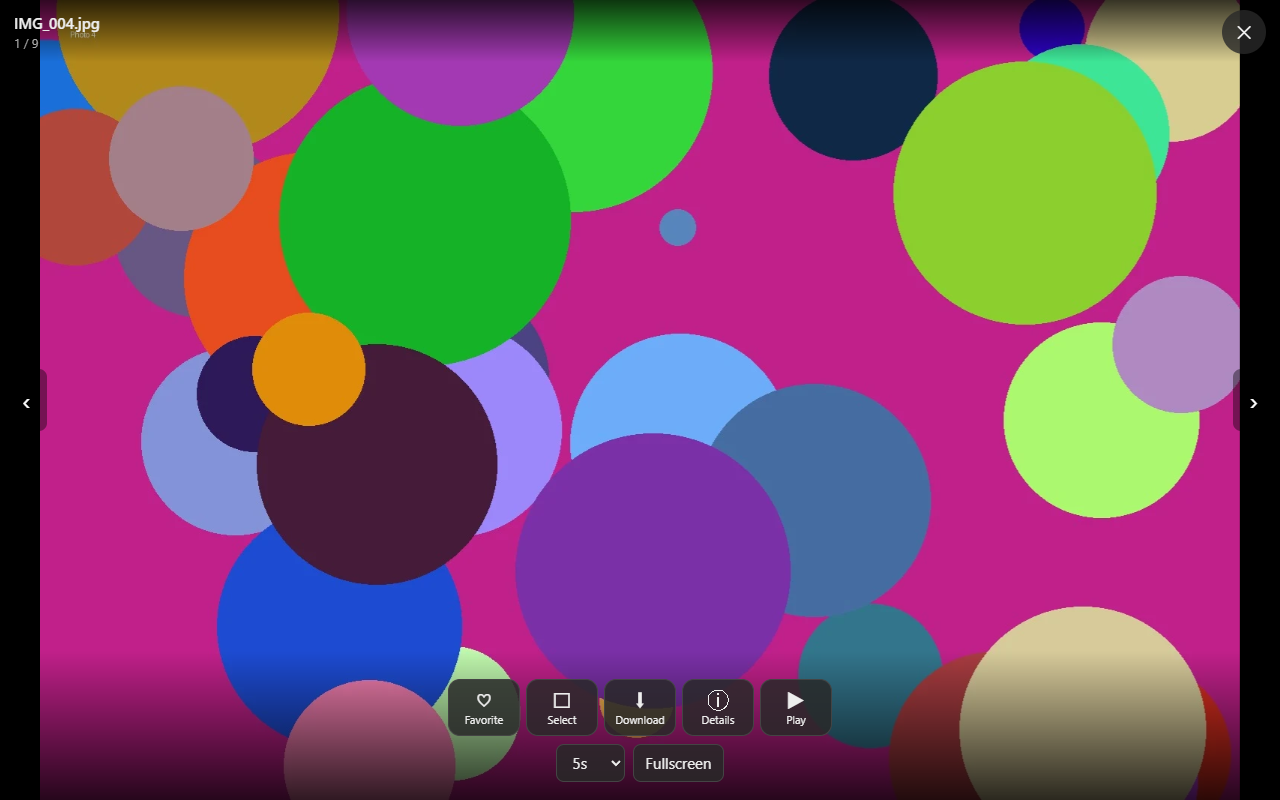 |
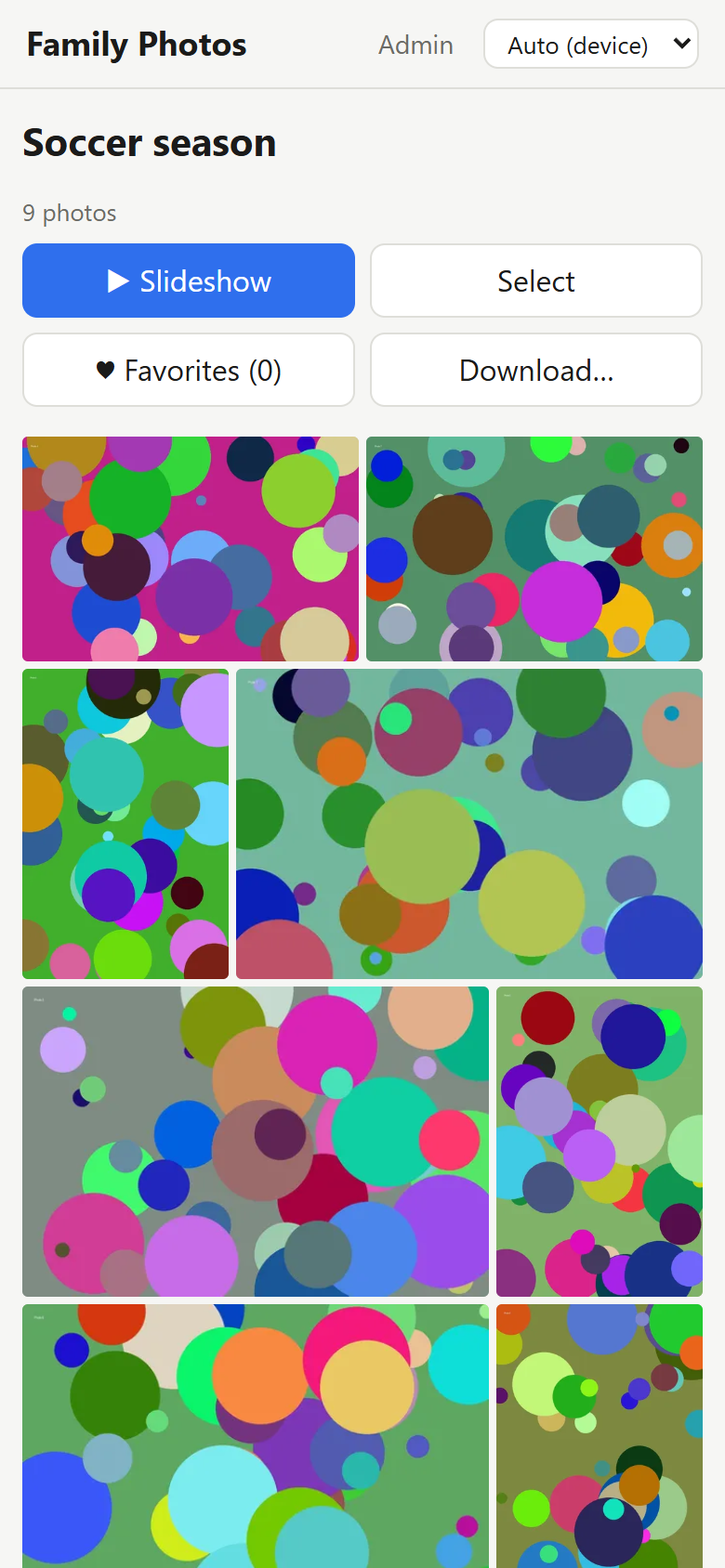 |
| Admin overview | Admin galleries |
|---|---|
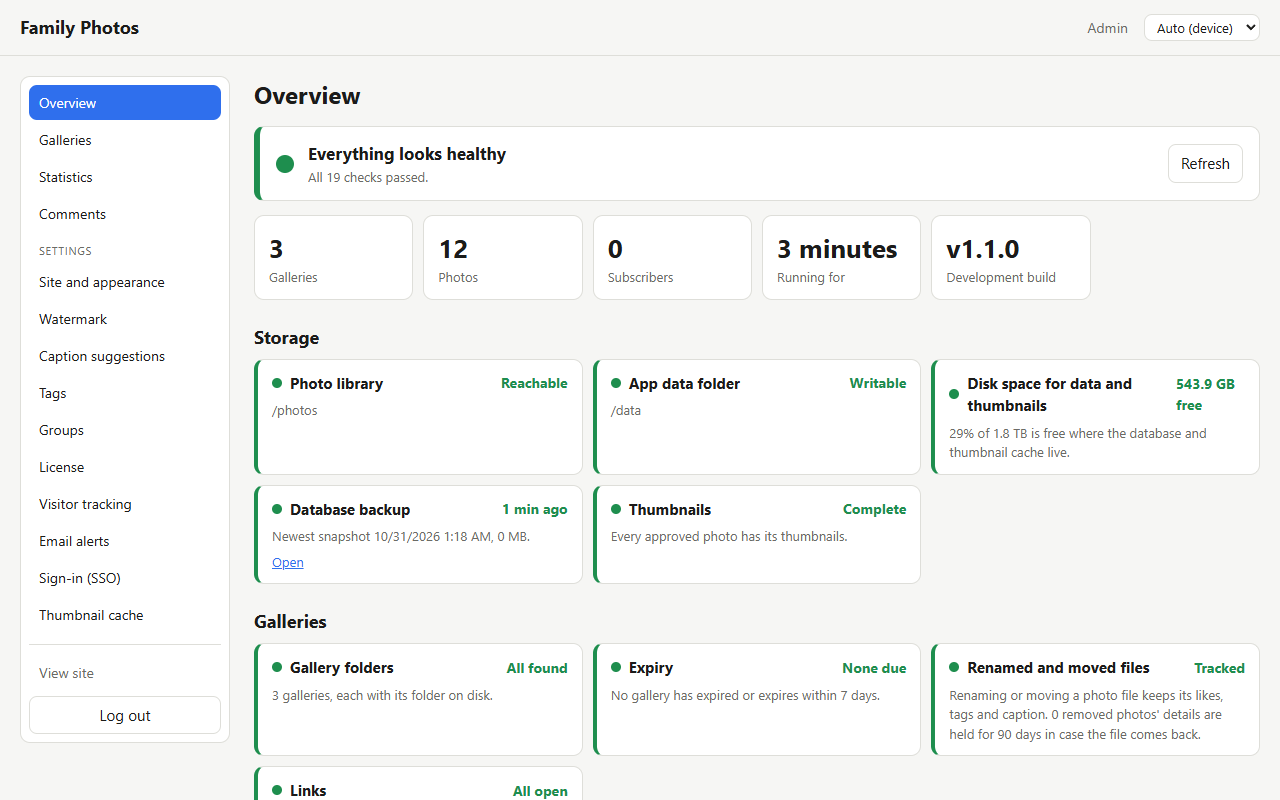 |
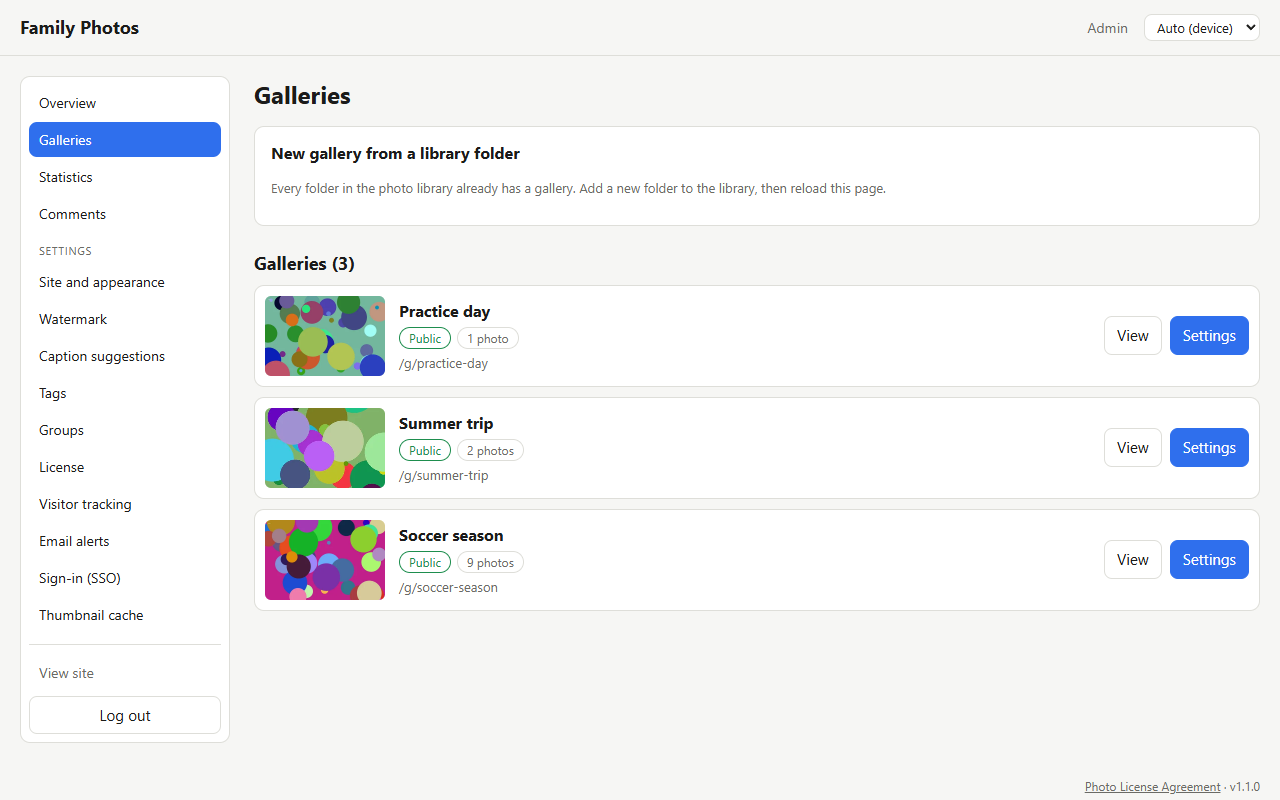 |
Features
| Need | How it works |
|---|---|
| Multiple galleries | Each gallery points at a folder under the photo library (read-only mount). Rescan any time. |
| Public / private | Public (listed on home page), Unlisted (anyone with the URL), Protected (password and/or share link), Specific people (only the invited email addresses, after single sign-on). |
| Slideshow | Fullscreen lightbox with play/pause, 3-12 s interval, keyboard (space, arrows, F, Esc) and swipe. |
| Resolutions, no quality loss | Downloads at configured long-edge sizes (SIZES) as lossless PNG, lossless WebP or LZW TIFF, or the byte-identical original. On-screen viewing uses WebP q88. |
| RAW download | RAW files are paired with the processed image by name (per-gallery: same folder, any folder, or IMG_1234-Edit.png style prefix), or linked by hand in the admin page. RAW-only frames are hidden from viewers until they click Show RAW-only photos. Per-gallery switch Allow RAW download. RAW-only files are supported when exiftool is present (it is in the Docker image). |
| ZIP | Whole gallery as ZIP (original or chosen size, optional RAW folder), streamed. |
| Watermarks | Configured in Admin -> Settings -> Watermark: none, text or transparent PNG, with position, opacity, size and live preview. Per gallery: on screen and/or on downloads. |
| Expiring links, download limits | Share links with expiry date and max downloads; revocable. A ZIP counts as one download. |
| Guest uploads | Per gallery. Always moderated: nothing shows until you approve it. Stored in /data, never in your library. |
Admin pages
The admin area has a menu on the left and the page in the middle (a scrolling strip across the top on a phone).
/adminOverview: the landing page. A banner shows overall health (green, amber or red) above colour-coded checks: photo library readable (red, with what to fix, if the app is not allowed to read it), app data folder writable (red with the exactchown -R 99:100 /mnt/user/appdata/photogallerycommand if not), free disk space, thumbnails, gallery folders present, galleries expired or expiring within 7 days, guest uploads and caption suggestions waiting for you, email alert delivery (failed or stuck mail), wrong gallery passwords in the last 24 hours, a port-exposure check (amber if a connection in the last 24 hours came straight from an internet address instead of through your proxy, meaning port 8080 is forwarded from your router), a reverse-proxy check (amber when requests in the last 24 hours carriedX-Forwarded-FororCF-Connecting-IPfrom an address that is not inTRUSTED_PROXIES, so the headers were ignored and every visitor looked like the proxy; it names the address to add), whetherADMIN_PASSWORDis set, visitor activity and automatic captions. Green is fine, amber needs a look soon, red needs action, grey is switched off on purpose. The New versions check is grey until you switch the notice on; then it turns amber when a newer release exists. Each check links to the page where you fix it, and amber or red checks also link to the matching Troubleshooting section. Copy diagnostics (next to Refresh) builds a text block for bug reports: version, environment, settings and recent warnings and errors, with passwords, keys, tokens and email addresses removed (GET /api/admin/diagnostics). The admin menu has a Help section linking Getting started, Troubleshooting and the issue form. It refreshes every minute (GET /api/admin/health). Full statistics are not shown here./admin/galleries: create galleries from library folders; list of galleries with cover, status chips and a Settings link./admin/galleries/<id>: per-gallery settings in collapsible sections (General, Access & sharing, Downloads, Watermark & uploads, RAW files - collapsed by default) with a single Save button and an unsaved-changes warning.- Per-gallery options include photo order (capture time / name / date added, reversible), event date and location, auto-expire date, offered download sizes and formats, and the curated-only default.
/admin/stats: visitor statistics (see below)./admin/settings/...: one page per topic: Site and appearance (site name, theme, the order of galleries on the home page), Watermark (none / text / PNG with live preview), Caption suggestions, Tags, Groups, License, Visitor tracking, Email alerts and Thumbnail cache.
Photo pages and browser history
Each photo has its own address, /g/<gallery>/p/<id>, which can be shared (protected galleries still ask for the password or link first). Opening the viewer adds one history entry; moving between photos or running the slideshow only replaces the address. The mouse Back button, Esc and the Close button return to the grid at the same scroll position, and Forward reopens the photo.
Visitor statistics
/admin/stats (and a Statistics button on every gallery's settings page) shows unique IPs, gallery and photo views, downloads by size/format, ZIPs, share-link opens, wrong passwords, guest uploads, top galleries and photos, countries and a recent-activity table with each visitor's full IP address and browser. Bots and crawlers (detected from the user agent) are kept on a separate tab. By visitor groups the log by a visitor id cookie (anonymous, per browser, issued only to non-bots; falls back to IP + browser for older records), by IP + browser string, or by IP alone, so people who share an IP address (a household) can be told apart, and the visitor page lists others seen on the same IP. The cookie can be switched off in Site settings. Within the visitor view, click an IP to see that visitor's visits (new visit after 30 minutes idle), galleries, the photos they looked at or downloaded (with thumbnails and sizes), their browsers and a full timeline. Your own admin visits are not recorded. Retention (default 180 days) and a delete-all button are in Site settings.
The visitor IP comes from CF-Connecting-IP when Cloudflare proxies the site, otherwise from the address SWAG forwards. Country is only known while Cloudflare proxies the site. IP addresses are personal data: keep only what you need and tell visitors if your local rules require it.
Page titles
Every page has its own browser tab title: the site name (Admin -> Site settings) on the home page, the gallery name on a gallery (gallery names must be unique), <photo name> - <gallery name> on a photo page, and descriptive titles for the password, closed, expired-link, not-found and admin pages.
Choosing photos, favorites and the mobile view
- Select on a gallery lets viewers tick photos and download just those as a ZIP (size, format and RAW chosen in a download sheet). The same sheet downloads a single photo, favorites, or the whole gallery.
- Favorites and likes: a heart on every photo; the heart is the like, and its count shows beside it (see Likes below). Favorites are stored per anonymous browser id; viewers can add their name, and the photographer reviews every list in the gallery settings (Favorites section: per-visitor lists, most favorited photos, copy file names or RAW names for Lightroom, download originals + RAW as a ZIP).
- Footage links: each link on a gallery has a category. Video links (YouTube) show in the Videos grid above the photos; External links show as cards in a Links section below the gallery, with the page's own title and picture when it has them (see Link previews below). Tick Button under title on any link to also show it as a button beside the title. Links saved before categories existed keep their old look: YouTube links are videos, other links are external with a button. Only http/https links are kept.
- Mobile: responsive layout on every page, a bottom-sheet download dialog, and a full-screen viewer with swipe, double-tap and pinch zoom, swipe-down to close and a lighter 1280px image (a sharper one loads when zoomed).
Likes
The heart on a photo is the like, and the number of people who liked a photo shows beside the heart on the grid and in the viewer (nothing is shown for a photo nobody liked, and there is no dislike, ever). Every heart is also saved to the visitor's own favorites list, as before.
One like per person. Signed-in visitors count once per account, whatever network they use. Visitors who are not signed in count once per network address, so clearing cookies or opening a second browser does not add another like (an IPv6 address counts as its /64 network). People who share one address, such as a household, share one anonymous like; signing in gives each person their own. A visitor who signs in after liking as a guest keeps those likes, now counted under their account and not twice. The address a heart was given from is stored with it and never shown on any page.
Most liked. Once photos have likes, the gallery toolbar gets a Most liked button that puts the most liked photos first (equal counts keep the gallery's own order; press it again to go back). When at least three photos have likes, a Most liked strip of the top six sits above the toolbar, each with its count; clicking one opens it in the viewer. Both appear only where the counts are shown, so switching the counts off in the gallery settings hides them too.
My likes. Once a visitor has hearted something, a ♥ My likes link appears in the header. The page (/likes) shows their liked photos grouped by gallery, each photo opening in the viewer, and a Download… button per gallery that opens the usual download sheet with My favorites chosen, so they can take their picks as a ZIP in the size and format they want (RAW files too where the gallery allows them). Every gallery's own download rules still apply: license acceptance, watermarks, share-link limits, sizes and formats. Only galleries the visitor can open right now are listed. A signed-in visitor sees their likes from every browser and device, and taking a heart back removes it everywhere; a guest sees the likes given from this browser only (not those of other people on the same network address). A single ZIP across several galleries is not offered, since each gallery has its own rules.
Renaming and moving files. You can rename a photo file, move it to another folder, or even move it to another gallery's folder, and its likes, tags, caption and alt text stay with it. Each photo is recognised by its contents (file size plus a fingerprint of the first and last 64 KB), not by its name or place. On the next scan (automatic, or Rescan), a file that disappeared while an identical one appeared is treated as the same photo: it keeps its address, thumbnails, hearts, tags and captions. If the file moved to another gallery, the details move with it, whichever gallery is scanned first. If a file vanishes with nothing to match, its details are held for 90 days and come back if the file reappears. Editing a file in place changes its contents, so it counts as a new photo; save edits under a new name if you want the old details kept. The Overview page shows whether every photo is tracked. Photos from before this feature are fingerprinted at their next scan, so rescan once before you start reorganising folders.
Per gallery (gallery settings, Favorites): Let visitors heart photos (off hides the heart everywhere) and Show how many people liked each photo (off hides the counts from visitors; you always see them). Hearts given before likes were counted each count once. The count is shown in the gallery's JSON as likes on every photo, and the heart call returns the photo's new count.
Comments
Comments are off until you switch them on per gallery (gallery settings, Comments: Let signed-in visitors comment on photos). They need single sign-on to be set up and on.
- Who can comment. Only people signed in through your provider whose email address the provider reports as verified (
email_verified). Everyone else can read the comments, and is offered Sign in to comment. You can always reply, with or without SSO, and your comments are marked Photographer. - A display name, never the email. The first time, a person chooses the name shown on their comments (2 to 40 characters; not an email or web address, not "Photographer" or "Admin", and not a name someone else already uses). They can change it later and their earlier comments follow. The email address is kept with the comment for the log and is never sent to a browser.
- Flat and simple. Comments appear at once, with no approval step, in time order. Reply only adds an "in reply to" line; there are no threads and no reactions other than the heart. Text only, up to 1000 characters and two links.
- Change your mind for 15 minutes. The author can edit or delete their own comment for 15 minutes after posting. A deleted comment disappears from the page; its row, and every earlier version of an edited one, stays in the comment log (
CommentEventstable) with who wrote it, when, and from which address and browser (the address is stored and never shown). - Switches. Per gallery (above) and per photo: while viewing a photo as admin, Turn comments off for this photo. Turning comments off hides them without deleting them.
- Limits. At most 3 comments a minute and 40 an hour per person, no repeat of the same text within 10 minutes, and a flood guard per network address.
- They follow the file. A comment belongs to the photo, so renaming or moving the file keeps it (see Renaming and moving files), including a move to another gallery. Deleting a gallery deletes its comments and log.
- Where to find them. In the viewer, the Comments button opens a panel beside the photo (under it on a phone) with a count on the button.
Moderating comments
Open Comments in the admin menu. It has three tabs:
- All comments. Every comment on the site, newest first, with who wrote it (name and verified email), the gallery and photo, and its status. Search the text, name or email, and filter by gallery or by visible, hidden or deleted.
- Comment log. Everything that happened: posted, edited (with the earlier text), deleted, hidden, shown again, blocked and unblocked. Each line has the time, who, the gallery and photo, the text and the browser. The network address of each is stored with it but is never shown on any page or sent to a browser. A deleted comment leaves the page but stays in the log until its gallery is deleted.
- Blocked people. Who cannot comment, with an Unblock button.
Actions, here and in the viewer's Comments panel (which shows them to you only):
- Hide takes a comment off the page for visitors (you still see it, dimmed) and Show again brings it back. A hidden comment is not counted and its author can no longer edit it.
- Delete removes any comment from the page. It stays in the log.
- Block this person stops them posting or editing, matched by their sign-in and by their verified email, so a new account with the same email is stopped too. You can choose to hide all their other comments at the same time. Blocked people can still look at galleries and see "You can no longer comment on this site." You cannot block yourself.
Email alerts
Site settings has an Email alerts panel. Start by choosing your email provider (Gmail, Outlook.com or Microsoft 365, Yahoo, a mail relay on your own network, or something else): the server name, port and secure-connection choice are filled in, and the exact steps for that provider are shown, such as creating the app password Gmail requires. Then enter your user name and password if the provider needs them, the address mail is sent from and the address alerts go to, and pick which alerts you want. The password is stored in settings.json in the data folder and is never sent back to the browser (the page only says whether one is saved; leave the box empty to keep it, and changing the user name clears it). Secure connections use STARTTLS (port 587); port 465 is not supported. No extra services: messages are saved in an outbox table and a built-in background loop sends them through your SMTP relay, retrying with a growing pause (1 min up to 6 h) if the relay is down. Alerts: guest photos waiting for approval, a share link nearly (20% left) or fully used up, a gallery expiring within N days, and an optional Monday weekly summary. Each alert goes out once. Send test email signs in and sends a real message with the settings as they are on screen, without saving them first, and explains any failure in plain words (server not found, port closed, secure connection needed, wrong password or Gmail app password missing, sender address not allowed, certificate not trusted) instead of showing the raw server reply. The Overview page flags alerts that could not be sent.
Videos
In a gallery's settings, Videos and links takes YouTube links (watch, youtu.be, shorts, live). They show as a Videos grid above the photos so all recordings of an event sit in one place. Leave the title empty and the video's own title is used. Preview images are fetched by the server and cached, so visitors do not contact YouTube until they press play. A cached image is checked on YouTube again after 12 hours (the old one stays if YouTube cannot be reached), and Refresh video thumbnails under the links list fetches the current ones straight away, for example after you change a video's thumbnail on YouTube. Each saved YouTube link in the settings shows its current thumbnail beside it; playback uses the privacy-enhanced youtube-nocookie player in a pop-up. Other links stay as buttons.
Link previews
For External links the server looks up the page once and keeps its title and share picture (Open Graph / Twitter tags, or the page title) in /data/cache/lpreview. The picture is shrunk to a small WebP and served from the gallery's own address, so visitors never contact the other site until they click. A link whose label is left as its web address takes the page's title. Previews are re-checked after 7 days (a failed lookup is retried after 6 hours), and Refresh thumbnails and previews in a gallery's settings fetches them straight away.
The lookup is made safe: the server only connects to public internet addresses, so a link to your router, the Unraid server or any other address on your own network is refused (and so are localhost and cloud metadata addresses); only ports 80 and 443, at most three redirects, 8 seconds, 512 KB of page and 3 MB of picture; the picture is re-encoded, so anything that is not really an image is dropped. Turn it off under Admin -> Settings -> Site and appearance -> Link previews and checks; then nothing is fetched from those sites, link checks stop, and External links show as plain cards.
Link order, notes and link checks
In a gallery's settings, the links list has up and down arrows to set the order (the Videos grid, the title buttons and the Links section all follow it) and a Note for each link, shown with the link (under the video title, on the card, and as the hover text of a title button). Links open in a new tab.
Check links asks every saved link whether it still opens, and the server does the same by itself about once a day, one link at a time, a few minutes after start-up. A link shows Opens or Not opening beside it in the settings, and the Overview page gets a Links check (amber when something does not open). A link is only called not opening after two failed checks in a row (the second an hour after the first), or straight away when you press Check links, so one bad moment at the other site raises no alarm. Only a "not found" answer or no connection at all counts. Sites that turn robots away (403, 429, errors) are never called broken, a YouTube link is checked through YouTube's own answer for that video, and addresses on your own network are not contacted. Visitors never see any of this. It is switched on and off together with link previews.
Thumbnails
Grid thumbnails and viewing images are built in the background after every scan (and shortly after start-up), then cached in /data/cache. A gallery's settings page has Generate missing (builds only what is absent) and Rebuild all; Site settings shows the cache size, can clean up stale files (deleted or replaced photos, old watermark variants) and generate missing / rebuild all for every gallery.
Design notes you should know
- "Lossless" and resizing: shrinking an image always discards pixels. The sized exports add no extra compression loss on top of the downscale. For zero change, use Original.
- Watermark on downloads blocks originals and RAW (they would bypass the watermark). Only sized exports are offered.
- RAW-only files use the preview JPEG embedded in the RAW for viewing and sized exports. Sized exports are not a RAW develop.
- Your originals are never modified or deleted. "Delete gallery" only removes the gallery record and cached files.
- Download limits and expiry apply to people arriving through a share link. Password users and public galleries are not limited.
Security model
- Admin: one password (
ADMIN_PASSWORD, or chosen on first visit and stored as a PBKDF2 hash; the first-visit page works only from your home network or with the setup code from the container log, so a server exposed to the internet cannot be claimed by a stranger), HttpOnly SameSite=Strict cookie, rate-limited login, custom header required on all write calls. - Viewers: gallery access is an encrypted, expiring cookie (ASP.NET Data Protection, keys persisted in
/data/keys). Changing a gallery's password or visibility invalidates existing cookies. - Protected photos are never served without a valid grant (images, downloads and ZIPs all check). Specific-people galleries are checked on every request against the signed-in, verified email address, so removing someone takes effect at once.
- Upload: extension allow-list, size limit, content verified by libvips before acceptance, per-IP rate limit, pending cap.
- Strict CSP,
nosniff, no framing. Use it on your own network as is (plainhttp://server:8080works, cookies are only marked secure when the request is HTTPS). To reach it from the internet, put it behind an HTTPS reverse proxy (SWAG, Nginx Proxy Manager, Cloudflare Tunnel) and never forward the container port itself; see Getting started.
Hardening checklist
Built in: PBKDF2 gallery passwords, constant-time admin check, rate limits (login, unlock, upload), slow-down after wrong admin passwords plus an email alert, per-visitor limit of one ZIP at a time, strict CSP, HSTS over HTTPS, 150 MP image cap, 60 s exiftool limit, and proxy headers (X-Forwarded-*, CF-Connecting-IP) believed only from TRUSTED_PROXIES (default: Docker's 172.16.0.0/12 and loopback).
Do on your side:
- Once a reverse proxy works, remove the WebUI port mapping from the container (the proxy reaches it by name on a shared custom Docker network such as
proxynet) so nothing on the LAN can talk to it directly. Skip this step if you use the app only on your LAN. - Protect
/adminand/api/adminwith Cloudflare Access (free) or a SWAG allow-list. - Keep the Cloudflare proxy on (not paused); restrict SWAG to Cloudflare's IP ranges; add a Cloudflare rate-limit rule for
/api/admin/loginand/api/g/*/unlock. - Use a long random
ADMIN_PASSWORD. - Template extra parameters:
--security-opt no-new-privileges --cap-drop ALL --read-only --tmpfs /tmp. - Rebuild the image regularly (runtime, libvips and exiftool fixes); Dependabot is configured for NuGet and Docker.
Deploy on Unraid
From Community Apps
Once the template is listed, search PhotoGallery in the Apps tab and click Install. Until then (or to try it first), install it by hand:
- Copy
templates/photogallery.xmlto/boot/config/plugins/dockerMan/templates-user/, then Docker tab -> Add Container -> select photogallery. - Set Photo library (read-only) to the folder that holds your photo folders and choose the admin password: either set
ADMIN_PASSWORD, or leave it empty and open/adminto be asked for one on first visit. - Apply. The image is pulled from
ghcr.io/darroll/photogallery:latest, which GitHub Actions rebuilds on every push tomain(.github/workflows/publish-image.yml). Updates arrive through Unraid's normal "check for updates". - Open
http://SERVER-IP:8080/admin, create galleries from folders. Getting started walks through this, including permissions and folder layout. - To expose it to the internet put it behind a reverse proxy (SWAG, Nginx Proxy Manager, Cloudflare Tunnel); never forward the port directly.
unraid/gallery.subdomain.confis a ready SWAG config; put the container on SWAG's custom network and keepTRUST_PROXY=true.
Publishing the template to Community Apps (maintainer notes)
Files used: templates/photogallery.xml (template), unraid/icon.png, ca_profile.xml (repository root). Checklist:
- Push to
main; the Publish image workflow tests and builds:edge. Public users get:latestonly from a release tag (see Releasing). In GitHub -> Packages -> photogallery -> Package settings, set visibility to Public (first time only). - Open a support thread on the Unraid forum (Docker Containers) and put its URL in
<Support>of the template. - The repository is MIT-licensed (
LICENSE). - Submit the template repository on the Unraid forum's Community Applications thread (or via the "Add an app" form), pointing at
https://github.com/Darroll/PhotoGallery. Moderators review it before it appears.
Configuration
| Variable | Default | Meaning |
|---|---|---|
ADMIN_USERNAME |
empty (password only) | Admin user name; when set, the sign-in form asks for it. Only settable here, not in the app |
ADMIN_PASSWORD |
empty (choose in the app) | Admin login. Leave it empty and the first visit to /admin asks you to choose a password (stored scrambled in /data/admin-password; change it under Settings -> Site and appearance). When set, the container value always wins |
ADMIN_PASSWORD_LOGIN |
true without SSO, false once SSO is configured |
Set true to keep the password form alongside SSO, or false to turn it off |
OIDC_AUTHORITY |
empty (sign-in off) | Issuer URL of the OpenID Connect provider, e.g. https://auth.example.com/realms/gallery |
OIDC_CLIENT_ID / OIDC_CLIENT_SECRET |
empty | Client of the gallery in the provider |
OIDC_ADMIN_ROLE |
gallery-admin |
Provider role or group that makes a user an admin (email must be verified) |
OIDC_ALLOW_HTTP |
false |
true allows an http:// provider, for local tests only |
PHOTO_LIBRARY |
/photos |
Library root |
DATA_DIR |
/data |
DB, cache, keys, guest uploads |
SIZES |
1080,1920,2560,4096 |
Offered long-edge sizes |
RESCAN_MINUTES |
15 |
Auto-rescan interval (0 = off) |
BACKUP_HOURS |
24 |
Hours between automatic database backups (0 = off) |
BACKUP_DAILY |
7 |
Days of backups kept (the newest snapshot of each day) |
BACKUP_WEEKLY |
4 |
Older weeks kept after that (the newest snapshot of each week) |
BACKUP_COPY_DIR |
(off) | A second folder (another disk, a share, a USB drive) that every snapshot is also copied to, and kept the same way |
SITE_TITLE |
Photos |
Initial site name; afterwards edit it in Admin -> Site settings |
MAX_UPLOAD_MB |
100 |
Per-file guest upload limit |
MAX_PENDING_PER_GALLERY |
200 |
Pending upload cap |
TRUST_PROXY |
true |
Honour X-Forwarded-* |
Sharing, search and details
Link previews. A shared gallery link shows its name and cover in chat apps and social feeds. Public and unlisted galleries reveal their name and a picture; a protected gallery shows only the site name, so its title and photos stay private. Expired galleries show only the site name.
Subscriptions. Visitors can subscribe from the footer (left side, on every page) to emails about new public galleries and new photos. Each subscriber confirms by a link first (double opt-in), and every email has an unsubscribe link. Unlisted, protected and specific-people galleries are never announced. Subscriptions need the site address (Admin -> Settings -> Email alerts) and can be turned off there, where you also see how many people are confirmed.
Details. The ⓘ Details button in the viewer opens a panel beside the photo (under it on a phone) that follows you from photo to photo until you click Details again or Close. It lists the metadata of every file behind a photo: the processed image and its RAW, if it has one. With exiftool installed on the server you get the full set (camera, lens, settings, dates); without it, the image library's own fields are shown. Where a photo was taken (GPS) is shown only to the admin.
Captions and alt text. Each photo can have a short caption and an alt text (a description for screen readers, which is also used as the image's alt attribute). Visitors who sign in can suggest changes from Details. Suggestions are reviewed in Admin -> Settings -> Caption suggestions, like a merge request: approving applies the text, rejecting drops it, and if the text has changed since the suggestion was made it is marked as a conflict and needs an explicit "Apply anyway". The admin's own edits apply straight away.
Automatic captions need a vision model you run yourself. Set CAPTION_URL to an Ollama server (for example http://your-server:11434) and optionally CAPTION_MODEL (default llava). The server writes captions for photos that have none, a few at a time in the background, and gives up on a photo after three tries. Photos are sent only to that address. Leave CAPTION_URL empty and nothing leaves the server. Run the model on a machine with enough memory: a vision model on the Unraid server itself can exhaust its RAM.
Home page for the admin. Visitors see only public galleries that have not expired. Signed in as admin, the home page lists every gallery whatever its visibility (unlisted, protected, specific people) or expiry, and every gallery card, the top of every gallery page and the admin row in the photo viewer show its visibility level (Public, Unlisted, Protected or Specific people, plus Expired when it is) with a Settings link straight to that gallery's settings. Visitors see none of this. Search still shows only what visitors can find.
Search and tags. The search is one compact row: a box, Search and a Filters button. Filters (galleries or photos, place or month, tag, from and to dates) fold away until opened, and open by themselves, with a count on the button, when a search already uses one. The search box on the home page (and /search) finds public photos by file name, caption, alt text, tags, gallery title, place, and date taken. Protected, specific-people, unlisted and expired galleries are never searched. The search box has a "Search in" choice: galleries and photos (the default), galleries only, or photos only.
Tags are labels you choose, about anything (Admin -> Settings -> Tags). Add them to a photo from its Edit sheet in the viewer, or to a whole gallery from its Tags field in gallery settings. In either place, click + and type: the box suggests tags already in use (most used first), Enter or a comma adds the tag, and the × on a chip removes it. As admin you also get a + (or + Tag) next to the tags wherever they show: on gallery cards on the home page and in search, under a gallery's title, on photo cards in search, under the photo in the viewer, and in Details. It opens a small editor for that gallery or photo and saves straight away, without leaving the page. Visitors never see it. To tag many photos at once, open a gallery as admin, click Select, tick the photos (or Select all) and click Tag...: add some tags and/or remove some from every selected photo, leaving their other tags alone (POST /api/admin/photos/tags). The Tags page also lets you create a tag without using it yet, rename it everywhere, merge it into another tag (photos and galleries move across without duplicates), delete it, filter and sort the list (A to Z, most used, unused first), and switch to a Cloud view where size shows how much each tag is used. Tags are coloured everywhere they show (home page cards, gallery header, search, the viewer and its Details, and the editors). A tag you have not coloured gets a colour from a fixed palette based on its name, so it looks the same on every page; on the Tags page, Color lets you pick one of the palette colours, a custom colour, or Auto to go back to the automatic one. Colours tint the chip's background and border while the text keeps the theme's own colour, so they stay readable in every theme. The public colour list (GET /api/tag-colors) only includes tags that are on public, listed galleries, so tag names from private galleries are not revealed. Visitors see tags under photos and galleries (and on the home page), and can search by them. A gallery tag counts for every photo in that gallery, and the search page has a tag filter.
Specific people and groups. Set a gallery's visibility to Specific people (Access & sharing) to open it only for invited email addresses. Type addresses into Invited emails (people who have not signed in yet are fine), and/or tick Invited groups. A visitor gets in when they sign in through single sign-on with a listed address that the provider has verified; anonymous visitors are asked to sign in, and the admin always gets in. Groups are kept in the app, not in your identity provider: under Admin -> Settings -> Groups, create a group (for example Family), add its members' email addresses, and use the People section to put one person in as many groups as you like. Changes to a group or a person's groups apply to access at once. Deleting a group removes it from every gallery it was invited to. Specific-people galleries are never listed on the home page, searched, announced to subscribers, or shown in link previews.
Themes
Visitors can pick a theme from the Theme menu in the header. The choice is remembered in their own browser (no account needed) and applies to every page. Visitors who sign in with single sign-on also have it saved to their account, so it follows them to every device and browser: the account's theme wins over the browser's, and the first time someone signs in, the theme already chosen in that browser is saved to the account. (The password-only admin has no account, so the admin's choice stays in the browser.) Preferences are stored as JSON in the Users table (UserPreferences), so more can be added later. Themes change colors, fonts, corner rounding, shadows and photo-grid spacing, but never the layout. Photos in the full-screen viewer always sit on black.
| Theme | Look |
|---|---|
| Auto (device) | Light or dark, following the visitor's device setting |
| Light / Dark | The standard light and dark palettes |
| Midnight | Near-black, cool blue accent, rounded corners, soft shadows |
| Gallery White | Pure white, square corners, tight grid, black accent |
| Warm | Paper tones with a serif typeface |
| High contrast | Black and white with a yellow accent and strong borders |
In Admin -> Settings -> Appearance you set the default theme for new visitors, and can switch the menu off so everyone gets the default. To add a theme, add its { id, label } to ThemeSettings.All and a matching html[data-theme="id"] block (all tokens) in style.css; a test fails if a theme is missing from the stylesheet or incomplete. Only system fonts are used, because the site's content security policy blocks remote fonts.
Privacy and data requests
The app holds personal data once people sign in: email addresses and display names, likes, comments with the address and browser they came from (a private log), subscriptions, and, if visitor statistics are on, network addresses. Two tools help you handle that responsibly.
Privacy notice. Admin -> Settings -> Privacy has a short notice in plain words, shown at /privacy and linked from the footer next to the license. The default text describes what this app really keeps (likes, comments, sign-in, statistics, email alerts, cookies); read it and change anything that is not true for your site. Set a contact address so people know whom to write to. {site}, {contact} and {year} are filled in when it is shown. You can hide it or restore the default text.
Data about one person. The same page has a lookup by email address (the box suggests addresses the app knows). It lists how much is held: sign-in record, comments and their log entries, likes, caption suggestions, license acceptances, subscription, group memberships, gallery invitations, queued emails, and visits tied to the person's browser. Then you can:
- Download everything (JSON) to answer "what do you hold about me" (
GET /api/admin/privacy/person?email=...). - Delete everything about this person for a "forget me" request (
POST /api/admin/privacy/delete). It removes all of the above in one step, takes the address off every gallery invitation and group, and scrubs the person's likes from the details held for removed photos. The photographer's own replies stay, but no longer point at a deleted comment. A comment block is kept by default so a blocked person stays blocked; tick the box to remove it too.
Limits: a like given while not signed in is tied only to a network address, so it cannot be matched to a person by email. It is found only if that browser was also used to sign in. Deleting a gallery already deletes its likes, comments and comment log, and the confirmation says so.
License agreement
The gallery ships with a general-purpose photo license (personal, non-commercial use only; no resale, no advertising or stock use, no AI training, watermarks and credits must stay). It is an example, not legal advice, so have it reviewed for your country.
- Visitors see it at
/licenseand through a footer link. - By default they must tick an agree box in the download dialog before any download. Acceptance is recorded on the server (see below), and downloads are refused until the visitor has accepted the current wording, so the tick box cannot be skipped by calling the download links directly. Admins are not asked. Changing the wording asks everyone to accept again. Saving a copy of what is shown on screen is still possible, so watermarks (Admin -> Settings) remain the deterrent for reuse.
- Edit it in Admin -> Settings -> License agreement: turn it off, turn the required tick-box off, set the title, copyright holder, contact address and the full text.
{holder},{site},{year}and{contact}are filled in automatically. Reset text to default restores the built-in wording. - It is stored in
settings.jsoninDATA_DIR, so it survives updates. - Records: each accept is saved in the
LicenseAcceptancestable with the wording version and time. Signed-in people are recorded against their account; everyone is also tied to their browser's visitor cookie. IP addresses are not stored with acceptances. Admin -> Settings -> License agreement shows the log (who, when, and whether they accepted the current wording). - Enforcement: single-photo downloads, RAW downloads and ZIPs return 403 with
licenseRequireduntil the visitor has accepted the current wording. Admins are exempt.
Versioning
The version shown at the bottom right of every page is <Version> in src/PhotoGallery.csproj plus the git commit it was built from (hover for the build time). Bump <Version> for a release; release.sh passes the commit and build time into the image.
Public releases. Pushing to main publishes only ghcr.io/darroll/photogallery:edge (and :sha-<commit>), after the tests pass. The :latest tag, which the Community Apps template installs and Unraid's "check for updates" follows, moves only when you publish a release:
# 1. bump <Version> in src/PhotoGallery.csproj and add a CHANGELOG.md entry, commit, push
# 2. tag the commit with the same number
git tag v1.1.0 && git push origin v1.1.0
The workflow refuses a tag that does not match <Version>, runs the tests, then publishes :1.1.0, :1.1 and :latest. Users can pin :1.1 in the container to stay on one minor version.
Development
cd src
PHOTO_LIBRARY=/path/to/photos DATA_DIR=./data ADMIN_PASSWORD=dev dotnet run
Tests
dotnet test tests/PhotoGallery.Tests
The suite (246 tests, a few seconds) covers password hashing, configuration rules (including the SSO / admin password behaviour), the license settings and their placeholders, settings persistence, gallery rules, and the running app end to end: admin sign-in and sign-out, SSO mode, the license API, creating and scanning galleries, protected galleries and unlock, share links and download limits, per-gallery download switches, guest-upload moderation and the security headers. The integration tests start the real app against a throw-away library and data folder, so nothing on your machine is touched. GitHub Actions runs them (plus a syntax check of app.js and the shell scripts) on every push and pull request.
Add a test whenever you add or fix a feature. AppFactory in tests/PhotoGallery.Tests boots the app; pass extra environment-style settings to a subclass to test other configurations (see SsoFactory).
Releasing
From the dev machine, on main with everything committed and pushed:
./deploy.sh
It runs the tests, checks that main matches GitHub, copies that commit to the Unraid server (DEPLOY_HOST and REGISTRY, set in a .deploy.env file that is not in git), builds the image there with release.sh and pushes it to the local registry. Then use "check for updates" / "apply update" on the container in Unraid. SKIP_TESTS=1 ./deploy.sh skips the test run.
Database backups
The app snapshots its own database into /data/backup (photogallery-<UTC date>-<time>.db). The first snapshot is made a couple of minutes after start, then whenever the newest is older than BACKUP_HOURS. A snapshot is a consistent copy taken while the app runs and is integrity-checked before it is kept; the last BACKUP_DAILY days and BACKUP_WEEKLY older weeks are retained.
The admin overview has a "Database backup" check (amber when overdue, red when attempts fail), and Statistics lists the snapshots with a "Back up now" button.
The folder must be writable by the container user (nobody, uid 99 on Unraid). If you created it by hand as root, run chown 99:users /mnt/user/appdata/photogallery/backup; otherwise the overview shows the backup check in red with the error.
Only the database is covered: galleries, tags, groups, statistics and settings in the database. Photos are never touched, and thumbnails are rebuilt on demand. The snapshots live on the same disk as the database, so keep a copy somewhere else too (below).
A copy off the server. Two easy ways, both in Statistics -> Database backups:
- Download any snapshot to your own computer (it is an ordinary SQLite file, a few MB).
- Set
BACKUP_COPY_DIRon the container to another disk, a network share or a USB drive (mount it into the container and give the mounted path). Each new snapshot is copied there right after it is made, and old ones are removed the same way as in/data/backup. If the copy fails (drive missing, folder not writable) the backup itself still succeeds and the panel shows the error in red.
Restoring. In Statistics -> Database backups press Restore beside a snapshot, or Restore from a file... to pick one you downloaded earlier. You are asked to confirm; then the app
- checks the file (integrity, that it is a gallery database, and that it was not made by a newer version of the app, which is refused),
- saves the current state as a
before-restore-...copy in/data/backup(listed under Saved before a restore, kept for the last five restores, and itself restorable, so a restore can always be undone), - replaces the database, brings an older one up to date with the migrations, and reloads the page.
It works while the app runs; nobody has to stop the container. Only the database is restored (galleries, links, likes, tags, groups, statistics, sign-in records). Photos and the settings.json file are not touched. If the app will not start at all, the manual way still works: stop the container, then
cd /mnt/user/appdata/photogallery
cp backup/photogallery-<stamp>.db photogallery.db
rm -f photogallery.db-wal photogallery.db-shm
and start it again.
Database schema and migrations
The SQLite schema is managed with EF Core migrations (src/Migrations), applied automatically at startup (Schema.Migrate):
- A new database is built by the migrations.
- A database from before migrations existed is caught up once, then adopted into the migration history at the
InitialCreatebaseline. No data is touched. - Before an existing database is changed (the adoption, or any later pending migration),
photogallery.dbis copied tophotogallery.db.bak-<UTC timestamp>beside it. The three most recent copies are kept.
To change the schema, edit the model in src/Models.cs, then from src/:
dotnet ef migrations add <Name>
Commit the generated files with the change. A test fails if the model and the migrations disagree. Do not add to Schema.Upgrade: it is frozen and exists only to bring pre-migration databases up to the baseline. Install the tool once with dotnet tool install -g dotnet-ef.
Single sign-on
The gallery can sign visitors and the admin in through any OpenID Connect provider; Keycloak is the one this is written and tested for. Signed-in visitors can suggest caption changes and, later, comment; the admin can sign in without the shared password.
Set up from the admin page
Admin -> Settings -> Sign-in (SSO) walks you through it, with no files to edit and no restart:
- The page shows what to create in Keycloak, with the exact addresses for this site to copy: a client named
photogallerywith client authentication on, the valid redirect URIhttps://<your site>/signin-oidc, the post-logout redirect URIhttps://<your site>/signout-callback-oidc, and a realm role (gallery-adminby default) given to your own user. Make sure your user has an email address with Email verified switched on. - Enter the provider address (your Keycloak address plus
/realms/<realm>), the client ID and the client secret (from the client's Credentials tab), and the admin role name. The secret is stored insettings.jsonin the data folder and is never sent back to the browser (leave the box empty to keep it; changing the provider or client ID clears it). Anhttp://address is refused unless you tick the box for a provider on your home network. - Check the connection looks at the provider without signing anyone in and says in plain words what is wrong: the address does not answer, there is no realm there, the provider calls itself something else, or the client ID or secret is not accepted.
- Test sign-in saves, sends you to your provider and back, and shows who signed in, whether the email counts as verified, which roles came with it, and whether you would be an admin, with the fix for each problem. A test does not change your current session or create an account.
- Tick Offer sign-in to visitors and Save. Sign-in is available at once.
The admin password form stays available, so you cannot lock yourself out. Hide the admin password form unlocks only after a test sign-in has worked as an admin with a verified email, and changing the provider, client or admin role locks it again. If you do hide it and later need it back, set ADMIN_PASSWORD_LOGIN=true in the container. The Overview page shows whether sign-in is off, on, or on but never tested.
If OIDC_AUTHORITY and OIDC_CLIENT_ID are set in the container (below), they win: the page shows them read-only, and you can still check and test.
Single sign-on (container setup)
The same settings can be given as environment variables instead. SSO from the container is on when OIDC_AUTHORITY and OIDC_CLIENT_ID are both set; they then override the admin page. Setting up the provider itself (realm, users, client) is covered above.
You need these from your provider:
| What | Value |
|---|---|
| Issuer URL | e.g. https://auth.example.com/realms/gallery (must be reachable from the container) |
| Client ID and secret | A confidential client using the authorization code flow with PKCE (S256) |
| Redirect URI registered at the provider | https://<gallery host>/signin-oidc |
| Admin role or group | Name of the role or group whose members should be gallery admins (default gallery-admin) |
Unraid
- Open the photogallery container, Edit, and click Show more settings so the advanced variables appear.
- Fill in:
OIDC_AUTHORITY: the issuer URL, with no trailing slashOIDC_CLIENT_ID: the client idOIDC_CLIENT_SECRET: the client secretOIDC_ADMIN_ROLE: only if your admin role is not namedgallery-admin
- Leave
ADMIN_PASSWORD_LOGINempty. Click Apply.
Docker run / compose
environment:
  OIDC_AUTHORITY: https://auth.example.com/realms/gallery
  OIDC_CLIENT_ID: photogallery
  OIDC_CLIENT_SECRET: change-me
  OIDC_ADMIN_ROLE: gallery-admin   # optional
Behind SWAG (nginx)
The SSO session cookie is large, so the proxy needs a bigger header buffer. unraid/gallery.subdomain.conf already sets proxy_buffer_size 16k; if you use your own proxy config, add it there too. The container must also trust the proxy's forwarded headers (TRUST_PROXY=true, the default), otherwise the redirect URI is built with http:// and the provider rejects it.
What changes once it is on
- The header shows Sign in / Sign out, and
/adminoffers Sign in with SSO. - Users who have the admin role and a verified email become admins.
- The admin password form is hidden and
/api/admin/loginreturns 404. SetADMIN_PASSWORD_LOGIN=trueto keep it as a fallback (for example while testing SSO, or if the provider is down). OIDC_ALLOW_HTTP=truepermits anhttp://provider, for local testing only.
Troubleshooting
- "Sign-in failed" chip after returning from the provider: check the container log. Common causes are a wrong client secret, a redirect URI that does not match exactly, or the container being unable to reach
OIDC_AUTHORITY. - Signed in but not admin: the user lacks the admin role or group, or their email is not verified. The admin page says you are signed in as a non-admin account.
- Locked out: set
ADMIN_PASSWORD_LOGIN=trueandADMIN_PASSWORD, restart, sign in with the password.
License
MIT, see LICENSE.
Media gallery
1 / 4Requirements
Categories
Related apps
Explore more like this
Explore allDetails
ghcr.io/darroll/photogallery:latestRuntime arguments
- Web UI
http://[IP]:[PORT:8080]/- Network
bridge- Shell
bash- Privileged
- false
- Extra Params
--user 99:100 --restart=unless-stopped --security-opt no-new-privileges --cap-drop ALL --read-only --tmpfs /tmp
Template configuration
Port for the web interface. With a reverse proxy on a custom Docker network the proxy reaches the container by name and this mapping is only for LAN access.
- Target
- 8080
- Default
- 8080
- Value
- 8080
Root folder that contains your photo folders. Each gallery points at a sub-folder.
- Target
- /photos
- Default
- /mnt/user/Photos
- Value
- /mnt/user/Photos
Database, cache of generated sizes, guest uploads, encryption keys
- Target
- /data
- Default
- /mnt/user/appdata/photogallery
- Value
- /mnt/user/appdata/photogallery
Admin user name asked for at sign-in. Leave empty to sign in with the password only.
Single sign-on: issuer URL of Keycloak (or another OpenID Connect provider), for example https://auth.example.com/realms/gallery. Leave empty to keep sign-in off.
Single sign-on client id
Optional: Ollama server with a vision model for automatic captions, e.g. http://your-server:11434. Empty turns automatic captions off
Vision model name used by CAPTION_URL
- Default
- llava
Single sign-on client secret
Role or group in the provider whose members are admins (their email must be verified)
- Default
- gallery-admin
Password sign-in for the admin is turned off automatically once single sign-on is configured. Set to true to keep it, or false to turn it off without SSO
Optional. Leave empty to choose the admin password in the app the first time you open /admin. If set here, this value always wins and cannot be changed in the app.
Initial site name. After first start, change it in the app under Admin, Site settings.
- Default
- Photos
- Value
- Photos
Hours between automatic database backups, kept in the data folder under backup (0 = off). Statistics shows them and has a Back up now button.
- Default
- 24
- Value
- 24
How often gallery folders are rescanned for new files (0 = off). The Rescan button always works.
- Default
- 15
- Value
- 15
Long-edge pixel sizes offered as lossless downloads
- Default
- 1080,1920,2560,4096
- Value
- 1080,1920,2560,4096
Largest single guest upload (keep under 100: Cloudflare proxy limit)
- Default
- 90
- Value
- 90
Cap on unapproved guest uploads per gallery
- Default
- 200
- Value
- 200
Networks allowed to send X-Forwarded-For / CF-Connecting-IP (SWAG on the proxy network). Headers from any other address are ignored, so LAN devices cannot fake an IP.
- Default
- 172.16.0.0/12,127.0.0.0/8,::1/128
- Value
- 172.16.0.0/12,127.0.0.0/8,::1/128
Trust X-Forwarded-* headers from SWAG (needed for HTTPS cookies and per-IP rate limits). Do NOT publish the container's port directly to the internet.
- Default
- true
- Value
- true