

ph-intercept
Docker app from m00grin's Repository
Real-time DNS dashboard for Pi-hole v6, AdGuard Home, and Technitium DNS.
Requirements
Overview
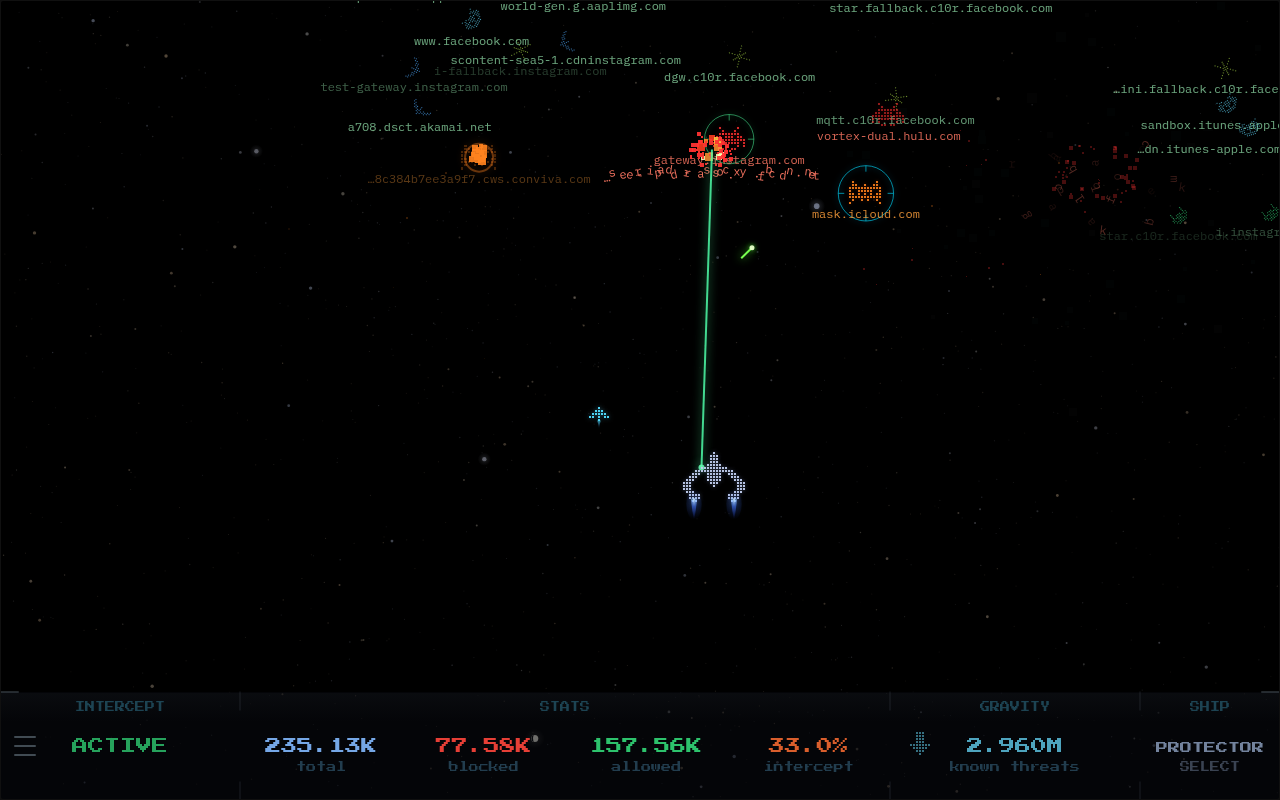
Real-time DNS dashboard for Pi-hole v6, AdGuard Home, and Technitium DNS. Every query becomes a ship on screen: allowed queries fly past as friendlies, and blocked ones get shot down by an interceptor. The HUD shows live stats and lets you pause blocking with a timer.
Setup: pick your PROVIDER, then fill in the URL and credentials for that provider only. Leave the other providers' fields blank.
- Pi-hole: API URL like http://192.168.1.x:80/api and an app password (Pi-hole Settings, Web interface / API, Configure app password).
- AdGuard Home: control URL like http://192.168.1.x:3000/control plus username and password.
- Technitium: web console URL like http://192.168.1.x:5380 plus an API token. Install the Query Logs (Sqlite) app in Technitium so ships spawn.
Optional settings (backgrounds, ignored domains, 2-player split screen with a second DNS server) are under Show more settings.
Readme
View on GitHubph-intercept
Latest release Build status CodeQL status OpenSSF Best Practices
A Pi-hole, AdGuard Home, and Technitium DNS dashboard that runs as a standalone Docker container. Streams live DNS query events from your Pi-hole v6 API and renders them as pixel-art friendlies and enemies. Blocked queries are destroyed by the ship, allowed queries fly through. Toggle blocking, set timed blocks, trigger gravity updates, and switch ships from the HUD.
Designed to be dropped in alongside an existing Pi-hole v6 setup with no extra dependencies. Two instances can run side by side in local 2-player split-screen.
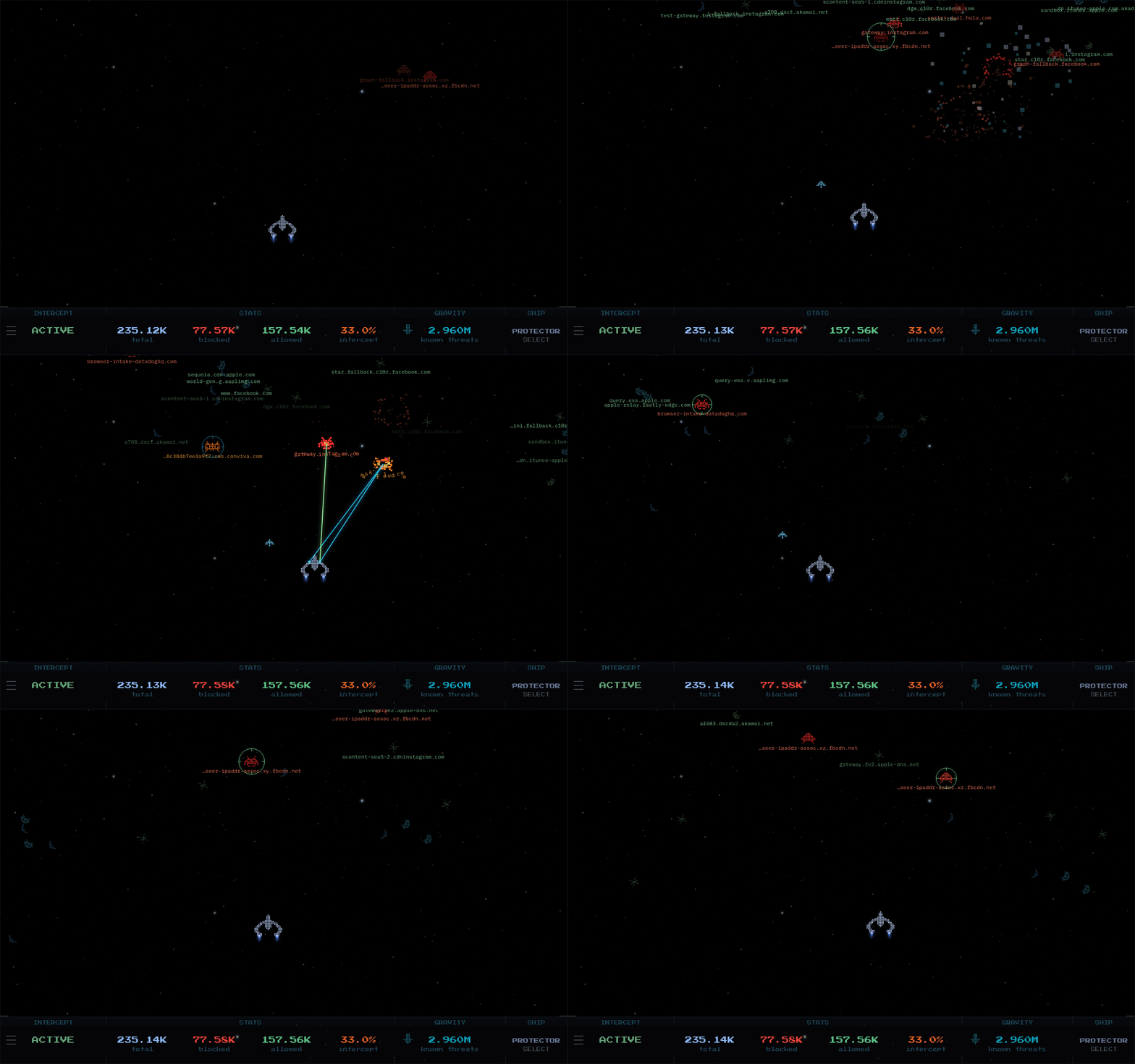
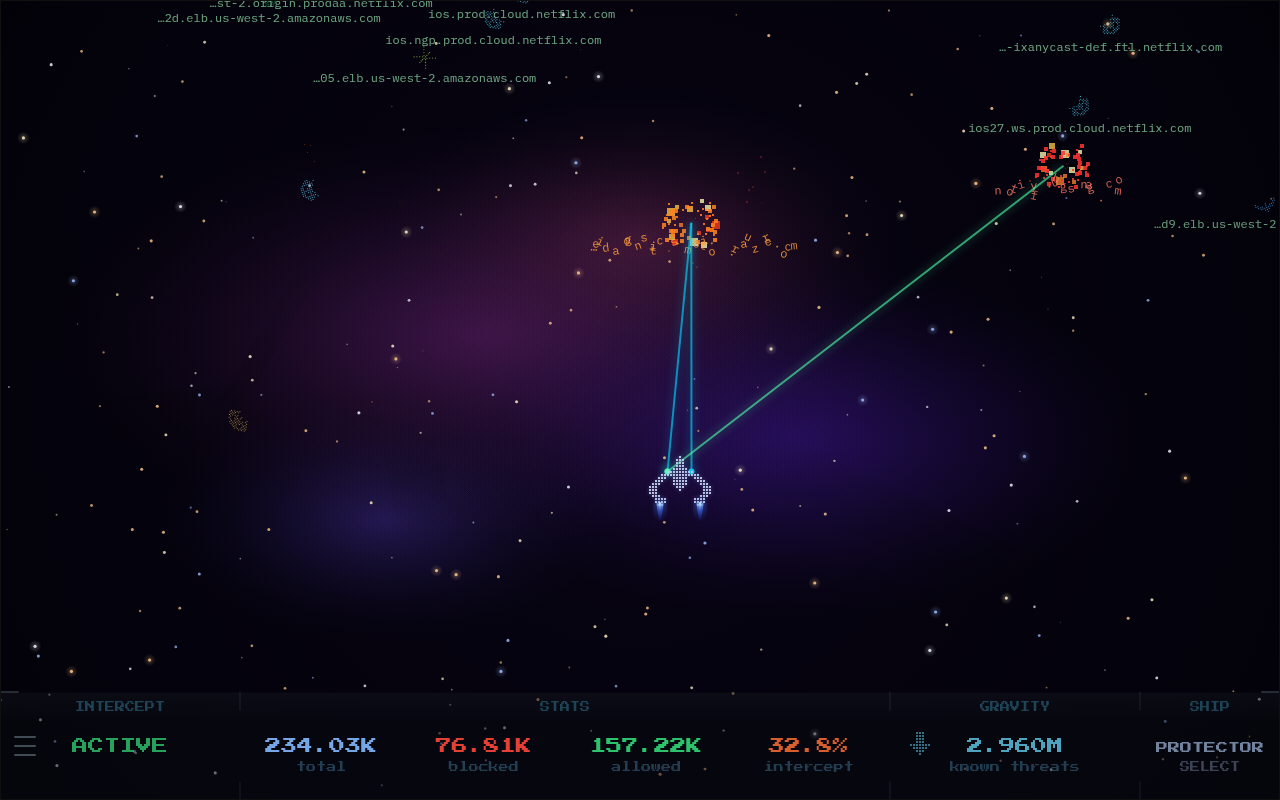
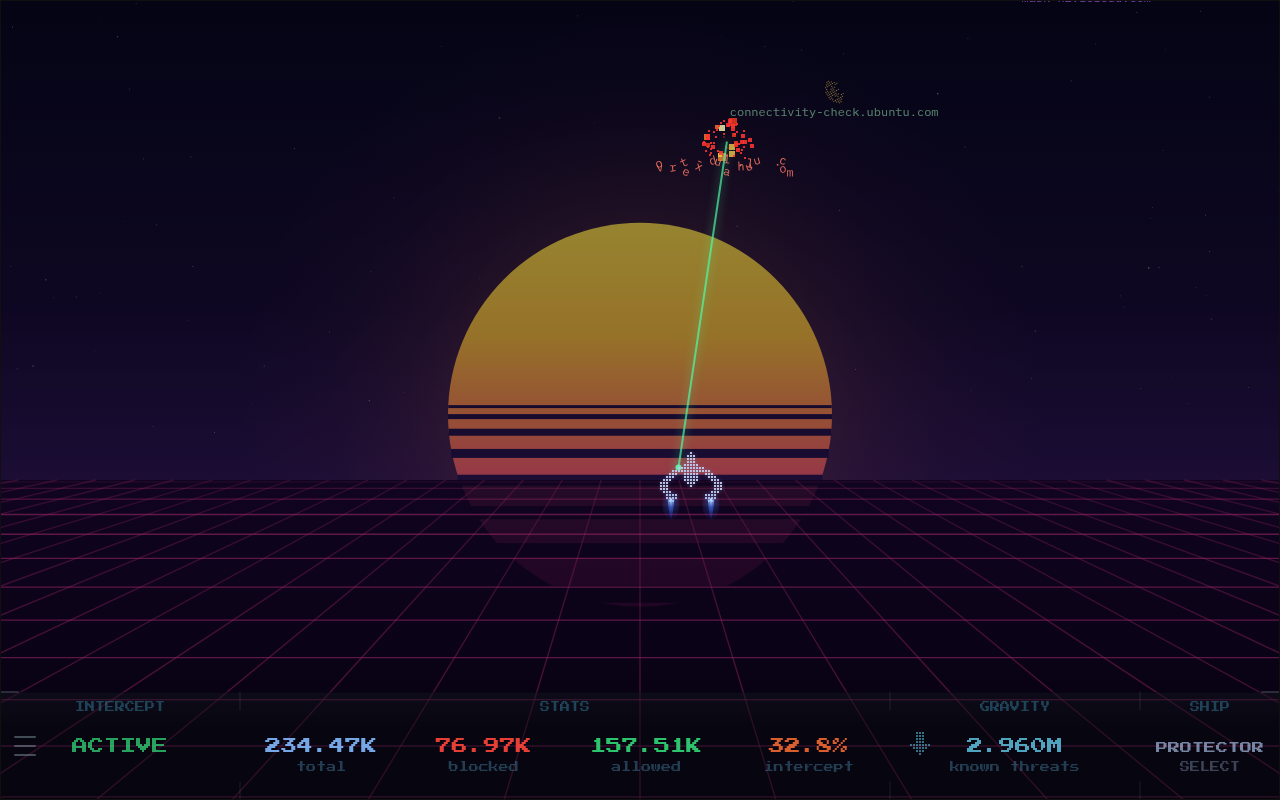
| Starfield | Nebula | Outrun |
|---|---|---|
 |
 |
 |
AdGuard Home user? See the AdGuard setup guide.
Technitium DNS user? See the Technitium setup guide.
Quick Start
1. Get your Pi-hole app password (not your web login password): from the Pi-hole admin panel, go to Settings → Web interface / API → Configure app password.
CLI users: Create a
.envfile in the same directory as yourcompose.yaml:PIHOLE_PASSWORD=your_pihole_app_passwordPortainer users: Skip the
.envfile. AddPIHOLE_PASSWORDas an environment variable directly in the Portainer stack config.
2. Create a compose.yaml (copy the example below or grab compose.yaml from the repo) and update PIHOLE_URL to your Pi-hole's address:
services:
  ph-intercept:
    image: ghcr.io/m00grin/ph-intercept:latest
    hostname: ph-intercept
    container_name: ph-intercept
    restart: unless-stopped
    deploy:
      resources:
        limits:
          memory: 128m
          cpus: "1"
          pids: 20

    environment:
      # REQUIRED: Pi-hole v6 API endpoint
      # Example: "http://192.168.1.2:80/api"
      PIHOLE_URL: "http://CHANGE.ME:PORT/api"

      # CLI users: Create a .env file in the same dir as this compose file with:
      #  PIHOLE_PASSWORD=your_pihole_app_password
      # Portainer Web users: Add the environment variable: PIHOLE_PASSWORD=your_pihole_app_password
      PIHOLE_PASSWORD: ${PIHOLE_PASSWORD}

      # Optional: where ESC navigates to (like your homelab dashboard or homepage)
      # Accepts http://, https://, protocol-relative (//), relative paths, and custom app schemes
      # Leave blank ("") to disable ESC entirely
      RETURN_URL: ""

      # Background. These set the DEFAULT; each user can also switch the background live
      # from the in-app settings menu, and their choice is remembered per-browser.
      # Style: starfield | nebula | outrun | dark
      BG_MODE: starfield

      # Sky region shown for the starfield:
      #   summer_triangle | orion | scorpius | southern_cross
      SKY_PRESET: summer_triangle

      # Optional custom background image: a URL, or /bg/your-filename.jpg (mounted volume).
      # When set, it becomes the default and enables the in-app "CUSTOM" option so it can be
      # picked any time. Leave blank to disable it (CUSTOM shows greyed out in the menu).
      BG_IMAGE: ""

      # SSL certificate verification. Set to "false" if Pi-hole uses HTTPS
      #  with a self-signed certificate. Leave as "true" for HTTP or valid HTTPS.
      PIHOLE_VERIFY_SSL: "true"

      # Optional: comma-separated regex patterns. Matching domains spawn no ships. Case-insensitive.
      # PIHOLE_IGNORE_DOMAINS: .*\.local$,.*\.internal$

      # 2-player local mode: set the URL (and password if the second Pi-hole has one)
      # to enable a second Pi-hole ship on the right half
      # PIHOLE2_URL: "http://192.168.1.3:8053/api"
      # PIHOLE2_PASSWORD: ${PIHOLE2_PASSWORD}
      # PIHOLE2_VERIFY_SSL: "true"

    volumes:
      # Portainer Web users: This will resolve to /data/compose/<stack-id>/bg/
      - ./bg:/app/static/bg
      # Persists 2-player mode state across container restarts
      - data:/app/data

    cap_drop:
      - ALL

    security_opt:
      - "no-new-privileges:true"

    read_only: true

    logging:
      driver: "json-file"
      options:
        max-size: "10m"
        max-file: "3"

    ports:
      # Host port : container port. Change the left side if 4653 is taken
      - "4653:4653"

    # Optional: point DNS at your Pi-hole (if used for DNS resolution) or resolver directly (like Unbound)
    # dns:
    #   - your.dns.dockernet.ip

    # Optional: only needed if you use static IPs on a custom Docker network
    # Uncomment both networks blocks if you need this
    # networks:
    #   intercept_net:
    #     ipv4_address: this.container.dockernet.ip

# networks:
#   intercept_net:
#     external: true

volumes:
  data:
3. Start the container:
docker compose up -d
Open http://your-host:4653.
Image Tags
| Tag | What it is |
|---|---|
:latest |
Latest stable release. |
:X.Y.Z |
Pinned release (e.g. 1.5.6). |
:develop |
Built automatically on every push to the develop branch. May be unstable. Good for trying out what I'm working on. |
Release tags are published to both registries, so ghcr.io/m00grin/ph-intercept and docker.io/m00grin/ph-intercept (Docker Hub) are interchangeable. :develop is GHCR only.
Portainer Note for BG
- Drop image files into
/data/compose/<stack-id>/bg/on the Portainer host (where the./bgbind mount resolves).
Entities
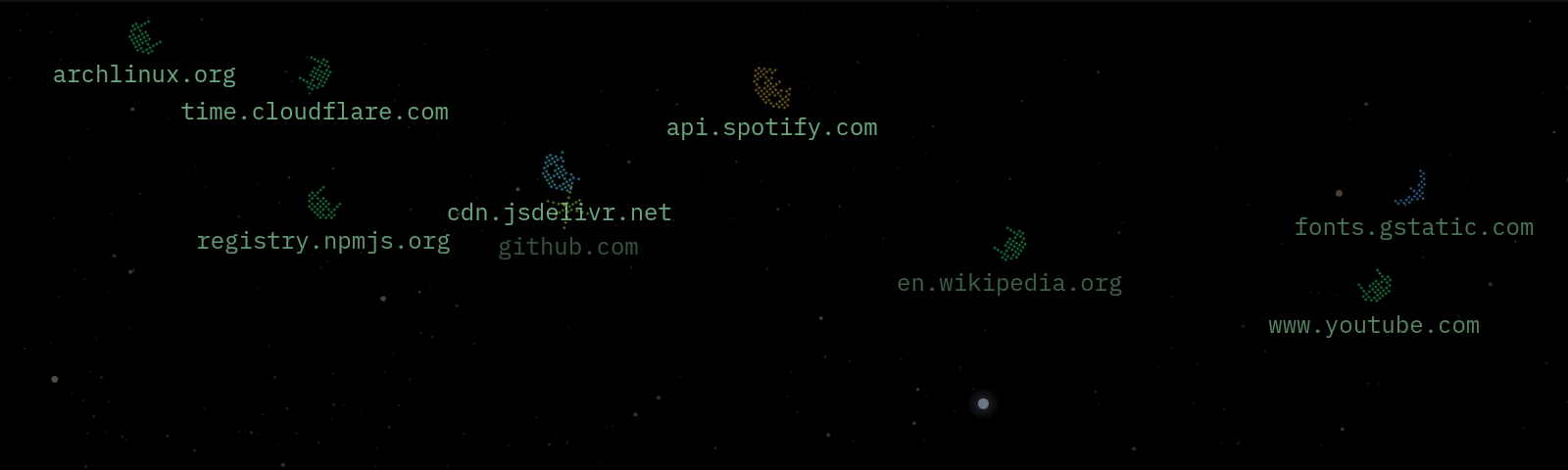
Each DNS query spawns an entity. Tier scales with how many times that domain has queried while the entity is still on screen:
Allowed queries: friendly ships traveling across the screen. Cache-answered queries move faster than upstream-answered ones.
| Tier | Condition | Shape | Color |
|---|---|---|---|
| 1 | First query | Rounded shuttle · Delta wing · X-wing | Green · Blue · Lime |
| 2 | Queried again while on screen | Heavy transport | Cyan |
| 3+ | Three or more queries while on screen | Capital ship | Gold |
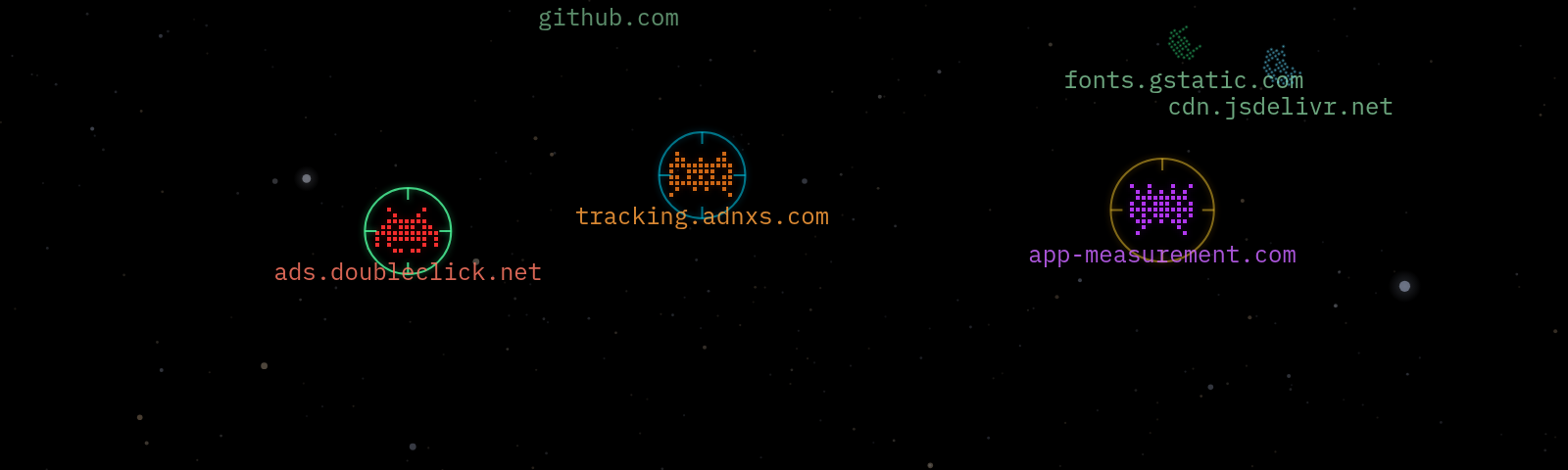
Blocked queries: enemies the ship targets and destroys. A domain blocked again while still on screen mutates its sprite to the next tier in place.
| Tier | Condition | Shape | Color |
|---|---|---|---|
| 1 | First block | Crab invader · Squid | Red |
| 2 | Blocked twice | Heavy drone | Orange |
| 3+ | Three or more | Boss | Purple |
Ship weapon color tracks tier: green for tier 1, cyan for tier 2, gold for tier 3+.
The ship
The ship targets and destroys blocked entities autonomously. At five on-screen threats a support drone launches and flanks; at ten a second drone deploys. Drones are recalled when the threat count drops.
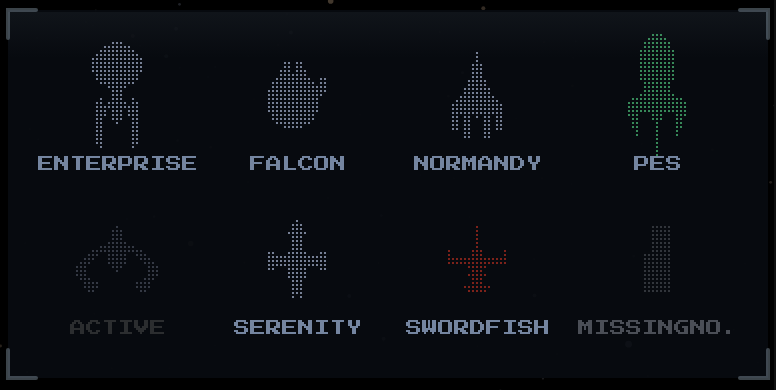
Seven ships are selectable from the HUD, shown in an 8-slot 4×2 grid: Protector (NSEA Protector, default), Falcon (Millennium Falcon), Swordfish (Swordfish II), Enterprise (NCC-1701), Serenity (Firefly), Normandy (Mass Effect), and PES (Planet Express Ship). Switching ships triggers a warp-out/warp-in transition that pushes nearby entities aside.
The HUD
A strip across the bottom, divided into four panels:
INTERCEPT: blocking status and toggle. Click to open a menu with timed-disable options (10 sec, 30 sec, 5 min) or a full disable. A countdown shows when a timed block is active; the timer survives navigation and syncs correctly if blocking is changed remotely.
STATS: total queries, blocked, allowed, and block percentage. Updated live.
GRAVITY: gravity list size. The arrow triggers a list update and confirms when done.
SHIPS: active ship name. Click to open the ship selector.

A hamburger button at the left edge of the HUD opens the Settings panel, which includes:
- Friendlies -- show or hide friendly (allowed) entities
- Client -- show the requesting client (IP or hostname) as a label per entity
- Domain -- show or hide the domain label beneath each entity
- Pi-hole -- link to the Pi-hole admin panel
Display settings are saved to localStorage and restored on next load.
The background
Four modes are available via BG_MODE:
starfield (default): Renders a real section of the night sky from an accurate star catalog (~12,200 stars to magnitude 6.8, color-coded by spectral type). Positions use equatorial coordinates; what you see is where the stars actually are. The sky region is set by SKY_PRESET.

Star data is from the HYG Database by David Nash (astronexus.com), combining Hipparcos (ESA) and the Yale Bright Star Catalogue.
Planets: Mars, Jupiter, Saturn (with ring), and the Moon are computed from real orbital elements and appear at their actual sky positions, updated hourly.
Transients: occasional satellite passes and meteors, including the ISS.
nebula: A procedurally generated nebula. Overlapping color lobes with value noise, dust lanes, and a synthetic star layer. Fully GPU-rendered, no catalog data.
outrun: A retro synthwave scene. A banded sun setting on the horizon over a scrolling neon perspective grid, with a starry sky. Pairs especially well with the CRT filter.
dark: Plain black background. No canvas rendering overhead.
BG_IMAGE: A custom image (URL or a /bg/your-file.jpg mounted into the container).
The env vars above set the default background. Each user can also switch it live from the in-app settings menu (Background), including sky presets and, when BG_IMAGE is configured, a CUSTOM option. That choice is remembered per-browser and never changes the default for anyone else. If no BG_IMAGE is set, CUSTOM simply shows greyed out. This is fully backward compatible: with no in-app choice, the env values drive everything exactly as before.
Configuration
All configuration is via environment variables in compose.yaml.
Upgrading? Pulling the latest
compose.yamlis recommended so you have all current environment variables on hand. Anything you don't set falls back to a sensible default, so an older compose keeps working, you just might be missing newer options.
Required
| Variable | Description |
|---|---|
PIHOLE_PASSWORD |
Pi-hole app password. CLI: set in a .env file. Portainer: add as an environment variable in the stack. Get it from Settings → Web interface / API → Configure app password. |
PIHOLE_URL |
Pi-hole v6 API base URL, e.g. http://192.168.1.x:8053/api |
Optional
| Variable | Default | Description |
|---|---|---|
RETURN_URL |
"" |
URL that ESC navigates to. Accepts http://, https://, protocol-relative (//), relative paths, and custom app schemes. Leave blank to disable ESC. |
BG_MODE |
starfield |
Default background: starfield · nebula · outrun · dark. Switchable live in-app. |
SKY_PRESET |
summer_triangle |
Default sky region: summer_triangle · orion · scorpius · southern_cross. Switchable live in-app. |
BG_IMAGE |
"" |
Custom image URL or /bg/filename.jpg. When set, it's the default and enables the in-app CUSTOM option; blank leaves CUSTOM disabled. |
PIHOLE_VERIFY_SSL |
true |
Set to false if Pi-hole uses HTTPS with a self-signed certificate. |
PIHOLE_IGNORE_DOMAINS |
(unset) | Comma-separated regex patterns. Domains that match spawn no ships. Case-insensitive; escape literal dots (\.local$). Example: .*\.local$,.*\.internal$ |
PIHOLE2_URL |
(unset) | Second Pi-hole v6 API base URL. Setting a valid URL activates local 2-player split-screen mode. See below. |
PIHOLE2_PASSWORD |
"" |
App password for the second Pi-hole. Omit if it has none. |
PIHOLE2_VERIFY_SSL |
true |
Set to false if the second Pi-hole uses HTTPS with a self-signed certificate. |
Local 2-Player Mode
Two DNS instances can run side by side in split-screen. Player 1's ship occupies the left half of the canvas, Player 2's ship the right. Each instance streams its own query events, stats, blocking toggle, and gravity/filter updates independently.
Add the second Pi-hole to your compose.yaml environment block:
PIHOLE2_URL: "http://192.168.1.3:8053/api"
PIHOLE2_PASSWORD: ${PIHOLE2_PASSWORD}
And add the password to your .env file:
PIHOLE2_PASSWORD=your_second_pihole_password
PIHOLE2_PASSWORD can be omitted if the second Pi-hole has no app password set. Setting a valid PIHOLE2_URL is all that is required to make the mode available; turn it on from the in-game 2-player panel. On/off state is saved to the data volume, so it survives container restarts.
AdGuard Home? The second instance mirrors your primary provider, so an AdGuard setup pairs with a second AdGuard Home via
ADGUARD2_URL/ADGUARD2_USERNAME/ADGUARD2_PASSWORD. See the AdGuard 2-player setup.Technitium DNS? Pairs with a second Technitium via
TECHNITIUM2_URLandTECHNITIUM2_TOKEN(or user + password). See the Technitium 2-player setup.
Requirements
- Pi-hole v6 (v5 is not compatible)
- Docker with Compose
- Network route from the container to your Pi-hole
- Architecture:
linux/amd64·linux/arm64·linux/arm/v7·linux/arm/v6·linux/386·linux/riscv64·linux/ppc64le
The container listens on port 4653. The compose file includes an optional static IP block for existing Docker networks.
Curious what everyone runs it on? I'm asking in a quick poll instead of collecting any data.
Troubleshooting
If something's off, check the logs first:
docker logs ph-intercept 2>&1 | grep -v '^INFO:'
On a healthy setup that prints nothing. Otherwise ph-intercept logs one line when a problem starts, and one line when it clears:
| Log line | What to check |
|---|---|
Pi-hole: could not reach http://... Check PIHOLE_URL |
The URL and port, and that the container can reach your Pi-hole over the network. |
Pi-hole: unexpected HTTP 404 reply from .../auth. Check PIHOLE_URL points at the Pi-hole v6 API (ends in /api) |
PIHOLE_URL must end in /api, not /admin. |
Pi-hole: login rejected (password incorrect). Check PIHOLE_PASSWORD |
Use an app password from Settings → Web interface / API → Configure app password. |
Pi-hole: login refused by rate limiting (...), retrying |
Pi-hole throttles logins after a few quick attempts. It clears on its own within a few seconds. |
PROVIDER='...' is not recognised ... |
PROVIDER must be pihole, adguard, or technitium (or leave it out for Pi-hole). |
In 2-player mode the second Pi-hole logs the same lines as Pi-hole 2, pointing at the PIHOLE2_* variables.
Privacy
ph-intercept only talks to your own Pi-hole instance(s). It never phones home, has no analytics, and collects nothing. Your display settings (ship, background, toggles) are saved in your browser's local storage and never leave it. Requests from other websites to the blocking controls are refused, so a page you visit can't toggle your DNS server through ph-intercept.
Testing
I may have gone a little overboard.
ph-intercept is developed against a full test suite covering four layers:
- Pi-hole client -- async unit tests for every auth path (including passwordless and lock contention), session management, query status classification, the broadcast queue, and the live query poller
- API layer -- endpoint tests for every route, security headers, cache-control rules, and input validation
- Browser -- Playwright integration tests across Chromium, Firefox, and WebKit covering page load, canvas sizing, SSE connection and reconnect, settings persistence, font loading, and bfcache reentry
- Devices -- the same Playwright suite run against 40+ real device profiles: RPi touchscreens, Fire tablets, iPads, Android tablets, HiDPI displays, 4K, ultrawides, and orientation changes
Categories
Download Statistics
Related apps
Explore more like this
Explore allLinks
Details
m00grin/ph-intercept:latestRuntime arguments
- Web UI
http://[IP]:[PORT:4653]/- Network
bridge- Shell
sh- Privileged
- false
- Extra Params
--cap-drop=ALL --security-opt=no-new-privileges --memory=128m --pids-limit=20
Template configuration
Port for the dashboard. Change it if 4653 is already in use on your server.
- Target
- 4653
- Default
- 4653
- Value
- 4653
Which DNS server to watch. Fill in only that provider's fields below.
- Target
- PROVIDER
- Default
- pihole|adguard|technitium
- Value
- pihole
Pi-hole v6 API base URL, e.g. http://192.168.1.x:80/api (v5 is not supported).
- Target
- PIHOLE_URL
Pi-hole app password, from Settings, Web interface / API, Configure app password.
- Target
- PIHOLE_PASSWORD
AdGuard Home control API base URL, e.g. http://192.168.1.x:3000/control
- Target
- ADGUARD_URL
AdGuard Home username or email address.
- Target
- ADGUARD_USERNAME
AdGuard Home password.
- Target
- ADGUARD_PASSWORD
Technitium web console address, e.g. http://192.168.1.x:5380
- Target
- TECHNITIUM_URL
Permanent API token from the Technitium console (recommended). Or leave blank and use the username and password under Show more settings.
- Target
- TECHNITIUM_TOKEN
Console username, only if you are not using an API token.
- Target
- TECHNITIUM_USER
Console password, only if you are not using an API token.
- Target
- TECHNITIUM_PASSWORD
Only if the console account has 2FA enabled. Not needed with an API token.
- Target
- TECHNITIUM_TOTP
Installed name of the Technitium query-log app. Change only if you renamed it.
- Target
- TECHNITIUM_QUERY_LOG_APP
- Default
- Query Logs (Sqlite)
- Value
- Query Logs (Sqlite)
Class path of the Technitium query-log app. Change only if you renamed it.
- Target
- TECHNITIUM_QUERY_LOG_CLASS
- Default
- QueryLogsSqlite.App
- Value
- QueryLogsSqlite.App
Starting background. Viewers can switch it live in the app.
- Target
- BG_MODE
- Default
- starfield|nebula|outrun|dark
- Value
- starfield
Constellations shown in the starfield background.
- Target
- SKY_PRESET
- Default
- summer_triangle|orion|scorpius|southern_cross
- Value
- summer_triangle
Image URL, or /bg/your-file.jpg for a file in the backgrounds folder below. Leave blank to disable.
- Target
- BG_IMAGE
Folder for custom background images, used with the Custom background image setting.
- Target
- /app/static/bg
- Default
- /mnt/user/appdata/ph-intercept/bg
- Value
- /mnt/user/appdata/ph-intercept/bg
Where pressing ESC takes you, e.g. your homelab dashboard. Leave blank to disable ESC.
- Target
- RETURN_URL
Set to false if Pi-hole uses HTTPS with a self-signed certificate.
- Target
- PIHOLE_VERIFY_SSL
- Default
- true|false
- Value
- true
Set to false if AdGuard Home uses HTTPS with a self-signed certificate.
- Target
- ADGUARD_VERIFY_SSL
- Default
- true|false
- Value
- true
Set to false if Technitium uses HTTPS with a self-signed certificate.
- Target
- TECHNITIUM_VERIFY_SSL
- Default
- true|false
- Value
- true
Comma-separated regex patterns; matching domains spawn no ships. Example: .*\.local$,.*\.internal$
- Target
- PIHOLE_IGNORE_DOMAINS
Comma-separated regex patterns; matching domains spawn no ships. Example: .*\.local$,.*\.internal$
- Target
- ADGUARD_IGNORE_DOMAINS
Comma-separated regex patterns; matching domains spawn no ships. Example: .*\.local$,.*\.internal$
- Target
- TECHNITIUM_IGNORE_DOMAINS
Second Pi-hole v6 API URL for split-screen 2-player mode. Leave blank to disable.
- Target
- PIHOLE2_URL
App password for the second Pi-hole, if it has one.
- Target
- PIHOLE2_PASSWORD
Set to false if the second Pi-hole uses HTTPS with a self-signed certificate.
- Target
- PIHOLE2_VERIFY_SSL
- Default
- true|false
- Value
- true
Second AdGuard Home control URL for split-screen 2-player mode. Leave blank to disable.
- Target
- ADGUARD2_URL
Username for the second AdGuard Home.
- Target
- ADGUARD2_USERNAME
Password for the second AdGuard Home.
- Target
- ADGUARD2_PASSWORD
Set to false if the second AdGuard Home uses HTTPS with a self-signed certificate.
- Target
- ADGUARD2_VERIFY_SSL
- Default
- true|false
- Value
- true
Second Technitium console URL for split-screen 2-player mode. Leave blank to disable.
- Target
- TECHNITIUM2_URL
API token for the second Technitium server (recommended).
- Target
- TECHNITIUM2_TOKEN
Console username for the second Technitium server, only if you are not using an API token.
- Target
- TECHNITIUM2_USER
Console password for the second Technitium server, only if you are not using an API token.
- Target
- TECHNITIUM2_PASSWORD
Only if the second server's console account has 2FA enabled. Not needed with an API token.
- Target
- TECHNITIUM2_TOTP
Set to false if the second Technitium server uses HTTPS with a self-signed certificate.
- Target
- TECHNITIUM2_VERIFY_SSL
- Default
- true|false
- Value
- true