
All apps · 0 apps

PanelsXR
Docker app from dervish's Repository
Overview
Readme
View on GitHubPanel — WebXR comic reader for Komga
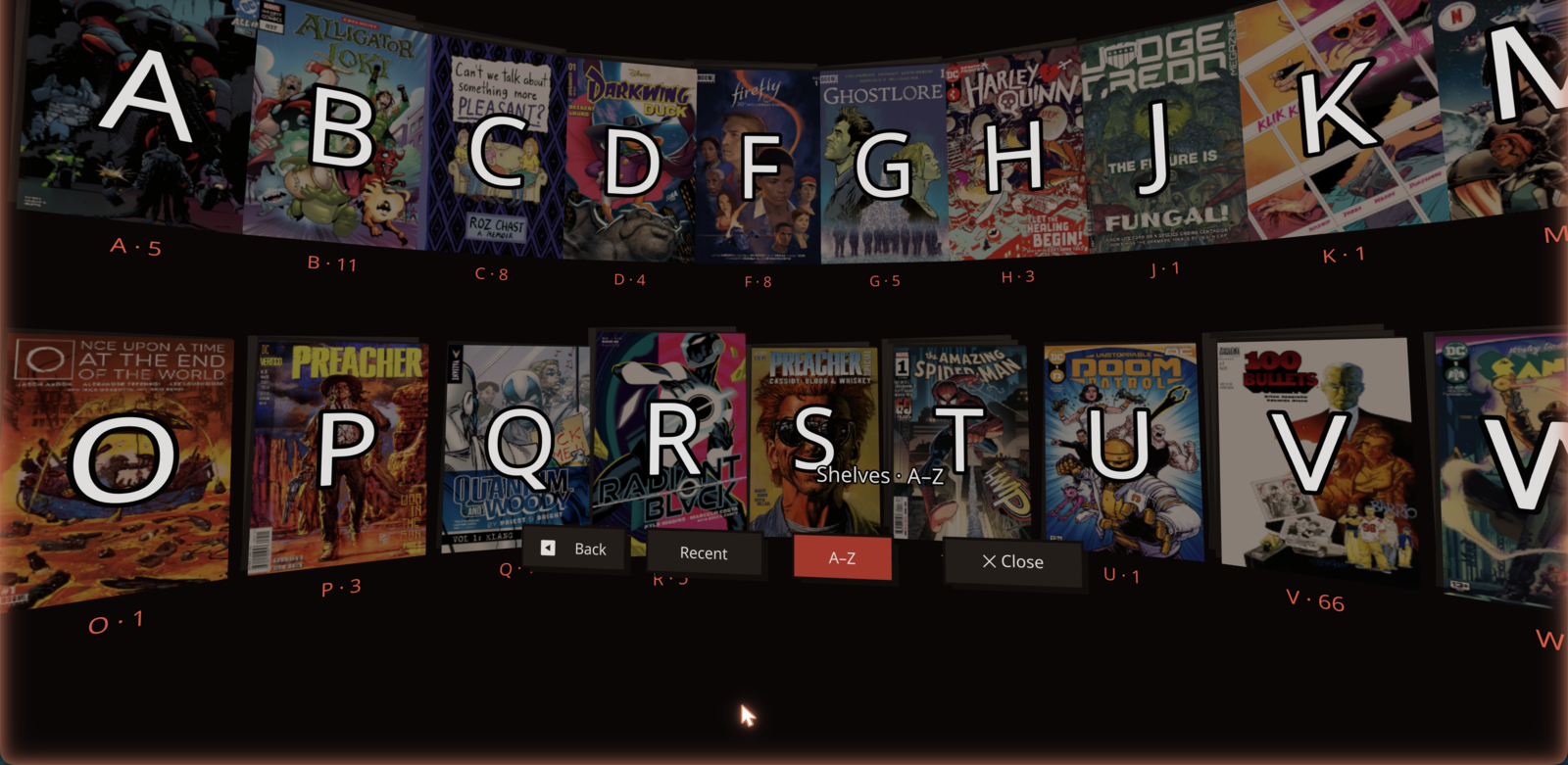
Panel streams a self-hosted Komga comic library straight into a Meta Quest 3 headset. Put the headset on and it opens where you left off on the iPad; browse your whole library as a wall of floating covers; turn pages on the thumbstick. It runs in the Quest browser — no store, no native build, no sideload — and self-hosts as a single Docker container next to Komga.
Status: v0.2.0 — self-hostable and on Docker Hub. Single-user / family focused, young but real. See CHANGELOG.md.
Features
- Auto-resume — reopens your last book fresh from Komga on load, so progress read anywhere (e.g. the iPad) carries over with zero clicks. Read-progress syncs back on every page turn.
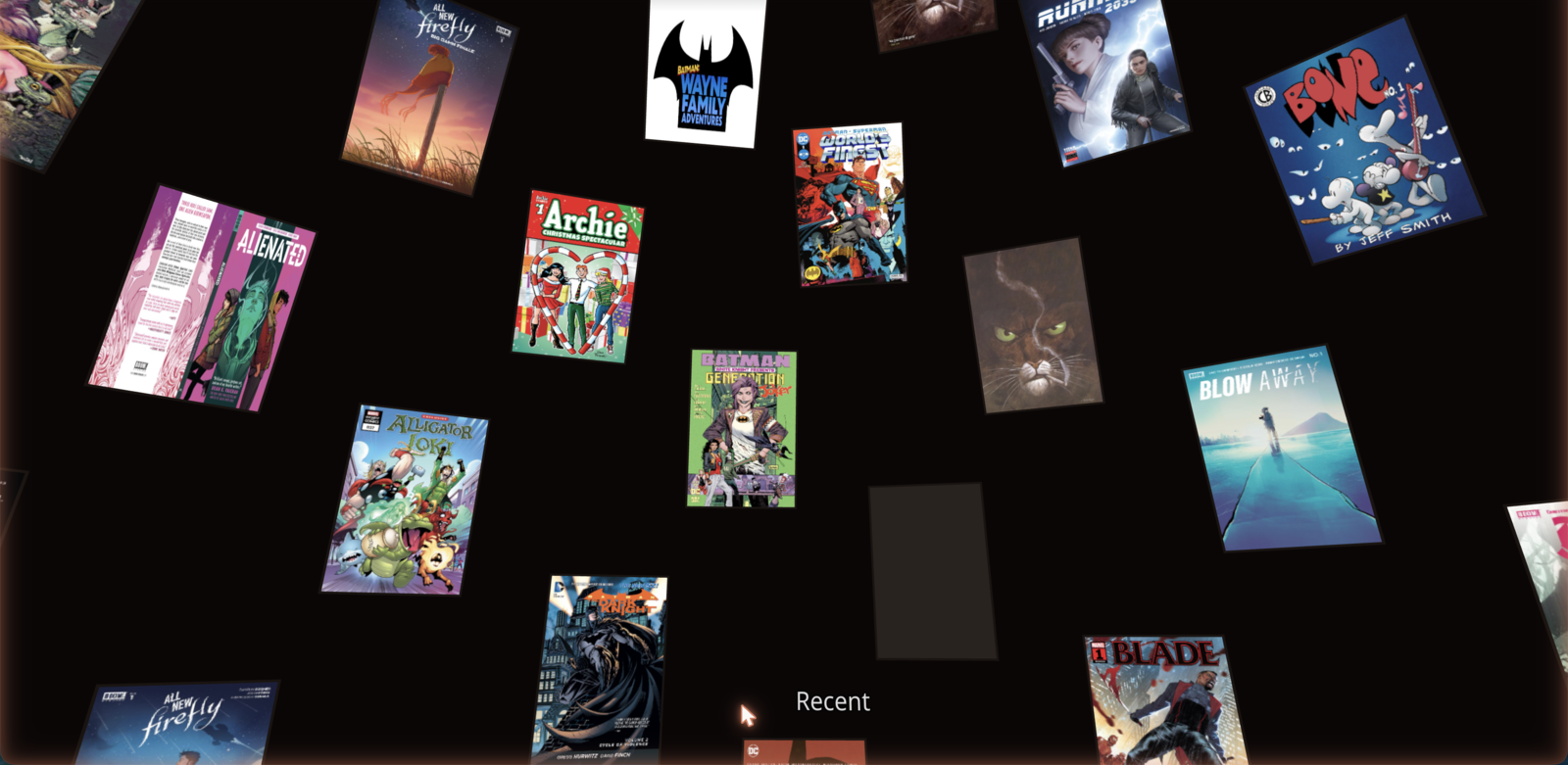
- A 3D library — browse the whole collection as an A–Z "Alphabet Shelf": letter stacks sized by how much you have under each, pick a letter to be surrounded by its series, drill into a series' issues, page through big sets. Plus a Recent mode (continue-reading + on-deck) and a flat 2D browser.
- A comfortable reader — the page composited crisp on a plane with a backing board + paper stack so it reads as a physical object; single-page and two-page spreads; grab-to-move, two-handed resize, stick locomotion, recenter.
- Comic-shop-pulp look — warm-black palette, one pulp-red accent, chunky display type, halftone and hard-offset "misregistration" shadows.
Self-hosting (Docker)
Panel ships as one container: the static app + a Caddy proxy that talks to your Komga with the API key injected server-side (so the browser never sees it).
docker run -d --name panel -p 8677:80 \
  -e KOMGA_URL="http://192.168.1.10:8080" \
  -e KOMGA_API_KEY="your-read-only-komga-key" \
  -e PANEL_PASSWORD="a-strong-password" \
  --restart unless-stopped \
  dervish/panelsxr:latest
Two things to get right:
- WebXR needs HTTPS. A plain
http://…:8677loads the 2D page but the Quest won't enter VR — front Panel with a reverse proxy / tunnel (SWAG, Nginx Proxy Manager, Cloudflare Tunnel) so it's served overhttps://. - Gate it. The proxy injects your Komga key, so an ungated public Panel is an
open proxy to your library. Panel is fail-closed: it won't serve
/komgaunless you setPANEL_PASSWORD(built-in login, cached one-time by the Quest) or explicitlyPANEL_AUTH=none(LAN-only / gated upstream). Use a dedicated read-only Komga user's key to cap the blast radius.
Full guide, env reference, and an Unraid Community Applications template:
deploy/unraid/.
Development
npm install
npm run dev          # http://localhost:5173 — desktop iteration
npm run dev:quest    # HTTPS on the LAN for a real headset (self-signed)
npm run build        # tsc --noEmit && vite build
npm test             # vitest — headset-independent logic
On localhost with no WebXR, @react-three/xr v6 auto-activates an emulated Quest
3 (IWER), so Enter VR gives a real emulated session on desktop. Set your Komga
connection in .env.local (copy .env.example); the dev server proxies
/komga/* and injects the key, same as the container.
Tech
Vite + React 19 + TypeScript · three.js · @react-three/fiber · @react-three/xr v6
(createXRStore, controller/hand input state) · @react-three/handle · drei ·
JSZip (dev-only .cbz). Container: multi-stage build → Caddy. Node 22.
License
MIT.
Categories
Download Statistics
Related apps
Explore more like this
Explore allDetails
dervish/panelsxr:latestRuntime arguments
- Web UI
http://[IP]:[PORT:80]/- Network
bridge- Shell
sh- Privileged
- false
Template configuration
Port for the Panel web UI
- Target
- 80
- Default
- 8677
- Value
- 8677
Your Komga base URL, e.g. http://192.168.1.10:8080
- Target
- KOMGA_URL
Use a DEDICATED READ-ONLY Komga user's key (Komga, Account Settings, API Keys). It is injected server-side and never sent to the browser, but it also bypasses Komga's own auth, so a read-only key caps the blast radius to 'someone saw my comics' instead of full account access.
- Target
- KOMGA_API_KEY
Username for the built-in login (only used if a password is set below).
- Target
- PANEL_USER
- Default
- panel
- Value
- panel
Set a password to lock the whole app + Komga proxy behind a login (the Quest browser remembers it, so it's a one-time login). SAFE BY DEFAULT: if you leave this blank, Panel refuses to serve your library (503) until you set one — unless you set the Auth Mode below to 'none'. Set it here before first run.
- Target
- PANEL_PASSWORD
Leave blank to use the Password above (recommended). Set to 'none' ONLY if Panel is LAN-only or already gated by a reverse proxy / Cloudflare Access / Authelia — 'none' serves your whole library to anyone who can reach the URL.
- Target
- PANEL_AUTH