
All apps · 0 apps

openhabittracker
Docker app from Jinjinov's Repository
Overview
Readme
View on GitHubOpenHabitTracker
App:
https://pwa.openhabittracker.net
Take notes, plan tasks, track habits
OpenHabitTracker is free and open source. The app has no ads, no trackers, no account, no subscriptions and no in-app purchases.
- All your data stays on your device, and syncs only to a server you run yourself
- Available on Windows, Linux, Android, iOS, macOS, as a web app, and self-hosted
- Localized to English, German, Spanish, Slovenian, French, Portuguese, Italian, Japanese, Chinese, Korean, Dutch, Danish, Norwegian, Swedish, Finnish, Polish, Czech, Slovak, Croatian, Serbian
Key features:
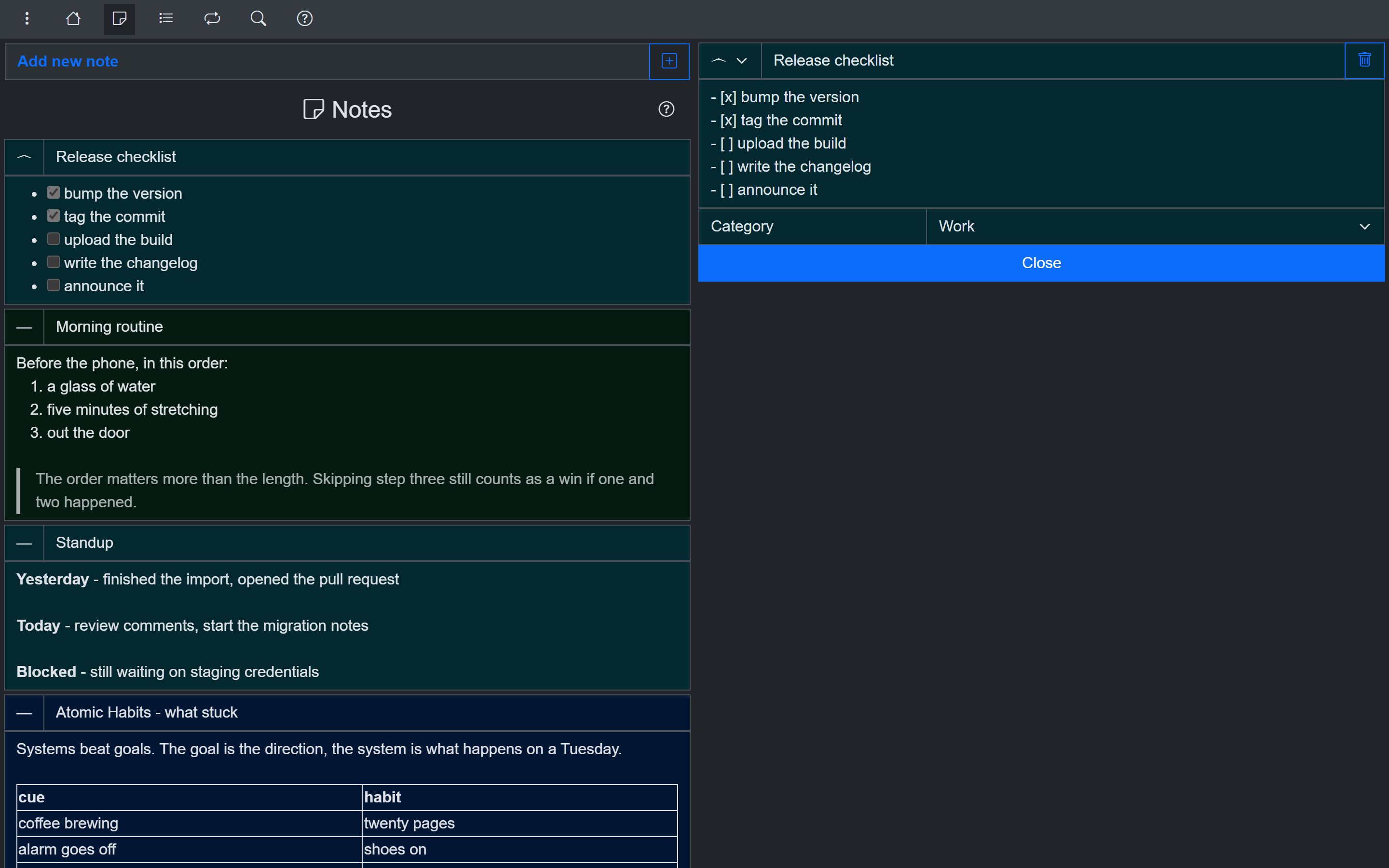
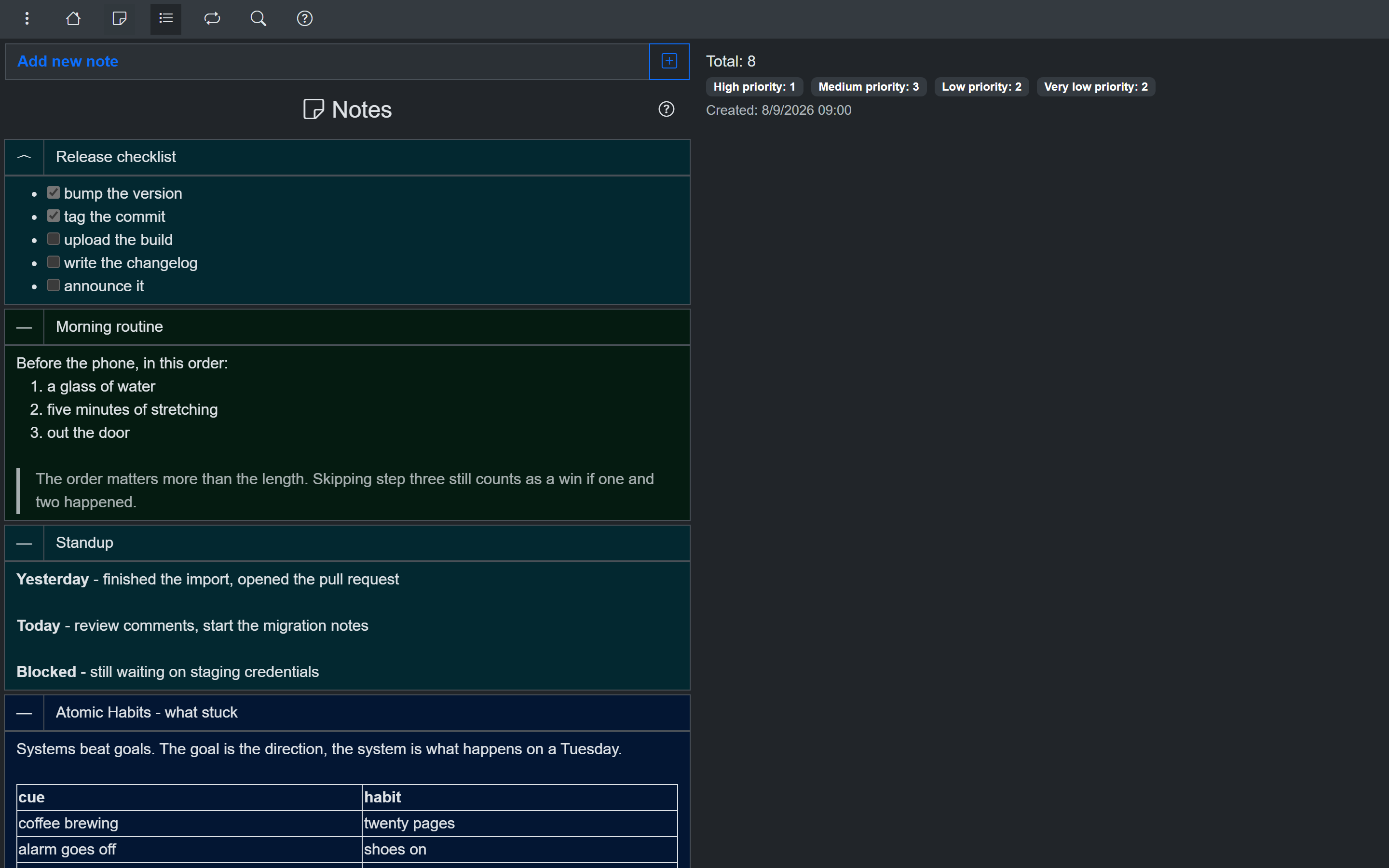
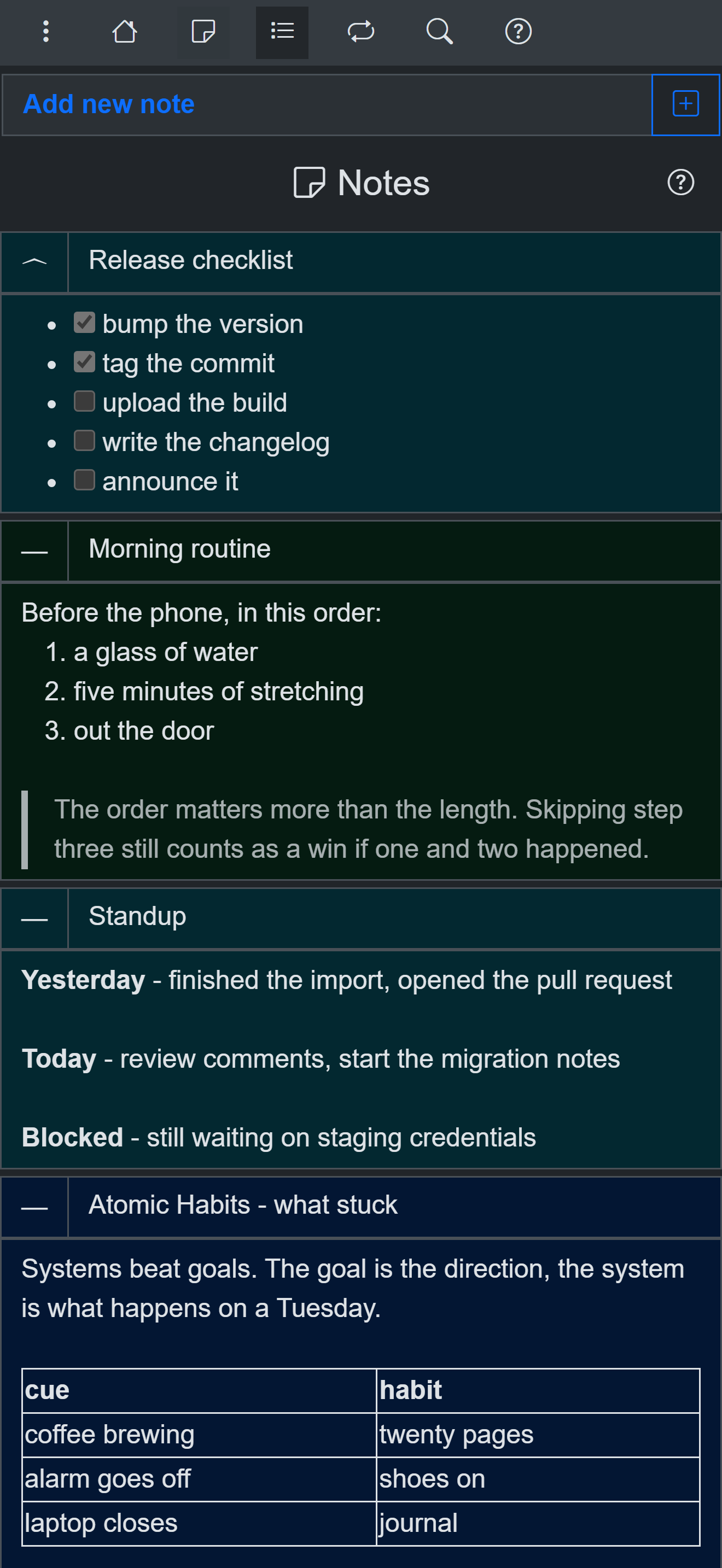
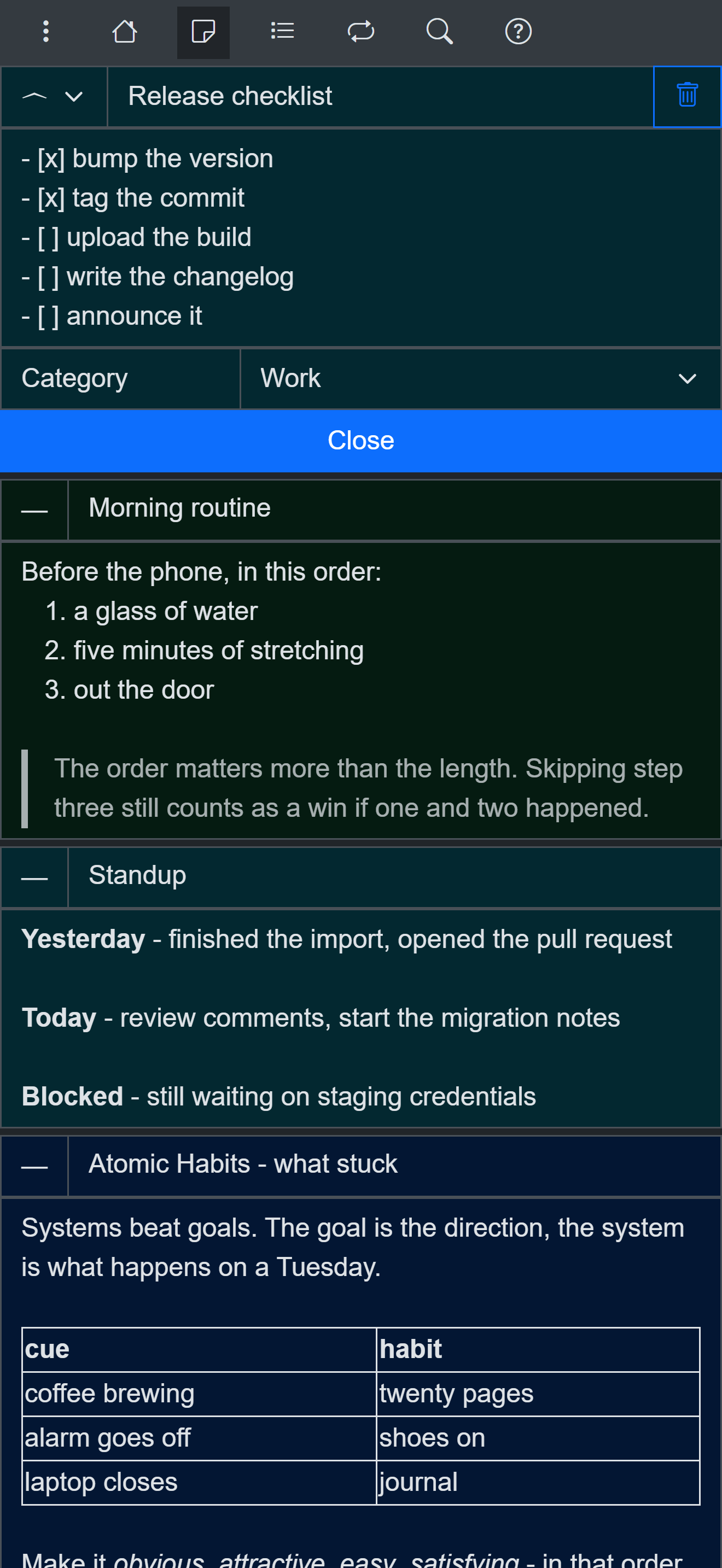
- Markdown notes, rendered in the list so reading one costs no clicks
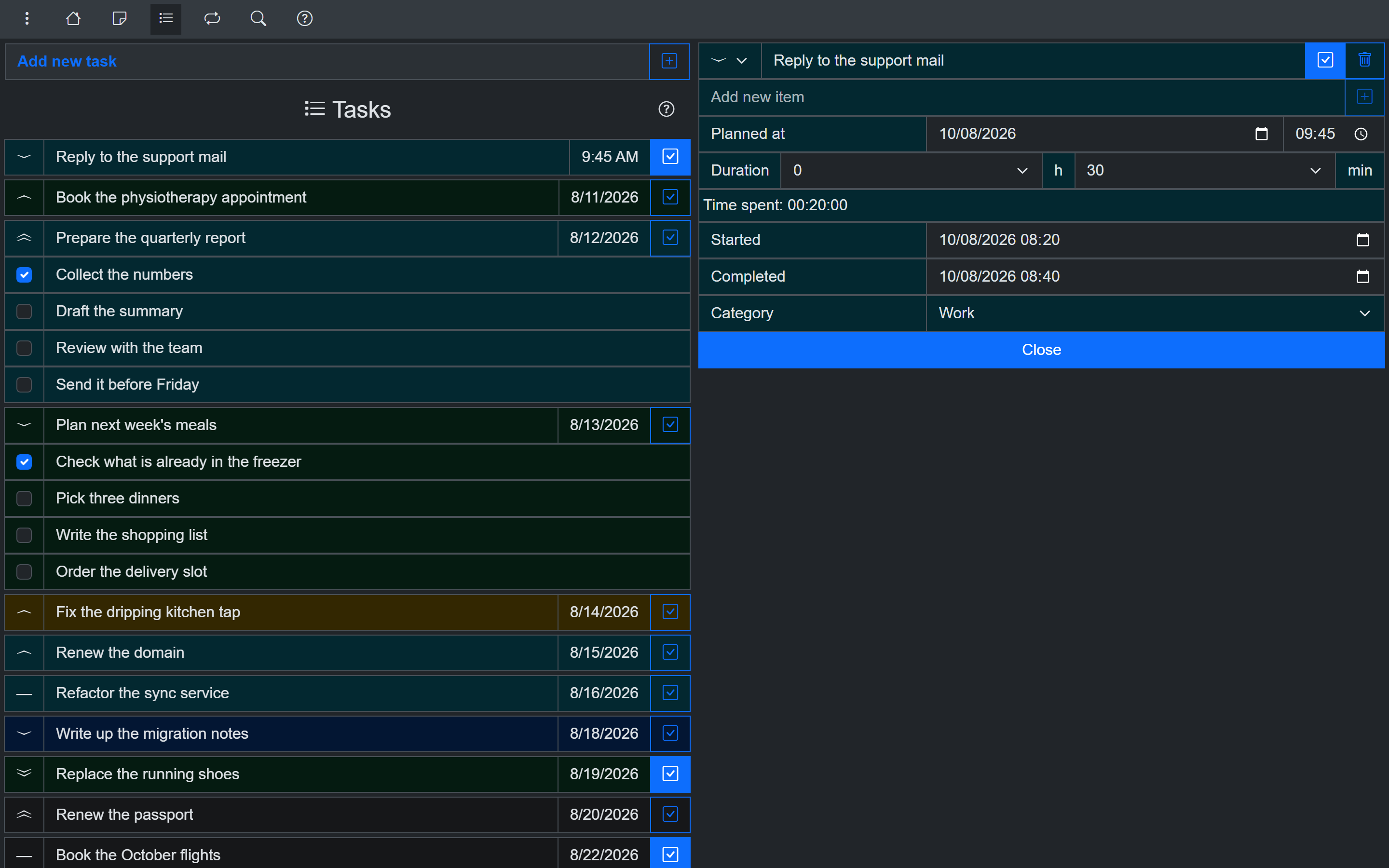
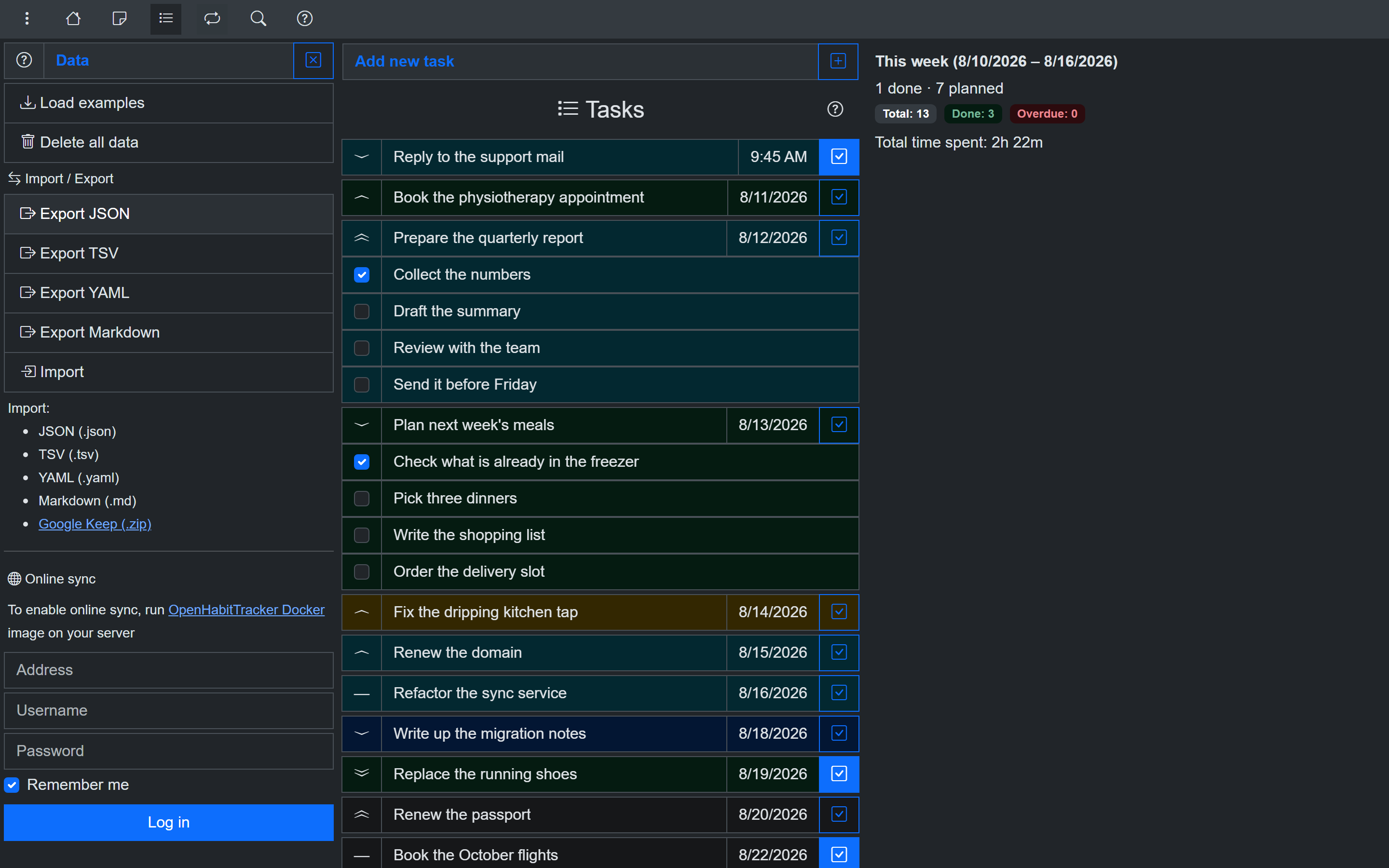
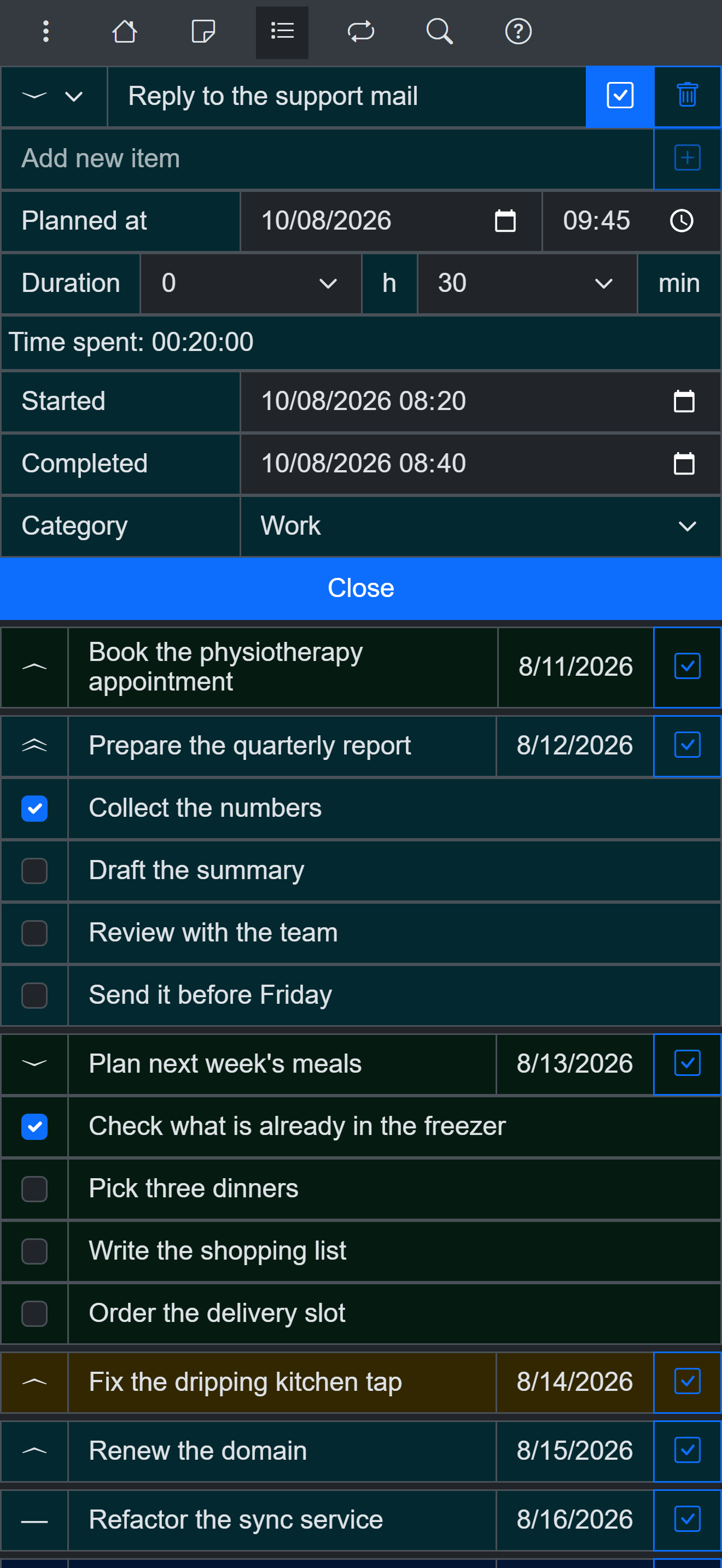
- Tasks with a planned date and time, a duration, a checklist and a timer
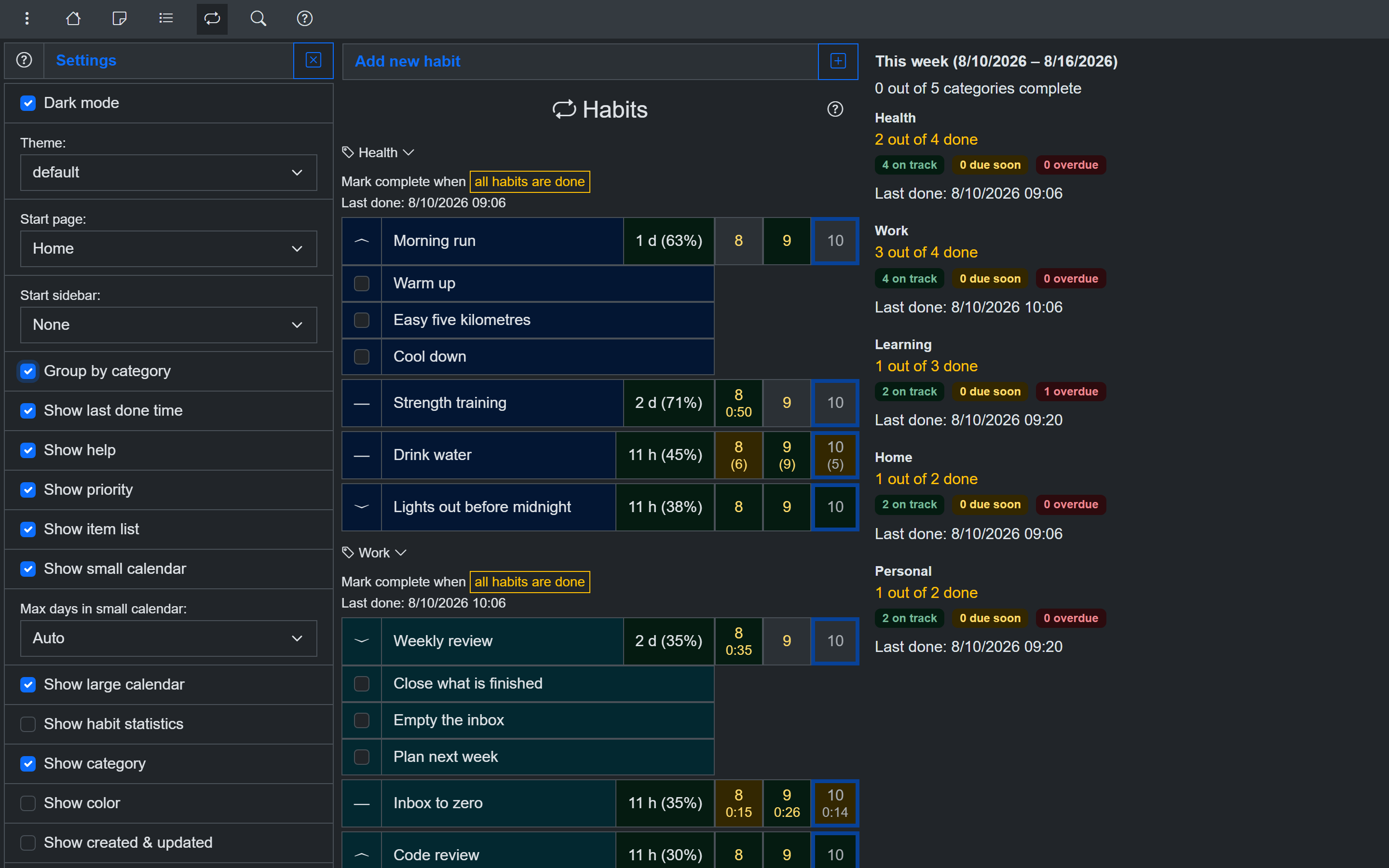
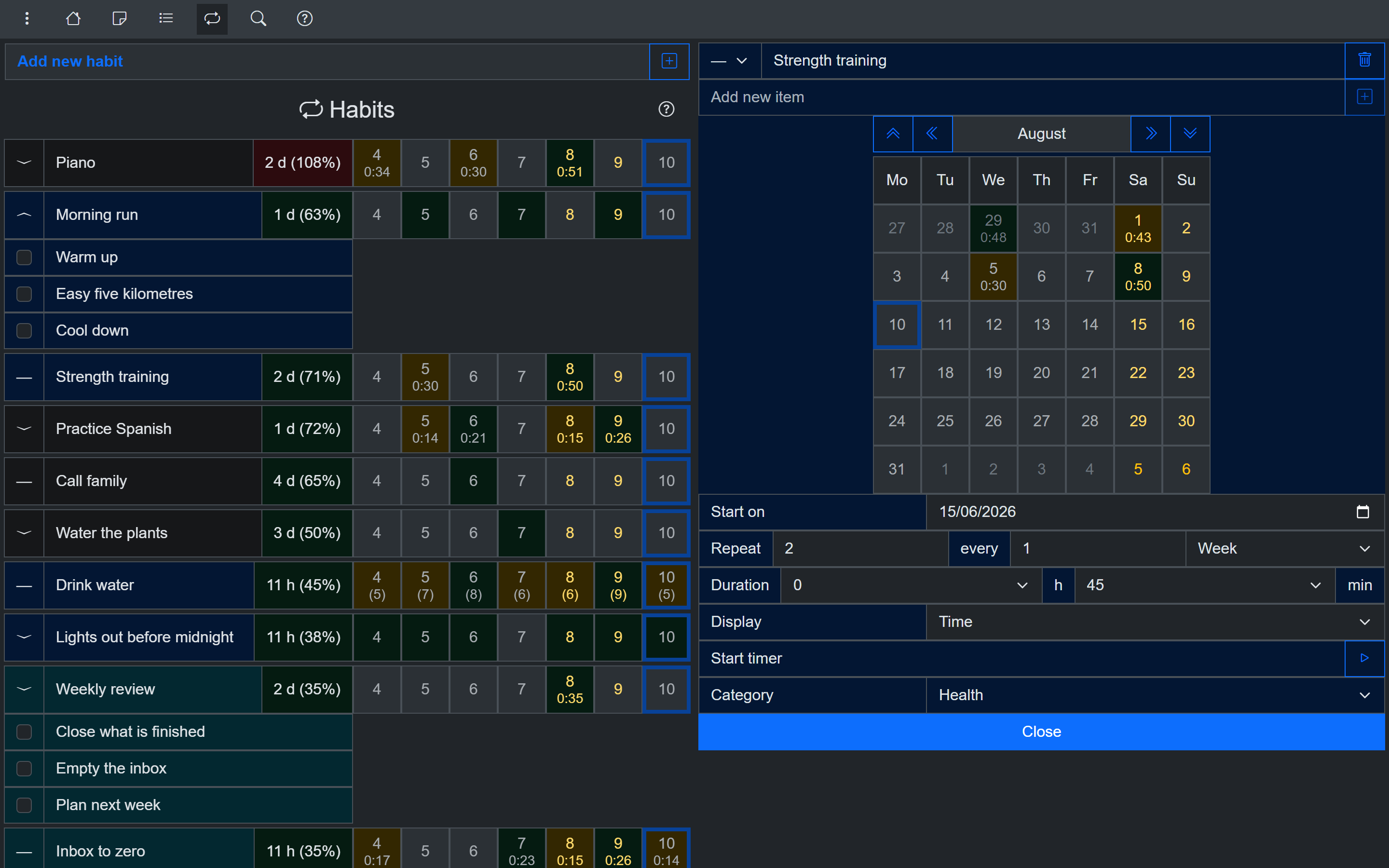
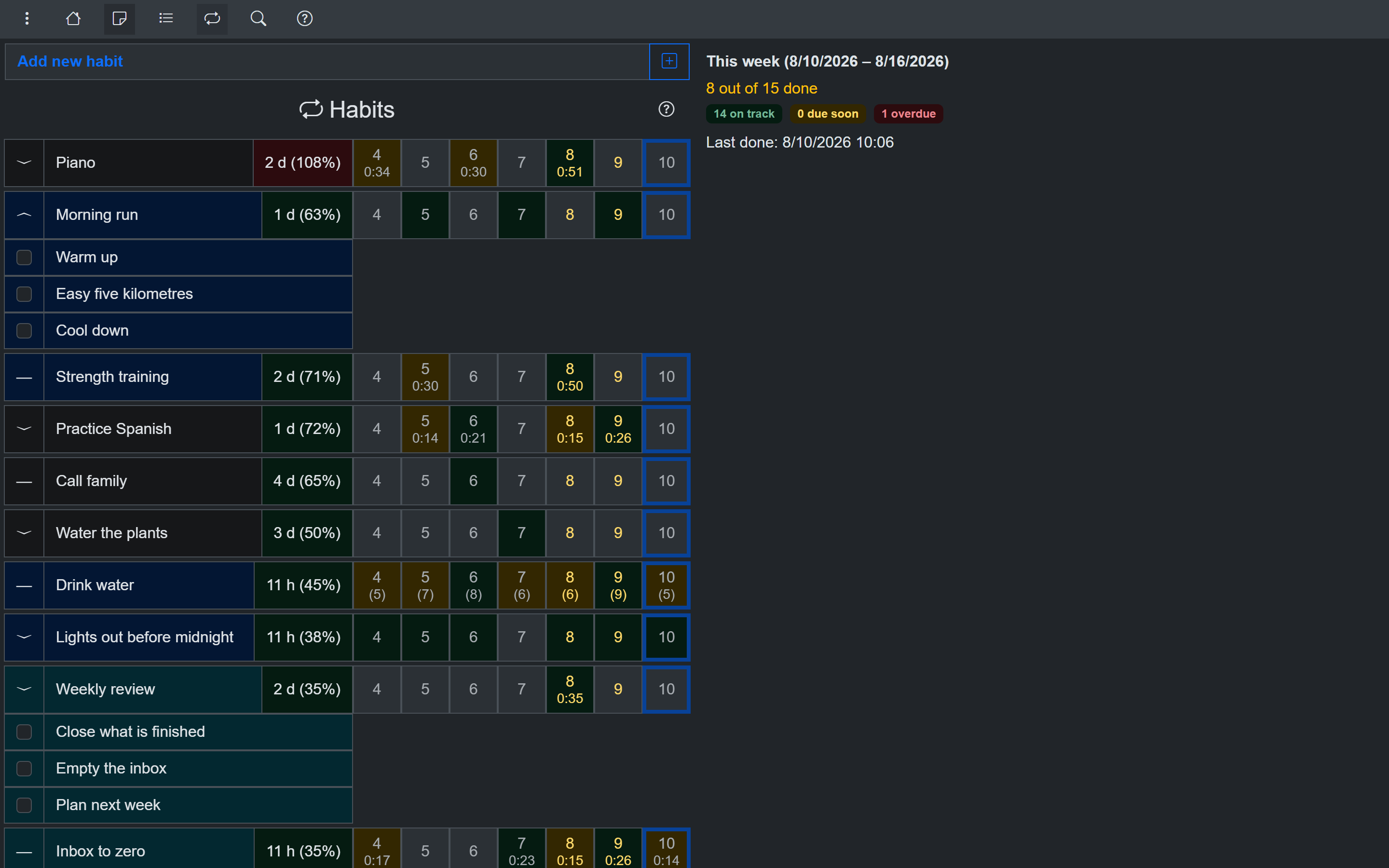
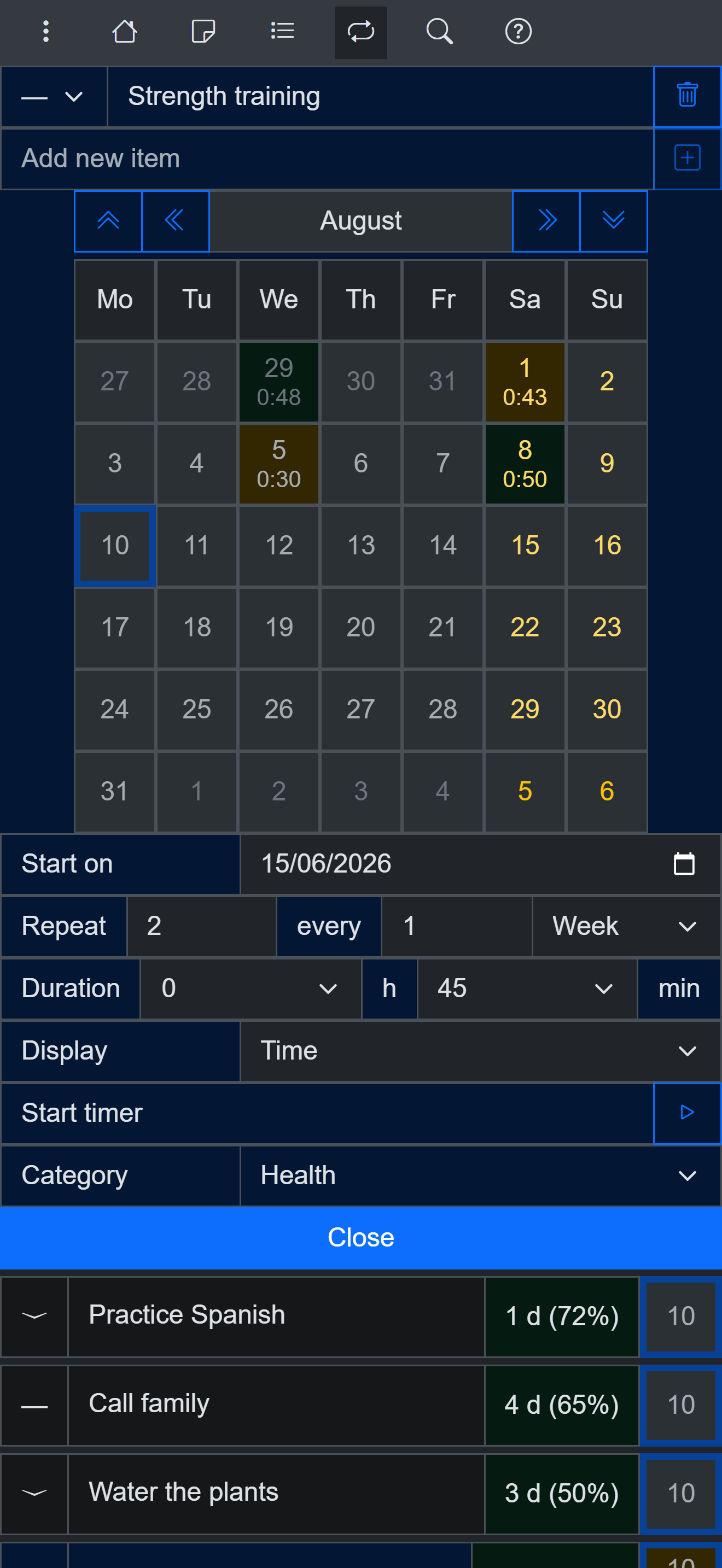
- Habits measured by how overdue they are rather than by an unbroken streak: a habit with a 10 day interval that is 2 days overdue reads 120%
- Categories and priorities across notes, tasks and habits
- Notifications: a daily summary of the tasks that are due and the habits that are overdue, and a reminder before a task's planned time
- Import and export JSON, YAML, TSV and Markdown, plus import from a Google Keep Takeout ZIP
- 26 themes with dark and light mode
- Full keyboard navigation and screen reader support
Search, filter and sort:
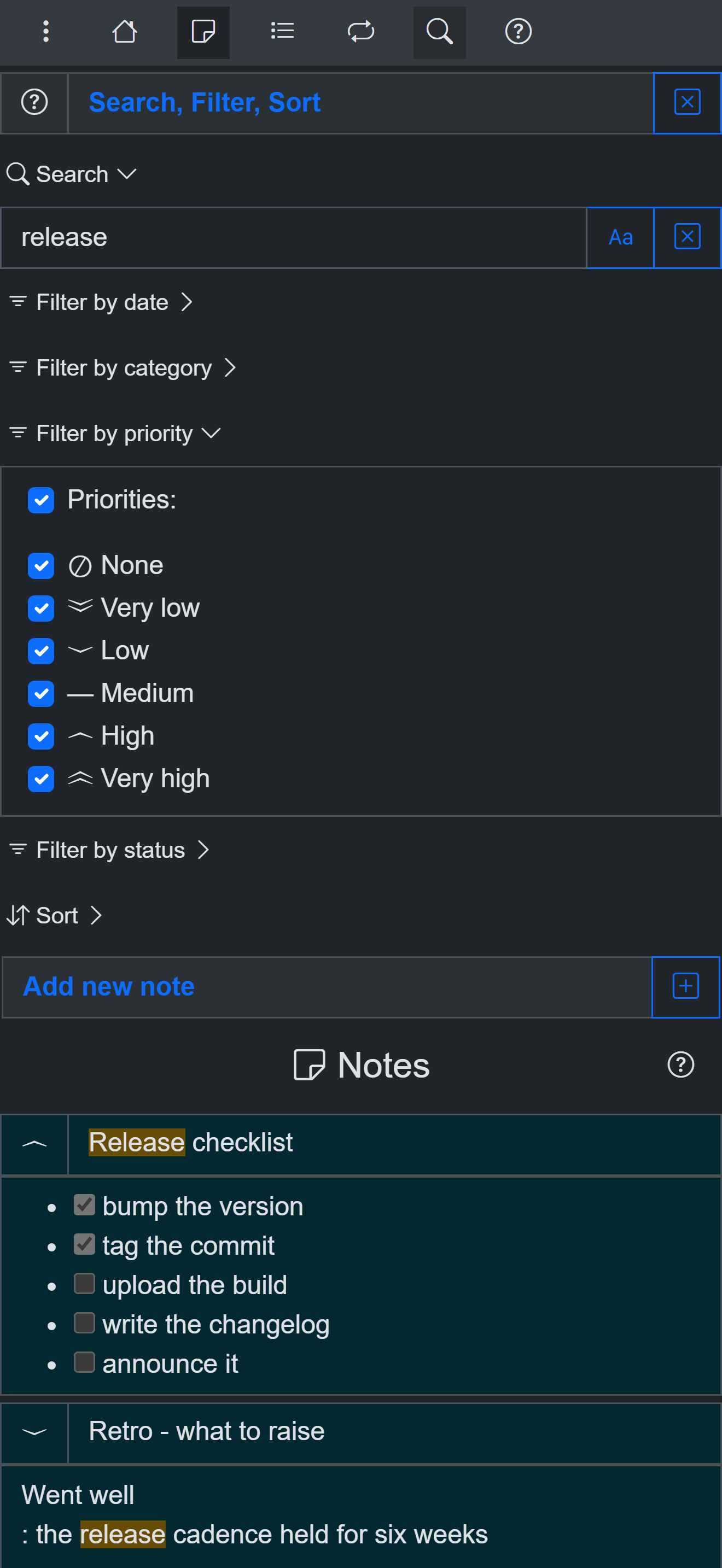
- Control what the list shows with search, date, category, priority, status and sort
- Planned dates and done dates filtered separately, each before, on, after or not on a date you pick
- Date filters take a fixed date or a number of days from today, worked out when the query runs, so a saved filter never goes stale
- Filter habits by how overdue they are, with a lower bound, an upper bound, or both
- Turn the done-date filter around to see what you have not done in a period
- Eleven sort keys, chosen separately for notes, tasks and habits
- Search reads note text and checklist items, not only titles
Statistics and charts:
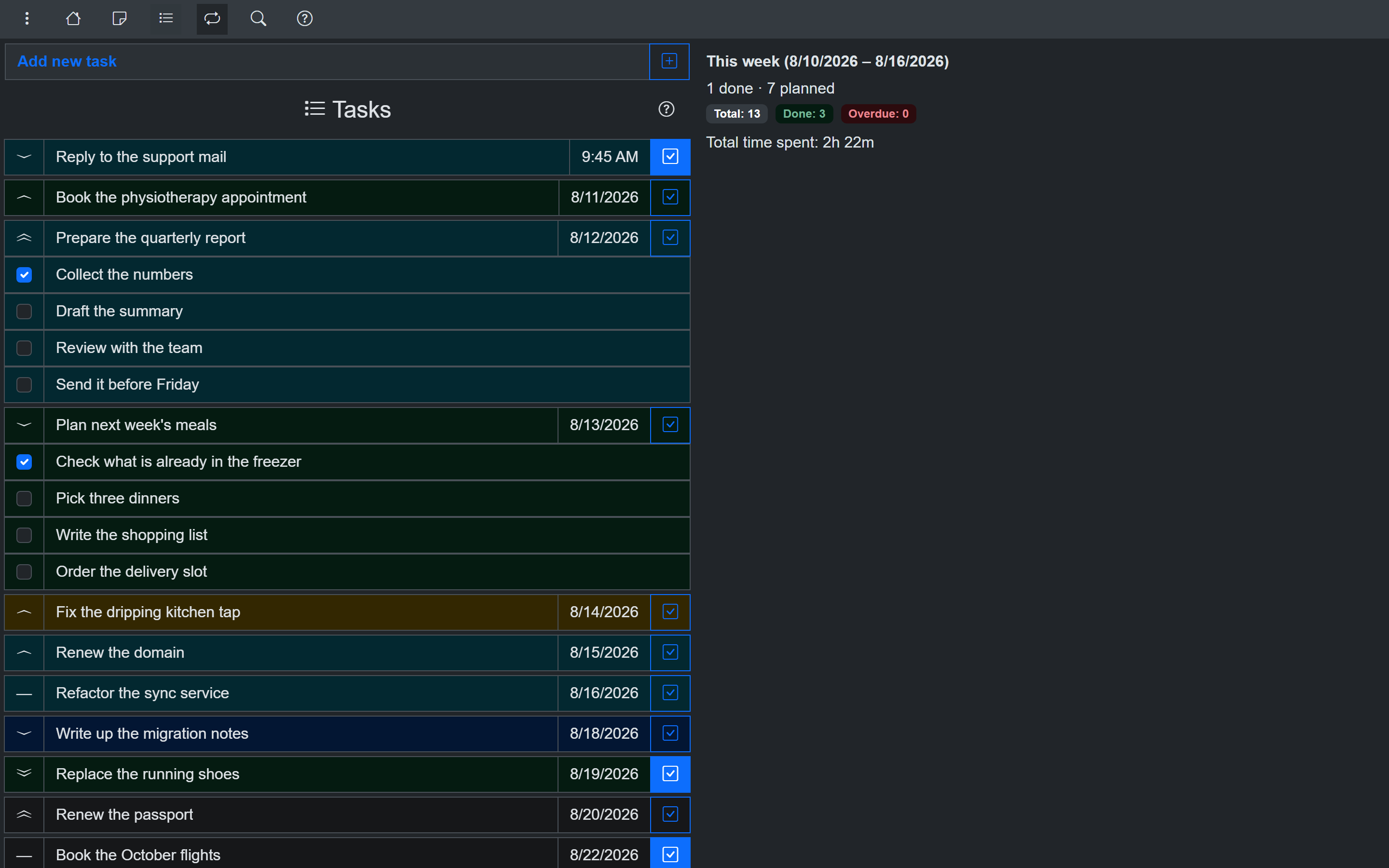
- Weekly statistics beside each list: habits on track, due soon and overdue, tasks done and overdue with the time spent, notes created and updated
- Charts for every habit, whether it is counted in repetitions, time or quantity:
- Progress toward the target for today, this week, this month, this quarter and this year
- History by day, week, month, quarter or year
- A continuous calendar with no breaks between months
- The ten longest streaks
- How much gets done on each weekday, month by month
Customization:
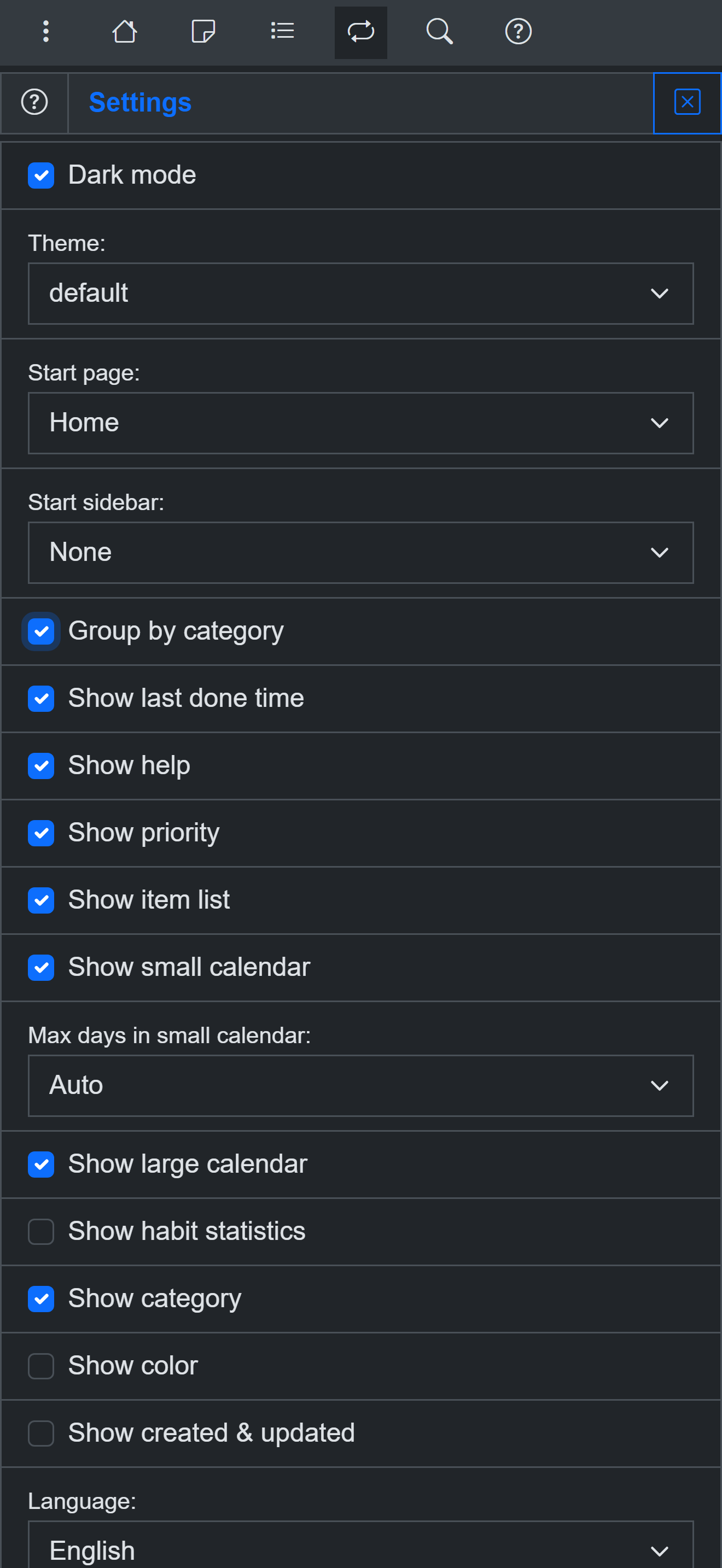
- Almost everything on screen can be turned on or off: which page and which sidebar open at start, what each row shows, which calendars appear, how the filters are drawn, and how tightly the lists are packed
- Some of them add or remove whole blocks from a habit, so the same habit is either a short form or a full statistics page
- A background color to tell your notes, tasks and habits apart at a glance
- Settings are saved, synced, and included in JSON and YAML backups
Stores:
Windows:
Linux - Flathub:
Linux - Snap Store:
Android:
iOS:
macOS:
Android - APKPure:
Android - GitHub, auto-updating with  Obtainium:
Windows - winget (installs the Microsoft Store version):winget install OpenHabitTracker
Docker image contains a Blazor Server app for one user
https://hub.docker.com/r/jinjinov/openhabittracker
https://github.com/Jinjinov/OpenHabitTracker/pkgs/container/openhabittracker
Set your username and password with environment variables:
.env
APPSETTINGS_USERNAME=admin
APPSETTINGS_EMAIL=admin@admin.com
APPSETTINGS_PASSWORD=admin
APPSETTINGS_JWT_SECRET=your-extremely-strong-secret-key
Replace your-extremely-strong-secret-key in Windows terminal:
[System.Convert]::ToBase64String([System.Security.Cryptography.RandomNumberGenerator]::GetBytes(32))
Replace your-extremely-strong-secret-key in Linux / macOS terminal:
openssl rand -base64 32
docker-compose.yml
services:
  openhabittracker:
    image: jinjinov/openhabittracker:latest
    ports:
      - "5050:8080"
    environment:
      - AppSettings__UserName=${APPSETTINGS_USERNAME}
      - AppSettings__Email=${APPSETTINGS_EMAIL}
      - AppSettings__Password=${APPSETTINGS_PASSWORD}
      - AppSettings__JwtSecret=${APPSETTINGS_JWT_SECRET}
      - TZ=Europe/Berlin # replace with your timezone
    volumes:
      - ./.OpenHabitTracker:/app/.OpenHabitTracker
Timezone strings: List of tz database time zones (TZ identifier column).
The default port is 5050. You can change it to 80 to avoid typing the port in the address, or to any other free port if 5050 is already in use - update the port in docker-compose.yml accordingly.
After you login at http://localhost:5050/login you can use the same browser tab to access:
- logs: http://localhost:5050/watchdog
- OpenAPI json: http://localhost:5050/openapi/v1.json
- OpenAPI UI: http://localhost:5050/scalar/v1
Sync desktop or mobile app with Docker
Run the Docker container
Choose the platform where you want to host the OpenHabitTracker server:
Docker Desktop
- Open Docker Desktop and make sure it shows Engine running
- Open a terminal in the folder containing your
.envanddocker-compose.yml - Run:
docker-compose up -d - Open
http://localhost:5050/loginin a browser to confirm the server is running - Find this machine's IP address:
- Windows:
ipconfig - Mac / Linux:
ifconfig
- Windows:
Linux server
- SSH into your server
- Install Docker:
sudo apt update && sudo apt install -y docker.io docker-compose - Open a terminal in the folder containing your
.envanddocker-compose.yml - Run:
docker-compose up -d - Find the server IP:
ifconfig
Synology NAS
- Open Package Center and install Container Manager
- Open Container Manager → Project → Create
- Set the project name to
openhabittracker - Paste the
docker-compose.ymlcontent, replacing${APPSETTINGS_...}placeholders with your actual values - Click Next → Done — the container starts automatically
- Find your NAS IP: Control Panel → Network → Network Interface
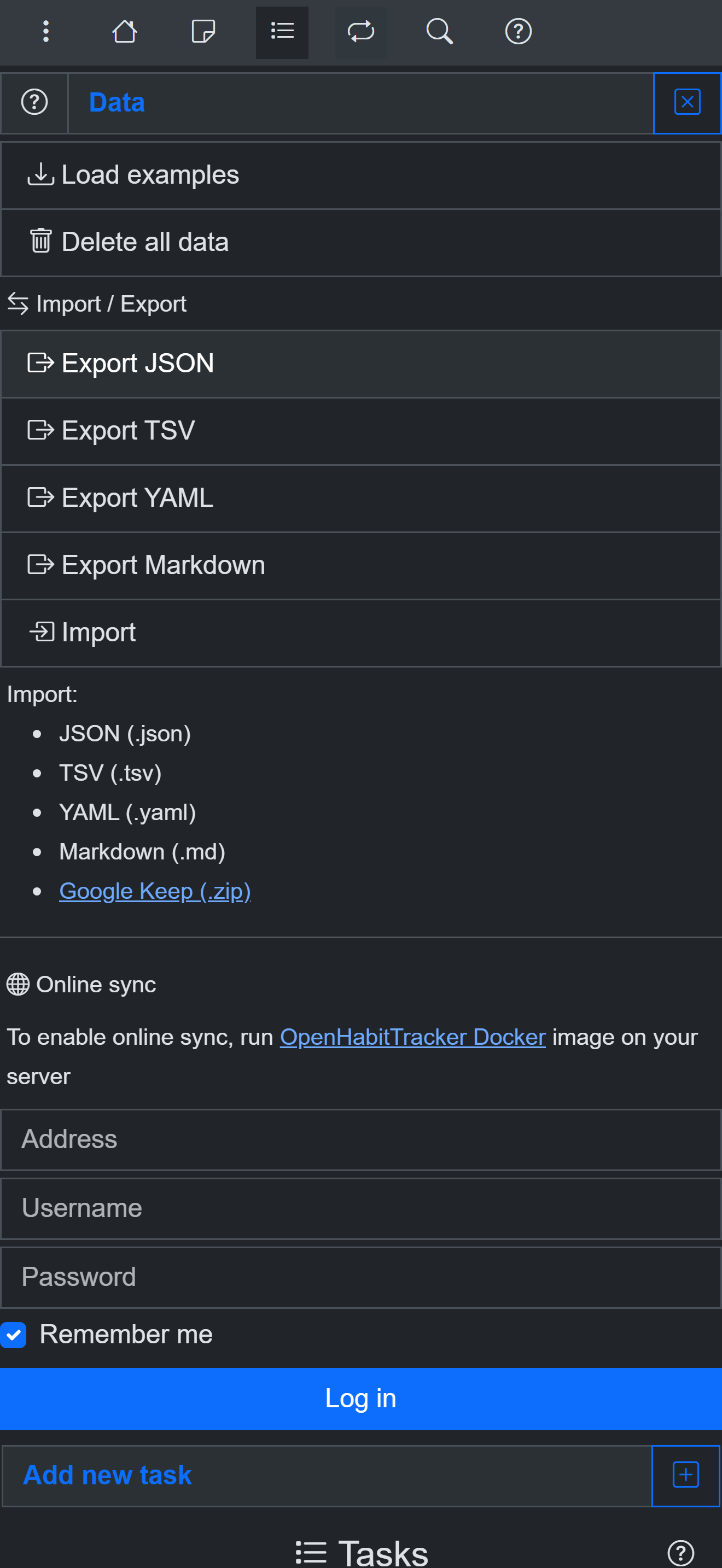
Enable sync in OpenHabitTracker
- Open OpenHabitTracker on your device
- Open the menu and click Data
- Scroll down to Online sync
- Enter the Address:
http://+ the IP from your scenario above +:5050or whichever port you chose (omit the port entirely if you chose80) - Enter your Username and Password from
.env - Check Remember me to stay logged in across app restarts
- Click Log in
Made with:
Runs with:
Desktop videos:
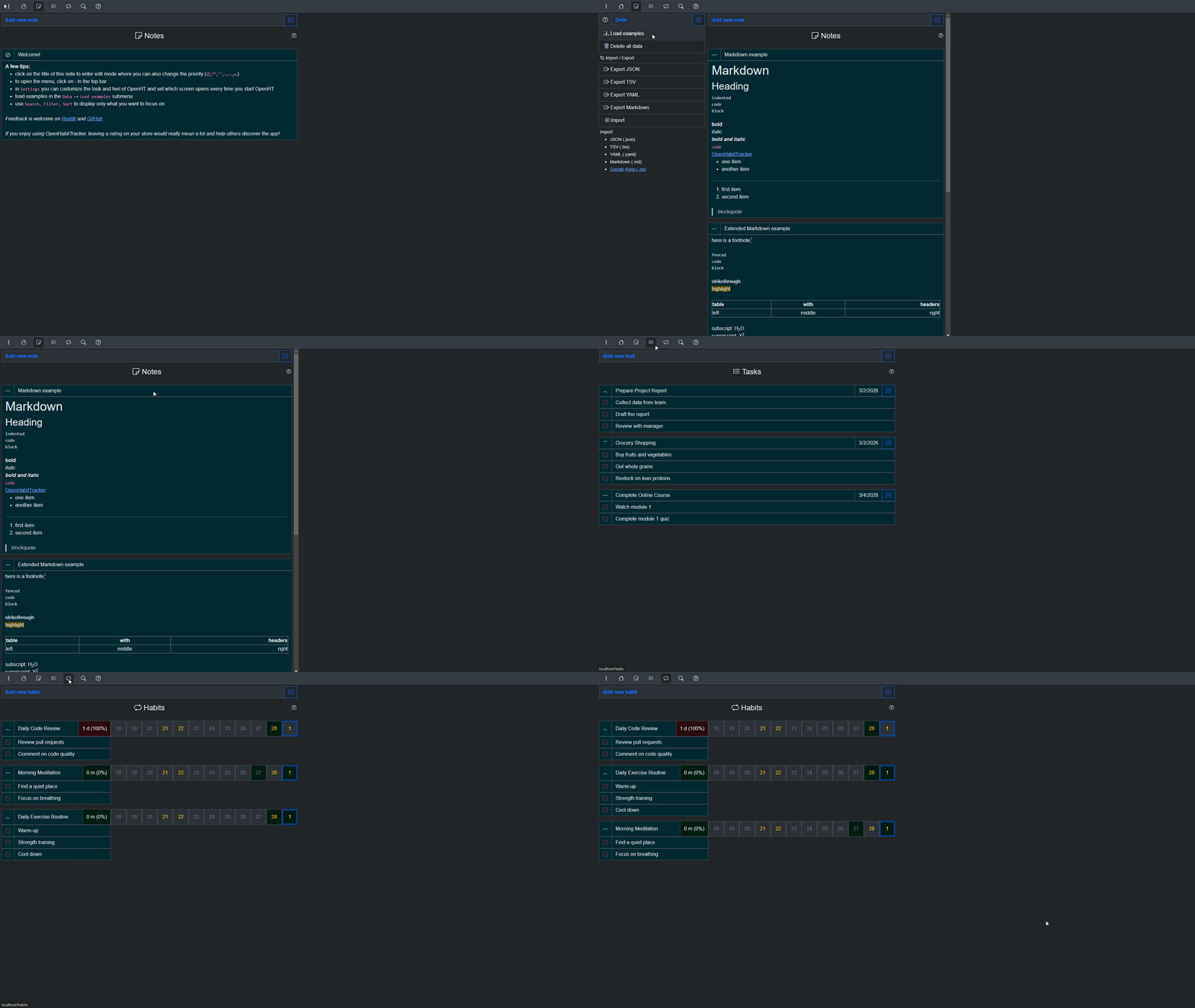
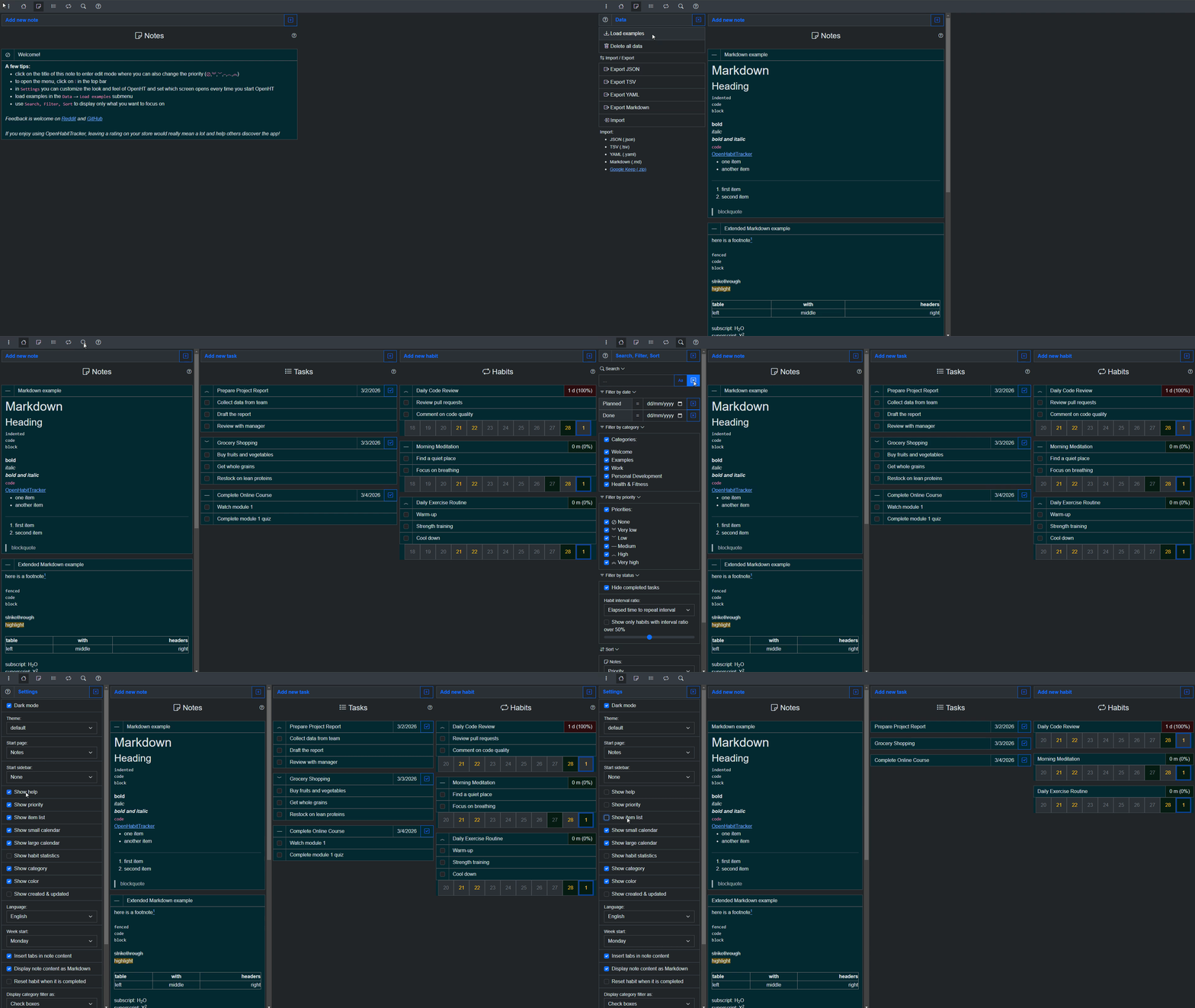
Desktop screenshots:
Phone screenshots:
Media gallery
1 / 3Requirements
Categories
Download Statistics
Total Downloads Over Time
Related apps
Explore more like this
Explore allLinks
Details
jinjinov/openhabittracker:latestRuntime arguments
- Web UI
http://[IP]:[PORT:8080]- Network
bridge- Shell
bash- Privileged
- false
Template configuration
Host port for the web interface.
- Target
- 8080
- Default
- 5050
SQLite data: notes, tasks, habits, settings.
- Target
- /app/.OpenHabitTracker
- Default
- /mnt/user/appdata/openhabittracker
Login username for the single user.
- Target
- AppSettings__UserName
- Default
- admin
Login email for the single user.
- Target
- AppSettings__Email
- Default
- admin@example.com
Login password for the single user.
- Target
- AppSettings__Password
Secret used to sign login tokens. Generate one in the Unraid terminal with: openssl rand -base64 32
- Target
- AppSettings__JwtSecret
tz database name, e.g. Europe/Berlin - sets the day boundary for habit tracking.
- Target
- TZ
- Default
- Etc/UTC