
All apps · 0 apps

NextDash
Docker app from Jordibrw's Repository
Overview
Readme
View on GitHub

nextDash
🇨🇳 本应用支持简体中文。 nextDash 的界面提供中文语言选项 — 在设置中将语言切换为「中文」即可。
A keyboard-first, self-hosted bookmark dashboard. No accounts, no cloud, no noise.
My bookmark bar had become a graveyard, so I built a self-hosted dashboard that tells me which links are already dead.
Run it on any machine or container, open it in your browser, organise bookmarks across pages, and reach everything from the keyboard. Beside your bookmarks, widgets show what is going on: uptime of the services you watch, what waits in the inbox, which certificate runs out, the weather, your calendar, your feeds, your machine — and any self-hosted service that answers with JSON.
🎨 328 themes and a look studio. 164 theme families, each with a light and a dark half, in twelve characters — lacquer, glass, frost, aurora, neon, velvet, enamel, brushed, carbon, paper, terminal and ink — that decide how the surfaces are drawn, not only their colours. Shift + A opens the look studio beside your dashboard and changes the real page as you go: the theme, 26 backdrops drawn in its colours, depth, glow and card glass, the category headers, the type and the contrast — or one of twelve ready-made looks that set them all at once. Compare shows what you had, 🎲 tries something at random, and nothing is saved until Apply. Search by name or character, keep up to 24 favourites, follow your system's light and dark mode, or recolour any theme and build your own in the theme editor. Manual: Appearance
Based on ThinkDashboard by MatiasDesuu.
📖 User manual (MANUAL.md) — how everything works, from the first launch to self-hosting. · Glossary
📋 Changelog (CHANGELOG.md) — every release, new and fix.
🗂️ Cheat sheet — every keyboard shortcut, printable (HTML). Press ! or F1 on the dashboard for the live list. Regenerate with npm run generate:cheatsheet.
🌐 Website: nextdash.cc
🌐 Demo: demo.nextdash.cc
🧩 Save a link from anywhere: a browser extension, a share sheet, a bookmarklet, a shell one-liner, Raycast, Dropzone 5, Alfred, Apple Shortcuts and Ulauncher — see What nextDash talks to.
🏠 Run your self-hosted setup from one screen
nextDash is a bookmark dashboard that also knows your Docker host. The link to Sonarr, the Sonarr container and the check that watches it are one thing, not three tabs in three different tools.
How it fits together
- Containers — the Containers view (
Shift + Y,#docker) lists every container on the host: a status glow, CPU, RAM, size on disk, ports, its web UI, healthcheck results and a timeline of what happened to it. Start, stop, restart, update, roll back or follow its logs from the keyboard, one container, a compose stack or a whole selection at a time. - Bookmarks — each container's web UI is matched to the bookmark you already have for it: by port, by subdomain behind a reverse proxy, or by name — or by hand. The container row carries that bookmark's health mark; the bookmark's side panel says which container it runs in. Open the service from the dashboard, from search, or with
:docker sonarr open. - Health — set that bookmark to Monitor and the server checks it on its own, as often as every five minutes: 30 days of uptime and response times, outages, certificate expiry, a phrase the page must contain, the status codes that count as healthy, and drift when a page turns into something else. A service behind a sign-in can be checked on a status address, with a stored key.
- Alerts and push — a site that goes down and a container that crashes, keeps restarting, turns unhealthy or runs hot reach you the same way: ntfy, Pushover, Gotify, Telegram, Slack, Discord, Apprise, your own JSON receiver, or a push notification on your phone, even with the dashboard closed. Recovery is announced too, and a host that takes ten services down sends one message, not ten.
Keeping it current and tidy. Image update checks run on an interval and show the release notes behind an update. Skip a version, hold a container, or let nextDash update it in a nightly window: each update is watched for five minutes and rolled back when the container stops, loops or turns unhealthy. The Disk tab shows what images, volumes, build cache and bind mounts take up, and clears it after naming what goes.
On the dashboard. A homelab page can carry the Containers and Container list widgets, Uptime, Certificates, Health, Processor, Memory and Disks, seven Unraid widgets (overview, array, parity, shares, VMs, UPS and notifications) that read the server through its API, media widgets for Jellyfin, Sonarr, Radarr, Seerr, qBittorrent and SABnzbd — what was added, what is coming, what was requested and what is downloading, with the posters from your own library — a Home Assistant widget that switches lights, switches and scenes from the page, and a Custom widget that reads Sonarr, Plex, Pi-hole, Proxmox, Home Assistant and 36 more services — next to the bookmarks for all of them.
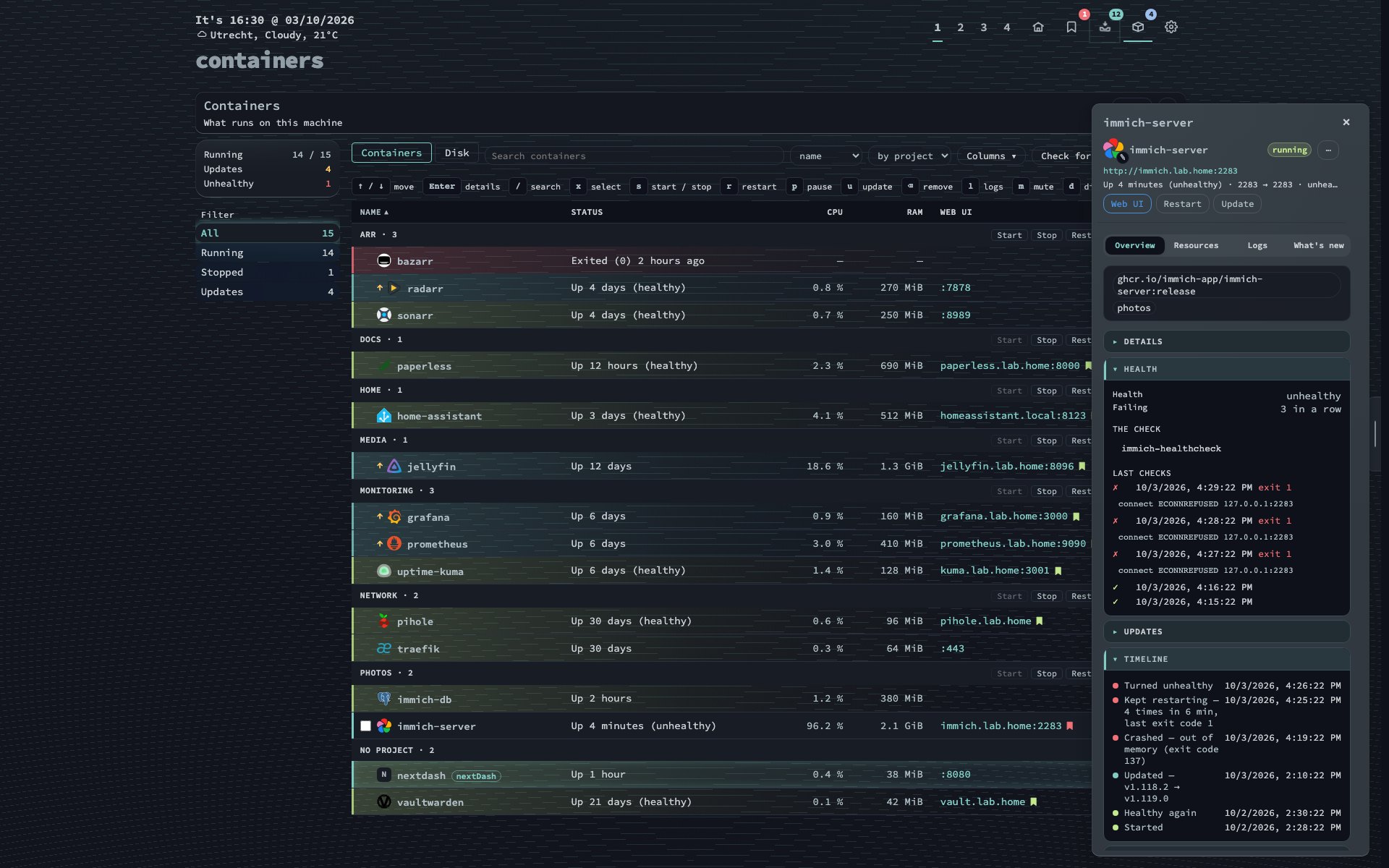
Containers and health (Deep Lagoon) — Grouped by compose project, each container with its app icon and each web UI with its bookmark's mark: green where the monitor finds it up, red for Immich. The side panel says why — three failed healthchecks, an out-of-memory crash and a restart loop since this afternoon's update. |
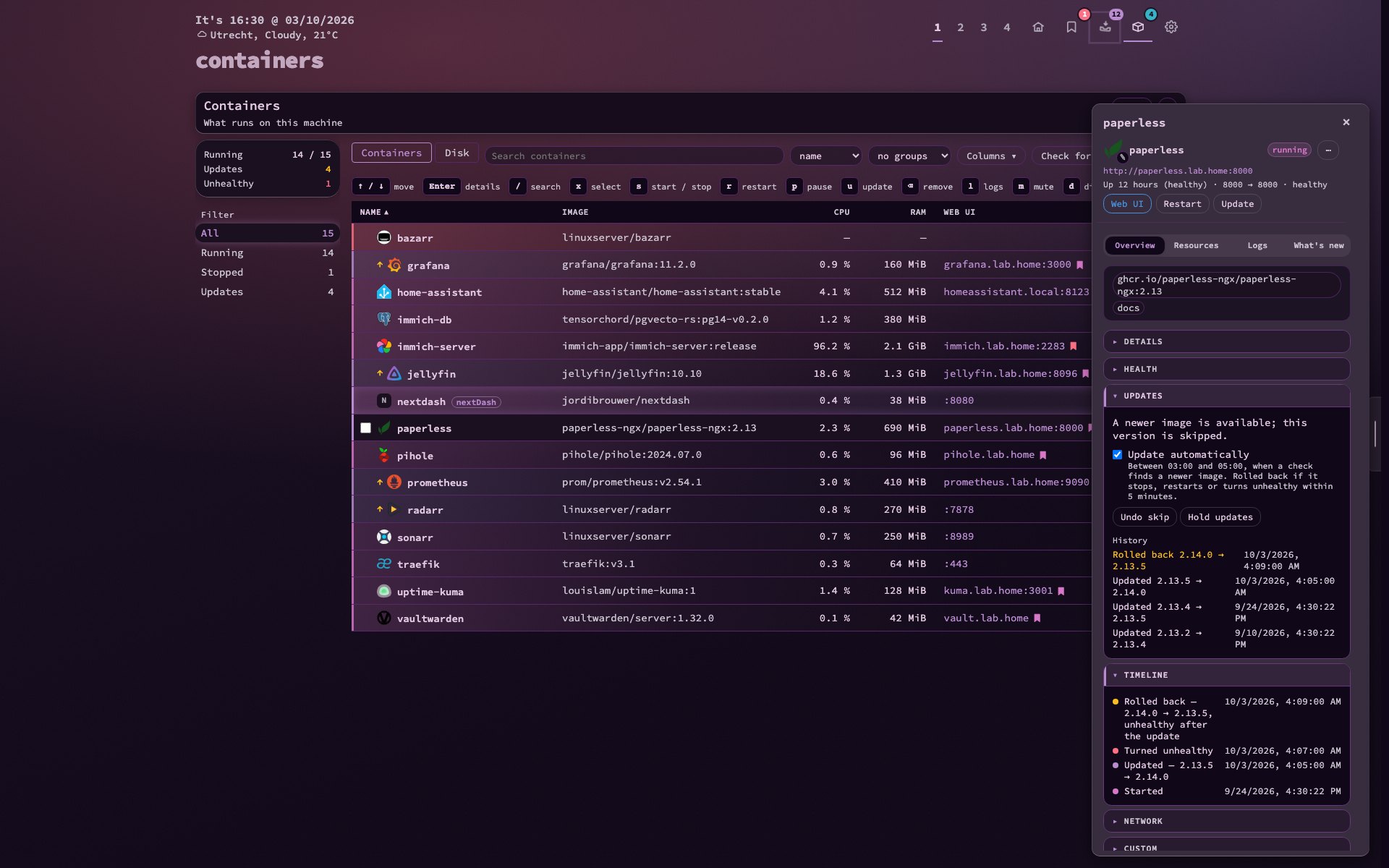
Updates with a way back (Smoked Plum) — Paperless updates itself between 03:00 and 05:00. Last night's version turned unhealthy within two minutes, so it was rolled back and that version skipped; History and Timeline say what happened, and a notice reached your phone. |
📖 Self-hosted guide in the manual — the set-up in four steps, how the pieces link up, and a morning routine. Setting up the Docker socket is under Containers view below.
Screenshots
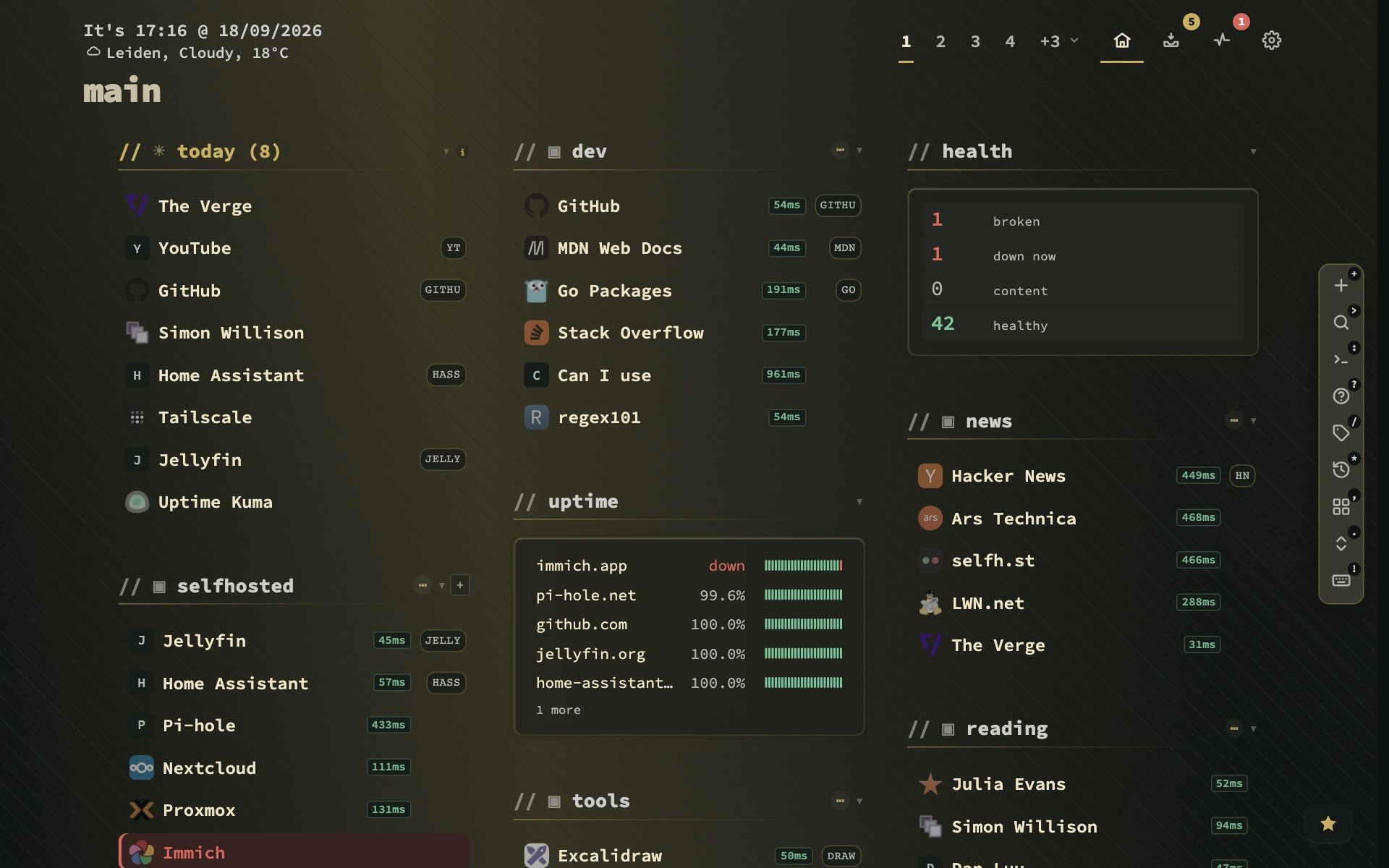
Dashboard (Aurora Glass) — Categories in columns with a live response time on every checked link, and widgets between them: health, uptime with a heartbeat per site, the weather across two columns, the inbox and an RSS feed. The header is one row: clock and weather, page numbers, and the views with their badges. |
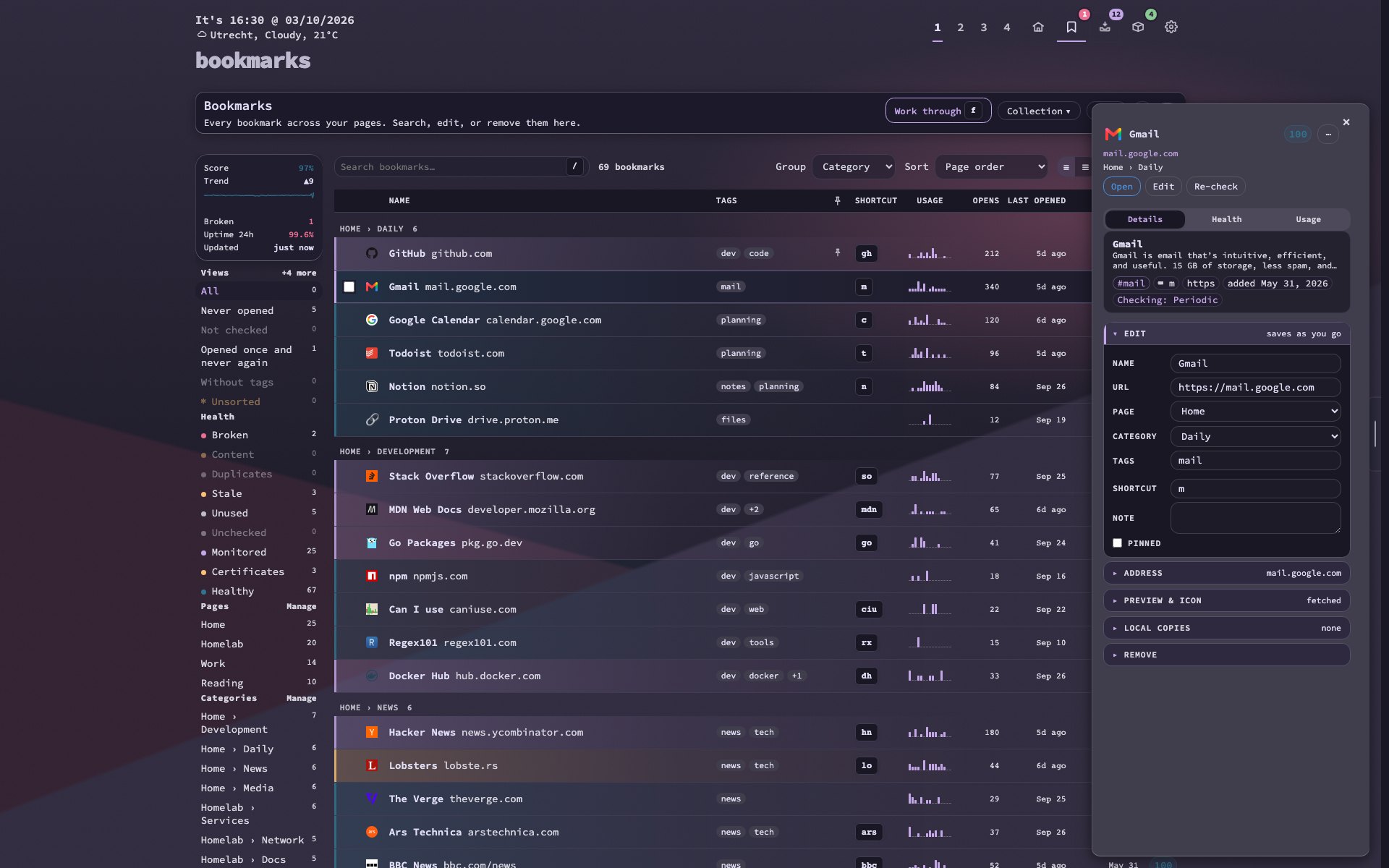
Bookmarks view (Rose Pine) — The whole collection in one place: a rail with the health score, views, health filters, pages and categories; one row per bookmark with its tags, shortcut, a month of use and when it was last opened; a side panel with Details, Health and Usage that saves as you type. |
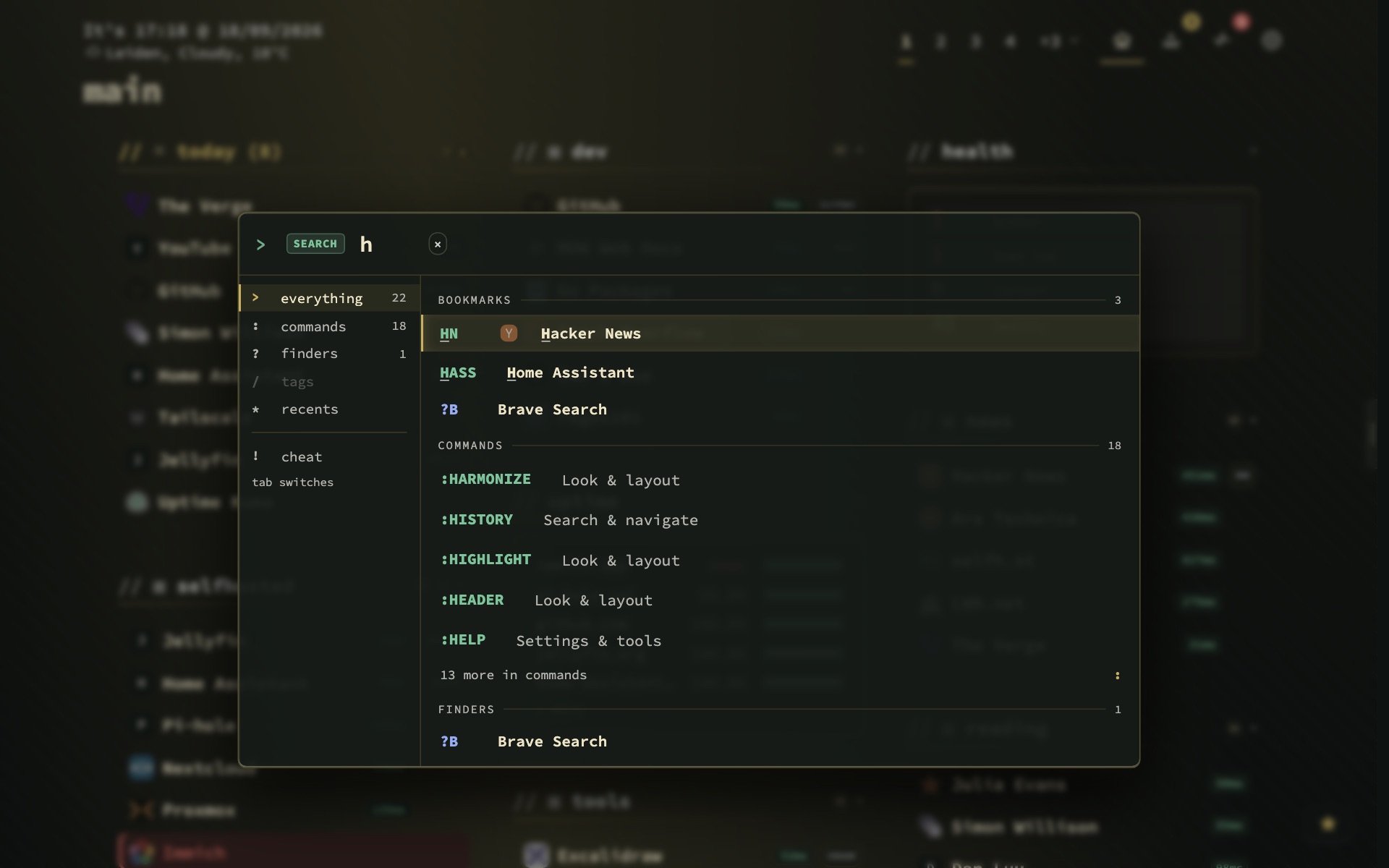
Search (Porcelain Blue, light) — One panel for bookmarks, commands, finders, tags and containers. / turns a word into a name search: a tag to filter on, the best match, what matched in a tag, note or address, and the container by that name. Tab switches between the modes on the left. |
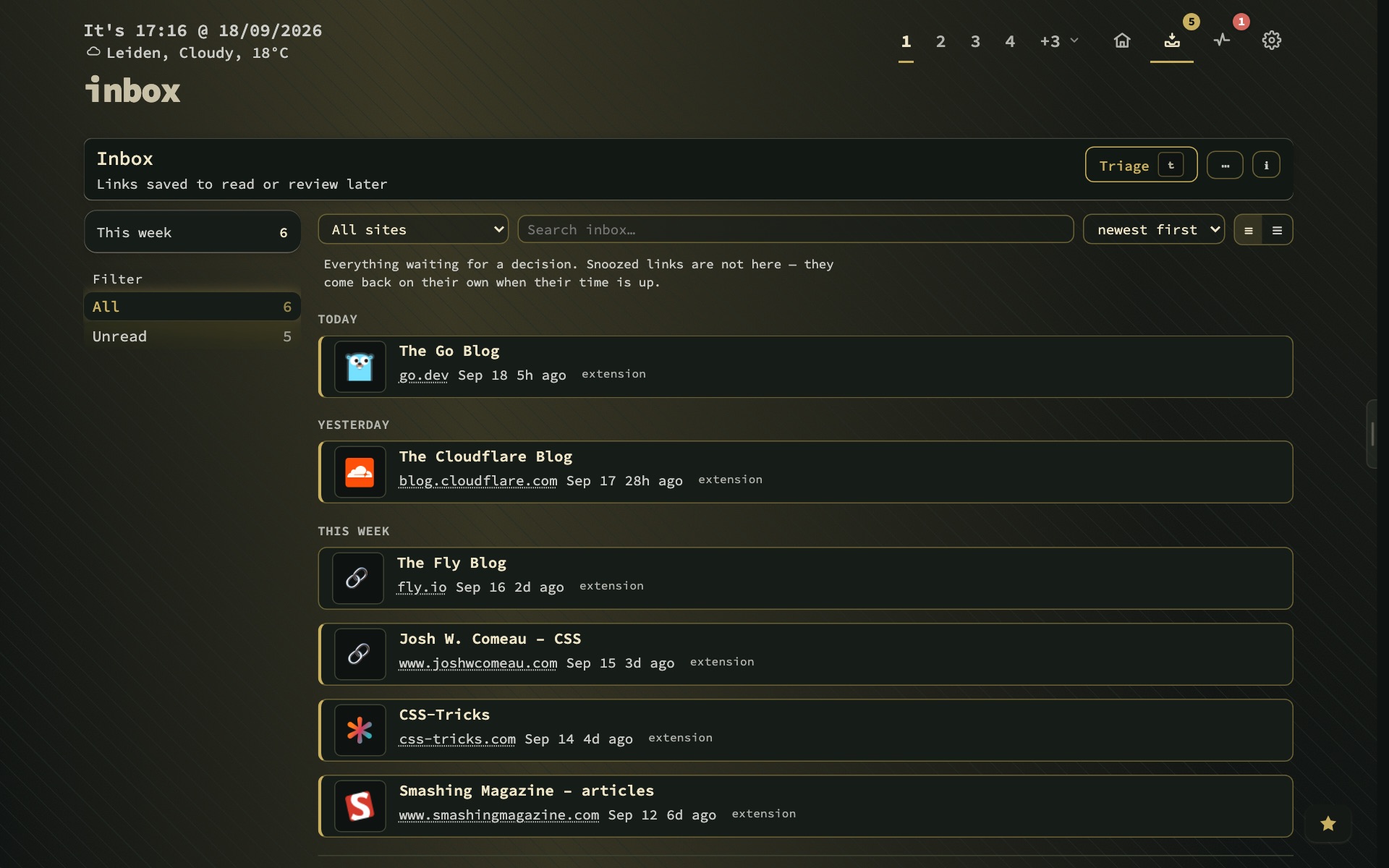
Inbox (Paper Ink, light) — Links saved before you knew where they belong, grouped by when they arrived, with the keys for every action under the list. The side panel holds the note and the tags; open, promote or keep a link without leaving the list. |
More screenshots — twelve more views, in other themes
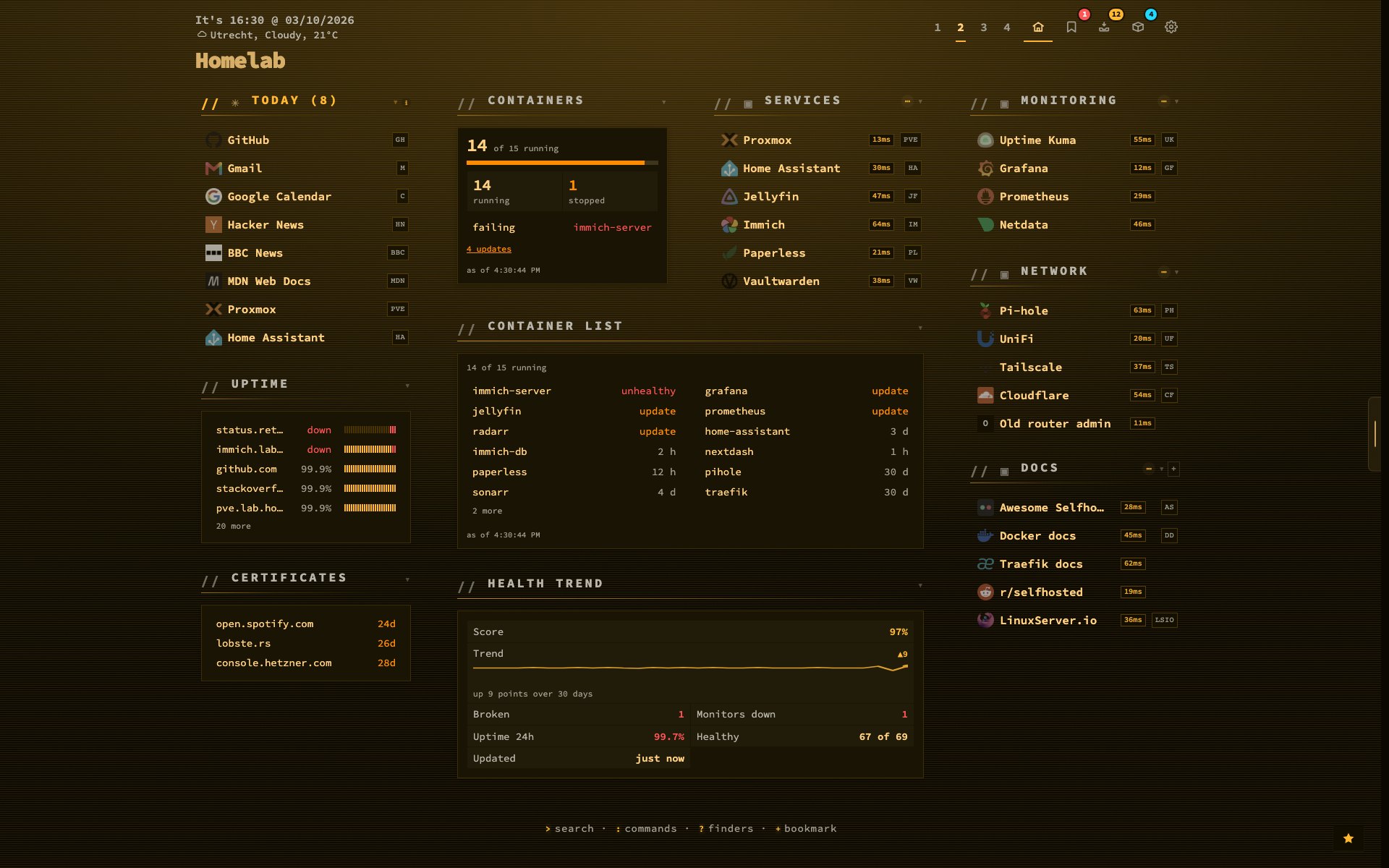
A second page (Terminal Amber) — A homelab page: the container count, the Container list two columns wide with the failing one first, uptime for this page, certificates close to expiry and the health trend over 30 days, beside the self-hosted services with their own icons. |
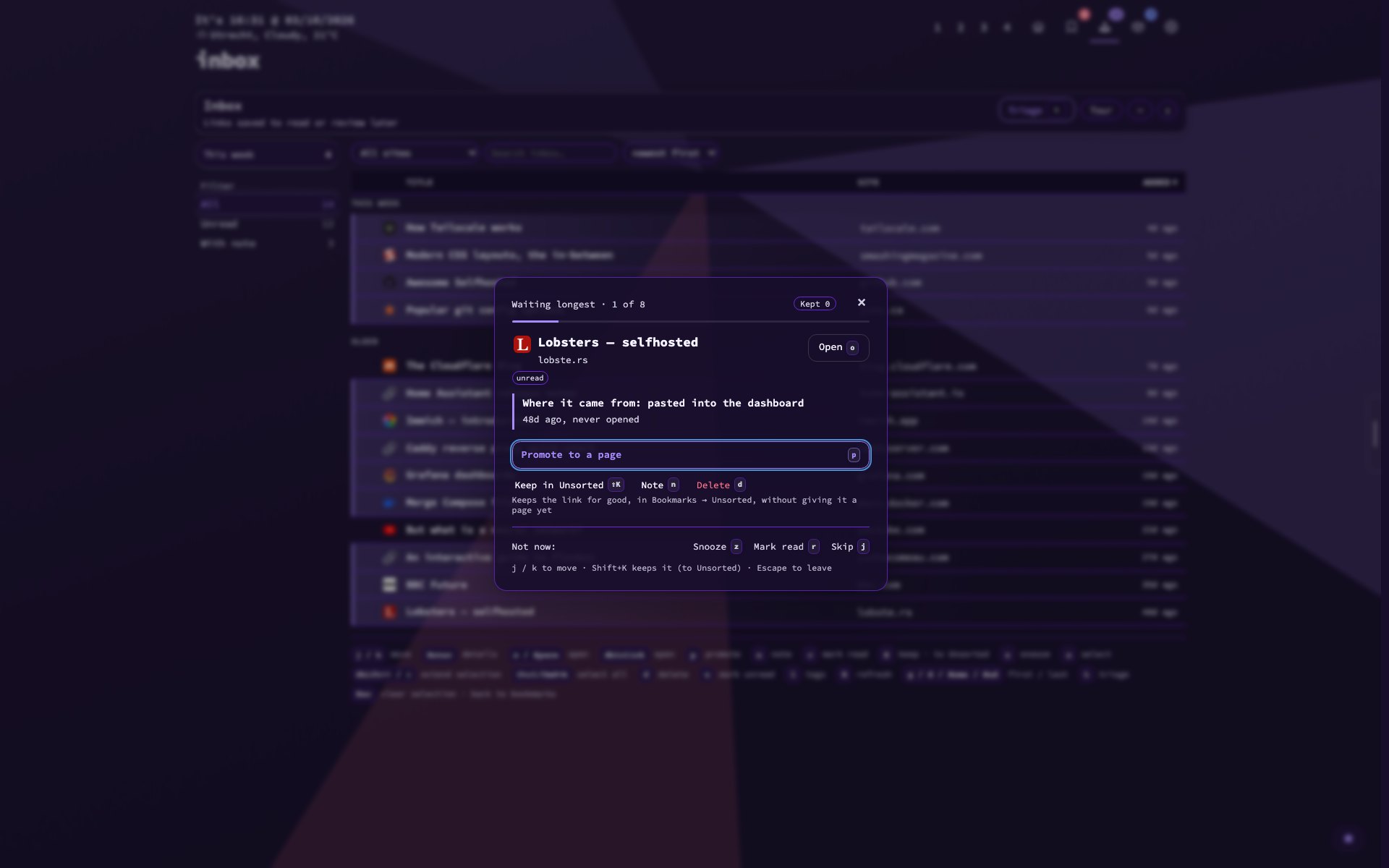
Triage (Royal Amethyst) — t in the inbox takes the links pile by pile — waiting longest, new this week, with a note — one at a time, each saying where it came from and how long it has waited, with Promote as the clear next step. |
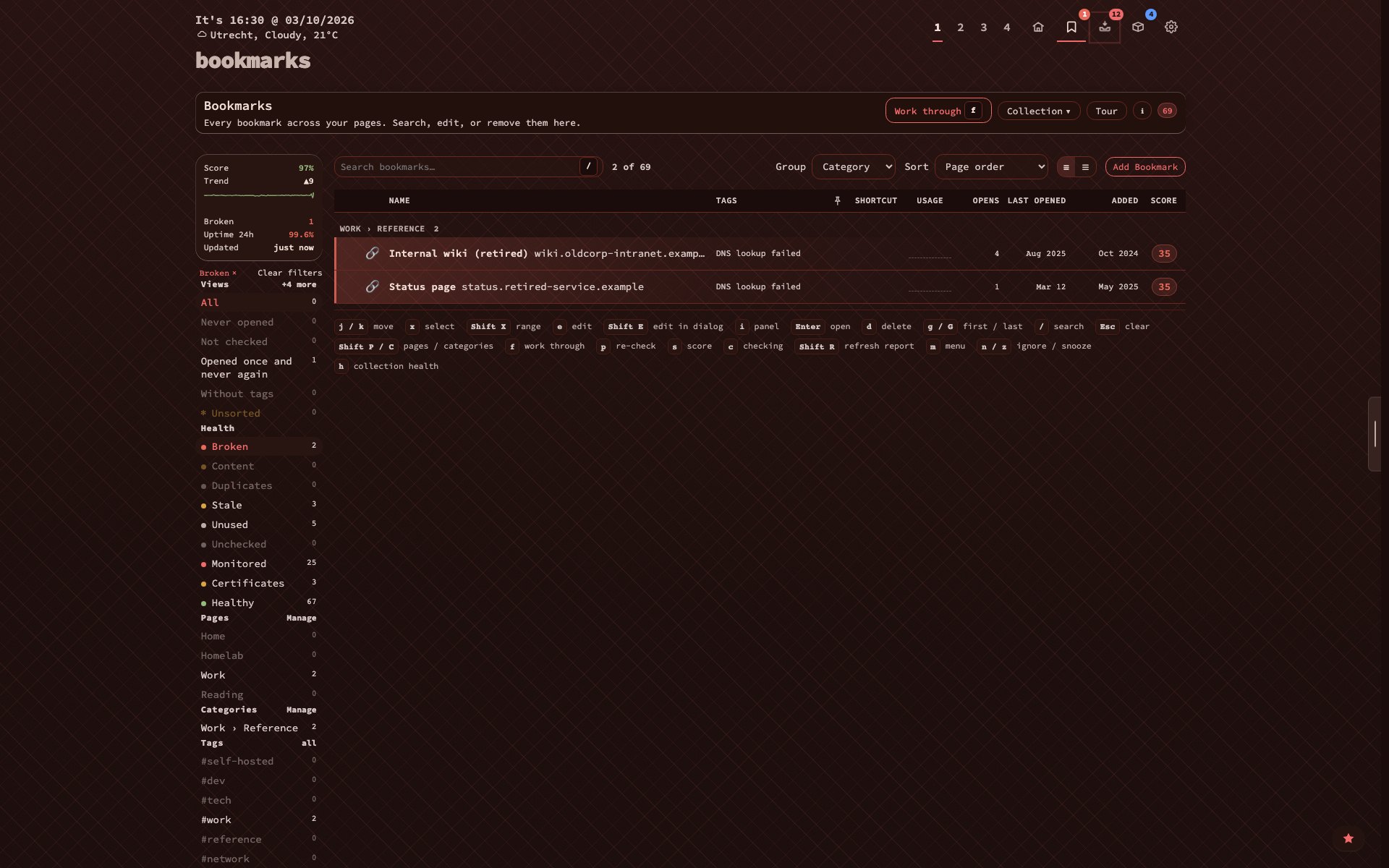
Broken links (Oxblood Leather) — The Bookmarks view on its Broken filter: what does not answer and why, a score for each, and Work through to clear them one at a time. The rail counts every other health filter beside it. |
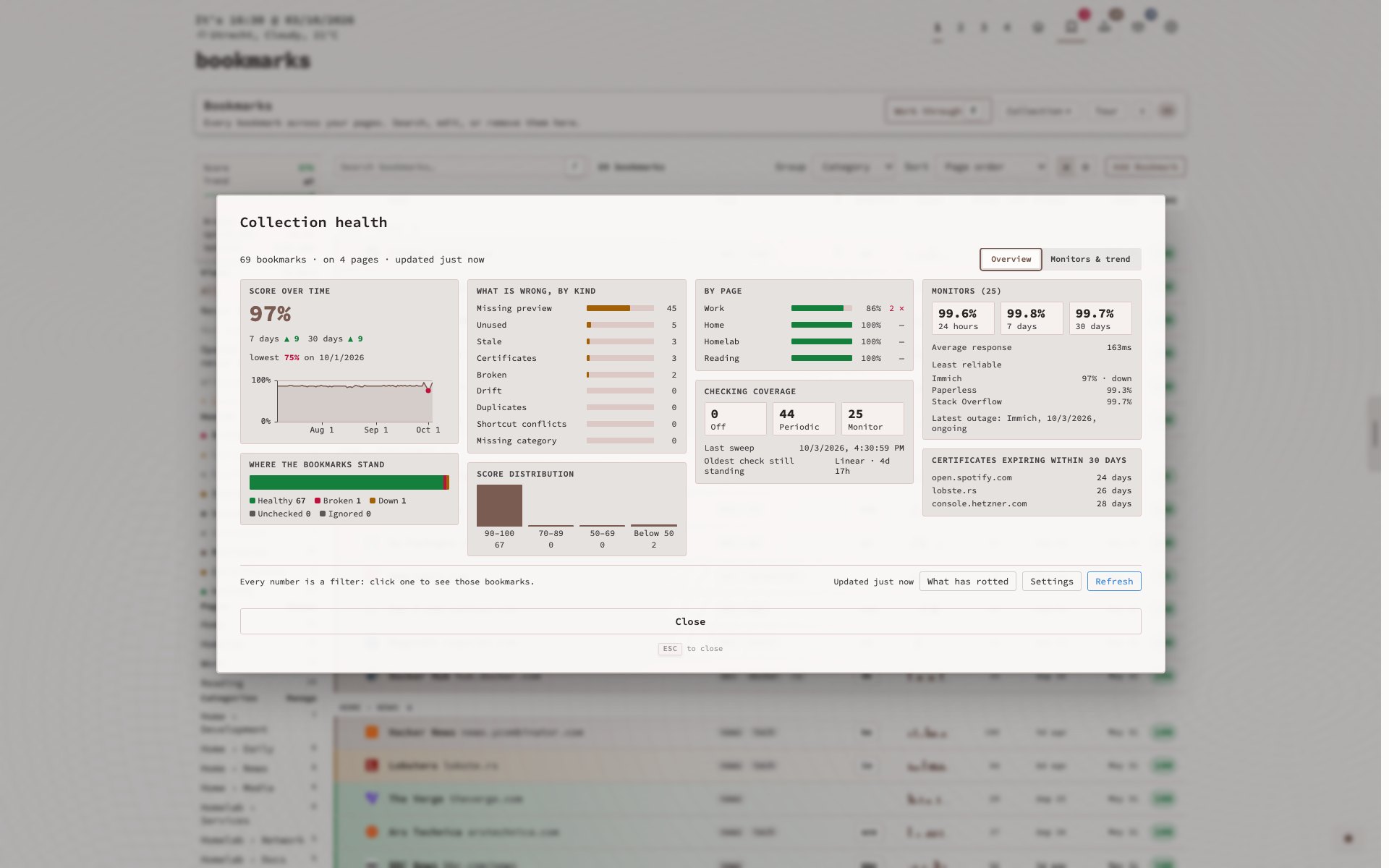
Collection health (Salt Flat, light) — h in the Bookmarks view: the score over time, what is wrong and of what kind, health per page, checking coverage, monitor uptime with the least reliable named, and certificates running out. Every number opens its filter. |
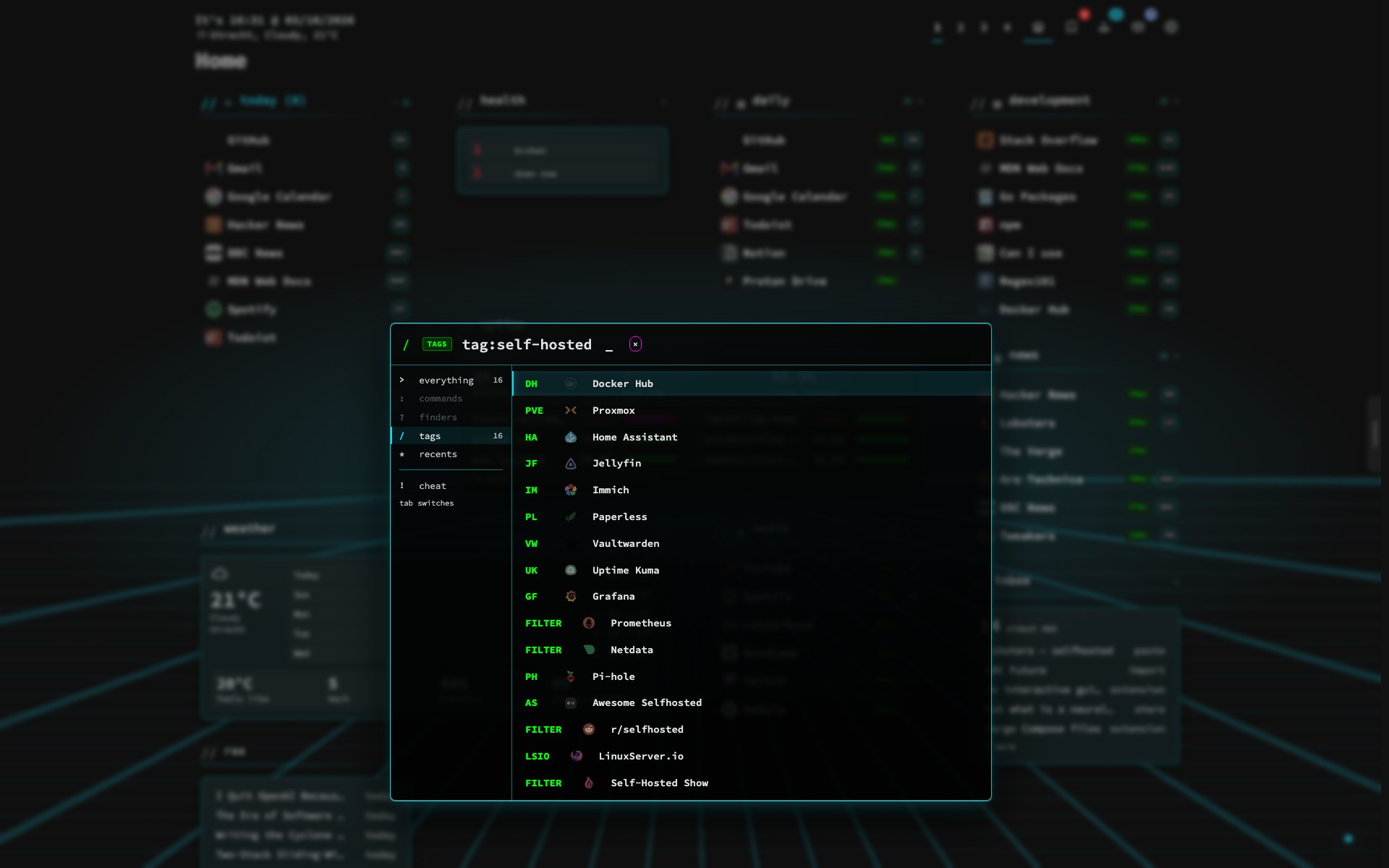
Search by tag (Neon Grid) — tag:self-hosted narrows search to one tag across every page, each result with its icon and shortcut.
|
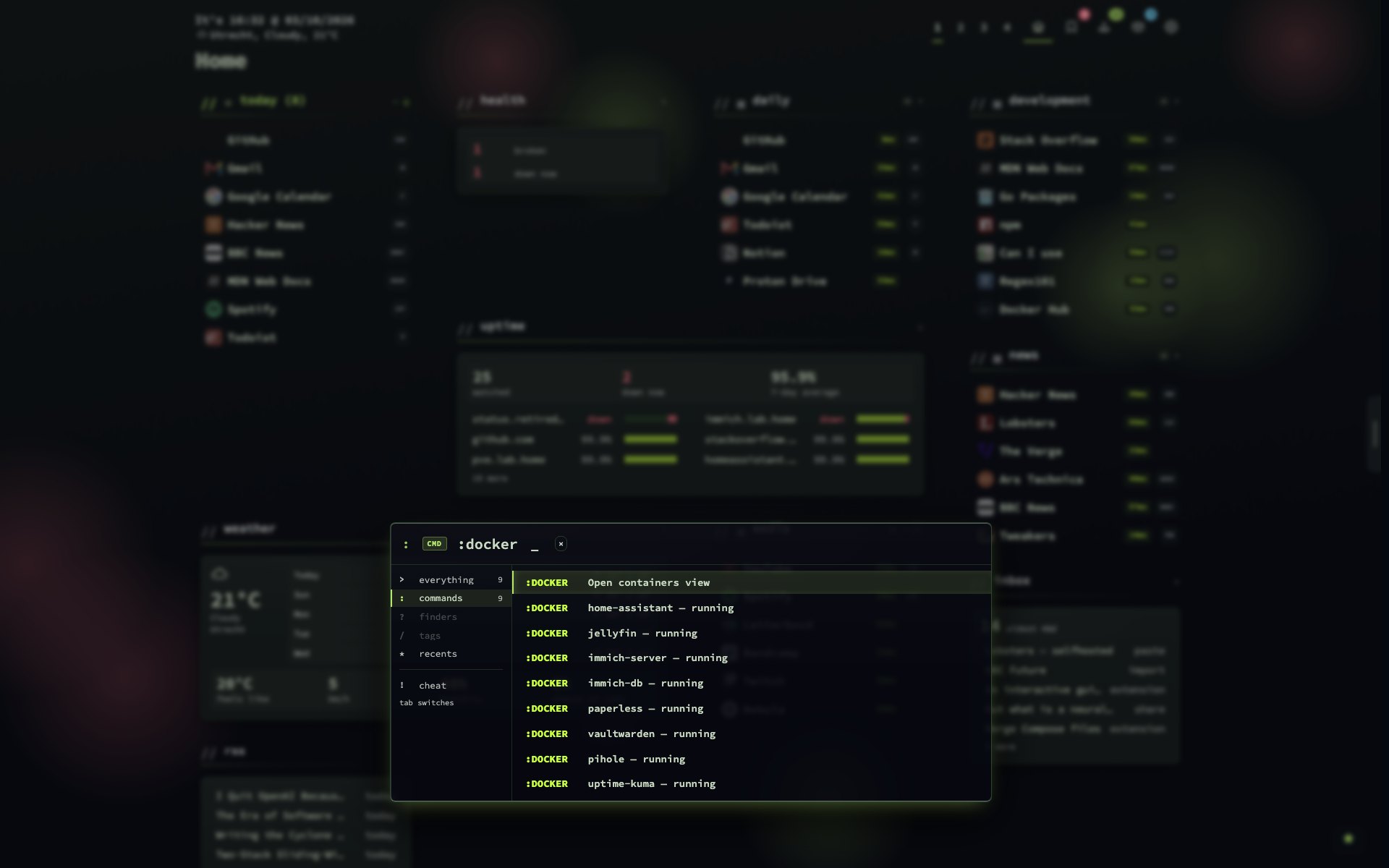
Command palette (Midnight Firefly) — :docker lists every container with its state; pick one to start, stop, restart or update it, open its web UI or read its logs.
|
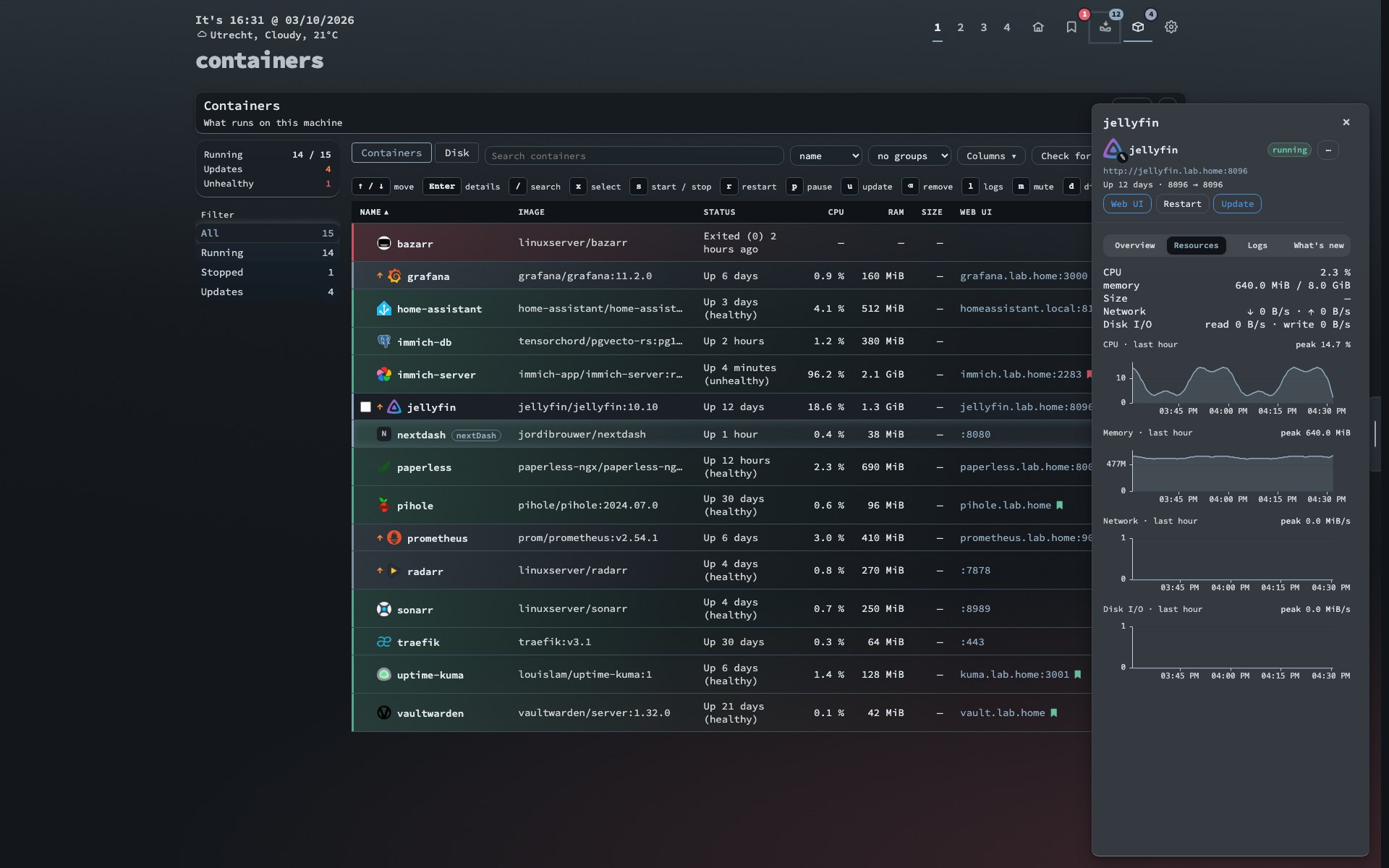
Containers (Harbour Fog) — Every container on the host with its app icon, a status glow, CPU, memory and a web UI column. The side panel draws CPU, memory, network and disk over the last hour, and a web UI's bookmark carries its health. Start, stop and update are one key away once control is on. |
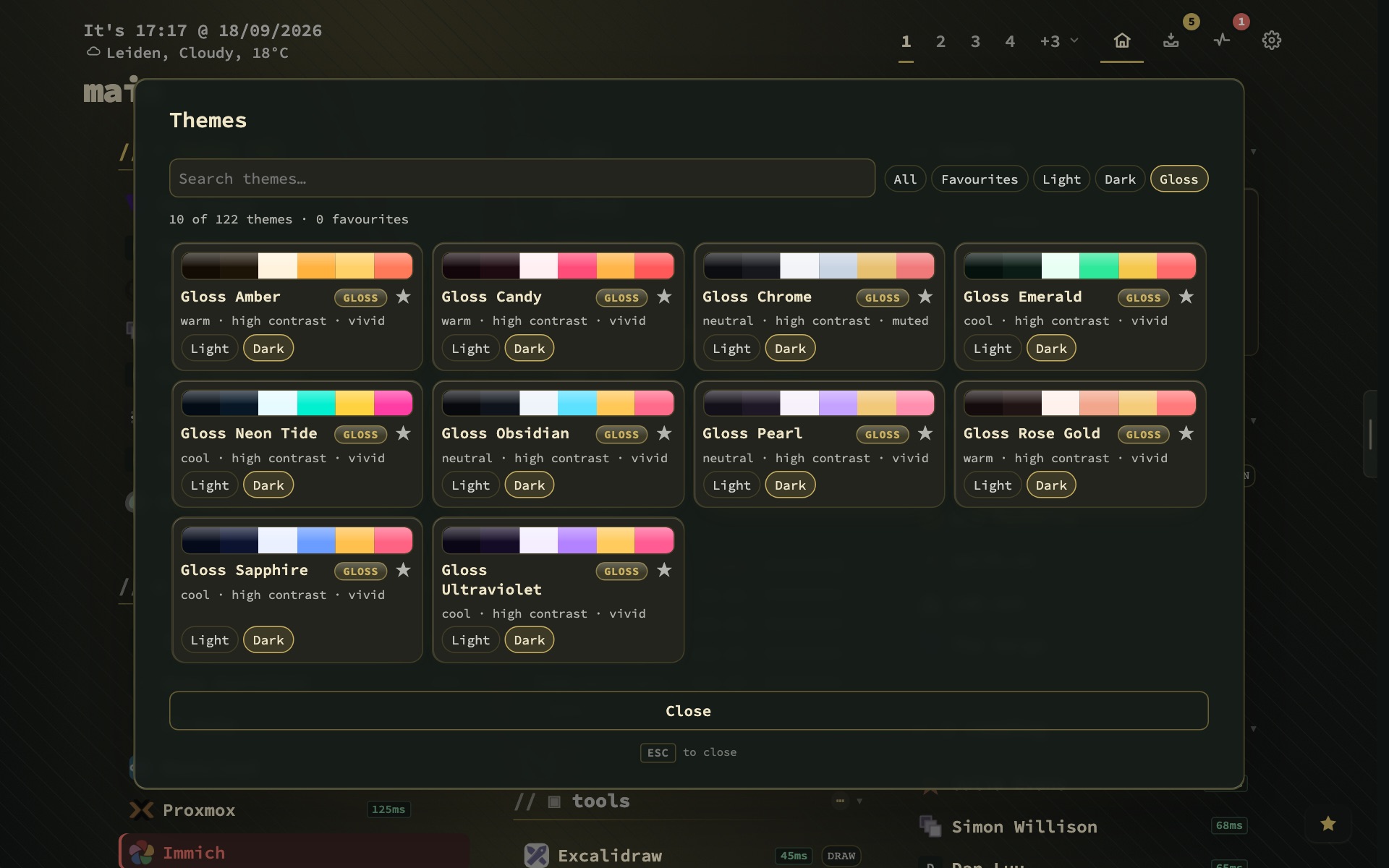
The look studio (Mulberry Silk) — Shift+A opens it beside the dashboard: 164 theme families with a light and a dark half, filtered by character, and tabs for the backdrop, card surface, headers, layout and ready-made looks. Every change shows on your own page, and nothing is saved until Apply. |
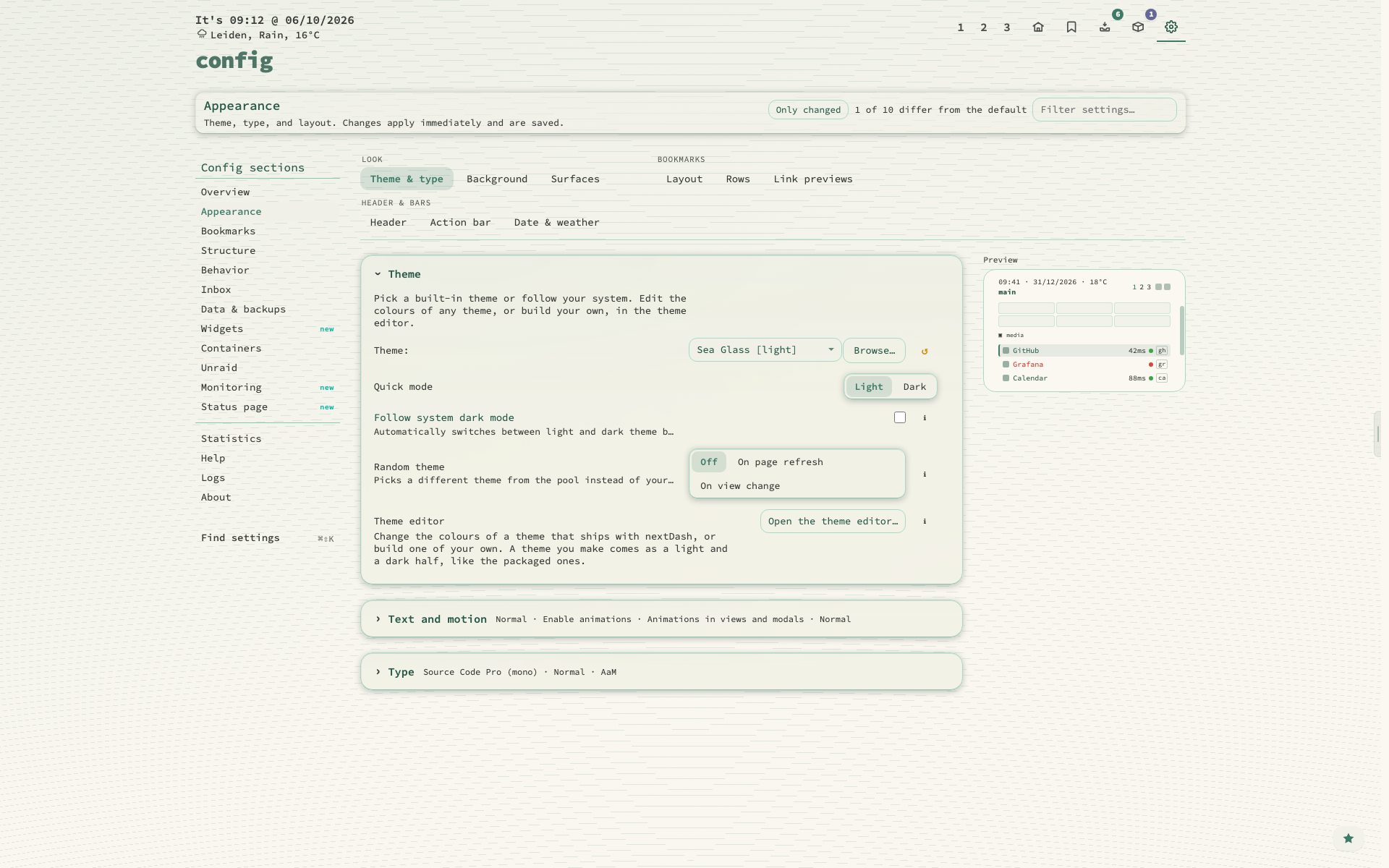
Config → Appearance (Sea Glass, light) — Nine tabs in three groups — Look, Bookmarks, Header & bars — whose panels fold to a line of their values, with a small live preview of your dashboard beside them. Every change applies and saves at once. |
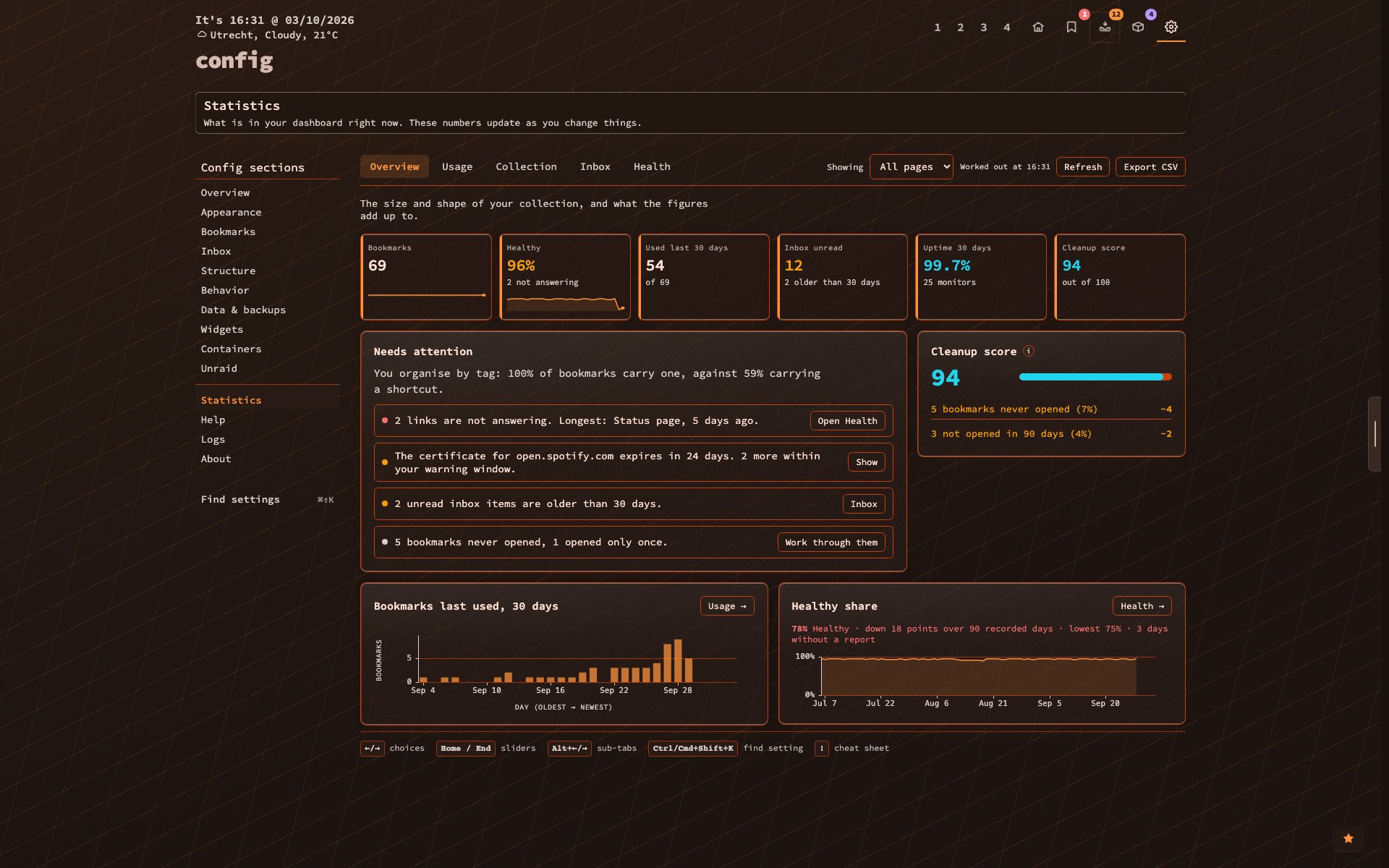
Config → Statistics (Copper Circuit) — Six figures per tab, what needs attention with a button for each, the cleanup score, and charts you can point at — across Overview, Usage, Collection, Inbox and Health. |
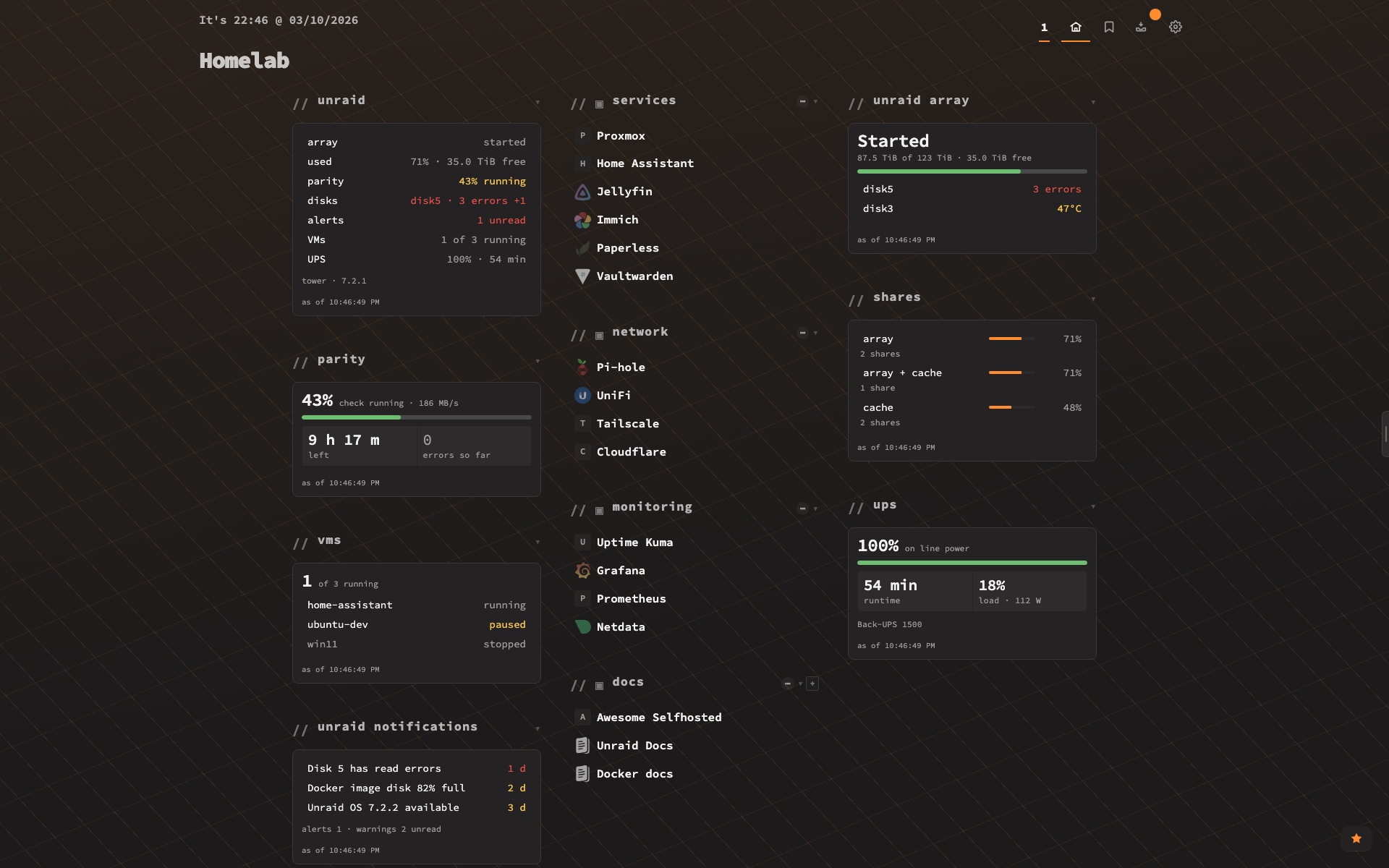
Unraid Black (dark) — A theme for Unraid users: flat black panels, small uppercase labels and the orange of the Unraid logo, with the Unraid widgets beside the homelab bookmarks. |
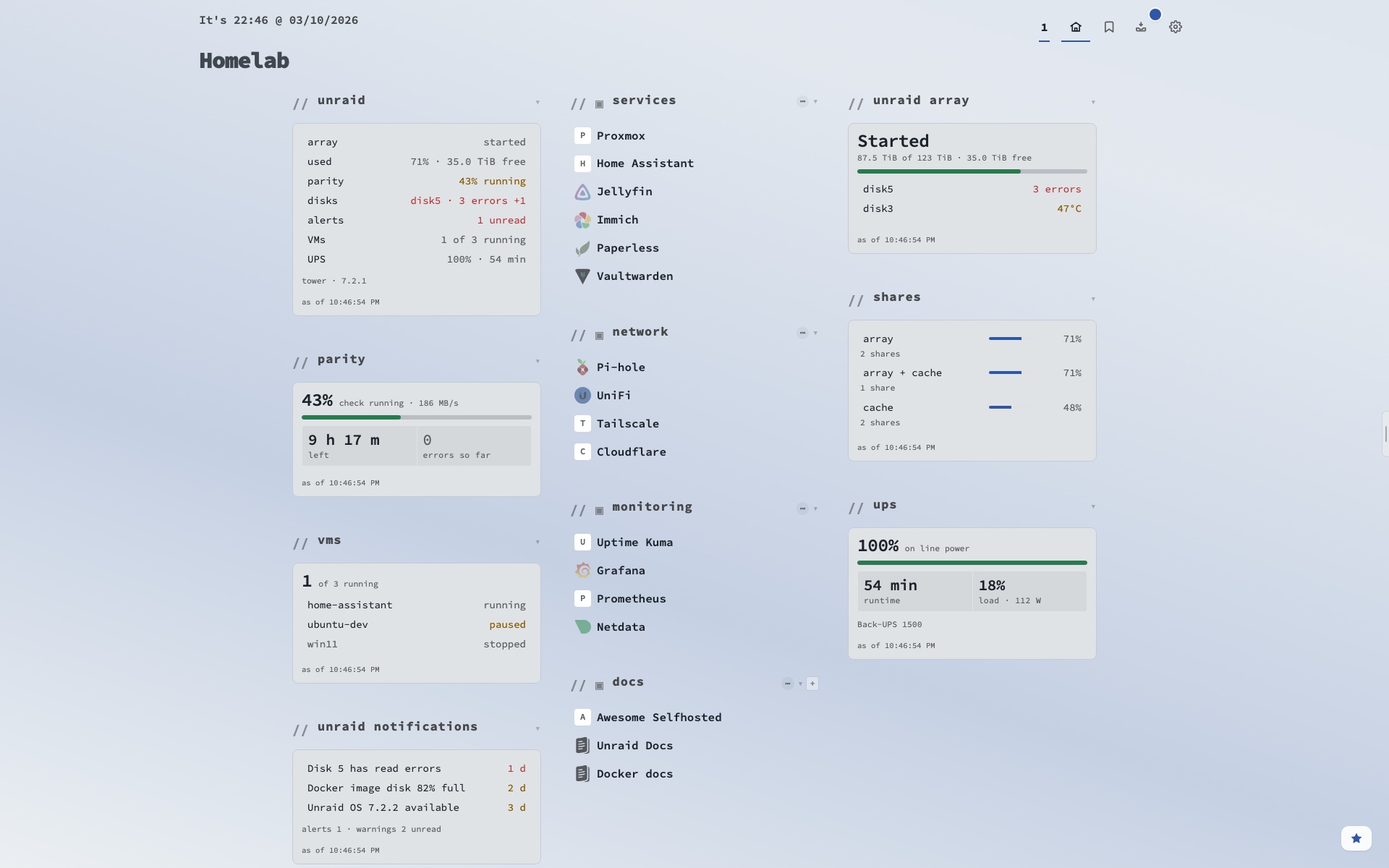
Unraid Azure (light) — The cooler pair: grey-blue panels and a steel-blue accent. Both themes come in a dark and a light variant, as do **Unraid Ember** and **Unraid Blaze**, the logo's orange and red. |
Quick Start
Docker Compose (recommended)
services:
  nextDash:
    image: ghcr.io/jordibrouwer/nextdash:latest
    container_name: nextDash
    ports:
      - "8080:8080"
    volumes:
      - ./data:/app/data
    environment:
      - PORT=8080
      # On a LAN or VPS, require a token for every write (see Security):
      # - NEXTDASH_WRITE_TOKEN=change-me-to-a-long-random-string
    restart: unless-stopped
docker compose up -d
Open http://localhost:8080.
From a git checkout: docker-compose.prod.yml is for production (only ./data is mounted; CSS and JavaScript are built into the image). docker-compose.yml is for development (it mounts ./static, ./locales and ./templates, with Docker actions and root off and the socket commented out). Put your own mounts and variables in docker-compose.override.yml; Compose reads it automatically.
docker compose -f docker-compose.prod.yml up -d --build
Build from source
go build -o nextDash && ./nextDash
Data is stored in ./data. NEXTDASH_DATA_DIR moves it.
System widgets
The Processor, Memory, Disks, Containers and Container list widgets report on the machine nextDash runs on. The binary needs no setup; a container needs read-only mounts:
    volumes:
      - ./data:/app/data
      - /mnt:/host/root/mnt:ro,rslave                     # Disks: required
      # - /proc:/host/proc:ro                             # Processor, Memory: optional
      # - /var/run/docker.sock:/var/run/docker.sock:ro    # Containers: a real grant
    environment:
      - NEXTDASH_HOST_ROOT=/host/root
      # - NEXTDASH_HOST_PROC=/host/proc
      # - NEXTDASH_DOCKER_SOCKET=/var/run/docker.sock
      # - NEXTDASH_DOCKER_CONTROL=1                       # Containers: start/stop/update/remove
Containers view
[!IMPORTANT] The Containers view needs three settings before it does anything — and one more on some hosts.
- The Docker socket. Mount
/var/run/docker.sockand setNEXTDASH_DOCKER_SOCKET=/var/run/docker.sock. Without both, the view shows a setup card and the Containers widget stays hidden. Read-only (:ro) is enough to look.- Actions:
NEXTDASH_DOCKER_CONTROL=1. Start, stop, pause, restart, update and remove need it. Without it the view only reads.- A write token, and a gate in front:
NEXTDASH_WRITE_TOKEN. Access to the socket is root on the host —:roon the mount does not stop the Docker API from accepting writes. The token stops other websites and scripts that do not know it. It is not a login: the dashboard hands it to every browser that opens the page. Set one, and keep nextDash behind Tailscale or a reverse proxy with authentication — with actions on, anyone who can open the dashboard can stop, update or remove your containers.- Sometimes:
NEXTDASH_RUN_AS_ROOT=1. The container starts as root, then drops to its ownnextdashuser, which joins the group the socket belongs to (docker, gid 281 on Unraid). When the socket belongs to root's group (gid 0) — Docker Desktop, some NAS systems — that user cannot read it: the log saysis owned by gid 0and Config → Containers shows No access to the socket.NEXTDASH_RUN_AS_ROOT=1keeps the app running as root so it can. Only set it then.
Docker Compose — add to the nextDash service:
    volumes:
      - /var/run/docker.sock:/var/run/docker.sock:ro
    environment:
      - NEXTDASH_DOCKER_SOCKET=/var/run/docker.sock
      - NEXTDASH_DOCKER_CONTROL=1                        # start/stop/restart/update/remove
      - NEXTDASH_WRITE_TOKEN=change-me-to-a-long-random-string
      # - NEXTDASH_RUN_AS_ROOT=1                         # only if the log says "owned by gid 0"
Unraid — Docker → nextDash → Edit:
- Fill in the template's Docker socket path (
/var/run/docker.sock), Docker socket variable (/var/run/docker.sock) and Write token. - For actions: set the template's Docker actions to
1(it starts at0). - Unraid's socket belongs to the
dockergroup, so leave Run as root at0.
Once it runs, the #docker view lists every container with a status glow, CPU and RAM and a link to its web UI, a side panel with health, a timeline, logs, an hour of CPU and memory charts and release notes, a logs window, a Disk tab, and a badge for images with an update waiting. Config → Containers shows the connection as the server sees it — socket, actions, write token, its own container — and holds the update checks and an optional GitHub token. The manual has the details, including Synology and QNAP.
Unraid
nextDash reads an Unraid server through its own API (Unraid 7.2, or an older Unraid with the Unraid Connect plugin):
- Seven widgets — an overview, the array (every disk with its fill and temperature or its problem), parity, shares by where they live, VMs, the UPS and Unraid's notifications.
- Alerts — Unraid's own ALERT notifications, the array stopping, a parity check that finished with errors and a disk whose error count went up, through the same channels as downtime and container alerts.
- One connection — set once under Config → Unraid with an API key that has the role Viewer. nextDash only reads: it never starts, stops or changes anything on the server.
More is on the way: deeper Unraid integration is being worked on for future versions of nextDash. Manual: Unraid
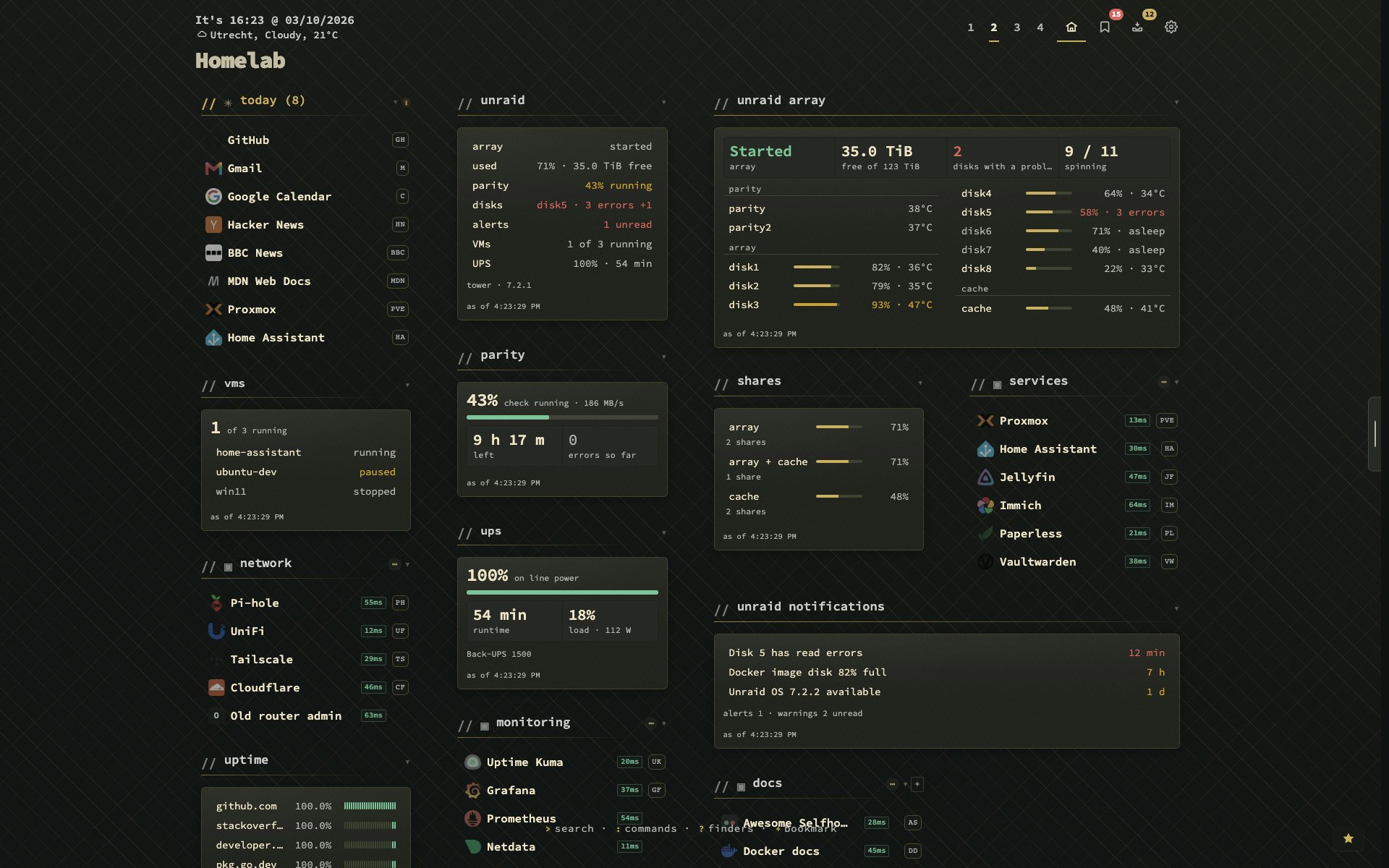
Unraid on the dashboard (Tarnished Brass) — All seven widgets beside the homelab bookmarks. Disk 5 has read errors, so the overview, the array and the notifications all name it in red; parity is 43% through a check, and the UPS is on line power with 54 minutes in reserve. |
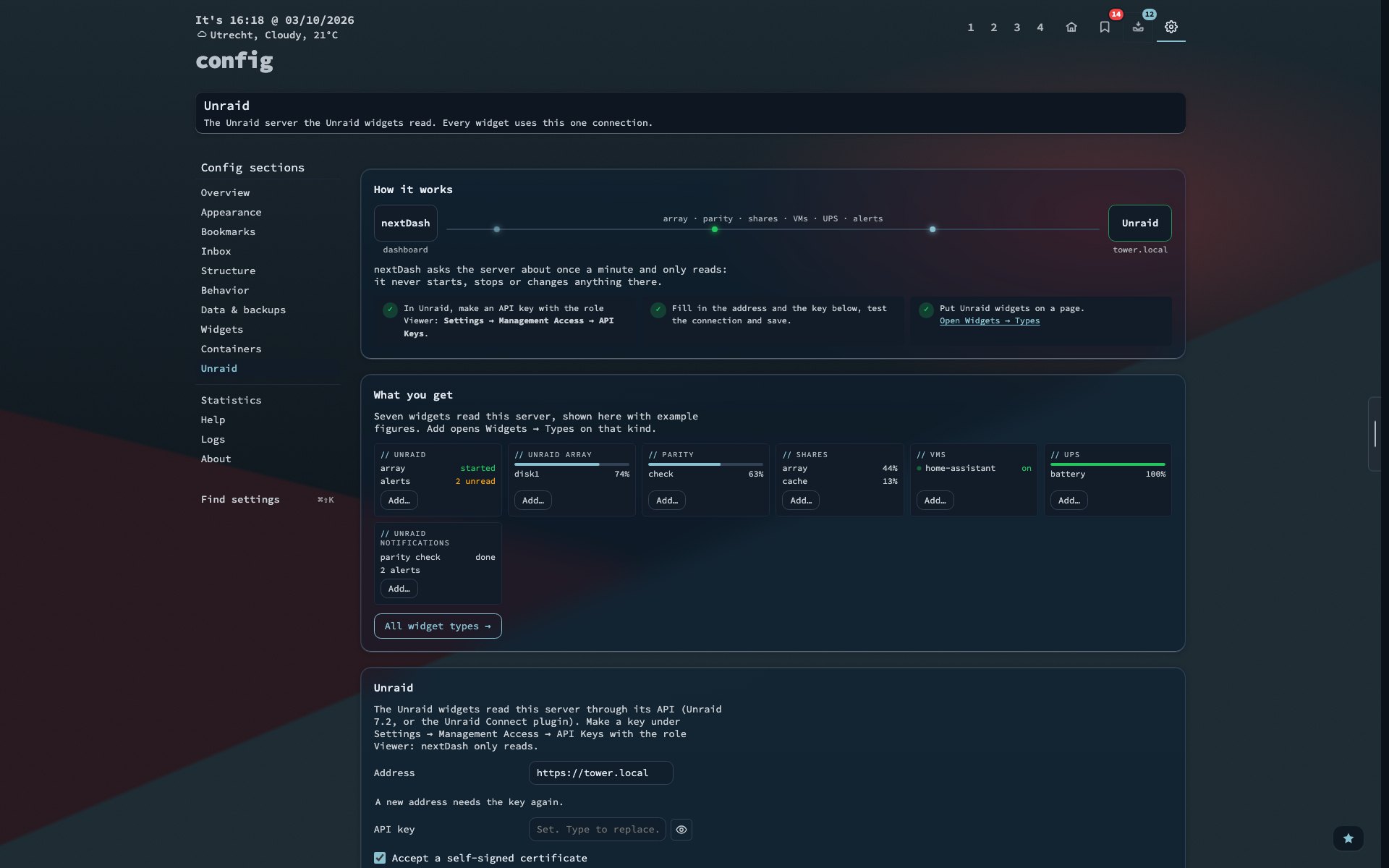
One connection (Nordic Frost) — Config → Unraid explains itself: nextDash and the server with data running between them, three steps ticked off as they are done, and the seven widgets in miniature, each with an Add that opens it in Widgets → Catalogue. |
Security
nextDash is built for personal or small-team use on a trusted network. There are no user accounts: anyone who can reach the address can read and change the data unless you put something in front of it.
Do not expose nextDash directly to the internet. Use one of these:
- A private network — Tailscale or another mesh VPN.
- A reverse proxy with authentication — Traefik, Caddy or nginx with basic auth, OAuth2 Proxy or SSO.
- Local only — bind to
127.0.0.1and use an SSH tunnel.
The short version is below; MANUAL § 23 has the details.
- Write token. Set
NEXTDASH_WRITE_TOKENand every write or destructive API call needs the headerX-NextDash-Token. The dashboard supplies it for you, which means the page hands it to every browser that opens it. So the token keeps out other websites (a page that fires requests at your network) and scripts that only know the address — not someone who can open the dashboard. Keeping those out is the job of the network or proxy above. Use a long random string, such asopenssl rand -hex 32; the server warns at startup when a token is short or still the example value. The capture routes (/addand the share target) cannot send a header; give themNEXTDASH_CAPTURE_TOKEN, which opens capture and nothing else. - CORS. Only browser extensions receive CORS headers.
NEXTDASH_CORS_ORIGINSallows pages of your own;*allows every origin. - Outgoing requests. With local bookmarks disallowed, the server only reaches public hosts, re-checks addresses when it connects, and is rate-limited per client.
- The data directory is not served. Only icons and an uploaded favicon or font are public.
- Activity trail. A machine-readable JSON record, with seventeen channels. Changes and check results are on by default; choose the rest under Config → Logs → Activity trail or with
NEXTDASH_ACTIVITY_LOG. URLs and searches can appear in it, so treat the files as private. - Docker actions. Starting, stopping or updating a container needs
NEXTDASH_DOCKER_CONTROL=1plus the write token when one is set; reading the container list and running an update check need only the socket.
Production Docker
docker-compose.prod.yml serves CSS and JavaScript from the binary, mounts only ./data, and sets a 256 MB memory limit. The entrypoint starts as root so host Docker hooks can run, then switches to the nextdash user (NEXTDASH_RUN_AS_ROOT=1 keeps root). For TLS and long-cache static serving, run docker compose -f docker-compose.proxy.yml up -d with deploy/Caddyfile.
Recommended LAN/VPS environment:
environment:
  - PORT=8080
  - NEXTDASH_WRITE_TOKEN=change-me-to-a-long-random-string
  - NEXTDASH_CORS_ORIGINS=https://dash.example.com
  - NEXTDASH_ACTIVITY_LOG=mutate,status,security
  - NEXTDASH_ACTIVITY_LOG_PERSIST=1
  # Capture from a bookmarklet, share sheet or script without the write token:
  # - NEXTDASH_CAPTURE_TOKEN=a-second-long-random-string
  # Automatic backups:
  # - NEXTDASH_AUTO_BACKUP_KEEP=7
  # - NEXTDASH_AUTO_BACKUP_DIR=/backups            # mount a volume there
  # Logging:
  # - NEXTDASH_LOG_LEVEL=warn
  # - NEXTDASH_ACTIVITY_LOG_FORMAT=json            # for Loki or Vector
  # - NEXTDASH_ACTIVITY_LOG_URLS=host
  # - NEXTDASH_ACTIVITY_LOG_MAX_AGE_DAYS=30
  # System widgets (see Quick Start):
  # - NEXTDASH_HOST_ROOT=/host/root
  # - NEXTDASH_DOCKER_SOCKET=/var/run/docker.sock
  # - NEXTDASH_DOCKER_CONTROL=1
  # Rate limits and headers:
  # - NEXTDASH_OUTBOUND_REQUESTS_PER_MIN=120
  # - NEXTDASH_SSRF_API_RATE_PER_MIN=60
  # - NEXTDASH_STATUS_PING_RATE_PER_MIN=300
  # - NEXTDASH_TRUSTED_PROXIES=10.0.0.0/8
  # - NEXTDASH_CSP=off
  # For everyone on this server:
  # - DISABLE_TELEMETRY=true
  # - DISABLE_UPDATE_CHECK=true
  # - DISABLE_NEWS_FEED=true
Every variable is listed in the reference table below.
GET /version returns the version and commit. GET /api/data-revision returns a hash, so open dashboard tabs notice changes made elsewhere.
Environment variables (reference)
| Variable | Default | Purpose |
|---|---|---|
PORT |
8080 |
HTTP port (1–65535) |
NEXTDASH_DATA_DIR |
./data |
Where pages, bookmarks, settings and uploads live |
NEXTDASH_WRITE_TOKEN |
(unset) | Require X-NextDash-Token on writes |
NEXTDASH_CAPTURE_TOKEN |
(unset) | A token that opens only /add and the share target |
NEXTDASH_CORS_ORIGINS |
(unset) | Extra origins allowed to use the API, comma-separated; * for all. Extensions are always allowed. |
NEXTDASH_CSP |
on | off disables the Content-Security-Policy header |
NEXTDASH_OUTBOUND_REQUESTS_PER_MIN |
120 |
Rate limit for requests the server makes for you |
NEXTDASH_SSRF_API_RATE_PER_MIN |
60 |
Rate limit for the preview, icon, archive, check-URL and alert-test APIs |
NEXTDASH_STATUS_PING_RATE_PER_MIN |
300 |
Rate limit for /api/ping, the status checks the dashboard runs in your browser |
NEXTDASH_TRUSTED_PROXIES |
(unset) | Addresses and CIDR ranges whose X-Forwarded-For is believed, comma-separated. Unset, the header is ignored and rate limits count per connecting address. |
NEXTDASH_AUTO_BACKUP_KEEP |
3 |
How many automatic backups are kept (1–50) |
NEXTDASH_AUTO_BACKUP_DIR |
data/auto-backups |
Where automatic backups are stored (absolute path) |
NEXTDASH_LOG_LEVEL |
info |
error, warn, info or debug. Detail level in the app wins. |
NEXTDASH_ACTIVITY_LOG |
mutate,status |
off, or channels: mutate, status, open, security, health, sources, feeds, archive, backup, store, widgets, notify, search, keys, nav, session, clienterror. Activity trail in the app wins. |
NEXTDASH_ACTIVITY_LOG_PERSIST |
off | 1 writes a rotating activity.log in the data directory |
NEXTDASH_ACTIVITY_LOG_FILE |
data/activity.log |
Another path for that file |
NEXTDASH_ACTIVITY_LOG_FORMAT |
text |
text (a readable sentence) or json on stdout, for Loki or Vector |
NEXTDASH_ACTIVITY_LOG_URLS |
full |
full, host or off — how URLs and search text appear in the trail |
NEXTDASH_ACTIVITY_LOG_SAMPLE |
(unset) | Sampling per channel, e.g. open=0.1,keys=0.25 |
NEXTDASH_ACTIVITY_LOG_MAX_AGE_DAYS |
0 (off) |
Delete rotated activity.log.N files older than this |
NEXTDASH_ACTIVITY_OPEN_DETAIL |
basic |
off, basic or full — what a bookmark-open record holds. Open detail in the app wins. |
NEXTDASH_HOST_ROOT |
(unset) | Prefix the host's disks are mounted under, for the Disks widget |
NEXTDASH_HOST_PROC |
/proc |
The host's /proc, for Processor and Memory |
NEXTDASH_DOCKER_SOCKET |
(unset) | The Docker socket, for the Containers widget and view; unset hides the widget |
NEXTDASH_DOCKER_CONTROL |
off | 1 allows start, stop, pause, restart, update and remove in the Containers view |
NEXTDASH_DISABLE_PREFETCH |
off | 1 skips the icon prefetch at start-up |
NEXTDASH_DEMO |
off | 1 turns the instance into a public demo: seeded data that resets itself. It empties NEXTDASH_DATA_DIR on every start and reset, so it needs a directory of its own and refuses one with a real install. Never set it on your own install. See deploy/demo/docker-compose.yml |
NEXTDASH_DEMO_RESET_MINUTES |
30 |
Demo only: minutes between resets |
NEXTDASH_DEMO_IDLE_MINUTES |
10 |
Demo only: reset this many minutes after the last change |
NEXTDASH_DEMO_ANALYTICS_ID |
unset | Demo only: the Umami website id the demo counts its visits into, separate from every install's count. Unset, the demo counts nothing. Ignored outside the demo |
NEXTDASH_RUN_AS_ROOT |
off | 1 keeps the container running as root |
NEXTDASH_BUNDLE |
on | off serves scripts and stylesheets one by one, for debugging |
NEXTDASH_STATIC_MUTABLE |
off | 1 re-hashes assets on every request, for a bind-mounted ./static |
DISABLE_ICON_SETS |
off | 1 stops fetching the app icon sets (dashboard-icons, selfh.st/icons) from jsDelivr |
DISABLE_TELEMETRY |
off | true turns analytics and the daily install count off for everyone |
DISABLE_UPDATE_CHECK |
off | true turns the daily GitHub release check off for everyone |
DISABLE_NEWS_FEED |
off | true stops fetching posts from nextdash.cc |
Features
Each line links to the part of the manual that explains it.
Bookmarks and pages
- Pages and categories, each with an icon, a colour and a sort; drag categories and widgets into place — wide across two columns, or onto another page — and spread a category across columns. Share a page as a template file: your own addresses become names the importer fills in. Manual §9
- Add a link with one key, the full form, a paste, the extension, the share sheet or a bookmarklet. Manual §5
- Tags, notes, shortcuts and pins, a preview card that says what a page is without opening it, and a QR code (
Shift + J) to open a bookmark on your phone. Manual §6, §10 - A tag cloud (
/) and a tag view per tag: every bookmark with that tag from every page in one table, with related tags, bulk actions, and rename, merge or remove for the tag. Manual §10 - Tag suggestions tag whole groups at once — from your own tags, a catalogue of some 51,000 sites in 471 subjects, a Wikidata lookup for sites it does not know (only the host name leaves the server, and you can switch it off), and rules you write. The lookup also runs quietly for a link that arrives in the inbox or your bookmarks, and shows what it finds as a chip. They show in the rows of the tag view, the Bookmarks view and the inbox, with Add all. Nothing is tagged until you accept. Manual §10.4
- A Bookmarks view for the whole collection: a rail of pages, categories and health filters, one-line rows with a score and open counts, and a side panel with Details, Health and Usage. Group, sort, work through what needs attention, export to CSV. Bookmarks view
- An inbox for links you have not filed yet — snooze, promote, or triage it pile by pile: waiting longest, new this week, with a note. Keep puts a link in Bookmarks → Unsorted without filing it; promote it from there once it has a place. Manual §13
- Config → Inbox sets how it collects, lists, and opens: Collecting, List, Panel & clicks and Header icon, each with a live preview. Config → Inbox
- Smart collections fill themselves; custom collections follow your rules. Manual §9.6
Search and keyboard
- Everything is reachable from the keyboard: one rule for the shortcuts and a searchable cheat sheet on
!. Manual §7 - A key legend under the grid keeps the main keys in sight (
Shift + Zswitches it off), a dashboard tour of seven steps plays again withShift + K, and after an update the What's new window gives the main change of a release a spotlight. Manual §7 - One panel for search, commands and finders, plus search from the browser's address bar. Manual §8
- Filters for tag, category, page, status, added and opened — each also in the negative. Manual §8.2
Health and monitoring
- Health lives in the Bookmarks view: filters for broken, stale, duplicated, unchecked and changed, a Health tab in the side panel, and Work through to clear a pile — broken, changed, stale, never opened — one bookmark at a time, each with the reason it is there. Collection health (Overview, Monitors, Trend) covers the whole collection; open one bookmark's own Health in Large for its uptime, response time, status codes and every check, with CSV export. Health and monitoring
- Uptime monitoring with 30 days of history, response times, outages, certificate expiry, expected-response checks and drift detection. Manual §11.8
- A status page for the people who use your services: a read-only page behind a secret link with your groups of services, whether each one works, since when one is down, planned maintenance and 30 days of history. It shows no error details or internal addresses, refreshes itself every minute and follows the visitor’s language and light or dark. Manual §12.8
- Alerts, set under Config → Monitoring (tabs Checks, Notifications and Schedules), to Slack, Discord, Telegram, Gotify, ntfy, Pushover, Apprise (and from there mail, Matrix, Signal and a hundred more), a JSON receiver or your browser, with maintenance windows, quiet hours with one summary at the end, reminders for an outage that goes on, per-bookmark muting, and a weekly digest of what broke, what can be updated and what nobody opens. Manual §12.4
- Fresh shows which bookmarked sites published something new. Manual §12.6
- Keep a copy of a page on your own disk or in the Web Archive. Manual §12.7
Widgets
- Thirty-six kinds: health, uptime, certificates, trend, inbox, Unsorted, feeds, sources, neglected, blind spots, duplicates, archive, trash, backups, processor, memory, disks, containers, container list, weather, calendar, RSS, Notes (Markdown with checkboxes and slash commands), and seven that read an Unraid server through its API — an overview, the array, parity, shares, VMs, UPS and its notifications — set up once under Config → Unraid, and six media widgets: Jellyfin (what was added lately), Sonarr and Radarr (what is coming and in the queue), Seerr (requests), and qBittorrent and SABnzbd (downloads), with posters where there are any. A row on the Unsorted or containers widget opens the Bookmarks or Containers view on it. Manual §15
- A widget set to two columns says more rather than the same thing larger: the load behind the processor's percentage, the container failing by name, the expiry date of a certificate, what the weather feels like. One column keeps the important half. Manual §15.2
- A Custom widget reads any service that answers with JSON, with 41 self-hosted services filled in — Sonarr, Plex, Pi-hole, Proxmox, Home Assistant, Uptime Kuma, Beszel and more — each tested against the service's recorded answer. Manual §15.5
Containers and your homelab
- A Containers view (
#docker,Shift + Y) for everything on the host: status glow, sortable columns with CPU, RAM and each container's size on disk, group by status or compose project, a web UI column, and a side panel with health checks, a timeline of what happened, stats, an hour of CPU and memory charts and environment. Give any container a web UI address of your own; the list, the widget and:docker <name> openall use it. Containers view - Start, stop, pause, restart, update and remove — one container, a whole compose stack, or every container you tick — behind
NEXTDASH_DOCKER_CONTROLand the write token; set it all under Config → Containers. Containers view - Image update checks, on request and on an interval, show what changed; skip a version, hold a container's updates, watch an update's steps and log while it runs, see what updates did and roll the last one back. The header icon carries a badge for how many are waiting. Containers view
- A logs window that follows a container's log live, a Disk tab for what images, volumes and the build cache take up, and notices when a container stops, keeps restarting or turns unhealthy. Logs · Disk · Notices
- App icons. Containers and bookmarks to self-hosted apps get the app's own icon from dashboard-icons and selfh.st/icons, matched by image, name or address and drawn for light or dark themes; the pencil on the icon — in the bookmark form, the Bookmarks view's side panel and the container drawer — chooses another, keeps the plain letter, or goes back to automatic. Manual §19.4
- Containers and bookmarks know each other. A container's web UI is matched to its bookmark, and the row shows that bookmark's health in colour; the bookmark names the container it runs in. Monitor the bookmark and you watch the service from the outside while the Containers view watches it from the inside. Self-hosted guide
- One place for bad news. Container notices — stopped, restarting, unhealthy, too much CPU or memory, an automatic update done or rolled back — use the same alert channels and phone push notifications as downtime and certificate alerts. Mute one container or one bookmark without muting the rest. Self-hosted guide
- Updates at night, with a way back. Pick containers that update themselves in a window you choose; each one is watched for five minutes and put back on its old image if it fails. Containers view
- Config → Overview is the install at a glance: one line for what needs you, then a panel each for bookmarks, the inbox, containers, health and statistics, beside the newest posts from nextdash.cc, the newest features and a tip of the day. Manual §17.8
Appearance
- 164 theme families in light and dark, each with a character that decides how its surfaces are drawn — lacquer, glass, velvet, terminal and more — plus an editor for your own. Manual §16
- A theme browser that is a look studio. It opens beside the dashboard and changes the page live: the theme, its backdrop, depth and card glass, the category headers and the type. Twelve ready-made looks set them in one go; Compare shows what you had, and nothing is saved until Apply. Theme browser
- 26 backdrops drawn in each theme's own colours, from aurora and dunes to stars and hexagons, each theme with one picked for it — or choose your own and tune it with intensity, scale, blur and tint. Manual §16.4
- Character, depth, glow, effects, card glass and contrast for any theme; category header styles, layout presets, columns, density and fonts. Manual §16.3
- A header you arrange yourself: four page-switcher styles, and action buttons in a dock, a side column, the header or one menu, in five sizes. Manual §4
- Appearance in nine tabs, three groups. Panels fold to a line of their values, runs of switches are chips, and a list of panels sits above the preview on long tabs. Manual §16
- Six languages: English, Dutch, German, French, Spanish and Chinese. Manual §17
Data
- Import the bookmark file every browser exports — and Pocket, Pinboard, Raindrop, linkding, Shiori, Linkwarden and Karakeep — plus CSV. Export to HTML and CSV. Manual §19.1
- Sources keep bookmarks arriving from GitHub stars, Raindrop.io, Hacker News, YouTube and Mastodon. Manual §19.2
- Automatic backups of the whole data directory, and a 30-day trash. Manual §19
- A server log and an activity trail in the app. Manual §20
Self-hosting
- One Go binary and a directory of plain JSON. No database, no accounts, analytics only if you switch them on, and a daily install count (a random id and the version, nothing else) that you can turn off. Manual §23
- A write token, a CORS allowlist, rate limits, SSRF protection and an activity trail for when it faces a network. Security
What nextDash talks to
- Browser extension (
extension/) — saves the current tab to a page or to the inbox. Openchrome://extensions/, switch on Developer mode, click Load unpacked and choose theextension/folder. Manual §21 - A capture route —
GET /add?url=…&title=…saves to the inbox and answers with a readable page, so anything that can open a URL or runcurlcan save to nextDash. Manual §21.2 integrations/— a shell one-liner, two Raycast commands, a Dropzone 5 action, a Ulauncher extension, and recipes for Alfred and Apple Shortcuts, all built on that route. The Dropzone 5 action also has its own repository.integrations/README.md- A bookmarklet and the phone share sheet — Config → Help → Inbox builds a bookmarklet for your install; installed as an app, nextDash joins the share sheet. Manual §22
- Outgoing webhooks — six events, signed with the Standard Webhooks scheme. Manual §19.3
- An MCP endpoint — four tools for MCP clients to search and add bookmarks, off until you switch it on. Manual §23.6
- What nextDash asks for by itself — three things, each with a switch under Config → Behavior → Privacy & sync and a variable that turns it off for the whole server: a daily install count (a random install id and the release you run; on Unraid also the word Unraid;
DISABLE_TELEMETRY), a daily check on GitHub for a newer release (DISABLE_UPDATE_CHECK), and the nextdash.cc news feed, every 90 minutes (DISABLE_NEWS_FEED). None of them carries bookmarks, settings or addresses. Manual §23.7 - The machine it runs on — the system widgets read
/proc, the disks you name and optionally the Docker socket, read-only unless you setNEXTDASH_DOCKER_CONTROL=1, which also uses the socket to write. Update checks reach the image registries, and optionally GitHub. Manual §15.4
Contributing
Issues and pull requests are welcome — bugs, features and translations alike.
Branch workflow
| Branch | Purpose |
|---|---|
dev |
Day-to-day development (tests, CI, scripts) |
main |
The published release, for Docker and the public repository page |
Branch from
devand open pull requests intodev.CI runs on pushes and pull requests to
dev.When a release is ready, merge
dev→mainwith:git checkout dev ./scripts/release-to-main.sh v1.11.0The script merges, removes development-only files from
main(tests, Playwright, internal scripts), tags the release, pushes, and publishes a GitHub Release withgh. One-time setup:brew install ghandgh auth login.
Do not merge dev into main by hand on GitHub.
Clone for development: git clone, then git checkout dev.
Clone for Docker or stable use: stay on the default main branch.
License
MIT
Media gallery
1 / 18Download Statistics
Related apps
Explore more like this
Explore allDetails
foobar1452/nextdash:latestRuntime arguments
- Web UI
http://[IP]:[PORT:8080]- Network
bridge- Shell
sh- Privileged
- false
- Extra Params
--restart unless-stopped
Template configuration
Port for the NextDash web interface
- Target
- 8080
- Default
- 8103
Persistent storage path for NextDash data (bookmarks, settings)
- Target
- /app/data
- Default
- /mnt/user/appdata/nextdash/
Optional. Require this token in the X-NextDash-Token header on every write. Leave empty for an open instance on a trusted network.
- Target
- NEXTDASH_WRITE_TOKEN
Optional. Addresses and CIDR ranges whose X-Forwarded-For header is believed, comma-separated — set this if nextDash sits behind a reverse proxy, so rate limits count per visitor instead of per proxy. Left empty the header is ignored.
- Target
- NEXTDASH_TRUSTED_PROXIES
Optional. Mount the host /proc here for the Processor and Memory widgets. Host path: /proc
- Target
- /host/proc
Optional. Set to /host/proc once the mount above is filled in.
- Target
- NEXTDASH_HOST_PROC
Optional. Mount the array here for the Disks widget. Host path: /mnt — then name /mnt/user or /mnt/cache in the widget.
- Target
- /host/root/mnt
Optional. Set to /host/root once the disks mount above is filled in.
- Target
- NEXTDASH_HOST_ROOT
Optional. Mount the Docker socket here for the Containers widget. Host path: /var/run/docker.sock — read-only still exposes the daemon's whole read API, so use a socket proxy if that is too much.
- Target
- /var/run/docker.sock
Optional. Set to /var/run/docker.sock once the socket mount above is filled in. Unset, the Containers widget is hidden.
- Target
- NEXTDASH_DOCKER_SOCKET
Optional. 1 lets the Containers view start, stop, update and remove containers; 0 keeps it read-only. A writable socket is root on the host, so set a write token as well.
- Target
- NEXTDASH_DOCKER_CONTROL
- Default
- 0
Optional. 1 keeps nextDash running as root, needed only when the Docker socket belongs to root's group (gid 0). Unraid's socket belongs to the docker group (gid 281), so leave this at 0 here.
- Target
- NEXTDASH_RUN_AS_ROOT
- Default
- 0