
All apps · 0 apps

Nespresso-Stats
Docker app from FatzCat's Repository
Overview
Readme
View on GitHubNespresso Stats
Disclaimer: this repository is written and maintained with AI coding agents. Every change is reviewed by the maintainer before it lands, but expect AI-generated code and docs — check anything critical yourself. All images in the repo (capsule photos, artwork, favicons and the machine render) are AI-generated too; they are not official Nespresso assets.
A self-hosted dashboard for your Nespresso Vertuo capsule inventory: what you have, how many of each, brew history, and optional auto-decrement when the machine brews a coffee.
No dependencies — Python 3 standard library only.
python3 server.py          # → http://127.0.0.1:8787
python3 server.py --selftest
Data lives in data/nespresso.db (SQLite). The first run seeds a starter
catalogue from capsules.json; edit or delete those rows freely.
PORT=9000 HOST=0.0.0.0 python3 server.pyto expose it on your LAN. The server has no login — it is built for a trusted home network. Expose it to the internet only behind an authenticating reverse proxy.NESPRESSO_DB=/path/to.dbto move the database.
Docker
docker compose up -d # pulls ghcr.io/avpnusr/nespresso-stats:latest → http://<host>:8787
CI publishes a :latest image on every push, so docker compose pull picks up
new versions (the tag is the only one, so a pull can also change what you run).
Or without compose:
docker run -d --name nespresso-stats -p 8787:8787 \
  -v "$PWD/data:/data" ghcr.io/avpnusr/nespresso-stats:latest
The vision backend is configurable from the shell or a .env file beside the
compose file: VISION_BASE_URL (default http://127.0.0.1:11434/v1), VISION_MODEL
(default qwen3.5:4b) and VISION_API_KEY (default ollama, ignored by a local
Ollama). Inside the container 127.0.0.1 is the container itself, so to reach an
Ollama on the host set VISION_BASE_URL to the host's IP (host.docker.internal
on Docker Desktop). Set VISION_MODEL= (empty) to turn vision off and identify by
colour alone.
The database lives in ./data (bind-mounted), so it survives rebuilds.
Delete data/nespresso.db to re-seed from capsules.json on next start.
The image runs as PUID/PGID (default 99:100, Unraid's nobody:users).
Set them to match your host; ./data is chowned to match on start.
The dashboard
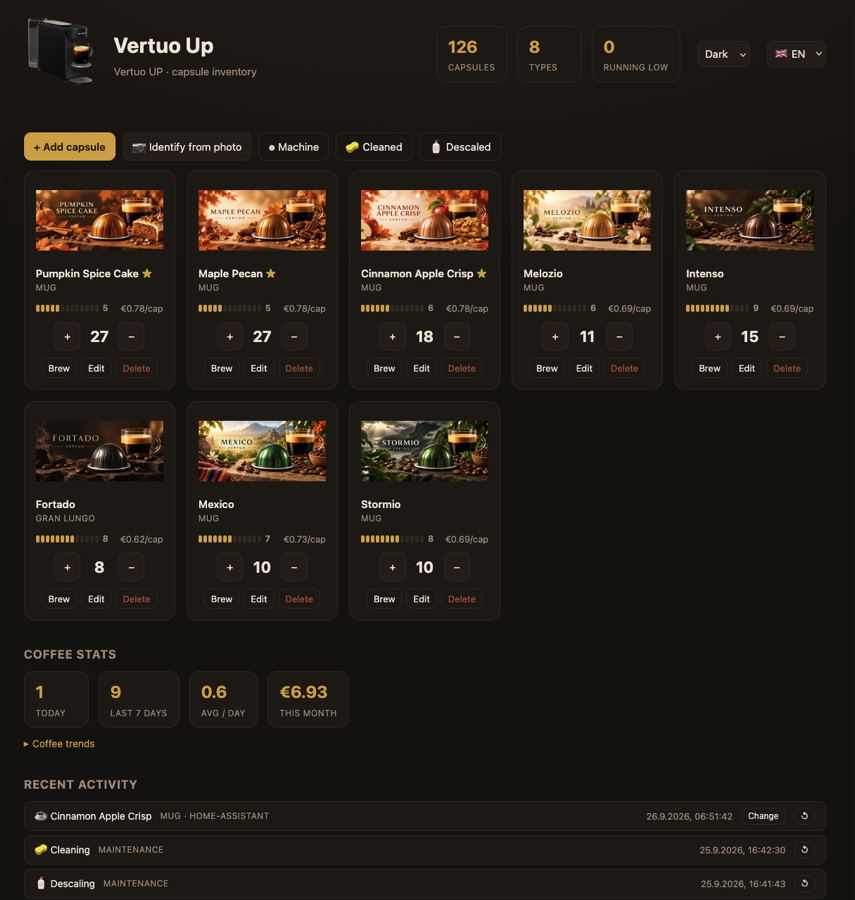
- Capsule cards grouped by family, each with the capsule's photo
(or your own photo URL; falls back to a drawn SVG if none), count,
+/−buttons; drag a tile to reorder them. +/−adjust stock; Brew lowers stock by 1 and logs a brew.- Coffee stats: brewed today / last 7 days, average per day, spend this month, a 12-week heatmap, most-brewed and per-family breakdowns, plus a burn-rate “~N days left” forecast.
- Running low list (per-capsule threshold) with one-tap restock to your sleeve size.
- Recent activity lists brews and restocks; undo any entry or reassign a brew's capsule.
- Upkeep reminders for cleaning (default every 10 days) and descaling (default every 90 days, both editable in the Machine dialog): a banner appears when one is due, and logging it adds a Cleaning/Descaling entry to the activity list. 🧽 Cleaned / 🧴 Descaled log it in one tap.
- Add / edit / delete capsules, optionally prefilled from the known-capsule
catalogue (
capsules.json), with optional price per capsule and a 1–13 intensity shown as a scale on each tile. - Mark limited editions (★ badge), set your machine name, model, photo and sleeve size (the one-tap restock amount), and pick a theme (auto / dark / light).
- Backup: export the full database as JSON from the Machine dialog, and restore it back (replaces all current data).
- Push notifications (optional): set an ntfy topic URL — public ntfy.sh or self-hosted — in the Machine dialog and test it with Send test. Whenever stock or upkeep changes, the server pushes “running low” and “cleaning/descaling due” reminders, at most once per episode (restocking or logging the task re-arms them). Works even if nobody opens the dashboard; it also catches up at startup.
Identifying a capsule from a photo
The dashboard has 📷 Identify from photo (also captures straight from a phone camera). It works in two stages:
- The browser reads the photo's dominant colour on a
<canvas>(no image library needed) and the server ranks your catalogue by colour similarity. - If a vision backend is configured, the model is shown the photo plus that colour shortlist and asked to pick one — much easier than picking from the whole catalogue.
What decides the result is the photo, not the model. An upside-down pod
prints its name and cup size around the aluminium base (VOLTESSO ·
ESPRESSO · 40 ml), and sleeves, boxes and product shots print it too — so
photograph the underside, the sleeve or the box. With the name in the
frame, all the model has to do is transcribe what it can see, which is the easy
end of the job and exactly what the small default model is for.
A top-down photo of the bare dome is the hard case: no text at all. There
the model can only vote on colour, and that is where even the large cloud models
in the table below are barely better than guessing. The default local
qwen3.5:4b has nothing to add on a dome shot — you still get the browser's
colour shortlist, but treat it as a guess. If you want identify to work without
fiddling, shoot the underside, not the top.
Colour ranking is only as good as the stored colours, so the seed colours in
capsules.json were sampled from the capsule photos, not guessed.
Benchmarked on real capsule photos
24 AI-generated capsule photos, exact-name accuracy — the capsules' own product shots, names printed on the artwork:
| Approach | Correct |
|---|---|
colour shortlist (top 6) → kimi-k3 |
20/24 (83%) |
kimi-k3 on the full 45-name list |
16/24 (67%) |
qwen3.5:397b full list |
7/24 (29%) |
deepseek-v4.1-flash (10-photo set) |
4/10 |
gemma4:31b, mistral-large-3:675b (10-photo set) |
2/10 |
minimax-m3, local gemma4:12b/26b |
~0/10 |
| colour ranking alone | correct capsule in the top 5: 24/24 |
So kimi-k3 is worth using; the others are barely better than guessing.
Even kimi-k3 still collapses the brown/gold capsules onto each other
(Melozio, Orafio, Inizio, Caramelizio). Treat identify as a shortlist to
confirm, never an automatic answer. The only exact identifier is the
barcode ring on the flange — it isn't readable from a casual photo, and some
types share the same code. A photo of the sleeve or box, where the name
is printed, is far easier and the prompt asks the model to read text first.
Enabling a vision backend
Any OpenAI-compatible endpoint. The default is a local Ollama —
ollama pull qwen3.5:4b — on http://127.0.0.1:11434/v1:
VISION_BASE_URL=http://127.0.0.1:11434/v1 VISION_MODEL=qwen3.5:4b python3 server.py
Ollama Cloud, if you'd rather not run a model yourself (needs an API key):
VISION_BASE_URL=https://ollama.com/v1 \
VISION_MODEL=deepseek-v4.1-flash \
VISION_API_KEY=your-ollama-key \
python3 server.py
VISION_API_KEY defaults to ollama. With VISION_BASE_URL and VISION_MODEL
unset — in Docker, VISION_MODEL= empty — identify is colour-only and offline.
Auto-update: what the machine can and cannot tell you
Short version: you can detect that a coffee was brewed and its family, but not which exact capsule. The Vertuo machine scans the barcode on the capsule to choose brew parameters, but neither of the reverse-engineered interfaces exposes that decoded code.
| Path | Gives you | Needs |
|---|---|---|
Nespresso cloud API (nespresso.com/ecapi, what the app uses) |
machineStatus (incl. brewing), lastCoffeeFamilyID |
Your nespresso.com login tokens |
| Local BLE (Vertuo Next / Pop / Pop+ / Up / Creatista / Lattissima) | state incl. capsule_reading and brewing, water-tank-empty, capsule-container-full |
Machine in BLE range |
| Smart plug power monitoring | That a brew started, by power signature | A metered plug |
The cloud lastCoffeeFamilyID maps to: 1 Espresso, 2 Double Espresso,
3 Gran Lungo, 4 Mug, 5 Alto, 6 Carafe, 7 Alto XL.
Existing Home Assistant integrations already solve the machine connection — use one of these and don't reimplement it:
piitaya/ha-nespresso-cloud— cloud, read-only.trust-the-log/ha-nespresso— cloud, read-only.renaudallard/homeassistant_nespresso_smart— local BLE.joostlek/nespresso-ble— Python BLE client.
Wiring a detector to this dashboard
Point any detector at POST /api/brew-detected:
curl -X POST http://127.0.0.1:8787/api/brew-detected \
  -H 'content-type: application/json' \
  -d '{"family":"Mug","source":"home-assistant"}'
family accepts the name (Mug) or the cloud id ("4"). The server then:
- one capsule of that family in stock → decrements it automatically;
- several in stock → queues a pending brew, and the dashboard shows a banner: “A Mug was just brewed — which one?” with one-tap buttons;
- none in stock → logs it as
out-of-stock, changes nothing.
Home Assistant automation example (cloud integration exposes the last brewed family as a sensor):
alias: Log Nespresso brew
trigger:
  - platform: state
    entity_id: sensor.my_vertuo_machine_status
    to: "brewing"
action:
  - service: rest_command.nespresso_stats_brew
    data:
      family: "{{ states('sensor.my_vertuo_last_coffee') }}"
# configuration.yaml
rest_command:
  nespresso_stats_brew:
    url: "http://127.0.0.1:8787/api/brew-detected"
    method: POST
    content_type: "application/json"
    payload: '{"family":"{{ family }}","source":"home-assistant"}'
For a BLE setup, trigger on the state becoming brewing (or
capsule_reading) and post {"family":"..."} — or, if you don't want to
guess the family, post {"family":"Unknown"} just to log that a brew
happened, and tap the capsule in the dashboard.
Languages
The UI ships in English and German, with a language picker in the top right showing
the flag and short code (e.g. 🇬🇧 EN). The choice is remembered per browser
(localStorage); on a first visit the browser's language is used when a matching
translation exists, otherwise English.
Adding a language means adding one file — no code changes:
- Copy
static/i18n/en.jsontostatic/i18n/<code>.json(e.g.fr.json). - Set
"language"(full name, used as the tooltip) and"flag"(the emoji shown in the picker, e.g."🇫🇷"). The option itself shows the flag plus the uppercase file code, sofr.jsonrenders as🇫🇷 FR. - Translate the values under
"strings". Keys you leave out fall back to English, so a partial translation is fine.
The picker is built from GET /api/languages, which lists every static/i18n/*.json
and reads its language field — drop the file in and it appears.
API
| Method | Path | Body |
|---|---|---|
| GET | /api/state |
— (capsules, brews, pending, maintenance, machine, families, and known — catalogue capsules not in your inventory, used to prefill the add dialog) |
| GET | /api/stats |
— (raw brew/restock events for the stats view) |
| GET | /api/languages |
— (available UI translations, [{code, label}]) |
| GET | /api/export |
— (full JSON backup of capsules, brews, settings) |
| POST | /api/import |
a /api/export backup — replaces all data |
| POST | /api/notify-test |
{url?} — send a test push to the configured ntfy topic |
| POST | /api/capsules |
{id?, name, family, color, image, notes, count, price, threshold, intensity, special} (special = limited-edition ★) |
| DELETE | /api/capsules?id=N |
— |
| POST | /api/brew |
{capsule_id, delta, log?, source?} (delta -1 = remove, +1 = restock; log:true also records a brew, source defaults to manual) |
| POST | /api/brew-detected |
{family, source?} |
| POST | /api/brews |
{brew_id, capsule_id} — reassign/resolve a brew |
| DELETE | /api/brews?id=N |
— (undo a brew/restock and fix the count) |
| POST | /api/identify |
{color, image?} — color is #rrggbb, image an optional data URL |
| POST | /api/resolve |
{capsule_id, brew_id?} |
| POST | /api/dismiss |
{brew_id} |
| POST | /api/settings |
{machine_name?, machine_model?, machine_image?, sleeve_size?, clean_days?, descale_days?, ntfy_url?} |
| POST | /api/order |
{ids} — capsule ids in the user's drag order |
| POST | /api/maintenance |
{task} — clean or descale |
Files
server.py— HTTP server, SQLite storage, brew-matching logic.Dockerfile,docker-compose.yml,entrypoint.sh— container image, compose service, and thePUID/PGIDdrop-privileges wrapper.static/index.html— the dashboard (vanilla HTML/CSS/JS, no build).static/i18n/*.json— UI translations (one file per language, self-labelled).screenshot.png— the dashboard picture above.capsules.json— starter catalogue of the capsules you own (name, family, colour, intensity, and a photo understatic/capsules/).
Media gallery
Install Nespresso-Stats on Unraid in a few clicks.
Find Nespresso-Stats in Community Apps on your Unraid server, review the template, and click Install. Unraid handles the Docker app or plugin setup from the published template.
Categories
Related apps
Explore more like this
Explore allDetails
ghcr.io/avpnusr/nespresso-stats:latestRuntime arguments
- Web UI
http://[IP]:[PORT:8787]- Network
bridge- Shell
sh- Privileged
- false
Template configuration
Port for the Nespresso Stats web dashboard.
- Target
- 8787
- Default
- 8787
- Value
- 8787
Holds the SQLite database (nespresso.db). Delete it to re-seed the starter capsule catalogue.
- Target
- /data
- Default
- /mnt/user/appdata/nespresso-stats
- Value
- /mnt/user/appdata/nespresso-stats
User ID the app runs as. Default 99 = nobody.
- Default
- 99
- Value
- 99
Group ID the app runs as. Default 100 = users.
- Default
- 100
- Value
- 100
OpenAI-compatible vision endpoint for photo identify. 127.0.0.1 is the container itself, so point this at your Ollama host, e.g. http://192.168.1.10:11434/v1.
- Default
- http://127.0.0.1:11434/v1
- Value
- http://127.0.0.1:11434/v1
Vision model name. Leave empty to turn vision off and identify capsules by colour alone.
- Default
- qwen3.5:4b
- Value
- qwen3.5:4b
API key for the vision endpoint. Ignored by a local Ollama; set your Ollama Cloud key when using https://ollama.com/v1.
- Default
- ollama
- Value
- ollama