

Narratarr
OfficialDocker app from Narratarr's Repository
An *arr-style audiobook (and ebook) manager with its own player and reader.
Overview
Readme
View on GitHub
Narratarr
Your audiobooks: found, fetched, and playing.
An *arr-style audiobook manager with a built-in player.
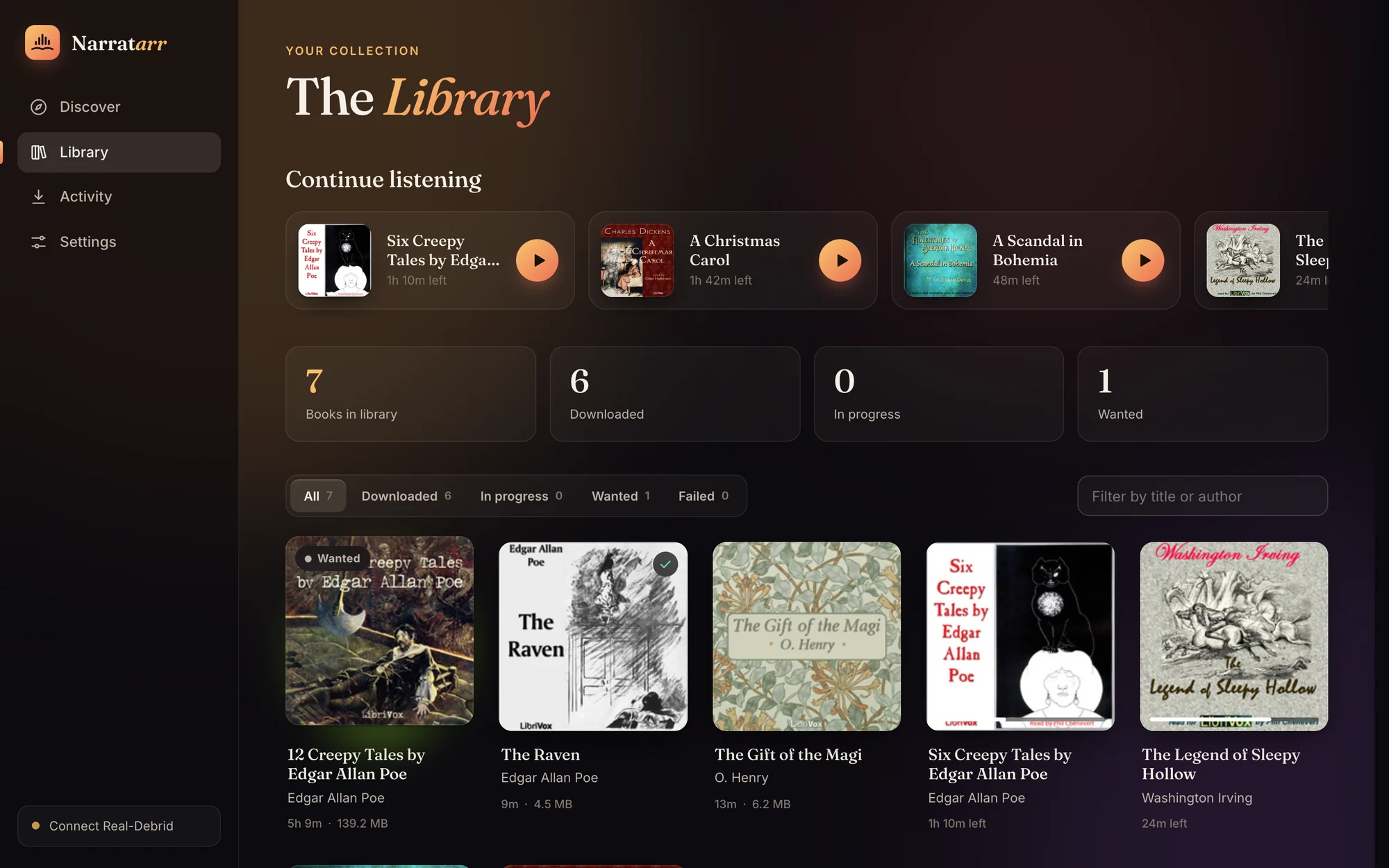
Discover a book, click once, and it lands in your library, tagged, organized and ready to listen to.

 Python 3.11+
License: MIT
Discord
Install · Features · How it works · Configuration · FAQ · Discord
✨ Features
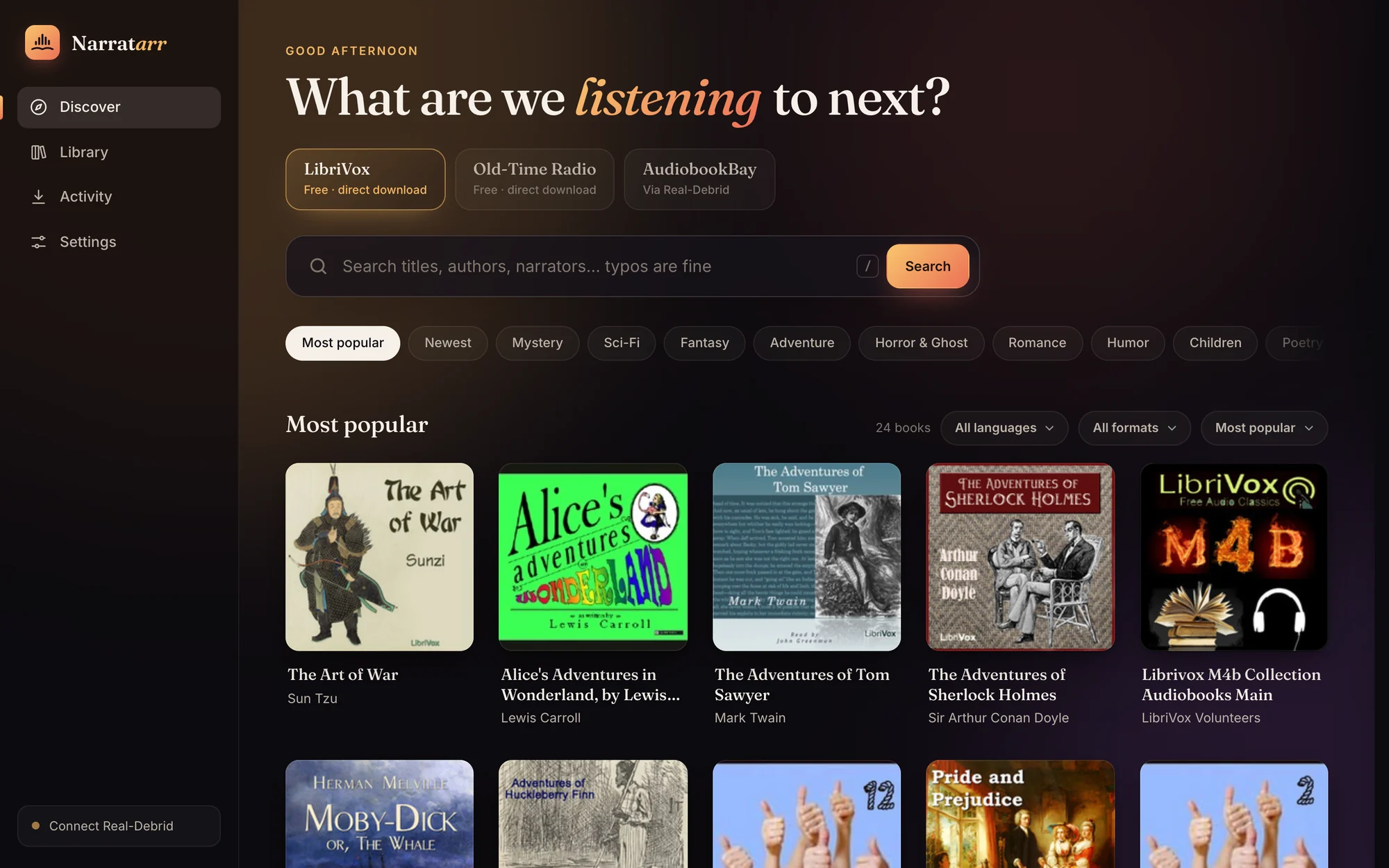
DiscoverBrowse more than 30,000 free, legal audiobooks and radio shows from LibriVox and Old-Time Radio. You can explore by genre, see what's most popular or newest, and filter by language and format. |
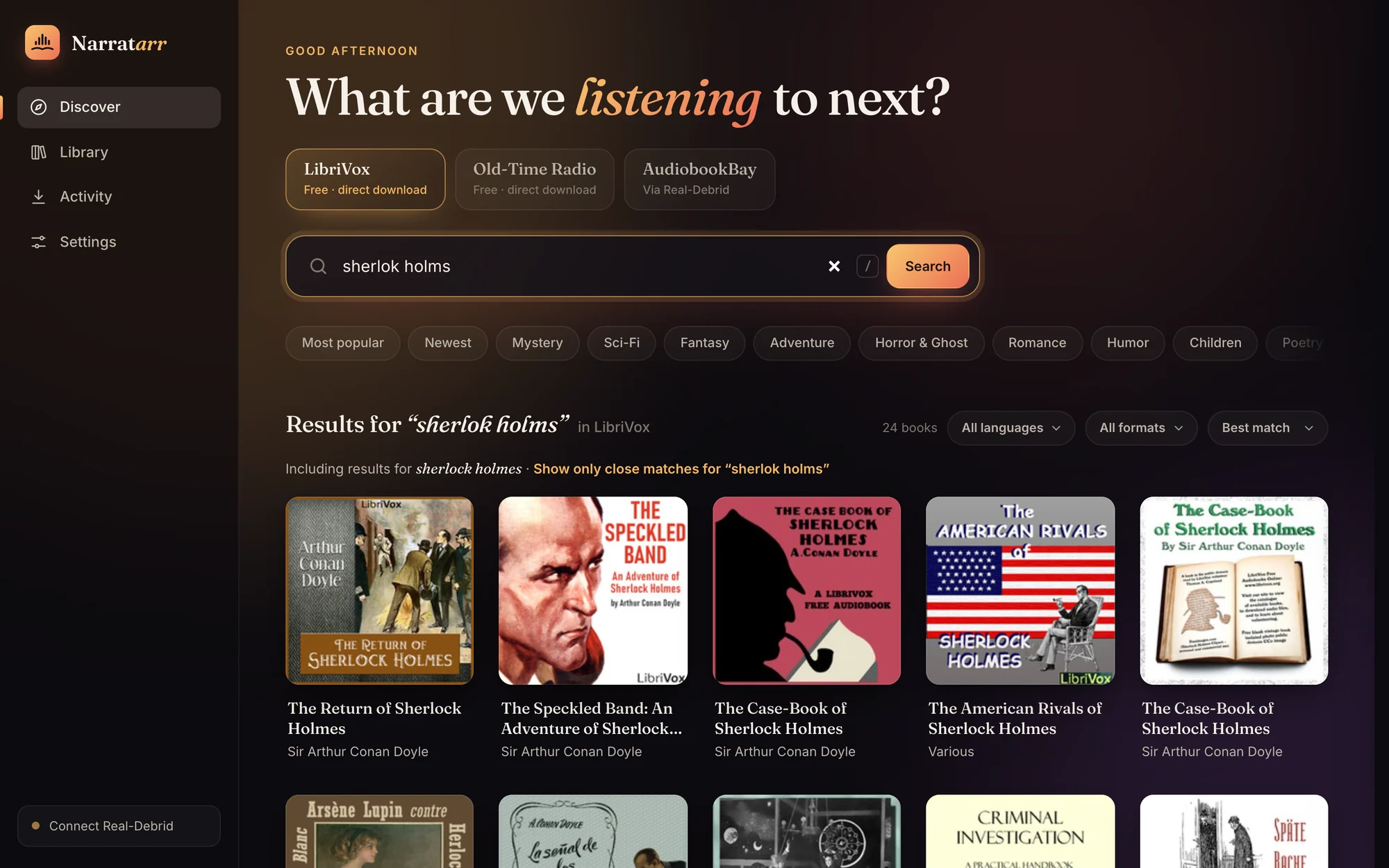
Search that forgives typosSearch for |
 |
 |
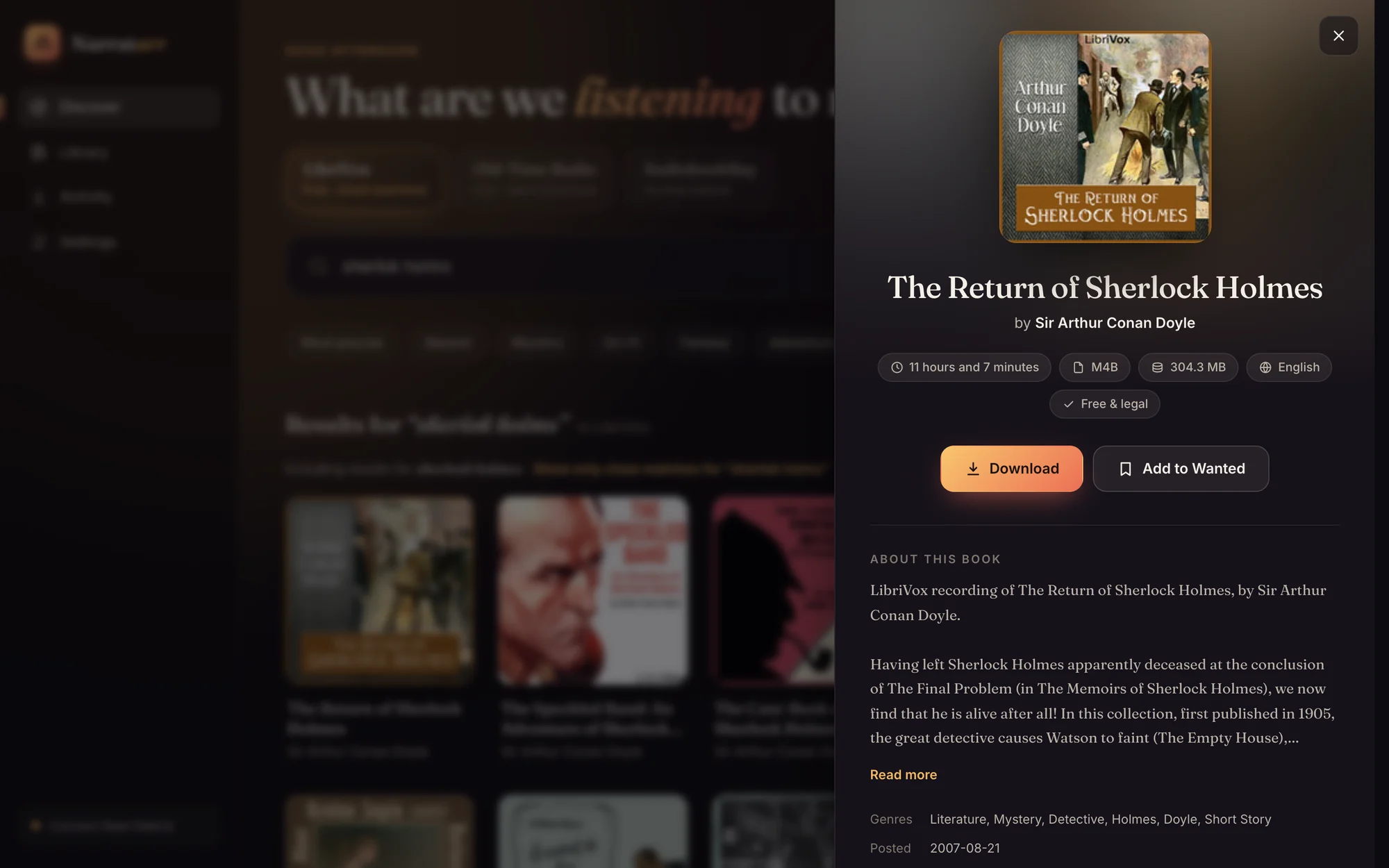
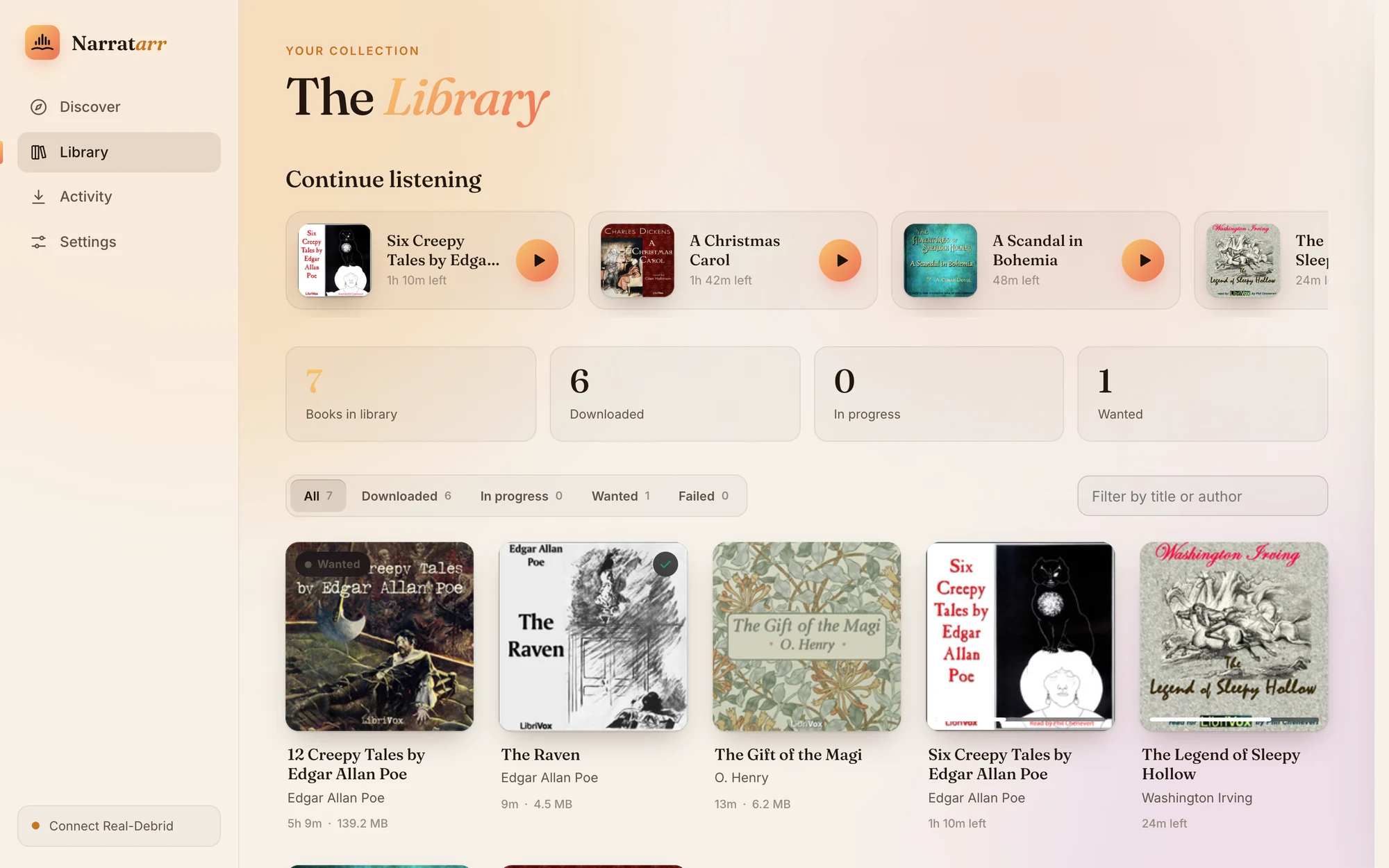
One click to your libraryEvery book shows its length, format, size and description before you commit. Downloads are queued, tracked live on the Activity page, and filed into your library as |
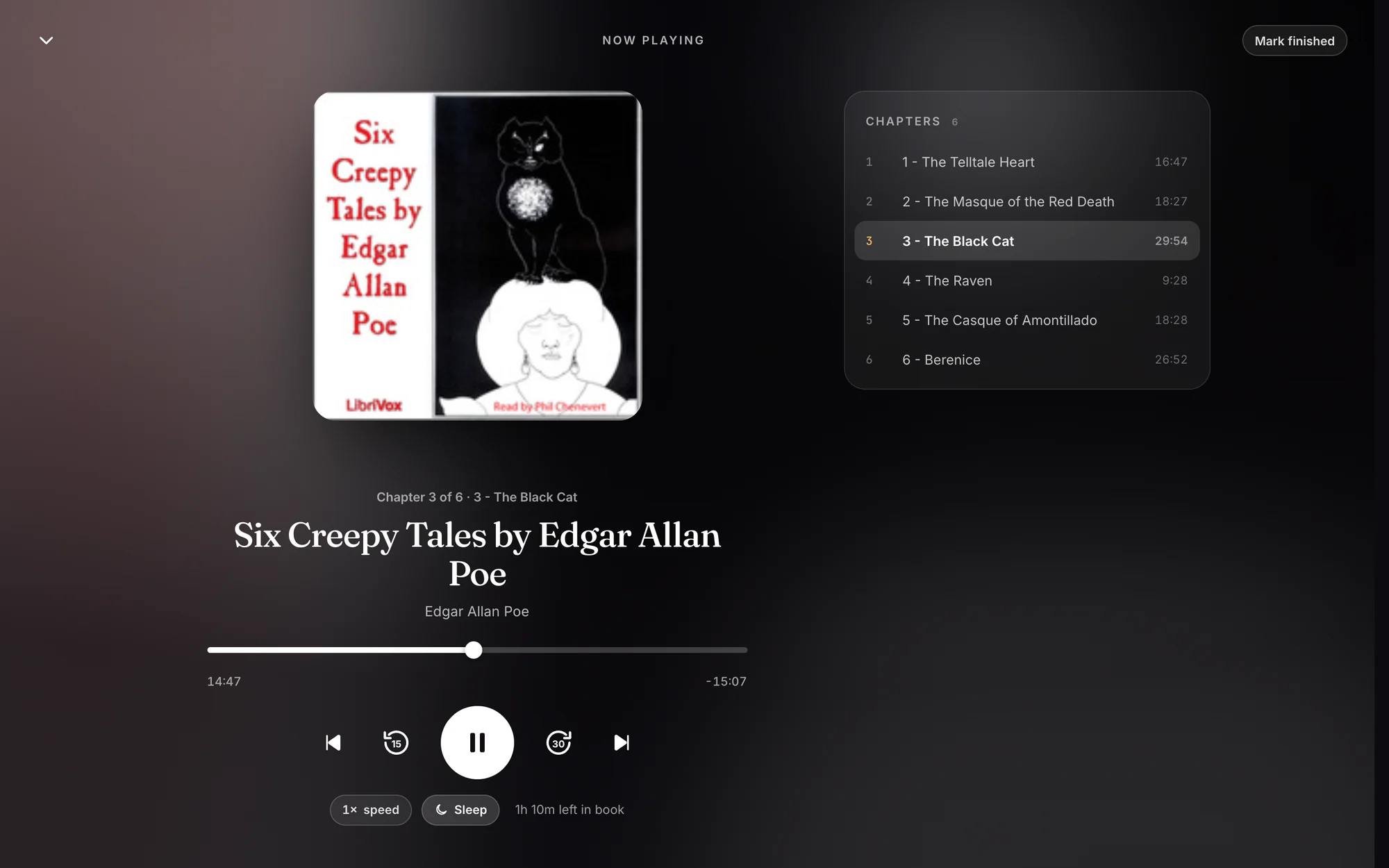
A real player, built inNo other app needed. You get chapters (including the chapter markers inside |
 |
 |
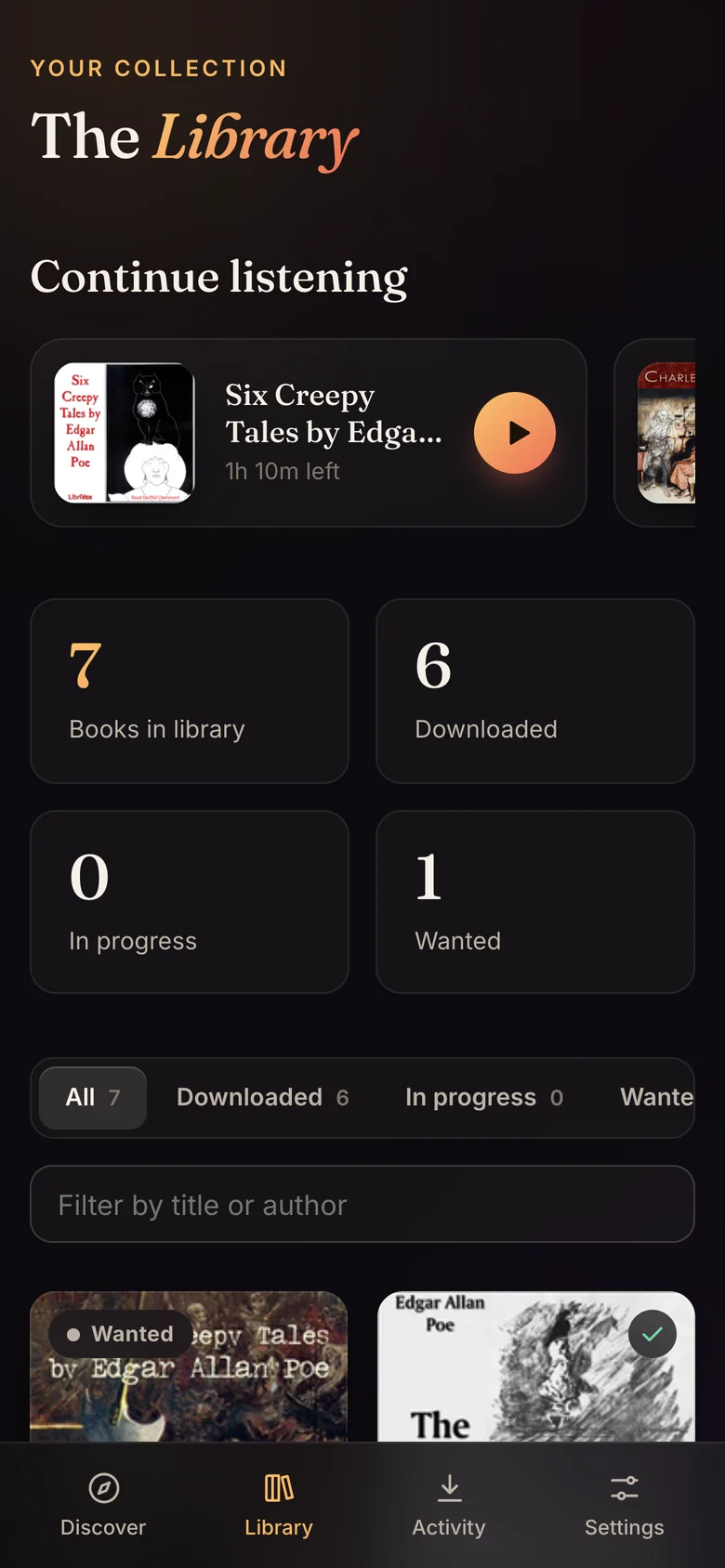
Made to be lived in
 |
|
🚀 Install
Pick whichever suits you. All of them end with Narratarr running at http://localhost:8484.
Option 1: The guided installer (macOS & Linux)
Paste this into a terminal:
curl -fsSL https://raw.githubusercontent.com/narratarr/narratarr/main/install.sh | bash
It asks a few friendly questions: Docker or native, where your books should go, and whether Narratarr should start when you log in. Then it does the rest. If needed it installs uv first (it asks before doing so). uv brings its own Python, so nothing else on your system changes.
Pick how to run it (arrow keys, enter)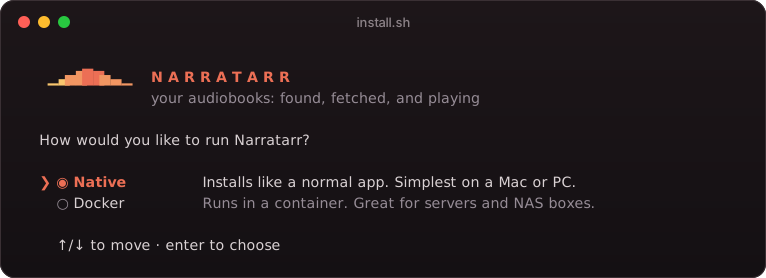 |
…and a few steps later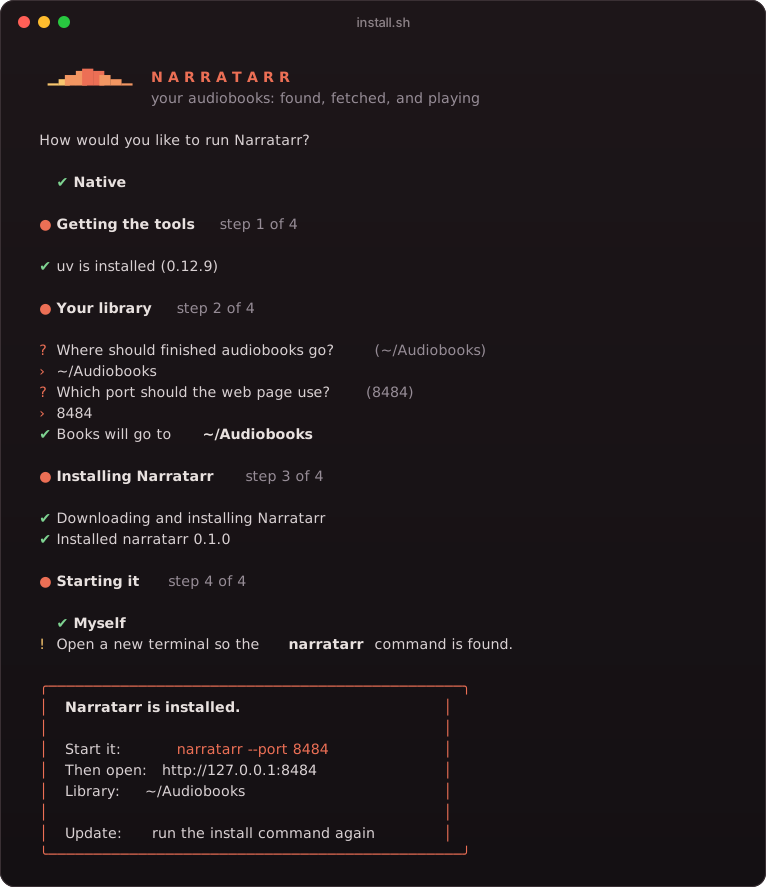 |
Installer options (for scripts and servers)
curl -fsSL https://raw.githubusercontent.com/narratarr/narratarr/main/install.sh | bash -s -- --docker --yes
| Option | What it does |
|---|---|
--docker / --native |
Skip the first question |
--library PATH |
Where finished books go (default ~/Audiobooks) |
--port N |
Web UI port (default 8484) |
--dir PATH |
Docker only: where docker-compose.yml and settings live (default ~/narratarr) |
--autostart / --no-autostart |
Native only: start at login with launchd (macOS) or a systemd user service (Linux) |
-y, --yes |
Accept defaults, ask nothing |
--uninstall |
Remove Narratarr. Your audiobooks and settings are kept |
To update, run the same install command again.
Option 2: Docker Compose
Images are published for linux/amd64 and linux/arm64, so they work on Intel and Apple Silicon machines, a Raspberry Pi 4/5 or a NAS.
services:
  narratarr:
    image: ghcr.io/narratarr/narratarr:latest
    container_name: narratarr
    restart: unless-stopped
    ports:
      - "8484:8484"
    environment:
      - PUID=1000          # run `id -u` to find yours
      - PGID=1000          # run `id -g` to find yours
      - TZ=Etc/UTC
    volumes:
      - ./config:/config            # settings + library database
      - ~/Audiobooks:/audiobooks    # where finished books go
docker compose up -d
Like the other *arr images, the container runs as PUID:PGID, so the files it writes belong to you, not to root.
Plain docker run
docker run -d --name narratarr --restart unless-stopped \
  -p 8484:8484 \
  -e PUID=$(id -u) -e PGID=$(id -g) \
  -v "$PWD/config:/config" \
  -v "$HOME/Audiobooks:/audiobooks" \
  ghcr.io/narratarr/narratarr:latest
On Unraid
Narratarr has an Unraid template. Until it's in Community Applications, add it once by hand:
- Open Unraid's Terminal (the
>_icon at the top right) and run:wget -O /boot/config/plugins/dockerMan/templates-user/my-Narratarr.xml \ https://raw.githubusercontent.com/narratarr/narratarr/main/unraid/narratarr.xml - In Docker, choose Add Container, and pick Narratarr from the Template list (under User templates).
- Check the Audiobooks share (Audiobookshelf should use the same one), and if you use qBittorrent, Transmission, Deluge, SABnzbd or NZBGet, add their Downloads share. Then Apply, and open the Web UI.
It runs as Unraid's usual nobody:users (PUID 99, PGID 100), so the files it writes fit in with your other containers.
Option 3: With uv, or from source
uv tool install git+https://github.com/narratarr/narratarr
narratarr                     # → http://127.0.0.1:8484
git clone https://github.com/narratarr/narratarr && cd narratarr
uv sync && uv run narratarr
Windows: use Docker Desktop with the Compose file above. Running from source with uv works on Windows too.
🎧 Your first five minutes
- Open http://localhost:8484. You land on Discover, showing LibriVox's most popular books.
- Search for something, or tap a genre like Mystery or Sci-Fi.
- Open a book and press Download. You can watch its progress on the Activity page.
- When it's done, find it in your Library and press ▶︎.
- (Optional) Already have audiobooks? Library → Import books brings them in.
- (Optional) In Settings, choose your library folder, connect Prowlarr and your download clients, or turn on Audiobookshelf.
🧭 How it works
flowchart LR
    A["🔎 Discover & search"] --> B{"Which source?"}
    B -- "LibriVox · Old-Time Radio" --> C["⬇️ Direct HTTPS download<br/>from the Internet Archive"]
    B -- "Torrents · AudiobookBay, Prowlarr" --> D["🧲 Real-Debrid, AllDebrid, TorBox, Premiumize,<br/>qBittorrent, Transmission or Deluge"]
    B -- "Usenet · Prowlarr" --> U["📰 SABnzbd or NZBGet<br/>downloaded and unpacked"]
    W["⭐ Wanted · followed authors"] -- "searched automatically" --> B
    I["📁 Books you already have"] --> E
    C --> E["🗂️ Organize<br/>Author / Title · cover · description"]
    D --> E
    U --> E
    E --> F[("📚 Your library")]
    F --> G["▶️ Built-in player"]
    F --> H["Audiobookshelf · Plex · any app"]
| Step | What happens |
|---|---|
| Queue | Books you add wait in a queue (2 at a time by default). Interrupted downloads pick up again when the app restarts. |
| Fetch | Free sources download straight over HTTPS. Torrents go through Real-Debrid, AllDebrid, TorBox or Premiumize (nothing is shared from your machine) or your own qBittorrent, Transmission or Deluge. Usenet releases go to your SABnzbd or NZBGet, and Narratarr picks up the files when it has finished unpacking. |
| Organize | Archives are unzipped safely, files move into {author}/{title} (configurable), and cover.jpg, desc.txt and reader.txt are written next to them, the layout Audiobookshelf expects. |
| Listen | The player treats a book as one timeline, whether it's a single .m4b or 40 .mp3 parts, and streams it to any browser with seeking. |
Sources
| Source | What's there | How it downloads |
|---|---|---|
| LibriVox | ~22,000 public-domain audiobooks read by volunteers: Austen, Doyle, Dickens, Poe, Twain… | Free, direct from the Internet Archive |
| Old-Time Radio | ~9,000 classic radio dramas and comedies, 1930s–60s | Free, direct from the Internet Archive. Some full series are several GB, and the size is shown before you download |
| AudiobookBay (optional) | Torrent listings | Via Real-Debrid, AllDebrid, TorBox or Premiumize (an account with one required) |
| Prowlarr (optional) | Whatever indexers you've added to your own Prowlarr | Usenet via SABnzbd or NZBGet; torrents via Real-Debrid, AllDebrid, TorBox, Premiumize, qBittorrent, Transmission or Deluge |
| Torznab (optional) | Any indexer that speaks Torznab: Jackett, Prowlarr's Torznab endpoint, or a standalone indexer. Give it the address ending /torznab/api and the key |
Same as Prowlarr |
| Audible catalog (with Prowlarr) | Every audiobook in Audible's store, with covers, series and release dates | Nothing downloads from Audible: books go to Wanted and Narratarr finds them on your indexers (or free on LibriVox) |
| Open Library (with Prowlarr) | Millions of books, including ones that were never made into audiobooks: trending, by subject, or by search | Like the Audible catalog: books go to Wanted, as ebooks unless you pick otherwise |
Narratarr deliberately sticks to the Internet Archive's curated LibriVox and Old-Time Radio collections. The Archive's general uploads include copyrighted audiobooks posted without permission, so those are left out.
Your *arr stack: Prowlarr and download clients
Already running an *arr stack? Narratarr searches the indexers in your Prowlarr and hands downloads to your own clients, the same way Sonarr and Radarr do.
| Settings section | Choose | Where to find what it asks for |
|---|---|---|
| Prowlarr | Address (e.g. http://localhost:9696) and the API key from Prowlarr → Settings → General |
|
| Usenet | SABnzbd | Address (e.g. http://localhost:8080) and the API key from Config → General |
| NZBGet | Address (e.g. http://localhost:6789) plus its ControlUsername / ControlPassword from Settings → Security |
|
| Torrents | Real-Debrid | API key from real-debrid.com/apitoken. Nothing is shared from your machine |
| AllDebrid | Choose Connect AllDebrid and enter the short code at alldebrid.com/pin, or paste a key from alldebrid.com/apikeys. The first time, AllDebrid may email you to approve your server's location. It refuses some data-centre and VPN addresses | |
| TorBox | Choose Connect TorBox and enter the short code on TorBox's page, or paste the API key from TorBox's settings | |
| Premiumize | API key from premiumize.me/account. Needs a premium account | |
| qBittorrent | Web UI address, username and password. Torrents get an audiobooks category, and can go to a download folder of their own |
|
| Transmission | Address (e.g. http://localhost:9091), plus a username and password if you set one. Torrents get an audiobooks label (Transmission 3.0+), and can go to a download folder of their own |
|
| Deluge | Web UI address (e.g. http://localhost:8112) and its password. Deluge has no username. Torrents are labelled narratarr-<book id> when the Label plugin is enabled, and can go to a download folder of their own |
Press Test next to each one. Once Prowlarr is connected, a Prowlarr tab (and an Audible catalog tab) appears on Discover. Each Prowlarr result shows its indexer, size, format, and whether it's Usenet or a torrent. Open one and Narratarr matches the release name to the real book, so it's filed under the right author and title, with cover art.
Routing a release to a particular client. Settings → Downloads holds a list of clients and, under Routing, an ordered list of rules: the first rule that matches sends the release to its client, and anything unmatched goes to the default. A rule matches on the indexer that found the release, the kind of book, or both. Every grab logs which rule decided it, so a file that landed somewhere unexpected can be explained afterwards. With no rules, nothing changes. Full detail, including what the log lines look like and how to test a route before trusting it: docs/download-routing.md.
What happens after you press Download:
- Usenet: the NZB goes to SABnzbd or NZBGet. When it has downloaded, repaired and unpacked the release, Narratarr moves the files into your library and clears the job from the client's history.
- qBittorrent / Transmission / Deluge: when the torrent finishes, Narratarr hard-links the files into your library (copying only if they're on different drives). The torrent keeps seeding, which matters on private trackers.
- Stop or Remove in Narratarr also removes an unfinished download from the client.
When your cloud service hasn't got the torrent yet. Real-Debrid, AllDebrid, TorBox and Premiumize download the torrent themselves, which is what makes them fast. If the release is not already on their servers they have to fetch it first, and some of them charge that against a tight budget: TorBox allows only 60 uncached adds an hour, against 300 a minute when it already has the file.
If you also run qBittorrent, Transmission or Deluge, you can tell Narratarr to send uncached torrents there instead. It appears under Settings → Downloads as When your cloud service hasn't cached a torrent. Pick a local client and the release downloads from the swarm on your own machine, seeds for other people, and only then is it linked into your library. Leave it on Off and nothing changes. The torrent is never removed from the local client afterwards, so it keeps seeding.
The fallback only fires on a definite "not cached" answer:
| What the service says | What Narratarr does |
|---|---|
| It has the torrent | Sends it there as usual |
| It definitely hasn't got it | Sends it to your local client, and says so on the book |
| It can't answer (an error, a timeout, an unclear reply) | Sends it there as usual, and says why it didn't fall back |
| It has no cache check Narratarr trusts | Sends it there as usual, and says so |
That last pair matters: a provider having a bad minute will never quietly send your download somewhere you didn't pick. TorBox has a documented cache check that Narratarr uses. Real-Debrid still documents one but several other tools report it was switched off, so Narratarr only trusts a positive answer from it and treats everything else as unknown; it has not been verified against a live Real-Debrid account. AllDebrid and Premiumize are not wired up, so uncached fallback does not apply to them.
Two smaller limits, stated rather than hidden: a .torrent file whose hash Narratarr doesn't already know cannot be checked (there is no bencode parser in the app), and a cloud service that removes the torrent after downloading it does not help the swarm, which is the other half of why the local route exists.
Narratarr searches category 3030 (Audio › Audiobook) for audiobooks and 7020 (Books › EBook) for ebooks by default; you can change either under Settings → Prowlarr. The Prowlarr tab on Discover has an Audiobooks / Ebooks switch, and Test tells you which of your indexers offer ebooks. To go easy on indexer API limits, each search is sent once as typed, and a second, spelling-corrected search is only made when the first finds little.
[!TIP] Running it all in Docker? Narratarr needs to see your clients' finished downloads. Mount the same host folder into every container, ideally at the same path:
services:
  narratarr:
    volumes:
      - /data/downloads:/data/downloads   # same path as in your download clients
  sabnzbd:            # or nzbget / qbittorrent / transmission
    volumes:
      - /data/downloads:/data/downloads
If the paths have to differ (say the client uses
/downloadsand Narratarr uses/data/downloads), fill in Settings → Download folders → Path mapping. Use your containers' names as the addresses, e.g.http://prowlarr:9696.qBittorrent in Docker: keep
WEBUI_PORTthe same as the port you publish (e.g.8080:8080). qBittorrent refuses connections that arrive on a different port.Addresses from inside Docker:
localhostmeans Narratarr's own container, so use the IP address of the machine the other app runs on (e.g.http://192.168.1.10:8080), or its container name when both are on the same Docker network.SABnzbd by container name: SABnzbd only answers to names on its own list, so
http://sabnzbd:8080is turned away until you addsabnzbdunder SABnzbd's Config → Special → host_whitelist and restart it. Its IP address always works.Audiobookshelf by container name: inside a Docker network, Audiobookshelf listens on port 80, so its address is
http://audiobookshelf, not:13378(that's the port published on the host).
Ratings on the cards
Discover can show a star score on each book, taken from the average Audible publishes for the audiobook edition. It is on by default and switched off in Settings → Search & sources → Rating metadata; switched off, no requests are made at all and no pill is shown. Library cards show the same pill for books that have a score.
A score appears only when the book we found is the book we asked for: the title must match exactly after normalising, and the surname must match too. A near miss leaves the card reading No Rating, and a book that exists but has no ratings yet reads No Rating Available. A wrong score is worse than a blank one, so the gate is strict rather than fuzzy.
Audible sells different titles in different countries and the ratings service only answers from a
storefront that carries the book, so the settings take an ordered list of them, with a Test
button per row. The storefront that answered is remembered for that book, and the book's own home
marketplace is tried as well, so a single uk entry is enough for most titles.
Full details, including what is cached and for how long, how to fill a whole library before browsing, and what the feature cannot do: docs/ratings.md.
Wanted books and following authors
Some books aren't out yet, or aren't on your indexers yet. Put them on your Wanted list and Narratarr keeps looking for you.
- Add any book: the Audible catalog tab on Discover browses and searches Audible's whole store, including bestsellers, new releases, genres and books that haven't come out yet. Press Add to Wanted. Nothing is downloaded from Audible; it's only used for the book's details.
- Automatic search: Narratarr checks your Prowlarr indexers, and LibriVox for public-domain titles, every 12 hours (adjustable). It only grabs a release when both the title and the author match, preferring free LibriVox recordings, M4B files and torrents with seeders. A few books are checked at a time to stay within your indexers' API limits, and books that aren't released yet wait until their release date.
- Ask before downloading: turn on Ask before downloading what it finds (Settings → Search & sources) and a release that automatic search finds waits under Library → Awaiting approval instead of downloading. Check its language, format and size, then Approve it, Pick another, or Keep looking, which turns that release down for good. Add the Release found event to a notification to hear about each one.
- More Audible stores: some books are only sold in another country, such as French titles on audible.fr. Under More Audible stores to search, pick the stores you want; everyone, listeners too, can then switch the Audible catalog to one of them for a search, and a search that finds nothing in your main store tries them in order. A book added from another store keeps its details from that store.
- Books you already have: when Audiobookshelf is connected, author pages and the Audible catalog mark the books in your Audiobookshelf library as In Audiobookshelf, and Add all missing skips them.
- A download that fails gets another release: when the release itself is bad (your download client says it failed, a debrid service says the torrent is dead, it finds no seeds in a week, or there's no audio in it), Narratarr picks the next best match the way automatic search would, up to twice per book, and holds it for approval if you've asked for that. A setup problem, such as a downloads folder Narratarr can't see, isn't retried, since another release would fail the same way. A release that failed is never picked on its own again, and Pick a release marks it Failed before (and ones you turned down Turned down). Switch it off under Settings → Search & sources.
- Pick a release yourself: open a Wanted book and press Pick a release to see every match with a score, then Grab the one you want. The book keeps Audible's title, cover and description whichever release you pick.
- Audiobook, ebook or both: when you add a book to Wanted, choose the format. You can also open any book in your library and press Want it too on the format you don't have yet. Ebooks are searched for in your indexers' ebook categories, and Narratarr keeps one file per book, preferring EPUB, then AZW3, MOBI and PDF. The ebook goes into the audiobook's folder (or the audiobook into the ebook's), which is how Audiobookshelf shows both as one book. A finished EPUB opens in Narratarr's own reader (pages you turn, Paper, Sepia and Night themes, text size and font, contents, and your place remembered), a PDF in your browser's viewer, and any ebook can be downloaded for Apple Books, Kindle, Kobo or another reading app.
- Follow authors and series: on the Authors page, search for an author and press Follow, or press Follow on any book's author or series. Their new releases (and, if you like, everything already out) go straight to Wanted. Each author and series page shows their books, what's in your library, and an Add all missing button.
- Your Hardcover shelf: connect Hardcover under Settings → Search & sources → Hardcover, and books you mark Want to Read there come to Wanted. Connecting takes a short code you approve on hardcover.app, so you never paste a password or key into Narratarr. It can only read your profile and shelves, and never changes anything on Hardcover. Every six hours (or when you press Check now), new shelf books are matched on Audible: by an audio edition's ASIN when Hardcover has one, otherwise by exact title and author. Each is added in the format you pick (audiobook, ebook or both), up to 25 per check. Each book is handled once, so one you take off Wanted stays off, and the panel lists what happened to each, including books Audible doesn't have. Those get another look each month, or right away with Look again. Disconnect signs Narratarr out on Hardcover as well. Hardcover's API is still in beta, so this may need fixes as it changes.
Importing books you already have
Library → Import books scans any folder on the computer running Narratarr. Each folder of audio files becomes one book (CD1/Disc 2 sub-folders stay together), named from the files' tags or from the folder names (Author/Title or Author - Title). Ebook files (EPUB, MOBI, AZW3, PDF, FB2, CBZ, CBR) that aren't inside an audiobook's folder come in as ebooks, named from the EPUB itself where possible. Several formats of the same book count once. Check the names, fix any, then choose:
- Copy in: copies them into your library, organized as
Author/Title, and leaves the originals alone. - Move in: the same, but moves them.
- Leave where they are: adds them without touching the files. Use this for an existing Audiobookshelf or Plex library.
Cover art embedded in the audio files is saved as cover.jpg. For hands-off imports, set an import folder under Settings → Import: anything dropped there is moved into your library automatically, once it has finished copying.
⚙️ Configuration
Most things live on the Settings page: library folder, folder template, how many downloads run at once, search options, Prowlarr, download clients, automatic search, the import folder and Audiobookshelf. Secrets are stored in a chmod 600 file and never sent back to the browser in full.
A few things are set with environment variables instead:
| Variable | Default | Purpose |
|---|---|---|
NARRATARR_PORT |
8484 |
Web UI port (--port works too) |
NARRATARR_HOST |
127.0.0.1 (0.0.0.0 in Docker) |
Address to listen on. Use 0.0.0.0 to reach it from other devices |
NARRATARR_DATA |
~/.narratarr (/config in Docker) |
Settings and library database |
NARRATARR_LIBRARY |
~/Audiobooks (/audiobooks in Docker) |
Default library folder for new installs |
NARRATARR_PASSWORD |
(none) | Before 0.5.5 this was a single shared password. If it's set when you upgrade, it becomes the password of an admin account called admin; after that it's ignored |
NARRATARR_HOSTS |
(none) | Extra hostnames Narratarr should answer to, comma-separated (books.example.com, *.home.example). IP addresses, plain machine names and .local / .lan / .home / .internal / .ts.net names always work; anything else is refused to block DNS-rebinding attacks |
NARRATARR_TRUSTED_PROXIES |
(none) | Your reverse proxy's address or range (172.18.0.0/16), comma-separated. Narratarr then takes the visitor's address from the proxy's X-Forwarded-For, so sign-in limits apply per visitor rather than to everyone at once. That header is ignored from anyone else |
PUID / PGID |
1000 |
Docker only: the user and group files are written as |
Folder layout
Settings → General → Folder layout decides where each book goes inside your library. Put / between folders and use any of these:
| Variable | Becomes | Example |
|---|---|---|
{author} |
The author | Frank Herbert |
{title} |
The book's title | Dune |
{narrator} |
The narrator (up to two) | Scott Brick, Simon Vance |
{series} |
The series name | Dune Chronicles |
{series_number} |
The book's number in its series | 1, 2.5 |
{year} |
The year it came out | 1965 |
{kind} |
Audiobooks or Ebooks |
Ebooks |
When a book doesn't have one of these, that part is left out along with the words and punctuation around it, so one layout works for every book:
| Layout | A book in a series | A book on its own |
|---|---|---|
{author}/{title} (the default) |
Frank Herbert/Dune |
Andy Weir/Project Hail Mary |
{author}/{series}/Vol. {series_number} - {title} |
Frank Herbert/Dune Chronicles/Vol. 1 - Dune |
Andy Weir/Project Hail Mary |
{author}/{title} ({year}) |
Frank Herbert/Dune (1965) |
Andy Weir/Project Hail Mary (2021) |
Settings has one-click presets for these, including an Audiobookshelf style one, {author}/{series}/Vol {series_number} - {year} - {title} {{narrator}}, which gives Frank Herbert/Dune Chronicles/Vol 1 - 1965 - Dune {Scott Brick}: Audiobookshelf reads the series, volume, year and narrator straight from that name. (Double braces keep a brace in the name; an empty narrator leaves the braces out too.) The second layout above is how Audiobookshelf likes series laid out. Series and year come from the Audible catalog for Wanted books, and from the file's tags (SERIES, SERIES-PART, the date) for imports. Settings shows a live preview as you type. Changing the layout applies to books downloaded from then on. To move the books already in your library, use Tidy library.
Audiobooks and ebooks in separate Audiobookshelf libraries. Normally an ebook goes into its audiobook's folder, which is how Audiobookshelf shows both formats as one book. If you'd rather have an ebook library of their own, start the layout with {kind} (the Audiobooks and ebooks apart preset is {kind}/{author}/{title}). Audiobooks then go under Audiobooks/ and ebooks under Ebooks/, both inside your library folder. In Audiobookshelf, point one library at each folder, and under Settings → Audiobookshelf → Library for ebooks pick the ebook one, so it's rescanned after an ebook download. Tidy library moves existing books to match: an ebook that sits in its audiobook's folder moves out first, and the audiobook moves on the next run.
Tidy library
Settings → General → Tidy your library → Preview changes shows, for every finished book, the folder it's in now and the folder your layout puts it in. Nothing moves until you click Move, and Undo puts the last batch back.
- Where the names come from. Either Narratarr's details (from Audible, for matched books) or the audio files' own tags (album, artist, narrator,
SERIESandSERIES-PART, the date), whichever is better for your library. - Moves are renames on the same disk, never copies. They're instant, and Audiobookshelf recognises each moved folder as the same book, so everyone keeps their listening progress. An ebook inside its audiobook's folder moves with it, and an ebook elsewhere joins its audiobook's new folder. Folders left empty are cleared away.
- Books that can't move safely are held back, with the reason. That includes a folder that's already taken, two books that would share one folder, a folder with another book inside it, a book Narratarr is downloading, and a move that would mean copying to another disk. Books with no author or title are marked needs a look, with a button to fix their details, rather than filed under "Unknown Author".
- Optional extras. Add the cover,
desc.txtandreader.txtAudiobookshelf reads, where a folder lacks them. Or write the details into the audio files' tags (MP3, M4B/M4A, FLAC, Ogg, Opus) so every app agrees. Tag writing changes your files, and Undo doesn't change the tags back.
Audiobookshelf rescans once when tidying finishes, if it's connected.
Books whose tags don't say their series, narrator or year are filed as singles. Fill in missing details (next to Preview changes) takes them from your Audiobookshelf library first, when it's connected and has the book (matched by where it sits in the library folder, then ASIN, then title and author), and asks Audible for the rest, only for books whose title and author match exactly, and never overwrites what a book already has. A name that leads with its series, such as Playing for Keeps #1 - Consider Me, is matched by its title alone as long as Audible has it in that series, and then loses the prefix, since the series fields hold it. For a single book, open it and use Edit details: set the series, its number and the year yourself, or press Fill in from Audible. Then press Tidy this book to move just that one into its folder, with the same checks and the same Undo as tidying the whole library.
To have this happen by itself for new downloads, turn on Settings → General → Fill in missing details before filing a download. When a download finishes without a series, narrator or year, Narratarr looks it up on Audible before naming its folder. As with the button, only empty details are filled, and only from a book whose title and author match. If Audible can't be reached, the book is filed as it is.
Tidying a library Narratarr didn't download. Tidy works on the books in Narratarr's library, so bring the others in first without moving them:
- Library → Import books, choose your books folder, and pick Leave where they are. Each book is added where it is; nothing is copied or moved.
- Settings → General → Tidy your library → Fill in missing details, for the series, narrators and years your folder names and tags don't have. This only changes Narratarr's own records, never your files.
- Preview changes, pick the books, and Move them, with Write these details into the audio files' tags left off.
Moving is renaming, so the files themselves don't change: a torrent client seeding from a hardlink of a file keeps seeding, because its link still points at the same, untouched file. Writing tags does change the files, which breaks seeding from hardlinks, so leave that switch off if you seed.
Languages
Under Settings → Search & sources → Languages, pick the languages your books should be in. Discover then hides books it can tell are in another language (one click shows them again), and automatic search won't grab a release in another language; you can still pick one yourself. Narratarr reads the language from the source when it says, and otherwise from the release name ([German], .GER., Hörbuch, livre audio…), ignoring words that are part of the book's own title. A book whose language it can't tell is never hidden. For the Audible catalog, also choose the Audible store in that language (Germany, France…), since each store lists its own language.
Accounts
Everyone signs in. The installer asks for the first account, the admin; if you skipped it (or updated from before 0.5.5), the first time you open Narratarr it asks you to create one. Opened from another network, that first screen also wants the setup code Narratarr printed when it started (docker logs narratarr, or ~/.narratarr/narratarr.log), so nobody else can claim a fresh install.
Add people under Settings → Users:
| Role | Can |
|---|---|
| Admin | Everything: settings, download clients, imports, removing books, and managing users |
| Listener | Browse, search, request books, take back their own requests, and listen. Each listener has their own place in every book and their own Continue listening shelf |
Approving requests. By default, what a listener asks for waits under Library → Awaiting approval until an admin approves it (admins can approve straight from the top of the Library): nothing is searched for or downloaded before then, and if they picked a release, approving downloads exactly that one. Admins get a badge on Library, and the "Added to Wanted" notification says the request is waiting. Turn this off under Settings → Users → Requests to let listeners download straight away (and follow authors, which adds books by itself).
Everyone can change their own password from the account button at the bottom of the sidebar. Forgot the admin password? Reset it from a terminal on the machine running Narratarr:
narratarr users passwd <name>                              # native install
docker exec -it -u "$(id -u):$(id -g)" narratarr narratarr users passwd <name>    # Docker
narratarr users also has add, list, role and remove.
Requesting from other apps (API)
Apps can request books for you without opening Narratarr. They sign in with your account once, get tokens of their own, and can then search Audible's catalog, request a book (as an audiobook or an ebook) and follow it until it's in your library. Every app signed in to your account is listed under the account button, where you can disconnect it. Changing your password disconnects them all.
App tokens only reach this API, never settings or users. The API is versioned and only ever grows, so apps built on it keep working. For developers: docs/api.md, plus a live reference at /api/v1/docs.
Listening on your phone
Start Narratarr so other devices can reach it (Docker already does), then open http://<your-computer's-IP>:8484 on your phone while it's on the same Wi-Fi. Use Add to Home Screen for an app-like icon. Phones stay signed in for 30 days.
[!IMPORTANT] Narratarr is built for your home network. Don't expose it directly to the internet. If you want remote access, put it behind a VPN such as Tailscale or WireGuard, or behind a reverse proxy with proper authentication, and add the proxy's hostname to
NARRATARR_HOSTS.Everyone signs in, so a stranger who reaches the port gets a sign-in screen and nothing else. Don't ask for a password on my home network (Settings → Users) skips sign-in for this machine and your LAN; leave it off if Narratarr can be reached from the internet.
What leaves your machine
Narratarr has no telemetry and phones nobody. These are the only outside services it contacts, and when:
| Service | What it receives | When |
|---|---|---|
| archive.org | Your LibriVox / Old-Time Radio searches, and the titles of Wanted books during automatic searches | Using those tabs; automatic search |
| Apple's audiobook search (itunes.apple.com) | What you type in the search box, and Prowlarr release names (to work out the real title) | Only while Smart search is on |
| Audible's catalog and Audnexus (api.audnex.us) | Your searches on the Audible tab, and the authors and series you follow | Using the Audible tab; following |
| Open Library (openlibrary.org) | Your searches and the subjects you browse on the Open Library tab | Using the Open Library tab |
| Brave Search | Your searches, with your Brave key | Only if you turn it on |
| Real-Debrid, AllDebrid, TorBox, Premiumize, Prowlarr, SABnzbd, NZBGet, qBittorrent, Transmission, Deluge, Torznab, Audiobookshelf | Whatever each needs, with the key you entered for it | Only the ones you set up |
| Cover image hosts (archive.org, Amazon's image CDN, covers.openlibrary.org, your indexers) | Nothing but the image request, with no referrer | Your browser loads cover art directly |
| Your notification destinations (ntfy, Gotify, Discord, webhooks) | The book's title, author and cover link, and who asked for it | Only the ones you add under Settings → Notifications, for the events you choose |
| Hardcover (api.hardcover.app) | Your sign-in approval, then requests for your account name and your Want to Read shelf | Only if you connect it: every six hours, and when you press Check now |
| GitHub (api.github.com) | Nothing but the request for the latest release | Once a day, for the update badge. Off under Settings → Updates |
Fonts are bundled, so the UI itself never contacts a CDN. Torrents downloaded through qBittorrent, Transmission or Deluge expose your IP address to other peers, as with any torrent client; Real-Debrid, AllDebrid, TorBox and Premiumize don't.
🔍 Smart search, in detail
- Typos fixed: your words are checked against Apple's public audiobook catalog and corrected before searching. "Including results for sherlock holmes · Show only close matches for 'sherlok holms'"
- Suggestions as you type, with covers.
- Several result pages fetched at once and re-ranked by how well each title and author matches what you typed.
- Filters for language and format, plus sorting by best match, newest, size or title.
Smart search sends what you type to Apple's public search API. You can turn it off under Settings → Source.
❓ FAQ
Do I need Real-Debrid?
No. LibriVox and Old-Time Radio download directly and for free. Usenet results go through SABnzbd or NZBGet, and torrents can use AllDebrid, TorBox, Premiumize, or your own qBittorrent, Transmission or Deluge, instead of Real-Debrid.
Will it work with Audiobookshelf / Plex / Prologue?
Yes. Point those apps at the same library folder. Narratarr writes the Author/Title layout with cover.jpg and desc.txt that Audiobookshelf reads.
To have Audiobookshelf pick up new books straight away, open Settings → Audiobookshelf and press Find. Leave the address empty to look on this computer, in Docker and across your home network, or type a LAN or public IP or a domain. Then sign in with an Audiobookshelf admin account. Narratarr uses the password once, to create an API key called "Narratarr" (you can revoke it in Audiobookshelf under Settings → Users → API Keys), and never stores it. Single sign-on accounts and Audiobookshelf versions before 2.26 can paste an API key instead.
Not sure how to get the folders lined up? Press Setup guide in that panel. It asks where Audiobookshelf runs and how it's installed, fills your own paths into every step, and finishes by asking Audiobookshelf which of your books it can see. In short:
| Your setup | What to do |
|---|---|
| Audiobookshelf in Docker, on the same machine | Mount Narratarr's library folder into its container (- /your/library:/narratarr under volumes:), run docker compose up -d, then add /narratarr to a library under Settings → Libraries → Folders. |
| Audiobookshelf installed directly, on the same machine | Add Narratarr's library folder to a library under Settings → Libraries → Folders. On Linux, Audiobookshelf's own user needs to be able to read it (it can't read inside /root). |
| Narratarr in Docker | Use the folder on the server, not /audiobooks: docker inspect narratarr --format '{{range .Mounts}}{{if eq .Destination "/audiobooks"}}{}{{end}}{{end}}' prints it. |
| Audiobookshelf on another machine | Install Narratarr on that machine instead, or share Audiobookshelf's folder over the network and set it as Narratarr's library folder. |
Where are my files and settings?
Books go to your library folder (~/Audiobooks by default). Settings and the library database live in ~/.narratarr, or in ./config with Docker. Uninstalling never touches either.
Which download clients does it work with?
Prowlarr for searching; SABnzbd and NZBGet for Usenet; Real-Debrid, AllDebrid, TorBox, Premiumize, qBittorrent, Transmission and Deluge for torrents. See Your *arr stack.
How is this different from Chaptarr or Listenarr?
They're great at classic *arr automation. Narratarr does that too (Prowlarr, download clients, a Wanted list, following authors), but it's built around listening: a built-in player with chapters, speed, sleep timer and resume on any device, about 30,000 free LibriVox and Old-Time Radio books one click away, typo-tolerant browsing, and a one-command installer. It's happy to share a library folder with them.
How do I update?
Narratarr checks GitHub once a day and shows an Update badge in the sidebar when a new version is out, with the changes listed. Native installs (the installer's default) update themselves from there with one click and restart. Docker: docker compose pull && docker compose up -d. From source: git pull && uv sync. The full history is in CHANGELOG.md.
🛠️ Development
git clone https://github.com/narratarr/narratarr && cd narratarr
uv sync
uv run narratarr --port 8484      # the UI reloads its files on refresh; no build step
uv run pytest                     # ffmpeg enables the chapter tests
narratarr/
  api.py            FastAPI routes; serves the UI
  worker.py         download queue: fetch → organize → notify
  sources/          book catalogs (one class each, see base.py)
    archive.py        LibriVox + Old-Time Radio (Internet Archive)
    audiobookbay.py   optional torrent source
    prowlarr.py       searches your Prowlarr indexers (Usenet + torrents)
    audible.py        Audible's catalog as a Discover tab (adds to Wanted)
    openlibrary.py    Open Library as a Discover tab (adds to Wanted, mostly for ebooks)
  wanted.py         Wanted books: release matching, automatic search, following
  audible.py        Audible catalog + Audnexus client (book, author and series details)
  importer.py       finds and brings in books already on disk
  ebooks.py         ebook files: which to keep, what an EPUB says about itself, and its pages for the reader
  downloaders.py    common shape for download clients
  sabnzbd.py, nzbget.py, qbittorrent.py, transmission.py
  search.py         typo correction + ranking
  media.py          audio files + chapters (Nero and QuickTime) for the player
  realdebrid.py, alldebrid.py   cloud torrent services
  db.py, config.py  SQLite library + settings
  static/           the web UI: vanilla JS modules and CSS, no build step
install.sh          the guided installer
Dockerfile          two-stage image built with uv
Adding a source: implement the small Source protocol in narratarr/sources/base.py (latest, search, details, categories, owns), set delivery to "direct" (plain HTTPS files), "torrent" (sent to the torrent client), "indexer" (each release says whether it's Usenet or a torrent) or "wanted" (a catalog: books go to Wanted), and register it in sources/__init__.py. The UI, library, queue and player pick it up automatically.
Issues and pull requests are welcome, especially new legal sources, translations and accessibility fixes.
⚖️ A note on use
Narratarr is a tool for managing audiobooks you're allowed to have. LibriVox and Old-Time Radio recordings are in the public domain or freely distributable. For anything else, you're responsible for making sure what you download is lawful where you live.
License
Made for people who'd rather be listening.
Categories
Related apps
Explore more like this
Explore allLinks
Details
ghcr.io/narratarr/narratarr:latestRuntime arguments
- Web UI
http://[IP]:[PORT:8484]/- Network
bridge- Shell
sh- Privileged
- false
Template configuration
The port Narratarr's web page is on.
- Target
- 8484
- Default
- 8484
- Value
- 8484
Where finished books go, as Author/Title. Give Audiobookshelf this same share.
- Target
- /audiobooks
- Default
- /mnt/user/media/audiobooks
- Value
- /mnt/user/media/audiobooks
Optional. Only if you use qBittorrent, Transmission, Deluge, SABnzbd or NZBGet: the share they download to, so Narratarr can pick finished books up (put it on the same disk as Audiobooks and torrents are hard-linked, so they keep seeding). In Settings, map your client's path to /downloads.
- Target
- /downloads
Settings and the library database.
- Target
- /config
- Default
- /mnt/user/appdata/narratarr
- Value
- /mnt/user/appdata/narratarr
The user files are written as (99 is Unraid's 'nobody').
- Default
- 99
- Value
- 99
The group files are written as (100 is Unraid's 'users').
- Default
- 100
- Value
- 100