
All apps · 0 apps

MKV-Orchestrator
Docker app from bamcel's Repository
Overview
Readme
View on GitHubMKV Orchestrator
A focused media operations console for organizing, inspecting, and preparing MKV and MP4 libraries.
About · Screenshots · Get started · Issues
About
MKV Orchestrator (MKVO) brings everyday media-library maintenance into one desktop and container-ready interface. Scan folders, inspect tracks, preview safe renames, plan mux/remux operations, and edit MKV properties without jumping between disconnected tools.
The application combines a Rust core with a React interface hosted by Tauri for desktop use and by Docker for server or NAS-style access. Both modes share the same workflows and processing logic; only their access boundaries differ.






What MKVO Does
- Scans folders for MKV and MP4 files.
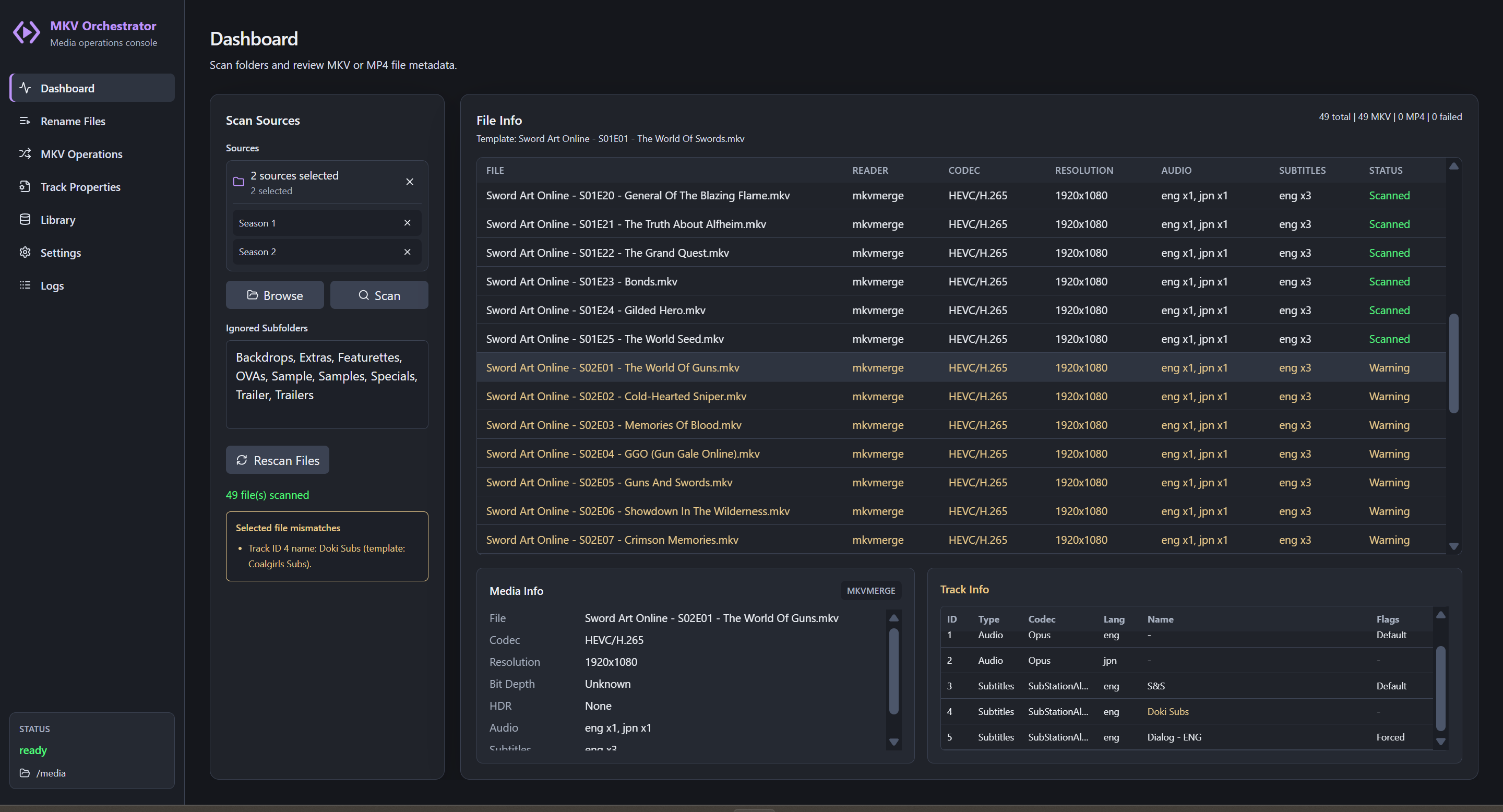
- Displays file, video, audio, and subtitle track details.
- Compares files against a selected template file.
- Looks up TV or movie metadata from TVDB or TMDB for rename previews.
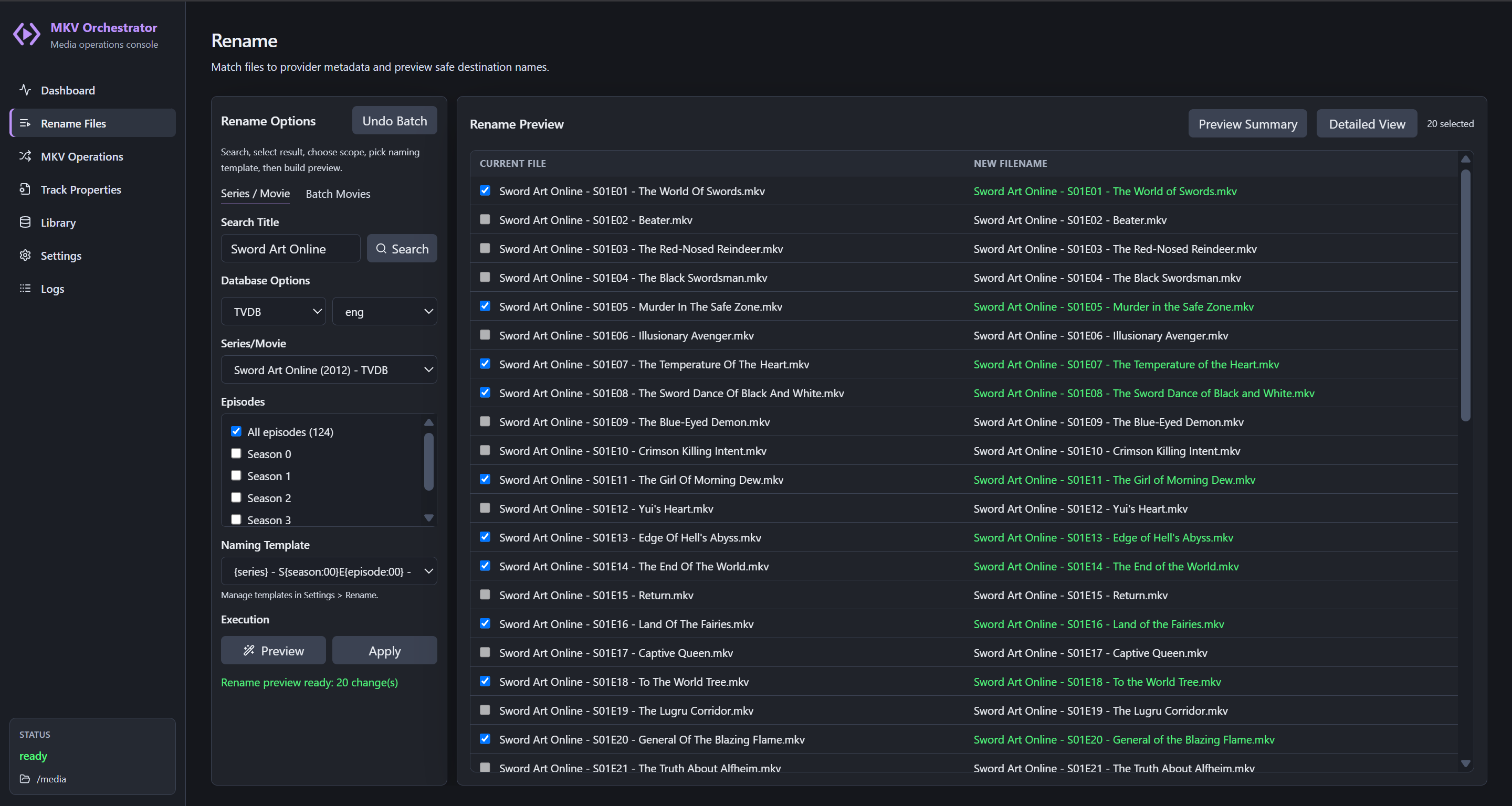
- Supports rename templates for TV episodes and movies.
- Records rename batches so recent rename operations can be reviewed and undone.
- Plans MKV mux/remux operations with MKVToolNix.
- Muxes matching external subtitle sidecars into MKV files.
- Converts MP4 files to MKV with a lossless container copy (no re-encoding), with optional cleanup of the original MP4.
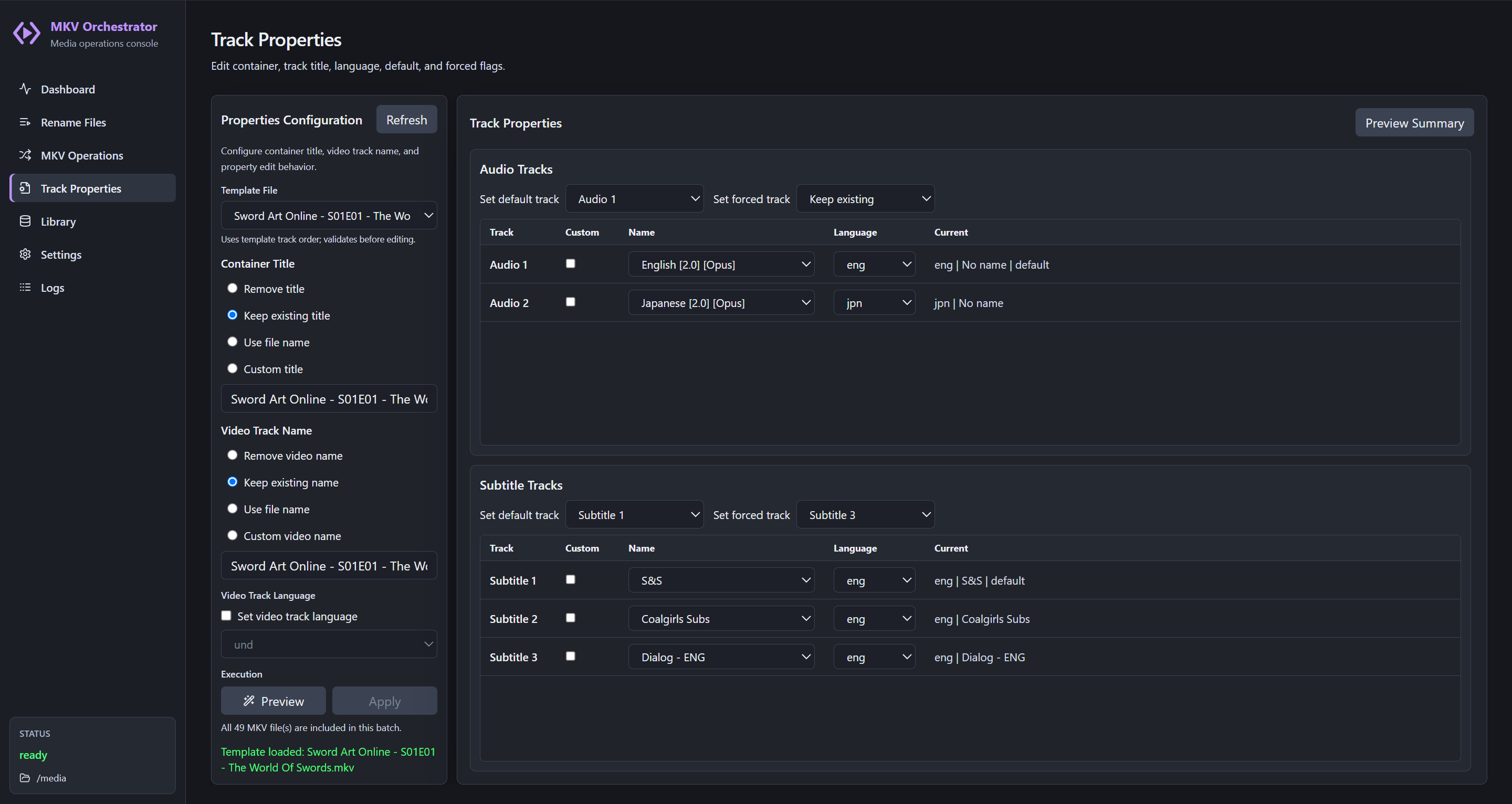
- Edits MKV container title, track names, languages, default flags, and forced flags.
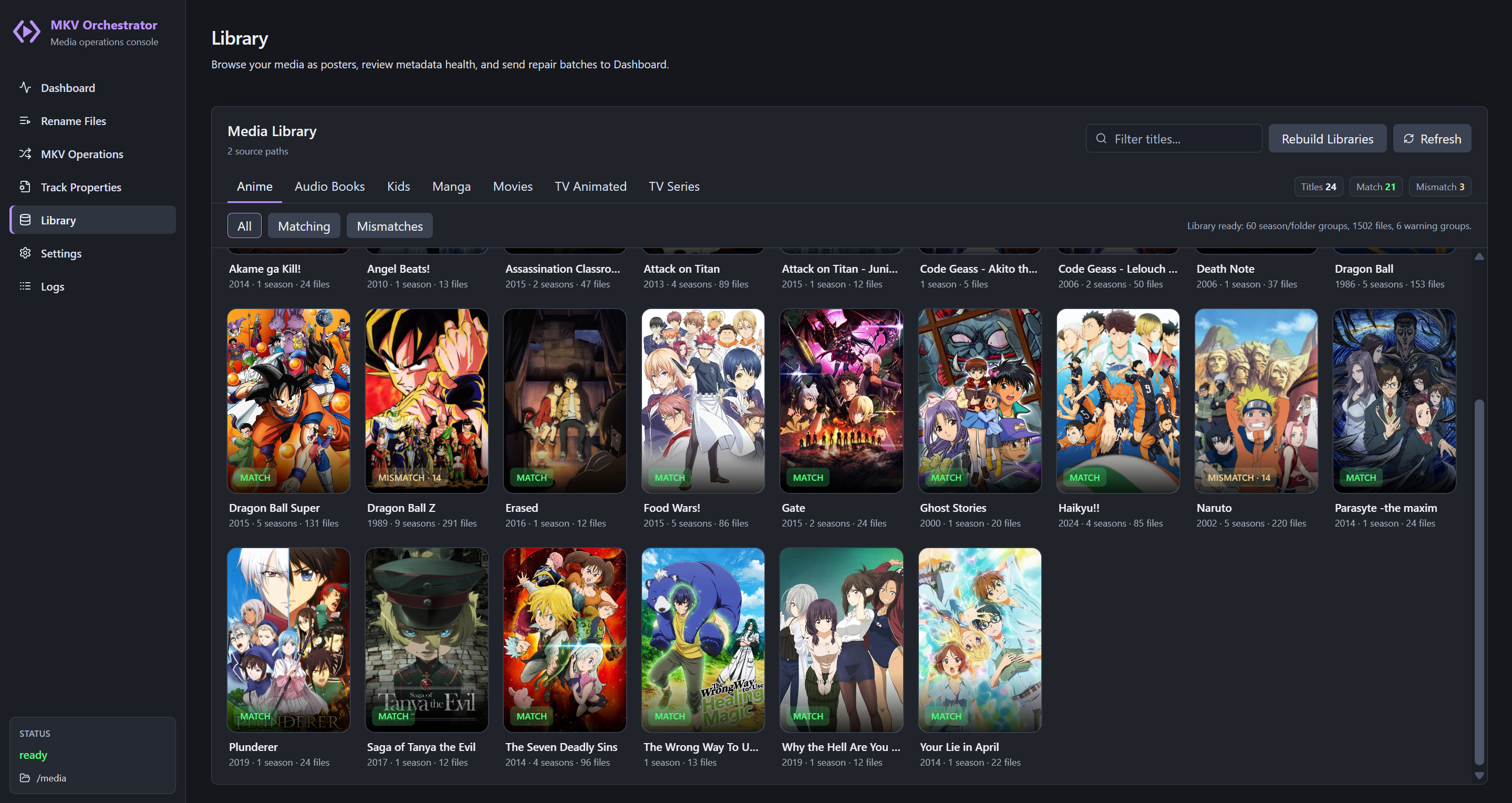
- Builds and manages a local metadata cache for watch folders.
- Discovers library paths from Emby, Jellyfin, or Plex servers with per-library enablement and path mapping.
- Supports user-editable GUI themes.
Screenshots
Dashboard
Rename Files
Track Properties
Library
Settings
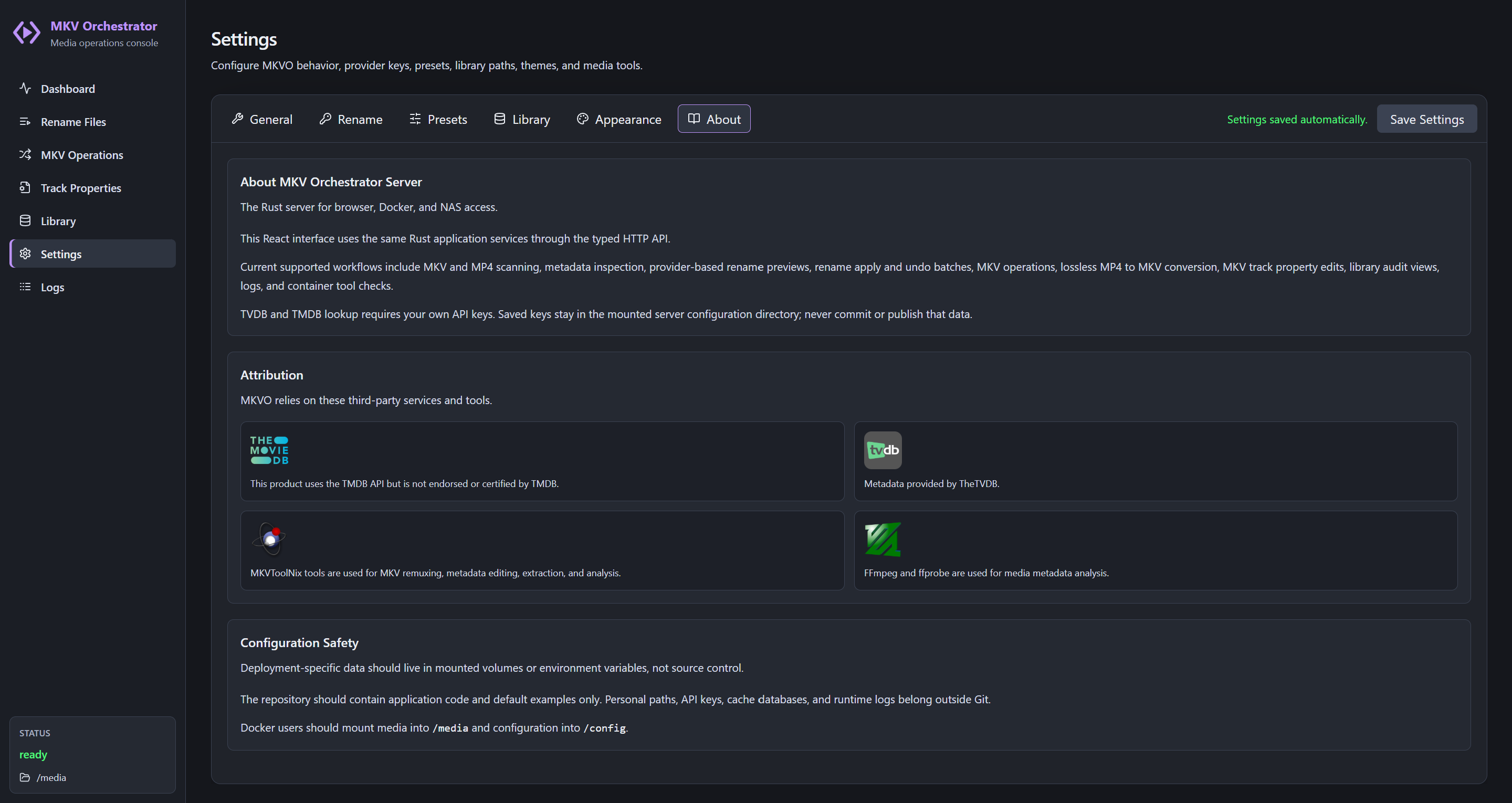
Screenshots live in docs/screenshots/; see that folder's README for naming conventions when adding new captures.
Requirements
Required For Running From Source
- Windows desktop environment. Linux and macOS build from the same sources.
- Rust 1.88 or newer.
- Node.js 22 or newer.
- Git, if you are cloning from GitHub.
Required Media Tools
Install these separately. MKVO does not bundle them.
MKVToolNix
MKVToolNix is required for MKV analysis, remuxing, extraction, and metadata editing.
MKVO expects access to these executables:
mkvmergemkvpropeditmkvextractmkvinfo
On Windows, install MKVToolNix from:
Then configure the install folder in:
Settings > General > MKVToolNix Paths
Use the folder that contains the tools, for example:
C:\Program Files\MKVToolNix
You can also use Auto Find if MKVToolNix is installed in a common location or available on PATH.
FFmpeg And ffprobe
FFmpeg and ffprobe are used for additional media inspection and MP4 readability support.
MKVO expects access to:
ffmpegffprobe
Install FFmpeg from:
Then configure the FFmpeg bin folder in:
Settings > General > FFmpeg Directory
Example:
C:\ffmpeg\bin
You can also use Auto Find if FFmpeg is installed in a common location or available on PATH.
Metadata Provider API Keys
MKVO does not ship shared TVDB or TMDB production API keys.
Each user must provide their own API credentials for rename metadata lookup.
Configure provider credentials in:
Settings > API Providers
Supported providers:
- TVDB
- TMDB
TVDB is used for TV and movie metadata lookup through TheTVDB.
TMDB is used for TV and movie metadata lookup through The Movie Database.
The app masks key fields, stores keys locally in the user settings file, and does not write API keys to logs.
Provider setup links are shown inside the app under Settings.
First-Run Setup
- Install MKVToolNix.
- Install FFmpeg.
- Open MKVO.
- Go to
Settings > General. - Set the MKVToolNix folder or click Auto Find.
- Set the FFmpeg folder or click Auto Find.
- Go to
Settings > API Providers. - Enter your own TVDB and/or TMDB API key.
- Click Test Selected Provider to confirm lookup access.
- Go to Dashboard and scan one or more folders.
Rename Workflow
- Scan files from the Dashboard.
- Go to Rename Files.
- Search for the show or movie title.
- Select the correct TVDB or TMDB result.
- Confirm the episode scope or movie mode.
- Choose a naming template.
- Click Preview.
- Review the Rename Preview table and Preview Summary.
- Click Apply only when the preview is correct.
Rename batches are recorded locally. Use Undo Batch in Rename Options to review recent rename jobs and restore files when possible.
Subtitle Mux Filename Format
External subtitle sidecars should be placed in the same folder as the matching MKV file.
Expected format:
base_name.language.tag.ext
Example:
Episode 01.mkv
Episode 01.eng.Dialogue.ass
Episode 01.eng.Signs & Songs.ass
Episode 01.jpn.Dialogue.ass
The language token is read from the filename. The tag token becomes the subtitle track name.
Local Data And Privacy
MKVO stores user settings, local metadata cache files, and rename history locally on the machine.
Do not commit or publish local runtime files such as:
- API keys
settings.jsonmetadata_cache*.db- local logs
- local publish output
The repository .gitignore excludes the common local runtime files.
Build From Source
Build the workspace:
cargo build --workspace
Run the desktop app with hot reload. This starts the Vite dev server and the
desktop host together, and must be run from the repository root -- that is where
the Tauri CLI finds apps/desktop/src-tauri/tauri.conf.json:
.\web\node_modules\.bin\tauri.cmd dev
Run the tests:
cargo test --workspace
npm --prefix web test
Command Line
The mkvo binary drives the same runtime as the app, against whichever
configuration directory it is pointed at.
cargo run --package mkvo-cli -- scan "D:\Media\Show"
mkvo scan <folder>    [--json] [--ignore Extras,Backdrops] [--force-refresh]
mkvo inspect <folder> [--ignore ...]                       # scan --json
mkvo cleanup <folder> [--apply] [--keep-container-title] [--keep-video-title]
                      [--remove-audio-titles] [--remove-subtitle-titles]
                      [--set-audio-language eng] [--set-subtitle-language eng]
mkvo rename <folder>  [--query "Series"] [--provider AniList] [--pick 2]
                      [--list-matches] [--template "..."] [--apply]
cleanup and rename only print a plan until you pass --apply.
Exit codes: 0 success, 1 error, 2 ran fine but found nothing to do, 130
canceled. The 2 is what lets a script skip a follow-up step.
Settings come from --config, then MKVO_CONFIG_DIR, then the OS
configuration directory (mkv-orchestrator).
That is not the desktop app's store. The desktop keeps its configuration
under its Tauri identifier (com.mkvorchestrator.desktop) and its provider keys
in the OS credential store, while the CLI uses a protected file. Point both at
one directory with --config if you want a shared cache; the secrets still
differ, so provider keys have to be configured for each.
What is not shared is the working set: the list of files a running app has on
screen is that process's own state, so mkvo scan will not populate the
dashboard of a server or desktop that is already running. The cache it writes
does make that app's next scan faster.
Renaming goes through a provider lookup, so it needs something to search for;
without --query the folder name is used. AniList needs no credentials, the
others need keys configured in Settings.
The container carries the same binary:
docker exec mkvo mkvo scan /media --json
Docker Web Container
The Docker build runs as one container. It serves the React web UI and the Rust API from the same process and installs MKVToolNix plus FFmpeg inside the image.
Build and run:
docker compose up --build
Open:
http://localhost:8886
Default local volume mounts:
./tmp/docker-media     -> /media
./tmp/docker-downloads -> /downloads
./tmp/docker-config    -> /config
The web app browses container paths. With the default compose file, /media and /downloads are local bind mounts under ./tmp.
For a NAS or SMB share, copy .env.example to .env, edit the share paths and CIFS options, then run:
docker compose -f docker-compose.yml -f docker-compose.nas.example.yml up --build
Keep .env local. Do not commit API keys, SMB usernames, SMB passwords, or server-specific paths.
Optional container settings (see docs/DOCKER_WEB_CONTAINER.md for the full list):
PUID/PGID/UMASKrun the app as a specific user so files written to shares are not root-owned.MKVO_AUTH_MODEselectsdisabled(trusted LAN),basic, or the secureautoserver default.MKVO_AUTH_USERNAME/MKVO_AUTH_PASSWORDare required together inbasicmode.MKVO_SCAN_WORKERSandMKVO_EDIT_WORKERStune scan and mkvpropedit concurrency.
The container wires Dashboard, Rename, Mux / Remux, Track Properties, Library, Settings, and Logs through the single Rust host, from the same React sources the desktop app embeds.
Publish desktop installers:
.\scripts\publish-windows.ps1
Bundles are written to target/release/bundle. The Linux equivalent is scripts/publish-linux.sh.
Documentation
Additional notes are available in:
docs/API_PROVIDER_KEYS.mddocs/ATTRIBUTION_AND_LOGOS.mddocs/DOCKER_WEB_CONTAINER.mddocs/VERSIONING_AND_MIGRATIONS.md
Attribution
MKVO uses external tools and metadata providers selected or configured by the user.
- MKVToolNix is used for MKV analysis, remuxing, extraction, and metadata editing.
- FFmpeg and ffprobe are used for media metadata inspection.
- This product uses the TMDB API but is not endorsed or certified by TMDB.
- Metadata may be provided by TheTVDB.
MKVO invokes MKVToolNix and FFmpeg as external tools and does not bundle or link their code in this repository. Those projects are distributed under their own licenses.
License
MKV Orchestrator is released under the MIT License.
Install MKV-Orchestrator on Unraid in a few clicks.
Find MKV-Orchestrator in Community Apps on your Unraid server, review the template, and click Install. Unraid handles the Docker app or plugin setup from the published template.
Categories
Related apps
Explore more like this
Explore allDetails
ghcr.io/bamcel/mkv-orchestrator:latestRuntime arguments
- Web UI
http://[IP]:[PORT:8080]/- Network
bridge- Shell
bash- Privileged
- false
Template configuration
Web interface port.
- Target
- 8080
- Default
- 8886
- Value
- 8886
Primary media library path mounted into the container.
- Target
- /media
- Default
- /mnt/user/
- Value
- /mnt/user/
Optional downloads or staging path mounted into the container.
- Target
- /downloads
- Default
- /mnt/user/
- Value
- /mnt/user/
Persistent MKV Orchestrator settings, logs, and cache data.
- Target
- /config
- Default
- /mnt/user/appdata/mkv-orchestrator
- Value
- /mnt/user/appdata/mkv-orchestrator
Accepted inputs: auto, basic, or disabled. Use disabled only on a trusted LAN. Use basic with both Web UI credentials below. Use auto to require credentials whenever the server accepts remote connections.
- Target
- MKVO_AUTH_MODE
- Default
- disabled
- Value
- disabled
Default root used by the Dashboard browser.
- Target
- MKVO_MEDIA_ROOT
- Default
- /media
- Value
- /media
Additional named source roots. /media is added automatically; use name=/container/path entries separated by commas.
- Target
- MKVO_SOURCE_ROOTS
- Default
- downloads=/downloads
- Value
- downloads=/downloads
User ID that owns files created by MKVO. Unraid default: 99 (nobody).
- Default
- 99
- Value
- 99
Group ID that owns files created by MKVO. Unraid default: 100 (users).
- Default
- 100
- Value
- 100
File creation mask for new files.
- Default
- 022
- Value
- 022
Required with Web UI Password when Authentication Mode is basic. Leave blank when authentication is disabled.
- Target
- MKVO_AUTH_USERNAME
Required with Web UI Username when Authentication Mode is basic. Leave blank when authentication is disabled.
- Target
- MKVO_AUTH_PASSWORD
Maximum concurrent file metadata scans.
- Target
- MKVO_SCAN_WORKERS
- Default
- 6
- Value
- 6
Maximum concurrent mkvpropedit track property edits.
- Target
- MKVO_EDIT_WORKERS
- Default
- 2
- Value
- 2
Optional container-managed TVDB API key. It appears as configured in MKVO Settings after the container restarts, but its value remains masked.
- Target
- MKVO_TVDB_API_KEY
Optional container-managed TVDB subscriber PIN. It appears as configured in MKVO Settings after the container restarts, but its value remains masked.
- Target
- MKVO_TVDB_PIN
Optional container-managed TMDB API key. It appears as configured in MKVO Settings after the container restarts, but its value remains masked.
- Target
- MKVO_TMDB_API_KEY