
All apps · 0 apps

lftp-sync-manager
Docker app from cj0r's Repository
Overview
Readme
View on GitHubLFTP Sync Manager



LFTP Sync Manager is a web control panel for lftp. It pushes files from a local folder to an SFTP server and pulls them back down, using lftp's segmented, parallel transfers, and runs those syncs on a schedule or the moment a file lands in the folder. It runs as one Docker container with a web UI for settings, live progress, logs and a two-pane file explorer.
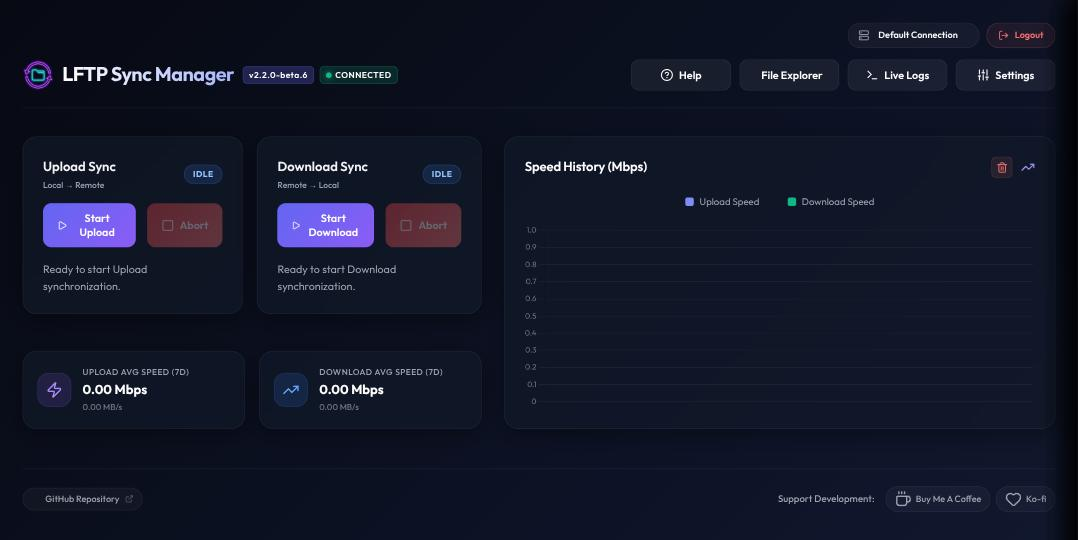
[!WARNING] This software is provided as is, with no warranty, and is used entirely at your own risk. It transfers and, depending on your settings, permanently deletes files on both your local machine and the remote host. Test with Dry Run Mode first and keep backups of anything irreplaceable. Read Security and the Disclaimer before deploying.
Features
- Push (local to remote) and pull (remote to local) syncs over SFTP, with
lftp's segmented downloads (nsegment), parallel file queues (nfile) and automatic reconnects. - Pushes the moment a file is added or changed in the push folder, or on a cron schedule; pulls on a cron schedule. The folder watcher skips files your exclude filters match, so partial downloads (
*.part,*.!qB) never start a sync. - Several connection profiles (different hosts, credentials and sync settings), switched from the header.
- An SSH key handshake: generate a key pair and install it on the remote host from the web UI, after which the stored password is deleted.
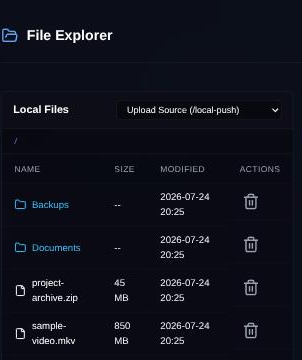
- A file explorer with a local and a remote pane: push or pull one file or folder on demand, multi-select for batch push, pull and delete, sort, filter and rename. Transfers show live progress, speed and ETA, and can be paused, resumed or aborted.
- Pause a running sync in place and resume it later, or abort it. Pausing also holds off that direction's schedule.
- Backs off for 30 minutes after a failed sync instead of hammering a rate-limited or soft-banned host. The backoff applies only to the direction that failed, and manual syncs are never blocked.
- Notifications to Discord, Telegram, Gotify, ntfy or any JSON webhook on sync success or failure, file explorer transfers, a cooldown starting, or a failed sign-in. Channels are set per profile, each with its own event toggles and a Test button.
- Logs filtered down to what matters, with a one-click switch to the full
lftpoutput. Passwords are masked everywhere, and a redacted download also hides host and username so a log is safe to share. - Bandwidth limits, always on or on a time-of-day and day-of-week schedule.
- Include and exclude glob filters, true mirroring (delete on the destination), dry runs, ignore modification time, and only-missing-files.
- Password sign-in with optional two-factor codes (any authenticator app) and rate-limited attempts.
- Installable as an app (PWA) on desktop and mobile. Runs on Unraid or any Docker host.
Screenshots
 |
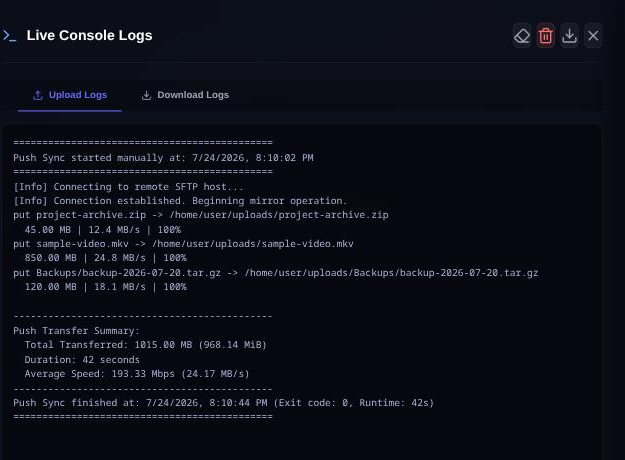 |
| File explorer. Push or pull one item, or a whole selection, between the two panes. | Live logs. The filtered view, with the full lftp output one click away. |
 |
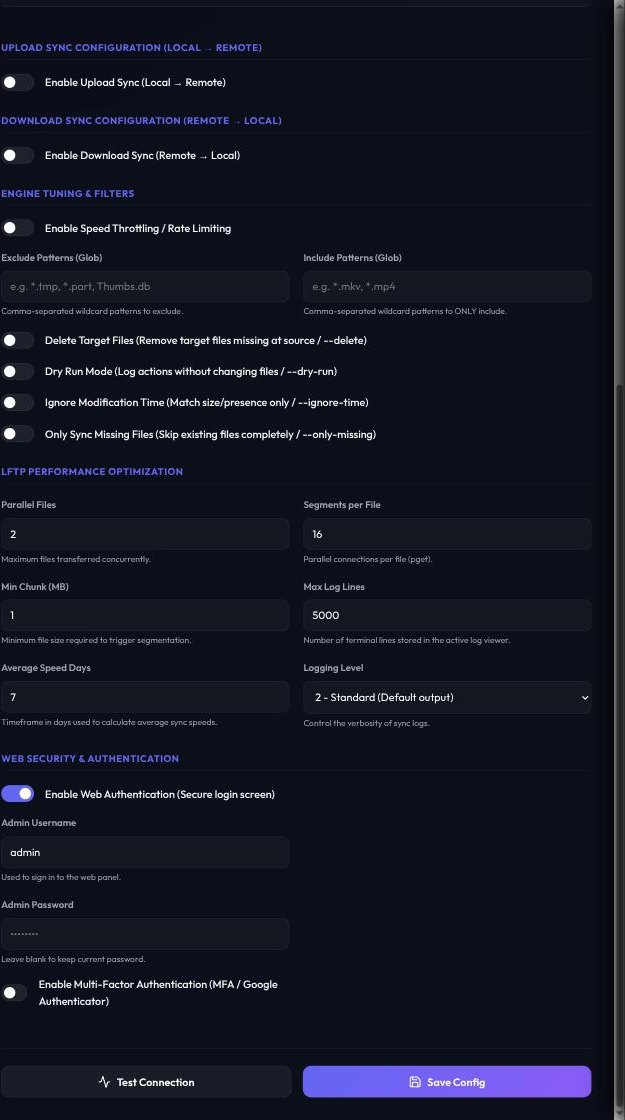 |
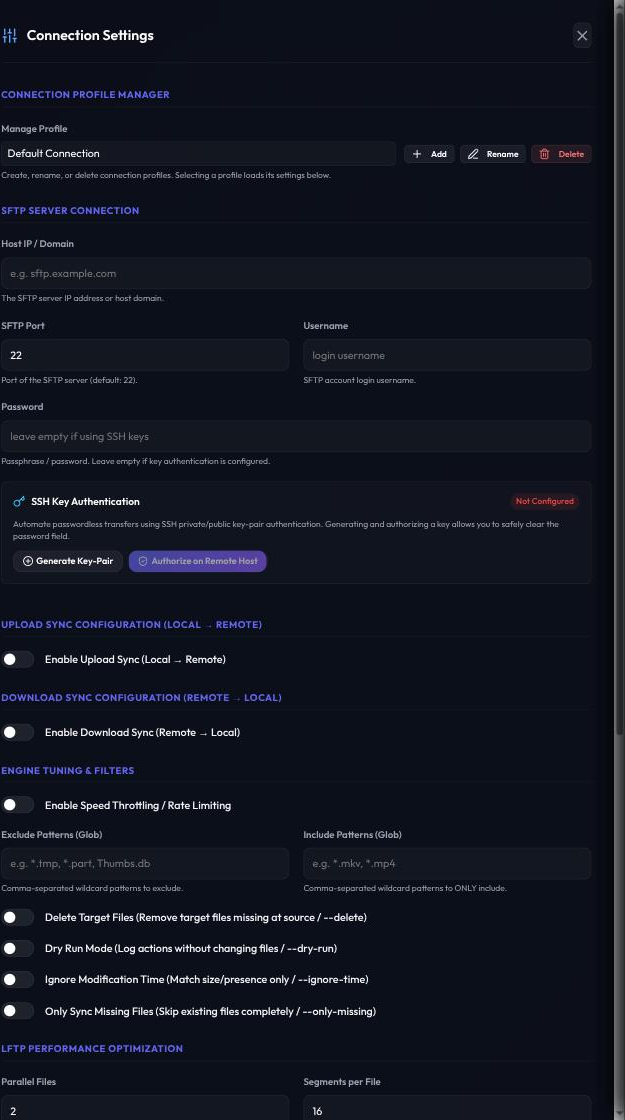
| Connection settings. Host, credentials, SSH keys and transfer tuning per profile. | Web security. Password and two-factor sign-in. |
Quick start (Docker)
- Get compose.yaml and change the three
/path/to/...host folders to your own:mkdir lftp-sync-manager && cd lftp-sync-manager curl -fsSLO https://raw.githubusercontent.com/cj0r/lftp-sync-manager/production/compose.yaml - Start it:
This pullsdocker compose up -dcj0r/lftp-sync-manager:latestfrom Docker Hub, built forlinux/amd64andlinux/arm64. - Open
http://<host>:9342from your local network. Until a password is set, the web UI only opens from the local network (see Sign-in), so set one first under Settings → Web Security & Authentication. - Set up a connection (see Setting it up), run a sync with Dry Run Mode on, then for real.
Or with docker run:
docker run -d \
  --name=lftp-sync-manager \
  --init \
  --security-opt no-new-privileges:true \
  -p 9342:9342 \
  -v /path/to/appdata/config:/config \
  -v /path/to/local/upload:/local-push \
  -v /path/to/local/download:/local-pull \
  --restart unless-stopped \
  cj0r/lftp-sync-manager:latest
The image has a Docker health check, so Unraid, Portainer, Dockge and docker ps show the container as healthy while the web UI answers.
Updating: docker compose pull && docker compose up -d (or your manager's update button). The /config folder carries over.
Building from source
git clone https://github.com/cj0r/lftp-sync-manager.git && cd lftp-sync-manager
docker build -t cj0r/lftp-sync-manager:latest .
docker compose up -d
Folders
| Container path | Example host path | What it holds |
|---|---|---|
/config |
/mnt/user/appdata/lftp-sync-manager |
config.json, the SSH key pair (id_rsa, id_rsa.pub), known host keys (known_hosts), transfer history and logs. |
/local-push |
/mnt/user/share/upload |
Files placed here are pushed to the remote host. |
/local-pull |
/mnt/user/share/download |
Files pulled from the remote host land here. |
Environment variables
| Variable | Default | What it does |
|---|---|---|
PORT |
9342 |
Port the web UI listens on inside the container. |
CONFIG_DIR |
/config |
Where settings, keys, history and logs are kept. |
TRUST_PROXY |
loopback, linklocal, uniquelocal |
Which reverse proxies may set X-Forwarded-For and X-Forwarded-Proto. See Reverse proxy. |
ALLOW_REMOTE_WITHOUT_AUTH |
false |
true lets the web UI open from outside the local network without a password. Only for setups where something in front of it already handles sign-in. |
Setting it up
Open Settings. Everything is saved per connection profile when you press Save Config, which also starts the schedules.
Connection
- Host, Port (usually
22) and Login of the SFTP server. - Password, which you only need until the SSH key is installed (next step).
- Test Connection checks the details without saving them.
SSH key (recommended)
An SSH key means no password is stored at all.
- Press Generate Key-Pair. This creates an Ed25519 key pair, saved as
/config/id_rsaand/config/id_rsa.pub. - With host, login and password filled in, press Authorize on Remote Host. The app signs in with the password, adds the public key to the remote
~/.ssh/authorized_keys(keeping what's there), and sets it to600. - Once that succeeds the password is deleted from the config, and every connection after that uses the key.
The first connection to a host saves its key in /config/known_hosts, and later connections refuse a host whose key has changed. See Troubleshooting if your provider moves you to a new server.
Push and pull
- Push: the remote folder that files from
/local-pushgo to. Turn on Enable Real-time Upload to push as soon as something changes, and/or a Cron Schedule (for example*/30 * * * *, every 30 minutes) for regular sweeps. - Pull: the remote folder to fetch from into
/local-pull, with its own cron schedule (for example0 2 * * *, daily at 2:00).
Transfer tuning, filters and limits
- Parallel Files (
nfile): how many files transfer at once. - Segments per File (
nsegment): connections per file.8or16helps on high-latency links. Only downloads (pull) are split; lftp uploads each file over one connection, so raise Parallel Files to speed up pushes. - Min Chunk (MB) (
minchunk): the smallest piece a file is split into. - Bandwidth limits: download and upload caps in KB/s, always on or within a time window on chosen days.
- Filters: comma-separated globs to exclude (
*.tmp, Thumbs.db) or to include only (*.mkv, *.mp4). - Mirror options: Delete Target Files (true mirroring), Dry Run Mode (log what would happen, change nothing), Ignore Modification Time (compare by name and size) and Only Sync Missing Files (never overwrite).
Notifications
Under Settings → Notification Channels, press Add Channel:
| Type | What you need |
|---|---|
| Discord | A channel webhook URL (Channel Settings → Integrations → Webhooks) |
| Telegram | A bot token from @BotFather and your chat ID |
| Gotify | Your server URL and an application token |
| ntfy | Your server URL (for example https://ntfy.sh) and a topic |
| Custom webhook | Any URL that accepts a JSON POST |
Each channel picks its events: Sync Success, Sync Failure, Explorer Transfer, Explorer Failure, Cooldown Activated and Auth Alert (a failed sign-in). A sync that transferred nothing sends nothing, so routine sweeps stay quiet. Delivery results are written to the sync log as [Notifications] ....
Security
This app holds the credentials of a remote server and can delete files on both ends. Read this before opening it up beyond your home network. To report a security problem, see SECURITY.md.
Sign-in
Web authentication is set under Settings → Web Security & Authentication: a username, a password of at least 8 characters, and optionally two-factor codes from any authenticator app.
Until a password is set, the web UI only opens for browsers on your local network that connect to it directly (private and Tailscale addresses). A request through a reverse proxy, or from a public address, gets a page saying to set a password first. If something in front of the app already handles sign-in (Authelia, Cloudflare Access and the like) and you want to keep the app's own sign-in off, set ALLOW_REMOTE_WITHOUT_AUTH=true.
Sign-ins last 30 days. Changing the password signs every other browser out. Ten sign-in attempts from one address within 15 minutes lock that address out until the 15 minutes are up.
Reverse proxy
To reach it from outside your network, put it behind a reverse proxy with HTTPS (Caddy, nginx, Traefik, Nginx Proxy Manager, Cloudflare Tunnel) and set a password.
- The proxy must pass WebSocket connections through (live progress and logs use one) and keep the original
Hostheader, or sendX-Forwarded-Host. TRUST_PROXYdecides whoseX-Forwarded-ForandX-Forwarded-Protoheaders are believed. The default trusts proxies on loopback and private networks, which covers a proxy container on the same Docker network,cloudflared, or a proxy elsewhere on your LAN. If your proxy connects from a public address, setTRUST_PROXYto that address. Without the right setting, sign-in rate limits apply to the proxy as a whole, and the sign-in cookie isn't marked HTTPS-only.- With only the proxy using it, publish the port on the host's loopback address alone (
"127.0.0.1:9342:9342"incompose.yaml), or don't publish it and put the proxy on the same Docker network.
Caddy:
sync.example.com {
    reverse_proxy lftp-sync-manager:9342
}
What's stored in /config
config.json holds the key that signs sign-in cookies, the two-factor secret, notification tokens and, until you switch to an SSH key, the SFTP password in plain text. The app writes it readable only by its owner (0600) and tightens an existing file on start; id_rsa is 0600 too. Keep the folder off world-readable shares and out of backups stored somewhere less protected than the server.
Good to know
- Saved secrets (SFTP password, two-factor secret, webhook URLs, bot and app tokens, ntfy topics) are never sent to the browser. A saved one shows as
••••••••: leave it to keep it, type over it to change it, clear it to remove it. Test Connection, Authorize on Remote Host and a channel's Test use the saved value, but a saved password is only ever sent to the host it was saved for. - Requests that change something are refused when the browser says they come from another site, so a web page you visit can't act on the app through your browser.
- Every page carries a strict Content-Security-Policy and no-framing and no-sniffing headers. All scripts and fonts are served by the app itself, so the browser contacts nothing else.
- Passwords are masked in every log. Host and username aren't, since you need them to troubleshoot; use Download Redacted Log (the shield icon in Live Logs) before sharing a log.
- Keep it updated:
docker compose pull && docker compose up -dbrings the newest release with the newest Node and Alpine fixes.
Troubleshooting
"Web authentication is off, so LFTP Sync Manager only opens from your local network." Open it by its LAN address (for example http://192.168.1.10:9342), set a password under Settings → Web Security & Authentication, and then it opens through your reverse proxy too. See Sign-in.
"Cross-site request refused." The browser said the request came from a different address than the app's. Behind a reverse proxy this means the proxy changes the Host header; make it keep the original one or send X-Forwarded-Host.
"Host key verification failed" in the log. The remote server's SSH key is different from the one saved on first connection. If your provider really did move you to a new server, delete /config/known_hosts (or the one line for that host) and connect again. If nothing changed on their side, find out why before reconnecting.
"Too many login attempts." Ten sign-in attempts from one address within 15 minutes lock it out for the rest of that window. Wait it out or restart the container.
Locked out (lost password or authenticator). Stop the container, set "authEnabled": false in /config/config.json, start it again, and open it from your local network to set a new password.
A sync reports a 30-minute cooldown. The last sync in that direction failed, so automatic retries are paused to avoid hammering the host. The sync log says why. Manual syncs still run.
Development
The server is server.js (Node 24, Express, ws); the web UI is plain HTML, CSS and JavaScript in public/, with Chart.js, Lucide, qrcode-generator and the fonts vendored in public/vendor/. Dependencies are managed with pnpm.
pnpm install
CONFIG_DIR=./config-local node server.js   # http://localhost:9342
lftp, ssh and script (util-linux) must be installed to run transfers outside Docker. Pull requests run a syntax check, a dependency audit and a Docker build with a smoke test. See CONTRIBUTING.md.
Roadmap
What's next, roughly in build order:
- Media server and automation integrations (2.6.0): library rescans on Plex, Jellyfin, Emby, Sonarr and Radarr after a pull, and optional post-sync scripts.
- SQLite history and analytics (2.7.0): per-file transfer history and 7-day to 1-year charts with activity heatmaps.
- Remote health diagnostics (2.8.0): remote disk space and per-profile latency.
What changed in each release is in CHANGELOG.md. Ideas and requests are welcome in Issues.
Disclaimer
This software is provided "as is", without warranty of any kind, express or implied. See the LICENSE file for the full legal text.
In plain terms:
- You use this software entirely at your own risk. The author and contributors accept no responsibility or liability for any data loss, corrupted or deleted files, service interruption, exposed credentials, security incidents, bandwidth or storage costs, remote-host account suspensions or bans, or any other damages arising from the use or misuse of this software.
- This tool deletes files. Options like Delete Target Files (
--delete), the push sync's remove-source-after-upload behavior, and the file explorer's delete actions permanently remove data on your local machine and/or remote host. Test with Dry Run Mode enabled first, and keep independent backups of anything you cannot afford to lose. - Verify your configuration before running it against real data. Misconfigured source/destination directories, filters, or mirror flags can delete or overwrite far more than intended. The author cannot recover data lost this way.
- You are responsible for your own deployment security: network exposure, authentication, TLS, reverse-proxy configuration, credential hygiene, and access to the
/configvolume. See Security above. - You are responsible for complying with the terms of service of any remote host, seedbox, or provider you connect to, and with all applicable laws regarding the content you transfer.
- This project is developed with substantial AI assistance (Claude). Code, dependency updates, and documentation may be AI-generated or AI-modified; everything is reviewed by the maintainer before release, but no AI-assisted review is a substitute for your own judgment. Read the source yourself before trusting it with sensitive credentials or irreplaceable data.
This is a hobbyist project maintained on a best-effort basis. It is not a commercially supported product, carries no uptime or support guarantee, and should not be relied upon as the sole safeguard for irreplaceable data.
Contributing and license
Bug reports and pull requests are welcome; see CONTRIBUTING.md, and SECURITY.md for reporting a security problem privately.
LFTP Sync Manager is licensed under the PolyForm Noncommercial License 1.0.0: personal and non-commercial use is free, and commercial use needs a separate agreement. The libraries it bundles are under their own licenses, listed in THIRD_PARTY_NOTICES.md.
Support the project
If LFTP Sync Manager has simplified your transfers or automated your backups, consider supporting its development:
- Buy Me A Coffee: quick one-time support
- Ko-fi: support with 0% platform fees


Categories
Download Statistics
Related apps
Explore more like this
Explore allDetails
cj0r/lftp-sync-manager:latestRuntime arguments
- Web UI
http://[IP]:[PORT:9342]- Network
bridge- Shell
sh- Privileged
- false
Template configuration
Web interface access port.
- Target
- 9342
- Default
- 9342
- Value
- 9342
Persistent configuration, history, and logs storage directory.
- Target
- /config
- Default
- /mnt/user/appdata/lftp-sync-manager
- Value
- /mnt/user/appdata/lftp-sync-manager
Local directory scanned for automatic file uploads (Push).
- Target
- /local-push
- Default
- /mnt/user/appdata/lftp-sync-manager/upload
- Value
- /mnt/user/appdata/lftp-sync-manager/upload
Directory where files will be pulled from remote hosts (Pull).
- Target
- /local-pull
- Default
- /mnt/user/appdata/lftp-sync-manager/download
- Value
- /mnt/user/appdata/lftp-sync-manager/download