

Ledgerly
Docker app from 007Darkmatter5's Repository
Overview
Readme
View on GitHubLedgerly
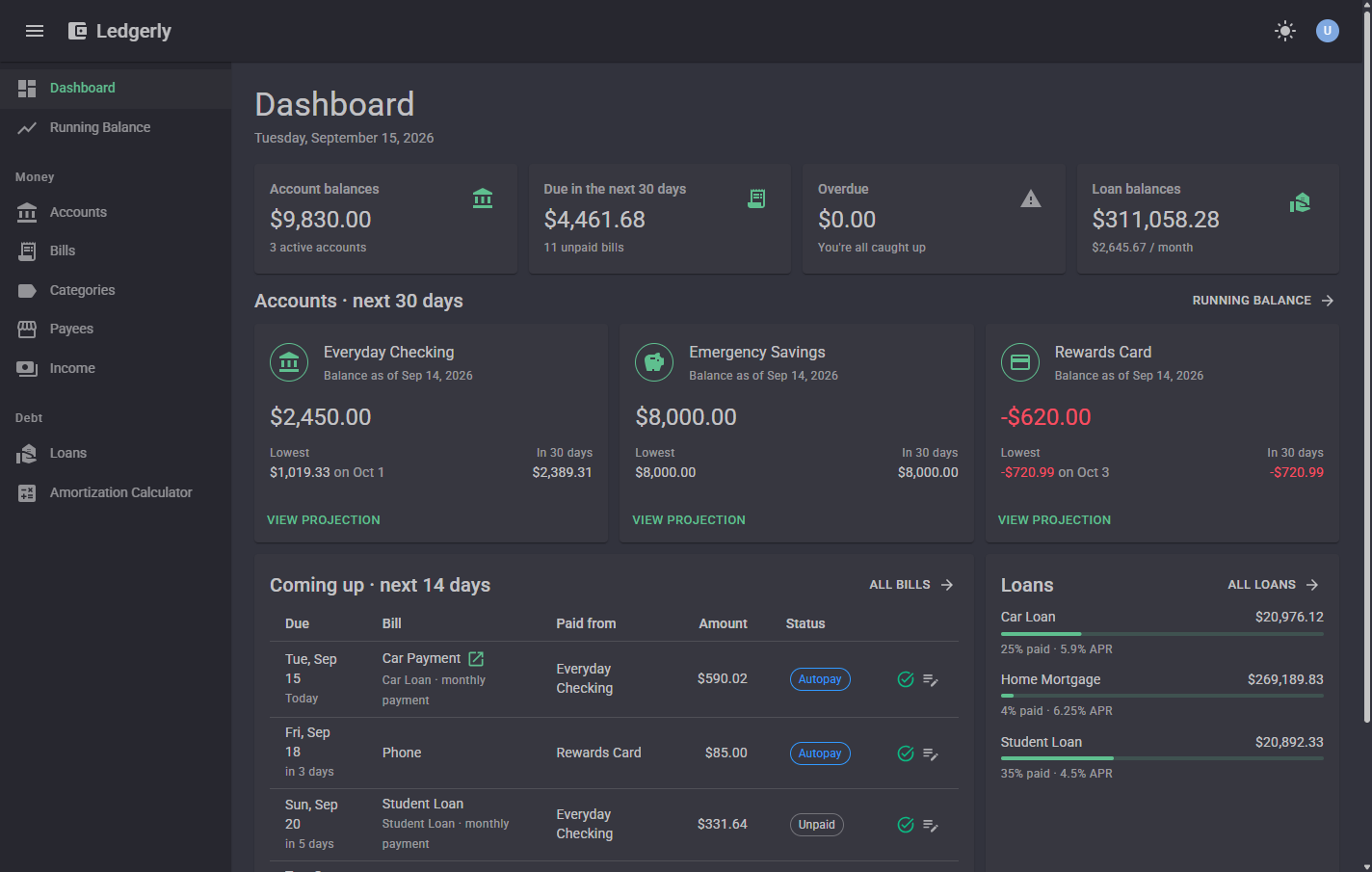
A personal finance app for tracking bills, where they're paid from, projected account balances, loans and amortization.
Ledgerly is released under the MIT License.
Installing on a server (Beta and Production)
Ledgerly runs in Docker on a Linux server. There are two release channels, each installed separately with its own port, database and encryption keys, so trying out Beta never touches your real data:
| Channel | Built from | Image tag | Default port | Folder |
|---|---|---|---|---|
| Beta | beta branch |
ghcr.io/007darkmatter5/ledgerly:beta |
5006 | /opt/ledgerly/beta |
| Production | main branch |
ghcr.io/007darkmatter5/ledgerly:production |
5005 | /opt/ledgerly/production |
You need Docker with the Compose plugin. Install or update with one command:
curl -fsSL https://raw.githubusercontent.com/007darkmatter5/ledgerly/main/deploy/install.sh | sudo bash -s -- beta
curl -fsSL https://raw.githubusercontent.com/007darkmatter5/ledgerly/main/deploy/install.sh | sudo bash -s -- production
Each run downloads the newest build for that channel, stops the old container, backs up the database (the last 10 backups are kept in backups/), starts the new version, and waits until it reports healthy. Beta shows a Beta badge in the app so you can tell them apart.
Options (the port and bind address are remembered for later updates):
install.sh beta --port 8006                   # a different port
install.sh production --bind 127.0.0.1        # only reachable locally, e.g. behind a reverse proxy
install.sh production --version 1.0.41        # install (or roll back to) a specific version
Your own settings go in /opt/ledgerly/<channel>/ledgerly.env (for example ASPNETCORE_FORWARDEDHEADERS_ENABLED=true behind a reverse proxy that handles HTTPS). Keep the keys folder with the install: it holds the encryption keys for sign-in cookies and the saved email password. Back it up separately from data.
Rolling back: run the script with --version <previous version> (listed on the Releases page and in the backup folder names). If the newer version already upgraded the database, stop the container and copy the matching backup back into data/ first.
Unraid
Production from Community Apps: in the Apps tab, search for Ledgerly and click Install. The defaults work as they are: port 5005, data in /mnt/user/appdata/ledgerly/data, encryption keys in /mnt/user/appdata/ledgerly/keys, running as nobody:users (99/100). Open the WebUI and create the first account (it becomes the admin). When a new production release is out, the Docker tab shows update ready. The template lives in 007darkmatter5/unraid-templates.
Beta: use deploy/unraid/docker-compose.yml with the Docker Compose Manager plugin (install it from Apps):
- Docker tab → Compose section → Add New Stack, name it
ledgerly-beta. - On the stack's gear icon, choose Edit Stack → Compose File, paste the file's contents and save.
- Click Compose Up. Open
http://<unraid-ip>:5006and create the first account (it becomes the admin).
It's a single container that stores everything in /mnt/user/appdata/ledgerly-beta (data/ for the database, keys/ for encryption keys) and uses the server's time zone. On start it gives those folders to PUID/PGID (99/100, nobody:users, like other Unraid containers) and then runs Ledgerly as that user, not root.
- Update to the newest beta: on the stack, Update Stack (pulls
:betaand recreates the container). Database changes run automatically on start. - Back up before updating: Ledgerly doesn't make its own backup here. Use the Appdata Backup plugin (it stops containers for a consistent copy), or stop the stack and copy
/mnt/user/appdata/ledgerly-beta. - Beta alongside Production: the beta stack uses its own port (5006) and appdata folder (
ledgerly-beta), so both can run at once without sharing data. - Pin a version: replace
:betawith a specific tag from the Releases page, e.g.:1.0.12-beta.
Release workflow
- Commit changes to the
betabranch and push. GitHub Actions runs the tests, publishes the Beta image and creates a pre-release (e.g.v1.0.12-beta). - Update Beta on the server and try it out.
- When you're happy, merge
betaintomainand push. That publishes the Production image and a release (e.g.v1.0.13). - Update Production on the server.
Version numbers are <major.minor from the VERSION file>.<build number>; edit VERSION to start a new series (e.g. 1.1).
Running from source
Requires the .NET 10 SDK.
dotnet run --project src/Ledgerly
Then open http://localhost:5005 and create an account. Data is stored in src/Ledgerly/App_Data/ledgerly.db.
Run the tests with dotnet test.
Admins
The first account created is Ledgerly's admin. (If accounts already existed before admins were added, the earliest one becomes admin automatically.) Admins find an Administration section under account menu → Account settings, where they can:
- Email server: set up email for password resets.
- Users & sign-ups: turn new sign-ups on or off, and make other accounts admins.
- Backup & restore: download everything in the install, or restore a backup (see Moving to another server).
Admins can't see anyone else's bills, accounts or loans in the app. A backup file, though, contains every user's data, so only make people admins you'd trust with it. There's always at least one admin: the last admin can't be removed or delete their account until someone else is made an admin.
Tip for a household install: once everyone who needs an account has created one, turn off new sign-ups.
Moving to another server
Use account menu → Account settings → Backup & restore (admins only).
- On the old install, click Download backup. The file holds every account (with passwords and two-factor settings), all bills, accounts, loans and payment history, and the admin settings, including the email server password. Keep it private.
- Install Ledgerly on the new server and create an account (it becomes the admin for now).
- On the new install, open Backup & restore, choose the file, tick the confirmation box and click Restore backup. Everything in the new install is replaced, and everyone is signed out.
- Sign in with your account from the old install.
Things to know:
- The new install must run the same or a newer version than the old one. Older backups are upgraded when restored; a backup from a newer version (for example Beta restored into Production) is refused until you update.
- Before replacing anything, Ledgerly saves a copy of the current database to
backups/before-restore-<date>.dbnext to the database (the last 5 are kept). To undo a restore, restore a backup you downloaded earlier, or stop Ledgerly, deleteledgerly.db-walandledgerly.db-shmif they exist, and copy that file overledgerly.db. - Settings from environment variables or
ledgerly.env(port, culture, reverse proxy, email configuration) aren't in the backup. Set them on the new server. - On Unraid (or any Docker host) you can also stop the container and copy the whole appdata folder (
dataandkeys) to the new server instead.
Setting up email
Email is optional. Without it everything works except Forgot password?, which stays hidden until an email server is set up.
Ledgerly sends mail through any SMTP server: your email provider, your own domain's mail server, or a sending service.
1. Get your SMTP details
You need a server address, port, username, password and a "from" address. Common setups (check your provider's current documentation, since these change):
| Provider | Server | Port | Encryption | Notes |
|---|---|---|---|---|
| Gmail / Google Workspace | smtp.gmail.com |
587 | STARTTLS | Use an app password, not your normal password. Requires 2-Step Verification. The from address must be your Gmail address. |
| Sending services (SendGrid, Brevo, Mailgun, Amazon SES, Postmark, …) | From the service's SMTP settings page | Usually 587 | STARTTLS | Usually the most reliable option. You'll typically need to verify your sender address or domain first. |
| Microsoft 365 / Outlook.com | smtp.office365.com |
587 | STARTTLS | Microsoft is phasing out password sign-in for SMTP, so this may not work for your account. A sending service is usually easier. |
| Your own domain / hosting provider | From your host | 587 or 465 | STARTTLS for 587, SSL/TLS for 465 |
2. Enter them in Ledgerly
Sign in as an admin and go to account menu → Account settings → Email server. Fill in the form and click Send test email & save. Ledgerly sends a test message to your address with the new settings and only saves them if it goes through. If your server accepts mail but the test can't reach it from here, Save without testing appears after a failed test.
- The password is stored encrypted using ASP.NET Core Data Protection. The encryption keys are kept apart from the database (your Windows user profile when running from source; the install's
keysfolder on a server), so a copy ofledgerly.dbalone doesn't reveal it. It's never shown again after saving; leave the field blank to keep it. - If the keys are lost (for example, moving to another computer without the
keysfolder), the saved password can't be decrypted. The page will say so; just enter it again. - Ledgerly's address is used for links inside emails. Set it to the address people type to open Ledgerly (for example
http://localhost:5005, or another computer's address on your network).
Alternative: configuration files or environment variables
Email settings can also come from configuration. On a server, put them in the install's ledgerly.env file (it has commented examples) and run docker compose up -d in that folder. Configuration takes priority: when it sets Email:Host, the Email server page becomes read-only.
On your own computer, use .NET user secrets (stored in your Windows profile, only read by dotnet run's Development environment):
cd src/Ledgerly
dotnet user-secrets set "Email:Host" "smtp.gmail.com"
dotnet user-secrets set "Email:Port" "587"
dotnet user-secrets set "Email:Security" "StartTls"
dotnet user-secrets set "Email:Username" "you@gmail.com"
dotnet user-secrets set "Email:Password" "your app password"
dotnet user-secrets set "Email:FromAddress" "you@gmail.com"
dotnet user-secrets set "Email:PublicBaseUrl" "http://localhost:5005"
Remove them with dotnet user-secrets clear. When hosting elsewhere, use environment variables with double underscores instead: Email__Host, Email__Password, and so on. Never put the password in appsettings.json.
| Setting | Default | Meaning |
|---|---|---|
Email:Host |
(empty) | SMTP server. Email is off while this or FromAddress is empty. |
Email:Port |
587 |
SMTP port. |
Email:Security |
Auto |
Auto, StartTls, SslOnConnect, or None (local test servers only). |
Email:Username |
(empty) | Leave empty if the server doesn't require sign-in. |
Email:Password |
(empty) | User secrets or an environment variable only. |
Email:FromAddress |
(empty) | Address emails are sent from. |
Email:FromName |
Ledgerly |
Display name emails are sent from. |
Email:PublicBaseUrl |
(current address) | Base address for links in emails. |
Troubleshooting
| Error mentions | Likely cause |
|---|---|
| Authentication failed, 535, "Username and Password not accepted" | Wrong username or password, or the provider needs an app password instead of your normal one. |
| Connection refused, timed out | Wrong server or port, or a firewall/network is blocking the port. Try 587 with STARTTLS, or 465 with SSL/TLS. |
| SSL/TLS or handshake errors | The encryption setting doesn't match the port. Use STARTTLS with 587 and SSL/TLS with 465. |
| "Sender address rejected" | The from address isn't allowed for that account. Use the account's own address or a verified sender. |
| Test says sent, but nothing arrives | Check spam. Sending services may also be holding the message until your sender is verified. |
Media gallery
1 / 4Categories
Related apps
Explore more like this
Explore allDetails
ghcr.io/007darkmatter5/ledgerly:productionRuntime arguments
- Web UI
http://[IP]:[PORT:8080]/- Network
bridge- Shell
bash- Privileged
- false
Template configuration
Port for the Ledgerly web interface.
- Target
- 8080
- Default
- 5005
- Value
- 5005
The database (ledgerly.db).
- Target
- /data
- Default
- /mnt/user/appdata/ledgerly/data
- Value
- /mnt/user/appdata/ledgerly/data
Encryption keys for sign-ins and the saved email password. Back these up with the data.
- Target
- /keys
- Default
- /mnt/user/appdata/ledgerly/keys
- Value
- /mnt/user/appdata/ledgerly/keys
User ID Ledgerly runs as. It owns the data and keys folders.
- Default
- 99
- Value
- 99
Group ID Ledgerly runs as.
- Default
- 100
- Value
- 100
Culture used to format money and dates, e.g. en-US, en-GB, de-DE.
- Target
- Ledgerly__Culture
- Default
- en-US
- Value
- en-US
Set to true when a reverse proxy (SWAG, Nginx Proxy Manager, Traefik) handles HTTPS in front of Ledgerly.
- Target
- ASPNETCORE_FORWARDEDHEADERS_ENABLED
- Default
- false
- Value
- false