

LanGuard
Docker app from TeeCodeDev's Repository
Overview
LanGuard is a modern, self-hosted network visibility and monitoring tool for discovering, organizing, and tracking devices on your local network (LAN).
NOTE: Coordinated 3-Container Setup
LanGuard runs as a coordinated 3-service stack using host networking:
- LanGuard (this template): Next.js web frontend & Caddy reverse proxy on port 8080.
- LanGuard-Backend: Django REST API, background worker, and SQLite database on port 8000.
- LanGuard-Scanner: Layer 2 ARP scanner, port prober, and task scheduler.
Make sure to install LanGuard-Backend and LanGuard-Scanner alongside this template, or deploy via Unraid's Docker Compose Manager using upstream's docker-compose.yaml.
Key Features:
- Automated Device Discovery: Discovers IPv4 devices, vendors, MAC addresses, open ports, and active network services.
- State & History Tracking: Monitors online/offline availability, IP changes, and device attention alerts.
- Inventory Organization: Organize devices by room, role, custom icon, and notes (regular, visitor, IoT, archived).
- SNMP & DNS Integrations: Discovers switches, APs, and printers via read-only SNMP v2c. Integrates with AdGuard Home, Pi-hole, Technitium, Speedtest Tracker, and HomeBox.
- Multi-Channel Alerts: Instant notifications to Discord, Telegram, ntfy, or custom webhooks when unknown devices appear.
- Wake-on-LAN: Wake asleep devices directly from the web interface.
Initial Setup:
- Install LanGuard-Backend first and configure a shared [inline]SECRET_KEY[/inline].
- Install LanGuard-Scanner using the same [inline]SECRET_KEY[/inline].
- Install LanGuard (Frontend) and open [inline]http://[IP]:8080[/inline] to create your admin account.
Credits & Support:
- LanGuard is created by Yossi Hillali ([url=https://github.com/hillaliy/LanGuard]GitHub[/url] | [url=https://hillaliy.github.io/LanGuard/]Documentation[/url]). Support the developer on [url=https://www.paypal.me/hillaliy]PayPal[/url].
- The donation link below specifically supports the maintenance of this Unraid template repository.
Readme
View on GitHub
LanGuard
Self-hosted network visibility for discovering, organizing, and monitoring devices on your LAN.


Documentation · Installation · Integrations · Troubleshooting · Releases
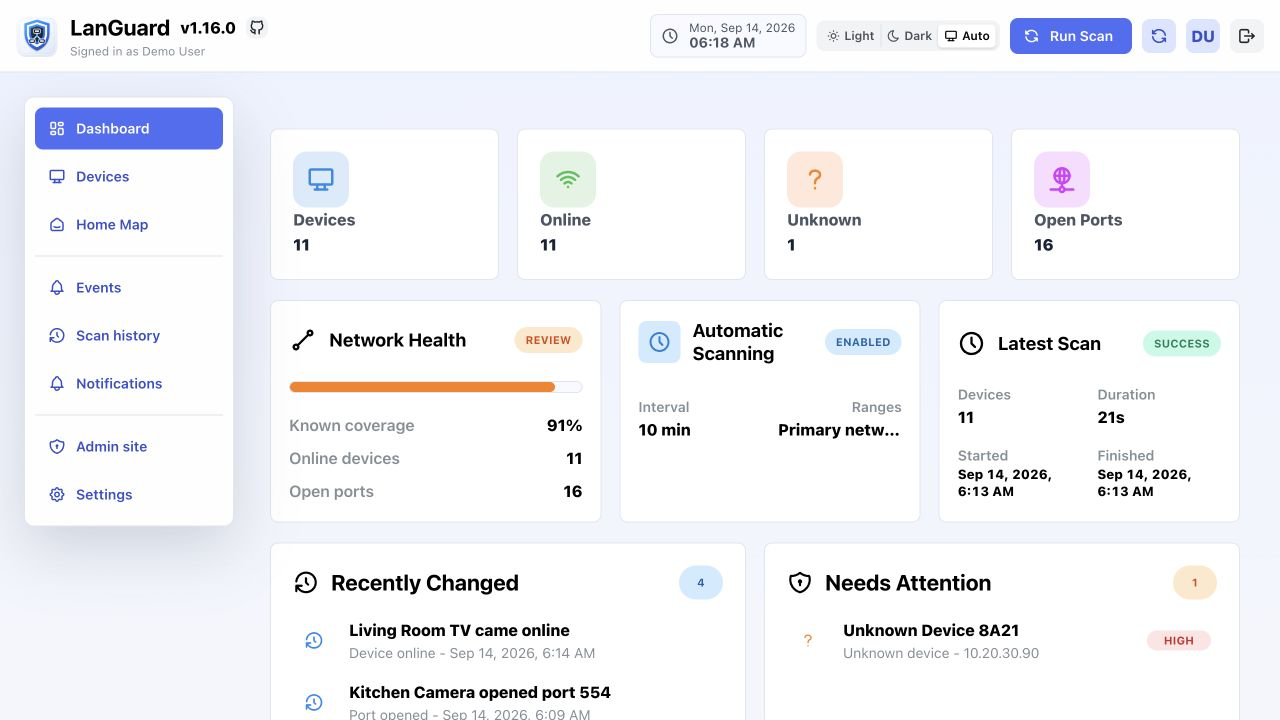
LanGuard builds a clear inventory of local network devices, tracks availability and network changes, and surfaces equipment that needs attention. It is designed for home and small-business networks and can run continuously as a Docker web application or locally as a native macOS scanner.
Highlights
- Discover IPv4 devices, names, vendors, MAC addresses, services, and common open ports.
- Optionally inventory managed switches, access points, printers, interfaces, and LLDP neighbor hints through read-only SNMP v2c.
- Track online state, scan history, IP changes, availability, and attention findings.
- Organize regular, visitor, and archived devices by room, role, icon, and notes.
- Send Discord, Telegram, ntfy, or signed automation webhook notifications.
- Connect AdGuard Home, Pi-hole, or Technitium DNS Server for DNS context, plus Speedtest Tracker and HomeBox.
- Run scheduled scans, on-demand detailed port scans, and Wake-on-LAN actions.
- Install the Docker interface as a web app on supported phones, tablets, and computers.
- Inventory running containers and published ports from the local Docker engine through the scheduler.
Preview
Quick Start
The recommended deployment uses Docker Compose or Portainer on a trusted host with direct access to the network being scanned.
git clone https://github.com/hillaliy/LanGuard.git
cd LanGuard
Before deployment, edit docker-compose.yaml:
- Replace
SECRET_KEYin the backend and scanner with the same long random value. - Add the Docker host IP or hostname to
ALLOWED_HOSTSwhile keeping127.0.0.1. - Start the stack:
docker compose up -d
Open http://<docker-host-ip>:8080 and create the first account. The first
account becomes the administrator; LanGuard has no default password.
LanGuard uses host networking and privileged discovery because ARP scanning requires direct Layer 2 access to the LAN. Review the Compose file before deployment and use a dedicated, trusted host.
For Portainer instructions, custom ports, VLAN requirements, updates, backups, and migration, use the complete installation documentation.
Editions
| Edition | Best for | Guide |
|---|---|---|
| Docker web app | Continuous scanning, shared access, integrations, and notifications | Installation |
| Native macOS scanner | A self-contained inventory and scanner on one Mac | macOS Scanner |
The editions do not synchronize their inventories.
Documentation
The public documentation is the source of truth for setup and operation:
- Getting Started
- Configuration
- Device Discovery
- Devices and Alerts
- Integrations
- Notifications
- Scheduler Tasks
- Backup and Migration
- Troubleshooting
- Release Notes
Update
Update all three Docker services together without removing the database volume:
docker compose pull
docker compose up -d --force-recreate
Review the release notes before updating across multiple versions.
API
Docker installations expose interactive API documentation through the LanGuard server:
- Swagger:
/api/schema/swagger/ - ReDoc:
/api/schema/redoc/ - OpenAPI schema:
/api/schema/
Contributing
Development setup, checks, and release instructions are documented in
CONTRIBUTING.md. User-facing behavior should update the
public documentation in the same pull request.
License
Copyright © 2026 Yossi Hillali.
LanGuard is licensed under the Apache License 2.0. Third-party components remain subject to their respective licenses.
Media gallery
Requirements
Related apps
Explore more like this
Explore allDetails
ghcr.io/hillaliy/languard-frontend:latestRuntime arguments
- Web UI
http://[IP]:8080/- Network
host- Shell
sh- Privileged
- false
Template configuration
Listening address and port for the Caddy web server (default :8080).
- Target
- FRONTEND_LISTEN_ADDRESS
- Default
- :8080
Address of the LanGuard backend API service (default 127.0.0.1:8000).
- Target
- BACKEND_UPSTREAM
- Default
- 127.0.0.1:8000