
All apps · 0 apps

KoInsight
Docker app from grtgbln's Repository
Overview
Readme
View on GitHubKoInsight is archived
While we love the work we did with KoInsight, we've struggled to find the time and energy needed to continue its development.
As a result, we've decided to discontinue active development and archive KoInsight for the foreseeable future.
We'd like to thank everyone who has used and supported the project. For those looking for an alternative, we recommend the excellent BookOrbit.

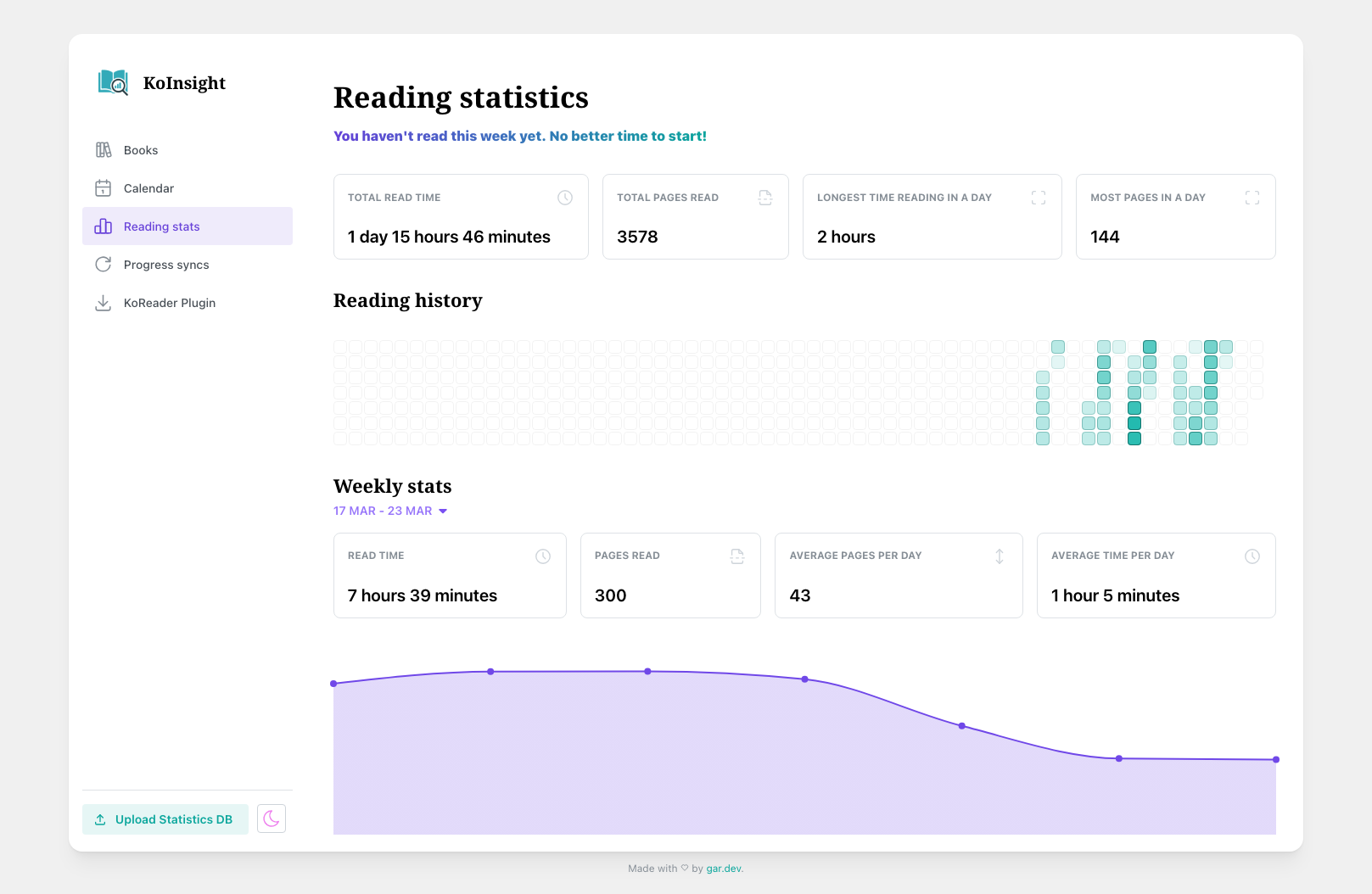
KoInsight brings your KOReader reading stats to life with a clean, web-based dashboard.

Features
- 📈 Interactive dashboard with charts and insights
- ✏️ Highlights sync
- 🔄 KOReader plugin for syncing reading stats
- 📱 Multi-device support
- 📤 Manual .sqlite upload supported
- ♻️ Act as a KOReader (kosync) sync server
- 🏠 Fully self-hostable (Docker image available)
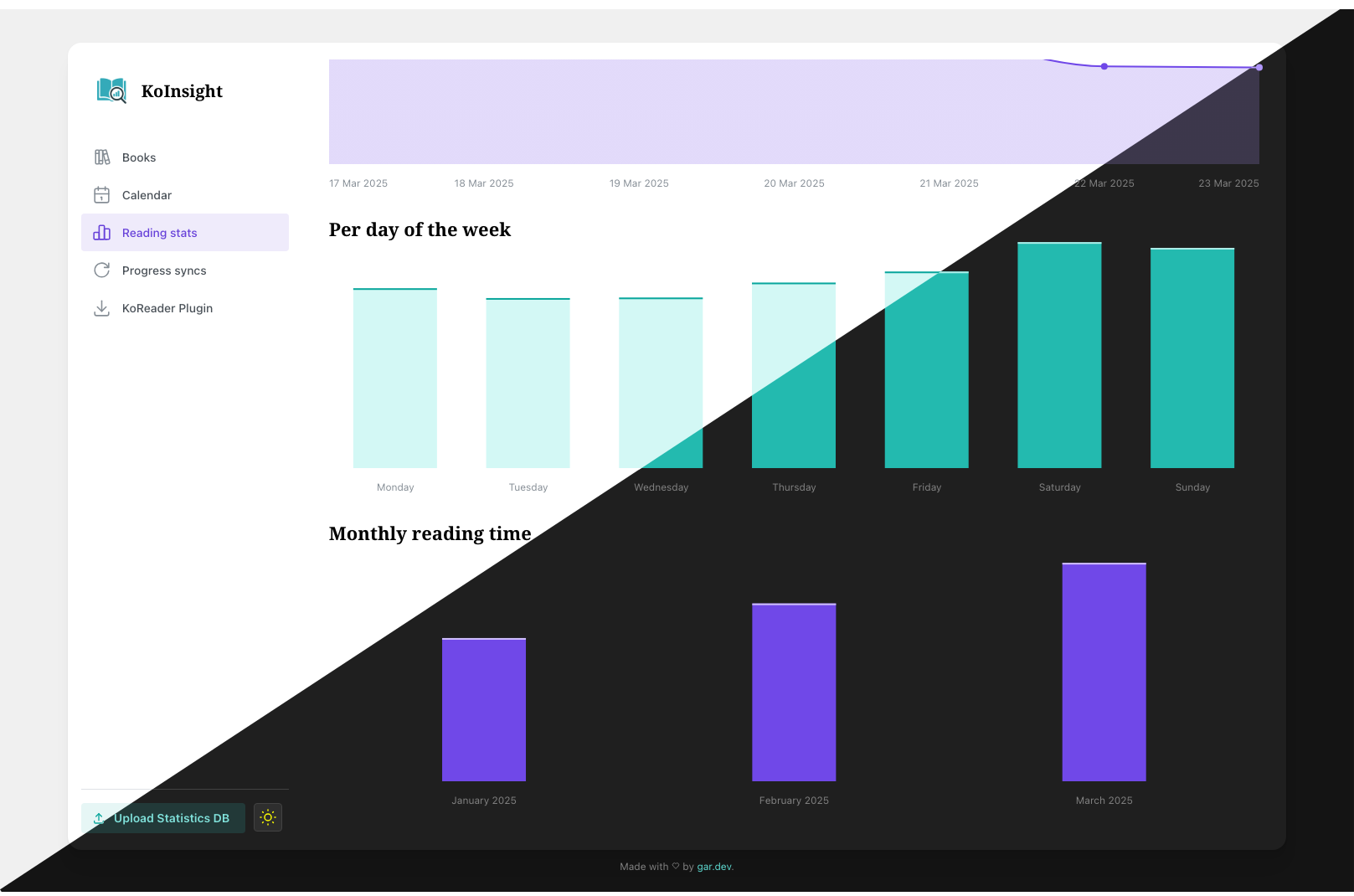
Screenshots
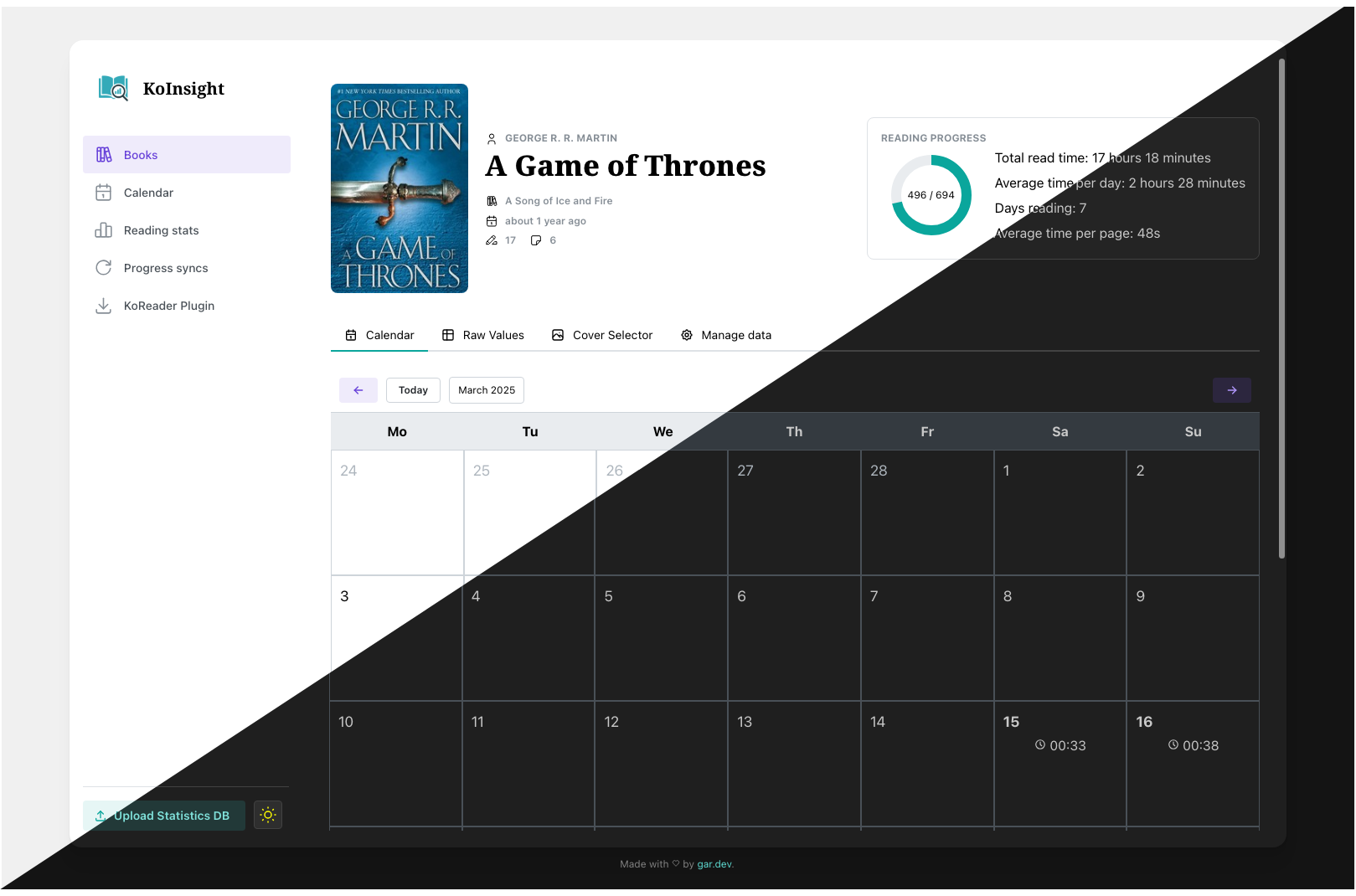
Note:As of 2025-10-15 covers are not (yet) automatically displayed, as they are not part of the KOReader-generated database. If you want to see covers, you'll need to add them once per book. The UI offers a search by title and upload of images under the tab 'Cover Selector'.
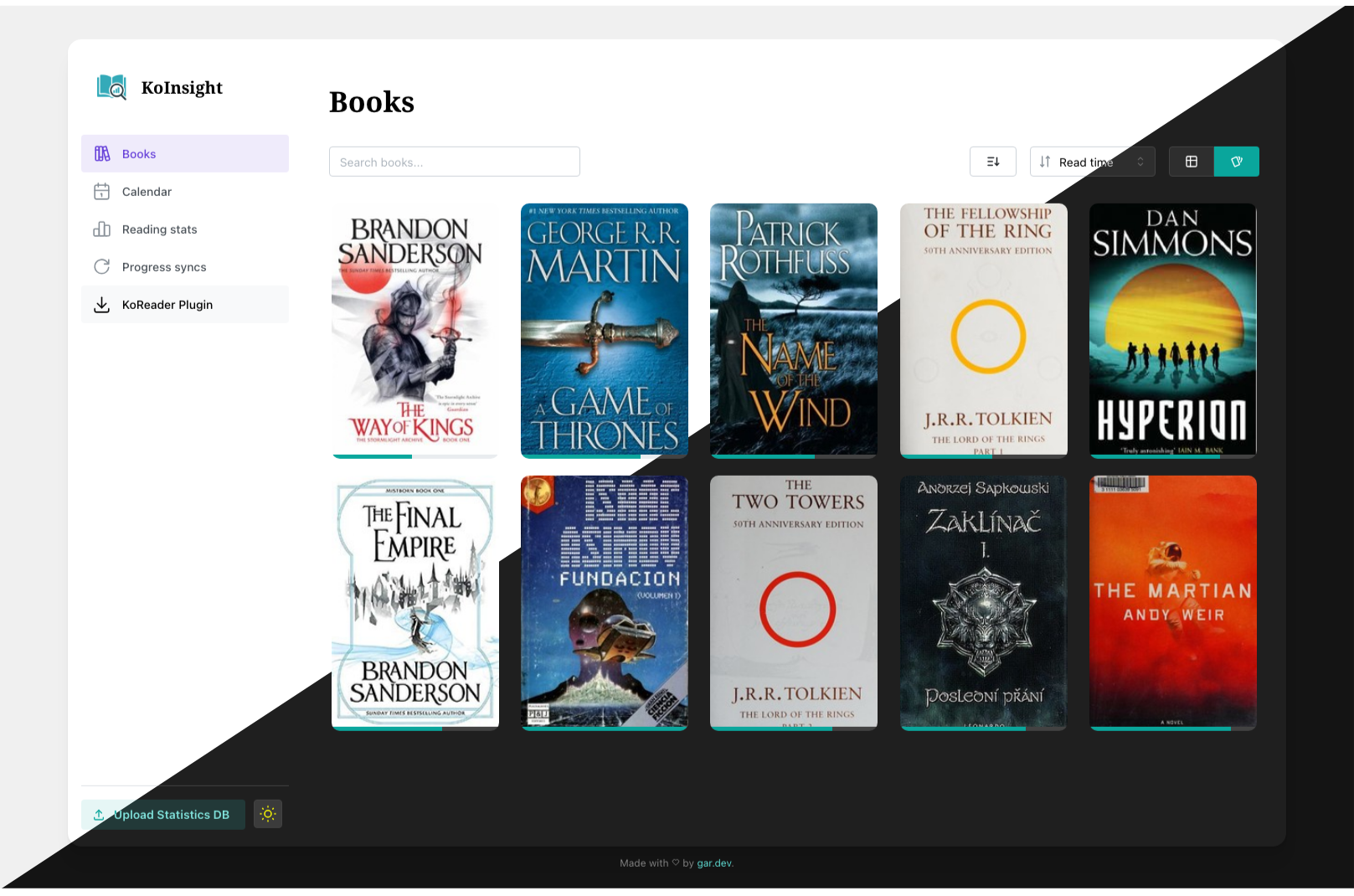
| Home page | Book view |
 |
 |
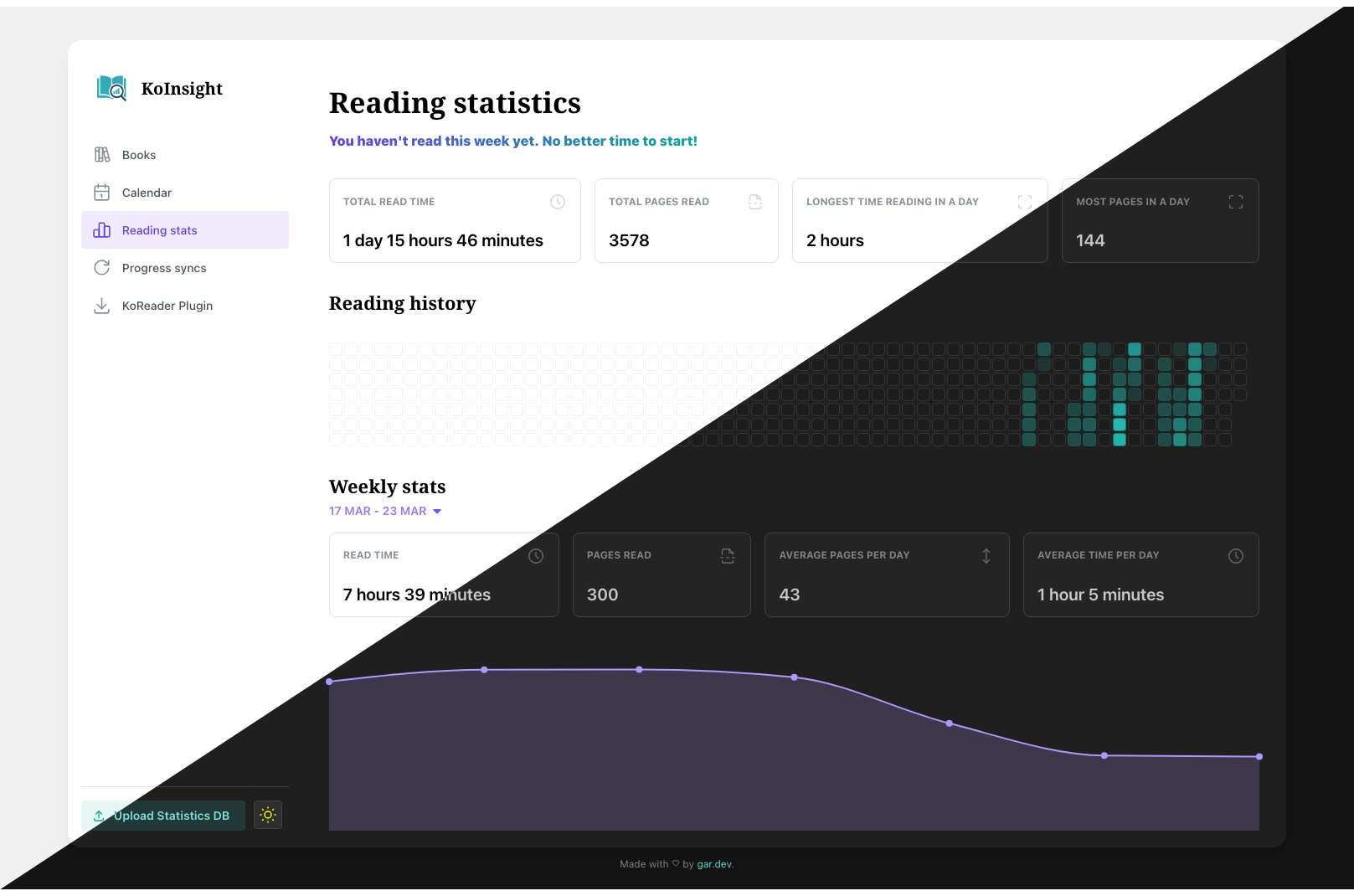
| Statistics | Statistics |
 |
 |
See all screenshots
Installation
Using Docker and Docker Compose
Add the following to your compose.yaml file:
name: koinsight
services:
  koinsight:
    image: ghcr.io/ko-insight/koinsight:latest
    restart: unless-stopped
    ports:
      - "3000:3000"
    volumes:
      - ./data:/app/data
Run docker compose up -d.
Configuration
KoInsight can be configured using the following environment variables:
HOSTNAME: The hostname or IP address where the server will listen.
Default:localhostPORT: The port number for the web server.
Default:3000MAX_FILE_SIZE_MB: Maximum allowed size (in megabytes) for uploaded files.
Default:100DATA_PATH: Path to the directory where KoInsight data (such as stats or uploads) will be stored.
Default:../../../dataor/app/datain Docker.
Usage
Reading statistics
To start seeing data in KoInsight, you need to upload your reading statistics. Currently, there are two ways to do this:
- Manual upload: Extract your
statistics.sqlite(in settings folder) file from KOReader and upload it using the "Upload Statistics DB" button in KoInsight. - Sync plugin: Install and configure the KoInsight plugin in KOReader to sync your data directly.
KOReader sync plugin
The KoInsight plugin syncs your reading statistics from KOReader to KoInsight.
Installation:
- Download the plugin ZIP bundle from the "KOReader Plugin" button in the main menu.
- Extract it into your
KOReader/plugins/folder. - For the plugin to be installed correctly, the file structure should look like this:
koreader
└── plugins
    └── koinsight.koplugin
        ├── _meta.lua
        ├── main.lua
        └── ...
Usage:
- Open the KOReader app.
- Go to the Tools menu and open KoInsight (it should be below "More tools").
- Click Configure KoInsight and enter your KoInsight server URL (e.g.,
http://server-ip:3000).- ⚠️ Make sure your KOReader device has network access to the server.
- Click Sync in the KoInsight plugin menu.
Reload the KoInsight web dashboard. If everything went well (🤞), your data should appear.
Manual Upload: statistics.sqlite
- Open a file manager on your KOReader device.
- Navigate to the
KOReader/settings/folder. - Locate the
statistics.sqlitefile. - Copy it to your computer.
- Upload it to KoInsight using the "Upload Statistics DB" button.
- Reload the KoInsight web dashboard.
Every time you need to reupload data, you would need to upload the statistics database file again.
Use as progress sync server
You can use your KoInsight instance as a KOReader sync server. This allows you to sync your reading progress across multiple devices.
- Open the KOReader app.
- Go to the Tools menu and open Progress sync
- Set the server URL to your KoInsight instance (e.g.,
http://server-ip:3000). - Register an account and login.
- Sync your progress.
The progress sync data should appear in the "Progress syncs" page in KoInsight.
Development
See DEVELOPMENT.md for development setup and instructions.
Roadmap
(a.k.a things I want to do)
See Project board
Media gallery
1 / 4Categories
Related apps
Explore more like this
Explore allDetails
ghcr.io/georgesg/koinsight:latestRuntime arguments
- Web UI
http://[IP]:[PORT:3000]/- Network
bridge- Privileged
- false
Template configuration
Container Port: 3000
- Target
- 3000
- Default
- 3000
- Value
- 3000
Path to the data folder
- Target
- /app/data
- Default
- /mnt/user/appdata/koinsight/data
- Value
- /mnt/user/appdata/koinsight/data
Maximum upload size in megabytes
- Target
- MAX_FILE_SIZE_MB
- Default
- 100
- Value
- 100