

immich-album-sync
Docker app from NightCrawler's Repository
One-way album sync between two Immich servers with a responsive web UI.
Overview
Readme
View on GitHub
Immich Album Sync
One-way album sync between two Immich servers — with a web UI.
Built for Unraid, runs on any Docker host.
License: MIT Unraid Community App Docker image on GHCR Powered by immich-go
Immich A (private)  ──────────────▶  Immich B (public/family)
    Master library                       Curated albums only
Features
- 🖥️ Web UI — configure sync jobs, view status, stream live logs from the browser
- 🔐 Password-protected — username/password login; forced password change on first login
- 🔑 Encrypted API keys — all API keys are AES-encrypted at rest; never stored or rendered in plaintext
- 📅 Cron scheduling — configurable per-job schedule, runs automatically in the background
- 📸 Preserves originals — downloads and uploads raw files with EXIF and GPS intact
- 🍎 Live Photo support — automatically pairs
.HEIC+.MOVfiles - 🔁 Duplicate-safe — uses
immich-gofor smart duplicate detection on the destination - ⚡ Incremental & bandwidth-friendly — checks the destination by checksum before downloading, so re-syncing an unchanged album transfers almost nothing
- ➕ Add-only by default — photos removed from the source album are left alone on the destination unless you opt in to Mirror deletes
- 🪞 Optional Mirror deletes — per-job, opt-in (experimental): keeps the destination album's contents matching the source album. Photos are only taken out of the album — never deleted from the destination server
- 📱 Mobile-responsive — works on phones, tablets, and desktops
- 🚀 Multi-job — sync multiple albums with different schedules and servers
- 🔍 API permission checker — test and verify required Immich API key permissions per job
- 🔔 Webhook notifications — get pinged on sync start/success/partial/failure; generic JSON that auto-formats for Discord & Slack, global or per-job
- 📜 Run history — browse every sync over the last 30 days (or any window) and filter by job and status to pin down failures
- 📦 Support bundle — one-click download of logs, sanitized config, and run history for troubleshooting
- 💾 Config backup & restore — save every job and the notification settings to a versioned JSON file (API keys protected by your passphrase) and restore it on any newer version
- 🔒 Optional HTTPS — serve TLS directly with your own certificate, or run behind an HTTPS reverse proxy. Off by default, so plain-HTTP LAN setups keep working
Screenshots
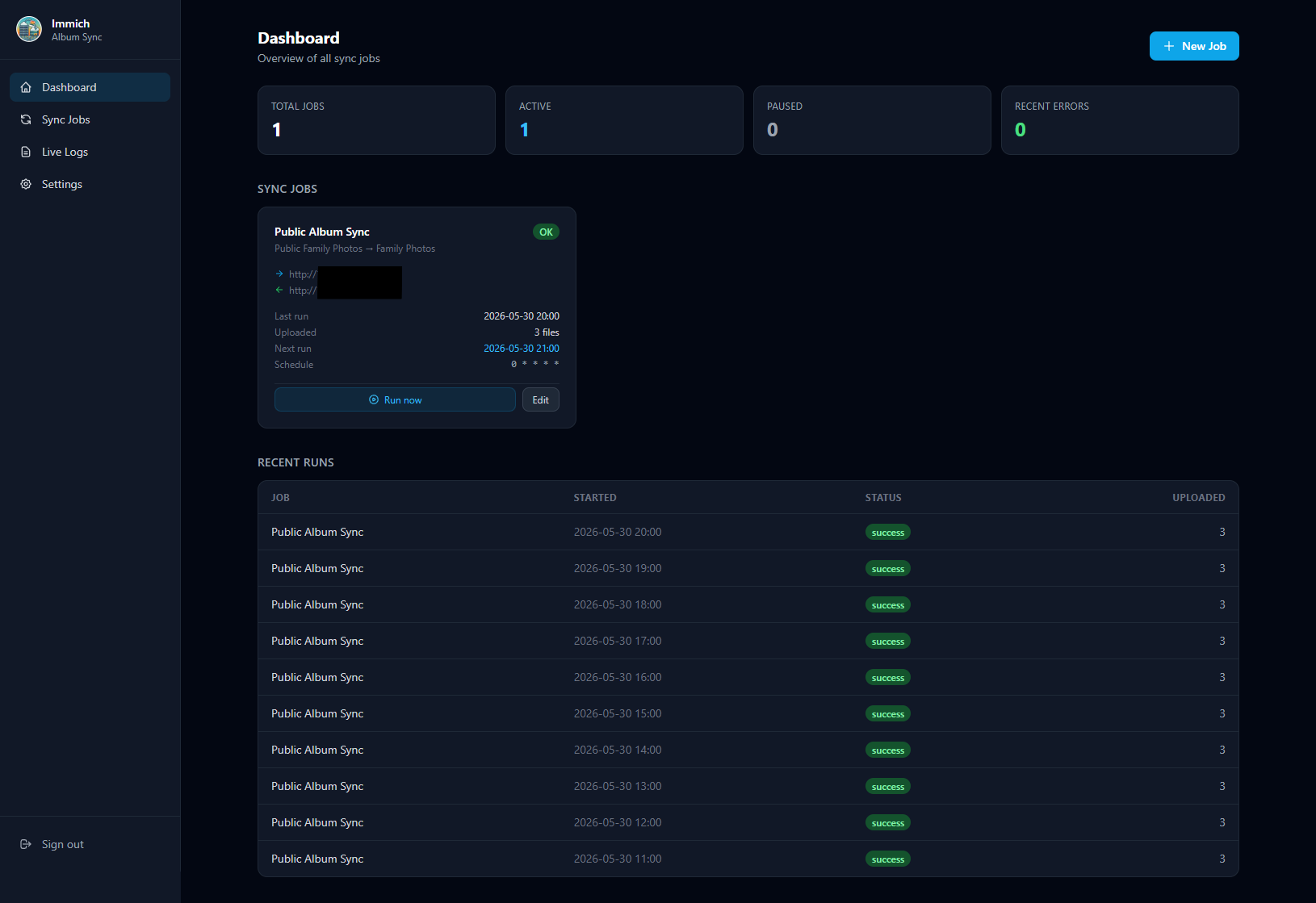
Dashboard — job overview, status tiles, and recent run history
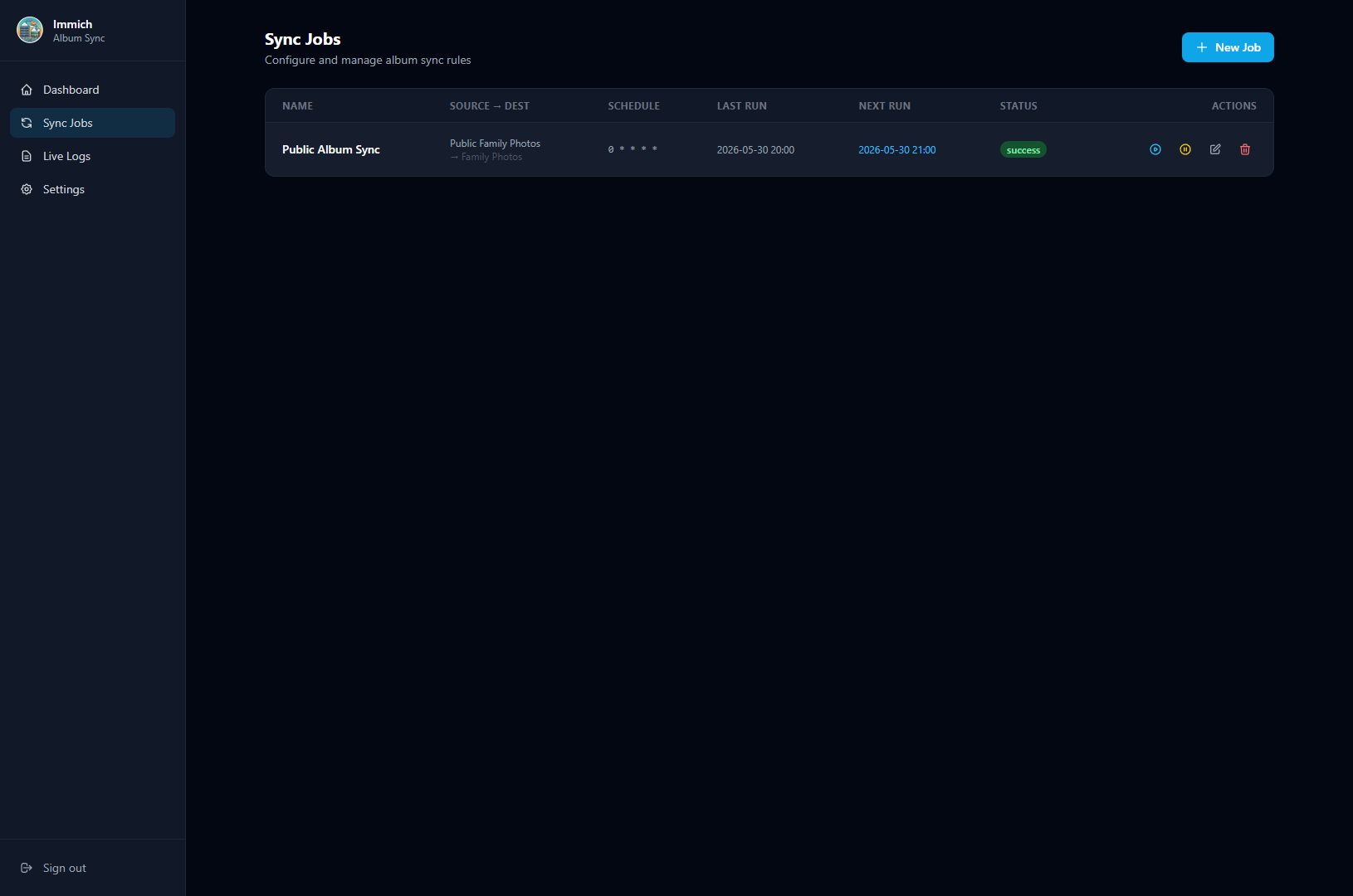
🔁 Sync Jobs — manage all album sync rules at a glance
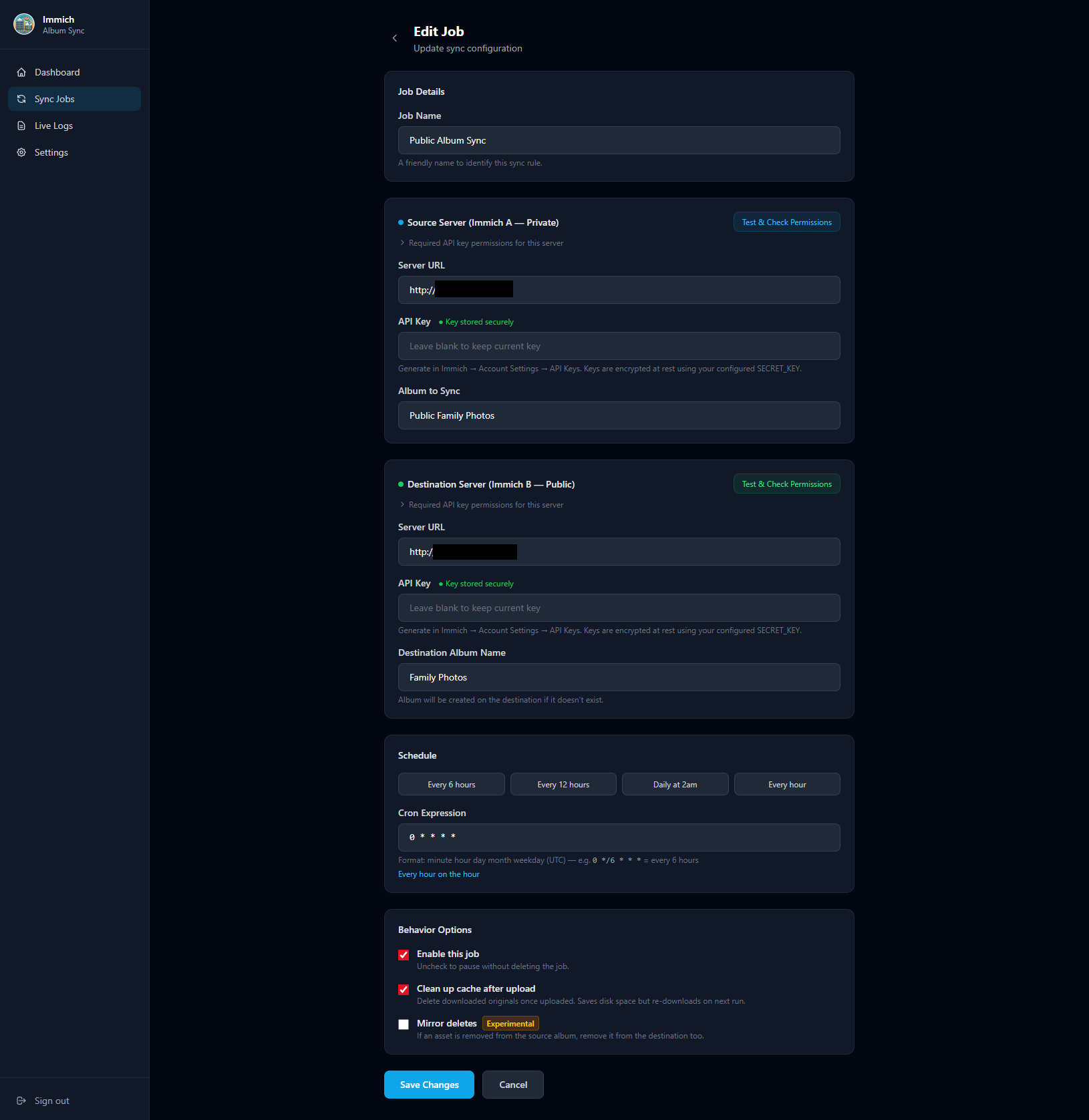
✏️ Edit Job — servers, API keys, schedule & behavior
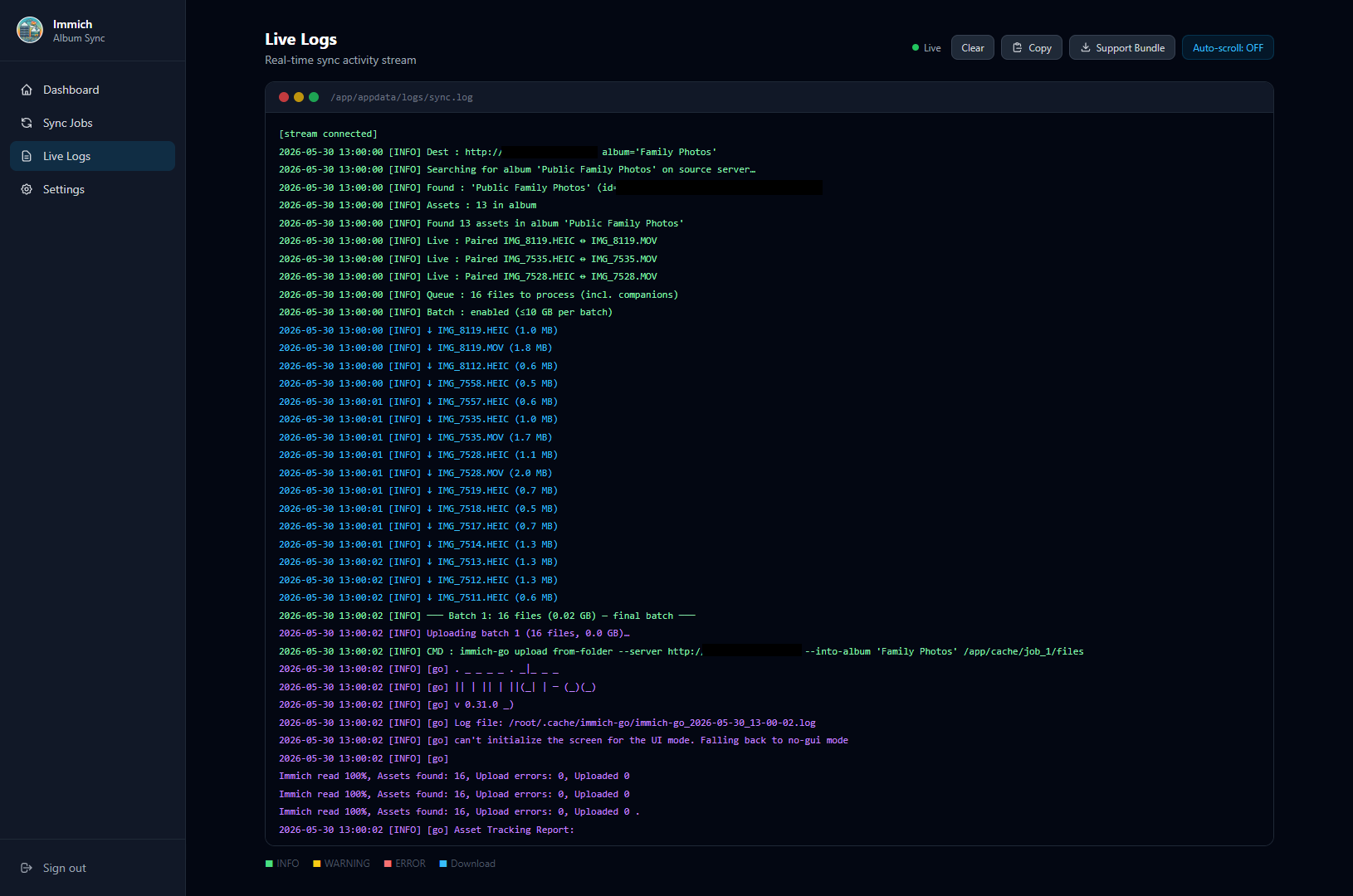
📜 Live Logs — real-time, color-coded sync activity stream
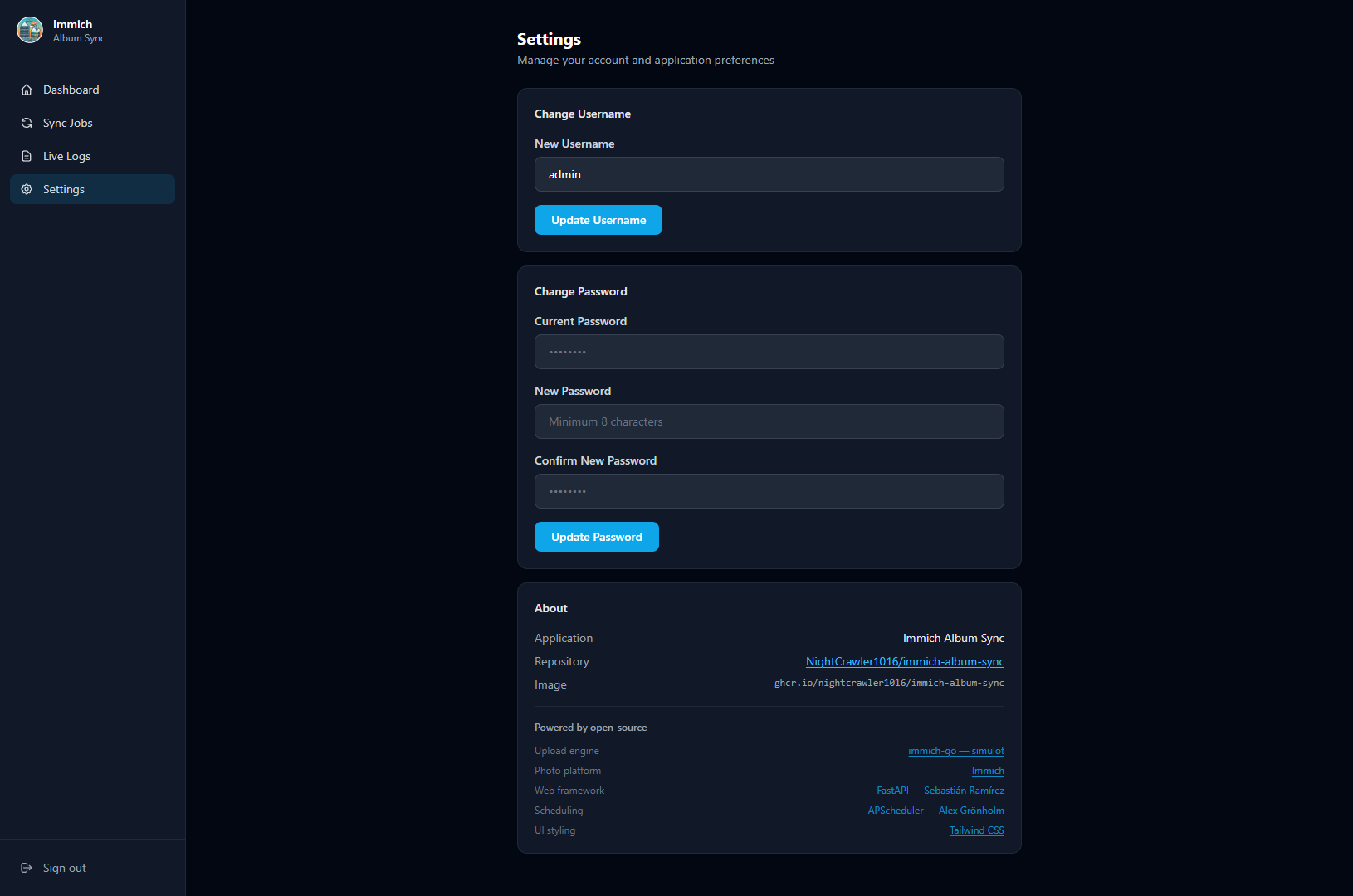
⚙️ Settings — credentials, account, and app info
Quick Start (Unraid)
Option A — Community Applications XML Template
- In Unraid, go to Apps → My Apps (or add a template manually)
- Use the XML template from this repository:
immich-album-sync.xml - Set a unique
SECRET_KEY(32–64 random characters — see Security) - Start the container and open
http://your-unraid-ip:8080 - Log in with
admin/admin— you will be prompted to set a new password immediately
Option B — Unraid Docker UI (manual)
| Setting | Value |
|---|---|
| Repository | ghcr.io/nightcrawler1016/immich-album-sync:latest |
| Name | immich-album-sync |
| Port | 8080 → 8080 |
Path /app/appdata |
/mnt/user/appdata/immich-album-sync |
Variable SECRET_KEY |
A 32–64 character random string (required) |
Variable TZ |
Your timezone (e.g. America/New_York) — log timestamps only; schedules always run in UTC |
Option C — docker-compose
services:
  immich-album-sync:
    image: ghcr.io/nightcrawler1016/immich-album-sync:latest
    container_name: immich-album-sync
    restart: unless-stopped
    ports:
      - "8080:8080"
    volumes:
      - ./appdata:/app/appdata
    environment:
      SECRET_KEY: "change-me-to-a-unique-random-32-64-char-string"  # replace — the container won't start with this placeholder
      TZ: "America/New_York"
Then open http://localhost:8080 and log in with admin / admin.
First-login password change is required. You will be redirected automatically on first login.
Security
First-login Password Change
On first login with the default credentials (admin / admin), the application immediately redirects to a password-change screen. You cannot access any other page until a new password is set. The default password cannot be reused.
API Key Encryption
All Immich API keys entered in sync job forms are encrypted before being stored in the SQLite database using AES-128 (Fernet) with a key derived from your SECRET_KEY. Keys are:
- Never stored in plaintext (keys saved in plaintext by very old versions are encrypted automatically at startup)
- Never rendered in HTML (form fields always show empty; a "Key stored securely" indicator is shown instead)
- Decrypted only in memory, when needed — to run a sync, to test a connection, to scrub the keys out of a support bundle, or to download or restore a configuration backup (where they are re-encrypted under your backup passphrase, or under this install's key on restore)
- The destination key is handed to
immich-gothrough its process environment (IMMICH_GO_UPLOAD_API_KEY), never on the command line, so it does not appear in process listings such asps;immich-gooutput is also scrubbed of the key before it is written to the log
If a stored key can no longer be decrypted (for example because SECRET_KEY changed), the sync fails with a clear "re-enter the API keys" message rather than sending garbage to Immich.
SECRET_KEY Requirements
| Constraint | Value |
|---|---|
| Minimum length | 16 characters |
| Recommended length | 32–64 characters |
| Maximum length | 128 characters (longer provides no additional benefit) |
The container refuses to start if
SECRET_KEYis unset, left at a placeholder value (anything beginning withchange-me), or shorter than 16 characters. This is deliberate: the key signs session cookies and encrypts stored API keys, so a known/default value would let anyone forge an admin session and decrypt your keys. Set a real key before starting.
Generate a strong key: 1Password Generator — select 32–64 characters with all character types.
Important: Changing
SECRET_KEYafter the initial setup will invalidate all stored API keys and webhook URLs (they were encrypted with the old key) and log out all active sessions. You will need to re-enter the API keys for every sync job, plus the global webhook URL (Settings → Notifications) and any per-job custom webhook URLs — until then, notifications silently stop.
Session Security
Sessions are signed with SECRET_KEY using itsdangerous and expire after 24 hours of inactivity. Changing the password or username signs out all other sessions. The session cookie is SameSite=Lax. By default it is not marked Secure, so the app works on a plain-HTTP LAN; when you turn on optional HTTPS it is marked Secure, so browsers only ever send it over HTTPS. If you expose the app beyond your LAN, use HTTPS.
Optional HTTPS
HTTPS is off by default and entirely optional. On a trusted home LAN, plain http:// is fine, and you can skip this section. Turn it on if you reach the UI over a network you don't fully trust. There are two ways:
1. The container serves HTTPS itself. Put a PEM certificate and private key somewhere inside the container (the appdata volume is easiest) and point two variables at them:
    environment:
      HTTPS_CERT_FILE: /app/appdata/certs/cert.pem   # certificate (full chain)
      HTTPS_KEY_FILE: /app/appdata/certs/key.pem     # private key (unencrypted PEM)
Restart, then open https://your-server:8080. The same port 8080 now speaks HTTPS only, so http:// stops working. The session cookie is marked Secure automatically. Both variables must be set; if only one is set the container logs a warning and stays on plain HTTP. If a file can't be read, the container stops with an error instead of quietly falling back to HTTP.
No certificate yet? A self-signed one works (your browser will warn once, and you accept it):
mkdir -p /mnt/user/appdata/immich-album-sync/certs && cd "$_"
openssl req -x509 -newkey rsa:2048 -nodes -days 3650 \
  -keyout key.pem -out cert.pem -subj "/CN=immich-album-sync"
Renewed certificates are picked up on container restart.
2. A reverse proxy handles HTTPS (nginx, Caddy, Traefik, Nginx Proxy Manager, SWAG…). Leave the two variables above unset and set SESSION_COOKIE_SECURE: "true" so the session cookie is only ever sent over HTTPS. Then make sure the proxy forwards the original Host header (see CSRF protection).
Don't set
SESSION_COOKIE_SECURE=trueif you open the UI over plainhttp://. The browser will refuse to send the cookie back, and you will be returned to the login page every time you sign in.
Clickjacking Protection
Every response carries X-Frame-Options: DENY and Content-Security-Policy: frame-ancestors 'none', so the UI cannot be embedded in another page's iframe (and therefore cannot be clickjacked). This also means it cannot be embedded in dashboard iframes such as Organizr or Homarr — open it in its own tab instead.
Runs as Non-Root
The app process runs as an unprivileged user (PUID:PGID, default 99:100 = Unraid's nobody:users), not root. The container uses root only briefly at startup to fix data-directory ownership, then drops privileges. If your appdata is owned by a different user and you see permission errors, set PUID/PGID to match (see Troubleshooting).
Brute-Force & CSRF Protection
- Login rate limiting — repeated failed logins from an IP are throttled (10 failures within 15 minutes triggers a 5-minute lockout). The limiter is in memory and resets when the container restarts. Behind a reverse proxy, every client appears to come from the proxy's IP, so they all share one limit (and one lockout) — unless you set uvicorn's
FORWARDED_ALLOW_IPSenvironment variable to your proxy's IP or subnet so the real client IP is taken fromX-Forwarded-For. Set it to the proxy's exact IP or subnet, never*: with*the client IP comes from the left-mostX-Forwarded-Forentry, which the client itself controls, so anyone could dodge the limit by spoofing it — even when port 8080 is only reachable through the proxy. - CSRF protection — state-changing requests are rejected unless their
Origin/Referermatches the app's ownHost, on top of aSameSite=Laxsession cookie. Behind a reverse proxy, the proxy must forward the originalHostheader (nginx:proxy_set_header Host $http_host;— Apache:ProxyPreserveHost On), otherwise every form submission is rejected with403 CSRF validation failed.
Safe Support Bundles
The downloadable support bundle is built to be safe to share for troubleshooting: API keys are removed, and server hostnames (including bare hostnames of your configured servers) and IPv4/IPv6 addresses are masked in sync.log, the job configs, and run error messages.
Webhook notifications likewise mask server URL hosts and IP addresses in the error text they send.
Environment Variables
| Variable | Required | Default | Description |
|---|---|---|---|
SECRET_KEY |
✅ Yes | none — must set | 32–64 char random string for session signing and API key encryption. Container refuses to start without a real value. |
TZ |
No | UTC |
Container timezone (e.g. America/New_York). Affects sync.log timestamps only — cron schedules always run in UTC, and the web UI shows times in UTC |
PUID |
No | 99 |
User ID the app runs as (non-root). 99 = Unraid nobody |
PGID |
No | 100 |
Group ID the app runs as. 100 = Unraid users |
CLEANUP_CACHE |
No | false |
true turns on Clean up cache after upload for every job: uploaded files are deleted right after upload instead of at the start of the next run (see Download cache) |
CACHE_PATH |
No | /app/appdata/cache |
Download cache directory (see Cache on external storage) |
BATCH_SIZE_MB |
No | 10240 |
Max MB to stage before uploading a batch (0 = unlimited) |
BATCH_FILE_COUNT |
No | 0 |
Max files per batch (0 = unlimited, size limit still applies) |
DB_PATH |
No | /app/appdata/config.db |
SQLite database path |
LOG_PATH |
No | /app/appdata/logs/sync.log |
Sync log file path. Rotates at 10 MB, keeping 3 old files (sync.log.1 … sync.log.3) |
RUN_HISTORY_RETENTION_DAYS |
No | 90 |
Days of run history to keep; older runs are pruned daily (the last 10 runs per job are always kept). 0 = keep forever |
HTTPS_CERT_FILE |
No | unset | Optional. Path inside the container to a PEM certificate. Together with HTTPS_KEY_FILE this makes port 8080 serve HTTPS (see Optional HTTPS) |
HTTPS_KEY_FILE |
No | unset | Optional. Path inside the container to the matching PEM private key |
SESSION_COOKIE_SECURE |
No | false |
Optional. true marks the session cookie Secure; use it only when an HTTPS reverse proxy sits in front. Leave it off for plain http:// access |
Volume Mount
| Container path | Purpose |
|---|---|
/app/appdata |
All persistent data: database, cache, and logs |
Map this to a path on your Unraid array, e.g. /mnt/user/appdata/immich-album-sync.
Cache on External Storage or a Different Disk
For large first-time syncs (hundreds of GB or multi-TB albums), you may want the download cache on a high-capacity array disk, a separate SSD pool, or a network share — rather than your primary Unraid cache pool.
Unraid / Docker setup:
- Add a second Path mapping in the Docker template:
- Container path:
/app/cache - Host path:
/mnt/user/YourLargeDisk/immich-sync-cache(or any writable path)
- Container path:
- Set the
CACHE_PATHenvironment variable to:/app/cache
The sync engine will write all downloaded originals to that path. The main /app/appdata volume (database, logs) is unaffected.
docker-compose example with separate cache volume:
services:
  immich-album-sync:
    image: ghcr.io/nightcrawler1016/immich-album-sync:latest
    container_name: immich-album-sync
    restart: unless-stopped
    ports:
      - "8080:8080"
    volumes:
      - ./appdata:/app/appdata                     # database + logs (small, keep on fast drive)
      - /mnt/big-drive/sync-cache:/app/cache       # large cache on a different disk or share
    environment:
      SECRET_KEY: "change-me-to-a-unique-random-32-64-char-string"  # replace — the container won't start with this placeholder
      TZ: "America/New_York"
      CACHE_PATH: /app/cache
Web UI Pages
| Page | URL | Description |
|---|---|---|
| Dashboard | / |
Overview of all jobs, recent runs, and status |
| Sync Jobs | /jobs |
List, create, edit, delete, and pause sync jobs |
| New Job | /jobs/new |
Configure source server, destination server, album, and schedule |
| Live Logs | /logs |
Real-time streaming sync log with copy and support bundle download |
| Run History | /history |
Every run over a selectable window (default 30 days), filterable by job and status |
| Settings | /settings |
Change username and password; configure notifications; back up and restore the configuration |
Setting Up a Sync Job
- Open Sync Jobs → New Job
- Enter the Source Server (your private Immich) URL and API key
- Enter the Destination Server (your family/public Immich) URL and API key
- Use the Test Connection button to verify API key permissions before saving
- Select the source album name (populated from the test result)
- Set a cron schedule (e.g.
0 23 * * *for 23:00 UTC daily) — see the schedule notes below - Optionally enable Clean up cache after upload and/or Mirror deletes (see Download cache and Mirror deletes)
- Save — the job will run on schedule automatically. An invalid cron expression is rejected when you save
Schedule notes
- Schedules are standard 5-field cron (
minute hour day month weekday) and always run in UTC, regardless of theTZsetting (which only affects log timestamps). Convert your local time to UTC when choosing the hour. - Weekday numbers count from Monday:
0= Monday …6= Sunday — unlike standard cron, where0= Sunday. Use names to avoid surprises:0 3 * * mon-fri,0 3 * * sun.
Required API Key Permissions
| Server | Required Permissions |
|---|---|
| Source (Immich A) | album.read, asset.read, asset.download |
| Destination (Immich B) | All permissions (full-access key — see note below). Mirror deletes additionally uses albumAsset.delete, which an all-permissions key already includes |
Source note:
asset.downloadis a separate scope fromasset.read— it is what actually permits downloading original files. A key with onlyalbum.read+asset.readpasses metadata checks but fails every file download with403 Forbidden.user.readis not required on the source.
Destination note: Uploads run through immich-go, which requires a broad set of scopes and validates the connection via
GET /api/users/me(souser.readis mandatory here). Its documented requirements includeuser.read,asset.read,asset.statistics,asset.update,asset.upload,asset.copy,asset.replace,asset.delete,asset.download,album.create,album.read,albumAsset.create,server.about,stack.create,tag.asset, andtag.create. Because this set changes between immich-go versions, the simplest reliable choice is an all-permissions API key on the destination. A narrowly-scoped key fails withMissing required permission: …. For family sharing, create a dedicated non-admin user on the destination and use their all-permissions key. If you enable Mirror deletes, the app also removes assets from the destination album itself, which needsalbumAsset.delete(included in an all-permissions key).
See Immich API Key documentation for how to create keys with specific permissions.
Notifications
Get notified when a sync runs — configured entirely in the browser under Settings → Notifications. No environment variables needed.
How it works
- One webhook URL. Paste any URL that accepts a JSON
POST. If it's a Discord or Slack incoming-webhook URL, the message is auto-formatted (Discord embeds with a color per status; Slack attachments). Any other URL receives a plain JSON body you can route however you like. - Pick your events. Choose any of Run started, Successful runs, Partial (some errors), and Failed runs. A common low-noise choice is just Failed + Partial.
- Global default + per-job override. The Settings page sets the default for every job. On a job's edit page you can leave it on Use global settings, turn it Off for that job, or set a Custom webhook/events just for that job.
- Test button. "Send test notification" posts a sample message so you can confirm the URL works before relying on it.
Security & privacy
- Webhook URLs are encrypted at rest (same Fernet scheme as API keys) and are never rendered back into the page — the field shows "Saved securely" and stays blank; leave it blank to keep the current URL.
- Notification payloads never contain secrets — no API keys, no server URLs (only the job name, album names, run counts, status, timestamps, and, for failed/partial runs, the error message — with server URL hosts and IP addresses masked).
- A notification failure can never break a sync — the worst case is a warning in the log.
Generic JSON payload
Non-Discord/Slack endpoints receive:
{
  "service": "immich-album-sync",
  "event": "failed",
  "status": "failed",
  "job": "Family Shared Sync",
  "source_album": "Family Shared",
  "dest_album": "Family Shared",
  "message": "Family Shared Sync: Sync failed",
  "counts": { "found": 12, "downloaded": 0, "uploaded": 0, "skipped": 0, "failed": 12 },
  "error": "Album 'Family Shared' not found on the source server.",
  "started_at": "2026-07-04T02:00:00+00:00",
  "finished_at": "2026-07-04T02:00:07+00:00",
  "duration_seconds": 7,
  "timestamp": "2026-07-04T02:00:07+00:00"
}
Backup & Restore
Settings → Backup & Restore saves every sync job and the notification settings to one JSON file. You can restore it later on the same install, on a rebuilt container, or on a newer version of the app.
What's in a backup: each job's name, servers, albums, schedule, enabled/paused state, Mirror deletes and Clean up cache options, and per-job notification settings, plus the global notification settings.
What's not: your login (username/password), run history, the download cache, and the container's environment variables such as SECRET_KEY. Those belong to the install, not the configuration.
The passphrase
- With a passphrase (8+ characters), the API keys and webhook URLs are included, encrypted with that passphrase. Restoring needs the same passphrase. It can't be recovered, so keep it somewhere safe.
- Without a passphrase, the API keys and webhook URLs are left out entirely. After restoring, the jobs come back paused: edit each one, enter its keys (and its webhook URL, if it used a custom one), and re-enable it. The global webhook URL already saved on this install is kept; on a fresh install, re-enter it under Settings → Notifications.
The secrets are deliberately not encrypted with SECRET_KEY. A backup therefore still restores after the container is rebuilt with a different SECRET_KEY; the keys are re-encrypted with the new install's key as they are restored.
Restoring
Pick the file, enter its passphrase (if it has one), and click Restore Backup. A restore replaces all current sync jobs, their run history, and the notification settings (if the backup has no global webhook URL, the one already saved here is kept). Download a backup of the current setup first if you might want it back. Restore is all-or-nothing: a wrong passphrase, a damaged file, or an invalid schedule changes nothing. It is also refused while a sync is running.
Compatibility across versions
Backups are designed to keep working across releases, including major ones:
- The file names its own format (
"format": "immich-album-sync-backup") and carries aformat_versionnumber. New releases keep reading every older format version. A backup from a newer version than the app understands is rejected with a clear message rather than half-restored. - Fields are named after the setting, not after the app's internal database columns, so internal changes don't alter the file.
- Fields the app doesn't recognise are ignored, and missing optional fields fall back to defaults.
- The encryption parameters (PBKDF2-HMAC-SHA256, 600,000 iterations, random salt; Fernet tokens) are stored in the file itself, so future releases can still decrypt old backups after the defaults change.
It's plain, readable JSON:
{
  "format": "immich-album-sync-backup",
  "format_version": 1,
  "created_at": "2026-10-17T12:00:00+00:00",
  "app_version": "1.2.0",
  "encryption": { "cipher": "fernet", "kdf": "pbkdf2-sha256", "iterations": 600000, "salt": "…", "check": "…" },
  "notifications": { "enabled": true, "webhook_url": "gAAAAA…", "events": ["failed", "partial"] },
  "jobs": [
    {
      "name": "Family Shared Sync",
      "enabled": true,
      "schedule": "0 3 * * *",
      "source": { "url": "http://192.168.1.10:2283", "album": "Family Shared", "api_key": "gAAAAA…" },
      "destination": { "url": "http://192.168.1.20:2283", "album": "Family Shared", "api_key": "gAAAAA…" },
      "mirror_deletes": false,
      "cleanup_cache": false,
      "notifications": { "mode": "inherit", "webhook_url": null, "events": [] }
    }
  ]
}
Without a passphrase, encryption and every api_key / webhook_url are null. Server URLs and album names are stored in plain text, so treat the file as private.
Batch Processing
The sync engine automatically processes large albums in rolling batches to prevent the local cache from filling up your disk.
How batching works
Instead of downloading the entire album before uploading anything, the engine:
- Downloads files until either
BATCH_SIZE_MBorBATCH_FILE_COUNTis reached - Uploads that batch to the destination server
- Clears the batch from the cache
- Repeats until all files are processed
The final batch respects the job's Clean up cache after upload setting (or CLEANUP_CACHE) — intermediate batches are always cleared. See Download cache.
Defaults
| Setting | Default | Meaning |
|---|---|---|
BATCH_SIZE_MB |
10240 (10 GB) |
Flush every 10 GB of downloaded data |
BATCH_FILE_COUNT |
0 |
No file-count limit (size limit still applies) |
With the default 10 GB limit, syncs under 10 GB behave exactly as before (single batch). Syncs over 10 GB are automatically split — you'll see progress in the live log like:
─── Batch 1: 247 files (9.98 GB) — 831 items remaining ───
   Batch 1: 212 uploaded to destination
   Batch 1: cache cleared, ready for next batch
─── Batch 2: 231 files (10.01 GB) — 600 items remaining ───
...
Tuning for your setup
| Scenario | Recommendation |
|---|---|
| Unraid cache pool is small (< 50 GB) | Lower BATCH_SIZE_MB to 5120 (5 GB) or 2048 (2 GB) |
| Cache on large array disk or NAS share | Raise BATCH_SIZE_MB or set to 0 (disable) |
| Very large files (4K video, RAW) | Lower BATCH_FILE_COUNT to 100–250 |
| Want to disable batching entirely | Set both BATCH_SIZE_MB=0 and BATCH_FILE_COUNT=0 |
How It Works
- At the scheduled time, the sync engine connects to Immich A via its REST API
- Finds the configured source album by name and lists all assets (including Live Photo
.MOVcompanions) - Checksum pre-check — asks Immich B which of those assets it already has (by SHA-1). Assets already present are added straight to the destination album via the API, with no download or upload; only genuinely-new assets continue to the next step
- Prunes the job's download cache to just the files that still need uploading (see Download cache)
- Downloads the new originals to the local cache in rolling batches — once a batch reaches
BATCH_SIZE_MB(default 10 GB) orBATCH_FILE_COUNT, it is immediately uploaded and cleared before the next batch begins - Uploads each batch to Immich B using
immich-go(v0.32.0), which performs a second layer of duplicate detection on the destination - If the job has Mirror deletes enabled, removes from the destination album anything that is no longer in the source album (see Mirror deletes)
- Logs all activity to
/app/appdata/logs/sync.log(rotated at 10 MB, 3 old files kept), viewable live in the browser
Re-syncing an unchanged album is nearly free: the checksum pre-check skips every already-synced asset before any bytes are transferred, so there is no wasted bandwidth or disk. The pre-check is best-effort — if it ever fails, the engine falls back to downloading everything and lets immich-go de-dupe on upload, so a failed check never causes an asset to be skipped.
Server B is a replica, not a primary library. It's meant to mirror whatever albums you sync to it and can be wiped and rebuilt at any time — just re-run your jobs. So the sync never restores anything from B's trash: a photo you trash on B counts as already present until B's trash is emptied, and the next sync after that uploads it fresh. If you remove a photo from A's album and later add it back, the next sync puts it back in B's album like any other new photo.
A run finishes as success, partial (some files failed to download or upload, or Mirror deletes failed — whatever did transfer is kept), or failed (the run could not proceed at all, e.g. album not found or a bad API key).
Download cache
- Each asset is cached in its own folder (
<CACHE_PATH>/job_<id>/files/<asset-id>/<filename>), so two different photos that share a filename never overwrite each other. A Live Photo's still and motion file share one folder. - Downloads are written to a temporary
.partfile and renamed only once complete, so an interrupted download never leaves a truncated file behind. - At the start of every run, the job's cache is pruned to only the files that still need uploading. Files left over from an interrupted run are reused without re-downloading; anything else (already on the destination, or since removed from the source album) is deleted, so stale cached files are never uploaded again.
- Clean up cache after upload (per job, or
CLEANUP_CACHE=truefor all jobs) only changes when uploaded files are deleted: right after a successful upload when on, or at the start of the next run when off. Files already on the destination are never re-downloaded either way. - Deleting a job also deletes its cache folder (deleting is refused while that job is syncing).
Mirror deletes
By default the sync is add-only: removing a photo from the source album does not touch the destination. Enabling Mirror deletes on a job (opt-in, marked experimental) makes the destination album match the source album:
- After uploading, every asset in the destination album that doesn't match an asset in the source album is removed from the destination album. That includes photos removed from the source album and photos someone added directly to the destination album.
- An asset matches when its checksum is identical, or it has the same filename and a capture time within 5 seconds — the same rule
immich-gouses to decide the destination already has a photo (e.g. a different-quality copy), so the two never undo each other. - It changes album membership only — nothing is trashed or deleted; the photos remain in the destination owner's library. Every removal is logged by filename and asset id, so it can be undone by re-adding those assets to the album.
- Upgrading: in older versions this checkbox did nothing. To avoid surprise removals, the first start of this version switches it off on every existing job (logged as a warning) — tick it again on the jobs you want mirrored.
- The destination album is matched by its exact name (case-sensitive), the same way
immich-gopicks the album to upload into. - Safety guards: it skips itself (with a warning in the log) if the source album listing is empty or lacks checksums, or if it would remove every asset in the destination album — a sign that something is wrong with a listing. As a consequence, emptying the source album completely will not empty the destination album; remove those photos by hand.
- It needs the
albumAsset.deletescope on the destination key (included in an all-permissions key). If the removal fails, the run is marked partial.
Immich Server Compatibility
Works with Immich v1/v2 and v3. Immich v3.0.0 removed the embedded assets array from album responses (v3 migration guide); the sync engine detects this automatically and lists album contents via the paginated search API instead, with no configuration needed. Uploads use immich-go v0.32.0, which auto-detects the server version.
Docker Image Tags
| Tag | Branch | Description |
|---|---|---|
latest |
main |
Stable production release |
dev |
dev |
Development builds — may be unstable |
1.2.3, 1.2, 1 |
git tag v1.2.3 |
Pinned version releases — note the image tags have no leading v |
# Pull latest stable
docker pull ghcr.io/nightcrawler1016/immich-album-sync:latest

# Pull dev build
docker pull ghcr.io/nightcrawler1016/immich-album-sync:dev
Building Locally
git clone https://github.com/NightCrawler1016/immich-album-sync.git
cd immich-album-sync
docker build -t immich-album-sync:local .
docker run -p 8080:8080 \
  -e SECRET_KEY=my-local-dev-secret-32-chars-long \
  -v $(pwd)/appdata:/app/appdata \
  immich-album-sync:local
Troubleshooting
Download Support Bundle
In the Live Logs page, click Download Support Bundle to get a ZIP containing:
sync.log— the current sync log (API keys removed; server hostnames and IPv4/IPv6 addresses masked)jobs.json— job configurations (API keys redacted; URL hosts masked)sync_runs.json— last 100 run records (error messages redacted the same way)system_info.json— Python version, immich-go version, paths
The bundle is safe to share for troubleshooting: API keys are removed, and server hostnames (including bare hostnames of your configured servers) and IP addresses are masked in the log, job configs, and run error messages.
Common Issues
| Symptom | Likely Cause | Fix |
|---|---|---|
| Container starts but no logs | Wrong volume mapping | Ensure /app/appdata is mapped to a writable host path |
| Permission errors writing to appdata | App runs as non-root PUID:PGID (default 99:100) but your appdata is owned by another user |
Set PUID/PGID to match your appdata owner, or chown the appdata path to 99:100 (Unraid nobody:users) |
| Redirected to "Set Your Password" on login | First-login prompt (by design) | Set a new password — you cannot skip this step |
| "Invalid username or password" | Wrong credentials | Default is admin / admin; check Settings if you changed it |
| API key test fails | Insufficient permissions | Use Immich's API key settings to grant required roles (see table above) |
| Container won't start / exits immediately, log says "Refusing to start" | SECRET_KEY is unset, a change-me… placeholder, or under 16 chars |
Set a unique 32–64 character SECRET_KEY and restart |
| Sync runs but 0 uploads | Duplicates already on dest | Normal — immich-go skips files already present |
Assets : 0 in album after upgrading Immich to v3 |
Older image predates the Immich v3 API changes | Update to the latest image — album listing and uploads are v3-compatible now |
| Album not visible after sync | Immich UI cache | Refresh your Immich browser tab or wait a moment |
| Cache fills up during large sync | Batch size too large for disk | Lower BATCH_SIZE_MB (e.g. 2048 for 2 GB batches) or route cache to a larger disk |
| Sync stops mid-way with "partial" status | Upload error during a batch, some files failed to download, or Mirror deletes failed | Check the live log for the cause. Cached files still waiting to upload are kept — fix the error and re-run; completed batches won't re-upload |
| Destination album has more photos than the source | The sync is add-only by default: photos removed from the source album, and photos added directly to the destination album, stay there | Enable Mirror deletes on the job (see Mirror deletes) — it removes them from the destination album only, never from the server |
403 "CSRF validation failed" when saving forms behind a reverse proxy |
The proxy is not forwarding the original Host header |
nginx: proxy_set_header Host $http_host; — Apache: ProxyPreserveHost On |
| "An API key is missing or could not be decrypted" | SECRET_KEY changed since the keys were saved, or the job was restored from a backup made without a passphrase |
Edit the job and re-enter the source and destination API keys (or restore the old SECRET_KEY) |
| "Invalid schedule" when saving a job, or when re-enabling a paused job | The cron expression isn't valid | Fix the 5-field cron expression (see Schedule notes) |
| Job runs at the wrong time of day | Schedules run in UTC, not your TZ |
Convert the hour to UTC; use weekday names (mon-fri) rather than numbers (0 = Monday here) |
| Want to use a network share for cache | Default cache is on main appdata | Add a second Docker volume mapping and set CACHE_PATH (see Cache on external storage) |
Notes on immich-go
This container pins immich-go to v0.32.0 for stability. The upload command used internally:
IMMICH_GO_UPLOAD_API_KEY=DEST_KEY \
immich-go upload from-folder \
  --server DEST_URL \
  --into-album "Album Name" \
  --recursive /path/to/cache
The API key is supplied through the IMMICH_GO_UPLOAD_API_KEY environment variable of the immich-go process rather than --api-key, so it never appears on the command line.
Note: flags must appear after
from-folder(v0.31.0+ syntax). v0.32.0 adds Immich v3 server compatibility — it auto-detects the server version and remains backward compatible with Immich v2. (v0.31.0 uploads fail against Immich v3 with HTTP 400 — immich-go#1372.)
Credits & Acknowledgements
This project is built on top of several excellent open-source tools — credit goes to their authors:
| Project | Author | Role in this project |
|---|---|---|
| immich-go | simulot | Upload engine — handles duplicate detection and album creation on the destination server |
| Immich | Immich Team | The self-hosted photo platform this tool syncs between |
| FastAPI | Sebastián Ramírez | Web framework powering the UI and REST API |
| APScheduler | Alex Grönholm | Cron-based scheduling for automated sync jobs |
| SQLAlchemy | Mike Bayer | ORM for SQLite job/run storage |
| Tailwind CSS | Tailwind Labs | UI styling |
| httpx | Encode | Async HTTP client used to talk to Immich APIs |
A big thank you to the immich-go project in particular — it does the heavy lifting of uploading files with smart duplicate detection so this tool doesn't have to reinvent that wheel.
License
MIT
Categories
Related apps
Explore more like this
Explore allLinks
Details
ghcr.io/nightcrawler1016/immich-album-sync:latestRuntime arguments
- Web UI
http://[IP]:[PORT:8080]/- Network
bridge- Shell
bash- Privileged
- false
- Extra Params
--restart unless-stopped
Template configuration
Port for the Immich Album Sync web interface. Open this in your browser after the container starts.
- Target
- 8080
- Default
- 8080
- Value
- 8080
Persistent storage for the database (config.db), download cache, and sync logs. Map to a location on your array.
- Target
- /app/appdata
- Default
- /mnt/user/appdata/immich-album-sync
- Value
- /mnt/user/appdata/immich-album-sync
REQUIRED: Change to a unique random string used to sign session cookies and encrypt stored API keys. The container WILL NOT START while this is left at the default/placeholder value (any value starting with 'change-me') or shorter than 16 characters. Key length: minimum 16 characters | recommended 32–64 characters | maximum 128 characters (longer values provide no extra security). Generate a strong key at: https://1password.com/password-generator/ — select 32–64 characters, all character types. WARNING: changing this key after initial setup will invalidate all stored API keys and webhook URLs and log out all active sessions — you will need to re-enter API keys for every sync job and any webhook URLs.
- Target
- SECRET_KEY
- Default
- change-me-to-a-unique-random-32-64-char-string
- Value
- change-me-to-a-unique-random-32-64-char-string
Container timezone. Used for sync log timestamps only — cron schedules always run in UTC, and the web UI shows times in UTC. Examples: America/New_York, America/Chicago, America/Los_Angeles, Europe/London, UTC. Full list: https://en.wikipedia.org/wiki/List_of_tz_database_time_zones
- Target
- TZ
- Default
- America/New_York
- Value
- America/New_York
User ID the app process runs as (the container no longer runs as root). The default 99 is Unraid's 'nobody' user, which matches standard appdata ownership — leave it unless your appdata/cache is owned by a different user. If the container logs permission errors writing to appdata, set this to the owner UID of your appdata share.
- Default
- 99
- Value
- 99
Group ID the app process runs as. The default 100 is Unraid's 'users' group, which matches standard appdata ownership. Change only if your appdata/cache is owned by a different group.
- Default
- 100
- Value
- 100
Set to 'true' to turn on 'Clean up cache after upload' for every job: downloaded originals are deleted right after a successful upload instead of at the start of the next run. Either way the cache is pruned at the start of every run, and files already on the destination are never re-downloaded. Leave 'false' to choose per job in the Web UI.
- Target
- CLEANUP_CACHE
- Default
- false
- Value
- false
Path inside the container where original files are temporarily staged before uploading to the destination server. The default stores the cache inside the App Data directory. To store the cache on a different disk, SSD pool, or network share (recommended for large first-time syncs): 1. In the Docker template, add a second Path mapping: Container path: /app/cache Host path: /mnt/user/YourDisk/immich-sync-cache (or any writable path) 2. Set this field to: /app/cache This lets you route multi-GB or multi-TB downloads to a large array disk or NAS share without filling your primary Unraid cache pool. The container must have write access to whatever path you choose.
- Target
- CACHE_PATH
- Default
- /app/appdata/cache
- Value
- /app/appdata/cache
Maximum amount of data (in megabytes) to download before uploading a batch to the destination server. After each batch is uploaded it is cleared from the cache, then the next batch begins. This prevents the local cache from growing too large during first-time syncs of very large albums. Default: 10240 (10 GB). Set to 0 to download all files before uploading (disables size-based batching).
- Target
- BATCH_SIZE_MB
- Default
- 10240
- Value
- 10240
Maximum number of files to stage per batch before uploading. Works alongside Max Cache Batch Size — whichever limit is reached first triggers an upload cycle. Default: 0 (no file-count limit; only the size limit applies). Example: set to 500 to process albums in groups of 500 files regardless of total size.
- Target
- BATCH_FILE_COUNT
- Default
- 0
- Value
- 0
Internal path for the sync log file. Viewable live in the Web UI under 'Live Logs'. Rotates at 10 MB, keeping 3 old files (sync.log.1 to sync.log.3). Leave blank to use the default.
- Target
- LOG_PATH
- Default
- /app/appdata/logs/sync.log
- Value
- /app/appdata/logs/sync.log
Internal path for the SQLite database that stores sync job configurations and run history. Leave blank to use the default.
- Target
- DB_PATH
- Default
- /app/appdata/config.db
- Value
- /app/appdata/config.db
How many days of sync run history to keep. Older runs are pruned automatically once a day; the 10 most recent runs of each job are always kept regardless of age. Default: 90 (matches the widest filter on the Run History page). Set to 0 to keep all history forever (the database will grow over time, especially with frequent schedules).
- Target
- RUN_HISTORY_RETENTION_DAYS
- Default
- 90
- Value
- 90
OPTIONAL — leave blank for normal plain-HTTP use on your LAN. Path INSIDE the container to a PEM certificate, e.g. /app/appdata/certs/cert.pem (put the file in your App Data folder under certs/). When this AND 'HTTPS Key File' are both set, port 8080 serves HTTPS only: open https://[IP]:8080 instead of the WebUI link (which stays http://). A self-signed certificate works. See the README section 'Optional HTTPS'.
- Target
- HTTPS_CERT_FILE
OPTIONAL — leave blank unless you set 'HTTPS Certificate File'. Path INSIDE the container to the matching unencrypted PEM private key, e.g. /app/appdata/certs/key.pem.
- Target
- HTTPS_KEY_FILE
OPTIONAL — only for when an HTTPS reverse proxy (nginx, NPM, SWAG, Traefik…) sits in front of this app. 'true' makes the browser send the login cookie over HTTPS only. Leave 'false' if you open the UI over plain http:// — with 'true' you could never stay logged in. Not needed with the HTTPS Certificate/Key settings above (the cookie is secured automatically).
- Target
- SESSION_COOKIE_SECURE
- Default
- false
- Value
- false