
All apps · 0 apps
gangway-inabox
Docker app from charlesabarnes' Repository
Overview
Readme
View on GitHub
Docs · Quickstart · Connect an agent · Pull-request previews · Apache-2.0
gangway gives any containerized app a public HTTPS URL on your own domain.
Hosted platforms will put your app on a URL, but on their servers, for the frameworks they support, at their prices. I had a server with room to spare and kept needing a link for something: a visual review for a frontend pull request, a build for a client, a deck an agent had just made. gangway is the one place, on hardware you already own, that turns any of those into a URL in seconds.
You get a URL in three ways, and all three produce the same kind of preview:
- A pull request opens or updates. The preview is linked from a sticky comment and torn down when the PR closes.
- An agent calls the MCP
deploytool. It works with Claude Code, Codex, Cursor, VS Code or any MCP client. The call blocks until the URL actually answers, then returns it. - A person deploys from the web UI or the REST API: drop in files, paste a Compose stack, or point at a git ref.
It runs as a single process on a plain Docker host, with no Kubernetes. You self-host it on your own domain.
I used AI extensively to build this application. I am a professional software engineer, so the architecture and general code direction has been determined and curated by me. This app is live in production for myself, but until the 1.0 release I can not guarantee there won't be rough edges. Please reach out if you have thoughts, comments, or concerns to share about this.
https://github.com/user-attachments/assets/f53178ca-89fc-4ecf-b6b7-bf7490b57ac2
What you get
- A URL per preview under one wildcard certificate, such as
shop-pr-142.preview.example.com. There is no per-preview certificate, so Let's Encrypt rate limits never bite. - Full Docker Compose stacks, not just single containers. Several services, healthchecks and seed hooks all work, and each exposed service gets its own hostname.
- No Dockerfile needed. Static, Node, Bun, Deno, workerd, Python and PHP apps are detected
from their files, and a
gangway.ymlcan say more. - Throwaway databases. Postgres, MySQL or Redis run beside the app, their URLs are handed to it as environment variables, and they are gone when the preview is. The preview page has a data browser.
- Previews expire and sleep. Each preview gets a time to live, idle ones go to sleep, and the first request wakes them.
- Who can see a preview is up to you. A preview can be public, unlisted (an unguessable hostname), password-protected, or visible only to people signed in to gangway.
- Static sites and artifacts are served by gangway itself. They need no container and
deploy in milliseconds. One
artifact.mdrenders as a document, a slide deck, a dashboard or a prototype. - Accounts and permissions. Roles are made of per-feature permissions that you can remap. There are API tokens and OAuth for MCP clients, and an audit log.
How it works
app.<domain>   ─┐
api.<domain>   ─┼─▶  UI · REST API · OAuth ─┐
mcp.<domain>   ─┤    MCP                    │
hooks.<domain> ─┘    GitHub webhooks        ├─▶ builder · scheduler · SQLite
                                            │          │
*.<domain>     ───▶  proxy: gate, wake ─────┘          ▼ Docker API
                          │                     Docker host(s)
                          └──────────────────▶  your preview's containers
gangway dispatches every request on its Host header. The reserved labels (app, api,
mcp, hooks) reach gangway itself, and every other label is a preview. It runs your stack
with docker compose, under a policy that refuses anything that would reach the host:
privileged mode, bind mounts, host networking, the Docker socket and the like. It also drops
Linux capabilities and applies memory and process limits. SQLite is the source of truth, and
every container carries labels that describe it, so a restart reconciles the two.
Quickstart
Status: early. gangway is v0.x and runs in production for its author. Expect rough edges, and read Security before you expose it.
On a host with Docker, as root or a user in the docker group:
curl -fsSL gangway.sh/install | sh
The installer asks where gangway answers: on your domain behind a reverse proxy (the default),
on your domain with gangway holding port 443 and its own Let's Encrypt certificate, or with no
domain (--lan to try it from your network, --local for this machine only). It starts gangway
and prints a one-time link that creates the first admin account; there are no default
credentials. Run it again to upgrade; a new version that does not come up healthy is rolled back.
- Install: flags, platforms, and running it by hand
with
compose.yaml. - Unraid: gangway-inabox runs gangway in a VM it creates, like Home Assistant in a Box; the plain gangway template runs it on Unraid's Docker. Both are in Community Applications: search Apps for gangway.
- In a VM:
vm/cloud-init.yamlturns a stock Debian or Ubuntu cloud image into a gangway VM, in any hypervisor. - Reverse proxy: Nginx Proxy Manager, SWAG, Caddy and Traefik.
Deploy something
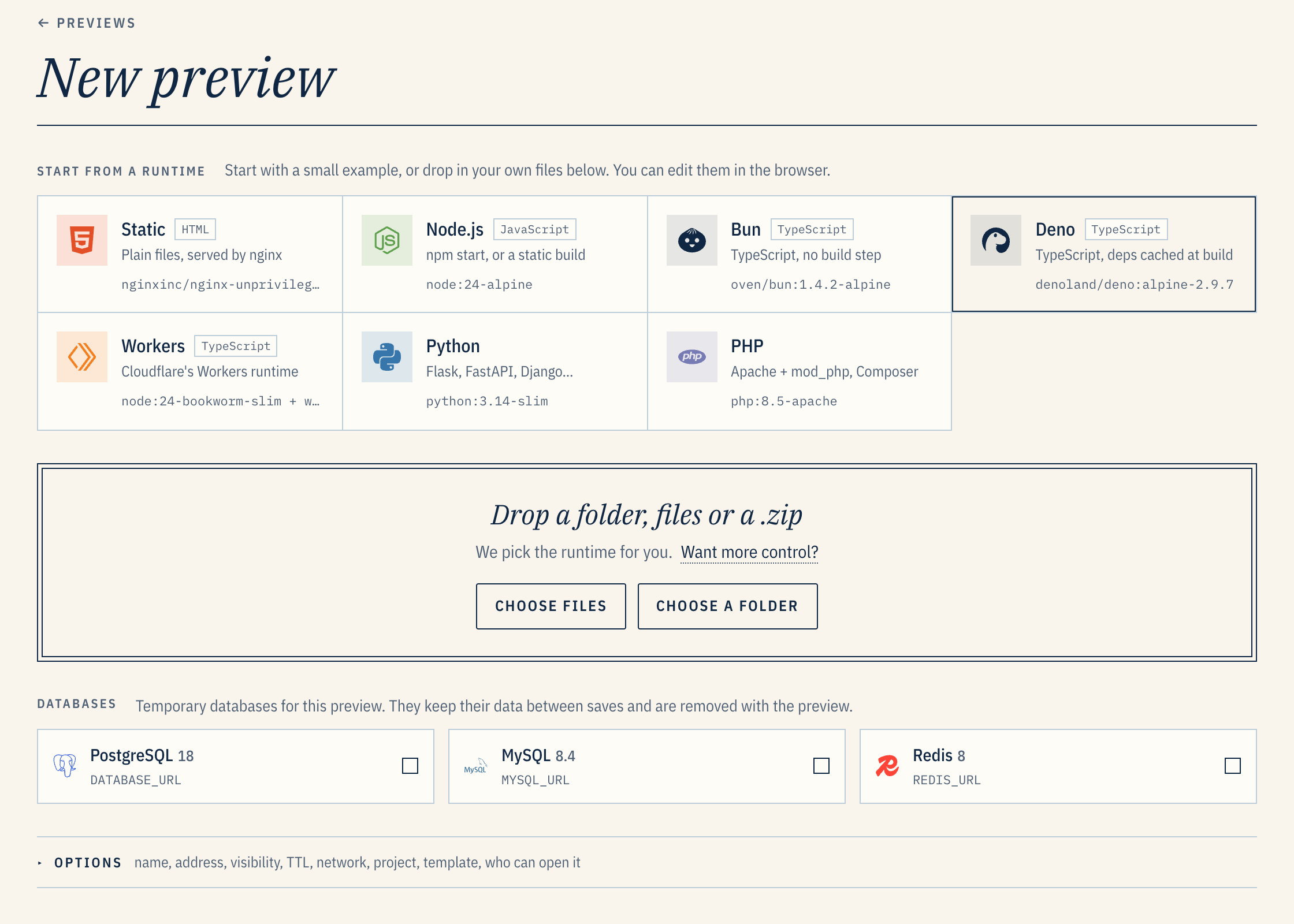
From the UI, go to New preview and drop in a folder. You can also start from a runtime's example, or add a throwaway database.
From a terminal:
tar -czf - . | curl --fail -X POST \
  -H "Authorization: Bearer $GANGWAY_TOKEN" -H "Content-Type: application/gzip" \
  --data-binary @- "https://api.preview.example.com/v1/previews?name=hello&runtime=auto&wait=true"
The answer includes the URL once the preview serves it. Create tokens under Account.
Deploying covers how gangway reads an app, gangway.yml,
databases, expiry and visibility.
Connect an agent
Turn on MCP under Admin → Server → Surfaces, then copy your client's setup from Account → Connect an agent. For Claude Code:
claude plugin marketplace add charlesabarnes/gangway && \
  claude plugin install gangway@gangway --config mcp_url=https://mcp.preview.example.com/
Run /mcp, sign in to gangway, and choose what the agent may do. Any MCP client works with the
MCP URL; Connect an agent has the scopes, the tools, and
settings that make Claude Code pick gangway over its own artifacts.
Pull-request previews
- Under Admin → GitHub, create a GitHub App in one click through GitHub's manifest flow, so no secret is copied by hand. Install it on your repositories.
- Under Repositories, connect a repository. By default gangway gives you a workflow file to commit. It builds on GitHub Actions and hands gangway the image, authenticated by the run's OIDC token. The alternative is to have gangway build from webhooks.
- Open a PR. The preview's URL arrives in a sticky comment and a GitHub Deployment. Pull
requests from forks wait until a maintainer comments
/preview deploy.
Documentation
Everything else is at gangway.sh/docs:
configuration,
domains, sharing,
upgrades and backups,
security,
known limits and
troubleshooting. The docs' source is in
guide/.
gangway talks to the Docker socket, which is root on its host; read Security before you give anyone an account. Report vulnerabilities privately through GitHub's Security → Report a vulnerability, or by email to security@gangway.sh, not in an issue.
Development
bun install
bun run test         # server, shared and render; no Docker needed
bun run typecheck && bun run lint
cp scripts/dev.example.json scripts/dev.json   # then point it at your Docker host
GANGWAY_CONFIG=scripts/dev.json bun run dev
cd web && npm install && npm start   # the Angular UI
The server is TypeScript on Bun, Hono and
bun:sqlite. The UI is Angular with Tailwind. Every dependency is free of native addons.
License
Media gallery
1 / 2Install gangway-inabox on Unraid in a few clicks.
Find gangway-inabox in Community Apps on your Unraid server, review the template, and click Install. Unraid handles the Docker app or plugin setup from the published template.
Requirements
Related apps
Explore more like this
Explore allDetails
ghcr.io/charlesabarnes/gangway-inabox:latestRuntime arguments
- Web UI
http://[IP]:[PORT:9124]/- Network
host- Shell
sh- Privileged
- false
Template configuration
proxy: behind a reverse proxy on this server, on your domain. lan: no domain, reachable on your network, to try it out. acme: the VM holds 80 and 443 with its own certificate (needs a Cloudflare API token). Read once, when the VM is created.
- Target
- GANGWAY_MODE
- Default
- proxy|lan|acme
- Value
- proxy
Required for proxy and acme: the base domain, e.g. preview.example.com. *.preview.example.com must point at the proxy (proxy) or at the VM (acme).
- Target
- GANGWAY_DOMAIN
acme only: a token with Zone:DNS:Edit on the domain.
- Target
- GANGWAY_CF_TOKEN
acme only, optional.
- Target
- GANGWAY_ACME_EMAIL
proxy only: where the proxy connects from, as a CIDR. Empty means this server's address, which is right when the proxy is a container in bridge mode. A proxy on its own IP (br0) needs that IP, e.g. 192.168.1.20/32.
- Target
- GANGWAY_PROXY_FROM
The VM's name in the VM tab, and its folder in the Domains share.
- Target
- VM_NAME
- Default
- gangway
- Value
- gangway
- Target
- VM_CPUS
- Default
- 2
- Value
- 2
Previews share it; 4096 fits a handful of small apps.
- Target
- VM_MEMORY_MB
- Default
- 4096
- Value
- 4096
Size of the VM's disk, grown as it fills.
- Target
- VM_DISK
- Default
- 40G
- Value
- 40G
Bridge the VM joins. Empty uses VM Manager's default (usually br0).
- Target
- VM_NETWORK
Optional public key for the VM's debian user.
- Target
- SSH_KEY
Image tag the VM installs, e.g. latest or 0.3.2.
- Target
- GANGWAY_VERSION
- Default
- latest
- Value
- latest
Port of this container's status page. Change the WebUI link to match.
- Target
- STATUS_PORT
- Default
- 9124
- Value
- 9124
Unraid's VMs share; the VM's disk goes in a folder here.
- Target
- /domains
- Default
- /mnt/user/domains
- Value
- /mnt/user/domains
Unraid's VM manager, to create and start the VM. Required.
- Target
- /var/run/libvirt/libvirt-sock
- Default
- /var/run/libvirt/libvirt-sock
- Value
- /var/run/libvirt/libvirt-sock
Read-only, to find where the Domains share is on the host. Required.
- Target
- /var/run/docker.sock
- Default
- /var/run/docker.sock
- Value
- /var/run/docker.sock
Read-only, for VM Manager's default network. Required.
- Target
- /boot/config/domain.cfg
- Default
- /boot/config/domain.cfg
- Value
- /boot/config/domain.cfg
Where the gangway icon goes, so the VM tab shows it.
- Target
- /icons
- Default
- /usr/local/emhttp/plugins/dynamix.vm.manager/templates/images
- Value
- /usr/local/emhttp/plugins/dynamix.vm.manager/templates/images