

freesize-hub
Docker app from McGeaverBeaver's Repository
Overview
Readme
View on GitHubFreeSize
A fast disk space analyzer in the spirit of TreeSize, written in Rust with a Slint UI. One codebase runs on Windows, macOS, Linux and Android.
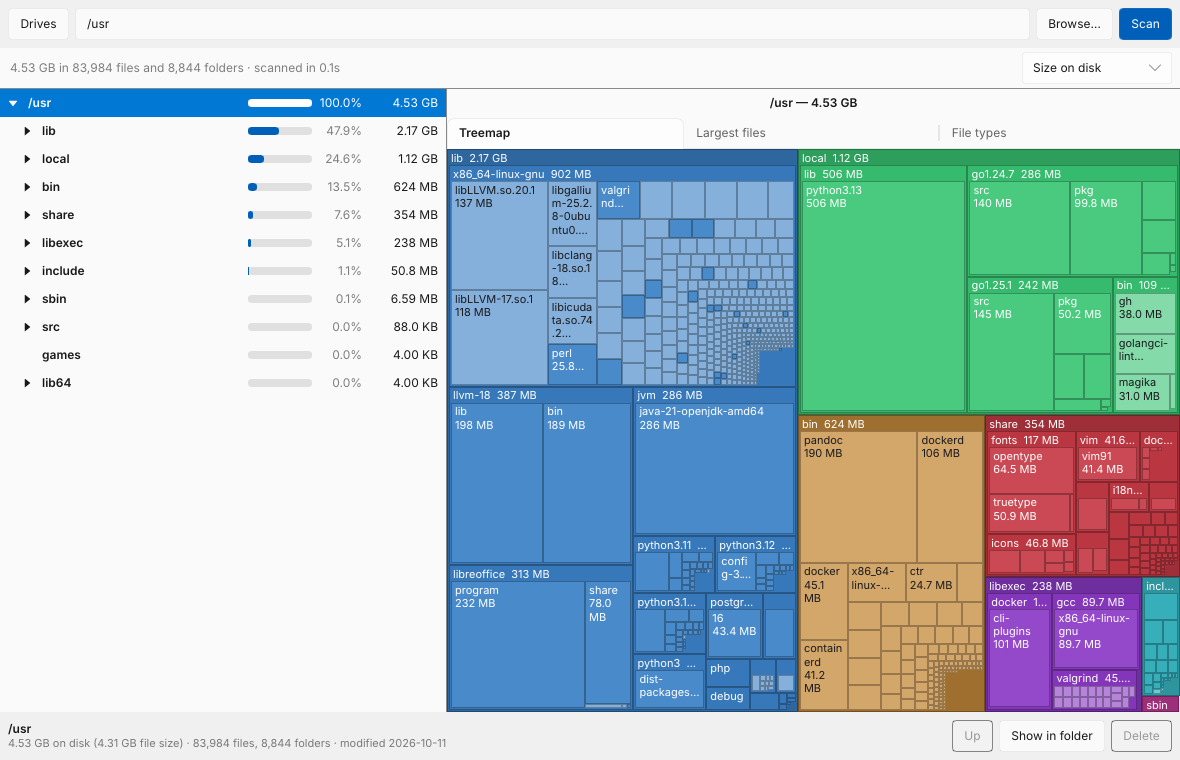
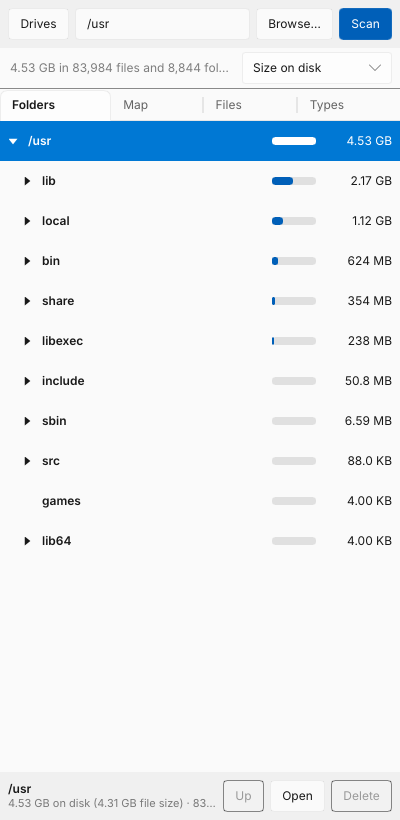
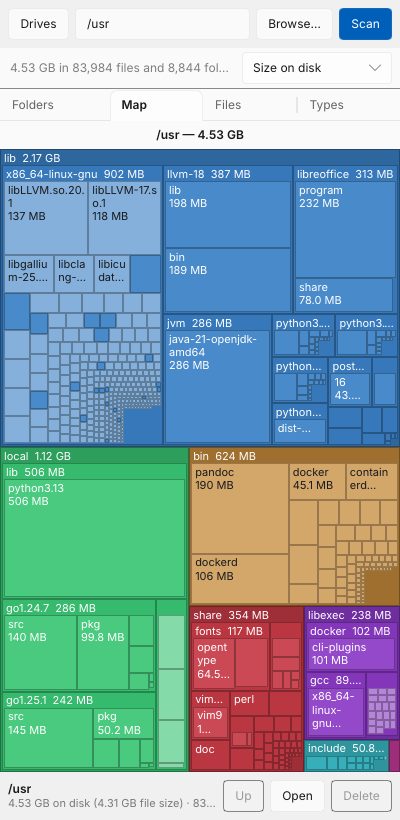
| Phone layout: folders | Phone layout: treemap |
|---|---|
 |
 |
FreeSize was called DiskTree until 0.8.6. TreeSize is a trademark of JAM Software, so don't ship under that name.
Coming from DiskTree
Each part takes over what DiskTree kept, the first time it starts:
- Windows, macOS and Linux: the app and the command line move DiskTree's
data folder (scan history, drive history, the Hub pairing) to FreeSize's.
Run
freesizeandfreesize-guifrom now on; the old executables can go. - Android: FreeSize is a new app to Android (its package is
io.github.mcgeaverbeaver.freesize), signed with the same key. Install it, connect it to the Hub again, then uninstall DiskTree. The app history inDocuments/DiskTreecarries over; installers saved inDownload/DiskTreestay where they are and are never offered as junk. - Unraid plugin: check for updates as usual. The last DiskTree update
installs the FreeSize plugin within a minute, which takes over the
settings and the Hub pairing from
/boot/config/plugins/disktreeand removes DiskTree. The page is under Tools, FreeSize. - The Hub: the image is
ghcr.io/mcgeaverbeaver/freesize-hub; the old name gets the same image for a while, so an existing container updates in place. Settings namedDISKTREE_…still count where theFREESIZE_…name isn't set, and the Authentik groupsdisktree-adminsanddisktree-viewersstill count while the group settings are left at their defaults. A Hub run without Docker moves its data folder like the apps. Pairing links and QR codes startingdisktree://still pair. - Linux services: the units are
freesize-agent.serviceandfreesize-hub.servicenow. Install them as under Running the Hub, keeping--stateand the data folder pointing at the old paths, or move those. - What keeps its old name: the quarantine folder on each disk
(
.disktree-quarantine, since its records name the files inside by full path), and the names inside the protocol: the request headers, the webhook'sX-DiskTree-Signature, the Prometheus metrics (disktree_…) and the dashboard's cookie.
Features
- Parallel scanner: about 190k files in 0.2 s on a warm cache. Scanning a whole drive is limited by the disk, not the CPU.
- Folder tree sorted by size, with percentage bars. Folders expand in place, and very large folders fold their smallest items into one row.
- Treemap of the selected folder, three levels deep. Click a block to zoom in, and use Up or the path above the map to zoom out. The bigger blocks carry an icon: the app or game a folder belongs to, or the kind of content (videos, photos, music, archives, disk images, games, code, programs). Folders a tool can rebuild get a green outline.
- Bubbles, the switch in the map's corner: the same folder as circles sized by space, the biggest in the middle, each showing what's inside it. Tap one to zoom in. Small items share one "more" bubble.
- App and game icons for folders: Android apps' folders in
Android/media,dataandobb; Steam games (named by Steam's manifests, with the icon from Steam's library cache) on every platform; on Linux, folders in~/.config,~/.cache,~/.local/share,~/.var/app,/optand similar matched to installed apps; on Windows, folders in Program Files and AppData by the program inside; on macOS,.appbundles and their folders in~/Library. - Largest files and file types (size by extension) for the selected folder. The Types tab also breaks the folder down by the year files were last changed and by size band. Tap any row to list just those files, biggest first, then select one to open or delete it.
- Clean up tab for the scanned folder: where the system and apps keep
caches they can do without (
Windows.old, update and browser caches, shader caches, …), folders that tools rebuild (node_modules, Rusttarget,.gradle, Python virtual environments, package manager caches, …) with how to get each back, large files nobody has changed in over a year, a duplicate file finder and a finder for photos that look alike. Each is a card; open one to tick what should go, one by one or all at once (every extra copy of the duplicates, only the EXE duplicates, all but the largest of each set of similar photos). Everything ticked is listed once more before it goes to the quarantine. See Clean up tab. - Clean junk, under Clean: one button finds the junk in the known places (temporary files, crash dumps, browser and app caches, shader caches, build caches, the trash, old installers and downloads) in seconds, without a scan. Everything is sorted by category with a tick box, a line about what cleaning it means and whether it refills, and opens to its exact paths. Safe items are ticked; "check first" items aren't and go to the quarantine; what the system's own tool should remove gets a button to that tool. An optional weekly or daily check says when junk piles up; nothing is ever cleaned on its own. See Clean junk.
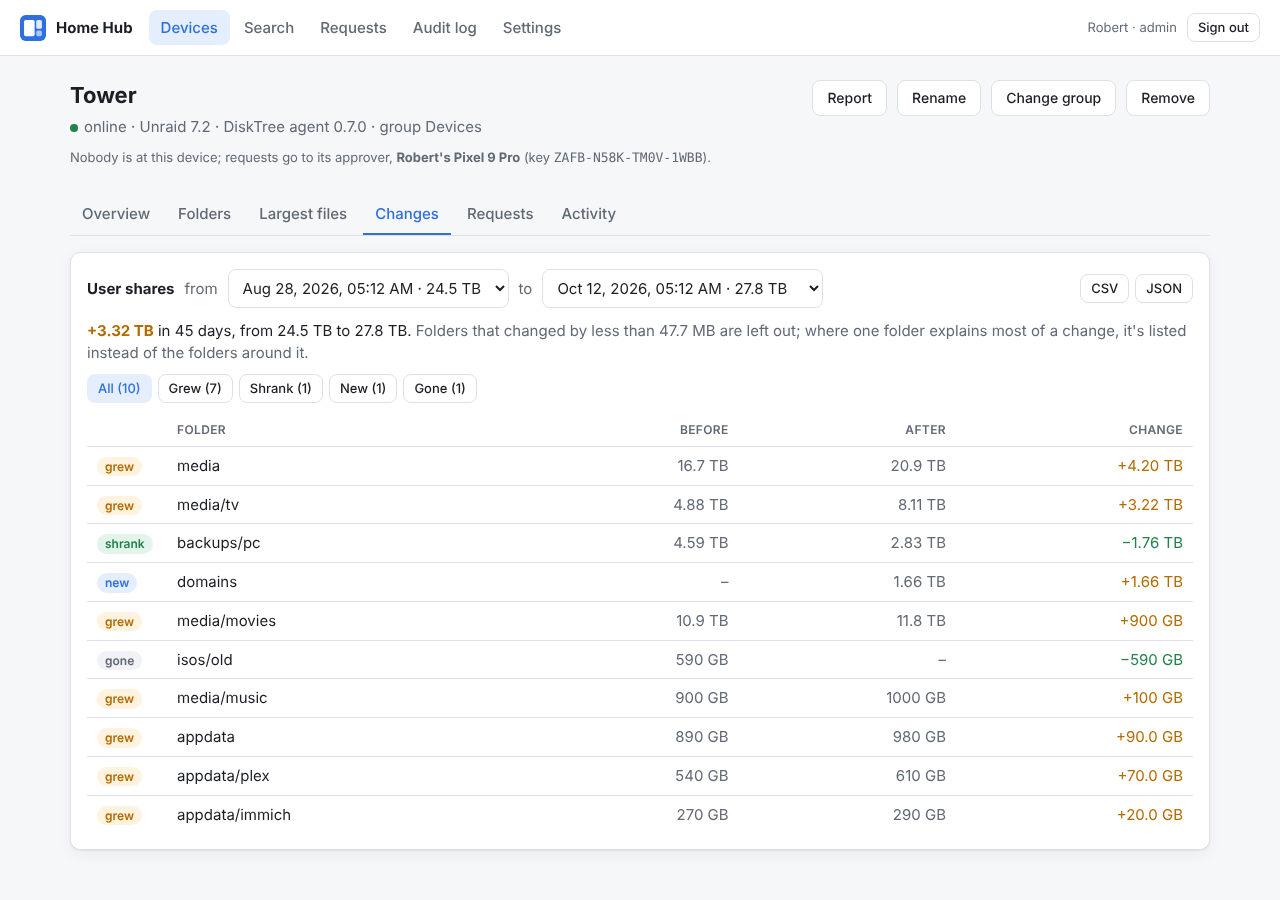
- Changes since an earlier scan of the same folder: what grew, what's new, what shrank or went away. Bubbles show how much a folder grew. See Changes.
- Selection: select files and folders from any view, look them over in one list, then delete them all or move them all to another drive, keeping their folders. The last move can be put back. See The selection.
- Export a report (HTML), a spreadsheet (CSV) or the whole scan (ncdu's
JSON format), and open saved scans again, including ones made with
ncdu -oon a machine without FreeSize. See Export and saved scans. - Drive trends on the start screen: how much each drive grew over the last 30 days and, at that rate, when it will be full. FreeSize records each drive's used space once a day it's opened, so trends appear after a few days.
- Size on disk vs. file size, switchable. Compressed, sparse and cloud-only files differ a lot between the two.
- Delete: moves the item to FreeSize's quarantine (after confirming), on every platform. Put back restores it byte for byte; the space is freed when you empty the quarantine, never on its own. Totals update without rescanning.
- Open shows the selected file in the app that normally opens it (photo viewer, PDF reader, video player), so you can check it before deleting. Show in folder opens Explorer, Finder or the Linux file manager.
- Flags unreadable folders, other filesystems, cloud-only files (OneDrive, iCloud) and hard links. Hard links are counted once.
- Phone layout with tabs below 760 px width, so it also works on small desktop windows.
- Apps & system breakdown (Android): how the whole phone's storage divides up between apps, your files, the system and free space. Every app is listed with its code, data and cache sizes.
- App cleanup (Android): apps you haven't opened in 3 months or never opened, apps no store can give back, and a history of removed apps. Tap an app to see when you last used it and where it came from, then uninstall, archive, save its APK or clear its cache. See Cleaning up apps.
- Growth (Android): a chart of the phone's storage over time with a forecast of when it fills up, and a Growing fast group of apps that grew by 100 MB or more in a month.
- Apps as bubbles (Android): any app group can be shown as bubbles of app icons, sized the way the group ranks them. Tap an app to see what its space is made of: the app, its data, its cache and the files it saved.
- Old screenshots and chat media (Android): cards that open screenshots older than a month, and the photos and videos chat apps saved, to look through before deciding what goes.
- Command-line tool (
freesize) sharing the same core. - FreeSize Hub: one web dashboard for every device's storage, with history, search, alerts and requests that each device approves itself (see FreeSize Hub).
Platform notes
| Platform | What gets scanned | Notes |
|---|---|---|
| Windows | Any drive or folder your account can open | Folders it can't open are marked "no access", counted and named under Clean up, with Scan as administrator: a new FreeSize window, after Windows asks, that reads them (it turns on the backup privilege, so even folders that keep administrators out are listed). System Volume Information stays closed, and Windows' reserved storage (about 7 GB) is seen by no program. Detects OneDrive placeholders; asks Windows for the real size of compressed and sparse files. |
| macOS | Everything your account can open, once Full Disk Access is granted | Without Full Disk Access the Clean up tab says so and opens the setting. Other users' folders need an administrator: Scan as administrator asks for your password, scans in the background and opens the result as a saved scan. (sudo freesize / --export scan.json does the same by hand.) Detects iCloud "dataless" files. |
| Linux | Anything you can read | Stays on one filesystem by default (skips /proc, other mounts) and counts hard links once. Scan as root (through pkexec) scans everything in the background and opens the result as a saved scan; sudo freesize / --export scan.json does the same by hand. The window itself never runs as root. |
| Android 8.0+ | All shared storage and SD cards, plus sizes for every app and the system | Files need All files access (Android 11+). Apps' private data can't be opened as files on Android, so it's measured through Android's storage statistics instead, which need Usage access. |
| iOS | — | Not planned: the iOS sandbox doesn't allow scanning the device. |
Installing
- Windows and Linux: download
freesize-windows-x86_64.ziporfreesize-linux-x86_64.tar.gzfrom the latest release, unpack it anywhere and runfreesize-gui(freesize-gui.exe). It's a single file with no installer; thefreesizecommand line is beside it. On Windows, SmartScreen may warn about a download it hasn't seen before: More info → Run anyway. Linux needs fontconfig, which every desktop has. Later releases install from the app: see Updates. - Android: see Installing on an Android phone.
- Unraid: the plugin and the Hub's container are in Community Applications; see FreeSize for Unraid.
- macOS: no download yet; build it yourself (nobody here has a Mac to test on). Building anything from source is in docs/DEVELOPING.md.
Command line
The freesize command line is in every desktop download, beside the app.
freesize /usr --depth 2 --top 10
Scanned /usr in 0.64s: 83,965 files, 8,842 folders
Total: 4.31 GB (4.53 GB size on disk)

  4.53 GB  100.0%  ████████████████████  /usr
  2.17 GB   47.9%  █████████▋            ├── lib/
  1.12 GB   24.6%  ████▉                 ├── local/
   624 MB   13.5%  ██▊                   ├── bin/
Run freesize --help for all options (--apparent for file sizes,
--cross-filesystems, --min-percent, …). --cleanup adds rebuildable
folders and files not changed in a year, and --duplicates finds duplicate
files of 1 MB or more (it reads them, so it takes a while). Both only list;
a scan never deletes anything.
freesize junk is the junk cleaner (see Clean junk) on the
command line: it lists what the known places hold by category, with each
rule's id, size and what cleaning it means, ticked where it's safe, and
touches nothing. freesize junk --clean deletes what's ticked after
showing it and asking; --also RULE adds a rule by its id ("check first"
rules go to the quarantine on their disk, where freesize agent or the
Hub can put them back), --only RULE limits the look, -y skips the
question and --json prints the findings with every path.
freesize review FOLDER is Reviewing a folder on
the command line, for a server where the files are: how many photos,
documents, videos and other files it holds, the ones worth a look grouped by
why, and the files containing the words looked for (only the words are
printed). --in BIGGER compares it, by content, with the rest of a bigger
folder such as the whole share and lists the files only here; --words tax,bank sets the words, --no-words skips looking inside files and
--json prints everything. It reads only.
freesize nextcloud prints what this machine keeps of its Nextcloud
folders, as the agent reports it to the Hub (see
Copies): each account the desktop client
is signed in to, its sync folders, and per folder how much is stored here
against how much is online-only; --json prints the report itself.
For scripts, spreadsheets and Home Assistant:
freesize ~/Videos --json                 # everything above as JSON
freesize / --export root-scan.json       # save the scan (ncdu's format)
freesize --import root-scan.json         # look at a saved scan again
ssh server ncdu -o- -x /srv > srv.json && freesize --import srv.json
Using the app
FreeSize has a few places, picked from the list on the left of the window or, on a phone or a narrow window, from the tabs along the bottom:
- Home: the drives and folders to scan, with how full each is. On a phone it also shows how the storage divides up and how it changed.
- Clean: junk FreeSize can find without a scan (see Clean junk); on a phone, the Free up space cards (with Clean junk) and the quarantine.
- Apps (phones): your apps in groups (see Cleaning up apps).
- Quarantine (desktops): what you deleted, waiting to be put back or emptied.
- Hub (desktops; under Settings on a phone): connecting to a FreeSize Hub and the requests it sent. A number on it counts requests waiting.
- Settings: the junk reminder and update checks.
A scan takes the whole window, with its own tabs; Close scan returns to Home. On Windows, when FreeSize isn't running as administrator, Run as administrator sits beside Scan: Windows asks, a new FreeSize window opens that can read every folder, and this one closes. On macOS and Linux the same button, where offered, scans as an administrator or root in the background and opens the result as a saved scan.
Clean up tab
After a scan, the Clean up tab opens on a card for each kind of thing it found, with how much it could free and how many of its items are ticked. Review opens a card as its own page (‹ All goes back), where every row has a tick box and the page has buttons to tick many at once:
- Select all for rebuildable folders and old files, Select the safe ones for system caches (rows the system's own tool should remove have no tick box).
- Select extra copies for duplicates: every copy but one in each set.
The copy kept is marked Keep: one outside caches and temporary
folders, not named like a copy (
photo (1).jpg,x - Copy.doc), and the oldest. Show lists one type only (EXE files · 12 sets, 1.2 GB), and the button then ticks the extra copies of that type only. Each set also has its own Select extra copies. - Select all but the largest for similar photos, which are shown side by side as big previews so they can be compared; each set has its own button too.
- Unselect all unticks what the page lists; a set's own button turns into Unselect once its extras are ticked.
When every copy of a duplicate (or every photo of a set) is ticked, the set says so in orange, and so does the confirmation. Ticked items go into the selection (see The selection): its bar shows what's ticked everywhere, and Review selection… lists each item once more, with Keep to take one off, before anything is moved to the quarantine. Double-click a row, or highlight it and use Open, to look at a file first. A scan opened from a file is read-only, so it has no tick boxes.
The cards are:
Folders FreeSize couldn't read, when there are any: how many, which (select one to see where it is), and the way to a fuller scan on this platform (see Platform notes). A scan with more rights opens read-only on macOS and Linux, since it was made as root; on Windows it's a second window, as administrator, where deleting follows the same rules as always. The status line counts what couldn't be read and points here.
Rebuildable folders: build output, installed packages and caches that a tool makes again when needed, each with the command that does it, for example node_modules · npm install puts them back. Folders are matched by name and, where the name is common, by what sits next to them:
targetonly next to aCargo.toml,buildonly next to a Gradle file.Not changed in over a year: the largest files (10 MB and up) whose modification date is more than a year ago.
Duplicate files: press Find duplicates to compare files of 1 MB or more. Files are grouped by size, then by a quick hash of their first and last 64 KB, and only then hashed in full, so most files are never read completely. Hard links to the same file aren't duplicates. Cloud-only files are skipped so nothing is downloaded.
System and app caches: known places where the system and apps keep files they can do without. On Windows:
Windows.old, the upgrade and update download folders, Delivery Optimization, temp folders, crash dumps,hiberfil.sys, browser caches (Chrome, Edge, Brave, Firefox) and GPU shader caches (Steam's too). On macOS: the Trash, app logs, old iPhone backups, Xcode archives, device support files and simulators, downloaded macOS updates. On Linux: the thumbnail cache, the Trash, Flatpak app caches, downloaded packages and the system journal. Each says how to remove it; some are marked check first or don't delete and name the system tool to use instead (Settings → System → Storage → Temporary files forWindows.oldand update files, the power settings forhiberfil.sys).Not in any file: after scanning a whole drive, how much of the used space no file accounts for, and why: ZFS and btrfs snapshots (how much they hold that nothing else uses, with btrfs quotas on), Windows restore points and shadow copies, local Time Machine and other APFS snapshots, macOS's purgeable space, space the file system reserves, and folders FreeSize couldn't read (listed above it).
Similar photos: press Find similar photos to group photos that look alike, such as bursts, retakes and the same picture saved at another size. Each photo gets a small fingerprint of its brightness pattern; most camera photos carry a small preview in their EXIF data, which is read instead of the whole picture, so even thousands of photos take seconds. Every group shows the photos with a preview, the largest first. Similar isn't identical, so open them before choosing.
Tap a row to highlight it in the tree, then use Open to look at it, or Delete or Select from the bar at the bottom. Delete moves it to the quarantine.
- Quarantine, its own place on a desktop and at the bottom of Clean on
a phone: each batch of deleted items, newest first, with when, where
from and how much, with Put back and
Empty per batch and Empty all on the heading. Emptying asks first
and lists the paths. On a desktop the quarantine for the disk FreeSize's
data is on lives in that data folder; other disks, and a phone's shared
storage, get a
.disktree-quarantinefolder at their top, as servers do. Deletes a Hub asks for land in the same quarantine, as a batch under the request, so the dashboard's Put back and Empty work on them too. - Open a batch to look inside it like a file explorer: its items,
grouped by the folder they came from (or, for a Clean junk batch, by
rule), with folders you can open and a path to go back up. Each item has
Open, Show in folder, Put back and Delete for good;
tick several to put back or delete just those. Programs and scripts
(
.exe,.msi,.sh,.apk, …) only get Show in folder, so nothing runs by accident. When the original place already has a file of that name, Put back asks: Keep both (the one coming back is called "name (put back).ext"), Replace (what's there goes into the quarantine instead) or Skip.
Clean junk
Under Clean, Find junk looks in the known places on this
platform, which takes seconds and needs no scan: temporary files, crash
dumps and error reports, update leftovers, the thumbnail cache, browser
caches (Chrome, Edge, Brave, Firefox, Safari, Chromium), the caches of
well-known apps (Spotify, Discord, Slack, Teams, VS Code, Zoom's logs,
Adobe's media cache), shader caches and Steam's finished downloads,
developer caches (npm, pip, cargo, Gradle, NuGet, Yarn, Go, Homebrew,
CocoaPods, Xcode's derived data, device support files, archives and
simulators), the trash, old installers, downloads not changed for three
months and old screen recordings. Linux adds the system journal, Flatpak
app caches and the apt, dnf and pacman package caches; macOS old iPhone
backups and downloaded macOS updates; Windows Windows.old, Windows
Update's downloads, Delivery Optimization and the hibernation file.
The screen lists what it found by category (System, Browsers, Apps, Games, Developer tools, Trash and downloads), each rule with its size, a line about what it is and what happens after cleaning ("pages load from the internet again the first time; you stay signed in"), and whether it refills within days, so the space won isn't oversold. A rule opens to its exact paths, each with Show to look at the files first.
- Safe rules are ticked: caches and temporary files, which their apps make again. They're deleted after the confirmation, which says so (in a quarantine they'd free nothing).
- Check first rules (old downloads, installers, Steam's finished downloads) are never ticked by default. Ticked, they go to the quarantine, where Put back restores them.
- The trash (Recycle Bin, Trash, the trash folders in Unraid's shares) isn't ticked by default either: it holds files you deleted earlier. Ticked, it's emptied for good, and the confirmation says so by name.
- Use the tool rules (
Windows.oldand Windows Update's files, the hibernation file, macOS updates, the apt cache, the journal) have no tick box and aren't counted in the total: they're listed at the bottom under "Clean with Windows' own tools" (macOS's, Linux's). Open settings opens the system's page; Show command opens the command in the row with Copy and Run. Run asks first, naming the command, what it changes and how to undo it, then shows its output in the row and looks at the rule again. Commands that need an administrator say Run as administrator: on Windows FreeSize opens again as administrator, straight on Clean junk; on macOS and Linux the system asks for your password. Started as administrator, it just runs. - A rule whose program is running (Chrome's cache while Chrome is open) keeps a greyed tick box and a "Chrome is open" badge until it's closed.
- Leftovers of removed programs (Apps, check first) are the settings
and caches a program left in AppData,
~/Libraryor~/.config,~/.cacheand~/.local/shareafter it was uninstalled. FreeSize only calls a folder a leftover when it's sure whose it was: it saw the program installed on an earlier look and matched the folder to it then (the list is kept inprograms.jsonin its data folder, so the rule grows more useful the longer FreeSize is around), or the folder is named by the program's own id (a Flatpak under~/.var/app, a snap under~/snap, a bundle id under~/Library/Containers). The program must be gone now and nothing in the folder changed for two weeks. Each path says which program ("Discord, installed until 2026-09-20"), and the folders go to the quarantine, so one a program still needs comes back with Put back. Nothing is offered on a machine whose list of programs couldn't be read.
The card at the top says how much the ticked rules free ("Free 1.6 GB"), with the Clean button and how many rules are ticked, to check first, and left to the system's tools. Clean asks once, then shows a progress page: a bar, each rule waiting, cleaning, done or failed, and Stop, which stops after the rule it's on. Close hides the page while cleaning carries on. A results page follows: what was freed, what went to the quarantine (with a link to it), what was skipped and why (a file in use, a folder that wasn't there) and how much will refill; Done goes back to the list. Everything one Clean sends to the quarantine is one batch called "Clean junk", its items grouped by rule. Remind me about junk, in Settings, checks once a week or once a day and says under Clean how much junk there is to review ("2.4 GB of junk to review, 1.6 GB safe to clean"); it never cleans anything by itself. Registry cleaning, memory "boosters" and browser history, cookies and saved passwords are left out on purpose: they free nothing, or sign you out.
On phones the home screen shows one Clean junk card with the total and what's in it, and Review opens the same Clean junk screen: the trash, saved installers, the thumbnail cache and leftovers of removed apps, with the same tick boxes, progress and results pages (the trash goes to the quarantine, like the rest; see Cleaning up apps); on an Unraid server the Quarantine tab lists the trash folders in the shares; and a paired device's junk is on the Hub's Junk tab, with an alert when it grows past a limit. Tick the rules to clean (Tick the safe ones does the safe ones, Tick all here a category) and Ask to clean… lists them once and sends a request per rule, each approved on the device. The Hub's Largest files tab can list one file type and tick every file it lists.
Changes
FreeSize keeps the sizes of the 10,000 biggest folders of every scan (not
every file) in FreeSize's data folder under scans/: the last 12 scans of
each scanned folder in full, and older ones, a year back, with their 300
biggest folders (every scan of the last week, then one a day for three
months and one a week after that). When a folder has been scanned before,
the Changes tab starts with a chart of the folder's size at each kept
scan; click a point (tap on a phone) to compare with that scan, or pick one
from the list. It compares with the newest scan at least a month old at
first. Below the chart: how much
the whole folder grew, the folders that grew or are new, and the ones that
shrank or went away. A folder is skipped when one folder inside it explains
almost all of its change, so the list points at where the change is. Small
changes (a thousandth of the folder, between 1 MB and 50 MB) aren't listed.
Each listed folder has a bar for its change against the biggest one, orange
for grew and green for shrank; click it to highlight it in the tree. Against
an older scan, which kept only its bigger folders, a folder it didn't keep
shows as "new, or under X then".
In the bubble view, folders that grew or shrank noticeably show by how much,
for example 12.4 GB · +2.1 GB.
Reviewing a folder
Before deleting a folder you're unsure of, such as an old backup of a PC with hundreds of files, right-click it in the tree and pick Review this folder (on a phone, highlight it and tap Review, which takes Open's place for folders; on a desktop the button is there too). The Clean up tab opens on the folder's review page, and a Review: card stays on the tab until another scan. Show switches between:
- Photos: previews of every photo, grouped by folder (the first 400).
- Documents, Videos and Everything else, biggest first.
- Worth a look: what people most often miss before deleting a backup.
Documents and spreadsheets, password vaults (
.kdbxand others), keys and certificates, crypto wallets, tax and accounting files, email archives (.pst,.mbox) and camera photos, grouped by why.
Highlight a row to Open it, show it in its folder or Select it; ticking a row adds it to the selection like anywhere on the Clean up tab, and nothing goes unless you do.
Compare with my current files reads the folder's files against the rest of the scan, by content (not by name), and says how many are kept elsewhere too, such as 8 of these 12 photos (66%) are kept elsewhere too, most in Pictures/2019. Files that aren't anywhere else are marked Only here, and Select the ones kept elsewhere ticks the rest. It compares with what was scanned, so scan the whole drive to compare with everything.
Look inside files finds text, Office (Word, Excel, PowerPoint, OpenDocument) and PDF files that contain the words in Settings → Words to look for inside files (tax, invoice, passport, bank, contract and password at first). A word counts where it starts a word, so tax finds taxes but not syntax. Files with any of them are listed first under Worth a look, with the words they contain; the text around them is never shown. Both run on the device that has the files and send nothing anywhere, the Hub included. Files over 20 MB of text (100 MB for PDFs) aren't read.
The selection
Highlight a file or folder anywhere and press Select (or tick it on the Clean up tab) to add it to the selection; a bar shows how many items and how much space it holds. When a files list is filtered (a type, an age, a size, old screenshots), Select all adds every listed file. Review selection… lists everything selected, each with Keep to take it off the list, with two ways to act on all of it:
- Delete all: asks first, then moves everything to the quarantine as one batch, to put back together.
- Move all: pick a folder, for example on another drive or a NAS share.
Each item keeps its folders below the scanned one (
Videos/2023/trip.mp4goes to<destination>/Videos/2023/trip.mp4). Within a drive that's a rename; across drives each item is copied, checked and only then removed. Nothing is overwritten. Put back returns the last move; its record islast-move.jsonin FreeSize's data folder. On Android, Move offers aFreeSize movedfolder on internal storage or on each SD card or USB drive.
Export and saved scans
Export, next to the size switch, saves the folder you're looking at as:
- Report (HTML): one page with the biggest folders and files, file types, years, the Clean up suggestions and the changes, to read or share.
- Spreadsheet (CSV): the 10,000 biggest folders and files of 1 MB or more, with sizes, file counts and dates.
- Scan file (JSON): the whole scan in the format of ncdu's
-ooption.
On desktops a save dialog asks where; on Android files go to
Download/FreeSize. To open a scan file, type its path (ending in .json)
and press Scan. Saved scans open read-only: nothing in them can be opened,
deleted or added to the selection, since the files may be on another machine. Scans made
with ncdu -o (1.x or 2.x JSON) open the same way, so a server or router
without FreeSize can be scanned with ncdu and looked at here.
Android
The APK builds on Linux, or on Windows inside WSL: run wsl --install once in
an administrator PowerShell, restart, and use the Ubuntu terminal it adds. In
WSL, keep the repository in your Linux home folder rather than under /mnt/c,
which is much slower.
One-time setup (Debian/Ubuntu and WSL; other distros need the same packages):
sudo apt install curl unzip openjdk-17-jdk-headless build-essential   # or openjdk-21-…
curl --proto '=https' --tlsv1.2 -sSf https://sh.rustup.rs | sh   # if you don't have Rust
git clone https://github.com/McGeaverBeaver/FreeSize
cd FreeSize
scripts/android/setup-linux.sh
setup-linux.sh downloads the Android command-line tools, SDK platform 36,
build tools, NDK and adb into ~/Android/Sdk (a few GB), then adds the Rust
Android targets and cargo-apk. It doesn't need root. To use an existing SDK,
for example Android Studio's, set ANDROID_HOME to it first.
Build:
git pull
scripts/android/build-apk.sh      # -> target/release/apk/FreeSize.apk
The first build takes several minutes; later ones only rebuild what changed.
Since 0.14 the script also compiles the app's one Java class with the JDK's
javac and the build tools' d8, and puts the APK together with the
manifest in crates/app/android. It also creates the signing key that every later build reuses (see
Android signing key), so new builds install over the
old one and keep FreeSize's permissions. Releases up to 0.1.3 were signed
with a different key, so uninstall such a copy once first.
To get the APK onto the phone, either:
copy it over (USB cable, Google Drive, …) and open it on the phone. From WSL,
cp target/release/apk/FreeSize.apk /mnt/c/Users/<you>/Downloads/puts it in your Windows Downloads folder.or install it over Wi-Fi with adb. Turn on Developer options (Settings → About phone → tap Build number seven times), then Settings → System → Developer options → Wireless debugging → Pair device with pairing code:
adb=~/Android/Sdk/platform-tools/adb
$adb pair 192.168.1.50:37123      # address and code from the pairing dialog
$adb connect 192.168.1.50:41234   # address on the Wireless debugging screen
$adb install -r target/release/apk/FreeSize.apk
build-apk.sh produces one APK for every device: arm64 phones plus x86_64
emulators and Chromebooks. It links the native code for 16 KB memory pages and
runs scripts/android/check-apk.sh, which fails the build if the APK would be
rejected by a phone or by Google Play. To see the app's log, run
adb logcat -s FreeSize.
Publishing to Google Play requires declaring why the app needs All files access
and why it lists all installed apps (QUERY_ALL_PACKAGES). Disk analyzers and
file managers are an accepted use, but it goes through review. Sideloading and
F-Droid don't have that step.
Installing on an Android phone
- Download
freesize-android.apkfrom the latest release. It's one file for all phones. - Open it. If Android asks, allow your browser or Files app to install unknown apps.
- Google Play Protect may warn that the app comes from an unknown developer. Tap More details → Install anyway.
- Start FreeSize, tap Grant access, turn on Allow access to manage all files, and go back. Then pick Internal storage or an SD card.
- To see what apps and the system use, tap Allow usage access under Apps & system, turn FreeSize on in the list, and go back.
- If the switch is greyed out or Android says App was denied access / Controlled by Restricted Setting, Android is blocking it because the app was installed from a downloaded file. Tap Open FreeSize's app info in FreeSize (or go to Settings → Apps → FreeSize), tap ⋮ in the top corner, choose Allow restricted settings and confirm with your PIN or fingerprint. Then repeat step 5. You only need to do this once per install.
Later releases install from the app: see Updates.
Why a file scan finds less than the phone uses
Android only lets an app read shared storage: photos, downloads, music and the like. Most of a phone's space is somewhere no app can open as files:
- each app's private data (offline music and videos, chats, game data, caches)
and its folders under
Android/dataandAndroid/obb; - installed app code;
- system data, other user profiles and temporary files.
On top of that, the Android OS has partitions of its own outside user storage. That's why a 128 GB phone shows about 109 GB.
The Apps & system section covers all of this with the same storage statistics Android's Settings app uses:
- Apps: each app's code plus data. Preinstalled apps' code sits on the system partition, so only their data counts.
- Your files: shared storage that belongs to no app.
- System & other: the rest of the used space.
Tapping an app opens its settings page, where you can clear its cache, clear its storage or uninstall it.
The Back gesture steps back through the app: it closes a dialog, stops a scan, zooms the treemap or the app bubbles out, closes a group of apps, then returns to the drive list before leaving the app.
Cleaning up apps
Under Apps, the apps are grouped so the space you can win back is easy to find. Each group opens as its own page; the arrow at its top, the Back gesture or tapping Apps again returns to the list of groups.
| Group | What's in it |
|---|---|
| All apps | Every app, biggest first. |
| Not opened in 3 months | Apps you haven't had on screen for 3 months. |
| Never opened | Apps with no use recorded since they were installed (Android keeps about 2 years of usage history). |
| Not from an app store | Apps installed from a downloaded file or a computer. No store can give them back, so save the APK first. |
| Files saved by apps | Photos, videos, downloads and other files each app saved to your storage, with where most of them are. |
| Biggest caches | Apps by cache size, to clear the big ones in their info pages. |
| Growing fast | Apps that grew by 100 MB or more over the last month, fastest first. |
| Removed apps | Apps FreeSize has seen before that are gone, so you can find one again by name. |
Apps that work without being opened are never suggested for removal: preinstalled apps, apps without an icon, your default home screen, browser, messaging and phone apps, keyboards, accessibility services, apps that read notifications (such as watch apps), device admin apps, and archived apps.
Tapping an app shows its size, when it was installed and last opened, its time on screen over about the last month, where it came from, the files it saved to your storage, and tips for a few well-known apps (for example that clearing Signal's storage deletes your messages). Its buttons:
- Uninstall: Android asks you to confirm.
- Archive (Android 15+, Play Store apps): opens the app's info page, where Archive removes the app but keeps its data and login. Tapping its icon later reinstalls it from the Play Store.
- Save APK to Downloads (apps not from a store): copies the app's install
file to
Download/FreeSize, so you can install it again later. The app's data isn't included. - Browse its files (apps that saved files to your storage): scans the folder holding most of them, so you can see and delete them in FreeSize.
- Open in Play Store (or the store it came from).
- App info: Android's page for clearing the app's cache or data.
Free up space, under Clean, lists what can go without touching any app. It needs All files access:
- App caches shows how much cache apps keep and what can actually clear
it. Android doesn't let one app clear another's cache, and clears caches by
itself when space runs low. Its cache cleaner (Android 11+), which the card
opens, only empties the cache folders in shared storage
(
Android/data/<app>/cache), usually a small part; the card says how much that is (Android 12+) and only offers it when it's worth it. For the rest, use Biggest caches and Clear cache on each app's info page. - Clean junk: one card with the total and what it holds, opening the
same Clean junk screen as on a computer (see Clean junk),
with a tick box per rule, a progress page and a results page:
- the trash (Android 11+): photos and videos deleted in the last 30 days, which still take space until Android removes them for good. Android lets no app move those files, so this one rule doesn't use the quarantine: Android shows its own dialog naming them and deletes them for good once you confirm (on some phones it deletes them without asking again);
- old app installers:
.apkfiles in Download. APKs saved with FreeSize inDownload/FreeSizeare kept; - the thumbnail cache,
DCIM/.thumbnails, which gallery apps rebuild (ticked to start with, like empty folders); - leftovers of removed apps: their folders in
Android/media; - old downloads (files in Download not changed for 3 months) and screen recordings older than a month, to look through first; some may be the only copy;
- empty folders left by removed apps and old downloads.
FreeSize asks before cleaning, deletes the thumbnail cache and empty folders, moves the rest to the quarantine, then measures again.
Two more cards are for things that aren't junk, so they never delete anything themselves; Review opens the files to look through:
- Look through old screenshots: screenshots in
Pictures/ScreenshotsandDCIM/Screenshotsnot changed for a month. Review scans the folder and lists just those, biggest first; open any, then select the ones you're done with (or Select all) and delete them together from the selection. - Look through chat media: photos, videos and voice notes saved by WhatsApp, WhatsApp Business, Telegram, Signal, Messenger, Viber, WeChat and LINE. Review picks a folder (when there are several) and lists its files, biggest first.
Storage over time charts apps, your files and the system day by day, under the storage breakdown. It says how much used space grew over the last 30 days and, when it's growing, about when the storage will be full at that rate. FreeSize records a sample each day it measures the apps, so the chart starts with the first two days and the growth figures need a few days.
After you come back from uninstalling an app or from its info page, FreeSize measures the apps again.
The app history is a small file, Documents/FreeSize/app-history.json, with a
second copy in FreeSize's private storage. The first survives uninstalling
FreeSize. Other apps with All files access can read it, so delete it if you
don't want the list of your apps there. FreeSize only notices an app was
removed the next time it measures the apps, so the removal date can be later
than the day you removed it.
| Problem | Cause | Fix |
|---|---|---|
| Uninstall does nothing | The APK was built without the REQUEST_DELETE_PACKAGES permission (versions before 0.2.0). |
Install 0.2.0 or later. |
| Apps & system stays at "Allow usage access" | FreeSize isn't switched on under Settings → Apps → Special app access → Usage access. | Turn it on there; the list appears within a second of returning. |
| Usage access switch is greyed out, says "Controlled by Restricted Setting", or shows "App was denied access" | Android 13+ blocks Usage access for apps installed from a downloaded file (restricted settings). | Settings → Apps → FreeSize → ⋮ → Allow restricted settings, then turn Usage access on. If ⋮ isn't there, try to turn the switch on once first; the menu only appears after Android has blocked it. |
| "You can't install the app on your device" or "App not compatible" | The APK has no code for the phone's processor. v0.1.0 shipped separate files, and the x86_64 one is for emulators. |
Use freesize-android.apk from v0.1.1 or later. |
| "App not installed as package conflicts with an existing package" | The installed copy was signed with a different key: releases up to 0.1.3 were built on GitHub with a throwaway key. | Uninstall FreeSize once, then install the new APK. Releases from 0.2.0 on share one key and install over each other. |
| Installing apps from outside the Play Store is blocked entirely | Advanced Protection is on (Settings → Security & privacy), or a work profile forbids it. | Install with adb install, or turn that setting off. |
| "App blocked" because the developer isn't verified | Google is rolling out developer verification region by region. | adb install still works. Registering the developer and package io.github.mcgeaverbeaver.freesize with Google removes the block for everyone. |
| A folder shows "no access" | Android/data, Android/obb and other apps' private files are off limits to every app on Android 11+. |
Nothing to fix; that's an Android rule. |
Updates
Check for updates, in Settings, is off until you pick Releases or
Pre-releases too; then
FreeSize asks GitHub once a day whether a newer release is out (that's the
only thing it ever asks anyone, and only the version is sent, in the
request's user agent). Pre-releases too also offers the beta releases. A
FreeSize Hub with FREESIZE_UPDATE_CHECK=on checks once for all its
devices and tells those running an older version, so the devices needn't
ask GitHub themselves.
Update downloads the release's SHA256SUMS.txt and its signature,
checks the signature with the release key built into FreeSize (the public
half is release/public-key.txt in the repository), downloads the file for
this platform and checks it against the sums. Anything that doesn't verify
is refused and nothing is installed; a build made without the key in that
file can't update itself at all.
- Windows and Linux: the archive's
freesize-guiandfreesizeare swapped in beside the running ones (the old files stay as.olduntil the next start) and FreeSize starts again. On Windows, SmartScreen may warn about the new executable, as it does for any download: More info → Run anyway. - Android: the verified APK is saved in
Download/FreeSizeand handed to Android's installer, which asks (the first time, Android sends you to allow FreeSize to install apps). Android also refuses an APK signed with another key, so a release not built with the project's Android key never installs over FreeSize. - The command line:
freesize updatesays whether a newer release is out;freesize update --installinstalls it over itself the same way. - The Hub doesn't update itself: Settings says when a newer release is out, and the device cards mark devices older than the Hub. Pull the new image (or package) yourself.
- The Unraid plugin updates through Unraid's Plugins page.
FreeSize Hub
One dashboard for the storage of all your devices: phones, PCs, servers and the NAS. Each device reports its disks, its biggest folders and files (not every file) and, on Android, its apps. The Hub keeps the history, so you can see what grew, search every device at once and get an alert before a disk fills up.
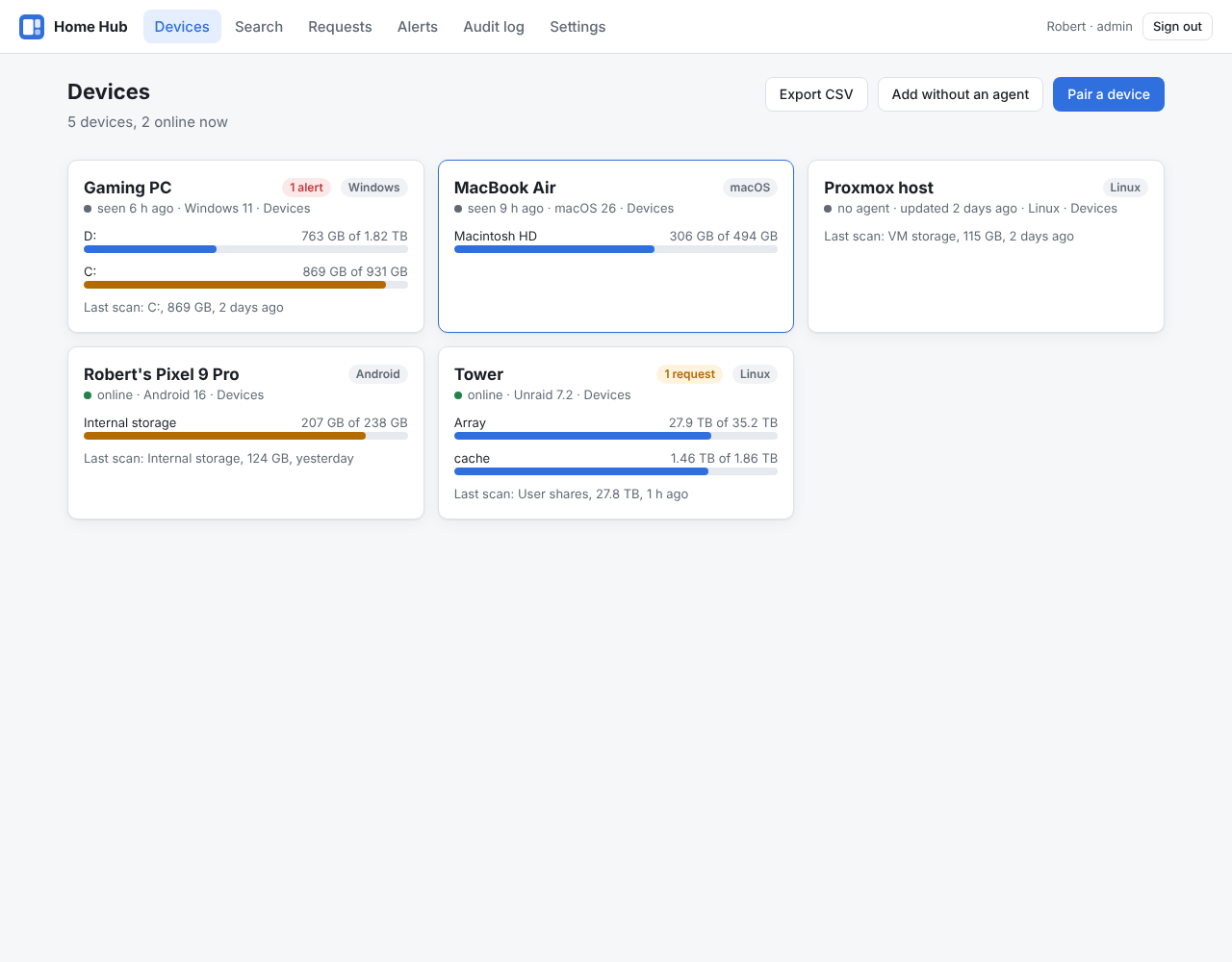
| Changes between two scans | Alerts |
|---|---|
 |
 |
What it does:
- Devices: disks with how they filled over time, scanned folders to browse, the
largest files, Android's apps, and a Junk tab per device: what the
junk cleaner found there by category, how much is safe to clean, and a
button to ask the device to clean a rule (desktops, phones and the
command line's
freesize agentreport it every hour). - Changes: a chart of a folder's size at every kept scan (click a point to compare it with the newest), and any two scans side by side: what grew, shrank, appeared and went, with a bar per folder. The Hub keeps every scan for a week, then one a day for three months, one a week for a year and one a month after that.
- Search across every device ("which device has that ISO?"): words in
the path,
*.isofor a file type, a size floor. Searches can be saved. - Exports: a scan or a comparison as CSV or JSON, all devices and disks as CSV, and a printable report per device.
- Requests: an admin can ask a device to delete files, clean up junk or uninstall an app. The device shows every path and asks first (below); nothing happens on its own.
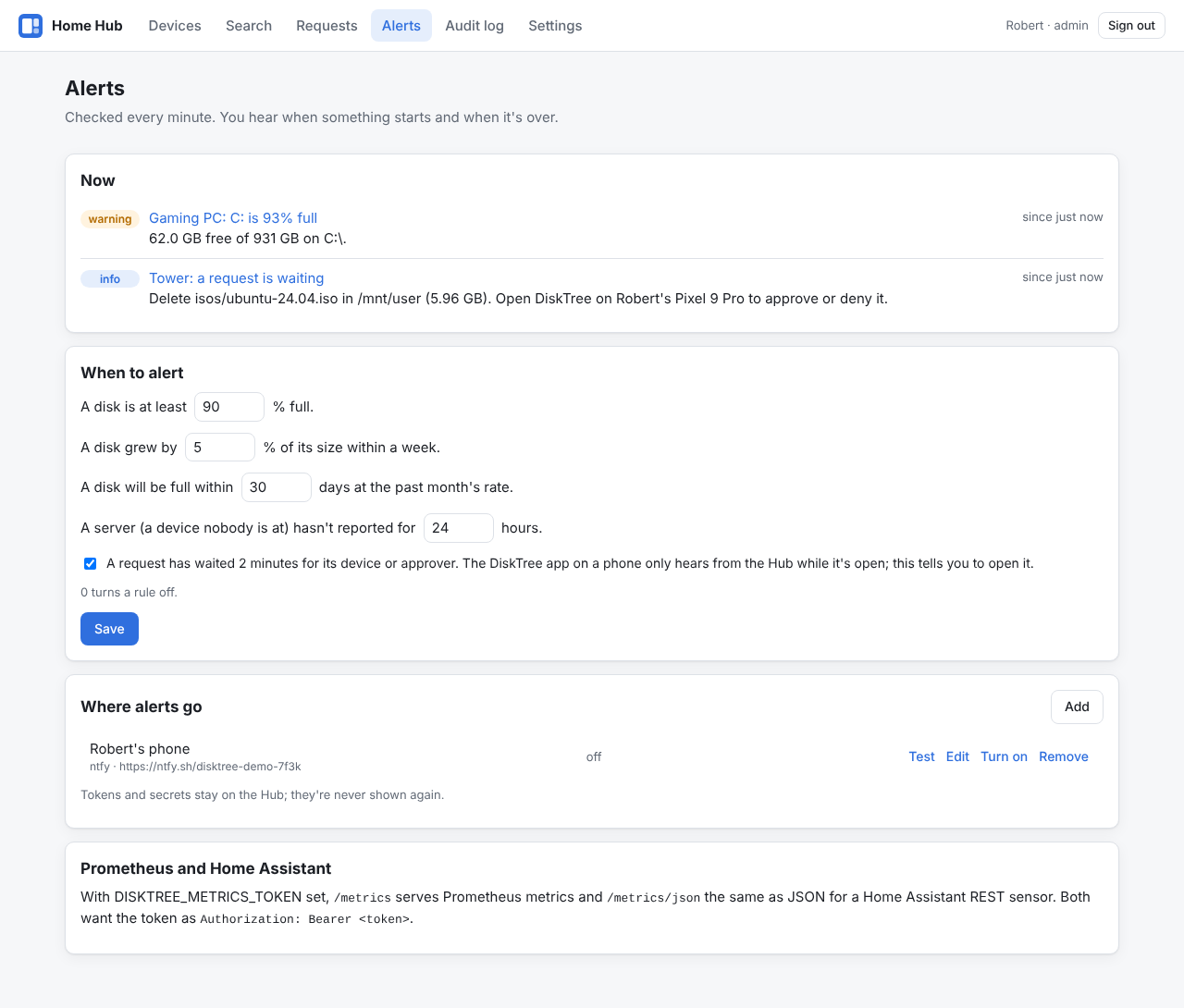
- Alerts to ntfy, Gotify, Pushover or a webhook, and metrics for Prometheus and Home Assistant.
- Devices without an agent (a router, a VPS, a Proxmox host): upload
scans made with
ncdu. - Copies: connect the Nextcloud account your devices sync with, and the page says for each synced folder what the server holds and which devices keep it stored ("kept on 3 devices"), with the big files one by one, and lists what exists in one place only. See Copies.
How requests are approved
Reading a device's storage needs no approval. Anything that deletes does, on the device itself:
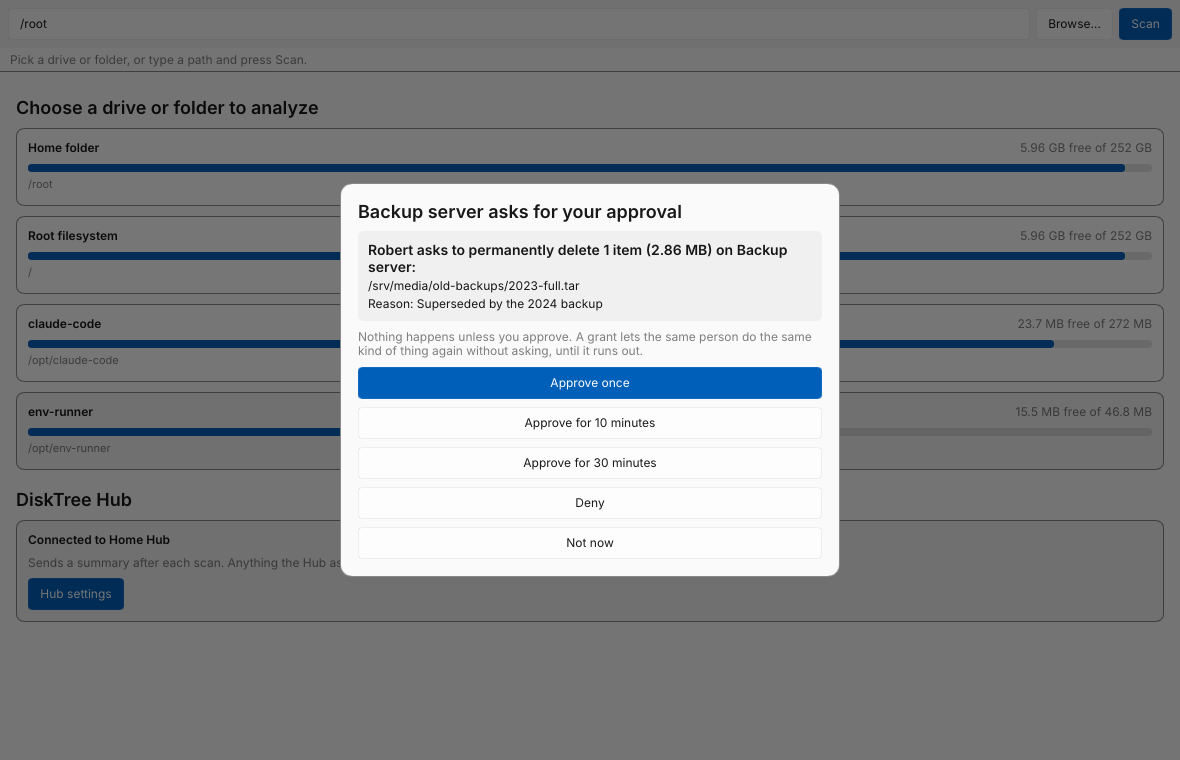
- The app shows the request with every path and the admin's reason:
Deny, Approve once or Approve for N minutes. A grant lets the
same admin do the same kind of thing again without asking until it runs
out; the lengths on offer (and a maximum of 8 hours) are set per device
group in Settings. The device lists its grants and ends them on request
(Hub settings → End grants, or
freesize agent revoke). What can't be put back, emptying the quarantine and removing Docker images, is never covered by a grant: it's asked for every time, with the paths shown. - A server with nobody at it sends its requests to its approver, a
phone or PC with the FreeSize app. The approver is chosen on the server
only, with
freesize approver set <key>(the key is under Hub settings in the app), never from the dashboard, so a stolen dashboard sign-in can't approve its own requests. The server checks the approver's signature on every answer. - Every device refuses what's outside the folders it scans, paths with
..or through links, system folders, and FreeSize's own files. Deleted files go to a quarantine on the same disk everywhere, to put back or empty later (each another request, approved the same way). - Commands are signed by the Hub's key, which each device checked when it paired, and every device request is signed by the device's key, so neither a fake Hub nor someone on the network can make up a request.
- Everything (sign-ins, pairings, requests, answers, results, setting changes) goes into an audit log whose entries are chained by hash; Audit log → Check the chain shows if one was changed or removed. The chain's head (the newest entry's number and hash) goes to the Hub's log once a day and rides along with every alert, so a log cut short at the end shows against a record kept elsewhere.
- Wrong pairing codes and sign-in attempts are limited per address (10 and 30 a minute) and in all, since the Hub may be reachable from the internet.
Since 0.14 the FreeSize app on a phone hears from the Hub in the background too: once paired, Android runs a small FreeSize job about every 15 minutes (in its own batches, so the battery screen never lists FreeSize above the usual apps) that sends what the app couldn't while it was closed, reports the phone's disks, quarantine and Nextcloud folder, every six hours its apps and junk, and asks the Hub for news. A request for the phone, or an approval for a server the phone approves for, shows as a notification; tapping it opens FreeSize, where the request is shown with every path and allowed or denied as always. Nothing is deleted or cleaned from the background, not even under a running grant: that waits for the app to open, and the notification says so. Android 13 and newer ask once whether FreeSize may show notifications; without them the requests wait in the app. The request alert (Alerts → When to alert, with ntfy or Pushover) still works for phones on older builds.
What a device sends
Nothing leaves a device until it's paired, and then only to your Hub: its name, operating system and host name; each disk's size and free space; after a scan, the paths and sizes of the 10,000 biggest folders, the 500 biggest files with their dates, and the 100 biggest file types; on Android, every installed app with its size, when it was last opened and where it came from; on Unraid, the shares per disk, container and VM names with what they use, which files are open and by which process, and what's in the quarantine; with the Nextcloud client set up, each sync folder's size and how much of it is stored on the device, its subfolders two levels down, and files of 100 MB and over one by one. Nothing is sent anywhere else, and no file contents are ever sent. The Hub keeps scans for a week, then one a day for three months, one a week for a year and one a month after that; removing a device deletes everything it reported.
Running the Hub
The Hub is one program with its database (SQLite), key and certificates in a data folder. Back that folder up: devices trust the key, and a new one means pairing every device again. Whether the Hub is reachable from the internet is your choice: on a LAN or WireGuard address only your own devices see it; reachable from outside, sign-in goes through Authentik's own protections and pairing codes are one-time and short-lived, and the Hub limits wrong guesses.
HTTPS is on from the start, with no setup. On first start the Hub makes
its own small certificate authority (tls-ca.pem in the data folder, its
key next to it) and a certificate for the host in its address (SHA-256, the
address in the subject alternative names, server authentication, 825 days,
Apple's limit), which it renews a month before it ends or when the address
changes. Devices learn that authority when they pair, through the pairing
link, which already vouches for the Hub's key, and trust it for this Hub's
address only, never for anything else; it never goes into the system's
certificate store. Browsers do warn on the first visit: the dashboard's
Settings page offers freesize-hub-authority.pem to install on your own
computers. Pairing links and the Authentik redirect URI are https://
(an address given as http:// is read as https://).
- Your own certificate (from your home CA, or Let's Encrypt) instead:
FREESIZE_TLS_CERT_FILEandFREESIZE_TLS_KEY_FILE, PEM with the chain, picked up again when the files change. Devices then check it against their system's certificates, so a home CA has to be installed on them. - A reverse proxy doing HTTPS in front:
FREESIZE_TLS=off, and the Hub speaks plain http to the proxy only.
The Hub also answers plain http on the same port: for the container's
health check, and for devices paired with a Hub before 0.8.7. Those are
told the new address in an answer signed with the Hub's key and move over
by themselves; the browser is sent to https://. Pairing over plain
http:// is still possible with FREESIZE_TLS=off; devices warn then,
since anyone on the network can read what they send.
Unraid: in the Apps tab, search for FreeSize Hub and install it
(the template is unraid/freesize-hub.xml in this repository). If it
isn't there yet, add it from the Unraid terminal, then pick
freesize-hub under Docker → Add Container → Template:
wget -O /boot/config/plugins/dockerMan/templates-user/my-freesize-hub.xml \
  https://raw.githubusercontent.com/McGeaverBeaver/FreeSize/HEAD/unraid/freesize-hub.xml
It asks for the web port, the appdata folder
(/mnt/user/appdata/freesize-hub), the Hub's address and the Authentik
settings; the listen address, TLS and the metrics token are under "Show
more settings".
Docker (any Linux, Synology, Docker Desktop):
docker run -d --name freesize-hub --restart unless-stopped \
  -p 192.168.10.200:9090:9090 -v /srv/freesize-hub:/data \
  -e FREESIZE_HUB_URL=https://freesize.home.lan \
  -e FREESIZE_OIDC_ISSUER=https://auth.home.lan/application/o/freesize/ \
  -e FREESIZE_OIDC_CLIENT_ID=... \
  -v /srv/freesize-hub-secret:/run/secrets/oidc:ro \
  -e FREESIZE_OIDC_CLIENT_SECRET_FILE=/run/secrets/oidc \
  ghcr.io/mcgeaverbeaver/freesize-hub:latest
The client secret comes from a file (/srv/freesize-hub-secret here, holding
just the secret) rather than -e FREESIZE_OIDC_CLIENT_SECRET=..., which
would stay in your shell history and show in docker inspect.
The container runs the Hub as PUID:PGID (99:100 by default) and gives
it the data folder. The image is built for amd64 and arm64 by
scripts/release.sh (see Releases).
Plain Linux: freesize-hub-linux-<arch>.tar.gz from a release has the
program, a systemd unit and a settings file:
sudo install -m 755 freesize-hub /usr/local/bin/
sudo install -m 644 freesize-hub.service /etc/systemd/system/
sudo install -m 600 freesize-hub.env /etc/freesize-hub.env   # fill it in
sudo systemctl enable --now freesize-hub
Its data goes to /var/lib/freesize-hub. Every setting is a variable (or
a flag; freesize-hub --help lists them):
| Variable | Meaning |
|---|---|
FREESIZE_HUB_LISTEN |
Address and port, default 0.0.0.0:9090 |
FREESIZE_HUB_URL |
How people and devices reach the Hub; goes into pairing codes |
FREESIZE_HUB_DATA |
The data folder |
FREESIZE_HUB_NAME |
Name in the dashboard and on devices |
FREESIZE_OIDC_ISSUER, _CLIENT_ID, _CLIENT_SECRET (or _CLIENT_SECRET_FILE) |
The Authentik provider |
FREESIZE_ADMIN_GROUP, FREESIZE_VIEWER_GROUP |
Groups for admins and viewers (freesize-admins, freesize-viewers) |
FREESIZE_TLS |
auto (HTTPS with the Hub's own certificate, the default) or off (plain http, for a reverse proxy) |
FREESIZE_TLS_CERT_FILE, FREESIZE_TLS_KEY_FILE |
Your own certificate (PEM with the chain) and key instead of the Hub's own |
FREESIZE_METRICS_TOKEN |
Turns on /metrics and /metrics/json |
FREESIZE_RETENTION_DAYS |
Days to keep scans and disk history; 0 (the default) keeps them, thinned as they age |
FREESIZE_UPDATE_CHECK |
on asks GitHub once a day for the newest release, shows it in Settings and tells devices running an older version; off (the default) asks nothing |
FREESIZE_UPDATE_CHANNEL |
stable (the default) or beta, for pre-releases too |
FREESIZE_HUB_LOG |
info, or debug |
freesize-hub health checks that the Hub on this machine answers; the
Docker image uses it as its health check.
Signing in with Authentik
The dashboard signs in with OpenID Connect (authorization code flow with PKCE), so Authentik's MFA and policies apply.
- In Authentik, Applications → Providers → Create → OAuth2/OpenID
Provider: client type Confidential, redirect URI
https://freesize.home.lan/auth/callback(your Hub address plus/auth/callback), and under Advanced protocol settings a signing key (Authentik's self-signed certificate is fine). Without one, Authentik signs with the client secret (HS256), which the Hub also accepts from 0.8.4 on; 0.8.3 couldn't sign in that way. - Applications → Create: name it, slug
freesize, with that provider. The issuer is thenhttps://auth.home.lan/application/o/freesize/. - Directory → Groups: make
freesize-adminsandfreesize-viewers, and add yourself to the admins. - Give the Hub the issuer, client ID and client secret.
Admins pair devices, send requests and change settings. Viewers can look at every device but change nothing. A device group can also name Authentik groups that see only that group's devices, for family members who should see just their own phone and PC.
Pairing devices
In the dashboard, Pair a device shows a code and a QR code, valid for 10 minutes and good for one device. It carries the Hub's address and its key's fingerprint, which the device checks before it trusts the Hub; the Hub's signed answer carries its certificate authority, which the device keeps for this Hub's address.
Phone: scan the QR code with the camera; it opens FreeSize's connect dialog with the link filled in, also when FreeSize was already open. Or open Settings → FreeSize Hub → Connect, and type the Hub's address and the code.
Computer: FreeSize app → Hub → Connect, and paste the link.
Server: the command line (
freesize) is also the agent:sudo freesize agent pair 'freesize://pair?hub=...' --state /var/lib/freesize-agent/agent.json sudo freesize approver set XXXX-XXXX-XXXX-XXXX --state /var/lib/freesize-agent/agent.json sudo freesize agent run --scan /mnt/user --scan /mnt/cache --state /var/lib/freesize-agent/agent.jsonpackaging/systemd/freesize-agent.service(also in the Linux release archive) runs it as a service.freesize agent statusshows the Hub, the approver and grants.
The app reports after each scan; the agent reports its disks every hour and
scans its folders once a day (--every, in hours).
Devices without an agent
Add without an agent on the Devices page makes a device the Hub can only look at. On that machine, make a scan file with ncdu and upload it on the device's page (Upload a scan):
ncdu -1xo- / | gzip > scan.json.gz
Any ncdu writes this with -o (not ncdu 2.6's binary -O), and so does
freesize /path --export scan.json. Files up to 128 MB unpacked; for big
machines, run the agent instead.
Copies: is there another copy?
The Copies page answers "is this folder kept anywhere else?" for what
the Nextcloud client syncs. Every device with the client (the desktop
client's nextcloud.cfg, or the Android app's folder) reports its sync
folders in its hourly report: how big each is, how much of it is stored on
the device rather than online-only, the subfolders two levels down and the
files of 100 MB and over. The Hub joins the reports on the server, the
account and the path, which are the same on every client.
An admin connects the account itself with Connect an account on the page: the Hub starts Nextcloud's sign-in flow, you sign in on Nextcloud's own page in a new tab and allow "FreeSize Hub", and Nextcloud hands the Hub an app password of its own (your password never reaches the Hub; the app password shows in Nextcloud's security settings, where it can be revoked). From then on the Hub lists the account over WebDAV, at start and every six hours or with List now: every folder's size, the ids, sizes and checksums of the big files, how much is in the trash, and what the account uses all told. The Hub only reads; it never changes anything on Nextcloud, and Disconnect asks Nextcloud to drop the app password.
With both sides in, the page shows:
- Folders: each synced folder with what the server holds, how many copies there are and where ("3 copies: the server, Gaming PC and MacBook Air"; a lone copy shows in orange), and what each device keeps of it (all of it, some of it, or none because it's online-only), with how much is stored across the devices all told.
- Big files: each file of 100 MB and over with the server's file id and checksums, how many copies there are and where, and the devices that store it.
On both tabs the column headers sort when clicked, the search box and the filters narrow the rows (one copy, server only, not on the server, not changed in a year…), Last changed is the date Nextcloud has for it (Nextcloud doesn't record when a file was last opened), and Open opens it in Nextcloud's own Files app. When the FreeSize Nextcloud app covers the account, Big files has tick boxes and Move to the trash bin…, which goes through the app like the In Nextcloud tab.
Only one copy: big files and folders a device holds that aren't on Nextcloud yet and no other device keeps; top folders only the server holds, with nobody keeping a stored copy; and the biggest scanned folders on each device (1 GB and over, outside the system's own) that no synced folder covers, where FreeSize simply knows of no copy. Nothing here is a problem by itself; it is what a lost device or a failed server would take with it.
Suggestions (0.13): what could be done about it, each one request away, and each still shown on the device and approved there:
- Free space: a synced folder Nextcloud has whole, which another device also keeps whole or which sits on a disk under 15% free. On Windows with the client's virtual files on, Ask the device marks the folder online-only: the files stay listed and download when opened, and the Nextcloud client frees them on its next run (it only ever frees what it has uploaded). The Folders tab has the same per device as Free on … (make the folder online-only there) and Keep on … (download all of it there; a device that already keeps all of it only gets Free). On macOS and Linux the page points to the client's own "Free up local space" instead, and on Windows without virtual files, to turning them on.
- Camera: photos and videos under a phone's
DCIMthat the connected account already has, by name and size (the Nextcloud app's auto upload). The request moves them to the phone's quarantine, where they can be put back for 30 days. - Move in: a big folder outside any synced folder, on a device that
syncs. The request moves it into the sync folder as
Archive/<device>/<folder>, so the client uploads it: a rename on the same drive, otherwise a copy checked byte for byte with the original going to the quarantine, and nothing is removed before the copy checks out. The Hub makes the folder on Nextcloud first, when it is connected to the account, and says how much the account has left. It goes into a synced folder on the same drive when there is one (a rename, so the files are never in two places), else the folder that syncs the whole account, else one named Documents or Nextcloud, else the first plain folder the client lists; a device that syncs only a program's own folder (Steam's save games, say) gets no place suggested, and the row says to add a folder to sync, or to choose with Edit. Edit, on any move-in row, picks which synced folder it goes into and where below it, in that same order with program folders last and marked, and shows both paths before asking. - Ignore, on every row, sets a suggestion aside: it goes under Ignored at the bottom of the tab, with Show again to bring it back, and stays ignored however often the devices report. Ignoring and showing again are in the audit log.
- External storage: on an Unraid server, a share the Nextcloud
container already mounts but Nextcloud doesn't offer. The request runs
occ files_external:createin the container (thelocalbackend), so every device reaches the share through Nextcloud where it is, with no second copy.
The device page's Nextcloud card shows the same device's folders on their
own. freesize nextcloud on a desktop prints what that machine reports,
for checking the counts by hand. A device whose account the Hub isn't
connected to is still counted against the other devices, just not against
the server.
Alerts, metrics and Home Assistant
The Alerts page sets when to alert: a disk over a fill level (90%), growth of 5% of a disk in a week, a disk full within 30 days at the past month's rate, a server silent for 24 hours, requests left waiting two minutes, and a device's junk over a size (2 GB). Alerts are checked every minute and sent when they start, when they get worse and when they're over, to:
- ntfy (ntfy.sh or your own server, with an access token for protected topics),
- Gotify,
- Pushover,
- a webhook: a JSON POST, signed with HMAC-SHA256 in an
X-DiskTree-Signature: sha256=…header when you set a secret.
With FREESIZE_METRICS_TOKEN set, /metrics serves Prometheus metrics
(disk size, free and used space; scanned folder sizes; devices; requests;
alerts) and /metrics/json the same as JSON. Both want the token as a
bearer token:
# prometheus.yml
scrape_configs:
  - job_name: freesize
    scheme: https
    authorization:
      credentials: <token>
    static_configs:
      - targets: [freesize.home.lan]

# Home Assistant configuration.yaml
sensor:
  - platform: rest
    name: Tower array used
    resource: https://freesize.home.lan/metrics/json
    headers:
      Authorization: !secret freesize_bearer   # "Bearer <token>"
    value_template: >-
      {{ (value_json.devices | selectattr('name', 'eq', 'Tower') | first).disks
         | selectattr('path', 'eq', '/mnt/user') | map(attribute='used_percent') | first }}
    unit_of_measurement: "%"
    scan_interval: 300
FreeSize for Unraid
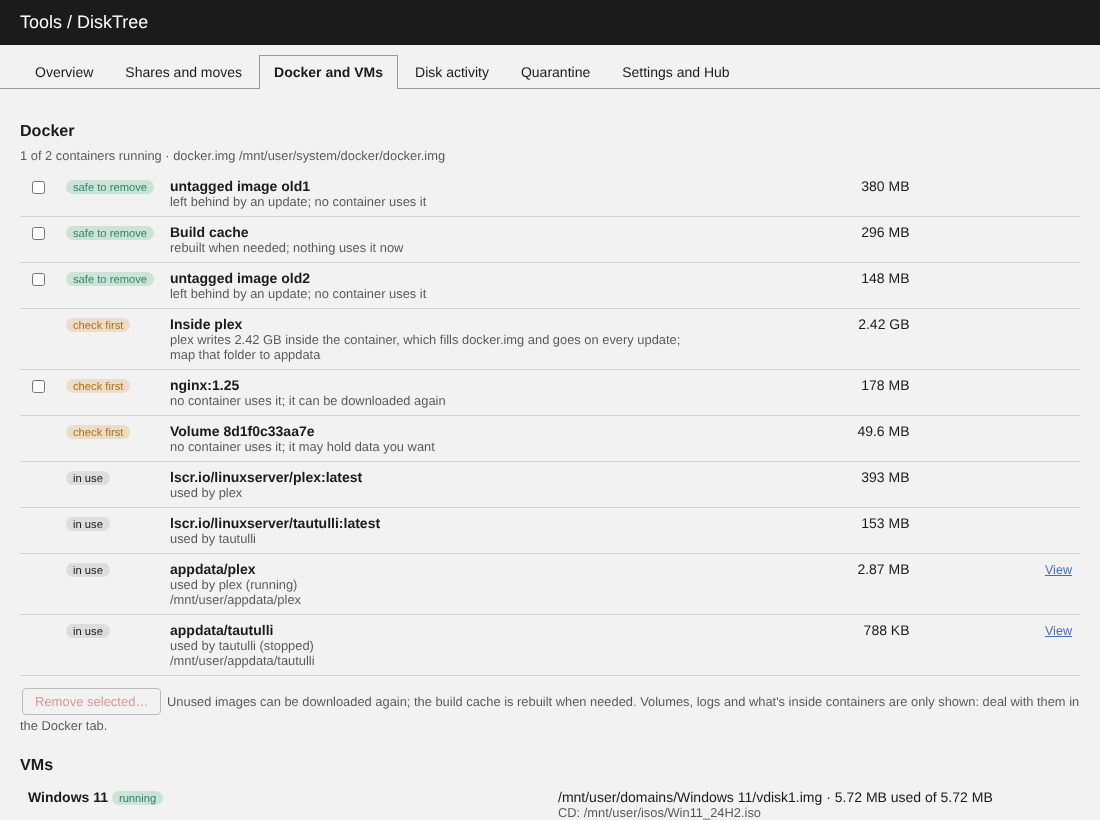
A plugin for Unraid 6.12 and newer: a page under Tools → FreeSize and a small background part. It knows the array, the pools, Docker and the VMs, and keeps what the server needs out of reach.
What it shows:
- Disks and pools: how full each is, its temperature, and when it was last scanned. Disks that are spun down aren't woken: their last scan stands until they're awake at scan time, or until a week has passed (Settings).
- Shares and their disks: how much of each share is on which disk.
- Docker: images left behind by updates and the build cache (safe to
remove), unused images and volumes and the appdata of apps that are gone
(check first), and what's in use (never offered). Also containers that
write inside themselves and fill
docker.img. - VMs: ISOs no VM uses, and files in a VM's folder that aren't attached to it.
- What keeps disks awake: spin-ups, reads and writes over the last day, and which files are open on each disk, by which app or container.
- Permissions: files in shares that SMB may not reach. Only reported; Tools → New Permissions fixes them.
- Nextcloud: when a Nextcloud data folder is on the server (found by
its
.ncdatafile, in a share or in appdata), how much of it is each person's files against their old versions, trash, uploads in progress and cache, plus previews and the rest of Nextcloud's app data, with the retention settings fromconfig.phpand how much is older than they allow, which Nextcloud's background job should have removed. Only reported: Nextcloud's database lists these files, so they're removed through Nextcloud (occ versions:cleanup,occ trashbin:cleanup, the settings), never from the file system. Since 0.13 the report also names the Docker container running the install and the shares it mounts, and the Hub's Copies page can ask the server to add one of those shares to Nextcloud as external storage (occ files_external:createin the container, approved on the server like any request).
Until its first look after starting is done, which takes a few minutes on a big array, the page says what it's looking at (which disk, of how many) and fills in by itself.
What it does, only when asked:
- Quarantine: moves files and folders aside on the disk they're on (a rename; nothing is copied). Put them back any time. They're deleted only when you empty the quarantine, after a list of every path with links to look at them in Unraid's file browser, and a box to tick. Nothing is emptied on a timer.
- What deleting really frees, counting hard links (the *arr apps' imports) and ZFS snapshots that keep the data anyway.
- Moving a share, or a folder in it, between disks: a plan first
(room, files in the way, hard links that would be split), then each file
is copied, checked against its original, and the originals go to the
source disk's quarantine. The path in
/mnt/userstays the same. Choose… browses the share's folders, showing which disks hold each (sleeping disks only when you ask, since listing them spins them up), and ticks the disks the chosen folder is on. A folder spread over several disks moves from each of them, one disk after another; a file on two of them stops the plan, since the share shows only one. Sparse files (a VM's disk image) keep their holes, extended attributes come along, a partial copy an interrupted move left is cleaned up first, and the page shows the file being copied. A tick on the confirmation deletes the originals once every copy checked out, instead of leaving them in the quarantine. - Presets: Empty a disk plans a move of every share's folders on a
disk to the roomiest disk each share may use (by its include and
exclude settings), folder by folder when a share is too big for one
disk; Gather a share moves a share spread over several disks onto one.
The plan shows first, with what can't be moved and why; the moves then
run one after another. Also
freesize unraid move preset empty-disk disk3and… gather Movies --to disk1on the terminal, with--startand--empty-after. - Removing Docker images nobody uses, and the build cache.
- Emptying the trash folders in the shares for good, from the
Quarantine tab: the Recycle Bin plugin's
.Recycle.binfolders and the.Trash-*folders Linux computers leave over the network, each with its paths listed andfreesize unraid junk liston the terminal.
Never offered, whoever asks: the flash drive, the system share
(docker.img, libvirt.img), Docker's storage, the appdata of installed
apps, folders mounted into containers, the VMs' disks and the ISOs in their
CD drives, whole disks and shares, other machines' storage under
/mnt/remotes, and files open right now. While Docker or the VM service is
stopped, everything they could use counts as in use.
Installing the plugin
In Unraid's Apps tab (Community Applications), search for FreeSize and install the plugin. Or, in Plugins → Install Plugin, paste:
https://github.com/McGeaverBeaver/FreeSize/releases/latest/download/freesize.plg
Either way Unraid downloads it from the GitHub release, and updates show on the Plugins page like any other plugin's.
The background part runs at the lowest CPU and disk priority, stops when
the array stops so it never holds a disk, and logs to
/var/log/freesize.log. To start or stop it by hand:
/etc/rc.d/rc.freesize start|stop|restart|status. Removing the plugin
keeps its settings and Hub pairing in /boot/config/plugins/freesize, and
anything still in the quarantine stays in .disktree-quarantine at the top
of each disk until you delete it. The pairing file there holds the server's
private key; the flash drive can't keep file permissions, so make sure the
flash share isn't open to everyone on your network (Shares → flash →
Security).
With the Hub
On the Settings and Hub tab, paste a pairing link from the Hub (Pair a
device), then choose the approver by the key its FreeSize app shows. The
server then reports its disks, a scan per disk, shares, Docker, VMs and
quarantine to the Hub, which shows them on the device's Unraid and
Quarantine tabs. An admin can ask it to put back or empty the
quarantine, remove Docker images, or delete what the server listed as not
in use; the approver's phone shows every path first. The approver can only
be changed on this page or with freesize approver set on the server.
From the Unraid terminal
freesize unraid status
freesize unraid estimate /mnt/user/Movies/Old
freesize unraid quarantine list
freesize unraid quarantine add /mnt/user/isos/old.iso --reason "not needed"
freesize unraid quarantine restore <batch>
freesize unraid quarantine empty <batch>...
freesize unraid folders --share Movies --folder "Old Films"   # --wake: sleeping disks too
freesize unraid move plan --share Movies --folder "Old Films" --from disk1 --to disk3
freesize unraid move start --share Movies --folder "Old Films" --from disk1 --from disk2 --to disk3
freesize unraid docker-cleanup <id>...    # ids from status --json
freesize agent pair 'freesize://pair?...' # same as pairing on the page
freesize agent status                     # the Hub, the approver, grants
freesize approver set XXXX-XXXX-XXXX-XXXX
On Unraid, freesize agent and freesize approver use the plugin's
pairing on the flash drive; pairing there is picked up by the plugin
straight away. The plugin's log is /var/log/freesize.log, with every
pairing attempt from the page.
Cleaning up Nextcloud: the FreeSize Nextcloud app
The FreeSize Nextcloud app (0.20) runs inside Nextcloud and pairs with the Hub like any other device, showing as "Nextcloud". Because it runs on the server, it sees the real files and reads them there: nothing is downloaded, and nothing is guessed from names or sizes.
For each Nextcloud user the admin chooses, it reports:
- the biggest files, and the files nobody changed in over a year (old isn't the same as unwanted: they're listed to look through);
- extra copies: files whose contents are the same, byte for byte, checked by a SHA-256 the app computes on the server for every file of 1 MB and over that has another file of the same size. It reads a little more every five minutes and keeps each fingerprint until the file changes, so on a big account the list fills in over a few runs. The oldest copy of each is the one to keep;
- what the trash bin and the old versions of files take.
On the Hub the device's Nextcloud tab, and In Nextcloud on the Copies page, show each account with these lists and tick boxes, and the Suggestions tab adds the extra copies, the old files and the trash bin. Move to the trash bin… sends a request like any delete: the app has no one sitting at it, so the request goes to its approver's phone, and only once it's allowed there does the app move the files, through Nextcloud, into that user's trash bin. They come back from Deleted files in Nextcloud until the trash bin is emptied. The app refuses to delete at all while the trash bin (the Deleted files app) is off, never touches a user's whole folder or what others share with them or external storage, and refuses a file bigger than the trash bin is set to take. Each person signed in to the Hub sees only the Nextcloud account with their email address, and the requests about it; Hub admins see every account, and only admins send requests.
To set it up:
- Download
freesize-nextcloud-<version>.tar.gzfrom the release and unpack it into Nextcloud'scustom_apps(orapps) folder, then enable it:occ app:enable freesize, or under Apps. - In Nextcloud, Administration settings → FreeSize: paste the link from the Hub's Pair a device and choose Pair.
- Under Approver, enter the fingerprint of the phone that approves (in the phone's Settings, Hub). Only here, never from the Hub, as with every device.
- Under Users it covers, add the users whose files the Hub may see.
Nextcloud should run background jobs with Cron (Basic settings), so the
app reports and carries out approved requests every five minutes; the
page says so when it doesn't. The same is there from the command line:
occ freesize:pair LINK, occ freesize:approver FINGERPRINT,
occ freesize:users --add USER, occ freesize:run (now, rather than in
five minutes), occ freesize:status, and occ freesize:report, which
prints exactly what goes to the Hub without sending it.
Updating the app. Nextcloud only updates apps from its app store,
and FreeSize isn't there yet, so the app updates itself from FreeSize's
GitHub releases instead, the way the desktop apps do: under
Administration settings → FreeSize → Updates, Check now asks
GitHub, and Update to … downloads the release's
freesize-nextcloud-<version>.tar.gz, checks it against the release's
signed sums (the app carries the release key's public half; one packed
without a key says to update by hand), replaces the app's files and runs
the app's upgrade. The Hub also tells the app about a newer release in
its poll answers when the Hub's update check is on. From the command
line, occ freesize:update does the same, --check only looks, and
--file FILE installs a tarball you put on the server. Nothing updates
on its own. By hand: unpack the new tarball over custom_apps/freesize
and run occ upgrade. Your pairing, approver and users stay through an
update.
Without the app, a Nextcloud account connected on the Copies page still gets the suggestions that need no guessing: big files nobody changed in a year, and the trash bin.
The app is under the GNU Affero General Public License, version 3 or later, like Nextcloud itself.
Licensing
FreeSize is free software: you can redistribute it and modify it under the terms of the GNU General Public License as published by the Free Software Foundation, either version 3 of the License, or (at your option) any later version. See LICENSE. It comes without any warranty.
The user interface is made with Slint, used under its
royalty-free license: Made with Slint. The signatures, the pairing codes
and the Hub's certificates use Ed25519, SHA-256 and rcgen; the full list of
dependencies and their licenses is in Cargo.lock and on crates.io.
Found a security problem? See SECURITY.md. Bug reports and ideas go in GitHub issues, which have templates for both.
Developing
Building from source, releases, the project's layout and how the pieces work: docs/DEVELOPING.md, then ARCHITECTURE.md and docs/ROADMAP.md.
Requirements
Categories
Related apps
Explore more like this
Explore allDetails
ghcr.io/mcgeaverbeaver/freesize-hub:latestRuntime arguments
- Web UI
http://[IP]:[PORT:9090]/- Network
bridge- Shell
sh- Privileged
- false
Template configuration
Port of the dashboard and of the address devices report to, over HTTPS with the Hub's own certificate. To keep the Hub off the internet, reach it over your LAN or WireGuard only.
- Target
- 9090
- Default
- 9090
- Value
- 9090
The database and the Hub's key. Back this folder up: devices trust the key, and a new one means pairing every device again.
- Target
- /data
- Default
- /mnt/user/appdata/freesize-hub
- Value
- /mnt/user/appdata/freesize-hub
The address people and devices use to reach the Hub, e.g. https://freesize.home.lan or https://192.168.10.200:9090. The Hub makes its certificate for this host. It goes into pairing codes, and [address]/auth/callback is the redirect URI to give Authentik.
- Target
- FREESIZE_HUB_URL
Shown in the dashboard and on devices when they pair.
- Target
- FREESIZE_HUB_NAME
- Default
- FreeSize Hub
- Value
- FreeSize Hub
The OpenID Configuration Issuer of the Authentik provider, e.g. https://auth.home.lan/application/o/freesize/
- Target
- FREESIZE_OIDC_ISSUER
The provider's Client ID.
- Target
- FREESIZE_OIDC_CLIENT_ID
The provider's Client Secret (a confidential client).
- Target
- FREESIZE_OIDC_CLIENT_SECRET
Authentik group whose members can pair devices, send requests and change settings. Authentik sends a user's groups with the profile scope.
- Target
- FREESIZE_ADMIN_GROUP
- Default
- freesize-admins
- Value
- freesize-admins
Authentik group whose members can look at every device but change nothing. Device groups can also name groups that see only their devices.
- Target
- FREESIZE_VIEWER_GROUP
- Default
- freesize-viewers
- Value
- freesize-viewers
Address and port inside the container. Leave it in bridge mode. With the Host network, set it to one of the server's addresses, e.g. the WireGuard one (10.253.0.1:9090), so the Hub only answers there; then the web port above must match.
- Target
- FREESIZE_HUB_LISTEN
- Default
- 0.0.0.0:9090
- Value
- 0.0.0.0:9090
auto: HTTPS with the Hub's own certificate, renewed by itself (Settings in the dashboard offers the authority to install in your browser). off: plain http, for a reverse proxy that does HTTPS in front.
- Target
- FREESIZE_TLS
- Default
- auto
- Value
- auto
Optional: your own certificate (PEM, with its chain) under /data instead of the Hub's own, e.g. /data/certs/fullchain.pem. Reloaded when the file changes. Needs the key file too.
- Target
- FREESIZE_TLS_CERT_FILE
Optional: the private key (PEM) for that certificate, e.g. /data/certs/privkey.pem.
- Target
- FREESIZE_TLS_KEY_FILE
Optional. With a token, /metrics serves Prometheus metrics and /metrics/json the same for Home Assistant, to anyone sending Authorization: Bearer [token].
- Target
- FREESIZE_METRICS_TOKEN
User the Hub runs as; the appdata folder is given to it.
- Default
- 99
- Value
- 99
Group the Hub runs as.
- Default
- 100
- Value
- 100
info, or debug when something doesn't work.
- Target
- FREESIZE_HUB_LOG
- Default
- info
- Value
- info