

forge90
Docker app from Oroshi's Repository
Overview
Readme
View on GitHub
FORGE 90
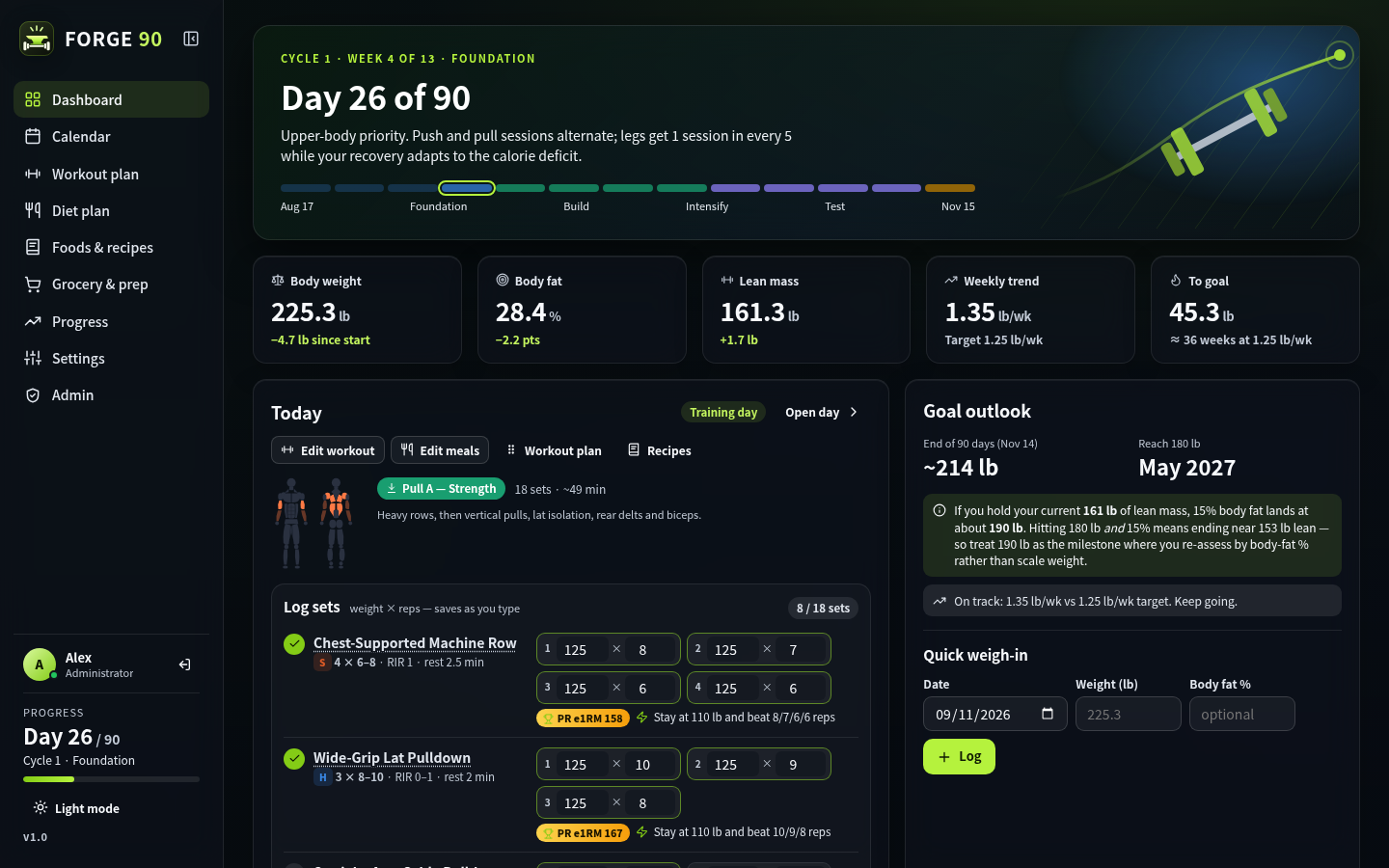
FORGE 90 is a multi-user, self-hosted, weight training and meal-planning app including a built-in barcode scanner, food pantry, and recipes (supports web links and Mealie imports). It builds a 90-day Push/Pull/Legs program that continues in 13-week cycles, plans meals portioned to each person's macros, and tracks weight, body fat and lifts.
Contents
Features
Training
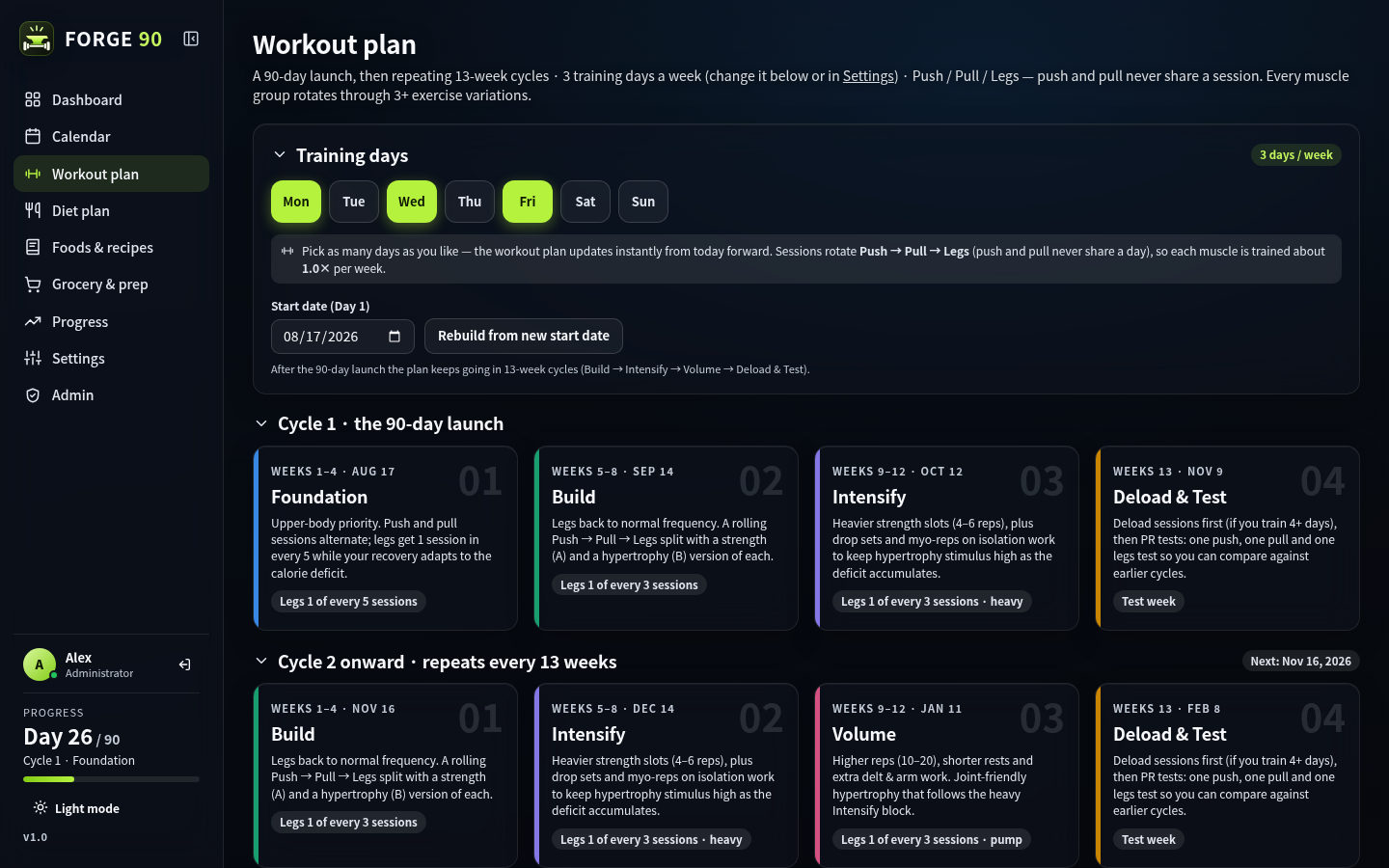
- The first 90 days run through four phases: Foundation (an upper-body focus while you adjust to the deficit), Build, Intensify, and a deload and PR-test week. After that the plan repeats in 13-week cycles, and the calendar always has the current and next cycle scheduled.
- Sessions rotate Push, Pull and Legs across however many training days you pick.
- Each session mixes heavy strength sets with hypertrophy work, using reps-in-reserve (RIR) targets.
- The app tells you when to add weight so you're encouraged to get stronger.
- The customizable workout programs include an exercise library with over 130 exercises across 11 major muscle groups, each with form steps and cues. Around half are research-backed alternatives, each with a note on why it's there. Exercises rotate weekly within their movement slot, and you can switch them on or off whenever you like.
Logging and the calendar
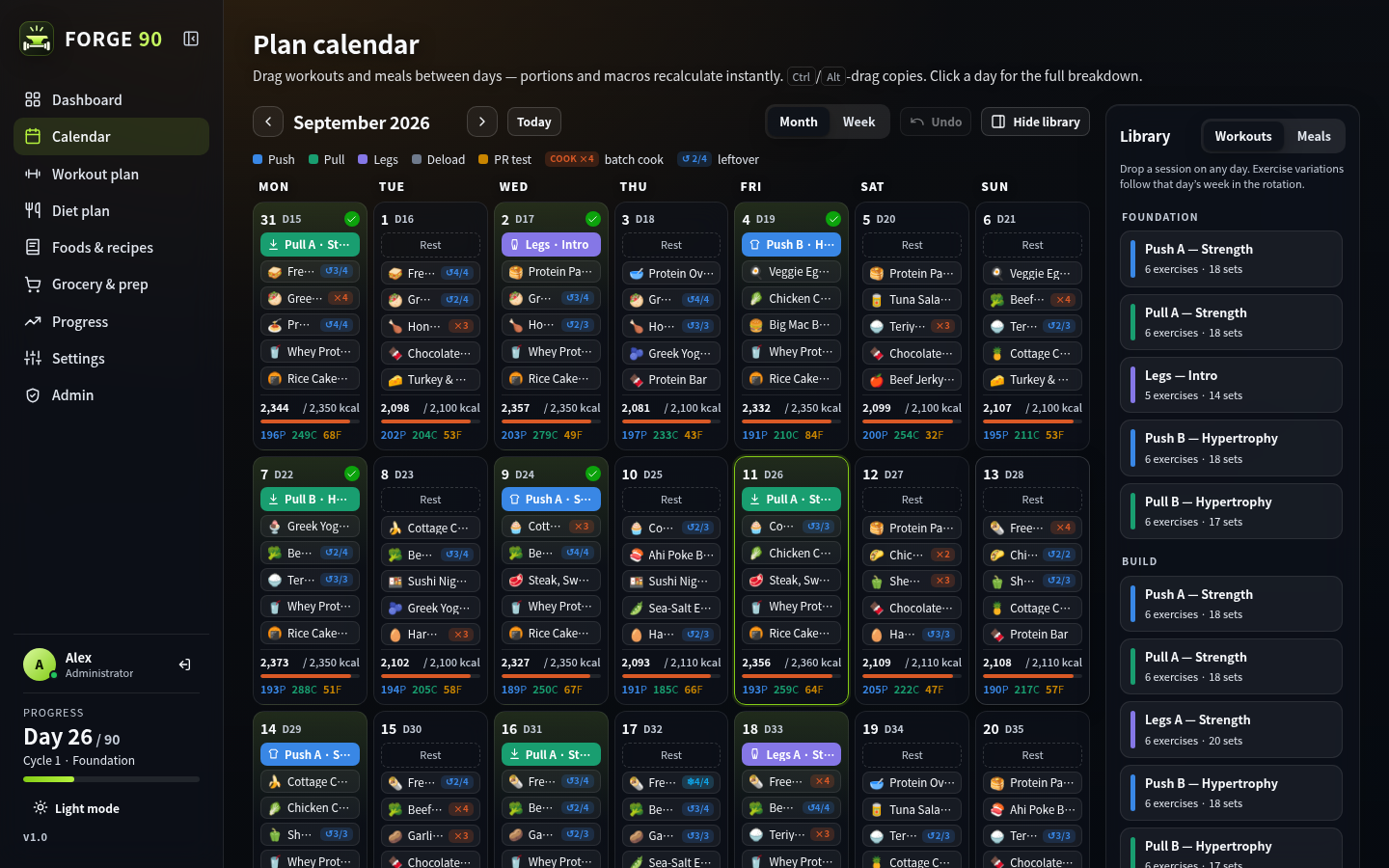
Sets are logged on the dashboard's Today card, in the day view or in workout mode, and each exercise shows its target, any PRs and a suggestion for next time. Workout mode takes you through the session one exercise at a time, with a suggested weight and reps. The customizable built-in rest timer automatically starts after you log a set to help you keep a proper pace.
The calendar has month and week views, and workouts and meals can be dragged between days. The dashboard has quick editors for the day's workout and meals, and Customize rearranges its panels or hides the ones you don't use.
Nutrition
Pick one of three goals: lose fat, maintain, or build muscle.
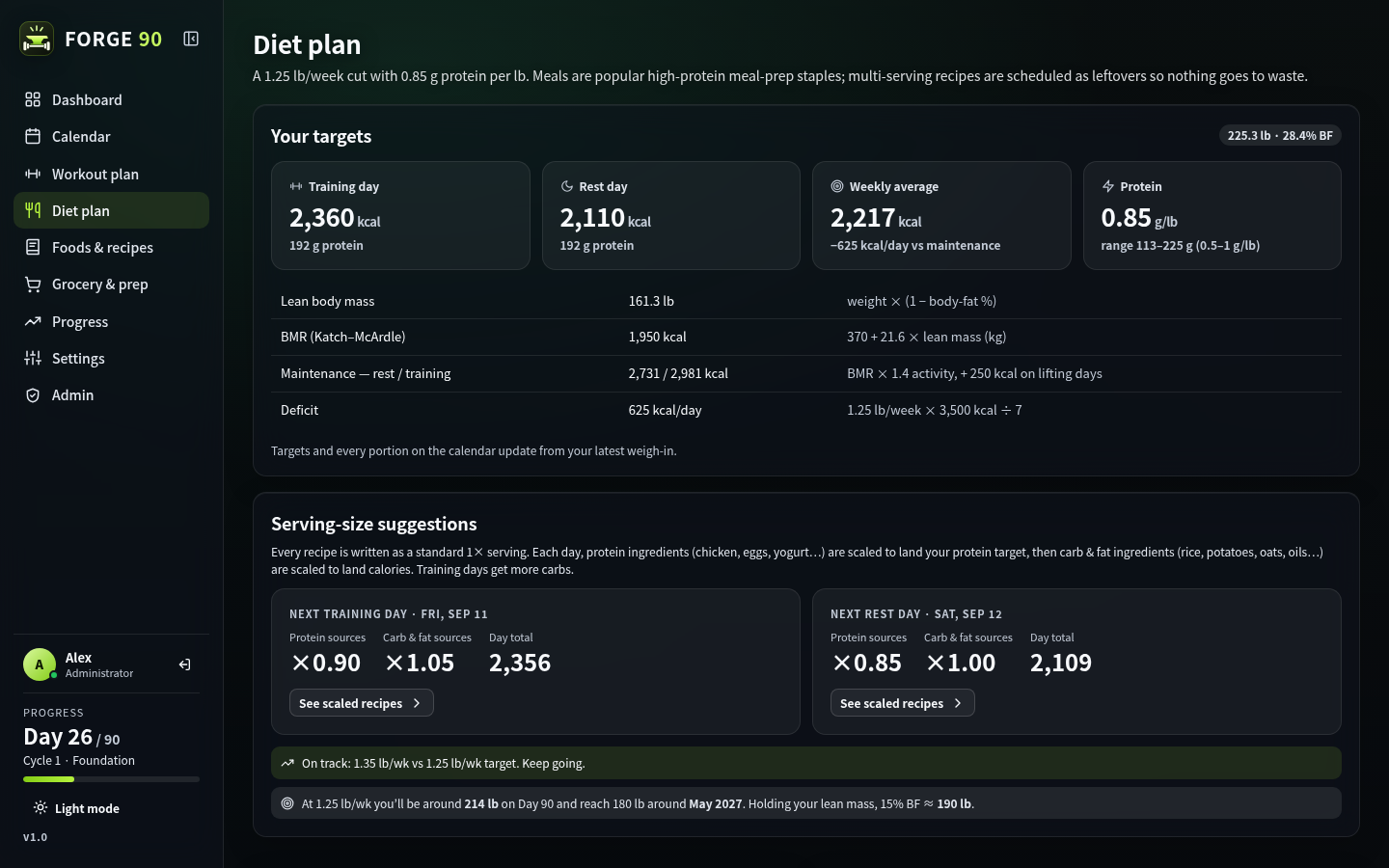
Calorie targets use Katch–McArdle BMR, an activity multiplier and extra calories on lifting days. Protein is set between 0.5 and 1 g per pound of body weight, and carbs and fat make up the rest. Every day, recipe portions are scaled so the meals hit protein and calories, with things like eggs and tortillas rounded to whole units. A trend coach compares your 7-day weight trend with the target and can adjust calories.
- Lose fat takes a deficit from the loss rate you set, and switches to maintenance when you reach your goal.
- Maintain holds calories level, and the coach flags drift in either direction.
- Build muscle adds a surplus sized from a weekly gain target set as a share of body weight, 0.25–0.5% being the range most lifters can add without the extra going on as fat. Fat drops to 25% of calories (never below 0.3 g per pound) so the surplus lands in carbohydrate, which is what fuels training volume. The surplus is capped at 500 kcal a day, and the bulk stops and holds at maintenance once you hit the body-fat ceiling, since past that more of every extra calorie is stored than used. Both limits are adjustable.
Progress
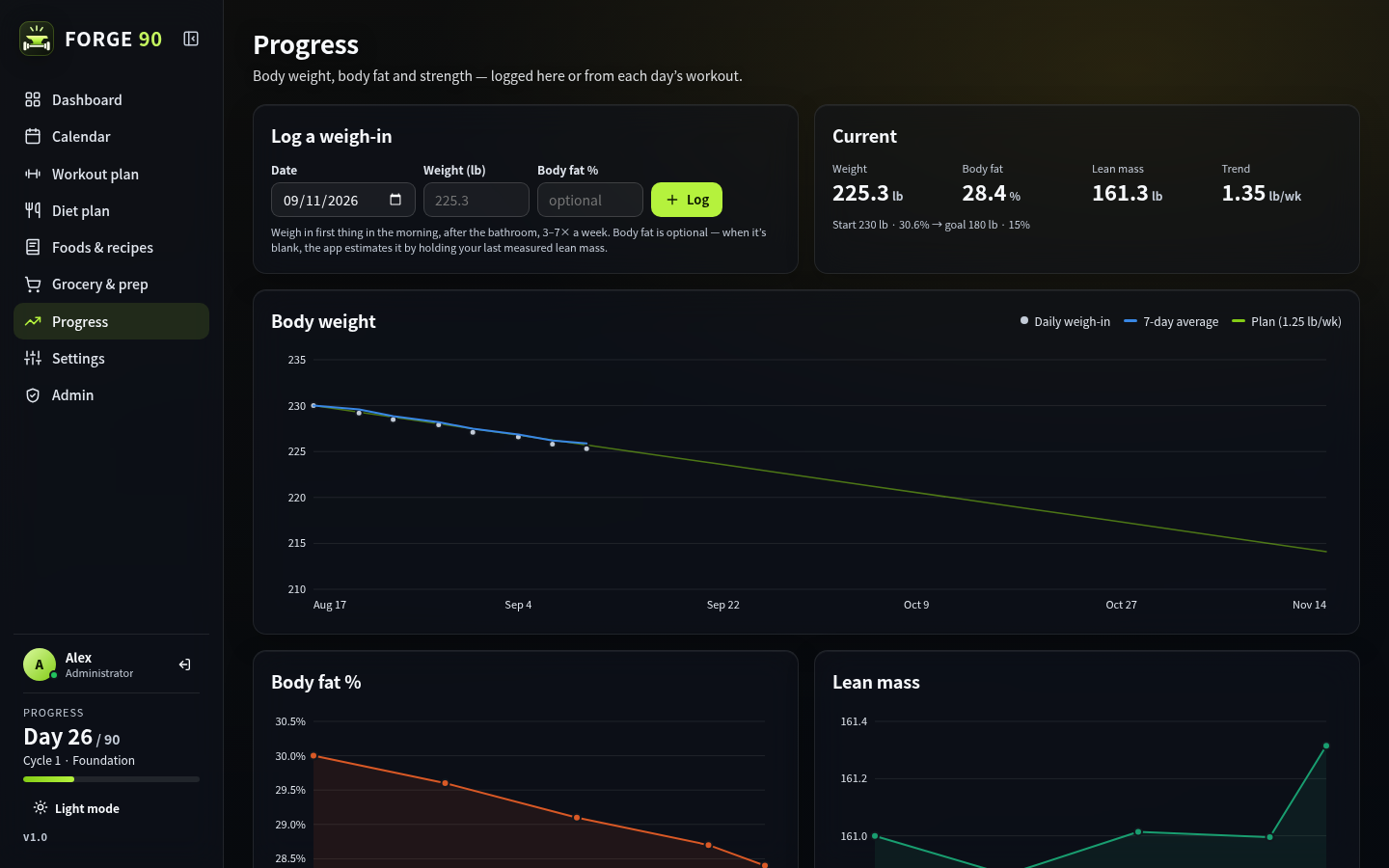
The Progress page charts body weight against a 7-day average and the plan line, along with body fat, lean mass and an estimated one-rep max for each exercise, with PRs marked. You can look at everything since day 1 or just the last two weeks, and see how much your weight, body fat and lean mass changed in that time. It also shows whether your 7-day average is ahead of or behind the plan, when you'll reach your goal weight at the current pace, and which sessions you did or missed over the last four weeks.
Recipes and foods
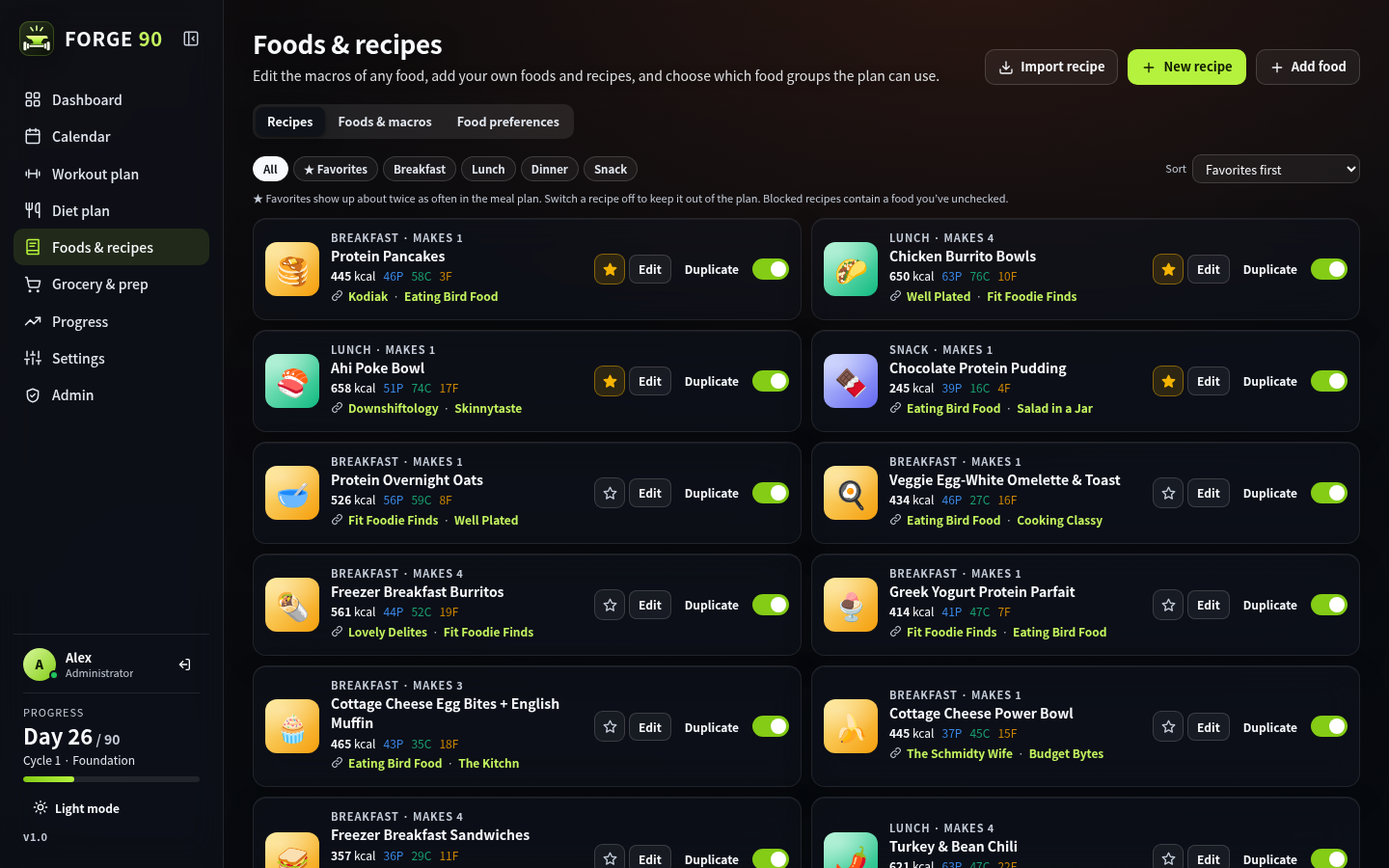
FORGE 90 comes with 36 high-protein meal-prep recipes, each linked to its original source, and a database of about 650 foods. Multi-serving recipes are scheduled as leftovers. Recipes can be searched by ingredient or tag, favorites come up more often in the plan, and you can edit, switch off or print any recipe, or write your own. Food preferences are a checklist by group, subgroup and individual food. Unchecking a food removes the recipes that use it and swaps it out of upcoming meals.
Groceries
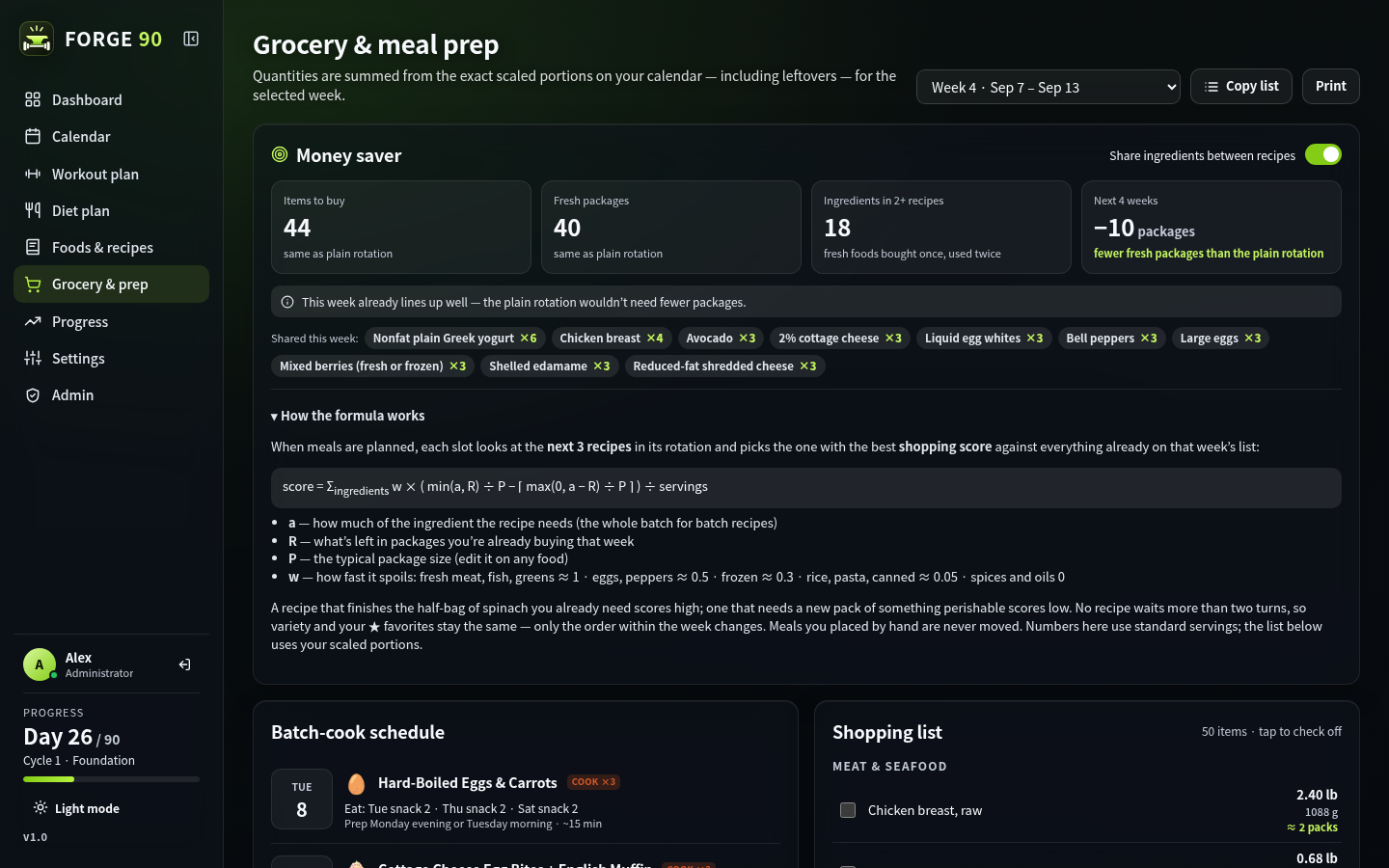
The weekly shopping list is grouped by aisle (food groups) and adds up the exact portions on the calendar, leftovers included, with a batch-cook schedule alongside. Items the pantry already covers stay on the list, ticked off with a pantry icon, so an out-of-date pantry can't make you miss something. If the pantry only covers part of an item, the list shows the full amount and notes what's at home. Add checked to pantry puts away everything you bought in one go. With money-saving planning on, each week's meals are ordered so recipes share fresh ingredients, which means fewer packages and less waste without changing variety or favorites.
Pantry
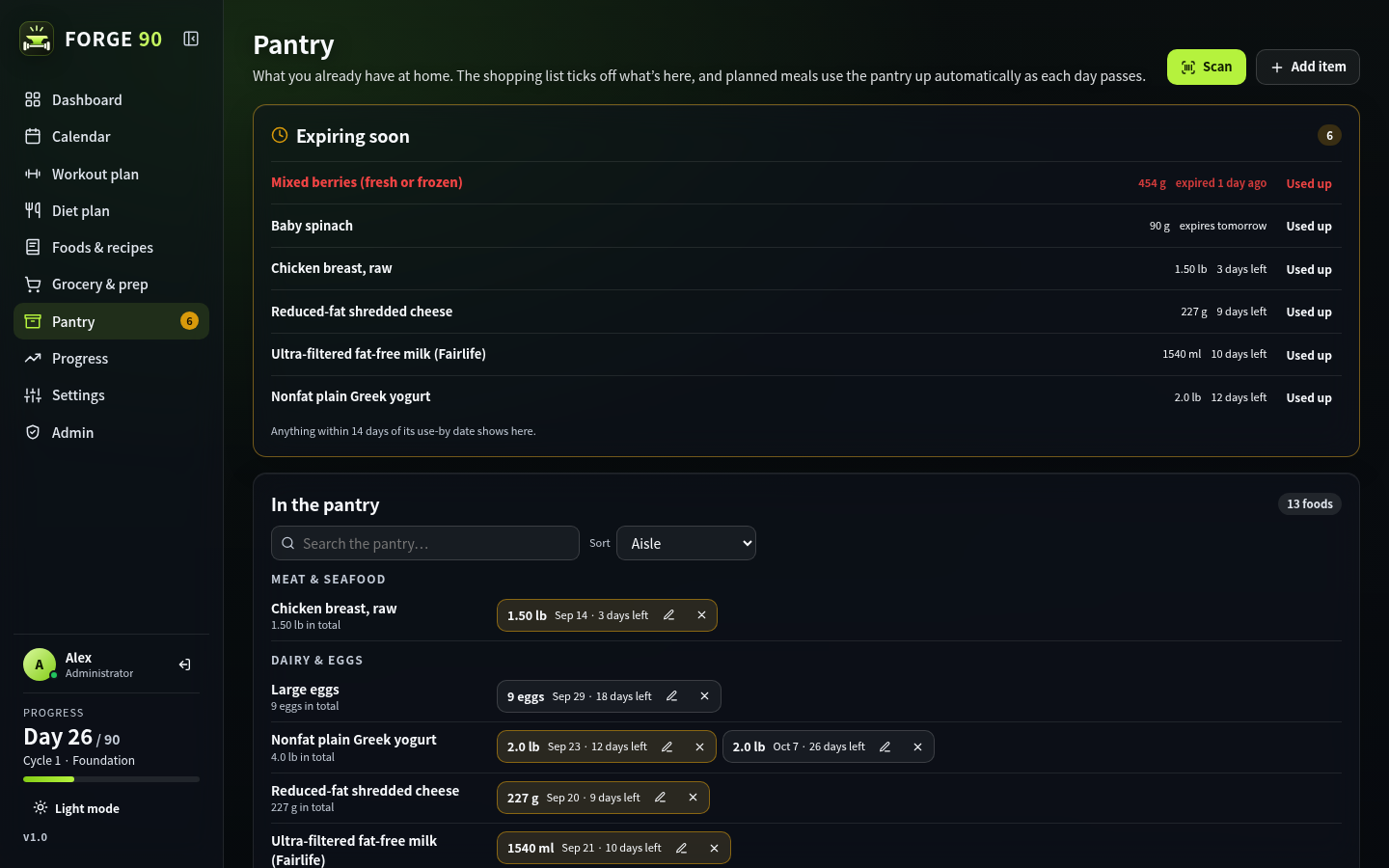
The pantry keeps track of the food you have at home, with amounts and use-by dates. Items come in from scanning, the shopping list or by hand, and each one gets a typical use-by date for that kind of food, which you can change. Anything of the same food with the same use-by date is kept as one entry rather than a pile of identical rows, and searching the pantry lists what goes off soonest first. As each planned day passes, its meals come out of the pantry automatically, soonest-expiring first. Anything within two weeks of its use-by date shows under Expiring soon, with a count on the Pantry menu item.
Barcode scanning
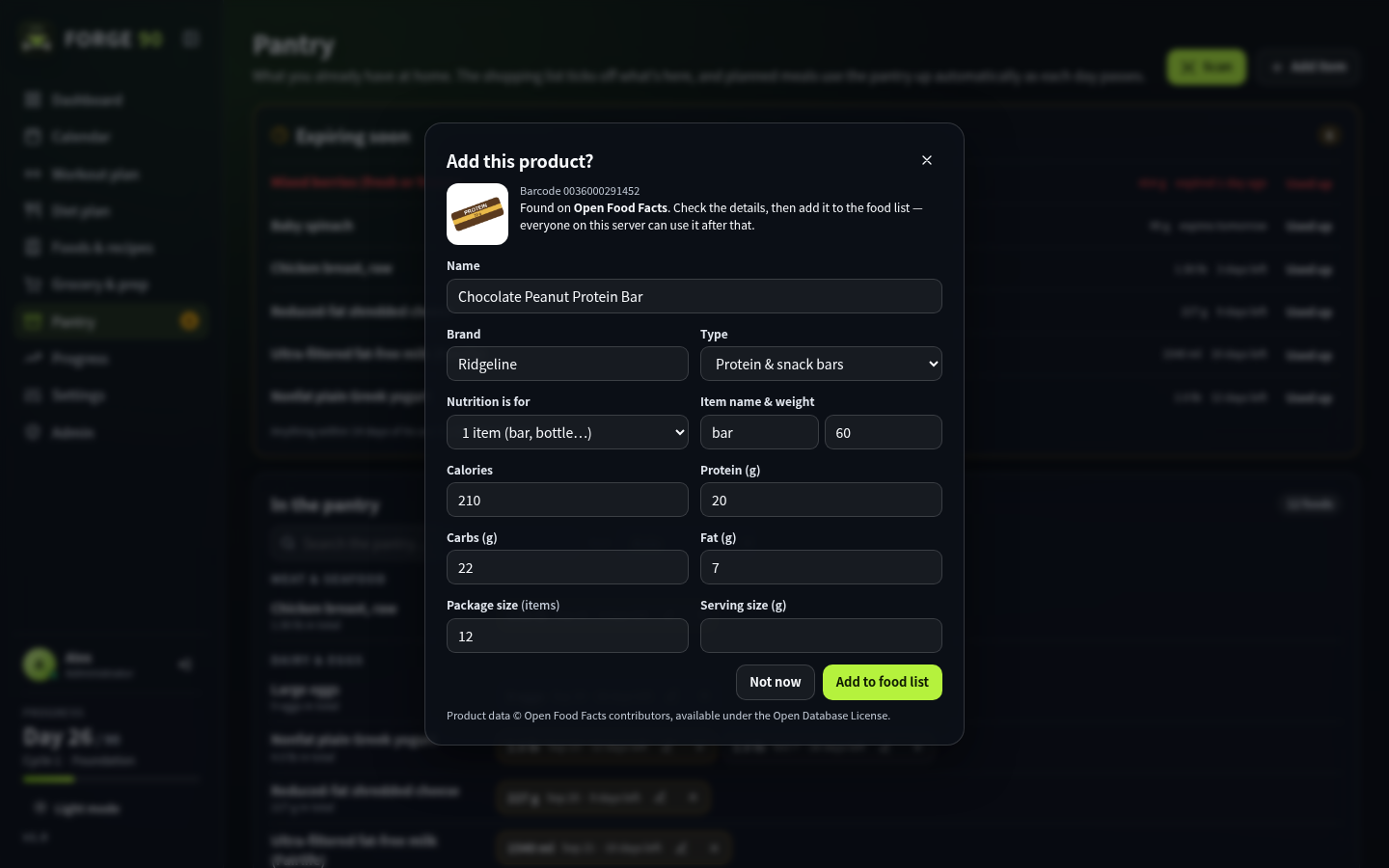
On a phone, Scan reads the barcode on packaged food (EAN-13, UPC-A, EAN-8 and UPC-E) and looks the product up on Open Food Facts. The first person to scan a product checks the name, nutrition and package size before it's added, and after that everyone on the server can find it by name, brand or barcode. Products that aren't on Open Food Facts can be entered from the label, and whoever added a product, or an administrator, can correct it later.
Where you scan decides what happens:
- Dashboard, calendar, day view and Foods & recipes (on a phone: Today and the + button): the product is added to the day as an extra food with one of the meals. It counts toward the day's macros, and the rest of the day's portions shrink to make room. Add food does the same without the camera.
- Pantry: each scan adds a package straight to the pantry, so you can scan a whole bag of groceries in a row. Scanning the same product again counts it up rather than starting a new row, and the count can be nudged up or down by hand. Review lists everything from that session with its count and use-by date, so there's no trip to the Pantry page to fix things.
The live camera view needs HTTPS (or localhost). Over plain HTTP, Scan asks for a photo of the barcode instead. Android Chrome uses the phone's built-in barcode reader; other browsers, including Safari on iPhone, use the app's own decoder.
Importing recipes
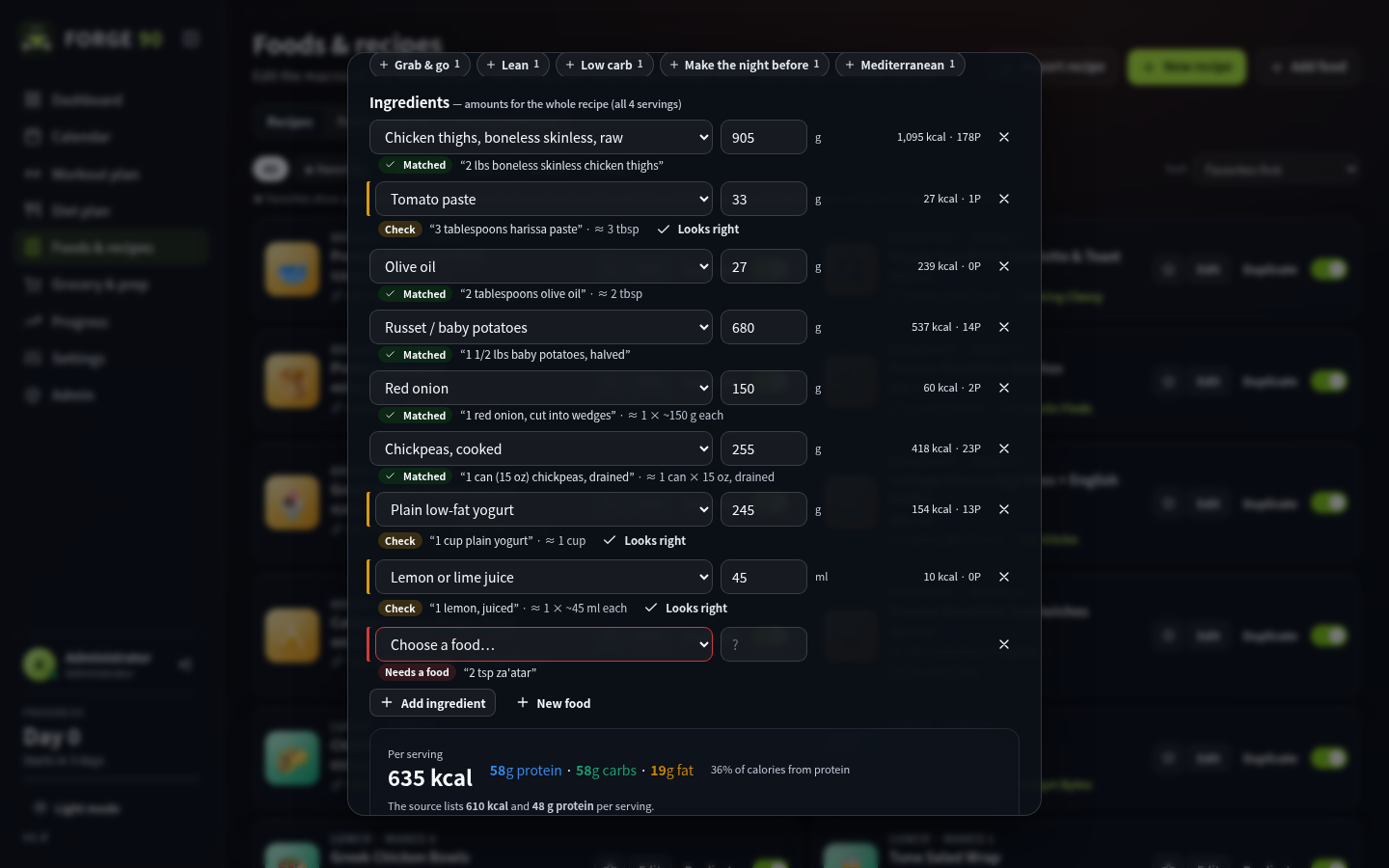
Import recipe on the Foods & recipes page brings in a recipe from a web link or from Mealie via its API. Link import works with any site that publishes standard recipe data, which covers most recipe sites. For Mealie, an administrator adds the server address and an API token under Settings → API connections, and then everyone can search it and import several recipes at once.
Each ingredient is matched to a food in the database, and its amount is converted to grams, milliliters or items. Every import opens for review before it's saved. Anything that couldn't be worked out, like an ingredient with no matching food, a missing amount, the meal or the number of servings, is highlighted and has to be filled in first, and uncertain matches are marked for you to check. Your corrections are remembered for next time. If a page publishes no recipe data at all, FORGE 90 falls back to reading the page itself — it looks for an Ingredients heading and the list under it. That's guesswork, so the review screen says so and everything is worth a check. You can always paste the ingredient list instead.
Meal-plan sync
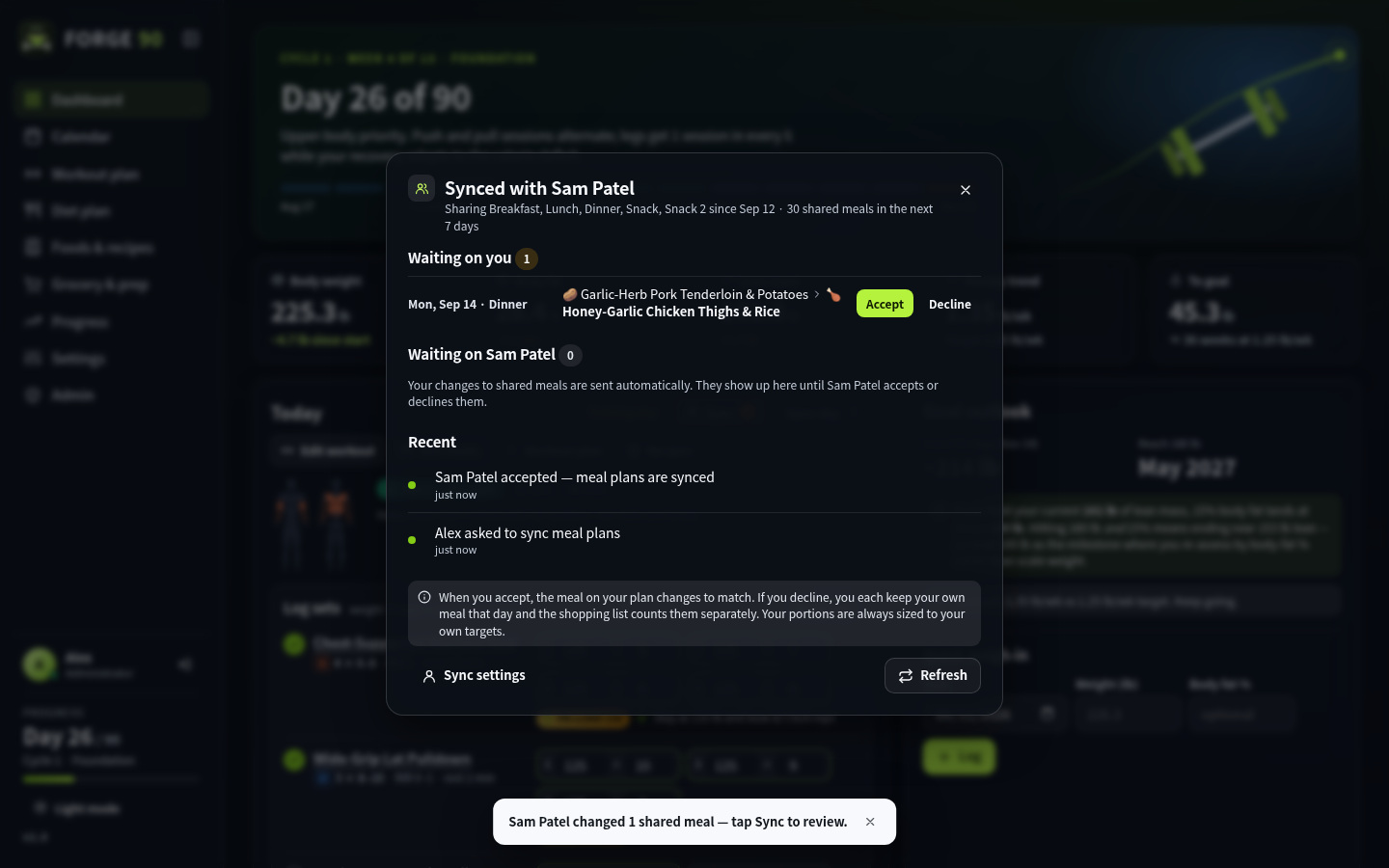
Meal-plan sync allows two people to sync their meal plans from Account settings. One sends a request and picks which meals to share, and the other accepts. The shared meals are then re-planned together using only recipes you can both eat, with both of your favorites accounted for. Portions stay sized to each person's own targets, while the shopping list and batch-cook schedule cover you both.
When either of you changes a shared meal, it changes on your plan right away and goes to the other person to accept or decline. If they decline, you each keep your own meal that day. While a sync is active, a Sync button on the relevant pages shows how many changes are waiting. Either of you can change which meals are shared (the other has to approve) or unsync at any time. You can also share one pantry from the sync settings: both people's items move into it and scans and edits update it for both. If you stop sharing, you each keep a copy.
Gym cards
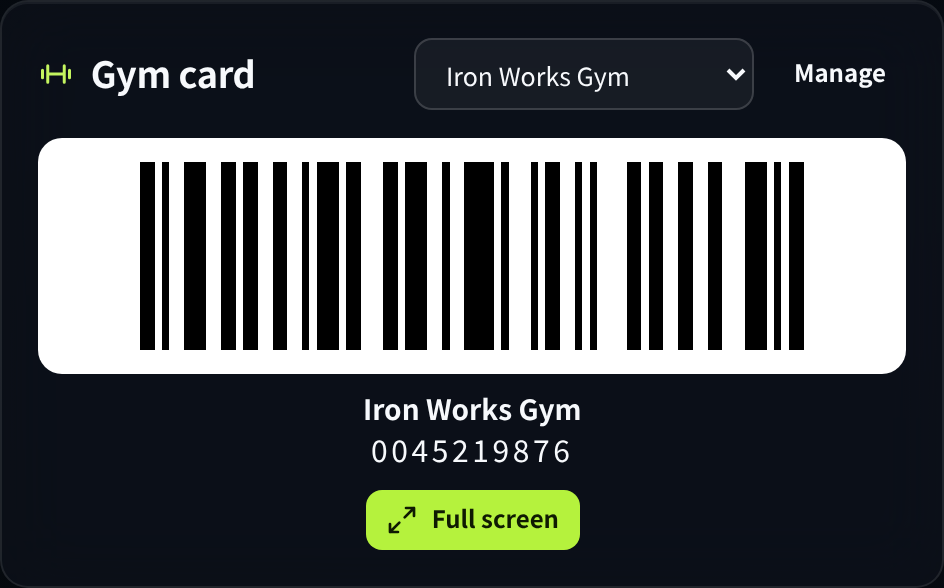
Add your gym membership card in Settings → Gym cards or from the dashboard, and its barcode shows on the dashboard for check-in. Scan the barcode on the card or key tag, or type the number. Code 128, Code 39, Codabar, Interleaved 2 of 5, EAN/UPC and QR codes are supported. Scanning detects the type; if you type the number, Automatic works with most gym scanners, or you can pick the type your card uses. Tapping the barcode shows it full screen and keeps the screen awake, and on a phone Check in at the top of Today does the same. You can keep several cards and switch between them. QR codes can only be scanned on Android, where the browser has a built-in barcode reader. iPhone browsers don't have one, so the QR code's string has to be entered manually.
Compact phone UI
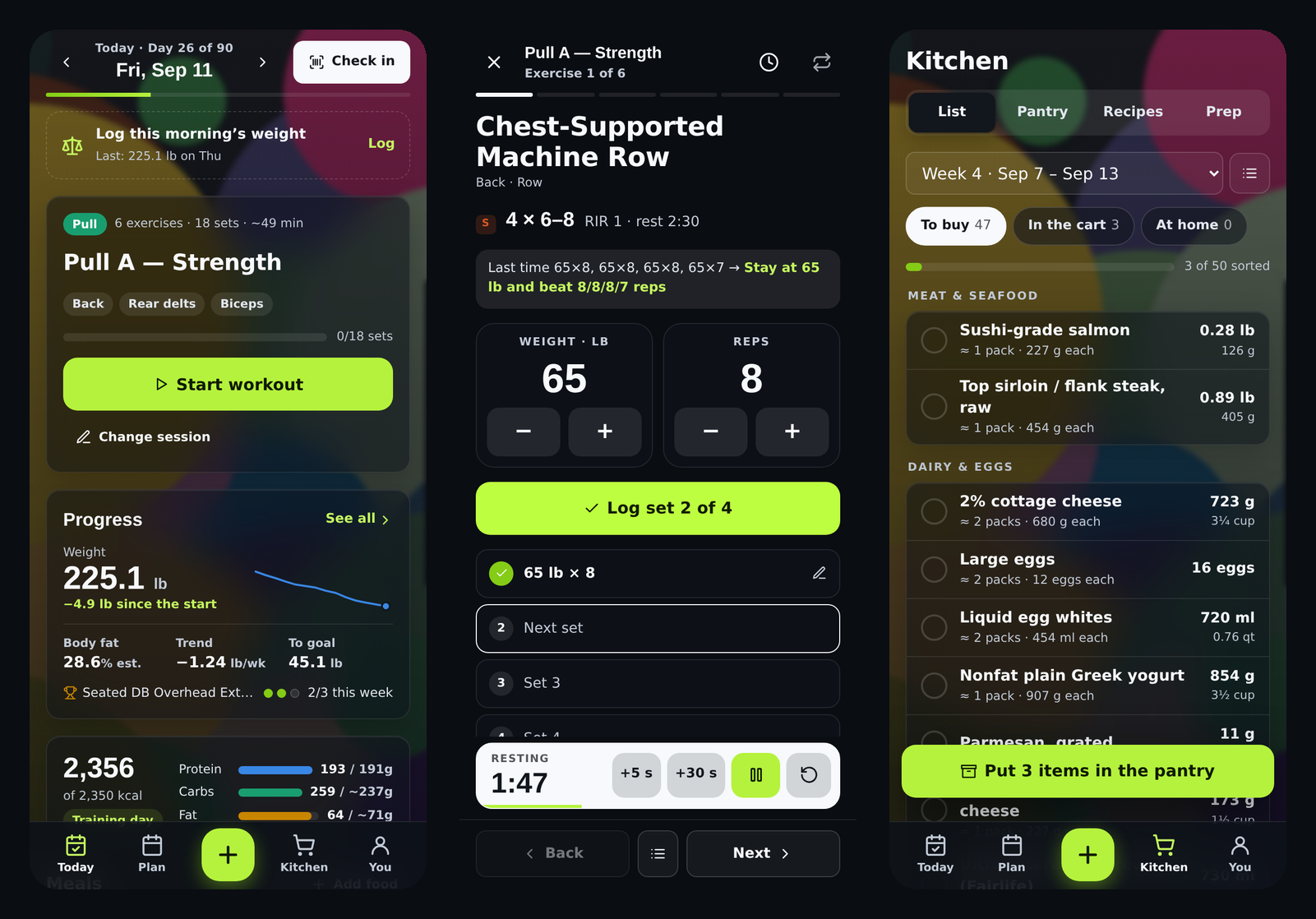
Phones get a dedicated compact UI with five tabs along the bottom instead of the sidebar: Today, Plan, +, Kitchen and You.
- Today puts the dashboard and the day view on one page. Check in at the gym, log your morning weigh-in, start the workout and see a progress summary that opens the full Progress page. Meals can be swapped from a searchable list with your favorites first, and Customize Today sets which panels show and in what order.
- Plan has the calendar, the workout plan and the diet plan.
- Kitchen has the shopping list, pantry, recipes and meal-prep schedule. The list is split into To buy, In the cart and At home, and once your shopping is done, one button puts the whole cart in the pantry. Things the pantry covers wait under At home, with a Need it button in case the pantry is out of date.
- You has your progress, PRs, gym cards and settings.
- + scans or adds food, logs your weight, shows your gym card, adds to the pantry or starts the workout from any tab.
Accounts
One account is the owner — whoever set the server up. Only the owner can grant or remove administrator access, and no administrator can change, disable or delete the owner's account, so nobody can lock the owner out or strip the admin list by accident. Administrators can't remove their own access either. On an existing server the longest-standing administrator becomes the owner the first time it starts after updating.
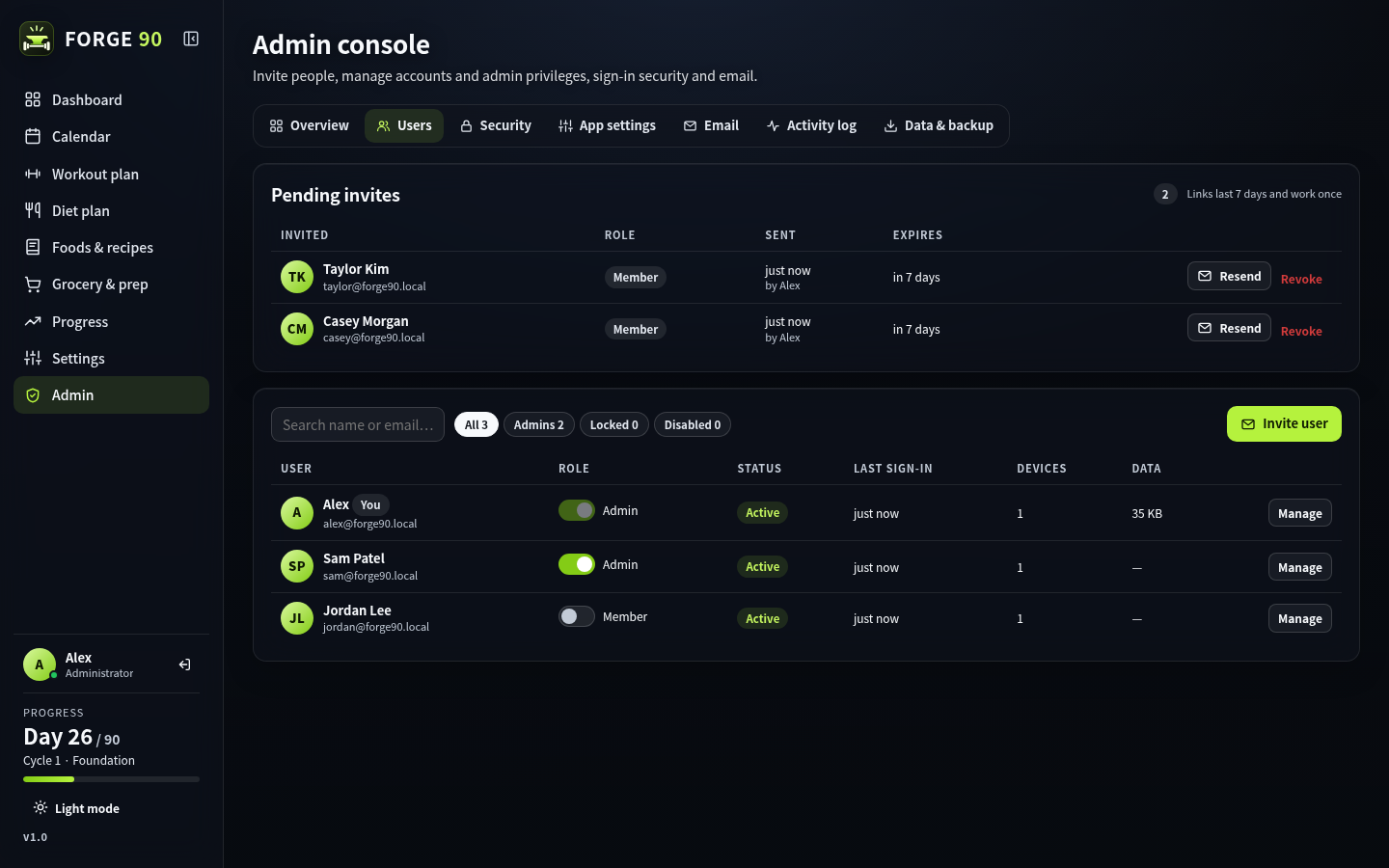
An administrator invites new users from Admin → Users. Each invite link works once and expires after 7 days. A forgotten password can be reset by email (the link lasts 30 minutes). Accounts lock after repeated failed sign-ins, and the owner is emailed a reset link. Everyone can manage their profile, profile picture, password and signed-in devices, export or import their data, and delete their account.
Admin console
- Users: invite people, resend or revoke invites, grant or remove admin rights, unlock accounts, send reset links, set temporary passwords and delete accounts.
- Security: password rules, lockout, session length and Require HTTPS.
- App settings: the app name (used in emails and the browser tab) and the address used in email links.
- Email: SMTP settings, with a test send function.
- Server & proxy: checks how the current connection reaches the app (HTTPS, the client IP it sees, secure cookies) and points out any proxy settings that need changing.
- Activity log and Data & backup: a filterable log of sign-ins and admin actions, and a full JSON export.
Installation
GitHub Container Registry:
ghcr.io/oroshi-zz/forge_90:latest
The default listening port is 8090. An Unraid template is included at unraid/forge90.xml.
Configuration
| Variable | Default | Description |
|---|---|---|
APP_URL |
request host | Public address, used in invite and reset links and as the Require HTTPS redirect target. |
PORT |
8090 |
Listening port inside the container. |
DATA_DIR |
/app/data |
Data location. |
ADMIN_EMAIL |
admin@forge90.local |
Default administrator, created on first start. |
ADMIN_PASSWORD |
forge90-admin |
Default administrator password. It must be changed at first sign-in. |
SMTP_HOST |
smtp.gmail.com |
Mail server. |
SMTP_PORT |
465 |
Mail server port. |
SMTP_SECURITY |
tls |
tls, starttls or none. |
SMTP_USER |
Mail account username. | |
SMTP_PASS |
Mail account password. | |
MAIL_FROM |
SMTP_USER |
From address. |
MAIL_FROM_NAME |
FORGE 90 |
From name. |
TRUST_PROXY |
off | Addresses of your reverse proxy (IPs or CIDR ranges, comma-separated), or true to trust any. Forwarded headers are ignored from anywhere else. |
IMPORT_ALLOW_PRIVATE |
false |
Lets link import reach private network addresses, for recipe sites on your own network. |
OFF_URL |
https://world.openfoodfacts.org |
Where barcode lookups go, if you use an Open Food Facts mirror. |
REQUIRE_HTTPS |
auto | When APP_URL is https, plain-HTTP requests on any other host are redirected to it and HSTS is sent. Set to false to disable. |
COOKIE_SECURE |
auto |
Marks the session cookie Secure when the request is HTTPS. |
TZ |
UTC |
Time zone used in emails. |
The email settings can also be changed from Admin → Email.
[!IMPORTANT] Configuring SMTP is required to send user invites and password resets. It's recommended to have SMTP configured even if you only have one user just in case of accidental lockout.
First sign-in
Sign in with admin@forge90.local / forge90-admin (or your ADMIN_EMAIL / ADMIN_PASSWORD). You'll be asked to set a new password and a real email address, and then you'll go through the questionnaire. After that, invite users from Admin → Users.
Backups and recovery
Everything lives in the data folder:
db.json: accounts, sessions, invites, settings and the activity logstate/: each user's planavatars/: profile picturesfoods.json: products added by scanning, shared by everyonesync/: shared-meal data for synced users
To back up, copy the folder while the container is stopped. Admin → Data & backup also downloads a JSON export of all accounts and plans, but without password hashes, so it's a record rather than a full restore. Individual users can export and import their own plan from Account settings.
If you're locked out of the only admin account, stop the container and run a one-off copy of the image against the same data folder:
docker run --rm -v /path/to/data:/app/data ghcr.io/oroshi-zz/forge_90:latest \
  node server.js --set-password you@example.com "new-password"

# or promote an existing account
docker run --rm -v /path/to/data:/app/data ghcr.io/oroshi-zz/forge_90:latest \
  node server.js --make-admin you@example.com

# or hand ownership to another account
docker run --rm -v /path/to/data:/app/data ghcr.io/oroshi-zz/forge_90:latest \
  node server.js --make-owner you@example.com
Security
- Passwords are hashed with scrypt. Session, invite and reset tokens are random 256-bit values stored only as hashes.
- Cross-site requests are blocked, and responses carry a strict Content Security Policy.
- Sign-in, reset and invite endpoints are rate-limited per IP, and accounts lock after repeated failures. The forgot-password form gives the same response whether or not the account exists.
- Behind a proxy, the client IP comes from the entry your proxy added to
X-Forwarded-For, so a client can't dodge rate limits by sending its own header. - Synced users only see each other's shared meals and portions.
- Profile pictures are cropped and re-encoded in the browser, checked on the server, and only shown to signed-in users. Uploading a new one deletes the old file.
- Link import only reaches public addresses, so it can't be used to probe your network. The Mealie token stays on the server and is never sent to the browser.
- Gym card numbers are saved with the user's plan and aren't shared with sync partners.
- Barcodes are decoded on the phone, and camera images never leave it. Lookups go through the server, so Open Food Facts only sees the barcode number.
License
FORGE 90 is licensed under the GNU Affero General Public License v3.0 or later. See LICENSE. If you run a modified version for other people, the AGPL requires you to offer them its source; change SOURCE_URL in src/ui-core.js to point at your copy.
Credits
Background photos are from Unsplash: Victor Freitas, Jorge Alberto Vega Barrera, Mina Rad, Shan A. Rajpoot, Rodrigo Rodrigues, Jason Briscoe, Vitaly Gariev, Jakob Owens, Alina Rubo, and Jonathan Borba for the sign-in page. Food values are approximations based on USDA FoodData Central. Product data for scanned barcodes comes from Open Food Facts contributors under the Open Database License. Recipe links go to their original authors.
Disclaimer
Nothing in FORGE 90 is medical advice. Consult a medical professional before following its exercise and nutrition recommendations.
Categories
Related apps
Explore more like this
Explore allDetails
ghcr.io/oroshi-zz/forge_90:latestRuntime arguments
- Web UI
http://[IP]:[PORT:8090]/- Network
bridge- Shell
sh- Privileged
- false
Template configuration
Port you open FORGE 90 on.
- Target
- 8090
- Default
- 8090
- Value
- 8090
Accounts, settings and every user's plan. Back this folder up.
- Target
- /app/data
- Default
- /mnt/user/appdata/forge90
- Value
- /mnt/user/appdata/forge90
The address people open FORGE 90 at (used in invite and password-reset links). Use your Unraid IP and port, or your https:// domain behind a reverse proxy.
- Default
- http://192.168.1.10:8090
- Value
- http://192.168.1.10:8090
Gmail account that sends invite and password-reset emails.
16-letter Gmail App Password for SMTP_USER (spaces are fine). Can also be set later in Admin → Email.
From address on emails (normally the same as SMTP_USER).
From name on emails.
- Default
- FORGE 90
- Value
- FORGE 90
SMTP server.
- Default
- smtp.gmail.com
- Value
- smtp.gmail.com
465 with SMTP_SECURITY=tls, or 587 with starttls.
- Default
- 465
- Value
- 465
tls (port 465), starttls (port 587) or none (local relay).
- Default
- tls
- Value
- tls
Default administrator, created on first start only. You choose a new password (and can change the email) at first sign-in.
- Default
- admin@forge90.local
- Value
- admin@forge90.local
First-start password for the default administrator (must be changed at first sign-in).
- Default
- forge90-admin
- Value
- forge90-admin
Behind a reverse proxy (Nginx Proxy Manager, SWAG, Traefik): the proxy's IP or Docker subnet, e.g. 172.18.0.0/16 (comma-separated for several), or true to trust any. Leave empty without a proxy. Admin → Server & proxy shows the value to use.
Leave empty: plain-HTTP visits are redirected to your https:// APP_URL. Set to false to turn the redirect off (e.g. if the domain is down and you are locked out).
auto marks the sign-in cookie Secure whenever HTTPS is used.
- Default
- auto
- Value
- auto