

FileBot
Docker app from junkerderprovinz's Repository
Overview
Readme
View on GitHub






FileBot, in your browser. Rename movies, shows and music from any device. No VNC client, no local install.
This runs the full FileBot desktop app inside a single container and streams it to your browser over Selkies (H.264 video), so scrolling through a season's worth of files and dragging them around feels like a local window.
))
))
))
))
))
))
A one-knight job: I build it, keep it running, work through the issues and add what people ask for, until nothing is missing. It is free, with no accounts, no telemetry, no ads and no paid tier. No asterisk anywhere. Nothing readable ever leaves your own walls. Forged on evenings and weekends, with heart and stubbornness.
If it has earned a place on your server or computer, toss a coin to your knight: it helps cover the costs and keeps the project alive. It also makes this knight's heart beat a little faster. Three ways below, whichever suits you.
))
))
))
Table of Contents
- What it looks like
- What it does
- Getting started
- Your FileBot license
- Automatic mode
- How AI is used here
- Support this project
1. What it looks like
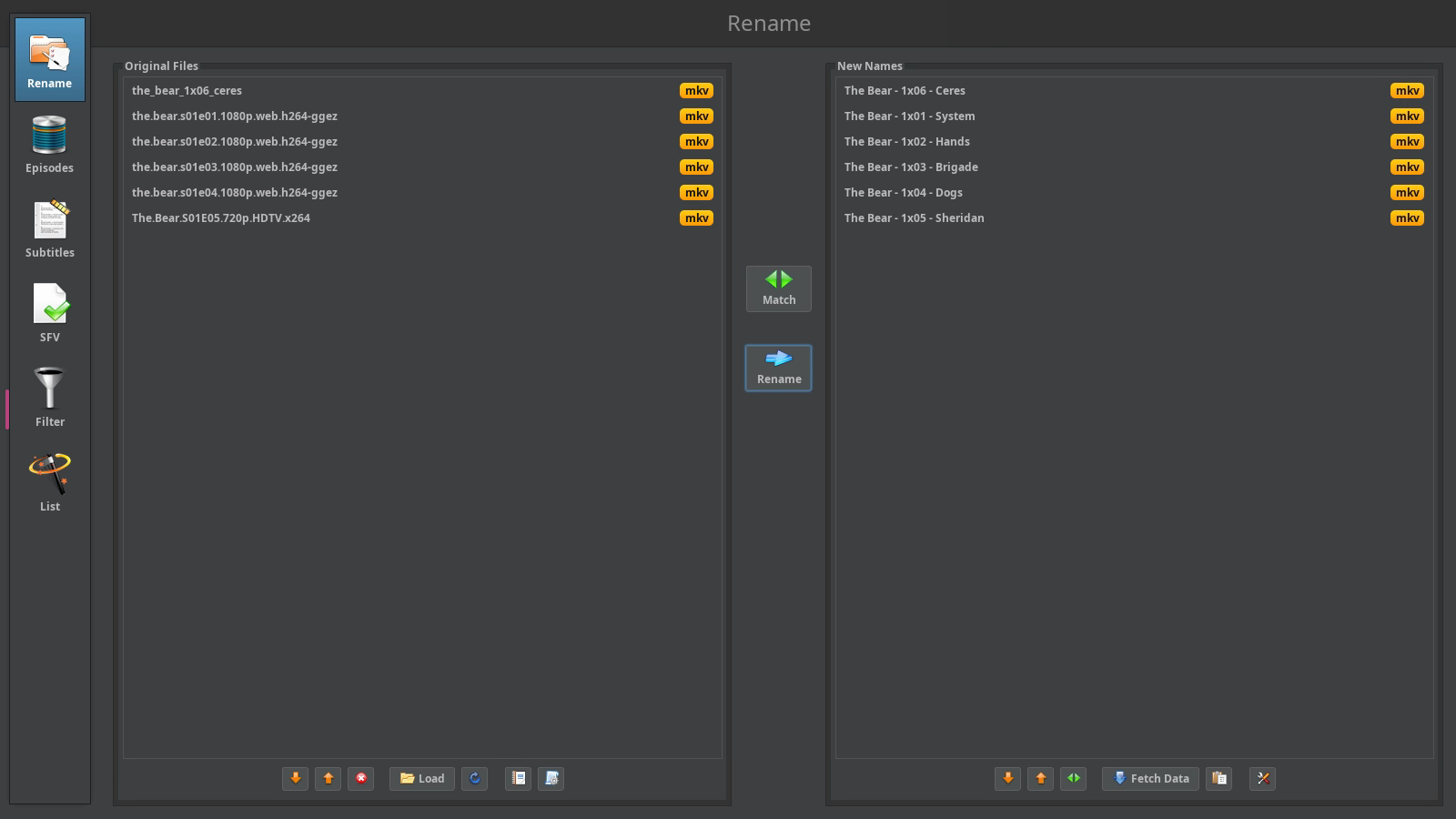
Six messy file names matched against TheMovieDB, one click before they are renamed
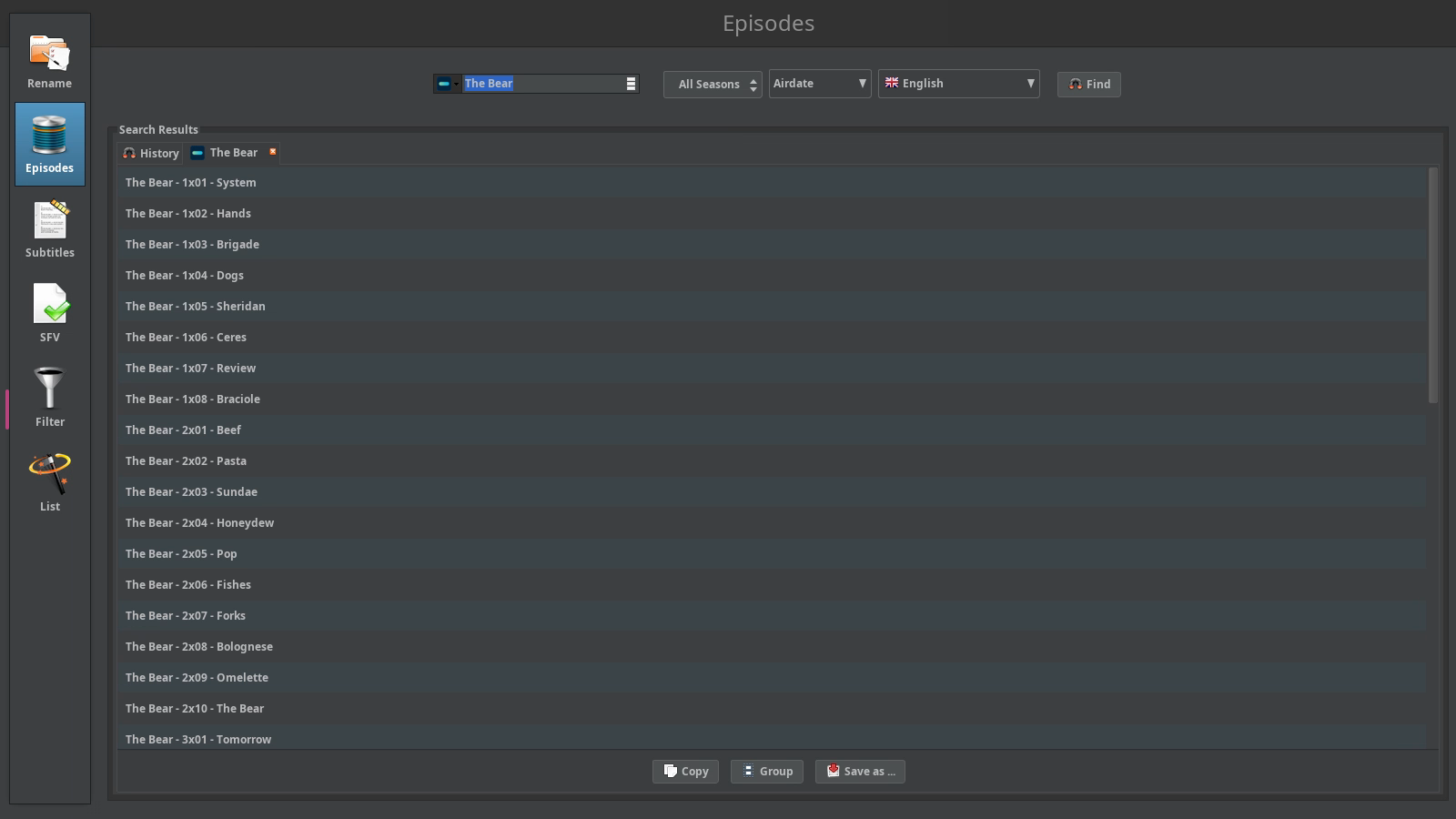
The Episodes panel looks up a whole series, season by season
2. What it does
- The real program. This is the FileBot desktop app itself, installed unmodified from FileBot's own package repository and updated with every weekly build. Rename, Episodes, Subtitles, SFV, Filter and List all work as they do on a desktop.
- Everything FileBot needs to match well. MediaInfo, chromaprint for AcoustID music matching, 7-Zip and unrar for archives, mkvtoolnix, AtomicParsley and ffmpeg come along, the same helpers the official FileBot images carry.
- Dark from the first start. FileBot opens in its Darcula theme, and the file dialogs follow. For another theme, set
net.filebot.themein/config/filebot/system.properties, orFILEBOT_THEMEbefore the first start. - The whole tab for FileBot. The main window fills the browser tab without a title bar of its own. Dialogs keep theirs, open at their own size, and the file dialogs begin in
/storage, the folder you map your media to. - Titles in your language. FileBot's own interface is English only, but episode and movie titles come in whatever language you pick in its language menu, German included.
- An automatic mode if you want one. FileBot's amc script can watch a folder and sort new movies, shows and music into your library on its own, see Automatic mode.
- Back on its own. Close FileBot by accident and it starts again within a few seconds, without a container restart.
- Nothing lost on updates. Your license, settings, history and cache live under
/config/filebot.
3. Getting started
On Unraid, install FileBot from Community Applications. Anywhere else, one container is enough:
docker run -d --name filebot -p 3001:3001 --shm-size=1gb \
  -e PUID=99 -e PGID=100 \
  -v /path/to/config:/config \
  -v /path/to/media:/storage \
  junkerderprovinz/filebot:latest
Then open https://<server>:3001 and accept the self-signed certificate once. Your media is under /storage in every file dialog.
[!NOTE] The WebUI has no login by default, for use on a trusted LAN. Set
CUSTOM_USERandPASSWORDto turn on the built-in login, and never expose the WebUI to the internet without a VPN or an authenticating reverse proxy in front.
Other Docker hosts
compose.yaml runs FileBot on any Linux server with Docker. Put it in a folder of its own, point the folders under volumes at your files and start it with docker compose up -d. The folders are created next to the file.
- Synology: in Container Manager, create a project from the file (DSM 7.2 or newer).
- Proxmox: run it in a VM or an LXC container that has Docker.
- MOS: install FileBot from the MOS Hub.
- ZimaOS and CasaOS: add the community store and install FileBot from it.
- umbrelOS: add the community app store and install FileBot from it.
4. Your FileBot license
FileBot is commercial software by Reinhard Pointner, and renaming needs a license from filebot.net. This image ships none. It installs FileBot as it comes, and you bring your own key, the same as on a desktop.
Pick whichever way of activating it suits you:
- Drop it in. Put the
license.txtyou got from FileBot into the container's/configfolder (on Unraid, the appdata folder) and restart. The container activates it once and renames the file tolicense.txt.activated. - From the app. Without a license, FileBot's Rename button offers Paste License Key and Select License File.
- From a shell.
docker exec -it -u abc filebot filebot --license /config/license.txt
If you move over from another FileBot container, copy its license.psm into /config/filebot/ and FileBot finds it on the next start. The settings in prefs.properties and the rename history in history.xml can come along the same way.
5. Automatic mode
Set AMC_ENABLED=1 and the container runs FileBot's amc script on a watch folder every AMC_INTERVAL seconds (1800 by default). New movies, shows and music are matched and sorted into the output folder, in Movies, TV Shows, Anime and Music folders. A round waits while anything in the watch folder changed within the last AMC_INPUT_STABLE_TIME seconds, so a download that is still running is left alone.
The watch folder is /watch and the output /output, or any path under /storage through AMC_INPUT_DIR and AMC_OUTPUT_DIR. AMC_ACTION starts at test, which only writes the plan into /config/filebot/amc.log. Read it once, then switch to move, copy or hardlink. amc needs your license for every action, the test run included.
The other settings carry the same names as in jlesage/filebot (AMC_LANG, AMC_CONFLICT, AMC_MATCH_MODE, AMC_ARTWORK, AMC_SUBTITLE_LANG, the four AMC_*_FORMAT and AMC_CUSTOM_OPTIONS), so a template moved over from there keeps working. Files already handled are listed in /config/filebot/amc-exclude.txt and skipped on later rounds.
6. How AI is used here
One knight builds this, and AI is one of the tools I work with, the same way I work with an editor or a compiler. It helps me write code and documentation and it checks my work, and that saves me a good many evenings. It does not make the decisions, though. I read and understand everything before it ships, and if something here breaks, that is on me and not on the tool.
You do not have to take my word for it. The code is open and every release note is written by hand. The issue tracker shows how problems actually get handled, including the ones I got wrong the first time. If you find something that is not right, open an issue and I will look at it.
7. Support this project
Questions, bugs, ideas or feature requests? Please open a GitHub issue. A question about FileBot itself, its formats or its license is best asked in the FileBot forum.
A one-knight job: I build it, keep it running, work through the issues and add what people ask for, until nothing is missing. It is free, with no accounts, no telemetry, no ads and no paid tier. No asterisk anywhere. Nothing readable ever leaves your own walls. Forged on evenings and weekends, with heart and stubbornness.
If it has earned a place on your server or computer, toss a coin to your knight: it helps cover the costs and keeps the project alive. It also makes this knight's heart beat a little faster. Three ways below, whichever suits you.
FileBot is commercial software by Reinhard Pointner, and this project is not affiliated with or endorsed by it. The FileBot name and logo belong to their owner and are used here only to name the application this image packages. The packaging here is AGPL-3.0; see LICENSE and NOTICE for the bundled software.
Download Statistics
Related apps
Explore more like this
Explore allLinks
Details
junkerderprovinz/filebot:latestRuntime arguments
- Web UI
https://[IP]:[PORT:3001]/- Network
bridge- Shell
bash- Privileged
- false
- Extra Params
--restart=unless-stopped --shm-size=1gb
Template configuration
HTTPS port of the Selkies WebUI with a self-signed certificate. Open this one in the browser and accept the certificate once.
- Target
- 3001
- Default
- 3001
- Value
- 3001
HTTP port of the Selkies WebUI, for a reverse proxy that handles TLS in front of the container. Opened directly in a browser it shows a 'requires a secure connection (HTTPS)' error, so use port 3001 for that.
- Target
- 3000
- Default
- 3000
- Value
- 3000
FileBot's license, settings, rename history and cache (under /config/filebot), plus the desktop session. Put license.txt here to activate your license.
- Target
- /config
- Default
- /mnt/user/appdata/filebot
- Value
- /mnt/user/appdata/filebot
The folders FileBot renames and moves files in. Every file dialog opens here. Map the share that holds both your downloads and your library, so moving a file is a rename and not a copy.
- Target
- /storage
- Default
- /mnt/user
- Value
- /mnt/user
Username for the WebUI login. Leave it empty together with the password to run without a login.
- Target
- CUSTOM_USER
Password for the WebUI login. Leave it empty together with the username to run without a login. Set it whenever the container is reachable from outside your LAN.
- Target
- PASSWORD
Container timezone for log times and file dates. The LSIO base manages /etc/localtime from this value, so set it here rather than mounting /etc/localtime.
- Target
- TZ
- Default
- Europe/Vienna
- Value
- Europe/Vienna
User ID FileBot runs as. Default 99 (nobody on Unraid).
- Target
- PUID
- Default
- 99
- Value
- 99
Group ID. Default 100 (users on Unraid).
- Target
- PGID
- Default
- 100
- Value
- 100
Permission mask for new files and folders. 000 lets every container user read and write them, which suits shares that other containers use too. Set 022 or 077 for stricter permissions.
- Default
- 000|022|002|077
- Value
- 000
FileBot's look on the first start. It is written once into /config/filebot/system.properties, so a later change goes into that file.
- Target
- FILEBOT_THEME
- Default
- Darcula|System|Nimbus|Metal
- Value
- Darcula
1 runs FileBot's amc script on the watch folder at every interval: new movies, shows and music are matched and renamed into the output folder without opening the app. It needs your license, also in test mode.
- Target
- AMC_ENABLED
- Default
- 0|1
- Value
- 0
Folder the automatic mode takes new files from. Leave it empty if you use /storage and set the watch folder below to a path inside it.
- Target
- /watch
Library the automatic mode sorts into, with Movies, TV Shows, Anime and Music folders. Leave it empty if you use /storage and set the output folder below to a path inside it.
- Target
- /output
Path inside the container the automatic mode watches, /watch or a folder under /storage such as /storage/download/complete.
- Target
- AMC_INPUT_DIR
- Default
- /watch
- Value
- /watch
Path inside the container the automatic mode sorts into, /output or a folder under /storage such as /storage/media.
- Target
- AMC_OUTPUT_DIR
- Default
- /output
- Value
- /output
What happens to a matched file. test only writes the plan into /config/filebot/amc.log and leaves every file alone, so start with it. hardlink keeps seeding torrents working when watch and output folder are on the same share.
- Target
- AMC_ACTION
- Default
- test|move|copy|hardlink|keeplink|symlink|duplicate
- Value
- test
What to do when the target file already exists. auto replaces it only with a file of better quality.
- Target
- AMC_CONFLICT
- Default
- auto|skip|override|index|fail
- Value
- auto
opportunistic also matches files whose names leave some doubt. strict only renames what FileBot is sure about.
- Target
- AMC_MATCH_MODE
- Default
- opportunistic|strict
- Value
- opportunistic
Language of the titles in new file names, such as English or German.
- Target
- AMC_LANG
- Default
- English
- Value
- English
Seconds between two looks at the watch folder.
- Target
- AMC_INTERVAL
- Default
- 1800
- Value
- 1800
A run waits while any file in the watch folder changed within these seconds, so a download or unpack in progress is not moved half finished.
- Target
- AMC_INPUT_STABLE_TIME
- Default
- 10
- Value
- 10
y also renames music files.
- Target
- AMC_PROCESS_MUSIC
- Default
- y|n
- Value
- y
y also fetches posters, fan art and NFO files for each movie and show.
- Target
- AMC_ARTWORK
- Default
- n|y
- Value
- n
Language codes for subtitles to download, separated by commas, such as en,de. Leave it empty for none.
- Target
- AMC_SUBTITLE_LANG
FileBot format for movies, such as {plex}. Leave it empty for FileBot's default.
- Target
- AMC_MOVIE_FORMAT
FileBot format for episodes. Leave it empty for FileBot's default.
- Target
- AMC_SERIES_FORMAT
FileBot format for anime. Leave it empty for FileBot's default.
- Target
- AMC_ANIME_FORMAT
FileBot format for music. Leave it empty for FileBot's default.
- Target
- AMC_MUSIC_FORMAT
More amc options, added to every run as written, such as --def clean=y to remove leftover folders.
- Target
- AMC_CUSTOM_OPTIONS