
Drop
OfficialDocker app from dropnook's Repository
Overview
Readme
View on GitHub
English · Deutsch · dropnook.dropnook.app
Instant sharing for your home network — like AirDrop, but for every device. Get a text or a file from your phone to your PC, from Windows to a Mac, from Android to an iPhone: open one web page, drop it in, and it is on every other device at once. No app, no login, no cloud — everything stays on your own server.
Something has to leave the house? Share a single file or text through a link that expires by itself, optionally with a password. It is served by a second, locked-down container — Drop itself is never reachable from the internet.
Dropnook™ is the project's name; on your devices it is simply Drop — the page calls itself "Tower Drop", after your server.

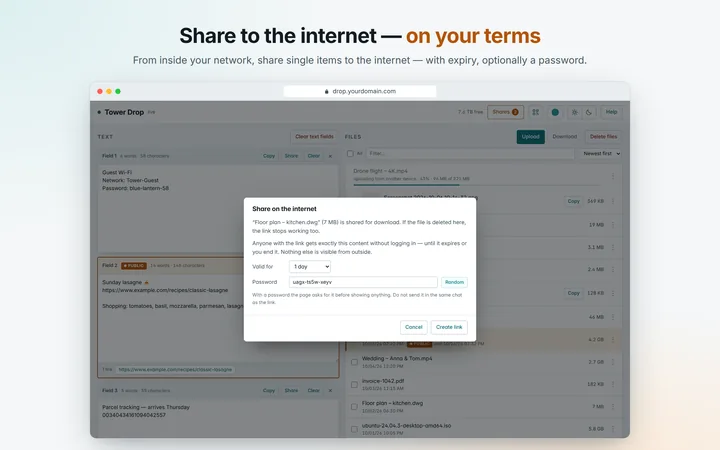
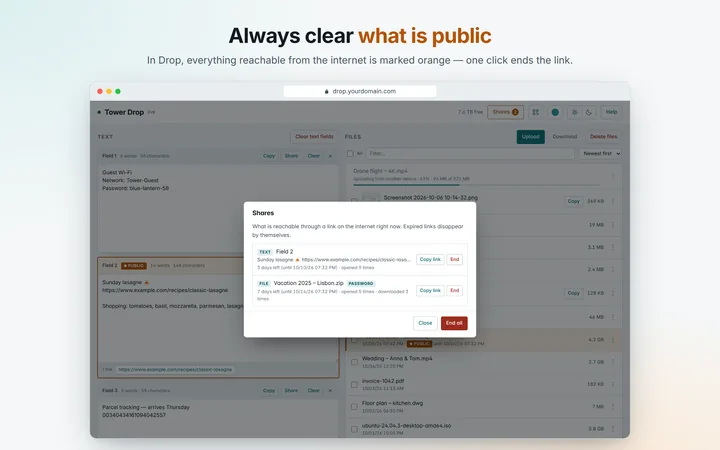
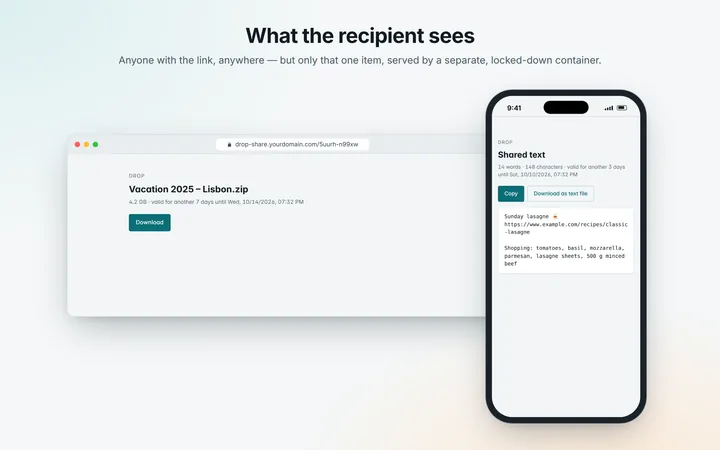
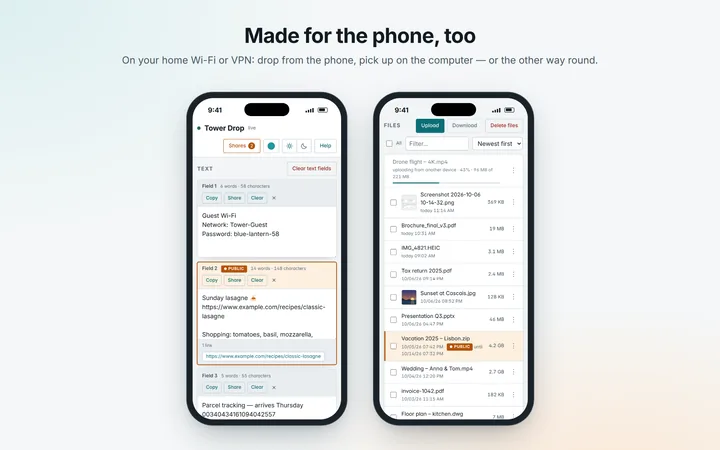
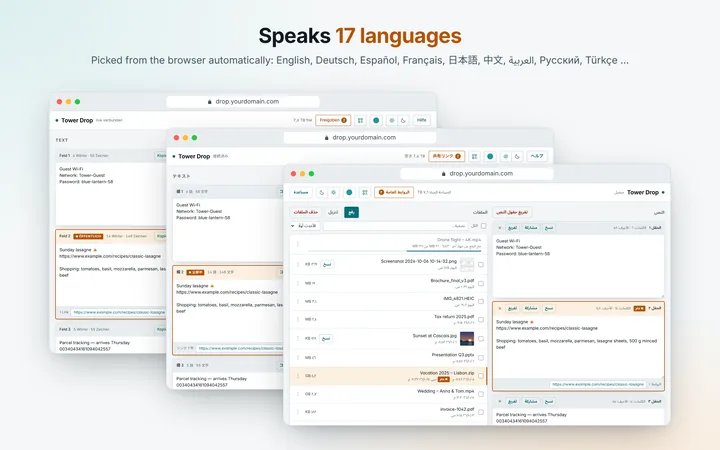
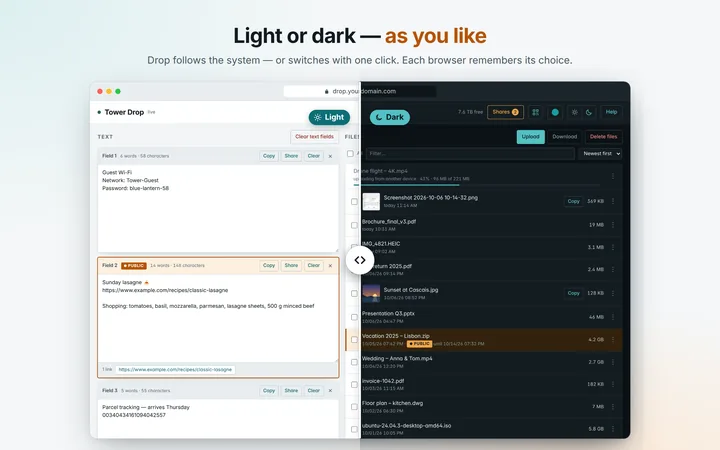
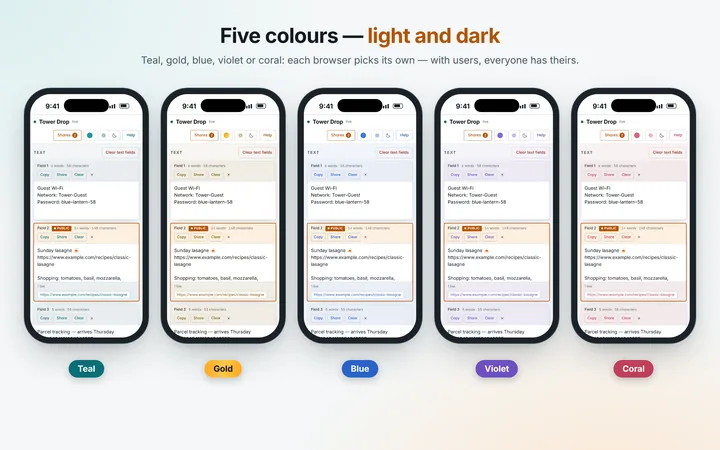
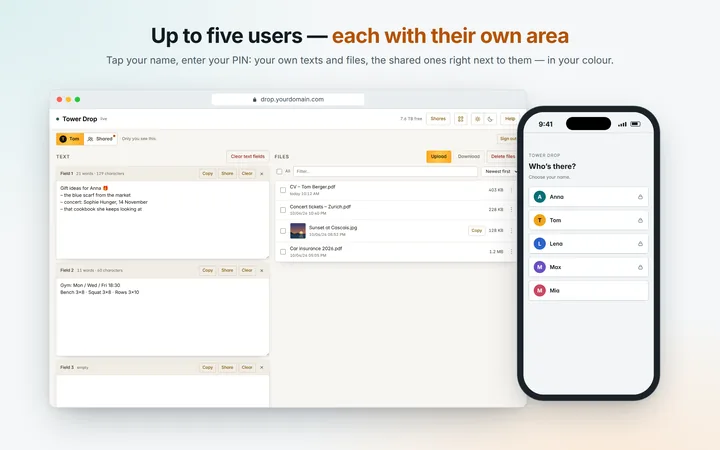
Open the gallery — browse with arrows, zoom in with a click.
- Text fields with word, character and link counts; unsaved text survives reloads and lost connections.
- Uploads of any size — resumable, with progress visible to everyone.
- The page is called "
<server name>Drop", with the name read live from Unraid. - Screenshots straight from the clipboard with Ctrl+V; pictures with a preview, a large view and Copy into the clipboard of another computer.
- 17 languages, picked from the browser.
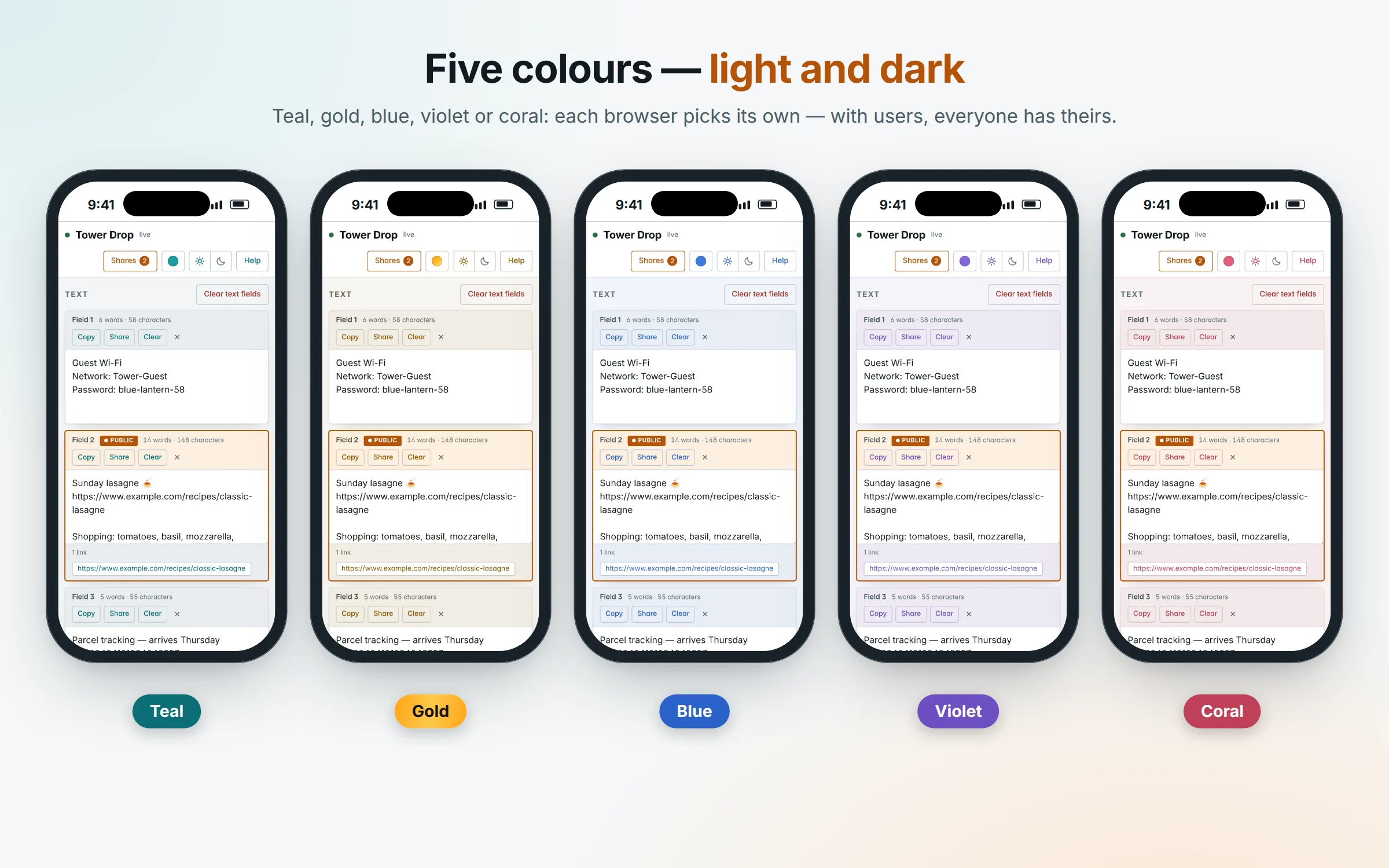
- Five colour layouts — teal, gold, blue, violet, coral — each in light and dark.
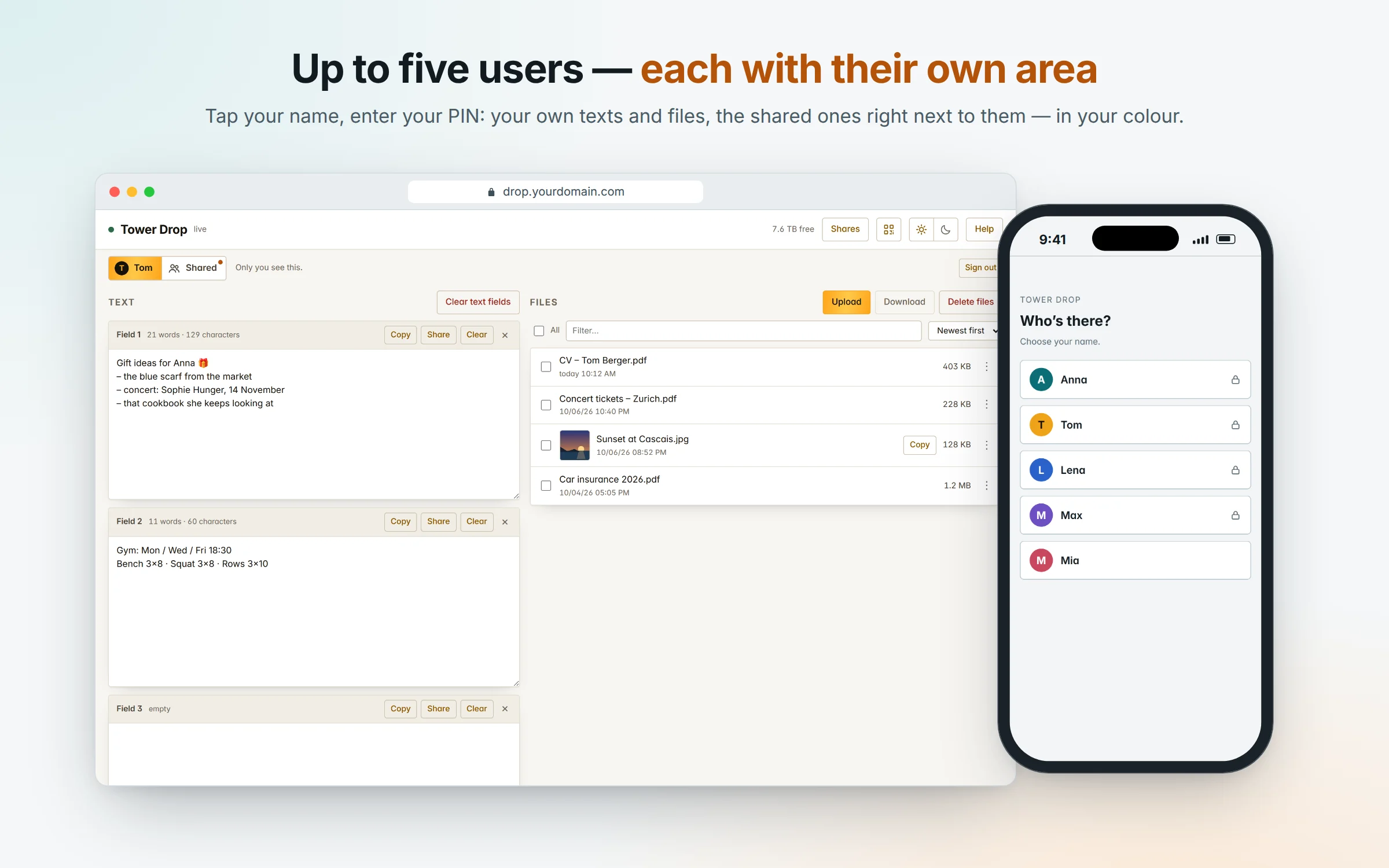
- Optional users: up to five, each with a PIN, an area of their own next to the shared one, and their own colour.
| Containers | drop (Drop itself, your network only) and drop-share (share links, internet) |
| Image | ghcr.io/dropnook/dropnook:2 |
| Data | the Unraid share drop → files/, texts/, shares/ (with users also users/) |
| Drop | https://drop.yourdomain.com — in your network |
| Share links | https://drop-share.yourdomain.com/k7m3x-9pq2r — from anywhere |
yourdomain.com stands for your own domain throughout.
Made for Unraid, and this guide is for Unraid — but Drop runs on any Linux host with Docker Compose, too: see Without Unraid.
How it fits together
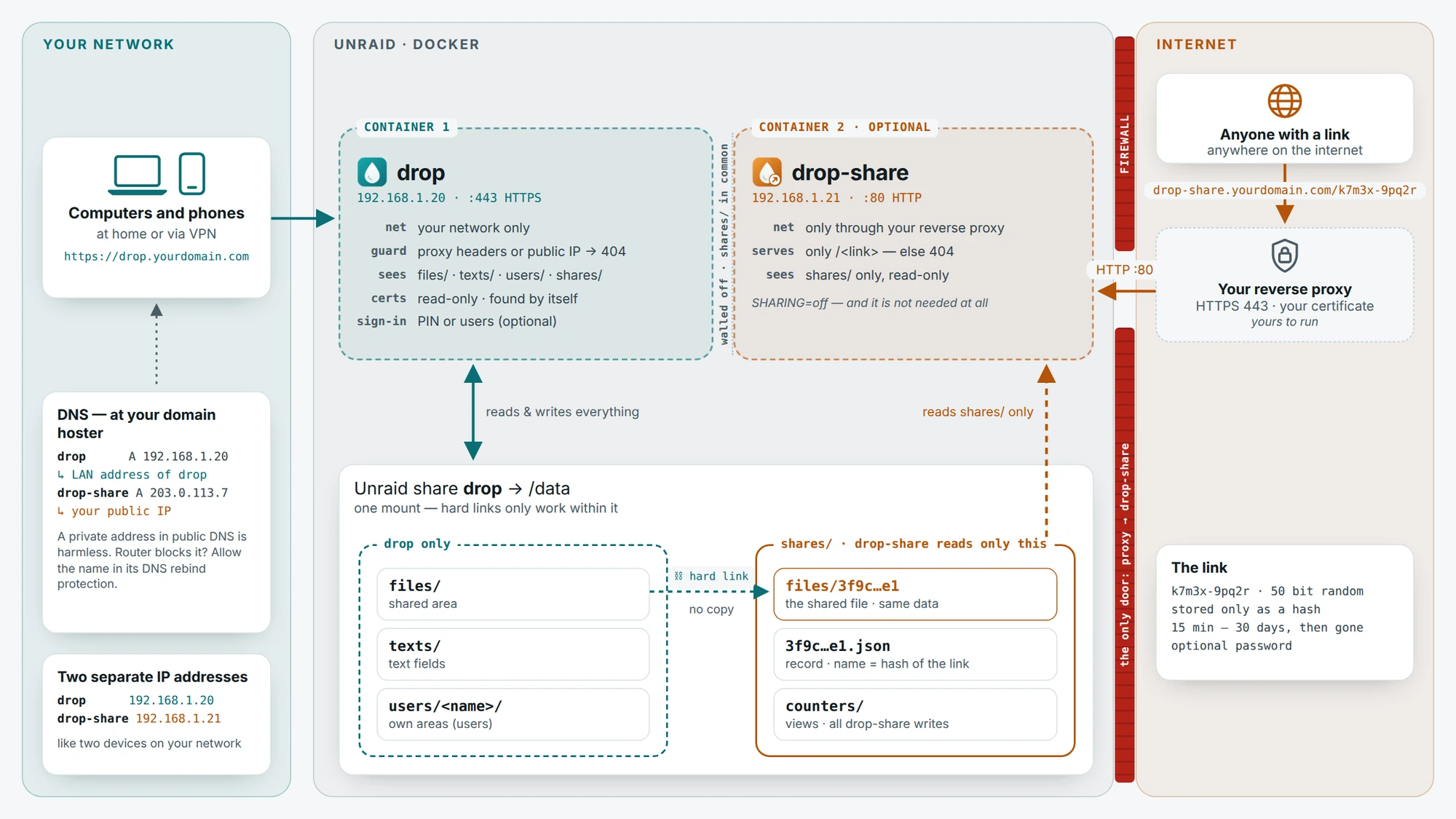
Your reverse proxy and your certificates stay yours — Drop only expects what is listed under What Drop expects from your reverse proxy.
What you need
- A server with Docker. Recommended, and what this guide shows: Unraid with the plugin Compose Manager Plus (Apps → search for it → Install). Any other Linux host with Docker Compose works, too — see Without Unraid.
- Two free addresses in your LAN, one for
drop, one fordrop-share. - Your own domain with two names — without one, Drop works by IP address,
just without sharing to the internet and without HTTPS:
drop.yourdomain.com→ the LAN address ofdrop— simplest as a DNS record at your domain hoster (a private address there is harmless), or as a local DNS entry in your router or DNS server.drop-share.yourdomain.com→ your public IP address (with a changing IP: dynamic DNS).
- A reverse proxy reachable from the internet, for sharing.
- Recommended: a certificate for
drop.yourdomain.com(a wildcard*.yourdomain.comworks) — then Drop uses HTTPS in your network, too.
Installation
Only in your network, without sharing to the internet? Then one container is enough: in Unraid's Apps tab (Community Applications), search for Dropnook and install it. It runs
dropalone withSHARING=off— no second address, no reverse proxy, no domain. Drop gets an address of its own in your network (network type Custom: br0; put a free address into Fixed IP address) and opens athttp://<that address>/. Rather Bridge? Then Unraid itself has port 80 — change the port in the template, e.g. to 8088, and openhttp://Tower:8088. For HTTPS (e.g. for the live room), enter a certificate from Cert Warden under Show more settings. Create the share for its files first (step 1). The steps below set up the full stack, with sharing.
1. Create a new share "drop" on Unraid
A share of its own for Drop's files and texts. In the Unraid web interface, Shares → Add Share:
- Name
drop, on the pool you want. - Secondary storage: none (if the share uses Exclusive Access).
- Minimum free space: generous — a large upload must not fill the pool to the brim.
Drop never creates this share itself. Inside it, it creates files/, texts/
and shares/ on its own (with users also users/).
2. Check Unraid's Docker network
In the Unraid web interface, Settings → Docker (switch on Advanced View at the top right):
- Under the custom networks,
br0must show your LAN's subnet and gateway — the network both addresses from above are in. - If your reverse proxy runs on this Unraid in bridge or host mode, set
Host access to custom networks to Enabled — otherwise it cannot reach
drop-share. (Docker has to be stopped to change it.)
3. Add Drop as a stack in Compose Manager Plus
In the Unraid web interface, tab Docker → section Compose further down →
Add New Stack → name drop.
On the new stack, Edit Stack:
- Tab Compose: paste the content of
compose-projects-drop/compose.yaml(raw) — as it is, there is nothing to change in it. - Tab .env: paste the content of
compose-projects-drop/.env.example(raw) and fill in your values (what the.envis for):
| Value | Preset | What to do |
|---|---|---|
DROPNOOK_VERSION |
2 |
Leave it — follows every 2.x release; a number such as 2.2.1 pins that version |
DROP_IP, SHARE_IP |
empty | Fill in the two free addresses |
DATA_DIR |
/mnt/user/drop |
Only if your share has another name or path |
APPDATA_DIR |
/mnt/user/appdata/drop |
Translations of your own; may stay empty |
CERTS_DIR |
…/Nginx-Proxy-Manager-Official/letsencrypt |
The folder holding your certificates |
TLS_CERT, TLS_KEY |
auto, empty |
Leave it — Drop finds the certificate itself (see HTTPS) |
SHARE_SUBDOMAIN |
drop-share |
First part of the share links' name |
WEBUI |
https://drop.yourdomain.com |
Your name for Drop — what WebUI in the Docker tab opens, and a name Drop answers to. Without a domain and without sharing: http://[IP]/ |
TZ |
empty | Optional: time zone of the log, e.g. Europe/Berlin |
LIVE_MAX |
10 |
Most people in the live room at once (2–50); more costs each phone more |
PIN, USER_… |
empty | Optional — see PIN and Users |
Comments go on lines of their own, never behind a value. The image is
ghcr.io/dropnook/dropnook, in the version DROPNOOK_VERSION.
Save. While in Edit Stack, tab Settings → Icon URL gives the stack its icon:
https://raw.githubusercontent.com/dropnook/dropnook.app/main/.github/icons/drop.png
Or paste this into the Unraid terminal (>_ at the top right of the web interface), then reload the page:
d=/boot/config/plugins/compose.manager/projects/drop; [ -d "$d" ] && printf '%s' https://raw.githubusercontent.com/dropnook/dropnook.app/main/.github/icons/drop.png > "$d/icon_url" && echo "Icon set" || echo "No stack 'drop' found"
4. Start the stack
In the Compose section, on the stack drop: Compose Up. drop starts
first; as soon as it answers, drop-share follows. Both show as healthy, each with its own icon.
On the stack, Logs — drop should say:
Certificate found for drop.yourdomain.com: …
Starting on port 443 with TLS
Tower Drop ready — files in /data/files, texts in /data/texts
and drop-share:
Drop — public part on port 80, shares only, from /data/shares
Tip: HTTPS in your network, too. If
dropsaysStarting on port 80 without TLS, it runs on plainhttp://. That works — but browsers then warn about or block downloads ("insecure download"), pictures cannot be copied, and the share menu on Android stays closed. Two things make it HTTPS:
- The name: at your domain hoster, add a DNS record
drop→ the LAN address ofdrop(type A, e.g.192.168.1.20). A private address in public DNS is harmless — it only works inside your network. If the name does not resolve at home, your router's DNS rebind protection blocks it: allowdrop.yourdomain.comthere (FRITZ!Box: Home Network → Network → Network Settings → DNS Rebind Protection). A local DNS entry in your router or Pi-hole/AdGuard works just as well.- The certificate: Drop usually finds your reverse proxy's certificate by itself — see HTTPS in your network.
Then open
https://drop.yourdomain.com, not the IP address.
5. Try Drop out
- Open
https://drop.yourdomain.com— the dot at the top left turns green, with "live" next to it. WebUI ondropin the Docker tab opens it too. - Share a text field (Share), copy the link and open it on your phone with Wi-Fi off.
https://drop-share.yourdomain.com/on its own must show nothing but an error page: from outside, only the individual links exist.
What Drop expects from your reverse proxy
How you run your reverse proxy and where your certificates come from is up to you. Drop only needs this:
| Name | drop-share.yourdomain.com |
| Forward to | http://<share-IP>, port 80 |
| Recommended | HTTPS on 443 with a valid certificate, http:// redirected to https:// |
| Never | forward anything to <drop-IP> |
drop-share itself speaks plain HTTP inside your network and never sees a
certificate. As a second line of defence, drop refuses every request that
comes through a proxy or from the internet — even a misconfigured proxy does
not reach Drop itself.
HTTPS in your network
Over plain http://, browsers block some downloads ("insecure download"),
copying text works only in a roundabout way and pictures cannot be copied at
all. A certificate for drop.yourdomain.com fixes that — usually the one your
reverse proxy already has, if it covers that name (a wildcard
*.yourdomain.com does).
Drop reads it from the folder CERTS_DIR, read-only. TLS_CERT in the .env
decides how:
TLS_CERT |
|
|---|---|
auto (preset) |
Drop picks the certificates for drop.yourdomain.com or *.yourdomain.com by itself — one per domain, drop.yourdomain.com before *.yourdomain.com. With several domains, each name you open Drop under gets its own. The log says which. |
yourdomain.com |
The same, for this domain only. |
| empty | No HTTPS, no search. |
| a file path | Exactly this certificate; TLS_KEY then names the key file. |
CERTS_DIR is preset to Nginx Proxy Manager's folder; with something else, put in
the folder your certificates live in. Never put certificates into Drop's
appdata folder — drop-share can read that one.
Rather not let Drop see all your certificates? CERTS_DIR is mounted
read-only, but drop could read every certificate in it — that is how auto
finds the right one, and a file path in TLS_CERT only turns off the search,
not the access. To give it just one: copy the certificate chain and its key
into a folder of their own (e.g. /mnt/user/appdata/drop-certs/), set
CERTS_DIR to that folder and TLS_CERT/TLS_KEY to the two files. Drop then sees
nothing else — but renewals are up to you: copy the new files there after
each one (e.g. with the User Scripts plugin); Drop picks them up by itself.
With Nginx Proxy Manager, mounting only live/npm-<N> does not work — the
files there are links into archive/. Without HTTPS in your network at all:
TLS_CERT= (empty), and CERTS_DIR= any existing folder without certificates,
e.g. /mnt/user/appdata/drop — otherwise Docker creates the preset one, empty.
Certificates from Cert Warden? Then Drop fetches them itself — no folder
of certificates needed. In the .env:
CERTWARDEN_ENDPOINT_URL |
Cert Warden's address, e.g. https://certwarden.example.org |
CERT_INT_NAME, CERT_INT_CERT_API, CERT_INT_KEY_API |
drop's certificate: its name in Cert Warden, the certificate's API key, the private key's API key |
CERT_PUB_NAME, CERT_PUB_CERT_API, CERT_PUB_KEY_API |
drop-share's, the same way — empty when drop's is a wildcard (*.yourdomain.com): then one certificate does for both, fetched once |
CERT_CHECK_DAY |
fetch a new one this many days before the current one expires (preset 30) |
CERTS_DIR and TLS_CERT are not used then (leave CERTS_DIR on an existing
folder). Only drop talks to Cert Warden; drop-share gets its certificate from
drop and then serves HTTPS on its port 443 as well — point your reverse proxy
at https://<SHARE_IP>:443 if you want it encrypted up to drop-share; port 80
keeps working. The log of drop says what was fetched, never the keys.
If auto does not get a certificate — on the stack drop in the
Compose section, open Logs of the container drop. Right after the start
it says what it found, and the fix goes into the .env (Edit Stack → tab
.env, then Compose Up):
| The log says | What to change |
|---|---|
No certificate for drop.<domain> … in <folder> and the folder is not where your certificates are |
CERTS_DIR= the folder holding them, e.g. /mnt/user/appdata/<your proxy>/letsencrypt |
No certificate … although the folder is right |
None of the certificates covers drop.yourdomain.com — get one for *.yourdomain.com (or drop.yourdomain.com) in your proxy |
Certificate found for … lists a domain you do not want |
TLS_CERT=yourdomain.com — only your domain is used |
| You want one specific certificate | both files by path, e.g. for Nginx Proxy Manager:TLS_CERT=/mnt/user/appdata/Nginx-Proxy-Manager-Official/letsencrypt/live/npm-<N>/fullchain.pemTLS_KEY=/mnt/user/appdata/Nginx-Proxy-Manager-Official/letsencrypt/live/npm-<N>/privkey.pem |
Renewed certificates are picked up by themselves: Drop restarts for a moment,
once no upload is running (one that has not moved for ten minutes does not
count). Old http:// bookmarks are redirected.
Updating
In the Unraid web interface, tab Docker → section Compose → Check for
Updates, then Update on the stack drop.
Your files, texts and shares stay where they are.
DROPNOOK_VERSION=2 follows every 2.x release — fixes and new languages; should a release
ever need something from you, its release notes say so first. An update
touches neither compose.yaml nor the .env. If a release brings a new
compose.yaml, paste it in as a whole (Edit Stack → tab Compose) — your
values stay in the .env.
Coming from 1.x? Change :1 to :2 in the image line of compose.yaml,
then Compose Up. Nothing else changes: without users Drop works as before,
and your files, texts, links and PIN stay as they are. :1 gets no more
updates. Better still, switch to the new compose.yaml with the .env right
away — see the next section.
What the .env is for
Your values — addresses, folders, PIN, users — are in the .env next to
compose.yaml, and compose.yaml holds none of them (it takes them with
${DROP_IP} and the like). That keeps the two apart: compose.yaml can be
replaced by a newer one as a whole, shown or posted in a forum without giving
away an address or a PIN; the .env is yours.
It is not a vault: like every setting, the values end up in the containers' environment, and whoever administers the server sees them (
docker inspect). The PIN keeps out guests on your network, not the server's admin.The
.envlives with the stack on the flash drive; no container sees it. Never put it into Drop'sappdatafolder —drop-sharecan read that.Comments go on lines of their own; special characters (
$,#,", spaces at the end) in single quotes:PIN='a$b#c'.After a change: Compose Up. The log of
dropsays what it found (Starting on port 443 with TLS,PIN is set …,User Anna (teal) …).From a
compose.yamlwith a SETTINGS block (up to 2.0.0): it keeps working. To switch, copy your values into the.envonce, then replacecompose.yamlas a whole:SETTINGS .envdrop-ip,share-ipDROP_IP,SHARE_IPdata,appdata,certsDATA_DIR,APPDATA_DIR,CERTS_DIRtls-cert,tls-keyTLS_CERT,TLS_KEY(""becomes empty)share-subdomainSHARE_SUBDOMAINlabel net.unraid.docker.webuiWEBUIPIN,USER_…,TZunderenvironmentPIN,USER_…,TZ
Security updates reach the image on their own: every Monday the current release is rebuilt on a fresh base image (Debian, Python, OpenSSL) whenever that base has changed. Check for Updates then shows an update for the same version — take it like any other. Every image is tested before it is published.
Using Drop
Text fields — three to start with, more with "+ Text field"; × removes one
for everyone. Each holds up to 2 million characters. If someone removes a field
while you still have unsaved text in it, you are offered to keep it as a new
field. If two people save the same
field at once, the second one is asked which version to keep.
Screenshots and pictures — take a screenshot into the clipboard and press Ctrl+V on the page (⌘V on a Mac): it is uploaded at once and shows up on every other device, briefly highlighted. Pictures get a small preview in the file list; a click shows them large (arrows or swiping for the next one). Copy puts the picture itself into the clipboard — ready to paste into a chat, a mail or a document. That needs HTTPS; without it, right-click the large picture and use the browser's Copy image. iPhone photos (HEIC) are kept like any file, but get no preview.
Sharing — Share on a text field, or Share on the internet… in a file's menu: choose how long the link lives (15 minutes to 30 days) and optionally a password. What is public is always visible: an orange "Public" badge on the field or file, an orange Shares button with the count; Shares lists every open link with its views and downloads and ends any of them at once.
Links look like drop-share.yourdomain.com/k7m3x-9pq2r — easy to read out and
type (no 0/o or 1/l/i, case and dash don't matter), and still impossible to
guess. Drop shares only when it is opened by its name: opened by IP address it
cannot know the link's address, and says so.
Languages — the page follows the browser: Arabic, Chinese, Dutch, English,
French, German, Hindi, Icelandic, Italian, Japanese, Korean, Norwegian, Polish,
Portuguese, Russian, Spanish and Turkish. To change wording or add a language
for yourself, put a file into lang/ in the appdata folder — see
lang/README.md.
Live room — go live with the camera button in the header, with Video or
Voice only. Everyone with Drop open then sees a live tile above the text
fields and joins with one click; up to 10 people (LIVE_MAX in the .env). In
the room: mute, camera off, switch between front and back camera, Photo — a
picture saved to the shared files — and Invite, which nudges someone who has
Drop open (it rings briefly there). Record saves the room as you see and
hear it — every picture in a grid with names, every voice — as a file in the
shared files (.webm; in Safari .mp4), uploaded piece by piece while you record;
everyone in the room sees a red REC mark with your name. Leaving the room or
closing the page ends the recording; what was uploaded by then stays. Whoever
opened the room can lock it;
Smaller moves it into a corner and Drop stays usable below. Alone for 5
minutes, Drop asks Still there? — without an answer it leaves 2 minutes later
and the room ends. The more people,
the smaller each picture is sent, so phones keep up. Picture and sound go
straight from device to device (WebRTC); Drop only passes on the few messages
that set the connections up, and nothing leaves your network. The live room
needs HTTPS — browsers give camera and microphone to
nothing else. Outside the room, the tile shows a small picture of it (no sound,
240p); the eye at the top of the room shows how many watch, and a locked room
shows none. After an update every open page loads itself again (not in the
middle of the room or an upload); with users it belongs to the shared area.
On another device — the QR button in the header (on computers and tablets) shows Drop's address as a QR code: point the phone's camera at it, and the page opens there.
On the home screen — Drop can sit there like an app: on the iPhone in Safari Share → Add to Home Screen, on Android Install app in the browser menu. On Android it then also shows up in the share menu: share pictures, files or a link straight to Drop — files land in the list, text and links in a new text field. The share menu on Android needs HTTPS.
Colours, light and dark — the round button in the header picks one of five colour layouts: teal, gold, blue, violet or coral. Light and dark follow the system; ☀ and ☾ next to Help pick one by hand, a second click on the chosen one goes back to automatic. Each browser remembers both. With users, the colour is the user's.
Times are shown in each viewer's own time zone; nothing to set.
How it is protected
| Container | sees | reachable |
|---|---|---|
drop |
everything: files, texts, shares, certificate | in your network |
drop-share |
only shares/, read-only (except the view counters) |
through your reverse proxy |
drop-share runs without root, with a read-only file system, no Linux
capabilities and limited memory. Even a serious bug in it could at most expose
what is shared anyway — your files, the text fields and the certificate do
not exist in that container. It also checks every share record it reads and
ignores any that drop did not write that way.
drop needs root to own the data folders, but keeps only the four Linux
capabilities it uses (file ownership, hard links, ports 80/443), cannot gain
more, and has a memory limit. Picture previews are made only from PNG, JPEG,
GIF, WebP, BMP and AVIF, within size and pixel limits — no other decoder ever
sees the file. It answers only to its own names — IP addresses, local ones
such as tower.local, the names of its certificates and WEBUI — so a web
site that points its own name at drop's address (DNS rebinding) gets nothing;
and no other site may frame its page or embed its files.
Every image is tested before it is published — including these attacks: path traversal, forged share records, password guessing in parallel, header injection through file names, disguised picture formats, DNS rebinding, uploads and texts too large to handle.
- A shared file is a hard link, not a copy — no extra space. Delete the file in Drop and its link stops working.
- A shared text is a copy; later edits to the field are not shared.
- Passwords are stored as hashes only; after 10 wrong tries in 15 minutes a link is locked for that time.
- Downloads are always attachments — a shared HTML file never runs in the browser. Expired links disappear by themselves.
- The live room exists only in
drop: no STUN or TURN server, nothing through the reverse proxy. Drop never records: Record happens in the browser of whoever pressed it, and everyone in the room sees the REC mark. A page can only speak for itself in the room — it identifies itself with a secret only it knows.
PIN or password (optional)
Anyone in your network can open Drop — at home that is usually just right.
With guests in your Wi-Fi, or in a network you share, set a PIN or password
in the .env of the stack (Edit Stack → tab .env):
PIN=2468
Every new browser is asked for it once and stays signed in for 90 days. Change the PIN (then Compose Up) to sign every device out; remove it to switch the question off. After 10 wrong tries in 15 minutes a browser has to wait. It keeps out guests in your Wi-Fi — not someone who can get at the server itself. Share links are not affected; they have a password of their own.
Users (optional)
Several people, each with something of their own? Give up to five of them a
name, a PIN and a colour — one user per colour, in the .env of the stack:
USER_TEAL=Anna:2468
USER_GOLD=Tom:1357
USER_BLUE=Lena:8642
USER_VIOLET=Max:9753
# without ":PIN": the name alone signs in (or PIN, if set)
USER_CORAL=Mia
Drop then starts with "Who's there?": everyone taps their name once per device, enters their PIN, and stays signed in for 90 days. At the top they switch between their own area — text fields and files only they see — and the shared area everyone sees; a dot shows news in the other one. The page is in their colour, so it is clear at a glance whose it is. Links shared from an own area are listed only for that user.
The files are in the share drop under users/<name>/, the shared area stays
where it was (files/, texts/). Renaming a user starts an empty area —
rename the folder as well; renaming or removing a user also ends the links
shared from their area. A changed PIN signs that user out, nobody else.
A user without a PIN of their own signs in with PIN, if that is set;
otherwise their name alone does, and anyone in your network can open that
area — fine for a living-room TV, not for something private.
Troubleshooting
Compose Up: "bind source path does not exist: /mnt/user/drop" — the share
is missing or named differently (step 1, or DATA_DIR in the .env).
Compose Up: "required variable DROP_IP is missing a value" (or SHARE_IP)
— the .env is empty or was not saved: Edit Stack → tab .env, fill in (step 3).
The page says "Unknown name" — Drop answers only to names that are
clearly yours: IP addresses, local ones (tower.local, ….lan,
….fritz.box), the names of its certificates and WEBUI in the .env. Put
the name you open Drop under into WEBUI (several: HOSTS=drop.example.org,*.example.net),
then Compose Up. Still on a compose.yaml with a SETTINGS block? Then
switch to the .env — only the new one passes WEBUI on.
Compose Up: "no configured subnet contains IP address …" — br0 does not
carry your LAN's subnet (step 2). In Settings → Docker: stop Docker, set
Preserve user defined networks to No, start Docker again — Unraid then
rebuilds br0 from your network settings.
A share link gives "502 Bad Gateway" — the reverse proxy does not reach
drop-share: does it forward to <share-IP> on port 80, and is Host access to
custom networks on (step 2)?
"Sharing only works through the name" — the page is open by IP address.
Open https://drop.yourdomain.com instead.
Still http:// although there is a certificate — the log of drop says
why: No certificate for drop.… in … — see If auto does not get a
certificate.
"Copying pictures needs HTTPS" — the page is open over http:// or by IP
address. Open https://drop.yourdomain.com (see HTTPS).
A picture has no preview — HEIC (iPhone photos) gets none; neither does a picture larger than 80 MB or 60 megapixels, nor a file whose content is not what its extension says.
Compose Up: "Your kernel does not support swap limit capabilities … Memory limited without swap" — harmless. Both containers have a memory limit (a safeguard); Unraid's kernel cannot also limit swap, and Unraid normally has no swap anyway. The limit works as it should.
PIN or users are not asked for — after changing the .env, Save alone
is not enough: Compose Up. The log of drop then says what it found
(PIN is set …, User Anna (teal) …); if it does not, check the spelling —
PIN=2468, in capitals, at the start of the line.
The dot at the top left stays red — the browser does not reach drop: is
the stack running, does drop.yourdomain.com point to <drop-IP>? You can keep
typing; unsaved text is sent once the connection is back.
What Drop deliberately does not do
- No folders — zip them first. An uploaded ZIP is stored, not extracted.
- No permissions or roles: whoever gets in may do everything in the areas they see, including sharing to the internet. Users only separate own areas from the shared one; there is no admin.
- No recycle bin. Deleted is deleted.
- Nothing in Drop expires by itself — only share links do, and uploads nobody continued for a week. Keep an eye on the free space shown at the top right; an upload that does not fit is refused.
- No uploads from outside. Sharing works in one direction only: out.
- No live room from outside your network (a VPN into it works). A recording is the view of the one who records; when that device leaves, it ends. More than about 10 people with video is more than phones like: every one of them sends its picture to every other one.
Support Dropnook
If Dropnook is useful to you, you can say thanks with a donation: paypal.me/dropnook. Ideally 5 € (or $5, 5 CHF) or more — PayPal keeps a fixed fee plus a few percent of every payment, so of a single euro hardly anything arrives.
All settings, building the image yourself and releasing: docs/DEVELOPMENT.md. Dropnook is free software under the GNU Affero General Public License v3.0; the name Dropnook™ is not part of that license — see TRADEMARKS.md.
Requirements
Related apps
Explore more like this
Explore allLinks
Details
ghcr.io/dropnook/dropnook:2Runtime arguments
- Web UI
http://[IP]:[PORT:80]/- Network
br0- Shell
sh- Privileged
- false
- Extra Params
--cap-drop ALL --cap-add CHOWN --cap-add DAC_OVERRIDE --cap-add FOWNER --cap-add NET_BIND_SERVICE --security-opt no-new-privileges:true --memory 2g --pids-limit 200
Template configuration
Port for Drop's page. Drop has an IP address of its own here (Network Type: Custom: br0 — put a free address of your network into Fixed IP address), so 80 fits: http://that address/. Works with ipvlan and macvlan alike (Settings → Docker); with macvlan the Unraid server itself cannot reach Drop unless Host access to custom networks is enabled — other devices can. Without a bridge on the server the network is called e.g. eth0 instead of br0. Switched to Bridge? Then port 80 is already taken by Unraid's own web interface and Drop will not start — change it, e.g. to 8088, and open http://Tower:8088.
- Target
- 80
- Default
- 80
- Value
- 80
Only with a certificate (Cert Warden below): Drop's page over HTTPS, http:// then redirects here. Needed for the live room and copying pictures — browsers allow those over HTTPS only.
- Target
- 443
- Default
- 443
- Value
- 443
Where Drop keeps its files and text fields — a share of its own. Create it before the first start.
- Target
- /data
- Default
- /mnt/user/drop
- Value
- /mnt/user/drop
Optional. A PIN or password every new browser is asked for once (then signed in for 90 days). Empty: anyone in your network can open Drop. With users: the PIN of every user without one of their own.
Optional. Drop answers to IP addresses and local names (tower, tower.local, ….lan, ….fritz.box) by itself. If you open it under another name, put it here, e.g. drop.example.org — comma-separated, *.example.org for every name under it.
- Target
- HOSTS
Optional, up to five users, one per colour: name:PIN (e.g. Anna:2468), or the name alone. Each gets an area of their own next to the shared one, and the page in their colour.
- Target
- USER_TEAL
Optional: name:PIN, or the name alone.
- Target
- USER_GOLD
Optional: name:PIN, or the name alone.
- Target
- USER_BLUE
Optional: name:PIN, or the name alone.
- Target
- USER_VIOLET
Optional: name:PIN, or the name alone.
- Target
- USER_CORAL
Optional: fetch Drop's certificate from Cert Warden, e.g. https://certwarden.example.org — then Drop serves HTTPS. Open it by the certificate's name (e.g. https://drop.example.org) and let that name point to Drop's address.
- Target
- CERTWARDEN_ENDPOINT_URL
The certificate's name in Cert Warden.
- Target
- CERT_INT_NAME
The certificate's API key in Cert Warden.
- Target
- CERT_INT_CERT_API
The API key of the certificate's private key in Cert Warden.
- Target
- CERT_INT_KEY_API
Fetch a new certificate this many days before the current one expires.
- Target
- CERT_CHECK_DAY
- Default
- 30
- Value
- 30
How many people can be in the live room at once (2–50). Every member sends its picture to every other one, so the phones set the limit, not the network.
- Target
- LIVE_MAX
- Default
- 10
- Value
- 10
Optional lang/ and help/ files that change Drop's wording or add a language. Read-only; may stay empty.
- Target
- /config
- Default
- /mnt/user/appdata/drop
- Value
- /mnt/user/appdata/drop
Unraid's settings file with the server name, read-only — the page calls itself e.g. "Tower Drop".
- Target
- /unraid/ident.cfg
- Default
- /boot/config/ident.cfg
- Value
- /boot/config/ident.cfg
Drop itself, in your network — leave it at lan. Want share links to the internet (drop-share)? Then install the Compose stack from https://github.com/dropnook/dropnook.app instead of this container.
- Target
- MODE
- Default
- lan
- Value
- lan
Off in this edition — leave it. Sharing to the internet needs the second container (drop-share): install the Compose stack from https://github.com/dropnook/dropnook.app instead of this container.
- Target
- SHARING
- Default
- off
- Value
- off