

Drive Placement
Plugin from hernandito
Overview
Readme
View on GitHubDrive Placement for unRAID
Drive Placement is an interactive, drag-and-drop visualizer that maps your physical unRAID server layout to a virtual dashboard. When a drive fails, you'll know exactly which bay to pull - never guess which physical slot "Disk 5" lives in again.
Setup takes about a minute. There's nothing to configure - your drives show up automatically, you just drag them into columns that match your case and hit Save. No tray definitions, no per-slot forms, no fiddly wizard.
Create with assistance of Claude AI.
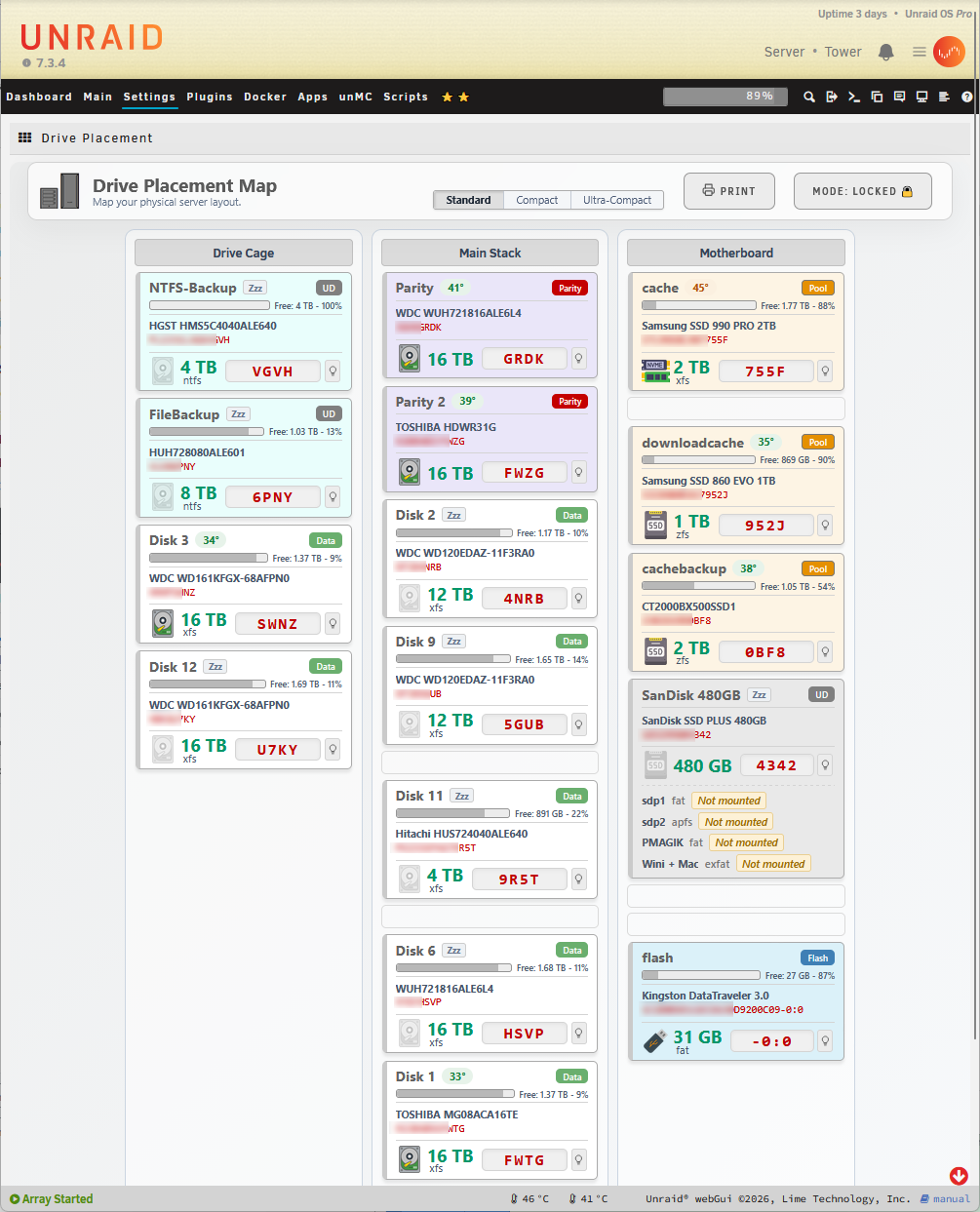 Standard View
Features
Layout
- Visual drag and drop - move active drives from the Unplaced Pool into custom columns that represent your physical drive cages, stacks, or the motherboard.
- Per-column auto-width - each column sizes itself to its widest card, independently of the others.
- Locked / Unlocked modes - lock the dashboard to prevent accidental changes. Empty slots stay visible when locked, so the air-gaps in your case are represented accurately.
- Compact mode - a slim single-line card view for dense layouts.
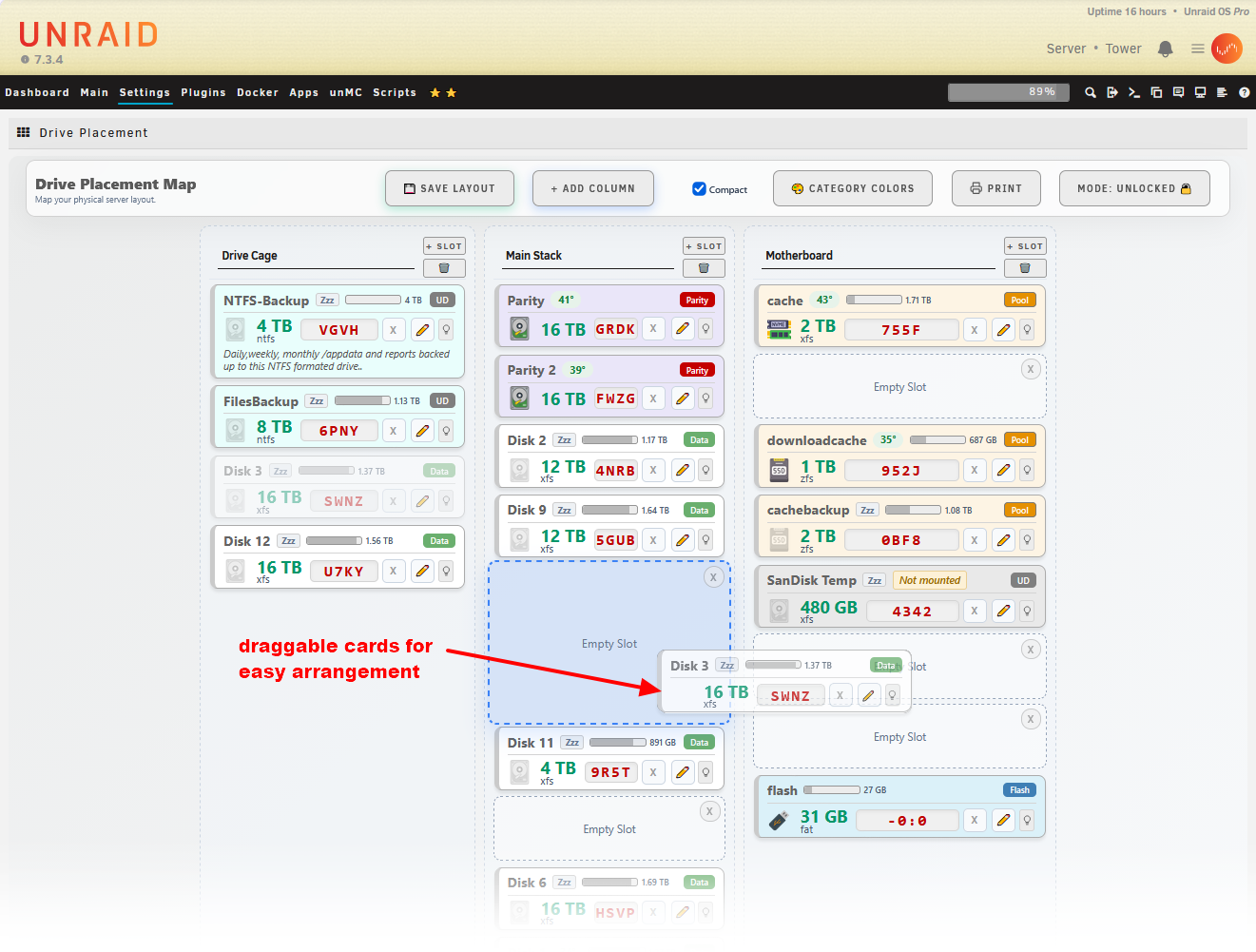 Unlocked Mode
Drive cards
- At-a-glance status - each card shows the drive's temperature (color-coded pill), usage bar, free space, size, filesystem format, media type, and the last four of the serial number.
- Filesystem format - a small label under the size shows the filesystem (xfs, btrfs, zfs, ntfs, fat, exfat ...).
- Unassigned device support - UD drives get the same temperature, usage, and free-space readout as array and pool drives. A device that isn't mounted is clearly flagged Not mounted in place of the usage bar.
- Multi-partition drives - a UD drive with more than one partition lists each partition below the card (name, format, and usage, or "Not mounted"), so a multi-partition external or backup drive reads clearly.
- Identify a drive - a small lightbulb button blinks the drive's own activity LED (a brief, read-only access burst), so you can spot the exact physical drive in the bay.
- Health highlighting - a drive with an issue (error, disabled, or failed) is highlighted with a red card, overriding any assigned color.
- Spun-down indicator - drives that are asleep show a "Zzz" marker and a dimmed icon.
- Categories - Array (Data), Parity, Pool (cache), Unassigned (UD), and Flash each get their own badge.
Why only the last 4 of the serial? The large red characters on each card are the last four of the drive's serial number - the same short tag you can physically write on the drive, so what you see on the dashboard matches the label on the drive in the bay. When a drive fails, you match those four characters and you know exactly which one to pull. Need the full brand, model, and complete serial? Turn off Compact mode and they're shown on every card.
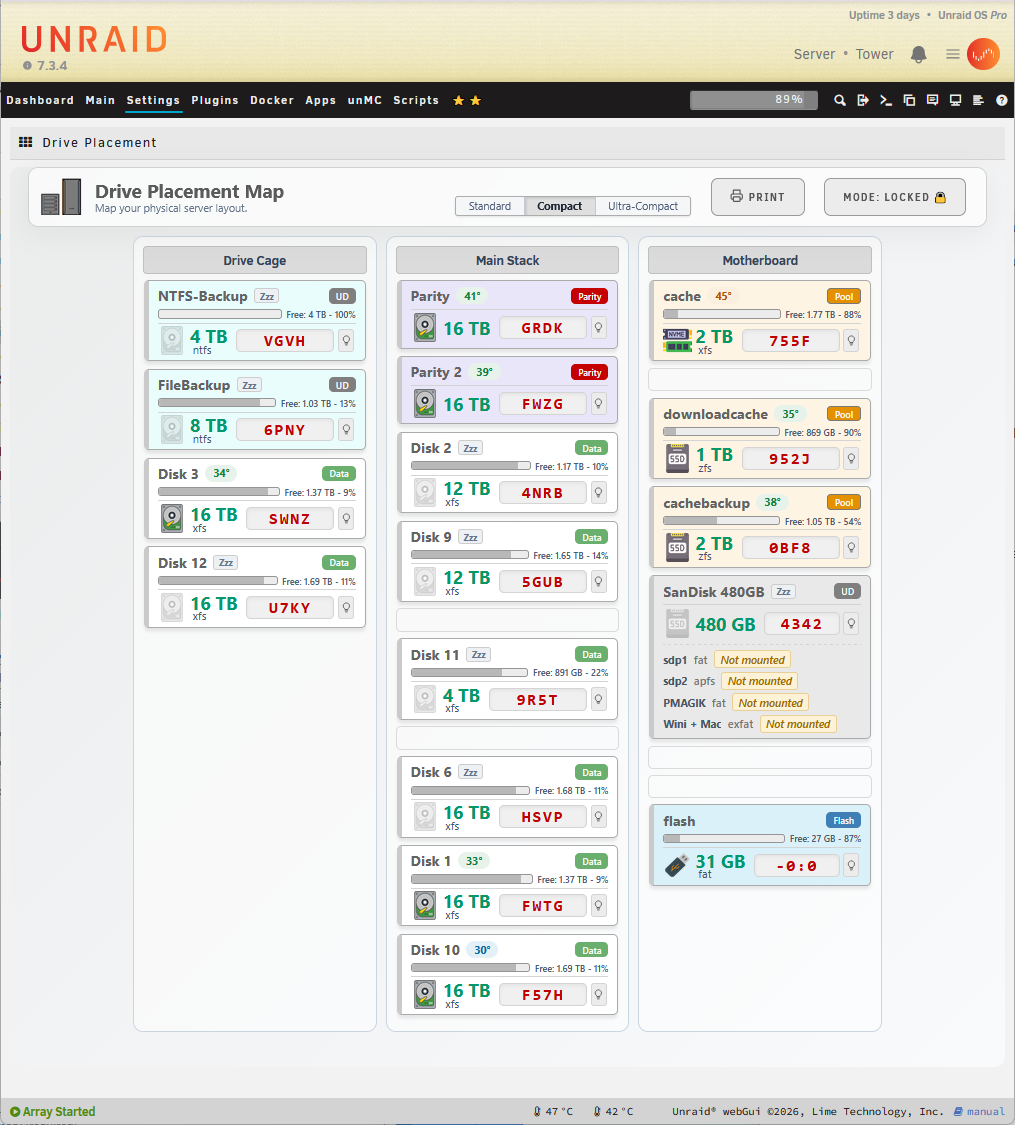 Compact View
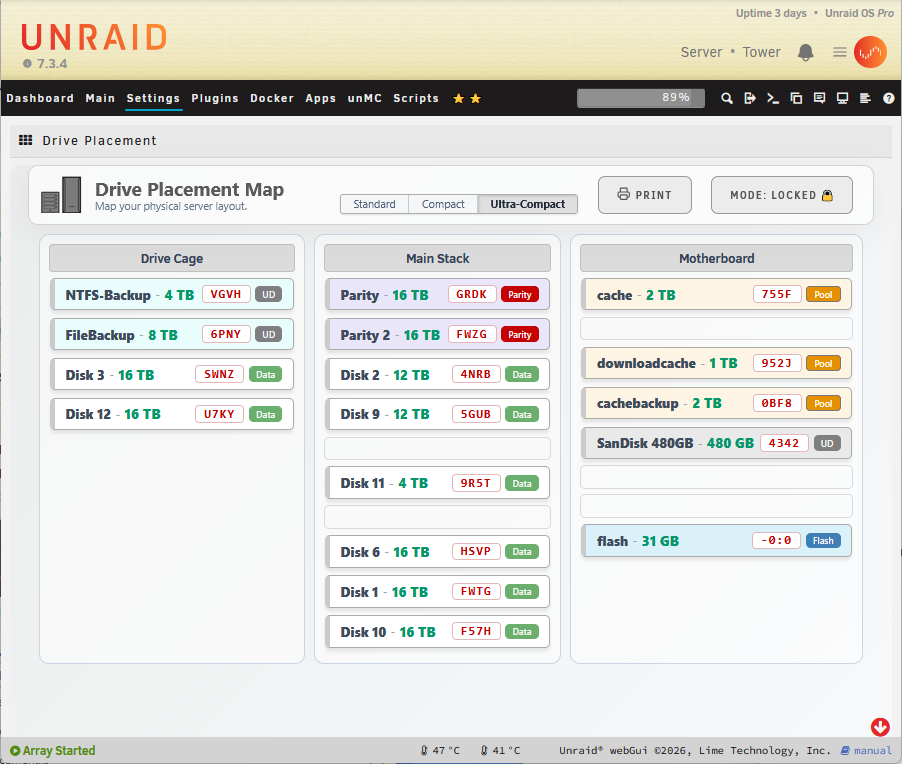 Ultra-Compact View
Appearance
- Category background colors - assign a background color to each category (Array, Parity, Pool, UD, Flash) from the color modal, with sensible default tints shipped out of the box.
- Per-card color override - give any individual drive its own background color from the edit panel.
- Dark-skin aware - the dashboard automatically matches unRAID's black/gray themes, with a tuned dark palette for cards, columns, and the color modal.
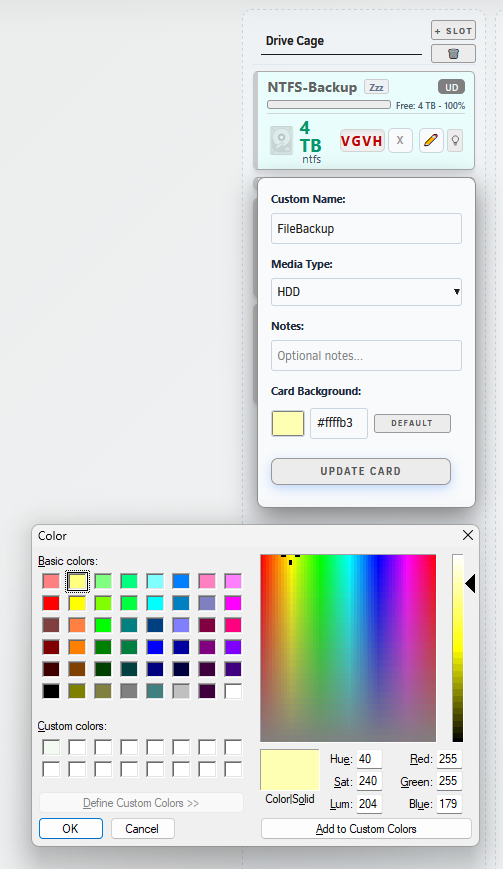 Edit Drive
Other
- Custom naming and media types - click the pencil on any drive to set a custom name and media type (HDD, SATA SSD, NVMe, USB).
- Per-drive notes - add notes that appear as a tooltip in compact mode.
- Print / PDF report - generate a clean, printable report of your layout (letter/A4, auto portrait or landscape) with the Print button.
- Persistent layouts - everything is saved to your flash drive (
/boot/config/plugins/driveplacement/layout.json), surviving reboots and plugin updates.
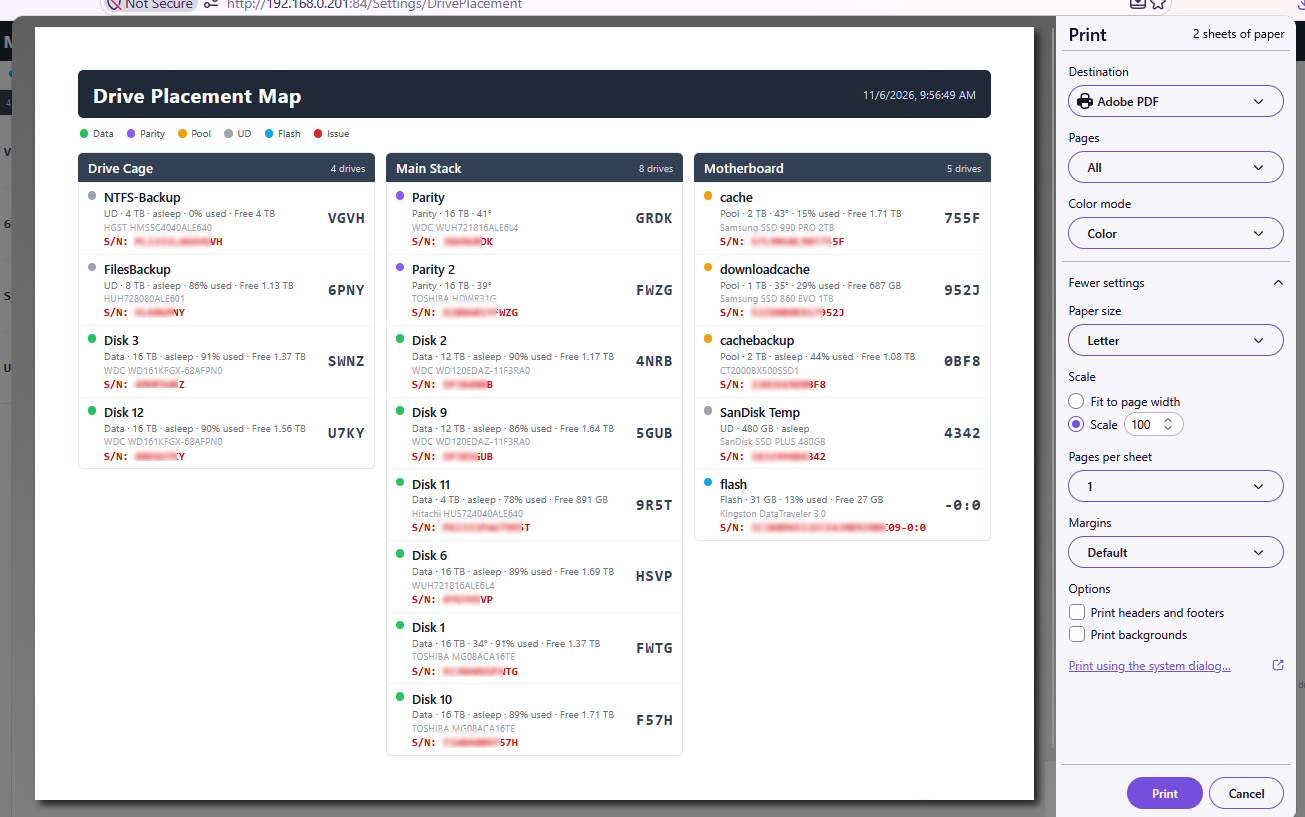 Print Layout
How is this different from "Disk Location"?
The excellent Disk Location plugin by olehj is powerful and deeply feature-rich. Drive Placement takes a different tack: dead-simple setup and a clean, easy-to-read design.
- Set up in under a minute - no tray/row/column configuration, no per-slot forms. Your drives appear in an Unplaced pool; just drag them into columns that match your physical cages, stacks, or motherboard, and click Save. That's the whole setup.
- Built to be read at a glance - each card shows just the right amount: temperature, usage, free space, filesystem, and the last-four serial you actually label your drives with - nothing to decode.
- Looks at home in unRAID - automatically matches your light or dark skin.
If you want maximum configurability and every possible option, Disk Location is a great choice. If you want a drive map that takes a minute to set up and is effortless to read, that's exactly what Drive Placement is for.
Installation
Go to the Plugins tab in your unRAID GUI, select Install Plugin, and paste:
https://raw.githubusercontent.com/hernandito/Drive.Placement/main/driveplacement.plg
The dashboard appears under Settings → Utilities → Drive Placement.
Support
Issues and requests: github.com/hernandito/Drive.Placement
Media gallery
1 / 4Categories
Download Statistics
Downloads by Month
Related apps
Explore more like this
Explore allDetails
https://raw.githubusercontent.com/hernandito/Drive.Placement/main/driveplacement.plg