

downtify
Docker app from athuull's Repository
Overview
Readme
View on GitHubDowntify
Install • Documentation • Android App
Features • Changelog • Sponsor • Contributing
Self-hosted music downloader. Paste a Spotify link,
get a perfectly tagged audio file no API keys, no account, no hassle




Overview
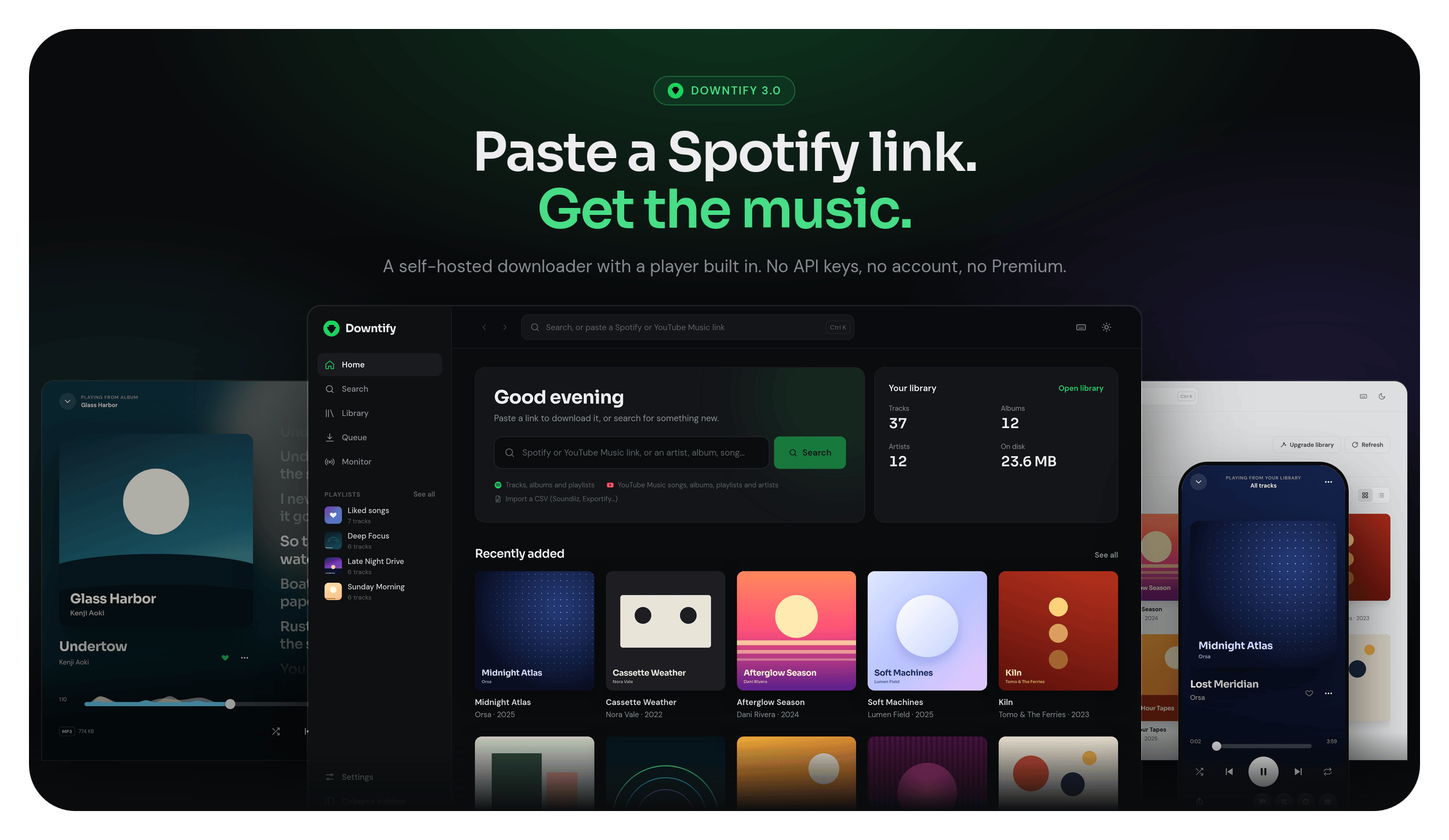
Downtify is a self-hosted web app that turns Spotify and YouTube Music links into a tagged audio library. It never touches the Spotify API, and it needs no account and no Premium subscription. It also plays that library back, so what you download is one tab away from listening.
Spotify embed page  →  YouTube Music search  →  yt-dlp + ffmpeg + mutagen
   (metadata)             (audio match)            (download & tag)
- Metadata. Track, album and playlist links are resolved from the public
open.spotify.com/embedpages, so no Spotify credentials of any kind are needed. - Audio match.
ytmusicapifinds the best YouTube Music result by comparing durations. When there is no good match, standard YouTube is searched automatically (details). - Download and tag.
yt-dlpfetches the audio,ffmpegconverts it to the format you chose, andmutagenembeds title, artist, album, year and cover art.
All of it runs inside a single Docker container. See How it works for the full pipeline.
Features
| Download | Spotify tracks, albums, playlists and artists (their releases and top songs); YouTube Music songs, albums, playlists and artists; free-text search; CSV imports from Soundiiz, TuneMyMusic and Exportify. MP3, FLAC, M4A, OGG or OPUS at the bitrate you pick. See Download settings and Library import. |
| Pause the queue | Pause downloads before changing settings, troubleshooting or updating: downloads already running finish, nothing new starts, and the waiting songs (and the pause itself) survive a restart. Resume when ready. See Download Queue. |
| Charts | Browse Deezer's global "what's trending" chart — tracks (streaming in full, downloadable straight from the list), plus albums, artists and playlists to explore. See Charts. |
| Similar | Name an artist and a track to get similar tracks from YouTube Music's radio mix — every row plays in full in the player, downloaded or streamed, no key needed. See Similar. |
| Finder | Discover's search box: search Deezer, then explore an artist in Finder-style columns: their profile and bio, their whole discography, and any album's tracks playing in full, ready to download. See Finder. |
| Tags and lyrics | Title, artist, album, year and cover art embedded in every file, plus an explicit marker (the "E" you know from Spotify) on songs with explicit lyrics, shown in search, the Library and the player. Plain and time-synced lyrics from LRCLIB and NetEase, tried in the order you choose. See Lyrics and Explicit marker. |
| Playlist Monitor | Watch Spotify or YouTube Music playlists and artists; new tracks and new releases download on a schedule you set. Artist watches can be limited to albums, singles or EPs, and to releases from now on. Each watch shows how many songs it adds per week, whether that pace is rising, and the storage only it uses, and every song can tell which watch brought it in (details). See Playlist Monitor. |
| Playlist display names | Rename the displayed title of your playlists, including synchronized playlists, while preserving their source and synchronization. See the guide. |
| Hidden playlist songs | Hide songs you don't want from a downloaded or watched playlist, on the web or from the apps; they stay out when the playlist syncs again and stay in your library. See Hidden playlist songs. |
| Support the artist | Found something you love? Open where to buy it: the iTunes Store item with its price, Bandcamp and Qobuz searches, and the artist's own website. See Support the Artist. |
| Playlist search | Search a whole playlist, however long (Ctrl/⌘+F on its page), and filter its songs: missing, failed, by source (YouTube Music, slskd, Deemix) or not matched in Navidrome. See Search a playlist. |
| Built-in player | Full-screen Now playing with synced lyrics, an editable queue, a sleep timer, keyboard shortcuts, media keys and a ten-band equalizer (experimental). See Built-in player. |
| Liked songs | Tap the heart on a song and a Liked songs playlist of everything you have liked appears, in Downtify and in your media server. See Liked songs. |
| Podcasts | Subscribe by RSS feed, Spotify link or name; new episodes download, tag and keep their resume position on their own. See Podcasts. |
| Discover | Artists, albums and playlists you don't have yet, suggested from your library, liked songs and what you play — from Deezer first, with Spotify's picks added as they arrive, no account or API key. Artists and Deezer albums open in the Finder; play any album's or playlist's songs in full before downloading, and hide any artist you never want suggested. See Discover. |
| Users & activity | Sign in with a username and password; admins add accounts for the rest of the house. The library is shared — everyone sees every downloaded song — and admins can hide songs, albums or artists from users. Likes and playlists stay per account unless you share a playlist, view-only, with named users or with everyone, and an activity log shows who signed in and who is playing what. See Users & sign-in. |
| Mobile apps (experimental) | Sign in to a phone app with your account (or pair it by QR code) and stream your library to it — original quality or transcoded for mobile data — with offline copies and casting. The server side is ready; the Android app itself is still in development. See Mobile apps. |
| Library | Albums, artists, playlists and tracks in a grid or a list, with filtering, sorting (the Tracks tab and every playlist's songs too), multi-select and download as a ZIP. Create your own playlists (and rename them), and add songs from downloads or extra folders (imported Spotify/YouTube playlists stay read-only until you detach them from their source to edit them). Existing music folders import a collection you already have (tags stay on disk; artists are matched to the library). Upgrade library repairs small covers, missing lyrics and incomplete tags on music you already have, without re-downloading, and Replace audio swaps a wrongly matched song for the version you pick, keeping it in its playlists. Pick a real photo and banner for an artist from YouTube Music, Deezer, Spotify or your own upload. See Library catalog, Existing music folders, Upgrade library, Replace audio and Artist photo & banner. |
| Storage & usage | For admins: how big the library is and how fast it grows (day by day), which source each part came from (YouTube Music, YouTube, Soulseek...), how downloads ended (completed, skipped, failed) and the free space left, plus what could be cleaned up - duplicate songs, slskd working copies kept apart from the library, leftover temporary files and orphaned lyrics or covers. Nothing is deleted from it. See Storage & Usage. |
| Import existing playlists | Preview and select existing M3U/M3U8 playlists from configured music folders, importing references to available files without copying or downloading audio. See the guide. |
| Playlist files | Standard M3U files that Jellyfin, Navidrome and Plex pick up, plus each playlist's own cover art, saved before its tracks. A flat folder layout or one folder per artist. See M3U export, Playlist cover art and File organization. |
| Integrations | Optionally download from Soulseek through your own slskd server and mirror playlists into Navidrome, each with a Test connection button in Settings. See slskd & Navidrome. |
| Interface | Light and dark themes, one layout from phone to widescreen, an installable app (PWA), live download progress, update notices and eight languages. |
Read-only music folders stay protected during Upgrade library: their tracks are skipped before remote lookups, without changing files or marking unchecked categories as complete. See Upgrade library.
Quick start
You only need Docker.
docker run -d -p 8000:8000 --name downtify \
  -v /path/to/downloads:/downloads \
  -v downtify_data:/data \
  ghcr.io/henriquesebastiao/downtify
Open http://localhost:8000, sign in as admin / downtify, change that password in Settings → General (or turn accounts off with DOWNTIFY_DISABLE_AUTH=true on a server only you can reach), then paste a link and start the download. Replace /path/to/downloads with the folder where you want your music.
/downloads holds your audio files and /data holds Downtify's database and settings. Keep both persistent, or settings, likes and playlist tracking are lost when the container is recreated.
Docker Compose
services:
  downtify:
    container_name: downtify
    image: ghcr.io/henriquesebastiao/downtify:latest
    ports:
      - '8000:8000'
    volumes:
      - ./downloads:/downloads
      - downtify_data:/data
    restart: unless-stopped

volumes:
  downtify_data:
To serve it on another port, set DOWNTIFY_PORT and map the same port (or choose it in Settings → Server → Port and change the mapping to match):
ports:
  - '30321:30321'
environment:
  - DOWNTIFY_PORT=30321
The remaining deployment options (timezone, monitor sync time, cookies file, IPv4) are listed under Environment variables. Everything else is configured from Settings in the web interface.
Home server platforms
| Platform | |
|---|---|
| Umbrel | Install on Umbrel |
| CasaOS | Install on CasaOS |
| HomeDock OS | Install on HomeDock |
What you can paste in
| Input | Example |
|---|---|
| Spotify track, album, playlist or artist | open.spotify.com/track/… |
| YouTube Music playlist | music.youtube.com/playlist?list=… |
| YouTube Music artist | music.youtube.com/channel/UC… or music.youtube.com/@artist |
| YouTube or YouTube Music video | youtube.com/watch?v=… |
| Deezer track, album, playlist or artist | deezer.com/track/… |
| Free-text search | The Night Owls Do I Still Recall |
| Library export (CSV) | Soundiiz, TuneMyMusic, Exportify |
An artist link opens the artist's page, with their releases and a Top Songs button to pick from their most popular songs and download them, optionally as a playlist (details). Artists in your Library also get a Top songs tab with their first five Spotify top songs, kept in a per-artist file for a week, each streaming in full until you download it; an artist's bio, genre and links are also filled in, in your language, in the background as their first track finishes downloading (details). Artists can also be watched for new releases with the Playlist Monitor — just albums, singles or EPs if you like, and optionally only what comes out from now on, skipping the back catalogue. Deezer links can be downloaded but not watched.
Downtify for Android
An Android app is being built: it signs in to your server with your username and password (or pairs by scanning a QR code from Settings → Apps), then browses your library, plays it in the original quality or a smaller one for mobile data, keeps songs on the phone for offline listening and casts to a Chromecast.
[!WARNING] The app is still in development and no version has been published yet — there is nothing to install for now, and how it works may still change. The server side of it already ships with Downtify, which is why Settings → Apps is marked experimental.
Repository: henriquesebastiao/downtify-android
Anything that talks to the server can be built against the same API — see the mobile client contract.
Troubleshooting
Most download problems share one cause: YouTube wants a signed-in session. Upload a cookies.txt in Settings → YouTube cookies and they usually go away. If YouTube still rate-limits you, raise Delay between downloads, lower Parallel downloads, then try DOWNTIFY_FORCE_IPV4=1.
See Troubleshooting for the full list of symptoms and fixes, and YouTube cookies for how to export the file.
Translations
The interface is available in English, Spanish, Brazilian Portuguese, French, Turkish, Hungarian, Greek, Bulgarian, German and Korean, and so is the documentation: it opens in your browser's language when it is translated into it (English otherwise), and the globe button in the top bar switches language. Switch the app's language in Settings → Language; the choice is saved in the browser and applies without a reload.
Contributing translations
You can translate the app, the documentation, or both — they are independent, and partial work is welcome. For the app, adding a language is a small change and needs no tooling beyond the existing Vite setup:
- Copy
frontend/src/i18n/locales/en.jsto a new file named after an IETF language tag (de.js,it.js,pt-PT.js). - Translate the values. Keep the keys and placeholder tokens (
{count},{name},{file}) unchanged, and setlanguage.nameto the language's native name. - Register the locale in
frontend/src/i18n/index.js.
Missing keys fall back to English, so a partial translation is welcome. For the documentation, each language is a folder in docs/ with the same pages as English; npm run i18n -- status <code> (from docs/) shows what is left to translate. The full walkthrough for both, with the registration snippet and tips, is in Internationalization.
Documentation
| Getting started | Installation, Docker Compose, one-click installs and environment variables |
| Features | One page per feature, with every option explained |
| How it works | The metadata, matching and tagging pipeline |
| Troubleshooting | Symptoms, causes and fixes |
| API reference | Every endpoint the web interface uses |
| Changelog | What changed in each release |
[!WARNING] Users are responsible for their actions and any legal consequences. Downtify does not support unauthorized downloading of copyrighted material and takes no responsibility for user actions.
Contributing
Contributions, issues and feature requests are welcome. Check the issues page or open a pull request.
Before sending a pull request, read CONTRIBUTING.md. It covers local setup, the coding and formatting standards (Ruff for Python, Prettier for the frontend), testing requirements, commit conventions and the pull request checklist.
If Downtify has been useful to you, a star on GitHub helps other people find it.
Contributors
Thanks for your contribution to the project!
Support
There are many ways to support Downtify:
- Use it! Write about it! Star it! If you love Downtify, drop me a line and tell me what you love.
- Blog about Downtify to spread the word. If you're good at writing, send PRs to improve the documentation at downtify.henriquesebastiao.com.
- Sponsor my work at https://www.buymeacoffee.com/henriquesebastiao

License
Licensed under the AGPL-3.0 License.
Icons by Font Awesome (Free, CC BY 4.0), loaded via Iconify.
Library-only mode
Settings → General can restrict every browser and Android client to music already in the server library, including search and tag-based similar tracks. External streams and downloads are disabled without deleting music or watched playlists. See Library-only mode.
Download Statistics
Related apps
Explore more like this
Explore allDetails
henriquesebastiao/downtify:latestRuntime arguments
- Web UI
http://[IP]:[PORT:8000]- Network
bridge- Privileged
- false
Template configuration
HTTP port for Downtify API
- Target
- 8000
- Default
- 8000
Download directory where files will be stored (must match Hera's music download directory)
- Target
- /downloads
- Default
- /mnt/user/data/media/music