
All apps · 0 apps
Dockkeep
Docker app from Dockkeep's Repository
Overview
Readme
View on GitHub

Self-hosted Restic backups and Rclone syncs, with a web UI
Scheduled backups for your home server, NAS, or Unraid box — all in one container.
Dockkeep runs the backups you would otherwise write cron jobs and shell scripts for. You describe what to back up, where to, and when in the web UI; under the hood Dockkeep stores that as one plain TOML file you can still read, review, and edit. It then takes care of running the jobs, keeping snapshots pruned, uploading copies off-site, logging everything, telling you when something breaks, and getting your files back when you need them.
Underneath it is plain Restic and
Rclone. Dockkeep does not invent a backup format and does
not hide the tools: your repositories stay ordinary Restic repositories that any
restic binary can read, with or without Dockkeep. That is deliberate — the day
you need your data back is the worst possible day to depend on a tool that is
also broken.
It is built for local, trusted environments: self-hosted home servers, homelabs, NAS and Unraid boxes, small internal machines.
Versioning. Dockkeep follows semantic versioning: the configuration format and the container contract stay compatible within a major version, and any change to them is listed in that release's notes — so pinning a version tag means nothing changes under you. Your repositories are never affected: they are plain Restic repositories and no release rewrites them.
Contents
- What you can do with it
- Screenshots
- How Dockkeep is organized
- Requirements
- Installation
- Your first backup
- Two modes: UI or headless
- Volumes, paths, and what lives where
- Environment variables
- The configuration model
- Passwords
- Rclone remotes
- Notifications
- Hooks
- Command line reference
- Using Restic and Rclone directly
- Operating Dockkeep
- Disaster recovery: getting data back without Dockkeep
- Troubleshooting
- What Dockkeep deliberately does not do
- License
What you can do with it
Back up directories with Restic. Point a backup at one or more mounted host directories and a repository — a local path or a cloud location through Restic's Rclone backend. Add excludes, tags, file lists, and per-backup Restic arguments when you need them.
Keep several copies. A job can hold as many backups as you like: one to the local disk, one to a NAS, one to object storage. Each has its own schedule, retention, and credentials, and each is modeled as its own backup target.
Prune old snapshots automatically. Turn on retention and set the Restic keep
rules (keep_daily, keep_weekly, keep_within, …). Turn on cleanup as well
and Dockkeep prunes the repository afterwards so the freed space is actually
returned.
Mirror repositories off-site with Rclone. An Rclone task copies (or syncs) a local directory to any Rclone remote. A deleting sync refuses to start when the source directory is missing or empty, so an unmounted volume cannot wipe the remote copy.
Chain steps into workflows. A workflow runs backups, single backup substeps, and Rclone tasks in a fixed order — "back up, prune, then upload" as one scheduled unit that stops at the first failure.
Schedule it, or run it by hand. Every backup, Rclone task, and workflow takes
a five-field cron expression. Anything without a schedule simply waits until you
press Start. Dry runs pass --dry-run to Restic and Rclone and skip hooks, while
still exercising the real execution path.
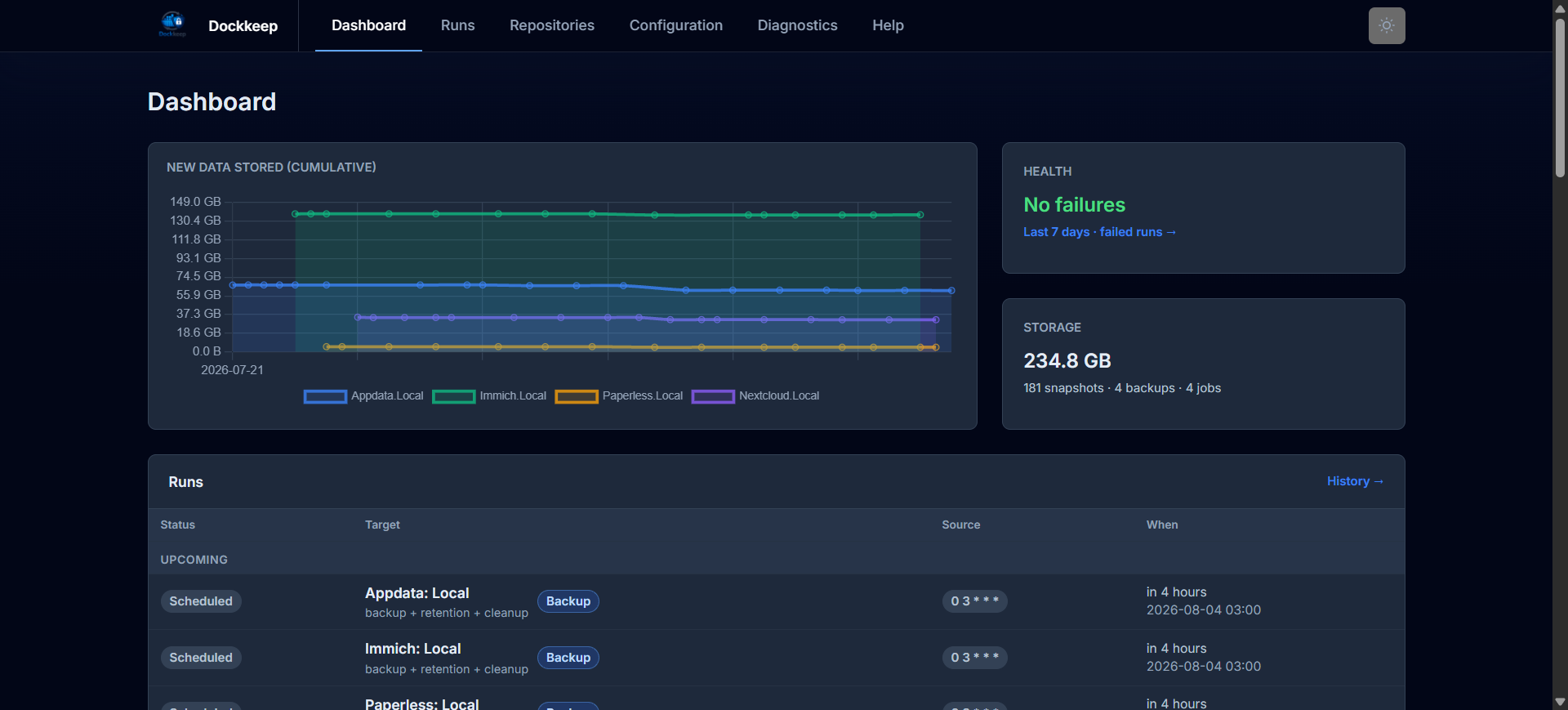
Watch what happened. The dashboard shows active, upcoming, and recent runs; the runs page keeps the history with filters and per-run details; the log viewer shows every line a run produced, live while it is still running.
Restore without the command line. Browse a snapshot's contents in the UI, tick the files and folders you want, dry-run the restore, then start it. For large trees, use Index subtree in the browser to pre-load the current subtree into Dockkeep's temporary browse cache so moving through folders is much faster. Restores are confined to the restore directory and never overwrite each other by default.
See your repositories. Dockkeep groups snapshots by physical repository (not by config entry), shows size and growth over time, and keeps working even for repositories a configuration no longer points at.
Get told when something breaks. Email and Pushover notifications for success, failure, and skipped runs, plus an optional periodic report that also arrives when nothing happened — so silence is never ambiguous.
Run code around backups. Pre, post, and on-error hooks stop a database before
the backup and start it afterwards, dump a database, or ping a monitoring
service. The image ships the clients for that (docker, ssh, pg_dump,
mysqldump, redis-cli, sqlite3, curl, jq).
Keep the backend within reach. dk shell opens a shell with the repository
and credentials of a configured backup already exported, so restic check,
restic unlock, or any other maintenance is one command away.
Screenshots
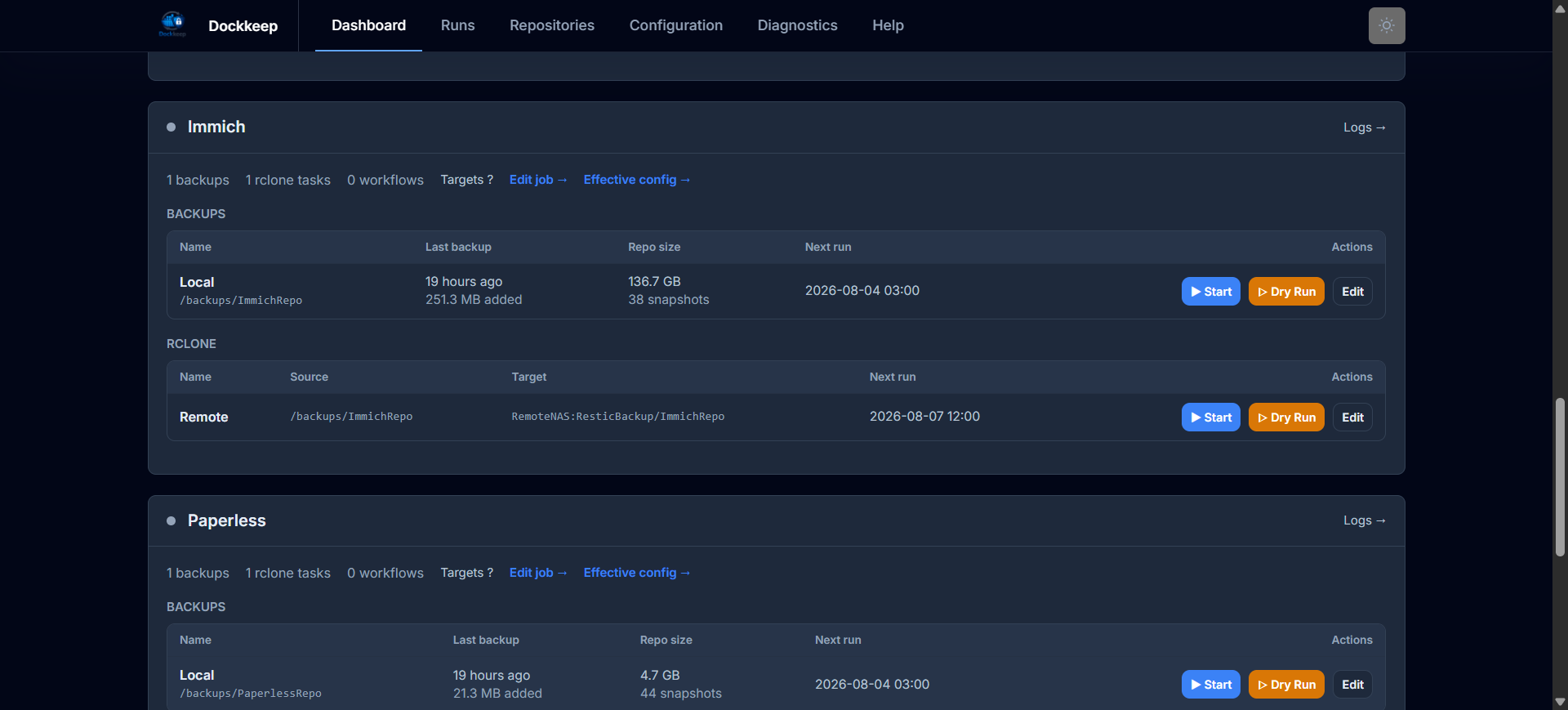
Every job with its backups and Rclone tasks: last backup, repository size, next run — and Start, Dry Run, and Edit one click away.
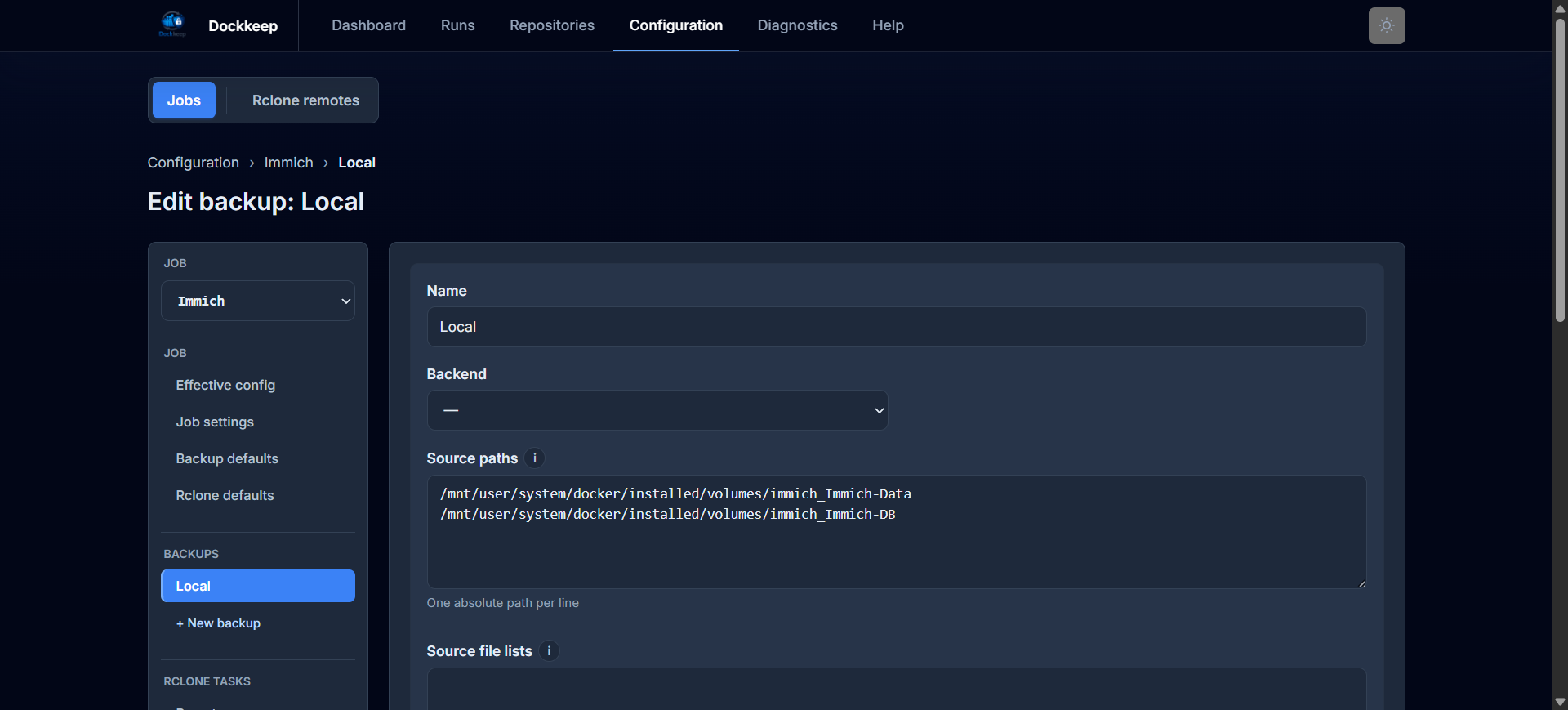
Every field of a backup in a form, with inherited values marked as such — the editor writes config.toml and keeps your comments and formatting.
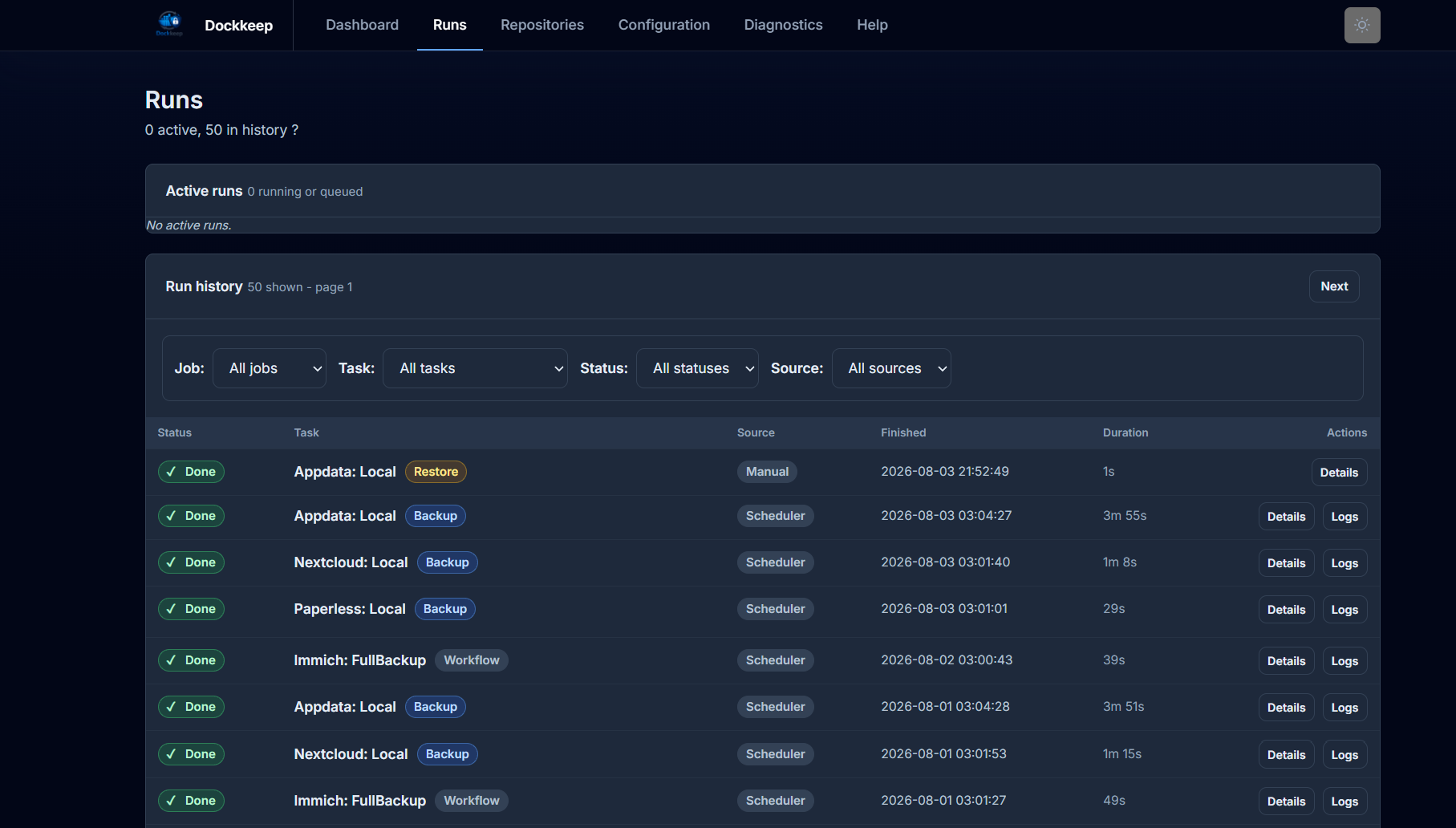
Every run, manual or scheduled, with its status and duration.
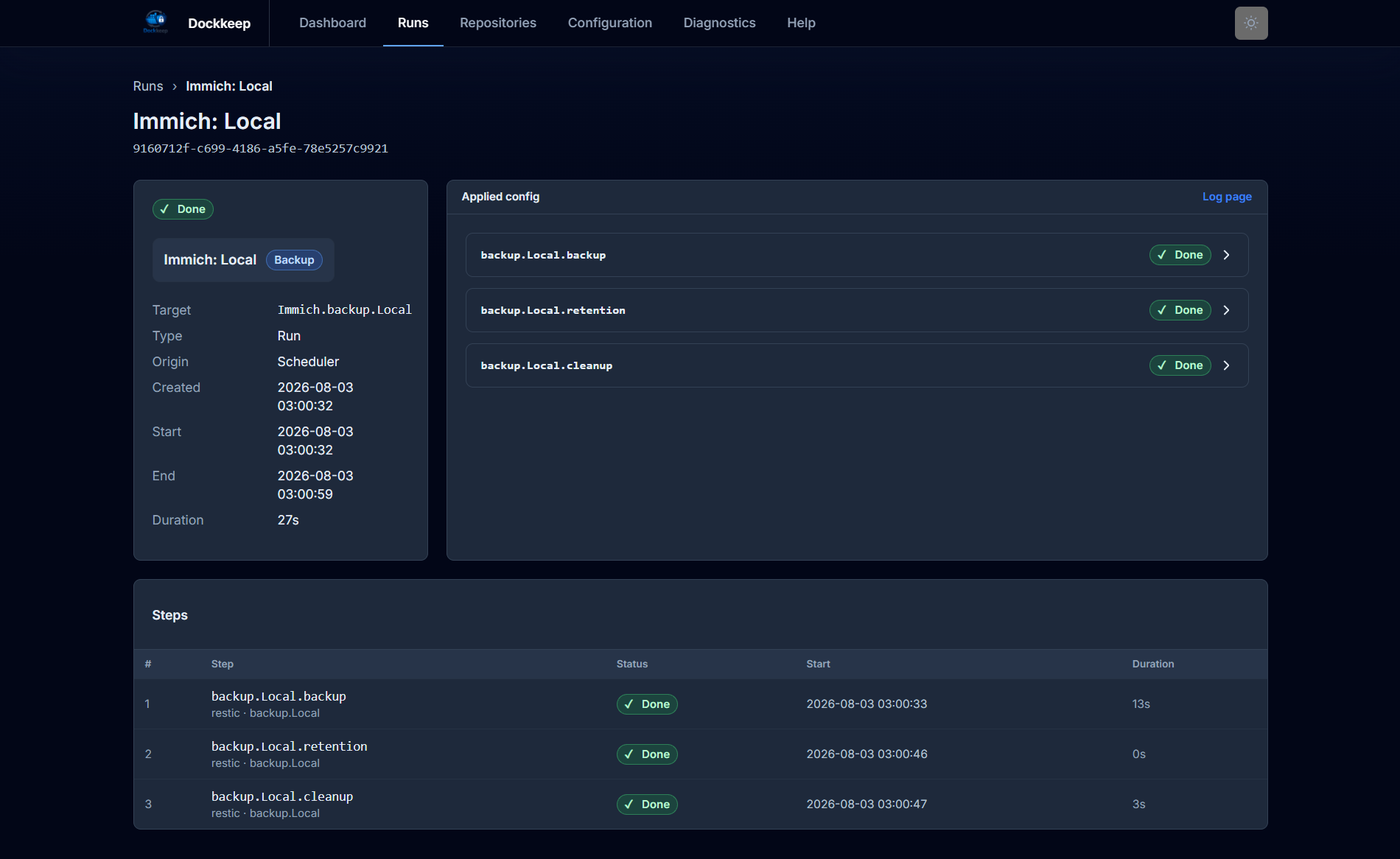
A workflow run, step by step.
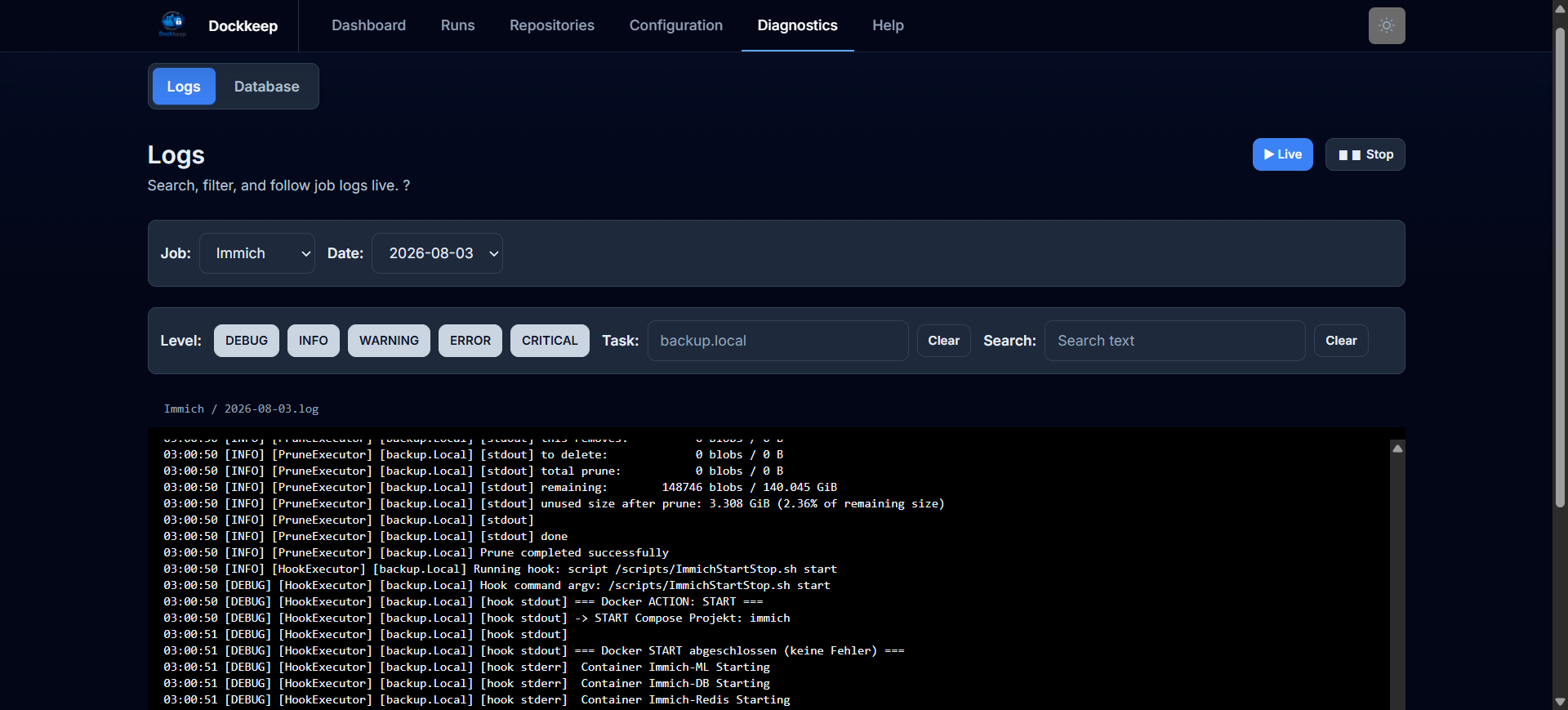
The full output of a run, live while it is still running.
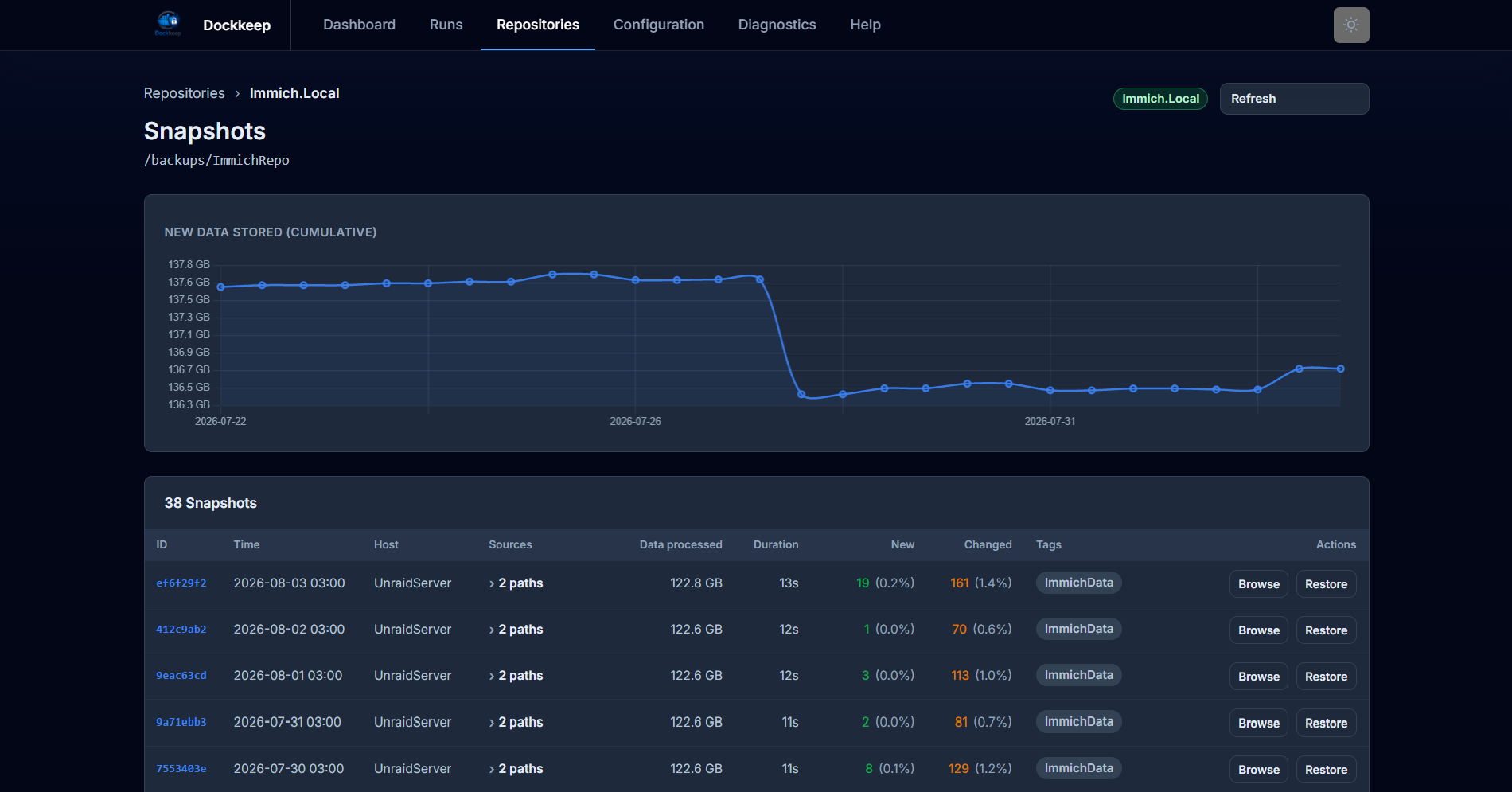
Repositories grouped by their physical identity, with size and growth over time.
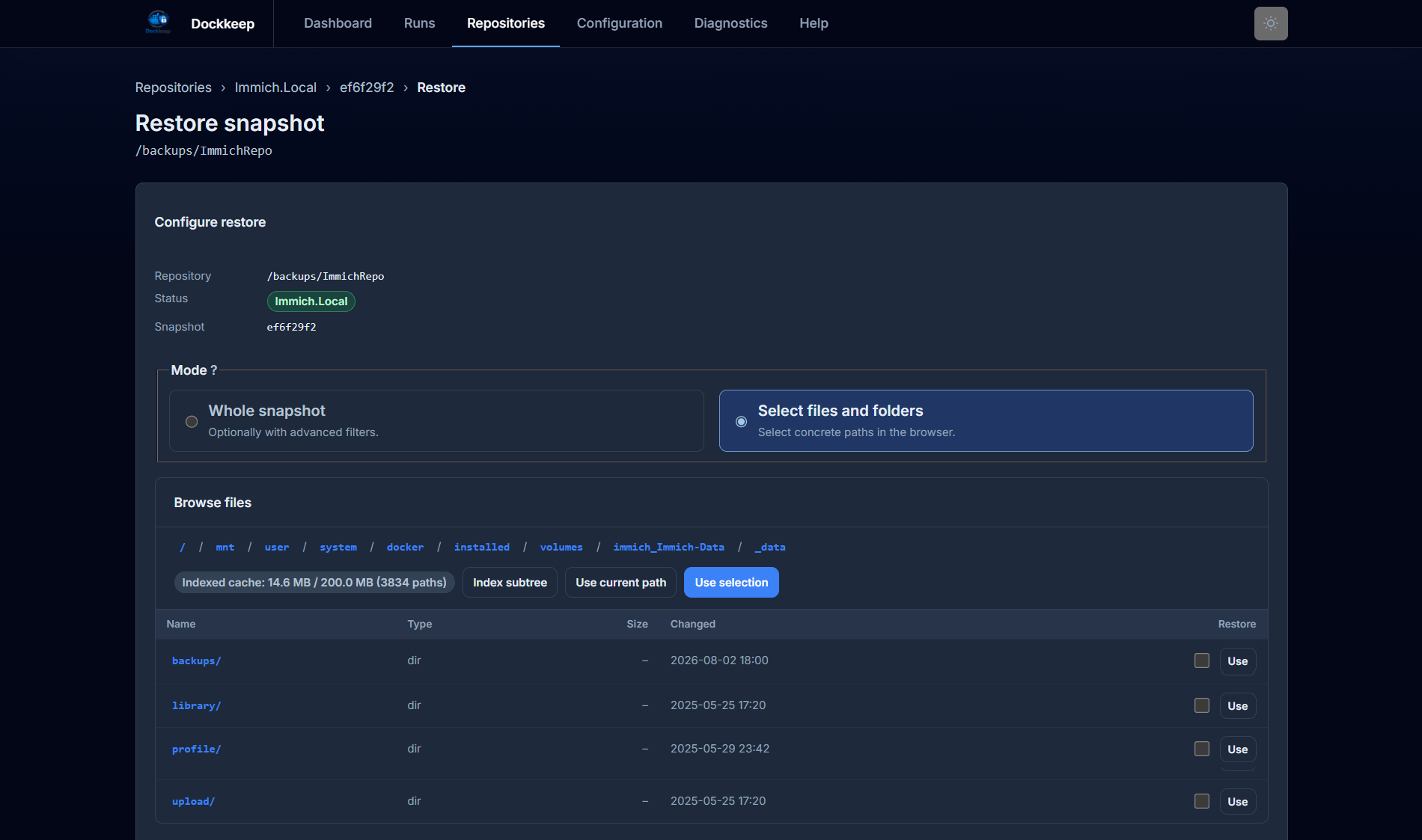
Browse a snapshot, tick what you need, dry-run it, restore it — no command line.
How Dockkeep is organized
The UI is the normal way to create and maintain these objects. It writes a
single config.toml behind the scenes, so the file stays readable, portable,
and easy to back up, but you do not have to start there.
Five concepts show up everywhere in the app and in the TOML:
Job — a grouping that owns shared defaults, hooks, and notification settings.
Typically one job per thing you back up (paperless, nextcloud, homeserver).
Backup — one Restic repository, with its sources, schedule, retention rules,
and credentials. A job can have many: myjob.backup.local, myjob.backup.nas.
Rclone task — one copy or sync from a local directory to a remote, with its own schedule.
Workflow — an ordered list of steps built from the backups and Rclone tasks of the same job.
Target — how one of those things is named internally, in a workflow step, or in the optional CLI:
myjob.backup.local                 # the backup plan: backup, then retention/cleanup if enabled
myjob.backup.local.backup          # only the snapshot
myjob.backup.local.retention       # only forget
myjob.backup.local.cleanup         # only prune
myjob.rclone.offsite
myjob.workflow.nightly
Names may contain letters, digits, hyphens, and underscores only. The dots are
structure, and the UI builds them for you. _system and
__dockkeep_adhoc_restore__ are reserved as job names, rclone is reserved as
a backup and workflow name, and the structured editor additionally refuses
new.
Two rules explain most of Dockkeep's behavior:
Settings inherit downwards: global → job → backup / workflow / Rclone task.
An unset field takes the value from the level above; an explicit value (including
an explicit false) stops inheritance for everything below it. This is why a
backup entry can be four lines long and still do the right thing. The UI has an
Effective config page per job that shows the resolved result.
Runs lock the resources they touch, not the jobs they belong to. A backup locks its repository, an Rclone step locks its source and target, a workflow holds the union of its steps' resources for its whole runtime. Two jobs writing to the same repository can therefore never collide; two jobs touching nothing in common run in parallel. A lock conflict never waits forever: a scheduled run is recorded as skipped, a manually started one as lock error.
Requirements
- An x86_64 (amd64) host. The published image is built for amd64 only —
there is no arm64 build yet, so Raspberry Pi and ARM-based NAS models are not
supported. On an ARM host the container exits immediately with
exec format error. - Docker with Docker Compose
- A host directory to back up, mountable into the container
- A Restic password — via environment variable or a mounted password file
- Optional: an
rclone.confif you use cloud repositories or Rclone tasks
The web UI ships without built-in authentication. It is an administrative interface with full access to your configuration and secrets. Publish port 8080 on a trusted network only, or put it behind a VPN or an authenticating reverse proxy.
Installation
Dockkeep is deployed as a prebuilt image — you do not need this repository for that. Create a directory for the deployment and put two files in it:
mkdir -p ~/dockkeep && cd ~/dockkeep
docker-compose.yml — replace the two source mounts with the directories you
want to back up, on both sides of the colon, and add or drop lines until the list
matches what you have. Mounting each source under its own host path keeps the
paths in your configuration identical to the paths you know from the host:
services:
  app:
    image: ghcr.io/davidkrgh/dockkeep:latest
    container_name: dockkeep
    hostname: homeserver          # shows up as the Restic host of your snapshots
    restart: unless-stopped

    ports:
      - "8080:8080"               # web UI

    env_file:
      - .env

    volumes:
      # Configuration and generated app data
      - ./config:/config          # config.toml and rclone.conf, writable by the UI
      - ./appdata:/appdata        # run history, restore records, repository cache

      # Backup sources and targets
      # Each mount is a root: config.toml can use any path below it, so one line
      # per tree is enough. Read-only, and under its own host path.
      - /srv/data:/srv/data:ro
      - /srv/photos:/srv/photos:ro
      - ./backups:/backups        # local repositories
      - ./restore:/restore        # restore destinations

      # Logs
      - ./logs:/logs

      # Optional: hook scripts and Docker control from hooks
      # - ./scripts:/scripts
      # - /var/run/docker.sock:/var/run/docker.sock

    environment:
      TZ: ${TZ:-Europe/Berlin}
      DK_MODE: ${DK_MODE:-gui}    # gui = web UI + scheduler, cli = headless scheduler
.env — next to it, in the same directory. Compose reads it for the
variables above and passes it into the container via env_file:
# Time zone: decides what "02:00" means for your schedules
TZ=Europe/Berlin

# gui = web UI + scheduler, cli = headless scheduler
DK_MODE=gui

# Repository password, referenced from config.toml as
# password_env = "DK_RESTIC_PASSWORD"
DK_RESTIC_PASSWORD=change-me

# Optional: notification credentials, referenced from config.toml as *_env
# SMTP_USER=backup@example.com
# SMTP_PASSWORD=change-me
# PUSHOVER_TOKEN=change-me
# PUSHOVER_USER_KEY=change-me

# Optional: run as a non-root user (both values or neither)
# PUID=1000
# PGID=1000
Keep .env private — it holds the password that decides whether your backups
are readable. A fuller, annotated version of this file is
.env.example in this repository.
Start it:
docker compose up -d
Containers without explicit arguments start whatever DK_MODE selects — the web
UI on port 8080 by default. The entrypoint creates the directories it needs and,
on first start, an empty /config/config.toml. The UI comes up at
http://localhost:8080 even without a valid configuration, so you can write the
first one from there.
To use a different port, change the left-hand side of the port mapping
("9090:8080"); the container always listens on 8080 internally.
Unraid
On Unraid you do not need a Compose file. Dockkeep ships an Unraid Community
Applications template: open the Apps tab, search for Dockkeep, and install
it. The template sets the same volumes and variables as the Compose example
above, with the paths pointed at the usual /mnt/user/... shares, and it lets
you pick between the latest and 1 image tags.
Two Unraid-specific notes:
- Pick shares that already exist for the repository and restore paths. Docker silently creates a new share otherwise, with cache settings you never chose.
- Exclude Dockkeep's own
configandappdatadirectories from the backup sources. The config holds your repository passwords, and the SQLite database cannot be copied consistently while it is in use.
The template lives at templates/dockkeep.xml in this
repository, and questions about the Unraid build belong in the
support thread.
Mounting sources
Back up what you mount, and mount it read-only where you can (:ro). Four
things are worth knowing up front:
- Paths in the configuration are container paths. If you mount
/srv/photos:/data/photos, the source is/data/photos, not/srv/photos. - Snapshots record the container path. Restoring later gives you back
/data/photos/...inside the restore target. Keeping the mount layout stable makes restores predictable. - Mount each source under its host path. Write
/srv/photos:/srv/photos:roinstead, and there is nothing left to translate: the path on the host, the source in your configuration, the path recorded in the snapshot and the path you get back from a restore are all/srv/photos. The examples below follow this, and it is what saves you from the first two points. - A mount is a root, not a single source. Everything below it can be named in
the configuration. With
/srv/data:/srv/data:roin place, a backup can just as well usesources = ["/srv/data/projects", "/srv/data/archive/2024"]— no extra mount needed. You only add a second mount for a tree the first one does not already cover, which is why the example mounts/srv/photosseparately.
Image tags
All images are linux/amd64.
| Tag | Meaning |
|---|---|
latest |
Latest build of the default branch |
main |
Branch build (same content as latest) |
1.2.3 |
Exact release — published from version tags |
1.2 |
Latest patch of that minor release |
Pin a version tag if you would rather decide when to upgrade.
Your first backup
- Create a job. Configuration → Jobs → + Create new job.
- Add a backup. In the job sidebar, + New backup. Fill in the repository
(e.g.
/backups/myjob), the password source, and the sources to back up. Switch on auto init so Dockkeep creates the repository, and set retention with at least one keep rule if old snapshots should be pruned. - Check the resolved values. Effective config in the job sidebar shows what will actually be used after inheritance.
- Dry-run it. On the dashboard, use Dry Run on the new backup. It walks the entire path without writing a snapshot. If auto init is enabled and the repository is missing, Dockkeep may still initialize that repository first.
- Run it. Then Start. Watch it under Runs, read the output under Diagnostics → Logs.
- Add the schedule once a manual run has succeeded. The scheduler picks up saved configuration changes on its next check — no restart needed.
The same backup is stored as plain TOML. You normally see it through the structured editor, but the shape is useful to understand and easy to review in Git:
[global.backup]
password_env = "DK_RESTIC_PASSWORD"
keep_daily   = 7
keep_weekly  = 4

[jobs.myjob.backup]
auto_init = true
retention = true

[jobs.myjob.backup.local]
repository = "/backups/myjob"
sources    = ["/srv/data", "/srv/photos"]
schedule   = "0 2 * * *"
When you hand-edit the file, validate it before trusting it:
docker exec dockkeep dk config validate
The UI's own Help page (/help) documents the day-to-day UI work in
detail: run statuses, the restore browser, the log viewer, repository refresh
and merging. This README covers everything around it — installation, the
configuration concepts, the CLI, and operations.
Two modes: UI or headless
DK_MODE selects one of two strictly separated modes. Most people want gui.
DK_MODE=gui (default) |
DK_MODE=cli |
|
|---|---|---|
| Container starts | dk-runtime gui — web UI on port 8080, owns the scheduler |
dk-runtime scheduler — headless, no port |
| Schedules run | yes | yes |
| Run history, repository cache, stats, restore registry | persisted in /appdata |
not written at all |
Available dk commands |
dk shell, dk config validate |
the full palette, including dk run |
| How you observe runs | UI, logs, notifications | exit codes, logs, notifications |
Choose gui unless you have a specific reason not to. It is the managed
mode: history, snapshot lists, size charts, and the restore browser all rely on
the AppData database, and the UI is where runs are started and inspected. The
restore browser can additionally index a snapshot subtree on demand; that
temporary browse cache is held by the running UI process and rebuilt when needed.
Choose cli when you want Dockkeep as a pure scheduling and execution layer
— driven from host cron, scripts, or another orchestrator — with no web
interface and no state beyond logs. In this mode dk run blocks until the run
finishes and returns a meaningful exit code, which is what makes it scriptable:
docker exec dockkeep dk run myjob.workflow.nightly || notify-my-monitoring
If you switch a container from cli back to gui, the repository cache is stale
because CLI runs never wrote to it. Press Refresh once on the Repositories
page and it catches up.
An unset or invalid DK_MODE is treated as gui, with a warning in the log.
Volumes, paths, and what lives where
| Container path | Holds | Override |
|---|---|---|
/config/config.toml |
Your whole configuration | DK_CONFIG_DIR |
/config/rclone.conf |
Rclone remotes | RCLONE_CONFIG |
/backups |
Intended mount point for local repositories (a repository path is whatever you configure) | DK_BACKUP_DIR |
/restore |
Restore destinations; restores never write outside it | DK_RESTORE_DIR |
/logs/<job>/<date>.log |
Per-job run logs | DK_LOG_DIR |
/logs/_system/<date>.log |
Scheduler, config loading, UI, libraries | DK_LOG_DIR |
/appdata/appdata.db |
Run history, restore records, repository/snapshot cache, stats (GUI mode only) | DK_APPDATA_DIR |
/scripts |
Hook scripts; the only allowed location for script hooks | DK_SCRIPTS_DIR |
/var/lock |
Resource and scheduler lock files | DK_LOCK_DIR |
What is irreplaceable, and what is not. Only two things cannot be
regenerated: your repositories and the credentials to read them
(config.toml, rclone.conf, and wherever the passwords live — usually .env
or a password file). Back those up somewhere Dockkeep is not the only way to
reach them. /appdata is convenience state: repository and snapshot data can be
rebuilt from the repositories with Refresh, and losing run history costs you
nothing but history. Logs are logs.
Environment variables
Everything with a UI field lives in config.toml. The variables below belong to
the container instead, and several of them exist only here.
| Variable | Default | Purpose |
|---|---|---|
DK_MODE |
gui |
Operating mode, see above |
TZ |
container default | Time zone for schedules, next-run times, and log timestamps |
PUID / PGID |
— | Run as a non-root user, see below |
DK_ALLOW_INLINE_HOOKS |
false |
Allow inline shell commands as hooks instead of script files only |
DK_APPDATA_RETENTION_DAYS |
— | Maximum age of persisted AppData records |
DK_APPDATA_RETENTION_COUNT |
— | Maximum number of persisted AppData records per group |
DK_STATS_TIMEOUT |
600 |
Time limit per follow-up restic stats / restic snapshots call |
DK_BROWSE_TIMEOUT |
30 |
Time limit per restic ls in the restore browser |
DK_NOTIFICATION_TIMEOUT |
10 |
Time limit for sending one notification (there is no TOML field for this) |
DK_SIGTERM_GRACE_PERIOD |
10 |
Seconds a cancelled or timed-out command may exit cleanly before it is killed |
DK_CONFIG_DIR, DK_LOG_DIR, DK_RESTORE_DIR, DK_APPDATA_DIR, DK_SCRIPTS_DIR, DK_LOCK_DIR |
see table above | Relocate the standard directories |
DK_BACKUP_DIR |
/backups |
Only decides which directory the entrypoint creates on start; repository paths come from config.toml |
RCLONE_CONFIG |
$DK_CONFIG_DIR/rclone.conf |
The single rclone.conf used by the UI, services, and every rclone call |
AppData retention is off by default. With neither DK_APPDATA_RETENTION_DAYS
nor DK_APPDATA_RETENTION_COUNT set, nothing in appdata.db is ever deleted
automatically and the database grows for as long as the installation runs. On a
long-lived installation, set at least one:
DK_APPDATA_RETENTION_DAYS=360
DK_APPDATA_RETENTION_COUNT=1000
If only one is set, only that limit applies. Active runs, artifacts of
repositories you still use, and active restore records are never removed by
retention. Log files are handled separately by log_retention_days in
config.toml — also unlimited unless you set it.
Timeout variables have working defaults; touch them only when an installation needs different limits. A timeout always names its variable in the log, so you never have to guess which one to raise.
Secrets referenced from config.toml (password_env, username_env,
token_env, …) are ordinary environment variables — put them in .env, which
Compose passes into the container via env_file. The name is yours to choose;
DK_RESTIC_PASSWORD is only a convention that avoids colliding with Restic's own
RESTIC_PASSWORD.
Non-root operation
PUID=1000
PGID=1000
The container then drops to that user before starting. Dockkeep does not
recursively chown or chmod your mounts — grant access on the host first:
sudo chown -R 1000:1000 ./config ./logs ./backups ./scripts ./restore ./appdata
sudo chmod -R u+rwX,g+rwX ./config ./logs ./backups ./scripts ./restore ./appdata
Setting only one of the two is a startup error rather than a silent fallback to root.
The configuration model
Dockkeep has one configuration file: /config/config.toml. The UI's structured
editor is the recommended way to work with it. It writes that file directly,
preserves comments and formatting around the values it changes, and lets you
inspect the Effective config for each job so inherited values are visible
before you run anything.
That gives you a useful compromise:
- day-to-day setup happens in the browser: jobs, backups, schedules, retention, hooks, notifications, Rclone remotes, dry runs, and restores — and every field shows its default, or the value it inherits from the level above, right in the form;
- the file stays plain TOML, so you can review it, back it up, diff it, template it, or edit it by hand when that is the sharper tool;
- the scheduler treats UI saves and hand edits the same way. It reloads a valid file on its next check, keeps the last valid configuration active if a save is invalid, and every run uses the configuration snapshot that was active when it started.
A complete annotated example lives in
docs/example_config_file.toml. This README
keeps only the concepts you need to understand what the UI is storing.
TOML shape
The hierarchy mirrors the UI:
[global.backup]
password_env = "DK_RESTIC_PASSWORD"
keep_daily   = 7
keep_weekly  = 4

[jobs.paperless.backup]
auto_init = true
retention = true

[jobs.paperless.backup.local]
repository = "/backups/paperless"
sources    = ["/srv/paperless"]
schedule   = "0 2 * * *"

[jobs.paperless.rclone.offsite]
source = "/backups/paperless"
target = "myrclone:bucket/paperless"

[jobs.paperless.workflow.nightly]
schedule = "0 2 * * *"
steps    = ["backup.local", "rclone.offsite"]
Global sections hold defaults. A job groups related backups, workflows, hooks, and notification choices. Each backup owns its repository, sources, schedule, and any overrides. Rclone tasks and workflows sit beside backups under the same job.
Rules worth knowing
Schedules use exactly five cron fields (minute hour day month weekday).
Extended patterns inside those fields are fine (*/30 * * * *). Everything is
evaluated in the container's local time, so TZ matters. No schedule means
manual only. There is no enabled flag: remove the schedule or set it to "".
Unknown fields are rejected while loading the configuration. That is a feature — a typo in a field name fails loudly instead of silently doing nothing.
Inheritance flows global → job → backup/workflow/rclone task:
- unset inherits, an explicit value overrides — including an explicit
false, which stops inheritance rather than falling back to an enabled parent; - for
extra_*_args, unset inherits and[]explicitly passes nothing; empty or whitespace-only entries are configuration errors; - keep rules,
backup_timeout,rclone_timeout, andhook_timeoutinherit the same way; no effective timeout means no time limit; lock_retry_count/lock_retry_delay,report_schedule, and a provider'seventslist exist only globally;- an Rclone task's
scheduleis set on the task itself and never inherited; sources,source_files,tags,repository, and the hook lists are set on their own level only and are never inherited.
Sources belong to the backup, not to the job: sources and source_files
exist only in [jobs.<job>.backup.<name>], and every backup needs its own — a
second repository does not reuse the first one's sources. Putting them in
[jobs.<job>.backup] is an unknown-field error. Paths must be absolute. A backup
without any sources is allowed but produces a warning. Retention needs at least
one effective keep rule as soon as it is enabled or a workflow runs a retention
step, otherwise the configuration is rejected.
File paths in the configuration must already exist when it is loaded — this
covers password_file, source_files, exclude_files, and filter_from. A
reference to a file you have not created yet rejects the whole configuration, not
just that one field.
Extra arguments are split with shlex.split() before execution, so quoting
works as in a shell:
extra_restic_backup_args = ["--tag \"Server Backup\""]
# passed to restic as: --tag, Server Backup
Repository formats: an absolute path for a local repository, or
rclone:<remote>:<path> for Restic's Rclone backend. Two destinations are two
backups, not one backup with two repositories.
Locking canonicalizes resources: local paths are resolved, and
rclone:<remote>:<path> and a bare <remote>:<path> normalize to the same
resource — so a Restic Rclone repository and a direct Rclone sync of the same
location do block each other, on purpose. Lock files contain only hashes:
/var/lock/dockkeep-resource-<hash>.lock.
Saved changes apply on their own. The scheduler detects a changed configuration file (from the UI or from your editor) and picks it up on its next check. If the new configuration is invalid, the last valid one stays active and the error stays visible until a valid save replaces it. A run always uses the snapshot of the configuration that was active when it was triggered.
Passwords
Restic needs the repository password on every single call. Dockkeep offers three mutually exclusive ways to provide it, on each of the three levels:
| Field | What Dockkeep does |
|---|---|
password_env = "VAR" |
Reads VAR from the container environment and sets RESTIC_PASSWORD |
password_file = "/passwords/pw" |
Sets RESTIC_PASSWORD_FILE; Restic reads the file itself |
password = "secret" |
Sets RESTIC_PASSWORD directly — not recommended, it puts the secret in the config file |
Only one may be set per level. The first level that sets any of them wins:
backup, then [jobs.<job>.backup], then [global.backup]. A password_file
must be an absolute path that exists when the configuration is loaded.
Without the password, the repository is unreadable — permanently. No recovery path exists, by design of Restic's encryption. Store it somewhere that survives the loss of this machine: a password manager, a printout, a second host. Backing up
config.tomlalone is not enough when the password lives in.env.
Rclone remotes
Rclone remotes live in a single rclone.conf (default /config/rclone.conf,
overridable with RCLONE_CONFIG). Everything uses that one file: the UI, Rclone
tasks, Restic repositories on the rclone: backend, and every rclone you run
yourself inside the container — dk shell, an interactive bash, or a direct
docker exec dockkeep rclone …. You never have to point rclone at the file by
hand with --config; it only ignores that file when you set RCLONE_CONFIG
explicitly, and then every one of those callers follows you to the new path.
Three ways to fill it:
# 1. In the UI: Configuration -> Rclone remotes
#    Curated forms for common remote types, plus a raw editor and a test button.

# 2. Mount an existing file from the host
#    volumes:
#      - ./config/rclone.conf:/config/rclone.conf

# 3. Interactively inside the container
docker exec -it dockkeep rclone config
A remote named myrclone is then usable as an Rclone task target
(myrclone:bucket/myjob) and as a Restic repository
(rclone:myrclone:bucket/myjob). A task pointing at an unknown remote fails
immediately.
Copy vs sync: with sync_delete = false (the default) Dockkeep runs
rclone copy — nothing at the target is ever deleted. With
sync_delete = true it runs rclone sync and the target mirrors the source,
deletions included. The deleting variant refuses to start when the local source
is missing, not a directory, empty, or unreadable, and fails the run instead of
clearing the remote.
To upload a repository right after the backup that filled it, put both into a workflow rather than giving them two schedules — that keeps the order and stops on the first failure.
Notifications
Two independent things decide what reaches you.
What is raised — the notify_on_success, notify_on_error, and
notify_on_skipped triggers, inherited global → job → backup/workflow/rclone task. notify_on_error covers every failing outcome (failed, lock error, config
error, unexpected error); the message still names the concrete status. Cancelled
runs never notify.
Which channel carries it — the optional events list on each provider,
containing any of success, error, skipped, report. Omit it and the
channel carries everything. A provider's list can only narrow what it delivers;
it can never raise an event the triggers turned off.
That is how errors go to your phone while the daily report goes to your inbox:
[global]
notify_on_error = true

[global.notifications]
report_schedule = "0 8 * * *"

[global.notifications.mail]
host      = "smtp.example.com"
from_addr = "backup@example.com"
to        = ["admin@example.com"]
# no events key: mail carries everything, including the report

[global.notifications.pushover]
token_env    = "PUSHOVER_TOKEN"
user_key_env = "PUSHOVER_USER_KEY"
events       = ["error"]
A provider is active as soon as its section exists and is valid — there is no separate enable switch. A failing notification is logged and never changes a run result.
The periodic report (report_schedule, global only) summarizes the runs that
finished in the last complete interval. It is evaluated by a running scheduler,
so it exists in both modes but not for bare docker exec ... dk run usage. Empty
windows are still sent as a heartbeat, so a silent channel is recognizable as a
problem instead of being mistaken for "nothing went wrong".
Forgetting report in an events list is the classic mistake: the report is
assembled on schedule and delivered nowhere. Dockkeep warns at config load
whenever a trigger is enabled but no active channel carries that kind of event.
Credentials come from the environment; put them in .env:
SMTP_USER=backup@example.com
SMTP_PASSWORD=change-me
PUSHOVER_TOKEN=change-me
PUSHOVER_USER_KEY=change-me
The UI has Test provider and Test report buttons in the global notification settings. For a local mail test without a real server:
pip install aiosmtpd
python -m aiosmtpd -n -l localhost:1025
# then: host = "localhost", port = 1025, connection_security = "none"
Hooks
Hooks run scripts around a run — stop a container before the backup, start it afterwards, dump a database, notify something. Four levels have their own three lists, and each list is set on its own level only; hooks are never inherited:
| Level | Section | Wraps |
|---|---|---|
| Job | [jobs.<job>] |
the whole run, whatever was started |
| Backup | [jobs.<job>.backup.<name>] |
that backup (snapshot + retention + cleanup) |
| Workflow | [jobs.<job>.workflow.<name>] |
the whole workflow, not the individual steps |
| Rclone task | [jobs.<job>.rclone.<name>] |
that copy or sync |
[jobs.mydb.backup.local]
repository     = "/backups/mydb"
sources        = ["/srv/mydb"]
pre_hooks      = ["/scripts/stop-db.sh"]
post_hooks     = ["/scripts/start-db.sh"]
on_error_hooks = ["/scripts/start-db.sh"]
Order and failure handling — the same three rules on every level:
pre_hooks— failure runson_error_hooksand aborts the run- the actual work (backup steps, workflow steps, the rclone call) — failure
runs
on_error_hooksand aborts post_hooks— failure only logs a warning, the result stays successful
Levels nest, they do not replace each other. A workflow's hooks wrap all of its steps, and each step still runs its own hooks inside that:
job pre
  workflow 'nightly' pre
    backup 'local' pre  →  restic backup / forget / prune  →  backup 'local' post
    rclone 'offsite' pre  →  rclone copy  →  rclone 'offsite' post
  workflow 'nightly' post
job post
On failure the error hooks unwind the same way, innermost first: a failing
backup.local inside that workflow runs the backup's on_error_hooks, then the
workflow's, then the job's. Nothing is deduplicated — if the same script is
listed on two levels, it runs twice.
One exception: a workflow step that names a single substep
(backup.local.backup, .retention, .cleanup) runs without that backup's
hooks. Only the full backup.local step carries them. Use substeps when you
want the workflow to decide the order, and put the stop/start pair on the
workflow level instead.
Script rules
- Absolute paths under
/scripts(DK_SCRIPTS_DIR), which is also the working directory. Paths resolving outside it — including via symlink — are rejected. - Scripts are executed directly, so they need a shebang and
chmod +x. - Arguments after the path are passed through without a shell:
/scripts/container.sh stop. A path containing spaces works as-is when it has no arguments; quote it when it does:"/scripts/my hooks/container.sh" stop. - Inline commands (
docker stop mydb) requireDK_ALLOW_INLINE_HOOKS=trueand then run through/bin/sh -c. - Hooks are skipped in dry runs.
hook_timeoutlimits each hook and inheritsglobal → job → backup/workflow/rclone task.
Controlling the host from hooks
The image already ships the usual clients — docker and docker compose CLI,
ssh, curl, jq, PostgreSQL clients (pg_dump, pg_dumpall, psql),
MariaDB/MySQL clients, redis-cli, sqlite3, and bash completion. The Docker
engine is not included; hooks reach the host in one of two ways.
Option 1 — mount the Docker socket. Simplest, and gives Dockkeep full control over the host's Docker daemon:
volumes:
  - ./scripts:/scripts
  - /var/run/docker.sock:/var/run/docker.sock
#!/bin/sh
set -eu
exec docker compose -p paperless \
  -f /mnt/cache/appdata/Paperless-ngx-Stack/docker-compose.yml \
  "$1"
pre_hooks      = ["/scripts/paperless-compose.sh stop"]
post_hooks     = ["/scripts/paperless-compose.sh start"]
on_error_hooks = ["/scripts/paperless-compose.sh start"]
If the script refers to host paths, mount those into the container as well.
Security note: the Docker socket is root-equivalent access to the host. Use it only where that trust boundary is acceptable.
Option 2 — an SSH control key. Docker stays on the host; Dockkeep only gets a private key for a restricted user whose forced command allowlists exactly the operations you want.
volumes:
  - ./scripts:/scripts
  - ./secrets/dockkeep_control_key:/config/ssh/dockkeep_control_key:ro
  - ./secrets/known_hosts:/config/ssh/known_hosts
extra_hosts:
  - "host.docker.internal:host-gateway"   # Linux: reach the host by name
#!/bin/sh
set -eu
exec ssh -i /config/ssh/dockkeep_control_key \
  -o IdentitiesOnly=yes \
  -o StrictHostKeyChecking=accept-new \
  -o UserKnownHostsFile=/config/ssh/known_hosts \
  dockkeep-control@host.docker.internal "paperless $1"
More setup, no socket mount. The full host-side user, key, and allowlist setup is
in docs/documentation/ssh-host-control-hooks.md;
docs/documentation/host-control-hooks.md
compares the approaches.
Command line reference
All commands run inside the container:
docker exec dockkeep dk <command> [args]      # one-off
docker exec -it dockkeep bash                 # or open a shell first
In GUI mode only dk shell and dk config validate are available; every
other command exits with code 1 and points at the UI, and the help output
hides them. The full palette below requires DK_MODE=cli.
Running things
dk run myjob.backup.local              # backup plan (backup + retention/cleanup if enabled)
dk run myjob.backup.local.backup       # only the snapshot
dk run myjob.backup.local.retention    # only forget
dk run myjob.backup.local.cleanup      # only prune
dk run myjob.rclone.offsite
dk run myjob.workflow.nightly

dk run --dry-run myjob.workflow.nightly   # pass --dry-run to Restic/Rclone; hooks are skipped
dk run                                    # list available targets
dk run --dry-run may still initialize a missing Restic repository first when
auto_init = true, because the repository check happens before the Restic
backup command receives --dry-run.
dk run stays in the foreground until the run finishes — that is what makes it
usable in scripts. Ctrl+C cancels the running process and its children
gracefully and exits with 130.
Inspecting the configuration
dk config validate                     # validate; works in GUI mode too
dk jobs list                           # all jobs
dk jobs tasks myjob                    # backups and rclone tasks with schedule and next run
dk jobs workflows myjob                # workflows with schedule and next run
dk schedule next                       # upcoming runs, all jobs
dk schedule next myjob                 # upcoming runs, one job
Scheduler and runs
dk scheduler status                    # is a scheduler running, and how is it doing
dk runs list                           # active runs of the running scheduler
dk runs cancel <RUN_ID>                # cancel one of them
dk runs * talk to the scheduler over a local Unix socket
($DK_APPDATA_DIR/run-control.sock) and only ever see active runs, never
history. Without a reachable scheduler they print a clear message and exit 1.
In GUI mode the Runs page does the same thing and adds the persisted history.
Logs
dk logs show myjob                     # today
dk logs show myjob --days 7            # last 7 days
dk logs show myjob --tail 100          # last 100 lines
dk logs tail myjob                     # follow, like tail -f
Log lines have a fixed shape — the date is already in the file name:
14:03:12 [INFO] [nas] [backup.local] Starting backup
14:03:12 [INFO] [restic] [workflow.nightly › backup.local] Running restic backup
The second tag is who wrote the line (the job, or the component producing the output), the third is the task it belongs to, with workflow steps nested. The UI's log filter matches exactly this format.
Shells for the backends
dk shell                               # list all shell targets
dk shell myjob                         # list one job's targets
dk shell myjob.backup.local            # shell with RESTIC_REPOSITORY + password env set
dk shell myjob.rclone.offsite          # shell with source and target shown
Available tasks for 'myjob':

  dk shell myjob.backup.local     /backups/myjob   (password_env: DK_RESTIC_PASSWORD)
  dk shell myjob.rclone.offsite   /backups/myjob → myrclone:bucket/myjob
The shell prints example commands and starts $SHELL. After exit the variables
are gone and the main container process is untouched.
Exit codes
| Code | Meaning |
|---|---|
0 |
Success |
1 |
General error |
2 |
Configuration error |
3 |
Lock error — the resource is busy |
130 |
Cancelled with Ctrl+C |
Overview calls without a target (dk run, dk shell, dk shell JOB,
dk jobs tasks, dk jobs workflows) list what is available and exit 0.
Using Restic and Rclone directly
Dockkeep has no command group for backend maintenance, on purpose: restic and
rclone are already good at that. dk shell just removes the tedious part —
finding the repository path and the credentials.
docker exec -it dockkeep dk shell myjob.backup.local
restic snapshots
restic check              # verify repository integrity
restic check --read-data  # …including the actual data (slow, and worth it now and then)
restic unlock             # after a crash left a stale restic lock
restic stats
restic ls latest
docker exec -it dockkeep dk shell myjob.rclone.offsite
rclone ls myrclone:bucket/myjob
rclone check /backups/myjob myrclone:bucket/myjob
Plain calls work too, but they do not resolve Dockkeep's config inheritance, so you supply repository and password yourself:
docker exec dockkeep restic snapshots --repo /backups/myjob
docker exec dockkeep rclone listremotes
Long-running maintenance run this way is invisible to Dockkeep's locking. If a schedule might fire meanwhile,
restic unlock-style operations are fine, but avoid concurrentprunefrom the outside.
Operating Dockkeep
Upgrading
docker compose pull
docker compose up -d
Your configuration and repositories are untouched by upgrades. appdata.db
carries a schema generation marker: when a release changes that generation,
Dockkeep resets the AppData database on first start instead of migrating it. Run
history and cached repository data are then gone — press Refresh on the
Repositories page to rebuild the snapshot and size data from the repositories
themselves. Nothing about your backups is affected.
Pin an image tag (ghcr.io/davidkrgh/dockkeep:1.2) if you want to control when
that happens.
Restart, or not
Configuration changes need no restart — the scheduler reloads them. Restart after
changing environment variables, secrets, volumes, or DK_MODE:
docker compose restart      # env from .env is re-read only on recreate
docker compose up -d        # use this after editing docker-compose.yml or .env
Recovery mode
If config.toml is missing or invalid, the UI starts in recovery mode instead of
failing: dashboard, help, and the config editors stay available so you can fix
it. The scheduler stays inactive until a valid configuration exists, and the Runs
page reports that scheduler runs are unavailable. dk config validate works in
that state as well and is the fastest way to see what is wrong.
Backing up Dockkeep itself
Keep a copy of config.toml, rclone.conf, and whatever holds your passwords
(.env or password files) somewhere independent of this host. That plus the
repositories is a complete restore. /appdata is worth keeping for the history
but is not required, and /logs is not required at all.
A neat trick: give Dockkeep a job that backs up its own /config directory into
one of your repositories — just make sure the password for that repository is
not only stored in the file you are backing up.
Verifying that backups are actually good
Two habits are worth building:
- Restore something occasionally. Use the restore browser, pick a few files,
restore them into
/restore, and compare. A backup nobody has ever restored is a hypothesis. - Check the repository.
restic checkinsidedk shellverifies structure;restic check --read-datare-reads and verifies every pack file, which is slow but the real proof. Both can be wired into a job as a hook or run by hand.
Time zones
Schedules, next-run times, and log timestamps all use the container's local time.
Set TZ in .env to your zone, otherwise "daily at 02:00" is 02:00 UTC. After a
DST change, the next-run display is the authority — it is computed from the same
clock the scheduler uses.
Disaster recovery: getting data back without Dockkeep
This is the part worth reading before you need it.
Dockkeep writes nothing proprietary. A repository created by Dockkeep is an
ordinary Restic repository, and it can be restored from any machine with the
restic binary and the password — no Dockkeep, no container, no configuration.
# Local repository (or a copy of it you pulled back from off-site)
export RESTIC_PASSWORD='your-repository-password'
restic -r /path/to/backups/myjob snapshots
restic -r /path/to/backups/myjob restore latest --target /tmp/restored

# Repository on an Rclone remote
restic -r rclone:myrclone:bucket/myjob snapshots
If the off-site copy was made with an Rclone task, pull it back the same way it went up:
rclone copy myrclone:bucket/myjob /path/to/local/restore-of-repo
So the minimum you must survive with is: the repository (or its off-site copy) and the password. Everything else — Dockkeep, the configuration, the history, this container — is convenience.
Troubleshooting
| Symptom | Cause and fix |
|---|---|
| A scheduled run never happens | Is a scheduler running (dk scheduler status, or the Runs page)? Is the configuration valid? Does TZ match your expectation? Check /logs/_system/. |
| Runs happen an hour off | TZ is not set to your zone; schedules follow container local time. |
| Run ended as skipped or lock error | Another run holds the same repository or Rclone endpoint. Scheduled runs report skipped, manual ones lock error. Stagger the schedules or merge them into one workflow. |
| Restic reports the repository is locked | A previous process died. dk shell <job>.backup.<name> then restic unlock. |
| Config change appears to do nothing | The save was rejected: the last valid configuration stays active. Check the error in the editor or run dk config validate. |
| Unknown field error on load | Field names are validated strictly — check the editor field or the annotated example config. A classic one: sources in [jobs.<job>.backup]; it belongs to the individual backup. |
| Config rejected because a file "does not exist" | password_file, source_files, exclude_files, and filter_from must exist when the configuration is loaded. Create the file (an empty one is fine) or remove the field. |
retention = true rejected |
At least one effective keep_* rule is required; it may be inherited from job or global. |
| Backup runs but backs up nothing | The backup has no sources of its own; they are not inherited from the job, and a missing one is a warning, not an error. |
| Sources missing after a mount change | Sources are container paths. Verify the volume mapping, not the host path. |
| Snapshot list empty or stale in the UI | The UI reads its cache. Press Refresh on the location or the Repositories page — typical after CLI-mode runs or an AppData reset. |
| No email arrives | Match connection_security to the port: "starttls" (587), "ssl" (465), "none" (25, often blocked). Verify the *_env variable names actually exist in the container. |
| Pushover returns 4xx | Invalid token or user key, or the env var is unset. |
| Report is never delivered | An events list on every provider omits report. Add it, or drop the list. |
Notification sent despite notify_on_* = false |
A lower level overrides a higher one — check the resolved value in Effective config. |
| Notification timeout | Raise DK_NOTIFICATION_TIMEOUT (seconds, default 10). There is no TOML field. |
| Stats timeout after a successful backup | Raise DK_STATS_TIMEOUT (default 600 s per follow-up restic stats/snapshots call). Large repositories need more. |
| Restore browser times out | Raise DK_BROWSE_TIMEOUT (default 30 s per restic ls). |
| Hook does not run | Absolute path under /scripts, executable, with a shebang? Inline commands need DK_ALLOW_INLINE_HOOKS=true. Hooks never run in dry runs. |
| Permission errors on mounts | With PUID/PGID set, the host directories must be readable and writable by that UID/GID; Dockkeep does not chown them. |
appdata.db keeps growing |
Retention is off by default — set DK_APPDATA_RETENTION_DAYS and/or DK_APPDATA_RETENTION_COUNT. |
| Log directory keeps growing | Set log_retention_days in [global]; unset means never delete. |
dk command refuses to run |
GUI mode allows only dk shell and dk config validate. Use the UI, or switch to DK_MODE=cli. |
When something is unclear, the job log under /logs/<job>/ has the executed
command and the backend's own output; /logs/_system/ has everything else
(scheduler, config loading, UI).
What Dockkeep deliberately does not do
- No authentication in the UI. It is meant for a trusted network, a VPN, or a reverse proxy that authenticates for it.
- No agents on other hosts. Dockkeep backs up what is mounted into its container. Remote sources are Rclone's or a hook's job.
- No retries of failed steps. A failed workflow step stops the workflow. The next schedule is the retry; notifications tell you it happened.
- No custom backup format or database of your files. Restic owns the data, Dockkeep owns the automation.
- No replacement for
resticandrclone. Deep maintenance stays with the tools, anddk shellhands you a prepared environment for it.
License
Dockkeep is licensed under the MIT License — see LICENSE.
Third-party components redistributed with this repository or the Docker image (htmx, Chart.js, Restic, Rclone, Python dependencies, Debian packages) are listed in THIRD-PARTY-NOTICES.md.
Media gallery
1 / 4Install Dockkeep on Unraid in a few clicks.
Find Dockkeep in Community Apps on your Unraid server, review the template, and click Install. Unraid handles the Docker app or plugin setup from the published template.
Requirements
x86_64 (amd64) host - there is no arm64 image yet.
The web UI has no built-in authentication; run it on a trusted network only.
Categories
Related apps
Explore more like this
Explore allDetails
ghcr.io/davidkrgh/dockkeep:latestRuntime arguments
- Web UI
http://[IP]:[PORT:8080]- Network
bridge- Shell
bash- Privileged
- false
- Extra Params
--hostname=dockkeep
Template configuration
Port of the Dockkeep web UI.
- Target
- 8080
- Default
- 8080
Holds config.toml and rclone.conf. Written by the web UI. Back this up somewhere outside Dockkeep - together with your repository passwords it is the only thing that cannot be regenerated.
- Target
- /config
- Default
- /mnt/user/appdata/dockkeep/config
SQLite database with run history, restore records, repository cache and statistics. Convenience state - can be rebuilt from the repositories.
- Target
- /appdata
- Default
- /mnt/user/appdata/dockkeep/appdata
Per-job run logs and system logs.
- Target
- /logs
- Default
- /mnt/user/appdata/dockkeep/logs
Mount point for local Restic repositories, for example /mnt/user/backups/dockkeep. Pick a share that already exists - Docker silently creates a new one otherwise, with cache settings you never chose. Do not point this at the appdata share. The actual repository paths come from your configuration; put them below this directory.
- Target
- /backups
Where restores are written, for example /mnt/user/backups/dockkeep-restore. Dockkeep never restores outside this directory. The same advice applies: use an existing share.
- Target
- /restore
A share you want to back up, mounted read-only. This is a root, not a single backup source: everything below it can be named in your configuration, so with this mount in place a backup can use sources = ["/mnt/user/appdata/paperless"] or any other path underneath. Host path and container path are deliberately identical, so a path you see in Unraid is the same path in your configuration. Exclude Dockkeep's own config and appdata directories: the config holds your repository passwords, and the SQLite database cannot be copied consistently while it is in use.
- Target
- /mnt/user/appdata
- Default
- /mnt/user/appdata
A second share, empty by default. You only need this for a directory that is not already below the first mount - subdirectories of that one are reachable without any extra entry. Set host path and container path to the same value here as well, and use 'Add another Path, Port, Variable, Label or Device' for further shares. Leave empty if one is enough.
- Target
- /mnt/user/documents
Repository password. Reference it from config.toml as password_env = "DK_RESTIC_PASSWORD". Leave empty if you use a password file or store the password in the configuration instead.
- Target
- DK_RESTIC_PASSWORD
Time zone used for schedules, next-run times and log timestamps, e.g. Europe/Berlin. Set this - it decides what '02:00' means for your schedules.
- Target
- TZ
- Default
- UTC
gui = web UI plus scheduler (recommended). cli = headless scheduler, no web UI and no persisted history.
- Target
- DK_MODE
- Default
- gui
Password for a second repository, for example an off-site copy. Reference it from config.toml as password_env = "DK_RESTIC_PASSWORD_SECONDARY". The variable name is only a convention - any name you reference works.
- Target
- DK_RESTIC_PASSWORD_SECONDARY
User name for mail notifications. Reference it from the [global.notifications.mail] section as username_env = "SMTP_USER". Leave empty if your mail server needs no authentication or you do not use mail notifications.
- Target
- SMTP_USER
Password for mail notifications. Reference it from the [global.notifications.mail] section as password_env = "SMTP_PASSWORD".
- Target
- SMTP_PASSWORD
Application token for Pushover notifications. Reference it from the [global.notifications.pushover] section as token_env = "PUSHOVER_TOKEN".
- Target
- PUSHOVER_TOKEN
User or group key for Pushover notifications. Reference it from the [global.notifications.pushover] section as user_key_env = "PUSHOVER_USER_KEY".
- Target
- PUSHOVER_USER_KEY
The only directory script hooks may be run from. Leave as is if you do not use hooks.
- Target
- /scripts
- Default
- /mnt/user/appdata/dockkeep/scripts
Optional and only needed if hooks should stop and start other containers. Granting access to the Docker socket is equivalent to root on the host - leave empty unless you need it.
- Target
- /var/run/docker.sock
Set to true to allow inline shell commands as hooks instead of script files only.
- Target
- DK_ALLOW_INLINE_HOOKS
- Default
- false
Maximum age of persisted run history records. Empty means unlimited - the database grows for as long as the installation runs. 360 is a reasonable value.
- Target
- DK_APPDATA_RETENTION_DAYS
Maximum number of persisted records per group. Empty means unlimited. 1000 is a reasonable value.
- Target
- DK_APPDATA_RETENTION_COUNT
Optional non-root operation. Set PUID and PGID together or not at all - the container refuses to start with only one of them. Dockkeep does NOT recursively chown mounted directories; grant this user access on the host first. Leave both empty to run as root.
See PUID. Both values or neither.