
All apps · 0 apps
Dead Man's Switch
Plugin from Dereck
Overview
Readme
View on GitHub
Dead Man's Switch for Unraid
A dead man's switch plugin for Unraid that requires periodic check-ins. If you stop checking in, it triggers configurable actions — like deleting files or running scripts — after a deadline passes.
Useful for privacy-conscious users who want automated cleanup if they become unable to manage their server.
Screenshots
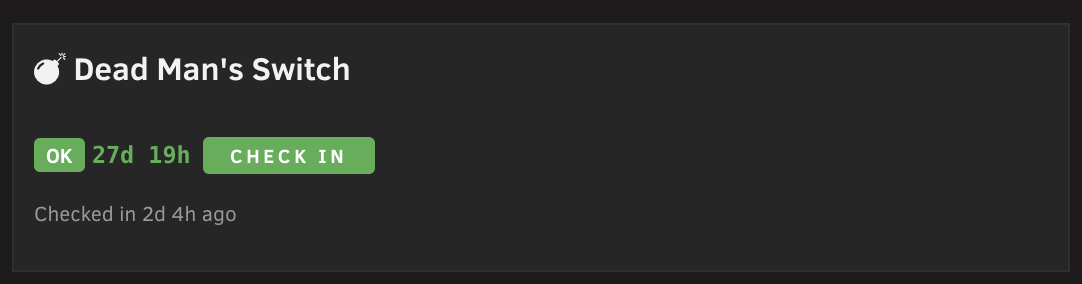
Unraid Dashboard Tile
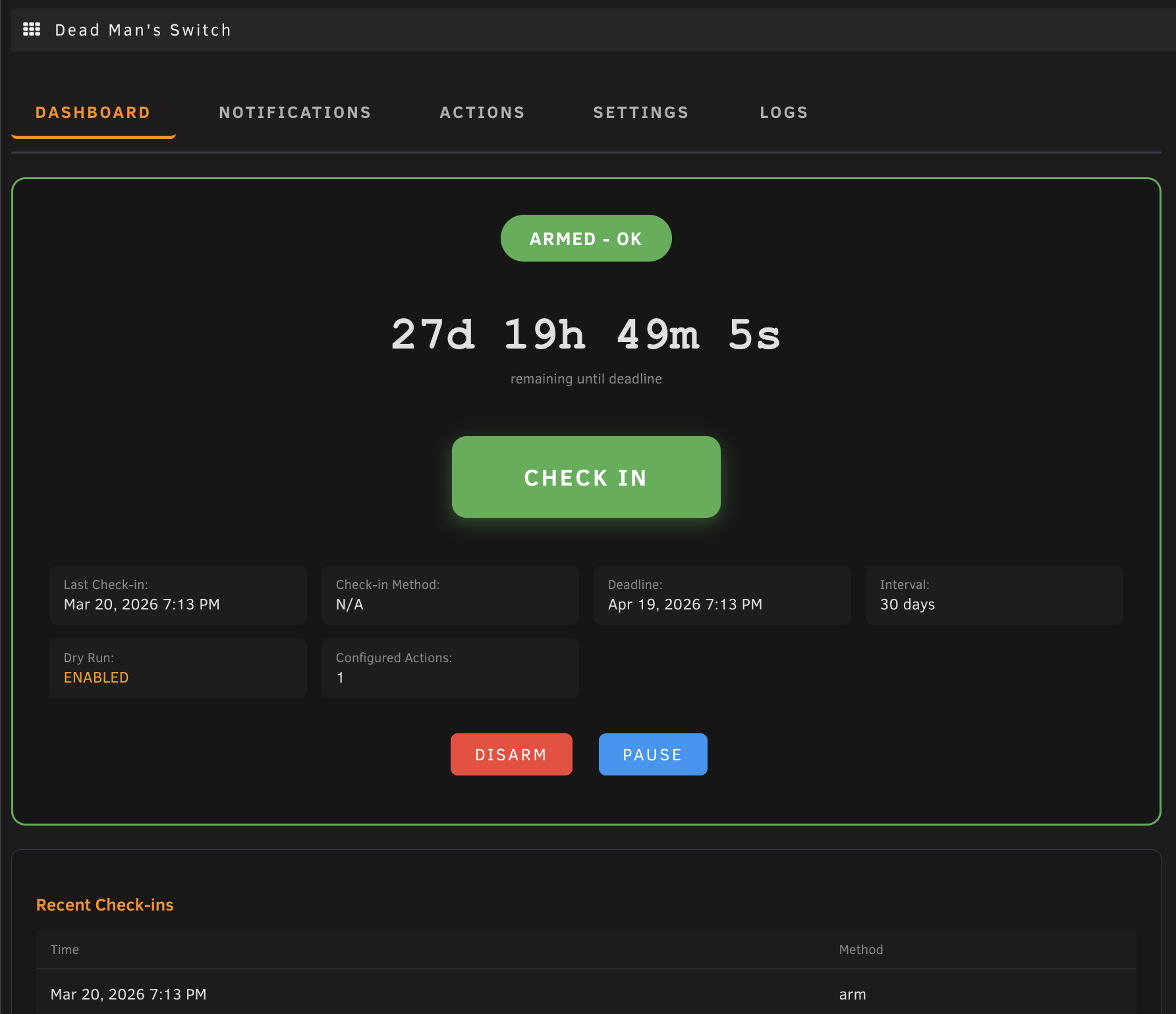
Plugin Dashboard
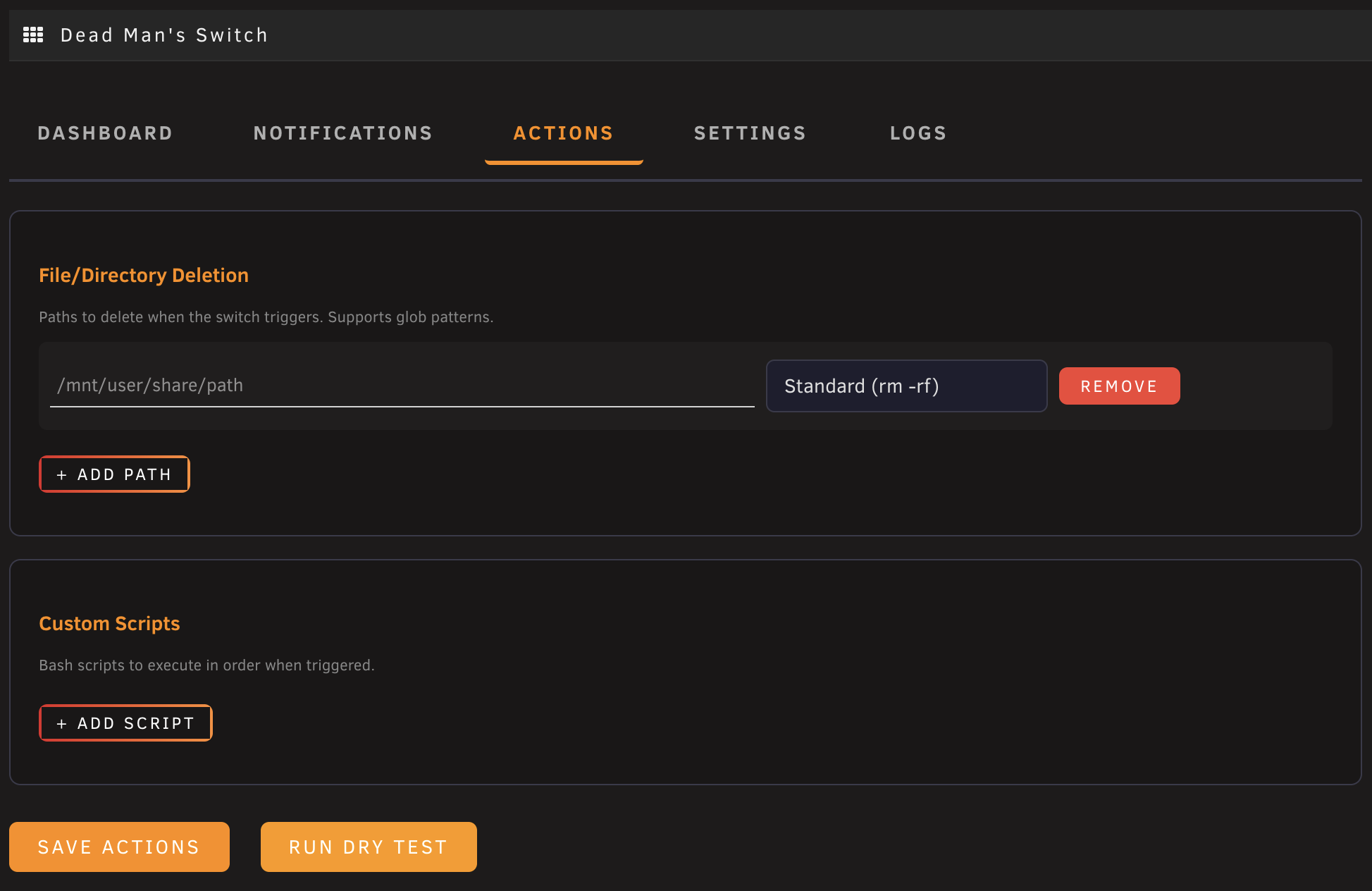
Actions Configuration
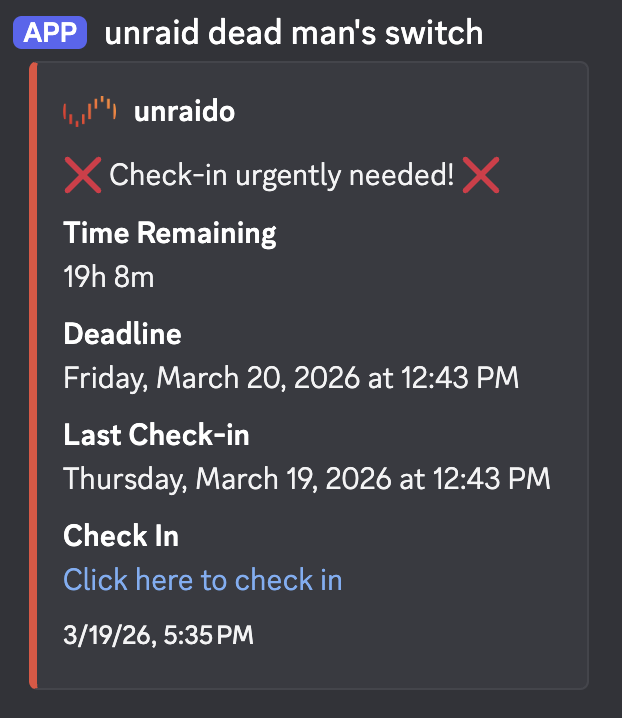
Discord Notifications
Features
- Configurable check-in interval — set how many days between required check-ins (default: 30)
- Grace period — extra hours after the deadline before actions trigger
- Trigger actions — delete files/folders (with glob pattern support) or run custom bash scripts
- Dry run mode — test your entire configuration safely before going live; run a dry test from the Actions tab to see exactly what would happen without actually deleting anything
- Arm / Disarm / Pause controls — full lifecycle management
- Double-miss protection — optionally require two consecutive missed deadlines before triggering
- Dashboard tile — real-time countdown on the Unraid dashboard
Notifications
- Discord webhooks — rich embeds with severity-matched colors and one-click check-in links
- Custom webhooks — send notifications to any HTTP endpoint with configurable method and body template
- Uptime Kuma — push heartbeat monitoring so you can track check-in health externally
- Warning thresholds — configurable alerts at 50%, 75%, 90%, and 95% of elapsed time
External API
- Runs on port 3801, separate from Unraid's authenticated nginx
- API key protected endpoints for remote check-ins and status queries
- Token-based quick check-in URLs (included in Discord notifications)
- CORS enabled for Home Assistant and browser clients
Installation
In the Unraid web UI, go to Plugins > Install Plugin and paste:
https://raw.githubusercontent.com/dereckhall/unraid-deadmans-switch/main/plugin/deadman-switch.plg
Requires Unraid 6.12.0 or later.
Configuration
After installation, go to Settings > Dead Man's Switch. The UI has five tabs:
| Tab | Description |
|---|---|
| Dashboard | Live countdown, check-in button, arm/disarm/pause controls |
| Notifications | Discord webhooks, custom webhooks, Uptime Kuma push URL, warning thresholds |
| Actions | File/folder deletions (glob patterns supported) and custom script executions, with dry run testing |
| Settings | Check-in interval, grace period, cron frequency, dry run toggle, API key management |
| Logs | Recent activity and check-in history |
API Reference
The plugin runs a lightweight API server on port 3801 for remote access without Unraid authentication.
| Endpoint | Auth | Description |
|---|---|---|
?action=health |
None | Health check, returns version |
?action=status&key=KEY |
API key | Current switch status and countdown |
?action=checkin&key=KEY |
API key | Perform a check-in |
?action=get_state&key=KEY |
API key | Full state JSON |
?action=quickcheckin&token=TOKEN |
Token | One-click check-in (for notification links) |
# Check status
curl "http://YOUR_UNRAID_IP:3801/?action=status&key=YOUR_API_KEY"

# Perform a check-in
curl "http://YOUR_UNRAID_IP:3801/?action=checkin&key=YOUR_API_KEY"
Home Assistant Integration
The external API makes it easy to integrate with Home Assistant using REST sensors, automations, and actionable notifications.
REST sensor + check-in command
Add to configuration.yaml, then restart Home Assistant (or reload YAML configuration):
rest:
  - scan_interval: 60
    resource: "http://YOUR_UNRAID_IP:3801/?action=status&key=YOUR_API_KEY"
    method: GET
    sensor:
      - name: "DMS Status"
        unique_id: "dms_status"
        value_template: "{{ value_json.status }}"
        json_attributes:
          - armed
          - paused
          - dry_run
          - warning_level
          - days_remaining
          - time_remaining_display
          - last_checkin
          - next_deadline
          - elapsed_pct
          - checkin_interval_days

rest_command:
  dms_checkin:
    url: "http://YOUR_UNRAID_IP:3801/?action=checkin&key=YOUR_API_KEY"
    method: GET
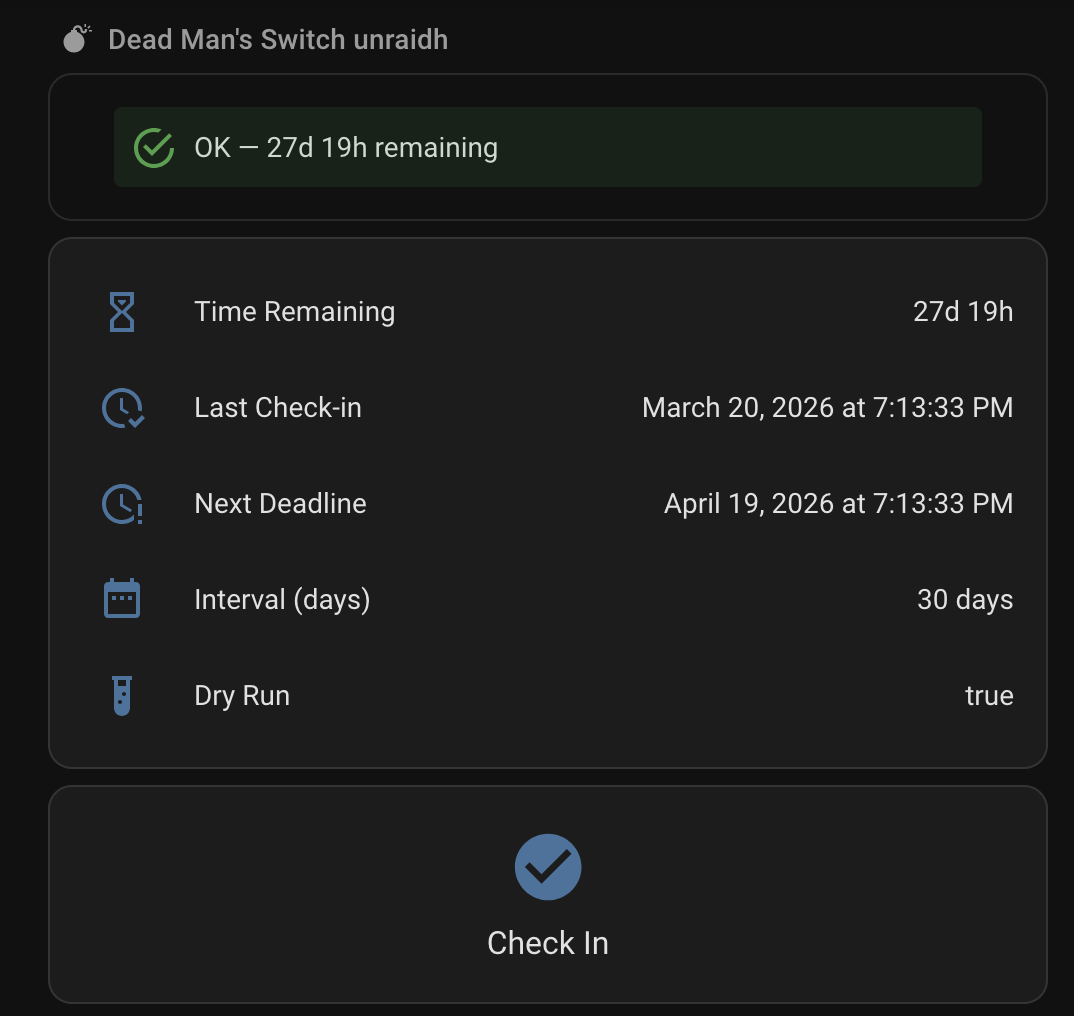
Status card and check-in button
Add these cards to your dashboard via Dashboard → Edit → Add Card → Manual. Stacking a few small cards gives a clean status readout plus a one-tap check-in.
A markdown card turns the raw status (e.g. armed_ok) into a colored alert with the time remaining:
type: markdown
content: >
  {% set s = states('sensor.dms_status') %}
  {% set remaining = state_attr('sensor.dms_status', 'time_remaining_display') %}
  {% set info = {
    'armed_ok': {'label': 'OK - ' ~ remaining ~ ' remaining', 'type': 'success'},
    'armed_reminder': {'label': 'Reminder - ' ~ remaining ~ ' remaining', 'type': 'warning'},
    'armed_warning': {'label': 'Warning - ' ~ remaining ~ ' remaining', 'type': 'warning'},
    'armed_critical': {'label': 'Critical - ' ~ remaining ~ ' remaining', 'type': 'error'},
    'grace_period': {'label': 'Grace Period - ' ~ remaining ~ ' remaining', 'type': 'error'},
    'triggered': {'label': 'TRIGGERED - deleted files', 'type': 'error'},
    'paused': {'label': 'Paused - ' ~ remaining ~ ' remaining', 'type': 'success'},
    'disarmed': {'label': 'Disarmed', 'type': 'success'}
  } %}
  {% set i = info.get(s, {'label': s, 'type': 'info'}) %}
  <ha-alert alert-type="{{ i.type }}">
  {{ i.label }}
  </ha-alert>
An entities card shows the details:
type: entities
entities:
  - entity: sensor.dms_status
    type: attribute
    attribute: time_remaining_display
    name: Time Remaining
    icon: mdi:timer-sand
  - entity: sensor.dms_status
    type: attribute
    attribute: last_checkin
    name: Last Check-in
    icon: mdi:clock-check-outline
  - entity: sensor.dms_status
    type: attribute
    attribute: next_deadline
    name: Next Deadline
    icon: mdi:clock-alert-outline
And a button card for the check-in. It uses a confirmation prompt so an accidental tap won't reset the timer:
type: button
name: Check In
icon: mdi:check-circle
tap_action:
  action: perform-action
  perform_action: rest_command.dms_checkin
  confirmation:
    text: Are you sure you want to check in to the Dead Man's Switch?
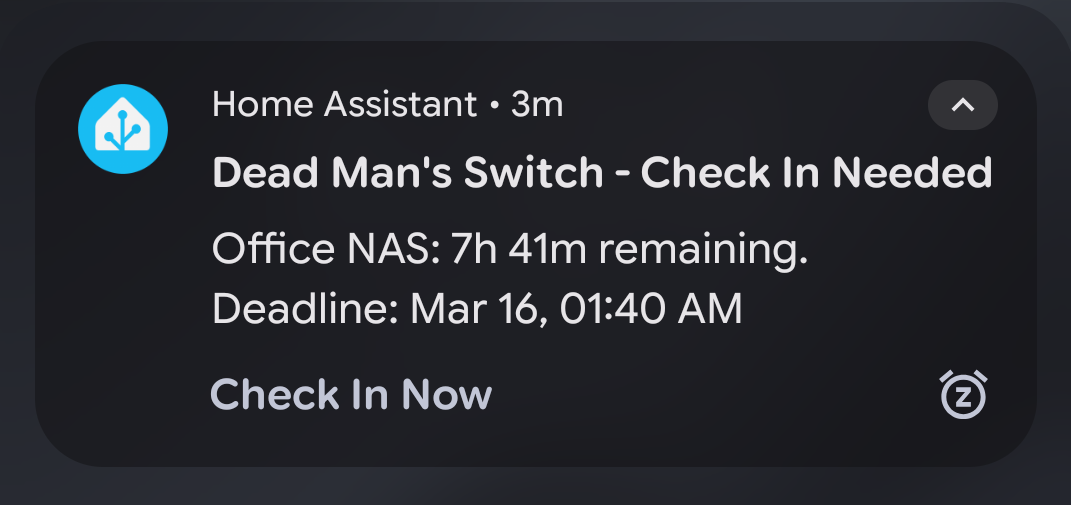
Tap the button, confirm, and it hits the check-in endpoint and resets your timer. The sensor refreshes on its next poll (every 60 seconds above). You can fire the same rest_command.dms_checkin from an automation or an actionable mobile notification to get a check-in button right on your phone's lock screen when the timer runs low.
How It Works
- Arm the switch and perform your first check-in
- A cron job runs periodically (default: every 60 minutes) to evaluate the countdown
- As the deadline approaches, notifications fire at configurable warning thresholds
- If you check in before the deadline, the timer resets
- If the deadline passes (plus grace period), configured trigger actions execute
- The API server self-heals — if the process dies, the cron job restarts it
Troubleshooting
API server not running
The external API server on port 3801 should auto-start on install and self-heal via the cron job. If it's not running:
# Check if the process is alive
ps aux | grep "external-api.php" | grep -v grep

# Manually start it
/usr/local/emhttp/plugins/deadman-switch/scripts/start-api.sh

# Check for port conflicts
lsof -i :3801
Cron job not firing
The plugin installs a cron file at /boot/config/plugins/deadman-switch/deadman-switch.cron. If notifications or countdown checks aren't happening:
# Verify the cron file exists and has content
cat /boot/config/plugins/deadman-switch/deadman-switch.cron

# Rebuild cron from the plugin's cron file
/usr/local/sbin/update_cron
Discord notifications not sending
- Verify your webhook URL is correct in the Notifications tab
- Use the Test button in the UI to send a test notification
- Check the Logs tab for any error messages
- Ensure your Unraid server has outbound internet access
Actions not triggering (or triggering unexpectedly)
- Make sure Dry Run mode is off in the Settings tab if you want real execution
- Use the Dry Test button on the Actions tab to preview what would happen
- Glob patterns (
*) do not match dotfiles/dotfolders — this is intentional for safety - Check the Logs tab for trigger execution details
Quick check-in link not working
The one-click check-in URL in Discord notifications uses port 3801 and requires direct network access to your Unraid server. It won't work through reverse proxies that don't forward port 3801. Ensure the link IP/hostname is reachable from where you're clicking it.
Plugin not updating
GitHub CDN can cache the PLG file. To force a fresh install:
curl -H 'Cache-Control: no-cache' -o /tmp/deadman-switch.plg \
  https://raw.githubusercontent.com/dereckhall/unraid-deadmans-switch/main/plugin/deadman-switch.plg
plugin install /tmp/deadman-switch.plg
License
MIT License — see LICENSE for details.
Categories
Download Statistics
Downloads by Month
Related apps
Explore more like this
Explore allLinks
Details
https://raw.githubusercontent.com/dereckhall/unraid-deadmans-switch/main/plugin/deadman-switch.plg