

Container View
Plugin from poozer
Overview
Readme
View on GitHubContainer View
This is a vibe-coded / AI-assisted project, built to scratch my own itch on my Unraid box. Sharing it in case it's useful to someone else — no guarantees beyond "works on my server."
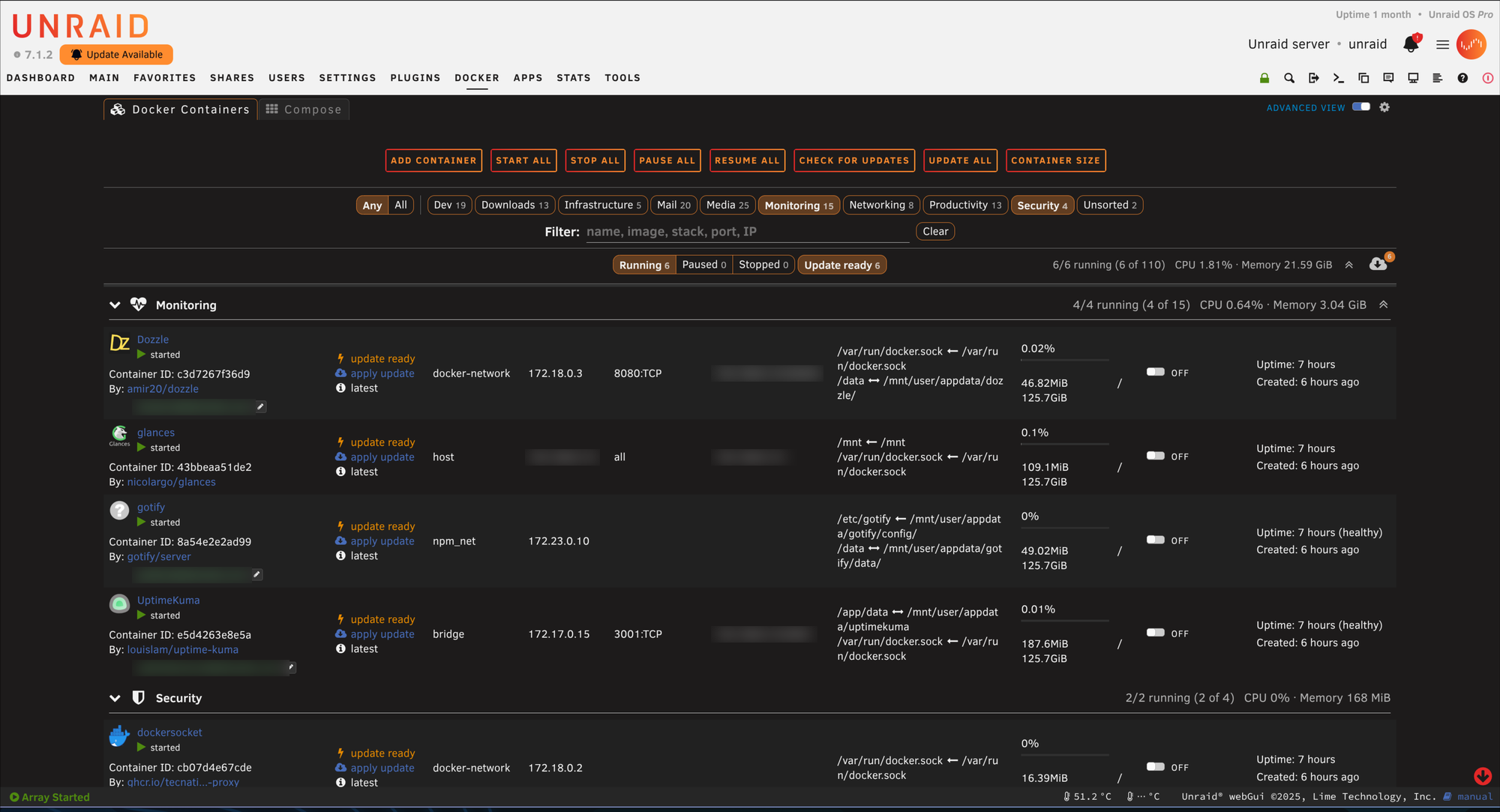
An Unraid plugin that groups and filters the Docker containers list, and the Dashboard's Docker tile, by category. There are no folders to maintain: a container's category comes from a label on the container or from a rule. Unraid's own container rows are kept exactly as they are, so other plugins that work on the Docker page keep working.
Requires Unraid 7.0 or later.
Install
- In the Unraid web UI, open Plugins → Install Plugin.
- Paste this URL and click Install:
https://raw.githubusercontent.com/marching-poozer/unraid-container-view/main/containerview.plg - Open the Docker tab; the list is now grouped. Settings are in the cog beside Basic / Advanced View.
Updates appear on the Plugins page like any other plugin. To uninstall, remove it there; your settings and rules stay on the flash.
Categories
- Label: set
net.unraid.docker.categoryon a container. Separate several categories with commas, e.g.media,downloads.- In a compose file, add it under the service's
labels:. - For a template container, add a Label config with that key.
- In a compose file, add it under the service's
- Rules: for containers you'd rather not relabel, add a rule from the
container's (or stack's) menu with Create category rule…, or from the
cog's Category rules… list.
- A rule matches on the compose stack, the container name, or the image.
Use
*and?as wildcards. - Containers in a compose stack are covered by stack rules only, so a whole stack is categorised together.
- A rule matches on the compose stack, the container name, or the image.
Use
- Which wins: set by the cog's Category precedence. With Labels win (the default), rules only apply to containers without a label. With Rules win, a matching rule replaces the label.
- Where a container appears: in one group, its first category. Its other categories show as tags. Containers with no category go to Unsorted.
- Creating a category: a category exists as soon as a label or rule uses it. Names are case-insensitive, up to 40 characters, and can't contain commas.
Docker tab
- Groups: one per category, A→Z, with Unsorted last. Each group shows
its icon, name, "N/M running" and, in Advanced view, CPU and memory.
- Click a group's icon or name for Start / Stop / Restart / Pause / Resume all, Update all and Change icon….
- Compose stacks: shown as one collapsible row with "N of M running".
The stack's menu has the same actions plus its category rule.
- Use icon for stack in a member container's menu picks the stack's icon.
- Sticky headers: the current group's header, and an open stack's header, stay pinned under the filter bar while their containers scroll past.
- Filter bar (stays at the top):
- Any / All category chips;
- a text filter for name, image, stack, category, port or IP (press
/to jump to it); - Running | Paused | Stopped (one at a time) and Update ready;
- "N/M running", expand / collapse all, and an update button.
- Counts: every chip's count is how many containers selecting it would show.
- Update button: its badge counts the containers listed that have an
update ready. It opens a picker where you untick any to skip. The update
runs in the background by default.
- Compose containers are listed but skipped: update their stack instead.
- Your view is remembered: which groups and stacks are collapsed, and the selected chips, are kept per browser.
Dashboard tile
The Dashboard's Docker Containers tile is grouped the same way.
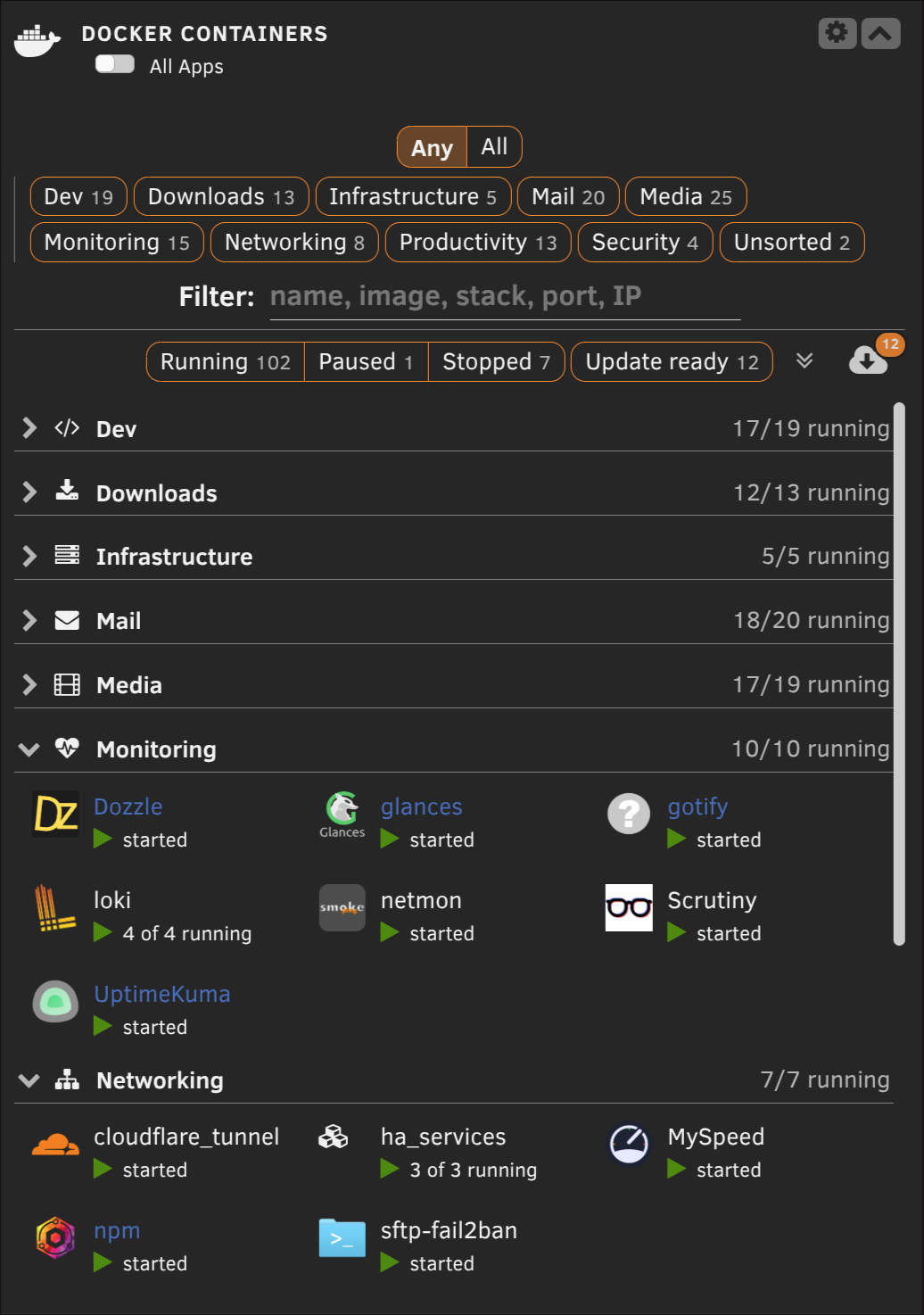
- Sections: one per category, each with its icon, name and count. Click the icon or name for the group menu, and use the chevron or expand / collapse all to collapse sections.
- Stacks: each compose stack shows as a single icon with "N of M running" and opens the stack menu.
- Filters: the tile has its own filter row, with the same chips, text filter and update button as the tab, remembered separately.
- Scrolling: the sections scroll inside the tile (up to half the window height), with each section's heading pinned while it's in view.
- Shared with the tab: collapse state.
Settings
The cog beside Basic / Advanced View on the Docker tab has:
- Enabled: turn off to get Unraid's own Docker list and Dashboard tile back. Only the cog stays, so you can turn it back on.
- Unraid buttons: put Add Container, Start All and the rest at the top (above the filter bar) or at the bottom.
- Alignment: left, centred or right, for the filter bar and those buttons.
- Category precedence and Category rules…: see above.
Settings, rules and icon choices are stored on the flash in
/boot/config/plugins/containerview/ and are kept if the plugin is removed.
Building a release
./build.sh <version> builds the package into archive/ and stamps
containerview.plg. Unraid compares versions as plain text, so keep
same-day suffixes the same width (.9 is followed by .91, not .10).
Development notes, the native-parity rule and the tests are in
CLAUDE.md.
License
MIT - see LICENSE.
Media gallery
Categories
Download Statistics
Downloads by Month
Related apps
Explore more like this
Explore allDetails
https://raw.githubusercontent.com/marching-poozer/unraid-container-view/main/containerview.plg