

Compressatorium
Docker app from pacnpal's Repository
Compressatorium is a multi-tool game disc image converter with a web UI.
Overview
Readme
View on GitHubCompressatorium
Fork notice: This is a fork of MarcTV's Docker CHD Converter. It adds a Web UI and more conversion tools on top of the original CLI converter. Thanks to MarcTV for the original.
A game image converter that wraps twelve tools: CHDMAN (MAME), dolphin-tool (Dolphin Emulator), z3ds_compressor (Nintendo 3DS), nsz (Nintendo Switch), maxcso (PSP/PS2 CSO/ZSO), 7z (handheld ROM archives), makeps3iso (PS3 decrypted folder → ISO), nkit2iso (NKit-shrunk GameCube/Wii image → ISO), JWUDTool (Wii U WUD ↔ WUX), extract-xiso (Xbox / Xbox 360 disc image → XISO), rom-converto (the converter RomM ships; Xbox 360 disc image → ZAR, PSP PBP → ISO, 3DS CIA ↔ CCI), and unar (a multi-part RAR set from usenet → the one file inside it). It also repacks eXoDOS game zips for RomM's in-browser DOS player. Pick the tool that matches your files and convert from a browser, or run it headless from the command line.
Features
- Thirteen tools in one. CHDMAN, Dolphin, 3DS, Switch, CSO/ZSO, handheld ROM (GB, GBA, DS, NES, SNES, N64, Mega Drive and more), PS3 ISO (a decrypted PS3 folder packed to
.iso), NKit (an NKit-shrunk GameCube/Wii image restored to a full.iso), Wii U (WUD ↔ WUX), Xbox (a full Xbox / Xbox 360 disc image trimmed to XISO), or rom-converto (an Xbox 360 disc image packed to ZAR for Xenia, a PSP PBP turned back into its ISO, or a 3DS CIA converted to CCI and back), eXoDOS (a DOS game zip repacked for RomM), or RAR sets (a multi-part RAR set extracted to the one file inside it), chosen per job. - Web UI for browsing files and converting them. The tool picker filters the whole interface down to the tool you chose.
- Nested directories and archives. Browse subfolders and look inside ZIP, 7z, and RAR archives.
- Multiple volume mounts so you can keep separate game libraries separate.
- File detection that works out which files each tool can convert.
- Existing-output detection with skip, rename, or overwrite.
- Delete-on-verify. Optionally remove the source once the output passes its check. Off by default. By default the output must be Round-tripped: it decodes to the same content as the source. CHDMAN Create LD offers no delete-on-verify.
- Progress tracking through a live job queue.
- File info for CHD, Dolphin, 3DS, Switch, CSO, handheld ROM, NKit, Wii U, Xbox, and ZAR files.
Supported Conversions
| Tool | Platform / Use | Input Formats | Output Formats | Compression Control | External Keys | Binary |
|---|---|---|---|---|---|---|
| CHDMAN | CD / DVD / HD / LaserDisc discs | .gdi, .cue, .bin, .iso, .chd | .chd, .cue, .bin, .iso, .raw, .avi | Codec list (zstd, zlib, …) | None | mame-tools |
| Dolphin | GameCube / Wii discs | .iso, .wbfs, .rvz, .wia, .gcz | .rvz, .wia, .gcz, .iso | Codec + numeric level | None | dolphin-emu |
| 3DS | Nintendo 3DS ROMs | .cci, .cia, .3ds, .cxi, .3dsx, .zcci, .zcia, .z3ds, .zcxi, .z3dsx | .zcci, .zcia, .z3ds, .zcxi, .z3dsx, .cci, .cia, .3ds, .cxi, .3dsx | None (fixed) | None | z3ds_compressor |
| Switch | Nintendo Switch dumps | .nsp, .xci, .nsz, .xcz | .nsz, .xcz, .nsp, .xci | Layout + level | Yes (prod.keys) |
nsz |
| CSO | PSP / PS2 game images | .iso, .cso, .zso, .dax | .cso, .zso, .dax, .iso, .chd | Effort preset (Fast/Default/Max); the cso_to_chd chain ignores it and uses chdman defaults |
None | maxcso (+ chdman for cso_to_chd) |
| Handheld ROM | Cartridge ROMs (Nintendo, Sega, and other 8/16-bit systems) | .gb, .gbc, .gba, .nds, .nes, .sfc, .smc, .z64, .n64, .v64, .sms, .md, .gen, .smd, .gg, .vb, .ws, .wsc, .ngp, .ngc, .lnx, .d64, .t64, .prg, .a26, .a78, .7z, .zip | .7z, .zip, and the original ROM | Effort preset (Fast/Default/Max) | None | 7z (p7zip-full) |
| PS3 ISO | Decrypted PS3 disc / JB folders | a folder containing PS3_GAME/ (plus PS3_DISC.SFB for disc rips) |
.iso (optional 4 GB FAT32 split) | None (fixed) | None | makeps3iso |
| Wii U | Wii U disc images | .wud, .wux | .wux, .wud | None (fixed); a verify-after-conversion toggle | None | JWUDTool (Java) |
| NKit | NKit-shrunk GameCube / Wii discs | .nkit.iso, .nkit.gcz | .iso, .rvz (via the nkit_to_rvz chain) |
None (fixed) | None | nkit2iso (+ dolphin-tool for nkit_to_rvz) |
| Xbox | Xbox / Xbox 360 disc images | .iso (only images holding an Xbox filesystem) | .xiso.iso | None (fixed) | None | extract-xiso |
| rom-converto | Xbox 360 disc images for Xenia; PSP PBPs; 3DS CIA and CCI | .iso, .xiso.iso (only images holding an Xbox 360 filesystem), .pbp (PSP games only), .cia, .cci, .3ds | .zar, .iso, .cci, .cia | None (fixed) | None (keys built into rom-converto; the app never downloads or ships any) | rom-converto v0.24.0 |
| eXoDOS | eXoDOS DOS game zips, for RomM | .zip (only zips holding one game folder that has a template or a DOS program) | .dosz | None (fixed) | Nothing to set: templates are found in your eXoDOS !dos folder |
none (built in) |
| RAR sets | Multi-part RAR sets (usenet downloads), RAR4 and RAR5 | the set's first volume: .rar (with .r00, .r01, …) or .part01.rar (with .part02.rar, …) | the one file inside the set, under its own name | None (fixed) | None | unar |
Most conversions above are lossless and fully reversible, including 3DS, which
now decompresses back to the original ROM as well. This uses
z3ds_compress (a fork that adds a
decompression mode and .cxi/.3dsx support to the original
energeticokay/z3ds_compress).
The compressed .z3ds can be read directly by Azahar, or restored to
.cci/.cia/.3ds with z3ds_decompress; see
Nintendo 3DS Support.
PS3 ISO is the clearest exception to the round trip. It packs a decrypted PS3
folder into a .iso that RPCS3 mounts directly; there is no reverse mode back to
a folder, and it never deletes the source. See
PlayStation 3 Support.
ZAR is the other one-way format. A ZAR holds an Xbox 360 game's files, not the disc, and nothing turns it back into an ISO, so the ZAR mode never deletes its source and says why. See Xbox 360 ZAR Support.
The CSO tool also has a one-step chain, cso_to_chd, that runs a .cso/.zso/.dax
through maxcso to a temporary .iso and then chdman to a .chd in a single job.
The disc image survives losslessly, but this one changes container: extracting the
resulting .chd gives you an .iso, not the original .cso/.zso/.dax, so
delete-on-verify here trades the compressed source for a CHD. See
PSP / PS2 Support.
NKit is one-directional for the opposite reason: this app never writes NKit,
it only restores it. nkit_restore rebuilds the original .iso — bit-exact and
CRC32-verified, except for a Wii image missing its update partition (see
NKit Support) — which you can then hand to Dolphin or
CHDMAN like any other disc image — or use the
one-step nkit_to_rvz chain, which restores and compresses to RVZ in a single job
so the full-size ISO never lands in your library. See
NKit Support.
Each tool's full mode list (e.g. CHDMAN's createcd/extractcd, CSO's
cso2_compress, the ROM packer's romz_7z/romz_zip/romz_extract, the PS3
packer's folder_to_iso, and NKit's nkit_restore/nkit_to_rvz) is in
Supported Operations.
Archive inputs: most input formats above can be converted straight from inside a ZIP, 7z, or RAR archive, including 3DS ROMs, Dolphin game images, Switch dumps, Wii U images and NKit images. Browse into the archive, pick a member, and convert. This even covers CHDMAN's extract modes pulling a
.chdout of an archive and decompressing it back to a game image. A few exceptions: CHDMAN's copy/recompress mode is not offered from an archive (recompressing an already-finished.chdwould be a pointless round trip); Handheld ROM does not accept loose ROMs from inside an archive — its.7z/.zipare the packed product, so to unpack one select the archive file itself and runromz_extract, rather than browsing into it for a member; and PS3 ISO takes a folder, not a file, so it is never an archive input (a zippedPS3_GAMEtree can't be converted from inside an archive). The Xbox, rom-converto, eXoDOS and RAR sets tools don't take a member of an archive either: select the file itself.
MAME Redump DAT Integration
Compressatorium can sync MAME Redump DAT files (Logiqx XML) in one click and check your compressed files against known-good Redump hashes. The same hashes let tools like Hasheous and RomM match your library.
- One-click sync: Click "Sync from MAME Redump" in the DAT panel to download all ~69 DATs automatically from GitHub
- Auto-sync: Set
MAMEREDUMP_AUTO_SYNC=trueto sync DATs on container startup when none are loaded - CHD files: Matched via the embedded header / data SHA1 (codec-independent, works with any compression setting on chdman 0.285)
- Dolphin RVZ/WIA/GCZ: Matched via the game image's content SHA1 reconstructed by
dolphin-tool verify— the same hash MAME Redump records for GameCube/Wii discs — so compressed Dolphin outputs match without the container bytes having to be identical - Everything else (3DS/Switch/CSO·ZSO·DAX/
.iso/.bin): Matched via file-level SHA1 - Library scan: The background scan discovers and DAT-matches tool outputs by extension (CHD, Dolphin RVZ/WIA/GCZ, 3DS, Switch, CSO/ZSO,
.iso, and the.bindata track from CHDMAN extract), not just CHDs, so non-CHD libraries get cached match results too. A single PS3-packed.isois matched like any other.iso; a 4 GB split set is not, since its.iso.0/.iso.1parts aren't scanned extensions. Heavy Dolphin disc-hashing during the scan honorsMATCH_MAX_FILE_SIZEand stops promptly if you cancel the scan. - Sync Redump in one click: Get Redump lists for my consoles in Settings → Game identification downloads Redump's DAT for each disc Platform in your Libraries (PlayStation, PS2, GameCube, Saturn, Dreamcast, Xbox and more), one request at a time. A system synced in the last day isn't asked again. DATs only: never keys, BIOS or games
- Import packs: Import game lists… takes several
.dat/.xmlfiles at once, and zips of them, such as No-Intro's daily pack (No-Intro's site can't be scripted, so download the pack there and drop the zip in). Re-importing a DAT replaces the older copy - DAT management: Import, list, reorder and delete DATs in Settings → Game identification
- From a shell:
compressatorium dat import PATH...andcompressatorium dat sync(see Command line) - Match badges: Files matching a DAT entry show a blue "DAT" badge in the file list
- Wider coverage without curating DATs: see Hasheous Integration to fall back on 14 preservation databases for anything your imported DATs don't recognise
Hasheous Integration (optional)
Hasheous is a hosted hash-lookup service run by the Gaseous project. It indexes 14 preservation databases and answers "what game is this hash?" for all of them at once. Turn it on and every hash your imported DATs don't recognise is looked up there, so your library gets identified without you curating DATs for every system you own.
Setup is one click. Open Settings → Connections in the web UI and tick
Identify games online (Hasheous) (the first visit asks once). It takes effect
immediately — no restart, no editing docker-compose.yml — and the choice is
saved, so it survives restarts. Turning it on checks that the server answers and
says so under the switch.
No account, no API key, no signup — the hash-lookup endpoint is public.
If you'd rather set it declaratively (a fresh container that should come up with it already on), the environment variable does the same thing — but it has to reach the process, so put it where the process will actually see it.
In docker-compose.yml, add it to the service's environment: list. That list
is enumerated rather than inherited, so a value in your shell or in a .env
file will not reach the container on its own:
    environment:
      - COMPRESSATORIUM_HASHEOUS_ENABLED=true
Running from a checkout, export it (or prefix the command) so the child process inherits it — a bare assignment on its own line sets a shell variable and launches nothing:
COMPRESSATORIUM_HASHEOUS_ENABLED=true ./run_dev.sh
# or, for the whole shell session:
export COMPRESSATORIUM_HASHEOUS_ENABLED=true
The UI toggle wins over the variable when both are set, and the panel tells you when that's the case.
What it covers
Redump · No-Intro · TOSEC · MAMERedump · MAMEArcade · MAMEMess · WHDLoad · RetroAchievements · FBNeo · PureDOSDAT · Pleasuredome · TotalDOSCollection · eXo · ScreenScraper
Because MAMERedump is among them, Hasheous is a strict superset of the DATs the one-click sync pulls — including the CHD header hashes that only MAMERedump records. Nothing you get today is lost by enabling it.
What you get per match
A local DAT hit tells you the game name and the ROM filename. A Hasheous hit carries considerably more. Everything except the link URLs is shown in the file-list badge tooltip; the tooltip names which databases list the game, and the URLs themselves are stored with the match and returned by the API:
| Field | Example |
|---|---|
| Game name | Jumpman Junior |
| ROM name | Jumpman Junior (1983)(Epyx).bin |
| Source DAT | Redump / No-Intro / TOSEC / MAMERedump … — which database actually knew the hash |
| Platform | Commodore 64 |
| Publisher | Epyx |
| Year | 1983 |
| Region | US, EU, … (when the source records it) |
| Metadata links | IGDB, TheGamesDB, RetroAchievements, Wikipedia, LaunchBox, SteamGridDB |
The links are IDs and URLs into those databases, so a match is a jumping-off
point for artwork or achievements even though Compressatorium doesn't fetch
them itself (see What it deliberately does not do).
The file list shows which of those databases list the game; the URLs are in
the match payload from /api/dat/matches/lookup rather than being clickable in
the row, since the badge tooltip is a native one and can't hold anchors.
How a file gets matched
The order is fixed, and local always wins:
- Your imported DATs, using every hash the file can offer. A CHD reports both its header SHA1 and its data SHA1; a Dolphin RVZ/WIA/GCZ reports the reconstructed disc SHA1. All of them are checked locally first.
- Hasheous, only if none of them matched, and only if you enabled it.
So a library your own DATs already cover never makes a single network call, and a file your DATs can identify is never disclosed to a third party. Matching is also deterministic: the same file resolves the same way whether or not the network is healthy.
One exception, if you set MATCH_MAX_FILE_SIZE: a file over that cap is never
read, so its file-level hash cannot be computed or checked locally at all. Such
a file still gets looked up on whatever hashes it can offer for free (a CHD's
header and data SHA1s), because the cap means "don't read this file", not
"don't identify it". Leaving the cap unset restores the ordinary order for
those files — their own SHA1 is computed and checked against your DATs before
anything is sent — but it is not a way to keep large files off the network:
if your DATs don't know the file, its hashes still go to Hasheous like any
other. There is no size-based opt-out; the controls that actually stop a
disclosure are turning the fallback off, or pointing
COMPRESSATORIUM_HASHEOUS_URL at your own instance.
Results are cached in the local database, so a file is looked up once, not once per browse. If you enable Hasheous after files were already recorded as "no match", those old verdicts are automatically re-checked against the new source as you browse those files — the cached verdict records which source produced it, so it stops being accepted the moment a stronger one is available. Re-checking is lazy, not a library-wide sweep: a folder you never open keeps its old verdict until you open it, or until you run a rescan.
Badges
| Badge | Meaning |
|---|---|
| DAT (blue) | Matched one of your imported DATs |
| HASH | Matched via Hasheous — hover for platform, year, region and source DAT |
Privacy
Enabling this sends the SHA1 of your files (and nothing else — no filenames,
no paths, no account identifier) to whatever server COMPRESSATORIUM_HASHEOUS_URL
points at. That is why it ships off, and why nothing is transmitted at all
until you enable it — either with the switch in Settings → Connections or by setting
the variable. Requests are HTTPS-only, and a redirect that would
downgrade to plain HTTP is refused rather than followed.
If you'd rather not talk to a third party at all, Hasheous is open source and self-hostable — point the URL at your own instance and lookups stay on your network.
Behaviour when Hasheous is unreachable
A failed lookup is reported as an error, never recorded as "not in any DAT". A network blip therefore can't permanently mark your library unmatched; the affected files are simply retried next time.
To keep an outage cheap, the client stops calling out for 60 seconds after a failure. Without that, a 1,000-file scan against a dead endpoint would spend over four hours re-learning the same fact once per file.
A metadata scan that ran while Hasheous was unreachable says so on its final
line — … 12 not checked (Hasheous unreachable). The scan itself still
succeeds, because the metadata it collects is unaffected; without that count a
rescan during an outage would finish looking like a clean "nothing matched".
Those files are retried the next time you browse or rescan them.
Configuration
| Variable | Default | Purpose |
|---|---|---|
COMPRESSATORIUM_HASHEOUS_ENABLED |
false |
Starting state of the master switch. The switch in Settings → Connections overrides it and persists. |
COMPRESSATORIUM_HASHEOUS_URL |
https://hasheous.org |
Point at your own instance. Must be https. |
COMPRESSATORIUM_HASHEOUS_TIMEOUT |
15 |
Whole-request timeout in seconds, from the TCP connect to the last byte: every address the host resolves to (one budget between them, not one each), a proxy CONNECT tunnel, headers and body. Not per socket read, so a server or proxy dripping the response a byte at a time can't stall a scan. Two things sit outside the budget: name resolution — getaddrinfo runs before any socket exists, so a stalled resolver is bounded by /etc/resolv.conf instead — and a dripping TLS handshake, which gets the remaining budget as its socket timeout (a peer that stalls or dies mid-handshake is bounded) but not a per-record deadline, so a peer trickling handshake records can outlast it. Both raise eventually, and the 60s cooldown then opens. This call sits in the file-browse path, so keep it short. |
Legacy short names (HASHEOUS_ENABLED, HASHEOUS_URL, HASHEOUS_TIMEOUT) are
accepted as aliases.
Settings → Connections shows the live state: on or off, and whether Hasheous answered when it was turned on.
Changing COMPRESSATORIUM_HASHEOUS_URL re-checks previously-unmatched files
against the new server automatically — cached "no match" verdicts record which
server produced them, so pointing at a different instance doesn't leave you with
stale answers.
Scale
Hasheous has no bulk endpoint — its API accepts several hashes for one file, not a batch of files — so an uncached library costs at least one request per file.
A file that matches on its first candidate costs one request. Anything else costs more, because candidates are tried in order and each one is a request: a CHD offers a header SHA1 and a data SHA1, and since a CHD's own container bytes may also be indexed, a miss on both falls back to a file-level SHA1 — up to three requests, and three hashes disclosed, for one CHD. That ceiling applies whether the CHD ends up matching on a later candidate or not; a match only stops the requests that would have come after it. Formats with a single hash (ISO, 3DS, Switch, CSO) cost one either way. Dolphin RVZ/WIA/GCZ report one exhaustive disc hash, so they cost one and never fall back.
Responses are cached both locally and by Hasheous' CDN, so this is a one-time cost per file rather than a per-browse one. If you have a large uncached library, run the background library scan once and let it prime the cache rather than browsing folder by folder.
Importing a DAT, or syncing MAMERedump, does not re-send anything. The re-match those trigger runs against your local DATs only. A file the new DATs now identify has its badge upgraded from HASH to DAT; a file they still don't cover keeps the badge it already had. Nothing goes back out over the network, so a sync costs zero requests no matter how large your library is.
The one exception is a file that was previously recorded as no match anywhere. Those verdicts are dropped by the import (a new DAT can turn a miss into a hit), so the next time you browse such a file it is re-checked — locally first, then remotely if the local DATs still don't know it. That is one request at the moment you look at the file, not a burst of thousands at sync time.
What it deliberately does not do
- No cover art or descriptions. Hasheous proxies IGDB, TheGamesDB, GiantBomb and ScreenScraper, but those endpoints require a Hasheous client API key. Only the key-free hash lookup is used here. The metadata links above give you the IDs if you want to fetch artwork yourself.
- No submissions. Hasheous accepts hash corrections and dump reports; those endpoints also need an API key, and are not called.
- Nothing is uploaded about your library. Lookups are reads. Your file names, paths, and collection contents are never sent.
Installation
The Docker image is available from two registries:
Docker Hub
docker pull pacnpal/compressatorium
GitHub Container Registry
docker pull ghcr.io/pacnpal/compressatorium
Both registries provide identical images with multi-architecture support (linux/amd64 and linux/arm64).
Note: Use either registry: replace
pacnpal/compressatoriumwithghcr.io/pacnpal/compressatoriumfor the same image.
Available Tags
| Tag | Description |
|---|---|
latest |
Latest stable release |
beta |
Latest pre-release build (see warning below) |
X.Y.Z |
Specific stable version (e.g., 3.7.0) |
X.Y.Z-beta-N |
Specific pre-release build (e.g., 3.7.0-beta-3) |
sha-xxxxxxx |
Specific commit build |
Opting in to beta updates
To track pre-release builds, pull the :beta tag instead of :latest:
docker pull pacnpal/compressatorium:beta
Or pin to a specific pre-release (recommended if you want to control when you upgrade):
docker pull pacnpal/compressatorium:3.7.0-beta-3
Warning: beta builds can cause data loss. Pre-releases may carry unfinished migrations, experimental conversion logic, or breaking changes to the job database. Running a beta against a database that a stable release created can corrupt it or migrate it past the point of return, and downgrading back to
:latestafterwards is not supported. Before you pull:beta:
- Back up your SQLite database (
compressatorium.dbin your data volume) and any in-flight output files.- Prefer a separate data volume for beta testing rather than pointing a beta container at your production volume.
- Do not use beta builds for batches you cannot afford to redo.
Quick Start Guide
The app has four places, in the sidebar: Files, Libraries, Activity and Settings, plus Help.
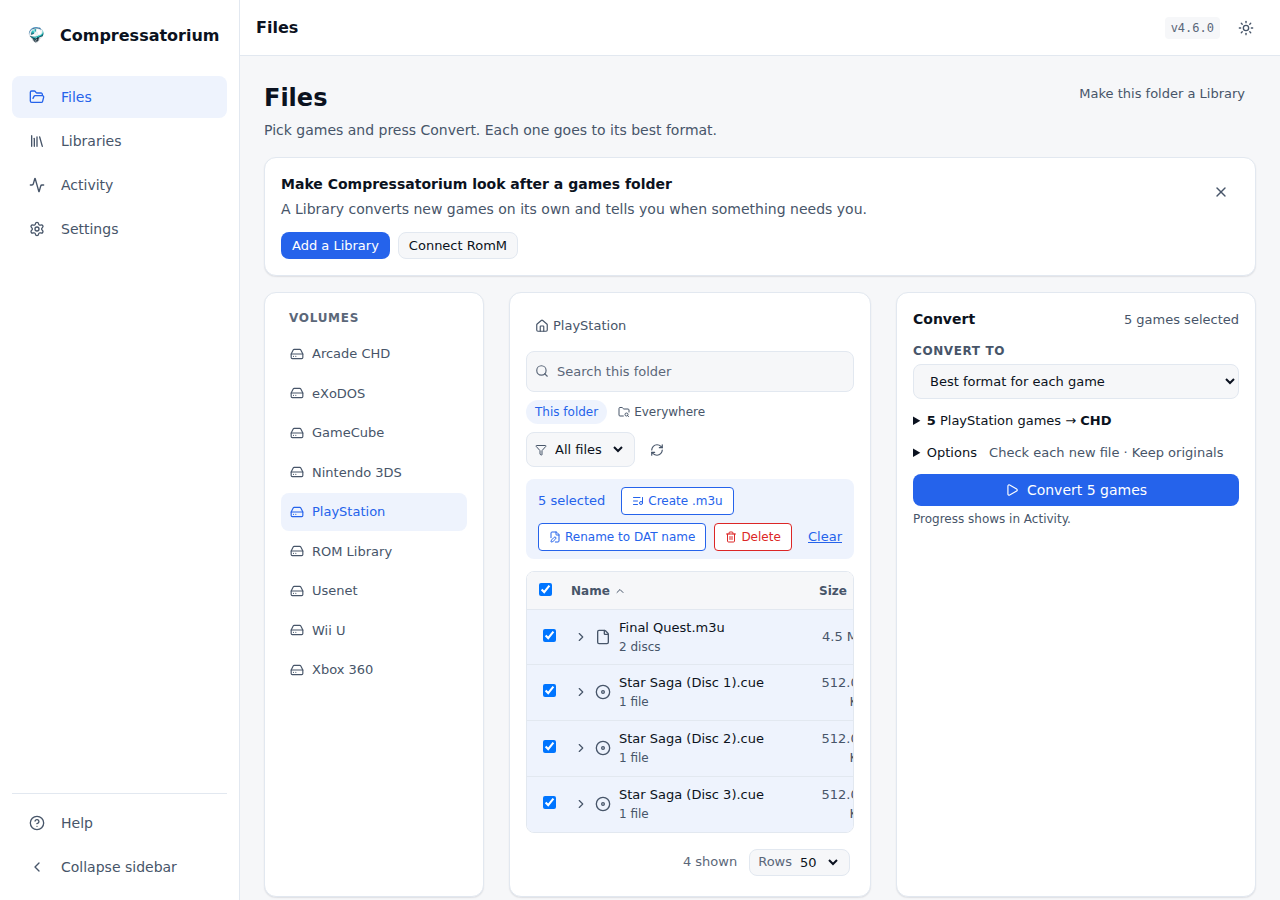
1. Open Files and pick your games
- The Drives on the left are the folders you gave the container (setup guide). Pick one, then click folders to browse.
- Tick the games you want to convert. Archives (.zip, .7z, .rar) open like folders.
- A decrypted PS3 folder is itself selectable when Convert to is the PS3 ISO format.
2. Look at the plan, and press Convert
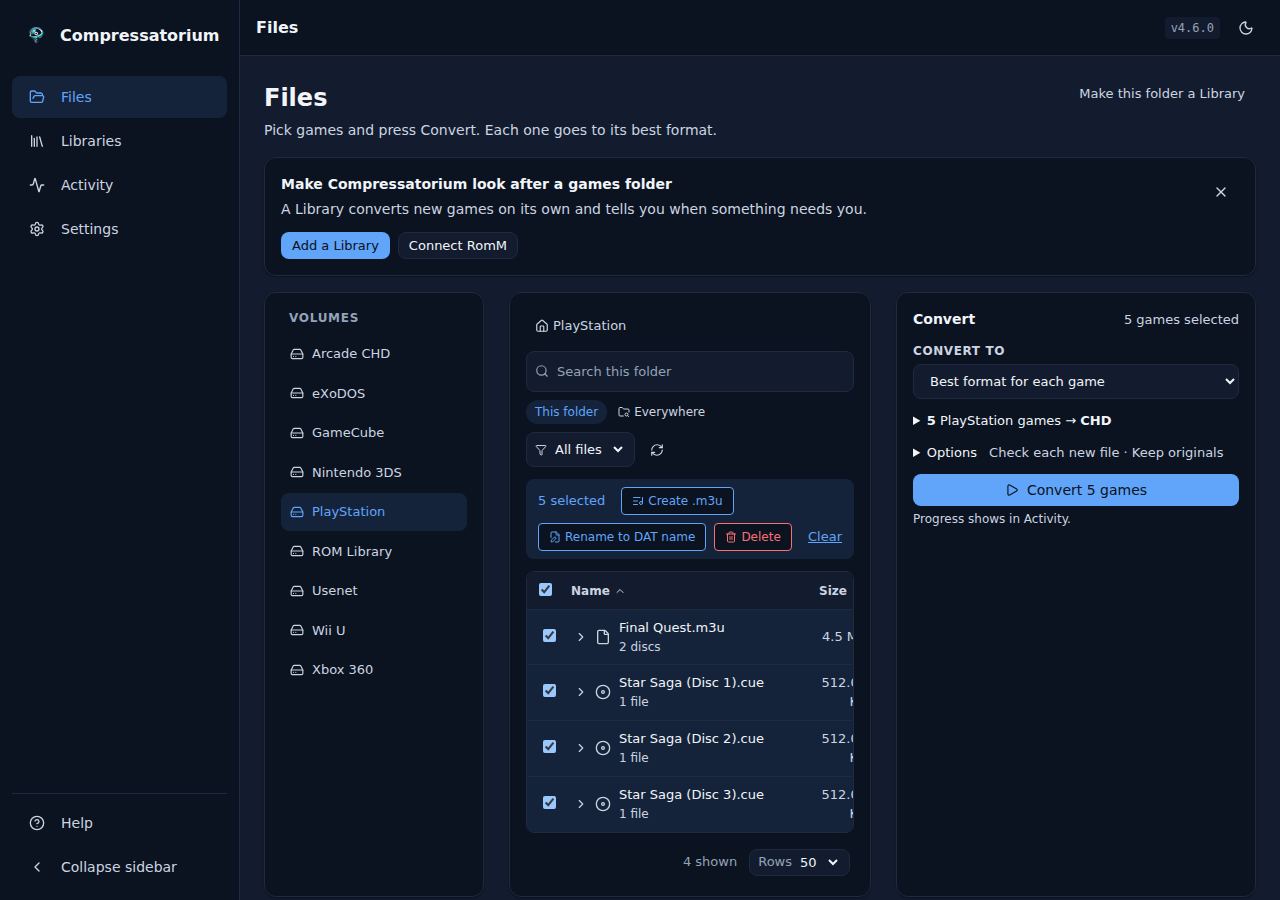
- Each game goes to its best format: the console comes from the game's header, or its folder name. The plan under Convert to shows it before anything runs: "12 PlayStation games → CHD", "3 GameCube games → RVZ", and any game it leaves alone, with why. Pick console fixes a game it couldn't place.
- A game made of several files (a
.cueand its tracks, a RAR set, a split Wii U dump, a playlist and its discs) is one row; its chevron shows the files. - Convert to names one format instead (CHD, RVZ, CSO, 7z, NSZ, WUX, ZAR, …), or unpacks one (BIN/CUE from CHD, ISO from RVZ, …).
- Options has the safety choices (check each new file, delete the original once it checks out), the compression for each format the plan makes (see Compression Settings) and where the new files go.
- Press Convert. The top bar shows what is converting and waiting; click it to open Activity, where Running, History and anything that needs you live.
| Light | Dark |
|---|---|
 |
 |
3. Let a Library look after a folder
- Libraries → Add a Library, or Make this folder a Library in Files, turns a games folder (or your RomM) into one that converts new games on its own.
Usage Guide
This is the global guide to the workflow and the features shared by every tool — browsing, modes, compression, verifying/deleting, archives, DAT matching, and troubleshooting. The per-tool sections further down only document what's specific to each tool (its formats, modes, env vars, and quirks). The same material is available in-app under Help.
Browsing and finding files
Your mounted volumes appear in the left panel — click a folder to enter, a
breadcrumb to go back. Search All walks the whole volume and lists every
convertible file at once; the filter dropdown narrows by extension. Both
update automatically as tools are added. System clutter (.DS_Store, AppleDouble
._* files, Thumbs.db, desktop.ini, @eaDir, #recycle, lost+found, …) is
hidden so listings stay clean.
Modes
Create makes a compressed file, extract/decompress gives the original back, copy
recompresses in place. Pick the create mode that matches the media — compressing a
PSP/PS2 image with createcd instead of createdvd won't come out right. The
full mode list per tool is in Supported Operations.
Compression settings
Every tool that compresses (CHD, Dolphin, Switch, CSO, handheld ROM) shares one compression picker in the convert panel. Wii U uses the same picker for its verify choice:
- Controls differ per tool. chdman takes a codec list, Dolphin and Switch take a single codec/layout plus a numeric level, and CSO and handheld ROM take a Fast/Default/Max effort preset (no numeric level). Decompress/extract modes and 3DS have no compression settings, so the picker is hidden for them.
- Your choice is remembered server-side per tool, so it follows you across sessions and browsers.
- Reset to default. A button under the picker restores that tool's codec/layout/level/effort to its default and confirms with a toast. It's disabled when you're already on the defaults.
- Strong defaults where it helps. CSO defaults to the Max preset (smallest
output); the other tools default to broadly-compatible settings (chdman
zlib, Dolphinzstd:19, Switchsolid:18). See also Compression Compatibility Tips.
Output location and duplicates
By default the output lands next to its source; set a custom output directory instead and it's created for you as long as it's inside a mounted volume. If a matching output already exists the app stops and asks rather than clobbering it: skip keeps the existing file, rename writes under a new name, overwrite replaces it.
The job queue
Every conversion and verify runs through one FIFO queue — one job at a time by default, which keeps the host responsive during big batches. Progress streams live, and jobs run on the server, so closing the browser (or rebooting your laptop) doesn't stop them; reopen the page and it reconnects. The queue has active / completed / failed tabs, plus Cancel All and Clear Done (both confirm first).
The Ledger
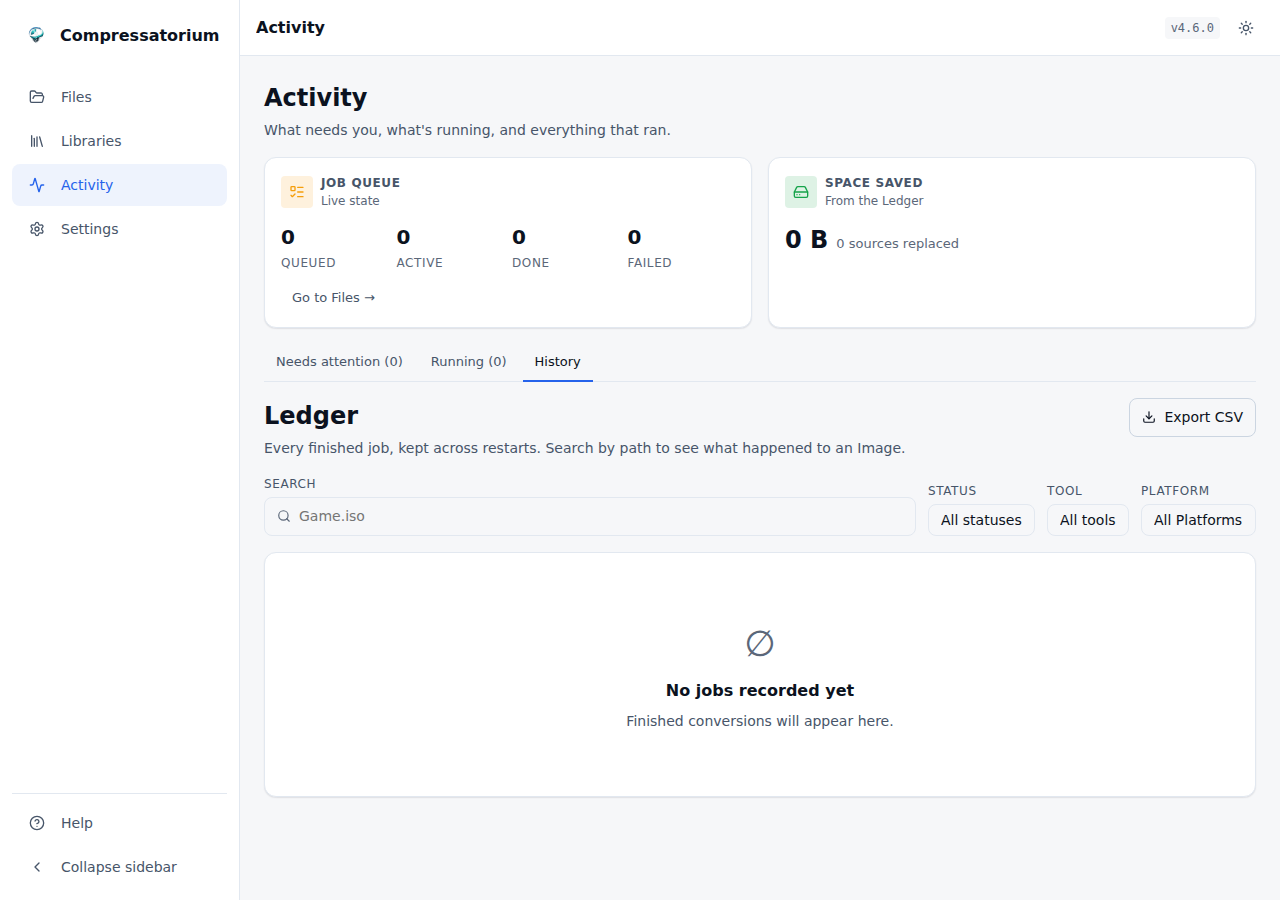
Every job that finishes, fails or is cancelled is written to the Ledger in the app database, so the history survives restarts. The dashboard's Space saved card totals the bytes reclaimed by conversions whose Source was deleted, by Platform and by output format, and Recent conversions lists the latest rows. Rows are kept forever by default; to prune, set a retention in days:
curl -X PUT http://localhost:8080/api/ledger/settings \
  -H 'Content-Type: application/json' -d '{"retention_days": 365}'
GET /api/ledger/recent?limit=N and GET /api/ledger/savings return the rows and
the totals as JSON. GET /api/ledger/totals counts every finished job by status;
the job queue lists only the most recent finished jobs (MAX_JOB_HISTORY), so
the dashboard's Done and Failed numbers come from here, and the Completed and
Failed tabs link to the Ledger for the rest.
Notifications
Open Settings → Notifications and add a webhook URL or an Apprise URL (Discord, Telegram, ntfy, email and many more) to hear about finished work. Nothing leaves the server until you add a destination. You get:
- one message when a sweep finishes, with its counts and the space it saved; anything that failed inside the sweep is listed in that message, not sent separately;
- one message when a job you started by hand fails, and, if you choose it, one when it succeeds;
- one message when a check Rule finds Images that are not Intact, listing them.
Each destination picks which of these messages it gets, so a phone can hear only about failures while a dashboard hears everything. A new destination gets all of them except the success message.
There are three destination types. A generic webhook gets a JSON POST:
{"event": "sweep_finished", "title": "Sweep finished: 3 converted, 1.2 GB saved",
 "message": "Queued 3. Space saved: 1.2 GB.",
 "data": {"queued": 3, "completed": 3, "failed": 0, "cancelled": 0, "saved_bytes": 1288490188,
          "failures": [], "errors": []}}
A generic webhook can have a signing secret. Each message then carries
X-Compressatorium-Signature: sha256=<hex>, the HMAC-SHA256 of the raw request
body keyed with the secret, so your endpoint can check the message came from
here. Like the URL, the secret is never shown again once saved. To check it:
import hashlib, hmac

def is_from_compressatorium(body: bytes, header: str, secret: str) -> bool:
    want = "sha256=" + hmac.new(secret.encode(), body, hashlib.sha256).hexdigest()
    return hmac.compare_digest(want, header)
A Discord webhook takes any https URL that speaks Discord's webhook format
(discord.com, or a compatible service) with no Apprise needed. It posts one embed
(green for a clean sweep, red for a failure, grey otherwise) with a few key/value
fields, a UTC timestamp, and allowed_mentions: {"parse": []} so nothing in a
filename can ping @everyone or a role. Long text is truncated to Discord's limits:
{"username": "Compressatorium", "content": "Job failed: Game.iso",
 "embeds": [{"title": "Job failed: Game.iso", "description": "createdvd: no disc",
             "color": 15158332, "fields": [{"name": "Mode", "value": "createdvd", "inline": true}],
             "timestamp": "2026-11-15T14:00:00+00:00"}],
 "allowed_mentions": {"parse": []}}
A 200 or 204 is success; a 429 is reported with its Retry-After and is not retried.
The URL is https-only for a Discord webhook. An Apprise URL covers everything
else Apprise supports. Use
Test to send a sample message and see the error if it fails. Saved URLs are
never sent back to the browser, since they often hold a token, and sends have a
10 second timeout and run in the background, so a slow or broken destination
never delays or fails a job. Messages to one destination are sent in order, so a burst all arrives. A webhook URL that redirects is treated as an error (Test shows "HTTP 30x"; save the final URL), and webhook delivery does not use HTTP_PROXY / HTTPS_PROXY. Webhooks need nothing extra. Apprise ships in the
Docker image; without it, Apprise URLs are refused with a message and webhooks
still work. The same destinations are available at /api/notifications.
The Ledger view in the sidebar lists every row, newest first, 25 to a page.
Search matches the Source or output path, and you can filter by status, tool and
Platform. Export CSV downloads every row matching the current search and
filters (the same query behind GET /api/ledger/export.csv). The list is also
available as JSON from GET /api/ledger?q=&status=&tool=&platform=&limit=&offset=,
which returns {"items": [...], "total": N}.
For a home-lab dashboard, GET /api/metrics serves Prometheus text:
compressatorium_jobs_total{status="completed"}   # also failed, cancelled
compressatorium_input_bytes_total                # Source bytes, completed jobs
compressatorium_output_bytes_total               # output bytes, completed jobs
compressatorium_queue_depth                      # queued or running now
/api/ledger/savings is the savings summary (totals by Platform and by format).
Both follow the API's auth rules: with COMPRESSATORIUM_ENABLE_AUTH on, give
Prometheus the token as a bearer token or as the basic-auth password. The job and
byte totals are true counters kept in their own table: they only go up, and a
retention prune of Ledger rows does not lower them. (They start from the Ledger's
contents when you upgrade.)
| Light | Dark |
|---|---|
 |
 |
Verifying and deleting safely
Converting never deletes anything on its own — the safe order is convert, verify,
then delete the source. Verify reads the whole output back and checks it against
the file's own hashes/CRC; a file that passes is Intact. With
delete-on-verify the source is removed only after the output passes, and
never if it fails. By default the bar is higher: the output must be
Round-tripped, meaning the content it decodes to matches the source. Dolphin
and CHDMAN compare disc SHA1s; CSO/ZSO/DAX, 3DS and WUX outputs are decoded and
hashed with no temp file; an NSZ is compared through the NSP SHA256 that
nsz -V rebuilds (an XCZ is decompressed to the scratch volume); a 7z/zip ROM
archive must hold exactly the ROM, by name, size and CRC; CSO to CHD compares
the decoded disc with the CHD. CHDMAN Create LD offers no delete-on-verify: an
AVI cannot be compared with a LaserDisc CHD. A CD CHD is extracted to a temp
folder for this, and both its track data and its track table (tracks, types,
lengths, index offsets, gaps) must match the source cue or gdi; the folder is removed
afterwards. Without about a disc's worth of free scratch space the job keeps the
source and fails. Container check only (faster, weaker) in the convert panel
drops back to the Intact check for that job. A few conversions can't be
Round-tripped at all (PSP PBP to ISO, 3DS CIA to CCI and back), so their proof is
Recognized instead: the output's SHA-1 must be in one of your DATs or in
Hasheous before the source goes. Otherwise the source is kept and the job says
converted, source kept: output not Recognized; the container-only box isn't
offered for them, and the Ledger records the DAT that recognized an output. The
convert panel and the Rule editor say which proof each format uses. You get a confirmation list of
everything to be deleted first, including the .cue/.gdi track files that ride
with a .bin, and the whole archive if the source came from one. Bulk Verify
checks a whole selection at once across CHD, Dolphin, 3DS, Switch, and CSO;
verification status persists between sessions, and a long verify can be given a
timeout so a stalled one doesn't block the queue.
Multi-disc playlists follow the conversion. Before a source is deleted, any
.m3u that names it is rewritten to the new file, so disc swapping keeps
working. The app looks in the disc's own folder and every folder above it up to
the volume root, so a psx/Game.m3u pointing into a hidden .discs/ folder is
covered. Only the entries for replaced files change (a RetroArch path|label
entry keeps its label); other lines, line endings and encoding are left as
they were, and the first rewrite keeps a copy of the original as
<name>.m3u.bak. The delete confirmation lists each playlist edit. If a
playlist can't be written (read-only, say), or it has a line that names the
source in a form the app can't follow (an absolute path as the emulator sees
it, say), the source is kept, the output stays beside it,
and the job ends as converted, source kept: couldn't update <playlist> (<reason>). The Ledger row records each playlist updated, or the one that
kept the source and why.
EmulationStation gamelists follow the conversion too, if you say so. ES-DE,
Batocera and Knulli keep each game's artwork, description, favourite flag and
play count in a gamelist.xml, keyed on the game's <path>. Pick your
Frontend at the top of a Library's Rules (RomM's included): ES-DE, or
Batocera or Knulli (their gamelist sits in each Platform folder). muOS needs
nothing: it keeps its artwork in its own catalogue by game name, which a
conversion doesn't change. Then, before a source in that Library is
deleted, the matching <path> is pointed at the new file: ./Game.iso becomes
./Game.chd, and ./Multi Disc/Game.cue keeps its folder. It's off by
default, and the app never edits a gamelist in a Library without it. Only the
path text of entries for replaced files changes; the XML declaration,
encoding, comments, element order and every other element stay byte for byte,
and the first rewrite keeps gamelist.xml.bak. The delete confirmation says
"updates gamelist.xml, 1 entry" and the Ledger row records the file and the
entry count. A gamelist that can't be parsed or written keeps the source, as
a playlist does. Close ES-DE before converting: it rewrites its gamelist
when it exits, which would put the old paths back.
ES-DE 2.0 and later read gamelists only from a folder of their own
(ES-DE/gamelists), never from the ROM folders, one subfolder per system named
like the system's ROM folder: the games in ROMs/ps2 are listed in
gamelists/ps2/gamelist.xml. Picking ES-DE searches the Volumes for that
folder (up to four folders deep) and offers each one it finds with Use this
folder; you can also type the path. It must be inside a Volume, so mount it
into the container. Nothing is turned on until the folder is chosen. A Library
set to Batocera or Knulli whose Volumes hold an ES-DE gamelists folder is
offered it too. An Image's system is its
Platform folder: the folder directly under a folder Library
(ROMs/ps2/Multi Disc/Game.cue is ps2), or under RomM's roms folder
(roms/ps2/..., or ps2/roms/... in RomM's other layout). Only that
system's gamelist is updated, its entries read relative to the Platform
folder, exactly as ES-DE reads them. An Image in no Platform folder keeps its
source. Gamelists in the Platform folders are still updated too,
and every rule above holds.
Create an .m3u from selected discs. Tick the discs of one game in the file
list (two or more disc images in the same folder, such as .cue, .gdi, .iso,
.chd, .rvz or .cso) and press Create .m3u. Ticked .bin tracks of a
.cue are left out; two formats of one disc are refused. A preview shows the playlist name and its
entries before anything is written. The name drops the (Disc N) / CD N part
(Final Quest (Disc 1).cue gives Final Quest.m3u) and can be edited. Entries
go in disc order, by the number in the name and otherwise by name, as file names
beside the playlist. An existing playlist is never overwritten: if the name is
taken, the preview offers the next free one (Final Quest (2).m3u).
File info
Click a file to open the inspector — it shows the format/version, compression, size, and hashes, plus the raw tool output. For PS1/PS2/PSP/Dreamcast discs it also digs the game serial out of the sector data and shows a human title when it recognizes one. A background scan caches this so the list badges don't recompute on every folder open.
DAT matching
Open Settings → Game identification and press Get Redump lists for my
consoles or Update MAME Redump, or Import game lists… to add your own
.dat/.xml files or zips from No-Intro or Redump, and converted files are
checked against known-good hashes —
a blue DAT badge means the file matches. CHDs match on the codec-independent header
SHA1, and Dolphin RVZ/WIA/GCZ match on the game image's content SHA1 reconstructed by
dolphin-tool verify --algorithm sha1 (the same hash Redump records), so any
compression setting still matches for both. A missing badge usually means the DATs
aren't synced, the title isn't in the DAT, or the file is larger than
MATCH_MAX_FILE_SIZE (which skips the expensive full-disc reconstruction) — not that
the file is bad.
When two game lists know the same game, the higher one names it: open Name order under the lists to move them. To look up games no list knows, turn on Identify games online (Hasheous) in Settings → Connections. Turning it on checks that Hasheous answers, and the first visit asks once whether you want it.
Settings → Defaults sets what new conversions start with: check each new file, delete the original once it checks out, the compression for each format (the same one the Convert panel remembers), and how long History keeps its rows (forever, 30 days, 90 days or a year).
Rename to DAT name
Tick Images in the file browser and press Rename to DAT name. Each
Recognized Image takes the name the top-ranked DAT gives it (see the DAT
order under Game identification), keeping its own extension: a
game.iso matched by Redump's Ico (USA) becomes Ico (USA).iso.
Characters some filesystems can't hold (< > : " / \ | ? *) become _.
The preview lists each old and new name, the DAT that gives it, and every playlist, gamelist and RomM ROM the rename updates ("RomM: rename ROM 1234 to Ico (USA).iso", "update games.m3u", "update gamelist.xml, 2 entries"). Nothing changes until you confirm.
A
.cueor.gdiImage is renamed whole: the sheet takes the game's name, each track takes the file name the DAT lists for it (Ape Escape (USA) (Track 2).bin), and the sheet's references to its tracks are rewritten to the new names with every other byte left as it was. A folder that holds only that Image and carries its old name (game/game.cue) is renamed too; a folder holding anything else is left alone. The preview lists every file, the folder and each line of the sheet that changes. Tracks pair with the DAT's files by size, and in track order when two are the same size; an Image whose tracks don't pair, or a track another sheet also names, is skipped with the reason. Every file is renamed, or none is: if one fails, the files already renamed, the sheet and every playlist are put back.An Image is skipped, with the reason, when it isn't Recognized, already has its DAT name, or its new name is taken (by a file, or by another Image in the same rename). A track on its own is skipped (it goes with its sheet), and so is any other Image of several files. In a RomM Library only a single file is renamed: RomM renames one file within its folder.
When two DATs your order puts level give an Image different names, it is left alone and the Findings view shows a Rename conflict naming both. Order the DATs and it clears.
Confirming starts a Rename to DAT name job you can follow in the jobs list. Every Image is checked again first; one that changed since the preview is skipped. Each rename goes through the same Referrer update a conversion uses, so
.m3uplaylists, ES-DE gamelists and RomM follow it. In a RomM Library RomM renames the file itself, so the ROM keeps its id, saves and collections; this needs Keep the ROM id when converting on in RomM's settings, and without it a RomM Library's Images are skipped.If any of them can't be updated, or the job is cancelled part way, the job first waits for anything still running (a RomM request, a playlist write), then looks at where the file actually is:
- still under its old name: the Image is reported not renamed, and the job tries to put back every playlist or gamelist it already updated, exactly as it was (a file changed meanwhile is left alone, and anything it can't put back is named in the result);
- under its new name (RomM finished the rename after all): the Image is reported renamed, with a note saying what went wrong on the way;
- anywhere else: the result says the Image was left partly renamed, or that where it is couldn't be told, and to check it by hand.
The job lists every change and every skip, and a summary goes to your notification destinations.
RomM integration
Point Compressatorium at a RomM instance and the RomM view becomes a second workspace: your library, by platform, with real game names instead of filenames — and the ability to convert all of it, by hand or on a schedule.
Everything is configured in the app. Environment variables still work as first-run defaults, but nothing here needs a redeploy to change.
Why the platform matters
The headline feature isn't the pretty names — it's that RomM knows what a file
is. A bare .iso could be a PS2 disc, a GameCube disc, a PSP disc or a Wii
disc, and the extension cannot tell you which; today you resolve that yourself by
picking a tool tab. RomM's platform resolves it:
The same .iso, per RomM's platform |
Tools offered |
|---|---|
| GameCube / Wii | Dolphin (RVZ/WIA/GCZ), NKit |
| PlayStation 2 | CHDMAN (CHD), maxcso (CSO/ZSO/DAX) |
| PSP | CHDMAN, maxcso, rom-converto (PBP to ISO, for a .pbp) |
| PlayStation 3 | PS3 ISO |
| Xbox | Xbox (XISO) |
| Xbox 360 | Xbox (XISO), rom-converto (ZAR) |
Narrowing is conservative on purpose: a tool that declares no platforms is never filtered out, and an unrecognised RomM platform falls back to plain extension-matching, so a new console never leaves you with an unconvertible row.
Setting it up
- Open Libraries → RomM → Connection. On first run Compressatorium looks
for RomM at
http://romm:8080(RomM's own container name and port) and a couple of other usual addresses, and offers Found RomM at …: Use it. Otherwise type the address you open RomM at. - In RomM, open Client API Tokens, create a token, and press Pair.
Type the short code into Pairing code or API token (RomM 4.8 and newer).
On an older RomM, paste the
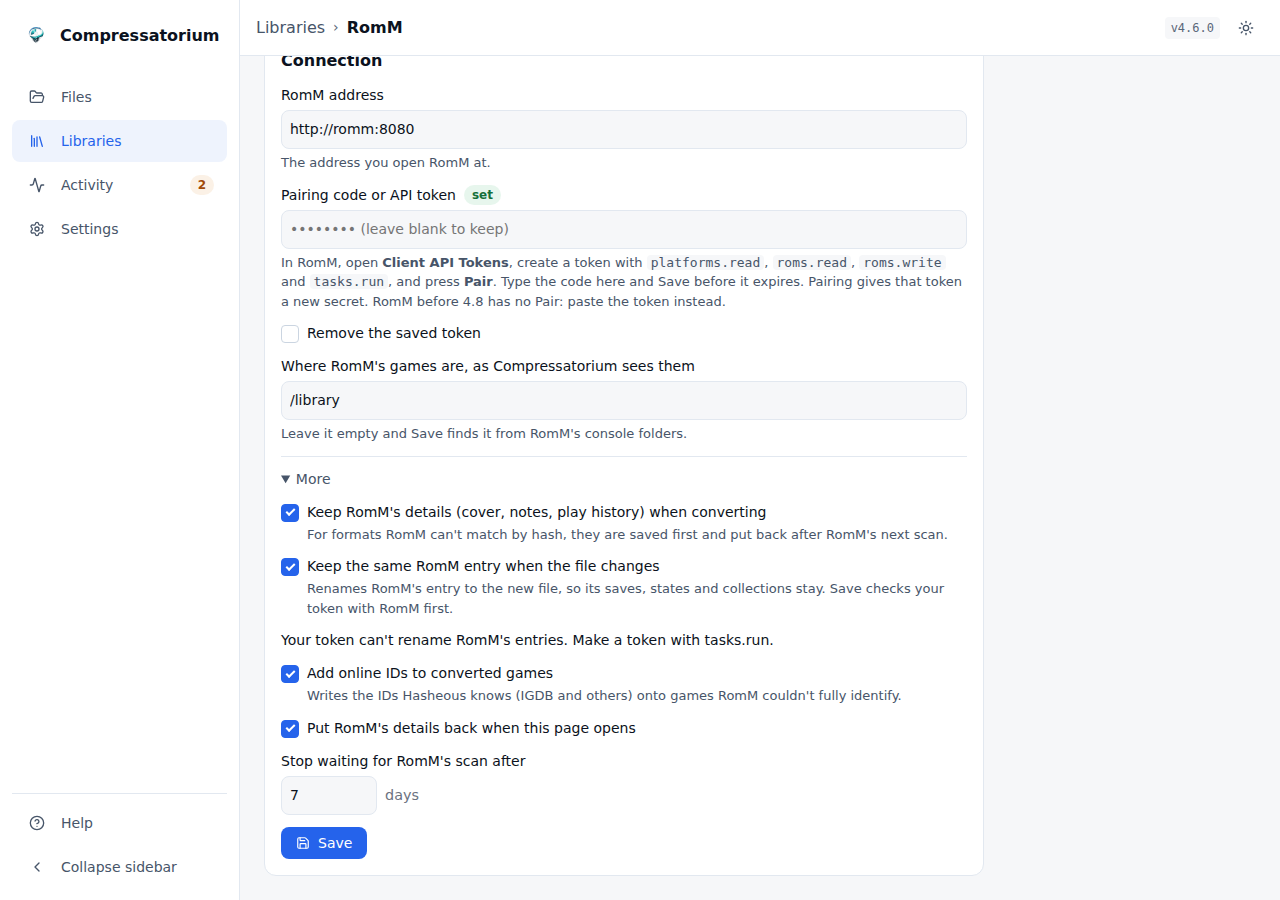
rmm_…token instead. Grantplatforms.readandroms.read, plusroms.write(keeping RomM's details after converting) andtasks.run(keeping the same RomM entry, watch-folder scans). RomM hands outroms.writeandtasks.runonly to an admin user (or a user in a group that has them), so create the token as one. Pairing gives the token a new secret, so anything else that used it needs the new one. - Mount RomM's library folder into the Compressatorium container, on one of your Drives. Leave Where RomM's games are empty: Save finds it by matching RomM's console folders against your Drives.
- Press Save. It tests the connection first and saves only when it works.
The test reports three things separately, because they fail independently and "it doesn't work" is useless when it could be any of them:
- RomM reachable: the URL is right and the instance is up.
- Token accepted: the token is valid and has the scopes it needs.
- Library folder mounted here: Compressatorium can actually see the files.
A check that couldn't run (the token, when RomM isn't reachable) shows as "not checked", not failed. The message names the field to fix, with Retry and Save anyway (for a RomM that's down right now).
Compressatorium also reads RomM's own folder structure
(filesystem.structure, RomM 5.3+) and its exclude: settings. New games are
placed where RomM's structure says, and Rules skip files RomM ignores, and
refuse a target format RomM ignores (the converted game would vanish from it).
The library path is the path inside this container, not the one RomM sees. RomM reports each ROM's location relative to its own library root, and Compressatorium joins that onto your path. Also match the UID/GID the two containers run as, or RomM won't be able to read what Compressatorium writes.
Remote RomM needs no special mode: mount the library over NFS/SMB/rclone and it behaves exactly like a local one. No ROM is ever copied over HTTP — only the catalog travels over the API.
Converting
Pick a platform and you get the ordinary workspace — the same file list, row actions, Verify, convert panel and job queue you use on a volume. Select what you want, choose a format, convert. The header also reports how much of the platform is already converted and roughly how much space converting the rest would save.
Automatic conversion
RomM → Automation gives every platform its own rule. A library isn't homogeneous, so one global setting can't describe it: GameCube can convert to RVZ hourly while PS2 converts to CHD overnight, ten at a time, largest first.
| Setting | What it does |
|---|---|
| Convert to | Target format for this platform. Off means "leave it alone". Recompress-in-place targets (CHDMAN's Copy) are not offered here: a rule using one would convert its own output every sweep and never stop. Use it from the Convert panel instead. |
| Enabled | Pause a rule without deleting it. |
| Run every | Minutes between sweeps for this platform (minimum 5). |
| Only between | Time-of-day window. Wraps midnight, so 22:00–04:00 works. |
| On these days | Weekday mask — weekends only, weeknights only, whatever. |
| Max jobs per run | Ceiling per sweep, so one rule can't flood the queue. |
| Priority | Lower runs first when several platforms are due at once. |
| Convert in this order | Name, largest first, smallest first, oldest or newest added. |
| Output folder | Blank writes beside the source. |
| Smallest / largest ROM | Size thresholds in MB. |
| Only names matching / Skip names matching | Regex filters — convert only (USA), skip (Beta). |
| Only Recognized / only unidentified | "Only Recognized" takes ROMs RomM identified and ROMs the app Recognizes from its own DATs or Hasheous; "only ROMs RomM could not identify" still means exactly what RomM says. Mutually exclusive. See Unidentified in RomM. |
| If the output already exists | Skip it, overwrite it, or write Game_1.rvz alongside. Overwrite and write-alongside also remember what the rule has converted, so each ROM is done once instead of every run — see below. |
| Compression / level | The codec and level for modes that take them — the same registry-driven controls the convert panel uses, so chdman offers its codec chips and Dolphin/NSZ/CSO a codec plus level. |
| Split into 4 GB parts | For FAT32 targets, where the mode supports it. |
| Verify each converted file | Check the output; the source is kept. |
| Delete source after verify | Offered only for modes that support it. Verifies first, and is refused outright where the verify is too weak to justify it (a Wii U rule with noverify). |
| Timezone | The window and weekday mask are evaluated here — your browser's zone by default, so 22:00 means 22:00 where you are, and DST is handled. |
A rule Compressatorium cannot honour is paused, not quietly widened: an output folder outside the configured volumes, or a name filter that is not a valid regular expression, stops the rule and explains why in the editor.
Only formats the platform can actually use are offered: a GameCube rule lists dolphin and nkit, a PS2 rule lists chdman and maxcso. That narrowing comes from the same registry the file browser uses, so a rule can never name a tool that is wrong for the system — and it works per format, not just per tool, so the two-step conversions (NKit → RVZ, CSO → CHD) each appear only on the console they belong to.
Preview shows exactly what a sweep would queue, without queueing it — and without moving the schedule clock, so looking never postpones a run. Run now does it for real.
Sweeps are safe to repeat. Under Skip — the default — a ROM is queued only when its target output is genuinely missing, and that comes from the same detector that badges rows in the file list, so the filesystem is the state. Running twice, restarting mid-sweep, or racing a manual conversion all converge instead of duplicating work. Sweeps also stop when the queue is full and resume where they left off.
Overwrite and write alongside are the two policies the filesystem cannot
answer for: an occupied destination is exactly what they are for, so a rule
using them would otherwise rewrite the same images — or write Game_1, Game_2,
Game_3 — every interval, forever. Each rule therefore remembers which ROMs it
has converted, and that memory is kept honest for you:
- It records what was produced, not what was queued. A job you cancel, or one interrupted by a restart, or one the converter fails on, leaves the ROM exactly where it was — the next sweep picks it up again. Nothing to notice, nothing to clear by hand.
- Retargeting a rule clears it. A rule switched from RVZ to GCZ, or pointed at a new output folder, has not produced that file for anything yet.
- Pointing Compressatorium at a different RomM instance or library clears it too. The history is keyed by RomM's own ids, and another RomM database reuses those numbers for entirely different games. Your rules are kept; only what they believe they have produced starts over.
- A Forget history button on the platform clears it on demand — for when you restore from a backup, or move outputs aside by hand, and want the rule to run over them again.
- Preview reads the same history, so what it shows you is what a run would do.
The schedule clock and the conversion history are separate, so forgetting one never disturbs the other.
Unidentified in RomM
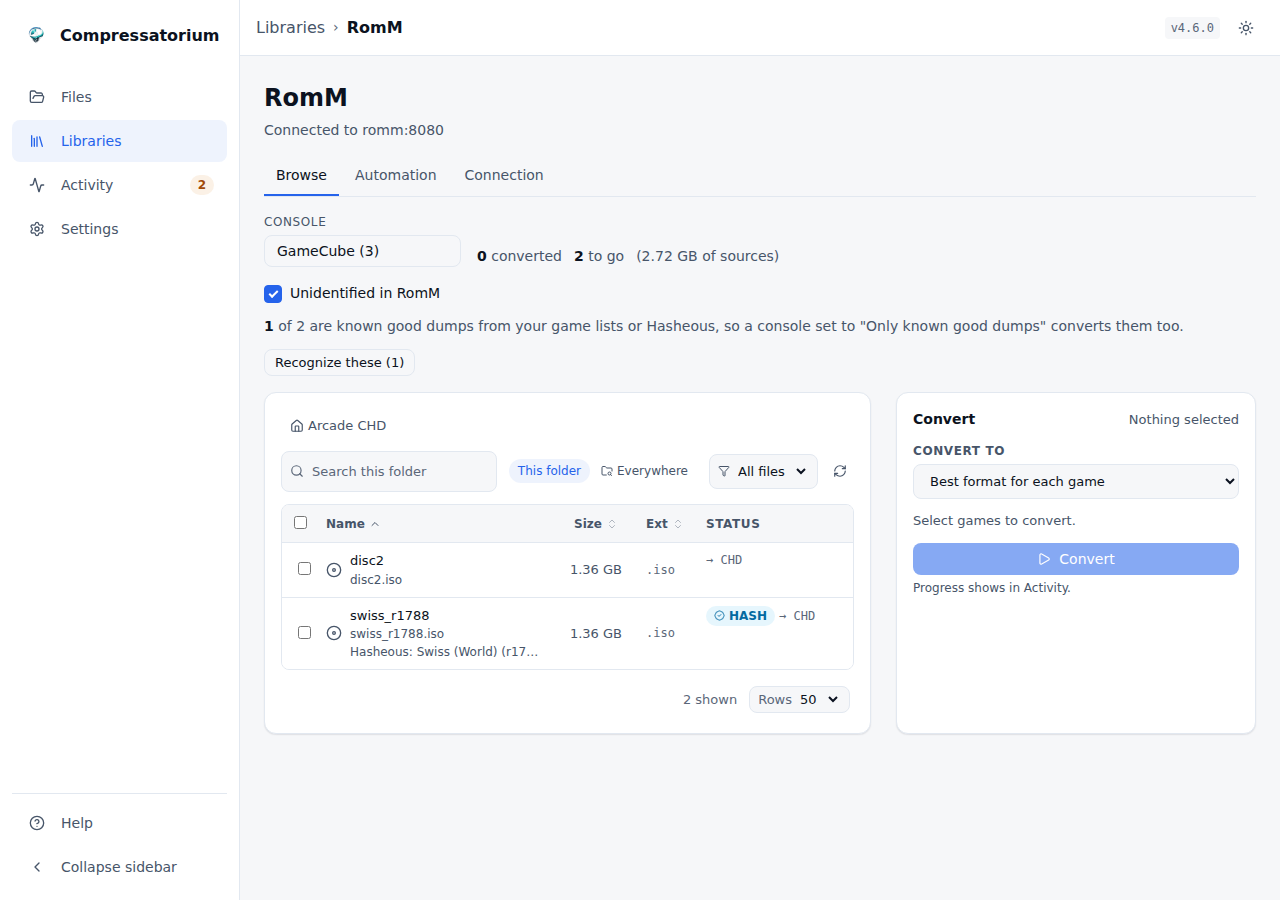
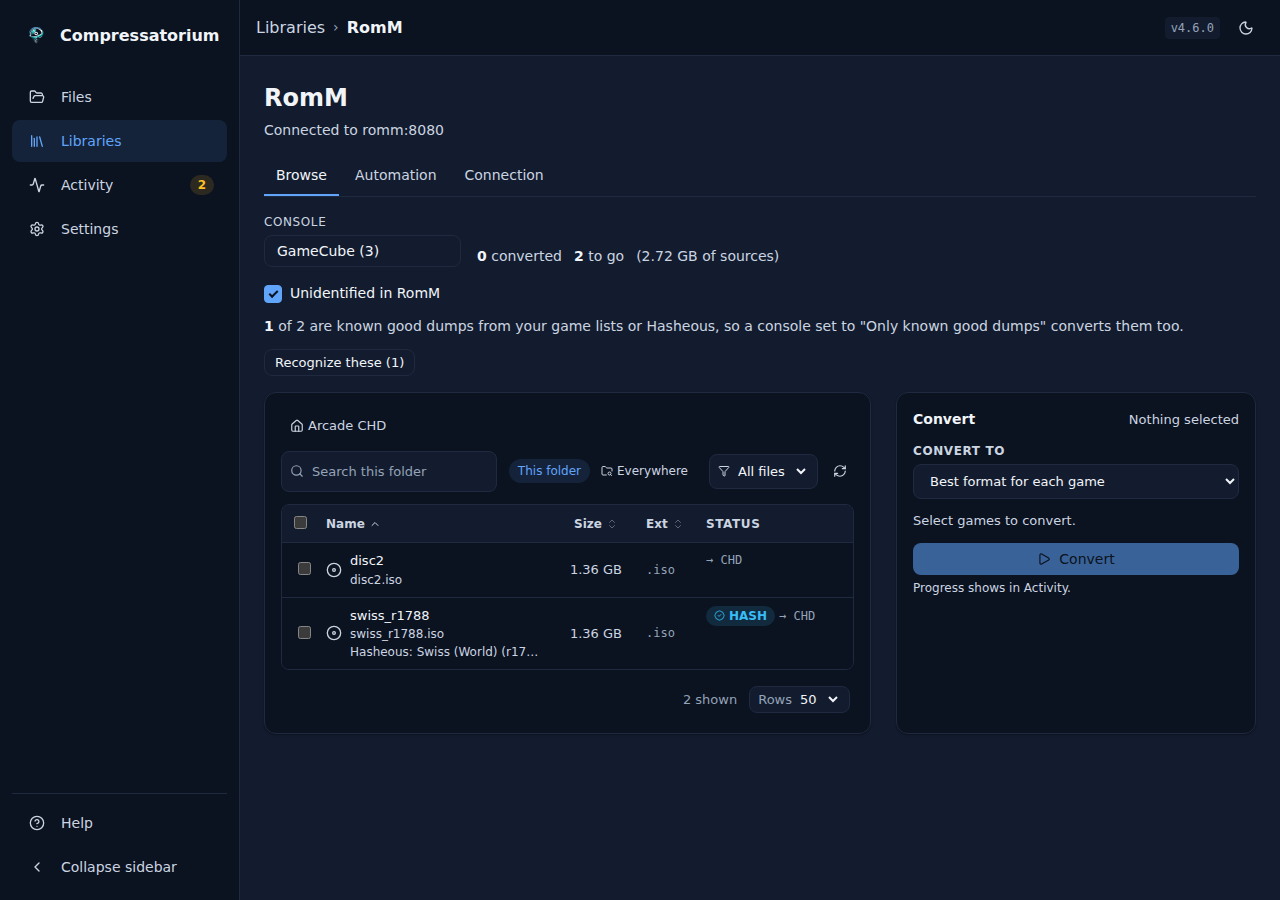
RomM won't convert a ROM it couldn't identify, and it identifies through network services that miss a lot. Many of those ROMs are clean dumps your own DATs or Hasheous know. Tick Unidentified in RomM on RomM's Browse tab to list only the ROMs RomM couldn't identify, with a count of how many of them the app Recognizes and, beside each one it does, the name its DAT or Hasheous gives it. The list reads the matches the app already has and never starts hashing by itself; Recognize these starts the usual match job for the rest (see the Jobs panel). ROMs stored as zip or 7z aren't recognized yet (the match would hash the archive, not the ROM inside), so they're left out of the count and the match, and the view says how many there are.
A ROM is Recognized when RomM identified it or the app's own DAT or Hasheous match for its file is a hit, so a Rule set to Only Recognized converts these too. A Rule set to only ROMs RomM could not identify keeps reading RomM's verdict alone.
Turn on Add online IDs to converted games (RomM's Connection tab, under More, off by default) and, after converting a ROM the app found through Hasheous, the provider ids Hasheous returned (IGDB, TheGamesDB and the rest RomM stores) are written onto the ROM in RomM, so it shows the cover and description. Only ids the ROM doesn't already have are written: a match RomM made is never replaced. They travel with the metadata snapshot, so they land once RomM knows the converted file (its next scan, or the rehash after keeping the ROM id), and it needs Keep RomM's details (cover, notes, play history) when converting on. They are written for every output format, CHD and 7z included, since RomM never matched these ROMs in the first place.
Unlike RomM's own converter, Compressatorium also converts ROMs stored inside zip and 7z archives, so an archived library isn't stuck.
| Light | Dark |
|---|---|
 |
 |
 |
 |
Keeping the ROM id
Converting a game and deleting its source normally leaves RomM a new file and a
missing one: RomM adds a new game, and the old one keeps your saves, states,
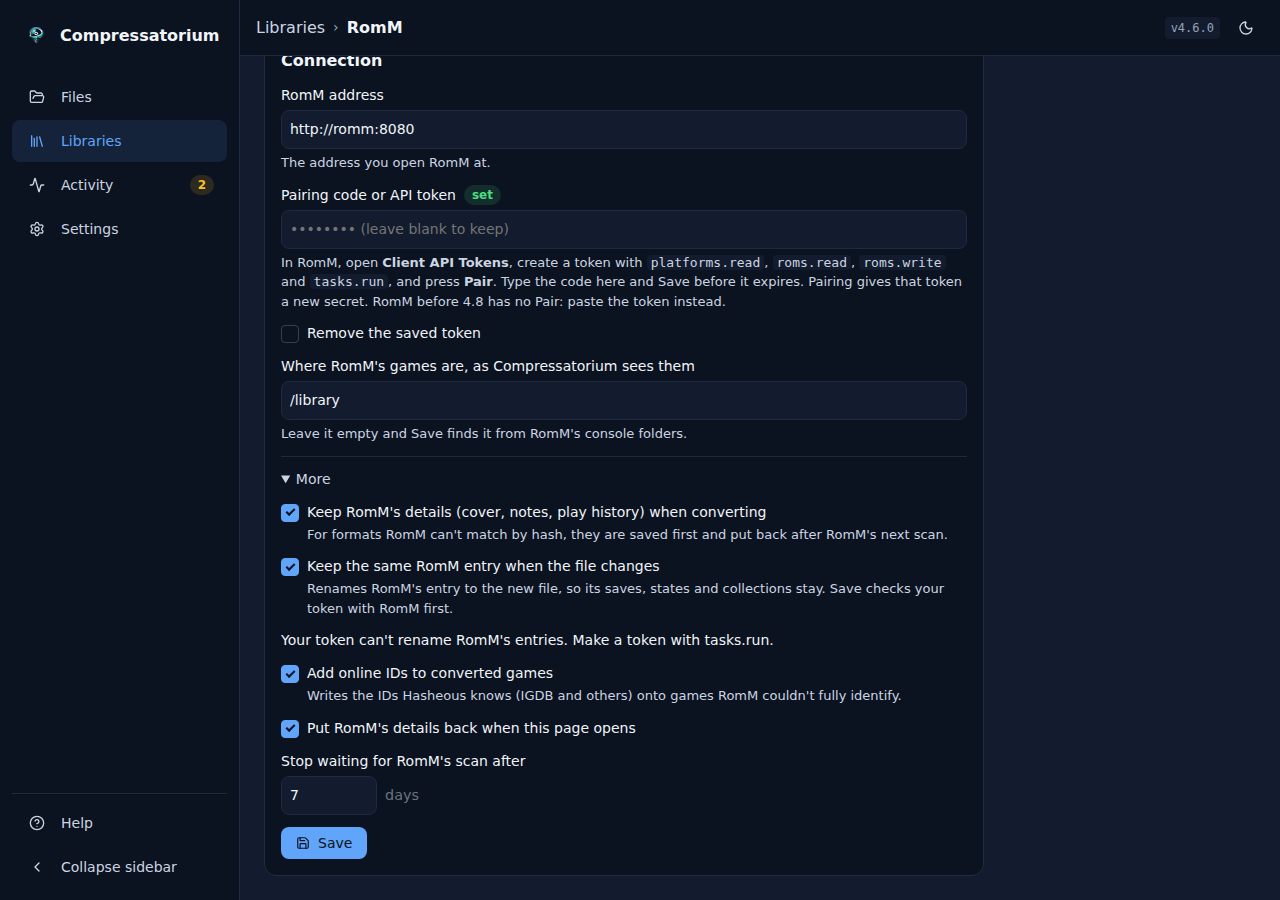
notes, collections and play history. Turn on Keep the same RomM entry when the file changes
(RomM's Connection tab, under More) (the token needs roms.read, roms.write and
tasks.run; turning it on checks) and a conversion renames RomM's record to the new
file instead, so the game keeps its id and everything on it. It works for a
single-file game (an .iso, say) converted to one file beside it, when the
source is deleted after its check, from the Workspace or a Rule:
- The output is checked while it is still hidden in the staging folder, and
.m3uplaylists and gamelists are updated. If one can't be, RomM is not touched. - RomM renames the ROM's file to the output's name (it moves the source there itself). The app reads the name back: if RomM refused, or wrote another name, the old name is put back, both files are kept, and the job says "converted, source kept: RomM refused the rename" with RomM's reason.
- The source RomM moved is set aside in the hidden staging folder, under
its own original name (
Game.iso, never the output's), the output takes the new name, and RomM rehashes that one ROM. - Only when RomM reads back the output's size and SHA-1 is the source deleted.
If it doesn't, the source goes back under its own name beside the output,
and the job says why. One exception: RomM never hashes some Platforms
(Switch, Switch 2, Wii U, PS3, PS4, PS5, Xbox 360, Xbox One, PC and a few
others, RomM's own
NON_HASHABLE_PLATFORMS). There, when RomM reports no SHA-1, its name and size are what it has, so they alone confirm the new file. A SHA-1 RomM does report is always compared.
The ROM is found by the RomM Platform folder holding the file, in either RomM
layout (roms/<platform>/ or <platform>/roms/), subfolders included. A
file RomM doesn't know as a ROM of its own (not in a Platform folder, or one
RomM records as part of a folder ROM) converts as usual. One whose ROM can't
be told keeps its source: RomM can't be read, two records claim it, the record
that is the file says it has several files, or RomM marks that record missing
while the file is there.
If the source was kept because another job was reading it, the output was already put in place, so a later retried delete can't rename RomM's record onto it. That delete goes the usual way, with the metadata re-pin queued, and says so: "the ROM did not keep its id: the swap can't run after the output was placed; re-pin queued". Cancelling during a swap undoes it within a few seconds, and what that leaves depends on how far it got:
- Before the output took the source's name: RomM gets the old name back and the source returns under it, with the output beside it.
- After: the source returns under its own name beside the output, and RomM keeps the output's name (and the ROM its id); RomM's next scan refreshes its hashes.
- If the source had already been deleted (the last step), the swap is simply done.
A checked output that can't be put in place (something took its name) is kept in the hidden staging folder, and the job says where.
Every step is recorded before it runs, and the record keeps the step a swap stopped at. If a step fails and can't be undone, the undo can't finish in time, or the app stops, where the source is depends on how far the swap got:
- Before the source was set aside: it is still where it was (under its old name, or under the new one if RomM had already renamed it).
- While it was set aside: it is in the hidden staging folder
(
.compressatorium-stage/park-…/beside the output, under its original name), never deleted or swept away. - After it was deleted (the last step): the swap had in fact finished, and the output is under RomM's new name, with the ROM's id.
After the next start, the app picks such a swap up in the background (it never holds up startup) and finishes what is safe to finish:
- RomM still has the old name and the source is where it was (the rename never landed, or the undo already put the old name back): nothing changed in RomM, so the swap is closed and the converted output the job kept aside is put beside the source.
- RomM has the new name and the output is in place: RomM rehashes the ROM again (safe to repeat). If it reads back the output's size and SHA-1, the set-aside source is deleted; if not, the source goes back under its own name beside the output, which keeps the ROM's id.
- The undo was putting the source back beside the output: the move is finished.
Anything else becomes a Finding ("RomM swap unfinished") that names the
ROM, the step it stopped at, where the source and the output are, what is
left in the staging folder, and what to do by hand, as numbered steps
built from where the files are, so no step puts a file where another one is.
To keep the conversion: the output goes in place under the new name (after
the source is deleted, if RomM had moved the source to that name), the
source is deleted at its exact path, and the ROM is rescanned in RomM. To
undo it: the converted output is first moved aside to
.compressatorium-stage/aside-<new name>, then the source goes to the name
RomM has for it, then the ROM's file is renamed back to the old name in RomM
(which moves the file itself), then the ROM is rescanned. The app never
renames a ROM back by itself: that was not proven safe against RomM. It also
never touches a RomM instance other than the one the swap ran against: if
RomM's settings now name another instance or library root, the swap is a
Finding. If RomM can't be reached, the Finding says so and the app tries
again every 10 minutes; the Finding stays until the swap is settled,
including once you have done what it says. The delete
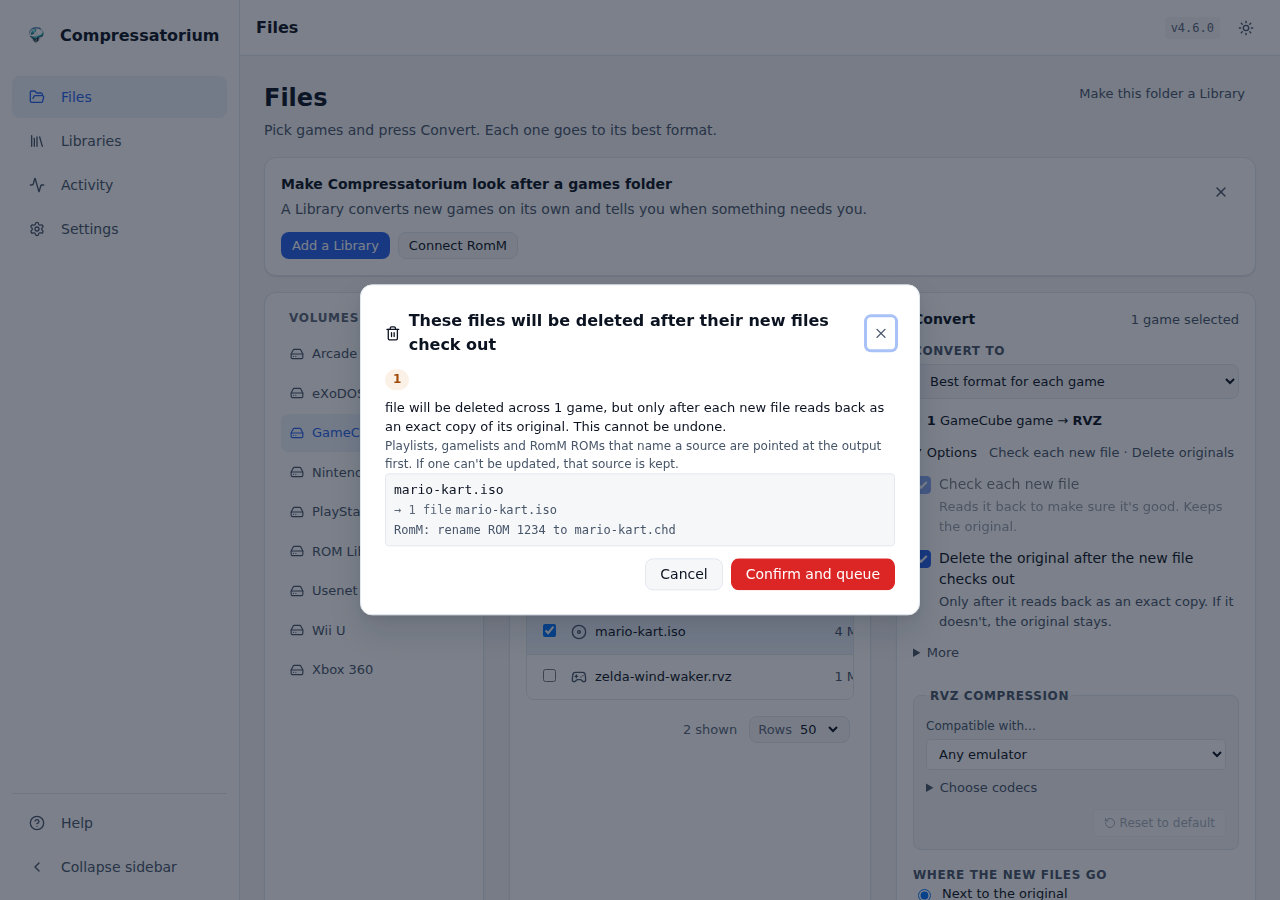
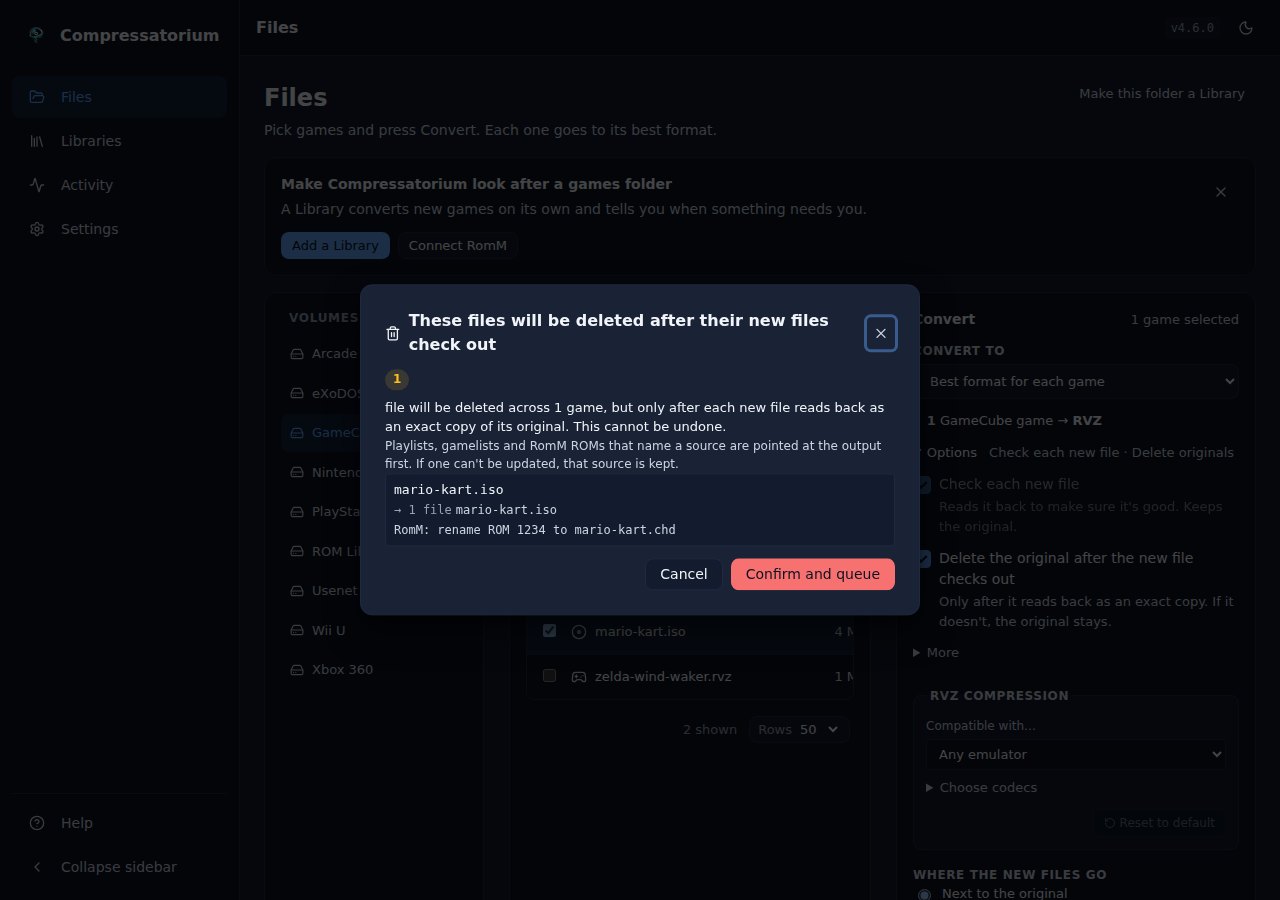
confirmation lists the rename ("RomM: rename ROM 1234 to Game.chd"), and the
Ledger records that the ROM kept its id. Archives (.zip, .7z), multi-file
games (.cue/.bin) and anything else keep the usual behaviour.
| Light | Dark |
|---|---|
 |
 |
Formats RomM re-identifies by itself
With Keep the same RomM entry when the file changes off, some conversions shouldn't need the metadata re-pin: RomM finds the game again on its own. RomM 5.4.1, with title-id extraction on (its default), moves a missing ROM onto its converted file by the game's title id at its next library scan, keeping the ROM id and everything on it, for PSP CSO and GameCube RVZ. It doesn't for PS2 CSO or ZSO, PSP ZSO, or GameCube WIA or GCZ. CHD, ZIP and 7z are not on the list because they never need it: RomM keeps its match for them, so no re-pin is recorded and the job and the Ledger say nothing about one.
For a conversion on that list whose source is deleted, the job and the Ledger say the re-pin is expected to be unnecessary and will be confirmed ("RomM 5.4.1 re-identifies PSP CSO by its title id at its next library scan, so the metadata re-pin is expected to be unnecessary; the next re-pin pass will confirm it"). The re-pin stays queued. When it next runs, it finds RomM's record for the output: if that is the original ROM with every provider id it had, it closes as "RomM re-identified it on its own" and writes nothing; otherwise it re-pins as usual. It checks because RomM keeps the id only when it never sees the output beside the source: the output is put in place just before the source is deleted, and a RomM scan in that moment adds a new game for the output and leaves the old one missing. RomM also keeps the id only when no other missing ROM on the Platform has the same title id.
The list is kept per RomM version: another version, a RomM whose heartbeat can't be read or doesn't report title-id extraction on, or a format not on the list re-pins as before. With the switch on, the swap above keeps the id for every single-file format.
RomM's own converter
Newer RomM releases can convert their own library: with
ROM_CONVERTO_ENABLED=true, RomM's "Convert library" task stores each Platform
listed under converto.platform_formats in its config.yml in that format.
We advise turning it off (ROM_CONVERTO_ENABLED=false) and letting
Compressatorium do the converting, because:
- RomM deletes the sources once the conversion tool exits cleanly. Nothing reads the output back first. Compressatorium checks every output (Intact, and Round-tripped where the format allows, or Recognized in a DAT or Hasheous where it can't be Round-tripped) before it deletes a source.
- Two converters on one library work against each other. RomM can store a Platform in a different format than your Rule does, so the same game gets converted twice.
Nothing is blocked either way; the app only warns. When RomM reports its converter on, the RomM Settings tab shows a banner saying so, and the Automation tab flags each Rule whose Platform RomM also converts, with RomM's target and the Rule's side by side. Platforms RomM can't convert at all are marked too, since only Compressatorium converts those. A RomM without the converter, or with it off, shows none of this.
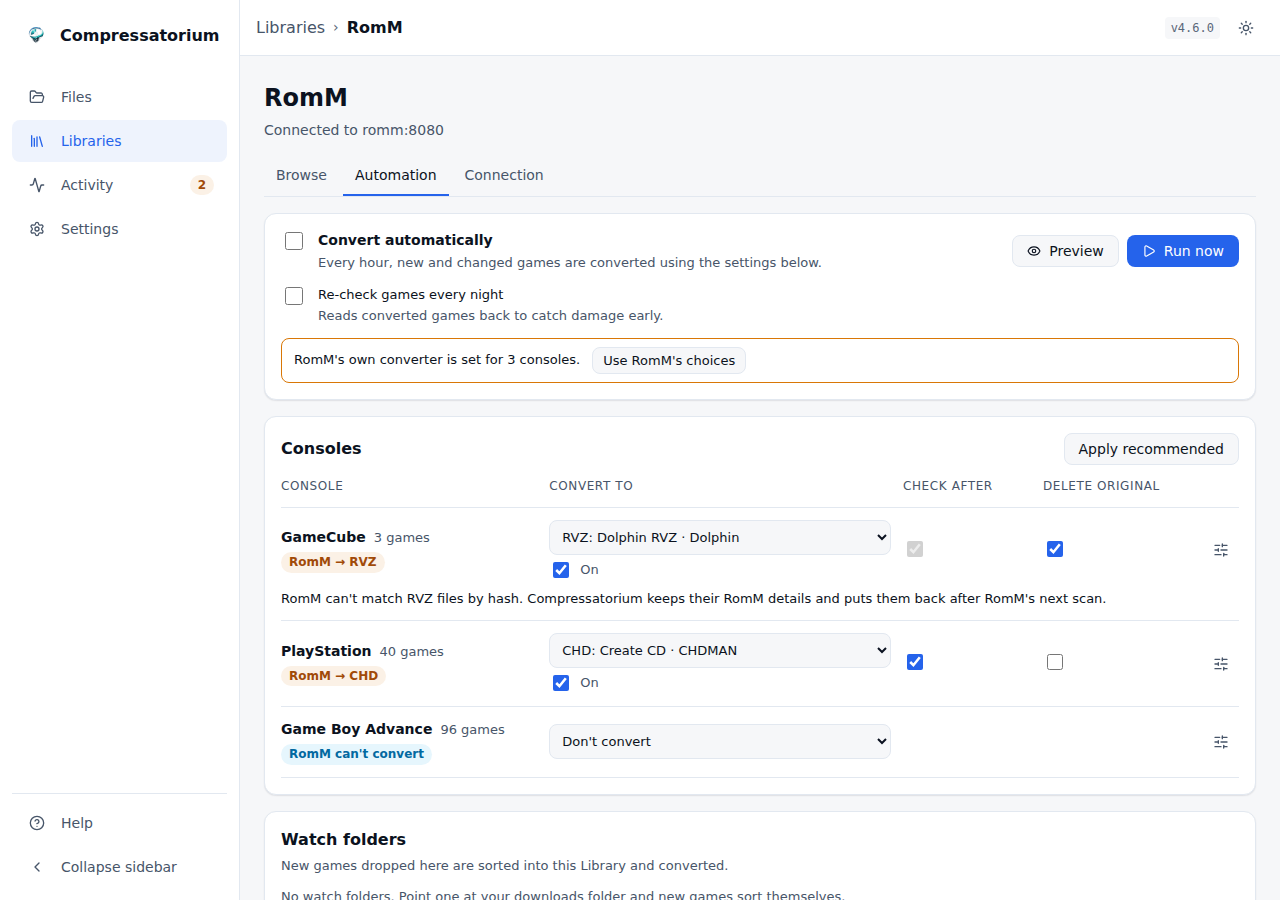
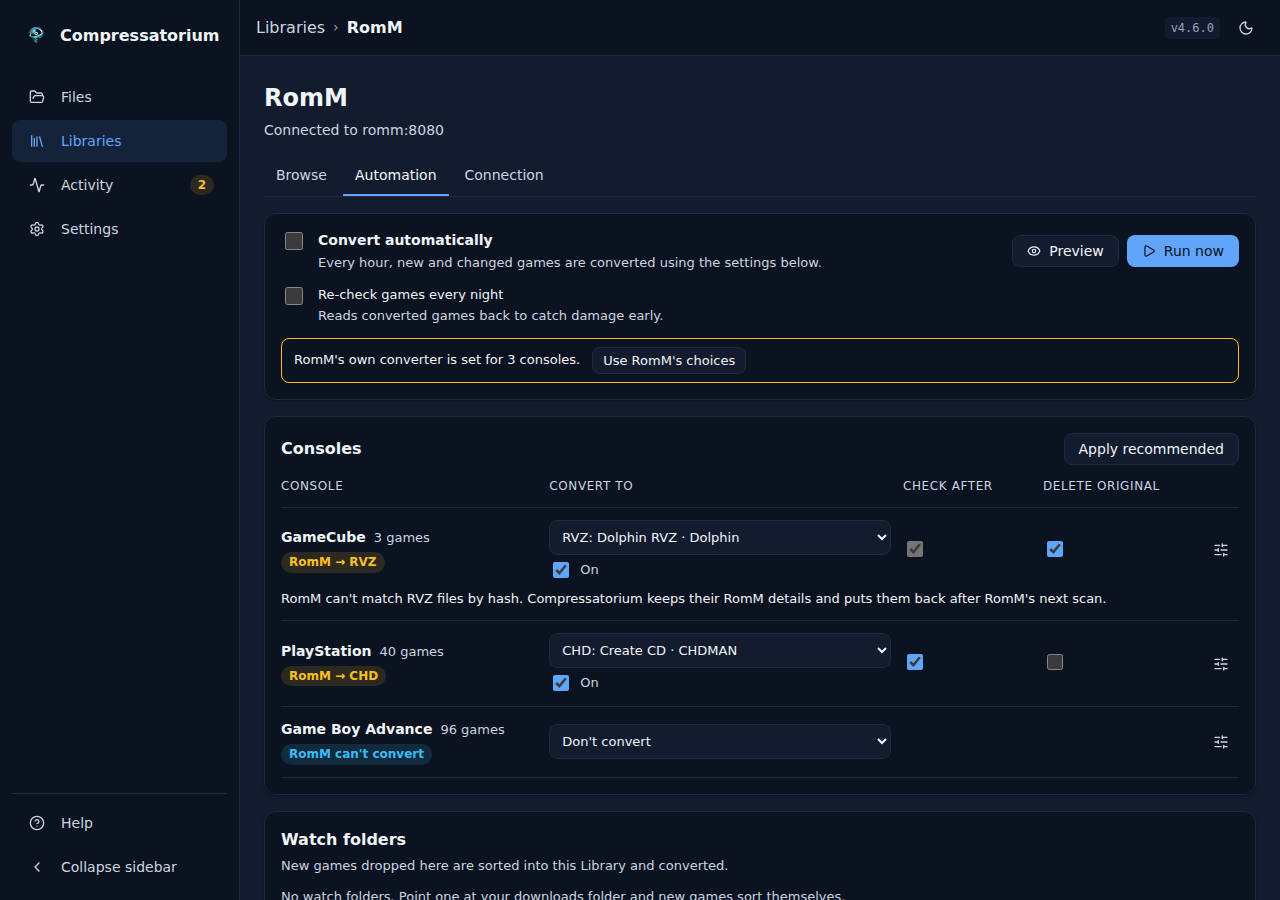
With RomM's own converter on, RomM's Automation tab says so, and its Use RomM's choices button turns RomM's targets into
Rules, for Platforms that have no Rule yet. Each RomM target is mapped onto a
mode here that writes the same format (chd on PlayStation becomes CHDMAN's CD
mode, rvz on GameCube becomes Dolphin RVZ, zar on Xbox 360 becomes
rom-converto's ZAR mode, iso on PSP becomes rom-converto's PBP to ISO, and
cci or cia on 3DS becomes its CIA to CCI or CCI to CIA). A target nothing
here writes, such as wbfs on Wii, is
skipped and named. Imported Rules start off, so switch
them on in Automation once you've switched RomM's converter off.
| Light | Dark |
|---|---|
 |
 |
|
|
Folder Libraries
You don't need RomM to automate conversions. In Libraries, press Add a Library and pick a folder on a Drive (a Drive's own top folder works too), or open the folder in Files and pick Make this folder a Library. Its page has two tabs:
- Browse lists its consoles, how many games each has and the folder they're in, each with Open into Files. Games no console can be told for are counted at the top, with a link to fix them in Activity.
- Automation is one table, a row per console, with three choices: what to Convert to, Check after, and Delete original (only once the new file checks out; on, it turns the check on too). Apply recommended sets every console with games and no format yet to its best one, checks every new file and keeps originals; a console you set is never changed. Every change saves on its own ("Saving…", "Saved"). The sliders button on a row opens the rest: compression, where new files go, which games, when it runs, and a nightly re-check. Convert automatically turns the scheduler on, and Re-check games every night turns the re-check on for every console that has games or converts, already-compressed ones included; a console with no format can still set up its own re-check from the sliders button. Below the table sit the Library's watch folders, Where new games go, and the Game list app it feeds.
Any folder can be a Library, even one inside RomM's library folder or inside or around another Library. Where Libraries overlap, each file belongs to the Library with the nearest folder: that Library's settings (its game list app, for one) apply to it, and the Library around it leaves it alone, so no file is ever converted twice. The Library's page says which Library it sits inside and which sit inside it. Only the same folder twice, and a Library overlapping a watch folder, are refused.
How it works underneath:
- Images are what gets converted, not files: a
.cueor.gdiand the tracks it lists are one Image (the sheet), and a split Wii U dump is one Image (its first part). Track files are never converted on their own, and playlists (.m3u) are not Images. A.binno sheet lists is its own Image. Converted outputs (.chd,.rvz) and archives (.zip,.7z) in the folder count as Images too; folders (a decrypted PS3 game) do not. - Platforms come from Platform detection: an Image's own header first,
then the nearest folder above it that either has a Platform you set (see
Findings) or is named after one (
ps2,gc,psx,megacd, ... as ES-DE and Batocera lay them out). Each Platform shows its name and how many Images it has. - Unsorted Images (nothing names their Platform) and Conflicted ones
(the header disagrees with the folder, such as a GameCube disc filed under
ps2) are counted but never converted by a Rule. Files that cannot be read are counted on their own and skipped too. - Rules have the same settings as RomM's, one per Platform: "convert ps2 to
CHD nightly" is a ps2 Rule with a window of
01:00–05:00. A folder Rule always skips an Image whose output already exists, so a sweep that runs twice queues nothing new. Overwrite and write-alongside are not offered for folder Libraries. An Image whose conversion failed is held: it is not queued again until one of its files changes (size or modified time; a sheet's tracks count), and the Rule shows how many it holds with a Retry failed button that releases them. Preview and Run count held Images too. - Only Recognized / not Recognized filters read the DAT or Hasheous match already cached for each file. Listing a Library never hashes anything. A file nobody has matched yet is neither: both filters skip it, so run a DAT match over the folder first.
- Preview shows what a sweep would queue and moves no schedule clock. Run now queues it. Convert automatically turns the scheduler on for that Library. Both save any change still waiting first.
- If the folder cannot be reached during a run (a NAS rebooting, a mount dropping), that run says so and queues nothing; the next run checks again.
- Folder style says where a console's games go: one folder per console
(ES-DE, Batocera:
<root>/ps2, the default), RomM style (<root>/roms/ps2) or all in one folder (sorted by each game's header). Where new games go lists the folder for each Platform, named the way Platform detection reads it (an existingGameCubefolder, or a newgcone), and marks a folder that will be created. Two folders for one Platform are shown as "can't tell" instead of picking one. Changing the layout moves nothing. On RomM the list follows RomM's own folder structure: each RomM platform shows its own folder and ROM count. RomM often keeps a second, empty record for a Platform (famicombesidenes), so the row new Images go to says so and why ("RomM's NES folder, 4933 ROMs: the only one with ROMs"). When several hold ROMs, the one with the most is picked and marked as a best guess; pick another from the list on that row and the choice is kept. Before RomM has aromsfolder, RomM's defaultroms/<platform>is used, marked as a best guess too. Junk folders RomM scanned as platforms (Synology's@eaDir) are left out. - Remove Library (the
⋯menu, beside Find duplicates, Open folder in Files and Rename…) forgets the Library and its Rules. It never touches a file.
RomM's Automation tab is the same table, on RomM's consoles.
Watch folders
A watch folder (an Inbox, in the API) is a folder whose new files are taken into one Library: point it at your downloads folder and new games are sorted into the Library for you. On the Library's Automation tab, press Add a watch folder and pick the folder; a file is taken once it has stayed the same for a minute. Each row says when it was last checked, how many are still downloading, how many need you (a link to Activity) and how many were taken in, and re-reads every 15 seconds.
The folder must be inside a Volume, and can't be inside a Library or hold one (intake would read its own output, or take another Library's Images). A folder can only be one Inbox, and a Library can't be registered around or inside an Inbox either.
The Inbox is polled once a minute, on the same tick as the Rules, so it works on NFS and SMB shares where change notifications don't. A file is taken only once its size and modified time are the same across two polls at least the settle time apart. That is an inactivity check, not proof a download finished: a download that pauses for longer than the settle time looks settled. When that matters, download somewhere else and move finished files into the Inbox (a move within one filesystem lands whole at once). A sheet and its tracks, or a split
Game.iso.0,.1, ..., are one Image, and wait for every file.Its Platform is worked out the same way a folder Library does it: the header first, then a folder named after a Platform. So
downloads/ps2/Game.isois a PS2 Image even when its header can't be read.It goes where Where new Images go says. If that Platform has an enabled Rule, the Image is converted under it as a normal job (it shows in the queue, counts toward the concurrency limit, gets a Ledger row and can be cancelled), and the output is checked Intact wherever its mode can check it. With no enabled Rule, or a file already in the Rule's format, it's copied as it is, as an Inbox copy job you can cancel, which also waits for a slot under the same concurrency limit: the copy is read back and compared, checked Intact by its own tool when one checks it, and only then appears in the Library. An archive (
.zip,.7z,.rar) is checked against limits first, since anyone who can write the Inbox can drop one: by default its declared contents may be at most 32 GiB (CHD_ARCHIVE_INBOX_MAX_TOTAL_SIZE, or yourCHD_ARCHIVE_MAX_*when set) and expand at most 200 to 1 (CHD_ARCHIVE_INBOX_MAX_RATIO). One over either stays in the Inbox with a Finding naming the limit, never checked or copied. A zip or 7z is then unpacked into a private folder in the app's work area (CHD_TEMP_DIR, ortemp/in the data folder) and the Images in it taken one by one; an arcade romset (a zip in anarcade,mameorfbneofolder) is copied in whole instead. Everything unpacked at once stays underCHD_ARCHIVE_INBOX_MAX_UNPACKED_SIZE(the same 32 GiB by default) and leaves the work area's free-space reserve; an archive that doesn't fit waits for room, with no Finding. Nothing unpacked is kept for an Image that is held: the archive stays in the Inbox with the Finding, and is unpacked again once the hold lifts.The original then moves to
processed/inside the Inbox, keeping its folder, if it is still the file that was taken (one replaced meanwhile stays in the Inbox to settle again). Intake never readsprocessed/. Nothing is ever deleted: clear outprocessed/yourself once you're happy with the result.A file it can't place stays in the Inbox with a Finding saying why: Unsorted (no Platform), a Platform conflict, or not taken (a failed or cancelled conversion, a name already in the Library, no folder for the Platform). It isn't tried again until it changes: move it into a folder named after its Platform, or rename it. "Cancelled" means you cancelled its job; a job cancelled because the app or
run-ruleswas stopping (docker stop, Ctrl-C) gets no Finding, and the file is taken again once it has settled.Each Inbox shows its last poll, the files waiting to settle, in progress and held, and how many it has processed. Remove stops using the folder as an Inbox and touches no file. Removing the Library removes its Inboxes.
RomM scans what arrived. After a pass that placed Images in a RomM Library, the app asks RomM to scan just the Platform folders it added to (one quick scan,
POST /api/tasks/scanwith those folders), so new games show up in RomM without you pressing anything. A folder RomM has no Platform for yet is scanned too, and gets one. The token needs the tasks.run scope (the one the in-place swap needs too; it comes with an admin's token). A token without it is reported in the pass summary and the log, and the app doesn't try again; RomM's own scheduled scan finds the games instead. A scan RomM won't take right now (a library scan already running) is reported the same way. An Image whose output reached the Library counts even if its original couldn't be moved toprocessed/(that stays a Finding). A folder Library has no one to tell.A summary of each pass. A pass that placed an Image or left one with a Finding sends one notification (An Inbox pass placed Images or left some with a Finding) to your notification destinations: how many were placed and where, which were left and why, and whether RomM was asked to scan. An Inbox that can't be polled (its folder gone, or no longer inside a Volume) is in the message too, once when it starts and again if it comes back after being fixed. A pass that did nothing sends nothing.
From cron.
run-rulesmakes one Inbox pass after its Rule sweep, under the same lock, so intake works without the server.
Unpacking archives and naming from a DAT are on the way (#432).
Sonarr / Radarr / ROMarr
Sonarr, Radarr and ROMarr can tell the app the moment they import a file, so a watch folder takes it in at once, with no polling and no settle wait. Point the *arr's root (or completed downloads) folder at a watch folder, then in the *arr open Settings → Connect → + → Webhook and set:
- On Import (and On Upgrade) ticked; the other triggers are ignored.
- URL: the one shown on a Library's Automation tab, under its watch
folders, in Send games here from Sonarr, Radarr or ROMarr (with a Copy
button),
http://<this app>:8080/api/hooks/arr. - Method POST, and one Header:
X-Chd-Action-Confirm=scan. - When the app's login is on: Username as set (
adminby default) and Password your API token.
Press Test in the *arr: it passes once the URL, header and login are right.
Different folder names. When the *arr sees a folder under another name
(it sees /downloads, this app sees /data/downloads), add a path
rewrite in the same card: the longest matching folder wins, as in Autoscan.
Type a path as the *arr sees it into Test a path: the card says where it
lands and whether a watch folder or a Library takes it, and when it can find
the file under one of your Drives it suggests the rewrite, one click to add.
Paths the *arrs sent lately are listed with the same answer. A rewritten path
must still be on a Drive, and inside a watch folder or a Library; anything else
is refused and left alone.
Imported straight into a Library. When the *arr's root folder is a Library's console folder rather than a watch folder, the import runs that console's settings for it at once, as Run now would: only when the Library converts on its own (Convert automatically), the console is set to convert and on, and its hours allow. Otherwise the answer says why, and the next scheduled run takes it. The console's nightly re-check never runs for an import.
Scripts, and ROMarr's custom script. POST /api/scan with
{"path": "/data/downloads/ps2/Game.iso"} (a file or a folder) or
{"paths": [...]}, and the same header, does the same thing:
curl -X POST http://localhost:8080/api/scan \
  -H 'X-Chd-Action-Confirm: scan' -H 'Content-Type: application/json' \
  -d '{"path": "/data/downloads/ps2/Game.iso"}'
The answer (202 when something was taken) lists what was accepted and what was skipped, with why.
Check Rules
A check Rule checks Images instead of converting them: it has no target format. A Platform can have one beside its conversion Rule, so "convert PS2 to CHD" and "check PS2 nightly" work together. Open a console's More settings on a Library's Automation tab, on a folder Library or on RomM, tick Re-check games every night, and set how much to read a night ("check 50 GB a night"), a time window and weekdays:
- A check Rule runs once per window, on each weekday you allow, on its own clock: the conversion Rule on the same Platform keeps its own. A run that starts late in the window, or carries on past midnight, does not move the next night's run. No window, or the same start and end (03:00 to 03:00), means the whole day: once a day from local midnight. (A conversion Rule with the same start and end is paused instead, since there it is a slip.) Nightly runs need Run automatically on for the Library. Run now runs both, and the check spends another budget's worth on top of the nightly run, which still comes when it is due.
- The Images never checked go first, then the ones checked longest ago. They are taken in that order until the next one does not fit the budget; a smaller one further down never jumps ahead. The budget counts an Image's full size, every track. An Image larger than the whole budget is checked on its own rather than never.
- Each Image goes through its tool's own Verify, the same check as the Verify action. A run is one job in the Jobs panel, and Cancel stops it. While an Image's Verify runs and its result is recorded (not while it waits its turn) it is held like a file a conversion reads. A conversion that finishes then and would delete that Source waits briefly; if the check is still reading it, the conversion completes with "Source kept: it was being read by another job", leaving the Source and the new file both in place. An Image that is gone or changed by the time its turn comes (converted away, deleted, replaced) is skipped: no Finding and no check time.
- An Image that fails becomes a Not Intact Finding, and the run sends one notification listing every failure. A later check that passes clears the Finding. Dismissing it hides it while the file stays the same.
- A check that could not run (the tool is missing, it timed out, its
verifier was killed) gives no Finding and no check time. The attempt only
sends the Image behind the others, so one that never reaches a verdict does
not take every night's budget. An Image no installed tool can check on its
Platform (a PS2
.iso) is skipped and does not count against the budget. - A Not Intact Finding whose file is gone (its folder still there) is cleared by the next listing or sweep. Pointing RomM at another instance or library drops RomM's check times and Not Intact Findings, since the new instance reuses ROM ids for other games.
- Preview lists what tonight's run would check, and checks nothing.
A check never converts, moves, renames or deletes anything.
A run on a GBA folder with one damaged ROM archive: its Not Intact row in Findings (no Set Platform: the file is the problem, not its folder), and the run's Check job in the Jobs panel with its result.
| Light | Dark |
|---|---|
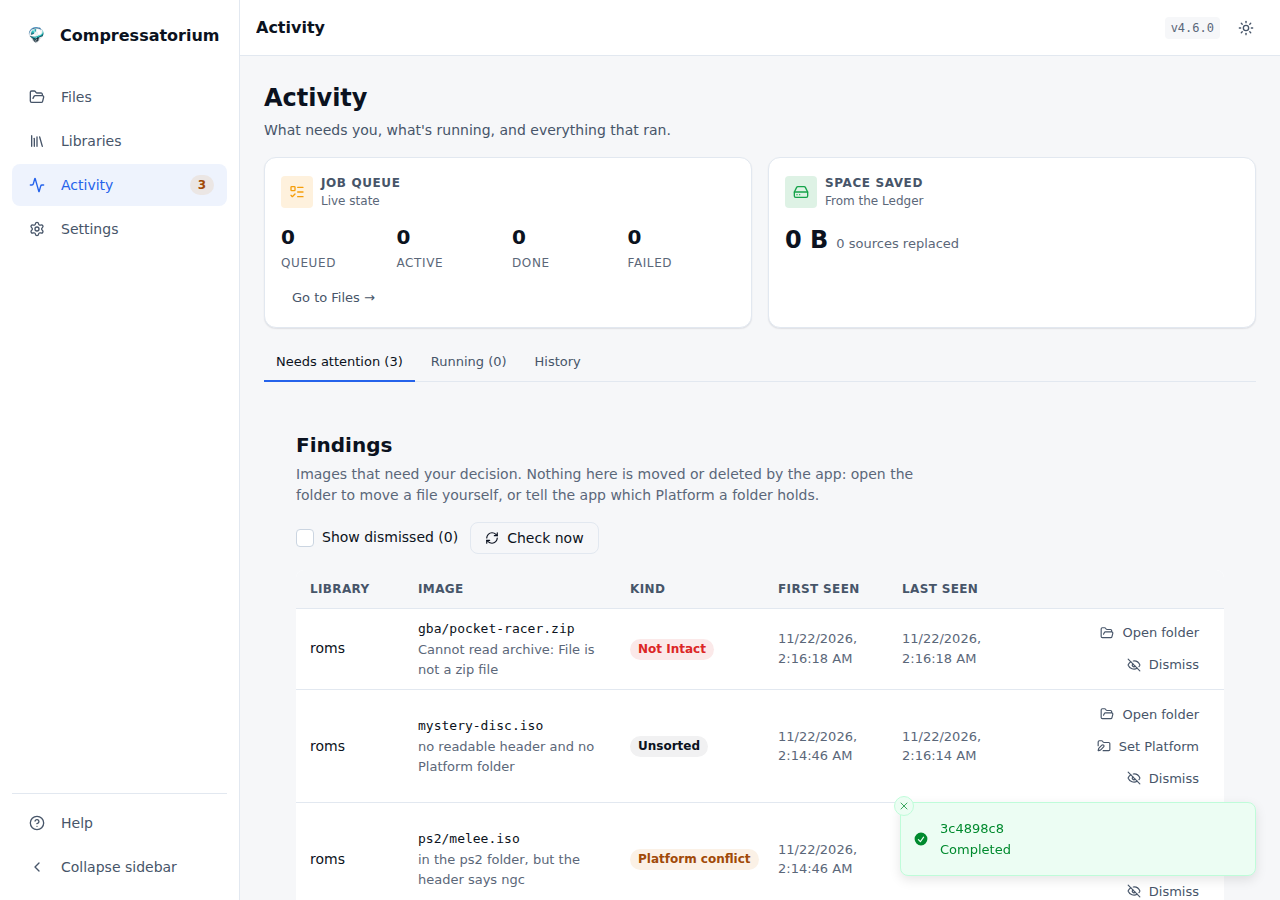 |
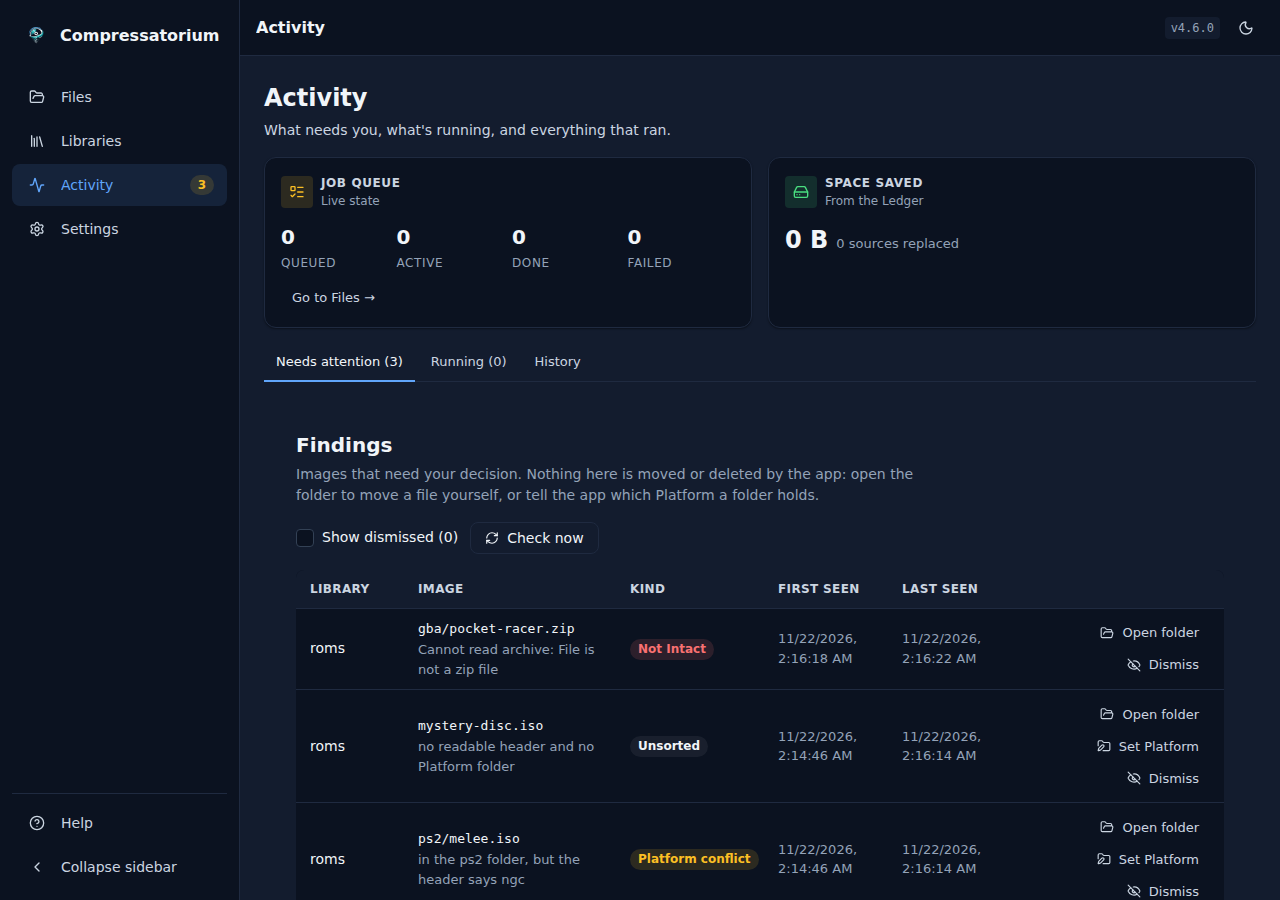 |
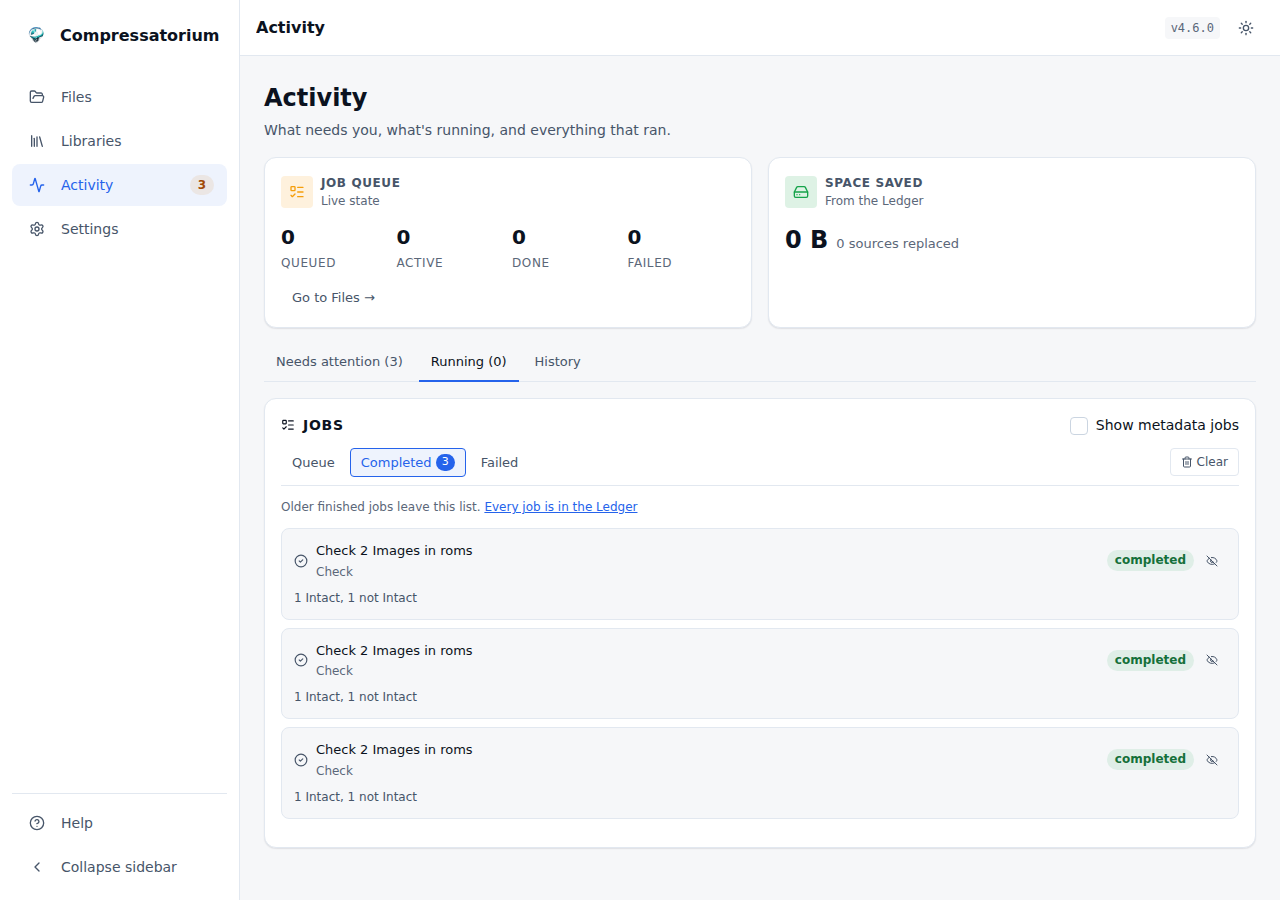 |
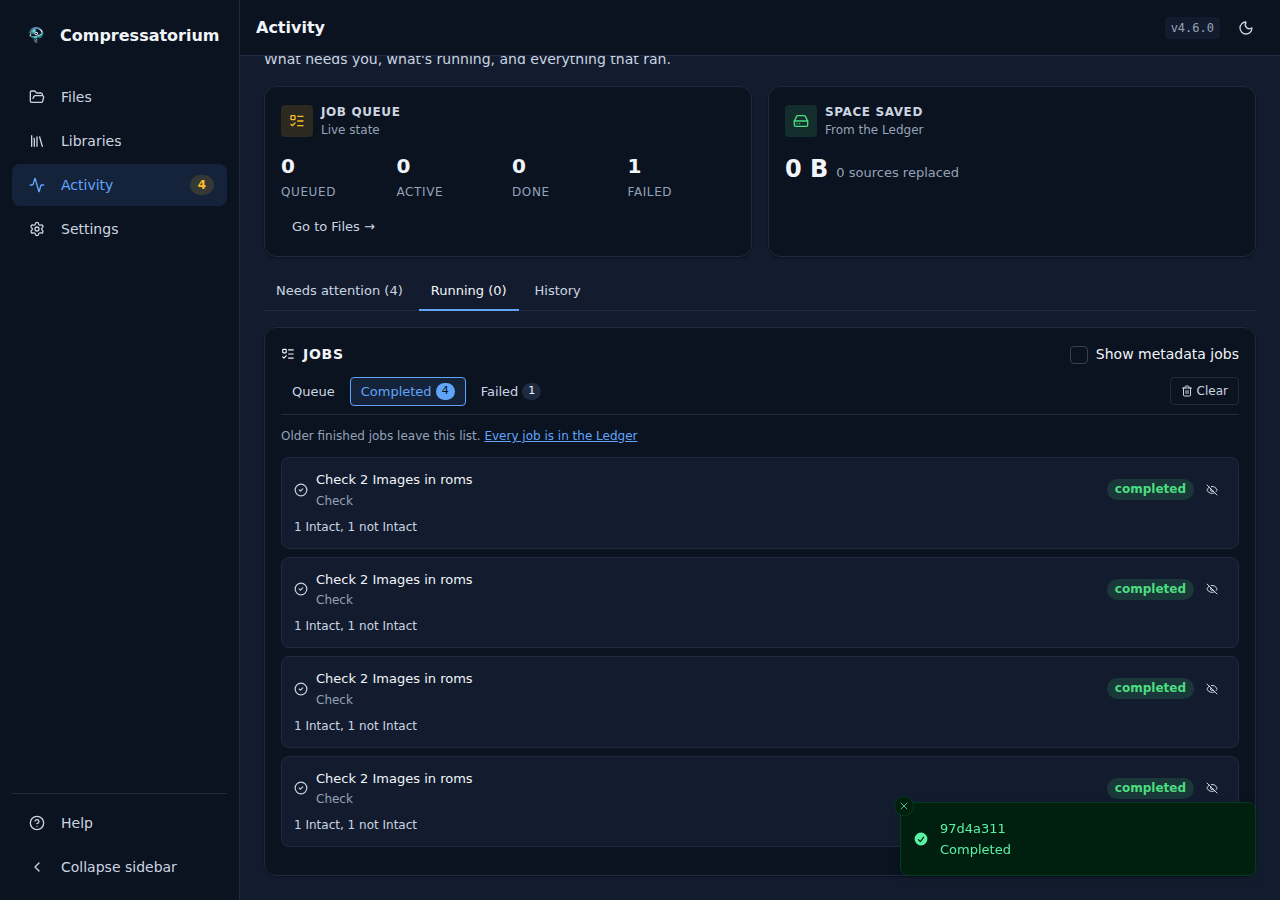 |
Finding duplicates
Find duplicates (in a folder Library's ⋯ menu) looks
for the same disc stored more than once in that Library, even in different
containers: Game.iso, the Game.rvz made from it and a DVD Game.chd are
one disc.
- Each file gets a content key, the SHA1 of the disc image it holds: an
.isoor.binfile's own SHA1, a Dolphin container's (RVZ, WIA, GCZ, WBFS) disc SHA1 fromdolphin-tool verify, and a DVD or hard-disk CHD's data SHA1. A CHD's overall SHA1 is never used: it folds in the metadata, so it never equals an image's. - The key is kept with the file's size and modified time, so a second run reads only the files that are new or changed. Reading an RVZ rebuilds the whole disc once; reading a CHD is its header only.
- CD CHDs, CSO, ZSO, DAX, NSZ, WUX and Z3DS files, sheets and archives get no key yet. The Findings view says how many of each format the last run could not check.
- The run is one job in the Jobs panel, with its progress, and Cancel stops it (a cancelled run changes no Finding). A file that can't be read costs that file only. A file that stops answering on a slow Volume ends at a time bound, and the run then stops, leaving nothing written, rather than leave a stuck read behind for every file after it. It is not a conversion and takes no conversion slot.
- A file a job is writing or reading, and RomM's
.romm_tmp_*staging files, are never grouped. - A folder the run cannot list, a file it cannot read, or a copy in use by a job is not taken as gone: a group with a copy there is kept as it was, and Findings says how many it could not see.
- Each group is a Duplicate Finding listing every copy's path, container and size. It goes away once only one copy is left (at the next listing or run).
Finding duplicates deletes nothing by itself. To clean a group up:
- Each group names a suggested keeper, with the reason: an Intact copy first (one whose check passed since it last changed), then one whose content hash was read from the whole file, then a Recognized one (a DAT or Hasheous names it), then the smallest. A copy that failed its check is never kept.
- The copy kept must be proven to hold the disc. A CHD's hash comes from its header, so a CHD is kept only once its check has passed; until then the Findings view says to check it first.
- Delete others… opens the confirmation list: every file each other copy's
delete would remove (a
.cue's tracks, a split set's parts) and any playlist that would be pointed at the copy kept. You can pick another copy to keep. Nothing is deleted until you confirm. - A delete is offered only when every copy is proven to hold the same disc
(equal content hashes), and not for a group the last run could not fully
see. A track that any
.cue/.gdiin your Volumes lists, beside it, in a folder above it, or elsewhere through a link, is never deleted on its own. When a sheet can't be read, or a folder in the Volumes can't be listed, no delete is offered; run Find duplicates again once it can. The same goes after the Volumes change. - Confirming starts a Delete duplicates job: the dialog shows its
progress, and you can close it and follow the job in the jobs list (or
cancel it there). The job reads the sheets in your Volumes again, so a
sheet added since the run still keeps its tracks, then checks every copy
and the copy kept again against what the Finding showed: one that is gone,
changed or unreadable stops the delete. The copy kept is then read in full
(a CHD through
chdman verify) and must still hold the same disc, or nothing is deleted. Each copy then goes through the same delete step, locks and checks as a conversion's delete-on-verify, and must still be the very file whose content was hashed (another file moved into its place is kept, even with the same size and date); a copy a job is using is kept, and the rest still go. - Afterwards the group lists what is left, or goes away once one copy is.
| Light | Dark |
|---|---|
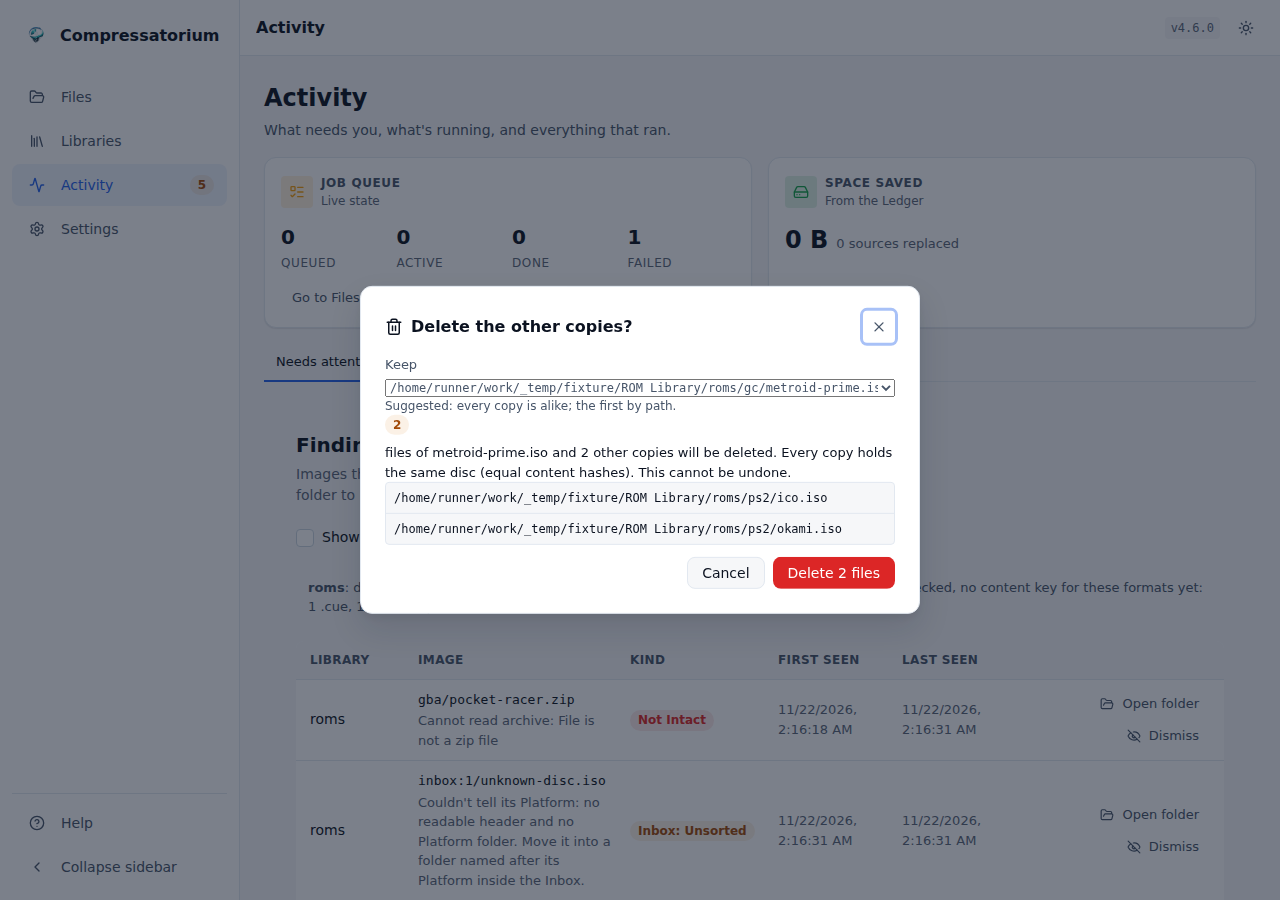 |
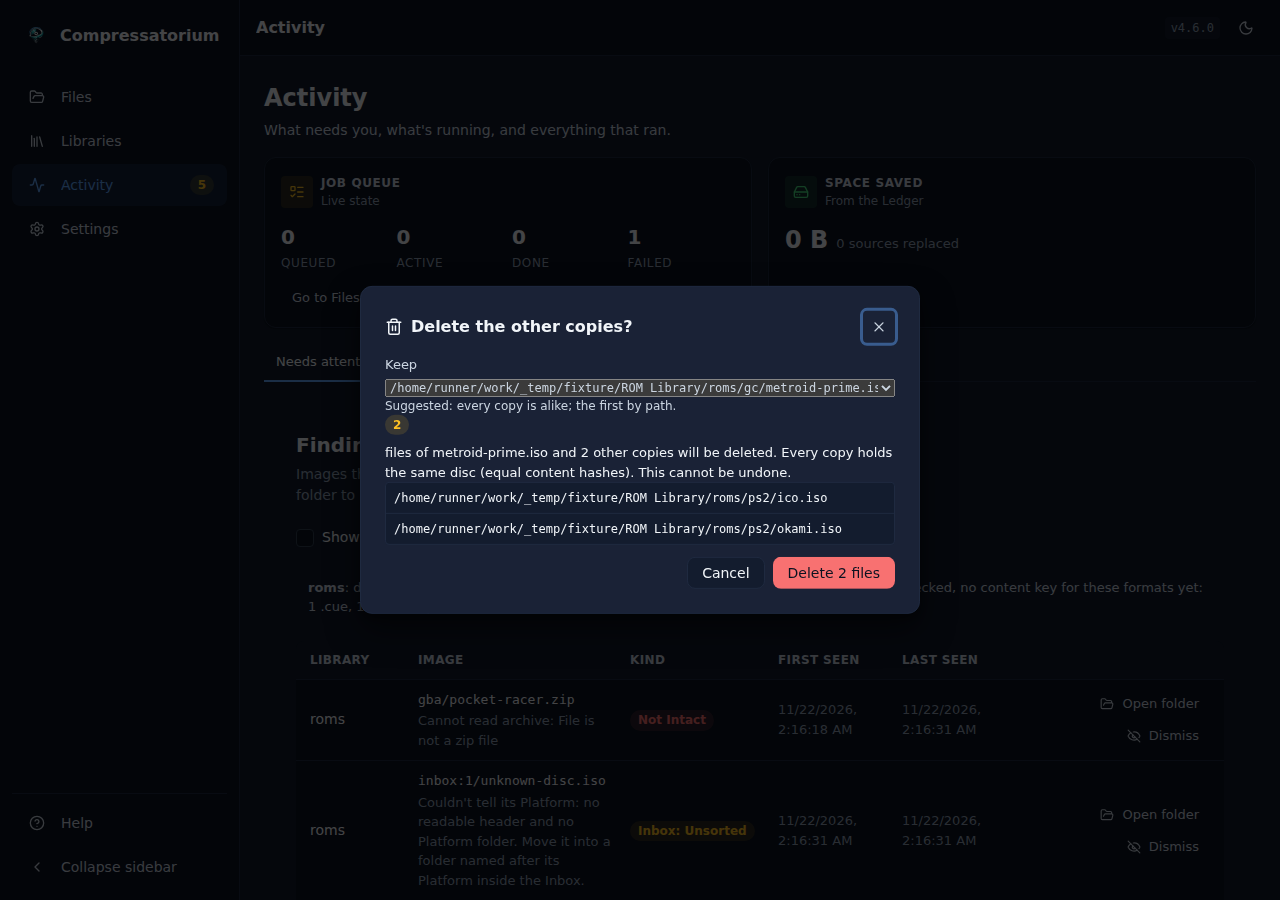 |
| Light | Dark |
|---|---|
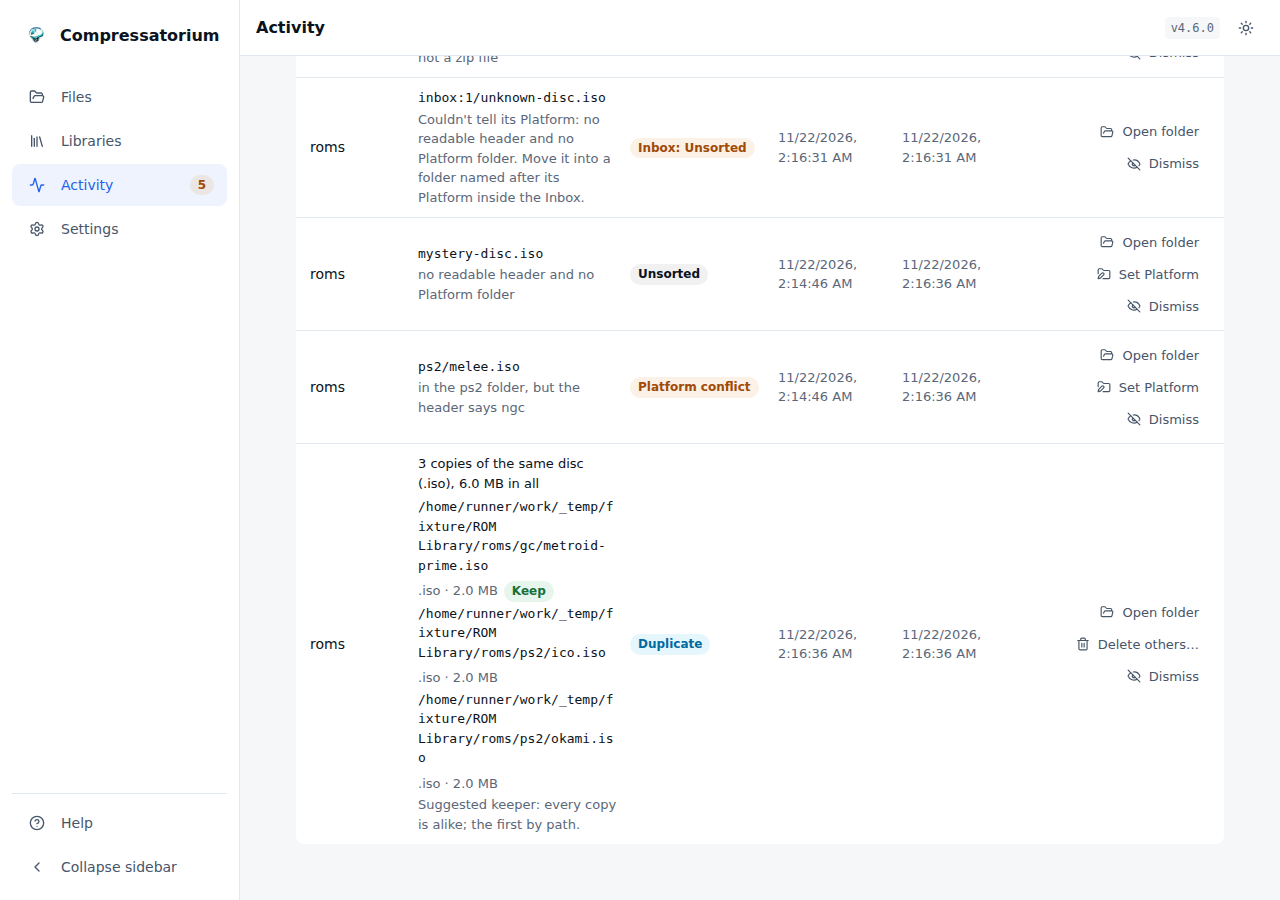 |
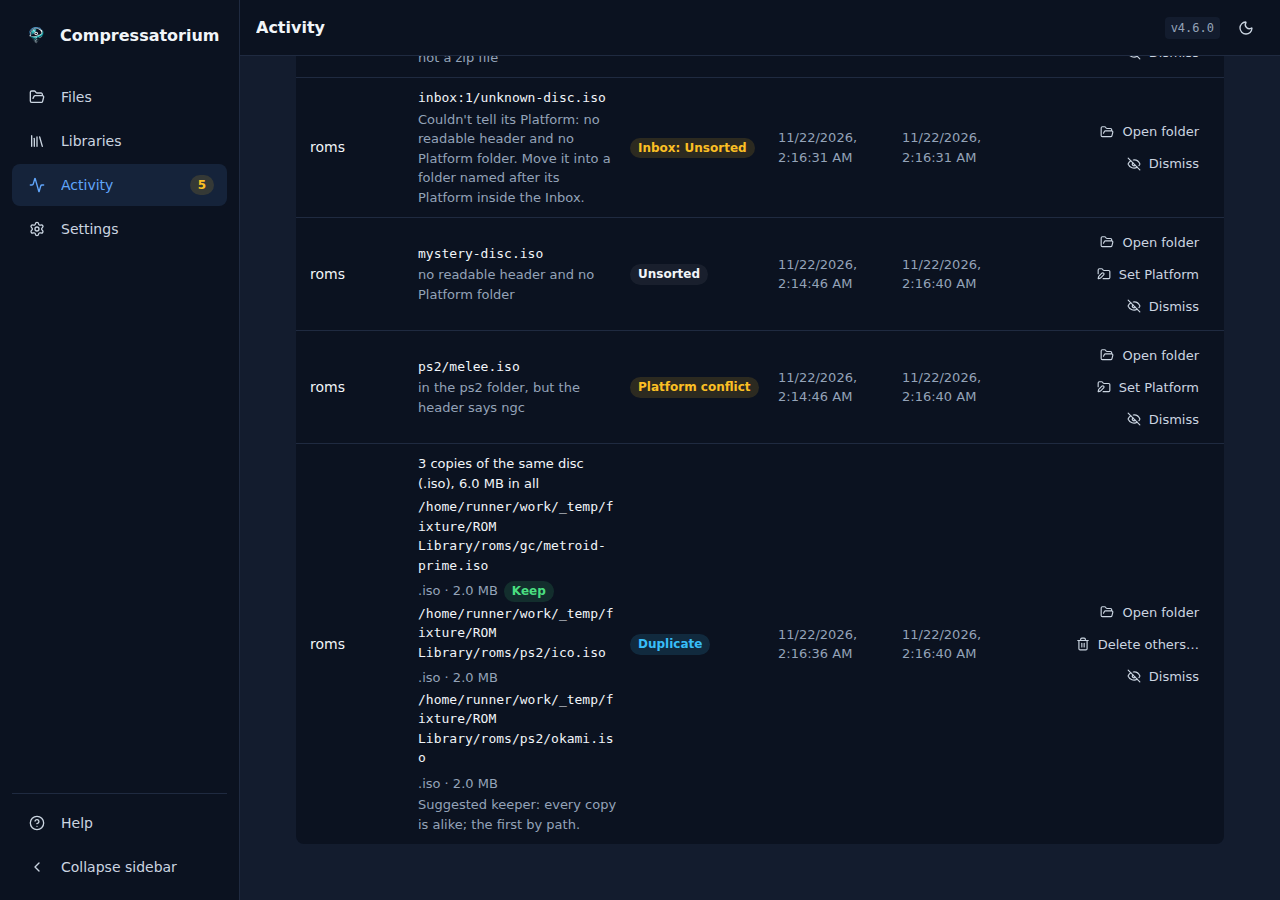 |
Findings and folder Platforms
The Findings view (in the sidebar) lists every Image in a folder Library that needs your decision:
- Platform conflict: the Image's header disagrees with its folder, or with the Platform you set on the folder ("in the ps2 folder, but the header says ngc").
- Unsorted: nothing names the Image's Platform, or the file could not be read.
- Not Intact: a check Rule found the Image fails its tool's check (in a folder or RomM Library). It has no Set Platform action.
Each row shows the Library, the Image, the kind, and when it was first and last seen, with three actions: Open folder shows it in the Workspace, Set Platform tells the app what the folder holds, and Dismiss hides the row until its cause changes (a dismissed conflict comes back if the header or folder later says something else). Show dismissed lists the hidden ones, each with Show again. Check now lists every folder Library again. Findings are written each time a Library is listed or swept, and cleared once the cause is gone. A subfolder or file that cannot be read during a listing keeps its Findings as they were until it can. A dismissal is kept even when its Image drops out of a listing for a while (a share that was unmounted): the Finding comes back dismissed if its cause is the same.
Set Platform ("this folder is PSP") is also on a folder's row menu in the
Workspace, for any folder inside a folder Library. Walking up from an Image,
the nearest folder that has a Platform set or is named after one decides, and
on the same folder the one you set wins. So setting roms/ to PSP names the
Images in roms/misc/, while roms/ps2/ stays PS2. The header still wins
over both, and a header that disagrees is a conflict, never a guess. Clear
mapping removes it. If the Library is being listed when you save, the
Findings update once that listing finishes.
The app never moves, renames or deletes an Image because of a Finding.
Your metadata survives conversion
This is the part most conversion workflows get wrong. RomM identifies a CHD by the SHA1 embedded in its header and an archive by its largest member, so converting to CHD, ZIP or 7z keeps the Redump/No-Intro match automatically.
RVZ, CSO, NSZ, WUX and Z3DS are different: RomM matches those on the file's own hash, which conversion necessarily changes, so the ROM would go unidentified and lose its artwork and metadata. Compressatorium handles it — it saves each ROM's metadata before converting and re-applies it afterwards:
- Convert as usual. The view tells you up front which formats need this step.
- Let RomM rescan (its watcher, a scheduled scan, or a manual one).
- Press Re-match in RomM — or leave it to run automatically on page load.
One case cannot work and says so instead of pretending: a PS3 rule that splits its output into 4 GB parts only actually splits past 4 GB, and when it does there is no single file for RomM to hash — that ROM is reported as needing a manual re-match rather than sitting in the queue for a week. Under 4 GB the same rule produces one ISO and re-pins normally.
The match uses the converted file's SHA1, so it's exact and survives you renaming or moving the file in between — once the hash has been taken, where the file sits stops mattering. The exception is the platforms RomM never hashes — Switch, Wii U, PS3 (and PS4/PS5, Xbox 360/One, PC) — where there is no SHA1 to match on: there the converted file is found by its path in the library instead, so leave it where the conversion wrote it until it has been re-matched. Re-matching is idempotent: already-restored ROMs are skipped, and anything RomM hasn't scanned yet just waits for the next attempt. A conversion that was planned and then never ran is recognised as such rather than re-pinned onto whatever it was going to overwrite, and its saved metadata is discarded instead of sitting in the pending count. Each pass has a time budget, so an unresponsive share costs one pass rather than a hung page; whatever it did not reach is picked up on the next one.
Settings reference
| Setting | Default | What it does |
|---|---|---|
| RomM URL | (unset) | Base URL of your instance. Unset hides the feature. |
| API token | (unset) | Client API token. Saved in compressatorium.db and never sent back to the browser — treat that file as holding a secret. |
| Library path | (unset) | Where RomM's library is mounted in this container. |
| Give up on a saved snapshot after | 7 days |
How long a saved metadata snapshot waits for RomM to rescan the converted file. Raise it if your conversion queue or RomM scan schedule runs longer than that — retiring one early means that ROM's metadata is gone for good. |
| Run automatically | off | Master switch for scheduled sweeps. |
| Save metadata before converting | on | Snapshot provider IDs for formats RomM can't hash. Off silences both the manual and the automatic path. |
| Re-apply metadata on page load | on | Settle the queue automatically when you open the view. |
ROMM_AUTO_CONVERT_INTERVAL_MINUTES, ROMM_AUTO_CONVERT_MAX_PER_RUN,
ROMM_VERIFY_AFTER_CONVERT and ROMM_DELETE_SOURCE_AFTER_VERIFY seed the
defaults a new platform rule starts from, so a deployment can ship a house
policy without configuring each platform by hand. A rule that sets the field
explicitly keeps its own value.
Clearing the token in Settings clears it for good: a ROMM_TOKEN in the
environment does not silently take over again.
The matching environment variables — ROMM_URL, ROMM_TOKEN,
ROMM_LIBRARY_ROOT, ROMM_AUTO_CONVERT and friends — seed these on first run.
See docs/DOCKER-COMPOSE.md for a full compose example.
Patching a ROM
To play a translation or a fix, open a cartridge Image's ⋯ menu in the file
list and pick Patch…. It works on a loose ROM, on a .zip or .7z that holds
one ROM, and on a ROM you've browsed to inside an archive. Choose the patch: type
the path of an .ips or .bps file in a Volume, or upload one from the device
you're on (it's kept in the app's data directory, under patches/).
The app writes Name (Patched).7z beside the Image, packed with the same 7z
the Handheld ROM tool uses, and never changes the original. If that name is
taken it writes Name (Patched) (2).7z, and so on, so an earlier patched copy
is never overwritten. The archive is read back before it's kept, and must hold
exactly the patched ROM.
- BPS patches carry checksums. A patch made for a different ROM is refused before anything is written, and the patched ROM must match the checksum the patch promises.
- IPS patches carry none, so when the ROM isn't Recognized (no imported DAT names its SHA1, and its last DAT or Hasheous match was no hit) the job finishes with a warning that the patch may not fit it.
- Disc Images (
.cue,.iso,.chd,.rvz,.csoand the other disc types the tools know) are refused for now. - An archived ROM is unpacked under the
CHD_ARCHIVE_MAX_*limits. A patch overCHD_PATCH_MAX_PATCH_SIZE, or a ROM overCHD_PATCH_MAX_ROM_SIZE, is refused. A patch picked from a path must be inside a Volume.
The job shows in the queue, and its Ledger row names the Image, the patch file and the patch's SHA1, and the output. The patched Image is like any other Image that isn't Recognized: Rules and the duplicate finder treat it that way. The app never downloads patches.
| Light | Dark |
|---|---|
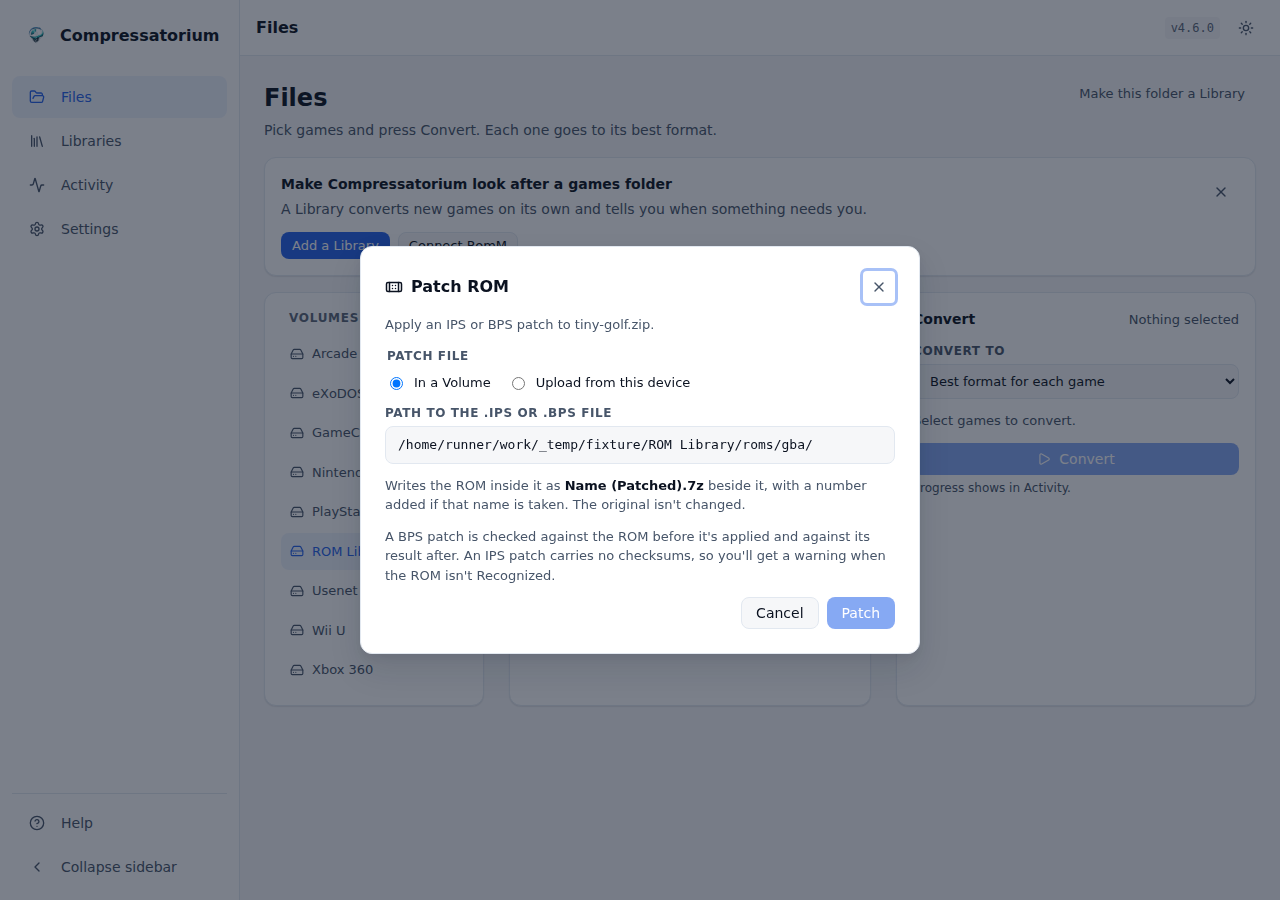 |
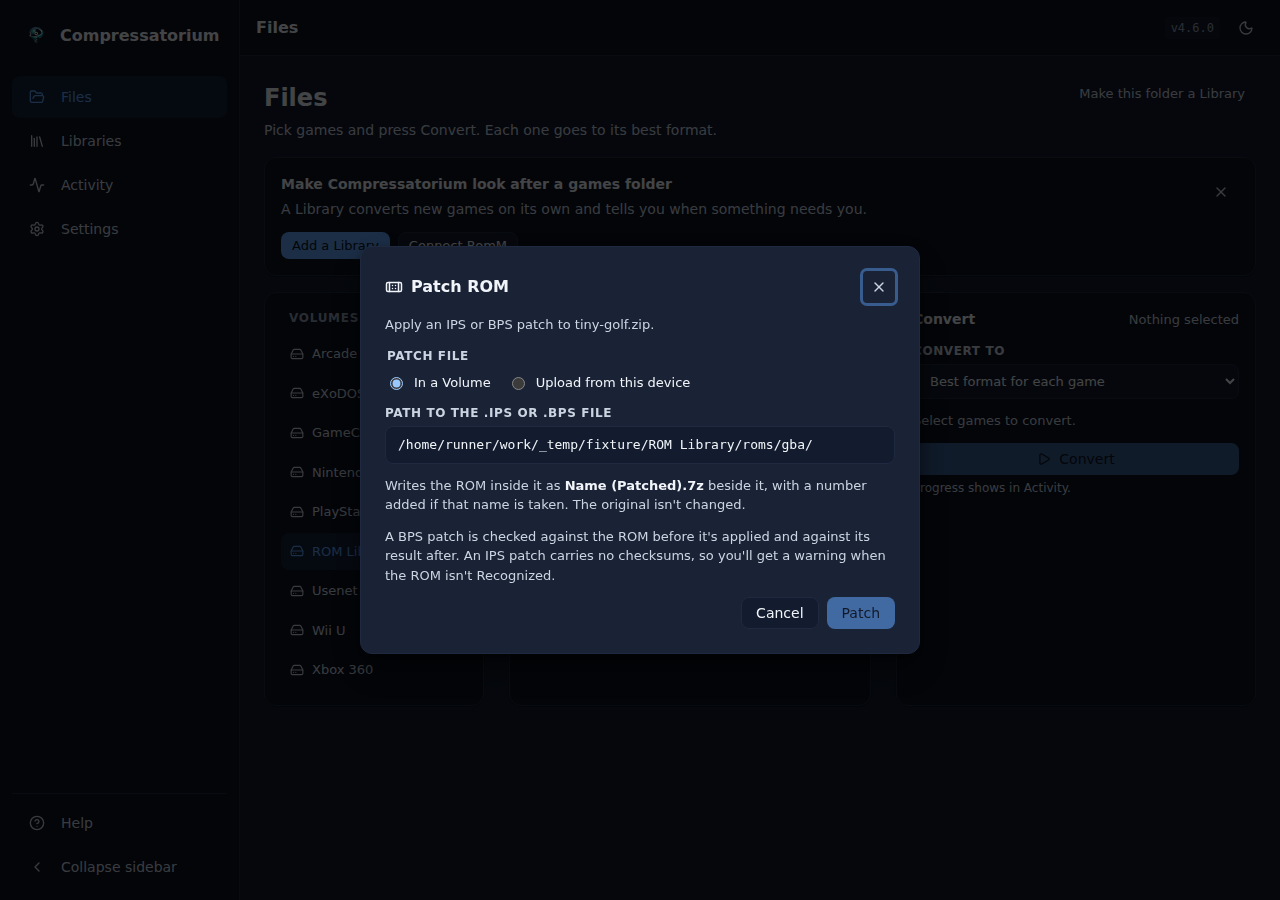 |
POST /api/patch takes {"image_path", "patch_path"} or {"image_path", "upload_id"} and answers {"job_id"}; POST /api/patch/upload (multipart,
field file) keeps a patch and answers its upload_id.
Archives
Browse straight into a ZIP, 7z, or RAR and convert a file from inside it — no need
to extract first. The member is unpacked to a temp dir for the conversion and
cleaned up afterwards. Any convertible source works this way (CHD create,
Dolphin, 3DS, Switch, and CSO — Switch still needs your own prod.keys), and
CHDMAN's extract modes can even pull a .chd out of an archive and decompress it
back to a game image. CHDMAN's copy/recompress mode is the exception: it acts on a
finished .chd, and recompressing one straight out of an archive is a pointless
round trip, so it's not offered there. Handheld ROM and PS3 ISO also don't take
archive inputs: the ROM packer's .7z/.zip are its product, and PS3 ISO's
input is a folder, not a file.
Why only certain files show inside an archive
Browsing into an archive does not list everything it contains. It lists the
file types the app knows — every extension that some tool recognizes as a
convertible source (.iso, .cue/.bin, .gdi, .gcz/.wia/.rvz/.wbfs,
.cci/.cia/.3ds/.cxi/.3dsx, .nsp/.xci, .cso/.zso/.dax, the handheld ROMs
.gb/.gbc/.gba/.nds, …) plus a .chd you can decompress in place. Anything
else is hidden, on purpose:
- Unknown files are filtered out. Read-me text,
.nfo/.sfvfiles, box art, manuals, save states — none of it is something the app can convert or verify, so it would only be clutter in the browser. The listing is global, scoped to known extensions: a member shows up if and only if its extension is one the app understands, regardless of which tool you currently have selected. - Nested archives are hidden. A
.zipinside a.zip(or.7z/.rar) is not listed — there's no point browsing an archive within an archive. - OS/NAS clutter is ignored. macOS
__MACOSX/…resource forks,.DS_Store,Thumbs.dband the like never appear, so a ROM zipped on a Mac or Windows box still reads as a clean single-file archive.
Some members that are shown still can't be converted from inside the archive, and the UI badges them non-convertible:
- A handheld ROM packed by this app (
Game.gbainsideGame.gba.7z) is shown so you can see and verify it, but it isn't offered for re-conversion — recompressing an already-archived ROM would just be packing a.7zinto another.7z. To unpack it, select the archive file itself and runromz_extract. - A
.chdinside an archive can be decompressed in place (chdman's extract modes), but it can't be recompressed — it's already a finished CHD, so chdman's copy/recompress mode is deliberately not offered from an archive.
In short: if a file you expect isn't in the list, it's almost always because its extension isn't one of the convertible/verifiable types the app handles. Loose files on disk follow the same rule — the file list filters to the types the selected tool understands.
Troubleshooting
- An emulator won't read the CHD — almost always the codec; recompress with
zlibonly using copy mode (see Compression Compatibility Tips). - "Output already exists" — pick skip / rename / overwrite; nothing is replaced unless you choose overwrite.
- A conversion stalls — big files are slow; an adaptive stall timeout scales with input size, and the queue has a recovery action. Check temp-dir space/speed.
- A file didn't show up — it may be part of a game (a
.binbeside its.cuefolds under it; open the chevron); try Everywhere in the search box, or clear the extension filter. - Not sure which format an ISO needs — leave Convert to on Best format for each game. The plan reads each game's header (or its folder name) and shows where it goes; games it can't place are listed with Pick console.
- The Switch tool is missing or jobs ask for prod.keys — it needs your own keys; see Nintendo Switch Support. Without keys the tool is listed on the dashboard under Not ready here with the fix.
Web UI Mode (Default)
The web interface is the easiest way to run Compressatorium:
docker run -d \
  -p 127.0.0.1:8080:8080 \
  -e PUID=$(id -u) \
  -e PGID=$(id -g) \
  -v /path/to/config:/config \
  -v /path/to/games:/data/games \
  pacnpal/compressatorium
Then open http://localhost:8080 in your browser. The Web UI and API are unauthenticated by default. To require a token, set COMPRESSATORIUM_ENABLE_AUTH=true: the Web UI then prompts for HTTP Basic auth (username defaults to admin), using COMPRESSATORIUM_AUTH_TOKEN for the password or the token generated in /config/auth_token on first startup.
Required: The
/configvolume must be mounted for persistent data storage and the generated auth token.
Volume discovery: IfCOMPRESSATORIUM_VOLUMESis unset, the app scans/data/*at startup and auto-registers mounted game volumes (restart after mount changes).
Ownership (optional): SetPUID/PGIDto match your host user/group (for example Unraid99:100). If unset, defaults remain999:999.
Default temp location:/config/temp. To use a different location, setCHD_TEMP_DIRand mount it.
Multiple Volumes
Mount multiple game directories for better organization:
docker run -d \
  -p 127.0.0.1:8080:8080 \
  -v /path/to/config:/config \
  -v /home/user/dreamcast:/data/dreamcast \
  -v /home/user/psp:/data/psp \
  -v /home/user/ps1:/data/ps1 \
  pacnpal/compressatorium
Custom Output Directory
In the Web UI, you can specify a custom output directory for converted CHD, Dolphin, or 3DS outputs instead of placing them alongside the source files. The directory will be created automatically as long as it is within your configured volumes.
Screenshots
The Web UI ships with light and dark themes and is fully responsive from desktop down to phones. Each surface below is shown as a light / dark pair.
These screenshots are generated automatically. The Take screenshots GitHub Actions workflow builds the UI, runs it against a throwaway fixture library, captures each surface with shot-scraper (definitions in
shots.yml), optimises the PNGs with Oxipng, and commits the results back todocs/screenshots/. To refresh them, trigger that workflow (or run it locally — seedocs/SCREENSHOTS.md).
Files
Drives on the left, the games of the open folder in the middle, and the Convert panel on the right. A game made of several files is one row; its chevron shows the files (here a playlist's discs).
| Light | Dark |
|---|---|
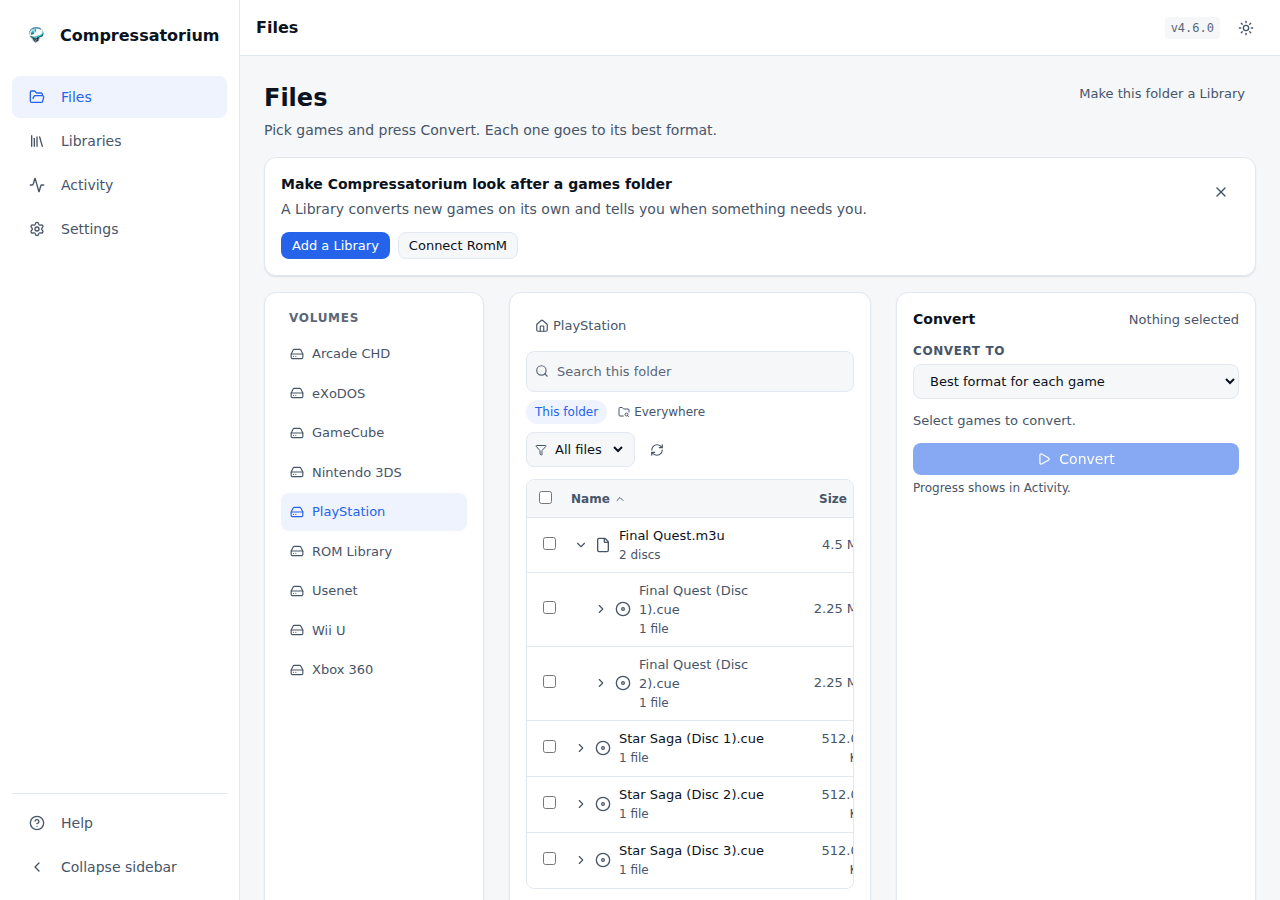 |
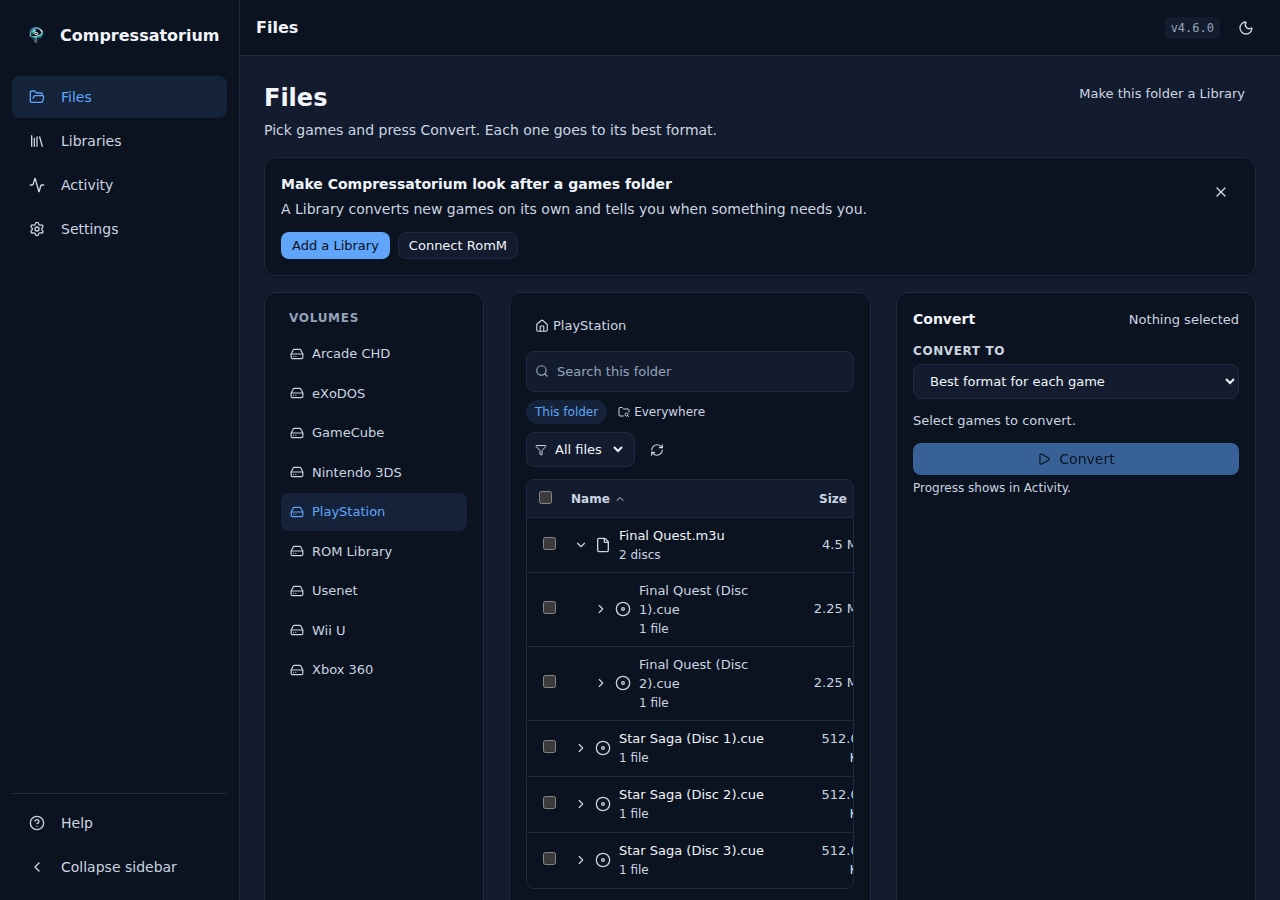 |
First run. With no Library and no RomM yet, Files offers to set one up.
| Light | Dark |
|---|---|
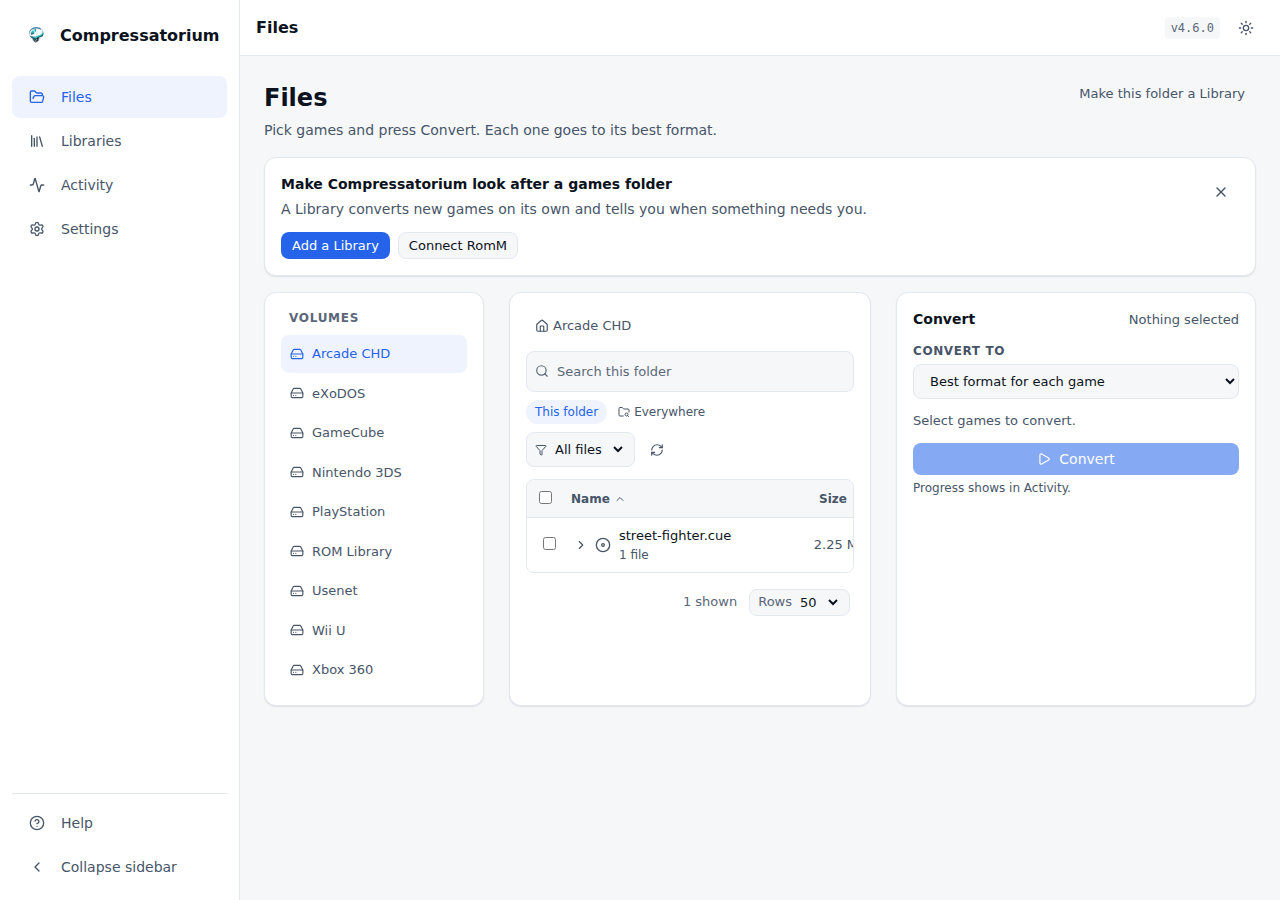 |
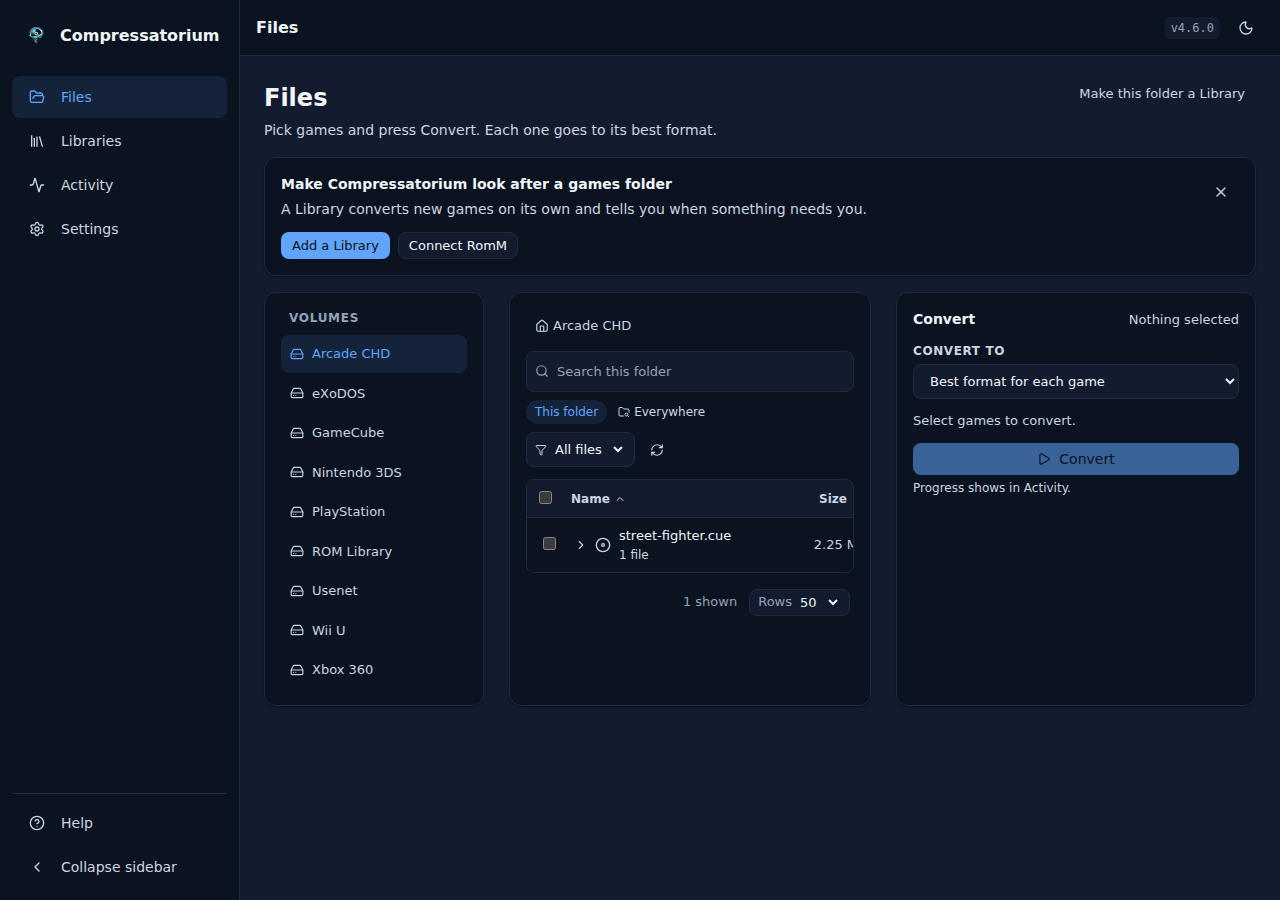 |
The plan. Select games and the plan shows each one's new format, one line per console and format, before anything runs. A game whose console is unknown or unclear is listed with Pick console.
| Light | Dark |
|---|---|
|
|
Convert to one format. Pick CHD (or any format) and the games it can't take are listed as skipped, with why.
| Light | Dark |
|---|---|
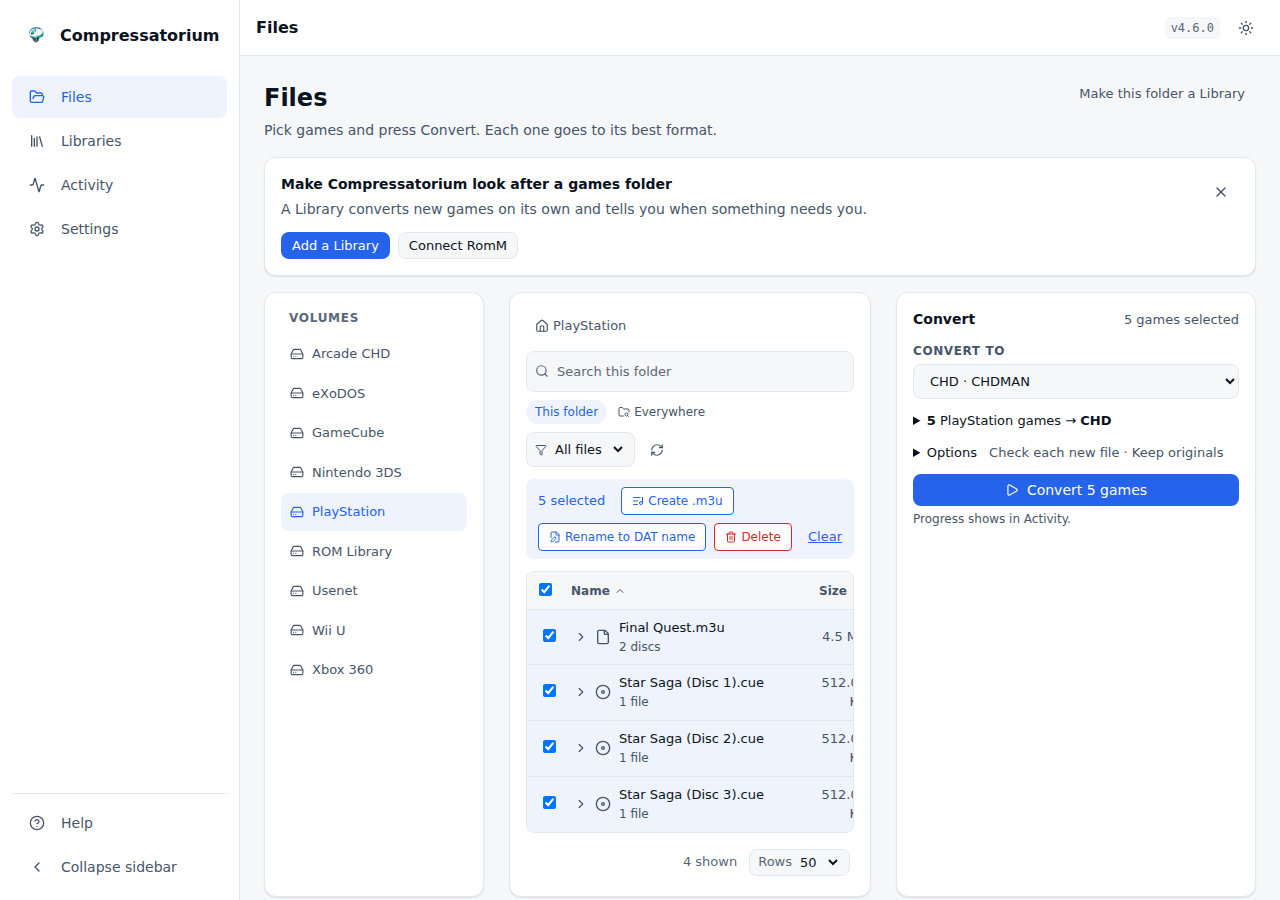 |
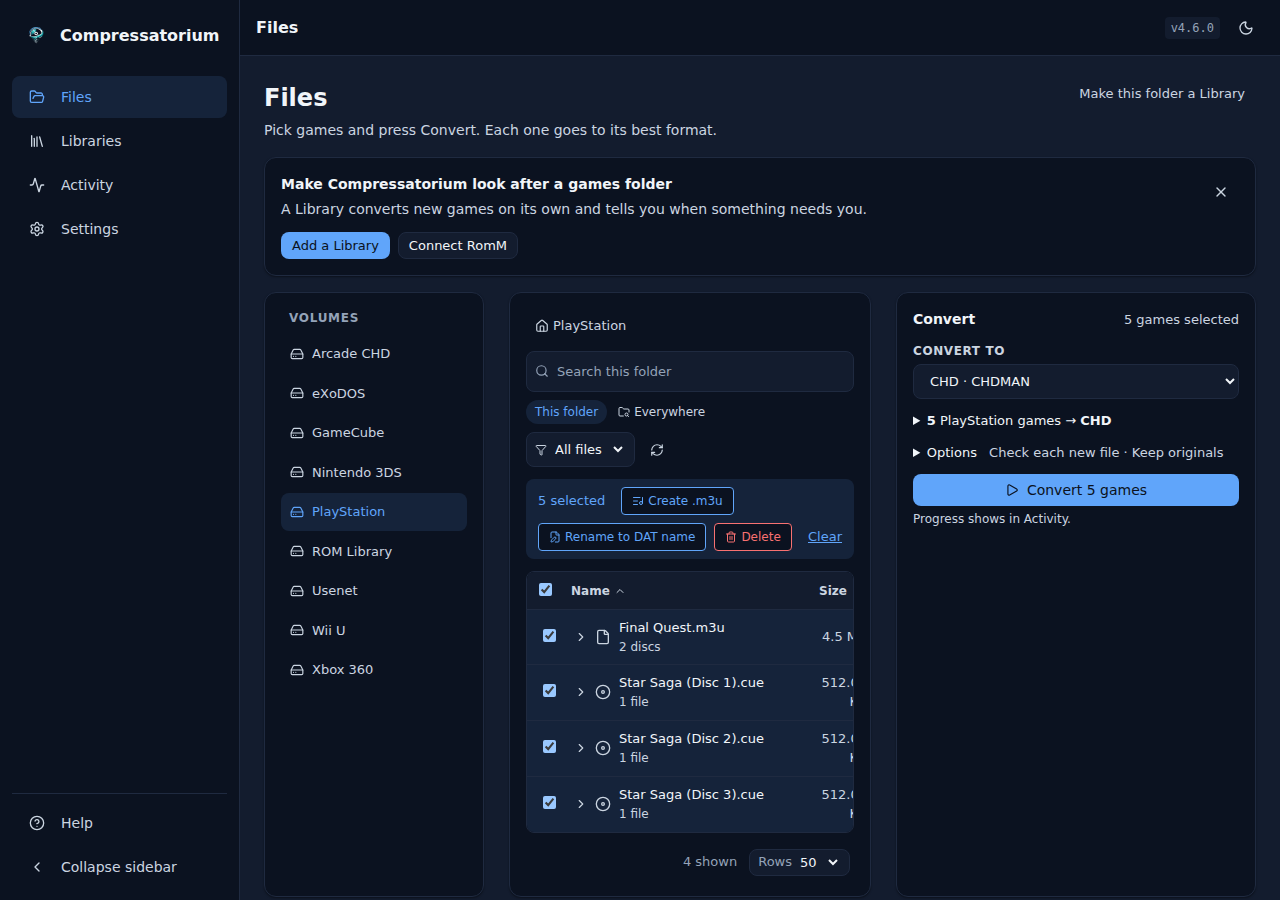 |
Options. The safety choices, one compression choice per format the plan makes, and where the new files go.
| Light | Dark |
|---|---|
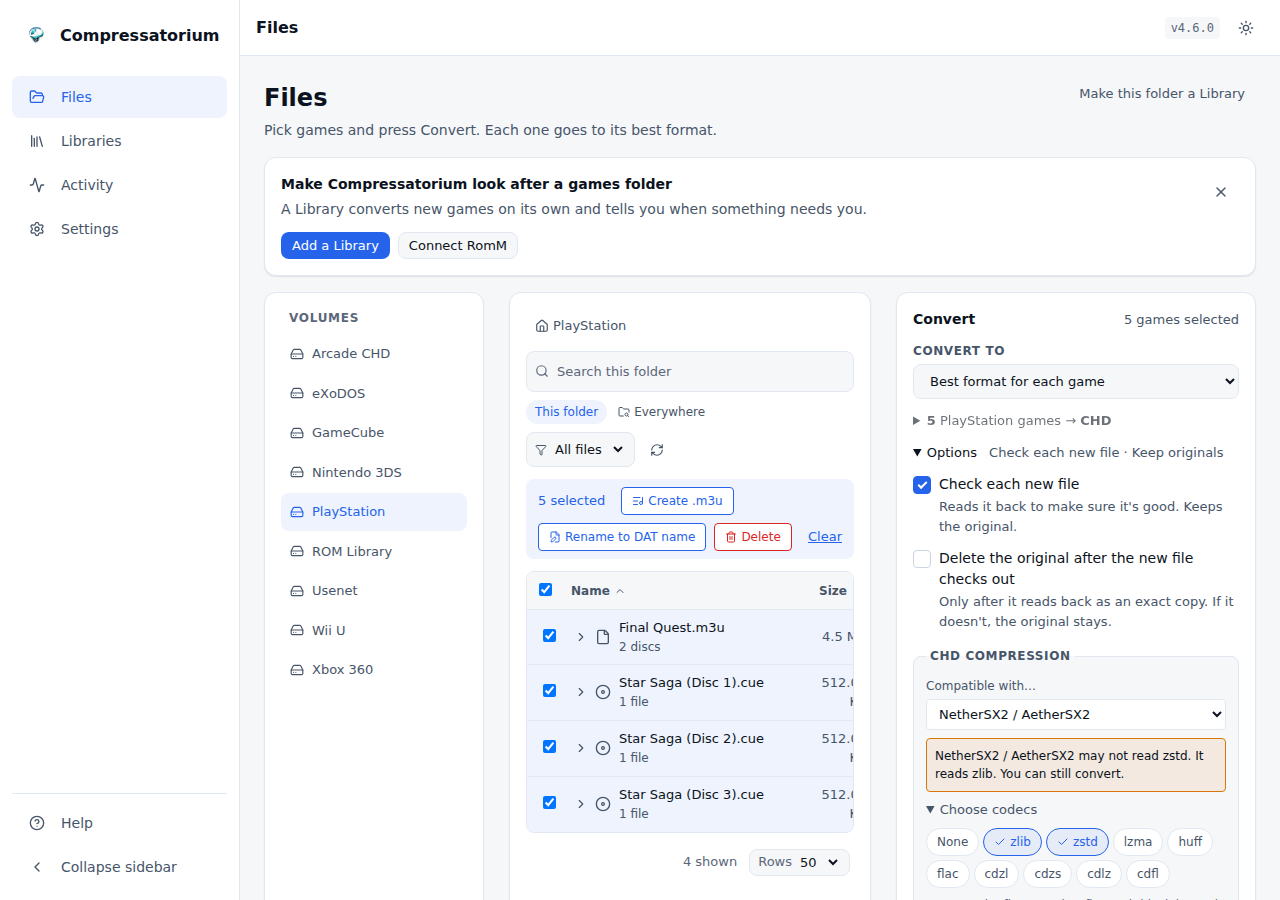 |
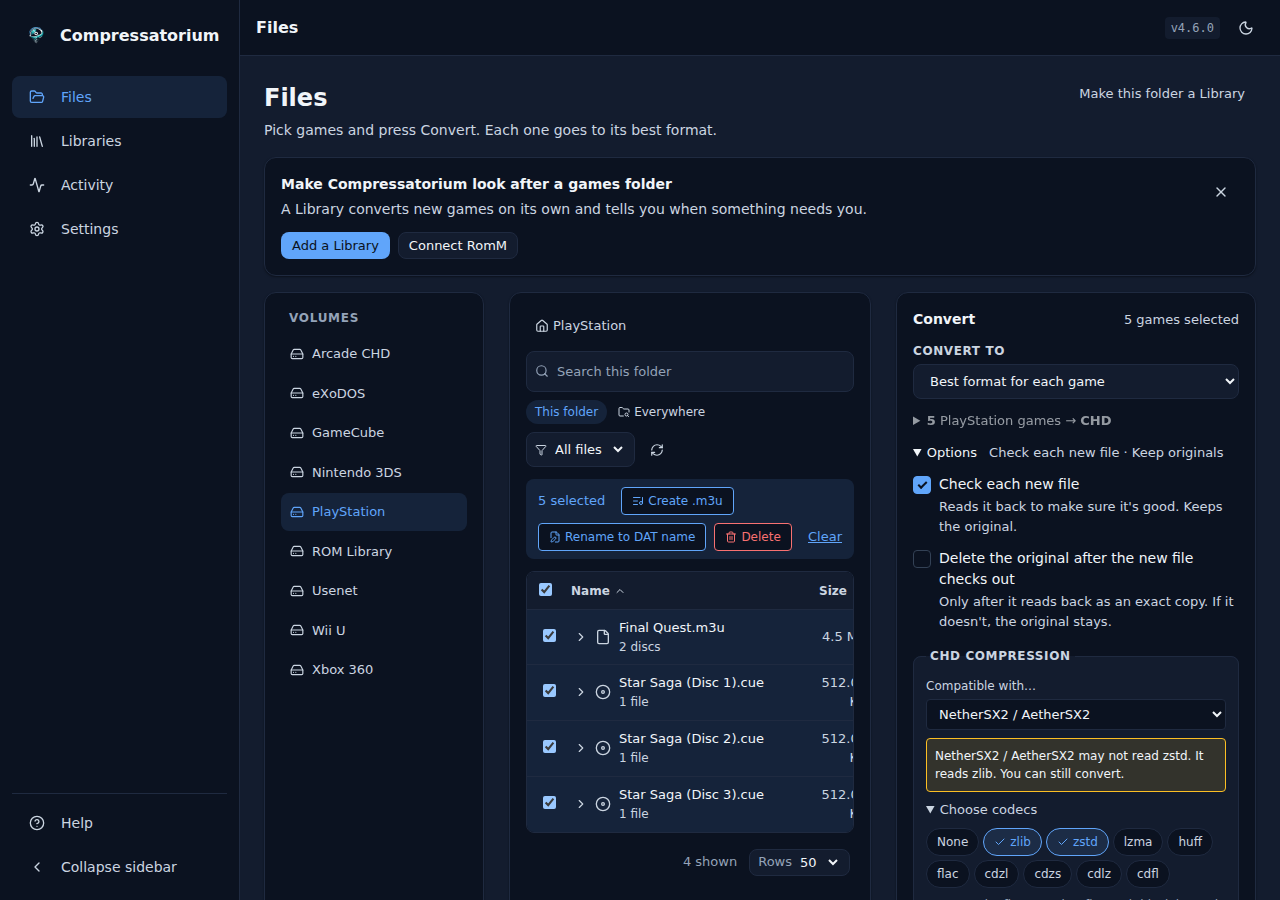 |
Delete the original only once the new file checks out. Before anything is
queued, the app lists every file it will delete, and each .m3u playlist entry it
will point at the new file first.
| Light | Dark |
|---|---|
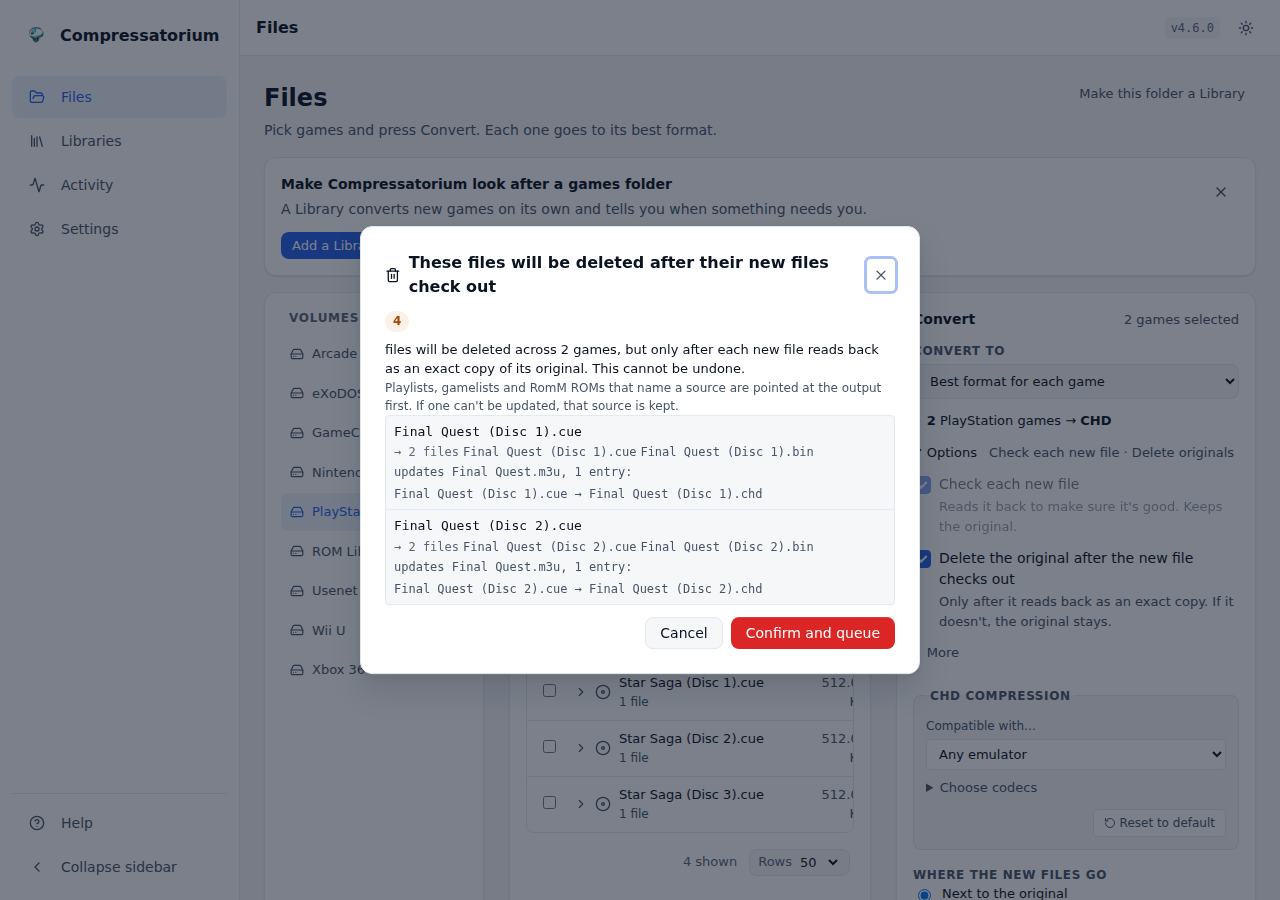 |
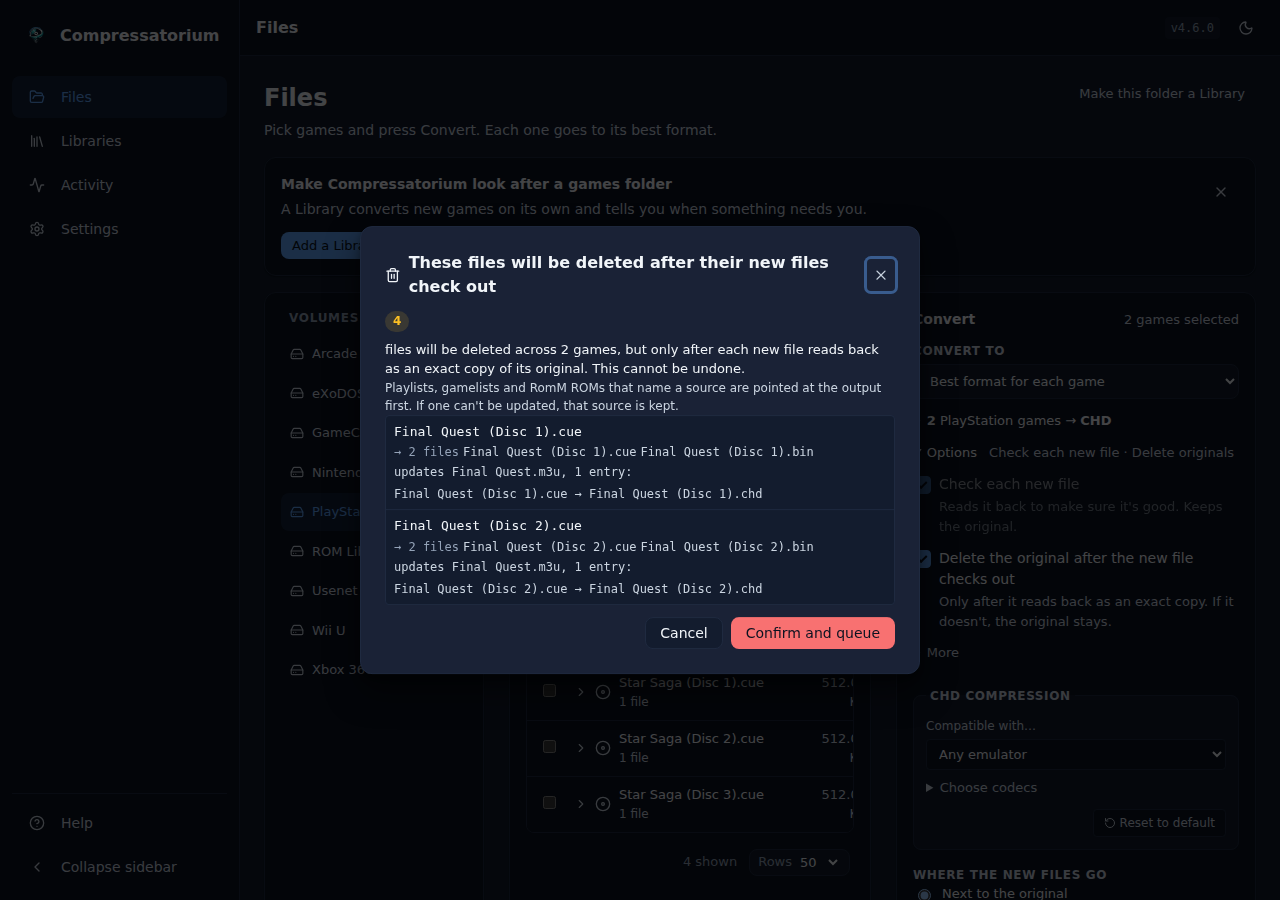 |
Create .m3u from selected discs. Select the discs of one game and the dialog previews the playlist name and the entries in disc order before it writes anything.
| Light | Dark |
|---|---|
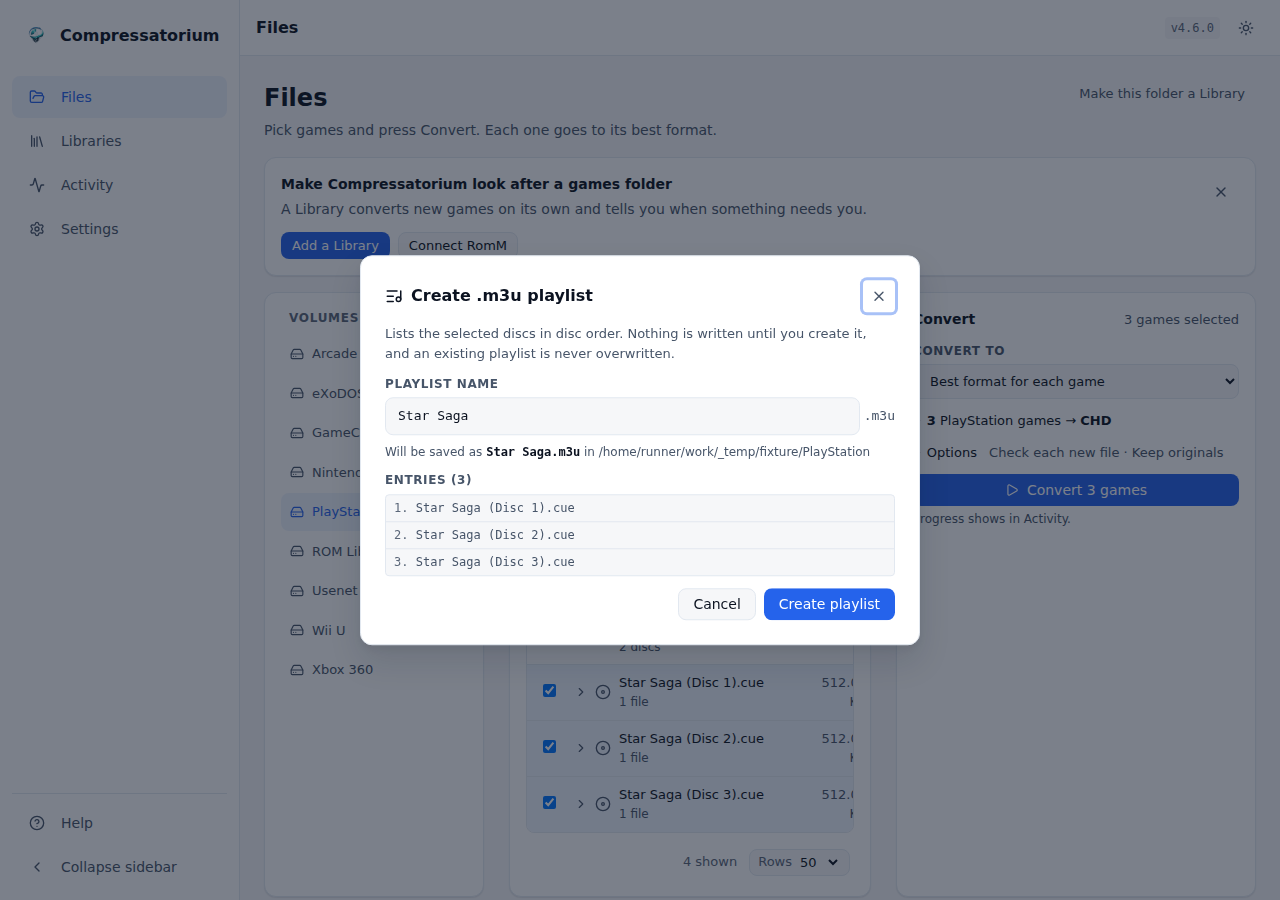 |
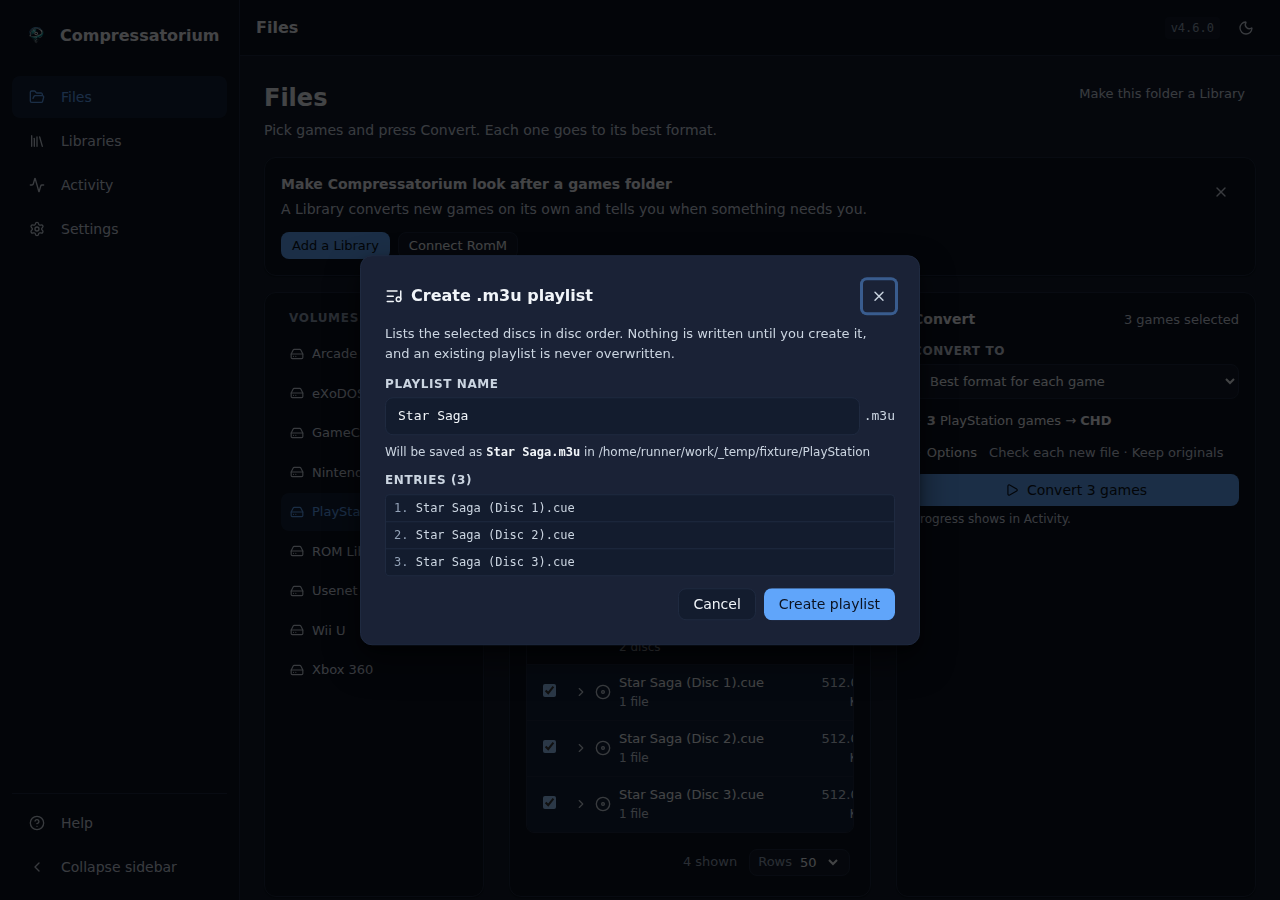 |
GameCube / Wii. Discs go to RVZ. With Delete the original on, each new disc is compared with its original before anything is deleted; Quick check only under More skips that comparison.
| Light | Dark |
|---|---|
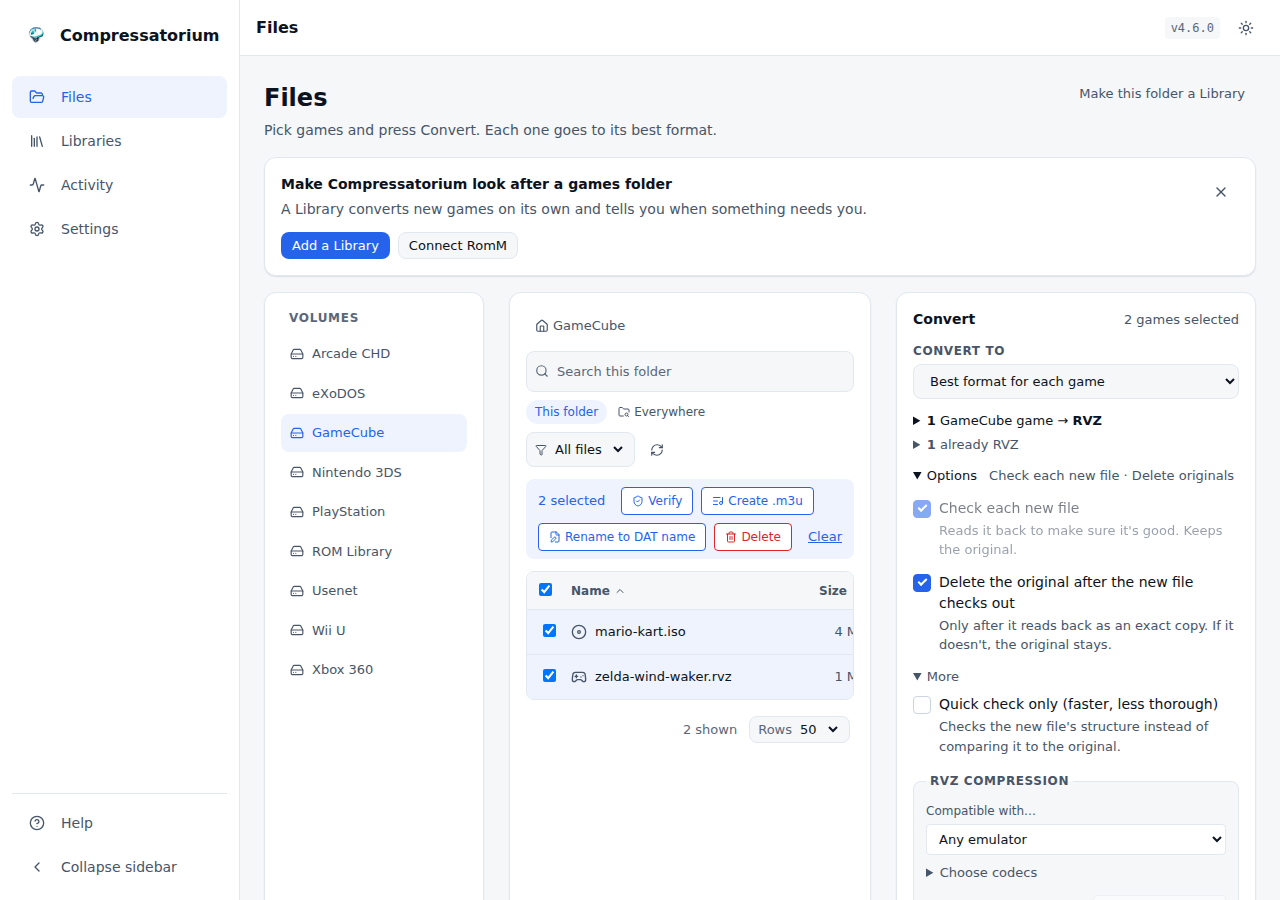 |
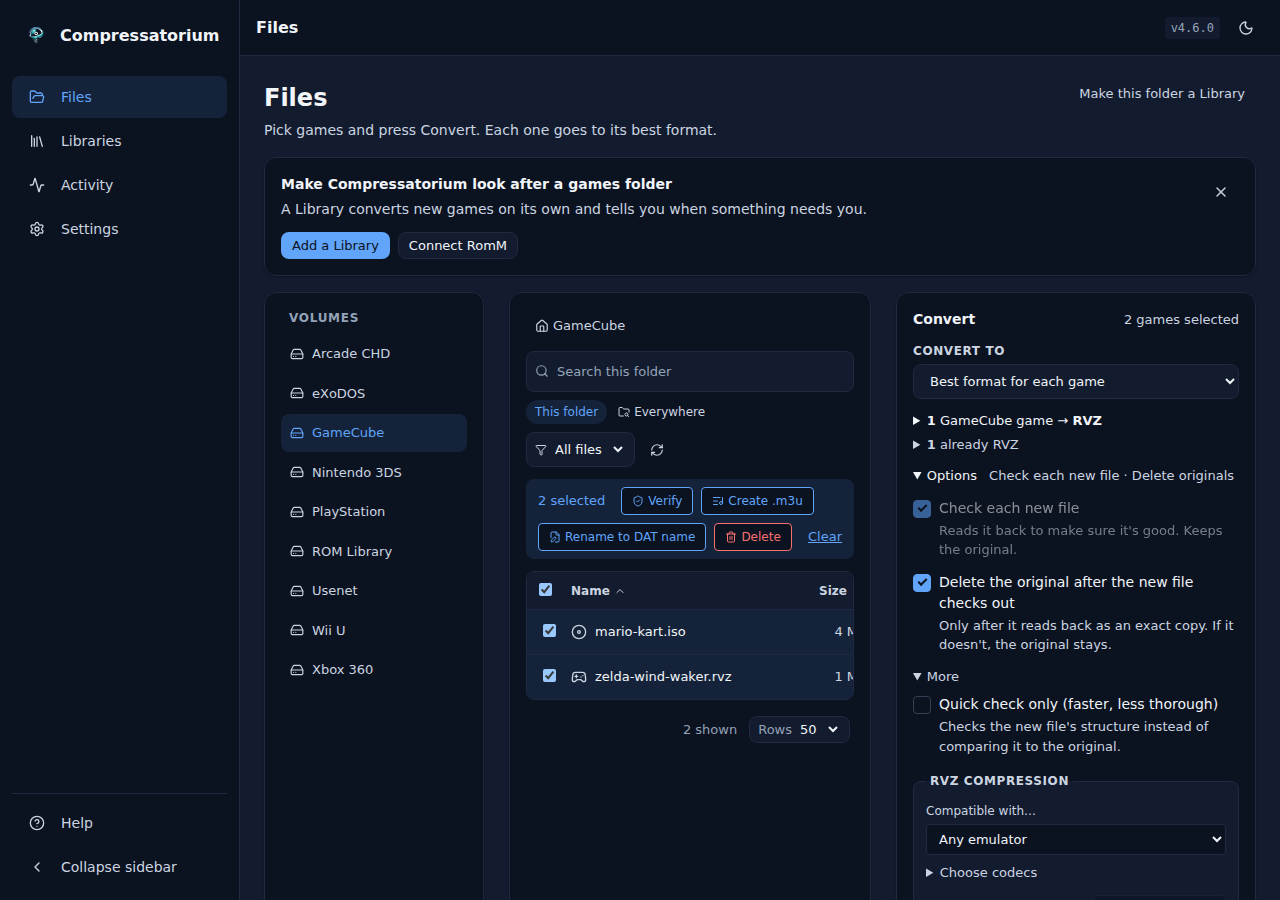 |
3DS. .cci, .cia and .3ds ROMs go to Z3DS.
| Light | Dark |
|---|---|
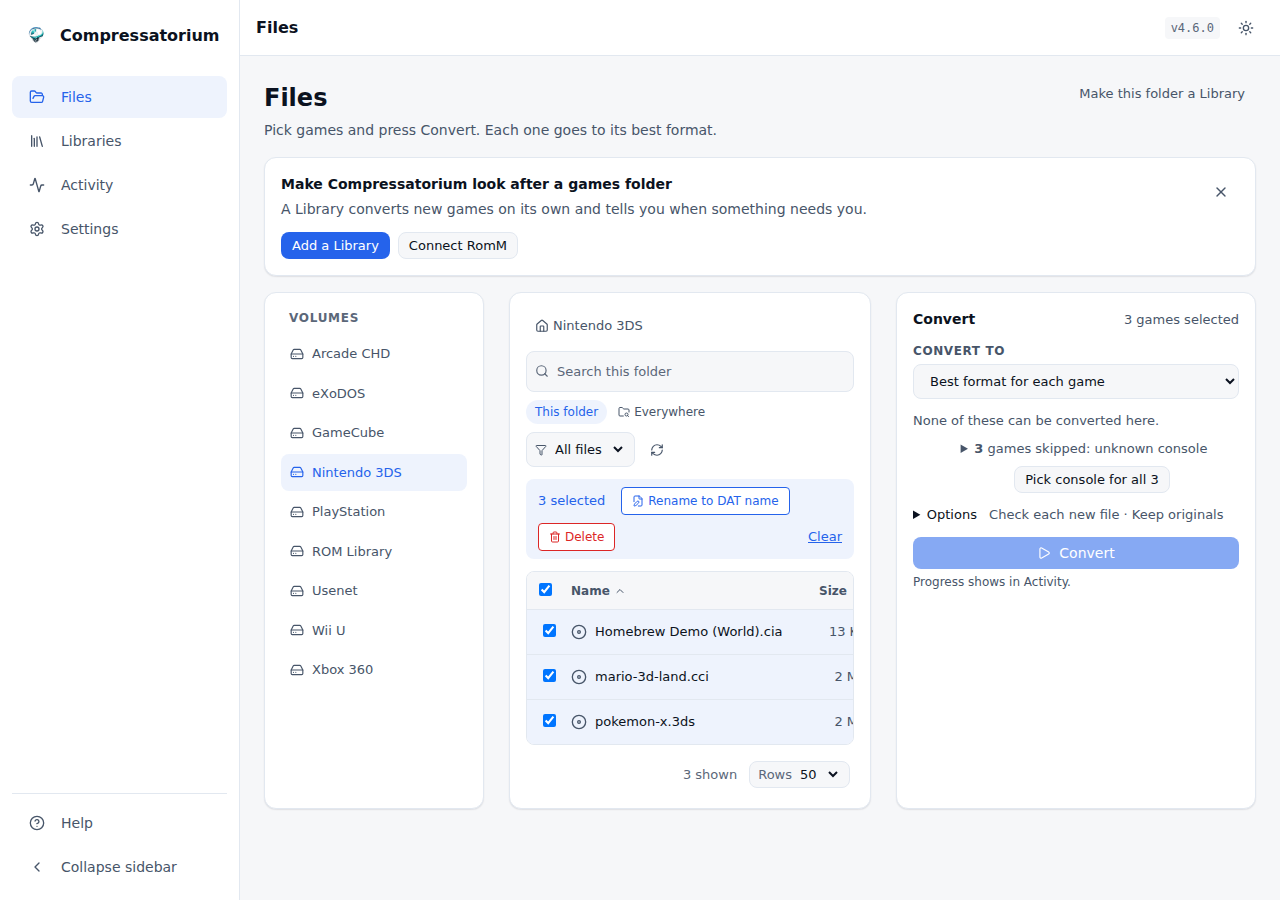 |
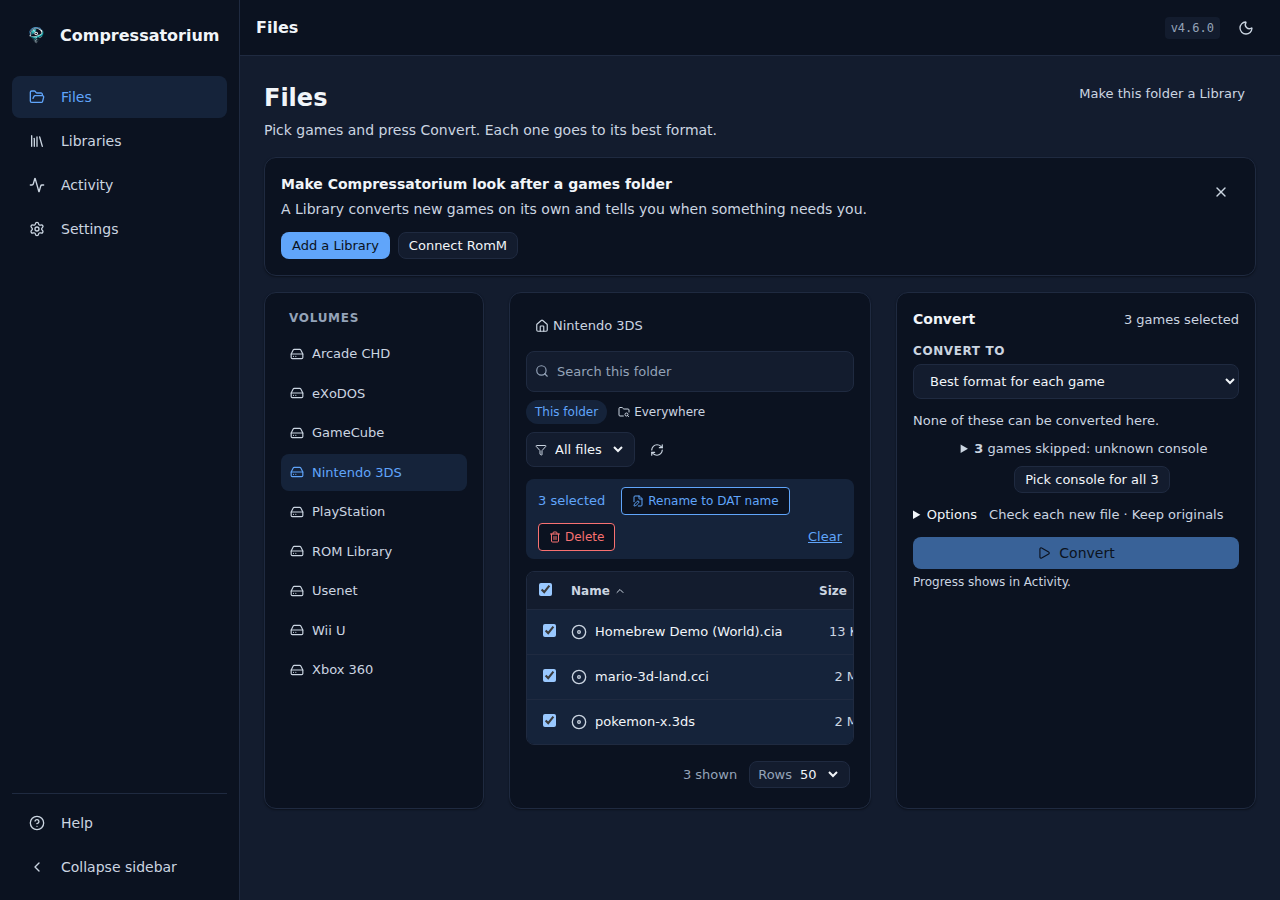 |
Wii U. .wud disc images go to .wux; a split dump is one row.
| Light | Dark |
|---|---|
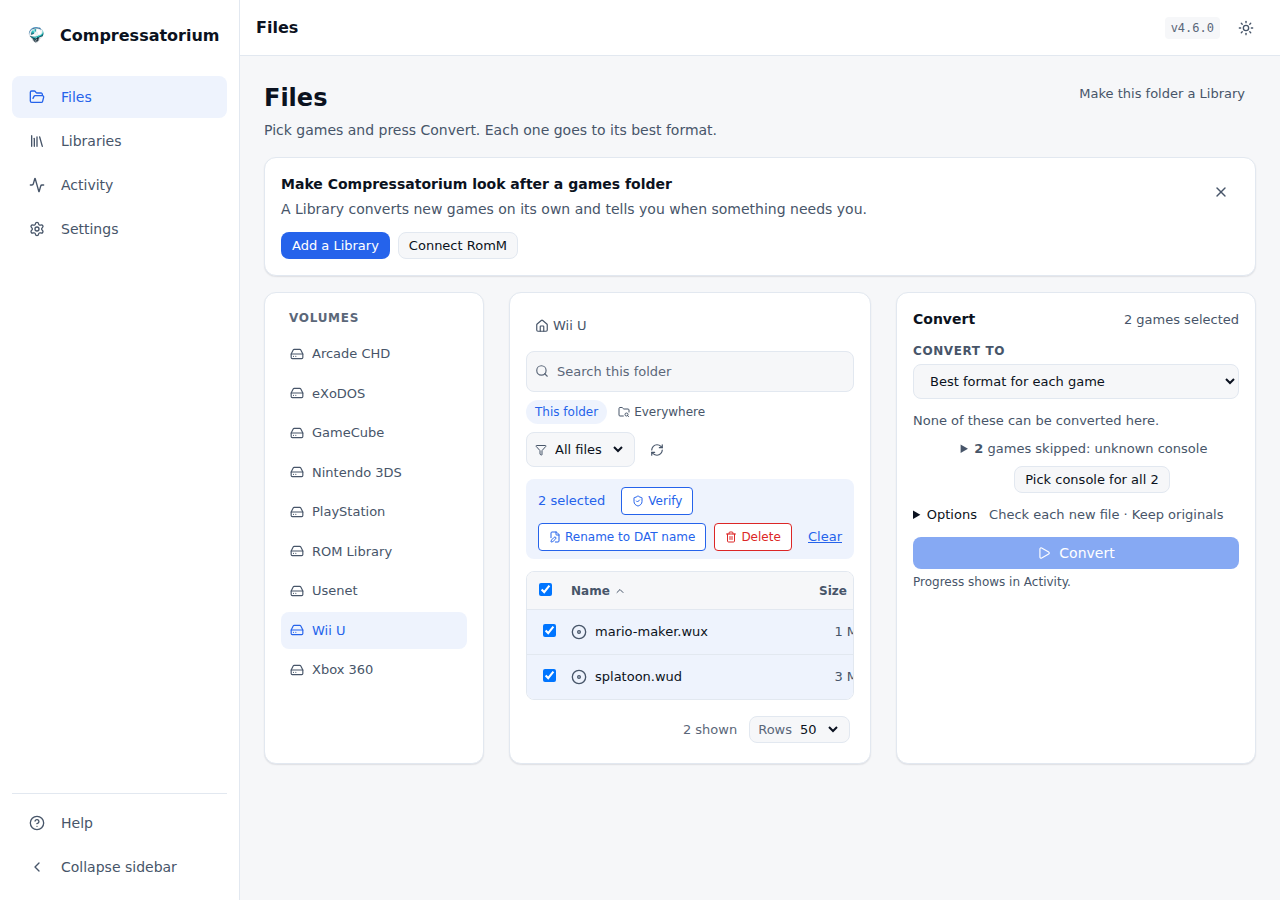 |
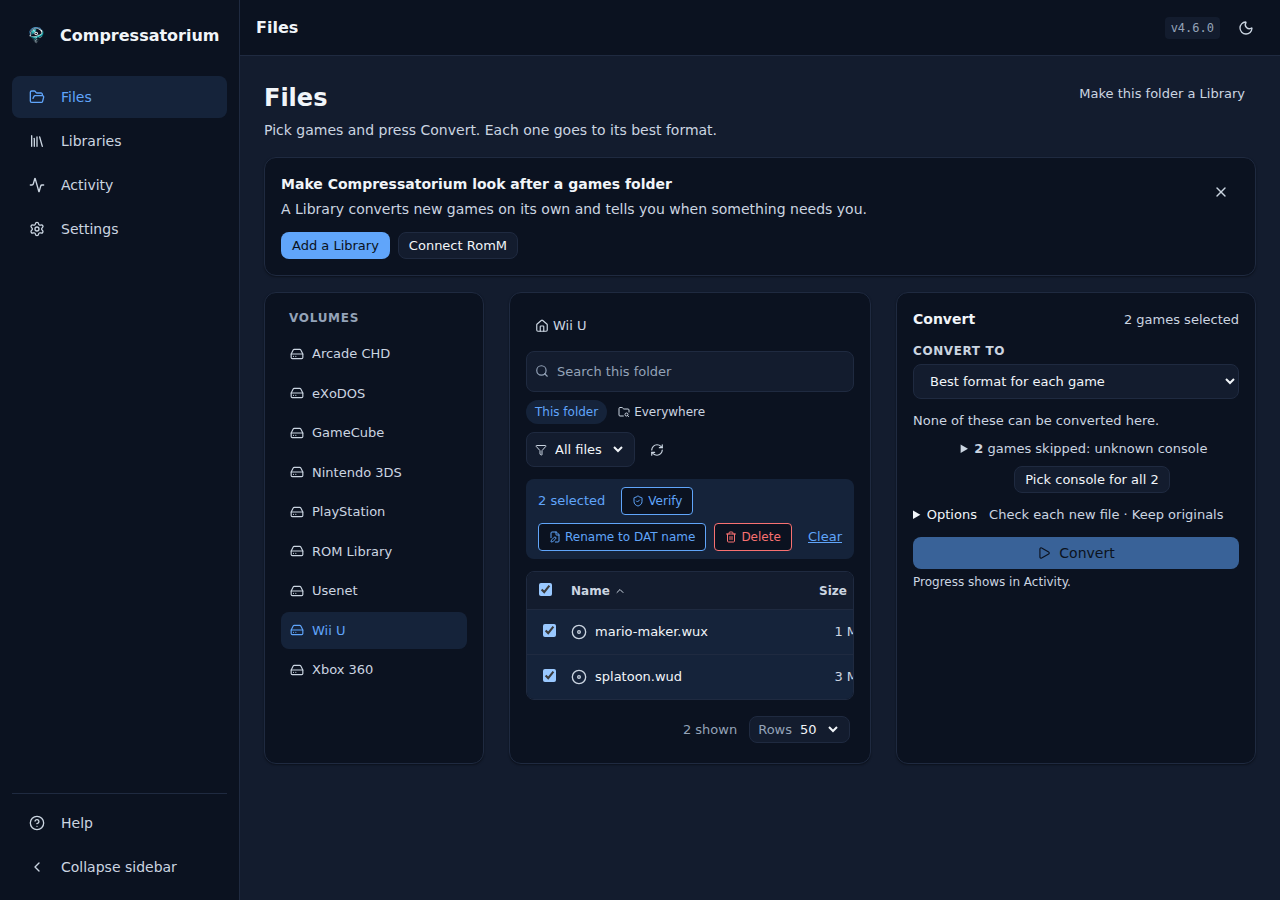 |
eXoDOS. eXoDOS game zips are repacked into .dosz files for RomM's in-browser
DOS player.
| Light | Dark |
|---|---|
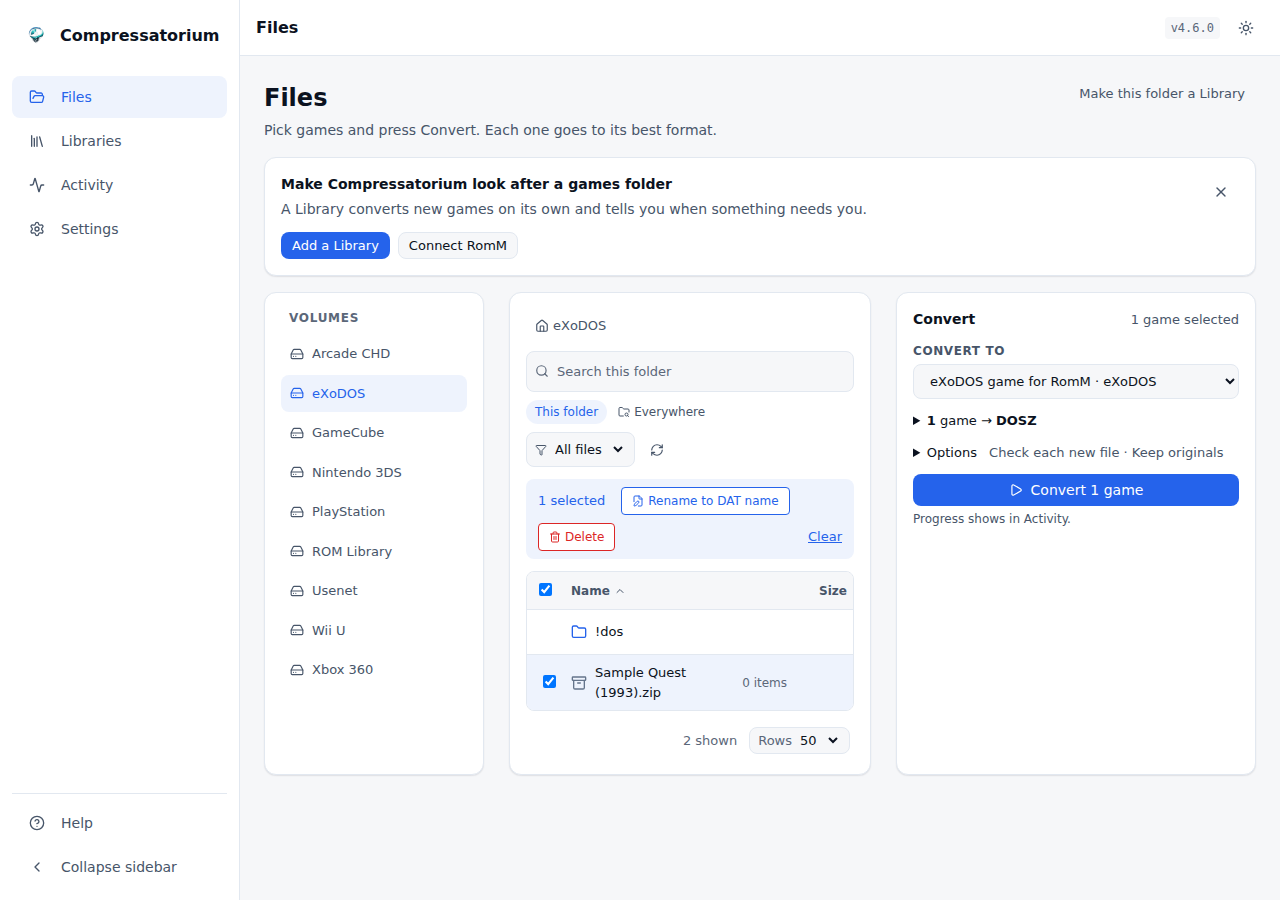 |
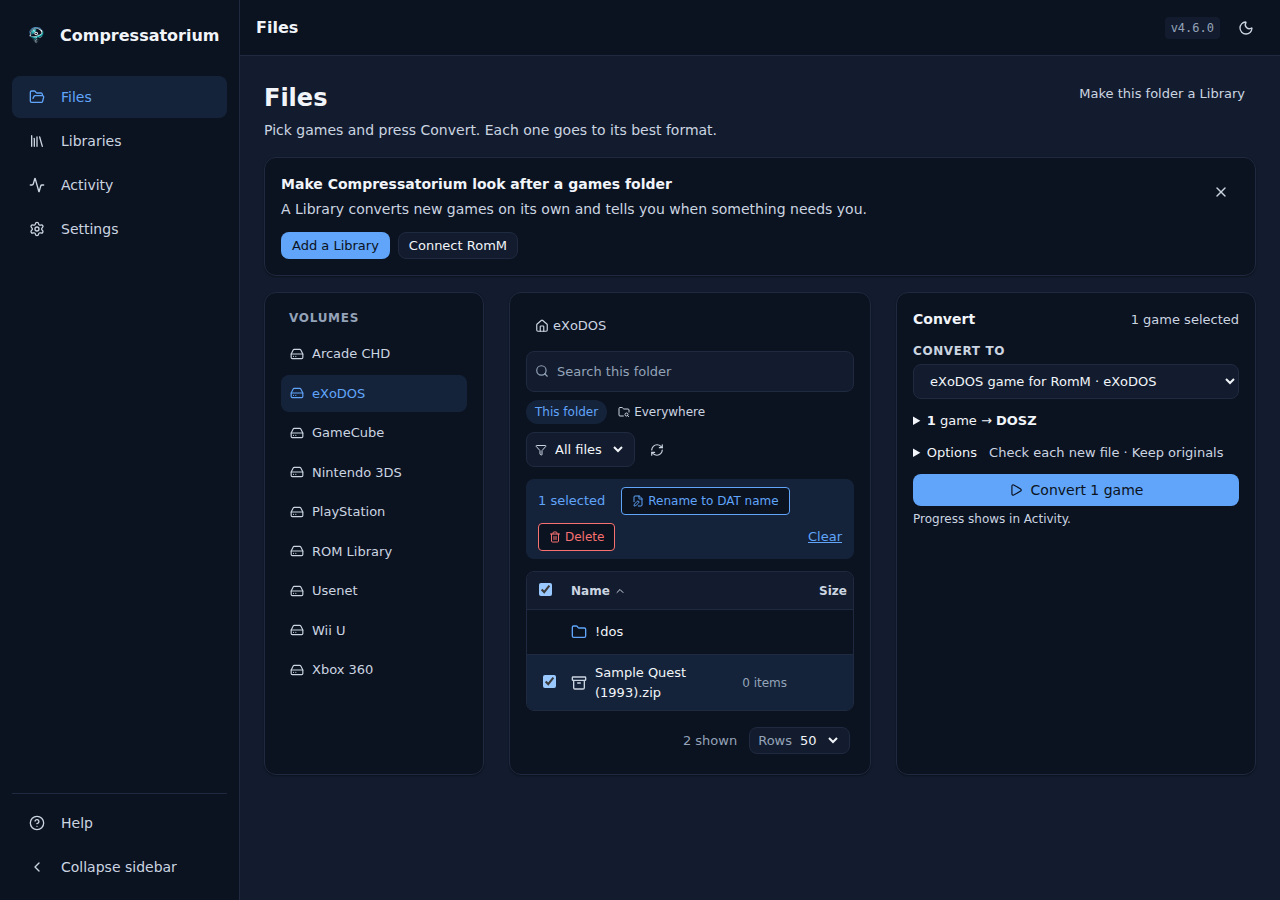 |
RAR sets. A multi-part RAR set from usenet is one row, its volumes nested under it, and unpacks to the one file inside it.
| Light | Dark |
|---|---|
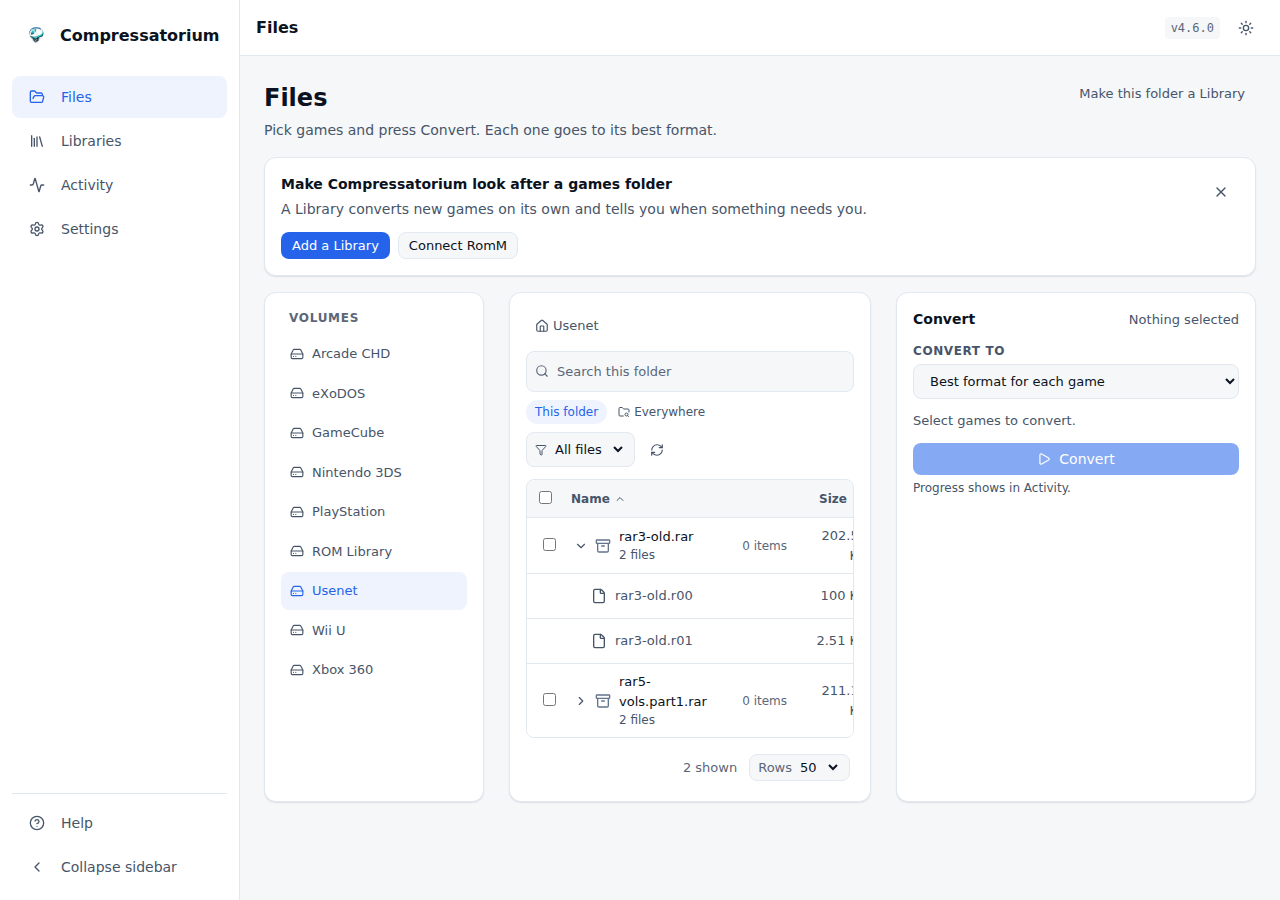 |
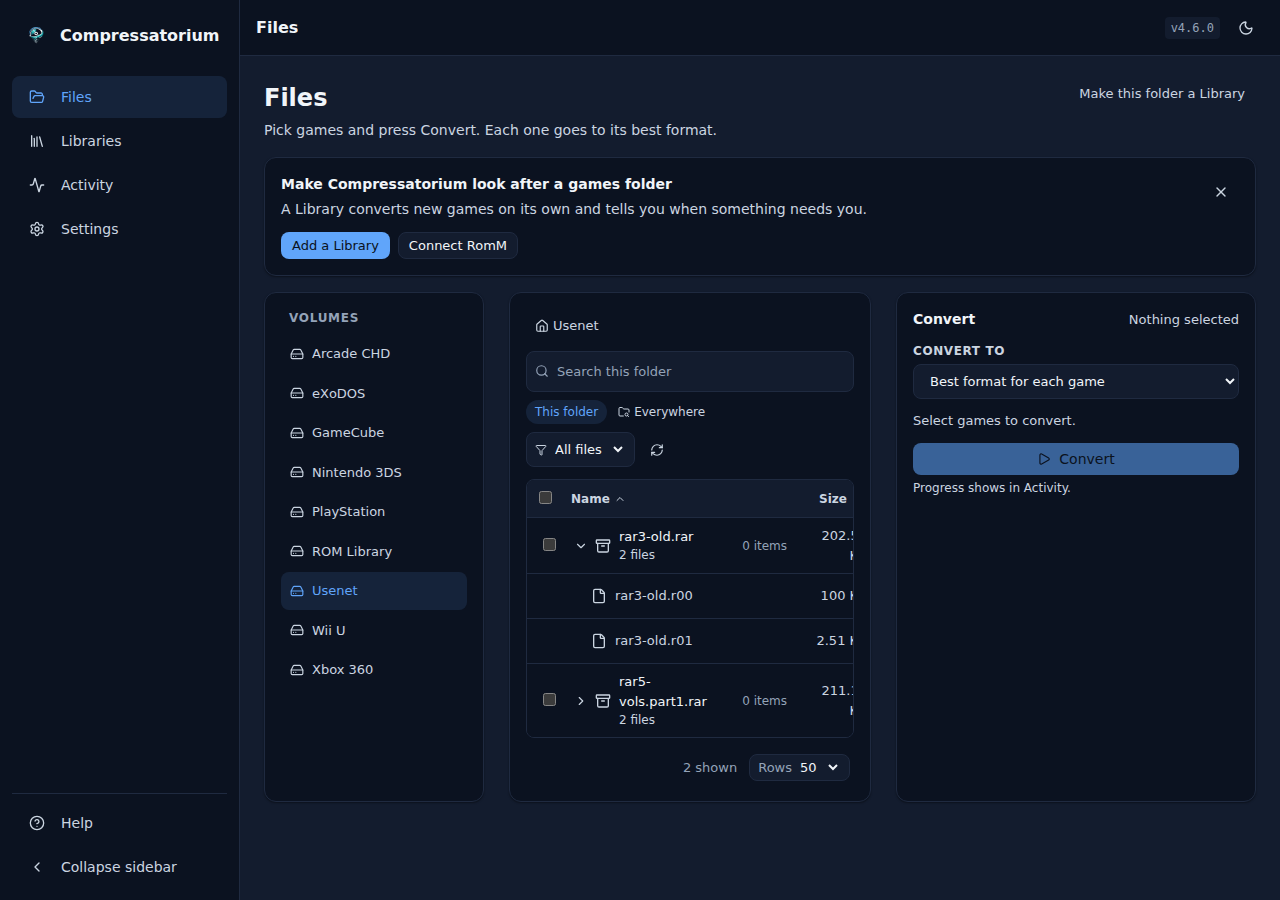 |
Dashboard
An at-a-glance view of the job queue, verification cache, mounted volumes, recent conversions, and quick tool shortcuts.
| Light | Dark |
|---|---|
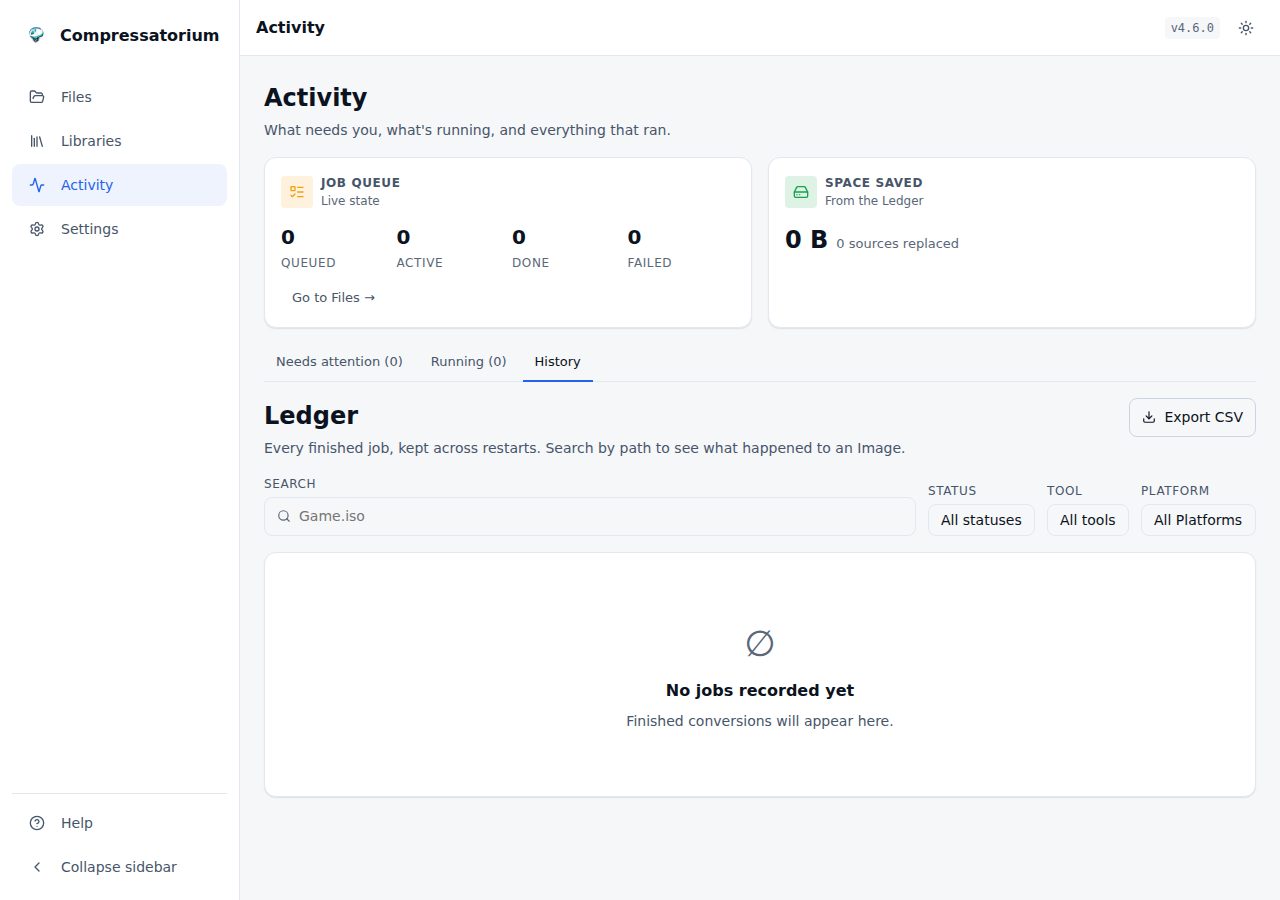 |
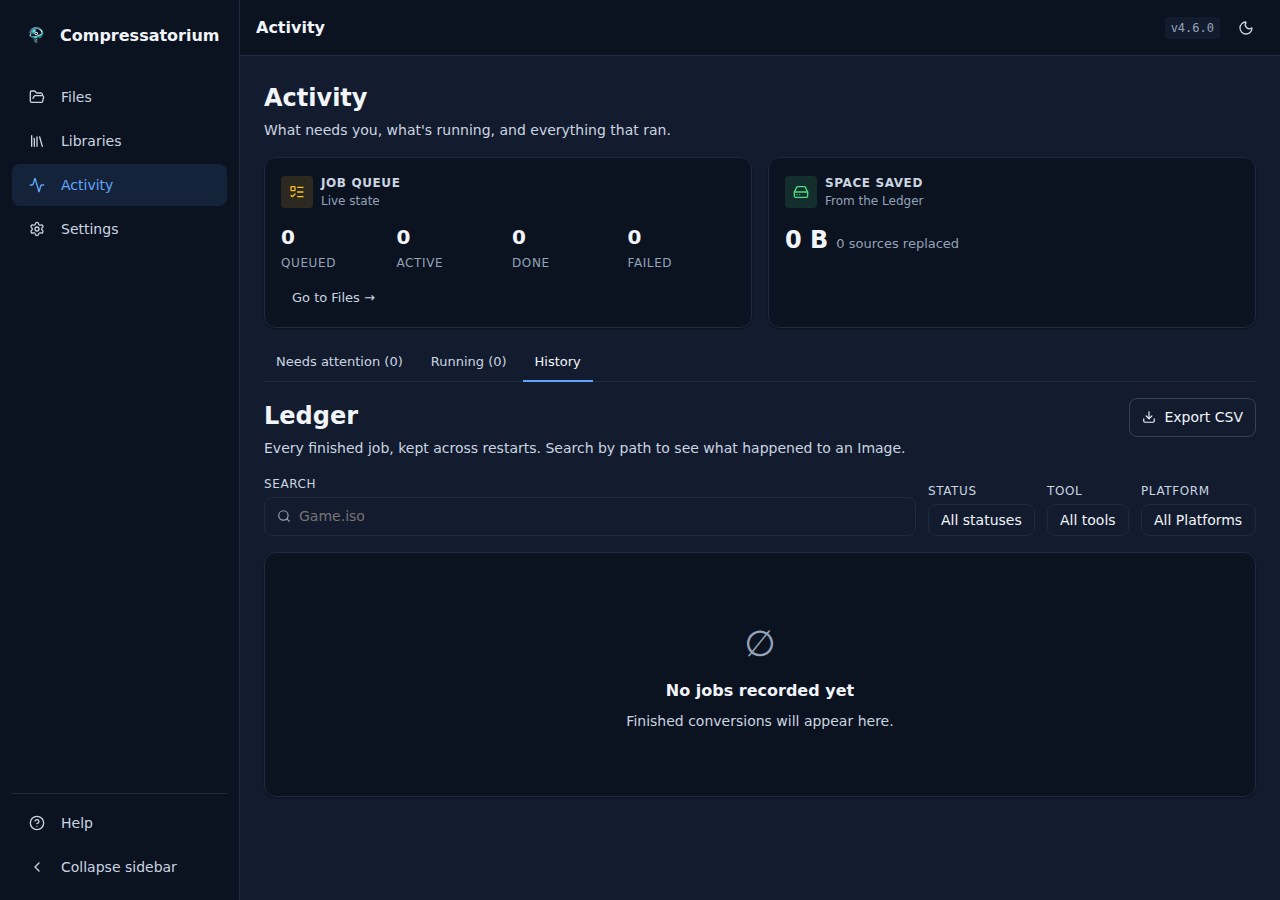 |
Libraries
Every Library on one page, RomM first, each with its consoles, games, whether it converts on its own, and anything that needs you. With none yet, the page says how to start. See Folder Libraries.
| Light | Dark |
|---|---|
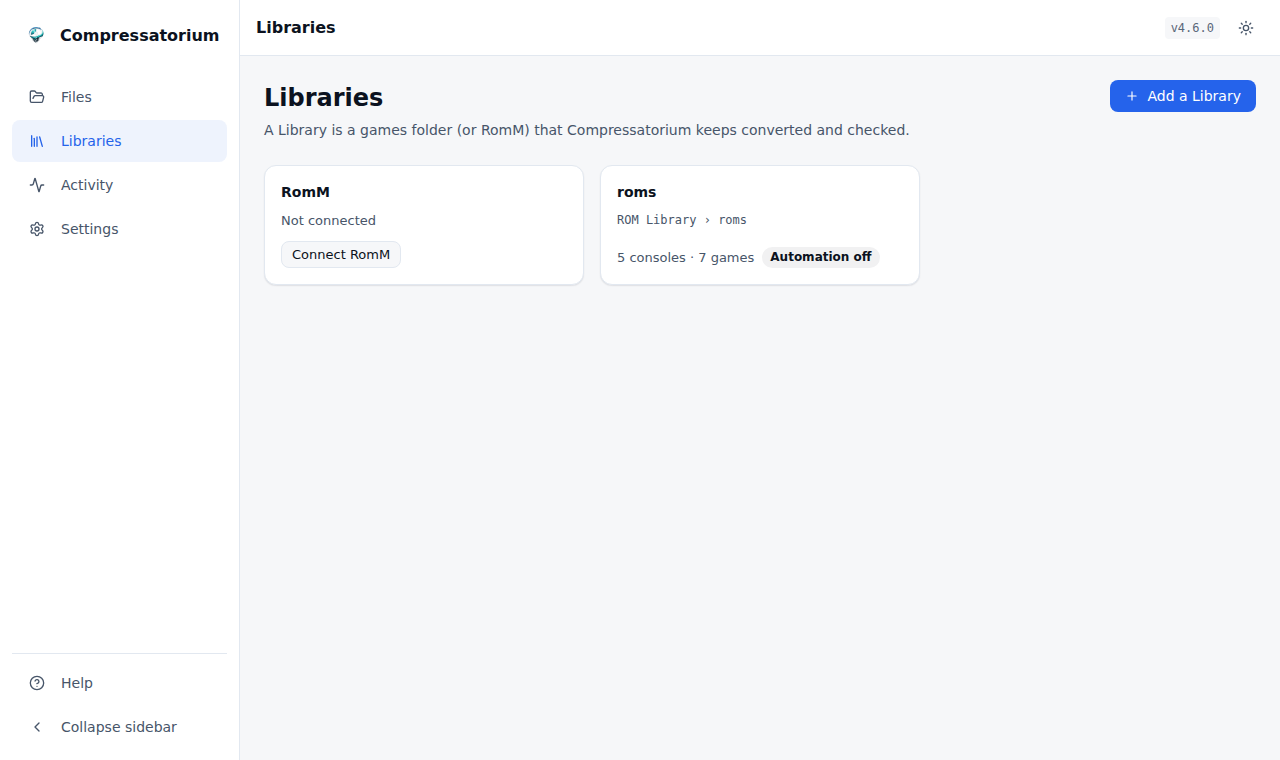 |
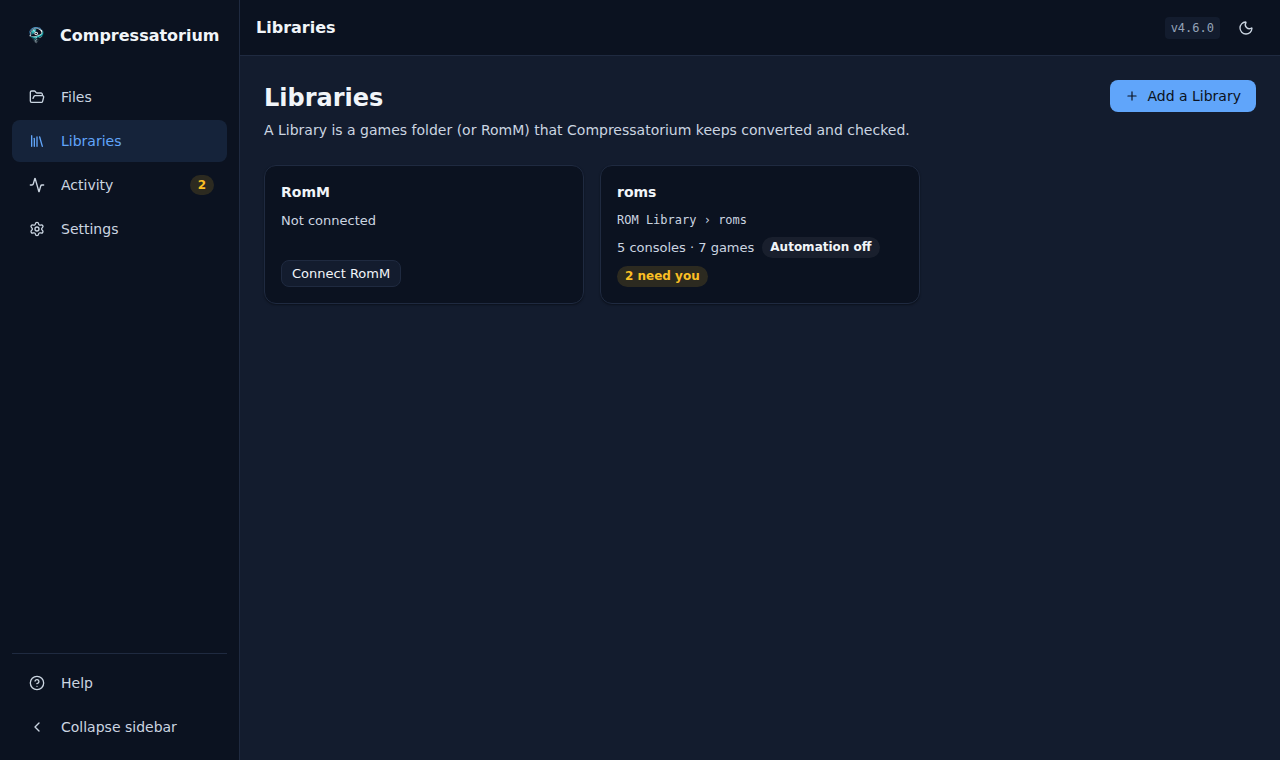 |
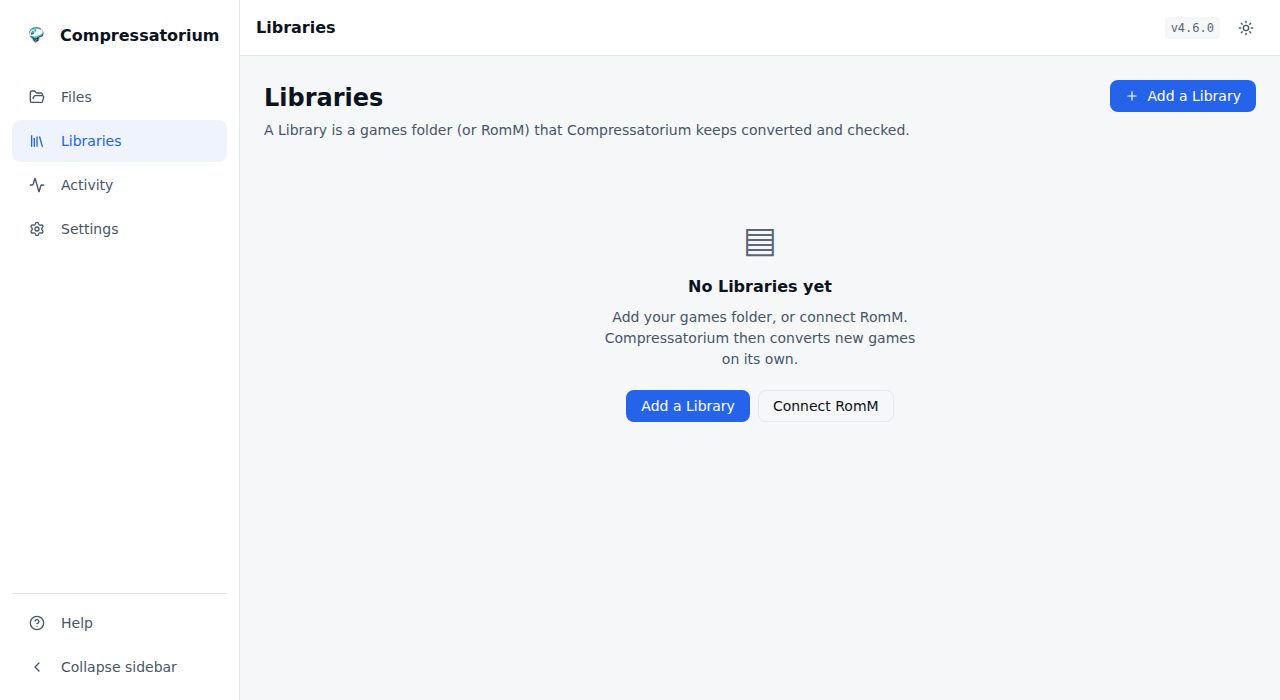 |
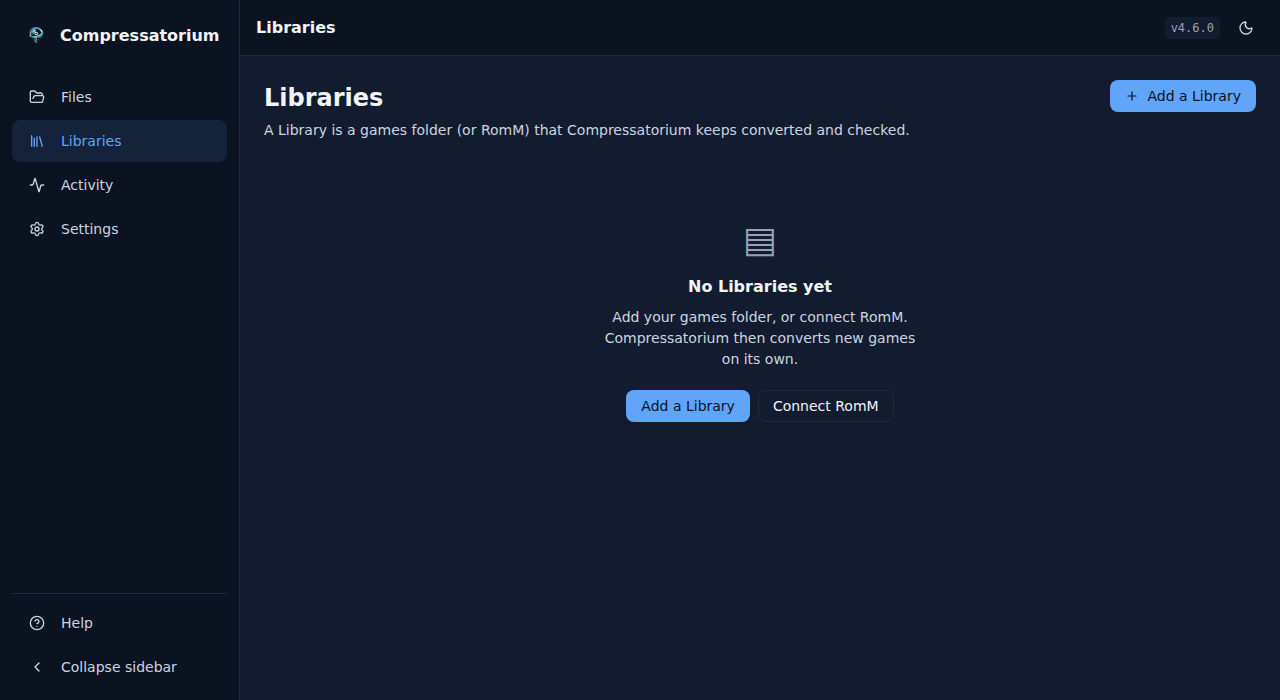 |
Add a Library picks a folder by walking the Drives, never by typing a path.
| Light | Dark |
|---|---|
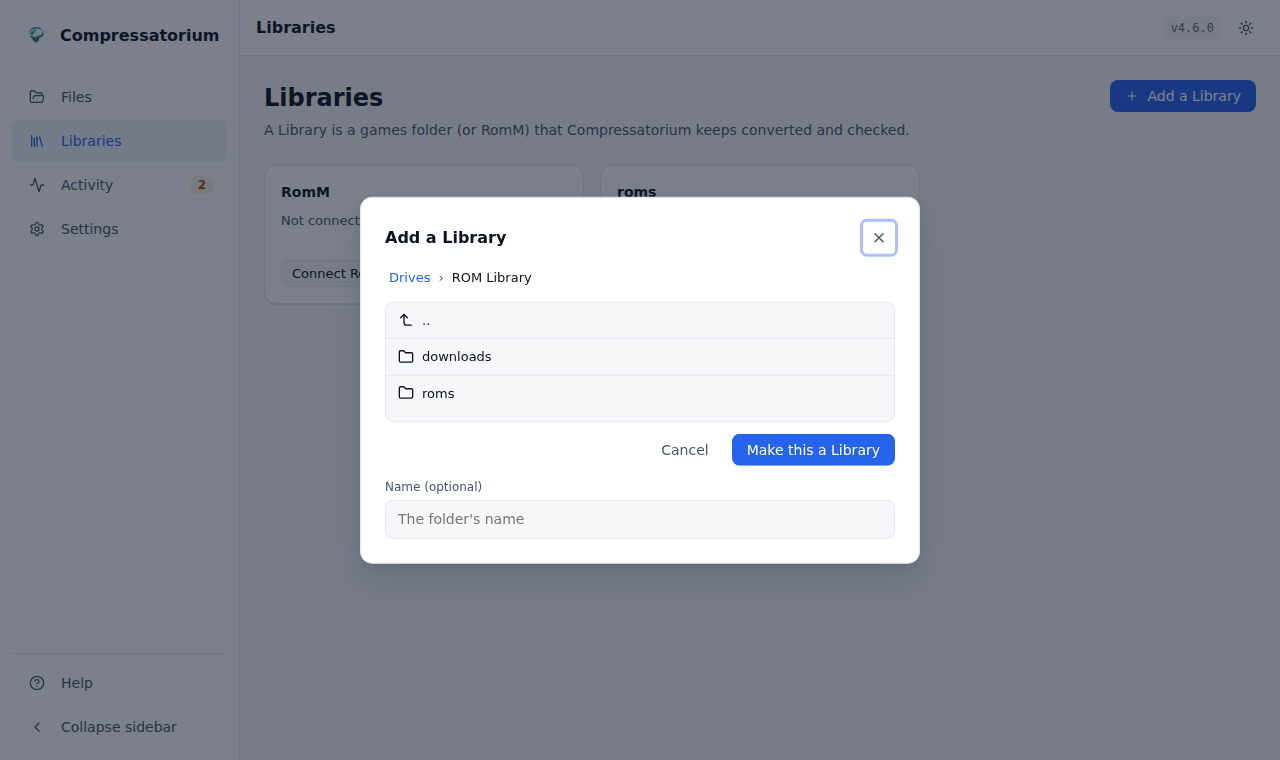 |
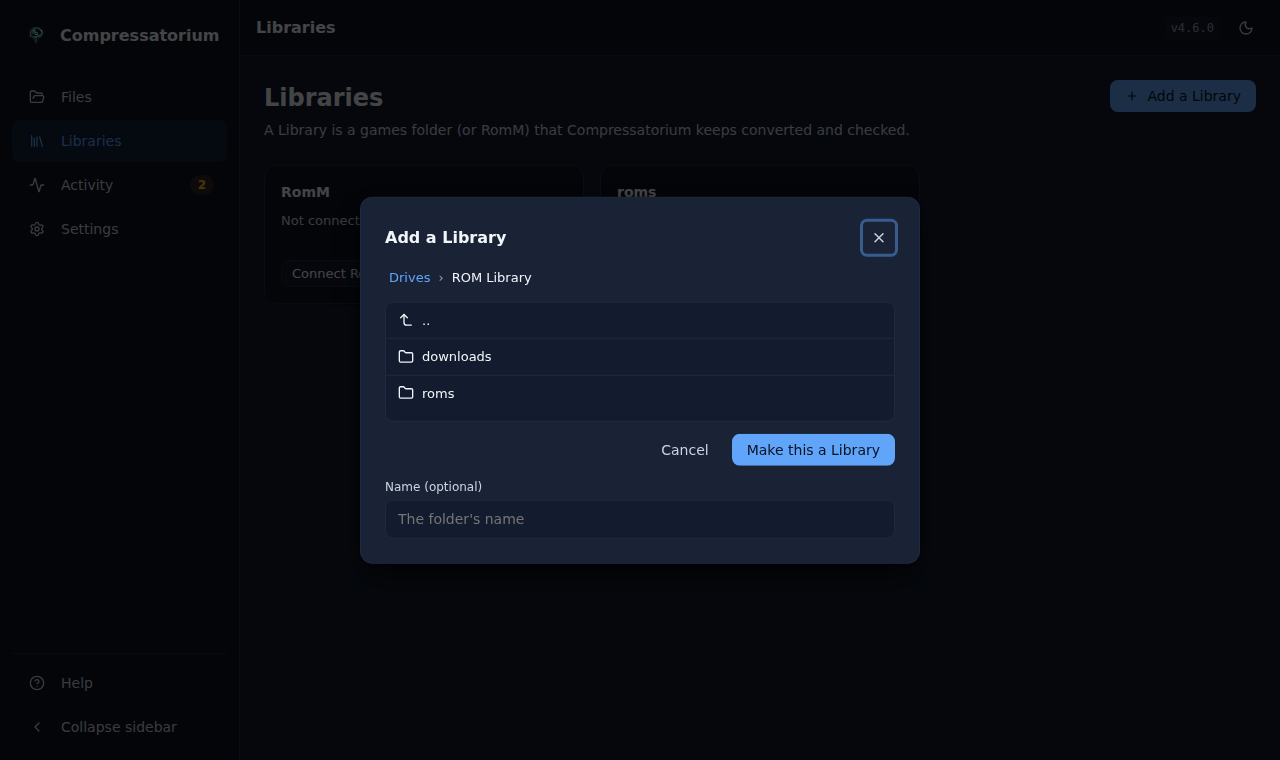 |
One Library
Browse lists its consoles and their folders. Automation is a row per console: Convert to, Check after, Delete original, and Apply recommended to set them all at once. The sliders button opens the rest, the nightly re-check included (see Check Rules).
| Light | Dark |
|---|---|
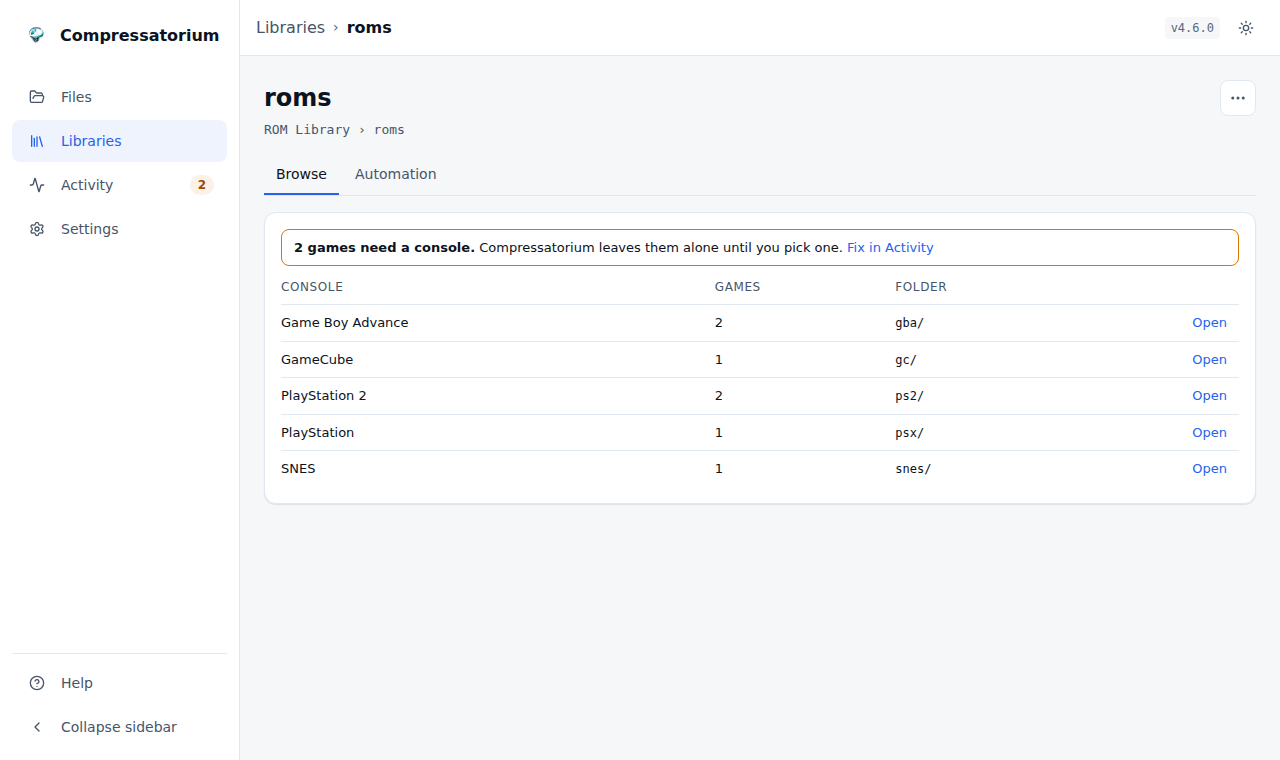 |
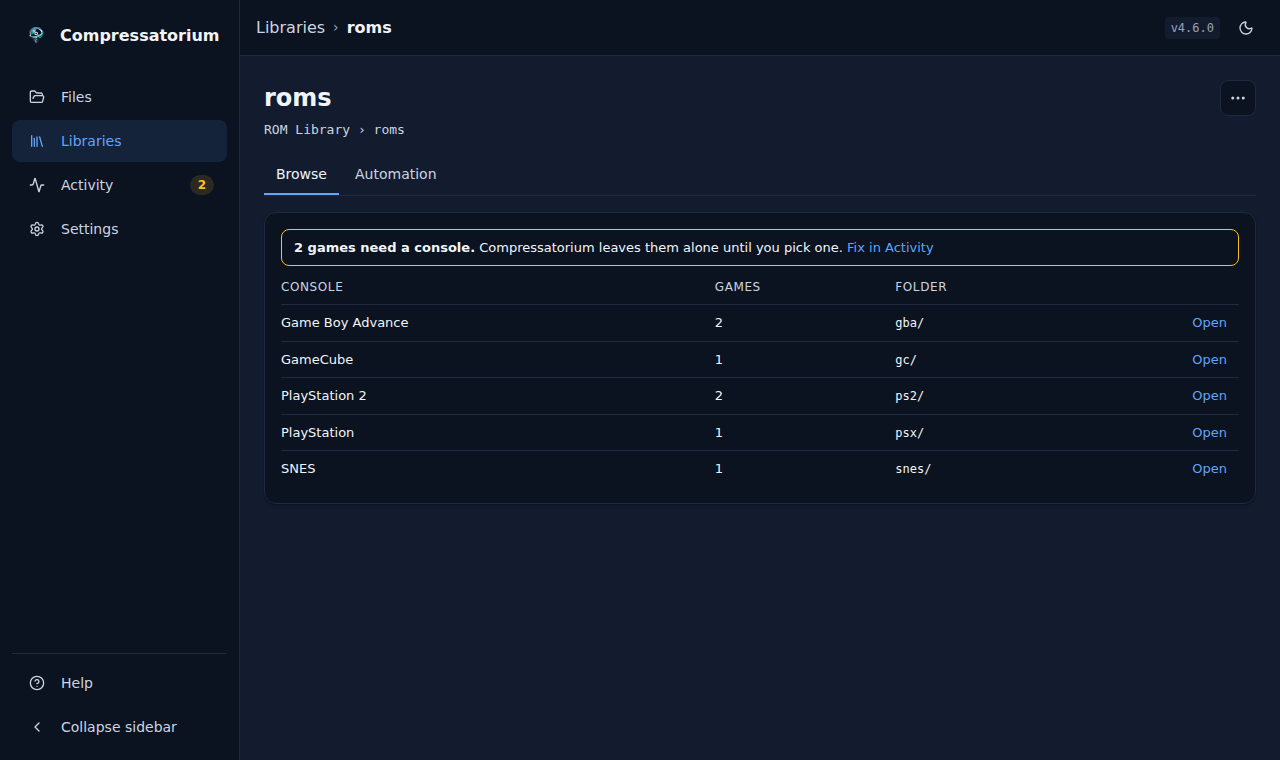 |
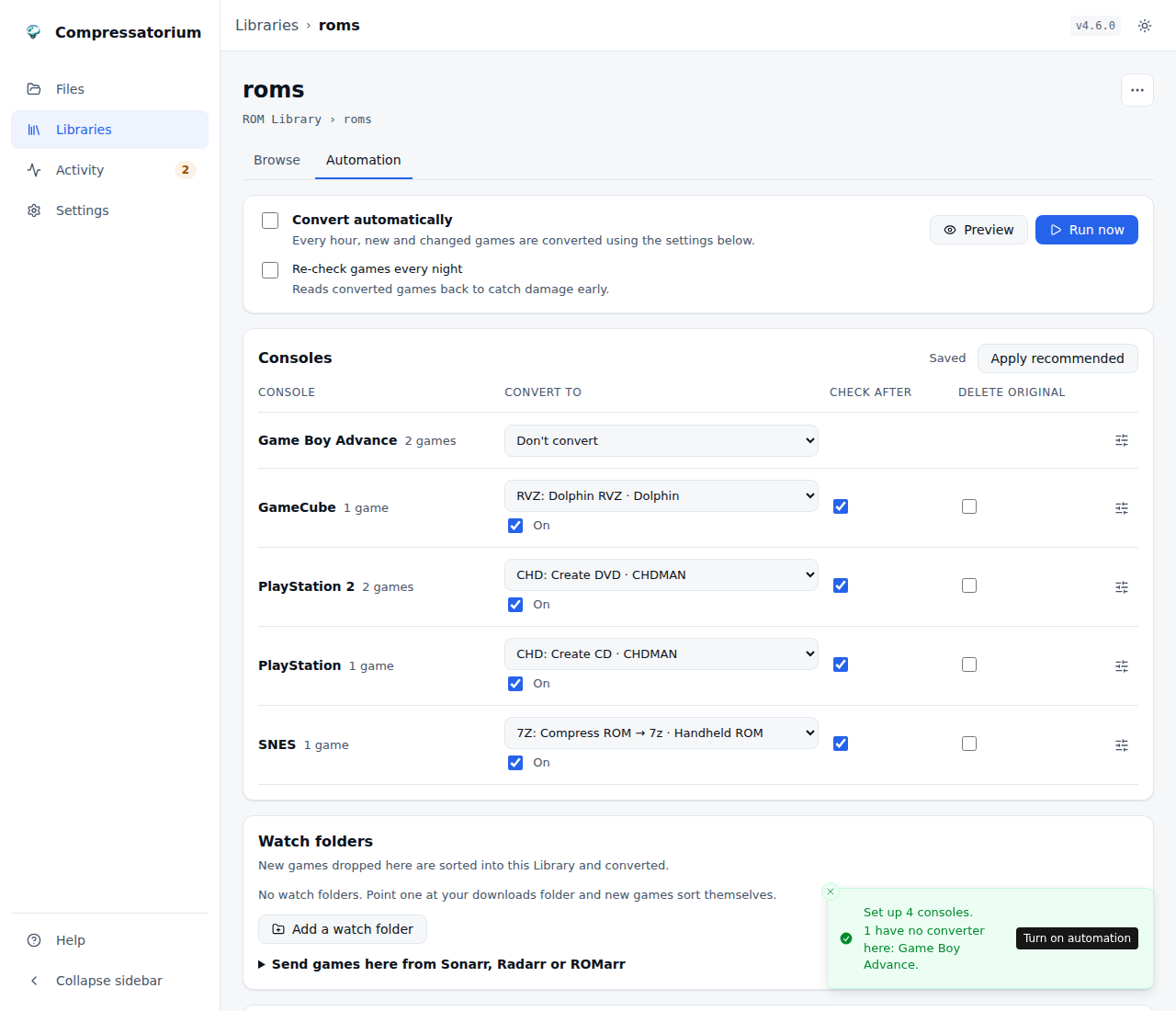 |
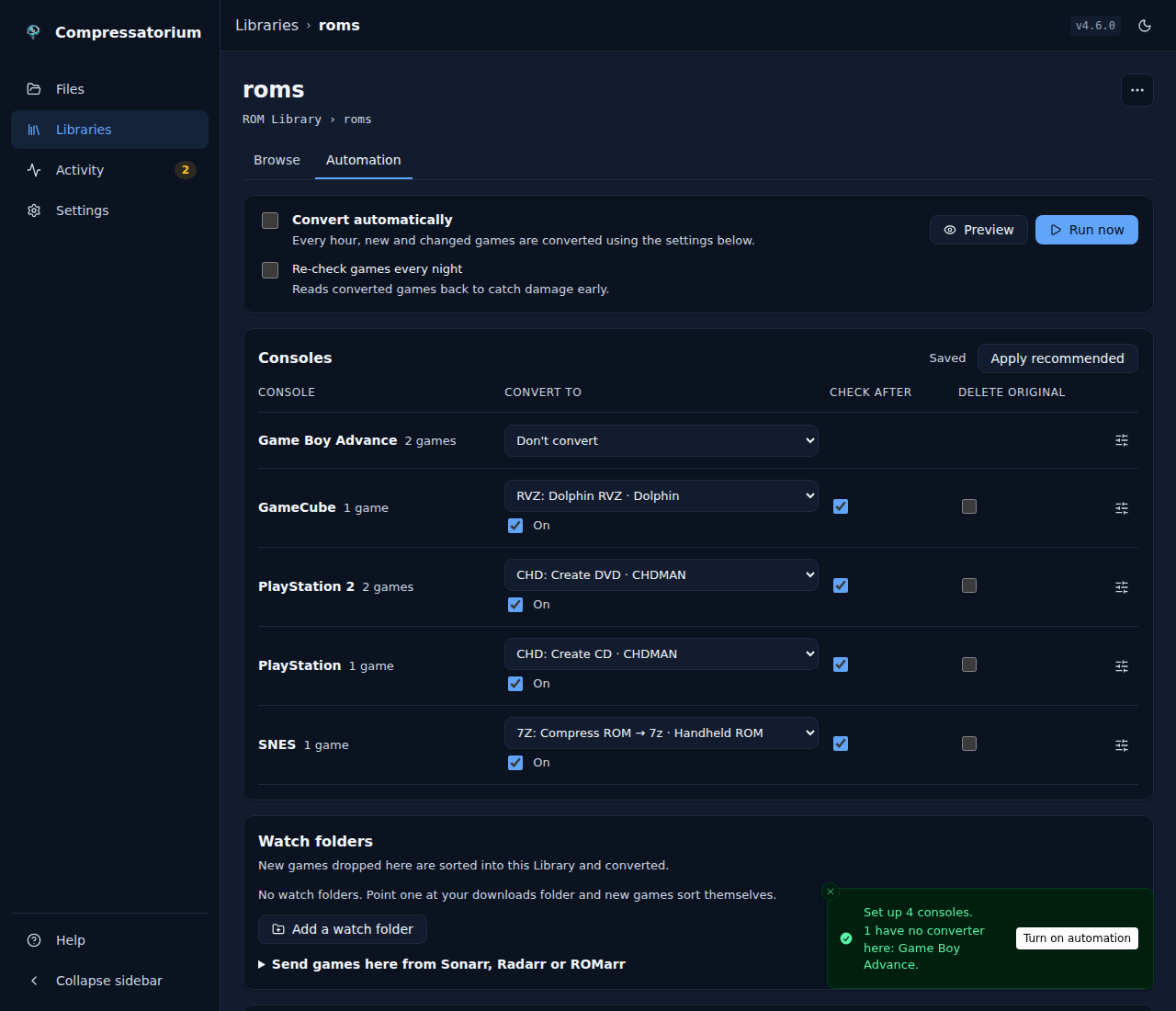 |
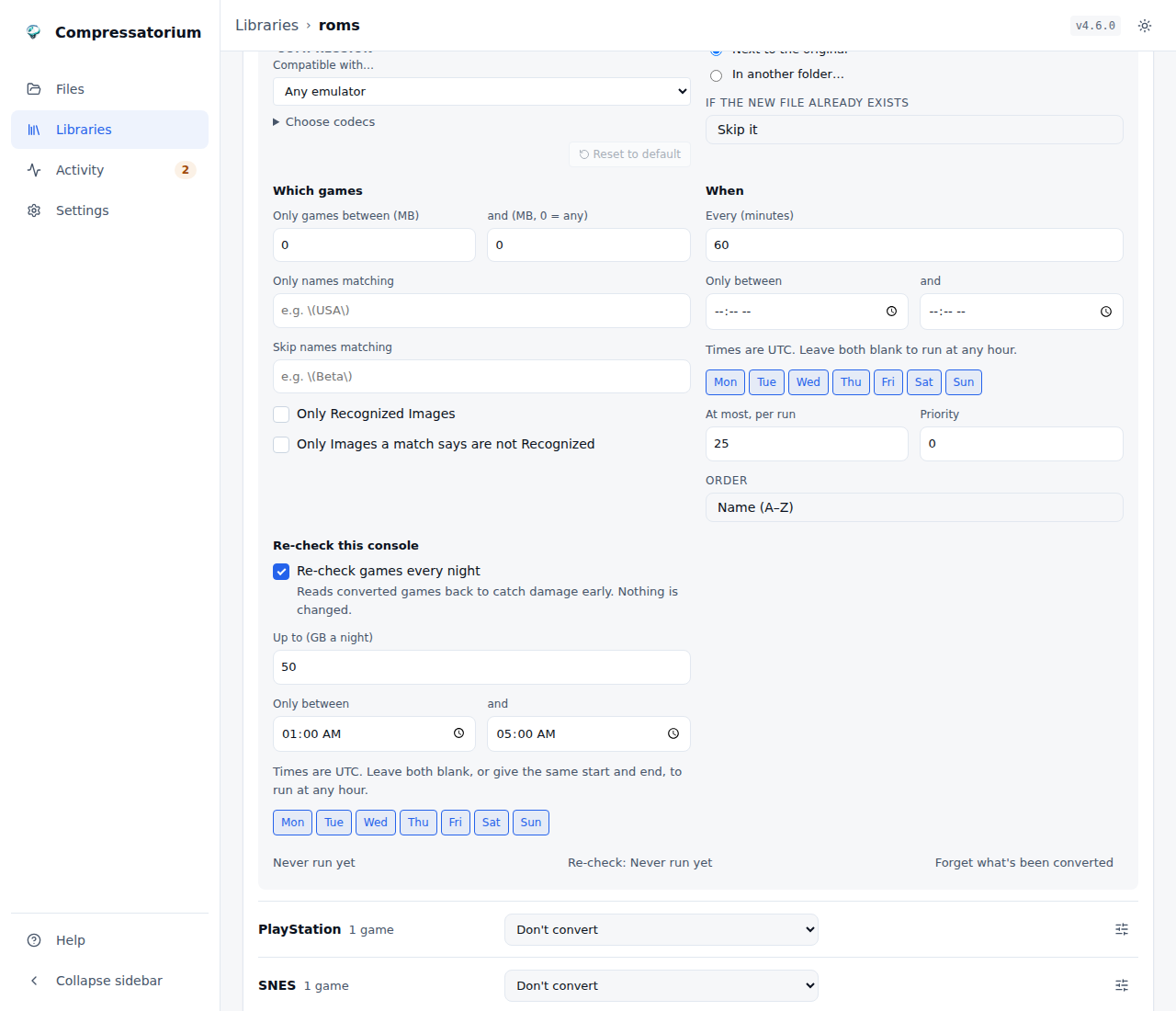 |
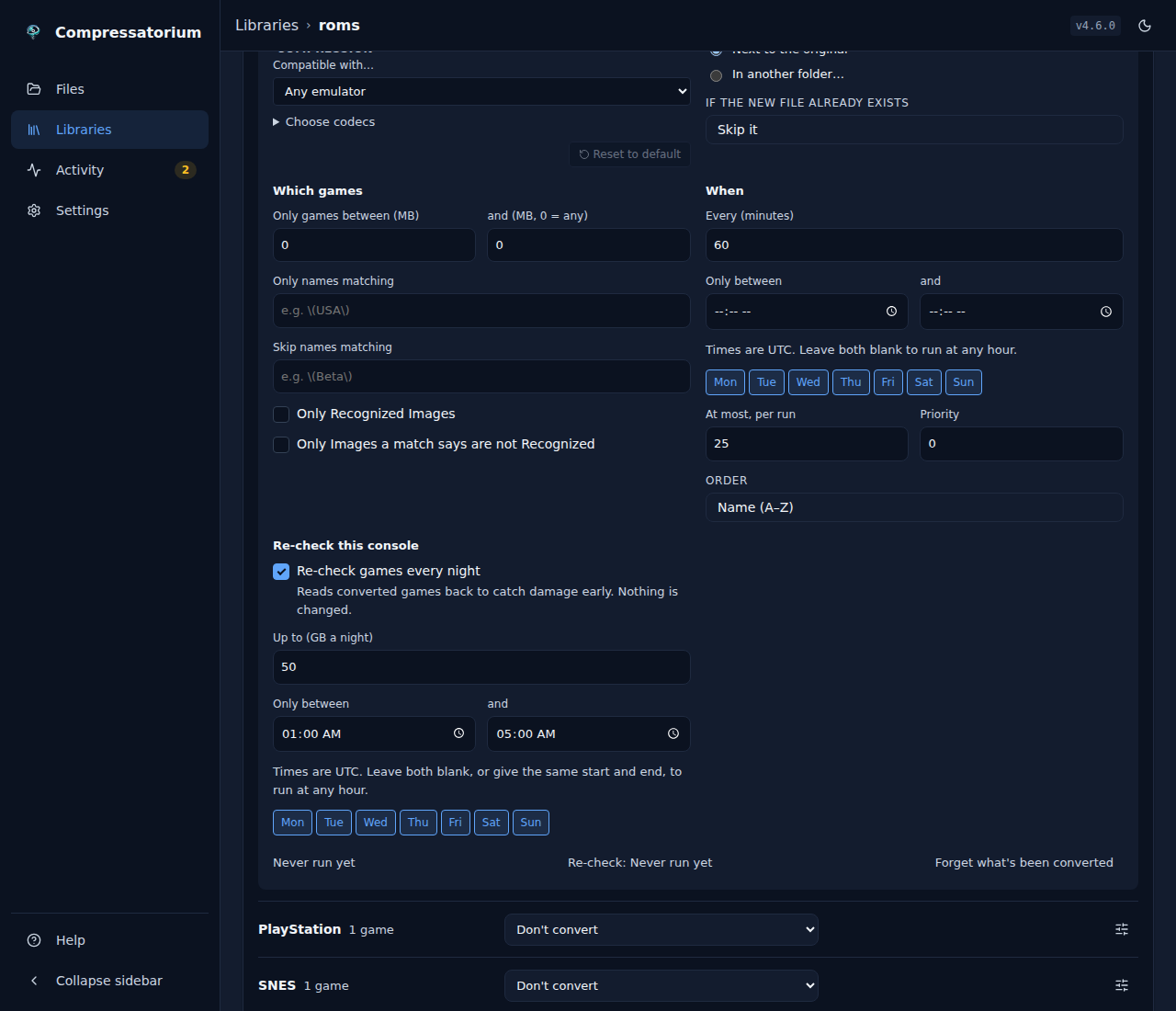 |
Its watch folders, where new games go, and the game list app it feeds sit under the table.
| Light | Dark |
|---|---|
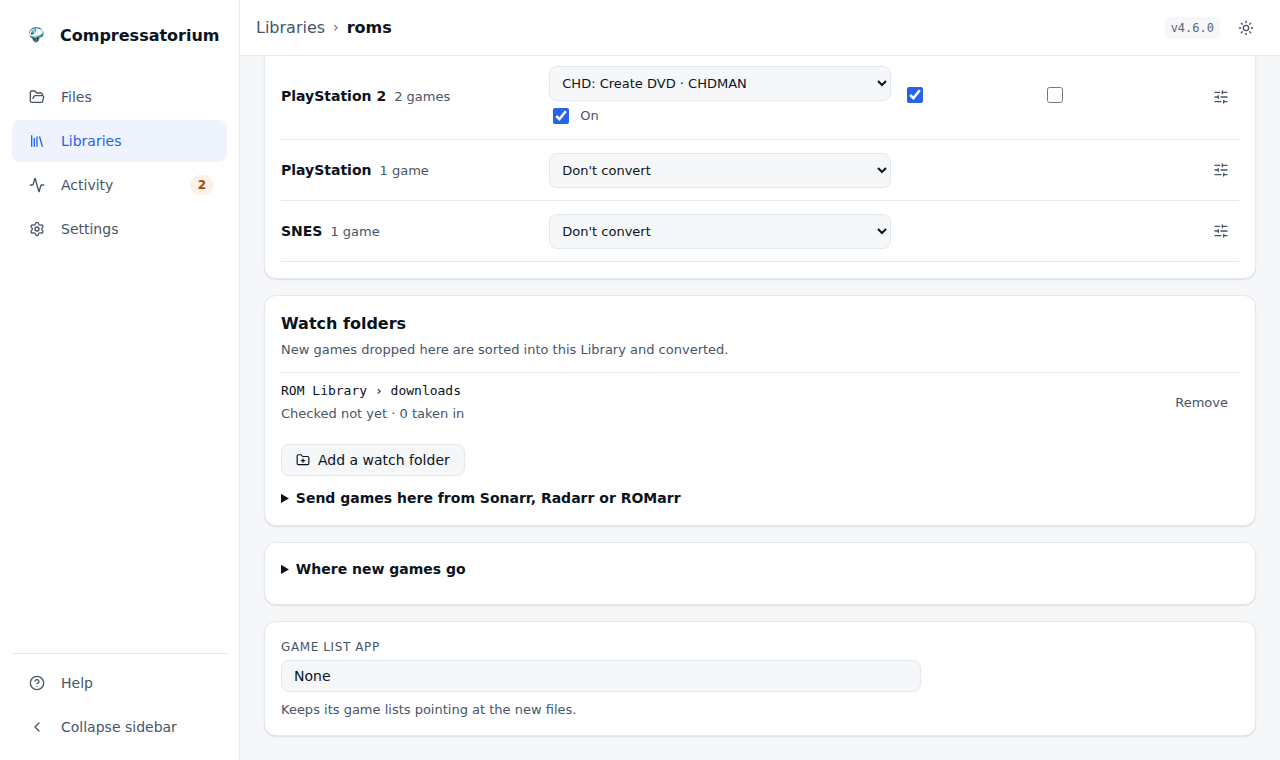 |
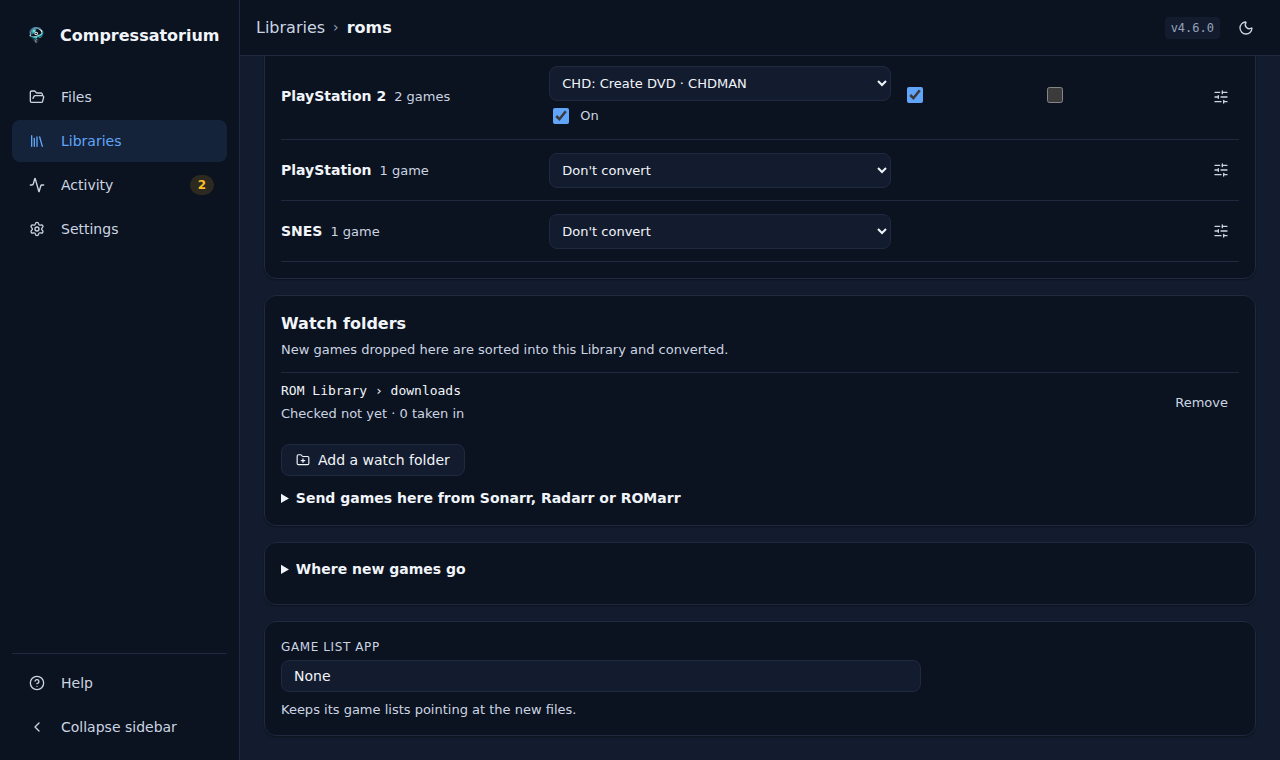 |
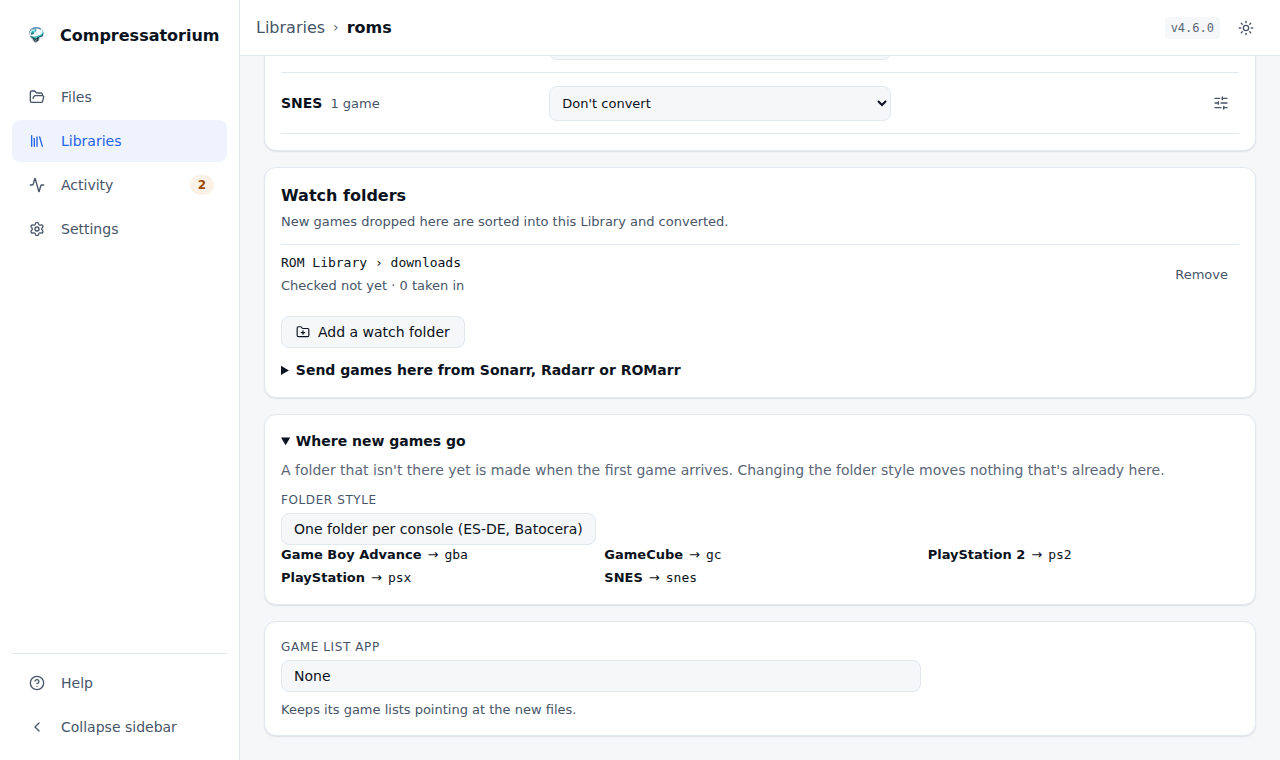 |
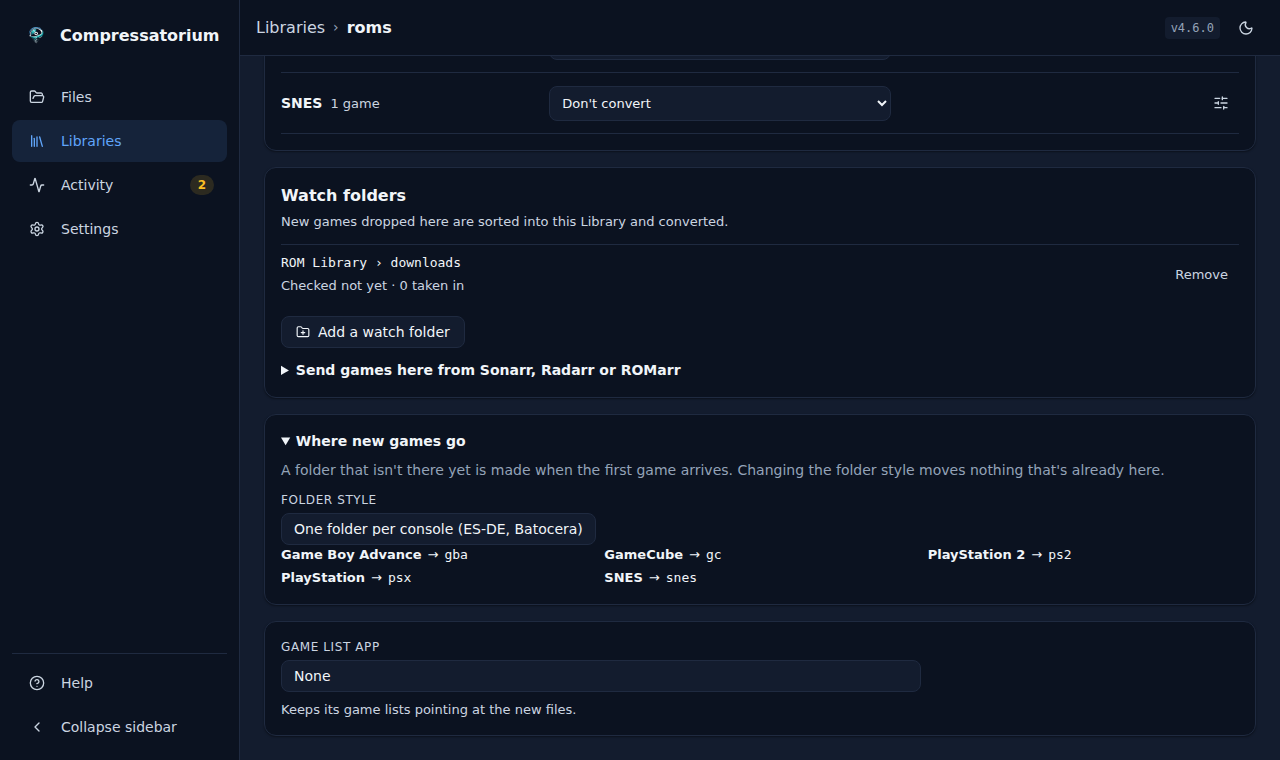 |
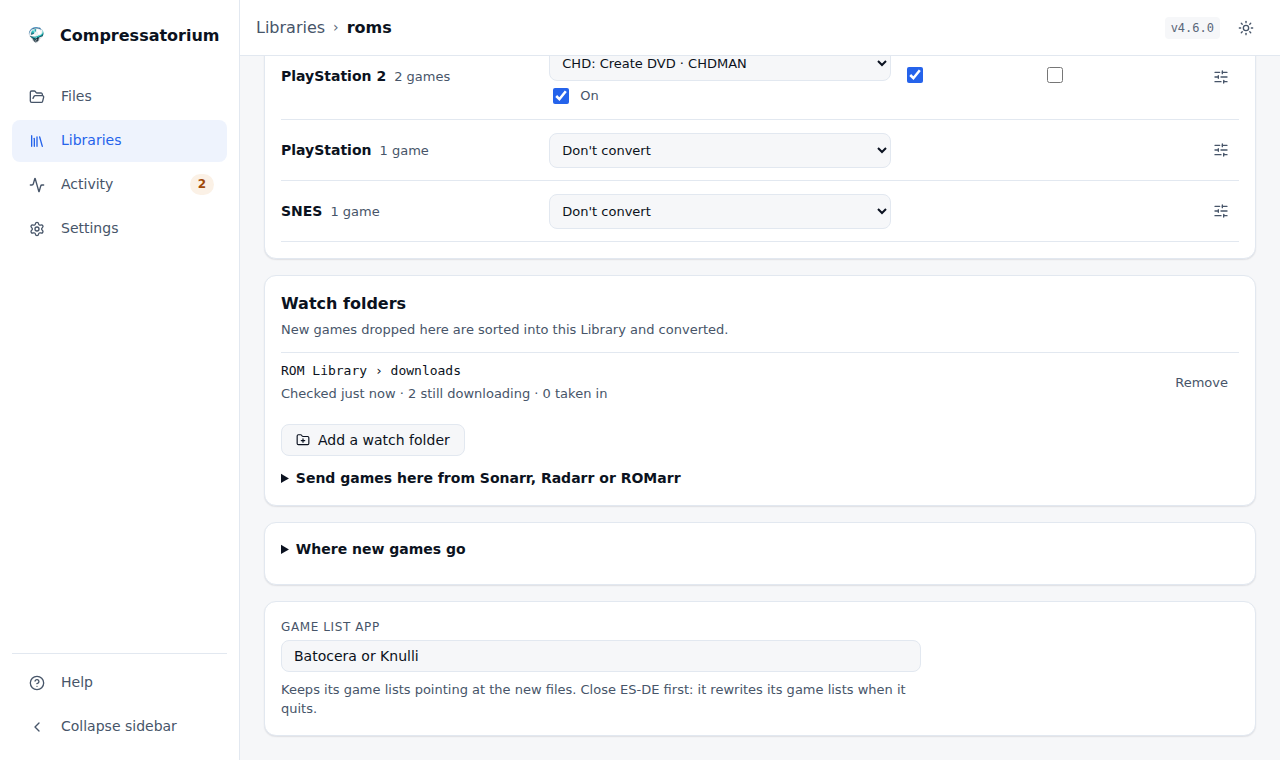 |
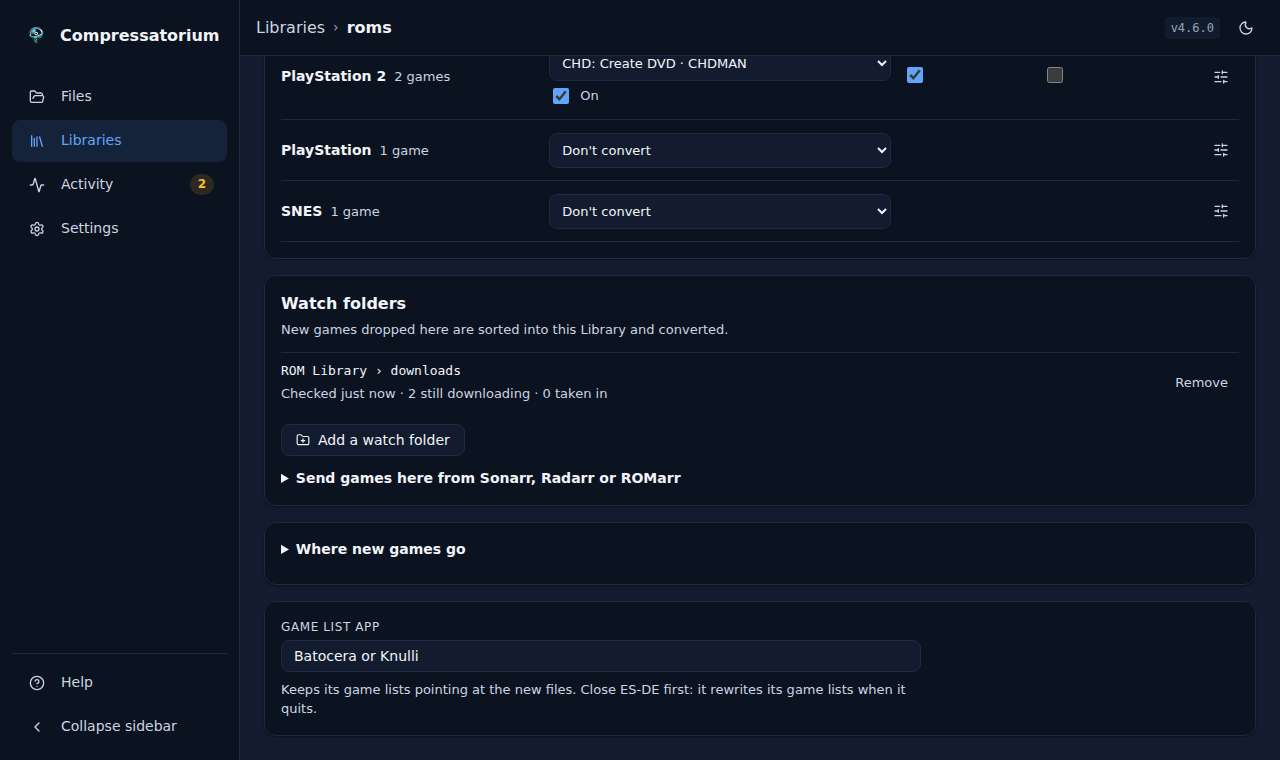 |
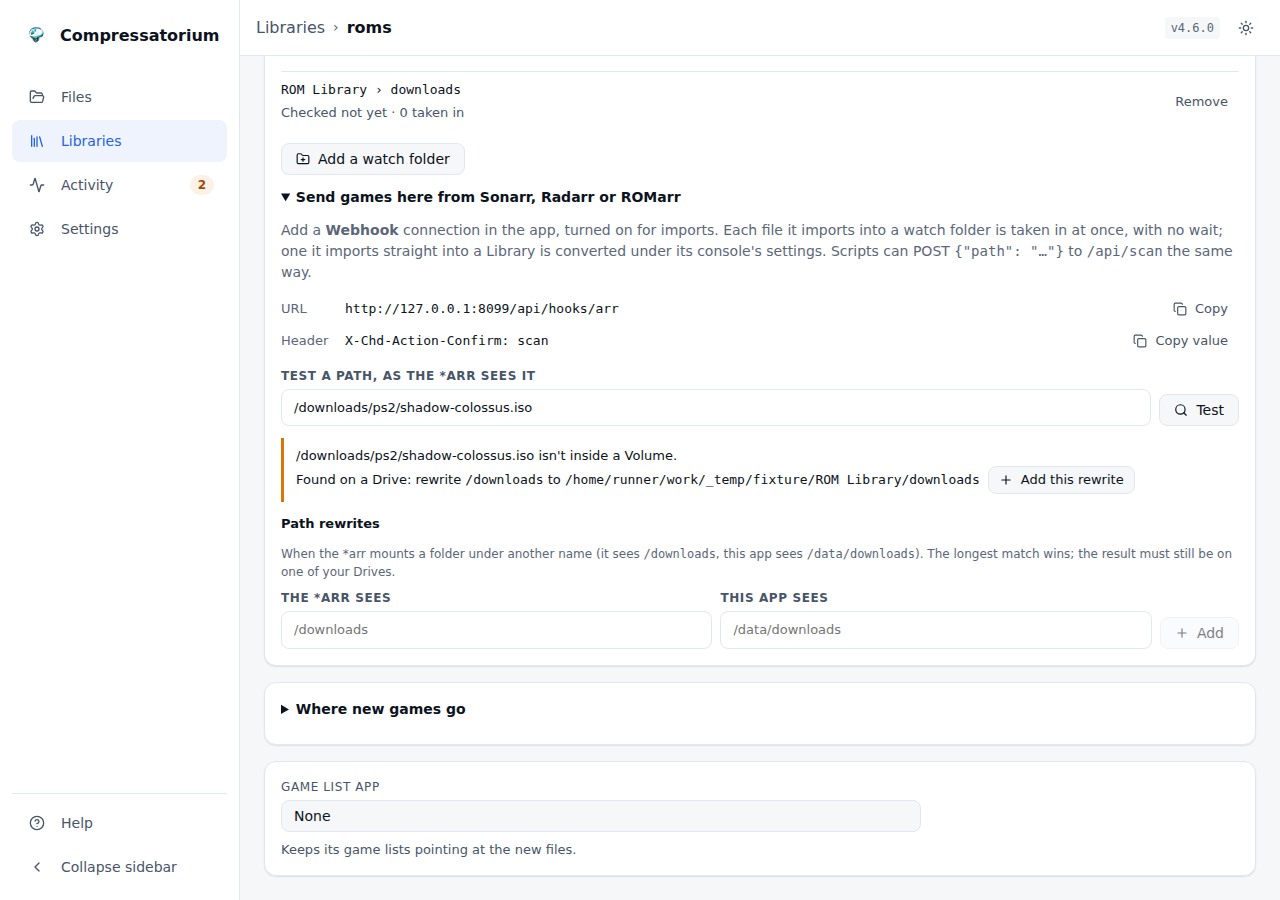 |
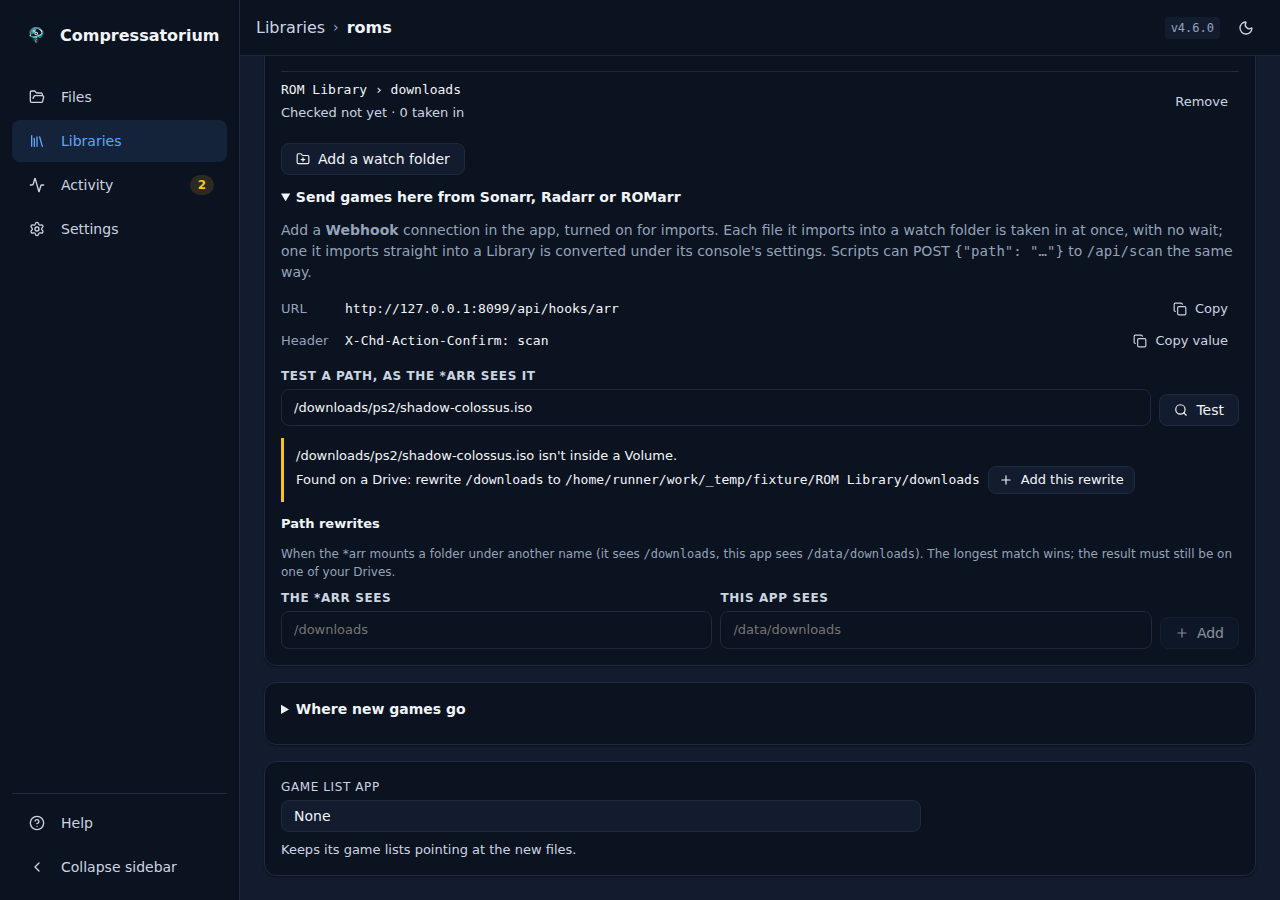 |
A Library inside another one says which Library it sits inside, and that its files are its own.
| Light | Dark |
|---|---|
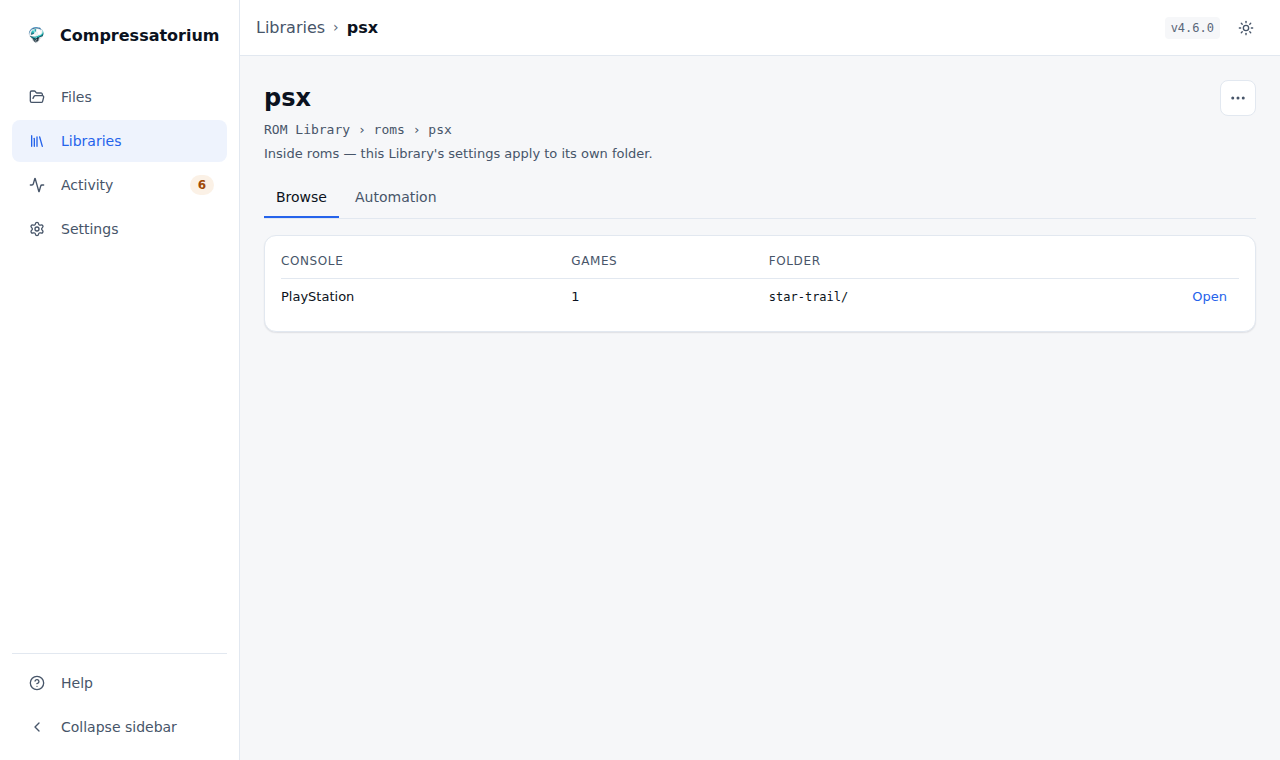 |
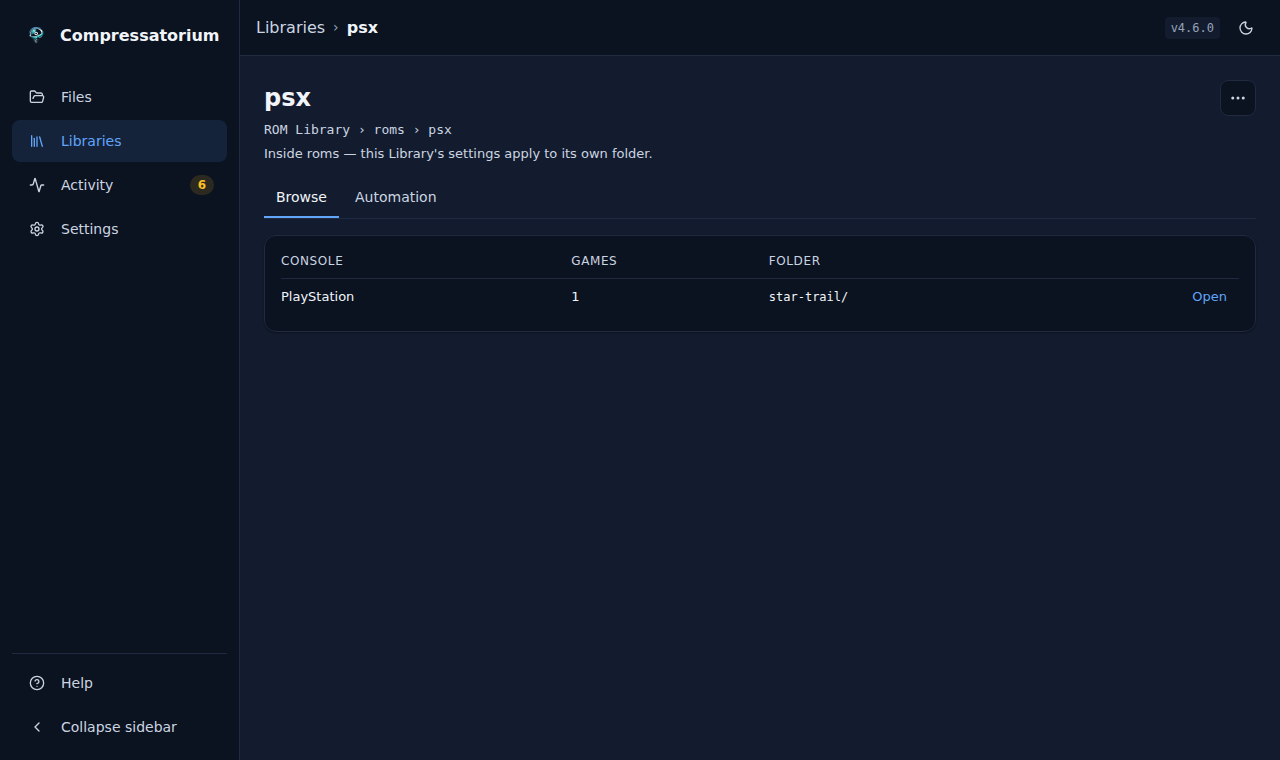 |
RomM
Connect a RomM instance on its Connection tab; Browse and Automation then work on RomM's consoles. See RomM integration.
| Light | Dark |
|---|---|
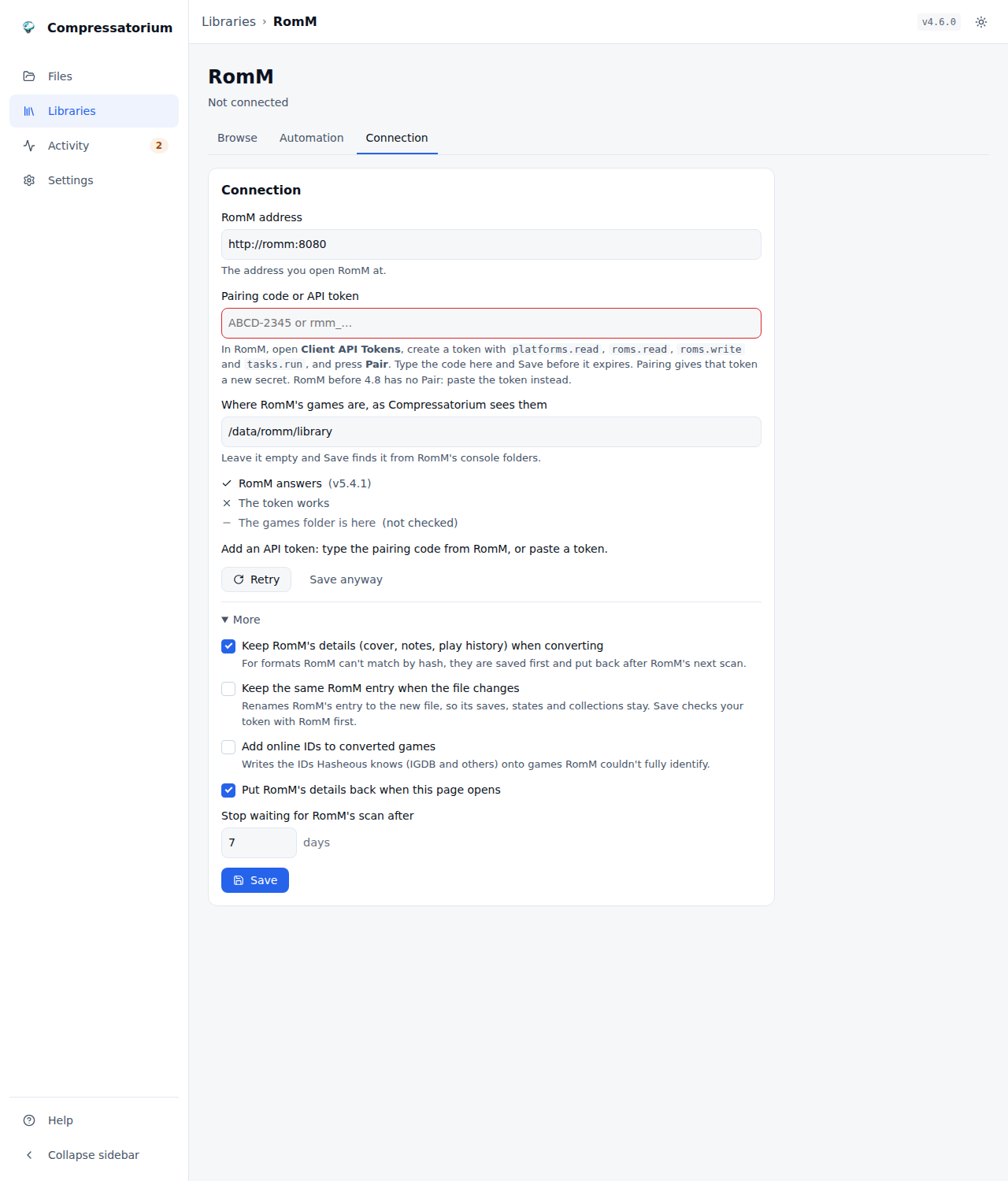 |
 |
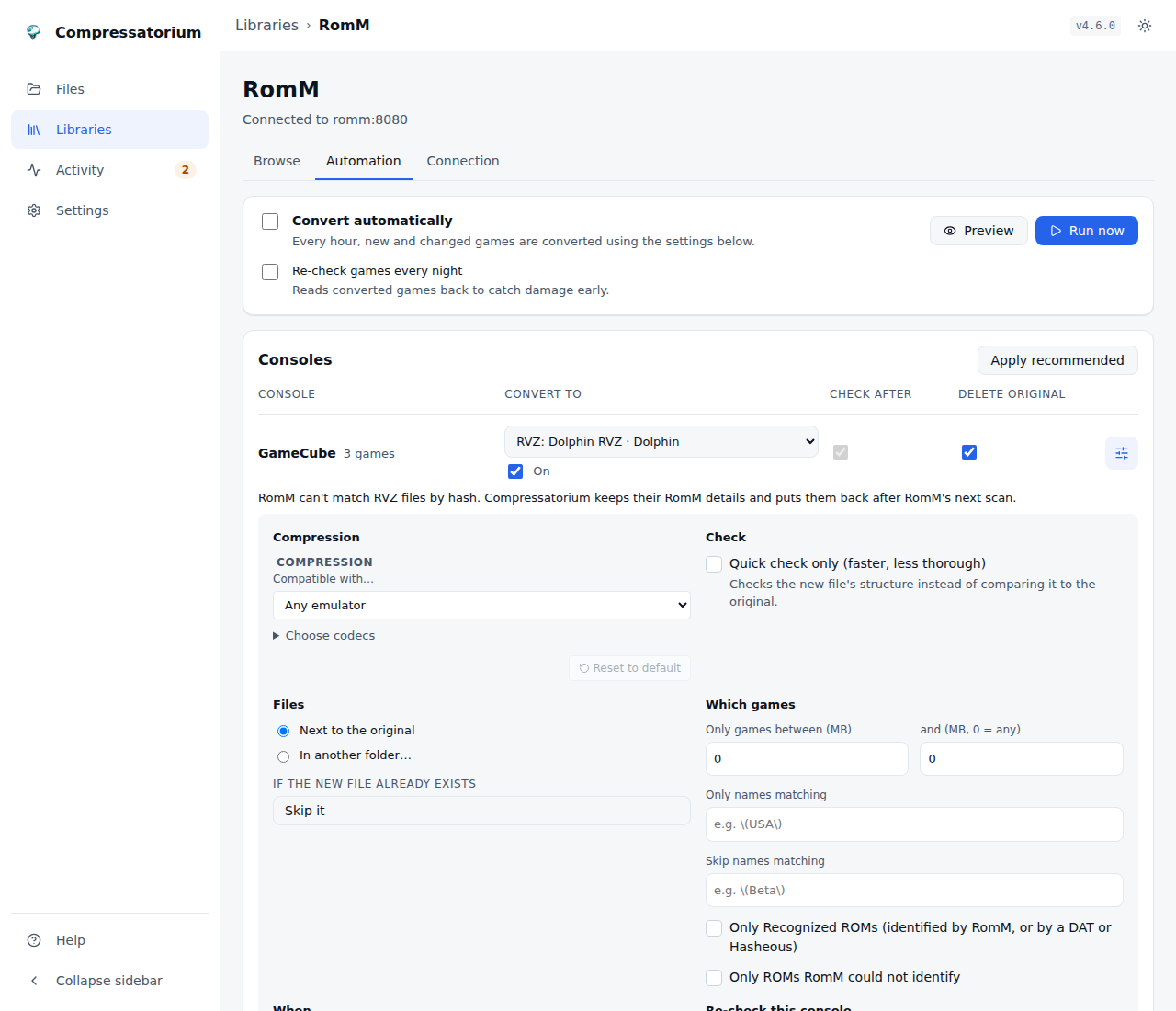 |
 |
Findings
A Platform conflict (a GameCube disc filed under ps2) and an Unsorted Image, each with its actions. See Findings and folder Platforms.
| Light | Dark |
|---|---|
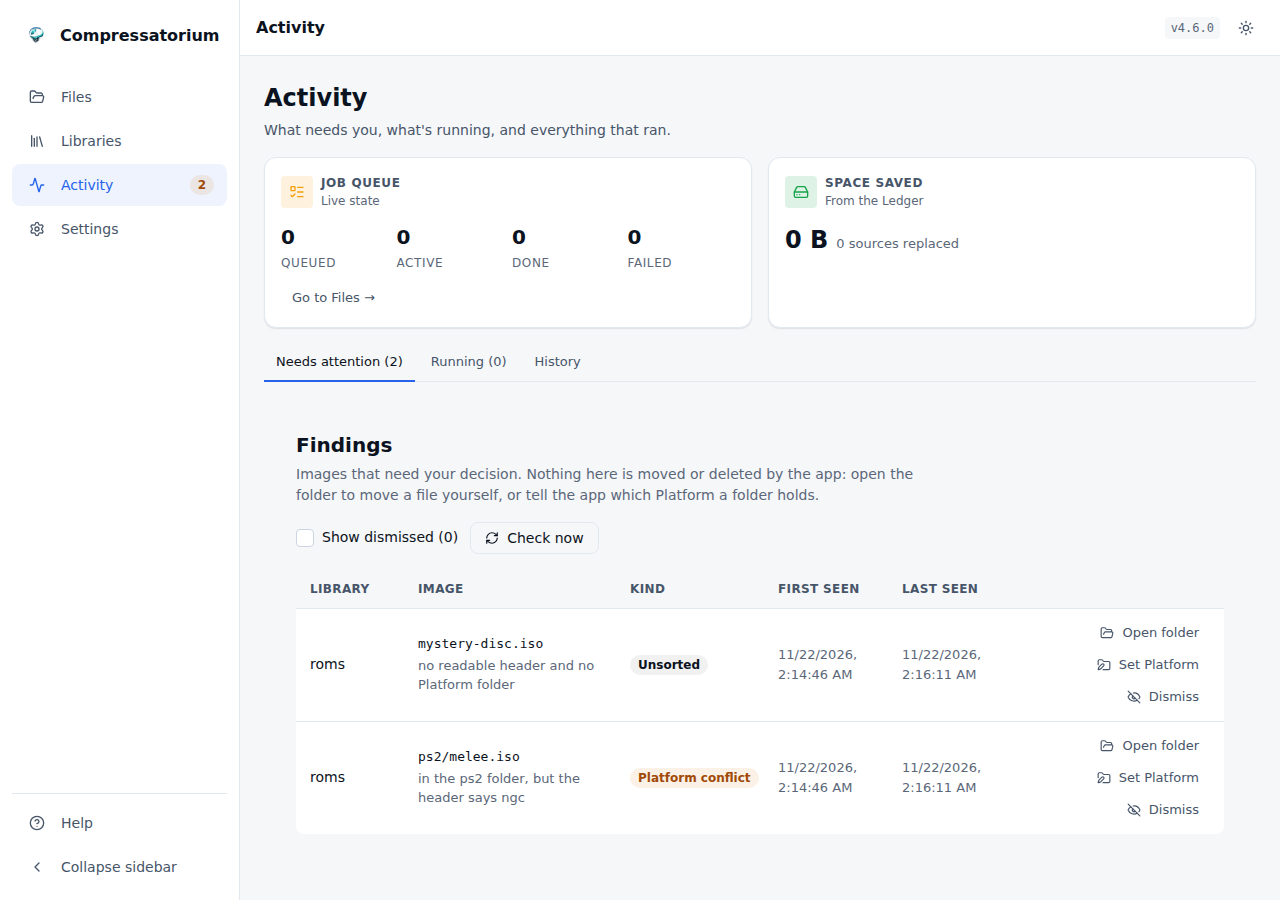 |
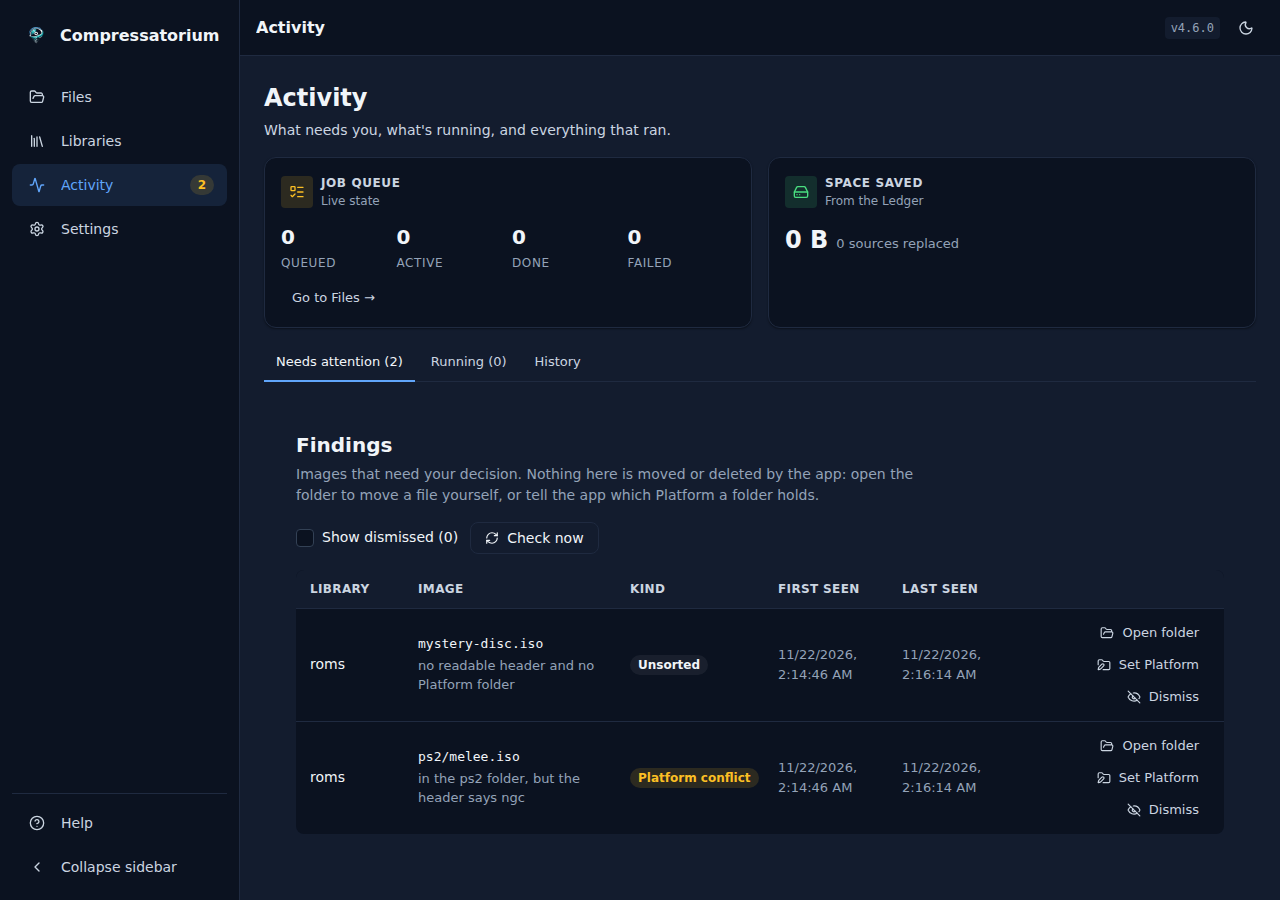 |
Game identification
Settings → Game identification: get Redump's lists for your disc consoles, import game lists (DATs) from No-Intro or Redump, or update MAME Redump, and converted files are matched against known-good hashes.
| Light | Dark |
|---|---|
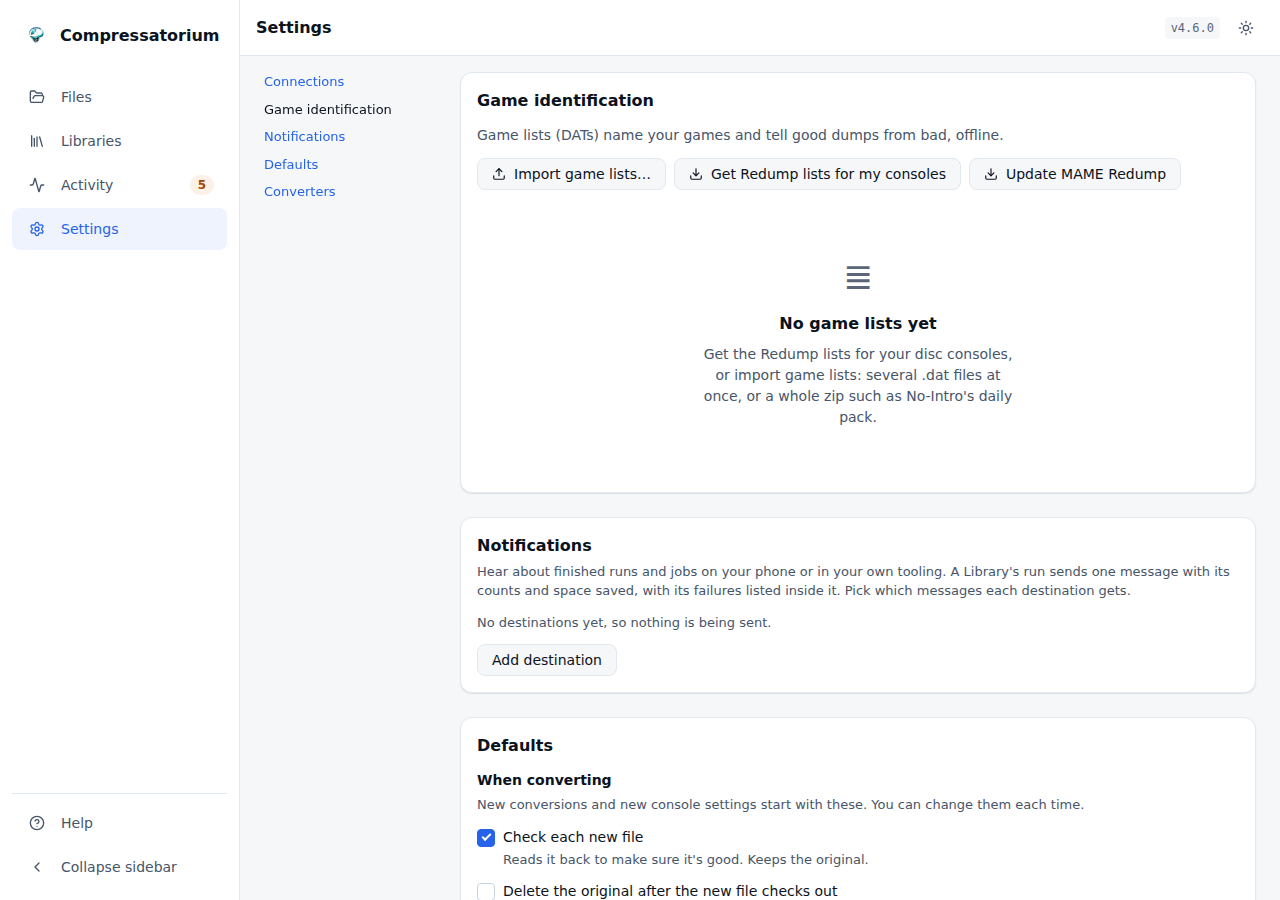 |
 |
When more than one list knows a game, the higher one names it. Open Name order to move them up or down. Until you do, Redump comes first for discs and No-Intro first for cartridges.
| Light | Dark |
|---|---|
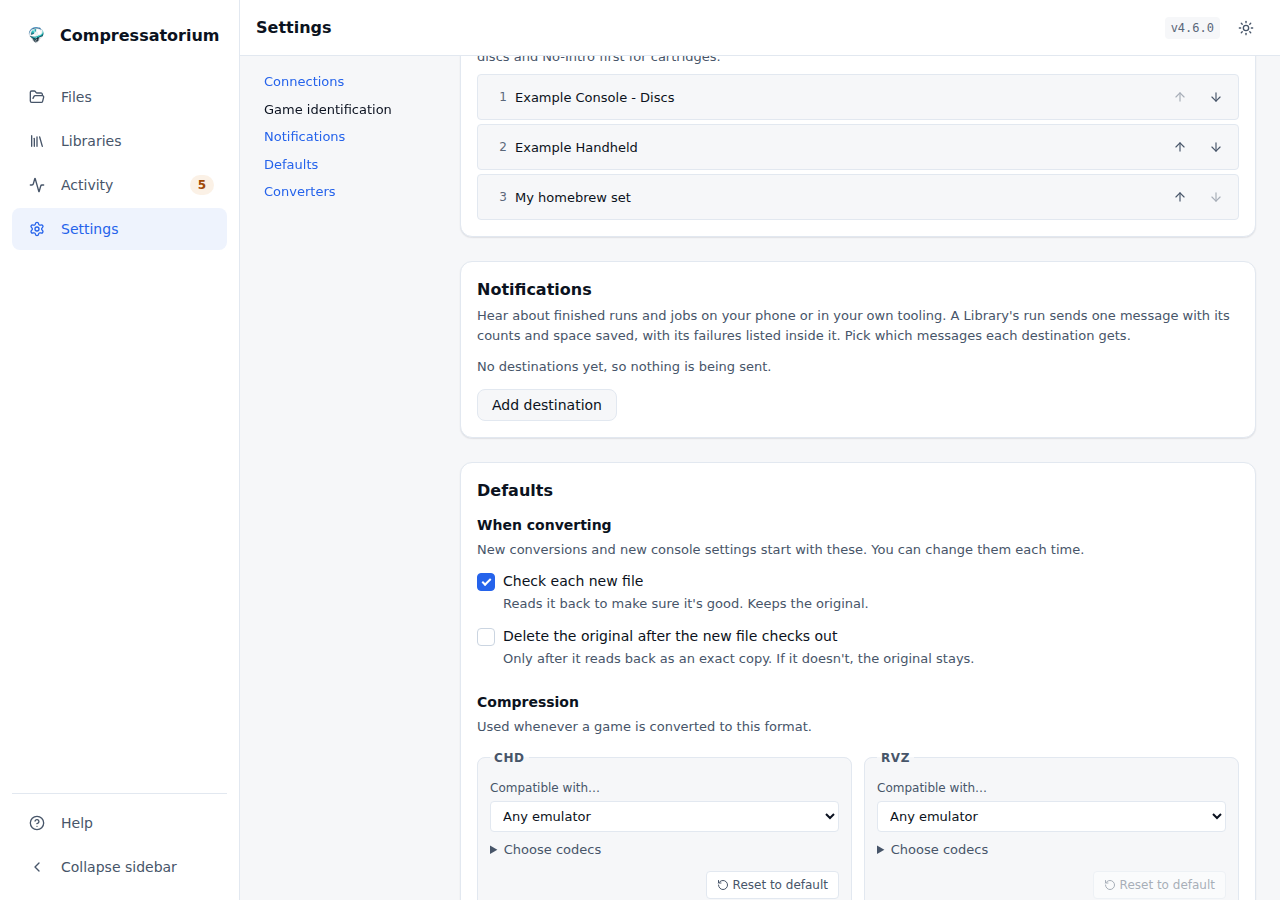 |
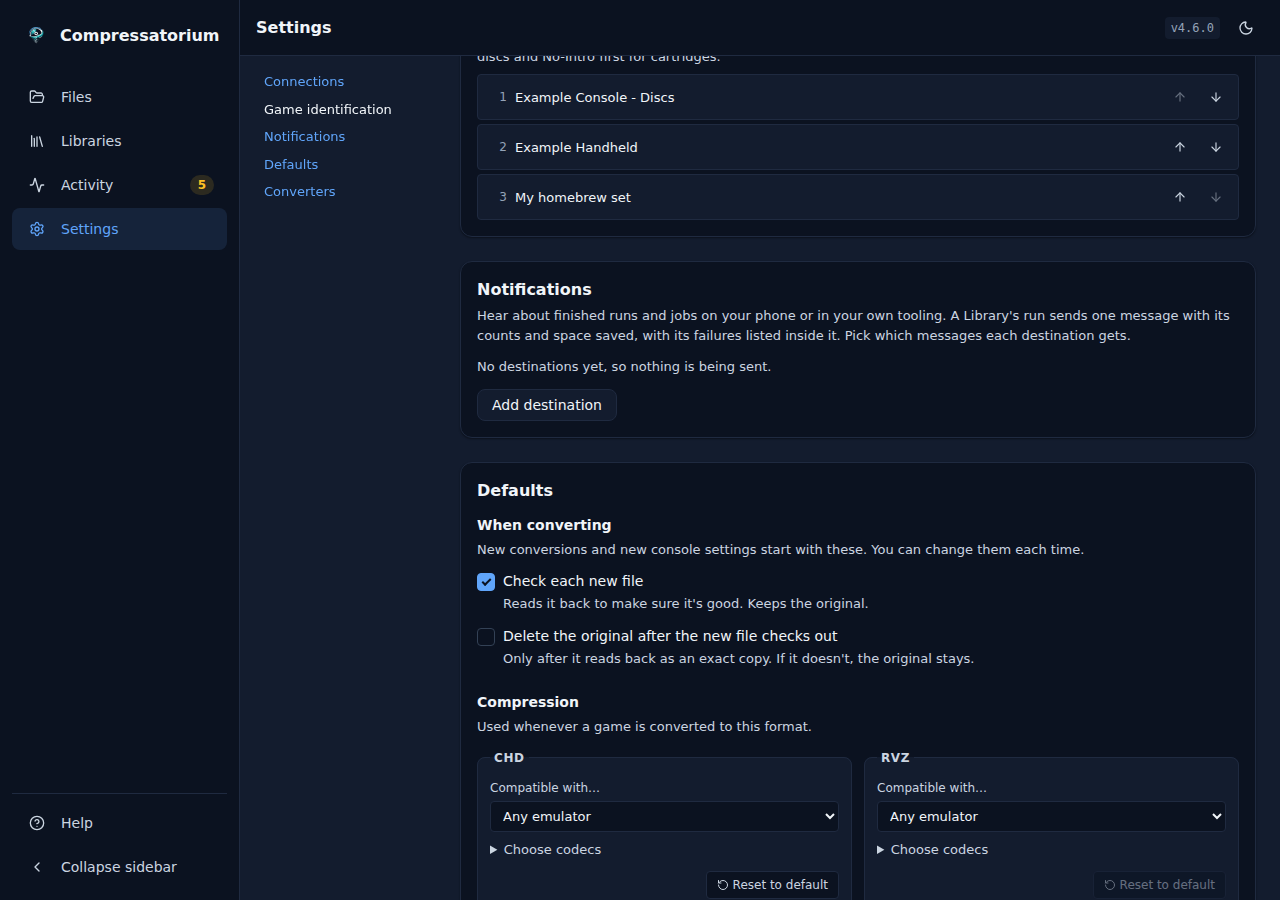 |
Rename to DAT name
The preview for a Recognized cartridge, then the finished job, then the preview for a two-track .cue Image in a folder named after it. See Rename to DAT name.
| Light | Dark |
|---|---|
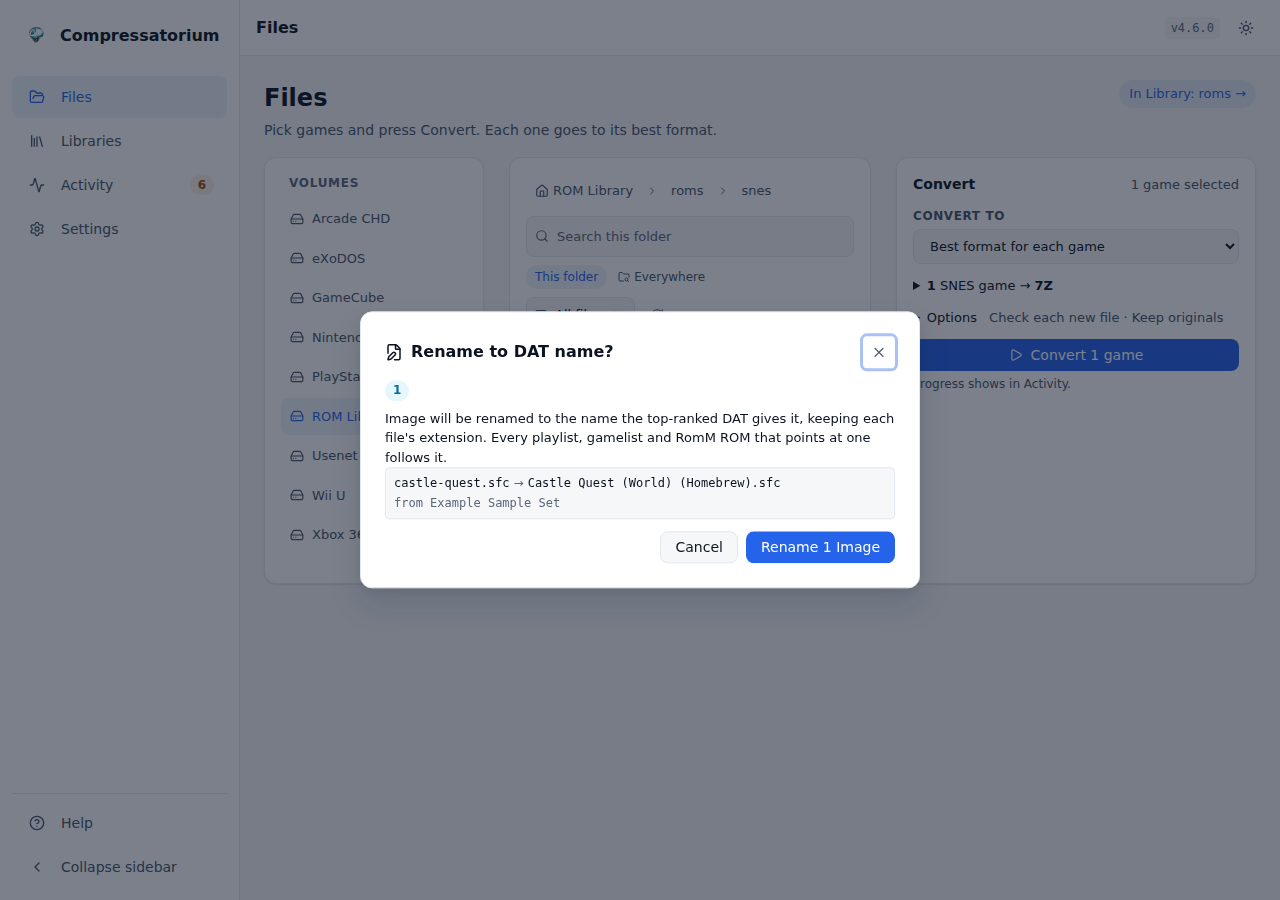 |
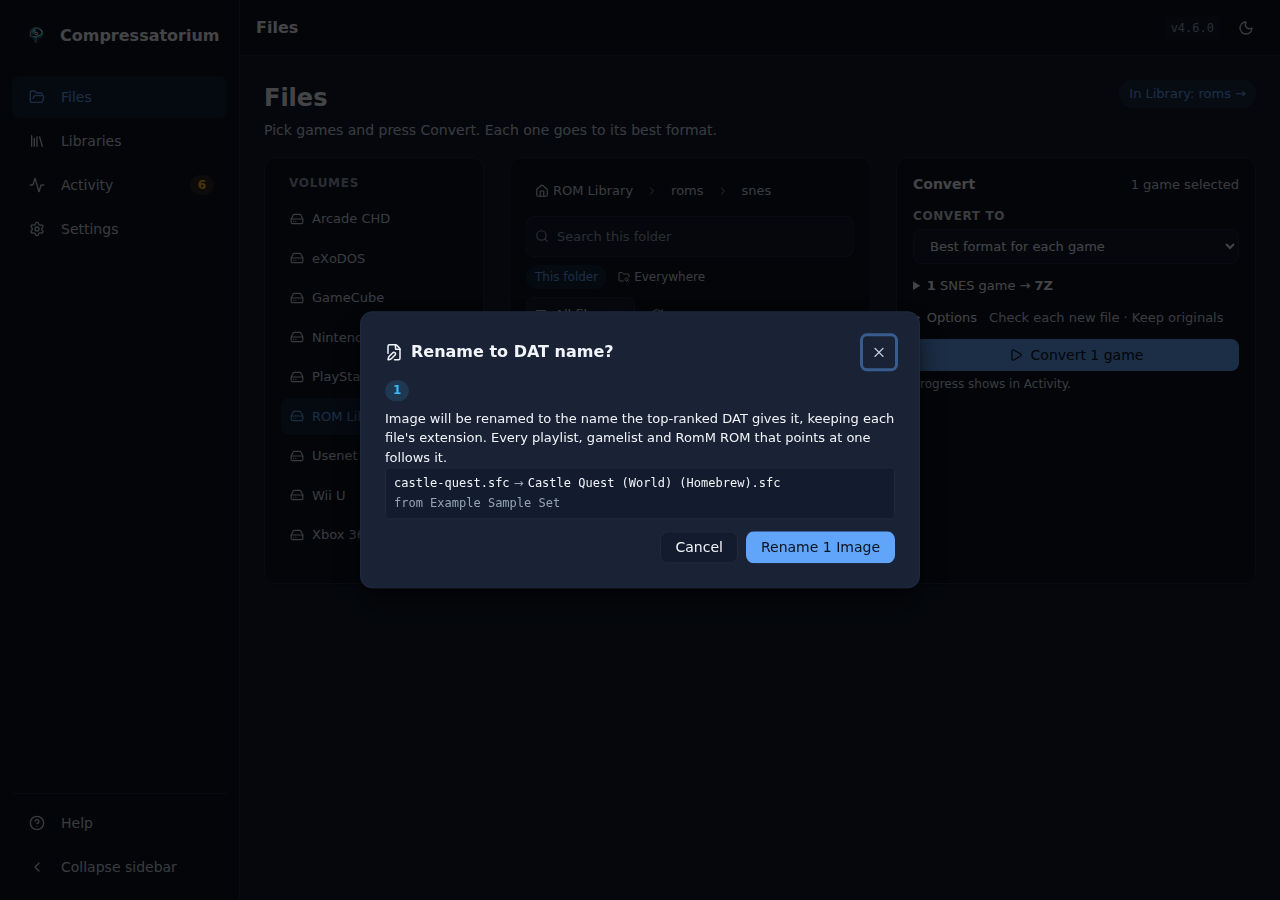 |
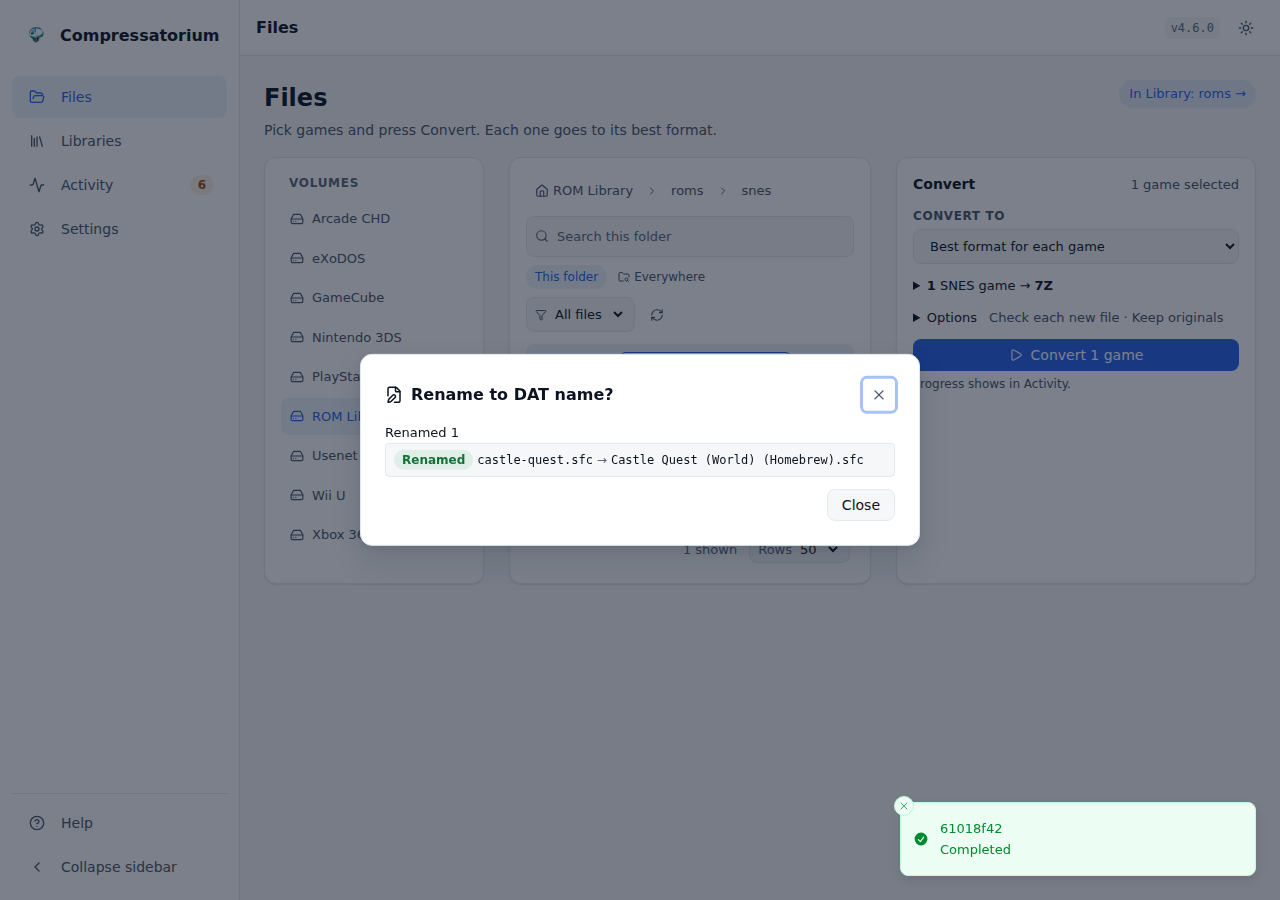 |
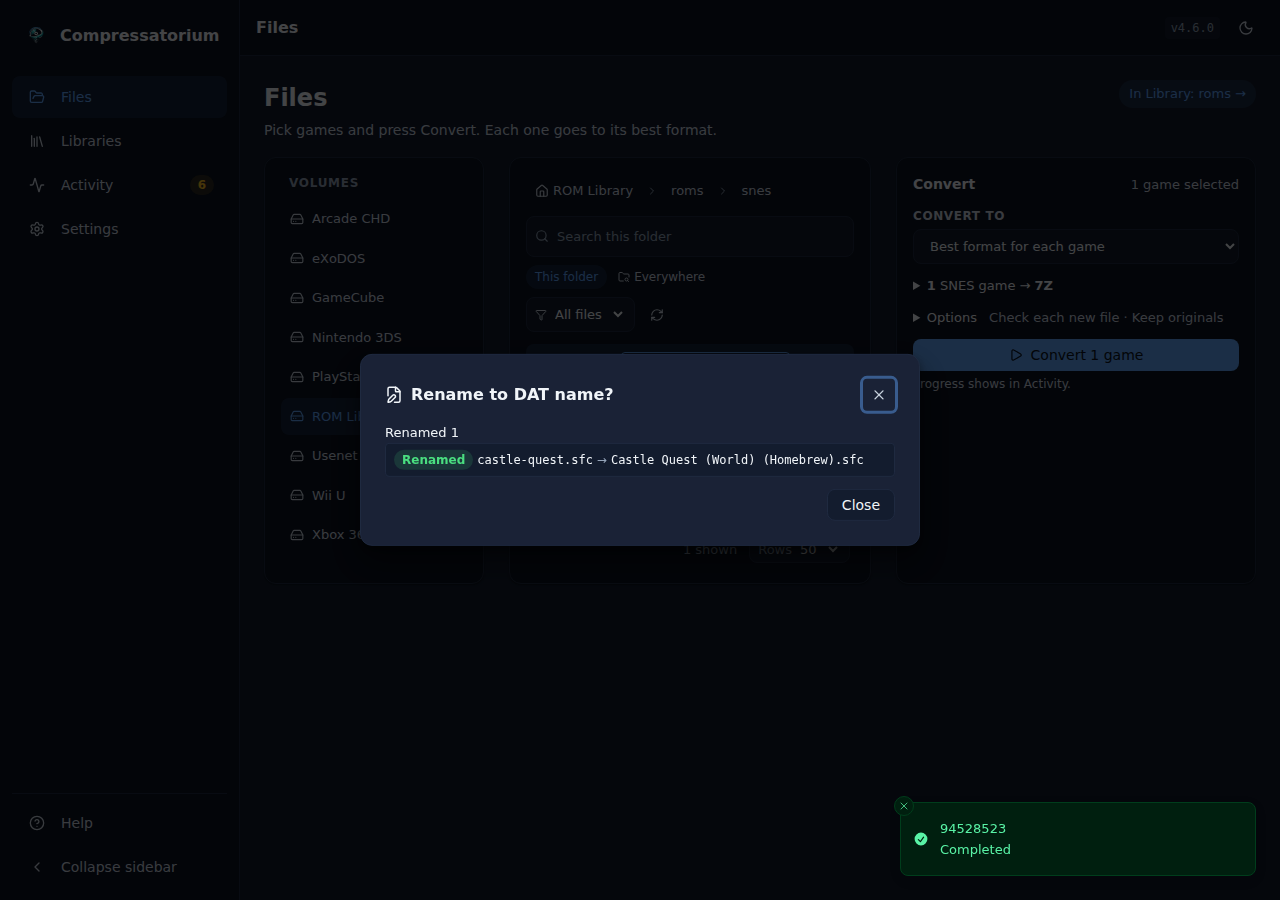 |
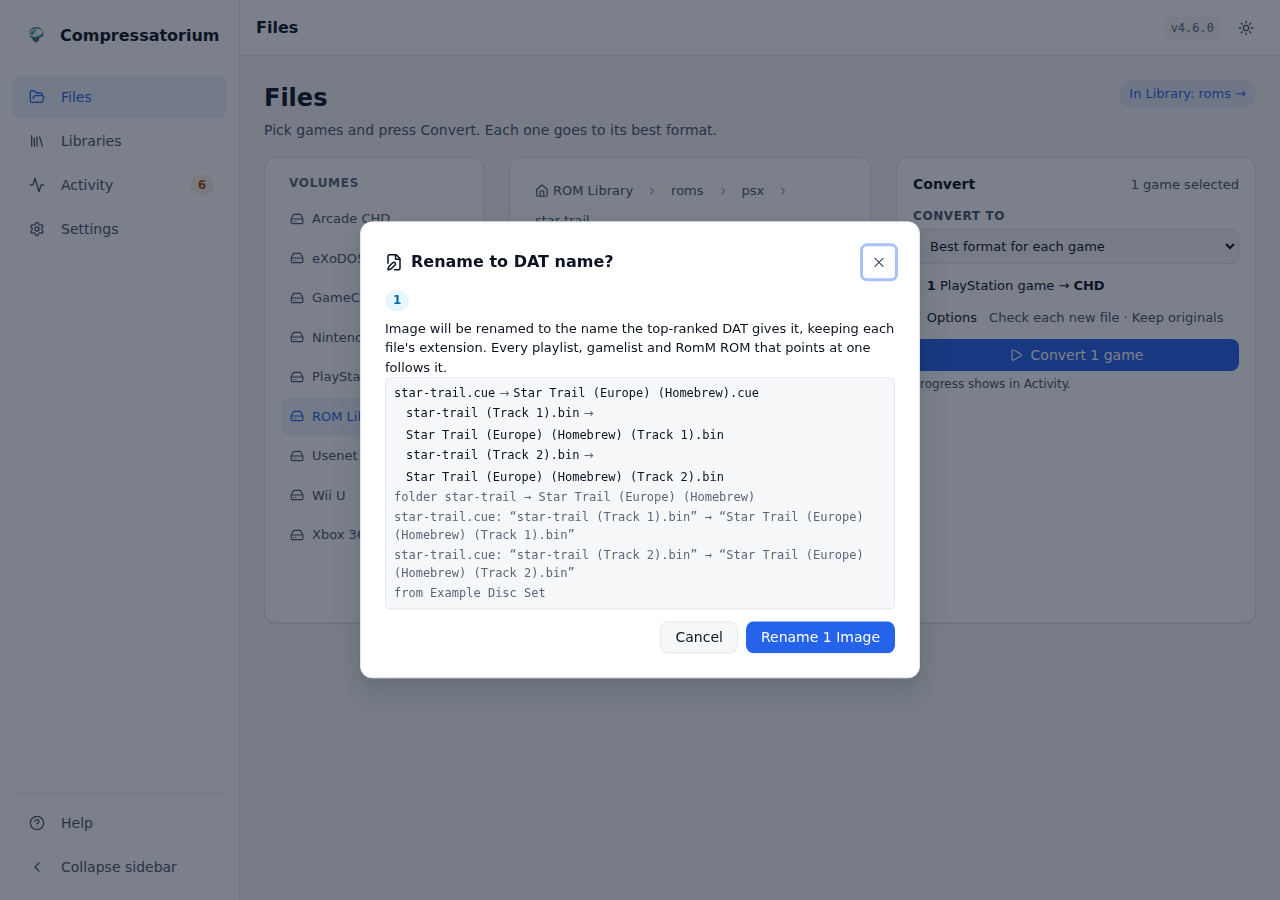 |
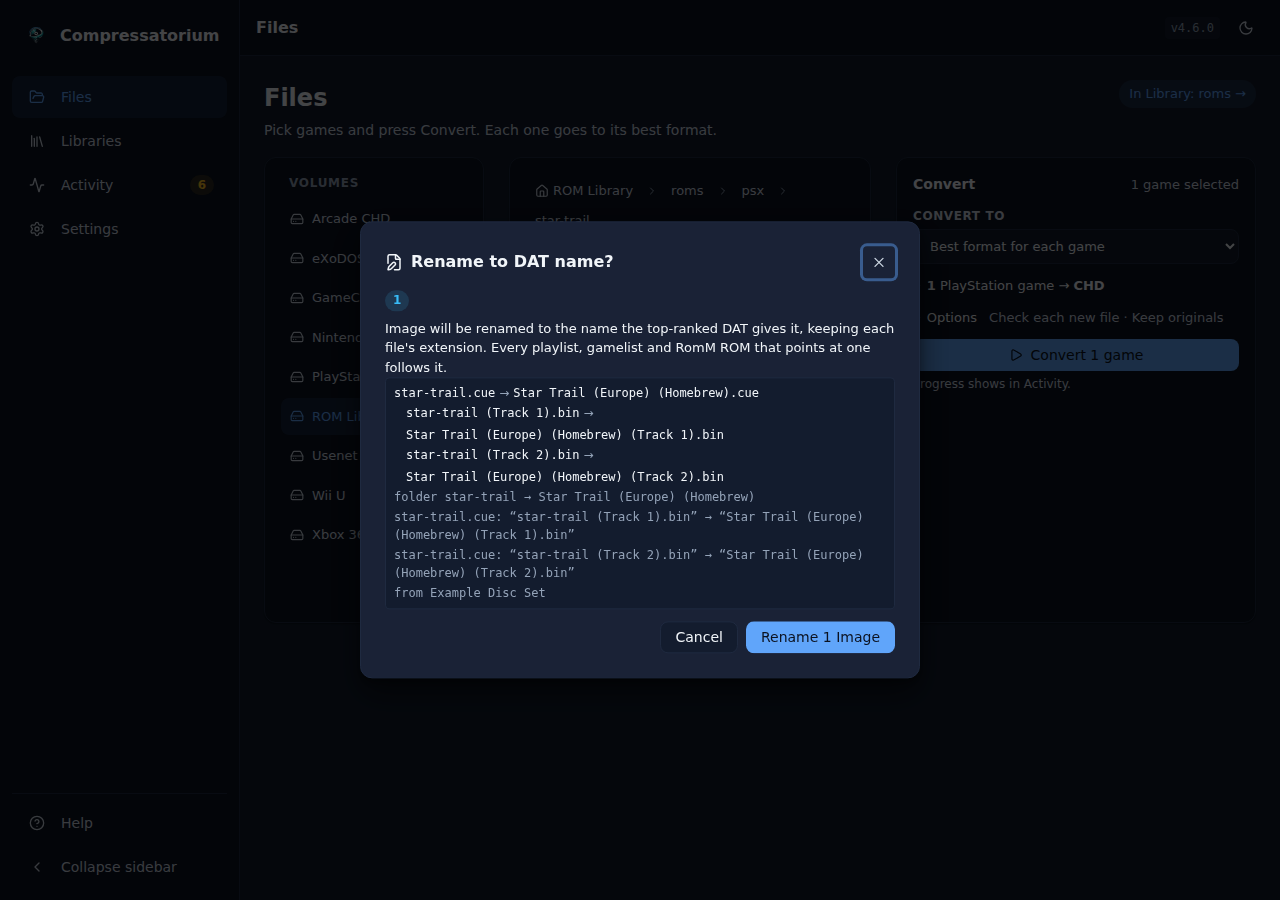 |
Settings
Everything set once, on one page: Connections (RomM, Hasheous, the *arr webhook), Game identification, Notifications, Defaults and Converters. On a wide screen the section list stays at the left as you scroll.
| Light | Dark |
|---|---|
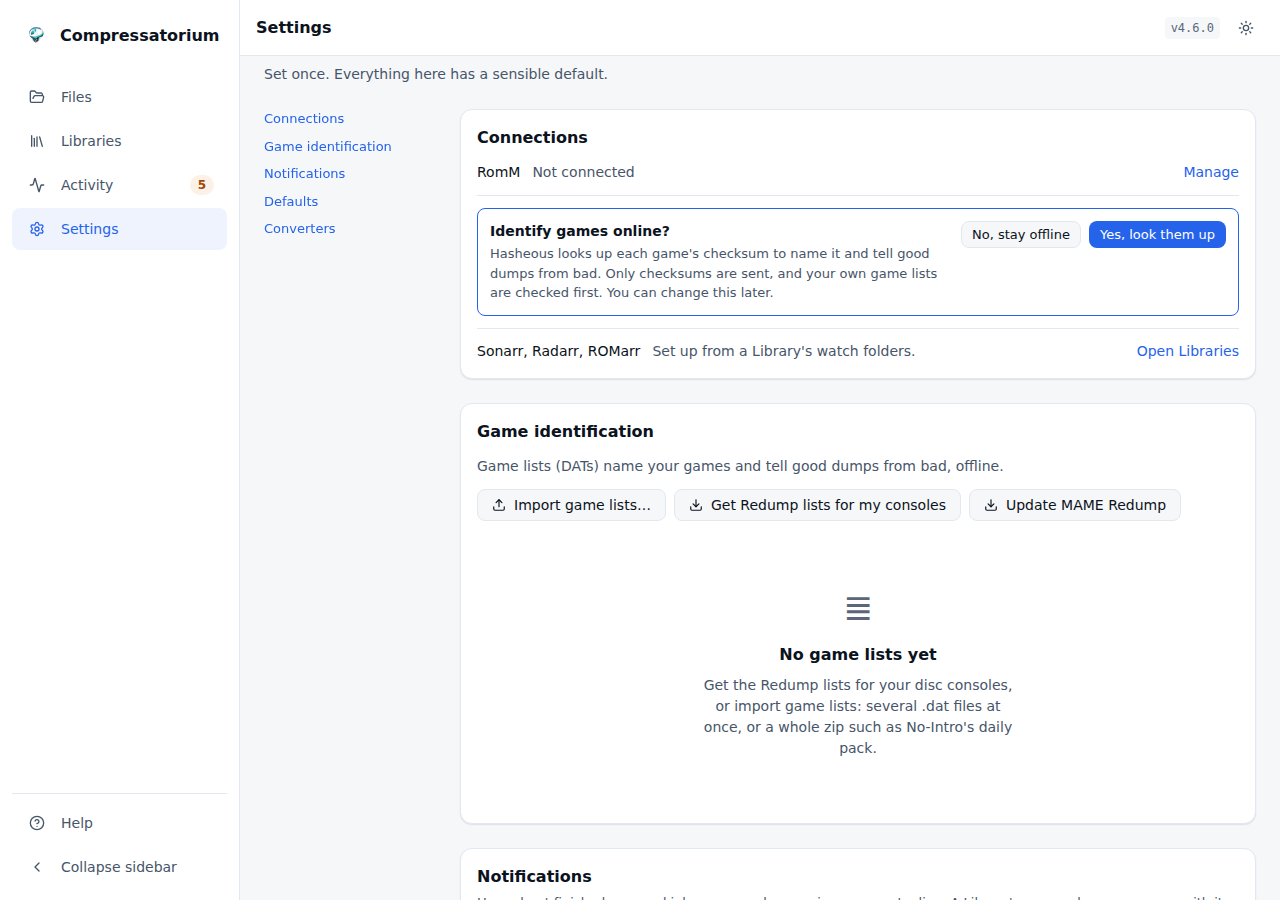 |
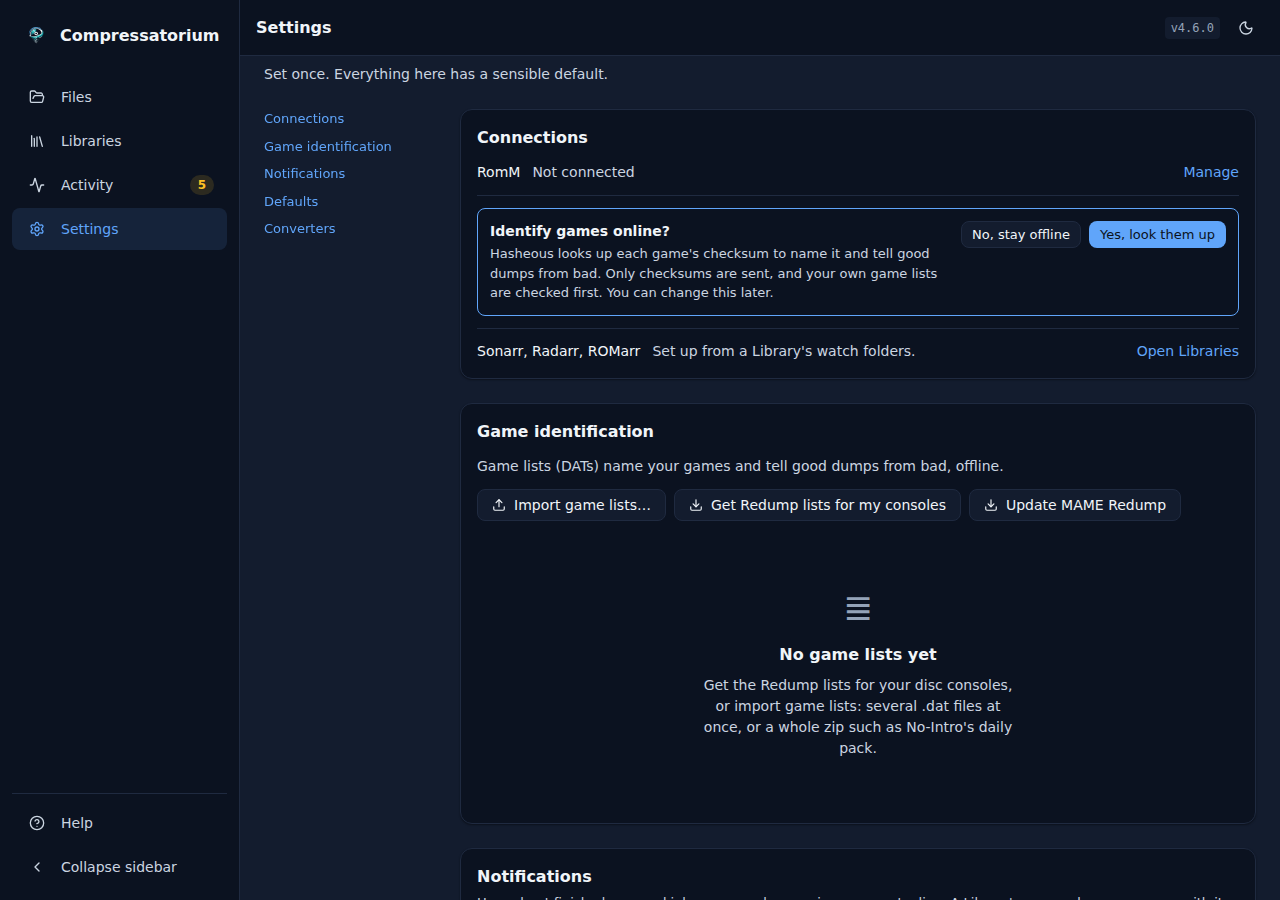 |
Defaults: what new conversions start with, the compression for each format, and how long History is kept. Converters: each program, the formats it makes, whether it can run here, and the CHD badge scan.
| Light | Dark |
|---|---|
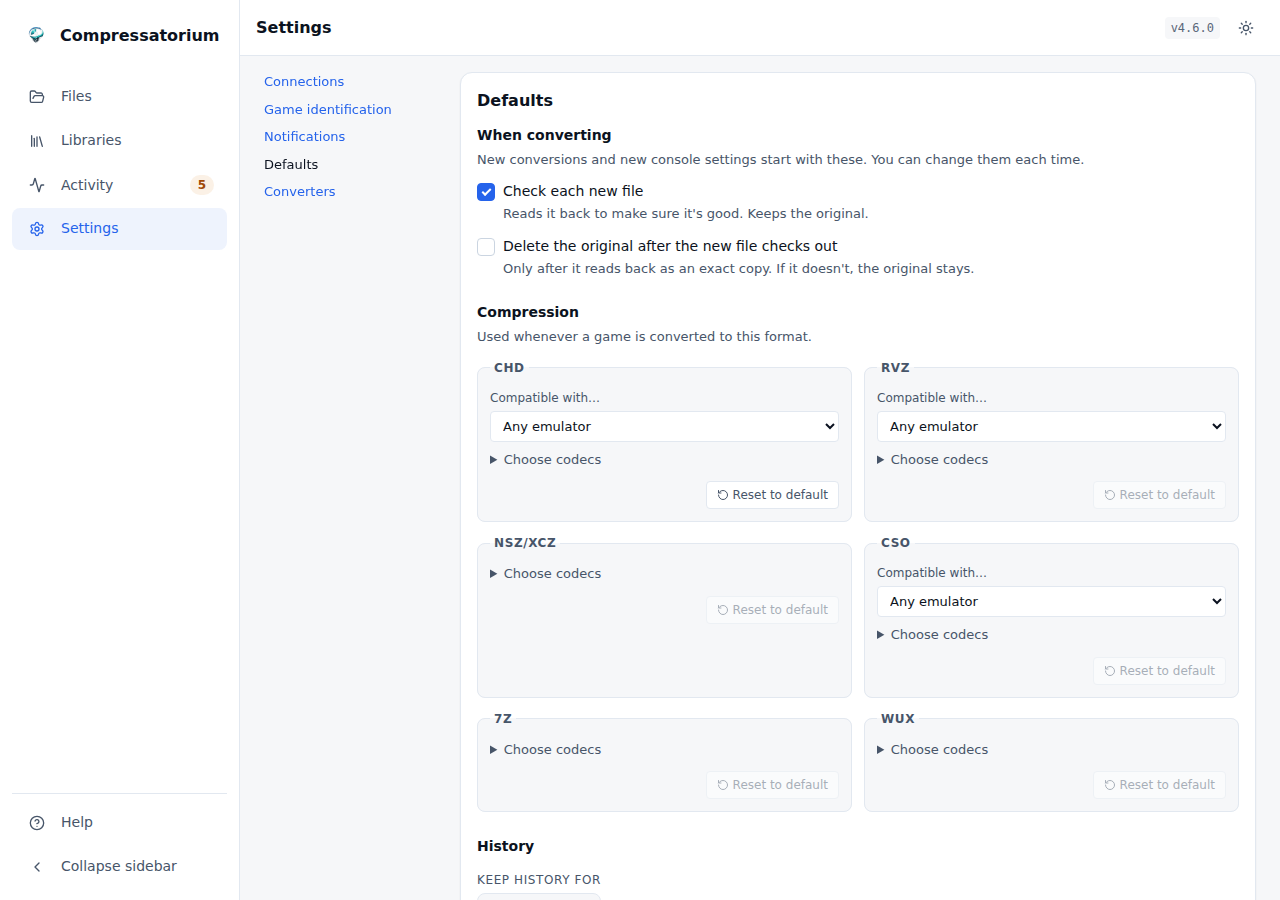 |
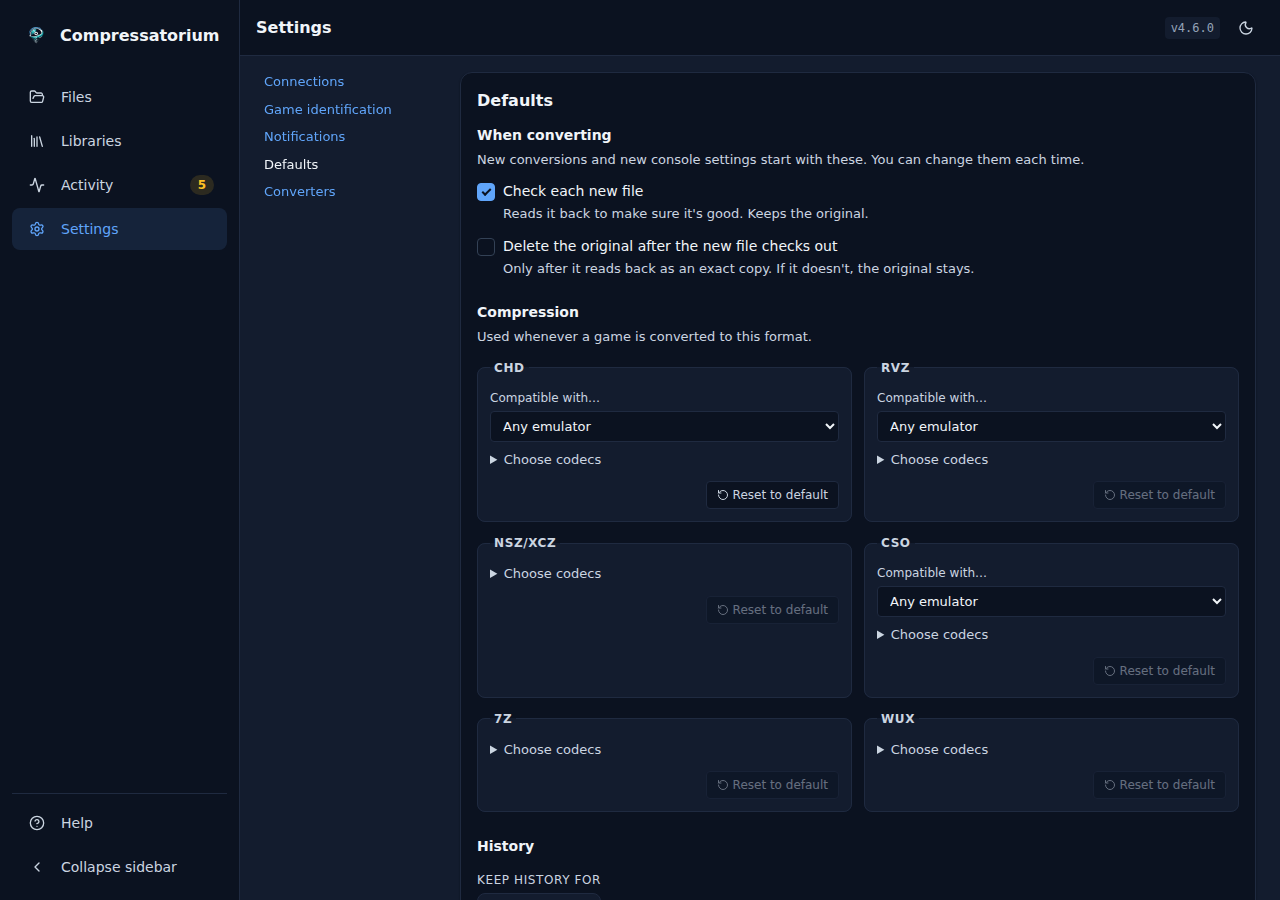 |
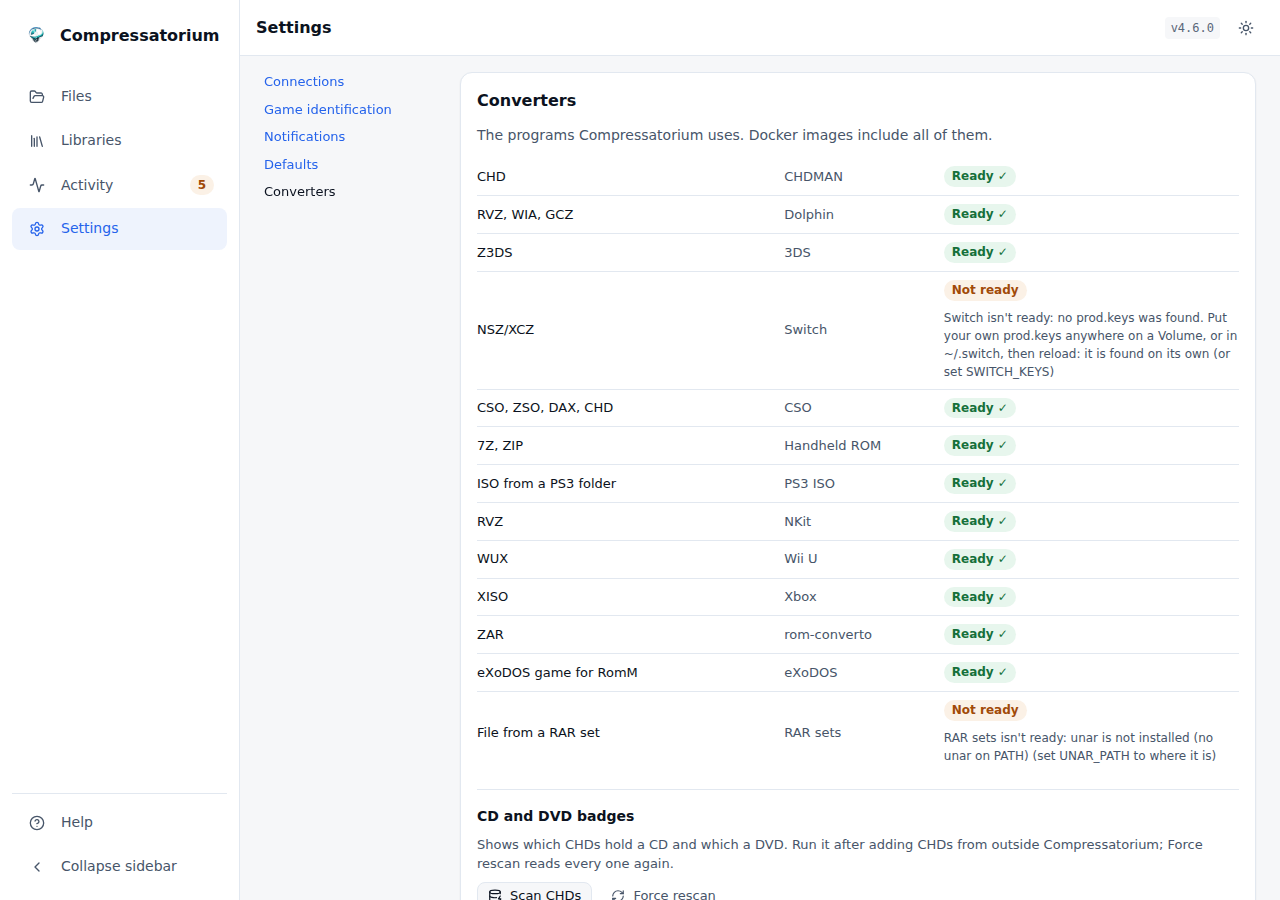 |
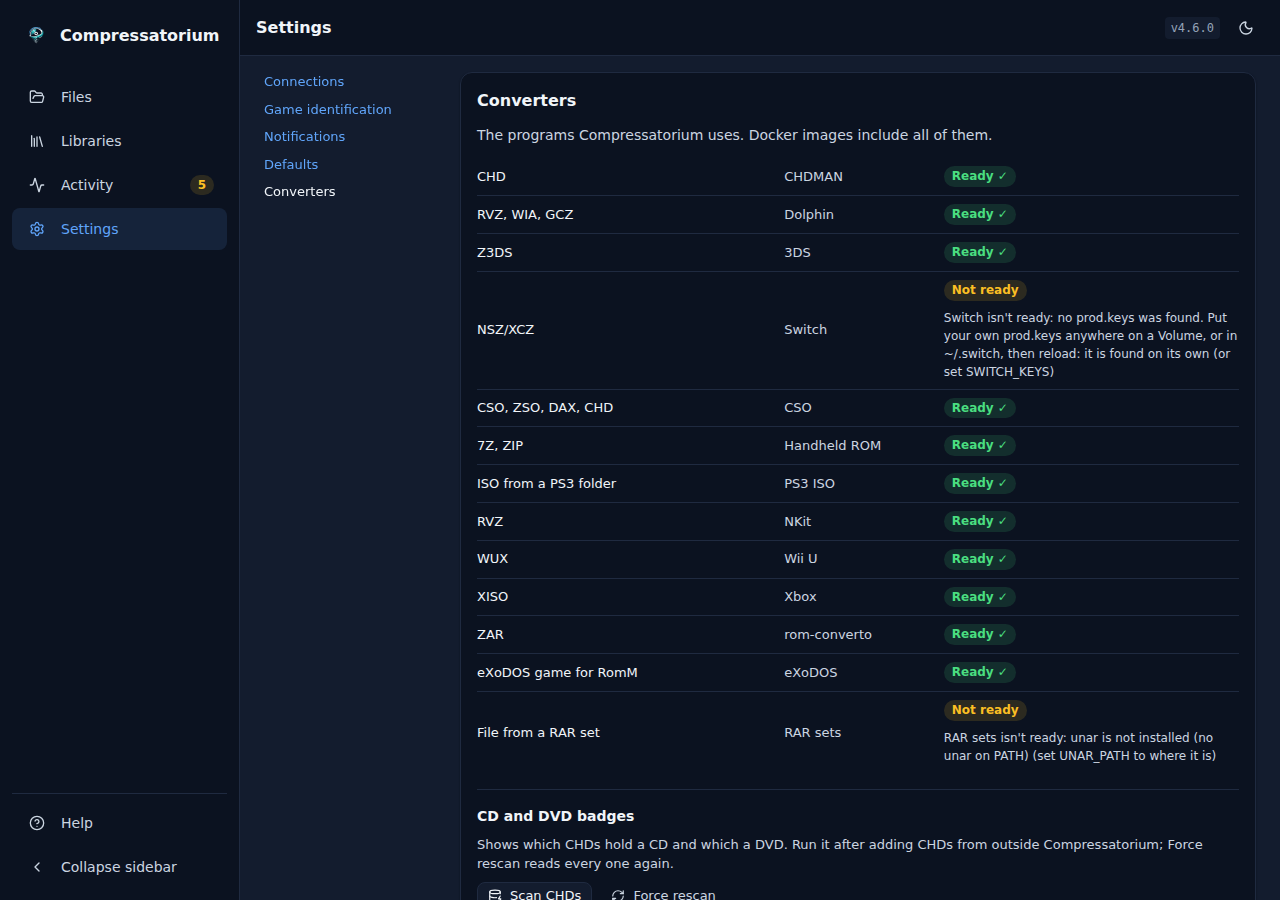 |
A new generic webhook's form: its signing secret and the messages it gets.
| Light | Dark |
|---|---|
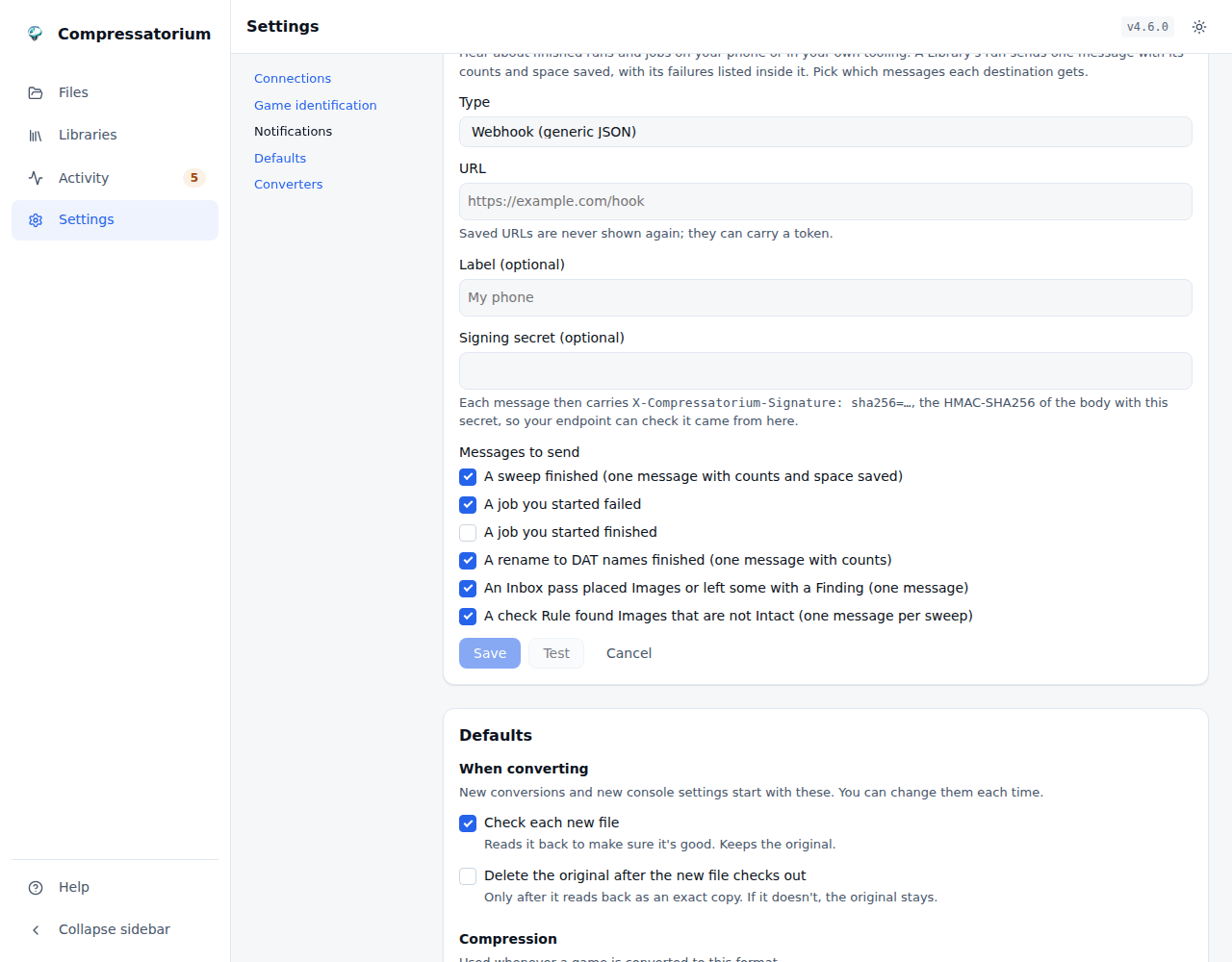 |
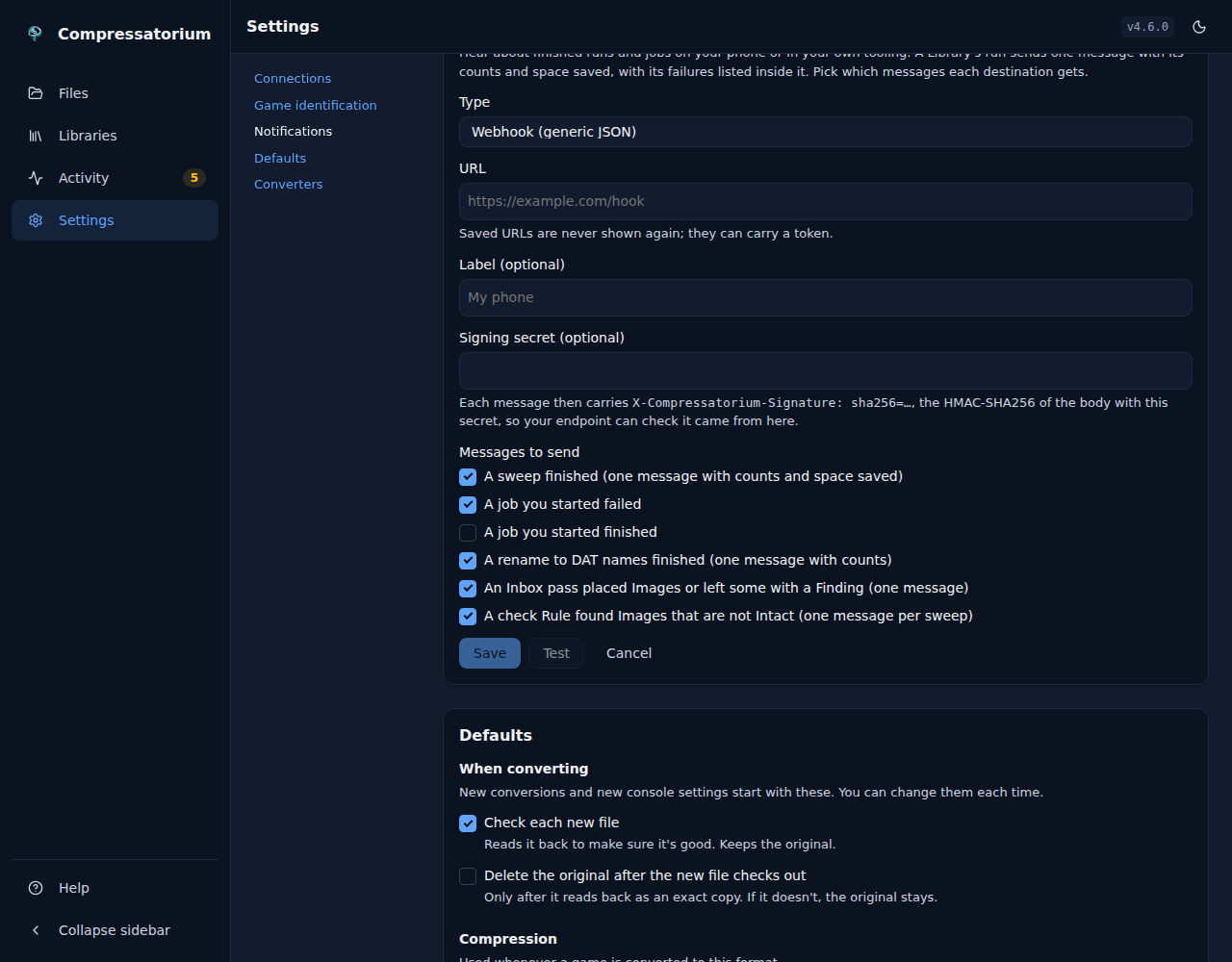 |
Help
In-app reference for tools, formats, compression, and verification.
| Light | Dark |
|---|---|
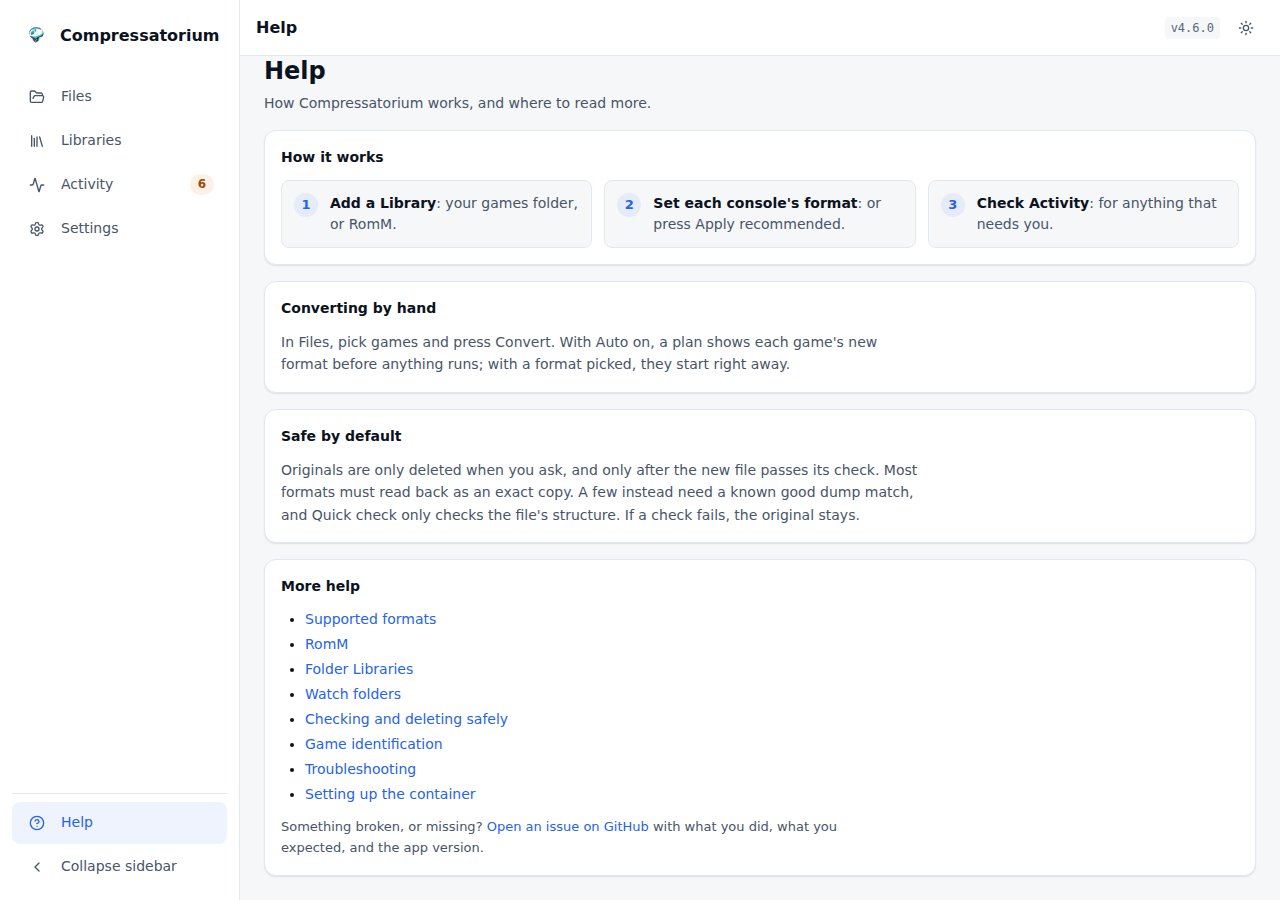 |
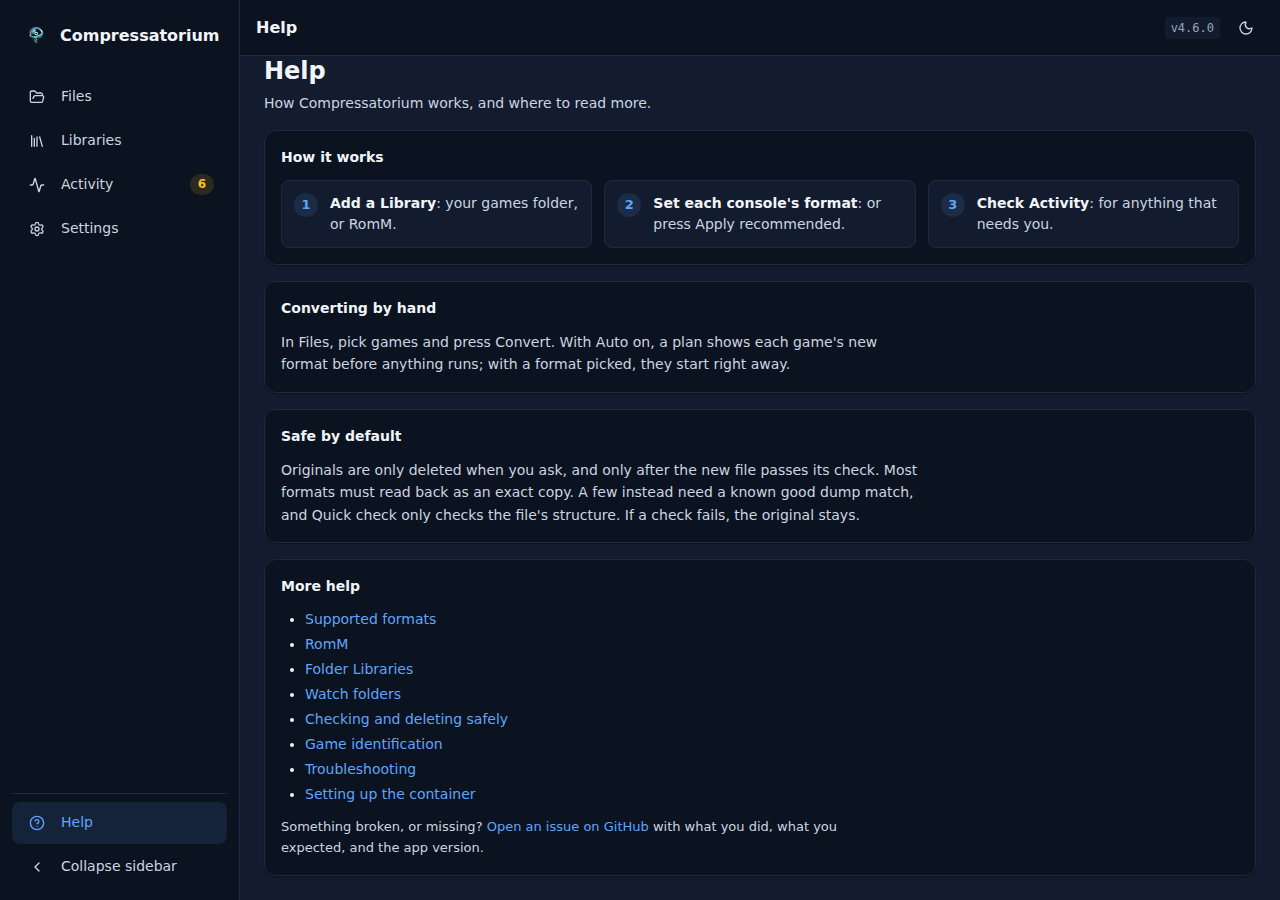 |
Responsive layouts
The interface reflows cleanly across breakpoints:
Desktop (1280px)
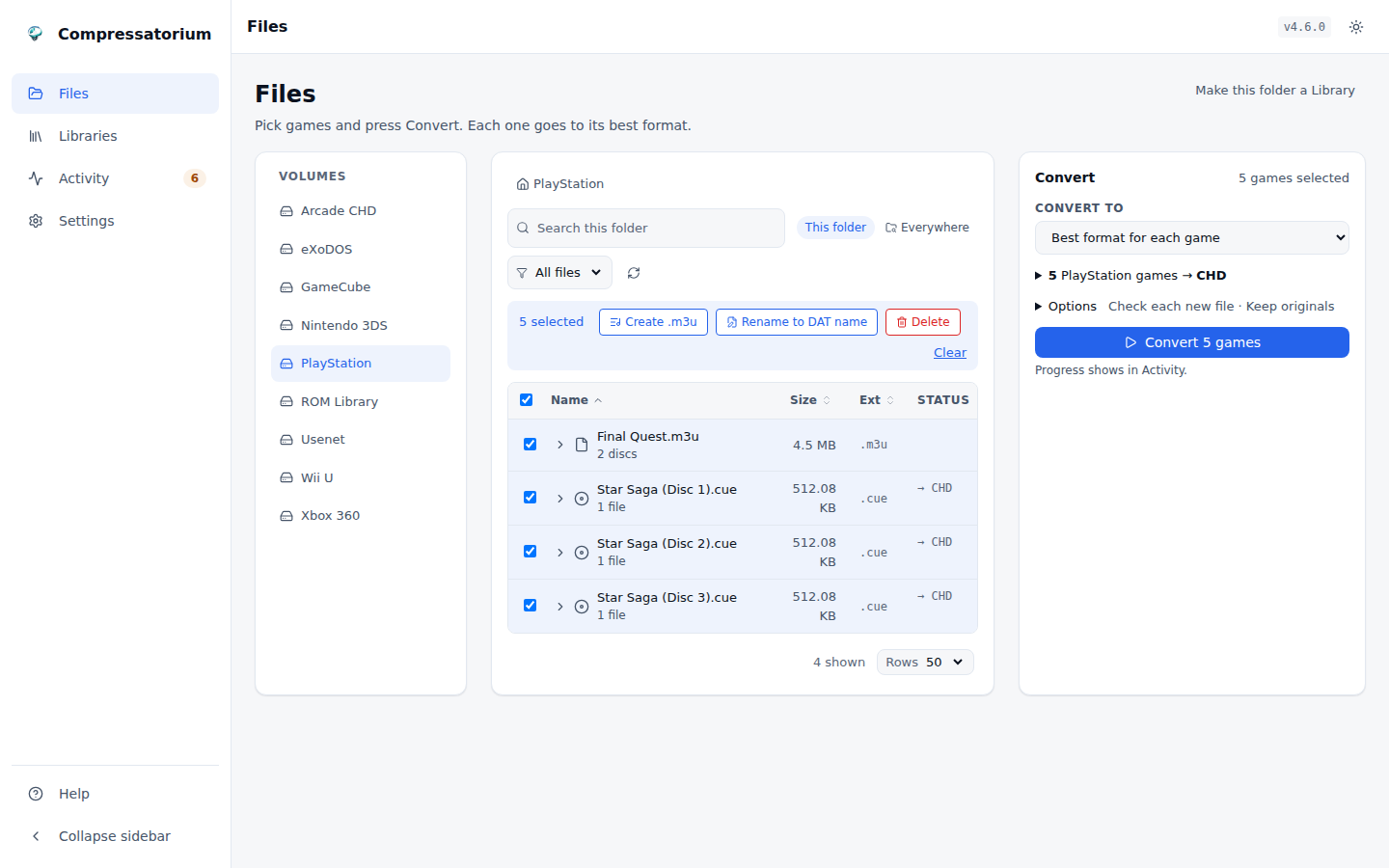
Laptop (1100px)
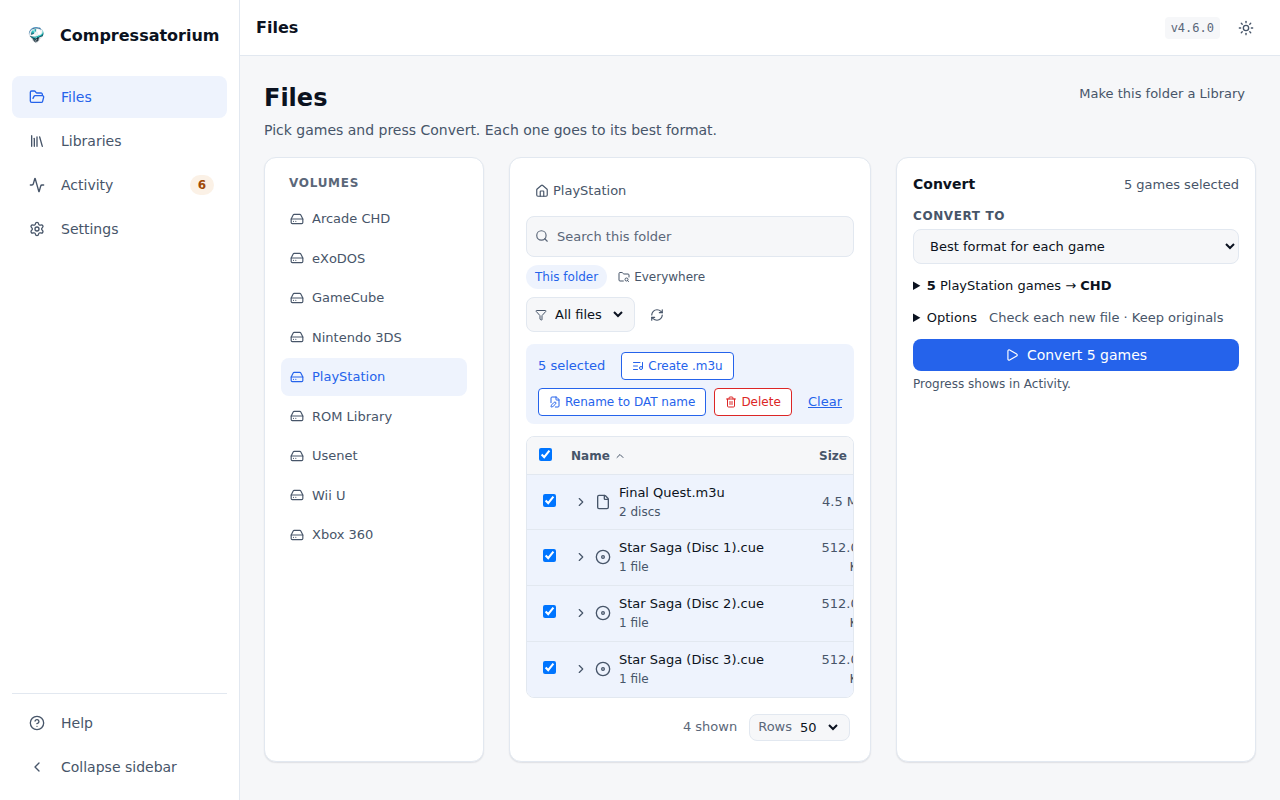
Tablet (768px)
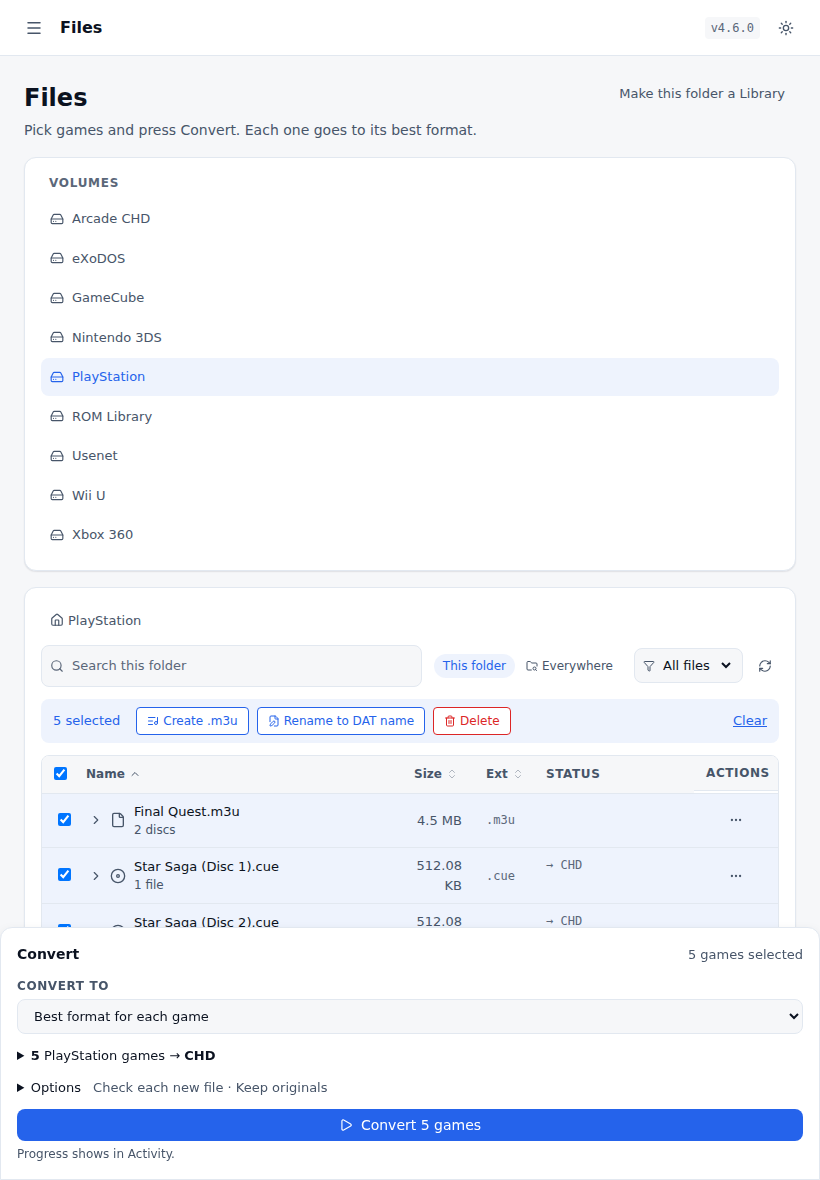
Mobile (375px)
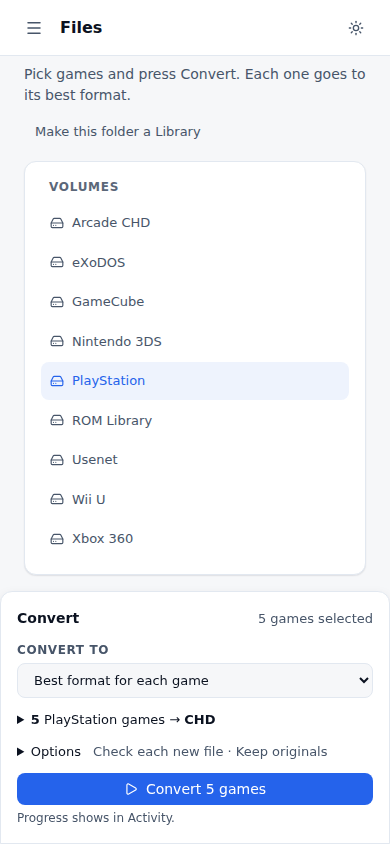
On small screens the file list switches to a card layout. Controls use 44 to 48px touch targets, inputs go full width, and the spacing opens up so it stays usable on a phone.
Features
File Browser
- Navigate through mounted volumes and subdirectories
- View file sizes, types, and CHD status indicators
- Recursive search to find all convertible files across the entire volume
Archive Support
- Browse inside ZIP, 7z, and RAR archives without extraction
- Convert files directly from within archives
- Archives extract temporarily during conversion, then clean up automatically
- When a
.cue/.gdiis present in the same archive folder,.binentries are suppressed and batch jobs are deduplicated by output path to avoid stalled conversions. - Archive listings include safety limits (max entries/size) and expose truncation metadata when limits are hit.
- Browsing is global, scoped to known extensions. When you look inside an archive, the listing shows every member whose extension is one the app understands — every tool's convertible source plus a
.chdyou can decompress — regardless of which tool is currently selected. That covers CHDMAN (.gdi/.iso/.cue/.bin), Dolphin (.iso/.gcz/.wia/.rvz/.wbfs), 3DS (.cci/.cia/.3ds/.cxi/.3dsx), Switch (.nsp/.xci), CSO (.iso/.cso/.zso/.dax), and Handheld ROM (cartridge ROM dumps —.gb/.gba/.nds/.nes/.sfc/.z64/.md/… ). Archive members appear for whichever tool accepts them, exactly like on-disk files. - Why everything else is hidden. Unknown files (text,
.nfo/.sfv, cover art, manuals), nested archives (a.zipinside a.zip), and OS/NAS clutter (__MACOSX/…,.DS_Store,Thumbs.db) are filtered out — they aren't convertible or verifiable, so listing them would only be noise. See Archives → Why only certain files show inside an archive. - Some shown members are view-only. A handheld ROM this app packed (
Game.gbainsideGame.gba.7z) is listed for visibility/verification but not offered for re-conversion (recompressing an archived ROM would be recursive); unpack it by selecting the archive and runningromz_extract. A.chdinside an archive can be decompressed in place but not recompressed (copy/recompress acts on a finished output). Such members are badged non-convertible. - The inputs that can't come from an archive are CHDMAN's copy/recompress mode (recompressing an already-finished
.chdwould be a pointless round trip, though the extract modes can decompress a.chdstraight out of an archive), Handheld ROM compression, whose.7z/.zipare the packed product, and PS3 ISO, whose input is a folder rather than a file (a zippedPS3_GAMEtree can't be selected from inside an archive).
Dolphin Tools (GameCube/Wii)
- A plain
.isogoes to the right format from its header, or the format you pick in Convert to - Convert
.iso,.gcz,.wia,.rvz,.wbfswith dolphin-tool (RVZ/WIA/GCZ/ISO output) - Disc info and verification for Dolphin formats (including batch verification)
- Dolphin sources may be converted directly from inside ZIP/7z/RAR archives (extracted to a temp dir for the conversion, then cleaned up)
Batch Conversion
- Select multiple files and convert them all at once
- Queue-based processing (FIFO), defaulting to serial execution (
MAX_CONCURRENT_JOBS=1) - Real-time progress tracking via Server-Sent Events
- Duplicate detection with options to skip, rename, or overwrite
- Optional delete-on-verify with a preflight confirmation list (includes
.cue/.gditrack files) - Archive conversions can delete the entire archive after verify (explicit warning in the delete plan)
- Job manager controls include Cancel All and Clear Done, both guarded by confirmation dialogs
Bulk Operations
- Bulk Delete: Delete multiple selected files at once
- Bulk Verify: Verify integrity of multiple CHD + Dolphin images simultaneously
- Sorts sources by whether they already have a CHD backup
- Warnings for files without verified CHD backups before deletion
Verification
- Verify CHD files using chdman's built-in verification
- Verify GameCube/Wii game images using dolphin-tool
- Verification status persisted across sessions (stored in
/config/verified_chds.json) - Integrated verification workflow when deleting source files
- Visual indicators showing verified vs unverified items
- Optional timeouts for long-running verifications and stalled progress
CHD Inspector
- View detailed CHD file information (version, compression, size, hashes)
- SHA1 and Data SHA1 checksums displayed
- Raw chdman output available for advanced inspection
- Dolphin disc info shows game ID, region, format, compression, and raw output
- Game ID and title. PS1, PS2, PSP, and Dreamcast serials are read from CHD sector data (SYSTEM.CNF, PARAM.SFO, IP.BIN) and shown in the info modal, with human-readable titles when available (for example "Patapon", "DEAD OR ALIVE 2")
CHD Metadata Cache
- Background metadata scan with CD/DVD badges
- Game IDs for existing CHDs. The scan reads the game ID of every CHD it has not checked yet and stores it in the metadata cache. Later scans skip files already checked. Nothing is written into the CHD: chdman cannot add metadata to a compressed CHD
- "Scan Metadata" and "Force Rescan" actions to refresh cached metadata
- Cache stored in
/config/chd_metadata.json
File Management
- Rename files and directories
- Delete files with safety checks (warns about missing CHD backups)
- Empty directory cleanup
Conversion Modes
- Create CHD: createcd (CD), createdvd (DVD/PSP/PS2), createraw, createhd, createld
- Extract from CHD: extractcd, extractdvd, extractraw, extracthd, extractld
- Copy/Recompress: Recompress existing CHD files with different codecs
- Dolphin (GameCube/Wii): dolphin_rvz, dolphin_wia, dolphin_gcz, dolphin_iso
Compression Options
- Choose from multiple compression codecs: zlib, zstd, lzma, huff, flac, avhu (A/V Huffman)
- CD-specific codecs: cdzl, cdzs, cdlz, cdfl (CD images only)
- No compression option for maximum compatibility (
-c none) - Select up to 4 codecs per conversion (CHD only)
- Dolphin modes accept one codec + optional level (RVZ/WIA), while GCZ/ISO ignore compression
Dolphin Emulator Support (GameCube/Wii)
Dolphin support is available in the Web UI and REST API (CLI mode remains CHDMAN-only).
Supported inputs: .iso, .gcz, .wia, .rvz, .wbfs
Output modes: dolphin_rvz (recommended), dolphin_wia, dolphin_gcz, dolphin_iso
Notes (shared workflow — compression, verify, archives — is in the Usage Guide)
- Requires the Docker image with Dolphin installed (default image includes
dolphin-emu+ wrapper). - Dolphin conversions use
dolphin-tool(configurable viaDOLPHIN_TOOL_PATH). - Compression is a single codec plus an optional level (
zstd:5,bzip2:5,lzma:5,lzma2:5);zstd:19is the default.dolphin_gczuses fixed compression (ignores the codec), anddolphin_isooutputs an uncompressed ISO. - A
.isogoes to its console's format, read from its header, unless Convert to names one.
Nintendo 3DS Support
3DS ROM compression and decompression are available in the Web UI and REST
API using z3ds_compress — a fork of
the original energeticokay/z3ds_compress
that adds a decompression mode and support for .cxi/.3dsx files.
Pick a 3DS format in Convert to, pick your files, and choose a mode:
Compress 3DS (z3ds_compress) packs a raw ROM, and Decompress 3DS
(z3ds_decompress) restores the original ROM from a Z3DS file. The general
workflow (queue, verify, delete-on-verify, archives) is in the
Usage Guide; the 3DS-specific bits are below.
Round-trip is lossless. The compressed
.z3ds/.zcci/.zciais a seekable-Zstandard container that Azahar reads directly, and it can be decompressed back to a byte-identical original. Direction is chosen by the mode (we pass the tool's explicit-c/-dflag), so it never depends on guessing from the file contents.
Supported File Formats
Compress inputs (raw ROMs):
.cci- CCI (CTR Card Image) format - Nintendo 3DS cartridge dumps.cia- CIA (CTR Importable Archive) format - Installable packages, updates, DLC.3ds- Alternative extension for cartridge dumps (identical to .cci, can be renamed).cxi- CXI (CTR Executable Image) - experimental.3dsx- 3DSX homebrew executable - experimental
Compressed outputs / decompress inputs (Z3DS containers):
.zcci↔.cci.zcia↔.cia.z3ds↔.3ds.zcxi↔.cxi.z3dsx↔.3dsx
Important Note: The .3ds and .cci formats are functionally identical - they're both cartridge dump formats with different file extensions. You can freely rename between them. The z3ds_compress tool supports both extensions and maintains the naming convention (.3ds → .z3ds, .cci → .zcci, and the reverse on decompress).
Technical Details
Compression method: Seekable ZStandard (256KB frame size)
Size reduction: Typically ~50% without compatibility issues
Compression speed: Fast, single-threaded processing
Compatibility:
- Compressed ROMs are natively supported by Azahar emulator (release 2123+)
.ccifiles: Thoroughly tested and production-ready.ciafiles: Supported but considered experimental.3dsfiles: Same as .cci - fully supported (they're the same format)
3DS-specific notes:
- z3ds_compressor binary ships in the Docker image (
Z3DS_COMPRESSOR_PATH=/usr/local/bin/z3ds_compressor), built from the pacnpal/z3ds_compress fork via CMake. - Compression settings are fixed — 3DS is the one tool with no compression picker.
- ROMs must be decrypted before compression (encrypted ROMs will not work).
- Decompression (
z3ds_decompress) does not offer delete-on-verify: the restored ROM is not itself a verify-class file, so the compressed source can't be confirmed before deletion.
3DS Environment Variables
| Variable | Default | Description |
|---|---|---|
Z3DS_COMPRESSOR_PATH |
/usr/local/bin/z3ds_compressor |
Path to z3ds_compressor binary |
(Global vars — DAT sync, tool paths, priority — are in Environment Variables.)
REST API Endpoints
POST /api/jobsorPOST /api/jobs/batch- Queue 3DS jobs (usemode: "z3ds_compress"ormode: "z3ds_decompress")GET /api/z3ds-info?path=/path/to/rom.cci- Get file information (size, format, compression status)GET /api/z3ds-verify?path=/path/to/rom.zcci- Verify compressed 3DS output integrityGET /api/z3ds-verify/events?path=/path/to/rom.zcci- SSE stream for 3DS verify progressPOST /api/z3ds-verify-batch/events- SSE stream for batch 3DS verification
(DAT sync/import/match endpoints are shared — see API Endpoints.)
Nintendo Switch Support
Switch compression and decompression use nsz,
the homebrew-standard tool. It shrinks .nsp/.xci dumps into .nsz/.xcz
(40-80% smaller) and reverses the process. Compressed output stays installable
in Tinfoil and DBI.
You must provide your own
prod.keys. Switch game content (the NCA files inside an NSP/XCI) is encrypted, and encrypted data does not compress. nsz decrypts the content, compresses it, and stores how to re-encrypt it so decompression rebuilds a byte-identical original. That decrypt step needs your console's keys. This app ships no keys and nsz ships no keys. You supply your own, dumped from a console you own, for games you own. Without keys, the Switch tool is listed on the dashboard under Not ready here with the fix. See the legal note at the bottom of this section.
How to Use
Provide keys first (see Keys: setup and security) —
the Switch tool only appears once prod.keys are found. Then select Switch,
choose Compress (.nsp/.xci → .nsz/.xcz) or Decompress, and convert. The
general workflow is in the Usage Guide.
Supported File Formats
.nsp- Nintendo Submission Package (eShop-style dump).xci- Cartridge image (game card dump).nsz- Compressed NSP (zstandard over decrypted NCA content).xcz- Compressed XCI
Compress maps .nsp → .nsz and .xci → .xcz; decompress reverses it.
Compression (layout and level)
The Compress mode exposes two controls in the convert panel, per job:
- Layout - Solid (best ratio; must be decompressed to run) or Block (slightly larger, but installable/playable without full decompression).
- Level - the zstandard level, 1-22.
Your choice is remembered server-side (per tool), so it persists across
sessions and browsers. NSZ_COMPRESSION_LEVEL is the fallback default when no
per-job level is set. (See Compression Settings for the
shared picker behavior, including the Reset-to-default button.)
Technical Details
- nsz is installed from pip and runs as a subprocess (no shell). Verify uses
nsz's own
-Vintegrity check on the compressed container. - The compress/decompress round trip is lossless. nsz keeps all protection measures in place (the first 0x4000 bytes of each NCZ stay encrypted, and the NCZ header records how to re-encrypt), so decompression reproduces the original byte-for-byte.
- Archive inputs work, but your own
prod.keysare still required exactly as for on-disk files.
Keys: setup and security
Recommended: mount the directory holding your keys read-only and set
SWITCH_KEYSto it:# docker-compose.yml services: compressatorium: environment: - SWITCH_KEYS=/keys # directory containing prod.keys volumes: - /host/path/to/switch-keys:/keys:roSWITCH_KEYSis the source of truth when set (its directory is checked directly, then searched recursively). When unset, the app best-effort searches the standard locations (~/.switch, the nsz config dirs) and then recursively walks your mounted game volumes for aprod.keys/keys.txt, skipping junk dirs and bounded by a directory cap so a huge library can't stall startup. SetSWITCH_KEYSif your keys live very deep.Keys are never baked into the image and are git-ignored, so a stray copy can't be committed. The file only needs to be readable by uid 999 (
converter).Keys are never logged.
Switch Environment Variables
| Variable | Default | Description |
|---|---|---|
NSZ_PATH |
nsz |
Path to the nsz binary (resolved on PATH by default) |
SWITCH_KEYS |
(unset) | Directory holding your prod.keys. Source of truth when set; otherwise a best-effort search of ~/.switch, the nsz config dirs, your volumes and the data dir runs at startup. |
NSZ_COMPRESSION_LEVEL |
18 |
Fallback zstandard level (1-22) when no per-job level is set in the UI |
REST API Endpoints
POST /api/jobsorPOST /api/jobs/batch- Queue Switch jobs (usemode: "nsz_compress"or"nsz_decompress"; optionalcompression: "solid:18"/"block:20")GET /api/nsz-info?path=/path/to/game.nsp- Get file information (size, format, compression status)GET /api/nsz-verify?path=/path/to/game.nsz- Verify a compressed Switch outputGET /api/nsz-verify/events?path=/path/to/game.nsz- SSE stream for Switch verify progressPOST /api/nsz-verify-batch/events- SSE stream for batch Switch verification
Legal note
Compress only games you own, using keys you dumped from your own console. You are responsible for how you use this tool. The project distributes no Nintendo keys, firmware, or copyrighted game data.
PSP / PS2 Support (CSO / ZSO / DAX)
CSO/ZSO/DAX compression and decompression use maxcso,
the standard PSP/PS2 ISO compressor. It shrinks .iso game images into .cso,
.zso, or .dax (and reverses the process). PPSSPP (PSP) and PCSX2 (PS2) read these
compressed formats directly, so the compressed file plays without a separate
decompress step. No keys are required.
How to Use
Pick a CSO format in Convert to and pick a mode (the general workflow is in the Usage Guide):
- Compress ISO → CSO (
.iso→.cso, CSO v1, the universally-supported default, deflate-based) - Compress ISO → CSO v2 (
.iso→.cso, CSO v2, better block alignment; needs a recent PPSSPP/PCSX2) - Compress ISO → ZSO (
.iso→.zso, lz4-based, faster to decode) - Compress ISO → DAX (
.iso→.dax, legacy PSP format) - Decompress CSO/ZSO/DAX → ISO (
.cso/.zso/.dax→.iso) - Convert to CHD (
cso_to_chd:.cso/.zso/.dax→.chdin one step)
CSO → CHD in one step. The cso_to_chd mode runs the whole chain as a single
job: maxcso decompresses the compressed image to a temporary .iso, then chdman
packages that to a .chd (PPSSPP, PCSX2, and RetroArch read the result). The
intermediate .iso lives in a private temp dir and is cleaned up after, so only
the source and the final .chd remain. Delete-on-verify works end to end: the
original .cso is removed only after the final .chd passes chdman verification.
If the .cso came from inside an archive, delete-on-verify removes the whole
archive, not just that member, with a warning in the delete plan, the same as any
archive-sourced conversion. Note this changes container, so it's a one-way trip: extracting the .chd later
(chdman extractdvd) gives back the .iso, not the original .cso/.zso/.dax.
The disc image is preserved, but the compressed source is not reproducible once
deleted. The disc ID is recorded for the CHD just like a direct Create DVD. The
chain uses chdman's default compression (there is no codec picker
for it yet).
Supported File Formats
.iso- Raw PSP/PS2 game image (compress source).cso- Compressed ISO (CISO, deflate); CSO v1 and v2 share this extension.zso- Compressed ISO (lz4, faster decompression).dax- Legacy compressed ISO (compress target and decompress source)
Technical Details
- maxcso is built from source into the image and runs as a subprocess (no shell).
Compression is lossless and fully reversible; the round trip reproduces the
original
.isobyte-for-byte. Verify runs maxcso's--crcover the compressed container (it decompresses the whole file and checks its CRC32). - The output format is chosen by the mode (CSO v1
--formatdefault, CSO v2--format=cso2, ZSO--format=zso, DAX--format=dax). Compress modes also take an effort preset — there is no numeric level (maxcso has none):- Fast -
--fast(basic zlib/lz4): fastest, largest output. - Default - maxcso's default trials (zlib + 7zdeflate for the deflate-based CSO/CSO2/DAX formats, lz4hc for ZSO).
- Max - smallest output, slowest:
--use-zopfli --use-libdeflatefor CSO/CSO2/DAX,--use-lz4brutefor ZSO. CSO defaults to Max.
- Fast -
- Which format? Use plain CSO (v1) when in doubt — every PPSSPP/PCSX2 reads it. Pick ZSO for fastest decode (lz4), CSO v2 for the best size on recent emulators, and DAX only for legacy tools that require it.
- An
.isorow can be handled by CHDMAN, Dolphin, or CSO; the primary-tool picker decides which one acts on it.
CSO Environment Variables
| Variable | Default | Description |
|---|---|---|
MAXCSO_PATH |
/usr/local/bin/maxcso |
Path to the maxcso binary |
REST API Endpoints
POST /api/jobsorPOST /api/jobs/batch- Queue CSO jobs (usemode: "cso_compress","cso2_compress","zso_compress","dax_compress","cso_decompress", or"cso_to_chd")GET /api/cso-info?path=/path/to/game.cso- Get file information (size, format, compression status)GET /api/cso-verify?path=/path/to/game.cso- Verify a compressed CSO/ZSO/DAX outputGET /api/cso-verify/events?path=/path/to/game.cso- SSE stream for CSO verify progressPOST /api/cso-verify-batch/events- SSE stream for batch CSO verification
PlayStation 3 Support (folder → ISO)
The PS3 ISO tool packs a decrypted PS3 disc or JB folder into a single .iso
that RPCS3 mounts directly, using makeps3iso.
This is the one tool whose input is a folder, not a file, and the one tool with no
reverse mode at all. It repackages a folder you already decrypted. It does not
decrypt anything and needs no keys. (The cso_to_chd chain also changes container,
but a CHD still extracts back to an ISO; PS3 ISO has no way back at all.)
How to Use
Pick a PS3 ISO format in Convert to. A decrypted PS3 folder then shows up as a
selectable source in the file browser and in Search All (clicking its name still
browses into it). Pick the folder and run the one mode, folder_to_iso. The
output is <folder>.iso next to the source, or in a custom output directory
inside a mounted volume. The general workflow (queue, output handling) is in the
Usage Guide.
A folder qualifies when it has the decrypted PS3 layout: a PS3_GAME/ directory,
plus PS3_DISC.SFB for disc rips. A bare installed-game folder is not accepted.
Optional 4 GB split for FAT32
FAT32 can't hold a single file larger than 4 GB, so most PS3 discs won't fit as
one .iso. The per-job Split into 4 GB parts (FAT32) toggle runs makeps3iso
with -s, so an image over ~4 GB is written as Game.iso.0, Game.iso.1, and so
on (RPCS3 mounts the .0). A title under 4 GB still produces a single Game.iso.
The file browser folds a split set into one entry, showing Game.iso with the
combined size rather than a row per chunk. The toggle is off by
default; ext4, NTFS, and exFAT targets don't need it.
Notes
- makeps3iso has no native verify, so there is no verify or delete-on-verify for
this tool. After a successful build it does a light PARAM.SFO
TITLE_IDreadback from the produced ISO and flags a mismatch in the job message. - While a folder is being packed, its whole subtree is locked. A per-file job
that was already queued and whose input or output lands inside the folder is
deferred, re-queued, and retried once the build finishes (only reachable with
MAX_CONCURRENT_JOBS > 1). A new request whose output lands inside the folder is treated as an output collision and rejected up front, since the subtree reads as locked. That covers skip, overwrite, and rename alike: rename doesn't probe numbered siblings here, because every candidate lives in the same locked subtree, so it's rejected with the same locked-output error instead of looping until the build finishes. - The default output (
<folder>.iso) must land inside a configured volume. If the folder is itself a volume root, so the sibling output would escape every volume, the job is rejected with a message asking for an in-volume output directory. - The makeps3iso binary (GPL-3.0, from
bucanero/ps3iso-utils) is built into the Docker image and builds on bothlinux/amd64andlinux/arm64.
PS3 ISO Environment Variables
| Variable | Default | Description |
|---|---|---|
MAKEPS3ISO_PATH |
/usr/local/bin/makeps3iso |
Path to the makeps3iso binary |
(Global vars, including the tool-neutral priority knobs, are in Environment Variables.)
REST API Endpoints
POST /api/jobsorPOST /api/jobs/batch- Queue a PS3 ISO job. Usemode: "folder_to_iso"with the PS3 folder as the input path (file_pathfor a single job,file_pathsfor a batch), plus an optionalsplit: truefor the 4 GB FAT32 split.
There is no info or verify endpoint for this tool, since makeps3iso has no native verify.
Wii U Support (WUD ↔ WUX)
The Wii U tool converts a disc image between the raw .wud dump and the
compressed .wux container, using JWUDTool
(source). Lossless and fully reversible,
with nothing to configure.
Every Wii U disc image is exactly 25,025,314,816 bytes (about 23 GiB) no matter
how much of the disc the game actually uses, so the padding compresses
dramatically: WUX deduplicates repeated 32 KiB sectors and stores each distinct
one once. Cemu reads a .wux directly, so the compressed file plays without a
separate decompress step.
No keys. This only repacks the image; it never decrypts it. A .wux carries
exactly the same encrypted content as the .wud it came from, so no common key
or title key is involved and none ships with this app. (JWUDTool's decrypt and
extract features do need your own keys — they are out of scope here.)
How to Use
Pick a Wii U format in Convert to, pick a .wud (or a .wux to go back), and
run jwud_compress / jwud_decompress. The output is <name>.wux / <name>.wud
next to the source, or in a custom output directory. The general workflow (queue,
duplicate handling, delete-on-verify) is in the Usage Guide.
Supported File Formats
| Direction | Input | Output |
|---|---|---|
| Compress | .wud |
.wux |
| Decompress | .wux |
.wud |
Both directions can also read their input straight out of a ZIP, 7z, or RAR archive.
Technical Details
- Every conversion is verified against its source by default. JWUDTool
re-reads both images and compares them byte for byte before the job reports
success, so a compress job takes roughly twice as long as writing the output
alone. A mismatch fails the job rather than leaving a bad image in place. The
tool picker's dropdown trades that guarantee for speed: Skip verification
passes
-noVerifyand roughly halves the runtime. (The dropdown sits where other tools put their codec because WUX has no codec to choose.) It cannot be combined with delete-on-verify: this tool's own verify checks the container's structure, not its contents, so deleting a 25 GB source would rest on nothing having compared the two images. That combination is rejected with a 400. - Progress covers both phases. With verification on, the conversion runs 1–50 % on the bar and the verification 51–99 %; with it off the conversion gets the whole 1–99 %.
- Verify checks the
.wuxcontainer structurally: the header magic and fields, then every sector-index entry against the file's real length. That is what catches a truncated copy or a corrupt index table, and it is as deep as the format allows — WUX stores no content checksums. Only.wuxis verifiable; a raw.wudis 25 GB of bytes with nothing to check against, which is why delete-on-verify is offered on compress but not on decompress. - Info reads the WUX header, so it reports the original image size and the resulting ratio alongside the usual file details.
- Split dumps are supported. wudump writes
game_part1.wud…game_part12.wud(eleven 2 GiB parts plus a smaller twelfth), and JWUDTool joins them when you select part 1. Only part 1 is offered as a source — the other parts stay listed, so you can see and delete them, but they can't be selected or queued (the API rejects them too), since a part is not a disc image — though the row can still be ticked in the file list, so the rejection arrives on submit rather than greying the checkbox out. A stray part with nogame_part1.wudbeside it is left alone and keeps its own name, so it fails with JWUDTool's size complaint rather than planning the whole set's output. While a split conversion is running, the other parts count as in use, so they can't be renamed or deleted out from under it. A complete set's product is named after the disc (game.wux, notgame_part1.wux), and delete-on-verify removes the whole set rather than orphaning the eleven parts it didn't name. "Complete" is measured: the parts must run 1…N with no gap and add up to exactly one disc image, the same thing JWUDTool requires before it will join them. A half-copied dump keeps its part name, so a failed conversion can never cost you an unrelatedgame.wuxthat was already there. The names are matched exactly as JNUSLib defines them, so a renamed set (MyGame_part1.wud) reads as an ordinary image. A split set can't be converted from inside an archive — the sibling parts aren't extracted with the member — so an archived part keeps its own name and fails with JWUDTool's own size complaint, rather than claiming the whole set's output name. - Disk space. Decompressing always writes a full ~23 GiB image, and the conversion runs in a temp directory next to the destination before being moved into place, so the output volume needs room for the finished file.
- JWUDTool is a Java program (GPL-3.0). The image installs a headless JRE and the
pinned upstream release jar, behind a
/usr/local/bin/jwudtoollauncher; it is architecture-independent, so it works on bothlinux/amd64andlinux/arm64.
Wii U Environment Variables
| Variable | Default | Description |
|---|---|---|
JWUDTOOL_PATH |
/usr/local/bin/jwudtool |
Path to the JWUDTool launcher |
NKit Support (.nkit → .iso)
The NKit tool restores an NKit-shrunk GameCube or Wii disc image back to a plain,
full-size .iso, using nkit2iso.
NKit (Nanook's format) shrinks a disc by dropping everything a program can
recreate: the pseudo-random "junk" padding Nintendo writes between and after
files, the inter-file gaps, files whose contents are entirely junk, and — for Wii
— the AES encryption and the H0–H3 hash tree. Restoring means regenerating all of
it and putting the original layout back, then CRC32-checking the result against
the value stored in the NKit header. A successful job is therefore bit-exact,
with one exception: a Wii image whose update partition was removed at shrink time
cannot be, because that data is not in the file. Under the default
NKIT2ISO_RECOVERY=none its region is zero-filled and the CRC32 check is skipped
— the ISO is playable but not redump-verifiable, and the job's final message says
so (details in the notes below).
This is a one-way tool: Compressatorium never writes NKit. Once restored, the
.iso is an ordinary source you can feed to Dolphin (→ .rvz) or CHDMAN.
How to Use
Pick a NKit format in Convert to and pick a .nkit.iso or .nkit.gcz. There
are two modes:
nkit_restorewrites<name>.isonext to the source (or in a custom output directory).nkit_to_rvzgoes straight to<name>.rvzin one job: nkit2iso restores into a scratch directory and dolphin-tool compresses that to RVZ, so the full-size ISO never lands in your library. This is usually what you want — NKit is a shrink format no emulator reads, and RVZ is both readable by Dolphin and smaller than NKit. The final RVZ uses dolphin's default compression; run the two steps as separate jobs if you want to pick a codec and level.
Members inside a ZIP/7z/RAR work for both modes — browse in and convert the member directly.
A .nkit.gcz is a GCZ-compressed NKit stream; nkit2iso inflates it on the fly, so
both source forms produce the same output.
Info reads the NKit header directly (no subprocess) and reports which console the disc is for, its game ID and title, the size the restored ISO will occupy, and the CRC32 the restore is checked against — worth a look before spending a restore on a multi-gigabyte image.
Notes
- Compound extensions.
.nkit.isoand.nkit.gczare matched on the whole suffix, so a plain.isoor.gczis never offered to this tool, and an NKit image is still visible to CHDMAN/Dolphin/CSO (which own the generic tails) if you deliberately want one of those instead. - No verify. nkit2iso has no verify subcommand: integrity is the header CRC32
it checks inline during the restore, so a completed job is the verification
and there is nothing to re-run afterwards. The tool also deliberately does not
claim
.isoas a verify extension — verify routing picks the first tool matching an extension, so claiming it would hijack the Verify action for every CD/DVD ISO in a library (the same reason Dolphin keeps.isooff its verify list). - No delete-on-verify, for either mode.
nkit_restorehas nothing to verify its output against.nkit_to_rvzproduces a.rvzDolphin can verify, but that check is structural — it confirms the RVZ container, not that the disc inside matches the original. A Wii image restored without its update partition (see below) yields a cleanly verifying RVZ that is nonetheless not bit-exact, and deleting the NKit source on that evidence would destroy the only file a later recovery-enabled restore could use. Delete the source yourself once you're satisfied with the result. - Removed Wii update partitions. Some Wii images were shrunk by dropping the
update (system-menu/IOS) partition, whose data is not in the file and cannot be
regenerated. By default (
NKIT2ISO_RECOVERY=none) that region is zero-filled, exactly as official NKit does without its recovery files: the ISO is playable, the CRC32 check is skipped, and the job's final message says plainly that the result is not redump-verifiable. SetNKIT2ISO_RECOVERY=downloadto have nkit2iso fetch the matching publicly-archived recovery partition and splice it back in for a bit-exact restore. That is the only situation in which the tool touches the network, which is why it is opt-in. The tool's own interactiveaskmode is never used — a job worker has no terminal to answer it on. - The nkit2iso binary (MIT, from
DonMikone/nkit2iso) is a static Go binary built into the Docker image for bothlinux/amd64andlinux/arm64. Upstream's repository is no longer public, so the image builds from a verified copy of the pinned commit vendored inthird_party/nkit2iso. Prebuilt linux amd64/arm64 binaries, with checksums, are inthird_party/nkit2iso-bin. Seethird_party/README.mdfor where both came from.
NKit Environment Variables
| Variable | Default | Description |
|---|---|---|
NKIT2ISO_PATH |
/usr/local/bin/nkit2iso |
Path to the nkit2iso binary |
NKIT2ISO_RECOVERY |
none |
none (offline, zero-fill a removed Wii update partition) or download (fetch the archived recovery partition for a bit-exact restore) |
(Global vars, including the tool-neutral priority knobs, are in Environment Variables.)
REST API Endpoints
GET /api/jwud-info?path=<path>- Wii U image info (format, size, and for a.wuxits original size and ratio)GET /api/jwud-verify?path=<path>- Verify a.wuxcontainerGET /api/jwud-verify/events?path=<path>- Streaming verification (SSE)POST /api/jwud-verify-batch/events- Batch verification (SSE)POST /api/jobsorPOST /api/jobs/batch- Queue a job withmode: "jwud_compress"or"jwud_decompress"POST /api/jobsorPOST /api/jobs/batch- Queue an NKit job. Usemode: "nkit_restore"(→.iso) ormode: "nkit_to_rvz"(→.rvz) with the.nkit.iso/.nkit.gczas the input path (file_pathfor a single job,file_pathsfor a batch).GET /api/nkit-info?path=<file>- NKit header details: platform, game ID, title, disc number/version, restored size, stored CRC32, and the shrunk-to-original ratio.
There is no verify endpoint for this tool, for the reason in the notes above.
Xbox Support (.iso → .xiso.iso)
The Xbox tool trims a full Xbox or Xbox 360 disc image to an XISO, using extract-xiso.
A Redump-style Xbox disc image is more than the game: it carries a video partition, a security-sector region, and a game partition padded out to the full size of the disc. An XISO keeps only the game partition's files, laid out contiguously. It is what xemu, Xenia (and its Android ports) and modded consoles load directly, and is typically 20-40% smaller than the source — Halo 3, for example, goes from 7.3 GB to 5.7 GB.
- Offered only on real Xbox images. Every Xbox disc is an
.iso, like PSP, PS2 and GameCube discs. The app looks inside each.isofor the Xbox (XDVDFS) filesystem, at the offsets extract-xiso itself checks — original Xbox (XGD1), Xbox 360 (XGD2/XGD3), and already-trimmed images — and only offers the tool when it is there. An image extract-xiso has already written is not offered again. The probe is a few tiny reads, cached per file. - The source is only ever read. extract-xiso's rewrite mode renames its
input to
<name>.oldbefore reading it, and does not put it back if anything fails. The app therefore gives the binary a symlink to your file in a private scratch directory, so only the link is ever renamed, and writes the result into a hidden work directory beside the output, moving it into place once extract-xiso exits cleanly. - Output is
Game.xiso.iso, beside the source or in the chosen output directory. The compound extension keeps the product from ever being named after its source, and keeps its Verify action from claiming every other.iso. - Verify, but no delete-on-verify. Verify walks the XISO's directory tables, checks that every file lies inside the image, and has extract-xiso list it — enough to catch a truncated or corrupt copy. XDVDFS carries no checksums, so it is not a comparison with the source, and a trim discards partitions nothing can rebuild. Keep (or delete) the original yourself.
- Real progress. The app sums the game's file sizes from the directory tables before starting, and extract-xiso reports each file as it writes it.
- Info reads the filesystem directly: console, disc layout, file count, and how much of the image is game data rather than padding.
- Not from archives: the Xbox check needs the real file, and inflating a 7-8 GB image into scratch space just to look inside it is not worth it.
Xbox Environment Variables
| Variable | Default | Description |
|---|---|---|
EXTRACT_XISO_PATH |
/usr/local/bin/extract-xiso |
Path to the extract-xiso binary |
COMPRESSATORIUM_XISO_NICE |
(shared default) | CPU priority override for extract-xiso |
COMPRESSATORIUM_XISO_IOPRIO_CLASS / _LEVEL |
(shared default) | I/O priority override for extract-xiso |
COMPRESSATORIUM_XISO_VERIFY_TIMEOUT |
(shared default) | Verify bound override for XISO files |
extract-xiso is distributed under a modified BSD license; its license text ships
in the image at /usr/share/doc/extract-xiso/LICENSE.TXT.
Xbox 360 ZAR Support (.iso → .zar)
The rom-converto tool packs an Xbox 360 disc image into a ZAR (ZArchive), the format Xenia mounts directly, using rom-converto (MIT), the converter RomM ships. The image runs the version RomM pins, v0.24.0, downloaded from the release and checked against its SHA-256 for amd64 and arm64.
- Offered only on Xbox 360 images. Like the Xbox tool, it looks inside each
.isofor an Xbox 360 filesystem: a full XGD2 or XGD3 disc image, or a trimmed image (including the Xbox tool's own.xiso.iso) whose boot executable isdefault.xex. An original Xbox image is not offered: ZAR is a Xenia format. - Output is
Game.zar, beside the source or in the chosen output directory. Only the game's files go in, zstd-compressed; the video partition and disc padding don't. - The source is always kept. A ZAR holds the disc's files, not the disc, and rom-converto 0.24.0 has no ZAR to ISO command, so the output can't be Round-tripped against the ISO. There is no delete-after-verify option, and the convert panel, the Rule editor and the API say why. Keep (or delete) the ISO yourself once you've checked the ZAR in Xenia.
- Verify has rom-converto decode every block and check its hash
(
xenon verify, never from its cache). - Info shows how many files the ZAR holds, their uncompressed size, and
whether
default.xex(what Xenia boots) is at its root. - Progress comes from the ZAR growing on disk: rom-converto prints nothing while it works when it isn't on a terminal.
- Not an Auto default. Auto keeps Xbox 360 on the XISO trim; pick ZAR by hand or in a Rule.
- Off the network. Every call passes
--no-update-check, so rom-converto never looks for a newer release. - If the binary is missing or won't run, the tool is listed on the dashboard under Not ready here with the fix; the rest of the app keeps working.
Whether a ZAR made here boots in a current Xenia build has not been checked yet (it needs a disc the owner dumped).
| Light | Dark |
|---|---|
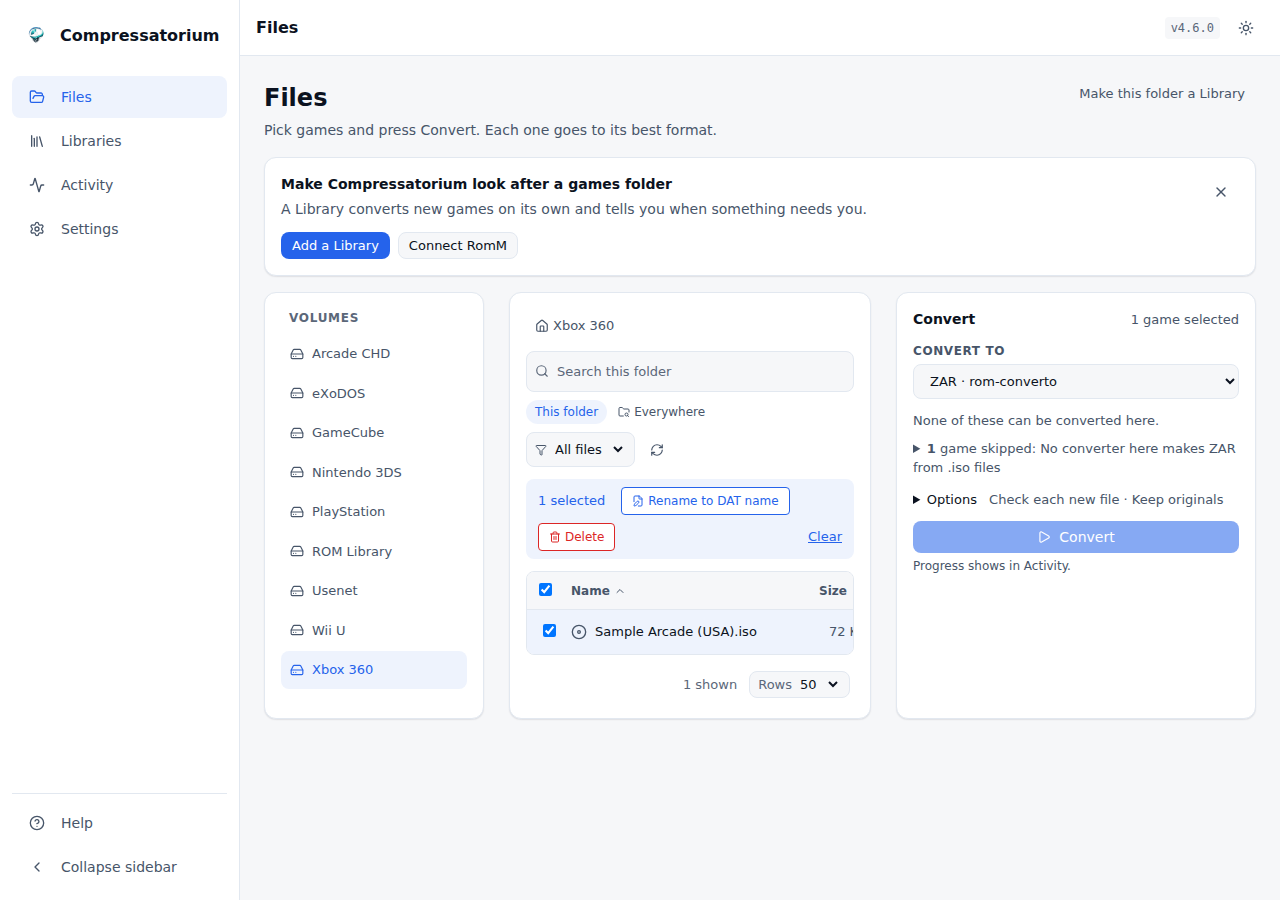 |
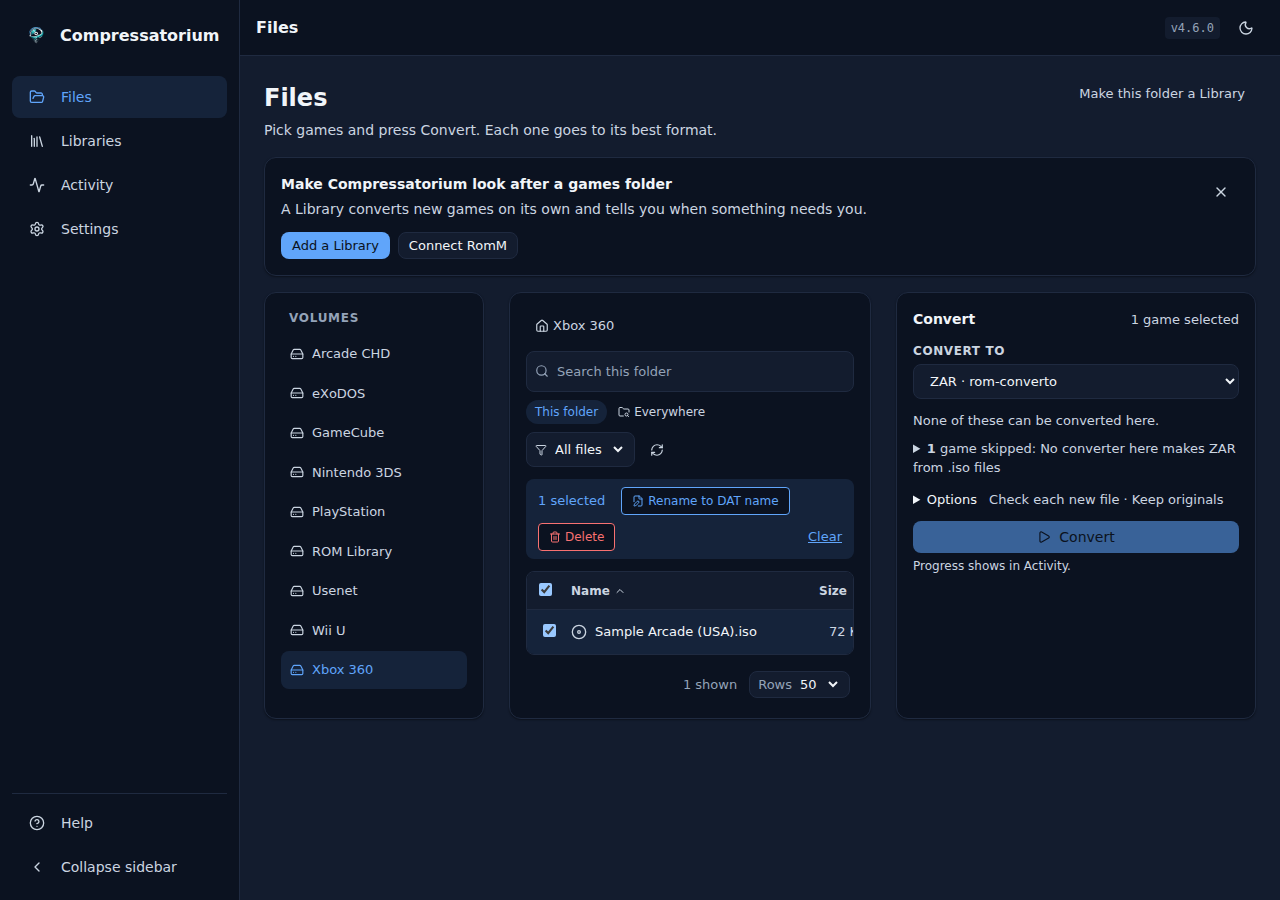 |
Xbox 360 ZAR Environment Variables
| Variable | Default | Description |
|---|---|---|
ROM_CONVERTO_PATH |
/usr/local/bin/rom-converto |
Path to the rom-converto binary |
COMPRESSATORIUM_ROM_CONVERTO_NICE |
(shared default) | CPU priority override for rom-converto |
COMPRESSATORIUM_ROM_CONVERTO_IOPRIO_CLASS / _LEVEL |
(shared default) | I/O priority override for rom-converto |
COMPRESSATORIUM_ROM_CONVERTO_INFO_TIMEOUT |
(shared default) | Bound on xenon info |
COMPRESSATORIUM_ROM_CONVERTO_VERIFY_TIMEOUT |
(shared default) | Verify bound override for ZAR files, and for the PSP and 3DS outputs' check and Recognized lookup |
PSP PBP and 3DS CIA / CCI (rom-converto)
rom-converto also handles the two formats RomM's converter could convert and this app couldn't, under the same binary and version:
- PSP PBP → ISO (
pbp_to_iso): a PSP game'sEBOOT.PBP(a PSN download) becomes the UMD ISO inside it,Game.isobeside the source. Only a PBP whoseDATA.PSARholds a PSP game is offered; a PS1 Classic or an update is not. - 3DS CIA → CCI (
cia_to_cci): written asGame.cci, trimmed after its last partition, so a small game isn't padded to its card's size. - 3DS CCI → CIA (
cci_to_cia): from.ccior.3ds, written asGame.cia. - Keys and seeds. rom-converto carries the 3DS common keys itself and takes no
key or seed file. The app never downloads or ships keys or a
seeddb.bin. An input that needs one it doesn't have fails with a message that says so. - The check reads the output's structure (an ISO's volume, a CCI's partitions, a CIA's sections) and fails a cut-off file. rom-converto has no check of its own for these formats.
- Deleting the source needs the output to be Recognized. None of these
outputs can be Round-tripped: an ISO can't be turned back into its PBP, and a
converted CIA is unsigned with a zero title key. So with delete-source on, the
output's SHA-1 is looked up in your DATs, then in Hasheous if it's on, and the
source goes only on a hit. Otherwise the source is kept and the job says
converted, source kept: output not Recognized. The Ledger records the DAT that recognized an output. A PSN PBP or a converted CIA will usually not be Recognized, so expect those sources to stay; that is intended. - Not an Auto default. Auto keeps PSP on CSO and 3DS on Z3DS; pick these by hand or in a Rule.
The PBP success path and encrypted retail CIA/CCI were not tested in the spike (they need dumps the owner made).
| Light | Dark |
|---|---|
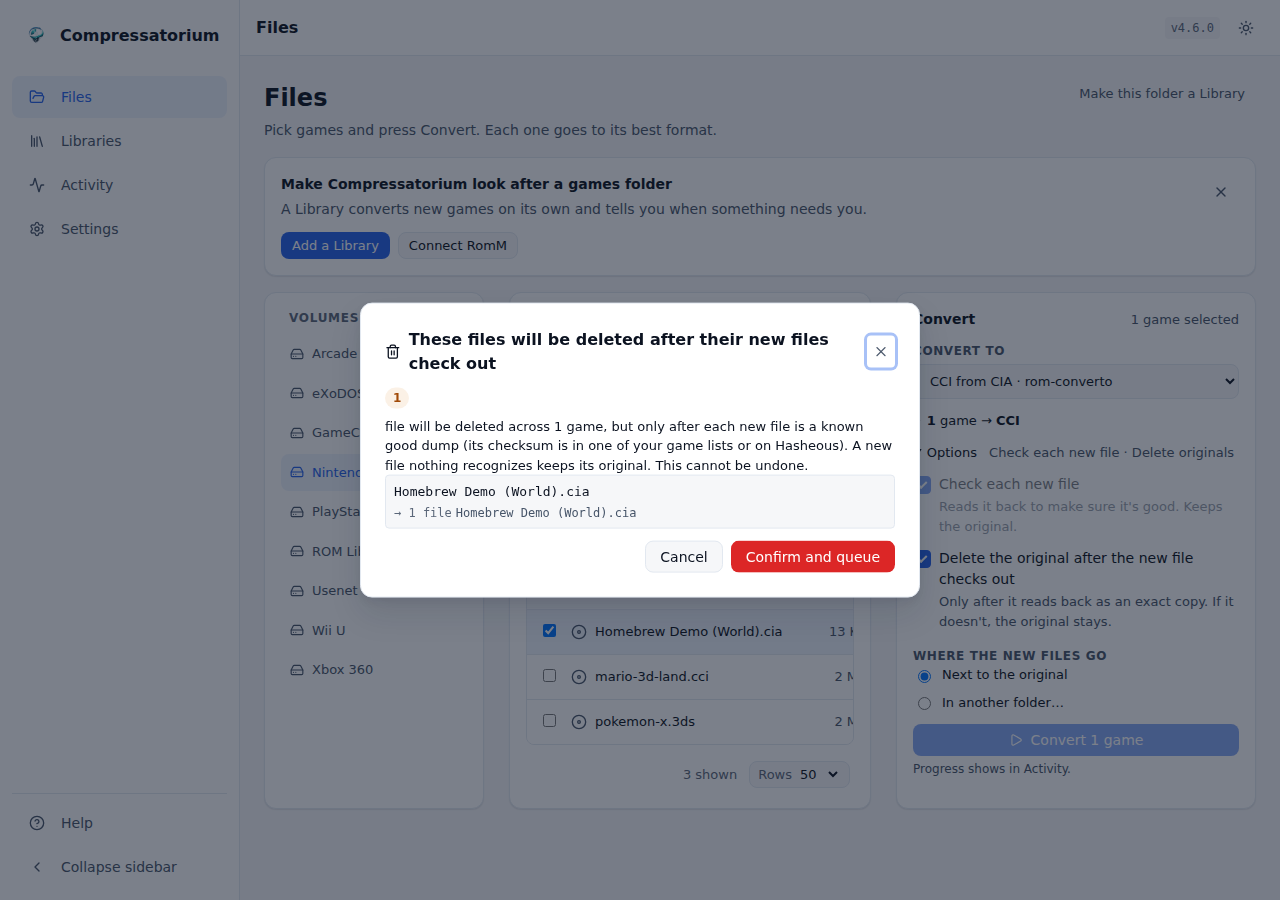 |
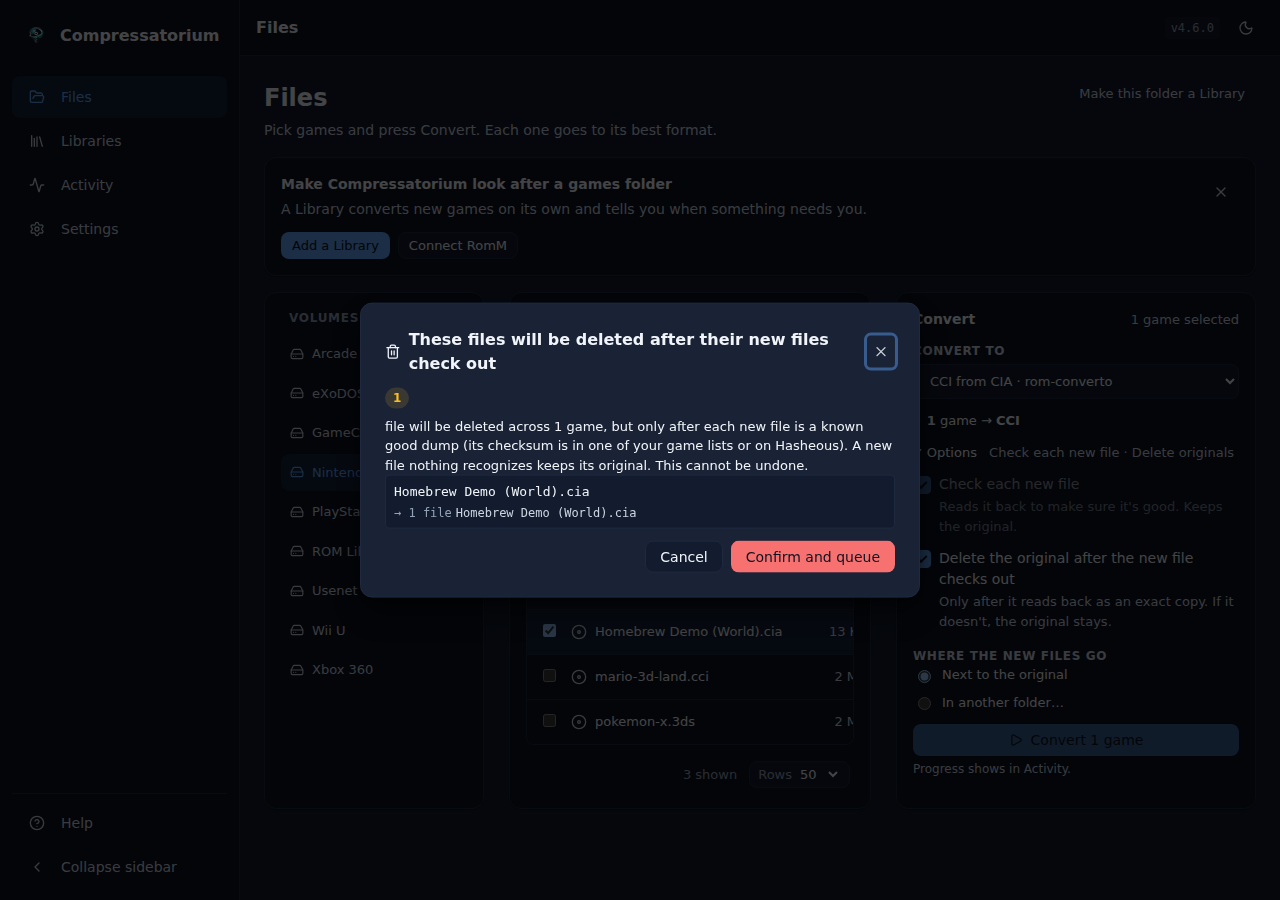 |
eXoDOS Support (.zip → .dosz)
The eXoDOS tool repacks eXoDOS game zips
into files laid out the way RomM's in-browser DOS player (EmulatorJS running
DOSBox Pure) loads a game with its own dosbox.conf. Booting real games in RomM
has not been confirmed yet; see the RomM setup below.
eXoDOS ships each game as a zip holding one folder (Abaron/) and keeps the game's
DOSBox setup in a separate !dos folder, at !dos/Abaron/dosbox.conf. That config
mounts paths inside the whole collection (mount c .\eXoDOS\Abaron), so a game zip
copied into RomM alone does not start.
No setup. Point the app at your eXoDOS collection and tick the game zips. For
each zip the repack finds the game's template by itself: it looks for
!dos/<Game>/dosbox.conf beside the zip (eXo/eXoDOS/Abaron.zip next to
eXo/eXoDOS/!dos/Abaron/dosbox.conf), then in each parent folder, up to the volume.
The nearest !dos that holds the game wins. A !dos folder is only used when it
resolves inside a volume, and the template must be a plain file inside it (no
links). EXODOS_DOS_DIR is an optional override: when set, that folder is searched
first.
Each job says what the game got. It finishes with "Repacked with its
dosbox.conf from <path>", or with a warning naming why there is none.
- What the repack writes. The repack moves the game's files out of their
folder to the root of the file, and writes the game's template there as the
file's first entry,
dosbox.conf, with its mount paths rewritten (mount c .\eXoDOS\Abaronbecomesmount c .\,imgmount d .\eXoDOS\Abaron\CD\GAME.CUEbecomesimgmount d .\CD\GAME.CUE). The layout follows what DOSBox Pure's README and source describe: it mounts a loaded zip as drive C: and, with its core optiondosbox_pure_confset toinside, loadsC:\DOSBOX.CONF. That is expected behaviour, not tested behaviour; see the RomM setup below. - Only mount lines change. Only
mount,imgmountandbootlines are rewritten. Comments, every other line, the file's encoding and its line endings are kept exactly. A path into a different game's folder is left alone. - It tells you when a game reaches outside itself. If the config still points
into
.\eXoDOS\after the rewrite, the job finishes with a warning naming the line, because that game will probably not start. It also warns about a foldermounton a drive other than C: (mount d .\CD -t cdrom), and about a C: mount of a subfolder (mount c .\HD): DOSBox Pure mounts the loaded file as C: and mounts folders from the host disk, not from the file. - Output is
Game.dosz, beside the source or in the chosen output directory. A.doszis a zip under the name DOSBox Pure documents for one, so the product can never replace its source, and its Verify action never claims other zips. - The source is only ever read. The file is written under a hidden temporary name and moved into place only once it is complete, so a cancelled or failed job leaves nothing that looks finished. There is no delete-after-verify option: the product differs from the source by design, and the source is your eXoDOS install.
- A game with no template is still repacked. Its files move to the root of
the
.doszand nodosbox.confis written. The job finishes with a warning saying no template was found, and that DOSBox Pure's start menu will offer the program to run. A template that is there but refused (a link) or unreadable just now fails the job instead: the app never quietly leaves a config out. - Checked before it is kept. Every repack tests every member's CRC, checks
the member names, and checks that
dosbox.confsits at the root (when the game had a template) before the file is moved into place; a file that fails is removed and the job fails. The same check runs from Verify on any.doszrow, where a file with nodosbox.confmust hold a DOS program instead. - Only eXoDOS game zips are queued. Any
.zipcan be ticked in this mode. One is queued when it holds exactly one game folder and either a template is found for that game or the folder holds a DOS program (.exe,.comor.bat). Any other zip (loose files, two folders, a folder of photos) is skipped with the reason. Member names are checked with the same rules as archive extraction (no absolute paths, no..), and the archive size limits apply. - Not from archives: the repack needs the zip itself and the
!dosfolder. - Manual only. Run it from the file browser. Rules never offer it, a
stored Rule that names it is refused, and Auto leaves a
dosfolder's zips alone, because a Rule over RomM'sdosfolder would write a second copy of every game beside it.
In RomM, DOSBox Pure only reads a dosbox.conf when its core option
dosbox_pure_conf is inside (it is off by default). Set it in RomM's
config.yml, and leave emulatorjs.disable_batch_bootup at its default, false:
emulatorjs:
  settings:
    dosbox_pure:
      dosbox_pure_conf: inside
Then put the .dosz files in RomM's dos platform folder.
Untested: whether a repacked game boots in RomM. RomM's default EmulatorJS
(4.2.3) and its nightly build may hand the file to DOSBox Pure in different ways.
Reading their source, 4.2.3 unpacks it and loads one file the core accepts. The
nightly, which RomM loads when netplay is enabled, may instead load a generated
BOOTUP.BAT while emulatorjs.disable_batch_bootup is false (the default).
Neither build has been tried with a real eXoDOS game yet. dosbox.conf is written first in the hope that 4.2.3 picks it, but that
is not confirmed either. A boot test on both builds (a floppy game, a CD game and a
game with several executables) is pending with the project owner; until it
passes, treat playback in RomM as unverified.
Only eXoDOS is supported. eXoWin3x and the other eXo packs use the same pattern and can be added later. The behaviour is modelled on eXo2romm (Unlicense); no code is shared.
eXoDOS Environment Variables
| Variable | Default | Description |
|---|---|---|
EXODOS_DOS_DIR |
(unset) | Optional. A !dos folder (holding <Game>/dosbox.conf) to search first. Not needed: the tool finds !dos beside each game zip or above it. Must be inside a volume; a value that is not is skipped. Nothing from eXoDOS ships with the image. |
RAR Sets (multi-part .rar → the file inside)
Usenet downloads arrive as multi-part RAR sets: Game.rar with Game.r00,
Game.r01 and so on (the old naming), or Game.part01.rar, Game.part02.rar
and so on (the new one), in RAR4 or RAR5. The rar_extract mode turns a set
into the one ROM or disc image it carries, using unar (The Unarchiver, from
Debian main; the image's unrar-free can't read RAR5).
How to use
- Select the set's first volume (
Game.rarorGame.part01.rar) in the RAR sets tool and run Extract RAR set → file. Every later volume goes with it as one source: the job locks them all, and delete-source deletes them all. A later volume selected on its own is refused, naming the first. - One file per set. The set must hold exactly one file besides its
.nfo,.sfv,.txtand.urlsidecars (and OS junk like__MACOSX), which are never the payload. A set with no file or with two or more (a.cuewith its.bintracks, say) is refused before anything is written, and the refusal names what it found. Multi-file sets are not supported. - Refused too: an encrypted set, a missing, truncated or damaged volume, a
member with an absolute or
..path, a link or device member, a file that is itself a RAR set (extract that one with another tool first), and a set over theCHD_ARCHIVE_MAX_*limits. So is a folder where the files named like the set's volumes are not exactly the volumes its headers name (a strayGame.part4.rarfrom another download, say): the refusal names them, and they are never deleted with the set. Only the volumes the headers name are ever locked or deleted. - The output is the file's own name, in the set's folder (or the output
folder you chose). When that name is taken, the default duplicate setting
skips the job; with overwrite, the existing file is removed before the
extraction starts (as for every mode), so a failed extraction leaves it gone.
A file that appears at the name while the job runs is never replaced: the
job fails. An output that would be one of the set's own volumes is refused,
and so is a set that stores older versions of files (
name;1).unarextracts into a hidden staging folder beside the output (.compressatorium-stage/), and nothing of it is left behind on success or failure; after a crash, the next start removes it. - The checks.
unarchecks every CRC as it extracts; the file is then checked again against the size and CRC32 the set records before it is kept. With delete-source on, the Round-trip compares the file's size and CRC32 with the set's before any volume is deleted, every time: the file has no container to check on its own, so this mode has no container-only option (the CLI's--container-onlyand a Rule's container-only level don't skip it). A failed check keeps every volume. A RAR5 set can store a BLAKE2 hash in place of a CRC32: such a file is kept afterunar's own hash check and a size check, but delete-source never removes its volumes, since the Round-trip has no CRC32 to compare.
From the API, the same way as romz_extract:
curl -X POST http://localhost:8080/api/jobs \
  -H 'Content-Type: application/json' \
  -d '{"file_path": "/data/downloads/Game.part01.rar", "mode": "rar_extract", "delete_on_verify": true}'
From the command line:
compressatorium convert --to rar_extract /data/downloads/Game.rar --delete-source.
RAR Sets Environment Variables
| Variable | Default | Description |
|---|---|---|
UNAR_PATH |
unar |
Path to the unar binary. Ships in the image; outside it, the tool is listed as not ready until unar is on PATH. |
Command line (compressatorium)
The image ships a compressatorium command for shells and cron. It drives the
same planner, job queue, delete checks and Ledger as the web UI, for every tool,
and recurses into subfolders and archives the way the UI's search does. Paths
must sit inside the configured Volumes.
compressatorium convert /data/ps2 --to chd --delete-source
compressatorium convert /data --auto --dry-run --json
compressatorium verify /data/gamecube --since 30d
compressatorium run-rules --dry-run
convert PATH... (--to FORMAT | --auto)
--totakes an output format (chd,rvz,wia,gcz,iso,cue,cso,zso,nsz,z3ds,wux,7z,zip, ...) or a mode id (createdvd,nkit_to_rvz). A format is resolved per Image through the tool registry, chains included: a PS2.isogoes tocreatedvd, a PS1.cuetocreatecd, an NKit image tonkit_to_rvz, a Game Boy Advance ROM with--to 7zto a.gba.7z. The Image's Platform narrows the choice, so a GameCube.isois never sent to chdman. A Conflicted Image (its header and folder disagree) is skipped with the reason. An Unsorted Image converts only with a mode whose command reads its extension. An Image already in the format is reported and left alone.--autosends each Image to its Platform's default format. Conflicted and Unsorted Images are skipped and reported.--delete-sourcedeletes each Source once its output passes the strongest check its mode has: the Round-trip check where the tool has one, else the container check.--container-onlydeletes on the container check alone.--compression CODECSsets the compression for every Image;--compression defaultuses each tool's own default. Without it, the compression saved in the web UI is used.--duplicate skip|overwrite|rename(defaultskip),--output-dir DIR,--no-recurse(top level only),--no-archives(leave archives alone),--any-platform(with--to, no Platform check).--server URLhands the jobs to the server at that address. You rarely need it: a server running on the same/configis found on its own (see below).
verify PATH... [--since AGE] checks each Image is Intact and stores the
result. --since 30d (also 12h, 2w) skips Images checked within that window.
A check that fails drops the stored result; one that times out or cannot run
leaves it and reports the error. Each line's status is intact, failed,
uncheckable (no verdict this time, such as a file the command can't open
or a check that ran past its time limit; the stored result stays, as in the
web's batch verify) or skipped (refused
by the archive safety rules, or no tool checks it here).
run-rules [--library ID] does one pass over the Rules stored in the web UI
for every Library (RomM and each registered folder Library), waits for the jobs
it queued, and exits. It is the
same sweep the server's scheduler runs each minute, so each Rule's own on/off
switch, days, time window, interval and per-run cap still apply; the
auto-convert master switch does not, because running the command is the
switch. --library romm or --library folder:1 limits it to one Library (the
ids are listed by /api/libraries). --dry-run prints what each
Rule would queue on this pass and writes nothing. Unlike the editor's Preview it
keeps each Rule's clock, so a Rule that is not due (outside its window, or run
within its interval) prints no line. It prints one line per Platform and one per
job as it ends. A due check Rule runs here too, and the pass
waits for its checks: an Image that is not Intact, or whose check could not
run, makes it exit 1, and the check Rule's night counts as done only once its
checks have finished.
After the Rules, run-rules makes one pass over the watch folders of
the Libraries it swept, as the server's tick does, under the same lock. Each
run is a new process, so what intake has seen settling is kept between runs:
a file one run sees is taken by the next run once its settle time has passed
(so run it at least twice as often as you want new files taken). The
conversions and copies it starts finish before it exits, and their originals
move to processed/. It prints one line per Library whose Inboxes placed or
left something ("inbox": true in --json, with the outputs placed, the files
left with their Finding, and RomM's scan), and sends the pass summary
notification. A file left with a Finding (an Inbox copy or conversion that
failed included) doesn't change the exit status, but
an Inbox that can't be polled prints an error line ("error" in --json)
and makes the run exit 1, as a failed sweep does, on every run it lasts;
the summary notification goes out only when the error changes. A stop admits
no more files; what it already started finishes or is cancelled with the
run's jobs. Each conversion is settled as it ends, so a big pass loses none
to a short job history. An original another process still held at the end
of a run is moved to processed/ by the next run. If what intake remembers
between runs can't be saved, the pass is still reported and the run exits
1.
--dry-run polls no Inbox and says so (skipped, dry_run).
dat import PATH... imports DATs: .dat/.xml files and .zip files of
them (No-Intro's daily pack, a Redump zip). Each DAT replaces an earlier
import of itself. dat sync [--platform SLUG]... [--force] downloads
Redump's DATs for the disc Platforms in your Libraries (or just the ones
named), skipping a system synced in the last day unless --force. Both print
one line per DAT or system (--json for the whole result) and exit 1 when
any was refused or failed. Both re-match the files a changed DAT may name
(locally, as the server does) before they exit.
Before it sweeps RomM, run-rules does the RomM upkeep the server does in the
background: it finishes an identity cleanup a crash left owed (otherwise RomM
Rules are refused with identity_cleanup_pending) and runs one pass of the
re-pin settler, so ROMs converted by an earlier pass get their metadata back.
Re-pins recorded by this pass are settled by the next pass, or by the server.
It does not run the DAT sync, the Hasheous checks or anything else the web UI
starts.
A pass exits 1 when any job failed or was cancelled, and also when any sweep
reported an error: RomM not answering (unreadable), a tool that is not
installed, an output folder outside the Volumes, a source that could not be
read, a destination another job took first (destination_claimed), RomM not
configured while it has Rules, a queue too full to take the pass's Images
(MAX_QUEUE_DEPTH; the line says how many were left), or a Library whose
sweep raised. The other
Libraries still run. A stop (SIGTERM, docker stop, Ctrl-C) queues nothing
more, cancels the jobs it queued and exits 1. A job that converts and checks
its output but keeps the Source because another job was still reading it
completes: its line shows "Source kept: it was being read by another job" and
it does not change the exit status. A Source kept by a safety check (an archive
that holds other files, a delete plan that changed) is a failed job.
Every command takes --dry-run (print the plan, convert or check nothing) and
--json (one JSON line per Image; for run-rules, one per Platform and one per
job, on stdout).
Warnings and errors always go to stderr; -v adds INFO messages there. Exit
status: 0 when everything finished or there was nothing to do, 1 when any
Image or job failed (for run-rules, also a sweep error), 2 on bad arguments
(a path that does not exist included), 3 when run-rules found another
process using the data directory, or convert found a server there that did
not answer, 4 when verify failed nothing but could
not check at least one Image (uncheckable: no verdict, such as a file it
can't open or a check that ran past its time limit). 2 and 3 stop the
command before anything is checked or run, so a missing path checks nothing;
a run that stops because the storage stopped answering exits 4 (or 1 if an
Image had already failed); among the Images checked the worst wins: 1, then
4, then 0, so a corrupt
file is never hidden behind a softer code.
Each Image is planned on its own, so one bad file is reported and the others
still convert. When MAX_QUEUE_DEPTH is set, jobs are fed in batches below it.
With a server running, convert uses it. One process works a data
directory at a time. When the server is running on the same /config,
convert finds it there and hands it the jobs: they show in the web UI's job
queue, share its MAX_CONCURRENT_JOBS limit and land in its Ledger, and the
command prints each line as its job ends. When the server's queue is full (its
own MAX_QUEUE_DEPTH, or other clients' jobs), the command feeds it smaller
batches and waits for room instead of failing. The tools the server can run
decide what is converted: Switch keys mounted only on the server are enough.
Ctrl-C cancels this run's jobs on the
server. With no server running, convert runs the jobs itself, and a server
started meanwhile waits until it is done. Either way a command and the server
never work on the same file. A server in another container is found the same
way, with nothing to set: by its host name on a Compose network, or by the
address it writes beside it on Docker's default bridge (docker run, Unraid),
and only the server that holds the data directory is taken. If it can't be
reached, convert says so and exits 3, and --server URL names it. verify only reads, and runs beside the server under the same file
locks. Run it in the server's container with docker exec compressatorium compressatorium convert .... Started as root (docker exec without -u, or --entrypoint), the command
first remaps and drops to the converter user through the image's entrypoint,
honouring PUID/PGID the same way the server does, so the files it writes
belong to the user the server runs as.
One Rule scheduler per data directory. run-rules does not run beside a
server. The server holds a lock on /config/locks/scheduler.lock for as long
as it runs, and its own scheduler runs the Rules. While that lock is held,
run-rules prints who holds it and exits 3 without queuing anything. A
server started while a run-rules pass, a convert running its own jobs or
another server holds the lock waits for it before it opens anything,
logging who it waits for every 30 seconds, then starts; docker stop still
stops it while it waits. The web UI does not answer while it waits, but the
container's health check counts the wait as healthy. Use run-rules where the server is not running all the
time: start a one-off container with the same /config and the same Volume
mounts as the server (RomM's library root must resolve to the same path).
Rules from cron
A crontab line on the Docker host, nightly at 02:00:
0 2 * * * docker run --rm -e PUID=1000 -e PGID=1000 -v /srv/compressatorium/config:/config -v /srv/games:/data/games --entrypoint compressatorium pacnpal/compressatorium run-rules >> /var/log/compressatorium-rules.log 2>&1
Rules from Unraid User Scripts
Add a script in Settings → User Scripts, paste this, and set its schedule
(for example Custom 0 3 * * *). Use the appdata and share paths your
Compressatorium container uses.
#!/bin/bash
docker run --rm -e PUID=99 -e PGID=100 \
  -v /mnt/user/appdata/compressatorium:/config \
  -v /mnt/user/games:/data/games \
  --entrypoint compressatorium pacnpal/compressatorium run-rules
status=$?
if [ "$status" -eq 3 ]; then
  echo "Compressatorium is running; its own scheduler runs the Rules."
  exit 0
fi
exit "$status"
CHD_MODE=cli
CHD_MODE=cli keeps today's behaviour: it runs
compressatorium convert <each Volume> --to $CHDMAN_MODE \
  --no-recurse --no-archives --any-platform --compression default
and exits. That is the top level of each Volume, every .cue, .gdi and
.iso the chdman command reads, no archives, no Platform check and chdman's own
compression. CHDMAN_MODE is createcd (default) or createdvd. Outputs that
already exist are skipped. For anything else, run compressatorium directly.
docker run --rm \
  -e CHD_MODE=cli \
  -e CHDMAN_MODE=createdvd \
  -v /home/user/psp:/data/psp:rw \
  -v /home/user/ps2:/data/ps2:rw \
  pacnpal/compressatorium
To run any other command in a one-off container:
docker run --rm -e PUID=1000 -e PGID=1000 \
  -v /home/user/gc:/data/gc:rw -v ./config:/config \
  --entrypoint compressatorium pacnpal/compressatorium \
  convert /data/gc --to rvz --json
Check Existing CHD Files
Using the chdman info command directly:
docker run --rm \
  -v "/path/to/games:/data/games:ro" \
  --entrypoint chdman \
  pacnpal/compressatorium \
  info -i "/data/games/game.chd"
Or use the Web UI's CHD Inspector feature by clicking on any .chd file.
Compression Compatibility Tips
Some emulators (notably NetherSX2/AetherSX2) only support zlib-compressed CHDs. If you see errors like “Failed to initialize cdvd,” re-convert with zlib only.
- zlib: best compatibility across emulators
- zstd: fast + small, but older software may not support it
- lzma: highest compression, slowest
- No compression: uses
-c nonefor uncompressed output - CD-specific codecs: use cdzl/cdzs/cdlz/cdfl for CD images only
For Dolphin formats, choose a single codec (zstd/bzip2/lzma/lzma2) and an optional level.
Use chdman help createcd or chdman help createdvd for codec details.
You don't have to remember which emulator reads what. In the compression picker
(and in each Platform's Rule in the Rule editor), pick Compatible with… and
choose NetherSX2, PCSX2, DuckStation, a RetroArch core, MiSTer, PPSSPP or
Dolphin: the codecs are set to the ones that emulator reads. If you then pick a
codec it doesn't read, a warning appears, but nothing is blocked. The list lives
in one file (app/data/compat_presets.yaml), and each entry cites the doc or
source file it came from.
|
|---|
Supported Operations
All actions are queued and processed by the job queue (FIFO). The queue is the only execution path.
Create CHD
createraw,createhd,createcd,createdvd,createld
Extract from CHD
extractraw,extracthd,extractcd,extractdvd,extractld
Copy / Recompress
copy(CHD → CHD, optionally with new compression)
Dolphin (GameCube/Wii)
dolphin_rvz,dolphin_wia,dolphin_gcz,dolphin_iso
Nintendo 3DS
z3ds_compress(.cci → .zcci, .cia → .zcia, .3ds → .z3ds, .cxi → .zcxi, .3dsx → .z3dsx)z3ds_decompress(.zcci → .cci, .zcia → .cia, .z3ds → .3ds, .zcxi → .cxi, .z3dsx → .3dsx)
Nintendo Switch
nsz_compress(.nsp → .nsz, .xci → .xcz),nsz_decompress(.nsz → .nsp, .xcz → .xci). Both need your ownprod.keys
PSP / PS2 (CSO)
cso_compress(.iso → .cso, CSO v1),cso2_compress(.iso → .cso, CSO v2),zso_compress(.iso → .zso),dax_compress(.iso → .dax),cso_decompress(.cso/.zso/.dax → .iso),cso_to_chd(.cso/.zso/.dax → .chd, one-step chain through maxcso + chdman)
Handheld ROM (cartridge ROMs)
romz_7z(ROM → .7z),romz_zip(ROM → .zip),romz_extract(.7z/.zip → original ROM). A ROM is any of the cartridge extensions in Supported Conversions
eXoDOS
exodos_repack(an eXoDOS game .zip → .dosz, with the game'sdosbox.conffrom the!dosfolder beside it or above it, or with none and a warning)
RAR sets
rar_extract(a multi-part RAR set's first volume → the one file inside it; with delete-source, every volume is deleted once the Round-trip passes)
PS3 ISO (decrypted folder)
folder_to_iso(a folder containingPS3_GAME/→<folder>.iso, with an optional-s4 GB FAT32 split)
Wii U
jwud_compress(.wud → .wux),jwud_decompress(.wux → .wud)
Xbox / Xbox 360
xiso_rewrite(.iso → .xiso.iso)zar_compress(Xbox 360 .iso / .xiso.iso → .zar, through rom-converto; the source is always kept)
PSP and 3DS, through rom-converto (deletes its source only when the output is Recognized)
pbp_to_iso(PSP .pbp → .iso)cia_to_cci(3DS .cia → .cci, trimmed)cci_to_cia(3DS .cci / .3ds → .cia)
NKit (GameCube/Wii)
nkit_restore(.nkit.iso / .nkit.gcz → the original full-size.iso)nkit_to_rvz(.nkit.iso / .nkit.gcz → .rvz, one-step chain through nkit2iso + dolphin-tool)
Notes:
- Compression settings apply to CHD create/copy, Dolphin RVZ/WIA, Switch (
nsz_compress), the CSO/CSO v2/ZSO/DAX compress modes, and the handheld ROM compress modes (romz_7z/romz_zip) — the last two take an effort preset. Other modes ignore them. - Extract/decompress operations ignore compression settings.
extractcdproduces both.cueand.binoutputs.- Dolphin GCZ/ISO outputs ignore compression selection.
- 3DS and Wii U compression use fixed settings (no user configuration needed).
- Archive inputs are supported for the file-based convertible sources (CHD create, Dolphin, 3DS, Switch, CSO, Wii U and NKit), plus CHDMAN's extract modes decompressing a
.chdpulled out of an archive. Exceptions: CHDMAN's copy/recompress mode (it would just re-compress an already-finished.chd), Handheld ROM compression (its.7z/.zipare the product), PS3 ISO (its input is a folder, not a file), and the Xbox, rom-converto, eXoDOS and RAR sets modes.
API Endpoints
The Web UI communicates with a REST API that can also be used directly. Interactive API documentation is available at /docs when running the container.
File Operations
| Method | Endpoint | Description |
|---|---|---|
| GET | /api/volumes |
List configured volume mount points |
| GET | /api/files |
List files in a directory. A row that belongs to another row's source (a later RAR volume, a split Wii U part) carries that row's path in companion_of and is never converted, checked or deleted on its own; other rows have companion_of: null |
| GET | /api/files/search |
Recursively search for convertible files |
| GET | /api/files/archive |
List contents of an archive file |
| POST | /api/files/rename |
Rename a file or directory |
| POST | /api/files/playlist/preview |
Preview the .m3u that selected discs would make (name, folder, ordered entries). Writes nothing |
| POST | /api/files/playlist |
Write the previewed .m3u beside the discs. Never overwrites: a taken name is a 409 with detail.suggested_name |
| DELETE | /api/files/delete |
Delete a single file or empty directory |
| POST | /api/files/delete-batch |
Delete multiple files at once |
| POST | /api/archive-summary |
Per-archive summaries for the lazy file listing |
| POST | /api/files/dat-rename/preview |
What renaming each Image to its DAT name would change. Changes nothing |
| POST | /api/files/dat-rename |
Rename the Images of a confirmed preview, as a background job |
Destructive file actions require explicit confirmation headers:
POST /api/files/renamerequiresX-CHD-Action-Confirm: rename-filePOST /api/files/dat-renamerequiresX-CHD-Action-Confirm: rename-fileDELETE /api/files/deleterequiresX-CHD-Action-Confirm: delete-file(orrecursive-deletefor a non-empty directory)POST /api/files/delete-batchrequiresX-CHD-Action-Confirm: delete-file
Conversion Jobs
| Method | Endpoint | Description |
|---|---|---|
| POST | /api/jobs |
Create a single conversion job |
| POST | /api/jobs/batch |
Create multiple jobs. Answers the job list, or with ?report_skipped=true {jobs, skipped}, where each skipped item is {path, reason, code} |
| POST | /api/jobs/auto-plan |
Each Image's Platform and default target, without queueing anything |
| POST | /api/jobs/auto |
Queue the Auto plan the user confirmed. Answers {plan, jobs} |
| POST | /api/jobs/check-duplicates |
Check for existing output files |
| POST | /api/jobs/delete-plan |
Build delete-on-verify confirmation list, with each planned .m3u edit (referrer_changes) |
| GET | /api/jobs |
List all jobs |
| GET | /api/jobs/{id} |
Get a specific job |
| DELETE | /api/jobs/{id} |
Cancel a job |
| DELETE | /api/jobs/completed |
Clear completed/failed/cancelled jobs |
| POST | /api/jobs/cancel-all |
Cancel all queued and processing jobs |
| GET | /api/jobs/events |
SSE stream for job progress updates |
| GET | /api/jobs/{id}/events |
SSE stream for a single job's progress |
Destructive jobs actions require explicit confirmation headers:
DELETE /api/jobs/completedrequiresX-CHD-Action-Confirm: clear-completed-jobsPOST /api/jobs/cancel-allrequiresX-CHD-Action-Confirm: cancel-all-jobs
Why a job isn't created. POST /api/jobs answers {"detail": "..."} with:
503when the mode's tool isn't ready ("<tool> isn't ready: <reason>", for example a missing program), or when the destination's volume doesn't answer. Nothing is queued.409when the output would be the source, or another job already claimed it.429when the queue is full (MAX_QUEUE_DEPTH).403for a path outside the volumes, and400for a bad mode, compression or delete-on-verify request.
In a batch, the same causes skip the file instead. A skipped item's code names
the cause (tool_not_ready, file_not_found, rar_set_not_extractable and the
rest), or same_output for a file whose output another file in the batch writes.
CHD Information & Verification
| Method | Endpoint | Description |
|---|---|---|
| GET | /api/info |
Get CHD file metadata |
| GET | /api/verify |
Verify a CHD file's integrity |
| GET | /api/verify/events |
SSE stream for verification progress |
| POST | /api/verify-batch/events |
SSE stream for batch verification |
| GET | /api/verified |
Every tool's checked outputs: {verified: [path], checks: {path: "intact" | "round_tripped" | "recognized"}} |
| POST | /api/verified/lookup |
The same, for just the paths given |
| GET | /api/tools |
Which tools can run here: {available: [tool_id], unavailable: [tool_id]} |
CHD Metadata & Version
| Method | Endpoint | Description |
|---|---|---|
| GET | /api/version |
Get app version |
| POST | /api/chd-metadata |
Fetch cached CHD metadata for multiple files |
| POST | /api/chd-metadata/scan |
Trigger background metadata scan |
| GET | /api/chd-metadata/scan/status |
Check metadata scan status |
Dolphin Disc Info & Verification
| Method | Endpoint | Description |
|---|---|---|
| GET | /api/dolphin-info |
Get Dolphin disc metadata |
| GET | /api/dolphin-verify |
Verify a game image's integrity |
| GET | /api/dolphin-verify/events |
SSE stream for Dolphin verification progress |
| POST | /api/dolphin-verify-batch/events |
SSE stream for batch Dolphin verification |
3DS Info & Verification
| Method | Endpoint | Description |
|---|---|---|
| GET | /api/z3ds-info |
Get 3DS ROM metadata |
| GET | /api/z3ds-verify |
Verify a compressed 3DS file's integrity |
| GET | /api/z3ds-verify/events |
SSE stream for 3DS verification progress |
| POST | /api/z3ds-verify-batch/events |
SSE stream for batch 3DS verification |
Switch Info & Verification
| Method | Endpoint | Description |
|---|---|---|
| GET | /api/nsz-info |
Get Switch file metadata |
| GET | /api/nsz-verify |
Verify a compressed Switch file's integrity |
| GET | /api/nsz-verify/events |
SSE stream for Switch verification progress |
| POST | /api/nsz-verify-batch/events |
SSE stream for batch Switch verification |
CSO Info & Verification
| Method | Endpoint | Description |
|---|---|---|
| GET | /api/cso-info |
Get CSO/ISO file metadata |
| GET | /api/cso-verify |
Verify a compressed CSO/ZSO/DAX file's integrity |
| GET | /api/cso-verify/events |
SSE stream for CSO verification progress |
| POST | /api/cso-verify-batch/events |
SSE stream for batch CSO verification |
Wii U Info & Verification
| Method | Endpoint | Description |
|---|---|---|
| GET | /api/jwud-info |
Get Wii U .wud/.wux metadata (plus the WUX ratio) |
| GET | /api/jwud-verify |
Verify a .wux container's integrity |
| GET | /api/jwud-verify/events |
SSE stream for Wii U verification progress |
| POST | /api/jwud-verify-batch/events |
SSE stream for batch Wii U verification |
Other Tools' Info & Verification
Each of these verify families has the same three routes as the ones above:
GET /api/<p>verify, GET /api/<p>verify/events and
POST /api/<p>verify-batch/events.
| Prefix | Info route | Tool |
|---|---|---|
romz- |
GET /api/romz-info |
Handheld ROM and its .7z/.zip |
xiso- |
GET /api/xiso-info |
Xbox / Xbox 360 XISO |
rom-converto- |
GET /api/rom-converto-info |
rom-converto (ZAR) |
exodos- |
none | eXoDOS .dosz |
GET /api/nkit-info describes an NKit image: which disc it is and what it
restores to. NKit and the RAR sets tool have no verify routes, and RAR sets has
no info route.
DATs and Hasheous
| Method | Endpoint | Description |
|---|---|---|
| POST | /api/dat/import |
Import a Logiqx XML DAT |
| GET | /api/dat/list |
List imported DATs |
| DELETE | /api/dat/{dat_id} |
Delete an imported DAT |
| GET | /api/dat/stats |
DAT store statistics |
| GET / PUT / DELETE | /api/dat/ranking |
Read, save or forget the user's DAT order |
| POST | /api/dat/match |
Match one file against the imported DATs |
| POST | /api/dat/match-batch |
Match several files |
| POST | /api/dat/match-batch/job |
Match a batch as a background job |
| POST | /api/dat/matches/lookup |
Read-only lookup in the match cache |
| POST | /api/dat/prune |
Drop cached matches for files that no longer exist |
| POST | /api/dat/sync |
Sync DATs from the MAMERedump repo |
| GET | /api/dat/sync/status |
The sync's status |
| POST | /api/dat/sync/cancel |
Cancel a running sync |
| GET / PUT | /api/dat/hasheous |
Read or switch the Hasheous fallback |
| POST | /api/dat/hasheous/test |
Probe the configured Hasheous server |
Libraries, Rules, Inboxes and Findings
| Method | Endpoint | Description |
|---|---|---|
| GET / POST | /api/libraries |
List folder Libraries, or register a folder inside a Volume |
| PATCH / DELETE | /api/libraries/{library_id} |
Change a Library's settings, or remove it (no file is touched) |
| GET | /api/libraries/{library_id}/platforms |
Detected Platforms with Image counts |
| GET | /api/libraries/{library_id}/placements |
Where new Images of each Platform would land |
| PUT | /api/libraries/{library_id}/placements/{platform} |
Pick which of RomM's folders a Platform's new Images go to ({"folder": null} goes back to the automatic pick) |
| GET / PUT | /api/libraries/{library_id}/rules |
The Library's Rules and run state, or replace them |
| POST | /api/libraries/{library_id}/rules/forget-converted |
Clear the converted history and failed holds |
| POST | /api/libraries/{library_id}/preview |
What a sweep would queue now, without queueing |
| POST | /api/libraries/{library_id}/run |
Sweep now, queueing real jobs |
| POST | /api/libraries/{library_id}/find-duplicates |
Start a find-duplicates run as a background job |
| GET / POST | /api/libraries/{library_id}/inboxes |
List the Library's Inboxes, or add one |
| PATCH / DELETE | /api/libraries/{library_id}/inboxes/{inbox_id} |
Change an Inbox's settle time, or stop using it (no file is touched) |
| GET | /api/rules/notices |
Which one-time notices the Rule editor shows |
| POST | /api/rules/notices/check-level/dismiss |
Stop showing the check-level notice |
| GET | /api/findings |
Open Findings by Library and Image |
| POST | /api/findings/{finding_id}/dismiss |
Hide a Finding until its cause changes |
| POST | /api/findings/{finding_id}/undismiss |
Show a dismissed Finding again |
| POST | /api/findings/{finding_id}/delete-plan |
What deleting every copy of a duplicate group but the keeper would remove |
| POST | /api/findings/{finding_id}/delete |
Run that delete. Requires X-CHD-Action-Confirm: delete-file |
| POST | /api/findings/check |
Walk every folder Library now so its Findings are current |
| GET | /api/platforms |
Every Platform a folder can be set to |
| GET / PUT | /api/platform-mappings |
List, set or clear (platform: null) a folder's Platform |
RomM
| Method | Endpoint | Description |
|---|---|---|
| GET | /api/romm/status |
Whether RomM is reachable, and what the UI needs to know |
| GET / PUT | /api/romm/settings |
Read (the token is never returned) or save the RomM settings |
| POST | /api/romm/settings/test |
Probe a RomM instance without saving |
| GET | /api/romm/platforms |
RomM's platforms |
| GET | /api/romm/roms |
A RomM platform's ROMs, as a directory listing |
| GET | /api/romm/converter/import-plan |
The Rules importing RomM's converter targets would create |
| POST | /api/romm/repin/plan |
Record the metadata to carry across a conversion |
| POST | /api/romm/repin/cancel |
Retire re-pins for conversions never submitted |
| POST | /api/romm/repin |
Re-attach metadata to converted ROMs RomM has rescanned |
| GET / PUT | /api/romm/rules |
The per-platform Rules, or replace them |
| POST | /api/romm/rules/forget-converted |
Forget which ROMs the Rules already converted |
| POST | /api/romm/auto-convert/preview |
What a sweep would queue now, without queueing |
| POST | /api/romm/auto-convert/run |
Run a sweep now |
Ledger, Notifications and Metrics
| Method | Endpoint | Description |
|---|---|---|
| GET | /api/ledger |
Finished jobs, newest first, paged and filtered: {items, total} |
| GET | /api/ledger/export.csv |
The same filter, as CSV |
| GET | /api/ledger/facets |
The status, tool and Platform values the filters offer |
| GET | /api/ledger/recent |
The latest Ledger rows (limit, default 5) |
| GET | /api/ledger/savings |
The Space saved totals |
| GET | /api/ledger/totals |
Finished jobs by status, all time |
| GET / PUT | /api/ledger/settings |
{retention_days} |
| GET | /api/metrics |
Prometheus text: jobs by status, bytes in and out, queue depth |
| GET | /api/notifications |
Destinations, events, kinds, and whether Apprise is installed |
| POST | /api/notifications/destinations |
Add a destination |
| PUT / DELETE | /api/notifications/destinations/{dest_id} |
Edit or delete a destination |
| POST | /api/notifications/destinations/{dest_id}/test |
Send a test to a saved destination |
| POST | /api/notifications/test |
Test a URL before saving it |
Patching, Presets, Preferences and Health
| Method | Endpoint | Description |
|---|---|---|
| POST | /api/patch/upload |
Keep an IPS or BPS patch (multipart file); answers its upload_id |
| POST | /api/patch |
Patch one cartridge Image as a background job; answers {job_id} |
| GET | /api/compat-presets |
The Compatible with... targets and the modes and codecs each reads |
| GET / PUT | /api/preferences |
The stored workspace layout |
| GET / PUT | /api/preferences/conversion |
Remembered per-tool compression settings |
| GET | /health |
{status: "healthy", version} |
Environment Variables
| Variable | Default | Description |
|---|---|---|
CHD_MODE |
webui |
Mode: webui (web interface) or cli (batch processing) |
COMPRESSATORIUM_MOUNT_ROOT |
/data |
Startup scan root. When no explicit volumes are set, directories under this path (/data/*) are auto-registered |
COMPRESSATORIUM_VOLUMES |
(unset) | Explicit comma-separated volume paths. When set, startup scan is skipped |
CHD_MOUNT_ROOT |
/data |
Legacy alias for COMPRESSATORIUM_MOUNT_ROOT |
CHD_VOLUMES |
(unset) | Legacy alias for COMPRESSATORIUM_VOLUMES |
PUID |
999 |
Optional runtime UID remap for converter before app startup (useful on Unraid/home servers) |
PGID |
999 |
Optional runtime GID remap for converter; if that GID already exists, converter is reassigned to the existing group |
CHD_DATA_DIR |
/config |
Directory for persistent application data |
COMPRESSATORIUM_ENABLE_AUTH |
false |
Enable token authentication for the Web UI and /api routes. Off by default; set to true to require a token. |
COMPRESSATORIUM_AUTH_TOKEN / CHD_AUTH_TOKEN |
generated in /config/auth_token |
Web UI/API password (used only when auth is enabled). Send as HTTP Basic password for user admin, as Authorization: Bearer, or as X-Compressatorium-Token. |
COMPRESSATORIUM_AUTH_USERNAME |
admin |
HTTP Basic username for the Web UI (used only when auth is enabled). |
COMPRESSATORIUM_SEARCH_AUTO_RETURN_TO_FILE_LIST |
true |
Web UI: when true, Search All conversions return to the previous file-list view after queueing |
CHD_SEARCH_AUTO_RETURN_TO_FILE_LIST |
true |
Legacy alias for COMPRESSATORIUM_SEARCH_AUTO_RETURN_TO_FILE_LIST |
CHD_TEMP_DIR |
/config/temp |
Temporary working directory for archive extraction (auto-created) |
CHD_CONCURRENCY_LOCK_DIR |
/config/locks |
Directory for job lock files, conversion slots and the Rule scheduler lock. Under the data dir so the server and a CLI container share it. Created at start; the process stops with an error if it can't be |
COMPRESSATORIUM_DB_PATH |
/config/compressatorium.db |
Unified SQLite database for DATs, match cache, CHD metadata, verification state, and DAT-sync state |
CHD_METADATA_STORE |
(deprecated) | Legacy JSON path. Ignored at runtime; auto-migrated into the SQLite DB on first startup (custom path honored if set) and renamed to chd_metadata.json.migrated.bak |
CHD_VERIFICATION_STORE |
(deprecated) | Legacy JSON path. Ignored at runtime; auto-migrated into the SQLite DB on first startup (custom path honored if set) and renamed to verified_chds.json.migrated.bak |
CHD_DAT_STORE / CHD_DAT_SYNC_STORE |
(deprecated) | Legacy JSON paths for dat_store.json and dat_sync.json, migrated the same way |
CHDMAN_MODE |
createcd |
Conversion mode: createcd or createdvd (CLI mode only) |
(any *_PATH below) |
Found on its own (#515): each fixed path is where the image installs the program. When it isn't there and the variable is unset, the program is looked up on PATH by name (a Homebrew or distro install works with nothing set). A path you set is used as is. A program found nowhere leaves its tool listed as not ready on the dashboard, with what to install or set |
|
CHDMAN_PATH |
/usr/bin/chdman |
Path to chdman binary (for custom builds) |
DOLPHIN_TOOL_PATH |
/usr/local/bin/dolphin-tool |
Path to dolphin-tool binary |
Z3DS_COMPRESSOR_PATH |
/usr/local/bin/z3ds_compressor |
Path to z3ds_compressor binary |
MAXCSO_PATH |
/usr/local/bin/maxcso |
Path to maxcso binary (PSP/PS2 CSO/CSO v2/ZSO/DAX) |
MAKEPS3ISO_PATH |
/usr/local/bin/makeps3iso |
Path to the makeps3iso binary (PS3 folder → ISO) |
NKIT2ISO_PATH |
/usr/local/bin/nkit2iso |
Path to the nkit2iso binary (NKit → ISO) |
NKIT2ISO_RECOVERY |
none |
What nkit2iso does with a Wii image whose update partition was removed: none zero-fills it (offline; playable but not redump-verifiable), download fetches the archived recovery partition for a bit-exact restore. download is the only path on which the tool uses the network. |
NSZ_PATH |
nsz |
Path to the nsz binary (Nintendo Switch); resolved on PATH by default |
SEVENZIP_PATH |
7z |
Path to the 7z binary (handheld ROM archives); resolved on PATH by default; when there is no 7z but there is a 7zz (the newer 7zip package, Homebrew's sevenzip), that is used on its own |
JWUDTOOL_PATH |
/usr/local/bin/jwudtool |
Path to the JWUDTool launcher (Wii U WUD ↔ WUX); the image ships a launcher that execs the bundled jar with a headless JRE |
EXTRACT_XISO_PATH |
/usr/local/bin/extract-xiso |
Path to the extract-xiso binary (Xbox / Xbox 360 XISO trim) |
ROM_CONVERTO_PATH |
/usr/local/bin/rom-converto |
Path to the rom-converto binary (Xbox 360 ZAR, PBP, CIA/CCI) |
UNAR_PATH |
unar |
Path to unar, the RAR sets tool's extractor; resolved on PATH by default |
SWITCH_KEYS |
(unset) | Directory holding your Switch prod.keys. See Switch Environment Variables |
NSZ_COMPRESSION_LEVEL |
18 |
zstandard level for nsz compression (1-22) |
EXODOS_DOS_DIR |
(unset) | Optional !dos folder to search first. Not needed: templates are found beside each game zip. Must be inside a volume |
MAMEREDUMP_REPO |
MetalSlug/MAMERedump |
GitHub repo the DAT sync pulls from |
MAMEREDUMP_AUTO_SYNC |
false |
Sync DATs on startup when none are loaded |
MAMEREDUMP_GITHUB_TOKEN |
(unset) | Optional GitHub token for the DAT sync's API calls |
MAX_CONCURRENT_JOBS |
1 |
Maximum parallel conversion jobs (1 = serial queue processing) |
MAX_QUEUE_DEPTH |
0 |
Max queued+processing conversion jobs before create endpoints return 429 (0 disables) |
COMPRESSATORIUM_CHAIN_DISK_MARGIN_MB |
512 |
Free-space margin in MB the cso_to_chd chain keeps beyond the room needed for the temporary .iso plus the final .chd. A job is rejected when free space is below required + margin, so a bigger margin is stricter. If a valid chain job is wrongly rejected for headroom, lower this or free up space (or point CHD_TEMP_DIR / the output at a roomier volume). |
MAX_VERIFY_CONCURRENCY |
1 |
Maximum concurrent verify workloads across CHD/Dolphin/3DS verify endpoints |
MAX_METADATA_SCAN_CONCURRENCY |
1 |
Maximum concurrent metadata scan tasks |
MAX_MATCH_CONCURRENCY |
1 |
Maximum concurrent DAT hash-matching operations. Raise only if your storage can handle parallel full-file reads (matching a raw Wii ISO is a full-file SHA1). |
MATCH_MAX_FILE_SIZE |
0 |
Skip DAT hash-matching for files larger than this many bytes (0 disables the cap). Set e.g. 2147483648 on slow storage to keep 8 GB ISOs from blocking the browse-triggered matcher. |
COMPRESSATORIUM_HASHEOUS_ENABLED |
false |
Look hashes up at Hasheous when the imported DATs don't recognise them. Off by default: enabling it sends the SHA1 of your files to a third-party service. Local DATs are always tried first, so a covered library makes no network calls. Legacy alias: HASHEOUS_ENABLED. |
COMPRESSATORIUM_HASHEOUS_URL |
https://hasheous.org |
Base URL of the Hasheous server. Hasheous is open source and self-hostable — point this at your own instance to keep lookups on your network. Must be https. Legacy alias: HASHEOUS_URL. |
COMPRESSATORIUM_HASHEOUS_TIMEOUT |
15 |
Request timeout in seconds for Hasheous lookups, covering connect, headers and body — but not name resolution or a peer trickling TLS handshake records, both of which sit outside the budget. See Hasheous Integration for what each exception is bounded by instead. This call sits in the file-browse path, so keep it short. Legacy alias: HASHEOUS_TIMEOUT. |
MAX_JOB_HISTORY |
500 |
Maximum finished jobs (completed + failed + cancelled) to retain in history. Past the cap the oldest are dropped, but the Jobs tab badges still report the true total — the panel says how many of them are still listed. |
COMPRESSATORIUM_TOOL_NICE |
10 |
Nice level for every conversion tool (0-19, higher = lower priority). Legacy alias: CHD_CHDMAN_NICE. |
COMPRESSATORIUM_TOOL_IOPRIO_CLASS |
2 |
I/O priority class for every tool (1 realtime, 2 best-effort, 3 idle). Legacy alias: CHD_CHDMAN_IOPRIO_CLASS. |
COMPRESSATORIUM_TOOL_IOPRIO_LEVEL |
6 |
I/O priority level for every tool (0 highest, 7 lowest). Legacy alias: CHD_CHDMAN_IOPRIO_LEVEL. |
COMPRESSATORIUM_TOOL_INFO_TIMEOUT |
60 |
Timeout in seconds for info/header subprocesses, used by chdman, Dolphin and rom-converto (nsz/3DS read info from the filesystem, so it doesn't apply to them). 0 disables. Legacy alias: CHD_INFO_TIMEOUT. |
COMPRESSATORIUM_TOOL_VERIFY_TIMEOUT |
1800 |
Baseline timeout in seconds for verify runs across all tools. The effective bound is this plus COMPRESSATORIUM_TOOL_VERIFY_TIMEOUT_PER_GIB per GiB of the file being verified, capped by COMPRESSATORIUM_TOOL_VERIFY_TIMEOUT_CAP — verify reads the whole file, so its runtime scales with size. Set to 0 to disable this bound (the no-output stall bound below is a separate knob and stays on; zero both for no bound at all). Legacy alias: CHD_VERIFY_TIMEOUT. |
COMPRESSATORIUM_TOOL_VERIFY_TIMEOUT_PER_GIB |
600 |
Extra verify allowance in seconds per GiB of the verified file (0 makes the bound flat). |
COMPRESSATORIUM_TOOL_VERIFY_TIMEOUT_CAP |
86400 |
Upper bound in seconds on the size-scaled verify timeout (0 uncapped). |
COMPRESSATORIUM_TOOL_VERIFY_PROGRESS_TIMEOUT |
600 |
Timeout in seconds without any verify output, for the verifiers that stream progress (chdman, dolphin-tool); catches a wedged verify long before the overall bound. Independent of COMPRESSATORIUM_TOOL_VERIFY_TIMEOUT — it still applies when that is 0. 0 disables. Legacy alias: CHD_VERIFY_PROGRESS_TIMEOUT. |
COMPRESSATORIUM_<TOOL>_NICE / _IOPRIO_CLASS / _IOPRIO_LEVEL / _VERIFY_TIMEOUT |
(shared default) | Optional per-tool overrides that fall back to the shared COMPRESSATORIUM_TOOL_* values. <TOOL> is CHDMAN, DOLPHIN_TOOL, NSZ, Z3DS, MAXCSO, ROMZ (handheld ROM), MAKEPS3ISO, NKIT2ISO, JWUD (Wii U), XISO (Xbox / Xbox 360), or ROM_CONVERTO (e.g. COMPRESSATORIUM_DOLPHIN_TOOL_NICE=15, COMPRESSATORIUM_NSZ_VERIFY_TIMEOUT=300, COMPRESSATORIUM_MAXCSO_VERIFY_TIMEOUT=300). NKIT2ISO and MAKEPS3ISO take the _NICE/_IOPRIO_* knobs but no _VERIFY_TIMEOUT: nkit2iso has no verify step, and makeps3iso's has no reachable entry point (no verify route, no delete-on-verify; its post-build PARAM.SFO readback belongs to the conversion). JWUD verifies without a subprocess (a WUX container walk), so its _VERIFY_TIMEOUT bounds the verify call itself rather than a child process. |
COMPRESSATORIUM_<TOOL>_INFO_TIMEOUT |
(shared default) | Optional per-tool info-timeout override, only for <TOOL> = CHDMAN, DOLPHIN_TOOL or ROM_CONVERTO (the only tools whose info runs a subprocess); falls back to the shared COMPRESSATORIUM_TOOL_INFO_TIMEOUT. |
CHD_ARCHIVE_MAX_ENTRIES |
5000 |
Max archive members to list (0 disables limit) |
CHD_ARCHIVE_MAX_MEMBER_SIZE |
0 |
Max size in bytes per archive member (0 disables limit) |
CHD_ARCHIVE_MAX_TOTAL_SIZE |
0 |
Max total size in bytes for archive listings/extractions (0 disables limit) |
CHD_ARCHIVE_INBOX_MAX_TOTAL_SIZE |
34359738368 |
For an archive an Inbox takes in: max declared uncompressed size in bytes, per member and in all, where CHD_ARCHIVE_MAX_MEMBER_SIZE / CHD_ARCHIVE_MAX_TOTAL_SIZE are 0 (either one set wins; 32 GiB; 0 disables limit) |
CHD_ARCHIVE_INBOX_MAX_RATIO |
200 |
For an archive an Inbox takes in: max uncompressed-to-compressed ratio, per member and in all (0 disables limit) |
CHD_ARCHIVE_INBOX_MAX_UNPACKED_SIZE |
CHD_ARCHIVE_INBOX_MAX_TOTAL_SIZE |
Max bytes every archive an Inbox has unpacked at once may hold in all, in the work area; one more waits for room, with no Finding (0 disables limit) |
CHD_PATCH_MAX_PATCH_SIZE |
67108864 |
Max size in bytes of an IPS or BPS patch, picked or uploaded (64 MiB; 0 disables limit) |
CHD_PATCH_MAX_ROM_SIZE |
536870912 |
Max size in bytes of a ROM to patch, and of the patched ROM (512 MiB; 0 disables limit). The patch is applied in memory. |
LOGLEVEL |
INFO |
Log verbosity level (DEBUG, INFO, WARNING, ERROR, CRITICAL). With LOGLEVEL unset, the legacy CHD_DEBUG=true means DEBUG |
LOG_PATH |
(none) | Path to log file (logs to stdout only if unset). Legacy alias: CHD_DEBUG_LOG_PATH |
LOG_COLOR |
always |
ANSI-color stdout logs by level. Values: always (default, colored docker logs out of the box), auto (TTY and no NO_COLOR), never. File logs are never colored. |
CHD_DEBUG_PROGRESS_INTERVAL |
30 |
Debug progress log interval in seconds |
CHD_DEBUG_PROGRESS_TIMEOUT |
300 |
Debug progress timeout in seconds |
CHD_PROGRESS_TIMEOUT |
600 |
Fail a conversion if progress and output size do not advance for this many seconds (0 disables) |
CHD_PROGRESS_TIMEOUT_PER_GIB |
120 |
Additional stall timeout seconds per GiB of input size |
CHD_PROGRESS_TIMEOUT_CAP |
7200 |
Upper bound for adaptive conversion stall timeout (0 disables cap) |
STATIC_DIR |
/static |
Path to static web assets |
Defaults are intentionally conservative to reduce host impact during conversion. Increase MAX_CONCURRENT_JOBS or adjust COMPRESSATORIUM_TOOL_* only if your host has ample CPU/RAM and fast storage. By default temp files go to /config/temp; set CHD_TEMP_DIR to use a faster disk and mount it into the container.
Persistent Data
The /config volume is required and must be mounted for the application to store persistent data.
-v /path/to/config:/config
Data Files
| File | Location | Description |
|---|---|---|
compressatorium.db |
/config/ |
SQLite database holding DAT index, hash match cache, CHD metadata cache, verification records, and DAT-sync state. Override path with COMPRESSATORIUM_DB_PATH. |
*.json.migrated.bak |
/config/ |
Legacy JSON stores, preserved as read-only backups after the one-time SQLite migration on first upgrade. Safe to delete once you've confirmed the app is working. |
First-run migration from JSON
On the first startup after upgrading from a JSON-backed install, the app imports dat_store.json, verified_chds.json, chd_metadata.json, and dat_sync.json into the new SQLite database. The originals are renamed to <name>.migrated.bak and never deleted, so you can always roll back. Migration is transactional, idempotent, and checks row counts. A failed or corrupt file is quarantined with a .corrupt suffix and the other stores still migrate.
Schema changes (for developers)
Schema is managed by Alembic. On every startup:
- If the DB already has an
alembic_versionrow, Alembic runsupgrade head. - If the DB has the baseline tables but no
alembic_version(pre-Alembic install), Alembic stamps the baseline revision (0001) and then runsupgrade headif later migrations are present. Alembic will create thealembic_versiontable as part of this process. - If the DB is empty, Alembic initializes it by applying the migration chain up to
head.
To evolve the schema:
scripts/new_migration.sh "add foo column to dats"
# review migrations/versions/NNNN_*.py
# commit the new migration alongside your ORM changes
The test test_no_model_drift_after_upgrade fails if Base.metadata drifts from the migration chain. It runs on every test run and catches forgotten migrations.
Ephemeral Runtime Data
The application also uses a non-persistent directory for runtime lock files:
| File / Directory | Location | Description |
|---|---|---|
locks/ |
/config/locks |
Job lock files, conversion slots and scheduler.lock (one Rule scheduler per data directory), shared by every process that mounts /config; stale ones are cleaned up on start |
Docker Compose
The repository includes ready-to-use Docker Compose configurations:
docker-compose.yml- Single volume setup with subdirectory supportdocker-compose.multi-volume.yml- Multiple separate volume mountsdocker-compose.cli.yml- CLI/batch processing mode
Quick Start
- Single Volume Setup (recommended for most users):
- Mount a top-level directory containing your games in subdirectories
- The Web UI will recursively browse all subdirectories
docker-compose up -d
The default compose files include conservative CPU/memory limits to help avoid host lockups during large conversions. Adjust those limits to match your system.
Tuning and Host Recommendations
How to change settings
- Docker Compose: edit
docker-compose.yml(ordocker-compose.multi-volume.yml) and updateMAX_CONCURRENT_JOBS,COMPRESSATORIUM_TOOL_*(priority/timeout), and thedeploy.resourceslimits. - Docker run / Unraid: set environment variables in the container template and apply CPU/memory limits there.
Recommended starting points
- Low/medium hosts (≤16 GB RAM, HDD or parity-backed arrays): keep
MAX_CONCURRENT_JOBS=1,COMPRESSATORIUM_TOOL_NICE=10,COMPRESSATORIUM_TOOL_IOPRIO_CLASS=2,COMPRESSATORIUM_TOOL_IOPRIO_LEVEL=6. Set a container memory limit (8–12 GB). - Faster hosts (32+ GB RAM, SSD cache): try
MAX_CONCURRENT_JOBS=2and a higher memory limit (16–24 GB). Raise I/O priority only if the host remains responsive. - If the host becomes sluggish: lower
MAX_CONCURRENT_JOBS, increaseCOMPRESSATORIUM_TOOL_NICE, or setCOMPRESSATORIUM_TOOL_IOPRIO_CLASS=3(idle) withCOMPRESSATORIUM_TOOL_IOPRIO_LEVEL=7.
Docker host tips
- Prefer SSD/cache for
CHD_TEMP_DIRand CHD output to reduce array contention. - Avoid running other heavy services during conversion.
- Always set container CPU/memory limits on shared hosts.
- Synology DSM: DSM's Docker/Container Manager doesn't support CPU CFS
bandwidth control, so the default
cpus:limit fails the container at startup withNanoCPUs can not be set, as your kernel does not support CPU CFS scheduler or the cgroup is not mounted. Remove/comment out thecpus:lines (keepmemory:) or switch tocpuset: "0-1"core pinning instead — see docs/DOCKER-COMPOSE.md#synology-dsm-and-other-cfs-less-kernels.
- Multiple Volumes:
docker-compose -f docker-compose.multi-volume.yml up -d
- CLI Batch Processing:
docker-compose -f docker-compose.cli.yml up
Example Configuration
version: '3.8'

services:
  compressatorium:
    image: pacnpal/compressatorium
    ports:
      - "127.0.0.1:8080:8080"
    environment:
      - COMPRESSATORIUM_MOUNT_ROOT=/data
      - PUID=99
      - PGID=100
      - MAX_CONCURRENT_JOBS=1
      - COMPRESSATORIUM_TOOL_NICE=10
      - COMPRESSATORIUM_TOOL_IOPRIO_CLASS=2
      - COMPRESSATORIUM_TOOL_IOPRIO_LEVEL=6
    volumes:
      - /home/user/compressatorium-config:/config
      - /home/user/games/dreamcast:/data/dreamcast
      - /home/user/games/psp:/data/psp
      - /home/user/games/ps1:/data/ps1
    restart: unless-stopped
For production deployment guidance, see DEPLOYMENT.md.
Supported File Types
Input formats:
.gdi- GD-ROM (Dreamcast).iso- game disc images (the format its header says, or the one Convert to names).cue/.bin- CD images with cue sheets.gcz,.wia,.rvz,.wbfs- GameCube/Wii game images (Dolphin).cci,.cia,.3ds,.cxi,.3dsx- Nintendo 3DS ROM images (3DS compression).zcci,.zcia,.z3ds,.zcxi,.z3dsx- compressed 3DS ROMs (3DS decompression).cso,.zso,.dax- PSP/PS2 compressed ISO images (CSO decompression, orcso_to_chdto a.chd).gb,.gbc,.gba,.ndsand the other cartridge ROM extensions - handheld ROM compression.nsp,.xci- Switch dumps (Switch compression);.nsz,.xcz- compressed Switch dumps (Switch decompression).wud- Wii U disc images (Wii U compression).wux- compressed Wii U disc images (Wii U decompression)- A decrypted PS3 folder (one containing a
PS3_GAME/directory) - packed to.iso(PS3 ISO tool; the input is a folder, not a file) .nkit.iso,.nkit.gcz- NKit-shrunk GameCube/Wii disc images (NKit restore). These are matched on the whole compound extension, so a plain.iso/.gczis never mistaken for one.isoholding an Xbox / Xbox 360 filesystem - trimmed to XISO (Xbox); an Xbox 360 one, or a.xiso.iso, packed to ZAR (rom-converto).pbp- PSP games (rom-converto, to.iso).zip- an eXoDOS game zip (eXoDOS).rar/.part01.rar- the first volume of a multi-part RAR set (RAR sets)
Archive formats (Web UI):
.zip- ZIP archives.7z- 7-Zip archives.rar- RAR archives
Output formats:
.chd- Compressed Hunks of Data (MAME/CHDMAN).rvz,.wia,.gcz,.iso- Dolphin output formats.zcci,.zcia,.z3ds,.zcxi,.z3dsx- Compressed Nintendo 3DS ROMs (z3ds_decompress restores the original ROM).cso,.zso,.dax- Compressed PSP/PS2 ISO images (maxcso;.csocovers CSO v1 and v2).7z,.zip- Handheld ROM archives (7z;romz_extractrestores the original.gb/.gbc/.gba/.nds).iso(and a split.iso.0/.iso.1/… set on FAT32) - PS3 ISO packed from a decrypted folder (makeps3iso).wux- Compressed Wii U disc images (JWUDTool;jwud_decompressrestores the original.wud).iso- the full-size GameCube/Wii disc image restored from an NKit source (nkit2iso).rvz- a GameCube/Wii disc restored from NKit and compressed in one job (thenkit_to_rvzchain).nsz,.xcz- compressed Switch dumps (nsz;nsz_decompressrestores.nsp/.xci).xiso.iso- a trimmed Xbox / Xbox 360 image (extract-xiso).zar- an Xbox 360 game for Xenia (rom-converto).isofrom a PSP.pbp, and.cci/.ciafrom each other (rom-converto).dosz- an eXoDOS game for RomM's DOS player- the one file a RAR set holds, under its own name (unar)
Frontend Development
The Web UI is a Svelte 5 + Vite single-page app. Source lives under src/, the build emits index.html plus hashed assets into static/, and FastAPI serves the result through the /static mount and a root FileResponse. The code follows the architecture in DESIGN_tool_plugin_architecture.md §3.7. A declarative tool registry (src/lib/tools/registry.js) drives every tool-specific decision, so adding a converter is one entry in TOOLS with no if (tool === ...) branches anywhere.
Quick start
# Install JS deps (one-time)
npm install

# In one shell: start the FastAPI backend
./run_dev.sh                          # or: PYTHONPATH=app uvicorn main:app --port 8080

# In a second shell: start Vite with HMR
npm run dev                           # → http://localhost:5173
Vite proxies /api and /health to http://localhost:8080, so the dev server runs the SPA against the live backend with hot reload.
Build & lint
npm run build       # Vite production build → static/index.html + static/assets/*
npm run preview     # Serve the built bundle locally on :4173
npm run lint        # ESLint (JS + .svelte), flat config in eslint.config.js
Architecture at a glance
src/App.svelte: the root shell. Sidebar, topbar, routed view, error boundary, focus management on route change, skip-to-content link, and the<ModeWatcher />(theme) and<Toaster />(notifications) mounts.src/lib/stores/*.svelte.js: class-singleton stores with Svelte 5$statefields, one per feature domain (jobs / fileBrowser / conversion / verification / datMatching / chdMetadata / ui).src/lib/api/: REST client, auto-reconnecting EventSource (sse.js), and a POST-body SSE stream parser for batch verify (sseFetch.js). Backend snapshot-on-connect (/api/jobs/events) hydrates the full job state, so there's no separate REST round-trip.src/lib/tools/registry.js: every tool fact (id, label, hint, verify URL segment, source/verify exts, modes, groups, default mode, glyph, accent, compression codecs / style / level range, API bindings). Adding another tool is one new entry plus the backend plugin. Helpers likeregistry.allFilterableExts()keep UI surfaces (file-list filter dropdown, conversion mode dropdown, compression picker, and so on) extended automatically.src/lib/components/panels/:VolumeList,Breadcrumb,FileList,FileRow,RowActionsMenu(file browser);ModeSelect,CompressionPicker,ConvertPanel(conversion config);JobRow,JobsPanel(queue / completed / failed tabs with global Cancel-all / Clear).src/lib/components/modals/:BaseModal(bits-ui Dialog wrapper),ConfirmModal(canonical confirm/cancel), thenBulkVerifyModal,DuplicateModal,DeleteModal,BulkDeleteModal,RenameModal,FileInfoModal,CancelAllJobsModal,ClearDoneModal. Each mounts inApp.svelteand self-renders against auistore target.src/lib/components/dashboard/:StatCardwrapper plusQueueSummaryCard,VolumeOverviewCard,RecentConversionsCard,VerificationStatusCard,QuickToolsCard. QuickToolsCard iteratesregistry.all(), so adding a tool auto-adds a tile.src/styles/tokens.css: semantic design tokens keyed by:root(light defaults) and:root.dark(dark overrides). No hex colors live outside this file.
Runtime dependencies
@lucide/svelte: the official Lucide icon library for Svelte 5 runes, tree-shakeable per icon.bits-ui: headless accessibility primitives (Dialog, DropdownMenu, ContextMenu, Tooltip, and so on). Pulled in per component as panels need them, which keeps the bundle small.svelte-sonner: toast notifications. Calltoast.success(...)/toast.error(...)/toast.promise(...)from anywhere. The<Toaster />inApp.svelteis the surface.mode-watcher: light/dark/system mode with localStorage persistence, system-preference tracking, and cross-tab sync. It adds the.darkclass to<html>, and a matching inline script inindex.htmlprevents a flash of the wrong theme on first paint.
Docker / CI
The multi-stage Dockerfile has a dedicated frontend-builder stage that runs npm ci && npm run build inside node:lts-slim, then copies the output into the Python runtime image. The runtime image has no Node; node:lts-slim ships linux/amd64 + linux/arm64 so the existing multi-arch buildx pipeline keeps working unchanged.
Adding a conversion tool or platform
docs/ADDING_PLATFORMS_AND_TOOLS.md is the full developer guide: the vertical slice from the binary in the Docker image, through the service and tool plugin, the job pipeline and FastAPI routes, up to the Svelte registry entry — plus an exhaustive file inventory, a copy/paste checklist, and a table of which existing tool to copy for each shape of tool. docs/DESIGN_tool_plugin_architecture.md covers why the contract looks the way it does.
Acknowledgments
This project is a fork of the original Docker CHD Converter project by MarcTV. The original project provides a simple CLI-based batch converter, and this fork extends it with a Web UI and additional features.
Original Project:
- Author: MarcTV
Additional Tools:
- z3ds_compress (fork with decompression +
.cxi/.3dsxsupport), based on the original z3ds_compress by energeticokay - Nintendo 3DS ROM compression / decompression - maxcso by unknownbrackets - PSP/PS2 CSO/ZSO/DAX compression
- nsz by nicoboss - Nintendo Switch NSP/XCI compression
- ps3iso-utils (makeps3iso) by bucanero - PS3 decrypted folder → ISO (GPL-3.0)
- nkit2iso by DonMikone - NKit-shrunk GameCube/Wii image → ISO (MIT), a clean-room Go reimplementation of the NKit algorithms created by Nanook
Thanks to everyone who built and shared these tools.
Categories
Download Statistics
Total Downloads Over Time
Related apps
Explore more like this
Explore allLinks
Details
pacnpal/compressatorium:latestRuntime arguments
- Web UI
http://[IP]:[PORT:8080]/- Network
bridge- Shell
bash- Privileged
- false
- Extra Params
--cap-add SYS_NICE
Template configuration
Port for the web interface
- Target
- 8080
- Default
- 8090
- Value
- 8090
Persistent application data (verified files DB, metadata cache)
- Target
- /config
- Default
- /mnt/user/appdata/compressatorium
- Value
- /mnt/user/appdata/compressatorium
Primary game library. Add additional volumes under /data/ for separate libraries. All directories under /data in the container will be automatically mounted, and you can browse and use subdirectories.
- Target
- /data/games
Optional: Additional game library
- Target
- /data/games2
Logs to be shown in the docker logs
- Target
- LOGLEVEL
- Default
- INFO
- Value
- INFO
Number of parallel conversion jobs
- Target
- MAX_CONCURRENT_JOBS
- Default
- 1
- Value
- 1