
All apps · 0 apps
clockspan
Docker app from geransmith's Repository
Overview
Readme
View on GitHubClockspan
Vibe coded — built almost entirely with AI (Claude Code), with light human review.


Clockspan is a self-hosted, single-day focus sheet for getting through a workday with ADHD: work smart, not hard. One page: a punch-style timeclock that works out when lunch is due and when the day ends, the few things that would make today a win, a focus timer that logs what you did, and a retrospective that puts the plan next to what happened. Every day is saved; alarms fire as deadlines approach. Runs as one Docker container with a SQLite file; works on phones and installs to the Home Screen.
Features
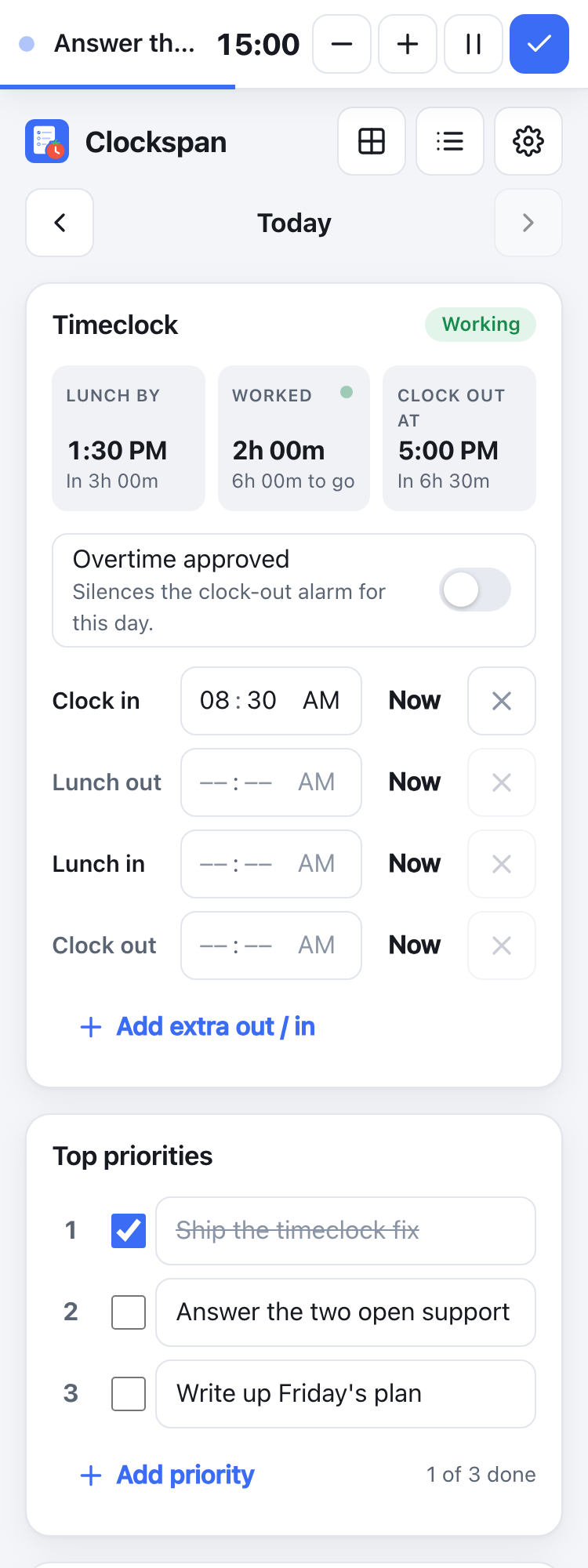
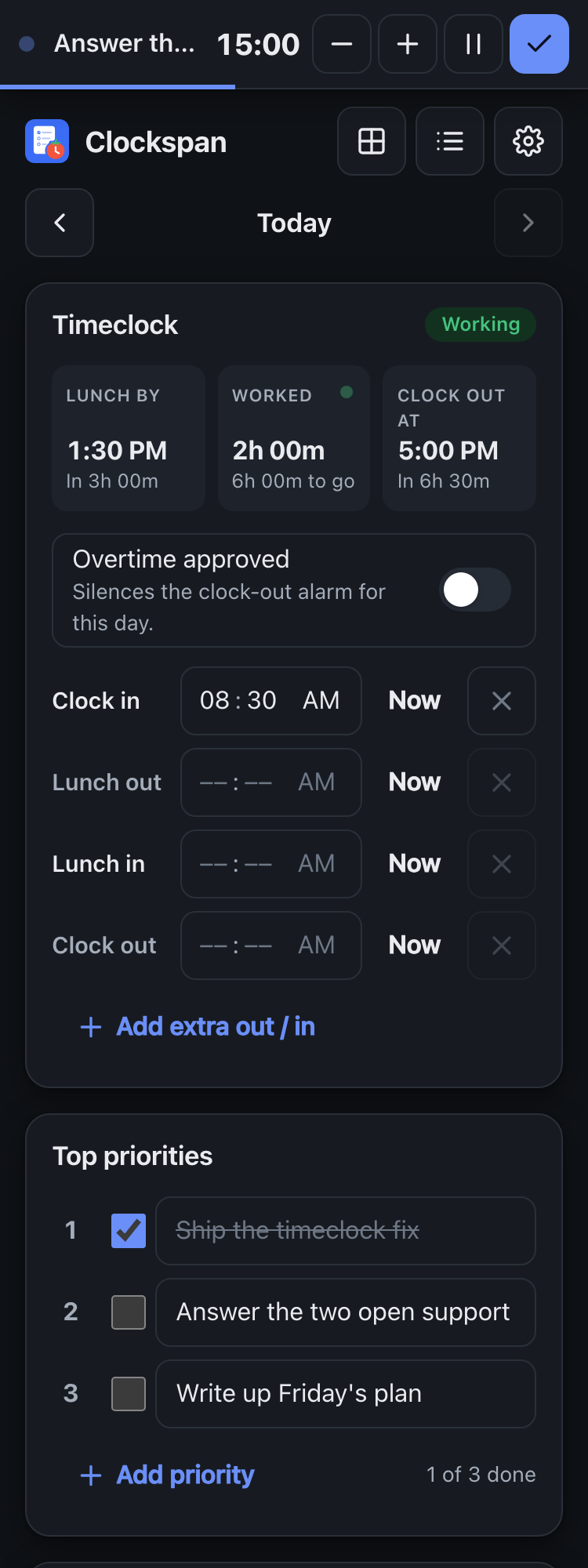
Timeclock that plans the day for you. Tap Now on Clock in and the sheet works out when lunch must start (default: within 5 hours) and when your day ends (default: 8 hours worked plus a 30-minute lunch), and re-plans if lunch runs long. Forgot to punch? Type the time. Extra out/in pairs cover appointments before or after lunch. Clocking out ends the day, early or not, with a small celebration.
A sticker chart, if you want one. Off by default. With it on, every day on the History calendar wears a little creature for each thing it did: clocked out, lunch taken, all priorities done, a focus session logged, retrospective reviewed. The legend counts them for the month and narrows the calendar to one kind.
Three priorities, on purpose. New days start with three rows (adjustable). You can add more, and the sheet asks first: the nudge changes once some rows are ticked, and again once they all are. Rows can only be ticked once they have text.
A focus timer that knows what it's for. 15, 25 or 50-minute sessions you can stretch, shorten or pause (paused time isn't logged). When one runs out it chimes and waits for you to add time or finish. Link a session to one of your open priorities, or put a new task on the plan as you start it. The running timer stays at the top of every view, and since its start time lives on the server it survives reloads and phone sleep.
Day log. Every session with its actual duration, which priority it was for (editable after the fact), and the day's total focused time.
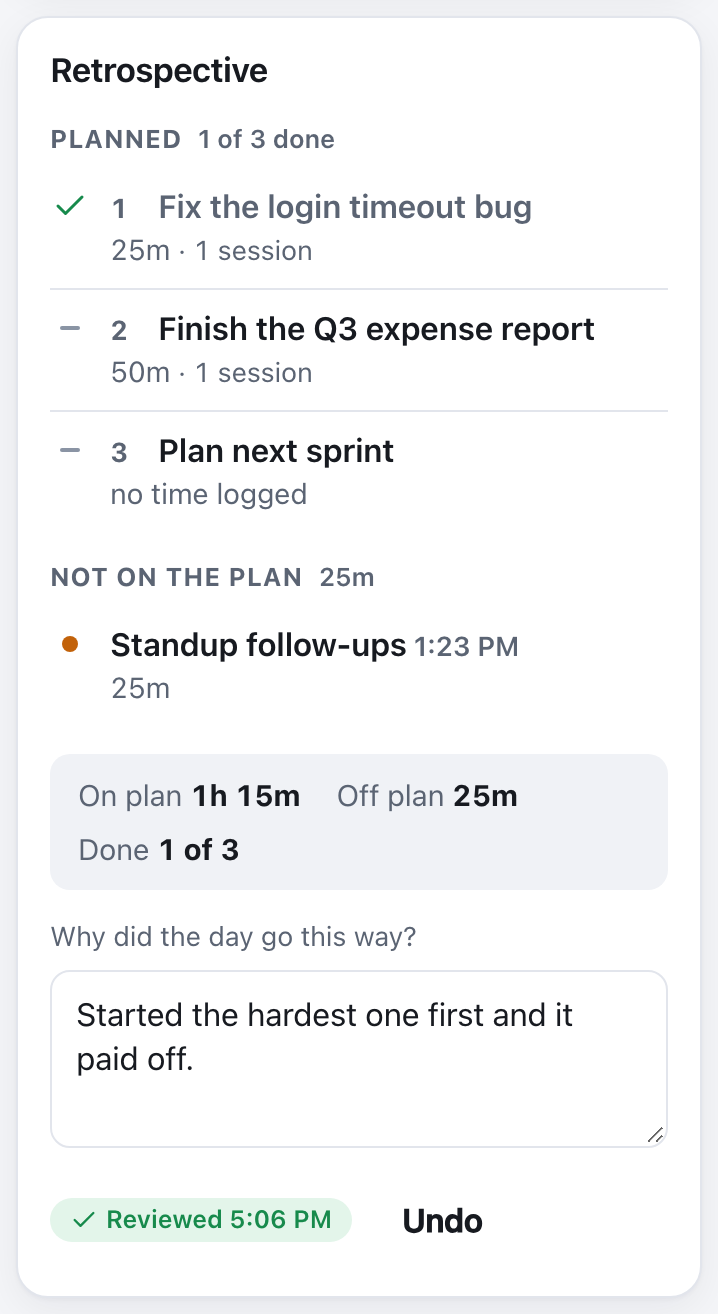
Retrospective. The plan next to what actually happened: time logged against each priority, the sessions that weren't on the plan, rows that were added mid-day, and a note on why. A reminder fires 30 minutes before clock-out (adjustable) so you write it while you still remember.
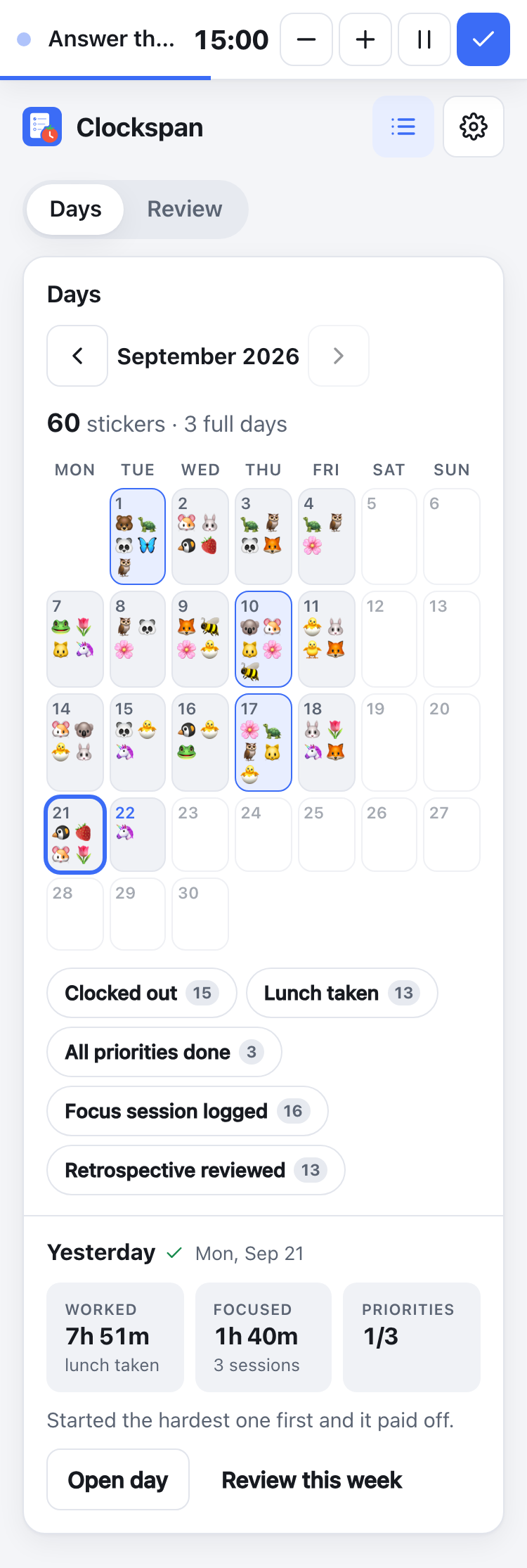
History. A month calendar with each day's hours on it (or its stickers); step back as far as your data goes. Tap a day for its worked, focused and priorities numbers and its note, then Open day or Review this week.
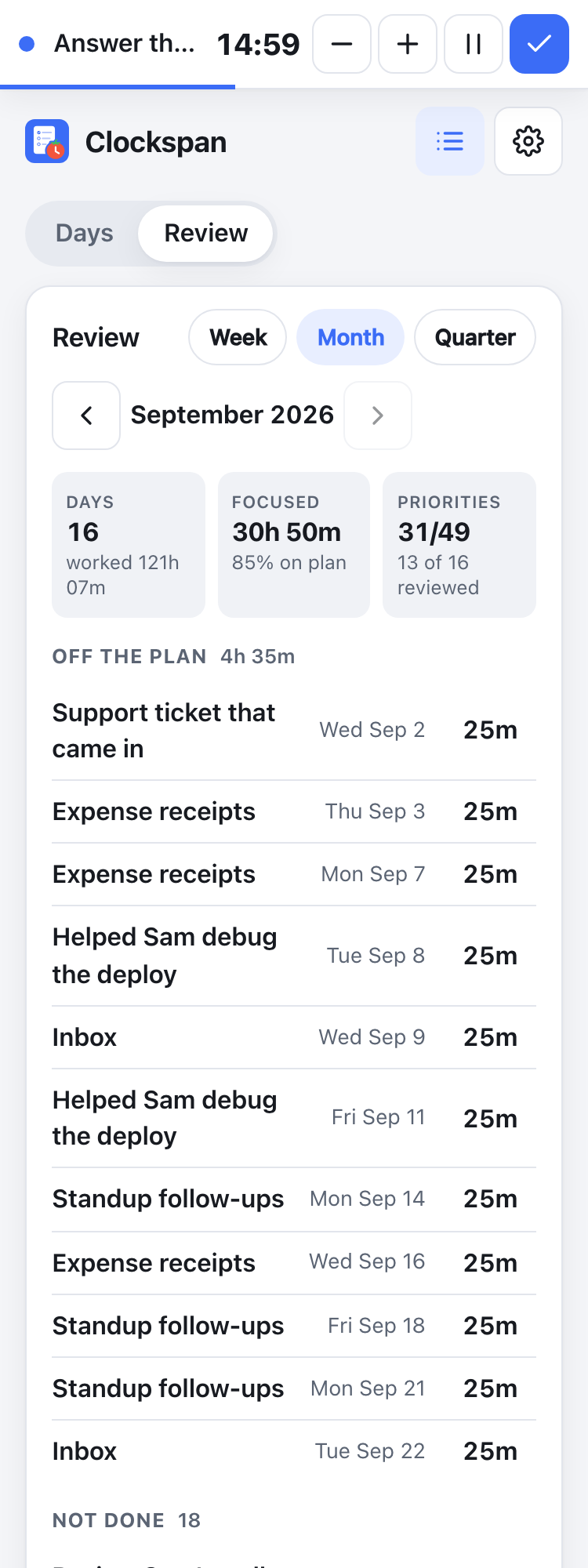
Week / month / quarter review. History → Review rolls the retrospectives up: how much focused time went off plan and to what, which priorities never got done, and every day's note. Tap a row to open that day.
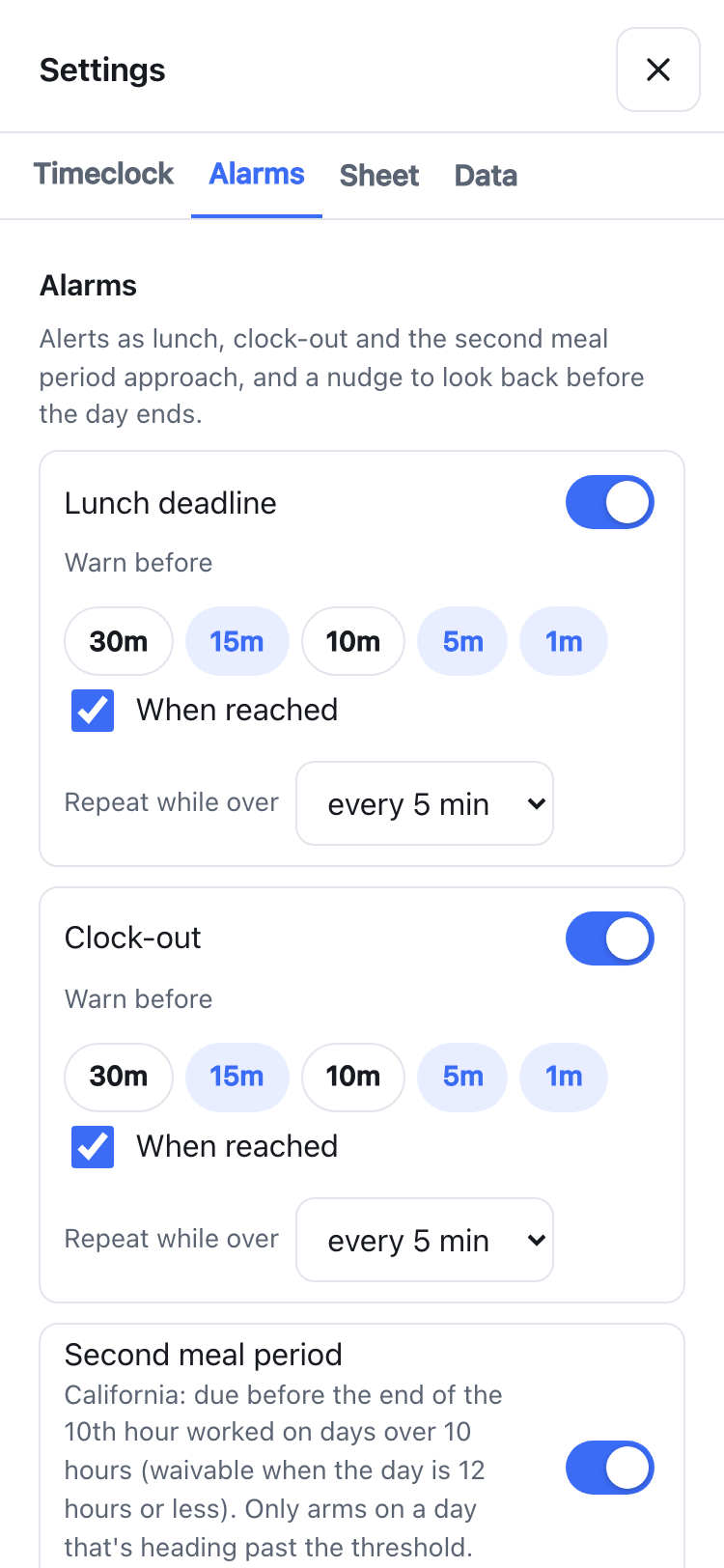
Alarms. Sound, browser notification and in-app banner as lunch, clock-out and (on long days) the second meal period approach, each with its own warn-before, when-reached and repeat rules, and a sound per kind of event. An Overtime approved switch silences that day's clock-out alarm only; meal alarms stay on.
Your data, your server. Per-user sheets, history, settings and layout. Sign-in is optional: run it open on your LAN, create local accounts, or sign in through Authentik (OIDC). Old days can be deleted by hand or pruned automatically after a number of days you choose, with an optional server-wide ceiling for admins. Cards can be reordered or hidden per user.
Phone first. Mobile layout, 44 px touch targets, installable (Android Install app, iOS Add to Home Screen), and a keep screen awake option so the countdown and chime stay live.
Run locally (for testing and development)
Requirements: Node 24 (nvm use 24 if you use nvm).
npm install
npm run dev
- Web app with hot reload: http://localhost:5173
- API: http://localhost:3000 (Vite proxies
/apiand/authto it) - Database:
./data/focus.db(gitignored). Delete the file to start fresh.
Other commands:
npm test               # unit tests (timeclock math, alarms) + API tests against an in-memory DB
npm run test:coverage  # the same, failing unless server/, shared/ and the client libs are 100% covered (CI runs this)
npm run typecheck      # client + server type check
npm run lint           # oxlint (correctness, TypeScript, React hooks and accessibility rules)
npm run format         # Prettier (CI runs format:check)
npm run seed           # fill the local database with sample days (see below)
npm run build          # production build → dist/
npm start              # serve the production build on http://localhost:3000 (PORT to change; Docker sets 8080)
Sample data
A fresh checkout has an empty database, so History, the retrospective and the week / month
/ quarter review have nothing to show. npm run seed fills ./data/focus.db with sample
days so you can try those screens without punching a fortnight by hand:
- the last ten weekdays, each with clock in / lunch / clock out punches, three or four priorities (some ticked), a few focus sessions (most linked to a priority, one not) and a retrospective note. Among them: a day with an extra break, a day worked late with "Overtime approved", a half day with no lunch, a day that was never reviewed, and one cancelled session;
- today, clocked in two hours ago with one priority done and two sessions logged.
Dates are relative to the day you run it, so the sample always lands in the current week.
Run it again whenever you want the sample back: it replaces the seeded days but leaves your
settings alone. It only writes to the local database (DATA_DIR, default ./data); it
never touches a Docker /data volume. Safe to run while npm run dev is up; reload the page.
npm run seed                      # the default set above
npm run seed -- --running         # also leave a 25-minute focus timer running
npm run seed -- --quarter         # every weekday since the start of last quarter, for the
                                  # month and quarter reviews
npm run seed -- --days 30         # a specific number of past weekdays
npm run seed -- --fresh           # also reset settings and sign everyone out
npm run seed -- --today 2026-03-02   # build the sample around another date
npm run seed -- --now 10:30       # today's clock-in and timer pinned to that time of day
Trying the auth modes locally
AUTH_MODE=local npm run dev       # first visit shows the "create account" page
AUTH_MODE=local npm run seed      # creates users "admin" (admin) and "sam", password
                                  # clockspan-dev, each with their own sample days
For OIDC you need a reachable provider; see Authentik below and run with the OIDC_* and APP_URL variables set (APP_URL=http://localhost:5173 while developing).
Docker
Images are published to GitHub Container Registry for linux/amd64:
| Tag | What it is |
|---|---|
ghcr.io/geransmith/clockspan:latest |
the newest release |
ghcr.io/geransmith/clockspan:X.Y.Z, :X.Y |
a specific release (:X.Y follows its patch releases) |
ghcr.io/geransmith/clockspan:edge |
the latest commit on main; it has passed CI and nothing else |
cp .env.example .env   # optional: sign-in mode, public URL, OIDC; without it there is no sign-in
docker compose up -d
Then open http://localhost:8080. The database is in ./data next to the compose file (DATA_PATH in .env moves it). Equivalent docker run:
docker run -d --name clockspan -p 8080:8080 -v /path/on/host:/data \
  -e AUTH_MODE=local ghcr.io/geransmith/clockspan:latest
The container drops to an unprivileged user (uid/gid 1000 by default; set PUID/PGID in .env to match the owner of the host directory) after taking ownership of /data.
To update:
docker compose pull && docker compose up -d
The database in the mounted volume is untouched. To build from source instead, docker build -t ghcr.io/geransmith/clockspan:latest . and then docker compose up -d; the local image wins over the registry.
Unraid
The Unraid template, unraid/clockspan.xml, keeps the database in /mnt/user/appdata/clockspan, runs the app as 99:100 (PUID/PGID) and serves it on port 8080. Every variable below is a field on its form: the sign-in mode is a dropdown, and the rest are under Show more settings. Fields left blank take the defaults.
If Clockspan isn't in the Apps tab yet, add the template by hand from the Unraid terminal, then pick clockspan under Docker → Add Container → Template:
wget -O /boot/config/plugins/dockerMan/templates-user/my-clockspan.xml https://raw.githubusercontent.com/geransmith/clockspan/main/unraid/clockspan.xml
Environment variables
Set these in .env (start from .env.example, which documents each one) or in the Unraid template's fields. A variable set to an empty value counts as unset, so its default applies.
| Variable | Default | Meaning |
|---|---|---|
PORT |
8080 (Docker) / 3000 (dev) |
Listen port |
DATA_DIR |
/data (Docker) / ./data |
Where focus.db lives |
AUTH_MODE |
none |
none, local or oidc |
APP_URL |
— | Public URL of the app. Required for oidc; also turns on Secure cookies when https |
TRUST_PROXY |
false |
Number of reverse proxies in front of the app (usually 1); Express string forms such as loopback or a CIDR list are passed through. Never true, which trusts any X-Forwarded-For a client sends |
COOKIE_SECURE |
derived from APP_URL |
Force session cookies to Secure on/off |
SESSION_TTL_DAYS |
30 |
Sliding session lifetime |
RETENTION_DAYS |
unset | Server-wide ceiling on history: every user's days older than this many days (30 or more) are deleted every few hours. Unset keeps everything; users can still choose a shorter limit in Settings → Data |
OIDC_ISSUER |
— | Provider issuer URL (discovery is done from it) |
OIDC_CLIENT_ID / OIDC_CLIENT_SECRET |
— | Confidential client credentials |
OIDC_SCOPES |
openid profile email |
Scopes to request |
PUID / PGID |
1000 / 1000 |
Docker only: own /data and run as this user; 0 keeps root |
DATA_PATH |
./data |
Docker only: the host directory mounted at /data. Read by docker-compose.yml, not by the app |
Auth and users
| Mode | Who can use it | Sign-in | Users |
|---|---|---|---|
none |
Anyone who can reach the port | none | one implicit user |
local |
Accounts you create | username + password | first account is admin; admin adds/removes users in Settings → Account |
oidc |
Whoever your provider admits | redirect to the provider | created automatically on first sign-in |
Each user has their own sheet, history, settings and layout.
Local mode. The first visit shows a create account page; that account is the admin. Passwords are hashed with scrypt. Change your password in Settings → Account. Forgot it?
docker exec clockspan node dist/server/cli.js reset-password <username>
# or locally: npm run reset-password -- <username>
Login is rate-limited to 5 attempts per 15 minutes per IP (set TRUST_PROXY behind a proxy so that's the real client IP). Changing your password signs out every other session.
Authentik (OIDC)
Applications → Providers → Create → OAuth2/OpenID Provider.
- Client type: Confidential
- Redirect URIs:
https://focus.example.com/auth/callback(exactly${APP_URL}/auth/callback) - Scopes:
openid,profile,email - Note the Client ID and Client Secret.
Applications → Applications → Create. Name it, pick the provider you just made, and set the slug (e.g.
clockspan). Use Policy / Group / User Bindings on this application to control who may sign in.Open the provider and copy its OpenID Configuration Issuer URL, e.g.
https://auth.example.com/application/o/clockspan/.In
.env:AUTH_MODE=oidc APP_URL=https://focus.example.com OIDC_ISSUER=https://auth.example.com/application/o/clockspan/ OIDC_CLIENT_ID=... OIDC_CLIENT_SECRET=... TRUST_PROXY=1
The app refuses to start with a clear message if any of these are missing. If Authentik is briefly unreachable at startup the app still boots and retries discovery in the background. Sign out also ends the Authentik session when the provider advertises an end-session endpoint.
Switching modes later. Data is keyed by user. Going from none to local creates a fresh admin; the old implicit user's data stays in the database. To hand it to the new account, stop the container and run the script below before the new account records a day of its own (a user has one row per date, so a date both accounts used stops the script and nothing moves). Days and their sessions move together: a session belongs to a user as well as a day. The last two statements bring the old settings along, replacing any the admin saved; leave them out to keep the admin's.
sqlite3 /path/on/host/focus.db <<'SQL'
.bail on
BEGIN;
UPDATE days     SET user_id = (SELECT id FROM users WHERE kind = 'local' ORDER BY id LIMIT 1)
                WHERE user_id = (SELECT id FROM users WHERE kind = 'default');
UPDATE sessions SET user_id = (SELECT id FROM users WHERE kind = 'local' ORDER BY id LIMIT 1)
                WHERE user_id = (SELECT id FROM users WHERE kind = 'default');
DELETE FROM settings WHERE user_id = (SELECT id FROM users WHERE kind = 'local' ORDER BY id LIMIT 1)
                AND EXISTS (SELECT 1 FROM settings WHERE user_id = (SELECT id FROM users WHERE kind = 'default'));
UPDATE settings SET user_id = (SELECT id FROM users WHERE kind = 'local' ORDER BY id LIMIT 1)
                WHERE user_id = (SELECT id FROM users WHERE kind = 'default');
COMMIT;
SQL
Using it
- Timeclock. Tap Now on Clock in when you start. The Lunch by tile counts down; punch Lunch out / Lunch in around your break, and Clock out when you leave. Clocking out ends the day, even if you left early. To enter a time by hand, click the hour and type:
0730moves through hour and minute on its own, fills in AM or PM (morning for 5–11, afternoon for 12 and 1–4; a punch after your clock-in stays after it) and saves as soon as the last part is in; pressaorp, or ↑/↓ on any part, to change it. A half-typed time is dropped when you click away, so what the row shows is what is stored. Times follow your browser's clock; Settings → Timeclock → Time format forces 12-hour or 24-hour. Need to step out for an appointment? Add extra out / in for as many pairs as you need. A pair you add before lunch is punched sits above lunch; otherwise it sits below. Your projected Clock out at accounts for everything. Came back after clocking out? Tap Add extra out / in: your clock-out time becomes that pair's Out, tap Now on its In, and you get a fresh Clock out row. The day-complete line comes with a burst of emoji and a sound, and ticking a priority gets a smaller burst: Settings → Sheet → Celebrations turns the bursts off (so does the system's reduce-motion setting), and Settings → Alarms → Sounds picks the sounds. - Top priorities. A row can only be ticked once it has text. Add priority adds a row; past three (or your configured count) it asks first, gently. With some rows ticked, the notice lists what's done and the buttons read Add anyway / Finish what's open; with everything ticked, Add a bonus / Stop here. Rows beyond your default can be removed with the ×. Settings → Sheet → Priorities → Rows per day sets how many rows a new day starts with.
- Timer. Type what you're about to do, tap 15/25/50. Or tap one of the Working on chips (your open priorities) and the session is linked to that row. New task from your manager? Type it, tick Also add to today's priorities, start: the first empty row fills in and the session is linked. The bar at the top follows you around; −5m / +5m adjust the current session, Pause stops the clock for a break (the time away isn't logged, and a pause left for an hour closes the session where it began), Finish ends it early and logs the real duration. Reaching zero chimes and the countdown goes negative while it waits: +5m keeps going, and Finish logs the planned length, or, once you are a minute or more over, asks whether to log the planned length or the time you actually worked; left unanswered for ten minutes it logs the planned length on its own. Timers keep correct time across reloads and phone sleep because the start time lives on the server.
- Day log. Rows show a small number when the session was for a priority. Tap a label to edit it, or to change which priority it was for (Unplanned unlinks it).
- Retrospective. The last card on the sheet, unless you move it. Planned is each priority with the focused time logged against it (rows written after your first session are marked added HH:MM); Not on the plan is every session without a priority. Write why the day went the way it did and tap Mark reviewed. Settings → Alarms → Retrospective controls the reminder (default: 30 minutes before clock-out; it isn't silenced by overtime approval, and marking the day reviewed clears it). The banner's Open retrospective button takes you to the card.
- Review. History → Review. Pick Week (Monday to Sunday), Month or Quarter and step back with ◀. Tiles show days and hours worked, focused time and how much of it was on plan, priorities done and days reviewed. Below: Off the plan (unplanned sessions, longest first), Not done (priorities never ticked) and Why (each day's note). Tap any row to open that day.
- Alarms. Settings → Alarms. Per alarm: warn-before chips (30/15/10/5/1 min), when reached, and repeat while over. Under Sounds, each event (a warning, a deadline reached, a repeat, the timer finishing, the day completing, a priority ticked) gets one of a few chimes or bundled clips, or none, with a Test button. The tiles turn amber when you're inside the first warning window and red when you're over.
- Second meal period. On a day heading past 10 hours worked (overtime approved, already over your target, or a target that long) the sheet shows when your 10th hour ends and alarms before it. Any break after lunch counts as taken. Adjust the threshold under Settings → Timeclock, or turn the alarm off if you've waived it.
- Overtime approved. A switch on the timeclock card, and a button on the clock-out alarm banner, that silences that day's clock-out alarm. Meal alarms stay on. If overtime doesn't apply to you, turn off Settings → Timeclock → Overtime approval and both disappear.
- About the defaults. Lunch within 5 hours, a second meal period after 10 hours worked, and keeping meal alarms on during approved overtime all follow California labor rules, because that's where the author works. Other states and countries differ. Everything is adjustable in Settings, and pull requests that add presets or rules for other places are welcome.
- Sticker chart. Off by default: turn it on under Settings → Sheet → History. Every day on the History calendar then wears a sticker for each thing it did (clocked out, lunch taken, all priorities done, a focus session logged, retrospective reviewed) instead of its hours, with the month's count on top and a day that earned all five picked out. The legend chips count each kind; tap one to show only that sticker, tap again for all of them. Today updates as you go. Hover a sticker for what it was for.
- Layout. Tap Customize to drag cards (long-press on phones), use ▲/▼, or hide a card. Hidden cards appear in a strip at the bottom while customizing. Settings → Sheet → Layout → Reset to default restores everything.
- Settings. Five tabs: Timeclock (day length, lunch, second meal, time format, overtime approval), Alarms (per-alarm rules, sound, notifications, a sound per event with a Test button), Sheet (priorities, timer, celebrations, the sticker chart and weekends on the calendar, layout), Data (old-day cleanup) and Account (local accounts only). Reset all settings, at the bottom of Data, puts every setting back to its default; days, punches and sessions are untouched.
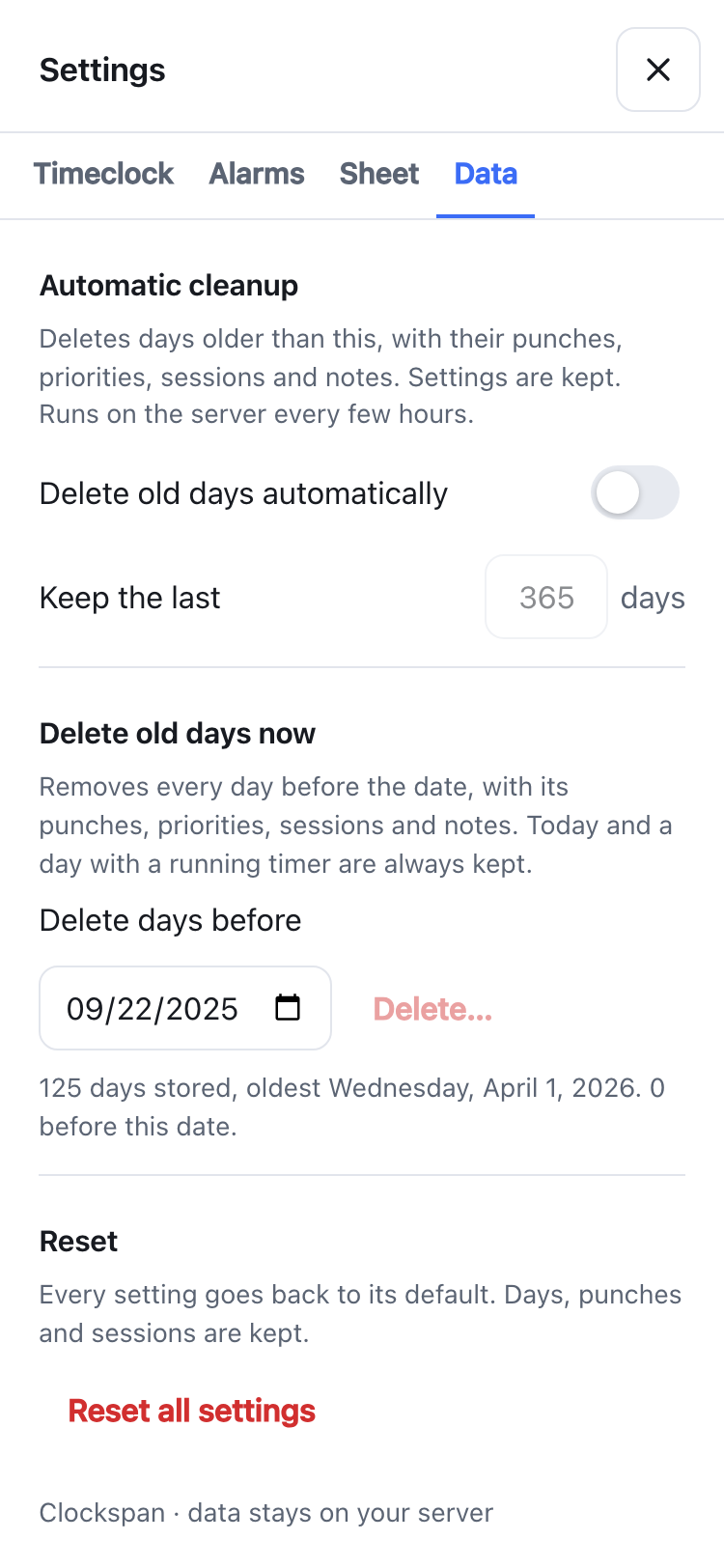
- Data. Settings → Data. Delete old days automatically keeps the last N days (30 to 3650) and drops the rest, with their punches, priorities, sessions and notes; the server checks every few hours. Delete days before a date does the same once, after showing how many days it will remove. Today and a day with a running timer are never deleted; settings are kept. If the admin set
RETENTION_DAYS, the tab says so and that ceiling applies whatever you choose. - Past days. Use ◀ ▶ or the date picker on the sheet, or History → Days: a month calendar (step back with ◀) with the hours worked on each day. Tap a day to see its worked, focused and priorities numbers, a tick once its retrospective is reviewed, and its note; Open day goes to that sheet and Review this week to that week's review. Only work here? Settings → Sheet → History → Show weekends off drops Saturday and Sunday from the calendar (and from the sticker counts); a weekend day is still reachable from the sheet's date picker. Past days are editable; timers can only start on today.
- Phone. Add to Home Screen (Android: Install app; iOS: Share → Add to Home Screen). Browser notifications on iOS only work from the installed app. Keep screen awake keeps the countdown and chime live while the app is open; if the phone sleeps anyway, the alert fires when you come back.
Exposing it to the internet
The app is built to sit behind a reverse proxy on your own domain. Before opening the port:
- Use
AUTH_MODE=localoroidc.nonemeans anyone who reaches the port owns the data; the server logs a warning at startup when it's running that way. - Terminate HTTPS at the proxy and set
APP_URL=https://your.domain. That marks the session cookieSecureand turns on HSTS. - Set
TRUST_PROXYto the number of proxies between the internet and the container, usually1. Withtrue, Express believes whateverX-Forwarded-Fora client sends, which lets an attacker dodge the login rate limit. - Finish setup first. In
localmode the first visitor creates the admin account, so do that before the proxy is open to the internet. OnceAPP_URLis https the session cookie is Secure and only an https page can keep it, so sign in through the proxy's https address (the sign-in page says so when it is opened over plain http); for a one-off LAN setup, start withCOOKIE_SECURE=falseand remove it afterwards. - Keep
/databacked up (below). WebSockets are not used, so any proxy works.
What the app does on its own: a strict same-origin Content-Security-Policy plus nosniff, frame-ancestors 'none' and Referrer-Policy on every response, and Cache-Control: no-store on every API answer; API writes that the browser marks as sent from another site are refused (this also covers AUTH_MODE=none, where there is no cookie); HttpOnly, SameSite=Lax session cookies with the token stored hashed; scrypt password hashes; a per-IP login limit; a non-root container user. It is still a small self-hosted app: keep it updated and behind the protections your proxy already gives you. Found a hole? SECURITY.md says how to report it privately.
Backups
The whole state is one file: focus.db (plus -wal/-shm while running). Either stop the container and copy the directory, or take a consistent snapshot live:
sqlite3 /path/on/host/focus.db ".backup /path/to/backups/focus-$(date +%F).db"
Deleting old days (Settings → Data, or RETENTION_DAYS) is permanent and compacts the file afterwards, so take a backup first if you might want them back.
Development notes
See AGENTS.md for the repo map, architecture rules and checklists for adding cards, settings, alarms and routes.
Every change is a squash-merged pull request with CI green; a release is a version-bump PR, and merging it builds the image, tags it and writes the release notes. The rules and the checklist are in CONTRIBUTING.md.
The bundled sounds are CC0 clips from Freesound; client/src/sounds/README.md lists each one's author and source.
The screenshots above come from npm run screenshots. It starts the dev server if one isn't running, seeds sample data with the clock pinned to 10:30, drives a local Chromium headless and writes docs/screenshots/*.png. It looks for Chrome, Chromium, Edge or Brave and otherwise fetches a Chrome for Testing build into node_modules/.cache the first time; set CHROME_BIN to force a particular browser.
Media gallery
1 / 3Install Clockspan on Unraid in a few clicks.
Find Clockspan in Community Apps on your Unraid server, review the template, and click Install. Unraid handles the Docker app or plugin setup from the published template.
Categories
Related apps
Explore more like this
Explore allDetails
ghcr.io/geransmith/clockspan:latestRuntime arguments
- Web UI
http://[IP]:[PORT:8080]/- Network
bridge- Shell
sh- Privileged
- false
Template configuration
Port for the web UI.
- Target
- 8080
- Default
- 8080
- Value
- 8080
Folder for the database (focus.db). The container takes ownership of it as PUID:PGID.
- Target
- /data
- Default
- /mnt/user/appdata/clockspan
- Value
- /mnt/user/appdata/clockspan
none: no sign-in (LAN, or behind your proxy's own auth). local: the first visit creates the admin account, and the admin adds users in Settings. oidc: sign in with Authentik or another OpenID Connect provider; needs App URL and the OIDC fields.
- Target
- AUTH_MODE
- Default
- none|local|oidc
- Value
- none
Public URL of the app, e.g. https://focus.example.com. Required for oidc, and recommended whenever you reach the app through a domain. With https the session cookie is Secure and HSTS is on. Your provider's redirect URI must be this URL followed by /auth/callback.
- Target
- APP_URL
Behind a reverse proxy (Nginx Proxy Manager, SWAG, Traefik): the number of proxies between the internet and the container, usually 1. Blank: none. Never true, which trusts any X-Forwarded-For a client sends and defeats the login rate limit.
- Target
- TRUST_PROXY
true or false forces the session cookie's Secure flag. Blank: Secure when App URL is https.
- Target
- COOKIE_SECURE
Sliding session lifetime in days.
- Target
- SESSION_TTL_DAYS
- Default
- 30
- Value
- 30
Server-wide ceiling on history, in days (30 or more): every user's older days are deleted every few hours. Blank keeps everything; users can pick a shorter limit in Settings → Data.
- Target
- RETENTION_DAYS
For oidc. Authentik: Providers → your provider → OpenID Configuration Issuer.
- Target
- OIDC_ISSUER
For oidc: the client ID from your provider.
- Target
- OIDC_CLIENT_ID
For oidc: the client secret from your provider.
- Target
- OIDC_CLIENT_SECRET
For oidc: the scopes to request.
- Target
- OIDC_SCOPES
- Default
- openid profile email
- Value
- openid profile email
User ID that owns the data folder and runs the app. 99 is Unraid's nobody; 0 keeps root.
- Default
- 99
- Value
- 99
Group ID for the same. 100 is Unraid's users.
- Default
- 100
- Value
- 100