
All apps · 0 apps

chatbot-ollama
Docker app from joly0's Repository
Overview
Readme
View on GitHubChatbot Ollama
About
Chatbot Ollama is an open source chat UI for Ollama.
This project is based on chatbot-ui by Mckay Wrigley.
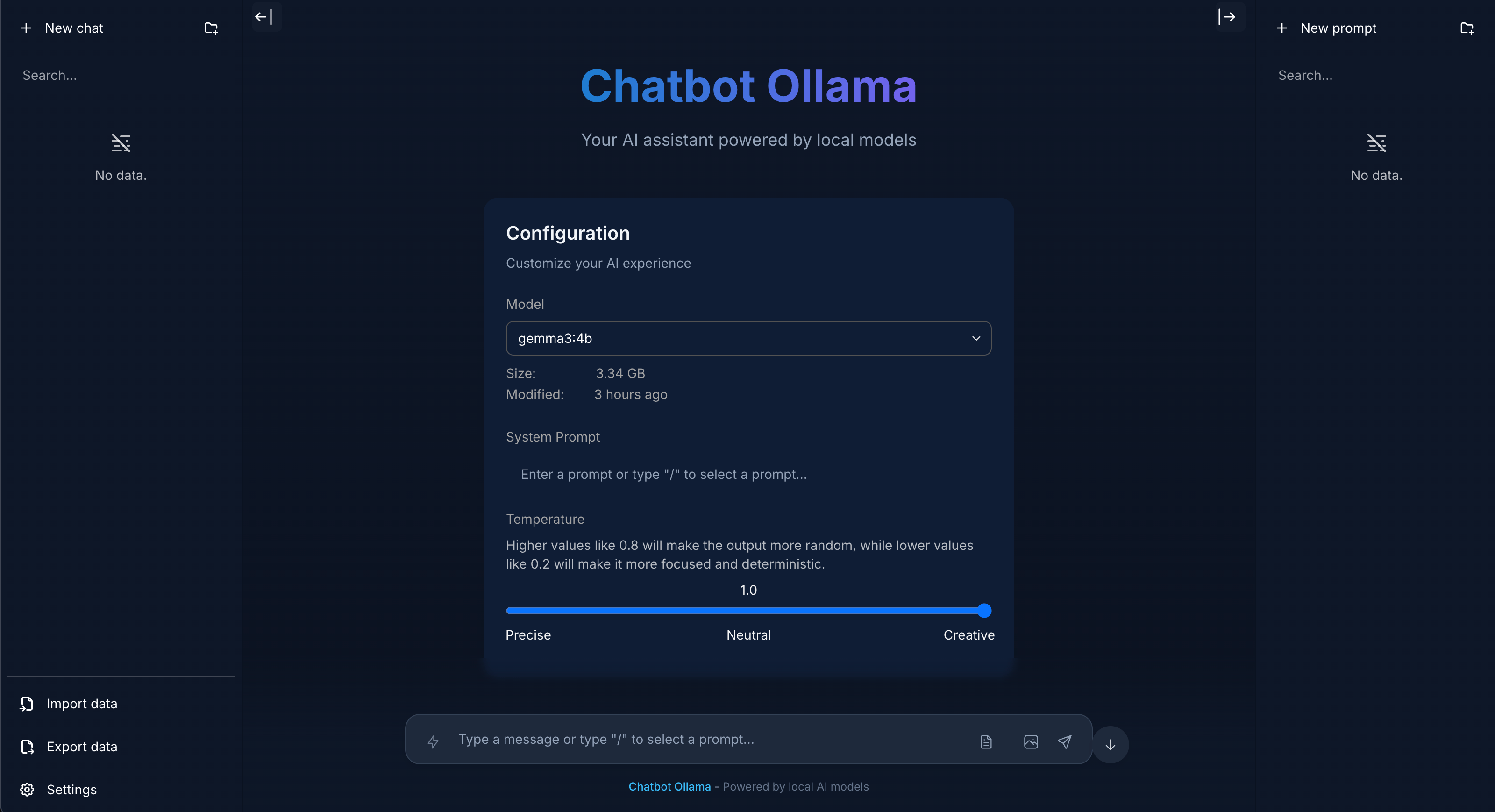
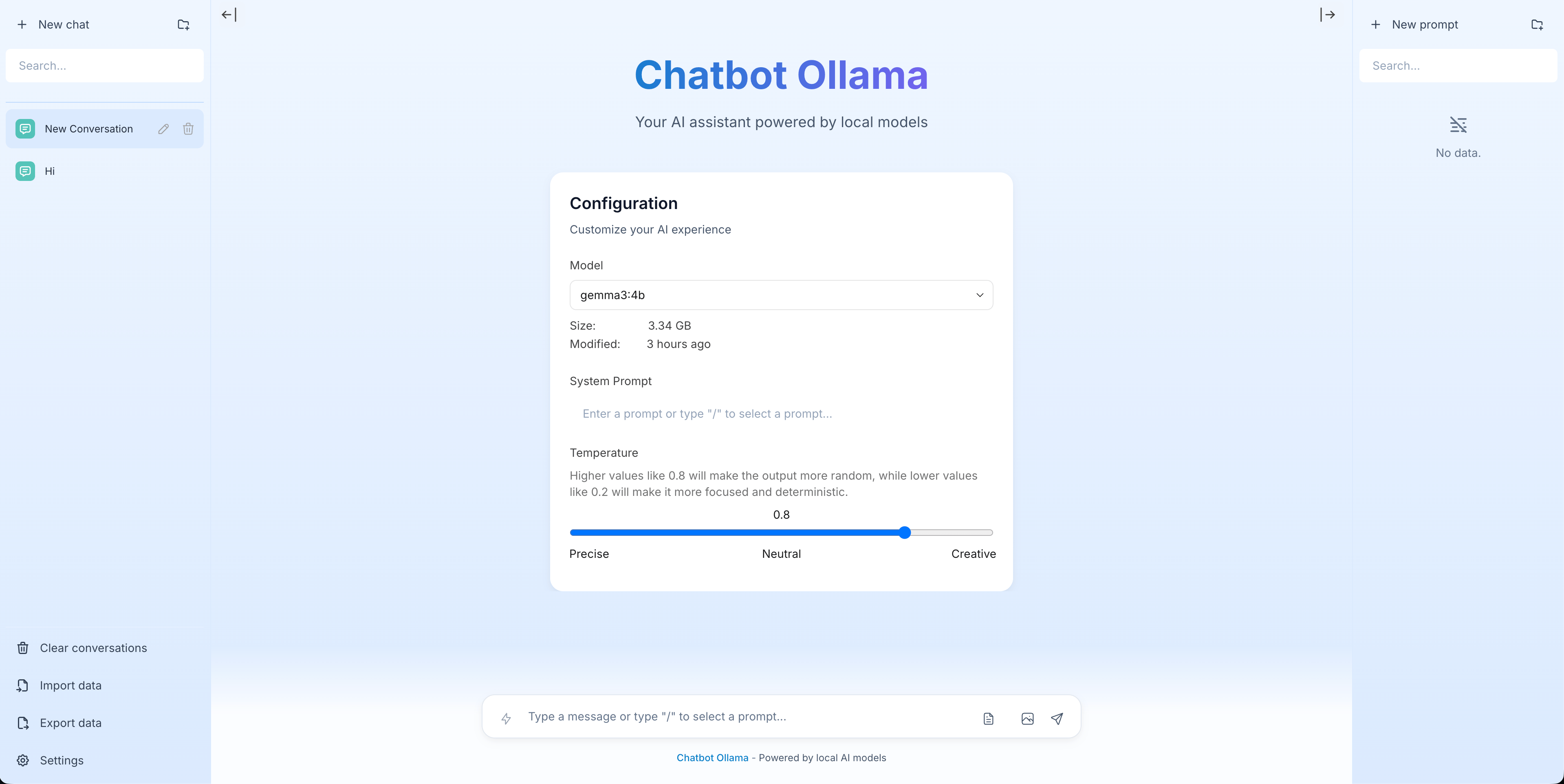
If the image does not render, place the new screenshot at
public/screenshots/screenshot-2025-09-dark.png(light version optional atpublic/screenshots/screenshot-2025-09-light.png).
Highlights (new)
- Blue theme polished for light and dark modes with consistent sidebars, headers, and overlays.
- Document upload (PDF, TXT, MD):
- PDFs parsed server‑side for reliability; text/markdown read client‑side.
- The full (truncated) content is attached invisibly to the model prompt — the UI stays clean.
- 50 MB size cap, 100 page cap (PDF), 50k characters per attachment.
- Image upload: attach images and send them to vision‑capable models (base64). Non‑vision models simply ignore images.
- Code blocks: copy button, language label, optional line numbers, line‑wrap toggle, and “download as file”.
- Streaming & control: Stop Generation button, auto‑scroll toggle (pause/resume when you scroll up).
- Keyboard shortcuts:
- Enter to send, Shift+Enter for newline
- Esc to blur input
- Ctrl/Cmd+L clears the composer
- Arrow Up recalls the last user message
- Error handling: a consistent toast shows details, Copy details, and Retry.
- Conversation tools: Copy messages button copies the whole visible conversation (with role labels and any attached content).
- Sidebar UX: search inputs are theme‑aware, prompts list matches chat list styling, improved hover/selection.
Updates
Chatbot Ollama will be updated over time.
Next up
- Model management (pull/delete)
- Model info/details dialog
Docker
Build locally:
docker build -t chatbot-ollama .
docker run -p 3000:3000 chatbot-ollama
Pull from ghcr:
docker run -p 3000:3000 ghcr.io/ivanfioravanti/chatbot-ollama:main
Running Locally
1. Clone Repo
git clone https://github.com/ivanfioravanti/chatbot-ollama.git
2. Move to folder
cd chatbot-ollama
3. Install Dependencies
npm ci
4. Run Ollama server
Either via the cli:
ollama serve
or via the desktop client
5. Run App
npm run dev
6. Use It
You should be able to start chatting.
Tips
- Attach documents via the paper icon in the composer — the content is included for the model invisibly so the chat stays uncluttered.
- Attach an image with the camera icon — vision models will “see” it; others will ignore it.
- Use the clipboard icon in the sticky header to copy the current conversation.
Configuration
When deploying the application, the following environment variables can be set:
| Environment Variable | Default value | Description |
|---|---|---|
| DEFAULT_MODEL | mistral:latest |
The default model to use on new conversations |
| NEXT_PUBLIC_DEFAULT_SYSTEM_PROMPT | see here | The default system prompt to use on new conversations |
| NEXT_PUBLIC_DEFAULT_TEMPERATURE | 1 | The default temperature to use on new conversations |
Contact
If you have any questions, feel free to reach out to me on X.
Install chatbot-ollama on Unraid in a few clicks.
Find chatbot-ollama in Community Apps on your Unraid server, review the template, and click Install. Unraid handles the Docker app or plugin setup from the published template.
Categories
Related apps
Explore more like this
Explore allDetails
ghcr.io/ivanfioravanti/chatbot-ollama:mainRuntime arguments
- Web UI
http://[IP][PORT:3000]- Network
bridge- Shell
sh- Privileged
- false
Template configuration
- Target
- 3000
- Default
- 3000
- Value
- 3000