

CannonCommander
Docker app from junkerderprovinz's Repository
Overview
Readme
View on GitHub
Build Container Docker Pulls Image Size Arch Go and Vue rclone Unraid License: AGPL-3.0
The most beautiful file manager you will ever run. Also the only one you need.
Two panels, F5 to copy, and an interface so polished you will catch yourself tidying folders just to look at it. CannonCommander runs on your server in the browser and on your desk as an app for Windows, macOS and Linux. Copies fly off as jobs in the background, deletes land in a trash first, and on a NAS it even knows which disks are asleep before it wakes them.

- Download
- Support
- What it looks like
- What it does
- How it compares
- Getting started
- Configuration
- Security
- Building from source
- How AI is used here


))
))
))

))
))
))
))
))
))
))

A one-knight job: I build it, keep it running, work through the issues and add what people ask for, until nothing is missing. It is free, with no accounts, no telemetry, no ads and no paid tier. No asterisk anywhere. Nothing readable ever leaves your own walls. Forged on evenings and weekends, with heart and stubbornness.
If it has earned a place on your server, toss a coin to your knight: it helps cover the costs and keeps the project alive. It also makes this knight's heart beat a little faster. Three ways below, whichever suits you.
))
))
))

The folders, files and keys in these pictures are made up.
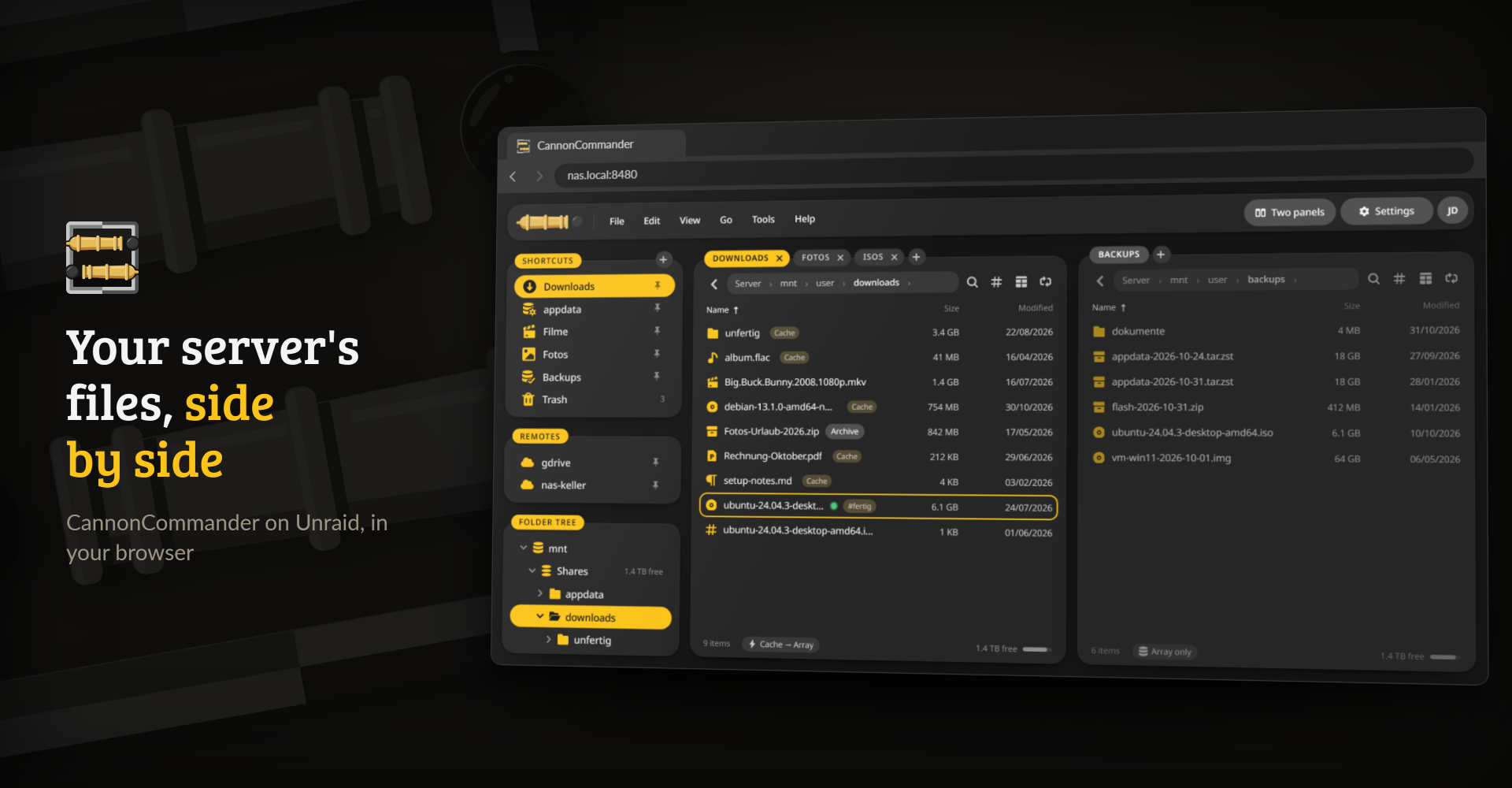
Tabs in both panels, and badges for the files that still sit on the cache.
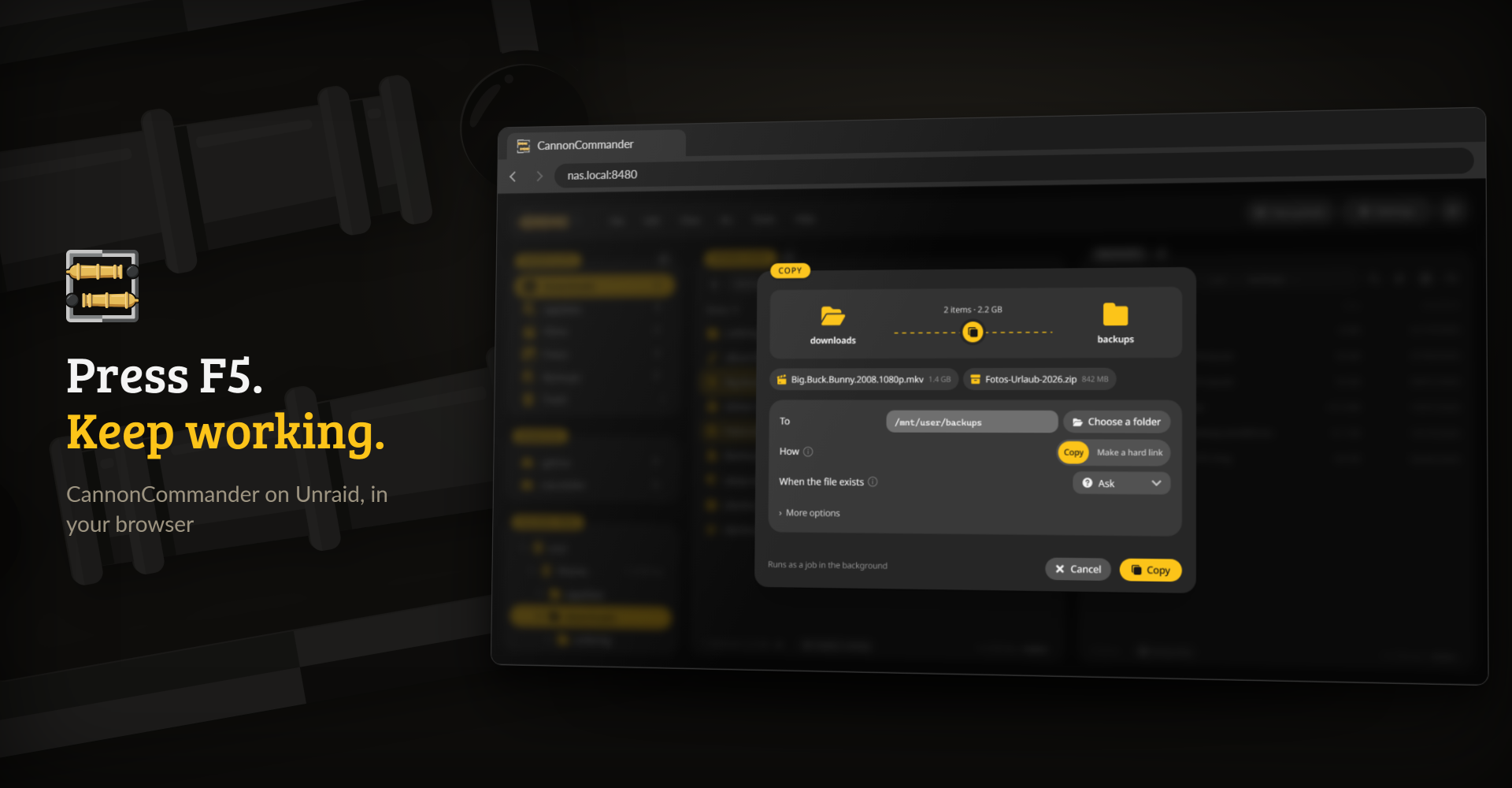
Copies run as jobs in the background, and a hard link saves the space where Unraid allows one.
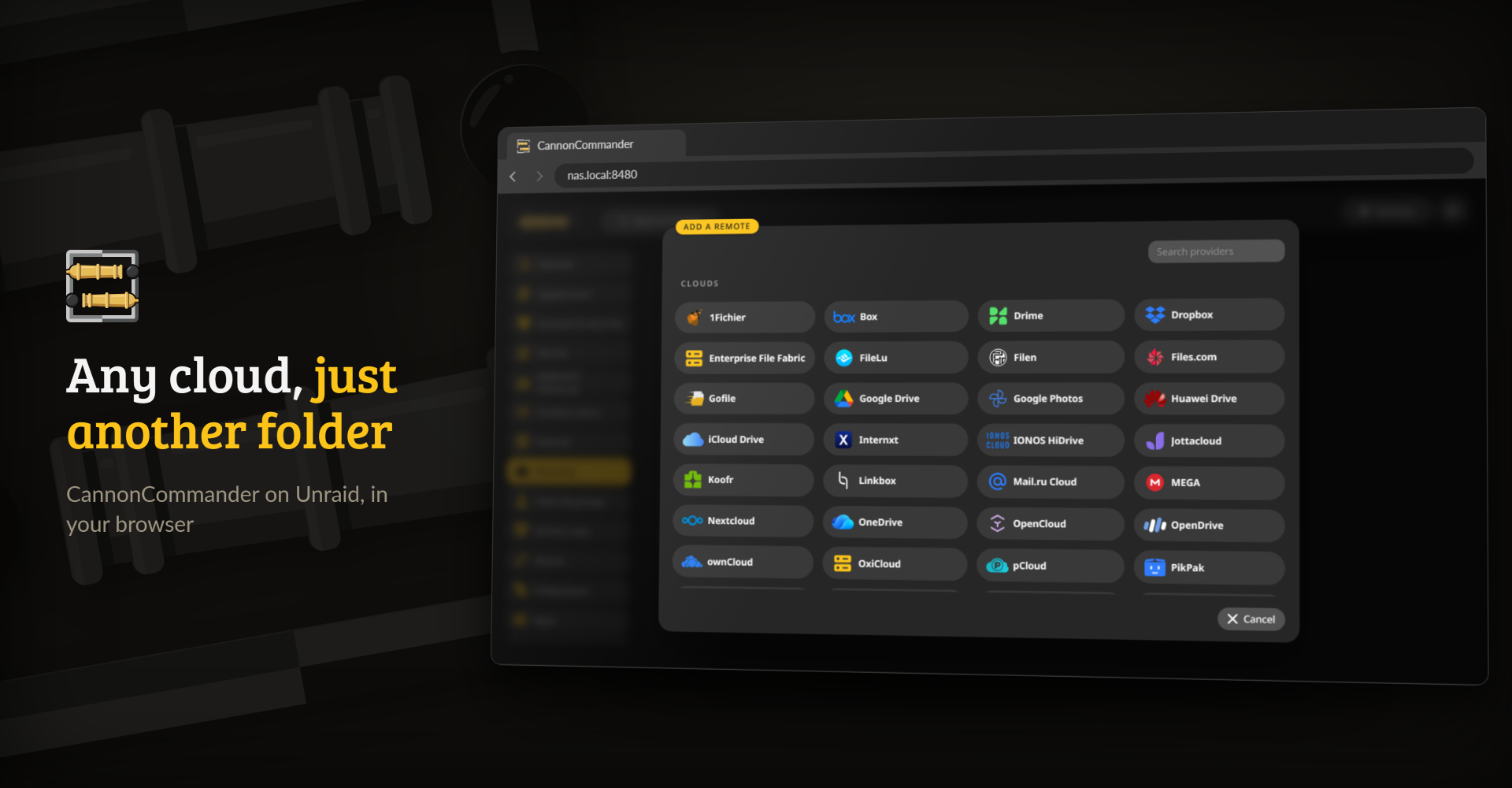
Every provider rclone speaks, browsed like a share on the server.
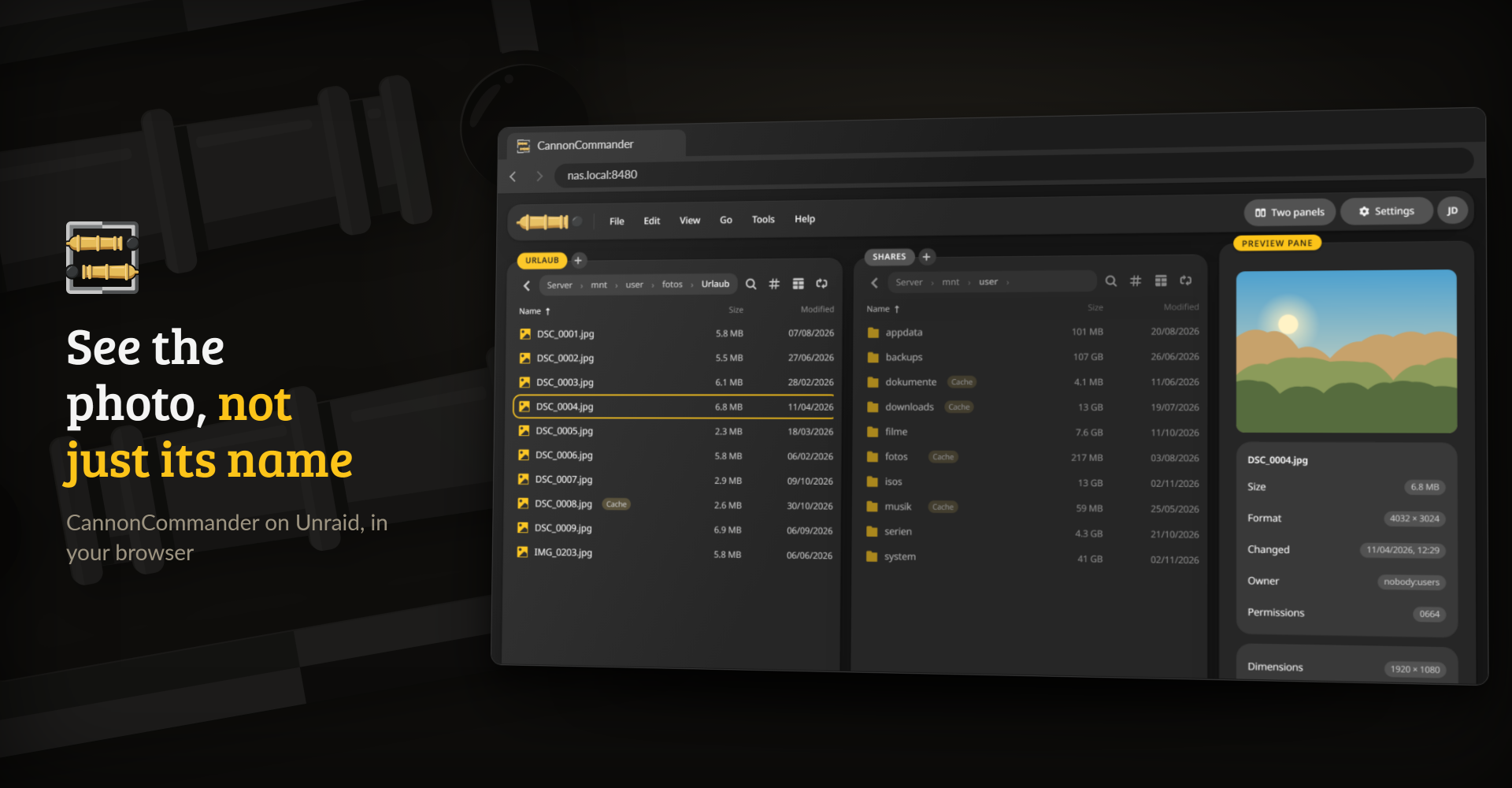
The preview pane shows the file under the cursor, with the camera data of a photo.
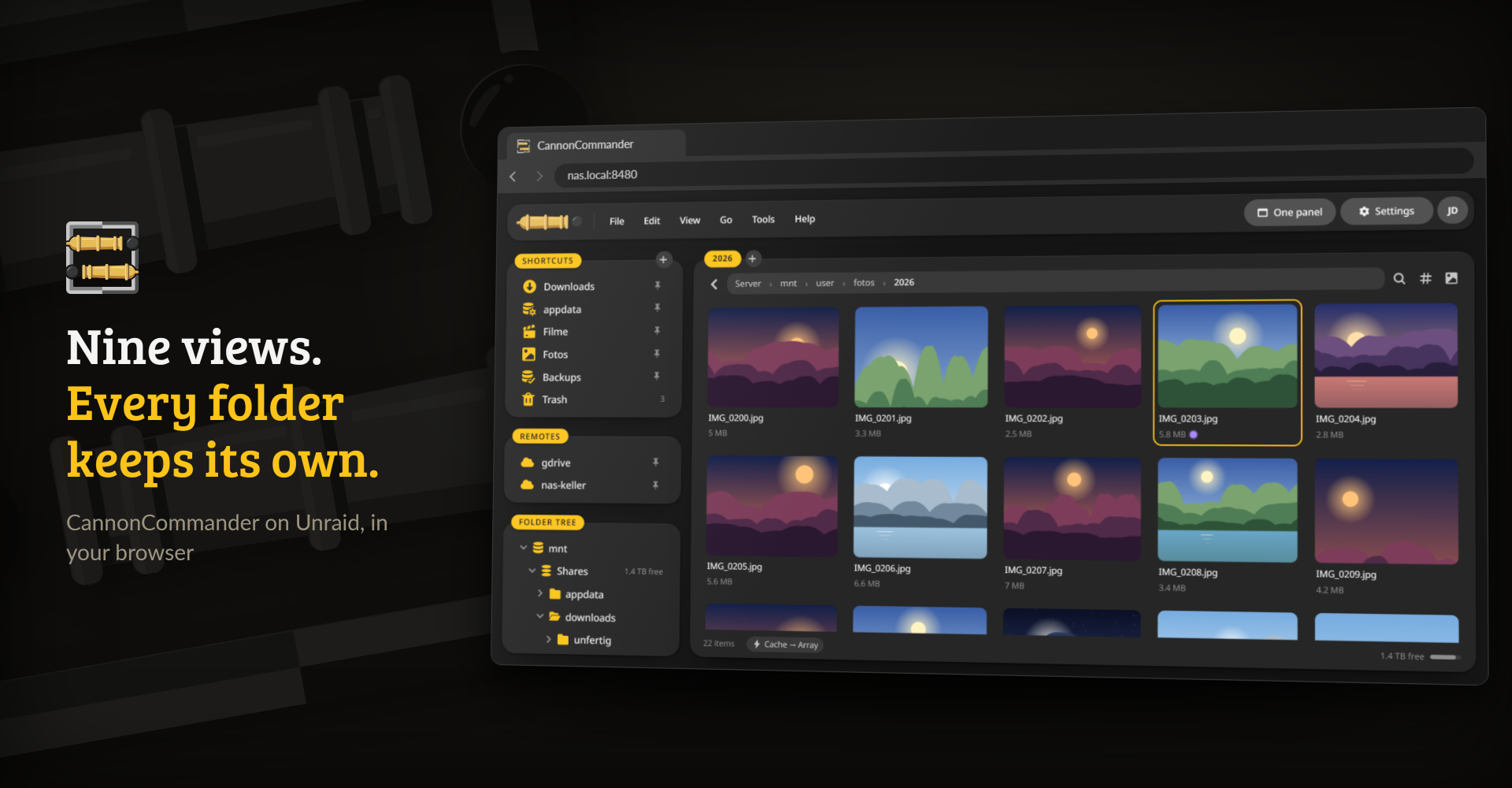
Details, columns, tiles, a gallery and more, remembered per folder.
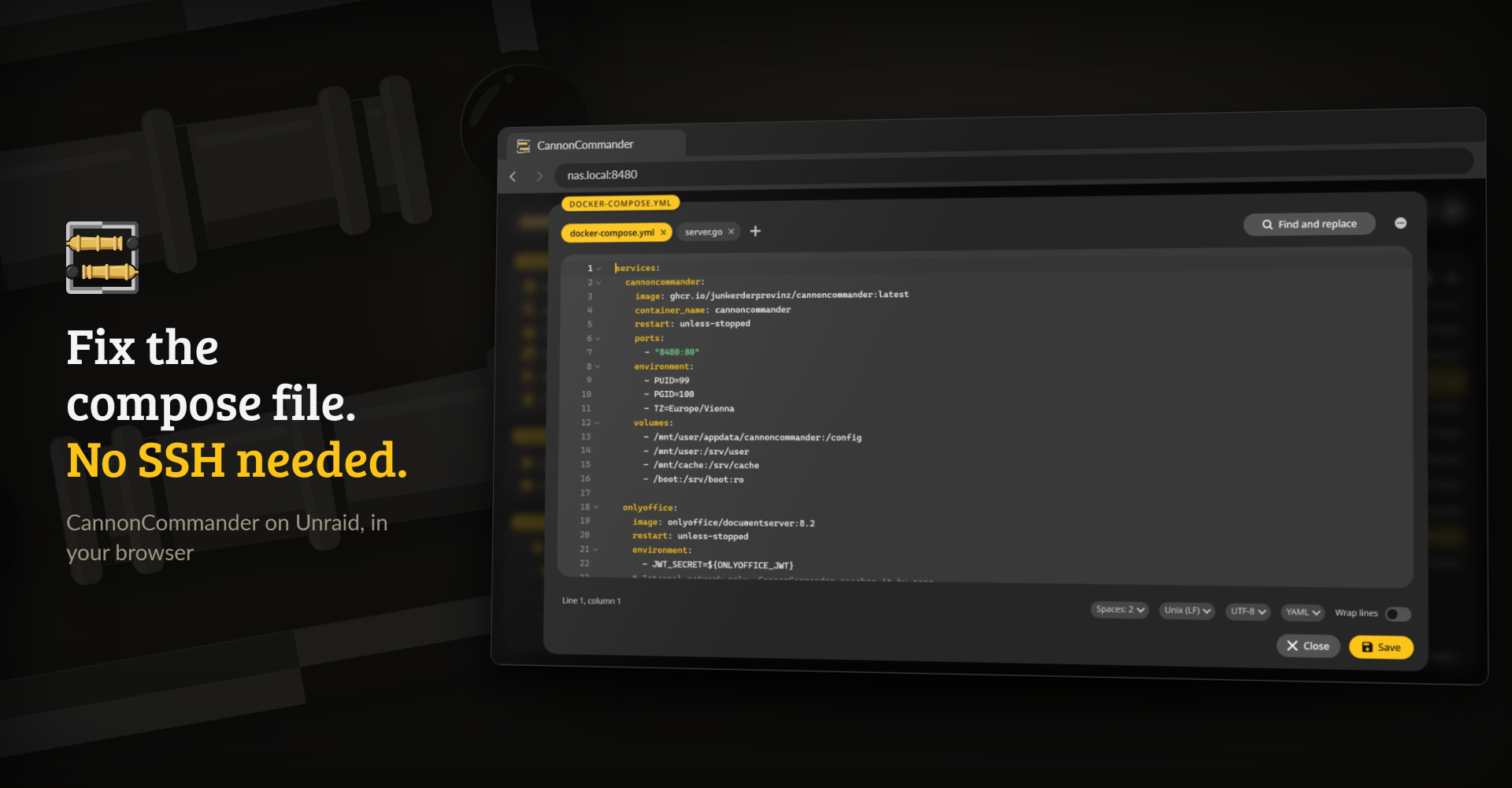
F4 opens the editor, with tabs, syntax colours and find and replace.
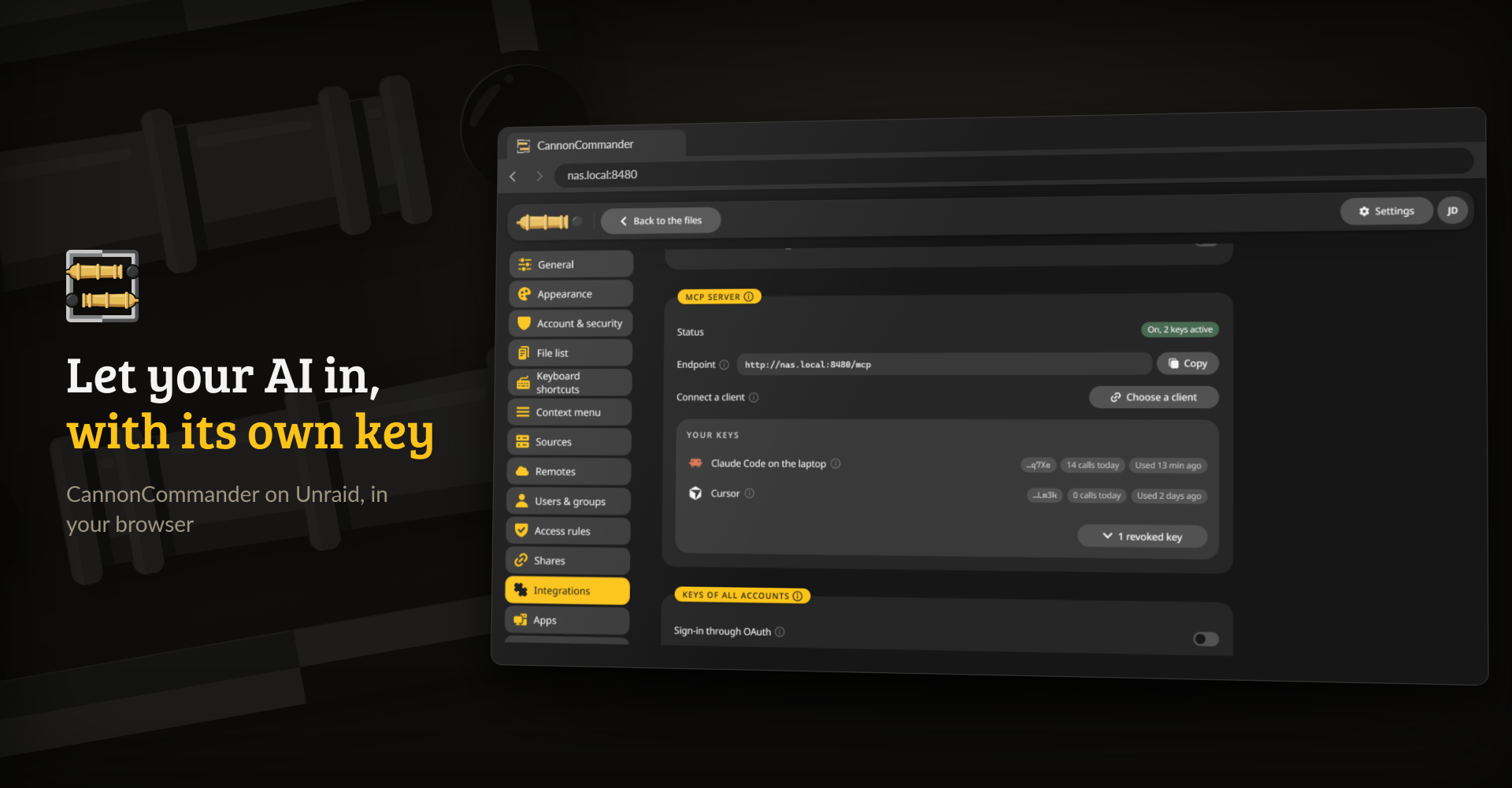
The built-in MCP server lets the AI assistants you already use work with your files, each through its own key.
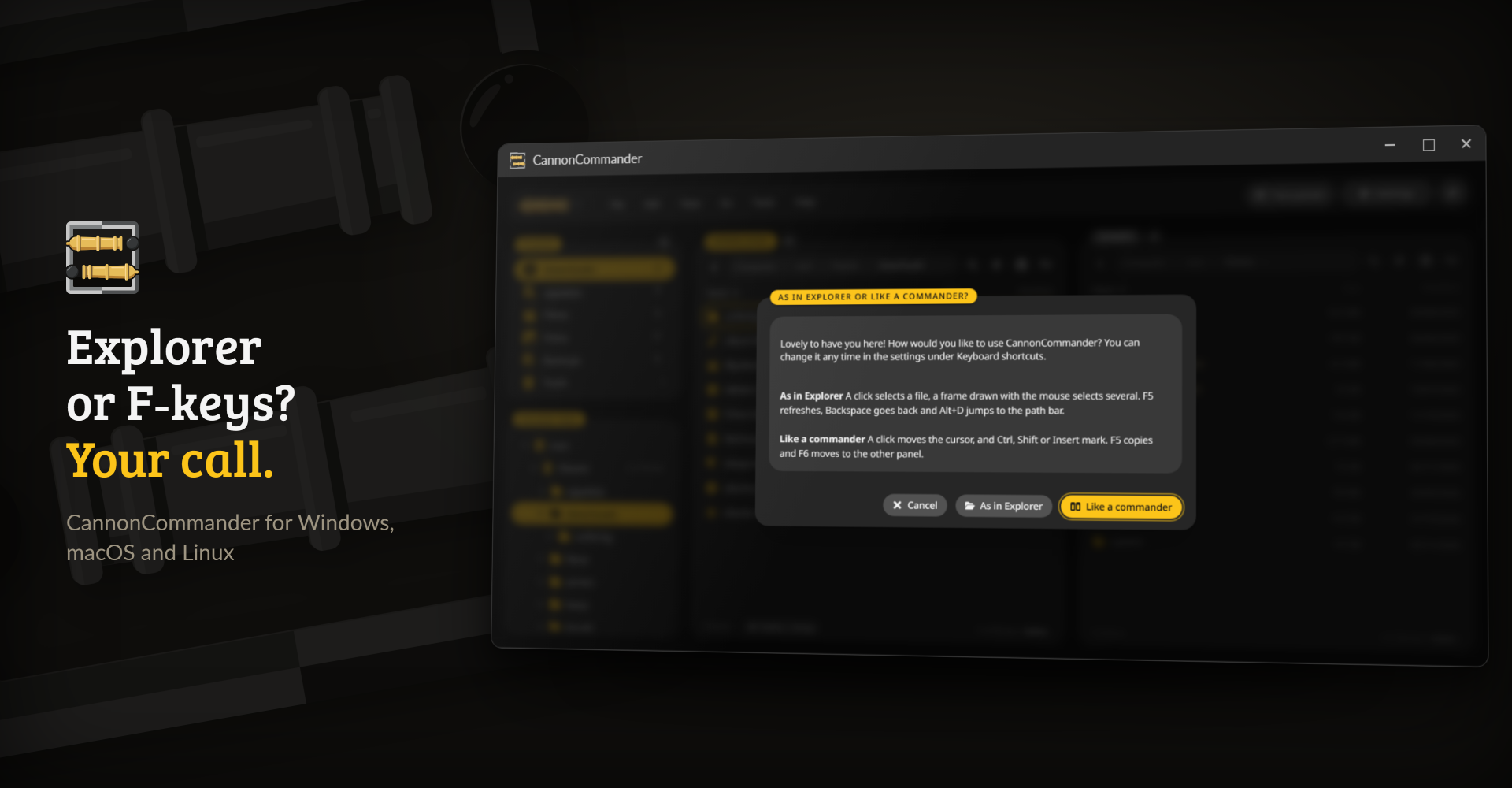
The desktop app works on your own computer and asks once how you like to work.

- Two panels and the keyboard. Tabs in both panels, a menu bar, a command search on Ctrl+K and the keys the classic commanders taught your fingers: F3 views, F4 edits, F5 copies, F6 moves, F7 makes a folder and F8 deletes. The function key bar is one switch away under View.
- Jobs in the background. Copies, moves and deletes run as jobs with speed, time left, pause and a speed limit. Each job has a rule for files that already exist, and the jobs pick up again after a restart.
- A trash and an undo. Deleted files go to a trash on the same share first, and the last actions can be undone.
- Unraid in view. Which files sit on the cache and which on the array, disk shares next to user shares, sleeping disks that a copy would wake, the parity check, hard links, and permissions set the way Unraid sets them.
- Nine ways to look at a folder. Details with 89 columns to choose from, compact, list, content, columns, tiles, large tiles, a gallery and a drives view. Quick look on the space bar and a preview in the other panel.
- Tools for the whole collection. Search by name, field or content, folder compare and sync, file compare, duplicates, disk usage as a tree or a treemap, batch rename with patterns, archives to pack, unpack and test, checksums, split and join, links and properties.
- A viewer and an editor. Pictures, video, audio, PDF, Markdown, text and code, Office files, e-books, 3D models and archives open in the browser. An Office server of your own can edit Office files.
- Remote storage. SFTP, SMB, WebDAV, S3, the big cloud drives and everything else rclone speaks, browsed like any other folder.
- Sharing. Links with a password, an expiry date and download or upload limits, for one file or a whole collection, with a QR code. A WebDAV server lets you mount your files as a drive.
- People and rules. Users, groups and rules that hide a folder or make it read only, two-factor sign-in, passkeys, API tokens and single sign-on through OIDC.
- AI assistants, with your rights. A built-in MCP server lets the AI assistants you already use browse, search and read your files, and with your say-so tidy them up.
- Colours and tags for files, saved searches, window profiles and your own key bindings.
- ArrowLoop on call. A folder pair from the comparison becomes a recurring sync job in ArrowLoop with one click.
- Looks like the rest of the house. The interface uses GlimStone, in light and dark, with your own accent colour, and speaks English and German.

CannonCommander started from the code of FileBrowser Quantum, which itself grew out of File Browser. The rows and the values for the web file managers come from the comparison chart in Quantum's README. The rows after the divider, and the Krusader and Windows Explorer columns (Windows 11 24H2), come from our own look at their documentation in November 2026.
✅ yes · ❌ no · 🟡 partly · 🚧 planned · ? not verified · n/a does not apply
| CannonCommander | Quantum | Filebrowser | Filestash | Nextcloud | Google Drive | FileRun | Krusader | Windows Explorer | |
|---|---|---|---|---|---|---|---|---|---|
| Filesystem support | ✅ | ✅ | ✅ | ✅ | ✅ | ❌ | ✅ | ✅ | ✅ |
| Linux | ✅ | ✅ | ✅ | ✅ | ✅ | ❌ | ✅ | ✅ | ❌ |
| Windows | ❌ | ✅ | ✅ | ✅ | ❌ | ❌ | ✅ | ❌ | ✅ |
| Mac | ❌ | ✅ | ✅ | ✅ | ❌ | ❌ | ✅ | 🟡 | ❌ |
| Self hostable | ✅ | ✅ | ✅ | ✅ | ✅ | ❌ | ✅ | 🟡 | ❌ |
| Has stable release | ✅ | ✅ | ✅ | ✅ | ✅ | ✅ | ✅ | ✅ | ✅ |
| S3 support | ✅ | ❌ | ❌ | ✅ | ✅ | ❌ | ❌ | ❌ | ❌ |
| WebDAV support | ✅ | ✅ | ❌ | ✅ | ✅ | ❌ | ✅ | ✅ | 🟡 |
| FTP support | ✅ | ❌ | ❌ | ✅ | ✅ | ❌ | ✅ | ✅ | 🟡 |
| Dedicated docs site | ❌ | ✅ | ✅ | ✅ | ✅ | ✅ | ✅ | ✅ | 🟡 |
| Multiple sources at once | ✅ | ✅ | ❌ | ✅ | ✅ | ❌ | ✅ | ✅ | ✅ |
| Docker image size | 258 MB (with ffmpeg, MuPDF, rclone and 7-Zip) | 180 MB (with ffmpeg) | 31 MB | 240 MB (main image) | 250 MB | ❌ | > 2 GB | n/a | n/a |
| Min. memory requirements | 128 MB (small share) | 512 MB | 128 MB | 128 MB (main image) | 512 MB | ❌ | 512 MB | n/a | n/a |
| Has standalone binary | ❌ | ✅ | ✅ | ✅ | ❌ | ❌ | ❌ | ? | n/a |
| Price | free | free | free | free | free tier | free tier | $99+ | free | included with Windows |
| Rich media preview | ✅ | ✅ | ✅ | ✅ | ✅ | ✅ | ✅ | 🟡 | ✅ |
| Upload files from the web | ✅ | ✅ | ✅ | ✅ | ✅ | ✅ | ✅ | ❌ | ❌ |
| Advanced search | ✅ | ✅ | ❌ | ✅ | configurable | ✅ | ✅ | ✅ | ✅ |
| Indexed search | ✅ | ✅ | ❌ | ✅ | configurable | ✅ | ✅ | 🟡 | ✅ |
| Content-aware search | ✅ | ❌ | ❌ | ✅ | configurable | ✅ | ✅ | ✅ | ✅ |
| Custom job support | ❌ | 🚧 | ✅ | ✅ | ✅ | ❌ | ✅ | ✅ | ❌ |
| Multiple users | ✅ | ✅ | ✅ | ✅ | ✅ | ✅ | ✅ | ❌ | ❌ |
| Single sign-on support | ✅ | ✅ | ❌ | ✅ | ✅ | ✅ | ✅ | ❌ | ❌ |
| LDAP sign-on support | ❌ | ✅ | ❌ | ✅ | ✅ | ✅ | ✅ | ❌ | ❌ |
| Long-lived API key support | ✅ | ✅ | ❌ | ✅ | ✅ | ✅ | ✅ | ❌ | ❌ |
| API documentation page | 🟡 | ✅ | ❌ | ✅ | ✅ | ✅ | ✅ | ❌ | 🟡 |
| Mobile app | ❌ | ❌ | ❌ | ❌ | ✅ | ✅ | ❌ | ❌ | ❌ |
| Open source | ✅ | ✅ | ✅ | ✅ | ✅ | ❌ | ❌ | ✅ | ❌ |
| Tags support | ✅ | 🚧 | ❌ | ✅ | ✅ | ❌ | ✅ | ? | 🟡 |
| Shareable web links | ✅ | ✅ | ✅ | ✅ | ✅ | ✅ | ✅ | ❌ | 🟡 |
| Event-based notifications | 🟡 | 🚧 | ❌ | ✅ | ❌ | ❌ | ✅ | ❌ | ❌ |
| Metrics | ❌ | 🚧 | ❌ | ✅ | ✅ | ❌ | ❌ | ❌ | ❌ |
| File space quotas | ❌ | ✅ | ❌ | ✅ | ❌ | ✅ | ✅ | ❌ | 🟡 |
| Text-based files editor | ✅ | ✅ | ✅ | ✅ | ✅ | ✅ | ✅ | ✅ | ❌ |
| Office file support | ✅ | ✅ | ❌ | ✅ | ✅ | ✅ | ✅ | ❌ | ❌ |
| Office file previews | ✅ | ✅ | ❌ | ❌ | ✅ | ✅ | ✅ | ? | 🟡 |
| Themes | ✅ | ✅ | ✅ | ✅ | ✅ | ❌ | ✅ | ✅ | 🟡 |
| Branding support | ❌ | ✅ | ✅ | ✅ | ❌ | ❌ | ✅ | ❌ | ❌ |
| Activity log | ✅ | ✅ | ❌ | ✅ | ✅ | ✅ | ✅ | ❌ | 🟡 |
| Comments support | ❌ | ❌ | ❌ | ✅ | ✅ | ✅ | ✅ | ❌ | 🟡 |
| Trash support | ✅ | 🚧 | ❌ | ✅ | ✅ | ✅ | ✅ | ✅ | ✅ |
| Starred/pinned files | ✅ | ✅ | ❌ | ✅ | ✅ | ✅ | ✅ | 🟡 | ✅ |
| Chromecast support | ❌ | ❌ | ❌ | ✅ | ❌ | ❌ | ❌ | ❌ | ❌ |
| Share collections of files | ✅ | 🚧 | ❌ | ❌ | ❌ | ❌ | ✅ | ❌ | ❌ |
| Can archive selected files | ✅ | ✅ | ❌ | ❌ | ❌ | ❌ | ✅ | ✅ | ✅ |
| Can browse archive files | ✅ | 🚧 | ❌ | ✅ | ❌ | ❌ | ✅ | ✅ | ✅ |
| Can convert documents | ❌ | 🚧 | ❌ | ✅ | ❌ | ❌ | ✅ | ❌ | ❌ |
| Can convert videos | ❌ | 🚧 | ❌ | ✅ | ❌ | ❌ | ❌ | ❌ | ❌ |
| Can convert photos | ❌ | 🚧 | ❌ | ✅ | ❌ | ❌ | ❌ | ❌ | ❌ |
| Commander features | |||||||||
| Two-pane view | ✅ | ❌ | ❌ | ? | ❌ | ❌ | ❌ | ✅ | ❌ |
| Tabs | ✅ | ❌ | ❌ | ? | ❌ | ❌ | ❌ | ✅ | ✅ |
| Function-key bar, keyboard first | ✅ | 🟡 | ? | 🟡 | ? | 🟡 | ❌ | ✅ | 🟡 |
| Folder compare | ✅ | ❌ | ❌ | ? | ❌ | ❌ | ❌ | ✅ | ❌ |
| Synchronized browsing | ✅ | ❌ | ❌ | ❌ | ❌ | ❌ | ❌ | ✅ | ❌ |
| Batch rename with patterns | ✅ | ❌ | ❌ | ? | ? | ❌ | ❌ | ✅ | 🟡 |
| Create and verify checksums | ✅ | 🟡 | 🟡 | ? | ? | ❌ | ? | ✅ | ❌ |
| Quick look on the space bar | ✅ | ? | ? | ? | ? | 🟡 | ❌ | 🟡 | 🟡 |
| Choosable list columns | ✅ | ? | ❌ | ? | ? | ? | ✅ | ✅ | ✅ |
| Thumbnail or gallery view | ✅ | ✅ | ✅ | ✅ | ✅ | ✅ | ? | ? | ✅ |
| Command search | ✅ | ? | ❌ | ❌ | ❌ | ❌ | ❌ | ? | ❌ |
| Duplicate finder | ✅ | ✅ | ❌ | ? | ? | ❌ | ? | ? | ❌ |
| Disk usage view | ✅ | ✅ | ❌ | ? | 🟡 | 🟡 | ? | ✅ | 🟡 |
| Unraid cache, array and share awareness | ✅ | ❌ | ❌ | ❌ | ❌ | ❌ | ❌ | ❌ | ❌ |
S3, FTP and the other remote protocols come through rclone. The API is described in OpenAPI files in the repository rather than on a page of the app, and notifications go to Unraid and the browser when a job ends.

Unraid
CannonCommander is on its way into Community Applications. Until it is listed there, save my-CannonCommander.xml as /boot/config/plugins/dockerMan/templates-user/my-CannonCommander.xml on your server, then open the Docker tab, click Add Container and choose CannonCommander under Template. The defaults fit a normal Unraid server, so Apply is enough to start.
Other Docker hosts
docker run -d --name cannoncommander -p 8480:80 \
  -v /path/to/appdata:/config \
  -v /mnt:/mnt \
  -e PUID=1000 -e PGID=1000 -e UMASK=022 \
  --device /dev/fuse --cap-add SYS_ADMIN \
  --cap-add DAC_READ_SEARCH --cap-add DAC_OVERRIDE \
  junkerderprovinz/cannoncommander:latest
CannonCommander shows the folders below /mnt/user, the way Unraid lays out its shares. On another server, keep your folders there or change the source in /config/config.yaml. compose.yaml does the same with docker compose up -d. Without --device /dev/fuse and SYS_ADMIN everything works except mounting remote storage.
Desktop app
CannonCommander also runs as a program on Windows, macOS and Linux, with the same interface in a window of its own. Take the installer from the download buttons above, or the zip from the releases page, which runs from any folder. On a Mac, unzip it and move CannonCommander into Applications. The app is not signed by Apple or Microsoft, so the first start may ask whether you trust it.
The panels open in your home folder. On Windows every drive is a source, on a Mac your home folder and /Volumes, on Linux your home folder and whichever of /media, /run/media and /mnt exist. Settings > Sources changes that list. The configuration, the database and the log live in a CannonCommander folder in %APPDATA% on Windows, ~/Library/Application Support on a Mac and ~/.config on Linux.
There is no sign-in. The app's server listens on 127.0.0.1 only and answers its own window and nothing else on the computer. So the settings leave out the account, users and access rules, and share links too, since they would point at 127.0.0.1. Once a day the app looks for a new release, checks the download against the release's checksums and puts it in place for the next start. You can switch that off under Settings > Info. Remote storage needs rclone on the computer, and on Windows WinFsp or on a Mac macFUSE for the mounts. The Mac and Linux builds show PDF pages as pictures, the Windows build does not yet.
First sign-in
Open port 8480 in a browser. On the first start the container writes a password for the user admin into its log, in a line that starts with Generated initial admin password. On Unraid, click the container's icon and choose Logs. Sign in with it and pick a new password of at least 12 characters. After that you can add users under Settings > Users & groups.

The container reads /config/config.yaml, which it writes with good defaults on the first start. Most settings live in the interface under Settings, and an admin can export them all from Settings > System.
Folders
| Container path | What it holds |
|---|---|
/config |
config.yaml, the database with users, settings, jobs and the index, the thumbnail cache and rclone's own configuration |
/mnt |
Your user shares, disks and pools, at the same paths as on the server. Everyone works in the user shares under /mnt/user. The disks and pools are for admins alone. Where a file lies, the other names of a hard link and moving a folder onto one disk work right away, and to browse a disk or pool, add it under Settings > Sources. On Unraid the access mode is RW/Slave, so disks and pools mounted later show up too. |
/var/local/emhttp |
Read only. Unraid's live view of the disks, pools and shares. |
/boot/config |
Read only. The settings of each share, read for placing files and for the Unraid permissions. |
User, group and permissions
| Variable | Default | What it does |
|---|---|---|
PUID |
99 |
The user the server runs as and writes new files as. 99 is Unraid's nobody. 0 runs it as root. |
PGID |
100 |
The group for new files, Unraid's users. |
UMASK |
000 |
The permission mask for new files. 000 matches Unraid's shares, so you can still change what CannonCommander writes over SMB. |
TZ |
Your time zone, such as Europe/Berlin. |
The server runs as nobody and keeps four capabilities of root, which the template sets for you:
CHOWNandFOWNERlet Set permissions the Unraid way hand files tonobody:users.DAC_READ_SEARCHlets the server read files that only root may read, such as the share settings in/boot/config.DAC_OVERRIDElets the server write where only root may write, such as Unraid's notification folder.
The file manager's own users and rules still decide what each person sees and changes.
Unraid write access
Spinning disks down and sending Unraid notifications go through files and a socket that belong to root on the server, so they are off by default. To switch them on, set CC_UNRAID_SOCKET to true and map /var/run/emhttpd.socket into the container at the same path. Notifications also need /tmp/notifications mapped at the same path. Only admins see these actions.
Remote storage
Add SFTP, SMB, WebDAV, S3, Google Drive and others under Settings > Remotes. CannonCommander starts rclone itself, keeps its configuration in /config/rclone and mounts each remote below /remotes inside the container. The mounts stay there, so neither the server nor other containers see them. For this the container needs /dev/fuse and the SYS_ADMIN capability, which the Unraid template sets for you. A provider that signs in through a browser, such as Google Drive, takes a token you make once with rclone authorize on your own computer.
WebDAV
Switch the WebDAV server on under Settings > Integrations. It answers at /dav/, with the same users and rules as the interface. Sign in with your user name and password, or with an API token from Settings > Account & security when two-factor sign-in is on.
Windows Explorer only maps a WebDAV drive over https, so for Windows put CannonCommander behind a reverse proxy with a certificate, and map https://files.example.com/dav/. macOS Finder, Linux file managers, rclone and phone apps also work over plain http on your own network.
Terminal
Admins can open a shell on the server in the folder they are looking at: type cmd, bash, terminal or powershell into the path field and press Enter, as in Windows Explorer, or pick Open terminal here from the Tools menu or the list's context menu. It is a Linux shell inside the container, bash where the image has it, running as PUID:PGID without the extra capabilities the server keeps. It stays off until you switch it on under Settings > Integrations, also when sign-in is turned off.
Think before you switch it on: whoever may open it can do on the server whatever CannonCommander's user may, past every access rule of the file manager. Only signed-in admins get one, never an API token, at most four at a time. A terminal closes after 30 minutes without typing, when the session ends and when the switch goes off. Opening and closing go into the activity log, what is typed does not. With sign-in turned off everybody who reaches the page is an admin, so switching the terminal on then gives all of them a shell.
In the desktop app the same words open your own computer's terminal in a window of its own, with no switch to turn on. On Windows cmd opens the Command Prompt, powershell Windows PowerShell, pwsh PowerShell 7 and wt Windows Terminal, and terminal opens Windows Terminal where it is installed and the Command Prompt otherwise. A Mac opens Terminal for every word, and Linux the terminal your desktop names in TERMINAL or x-terminal-emulator, else the first common one it finds.
MCP server
CannonCommander has an MCP server, so an AI assistant such as Claude Code, Claude Desktop, Cursor or ChatGPT can work with your files. Open Settings > Integrations > MCP server, pick your client and follow the three steps there: CannonCommander makes a key for it, shows the configuration to copy and turns green once the client calls for the first time. The endpoint is /mcp below the address you open CannonCommander at.
Every key belongs to one account and gets exactly that account's rights and access rules, so an assistant never sees more than its owner does. A new key only reads: it lists folders, searches and reads text files. Writing is a switch per key and asks for your password first. With it on, the assistant can create folders, copy, move, rename, move things to the trash and restore them, each change a job you can follow and undo. It never deletes anything for good, and it is held to 25 entries per call and 200 per hour. A key's log shows what it did, and the activity log names the key next to each change.
Cloud assistants such as ChatGPT and Claude on claude.ai cannot take a key. An admin can switch on sign-in through OAuth under the same card, with the public https address CannonCommander is reachable at. The assistant then sends you to a CannonCommander page where you sign in and allow it. In the desktop app the endpoint is http://127.0.0.1:<port>/mcp on your own computer, and the port can change when another program has taken it.
Reverse proxy
CannonCommander works behind Nginx Proxy Manager, SWAG, Traefik or Caddy. Three things matter:
- The proxy passes the
Hostheader on unchanged. WebDAV and passkeys check it against the address you use, and a proxy that rewrites it breaks both. - The live updates use server-sent events, so turn off response buffering for the site if your proxy buffers by default.
- Tell CannonCommander which proxy to trust and under which address it is reached, so sign-in limits see the real client address and share links point to the right place:
http:
  externalUrl: "https://files.example.com"
  trustProxyHeaders: true
  trustedProxies:
    - 192.168.1.10
For a sub-path such as https://example.com/files/, also set baseURL: "/files/" under http.
Single sign-on with OIDC
CannonCommander signs in through any OpenID Connect provider, such as Authentik, Authelia, Keycloak or Pocket ID. Create an application there with the redirect address https://files.example.com/api/auth/oidc/callback, then add it to config.yaml and restart the container:
auth:
  methods:
    oidc:
      enabled: true
      clientId: "cannoncommander"
      clientSecret: "the secret from your provider"
      issuerUrl: "https://auth.example.com/application/o/cannoncommander/"
      adminGroup: "cannoncommander-admins"
A user who signs in for the first time is created on the spot. Members of adminGroup become admins, and userGroups limits sign-in to the groups you list. The client ID and secret can also come from the variables CC_OIDC_CLIENT_ID and CC_OIDC_CLIENT_SECRET, so they stay out of the file.

CannonCommander can read, change and delete everything you map into it, so it deserves the same care as the Unraid web interface.
- Sign-in. Every visitor signs in. The first admin password comes from the log and has to be replaced at the first sign-in. Two-factor sign-in with an authenticator app, recovery codes and passkeys are under Settings > Account & security, and
enforcedOtp: trueunderauth.methods.passwordinconfig.yamlasks everyone to set it up. After five wrong passwords for one name from one address, that address waits 15 minutes. - Keep it on your network. Reach it from outside only through a reverse proxy with https, or through a VPN such as WireGuard or Tailscale.
- The data folder is locked. The database and
config.yamlin/configcannot be opened through the file manager, not even by an admin, even when/configlies inside a share you mapped. - Users and rules. Admins see everything. Everyone else stays inside an area of their own, and access rules hide a folder in it or make it read only, for one user or a whole group. The rules apply to the interface, WebDAV, share links and API tokens alike, and disk shares such as
/mnt/disk1are for admins only. - API tokens can be read only, and new tokens and passkeys ask for your password again. An admin can see and revoke the sessions, tokens and passkeys of every user.
- Unraid write access is off until you switch it on, because the emhttpd socket controls the whole array.
- The terminal is off until you switch it on, because it hands admins a shell with the rights of CannonCommander's user.
- MCP keys read until you allow writing, which asks for your password again, and the server keeps only a fingerprint of each key. An admin can see every account's keys, take writing away and revoke them.
If you find a security problem, please report it privately through GitHub's security advisories rather than in a public issue. I will get back to you as soon as I can.

You need Go (the version is in backend/go.mod), Node.js 24 with npm, and Docker for the image.
git clone https://github.com/junkerderprovinz/cannoncommander.git
cd cannoncommander
docker build -t cannoncommander -f _docker/Dockerfile .
That builds the same image the releases use, with ffmpeg, MuPDF, rclone and 7-Zip inside. To work on the code, make setup installs the tools and make run starts the server with a test configuration. Without a server, npm run dev:fixture in frontend/ runs the interface against made-up files. CONTRIBUTING.md explains the layout and the checks.
The desktop app builds on the system it is for with node scripts/desktop.mjs, and --installer adds the installer on Windows and Linux. It needs the Wails CLI in the version desktop/go.mod names and a C compiler for SQLite: MinGW on Windows, the Xcode tools on a Mac, and on Linux gcc with the GTK 3 and WebKitGTK 4.1 headers.

One knight builds this, and AI is one of the tools I work with, the same way I work with an editor or a compiler. It helps me write code and documentation and it checks my work, and that saves me a good many evenings. It does not make the decisions, though. I read and understand everything before it ships, and if something here breaks, that is on me and not on the tool.
You do not have to take my word for it. The code is open and every release note is written by hand. The issue tracker shows how problems actually get handled, including the ones I got wrong the first time. If you find something that is not right, open an issue and I will look at it.
Questions? Check the support thread. Bugs, ideas or feature requests? Please open a GitHub issue.
CannonCommander is released under the GNU Affero General Public License v3.0. It builds on FileBrowser Quantum and File Browser, both under the Apache License 2.0, whose notices are kept in NOTICE. The name CannonCommander and its logo are not part of the licence, so a fork needs a name of its own. Thank you to Graham Steffaniak and everyone who worked on File Browser before us.
Categories
Download Statistics
Related apps
Explore more like this
Explore allLinks
Details
junkerderprovinz/cannoncommander:latestRuntime arguments
- Web UI
http://[IP]:[PORT:80]/- Network
bridge- Shell
sh- Privileged
- false
- Extra Params
--restart unless-stopped --hostname=cannoncommander --cap-add=SYS_ADMIN --cap-add=DAC_READ_SEARCH --cap-add=DAC_OVERRIDE
Template configuration
The port of the web interface. Keep it on your own network. To reach it from outside, put it behind a reverse proxy with https.
- Target
- 80
- Default
- 8480
- Value
- 8480
Holds config.yaml, the database with users, settings, jobs and the index, the thumbnail cache and rclone's configuration. Nobody can open this folder through the file manager, not even an admin.
- Target
- /config
- Default
- /mnt/user/appdata/cannoncommander
- Value
- /mnt/user/appdata/cannoncommander
Your user shares, disks and pools, at the same paths as on the server. Everyone works in the user shares. The disks and pools are for admins alone, who need them to see where a file lies and to move a folder onto one disk. To browse one, add it under Settings, Sources.
- Target
- /mnt
- Default
- /mnt
- Value
- /mnt
rclone needs it to mount remote storage. Together with the SYS_ADMIN capability under Extra Parameters it lets rclone mount inside the container, and nothing on the server changes.
- Target
- /dev/fuse
- Default
- /dev/fuse
- Value
- /dev/fuse
Read only. The disks, pools and shares as Unraid sees them right now: cache or array, sleeping disks and the parity check.
- Target
- /var/local/emhttp
- Default
- /var/local/emhttp
- Value
- /var/local/emhttp
Read only. The settings of each share, where appdata and the VM disks live, and which disks belong where. Unraid keeps this folder for root alone, so the container reads it with the DAC_READ_SEARCH capability under Extra Parameters.
- Target
- /boot/config
- Default
- /boot/config
- Value
- /boot/config
The user CannonCommander runs as and writes new files as. 99 is Unraid's nobody, which every share expects. 0 runs it as root.
- Default
- 99
- Value
- 99
The group for new files. 100 is Unraid's users group.
- Default
- 100
- Value
- 100
The permission mask for new files and folders. 000 matches Unraid's shares, so you can still change what CannonCommander writes over SMB. 022 keeps new files writable for their owner alone.
- Default
- 000
- Value
- 000
Used for dates in the log and for times the server works out by itself.
- Target
- TZ
- Default
- Europe/Berlin
- Value
- Europe/Berlin
Off by default. Set it to true to let admins spin disks down from the file manager and send Unraid notifications. It also needs the emhttpd socket below, and the notifications need their folder as well.
- Target
- CC_UNRAID_SOCKET
- Default
- false
- Value
- false
Only with Unraid write access. Enter /var/run/emhttpd.socket to spin disks down. Leave it empty otherwise: this socket controls the whole array.
- Target
- /var/run/emhttpd.socket
Only with Unraid write access. Enter /tmp/notifications to send Unraid notifications when a job is done. Unraid lets only root write there, so the container writes with the DAC_OVERRIDE capability under Extra Parameters.
- Target
- /tmp/notifications