
All apps · 0 apps

cadquery_jupyter
Docker app from patrickstigler's Repository
Overview
Readme
View on GitHubJupyter for CadQuery / build123d
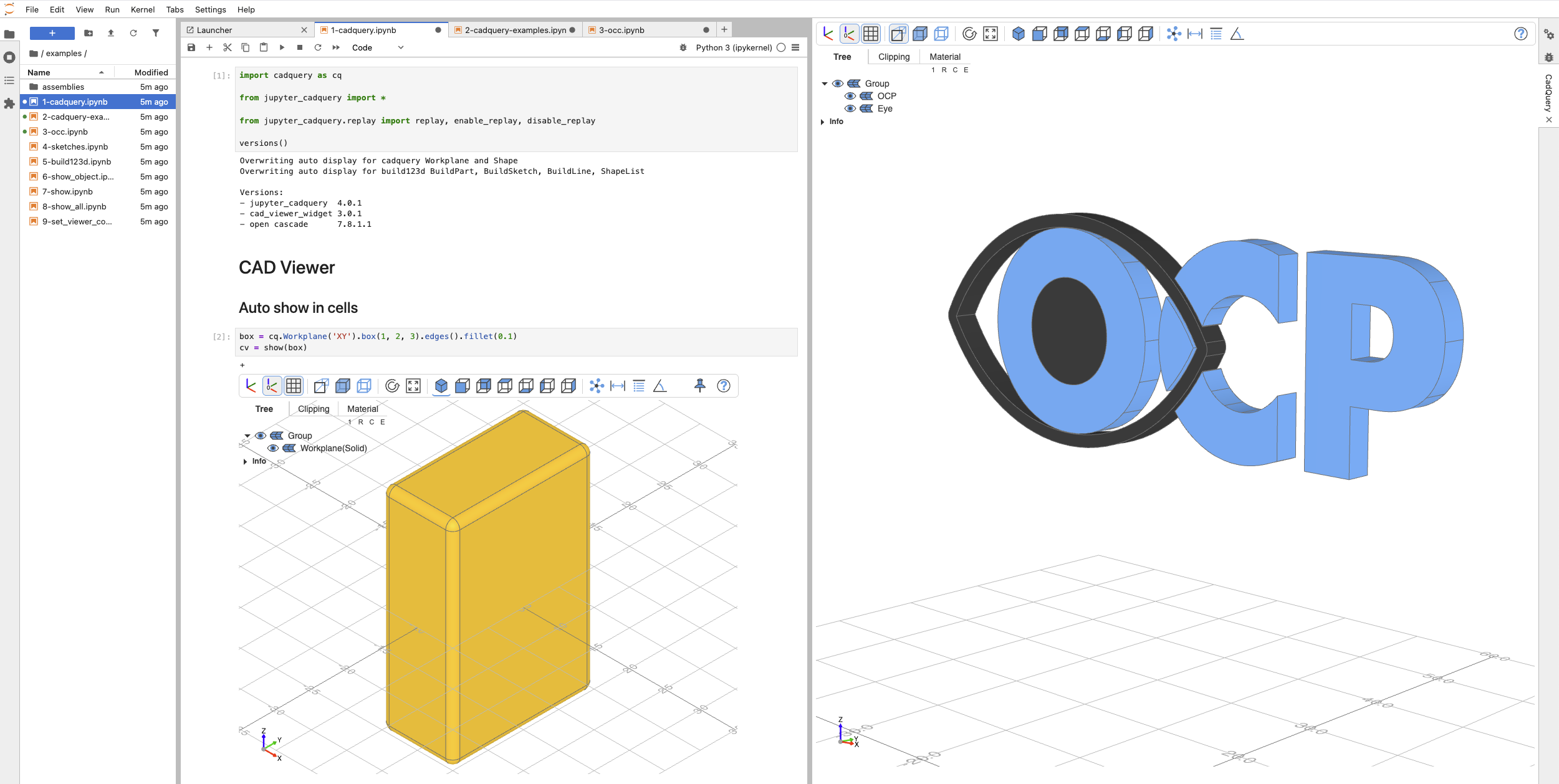
The Python package provides a Jupyterlab extension and a JupyterServer extension to view CadQuery, build123d, and OCP objects in JupyterLab
Current version: v5.2.0 (xx.xx.xx)
The full documentation lives at bernhard-42.github.io/ocp_viewer_docs — the Jupyter CadQuery chapter covers this viewer's specifics; this README gets you installed and running, and links into the rest.
Click on the "launch binder" icon to start Jupyter-CadQuery on binder:
 (Due to security restrictions, the measurement feature does not work on binder)
Installation
Note: JupyterLab 4.6.3 currently does not work with tornado 6.5.9, see here. Ensure to use tornado 6.5.8 for JupyterLab 4.6.3, e.g. pip install "tornado==6.5.8".
CadQuery
Create and activate a virtual conda environment
mamba create -n jcq python=3.12
mamba activate jcq
Install latest cadquery master
mamba install -c conda-forge -c cadquery cadquery=masterInstall Jupyter CadQuery
pip install jupyter-cadquery
build123d
Create and activate a virtual environment (conda, pyenv-virtualenv, uv, ...)
Install build123d
pip install build123dInstall Jupyter CadQuery
pip install jupyter-cadquery
Jupyter CadQuery requires JupyterLab 4 (jupyterlab>=4.6.2,<5) and installs it if it is missing. The JupyterLab extension is prebuilt and ships inside the cad-viewer-widget dependency: no jupyter labextension step, no Node.js.
Known issue: ipykernel 7.x can stall a running notebook (a cell stays at [*] with an idle kernel). Until the ipykernel release that carries the fix, install pip install "ipykernel<7" — details and the workaround in Troubleshooting.
Verify the installation
jupyter lab extension list        # must list:  jupyter_cadquery 5.2.0 OK   (the viewer frontend)
jupyter server extension list     # must list:  jupyter_cadquery 5.2.0 OK   (the measurement backend)
A line "Extension package jupyter_cadquery took N s to import" is OCP and VTK loading, not an error. On a Mac the very first run can take minutes for the same reason.
Changed behavior from 4.x
- The complete sidecar space will now be used for the viewer. For the old behaviour set
cad_widthandheight - The default for
showisreset_camera=Camera.KEEPnow (unless set in ~/.jcq_config differently).- The viewer warns if the new object is too large or too small. To disable the warnings, use
ignore_camera_warnings() - The old behavior can be achieved with
set_defaults(reset_camera=Camera.RESET)
- The viewer warns if the new object is too large or too small. To disable the warnings, use
from jupyter_cadquery import *still works. For portable code with other viewers from the ocp viewer ecosystem usefrom ocp_viewer_core.viewer import *mate_scaledoes not work any more, usehelper_scale- The viewer now remembers paths in the tree that are shown/hidden and will show/hide the same paths for the newly shown CAD object
For all new features and fixes see CHANGELOG
First run
jupyter lab
and in a notebook:
from build123d import *
from jupyter_cadquery import *

open_viewer("CAD")
show(Box(1, 2, 3))
open_viewer puts the viewer into a sidecar panel next to the notebook; without it, show draws into the cell. From here on, everything is in the documentation.
Documentation
The full documentation lives at bernhard-42.github.io/ocp_viewer_docs — the Jupyter CadQuery chapter covers this viewer's specifics; everything below is a deep link into it.
Getting started
- Overview — what it does, in pictures
- Installation
- Sidecars, windows and cells — where a viewer lives, its size, addressing one of several, managing viewers
- Best practices for configuring
Working in the notebook
- Working in the notebook — auto display, reading a pick back into Python, what the notebook remembers
- Replay — step through the calls that built a CadQuery object
- Export — a viewer as a standalone HTML page, a notebook as HTML, PNG
- Workspace Config — the settings in
~/.jcq_config
Working with the viewer
- The CAD Viewer window and mouse and keys
- Measurement tools
- Object selection tool
- Physically based rendering Studio
- ImageFace — use a 2-D image as a reference plane
Python show* commands
- Use the
showcommand - Use the
show_objectcommand - Use the
push_objectandshow_objectscommands - Use the
show_allcommand - Use the
set_viewer_configcommand
Python API reference
- Jupyter CadQuery API —
open_viewer,close_viewer,export_html,replay,get_pick, … - Additional Python API (
show_clear,save_screenshot,status, …) - Animation
- Color maps
- Enums reference (
Camera,Collapse,Render,AnalysisTool,UiTab,Studio*)
Help
Demo Notebooks
Standard examples
- A run through of many features
- Standard CadQuery examples in Jupyter CadQuery
- An OCP example (the OCC bottle)
- CadQuery Sketch support
- build123d examples
Animated examples (requires pip install cadquery-massembly matplotlib):
Changes
see CHANGELOG.md
Licence
Apache-2.0.
Download Statistics
Total Downloads Over Time
Related apps
Explore more like this
Explore allDetails
bwalter42/jupyter_cadquery:3.1.0rc4Runtime arguments
- Web UI
http://[IP]:[PORT:8888]/- Network
bridge- Shell
sh- Privileged
- false
Template configuration
Container Path: /home/cp
- Target
- /home/cq
- Value
- /mnt/user/appdata/cadquery_jupyter/
Container Port: 8888
- Target
- 8888
- Value
- 8888